Requesting Educational Products through Mission Vista Academy
Follow the instructions below to request educational products, such as pencils, textbooks, calculators, etc., to support your student's learning plan through Mission Vista Academy.
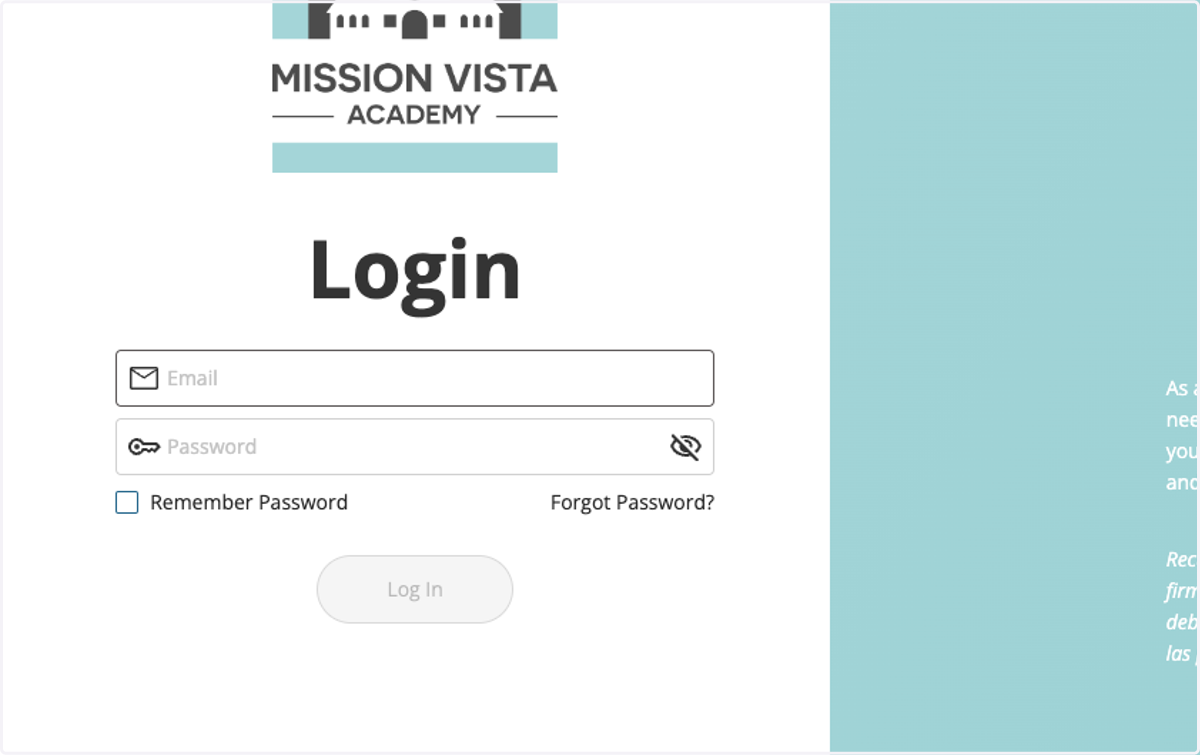
1. Log into Homeschool Hub
Once your student is fully enrolled with Mission Vista Academy (MVA), with an accepted Master Agreement and Proof of Residency (POR) documents on file, a Homeschool Hub account will be created for them.
Before requesting products through Homeschool Hub the first time each year, please read through MVA's Enrichment Guidelines, which will help you understand how the school's budgeted planning amounts work and what kinds of items the school can or cannot purchase.
The email for your account will be the parent/guardian email address that the school has on file for you.
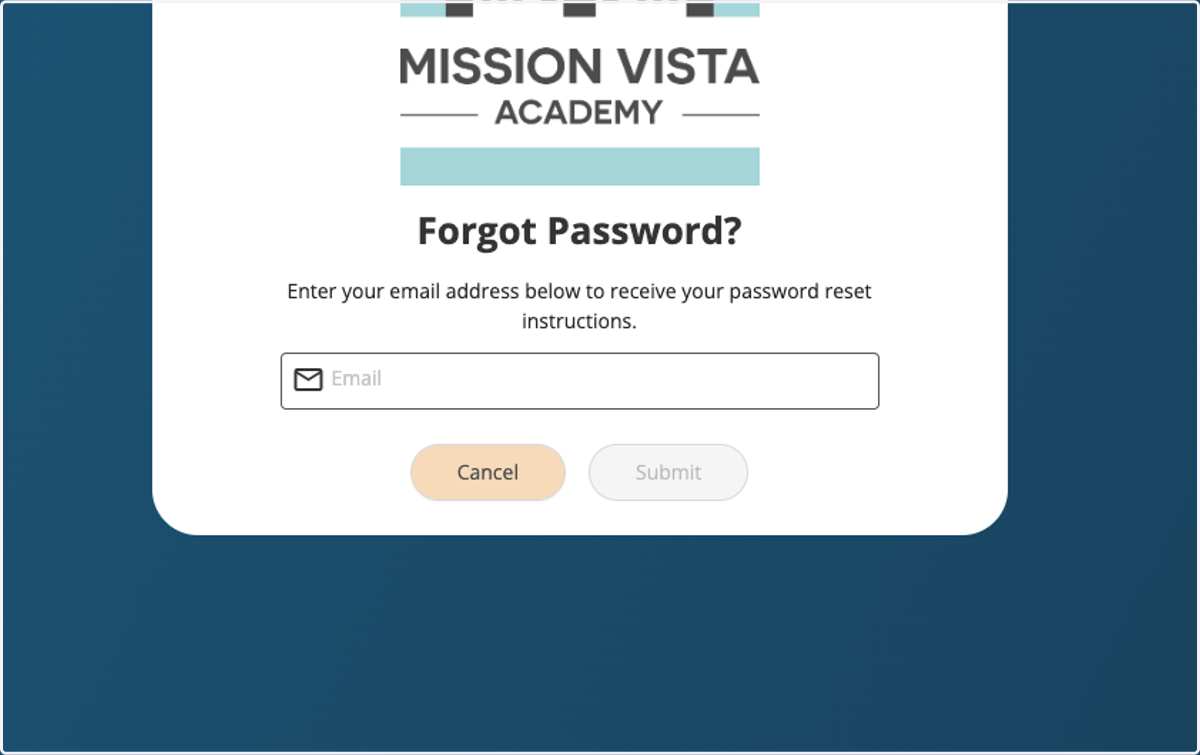
2. Not Sure of Your Password?
Click on the Forgot Password link; then, enter your email address.
The system will email a link that you can use to reset your password and gain access to your account.
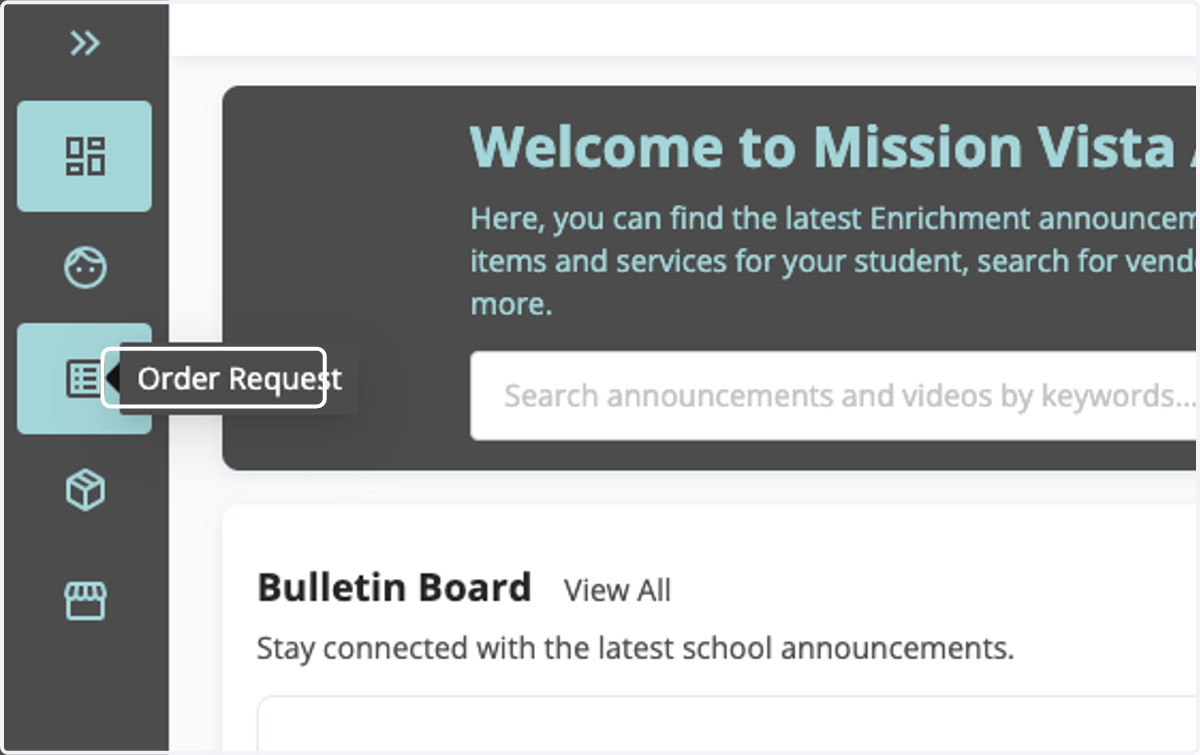
3. Click on Order Request
Once logged in, to request products, click on the Order Request icon from the left sidebar.
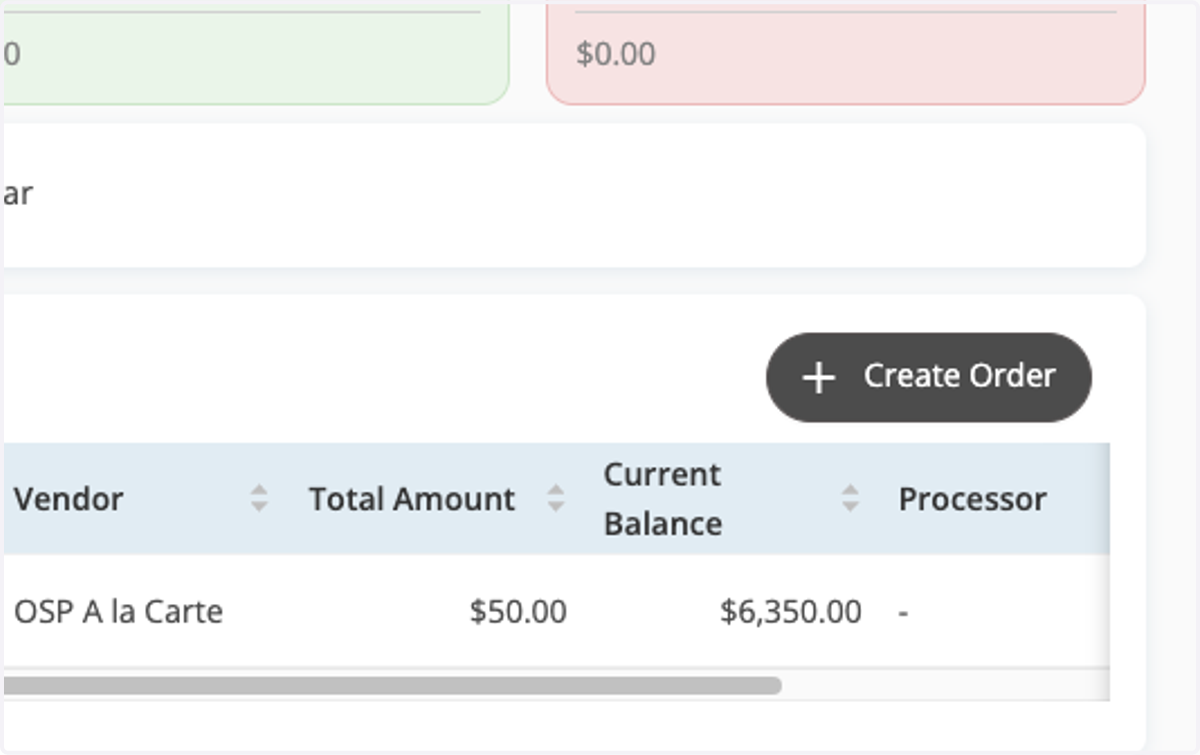
4. Click on Create Order
To request products, click on the Create Order button on the right side of the page.
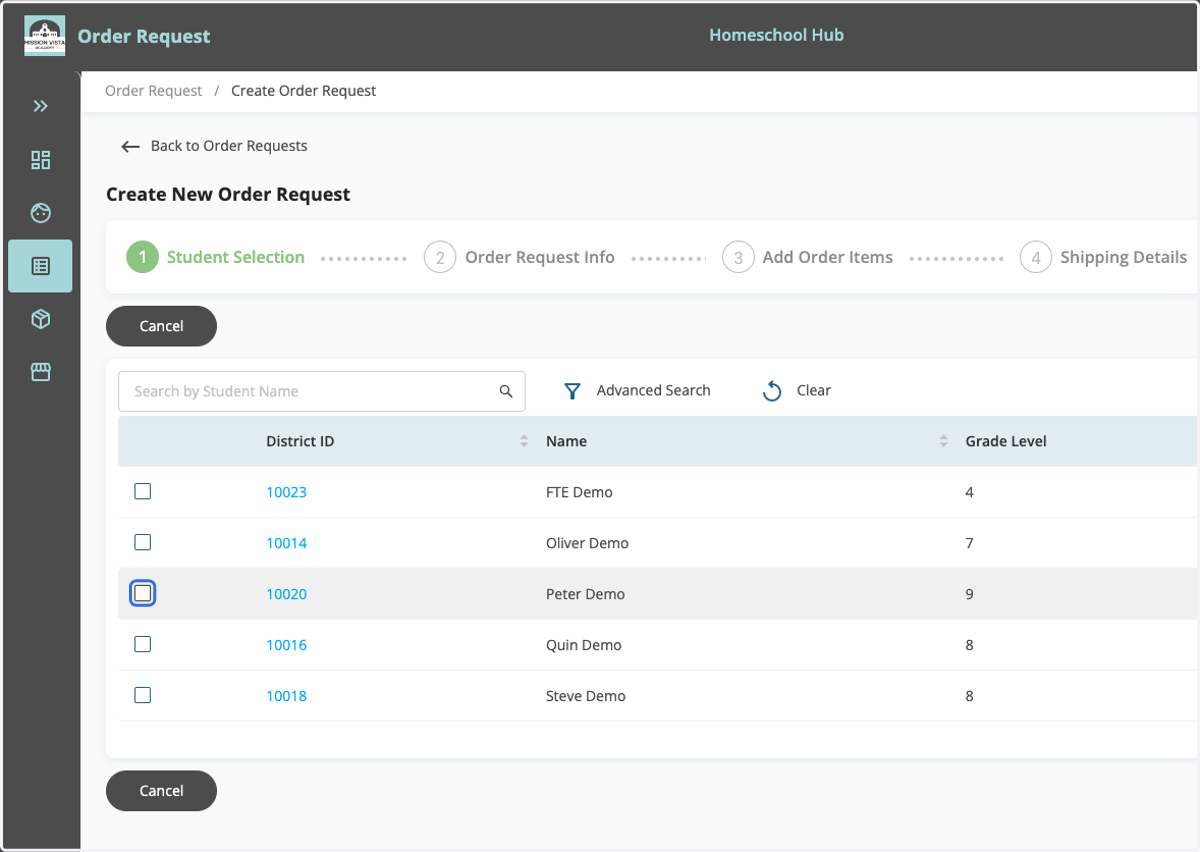
5. Select Student
Mark the checkbox next to the student, for whom you wish to request materials.
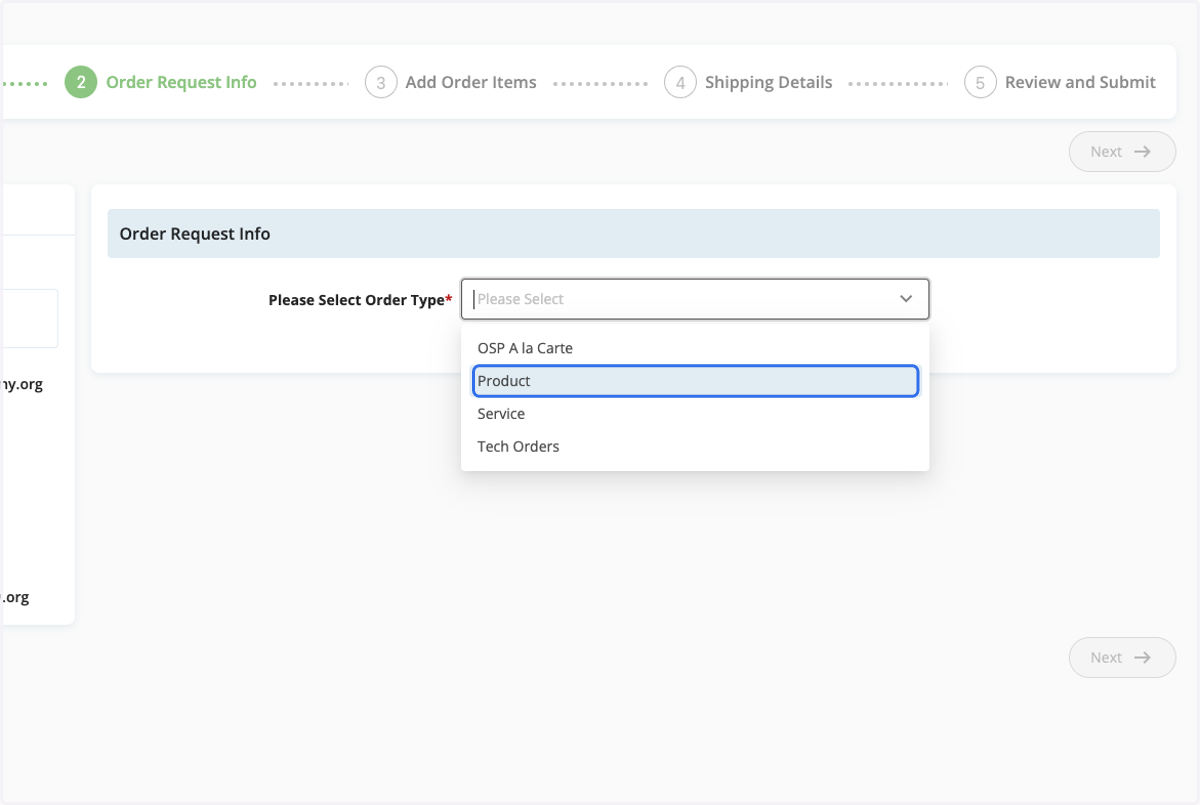
6. Select Product as the Order Type
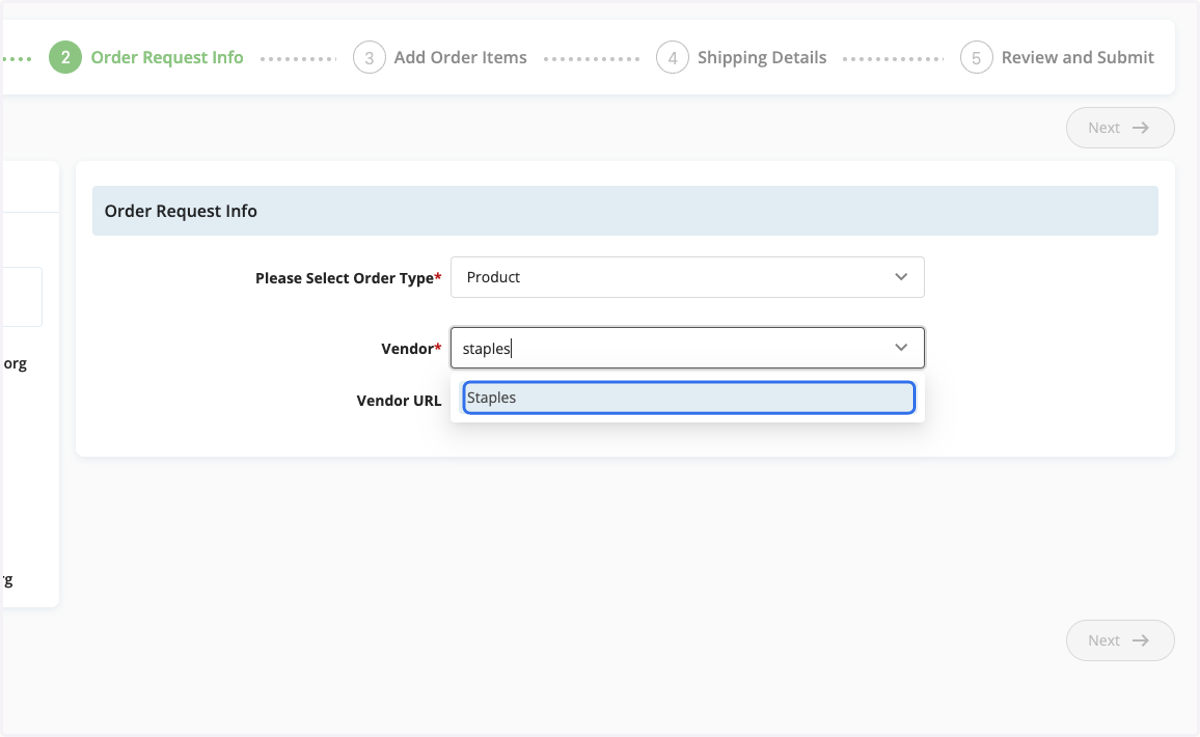
7. Type the Name of the Vendor
The School is able to purchase educational products from many vendors, so long as the requested materials fall within the School's Enrichment Guidelines. Product vendors are not required to be listed as "approved" in Homeschool Hub in order for the school to purchase from them.
Select the name of the vendor once it populates.
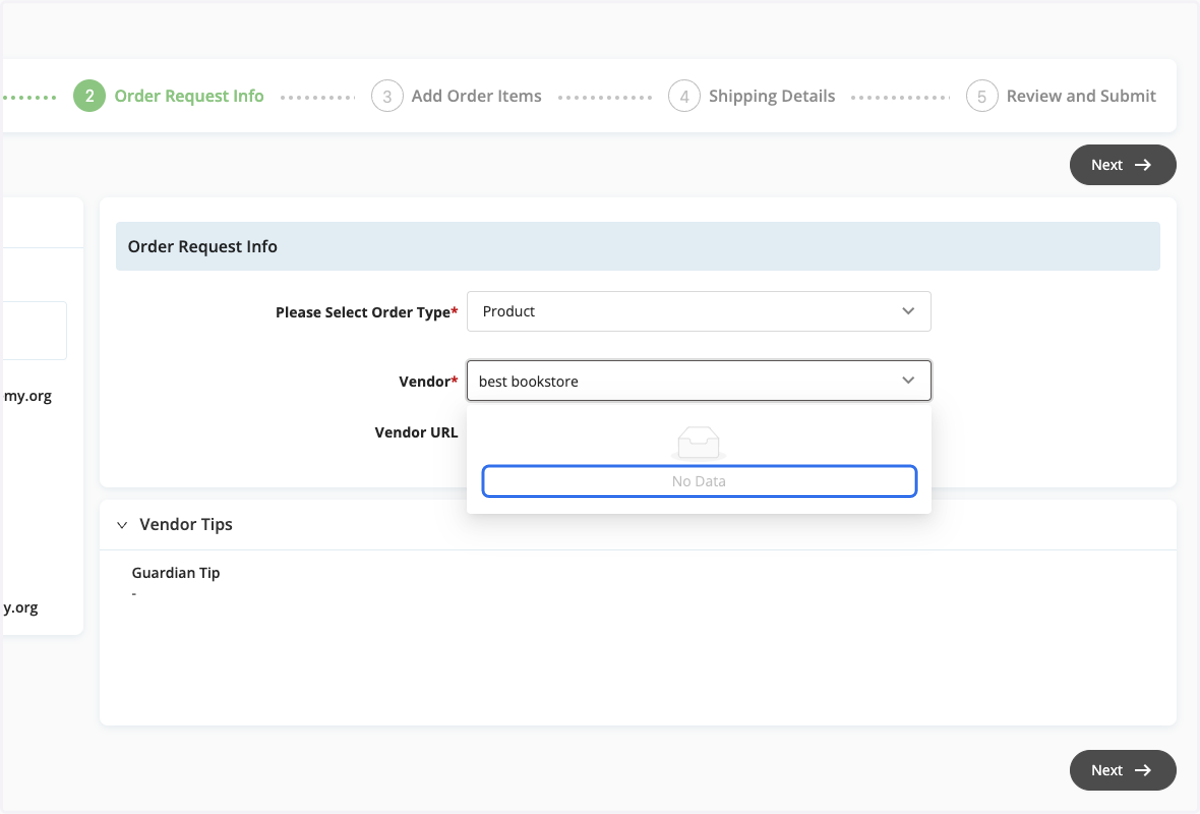
8. Vendor Not Listed
Sometimes, the vendor you wish to request materials from is not listed in Homeschool Hub as an approved product vendor. If that is the case, proceed to the next step.
9. Select Other Vendor
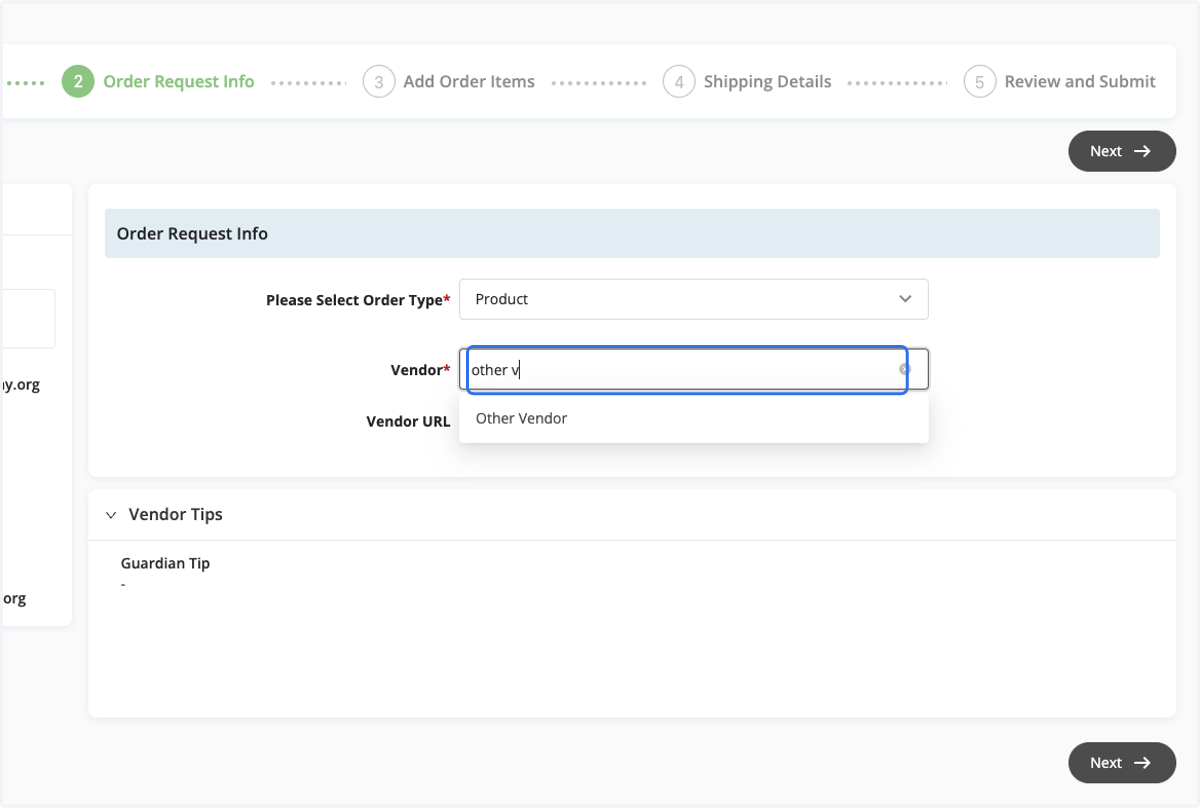
If your requested vendor is not listed as an approved product vendor in Homeschool Hub, type Other Vendor in the Vendor search bar, and select the Other Vendor option.
10. Manually Add Vendor Information
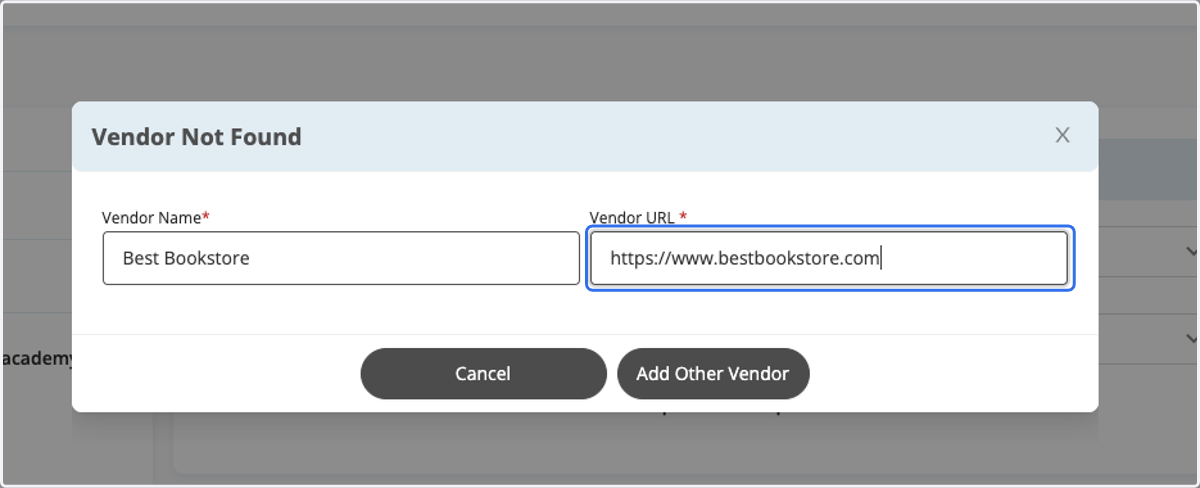
After selecting the Other Vendor option, manually type in the name of the vendor and a valid URL (webpage) for the vendor.
Note: Always search for and select vendors from the approved list of vendors, when possible, as oftentimes, vendors in the system have important, helpful notes attached to their profiles that you should be aware of. The Other Vendor option should only be used when product vendors are not found from the approved list of product vendors in the system.
11. Click on Vendor Tips
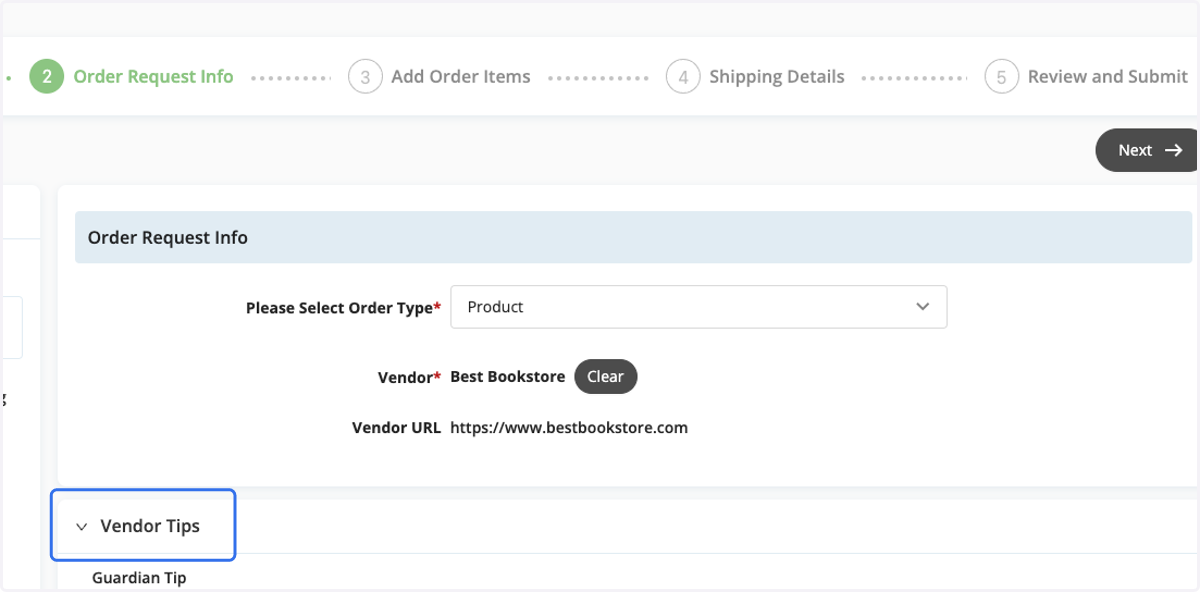
Before proceeding to the next page, please be sure to review Vendor Tips, as applicable, for helpful information about each vendor.
12. Locate Requested Item
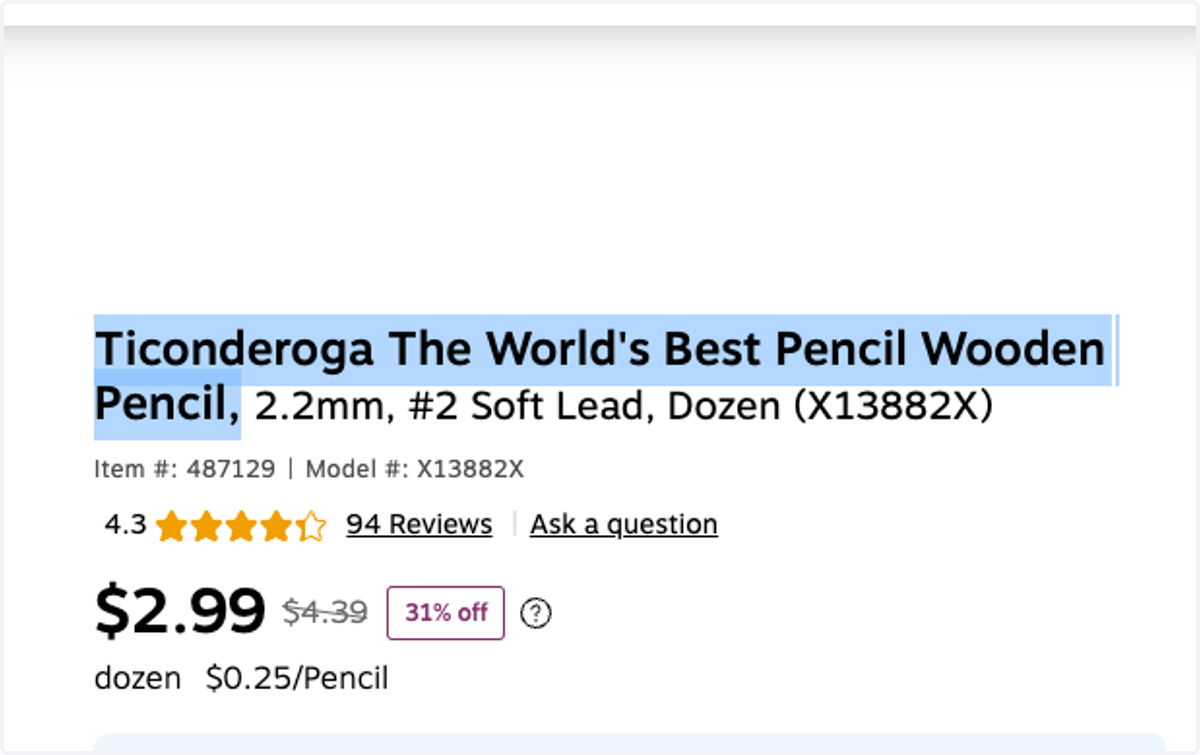
Copy the exact name of each requested item from the vendor's website.
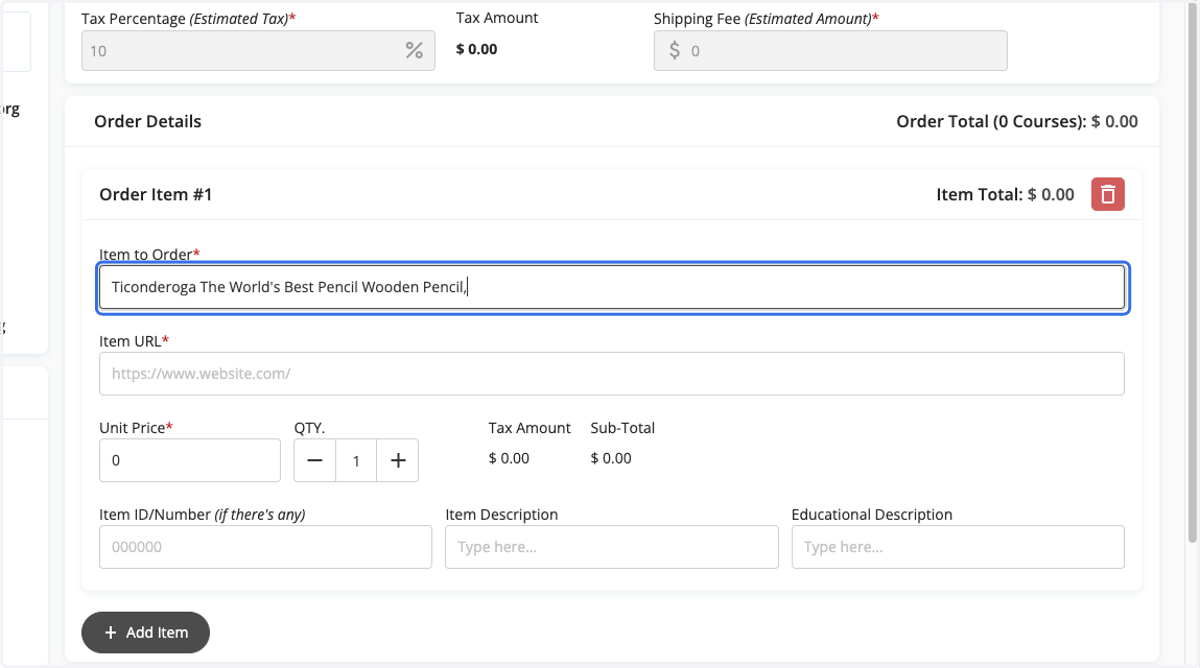
13. Add Item Name
Paste the exact name of each requested item into the item to order field within Homeschool Hub.
Note: The name that is listed in the Item to Order field will appear on your student's inventory sheet. It is worth taking a little time now to ensure that item names are accurate and descriptive, so that you know later exactly what was purchased by the school.
14. Copy and Paste URL
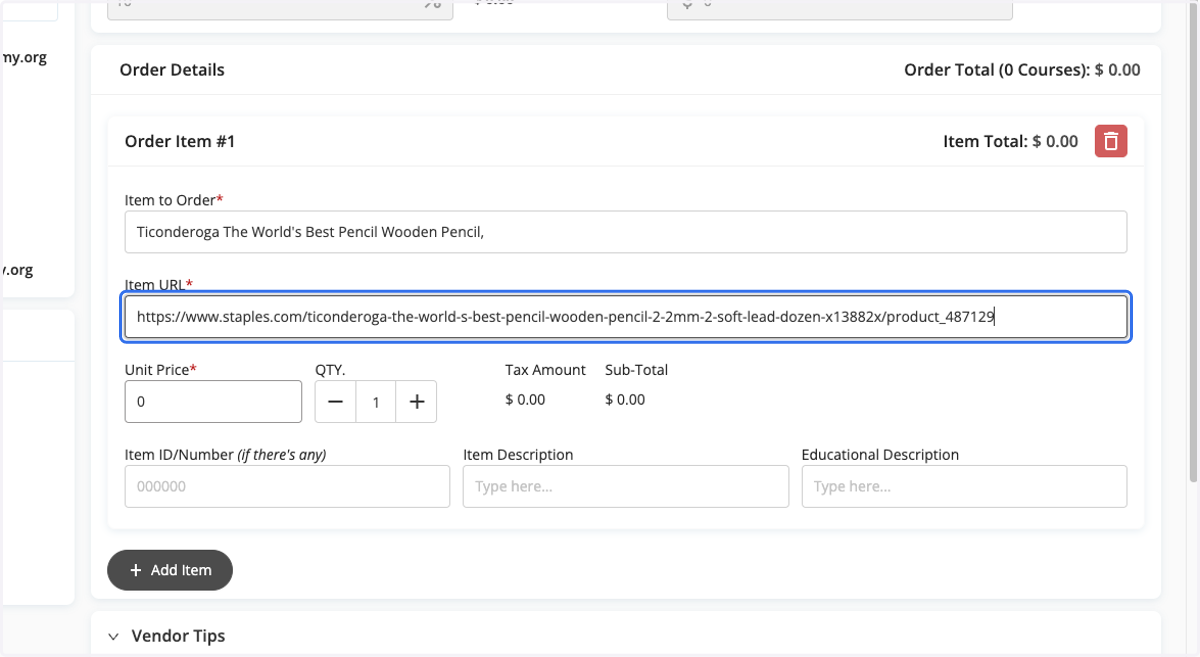
Copy the URL for each item into the Item URL field.
Please do NOT paste the vendor's main website address or a link to your shopping cart. Enrichment staff generally do not have the access needed to access parents' shopping carts, and without specific URLs for each item, it can be difficult to know exactly what is being requested.
15. Add Item Price
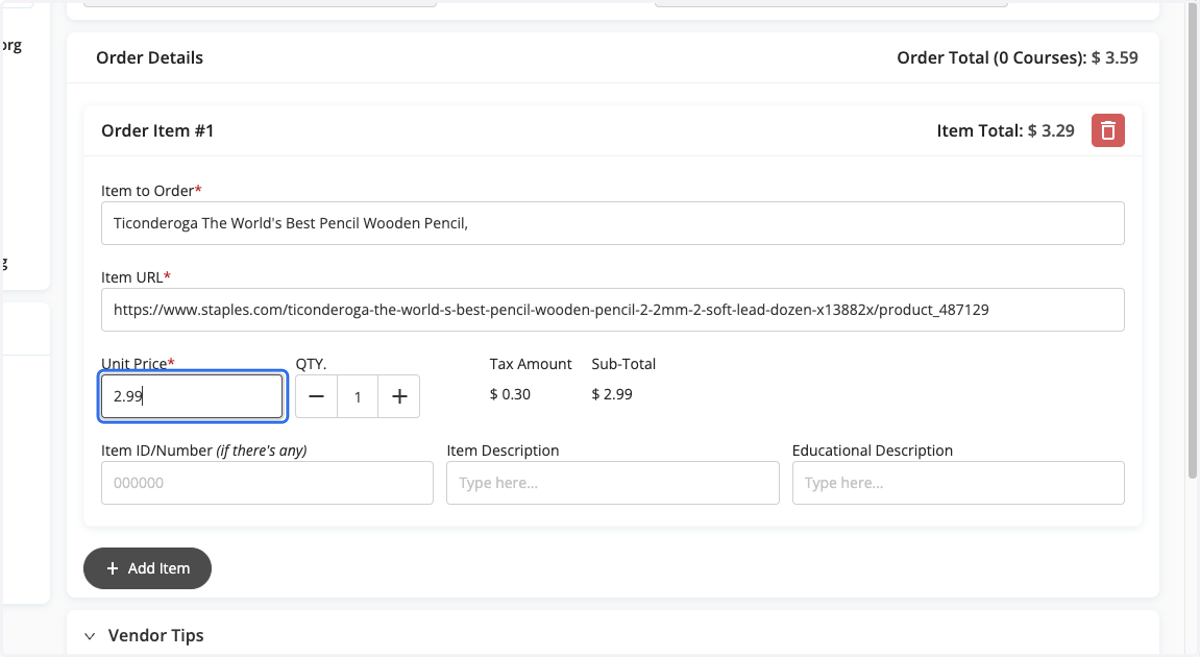
Add each product's price to the Unit Price field.
Note: The Homeschool Hub system automatically adds a percentage of the order subtotal to cover the cost of any shipping fees or taxes that might be charged by the vendor. Please note that once orders are processed or invoiced, these amounts will be adjusted by school staff to reflect the actual tax and shipping amounts, if any, that were assessed.
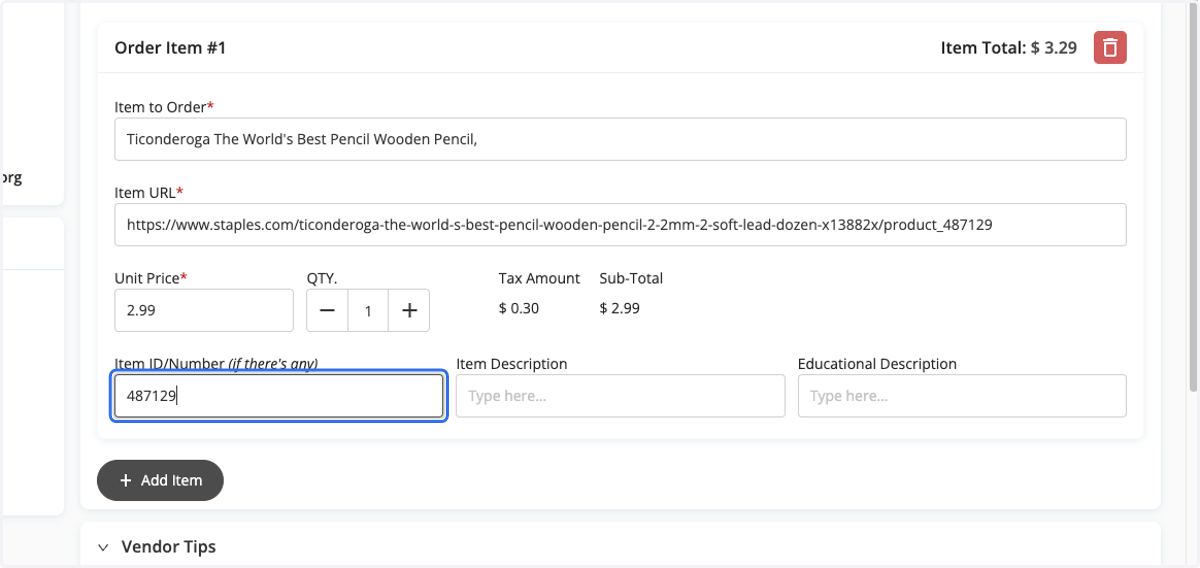
16. Locate Item Number
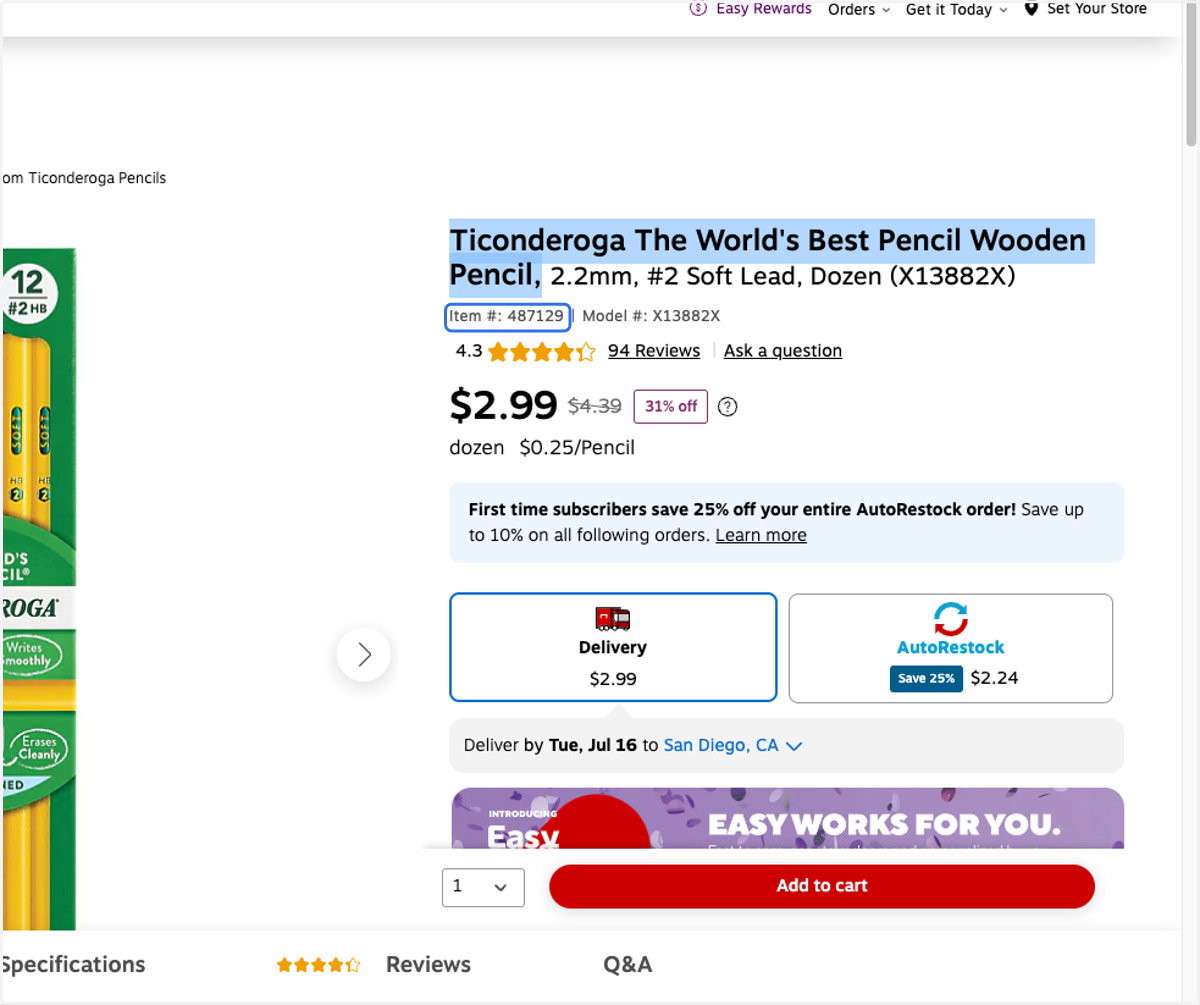
Check the vendor's website to see if an Item #, SKU, or ISBN is listed.
17. Add Item ID/Number
If the vendor provides an Item #, SKU, or ISBN on their website, paste it into the Item ID/Number field.
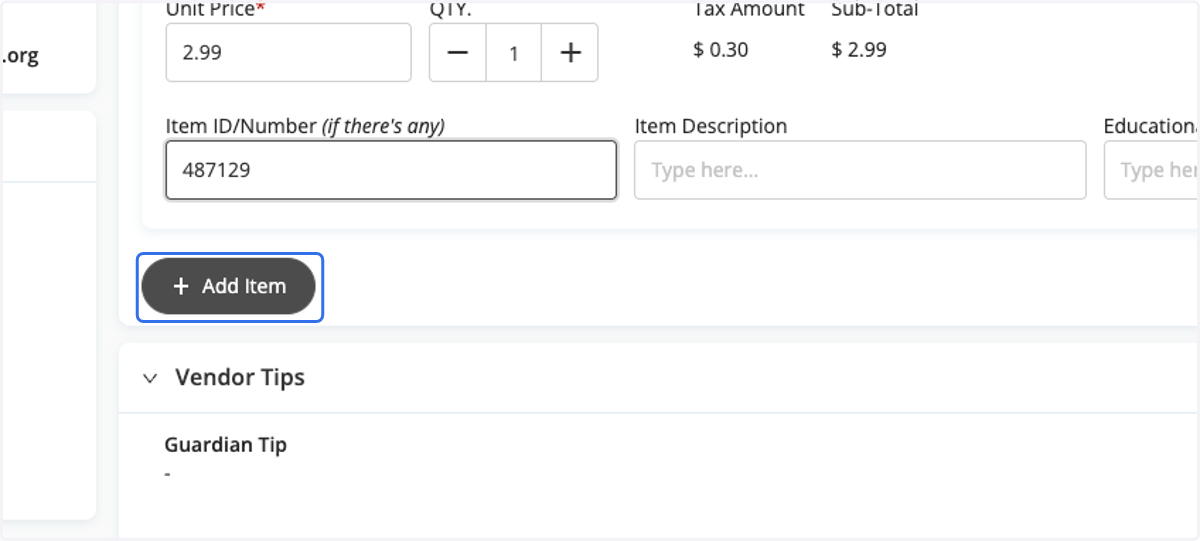
18. Add Additional Items (Optional)
If you wish to request multiple products in the same order, click the Add Item button.
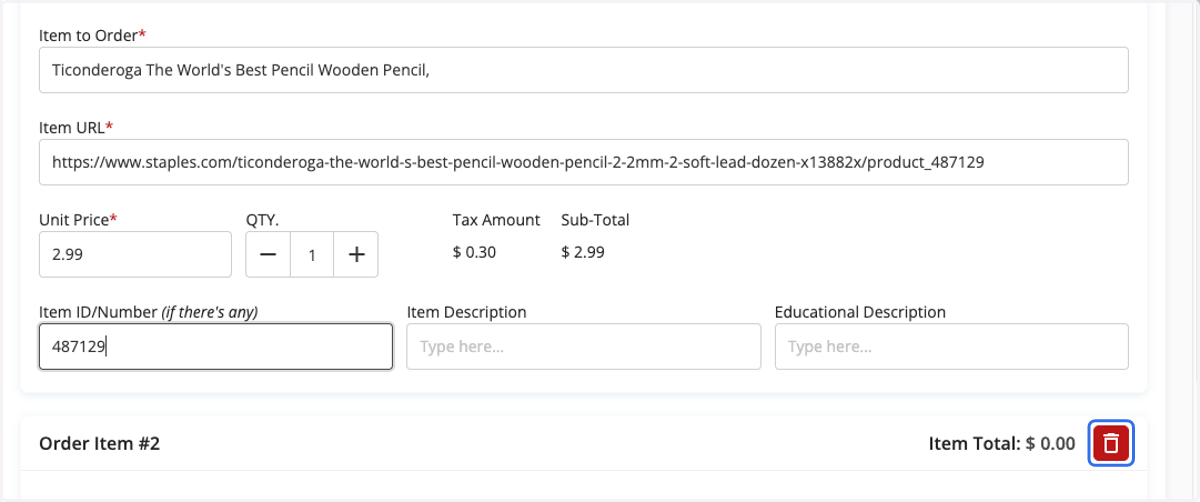
19. Delete Items (Optional)
To delete items from your request, click the red trash can next to each item.
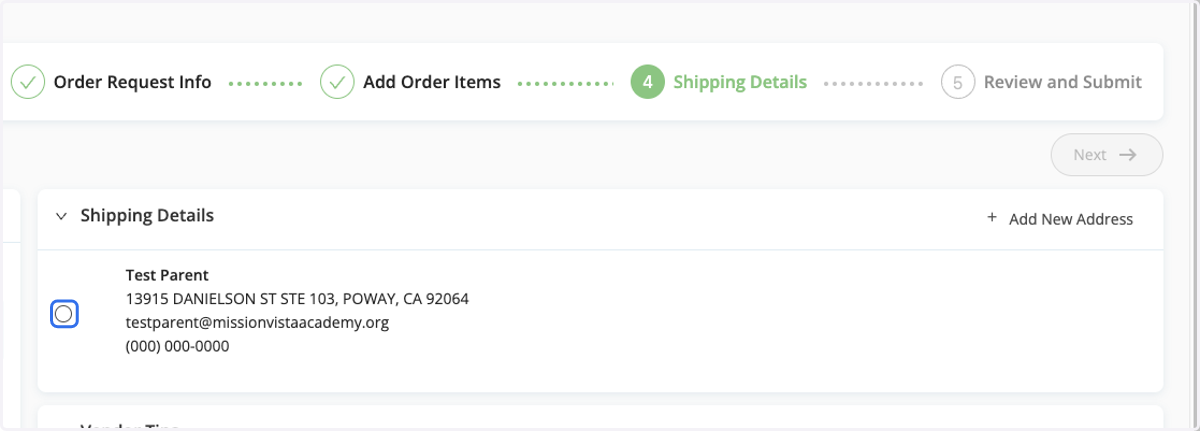
20. Confirm Shipping Address
The mailing address that is on file for your family will be listed in the Shipping Details section of the order.
Should you need to ship to an alternate address (within the area our school serves), please click the Add New Address link and manually enter the shipping address.
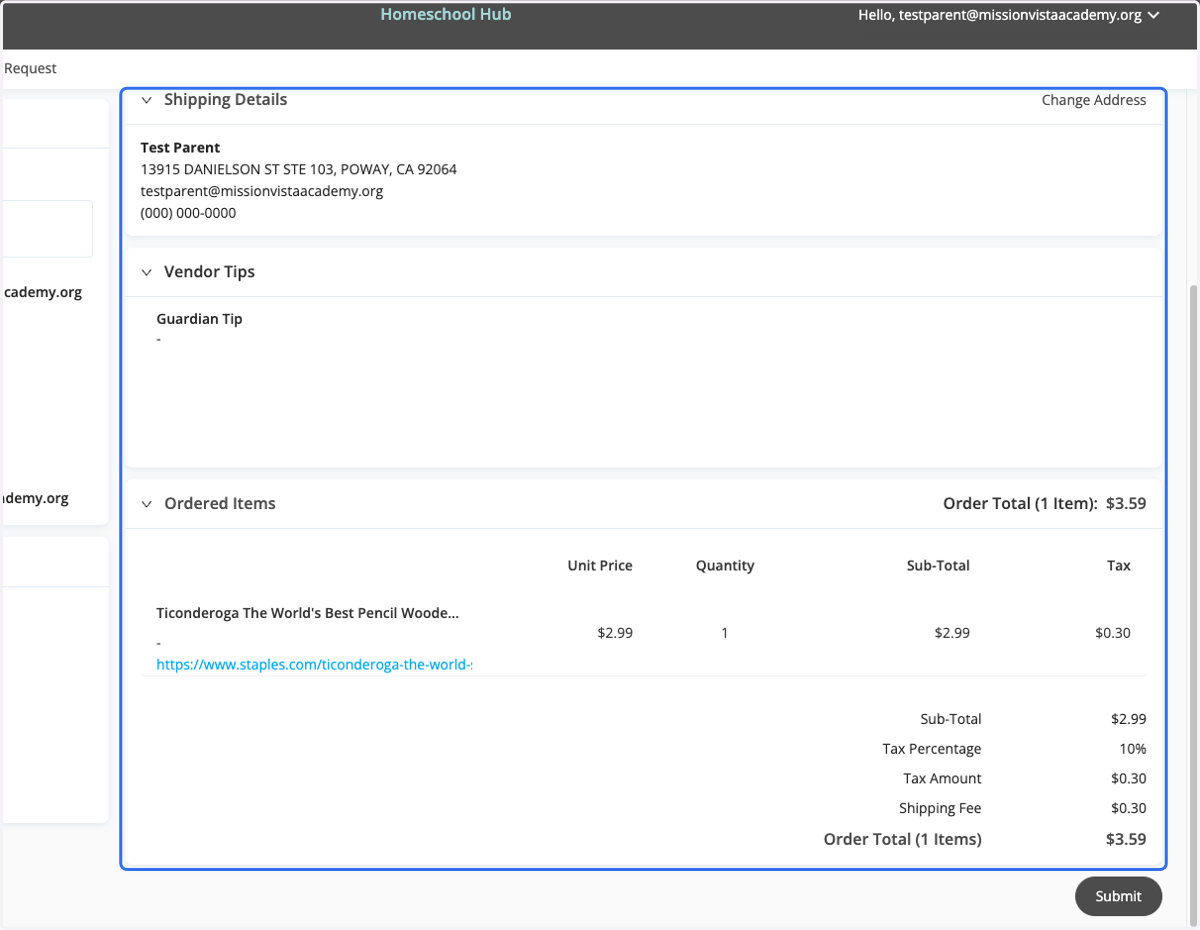
21. Review Order Details
Before submitting your order request, please review the shipping address information and the item requests.
Use the Back button to modify any part of your request, as needed.
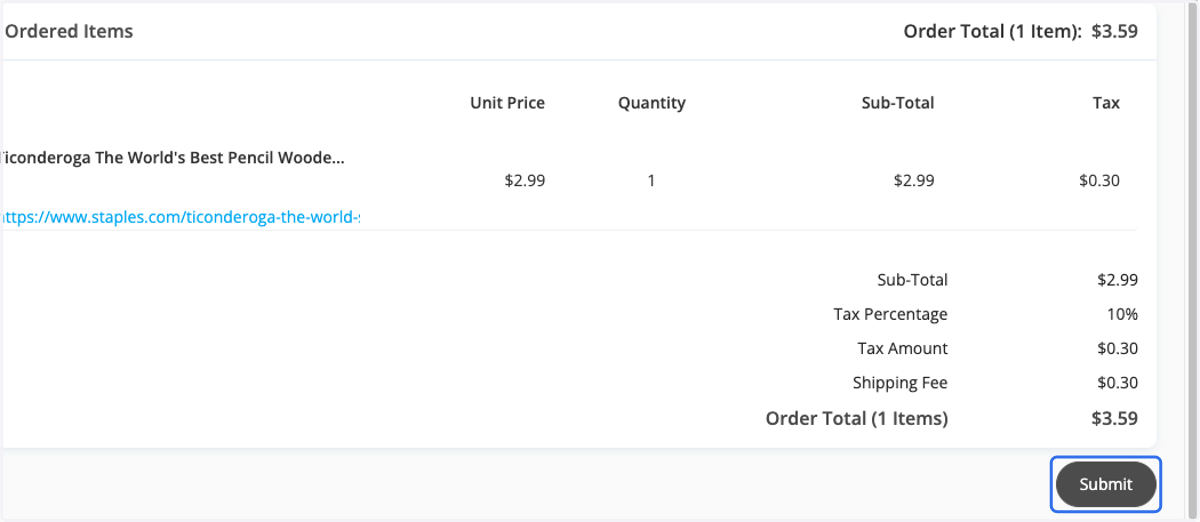
22. Click on Submit
Once everything looks correct, click the Submit button.
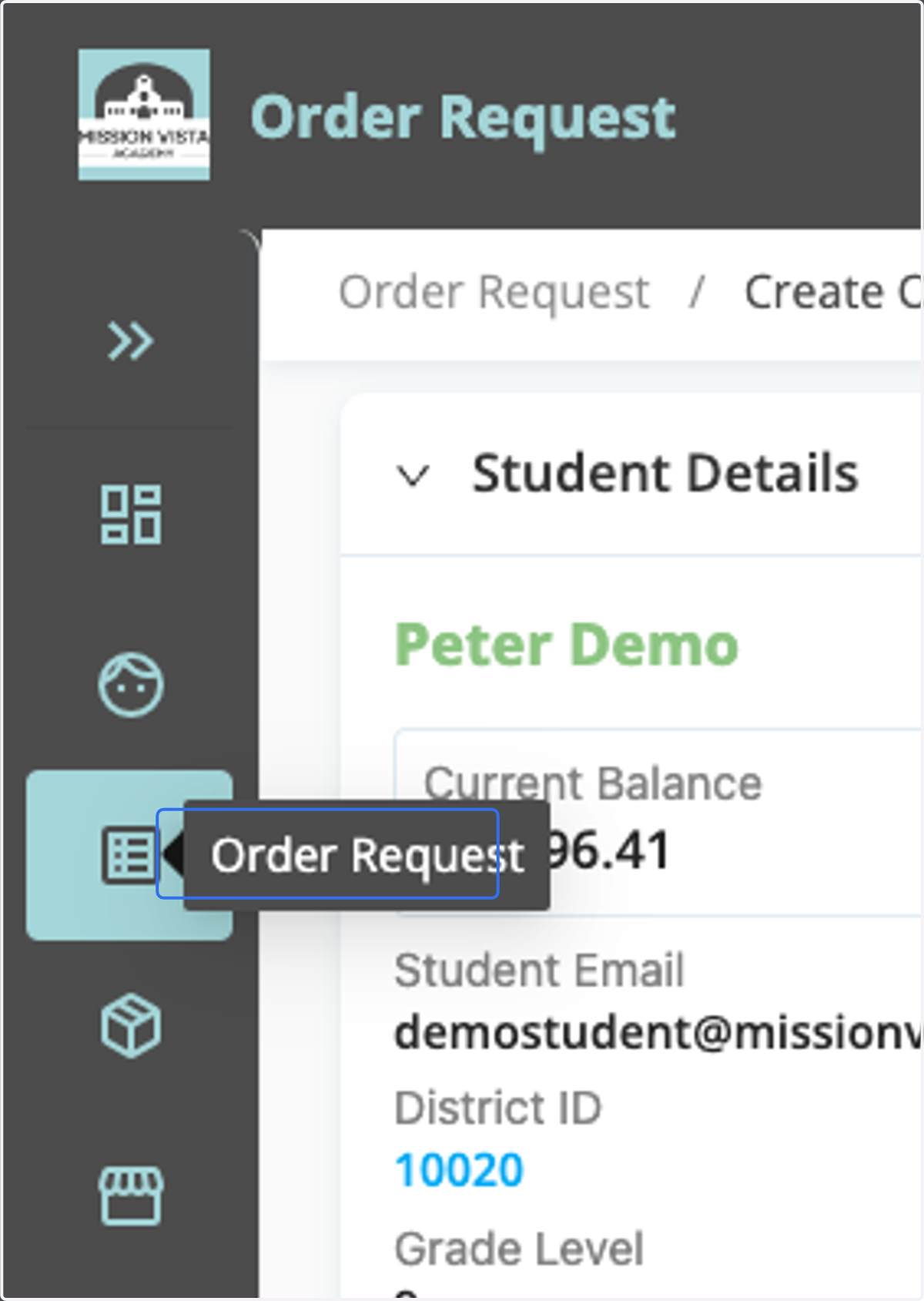
23. Click on Order Request Button
To view the status of your requests, click on the Order Requests menu button.
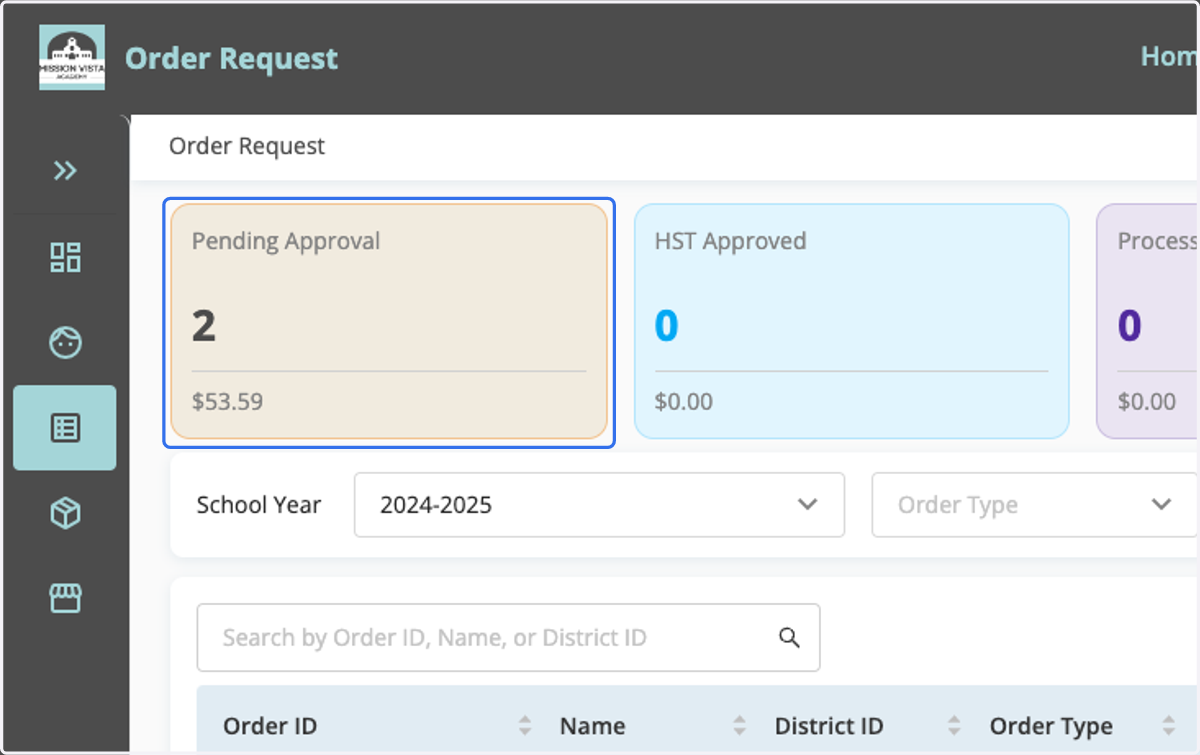
24. Order Status
The requests you have entered into Homeschool Hub are housed in different folders across the top of the page, based on where they are at in the review and ordering process.
Pending Approval - Orders in this status are awaiting your HST's review. Parents/guardians are able to adjust and cancel orders when they are in this status.
HST Approved - Orders in this status have been approved by your teacher and are awaiting processing by our Enrichment Team. If you wish to make changes to orders in HST Approved status, please reach out to your HST for assistance.
Processing - Orders in this status are currently being processed by Enrichment staff. Should you wish to make changes to orders in this status, please reach out to the Enrichment Specialist assigned to the order. This information can be located from within the order.
Processed - Orders in this status have been processed by the school. If you have not received purchased materials within 2 - 3 weeks of orders being processed, please notify your HST.
Canceled - Orders in this status have been canceled.
25. Need Additional Support?
Please reach out to your Homeschool Teacher for help with any questions you might have or for help with accessing Homeschool Hub.
Thank you!