Requesting COE website updates in Google Docs
Google Drive
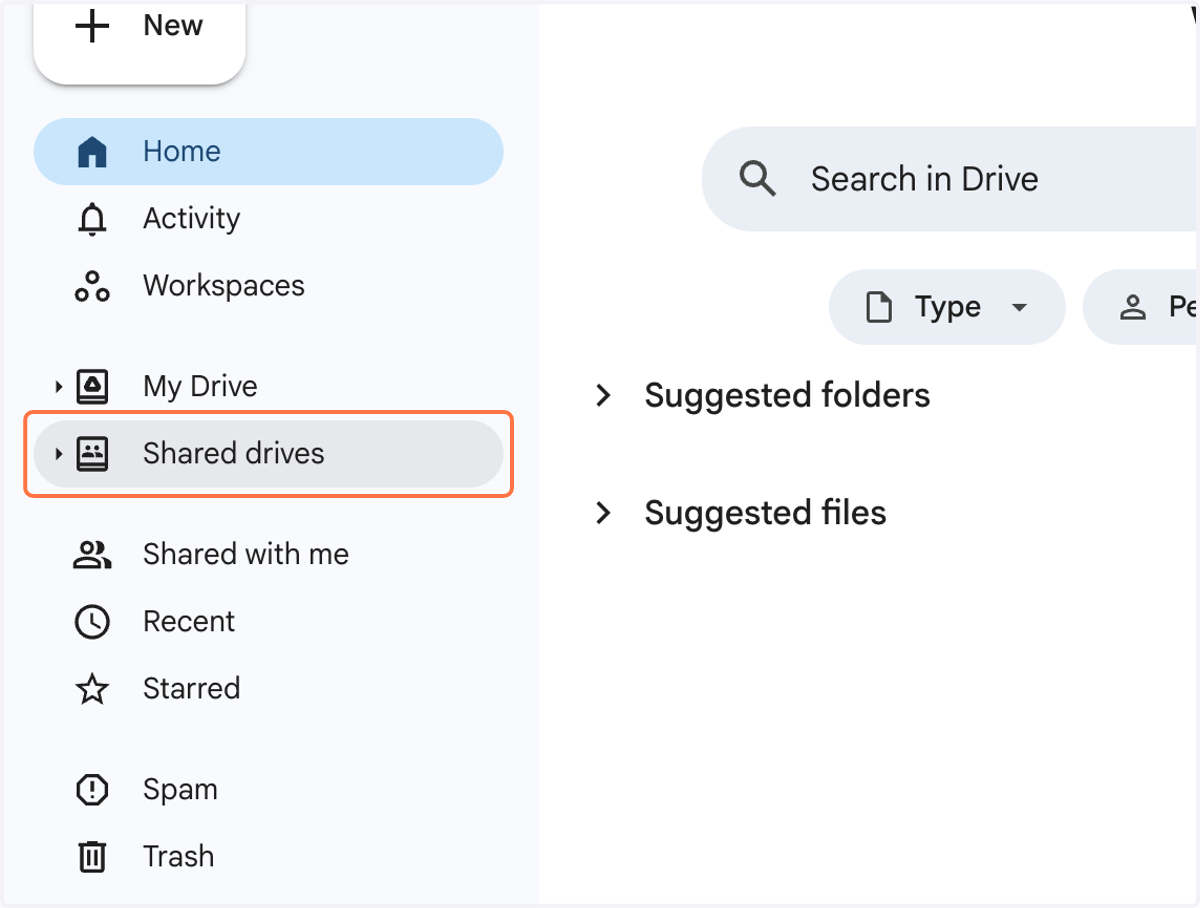
1. Go to your Google Drive and click on Shared drives
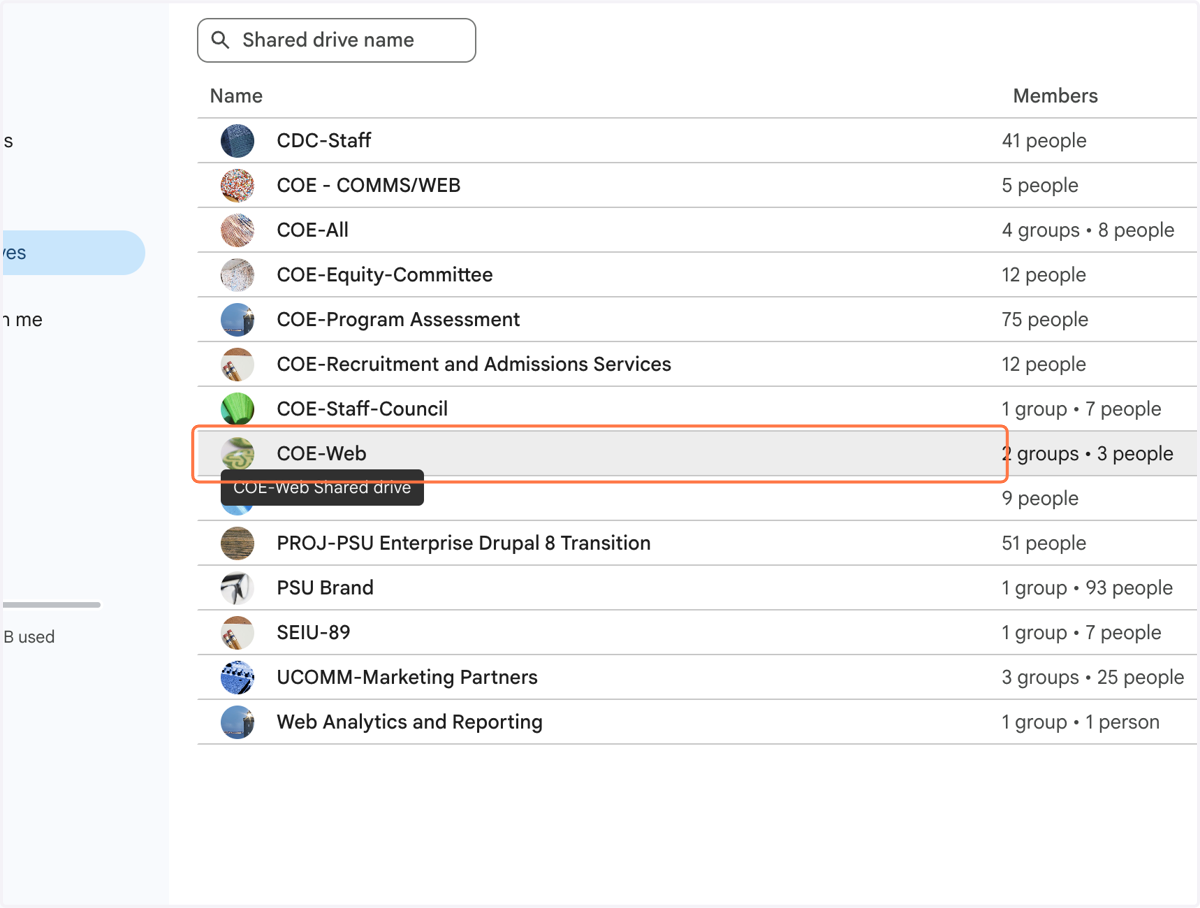
2. Click on COE-Web
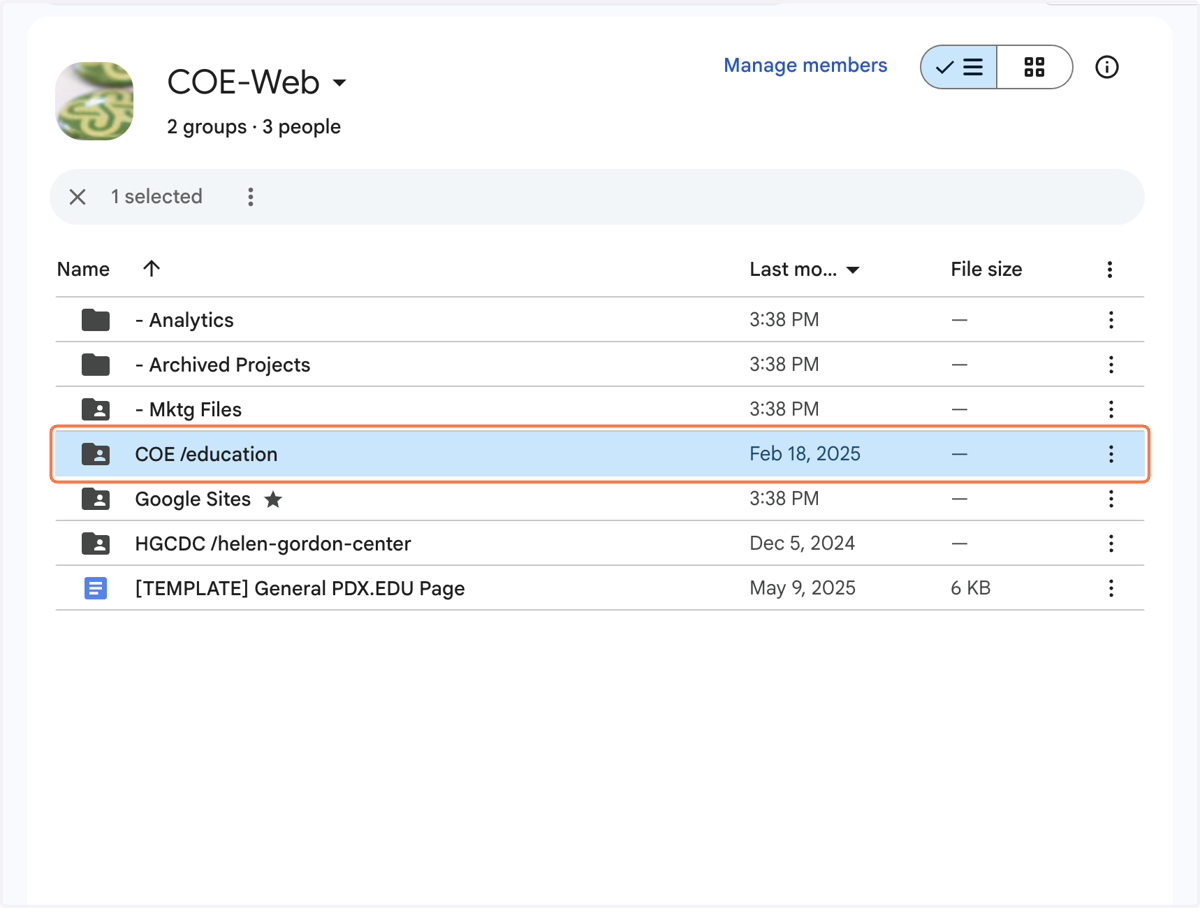
3. Click on COE /education
4. Click on Programs for academic programs and their Admissions or Program Details pages, or Non-Programs for all other COE webpages.
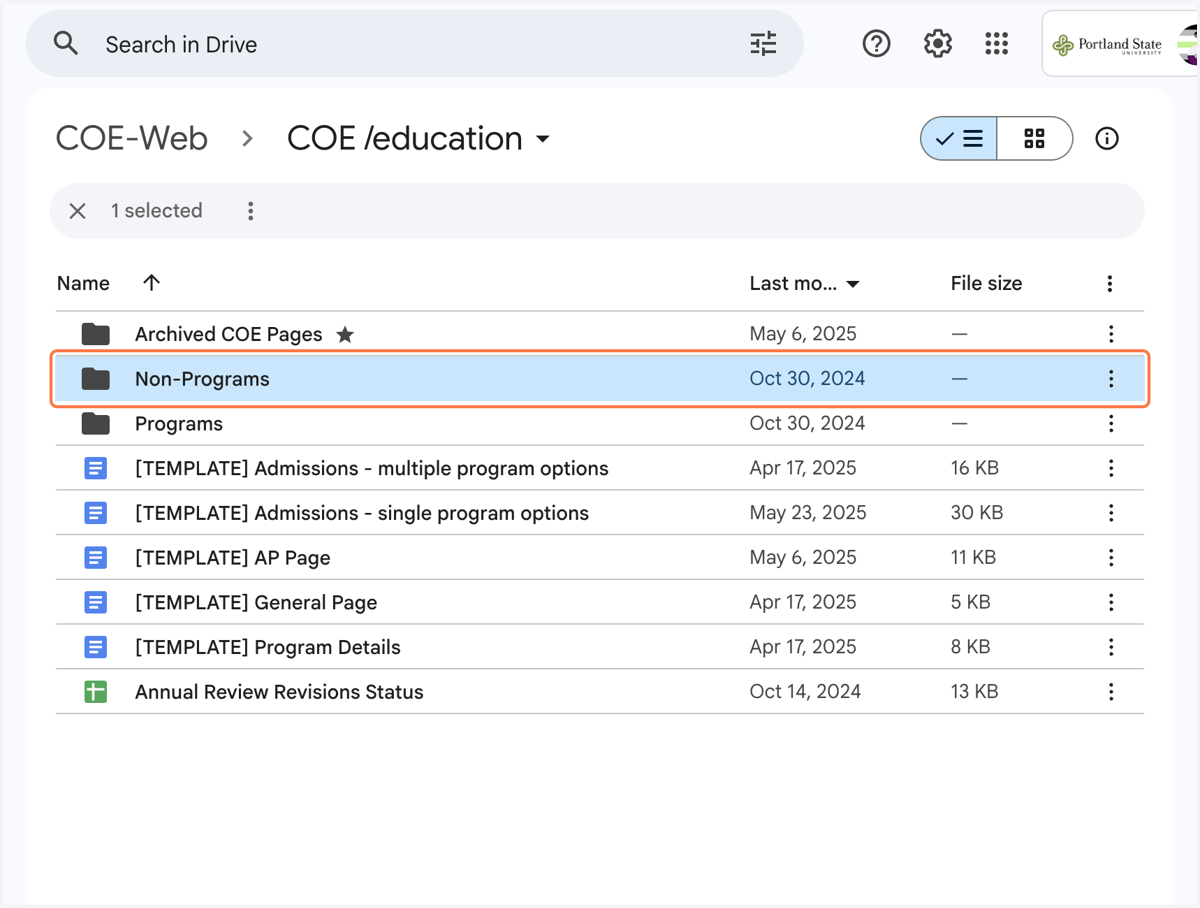
5. Open the document that reflects the page you'd like to edit.
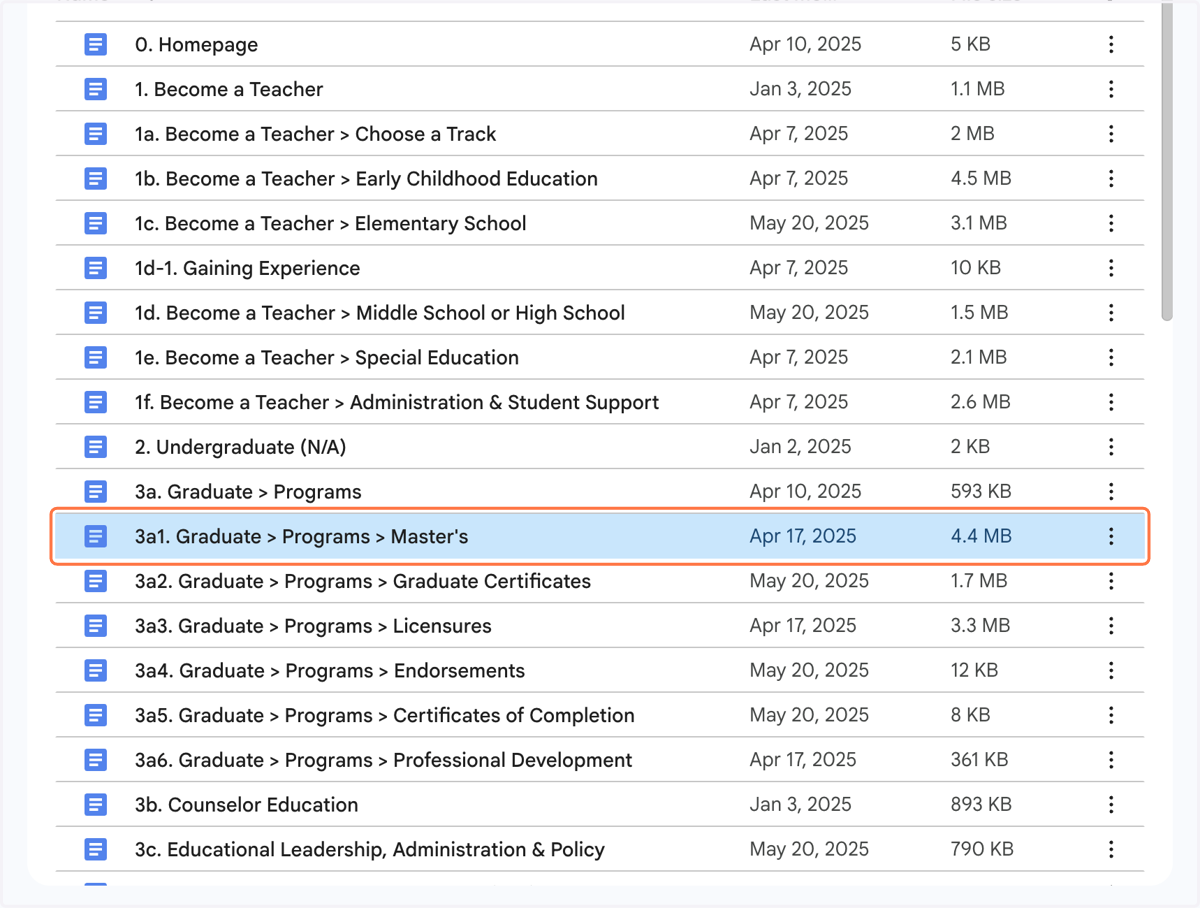
Google Docs
6. Suggesting mode should be the default for most people. If you find you're in Editing mode, click on the icon to change the selection.
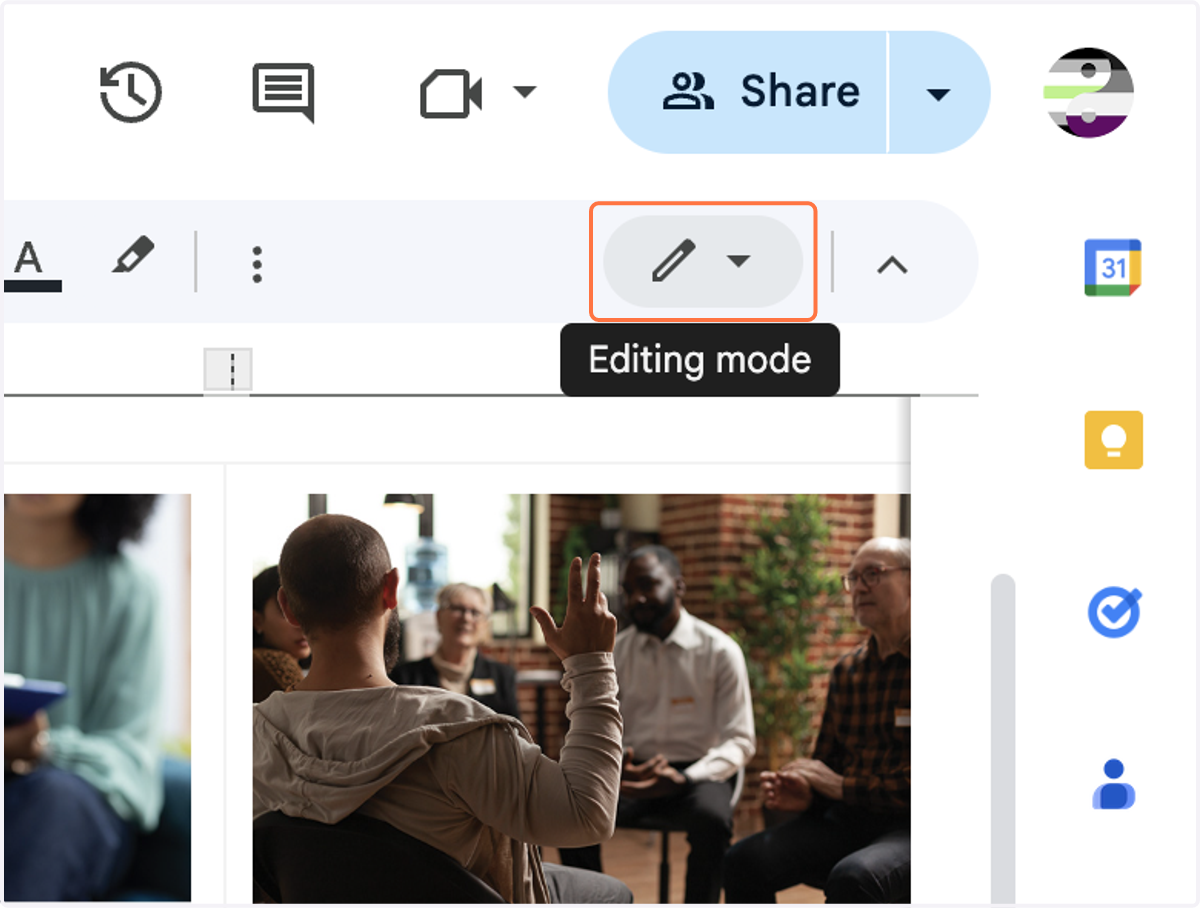
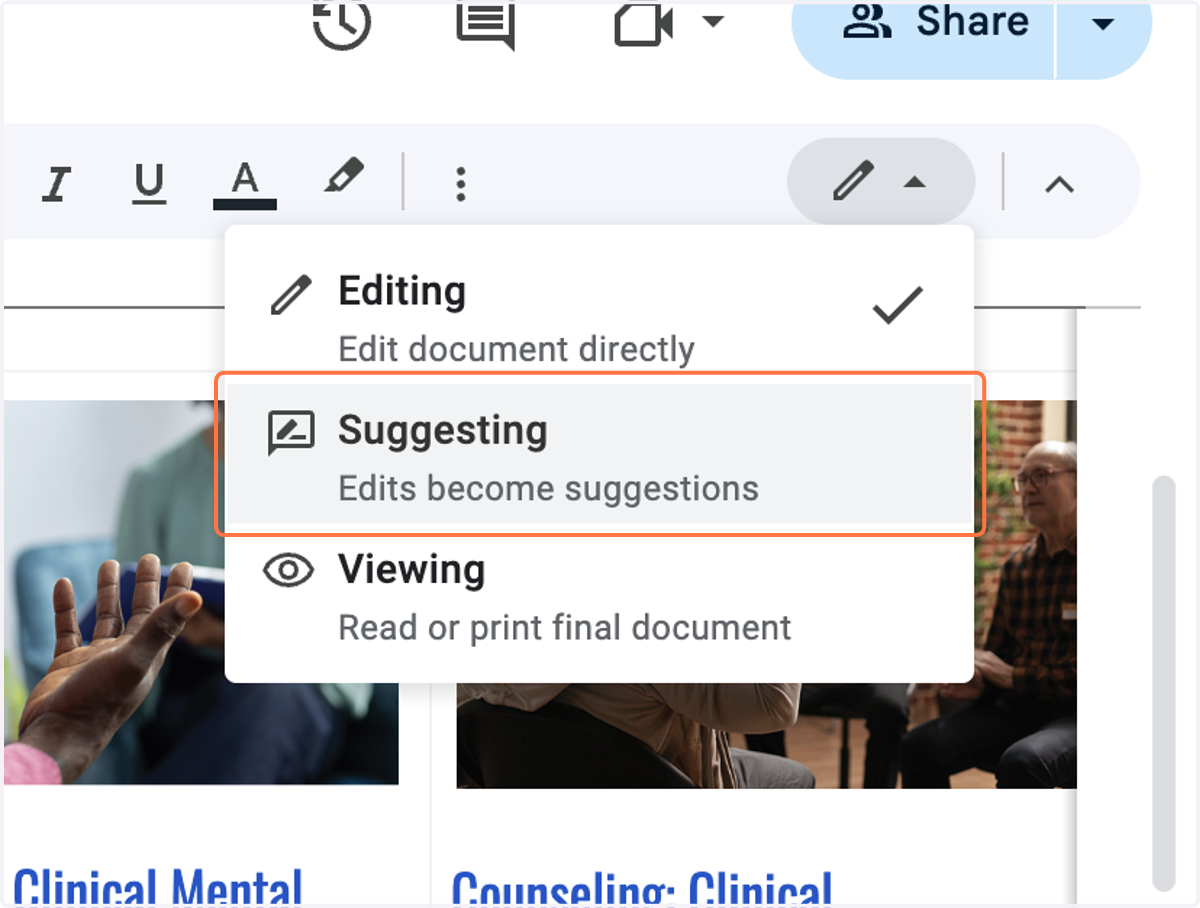
7. Switch to Suggesting.
8. Locate the content you'd like to update and begin making changes right in the document.
If you are pasting content from another source, such as an email or another document, please paste without formatting. You can do so in the following ways:
Mouse: right-click » “Paste without formatting”
Windows: CTRL+SHIFT+V (instead of CTRL+V)
Mac: CMD+SHIFT+V (instead of CMD+V)
Google Docs menu: Edit » “Paste without formatting”
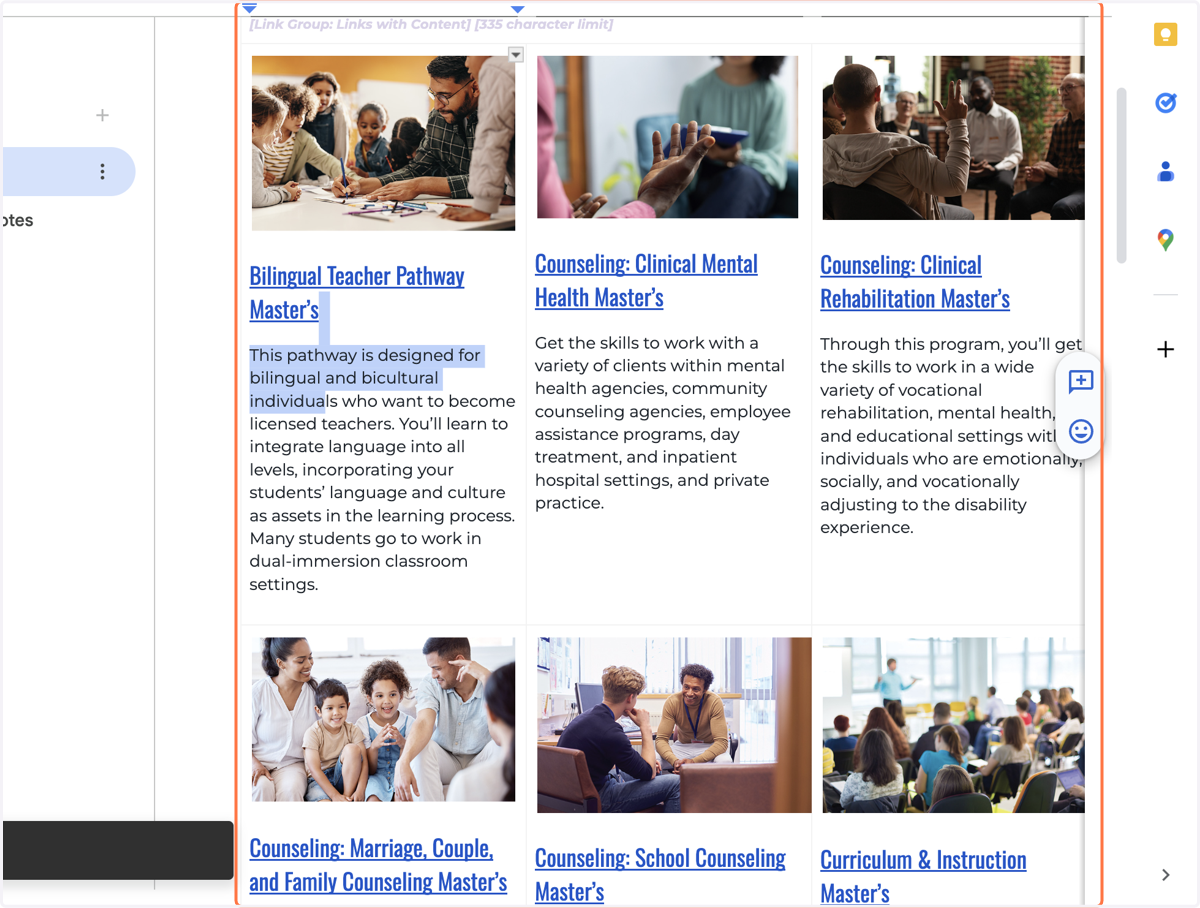
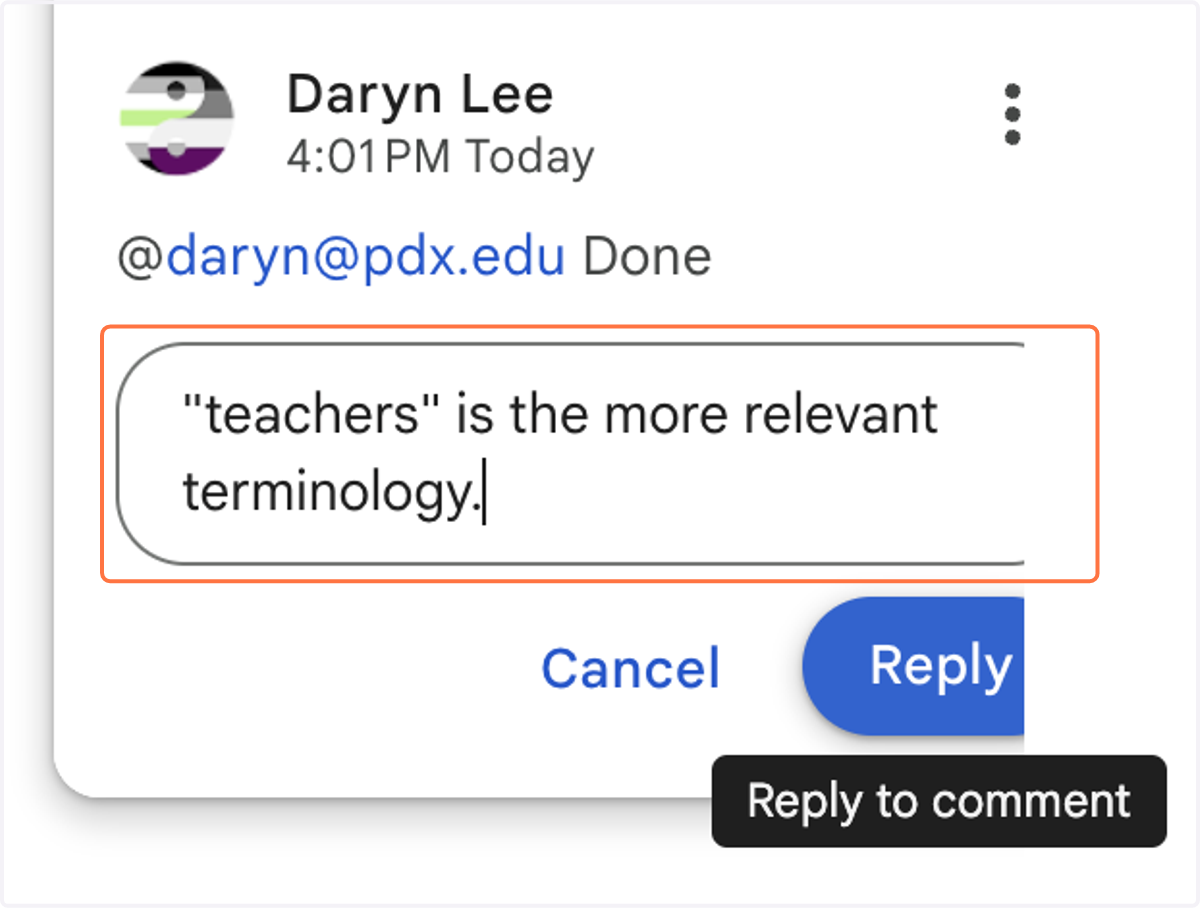
9. Once you've finished making your changes, tag Daryn Lee via @daryn@pdx.edu to let them know you're done.
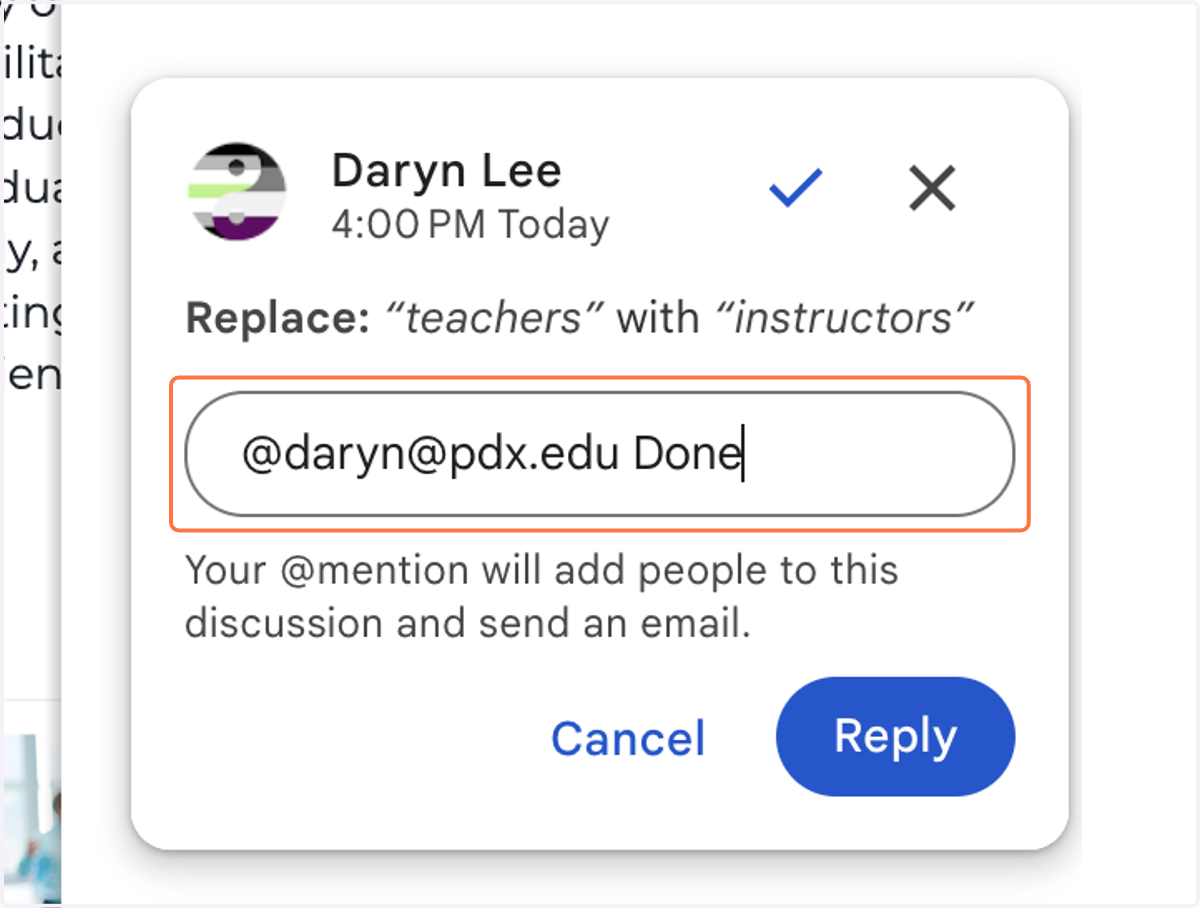
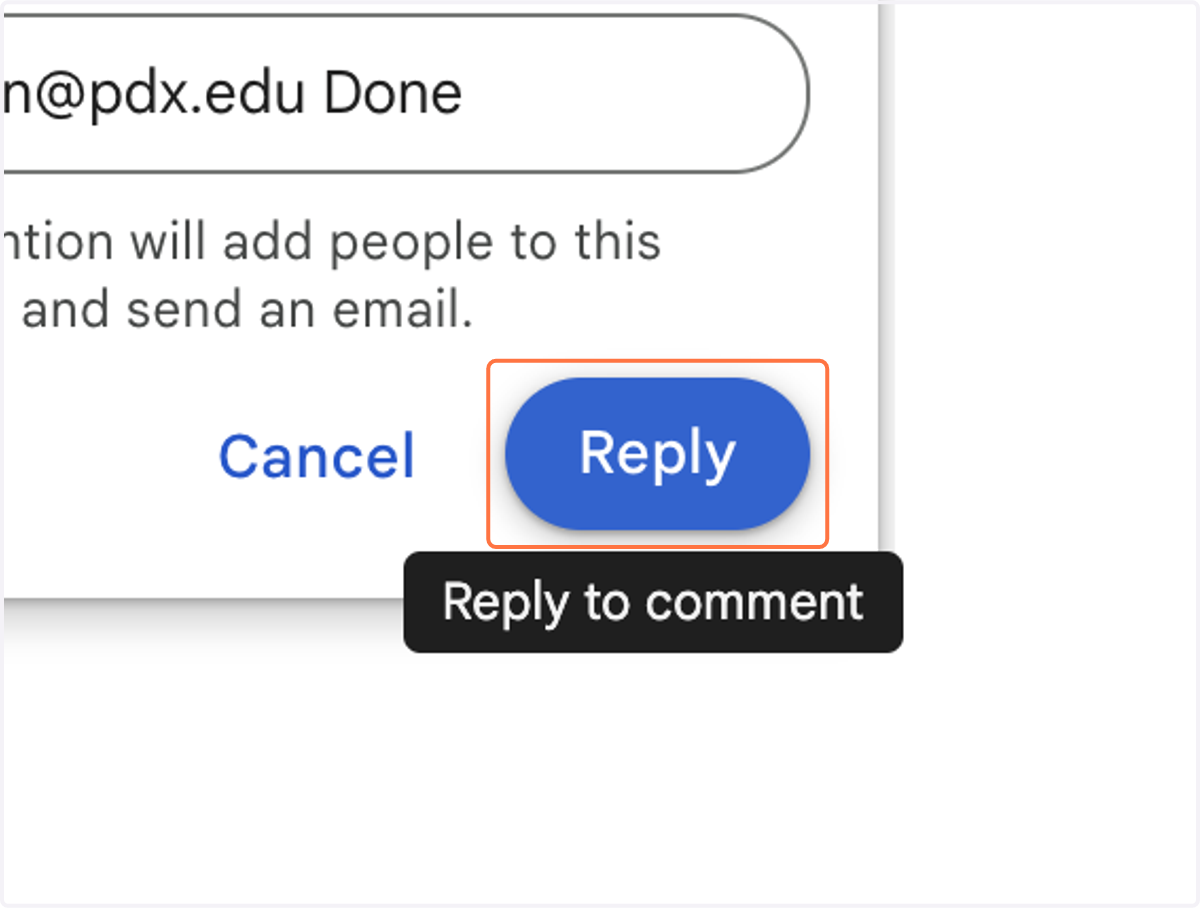
10. Don't forget to click Reply!
11. If your comment is accepted, the change has been implemented. If it is rejected, a reason will be provided as a reply to the comme