Request a Recurring Event in Coursedog
Events Dashboard | Coursedog
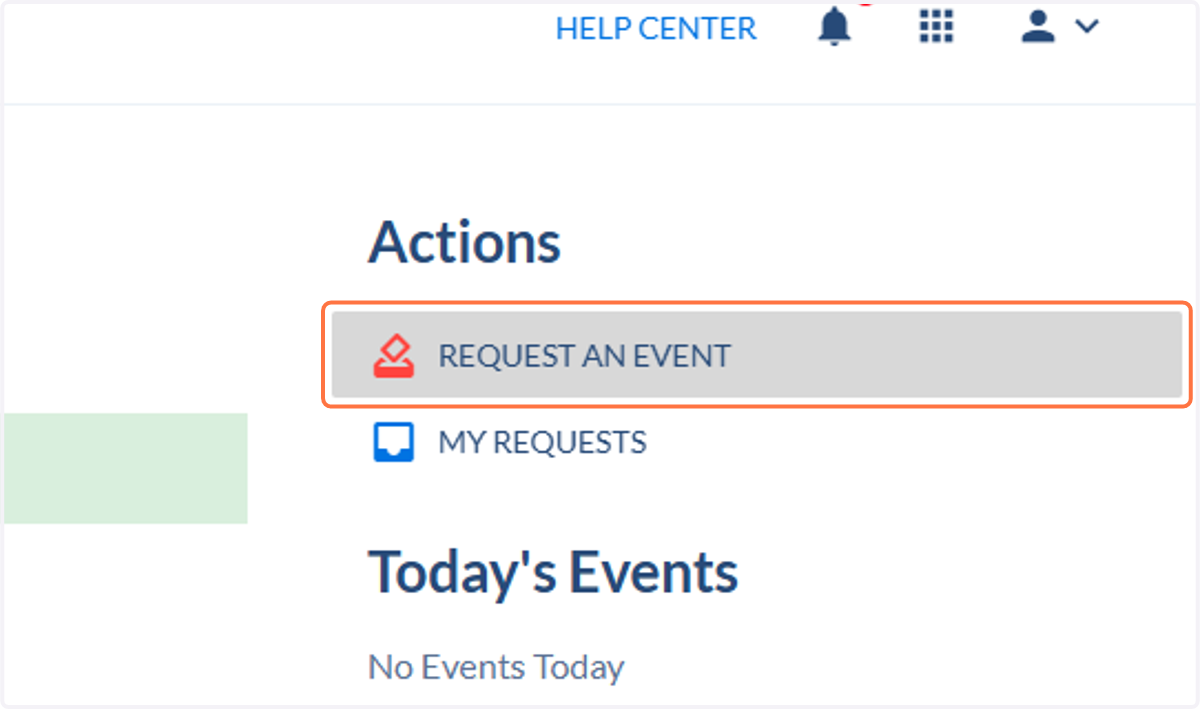
1. Click on Request An Event
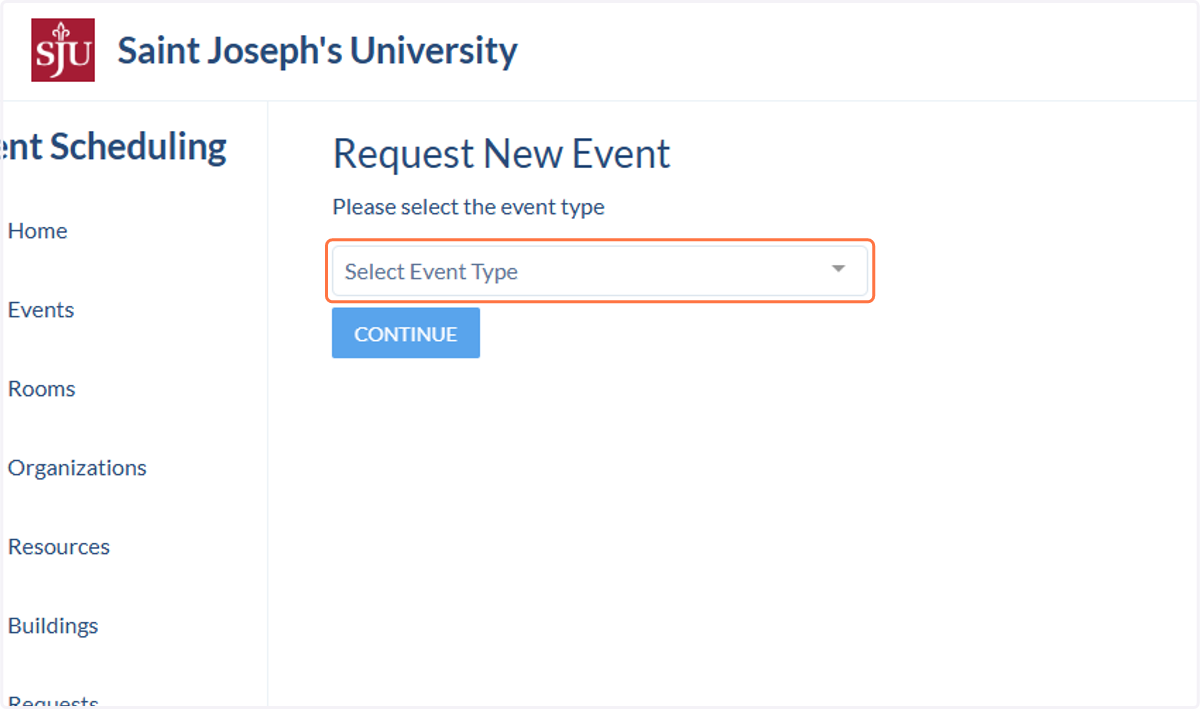
2. Click on Select Event Type
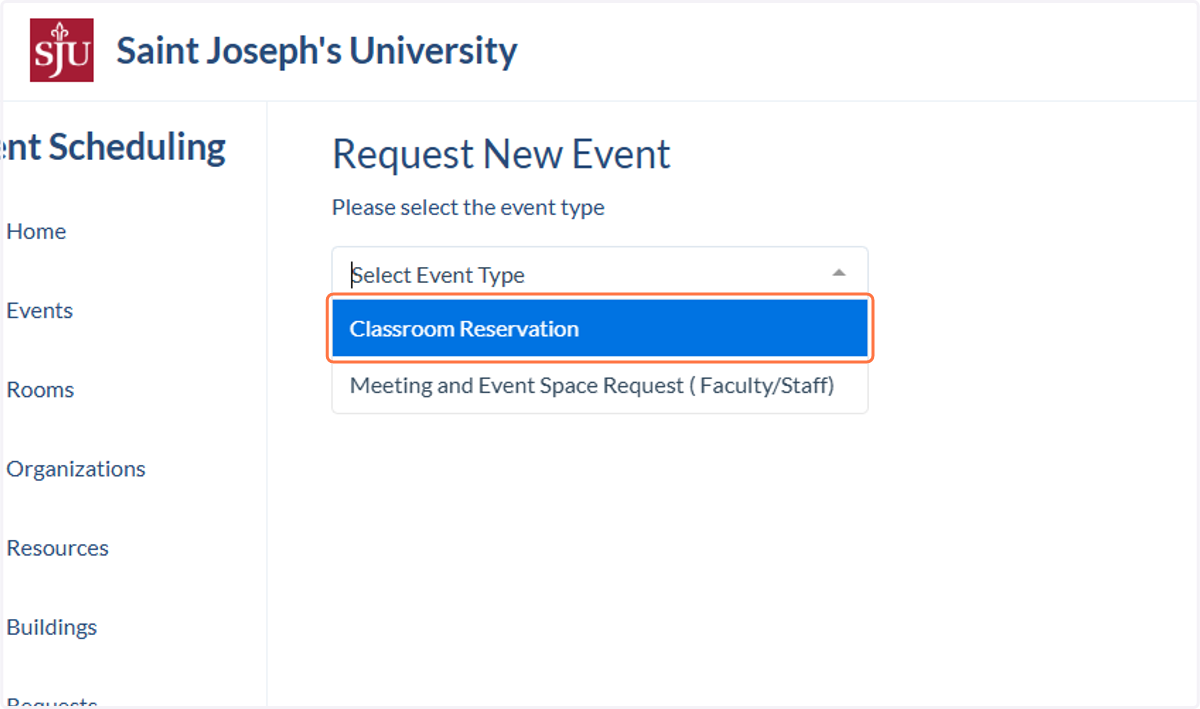
3. Click on the type of reservation you wish to make. You may see different reservation/event options depending on your role at the University.
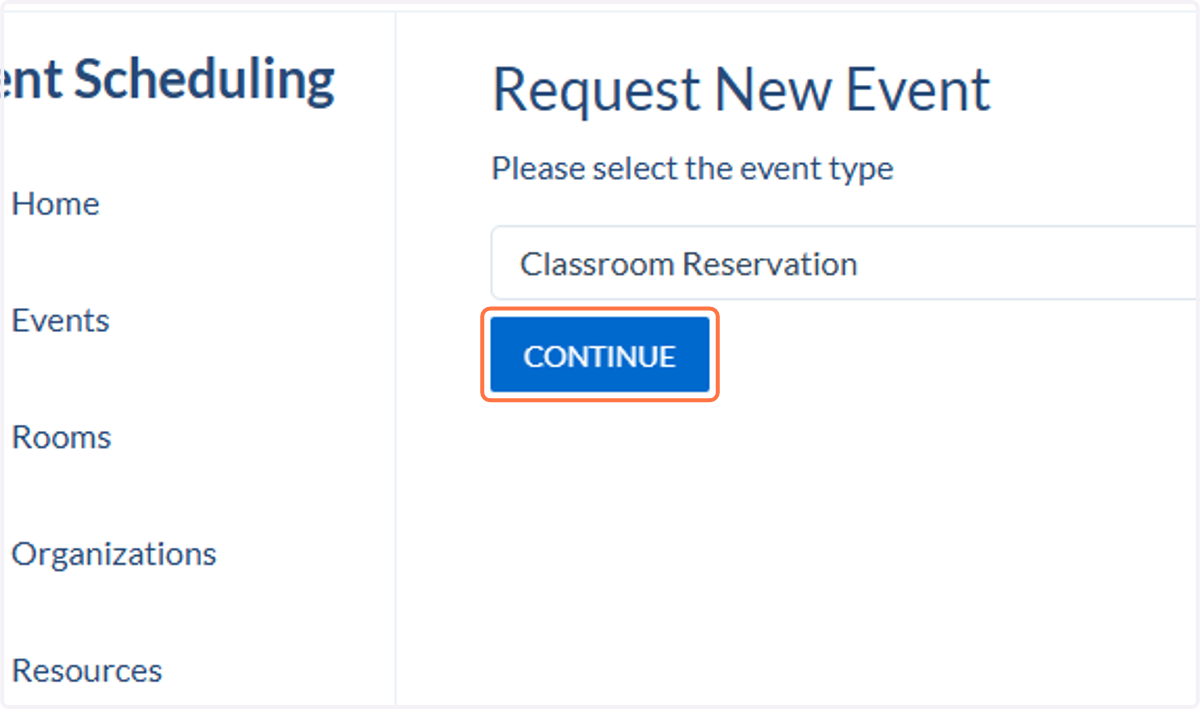
4. Click on CONTINUE
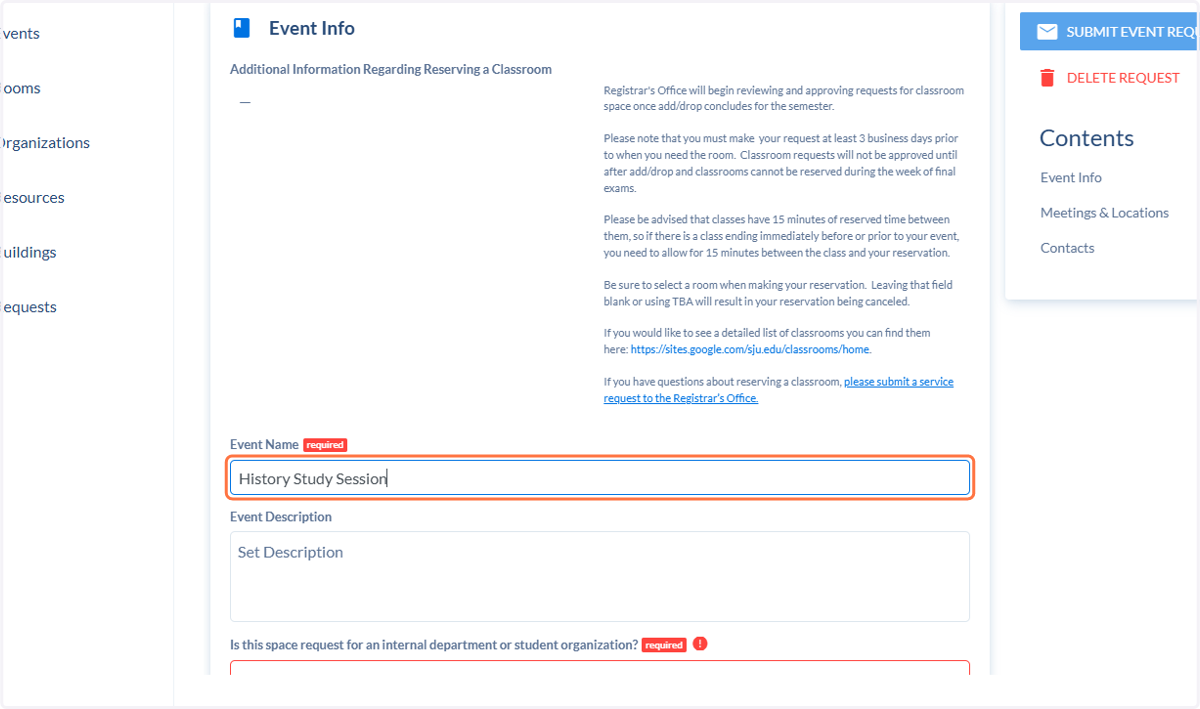
5. Fill out all required event information.
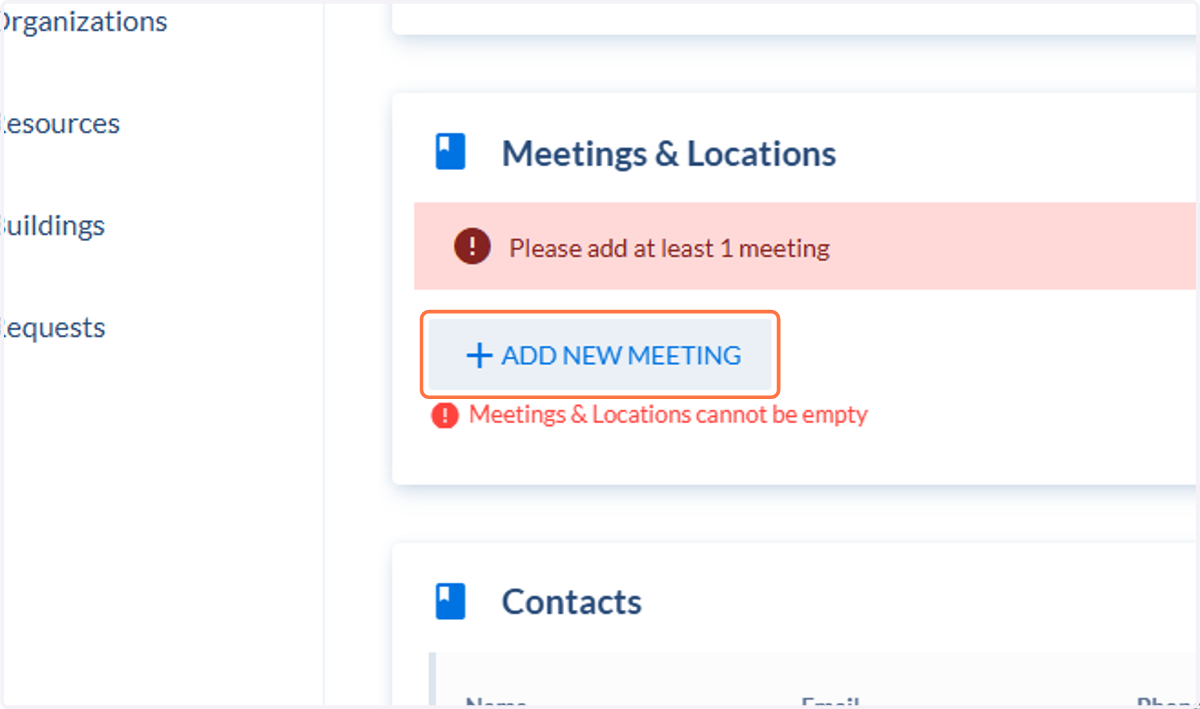
6. Click on Add new meeting
7. To create a recurring meeting time, select the start date of the first meeting.
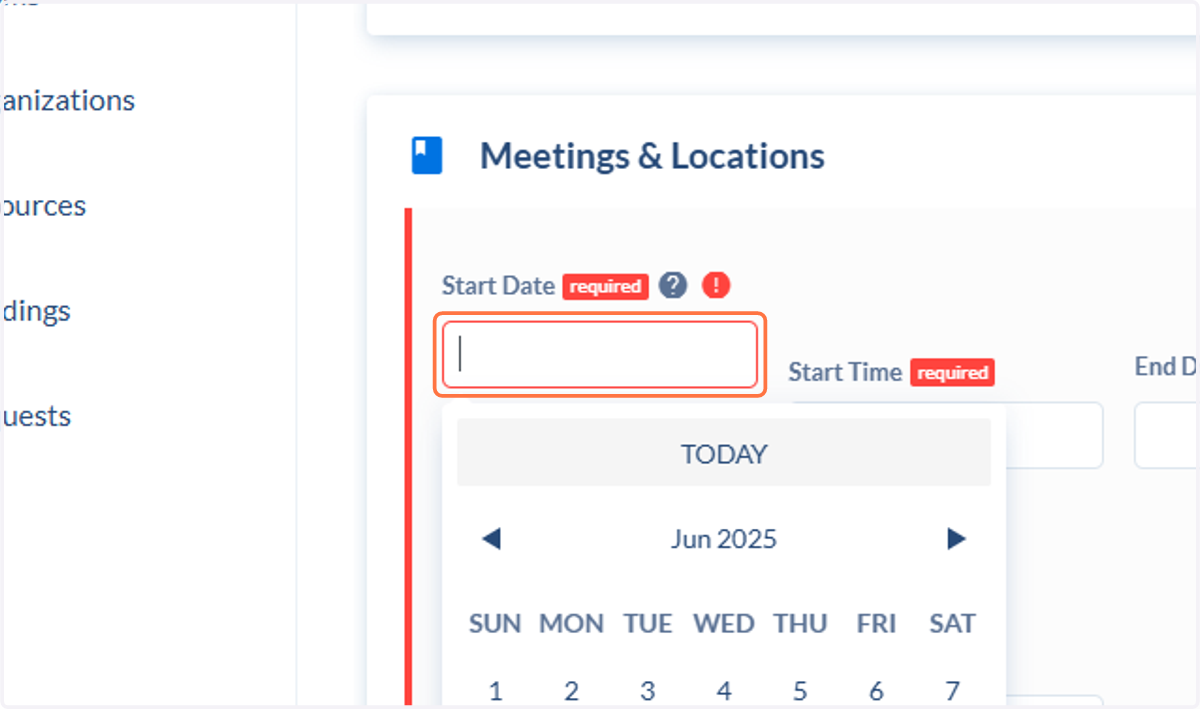
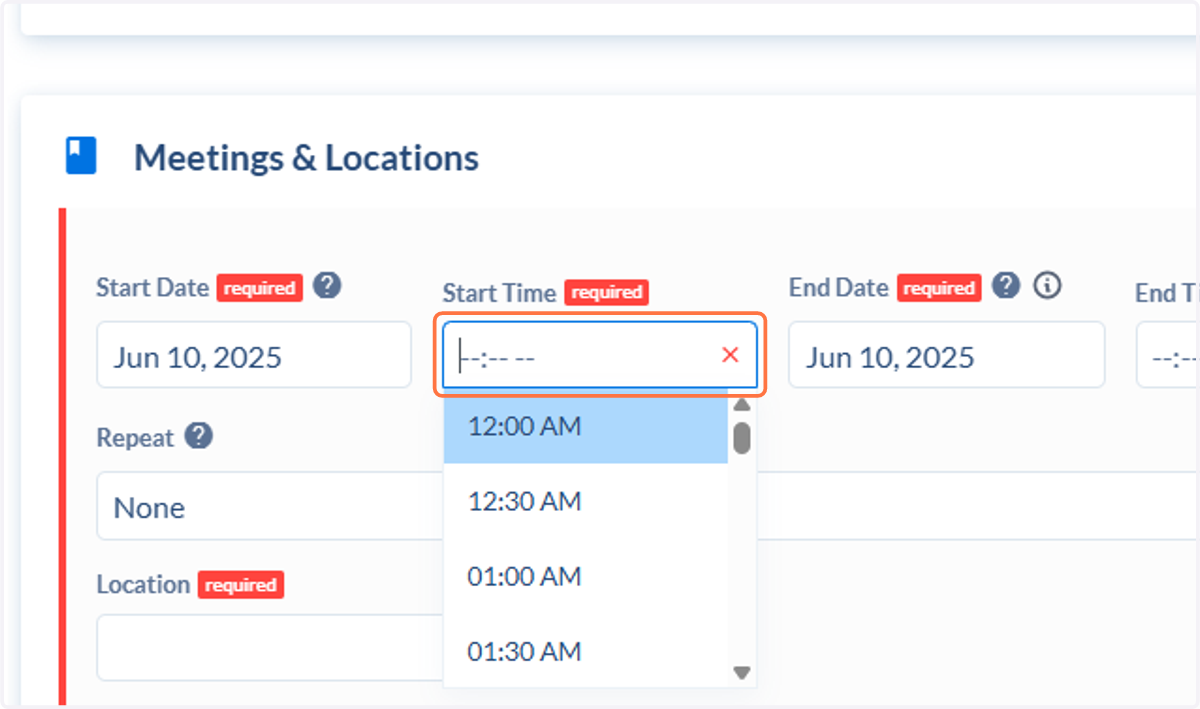
8. Enter or select the start time.
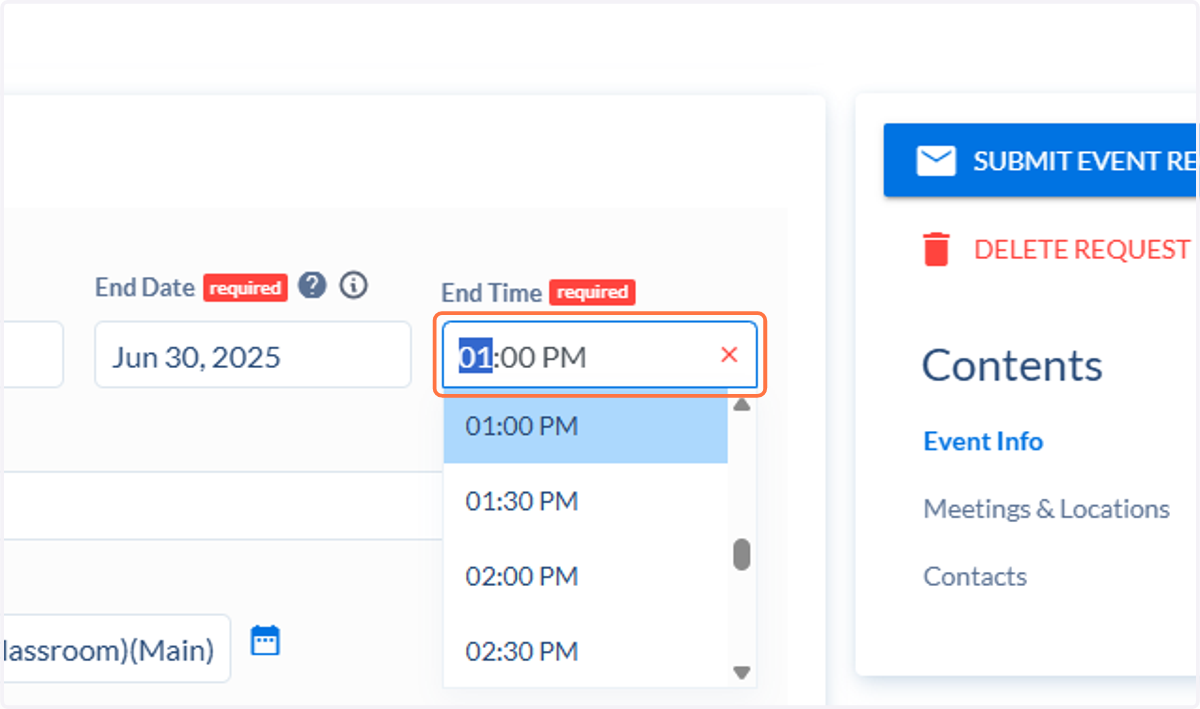
9. Enter or select the end time.
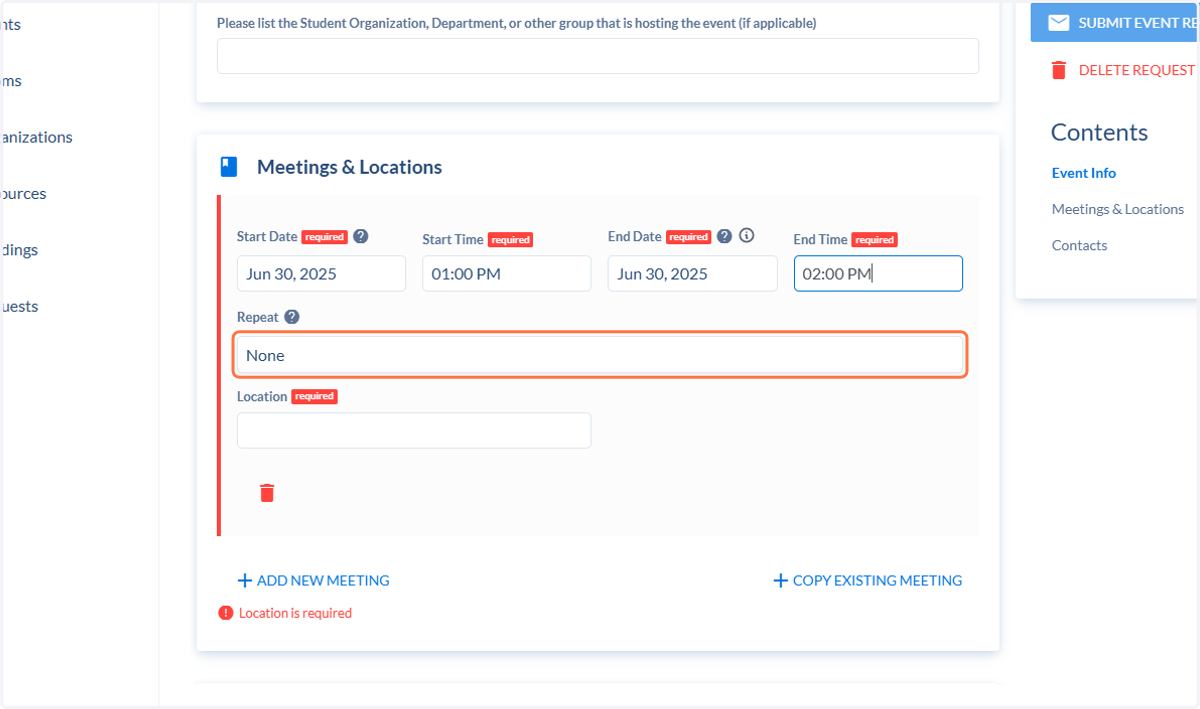
10. Click on "None" under Repeat to set up the recurrence.
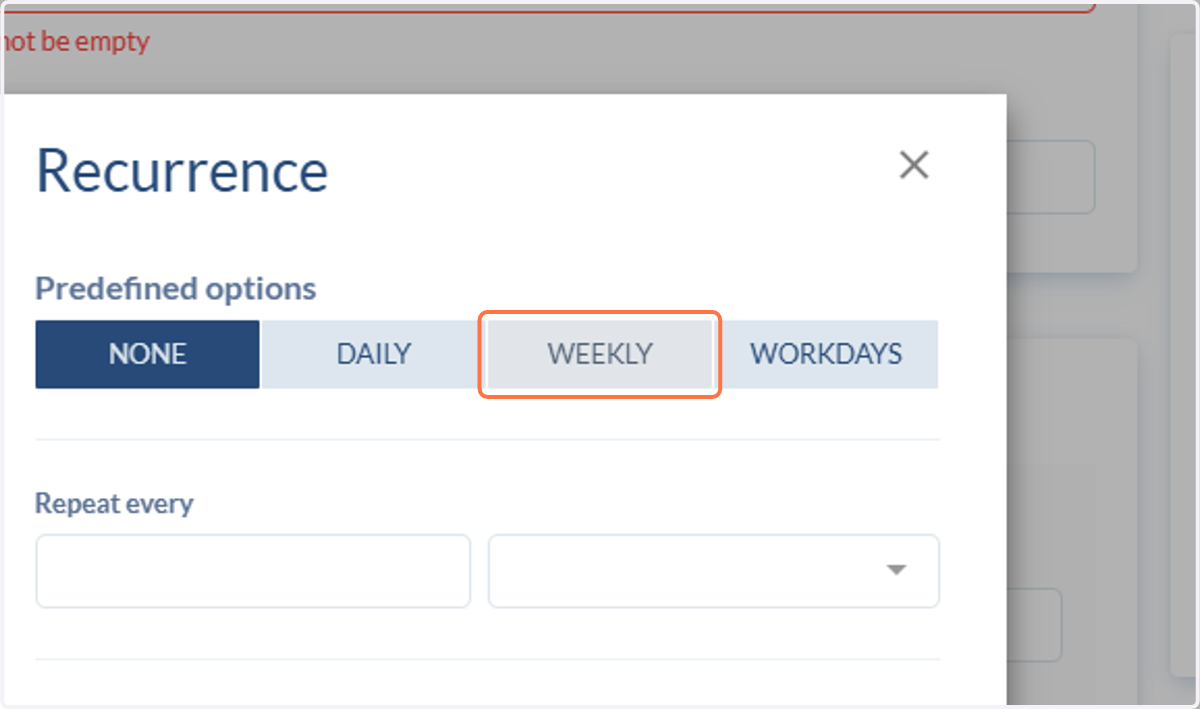
11. Select daily, weekly, or workdays
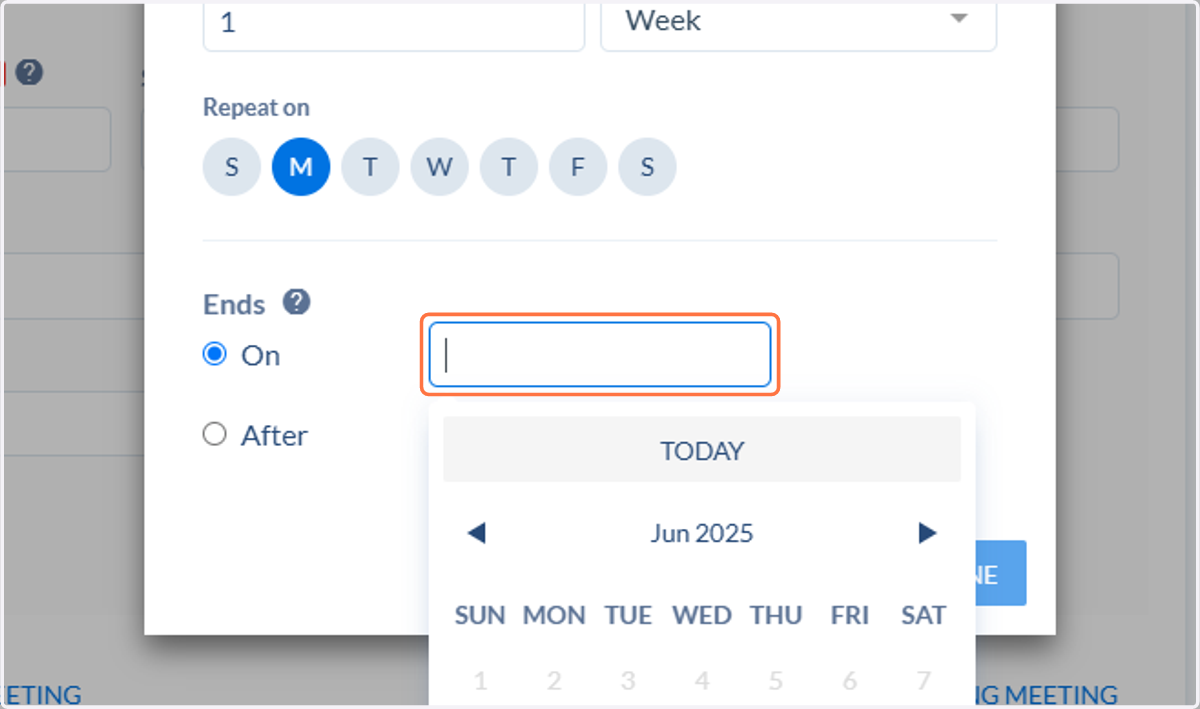
12. Select the last day you want the recurring meeting to take place
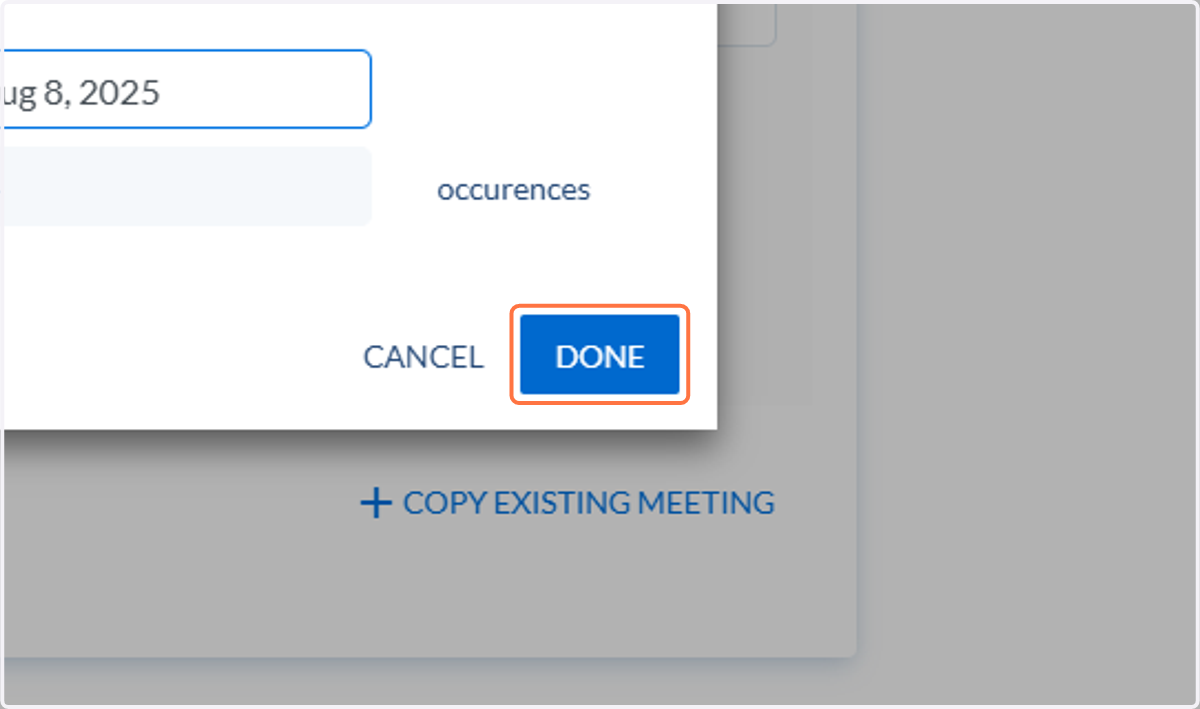
13. Click on DONE
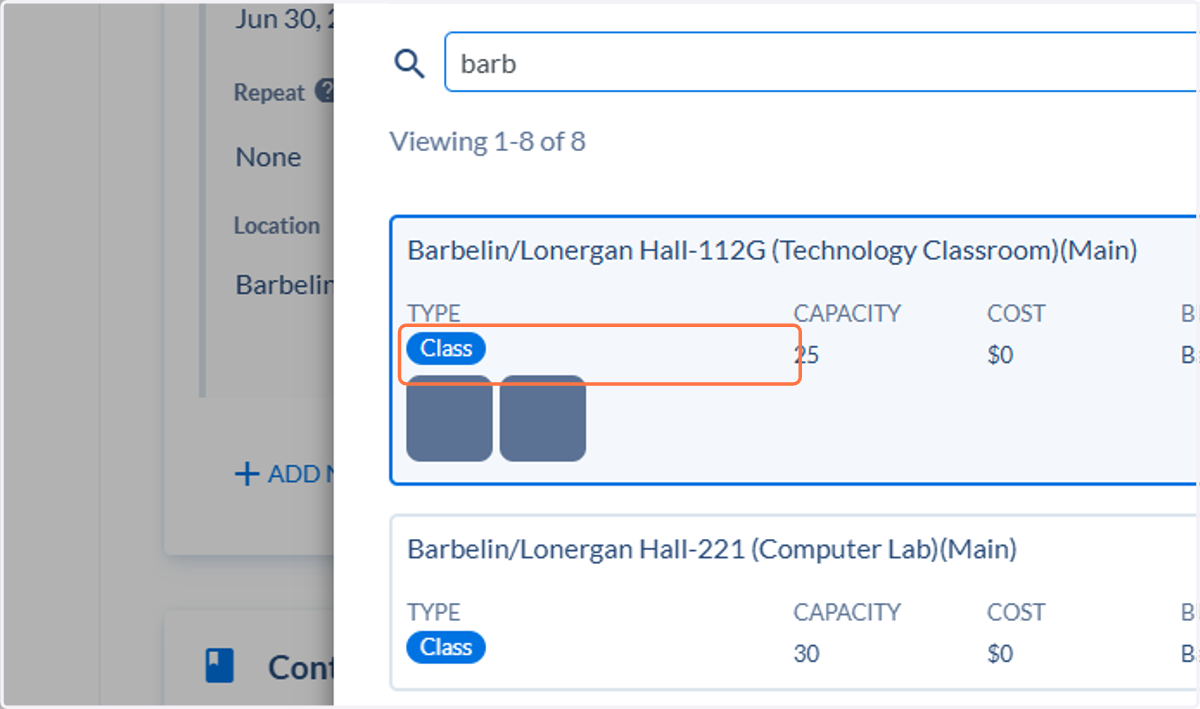
14. Click on Location to select your room. You can use the toggles and search to find a room that will fit your needs
15. Make sure your contact information is correct.
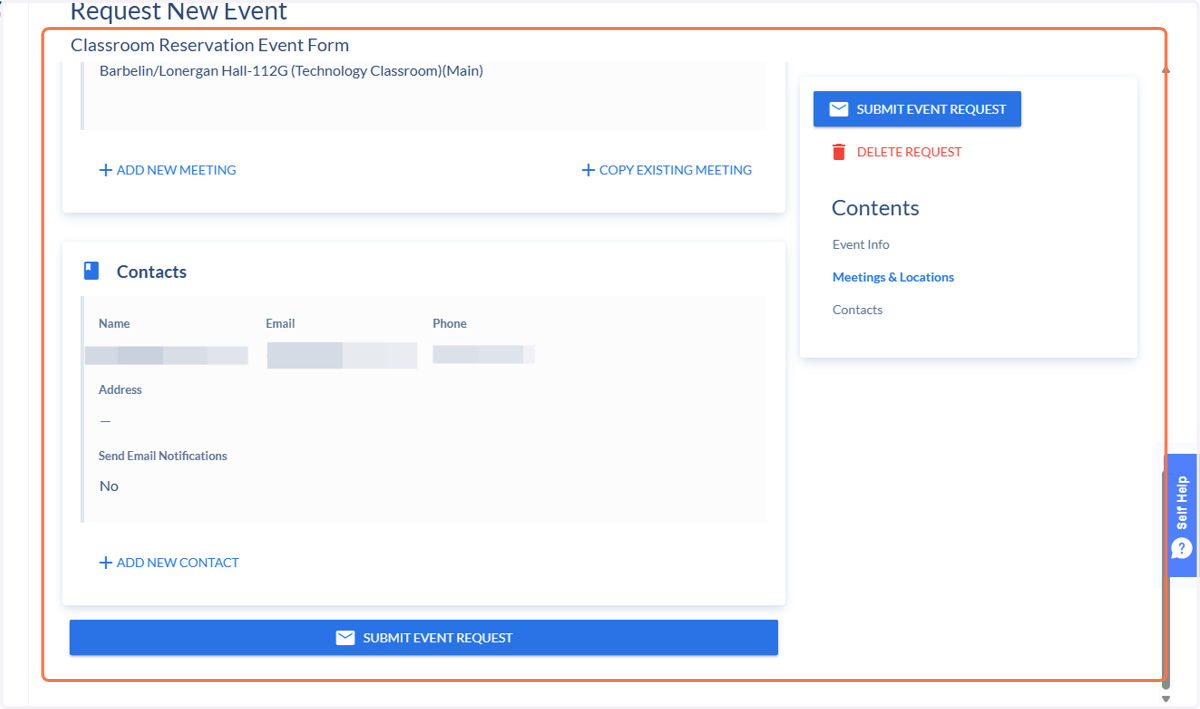
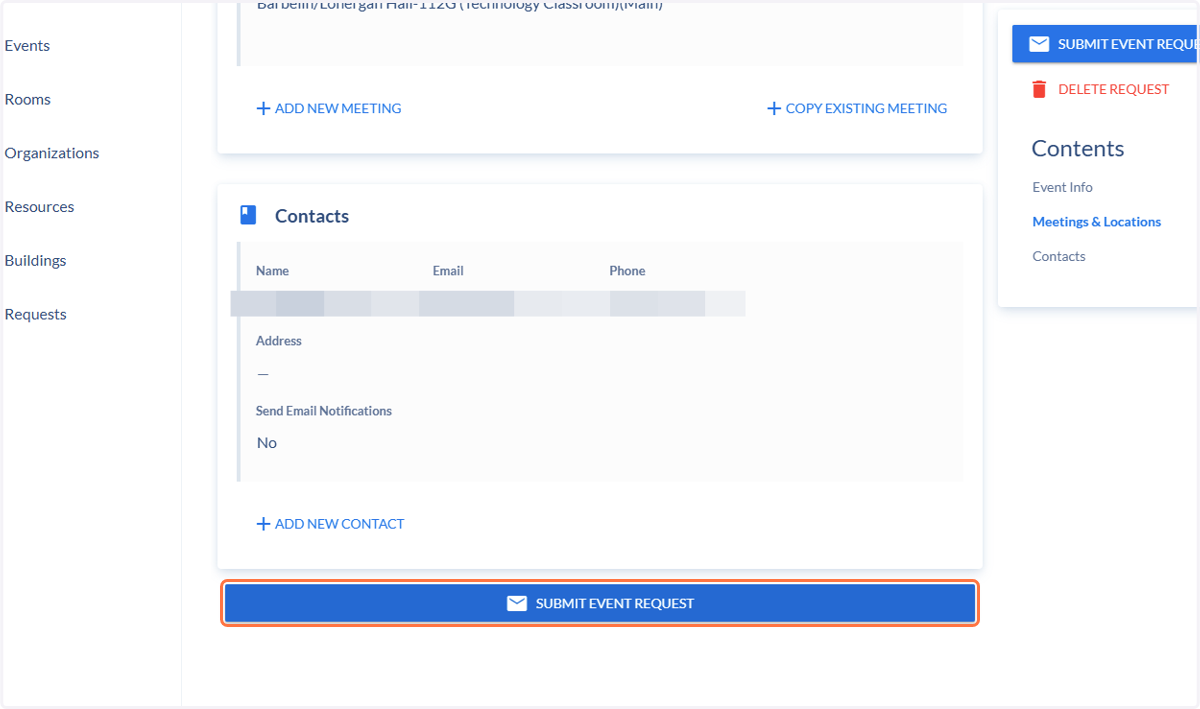
16. Click on Submit Event Request
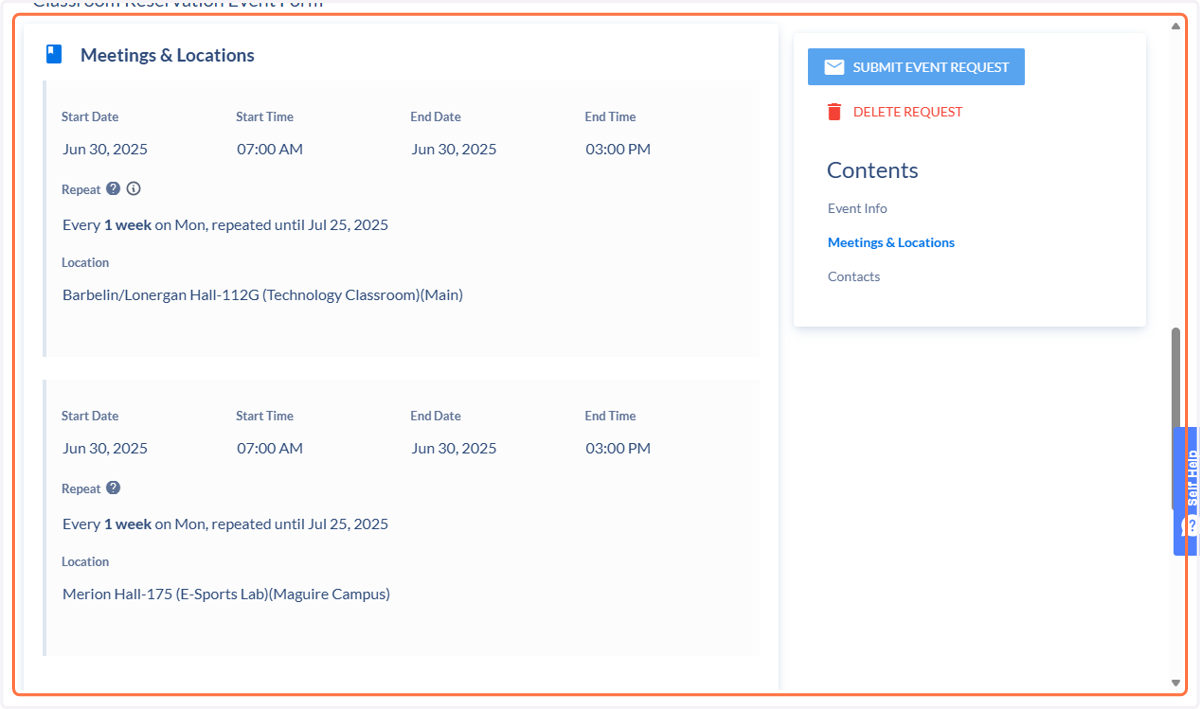
Recurring meeting for multiple rooms
To create a recurring meeting with multiple rooms, take these additional steps.
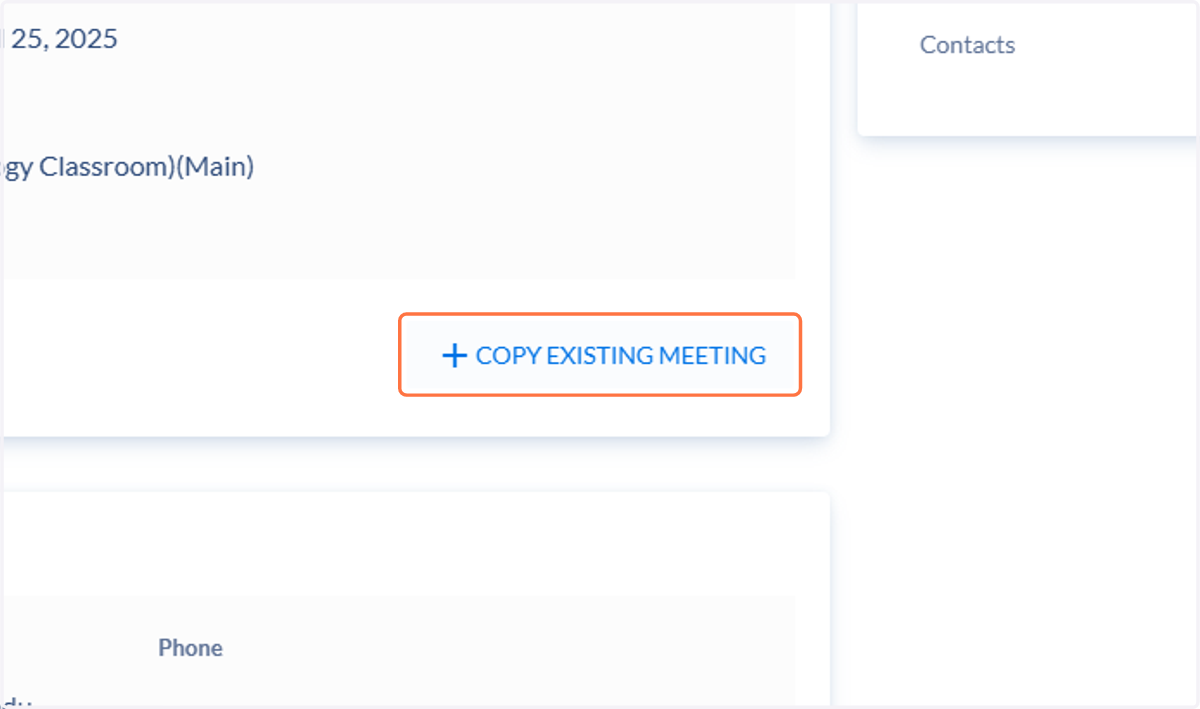
17. Click on Copy Existing Meeting
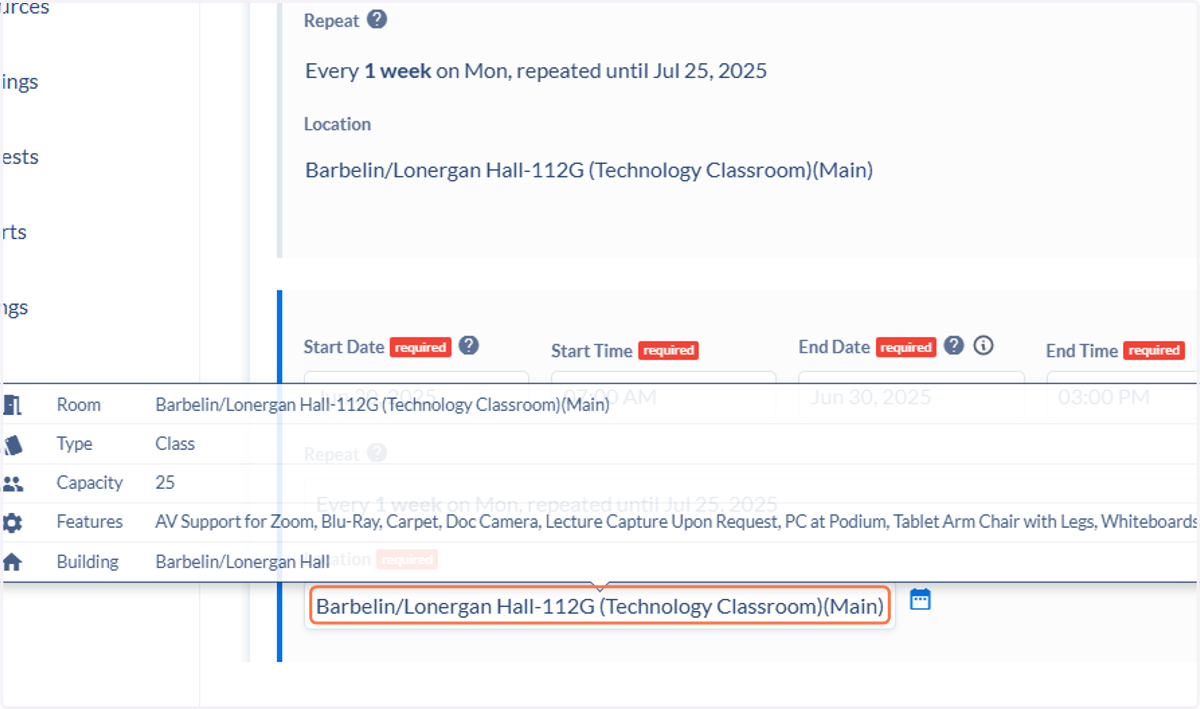
18. On the duplicated Meeting, click on the room assignment to change it.
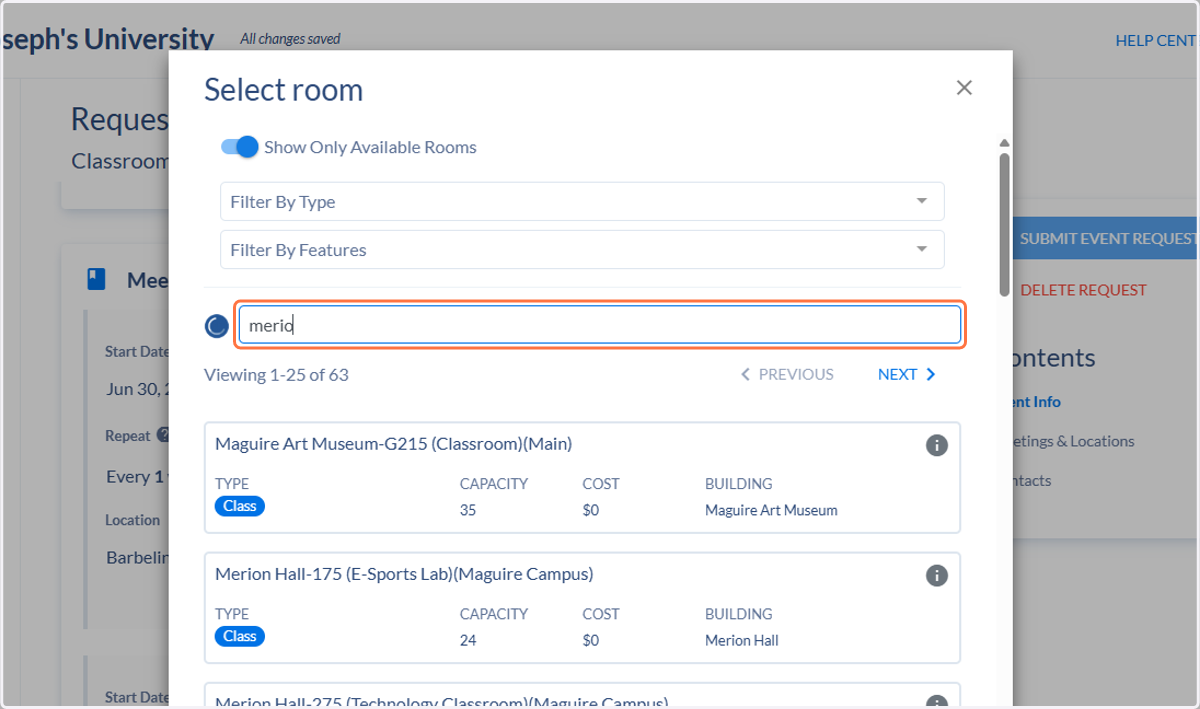
19. Search and click on the room you wish to select.
20. Now you will have the same recurring meeting happening in two rooms.