Request a Background Check in OSU Youth Program Registry
OSU Youth Program Registry
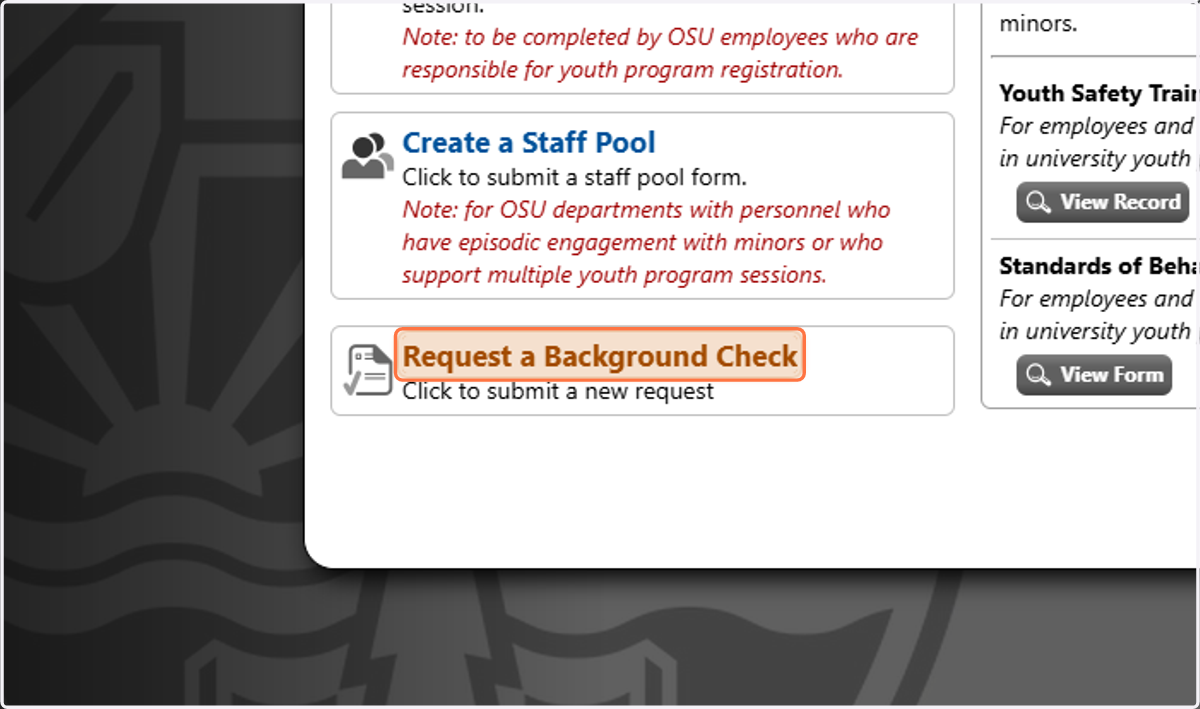
1. Click on Request a Background Check
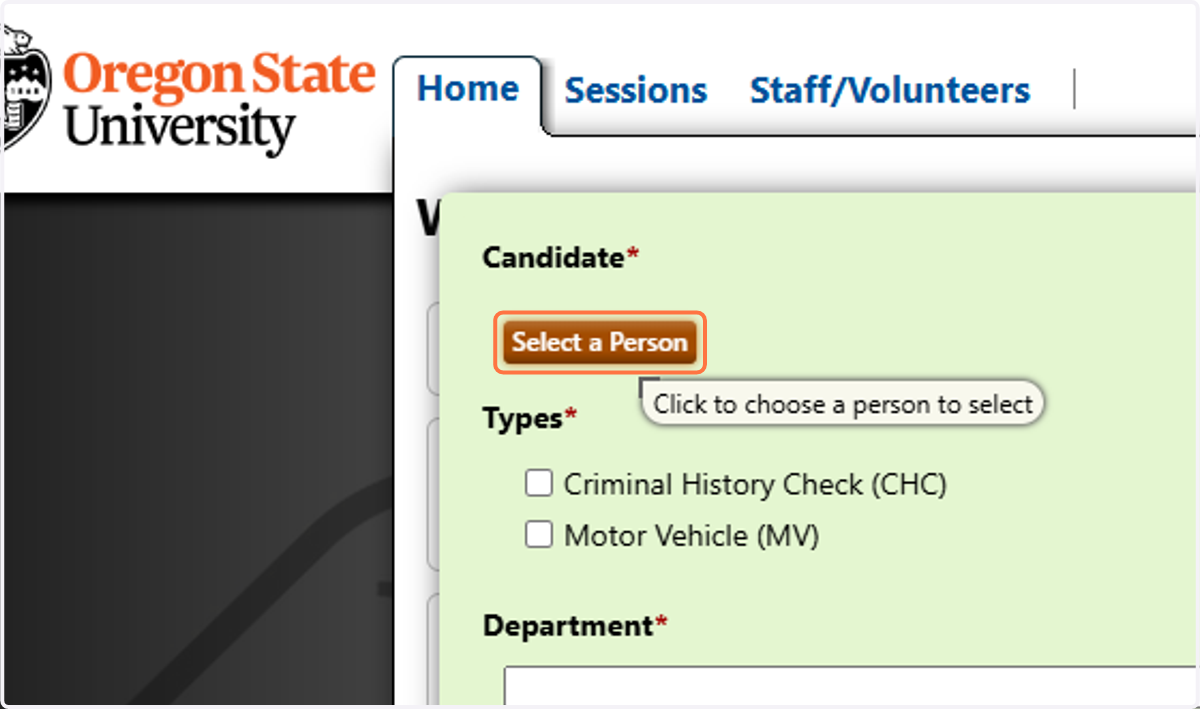
2. Click on Select a Person
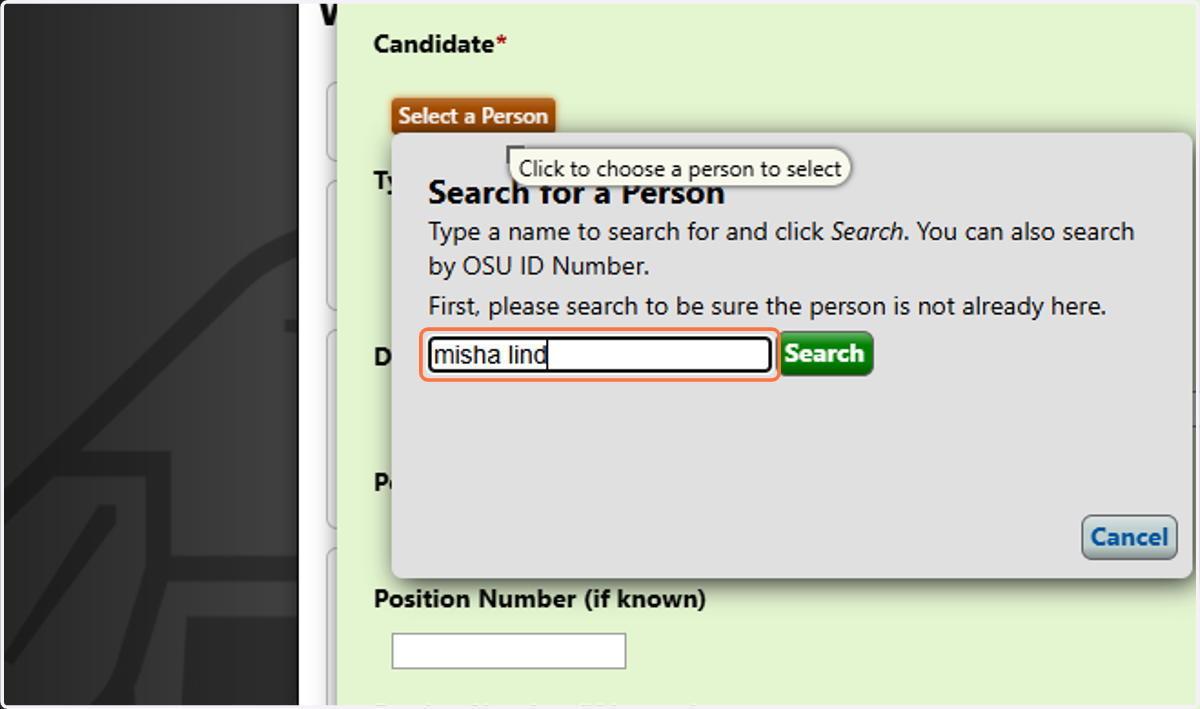
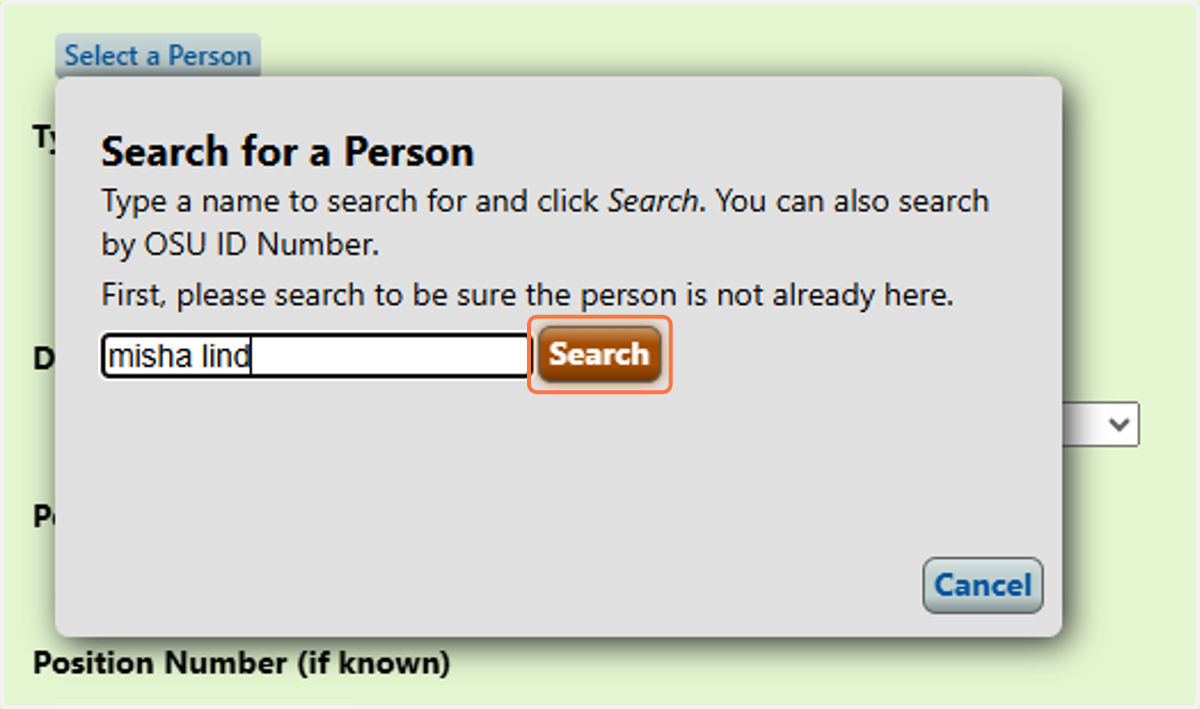
3. Type the name of the individual who needs a new or updated criminal history check
4. Click on Search
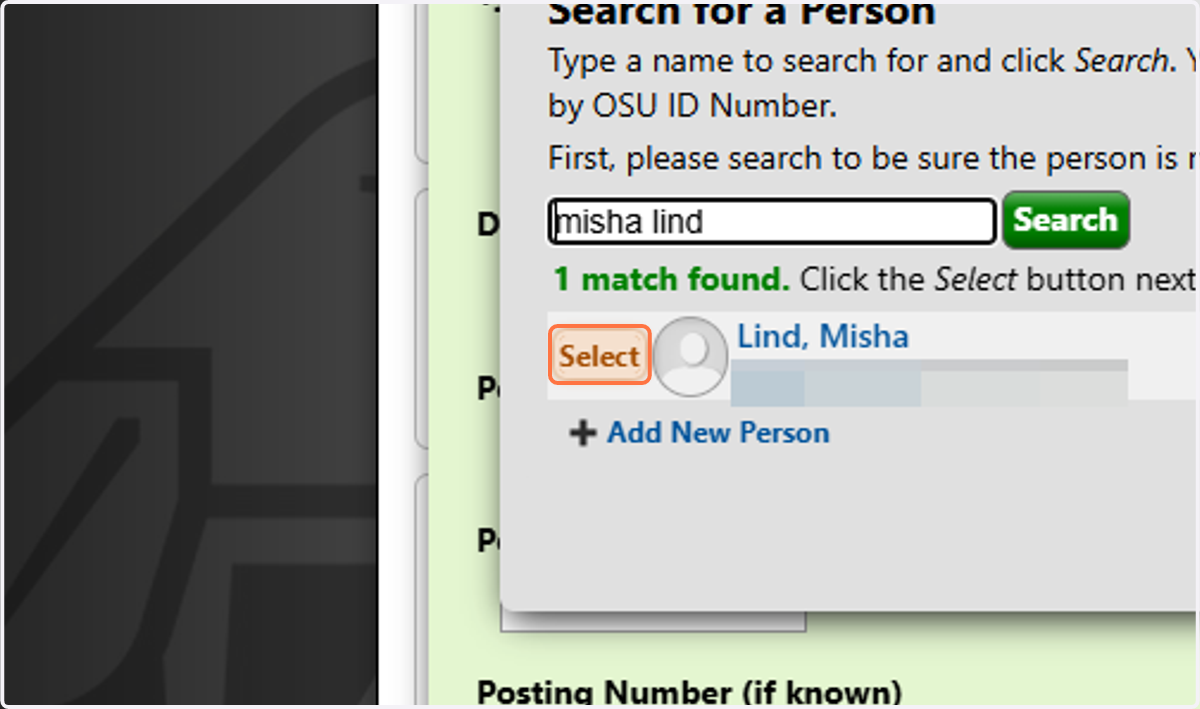
5. Click on Select
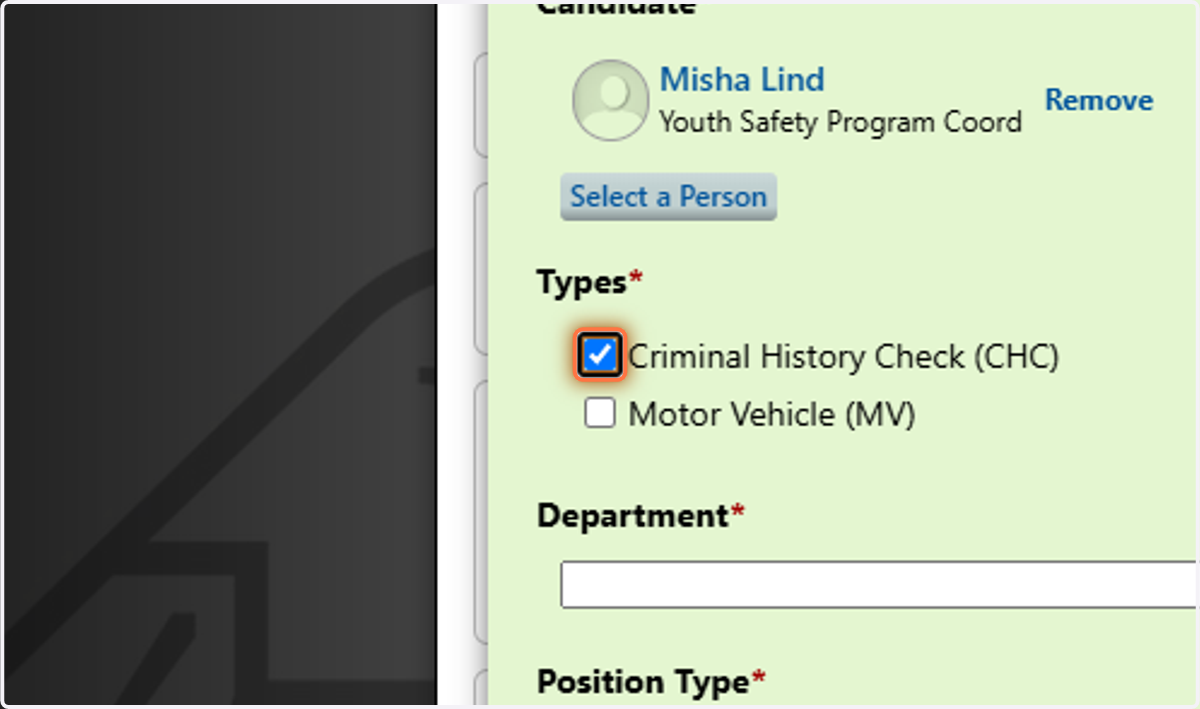
6. Indicate which type of check you are requesting
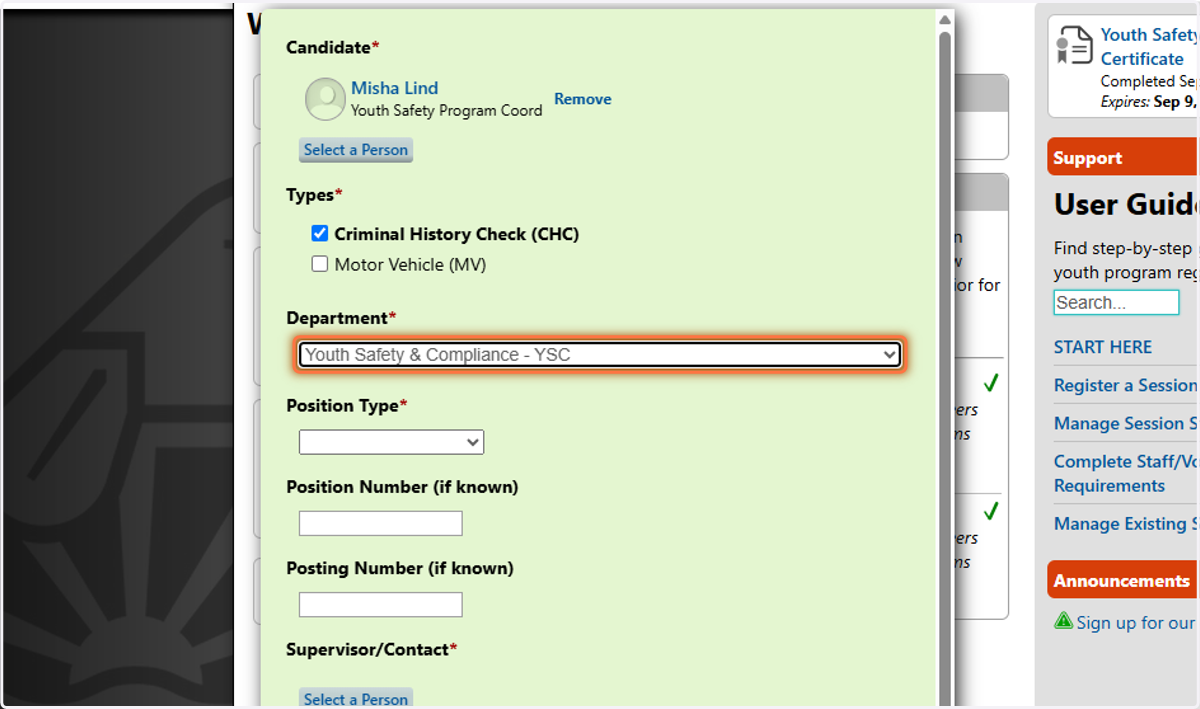
7. Select the individual's affiliated department
If they are affiliated with multiple departments, choose the one that is hosting or sponsoring the session for which this criminal history check is being requested.
8. Enter the Org Number, if known
This helps HR match the criminal history check to the correct unit, if necessary.
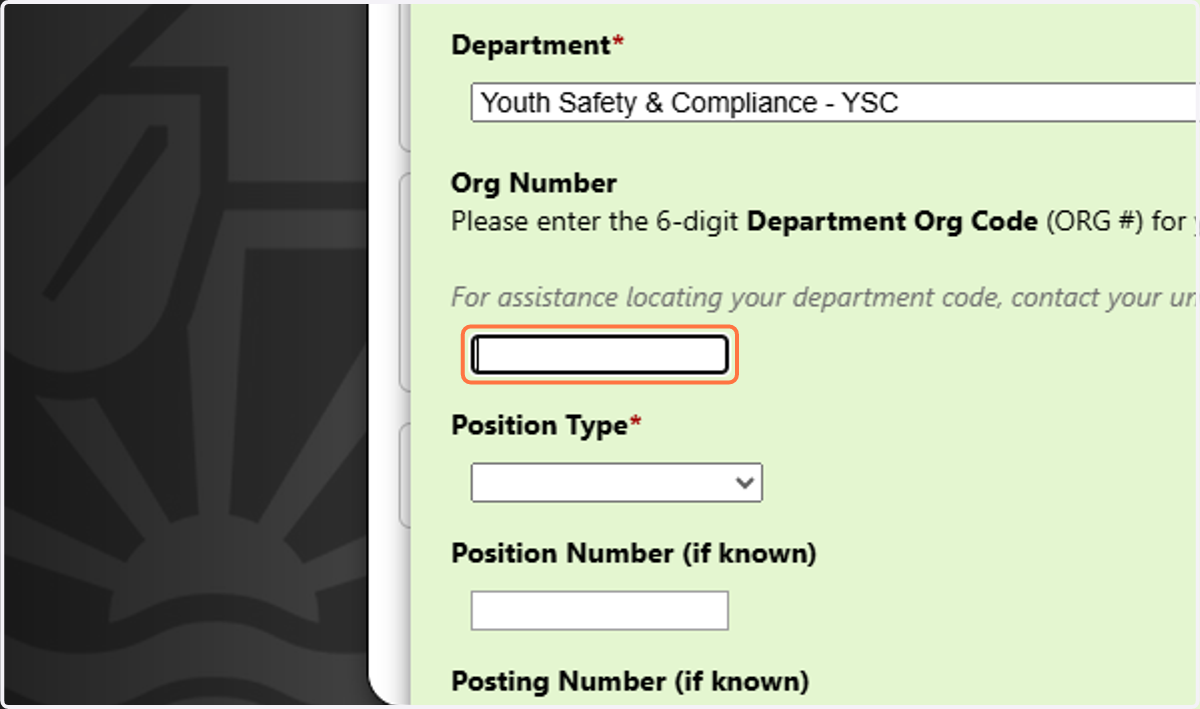
9. Select the position type
If the individual holds more than one position, select the one they are serving in for the session associated with this criminal history check.
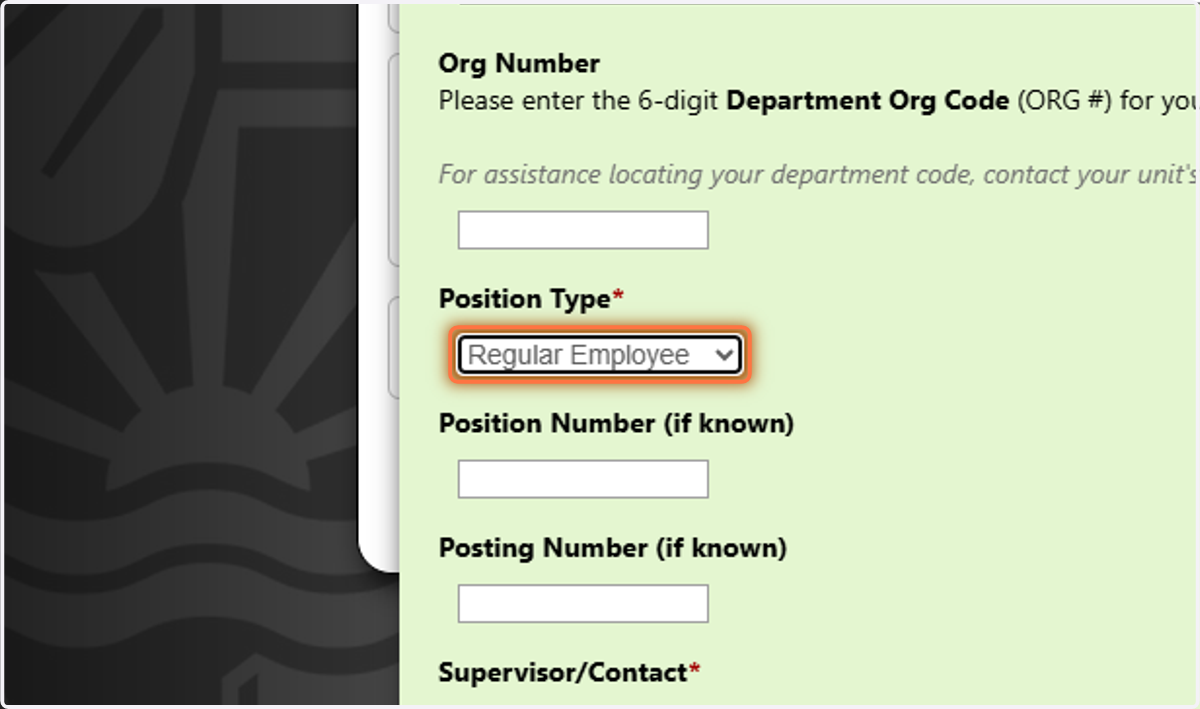
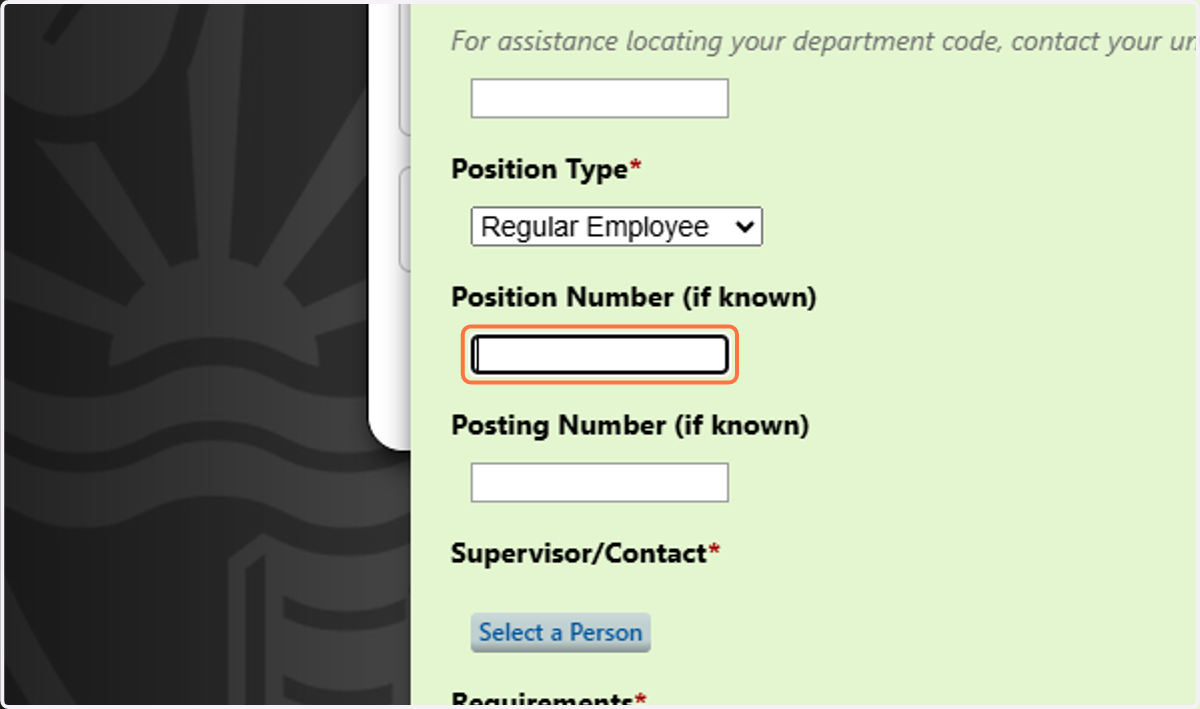
10. Enter the Position and Posting Numbers, if relevant
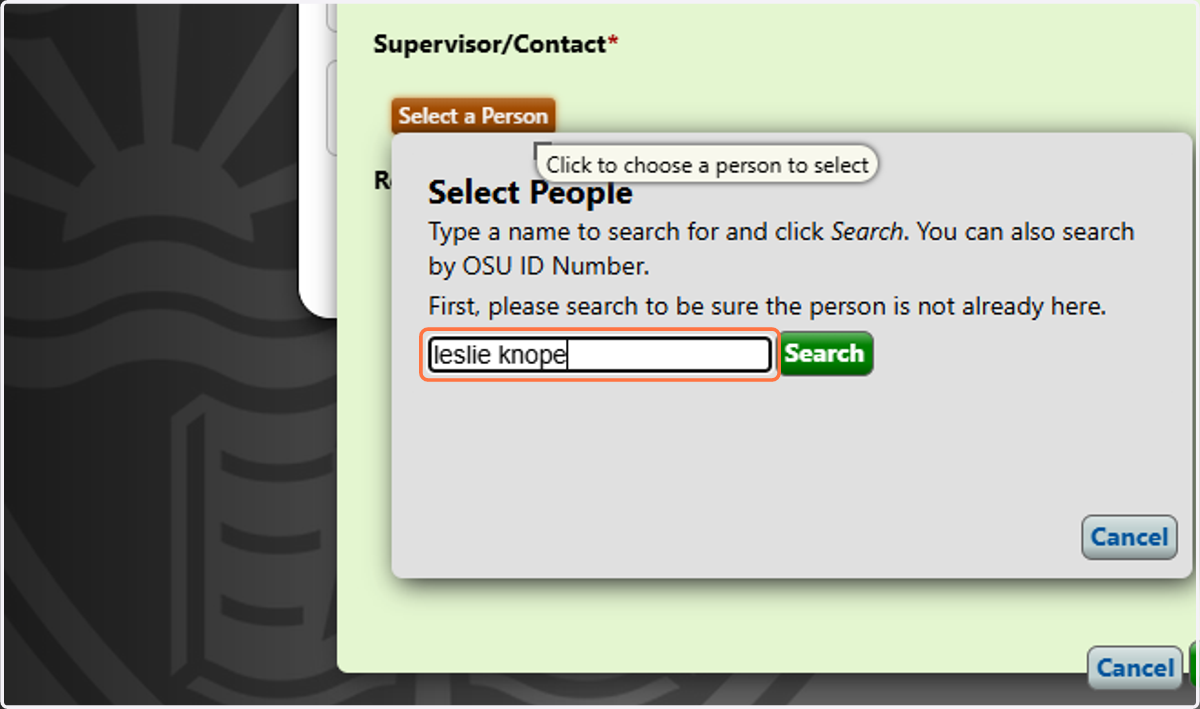
11. Click on Select a Person
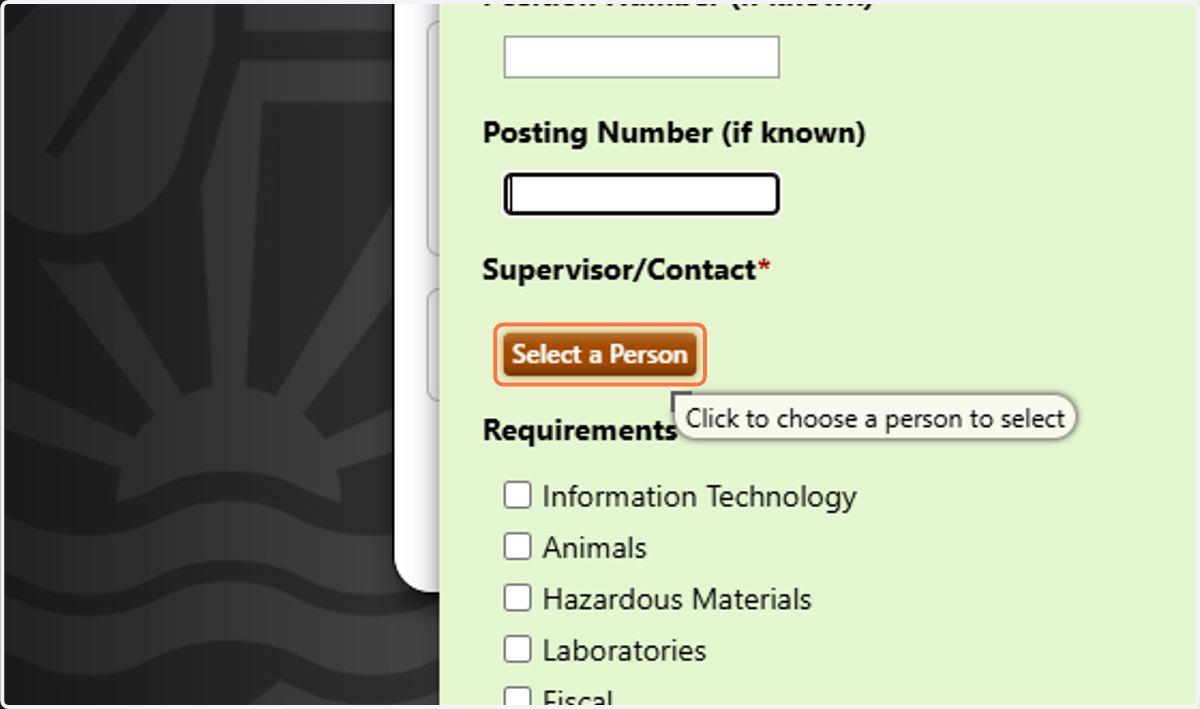
12. Enter the name of the supervisor or main contact for the session related to this criminal history check
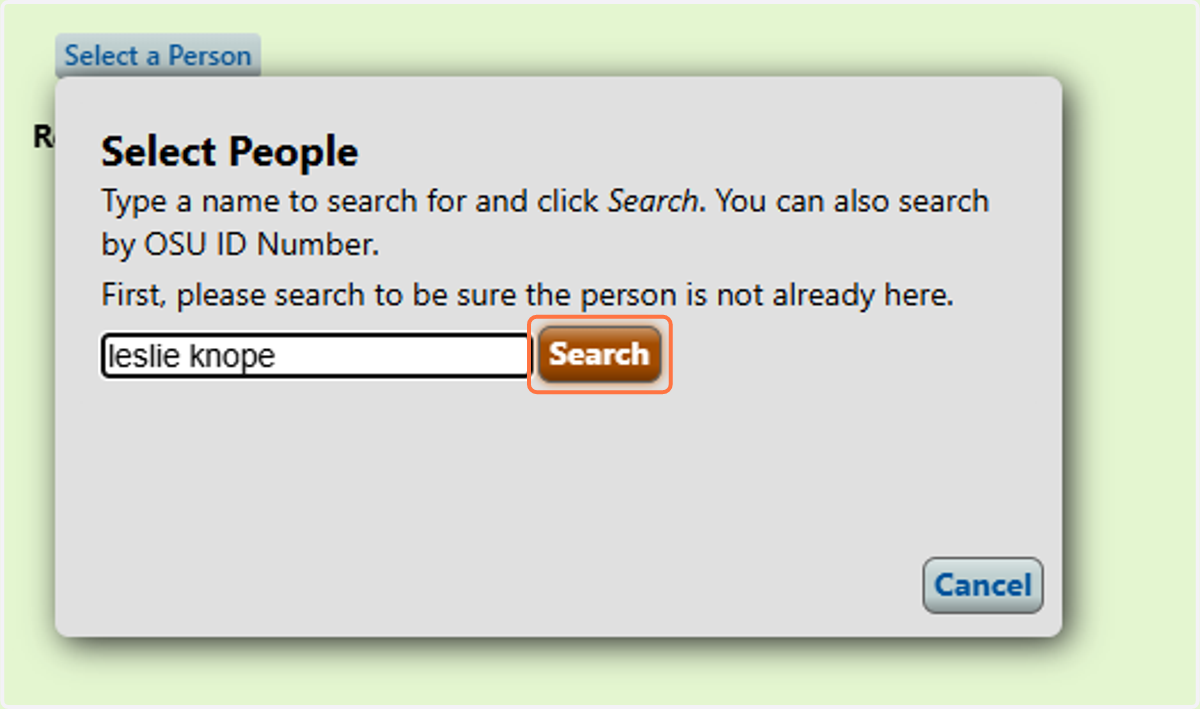
13. Click on Search
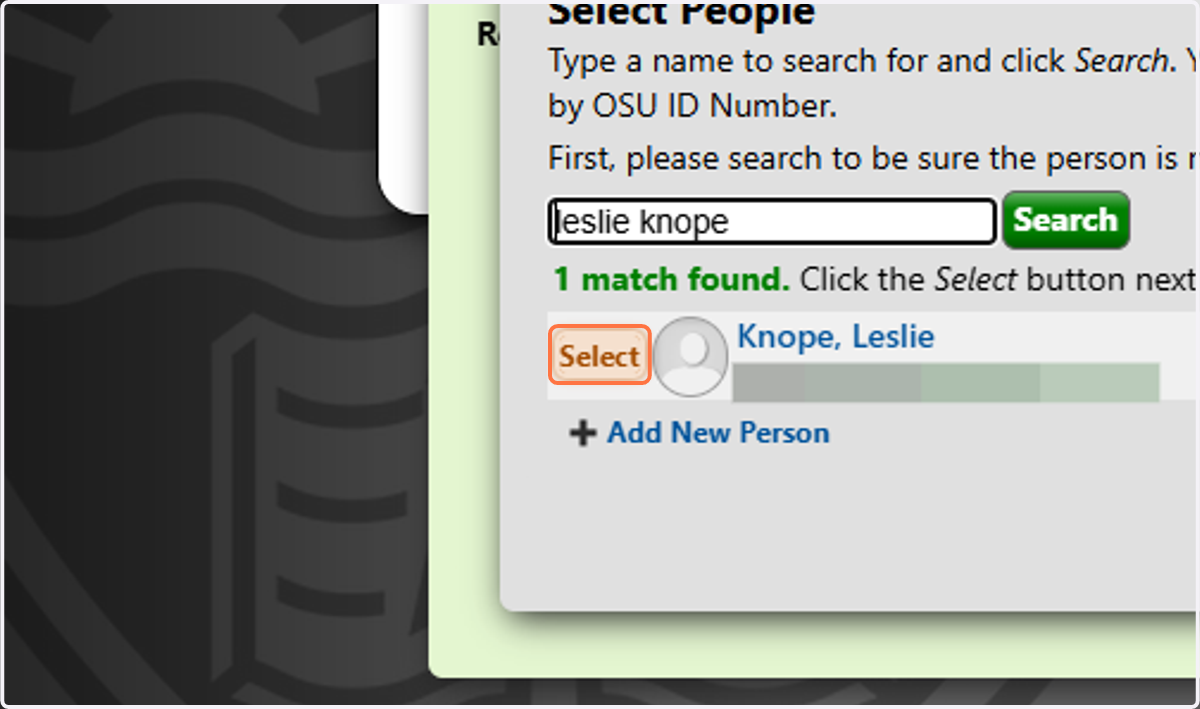
14. Select the supervisor/contact
15. Select the individual's relevant responsibilities from the list
If you have questions, refer to FAQ #23 on OSU HR's Background Check page.
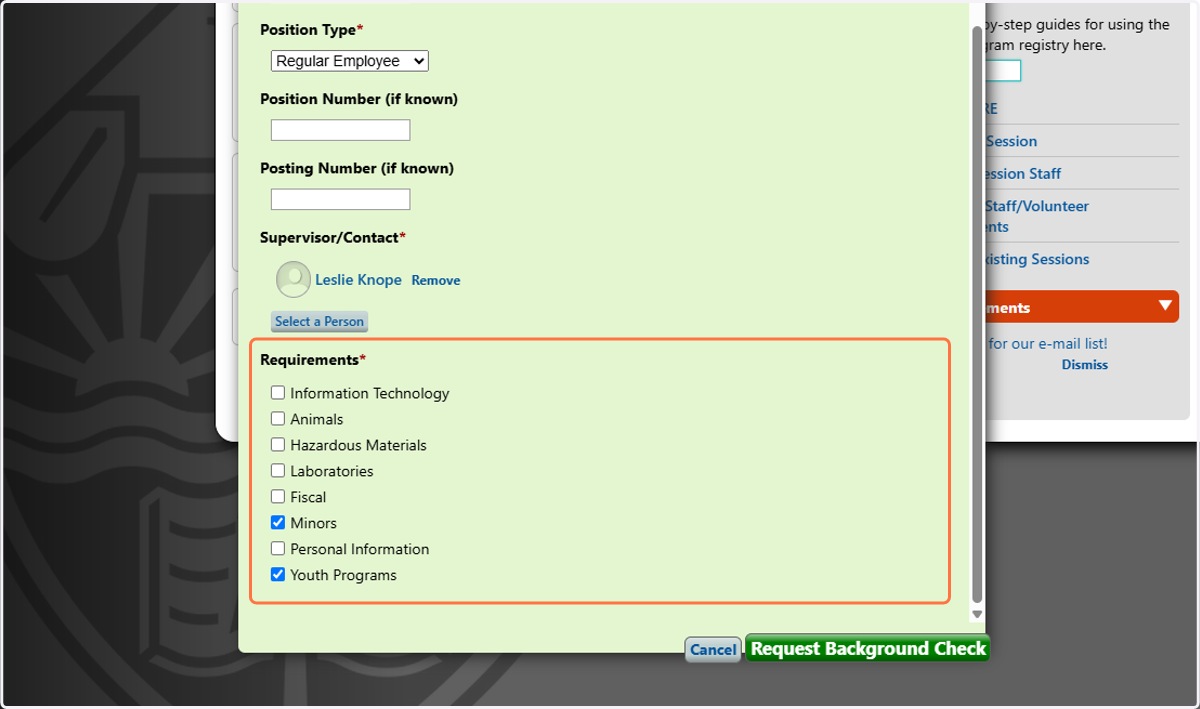
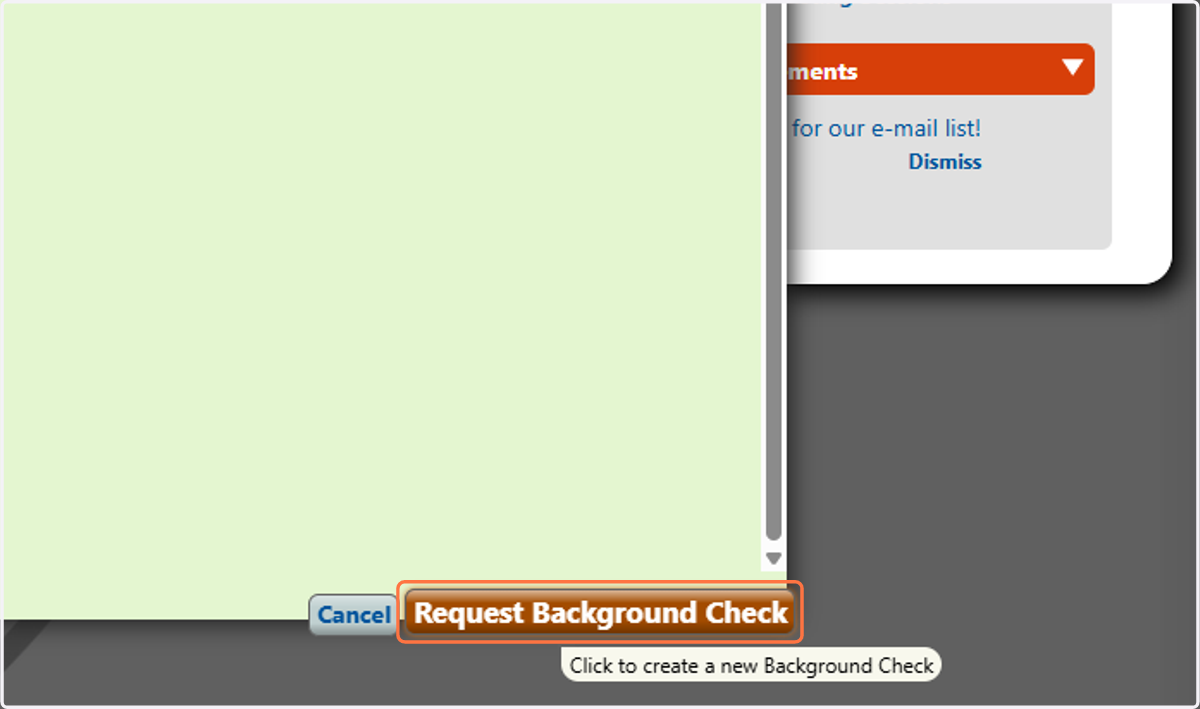
16. Click on Request Background Check
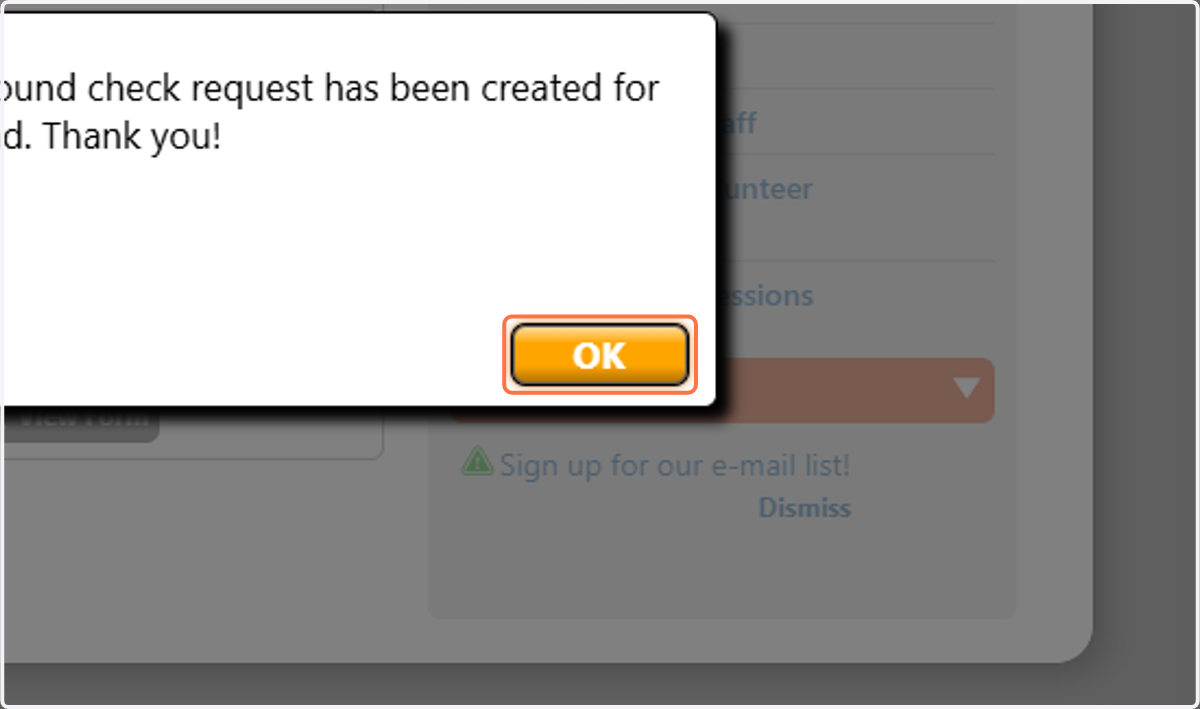
17. Click on OK