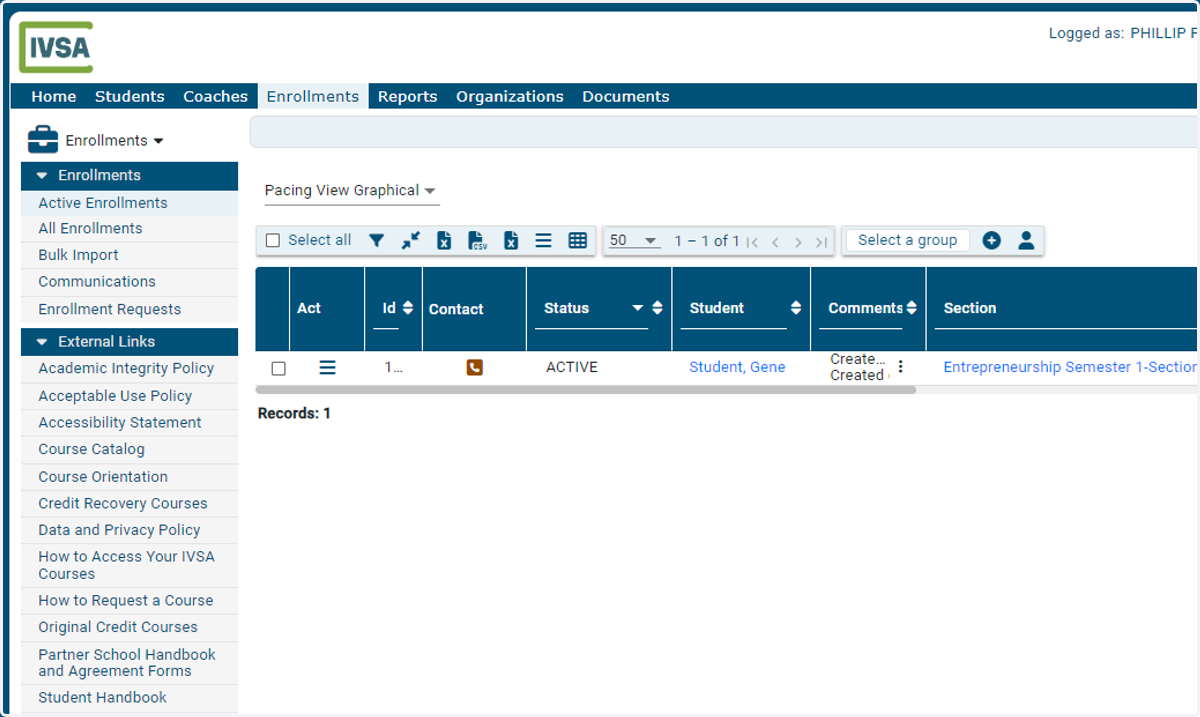
Registrar - How to drop multiple enrollments
Registrars can directly drop multiple enrollments using the Bulk Action Console.
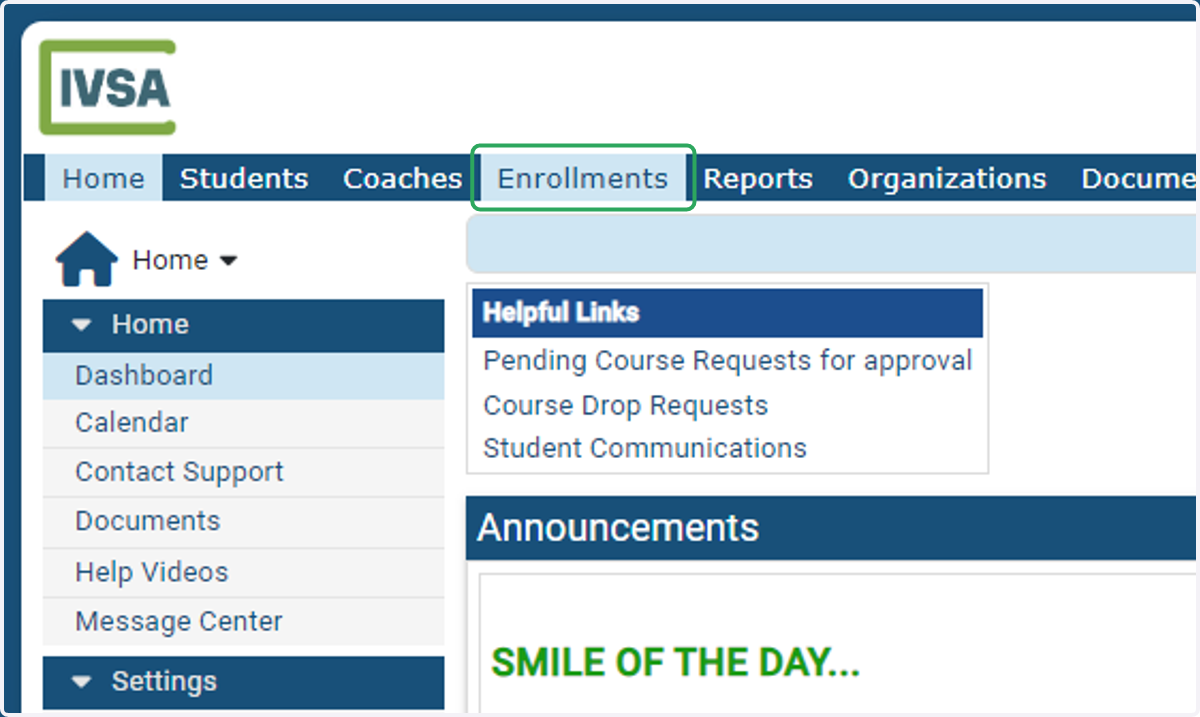
1. On the Registrar dashboard, click the Enrollments tab at the top of the page.
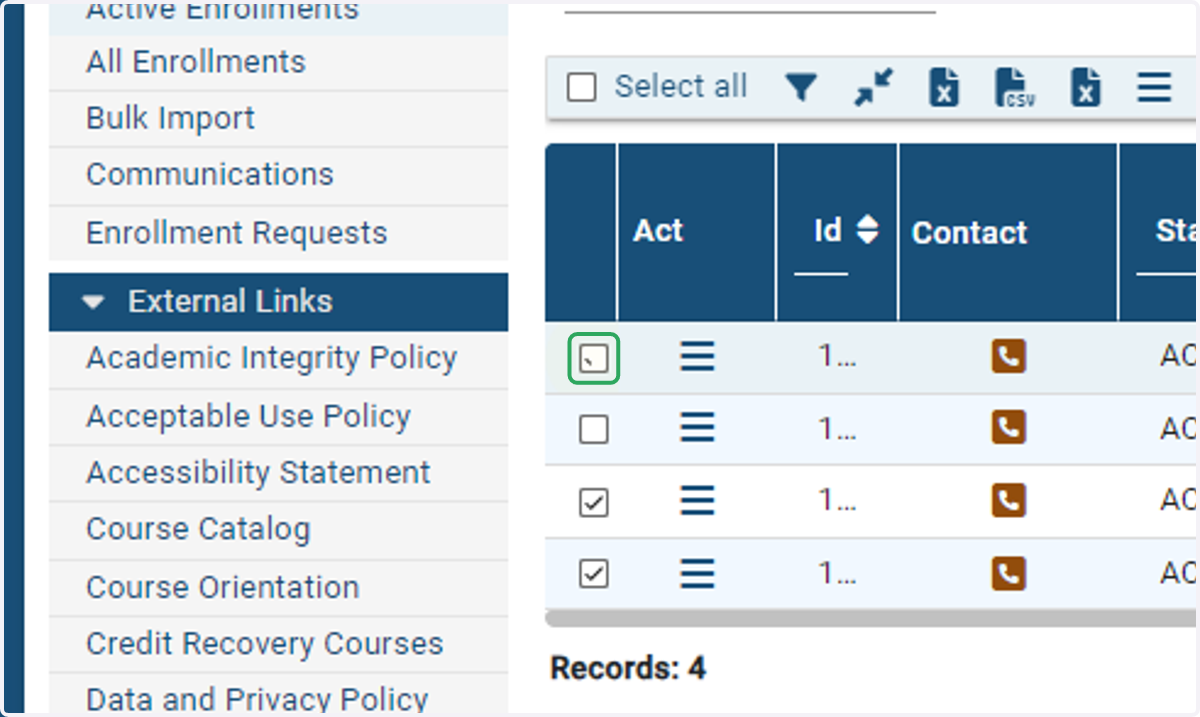
2. Check the boxes next to the enrollments you want to drop.
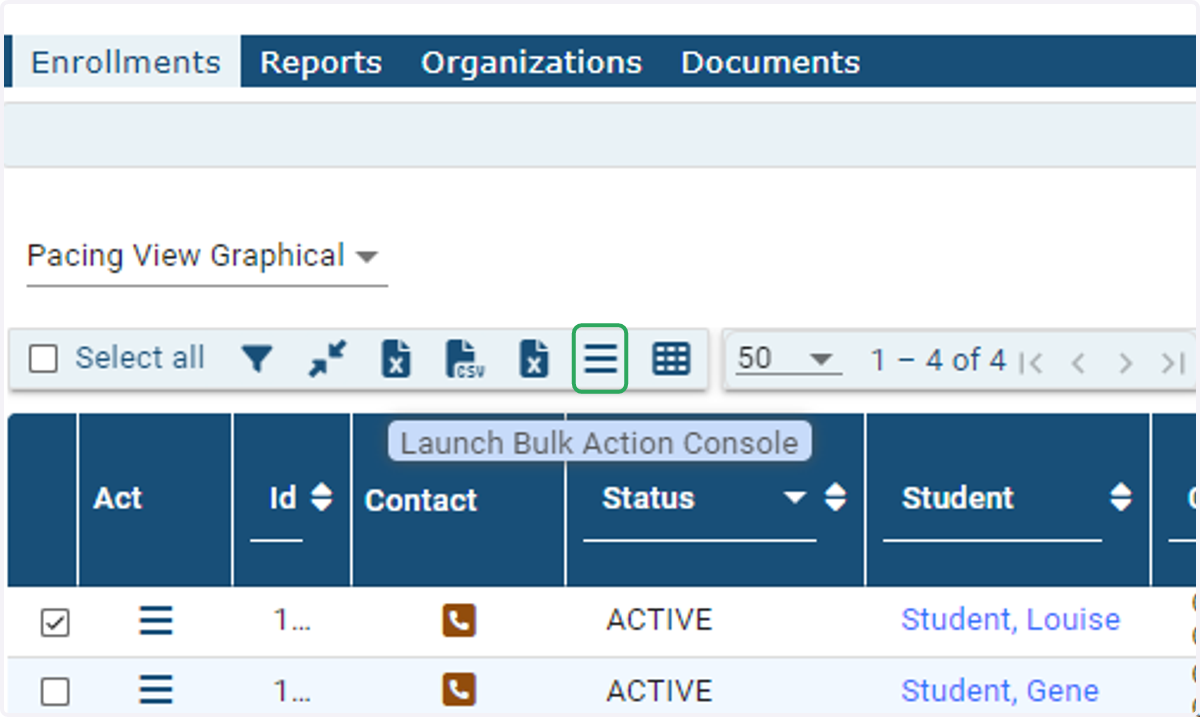
3. Launch the Bulk Action Console.
The Bulk Action Console is the 'hamburger' icon located above the enrollments table.
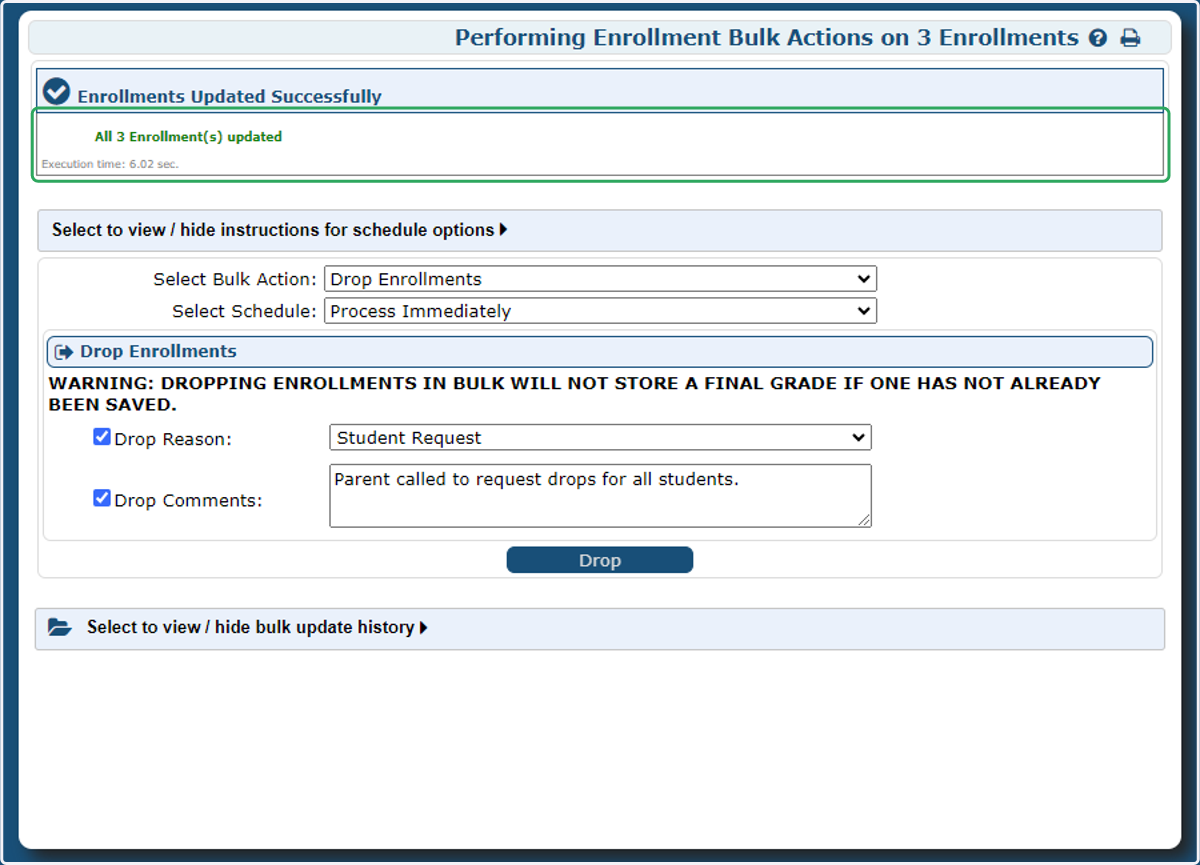
4. Select Drop Enrollments from the down down menu
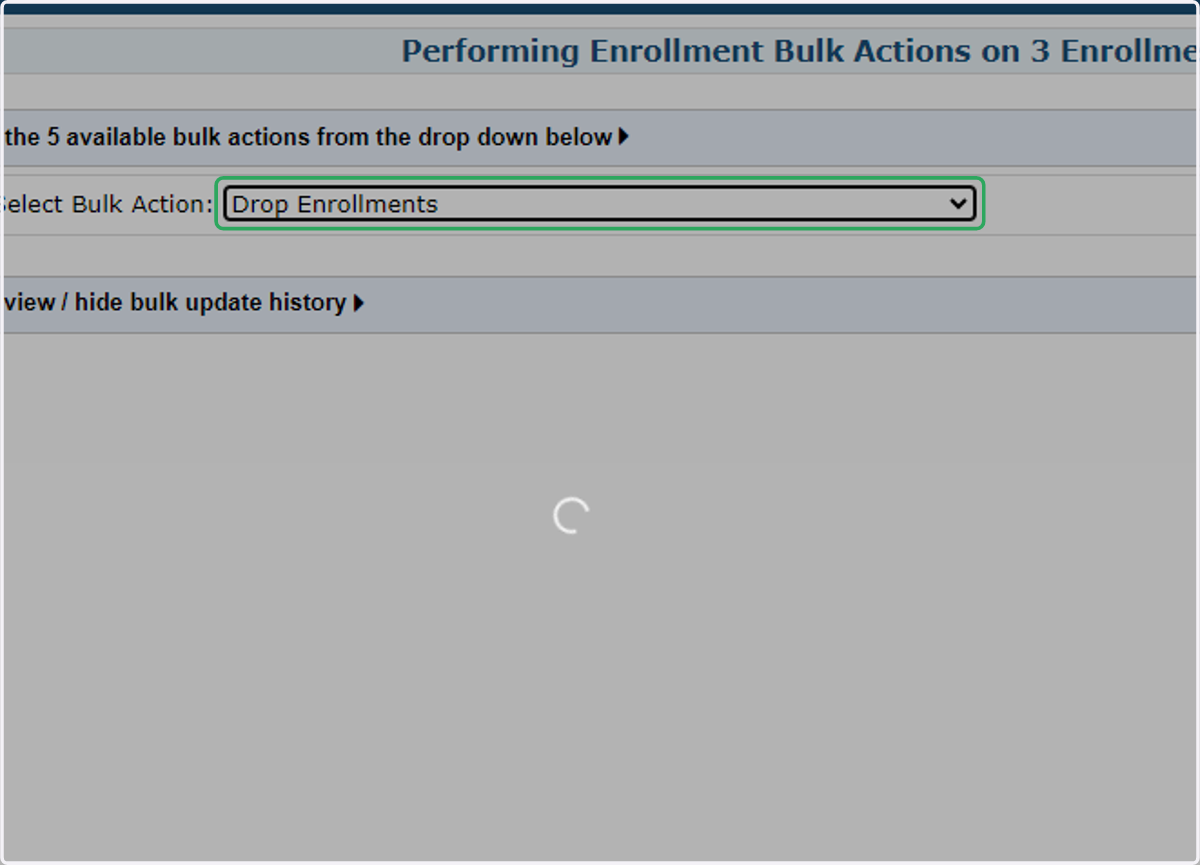
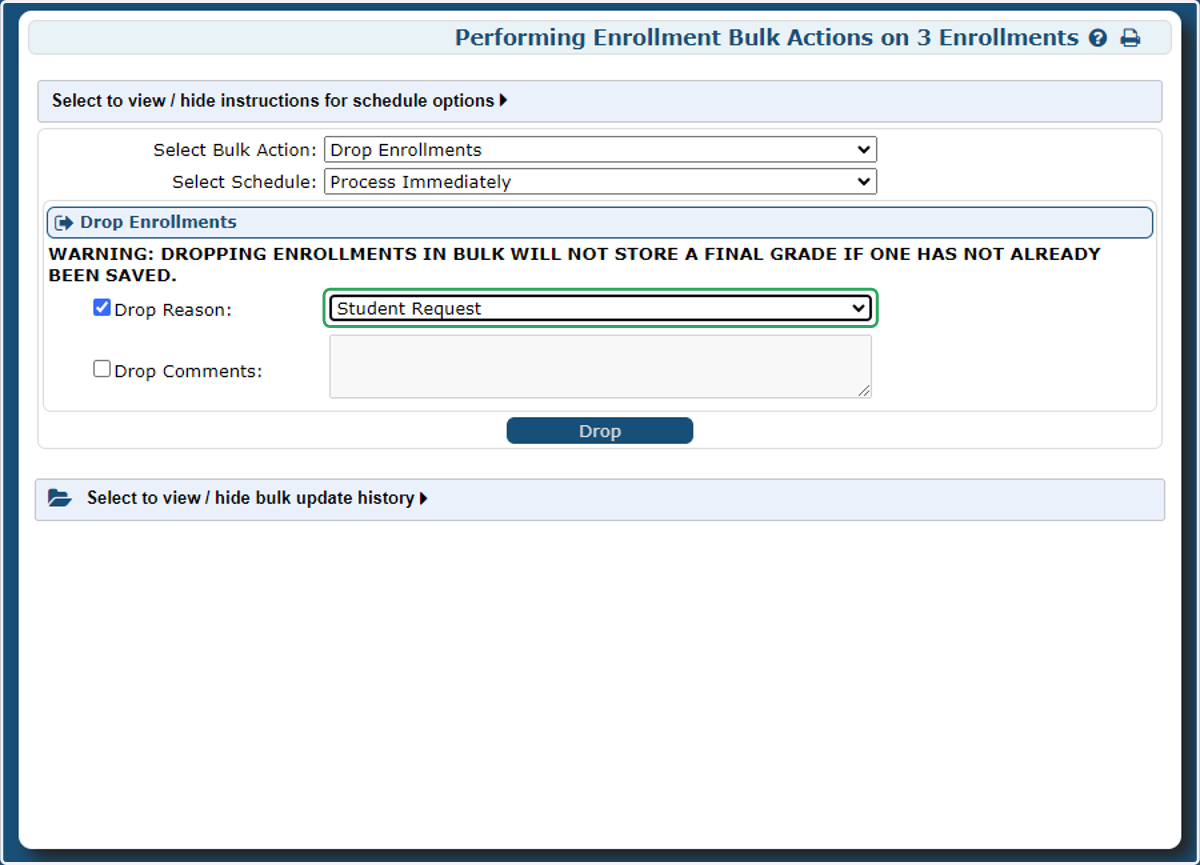
5. Check the Drop Reason box and use the drop-down menu to select the reason.
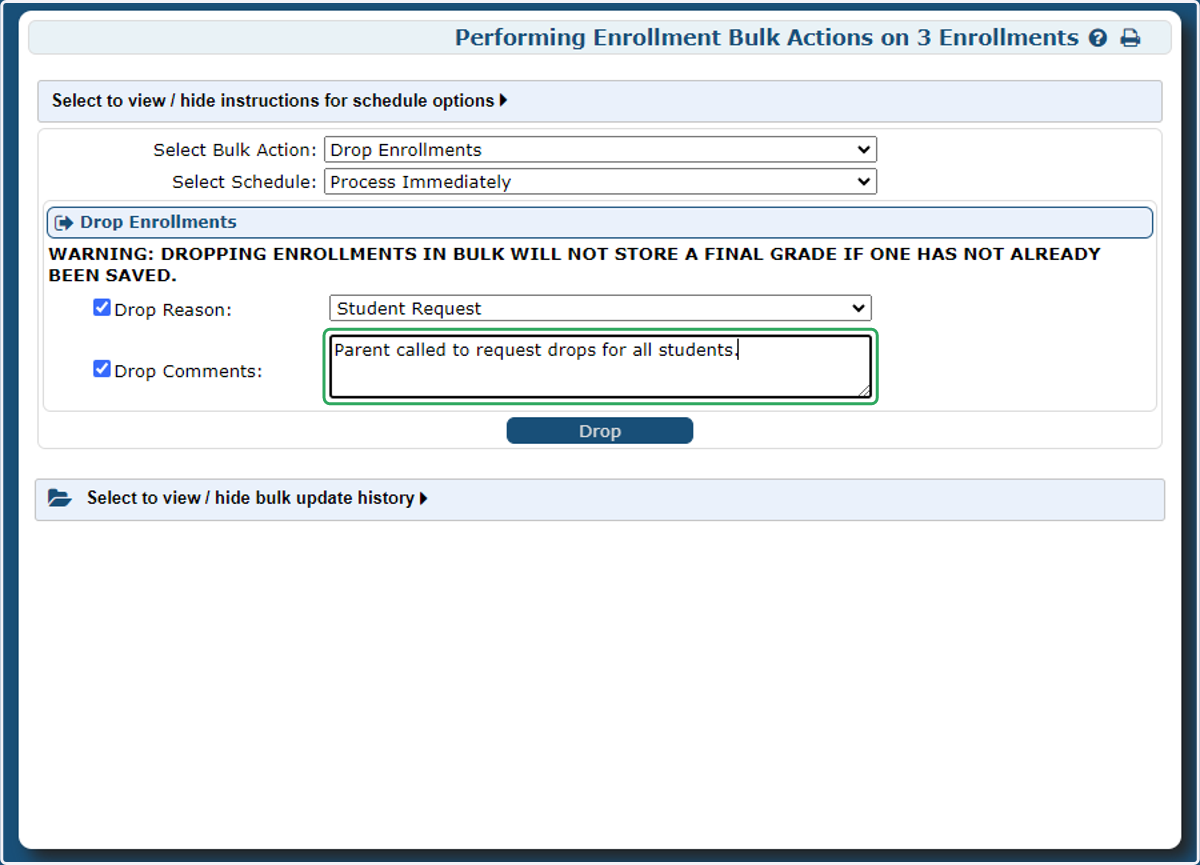
6. Optional: check the box to add drop comments for all the enrollments you are dropping.
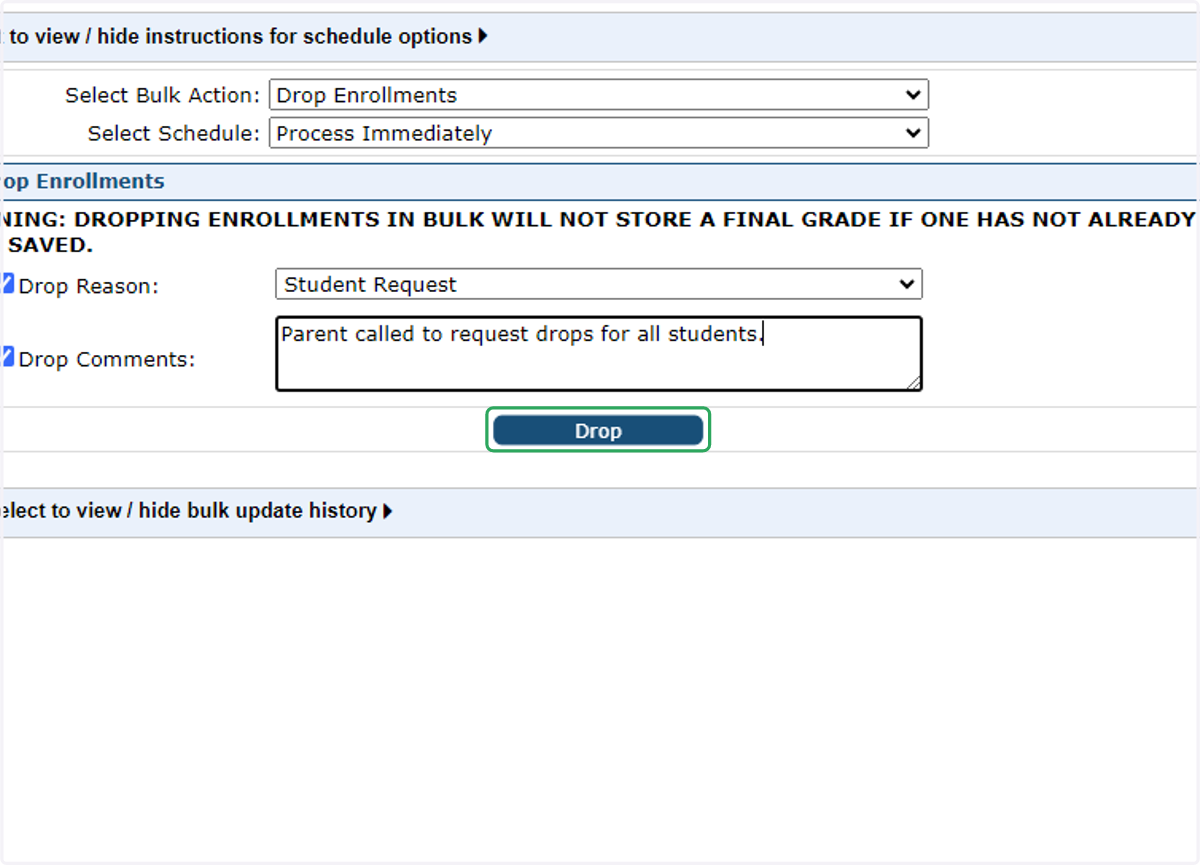
7. Click on Drop
8. Success! A confirmation will appear in green texted noting the enrollments have been updated.
9. Refreshing the page will remove those records from the current enrollments page.
If you receive an error or need additional assistance, please contact us at info@ivsaschool.org.