Registrar - How to directly enroll a student in an IVSA course
IVSA registrars can directly enroll students into a course without the student submitted course request.
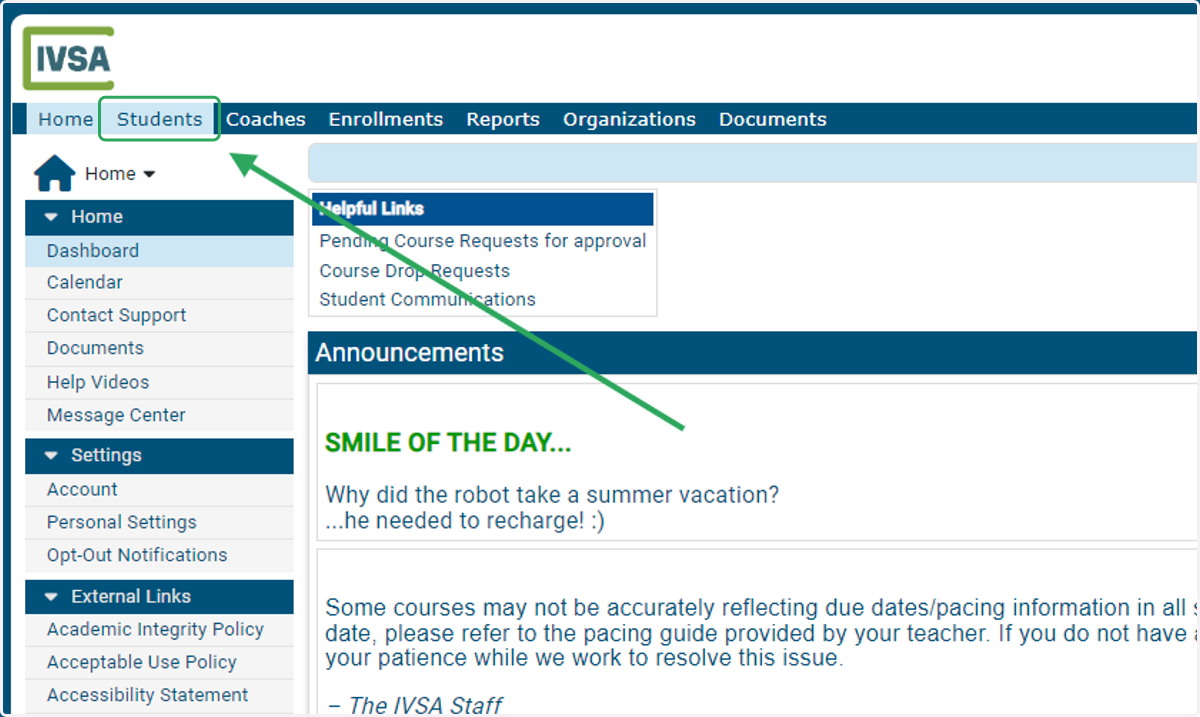
1. On the IVSA Registrar Dashboard, click the Students tab.
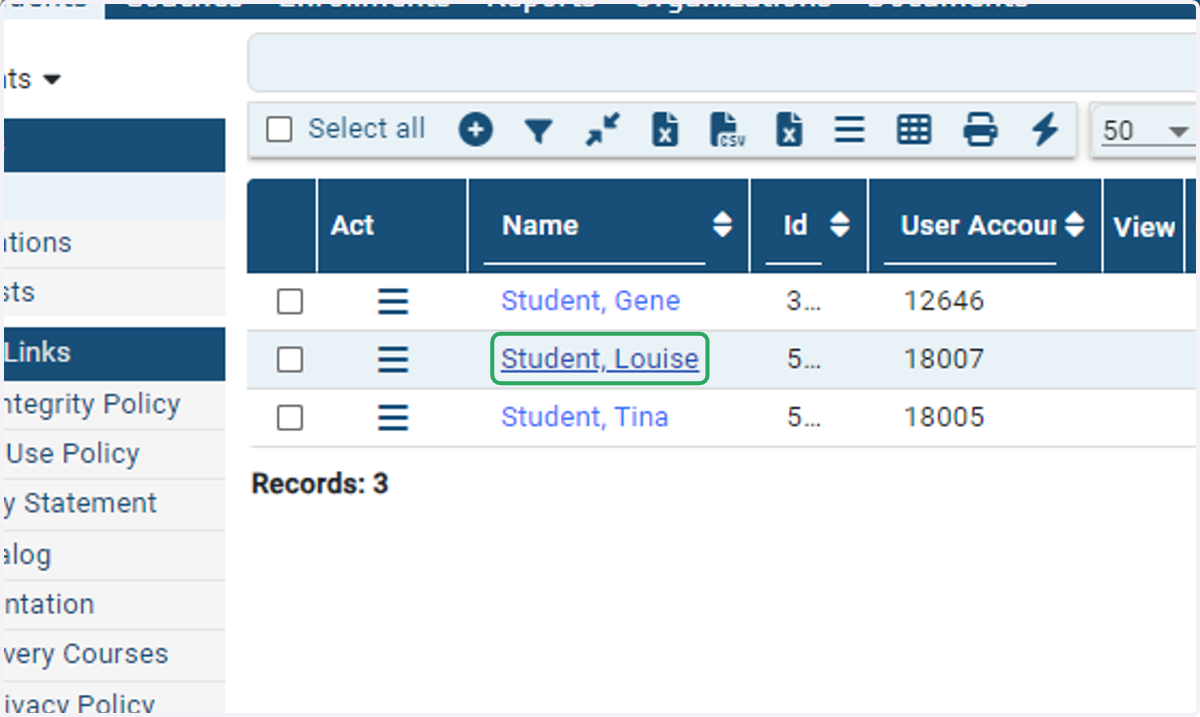
2. Click on the name of the student whom you want to enroll in a course.
If you don't see your student, then they don't have an IVSA account linked to your school.
You may need to follow up with the student to confirm that they have completed the IVSA student application and selected the correct school.
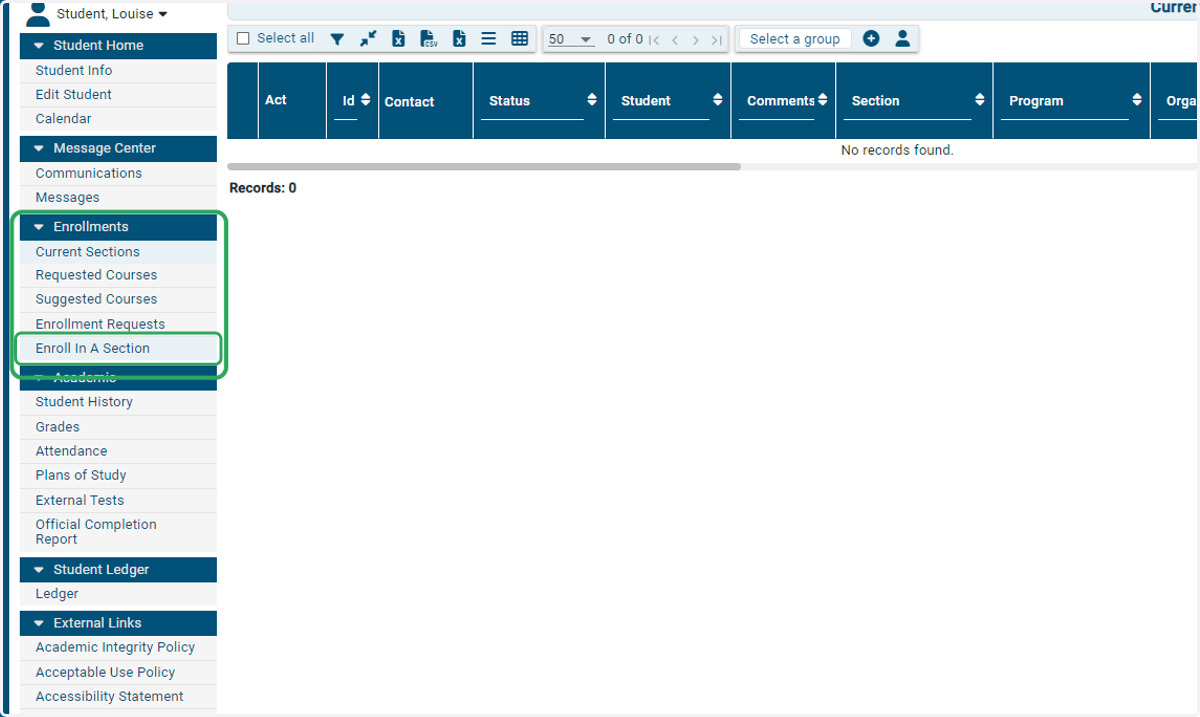
3. Click on Enroll In A Section, under the Enrollments tab on the left side of the screen.
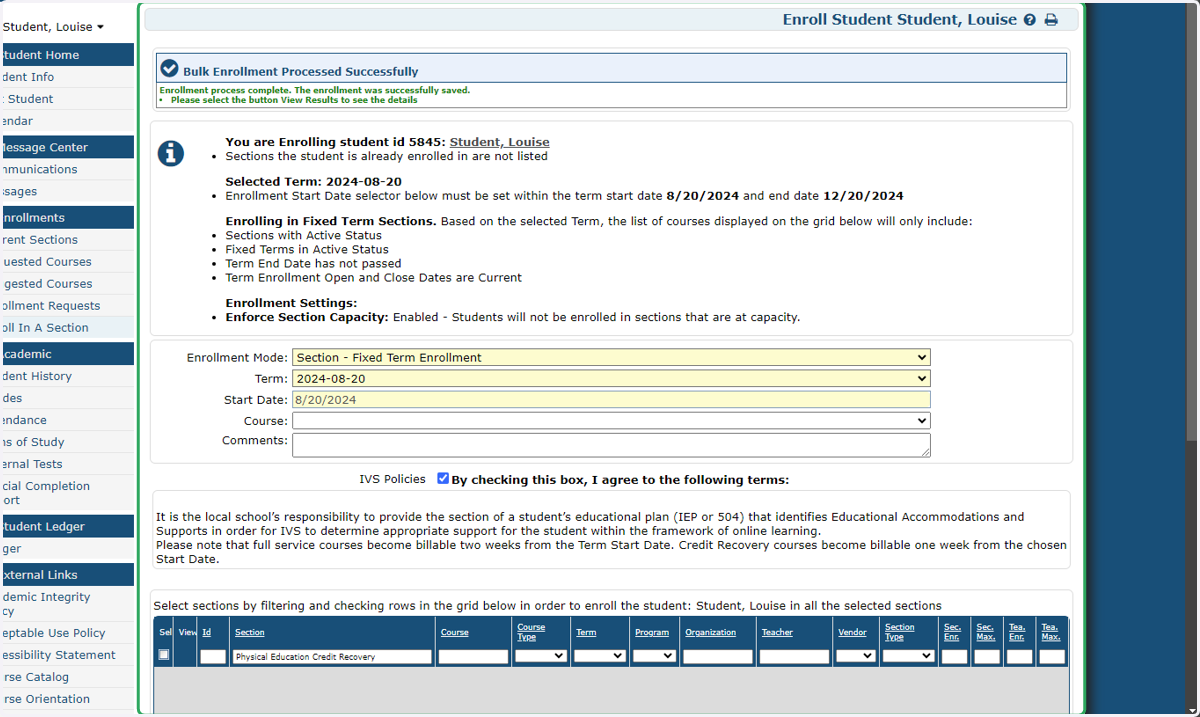
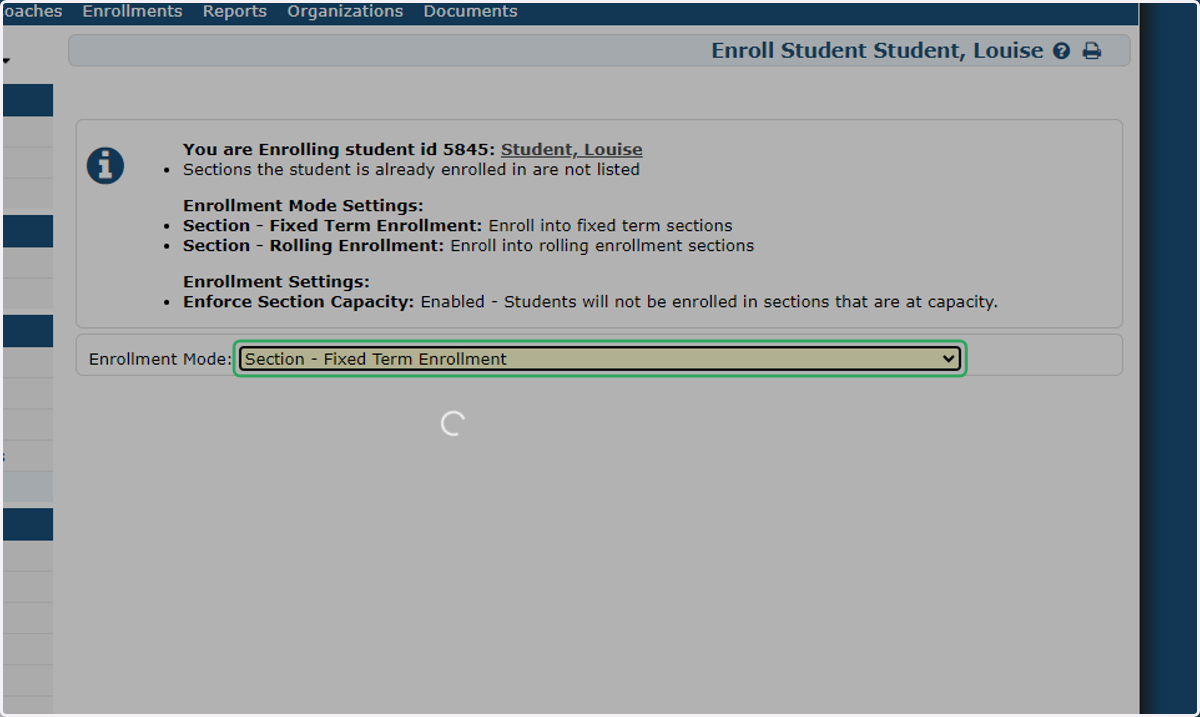
4. Enrollment Mode: Drop down to select Fixed Term Enrollment
Rolling enrollment is not available at this time. All students are required to start enrollments on a designated term start date.
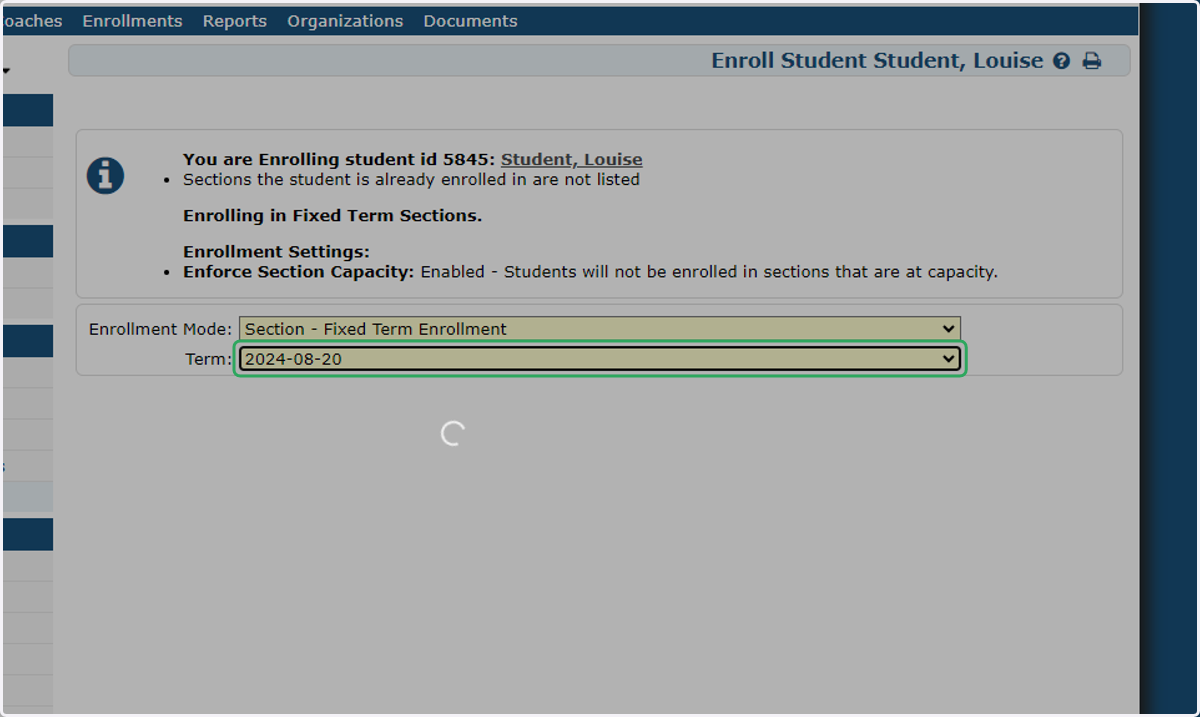
5. Select the appropriate term start date.
Sometimes multiple start dates are available for enrollment. Select the date that best suits your student's schedule.
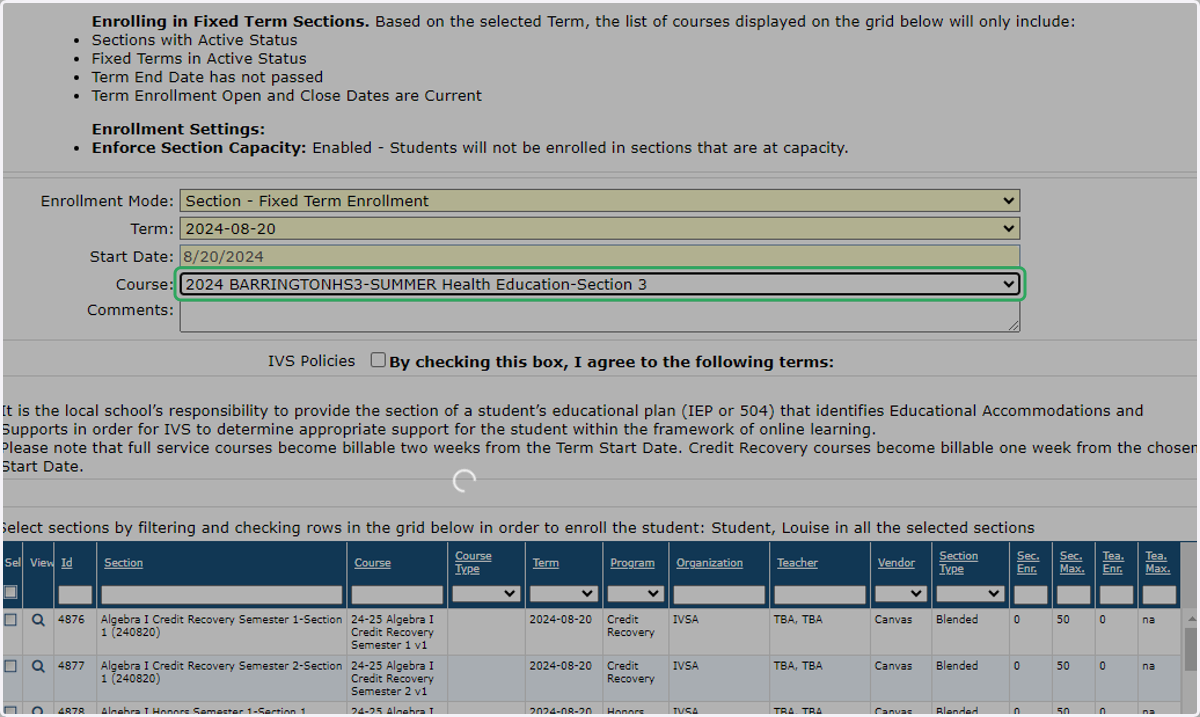
6. Select the Course (The Cumbersome Way) - You can drop down the Course menu and scroll to make your selection.
See step 7 for the easy way.
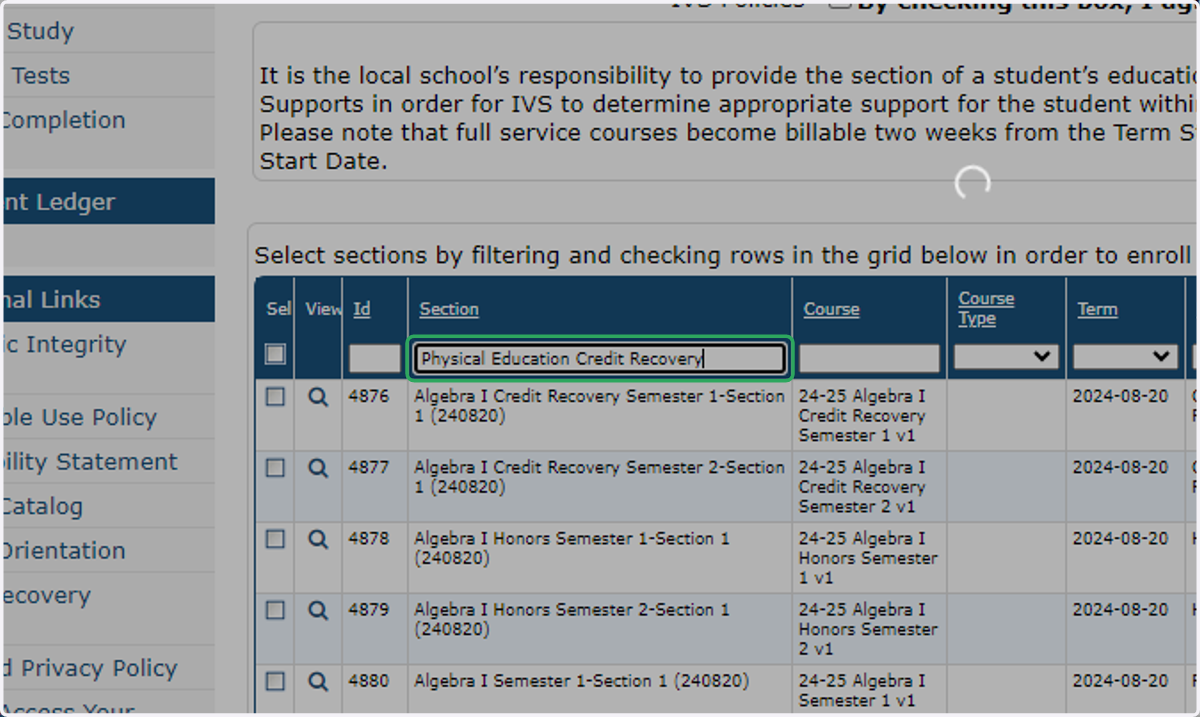
7. Select the course (The Easy Way) - Type as much of the course name you know and press Enter.
This will narrow your view to just those courses containing your search criteria.
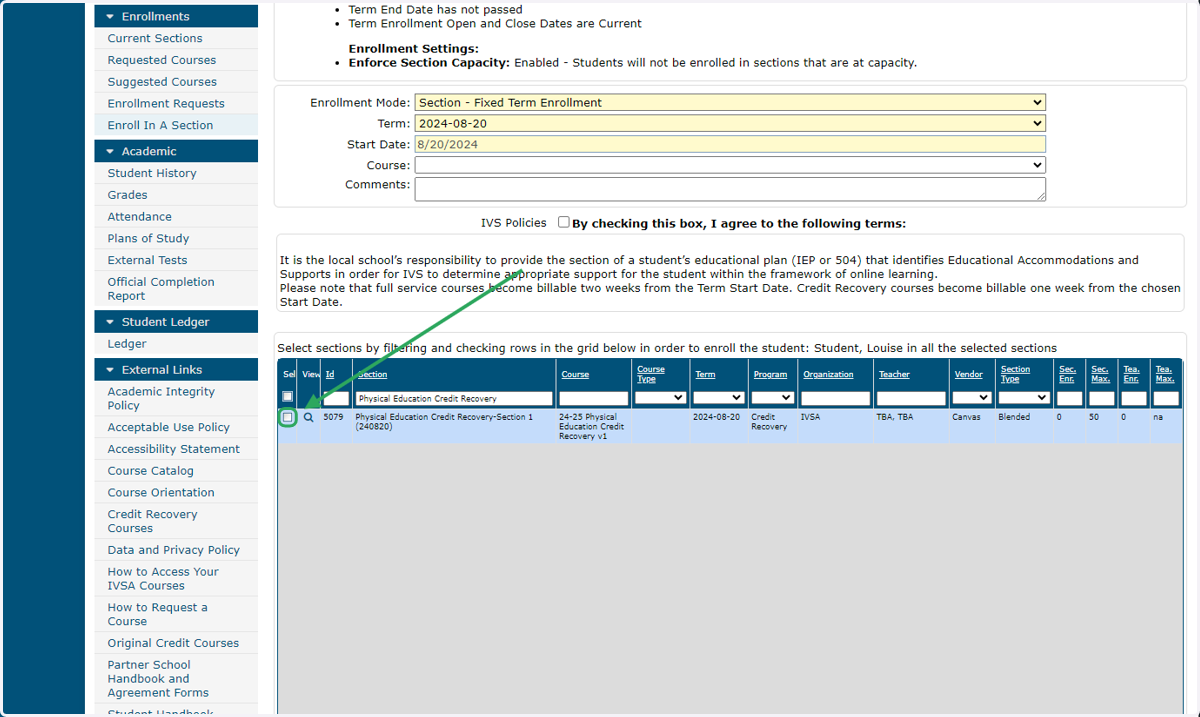
8. Check the box next to the section listing.
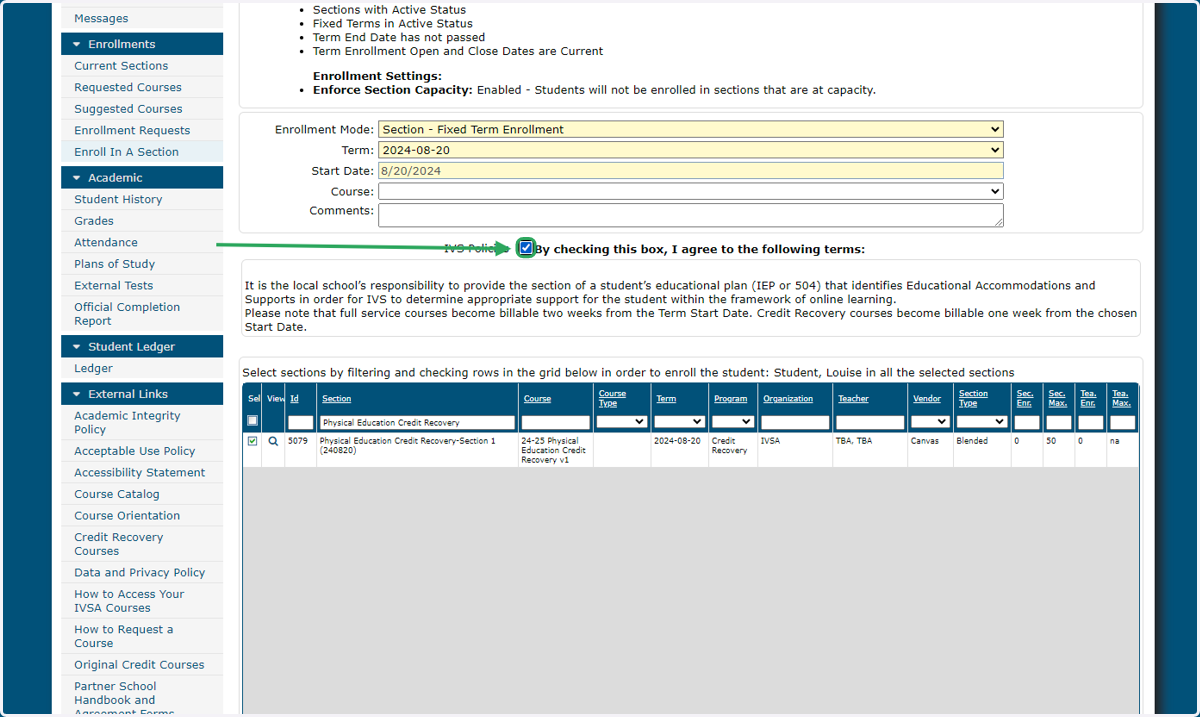
9. Check the box to agree to the IVSA terms.
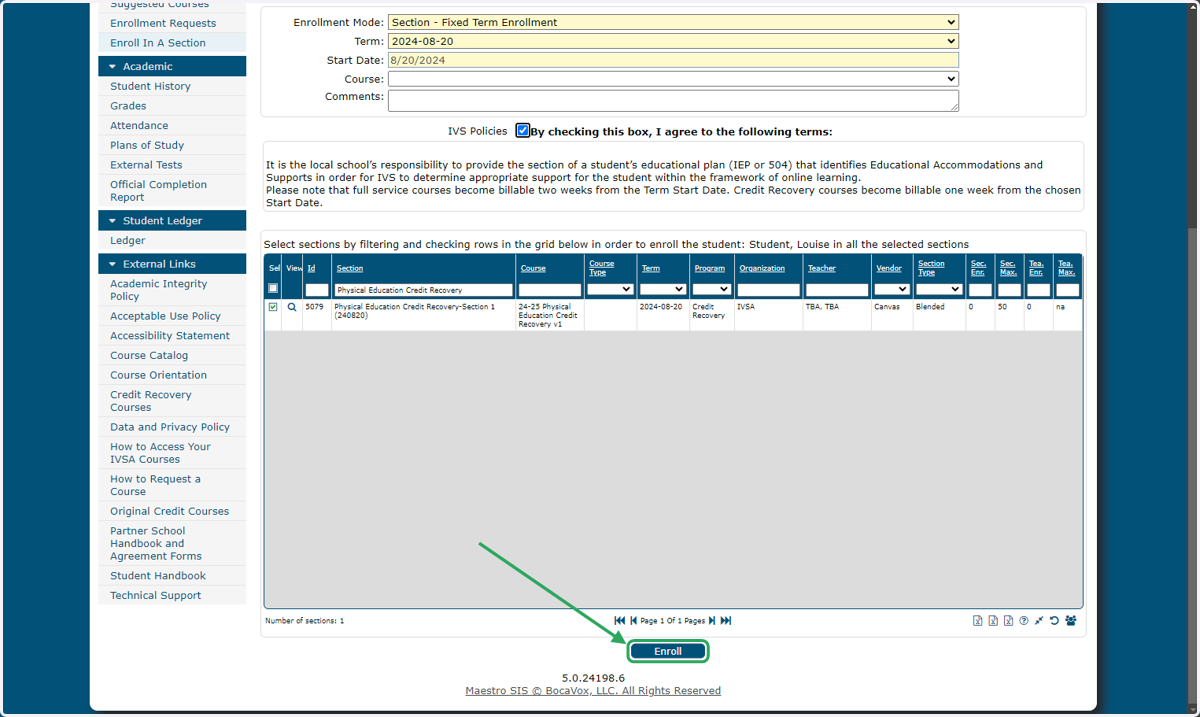
10. Click on Enroll
11. Success! A confirmation in green text will appear at the top of the page.
If you receive an error, you may want to check your current enrollments to confirm the student is not already enrolled in that course/section.
If you need additional assistance, please contact us at info@ivsaschool.org