Registrar - How to approve a student submitted drop request
IVSA Registrars receive email notifications when students submit drop requests.
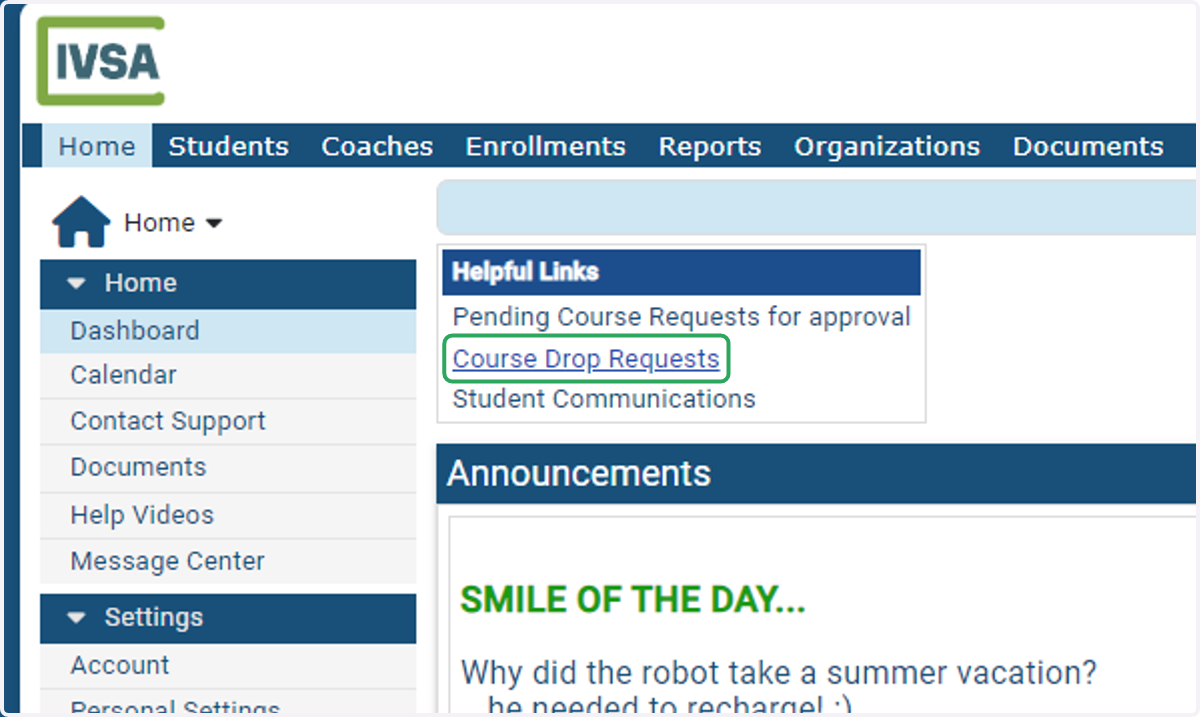
1. From the IVSA Registrar dashboard, click the Pending Drop Requests link.
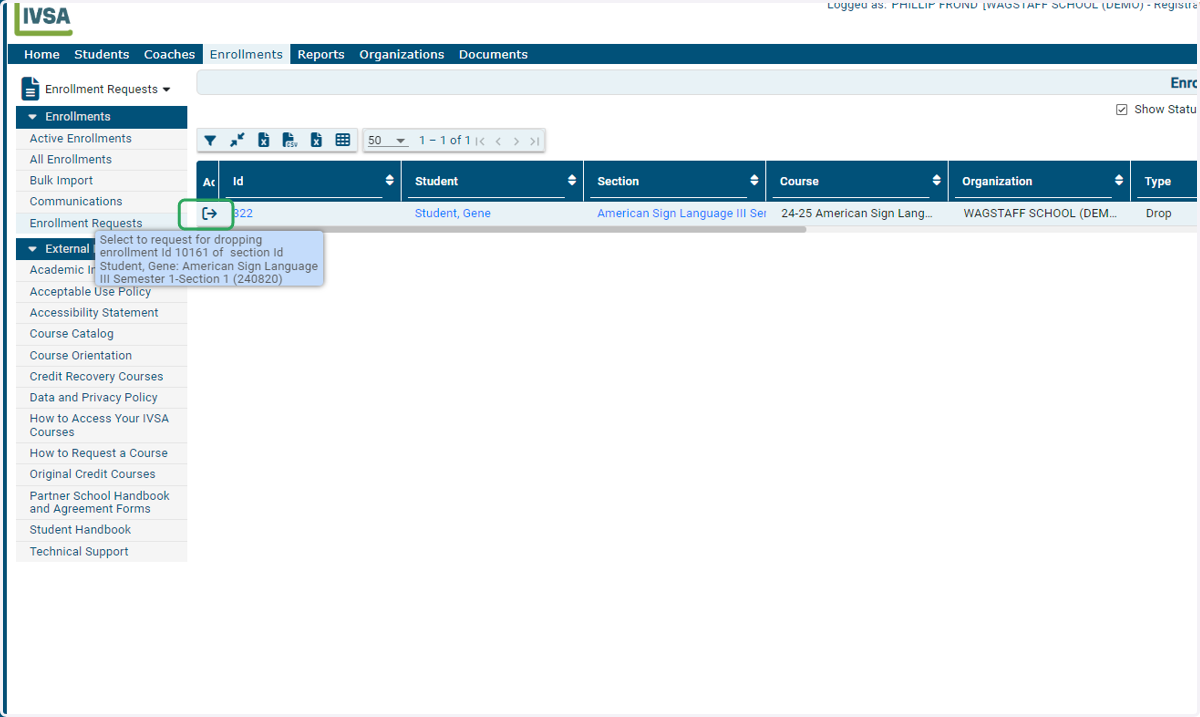
2. Click the Exit icon on the left side of the request.
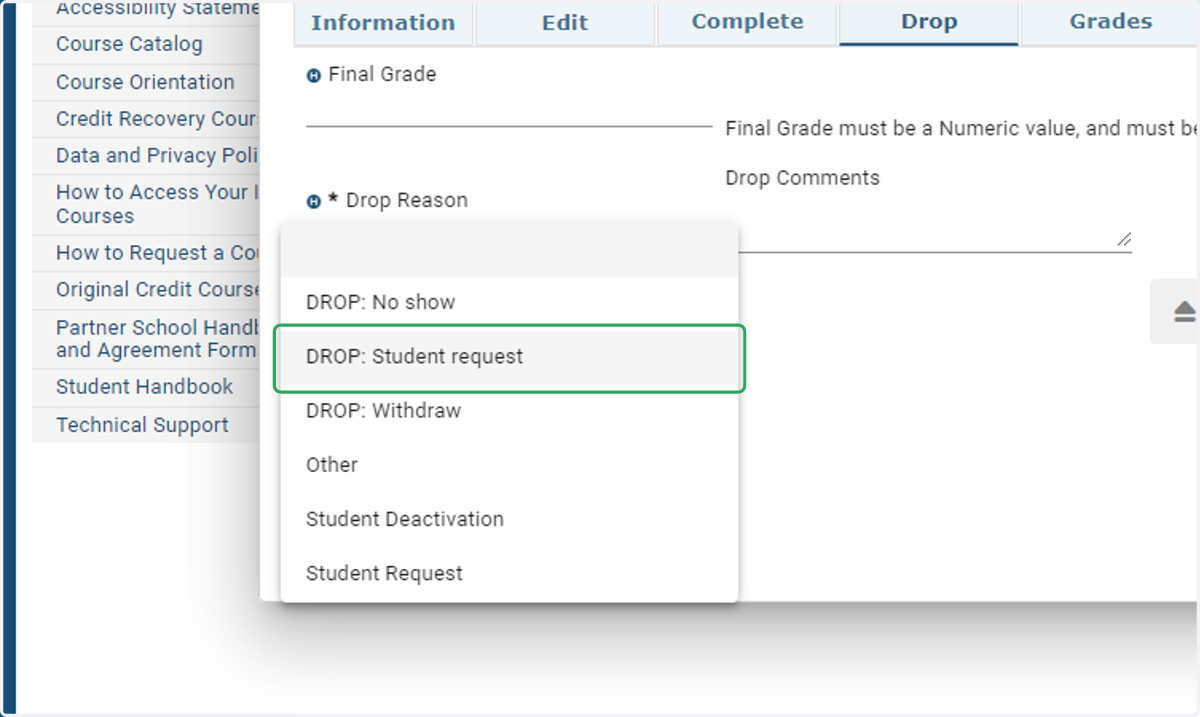
3. Drop down the menu to select a reason.
4. Add any comments related to the enrollment/drop.
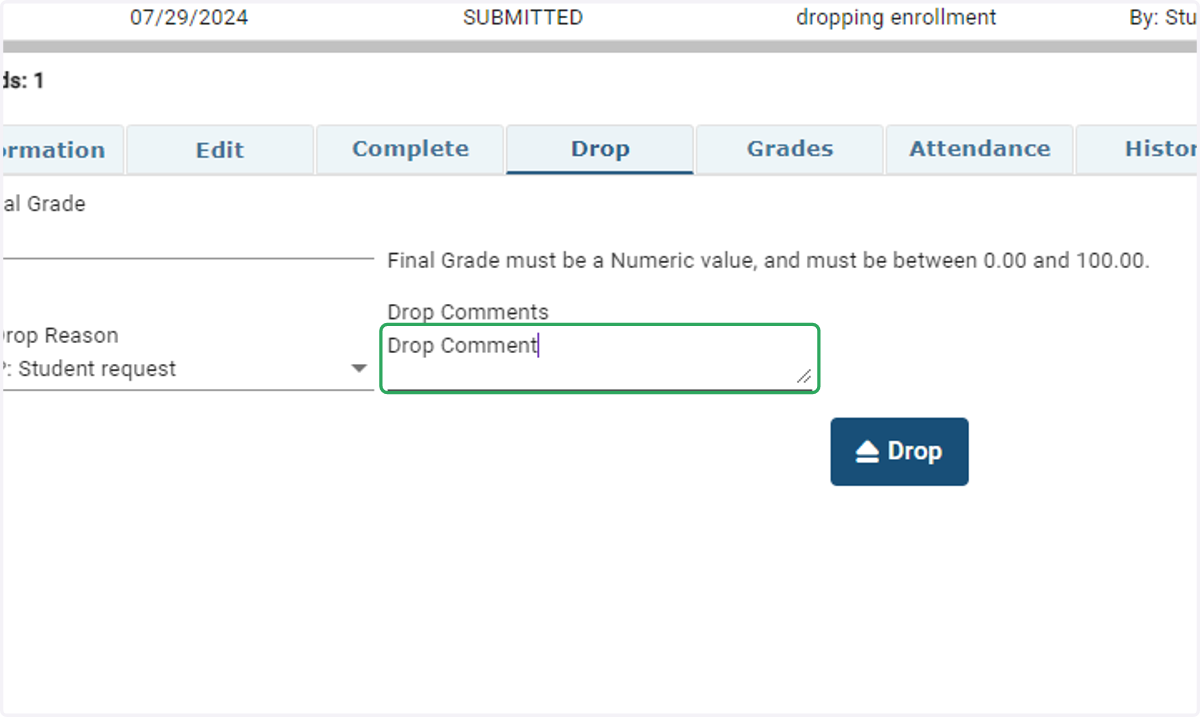
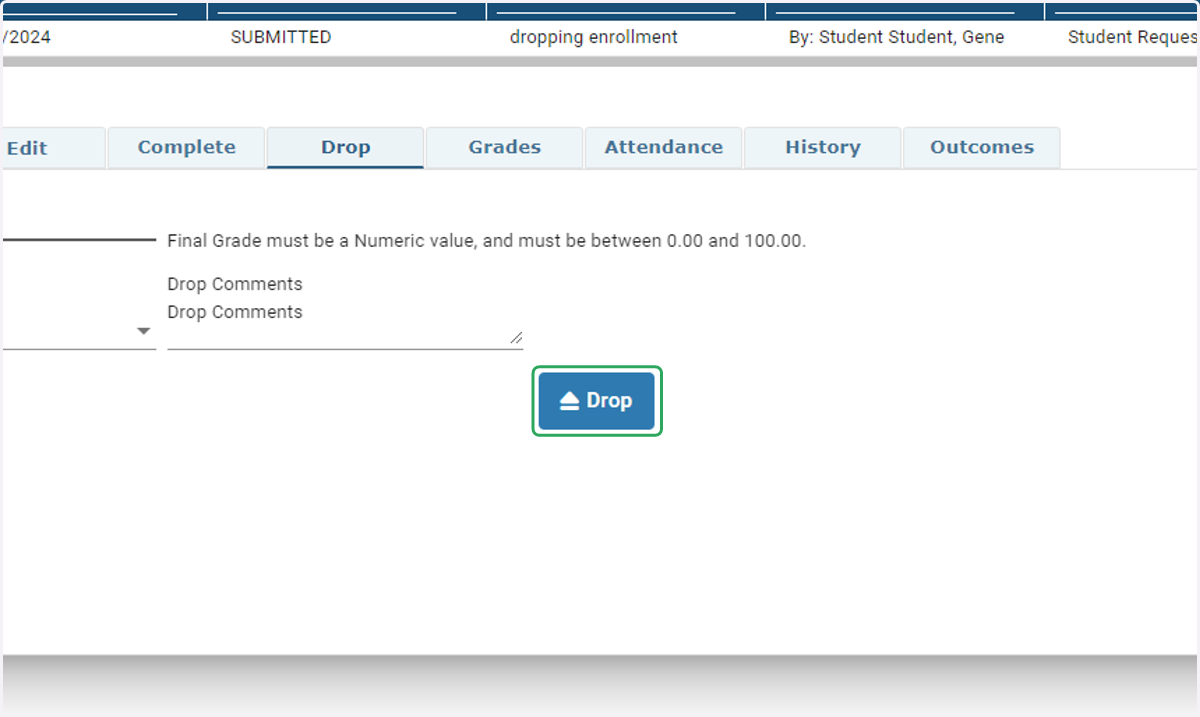
5. Click on Drop
Clicking drop will drop the enrollment and the request will be removed from your pending items.
Students and families will receive an email notification from the Maestro Student Information System when the enrollment has been dropped.
If you receive an error or need additional assistance, please contact us at info@ivsaschool.org.