Register for JCC PGH Programs Through Community
Home
Follow These Instructions to Register for a Program on the JCCPGH Community Hub. If you go directly from a Program link, please skip to step 5.
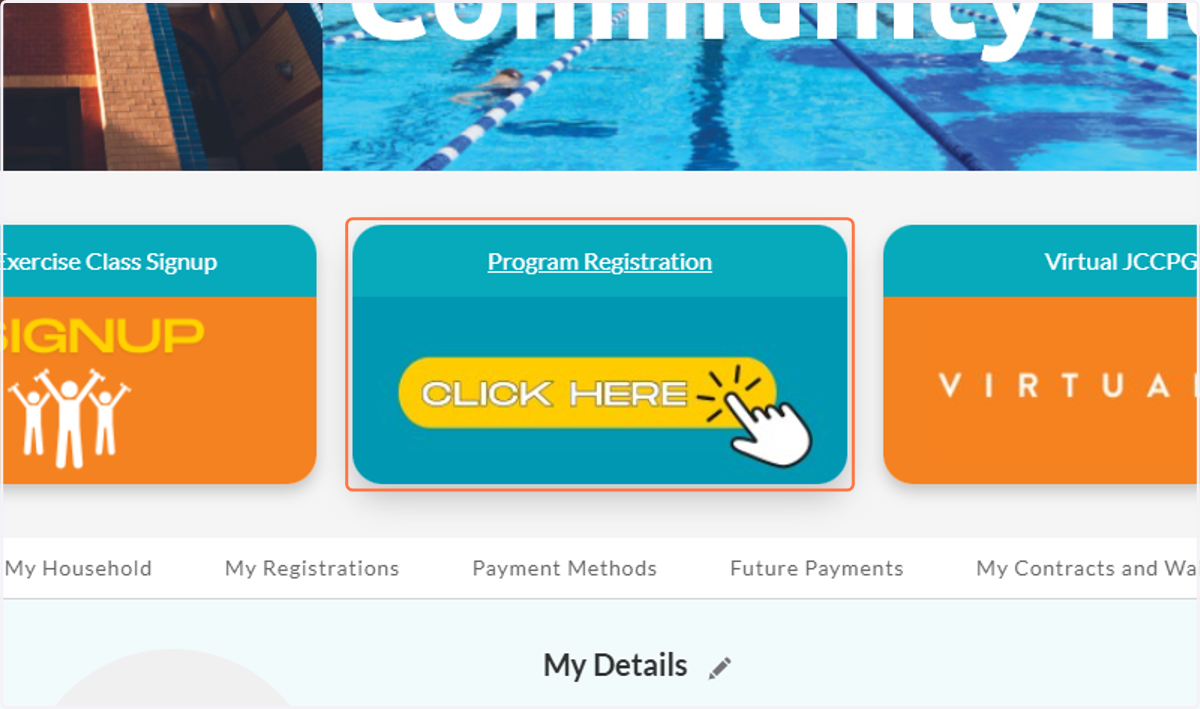
1. Click on Program Registration
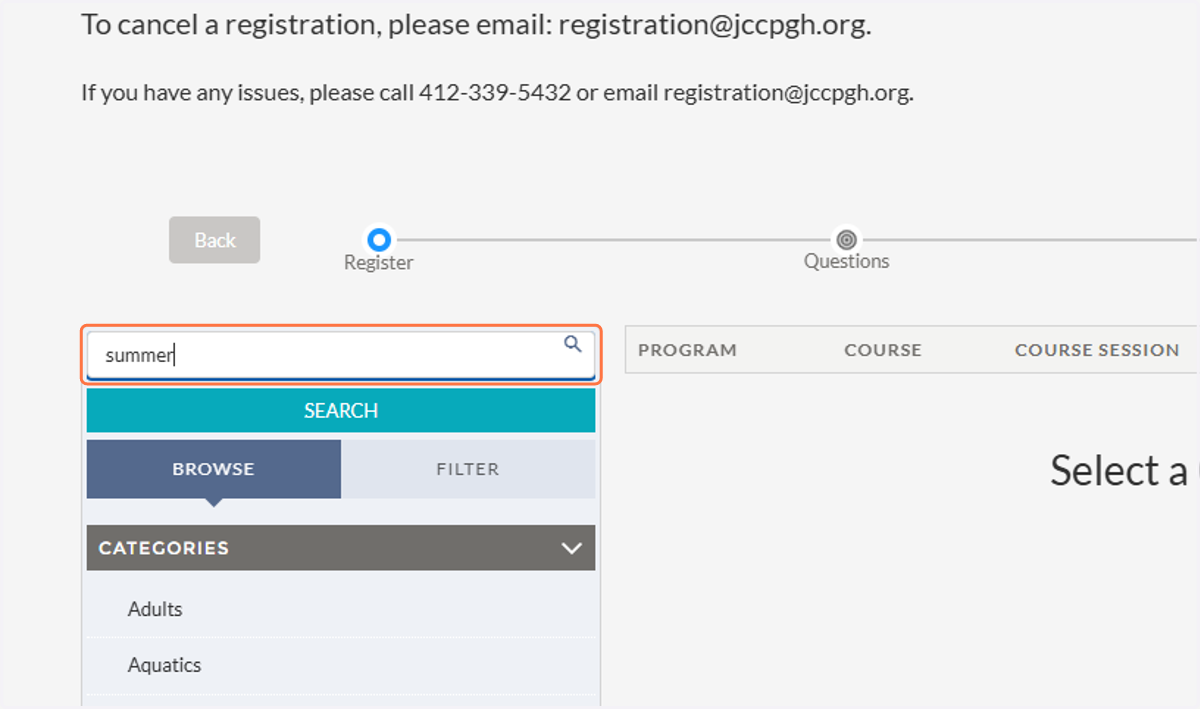
2. Click on the search bar and search for your program
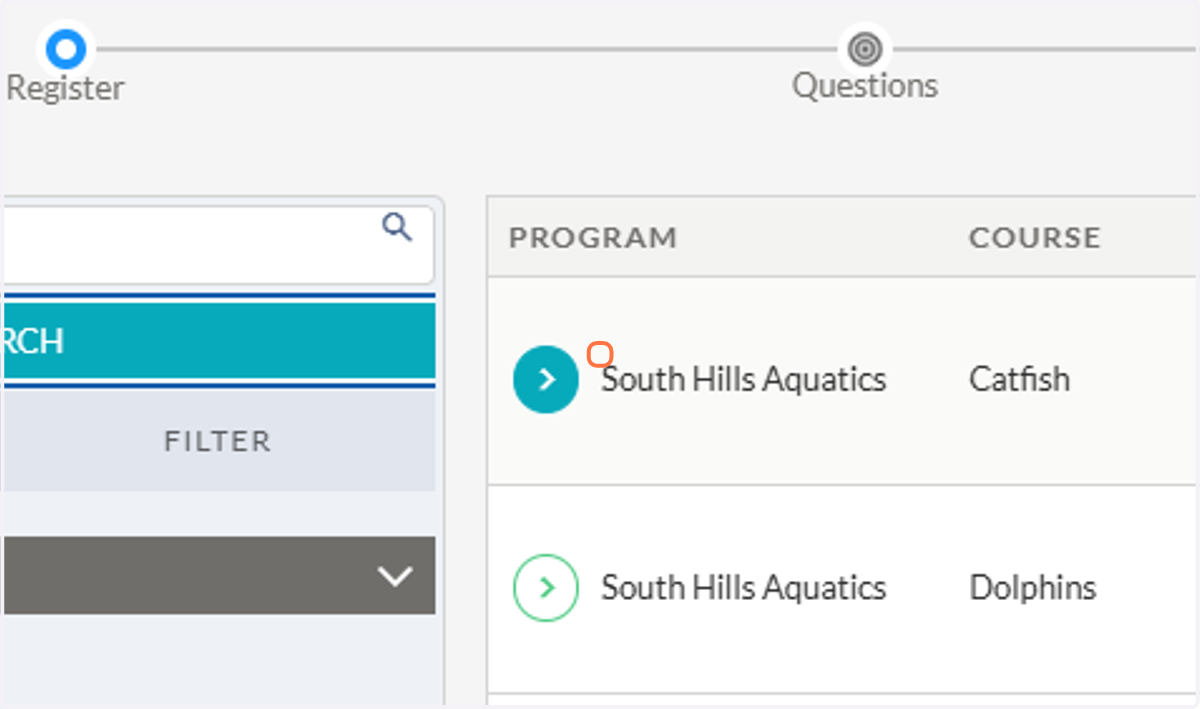
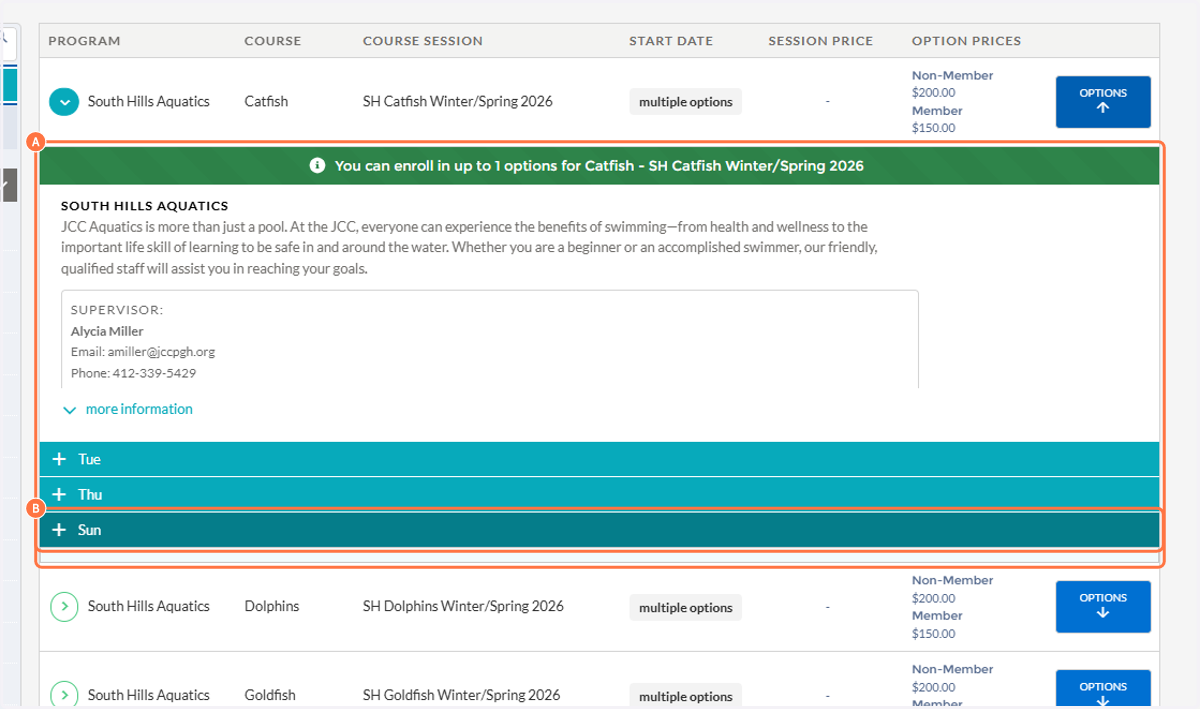
3. Find the course you are looking for and click the blue drop down menu next to it
4. A. There might be multiple options on multiple days. Click on the day you are looking for to find the enrollment button.
4. B. Click on Sun
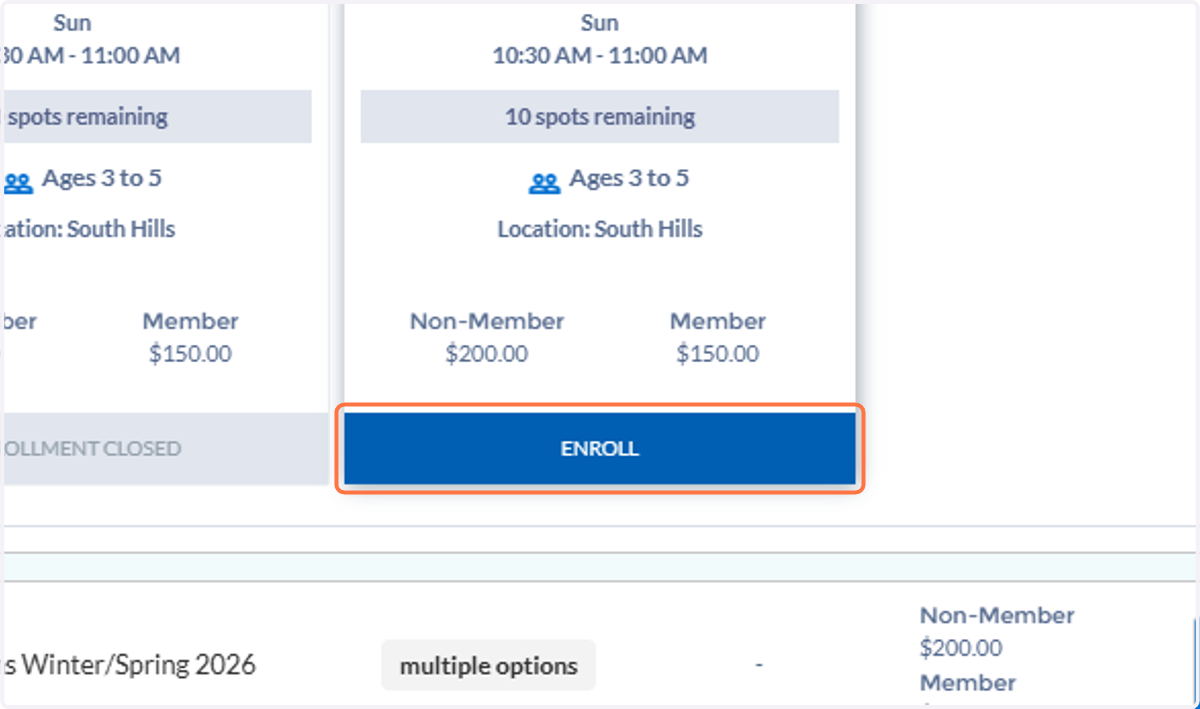
5. Click on ENROLL on the Option you wish to enroll for.
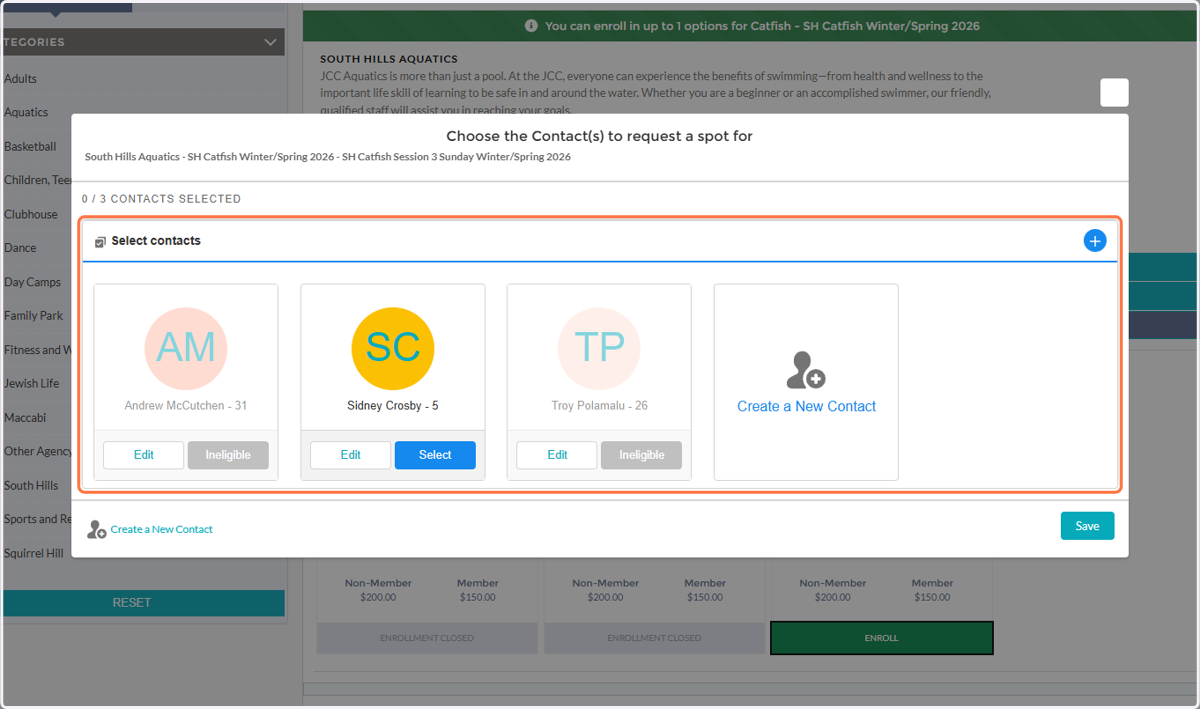
6. Select to Contact you wish to enroll
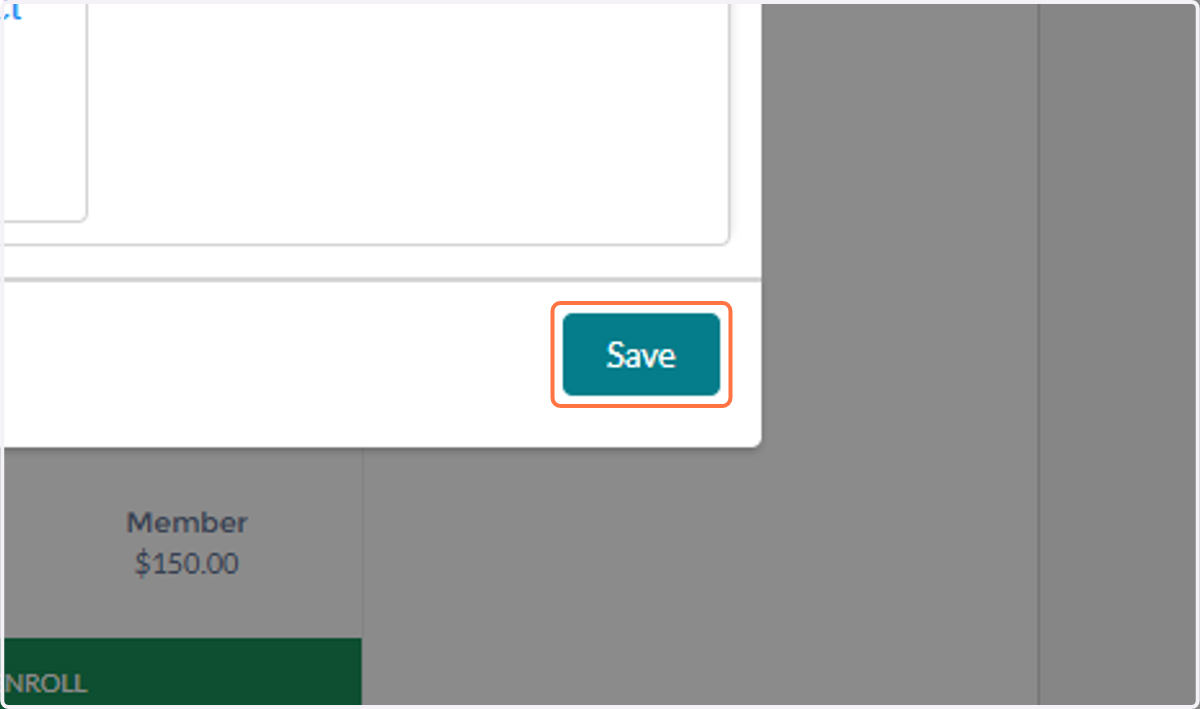
7. Click on Save
8. Click on your cart to see pricing details
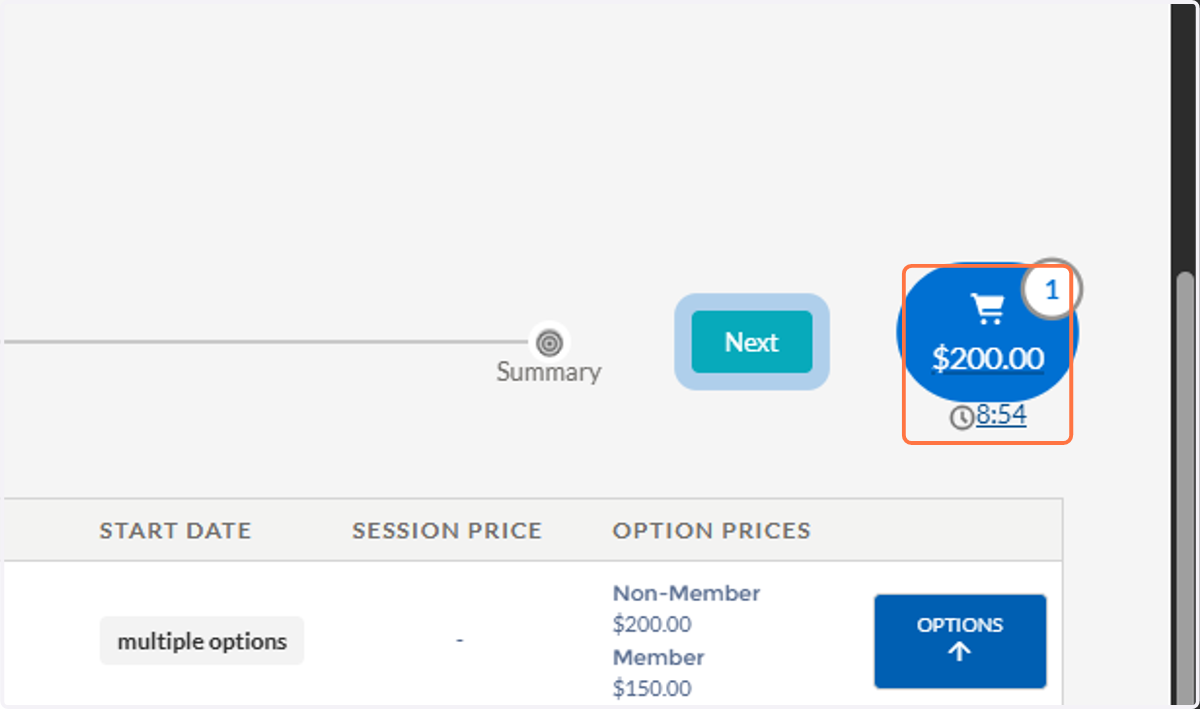
9. Click on Close
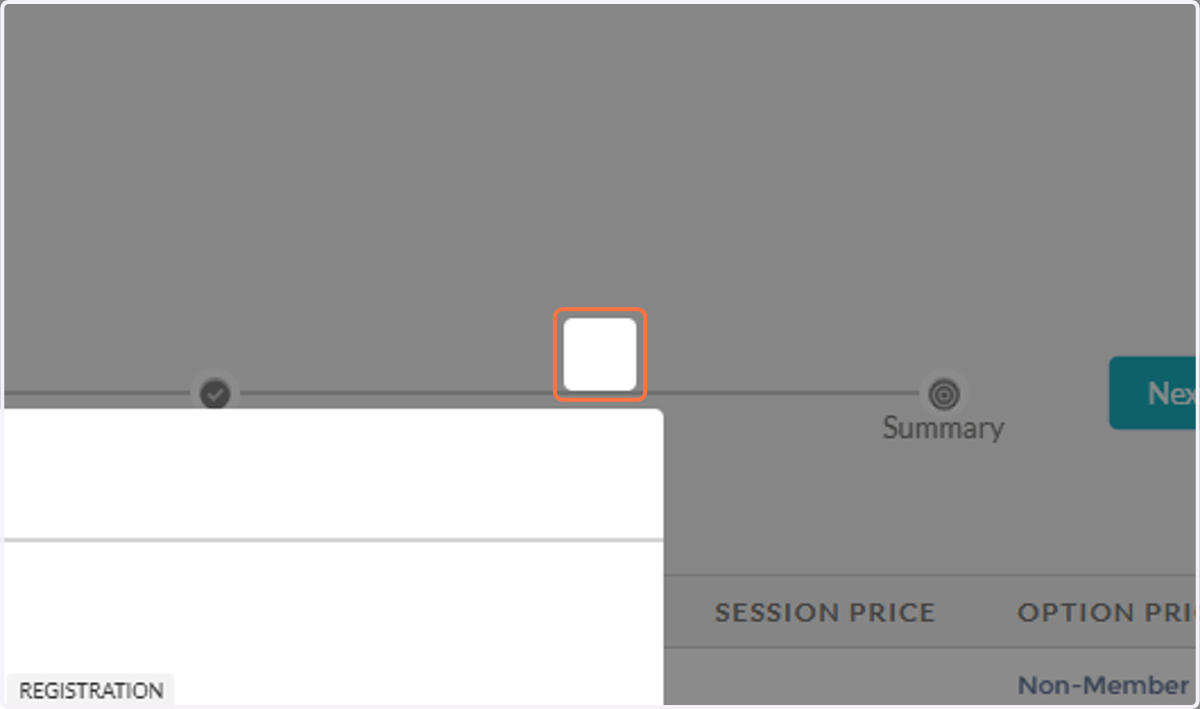
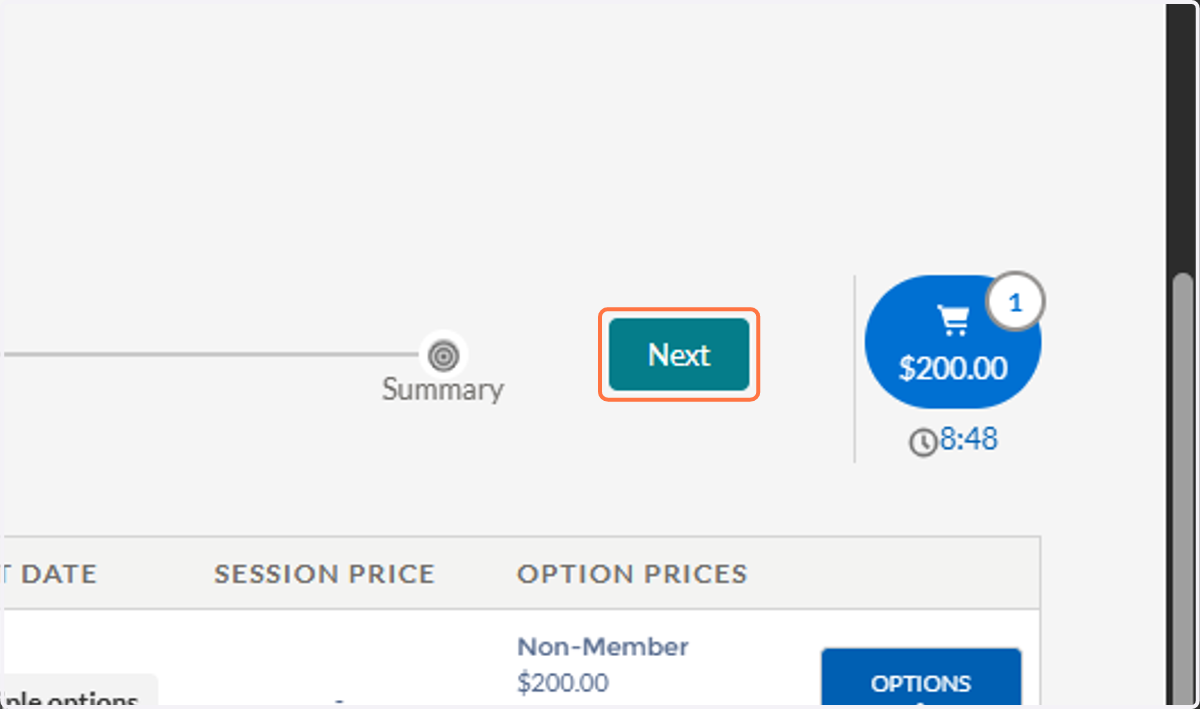
10. Click on Next
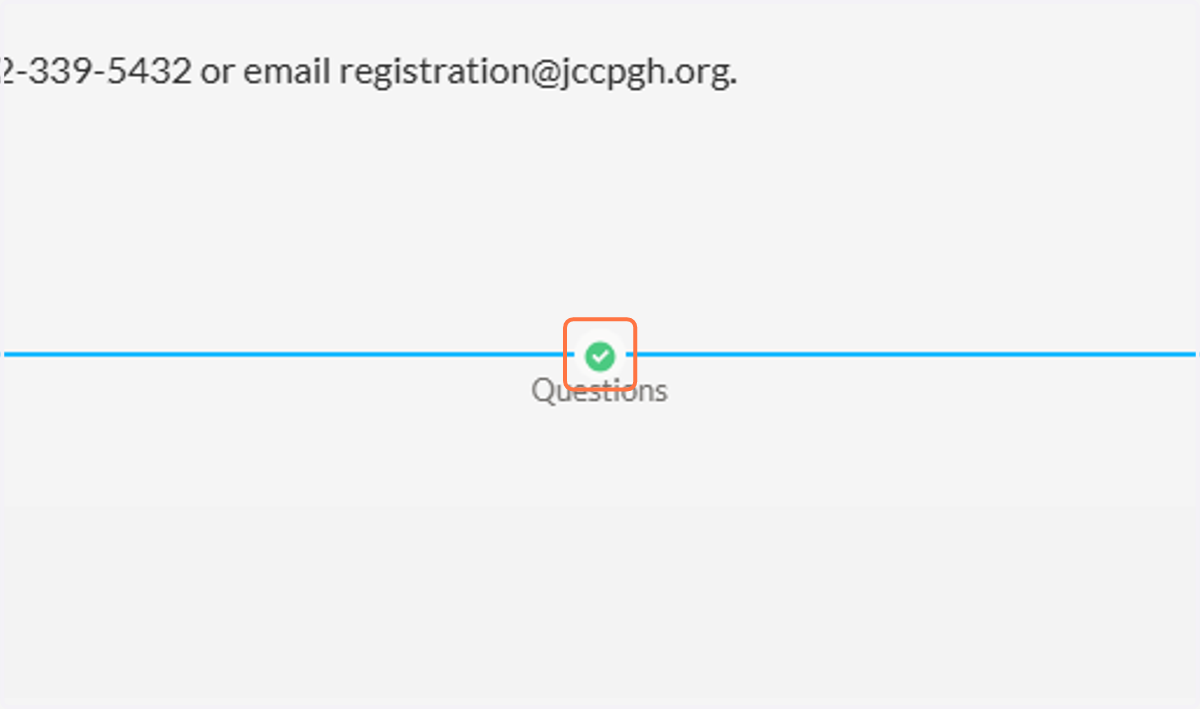
11. There might be questions attached to the program, you will answer them on the Questions screen
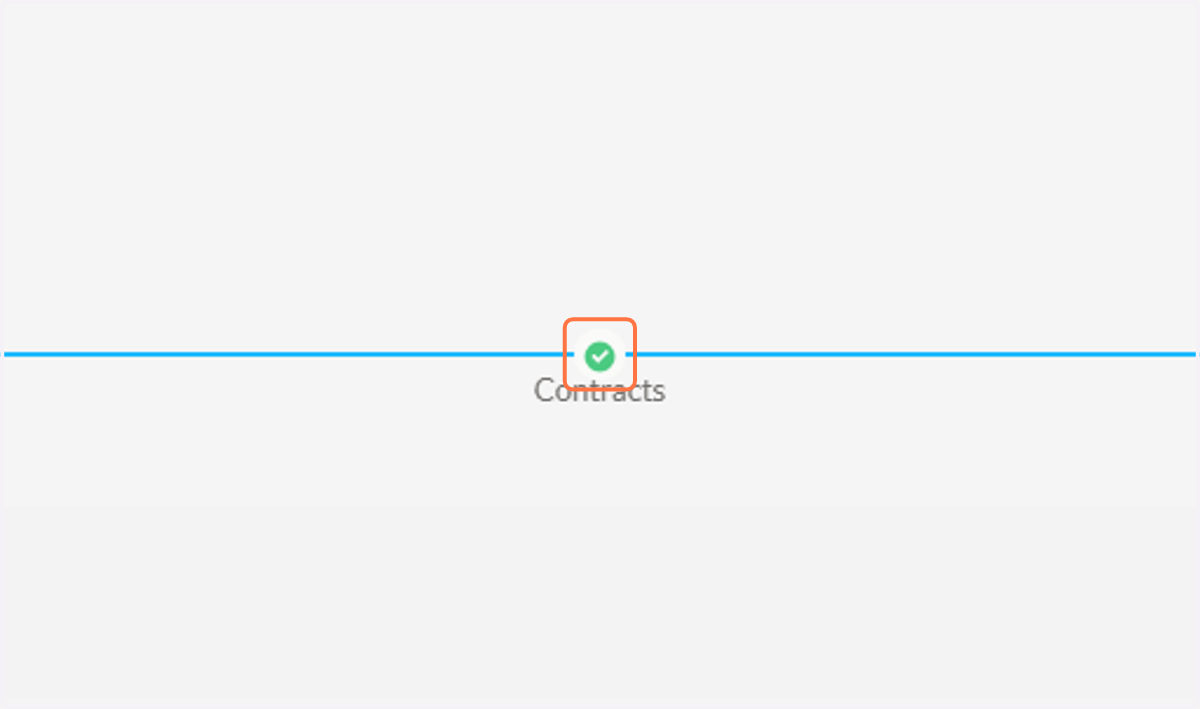
12. There might be contracts or waivers attached to you program, you can read and sign them from the Contracts tab
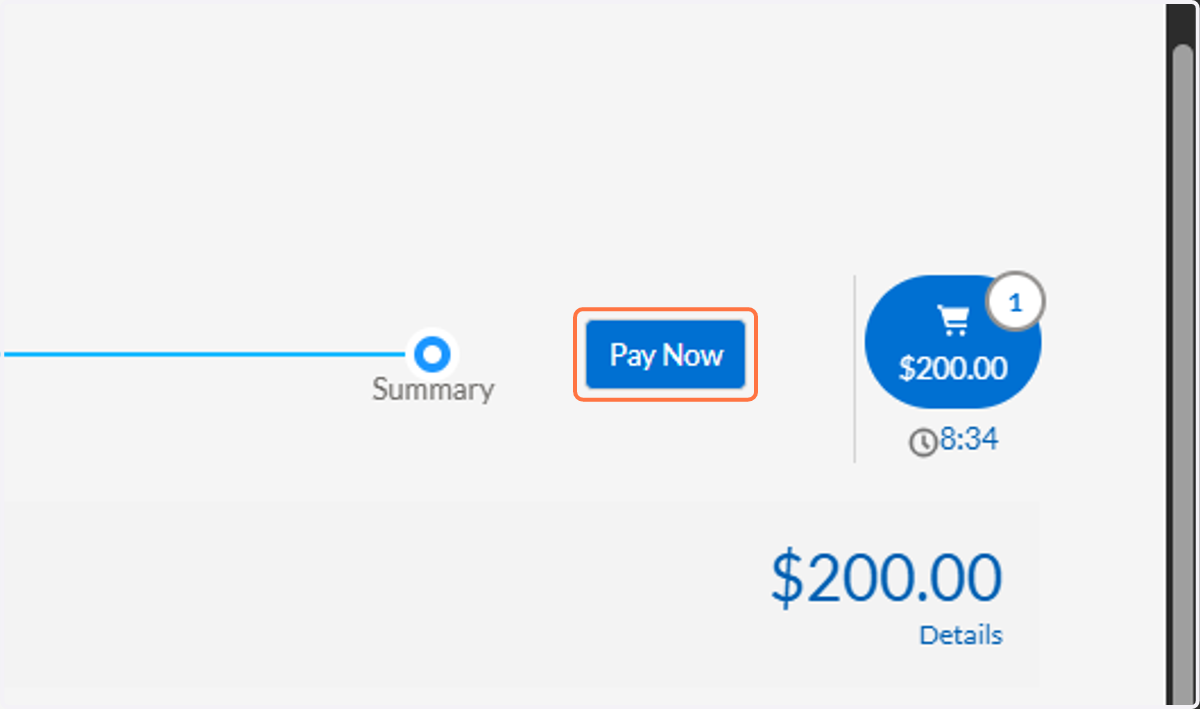
13. Click on Pay Now
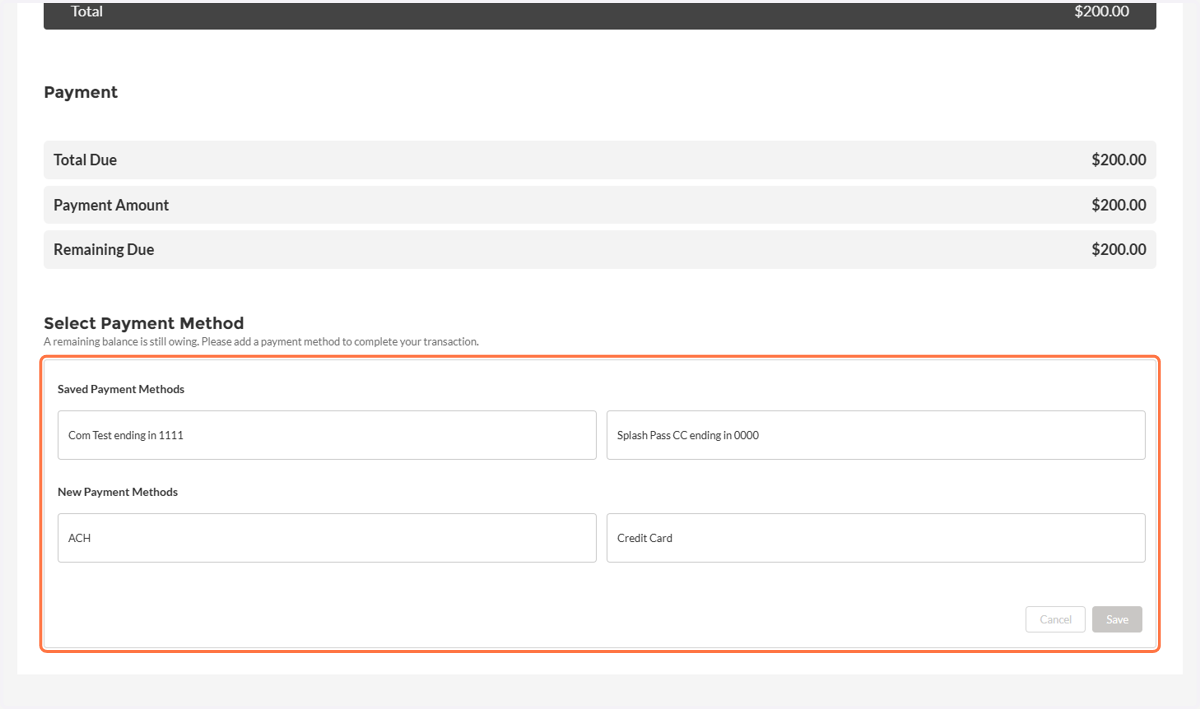
14. Select Your Payment Method
You can select an existing payment method or add a new payment method. To add a new payment method, select the type of payment method you wish to add and then fill out all of the required fields.
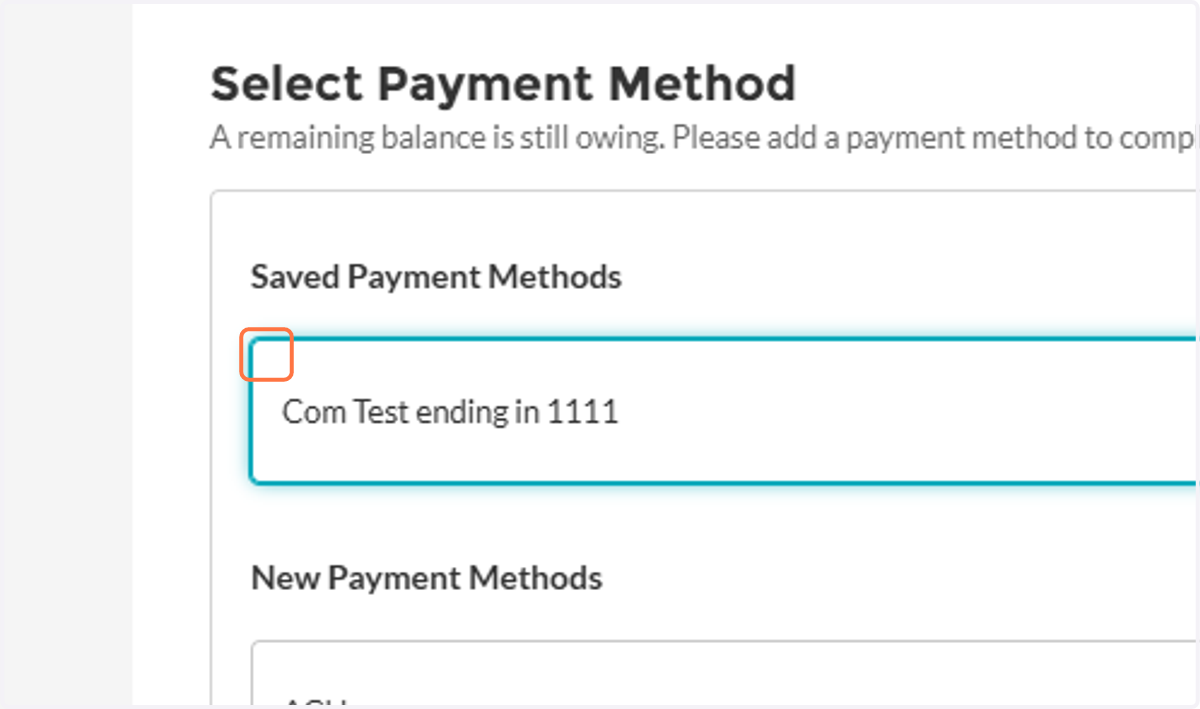
15. Select a payment option
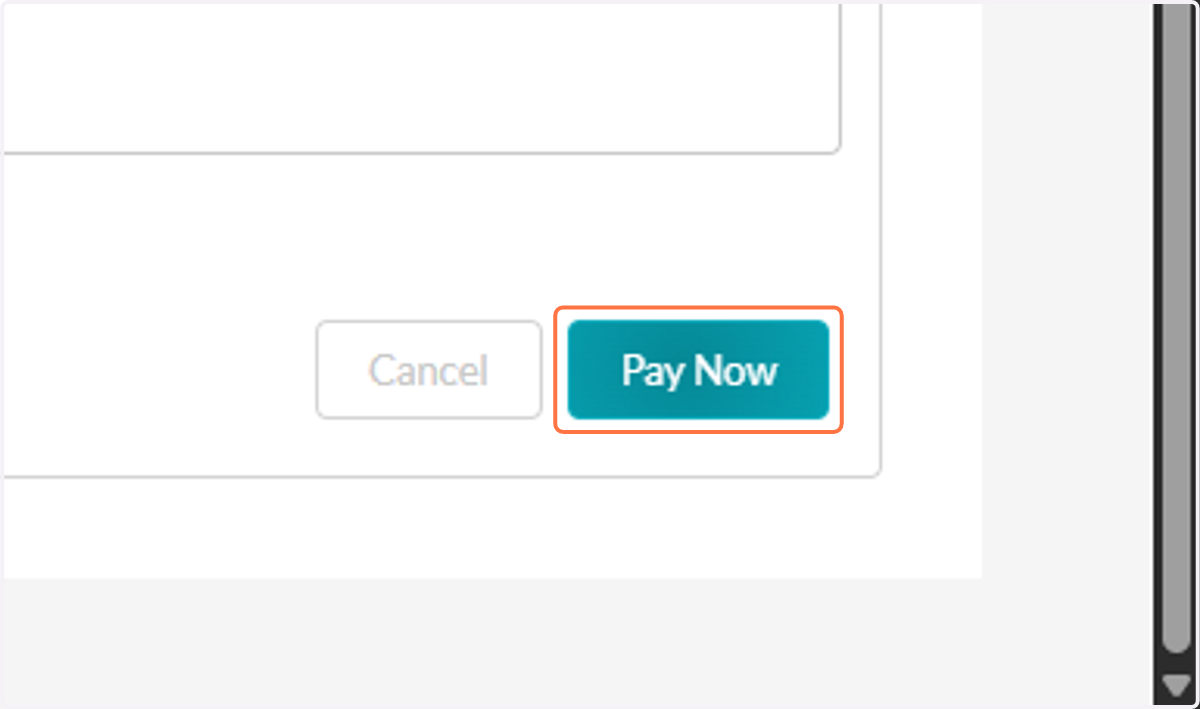
16. Click on Pay Now
17. You will see this banner once the transaction has gone through
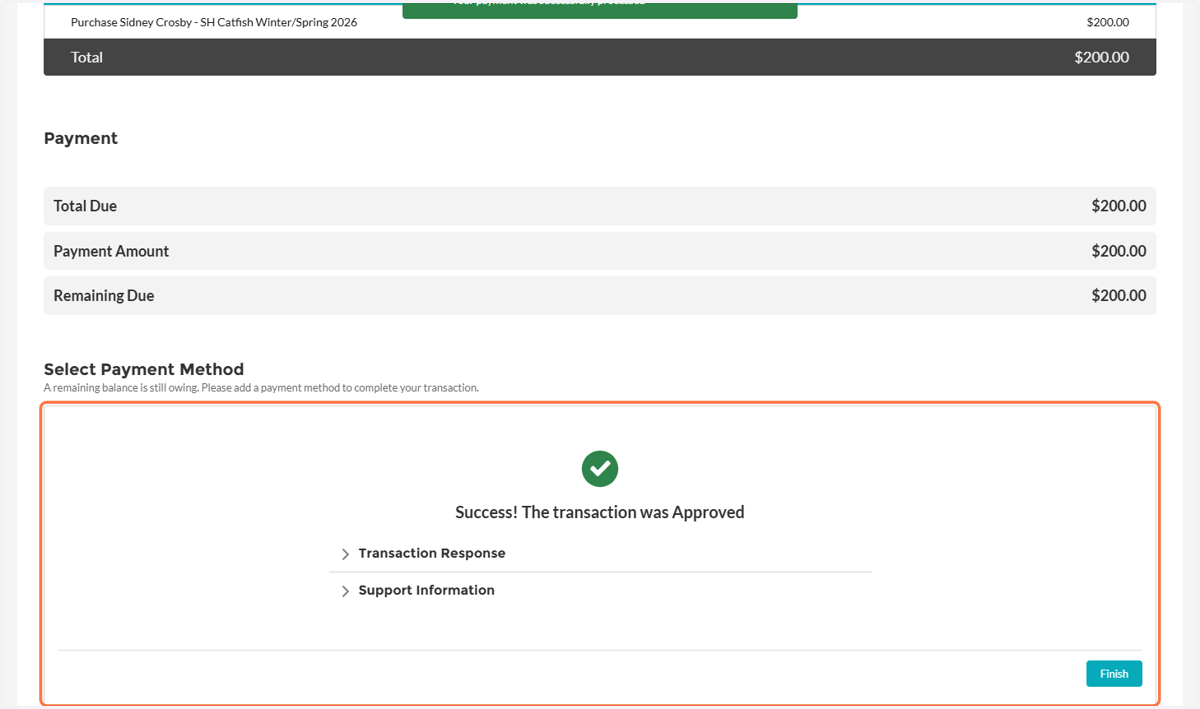
18. Click on Finish to end the process!