Record a Curriculum Night Video
Go to Canva.com
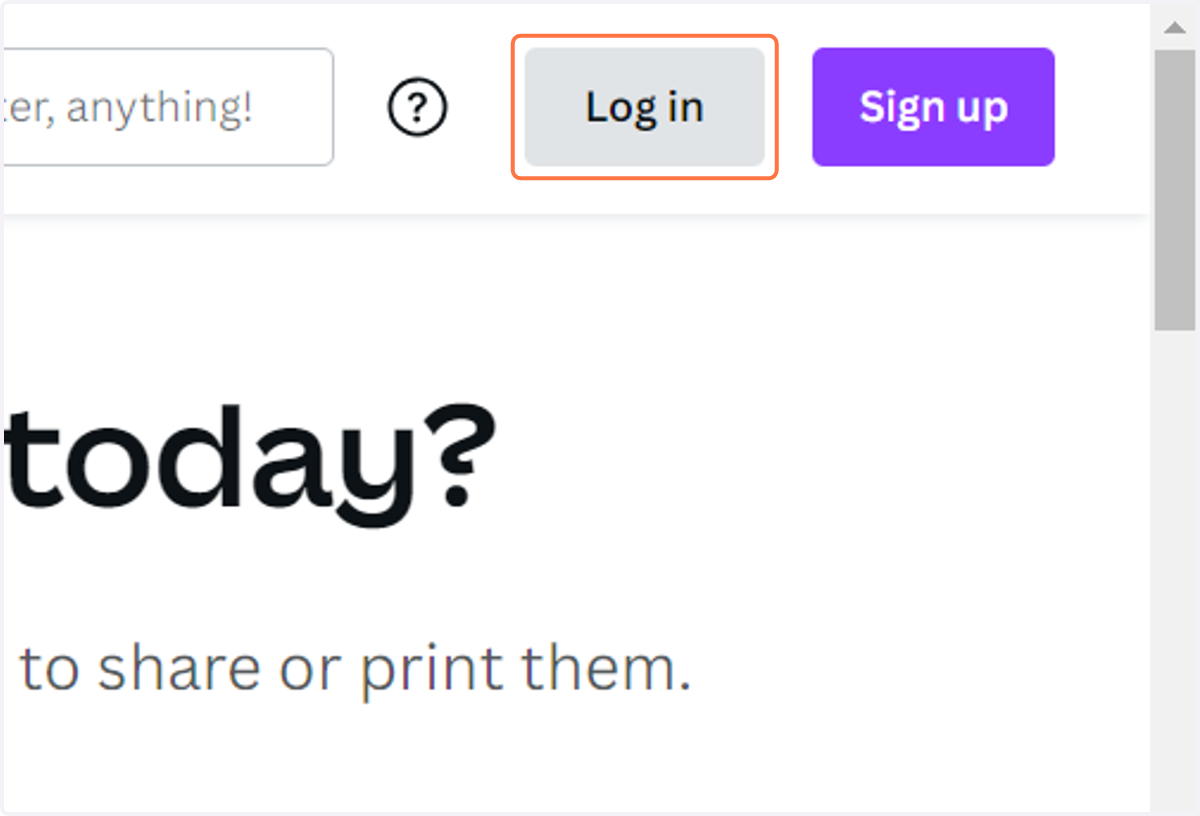
1. Click on Log in
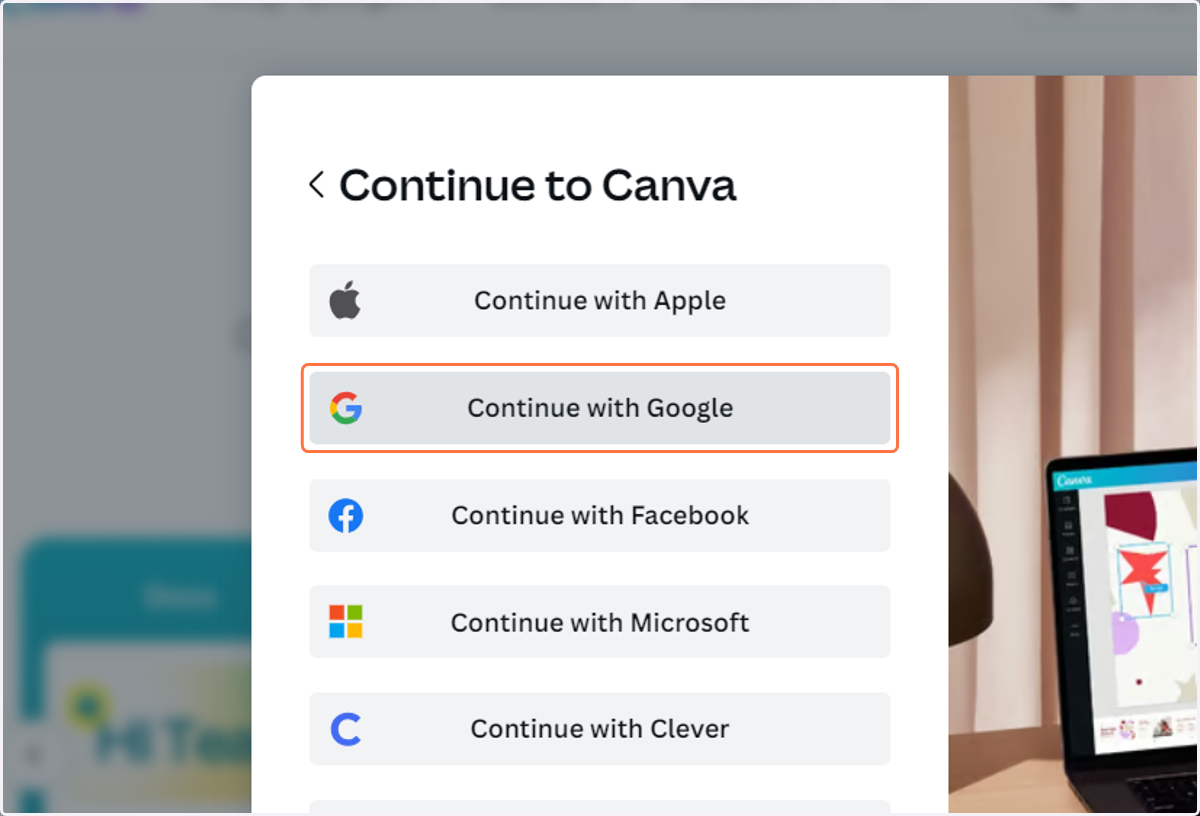
2. Click on Continue with Google and login in with your RCS Google Account
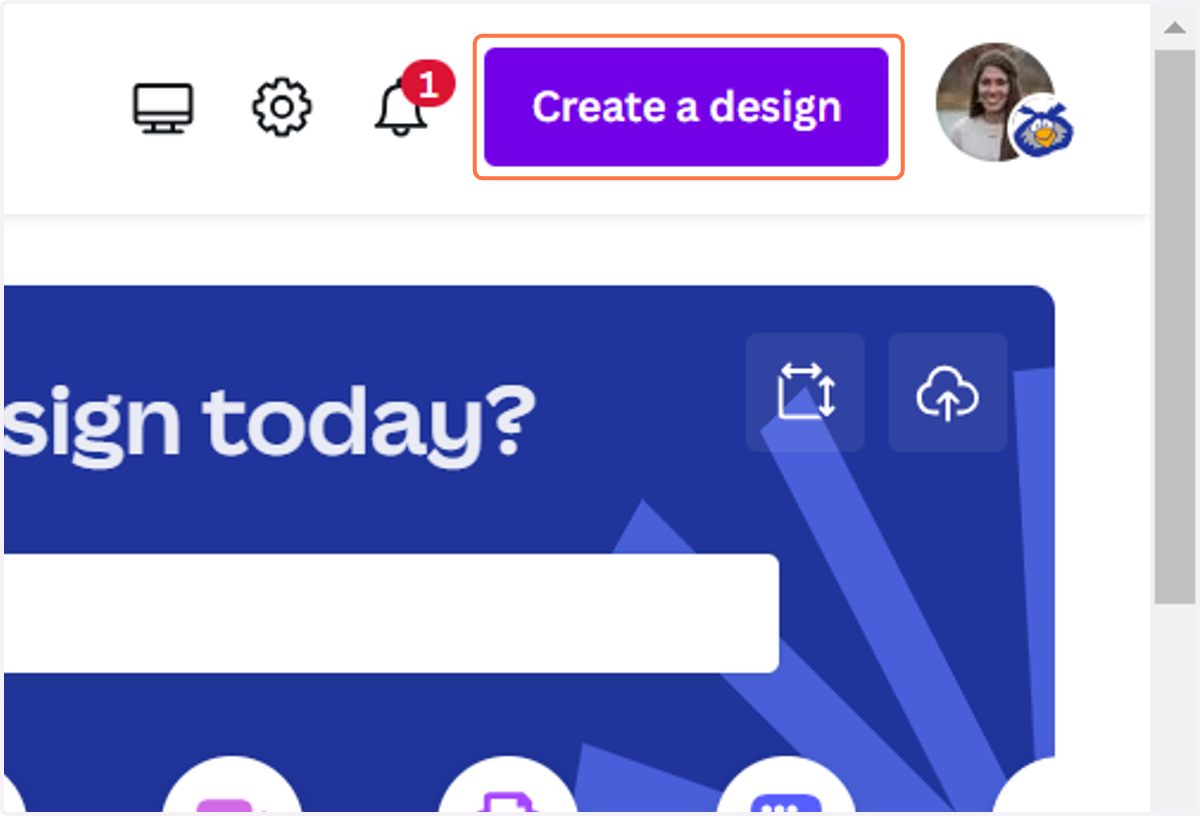
3. To upload an existing presentation, click on Create a design
4. Click on Import file
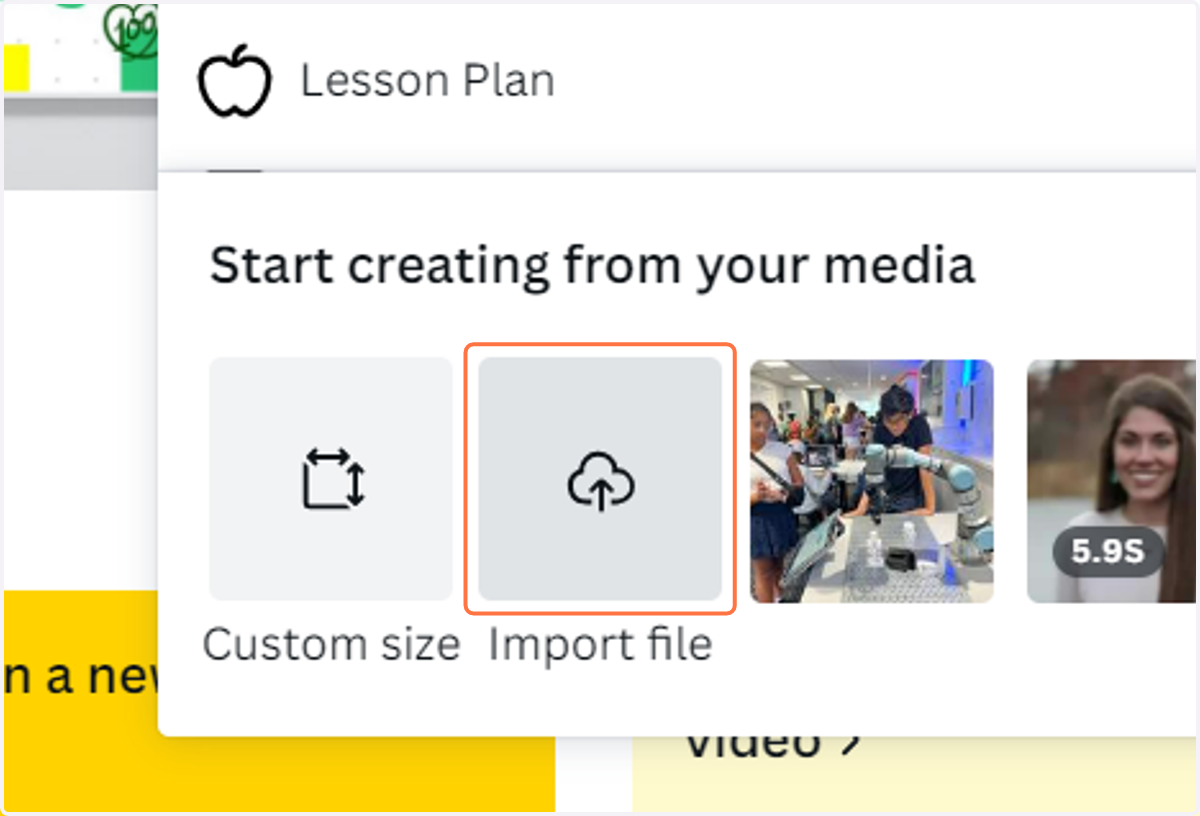
5. Select the file you would like to import
Note: If you want to import a Google Slides presentation, be sure to export first as a PPTX so that it can be imported.
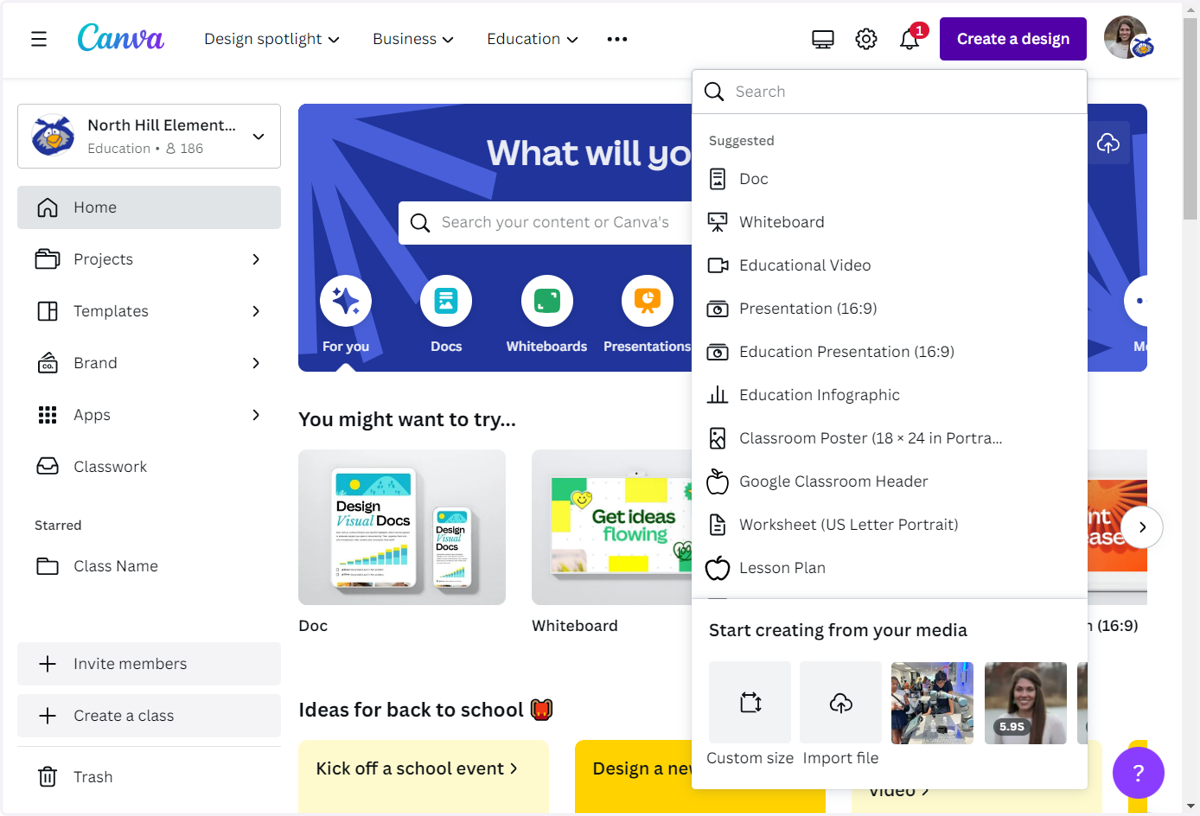
6. Or choose one of the thousands of templates already in Canva
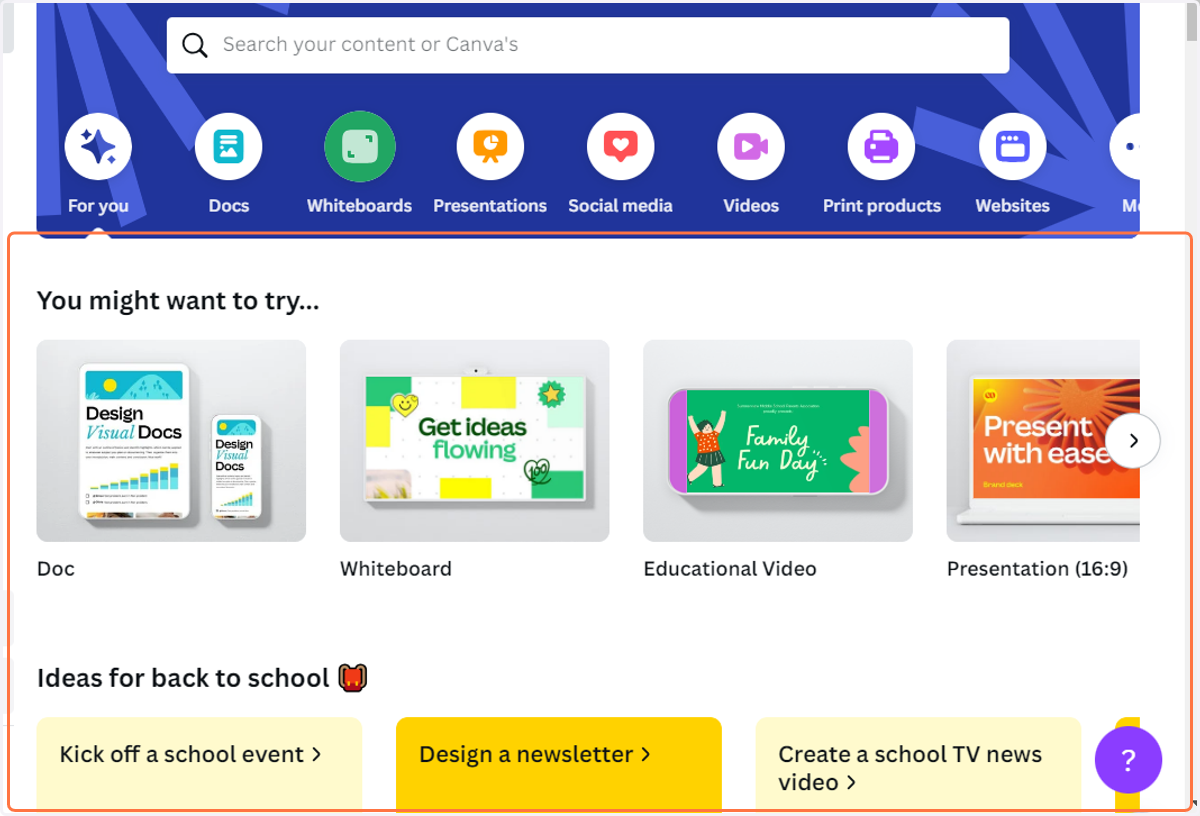
7. Edit the design with all your important information. You can customize the text, photos, and colors.
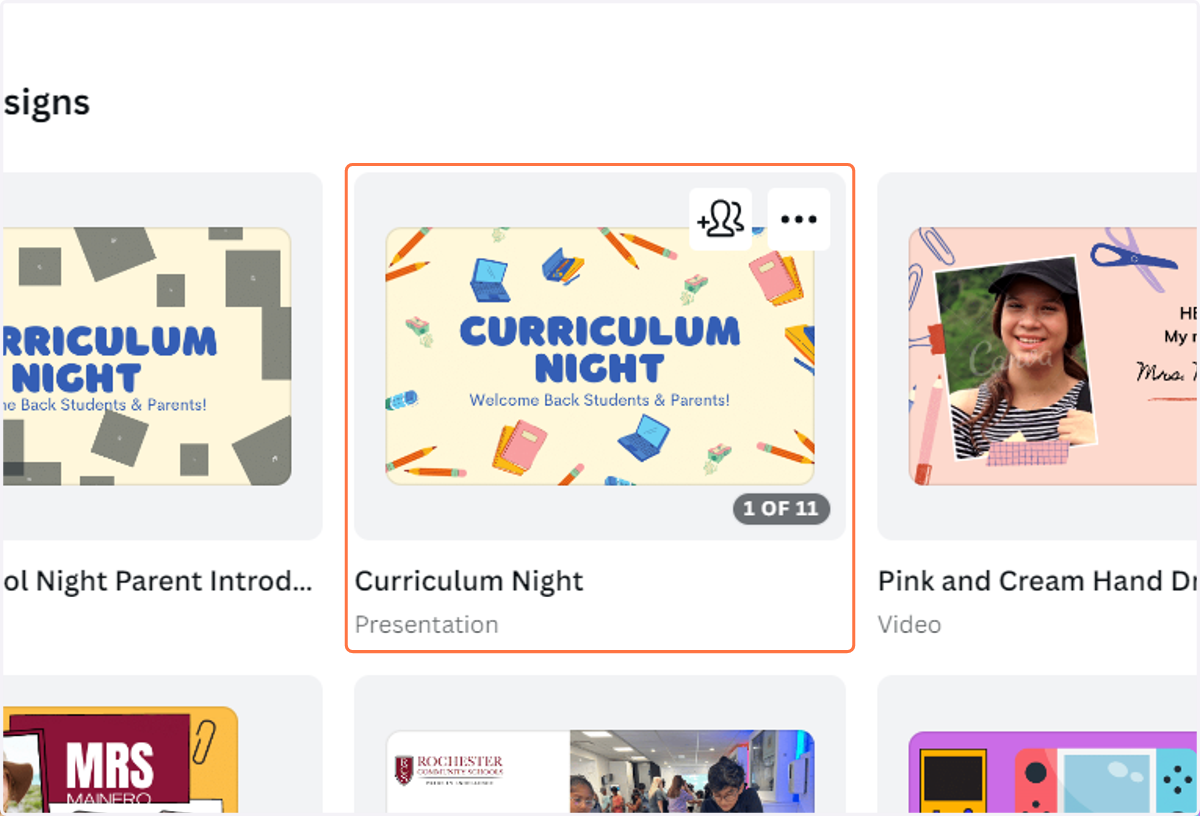
8. When it's time to record, Click on Uploads
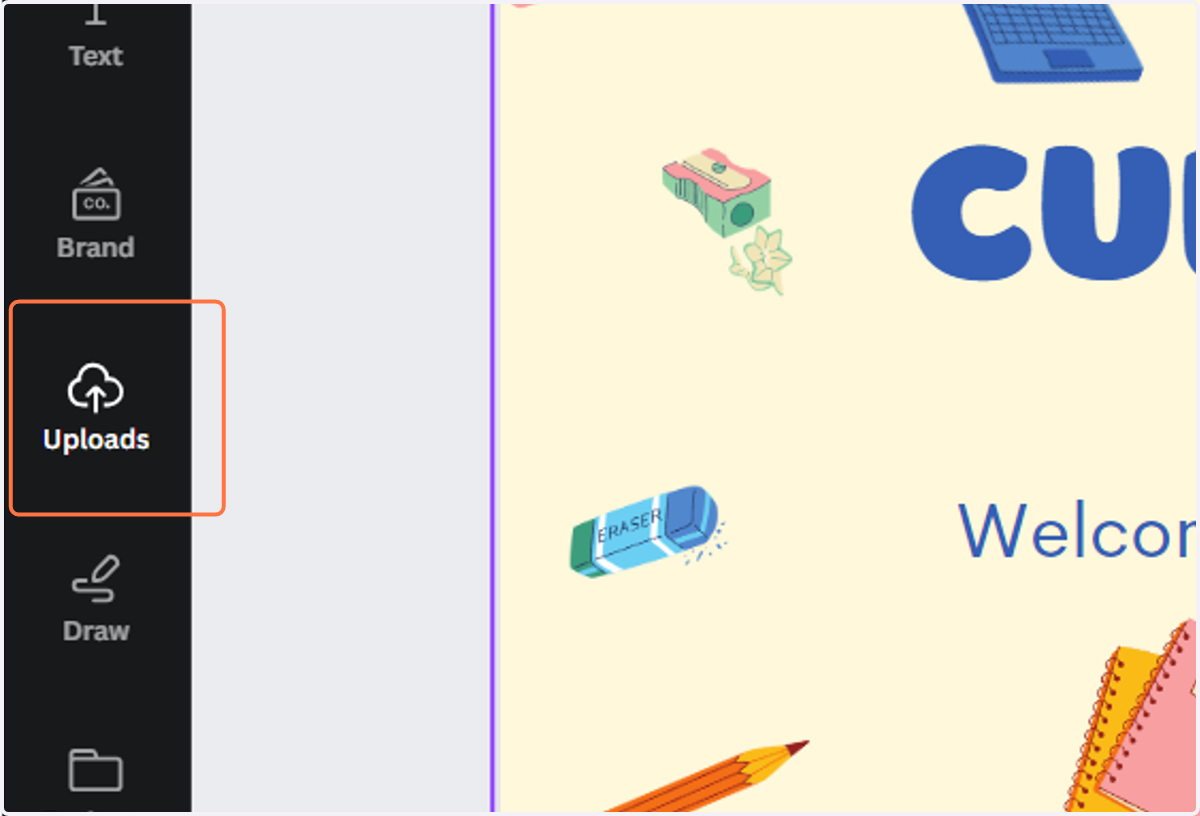
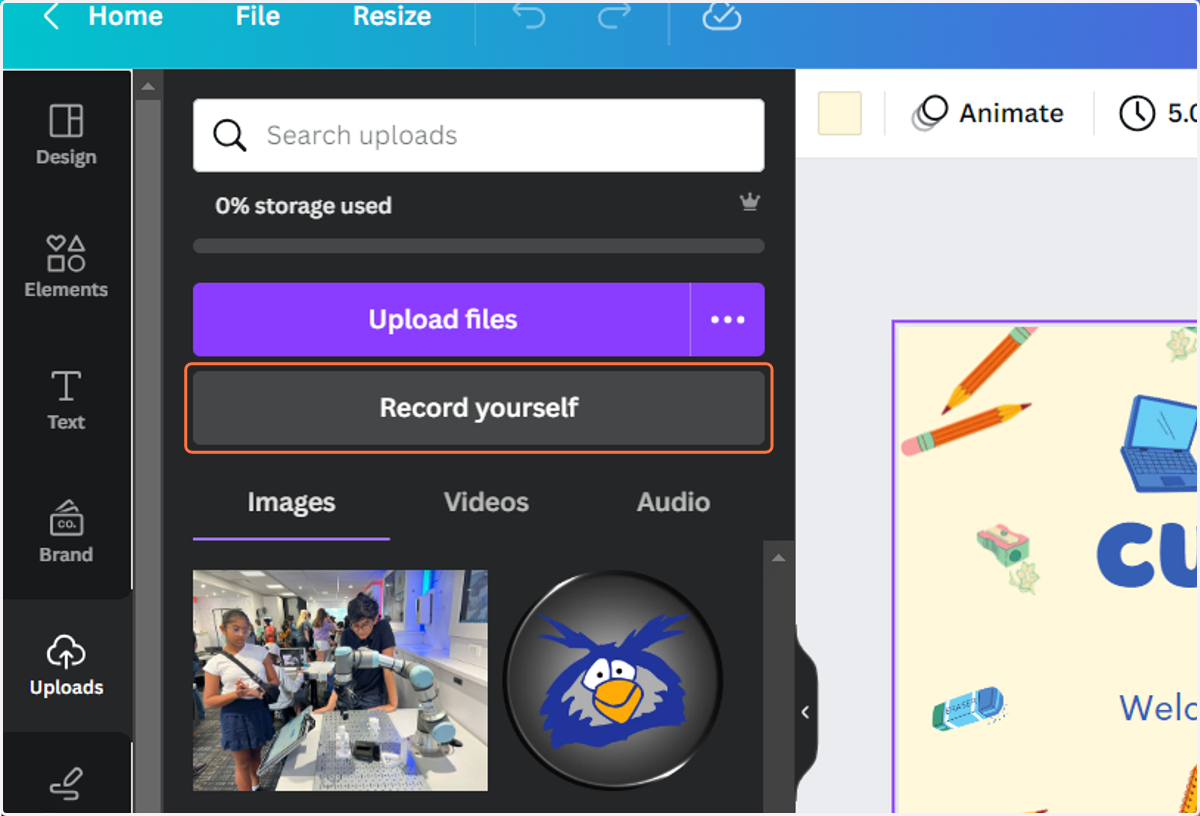
9. Click on Record yourself
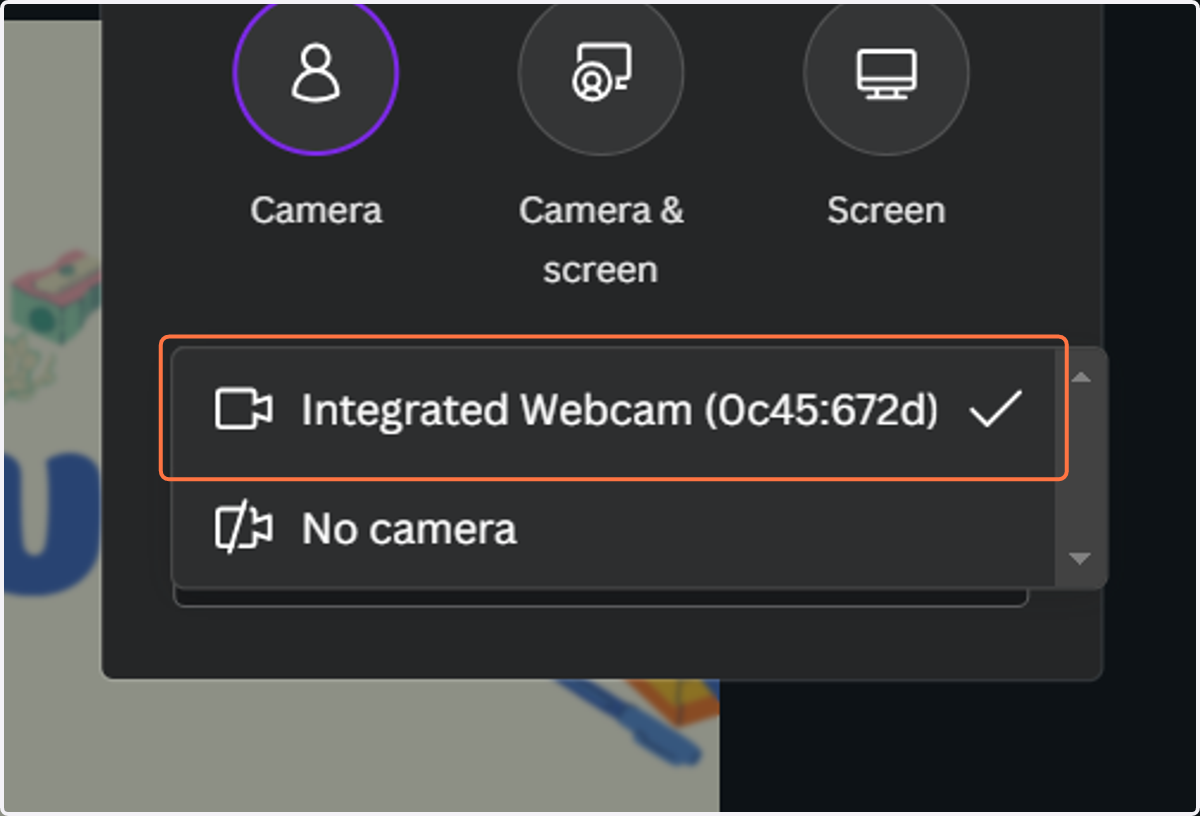
10. Check to make sure your camera is selected
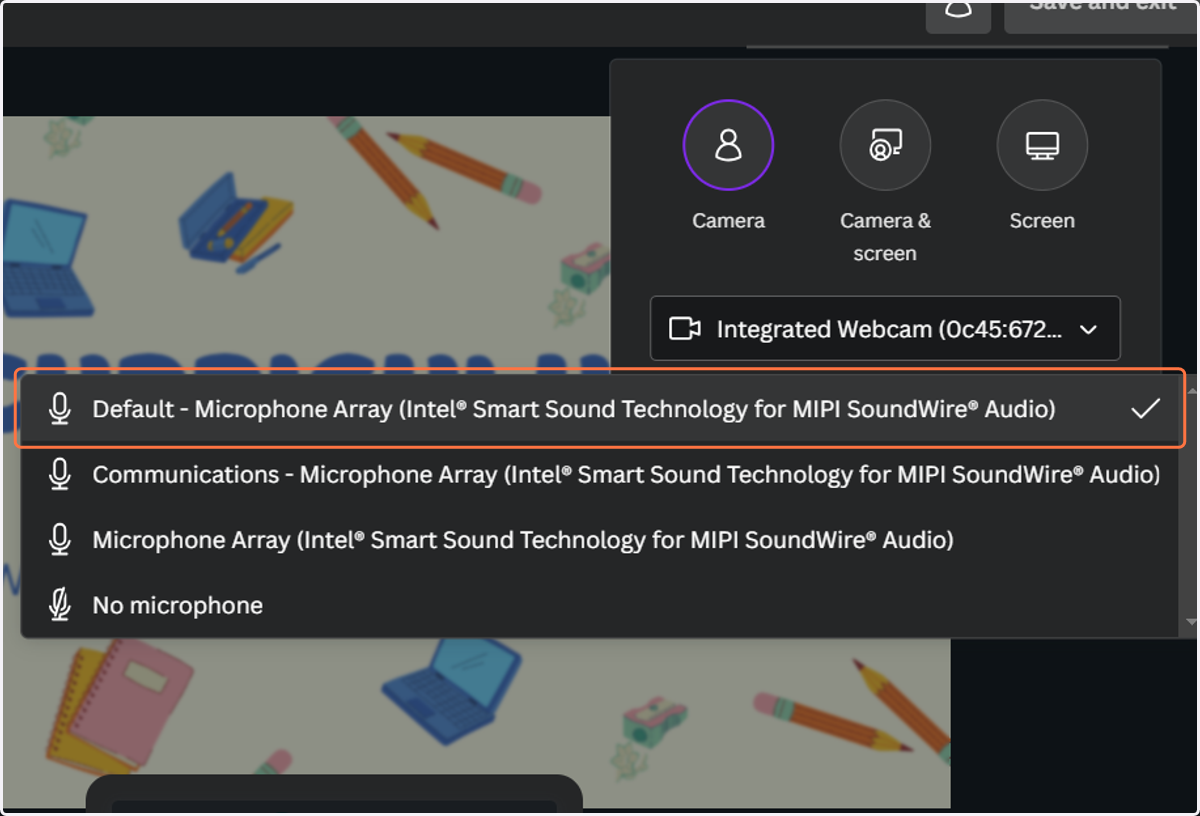
11. Click on the microphone you'd like to use
12. Click on Record
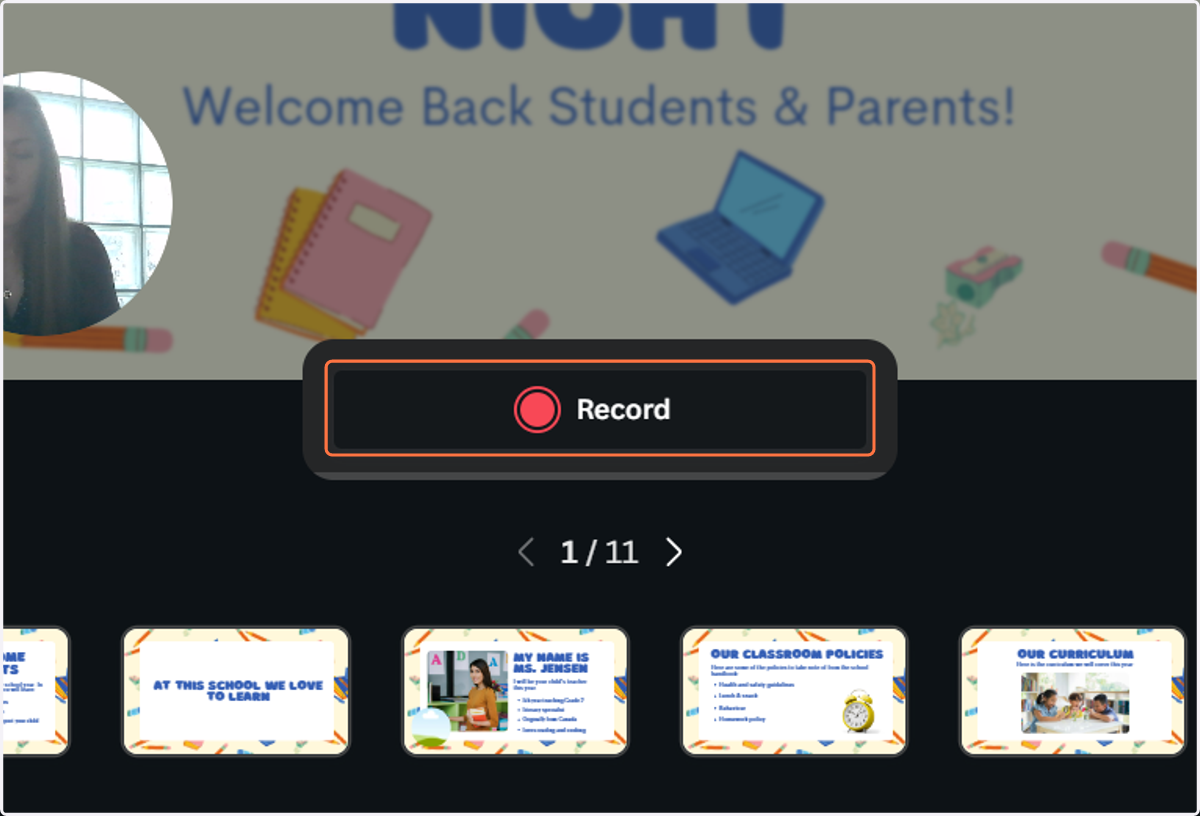
13. Click on Select next page to transition to the next slide
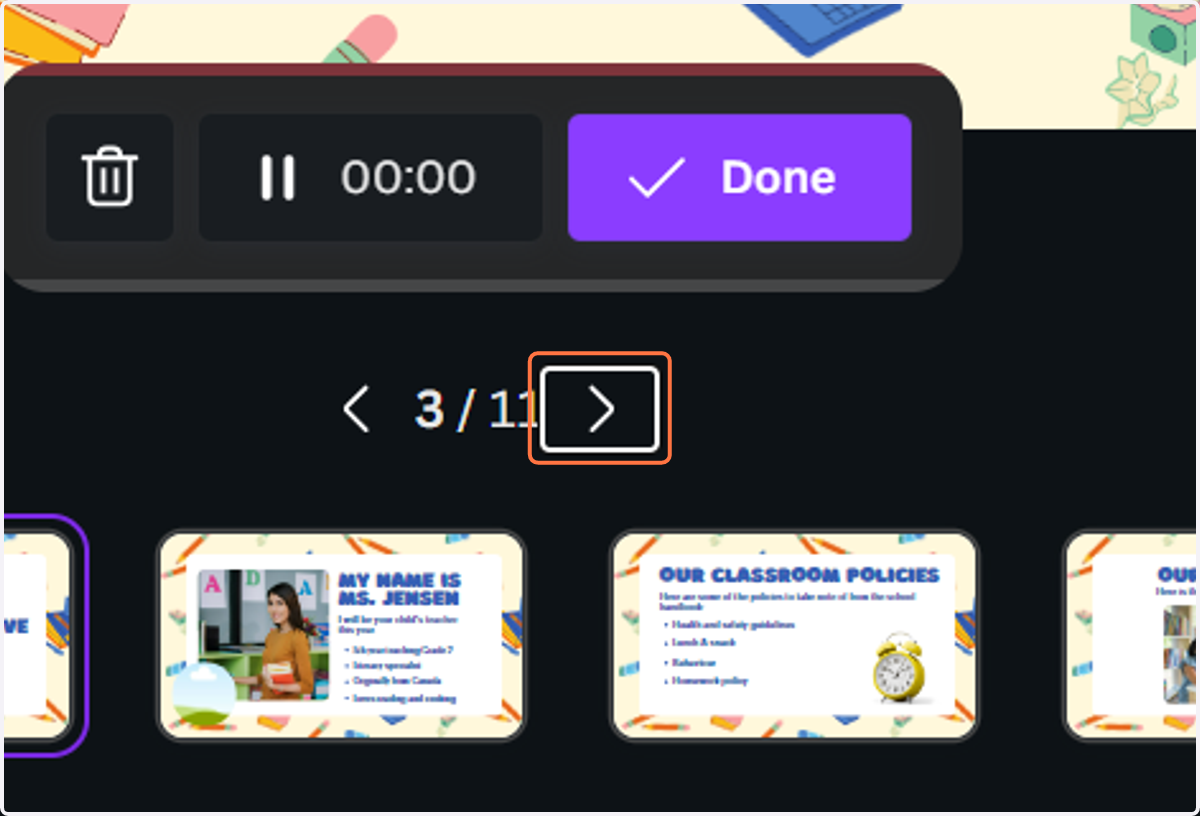
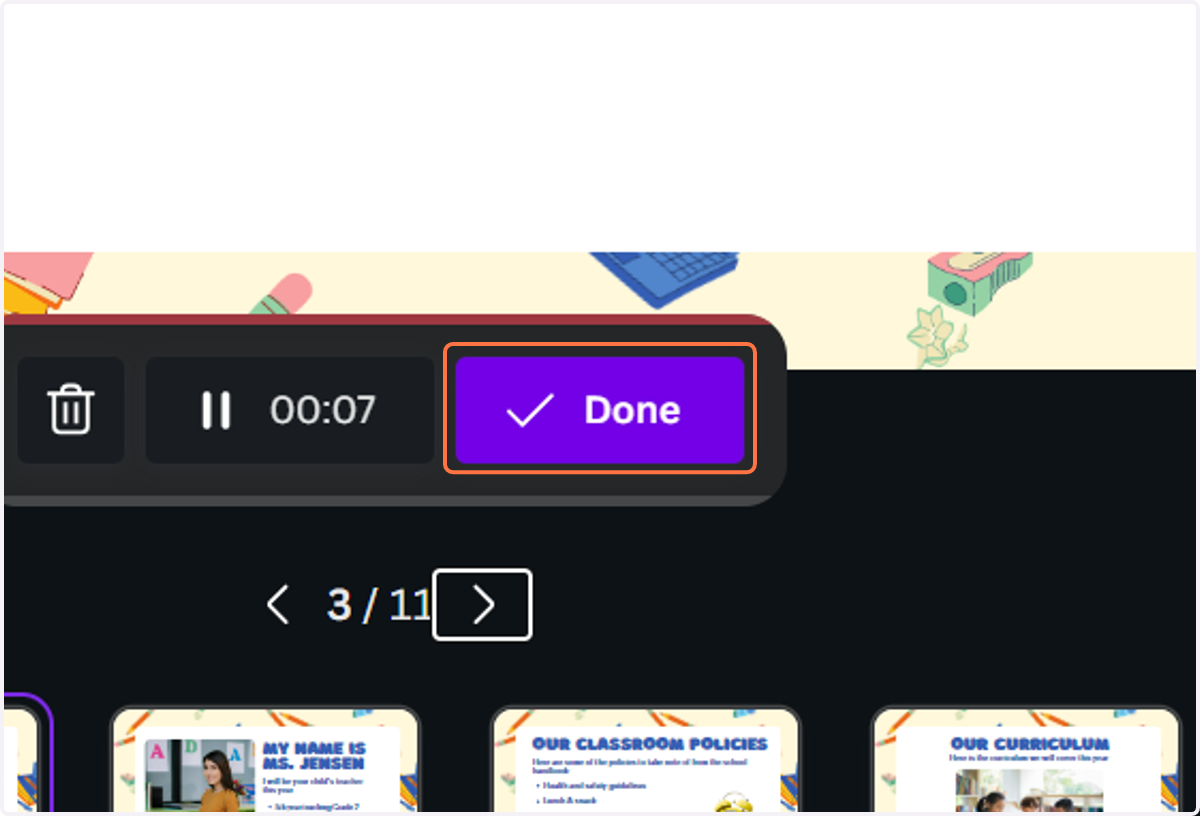
14. Click on Done when done recording
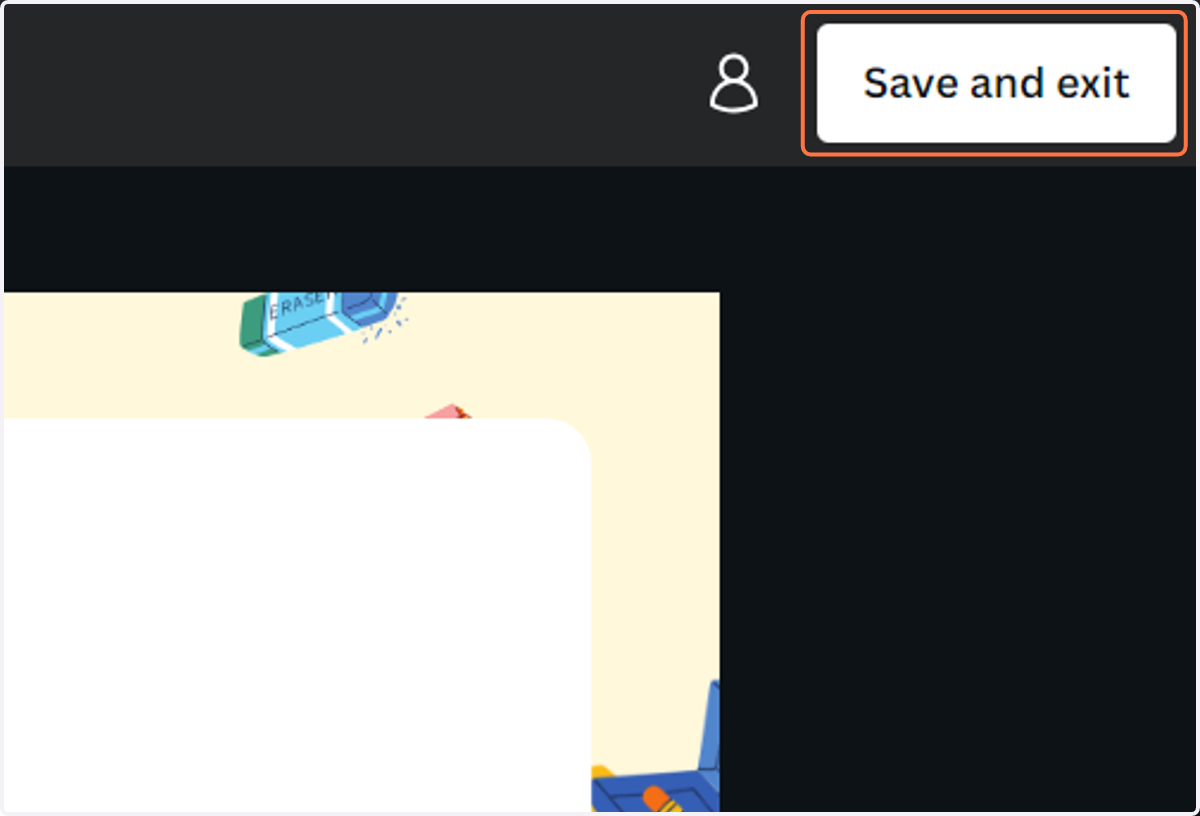
15. Click on Save and exit
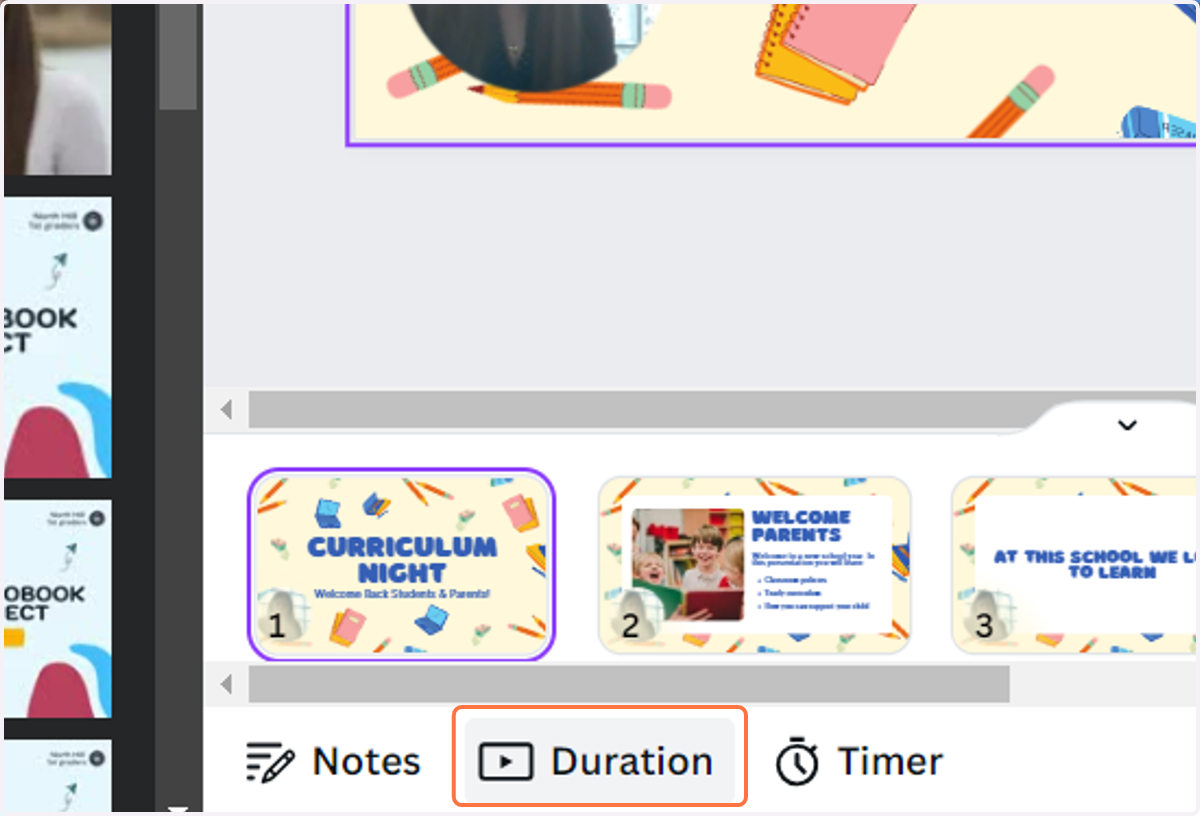
16. Click on Duration and you can edit out any mistakes
17. Drag the cursor to the start of a mistake
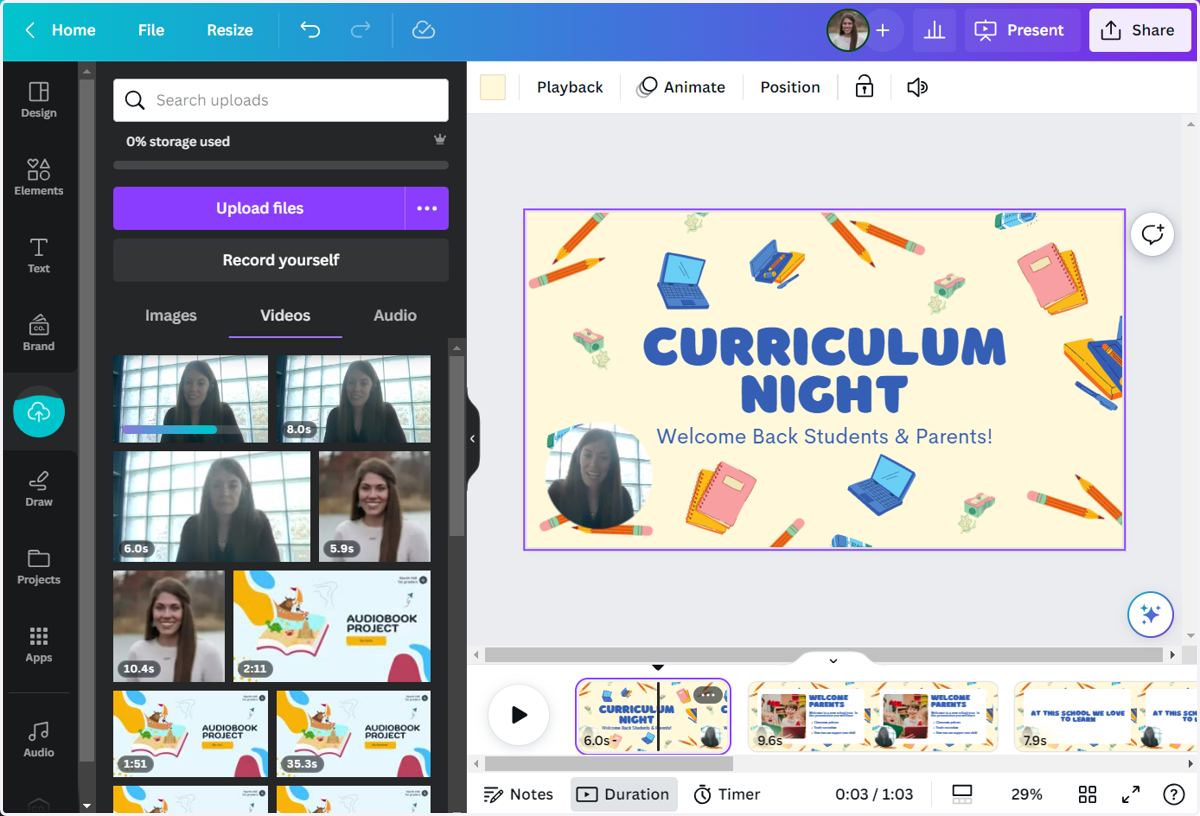
18. Right click and select Split page
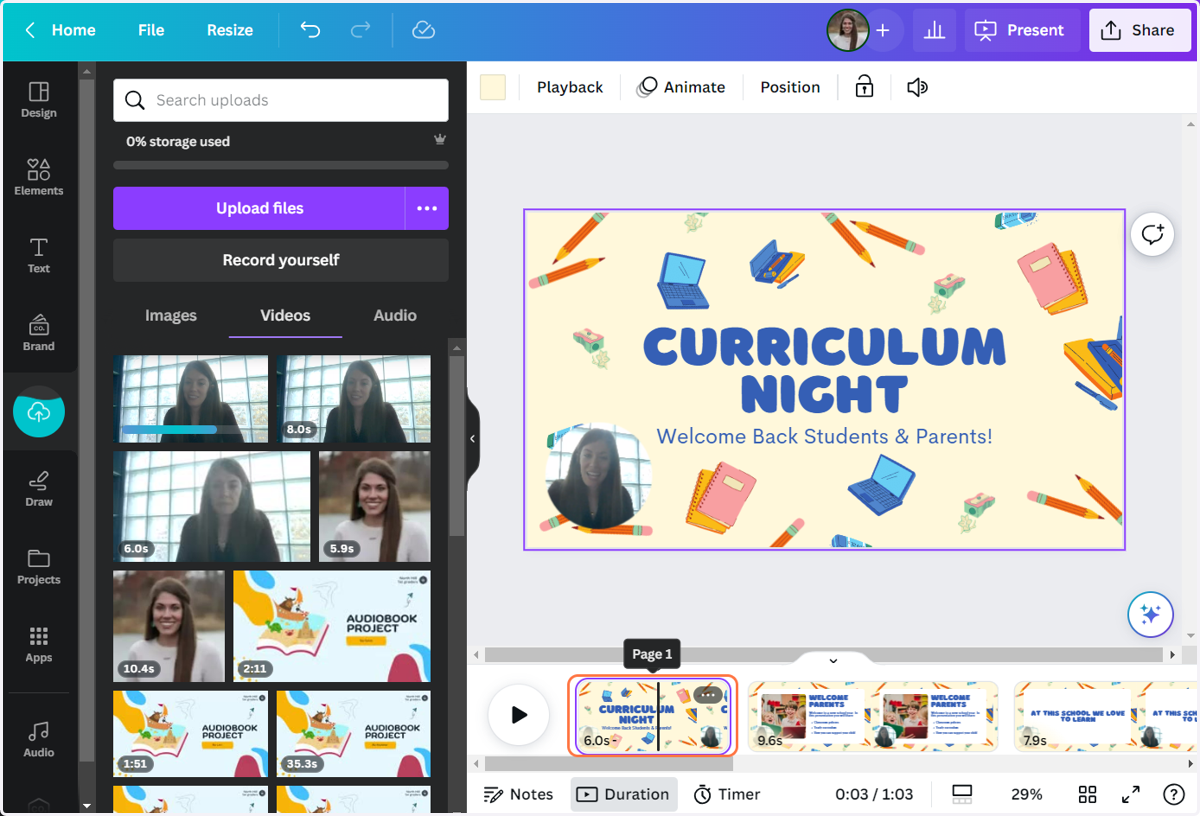
19. Drag your cursor to the end of the mistake and right click to select split page again
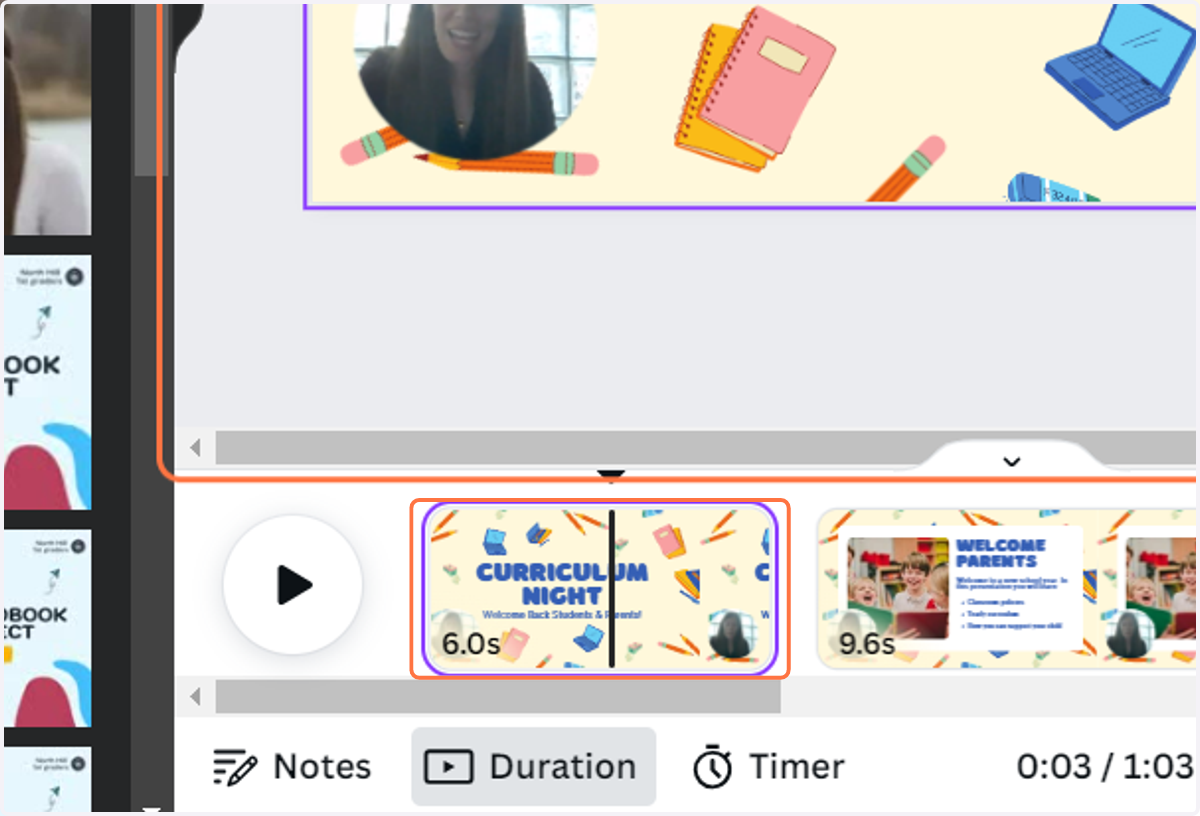
20. Click on the split section (the area with your mistake) and hit delete.
Repeat this step as many times as needed to edit out mistakes
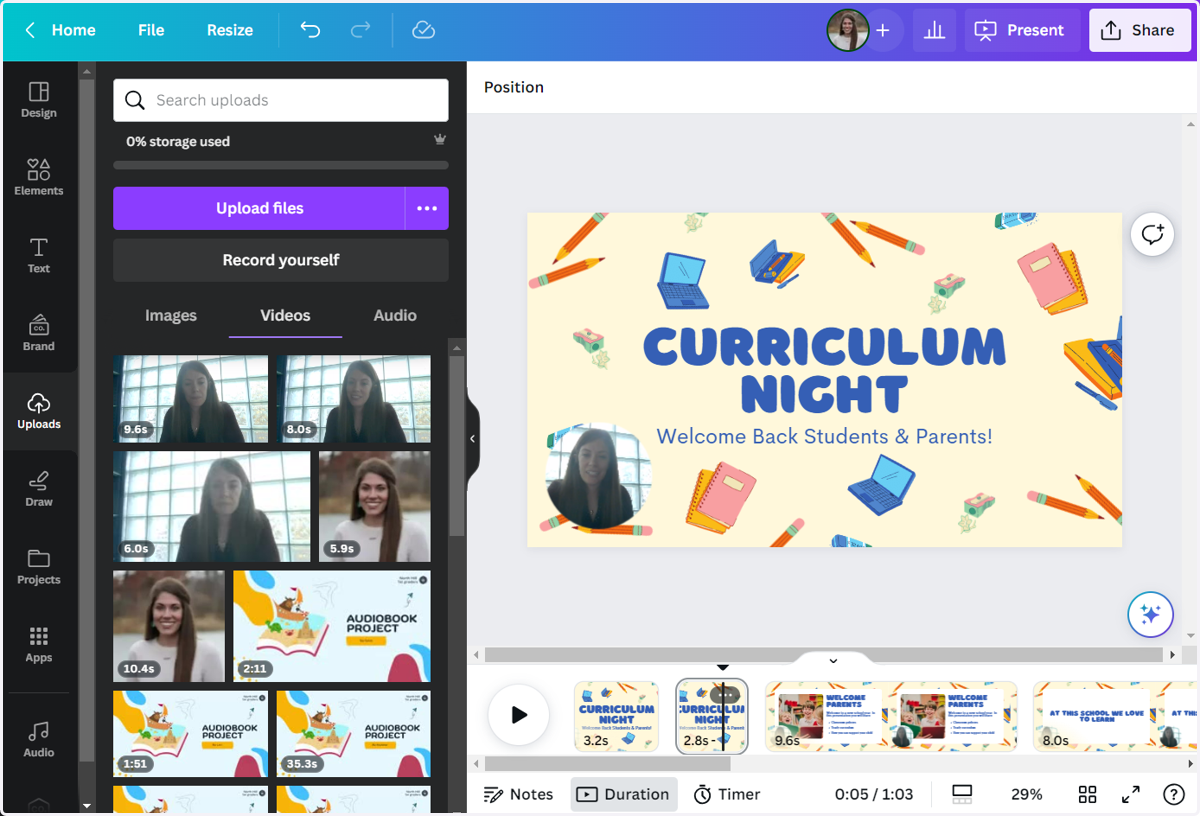
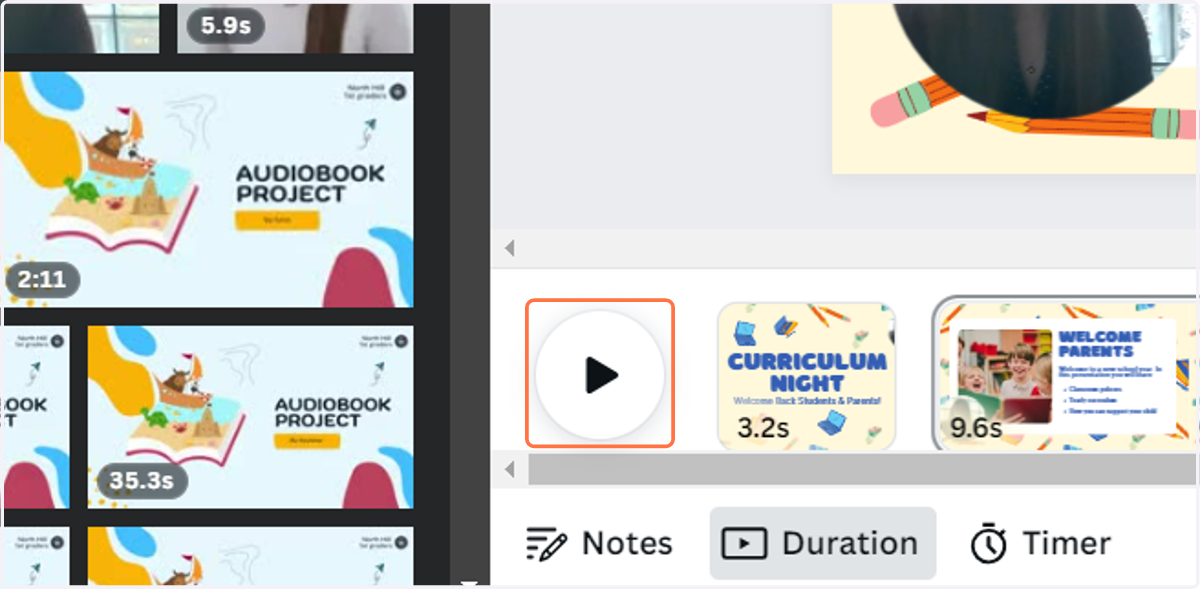
21. Click on Play to listen to your video
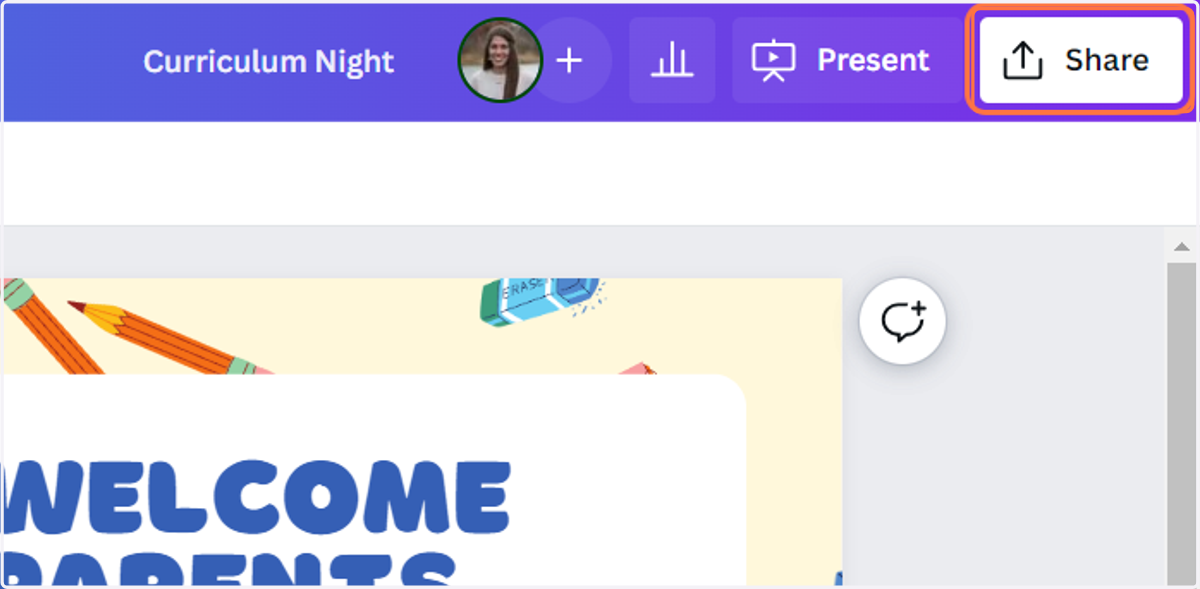
22. When done, click on Share
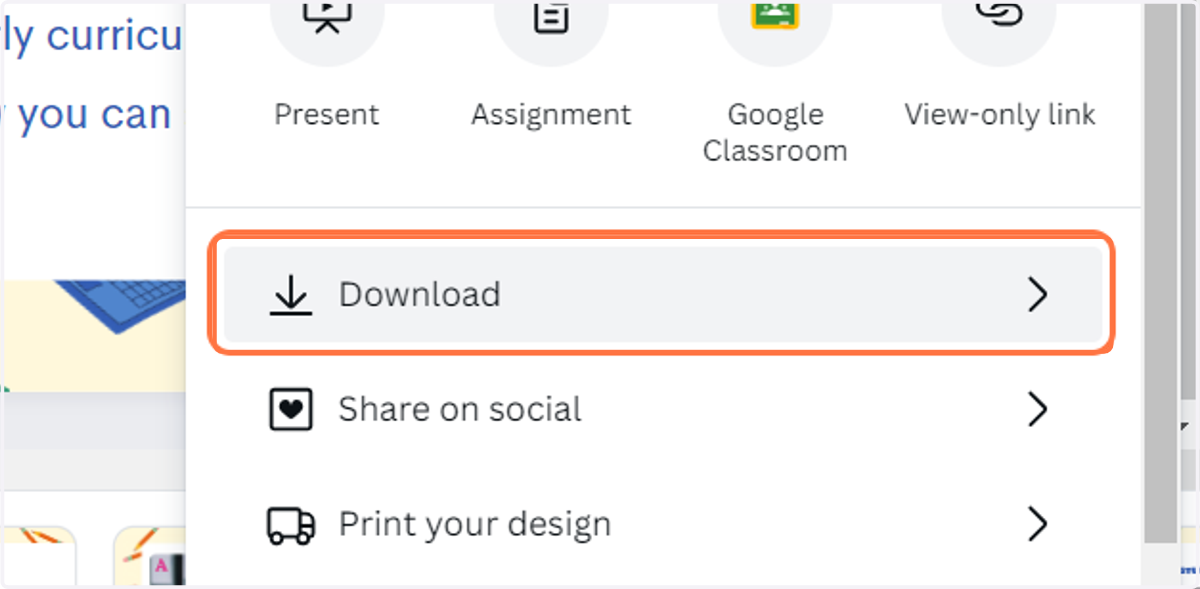
23. Click on Download
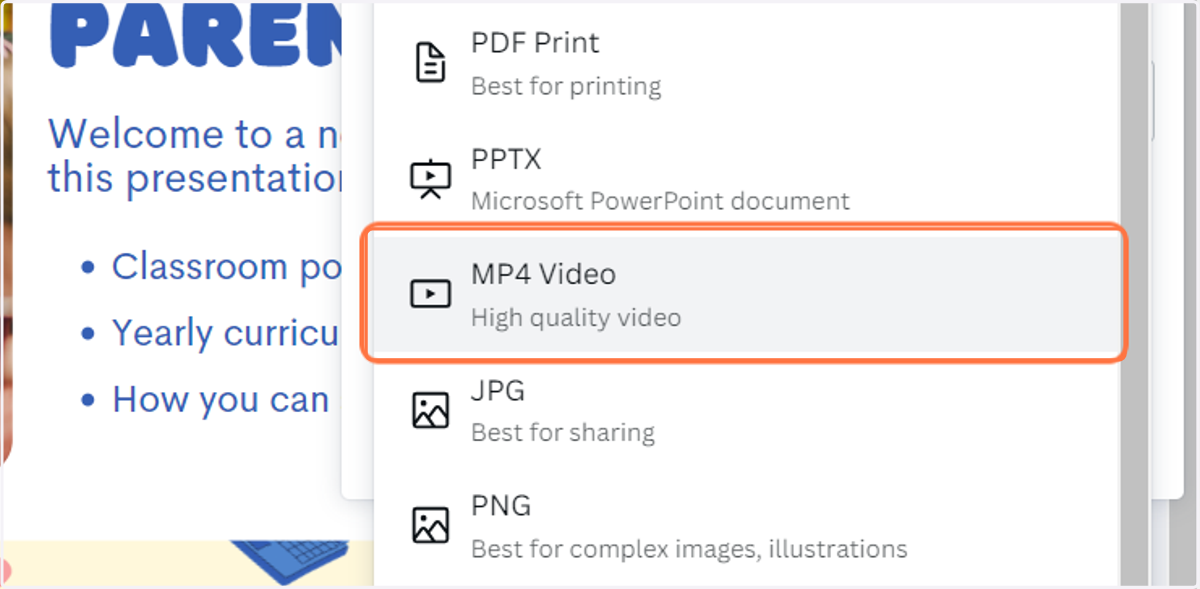
24. Click on MP4 Video…
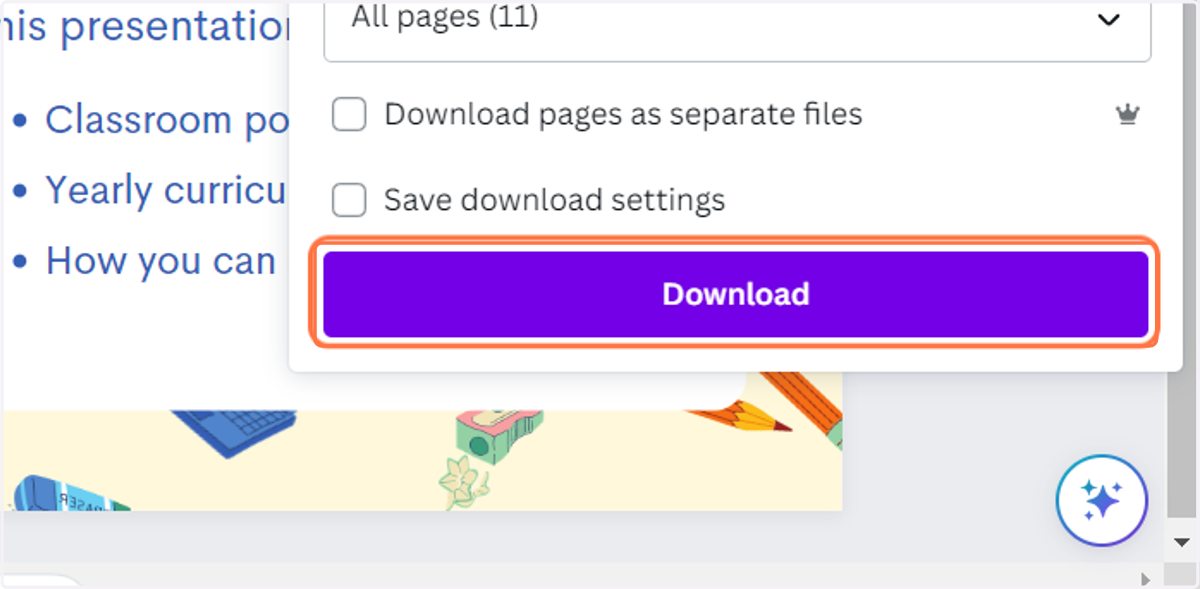
25. Click on Download
26. You can now upload your video to your building's designated spot for families to watch for curriculum night.