Quiz Accommodations
Option 1: Grant Extra Quiz Time to Individual Students
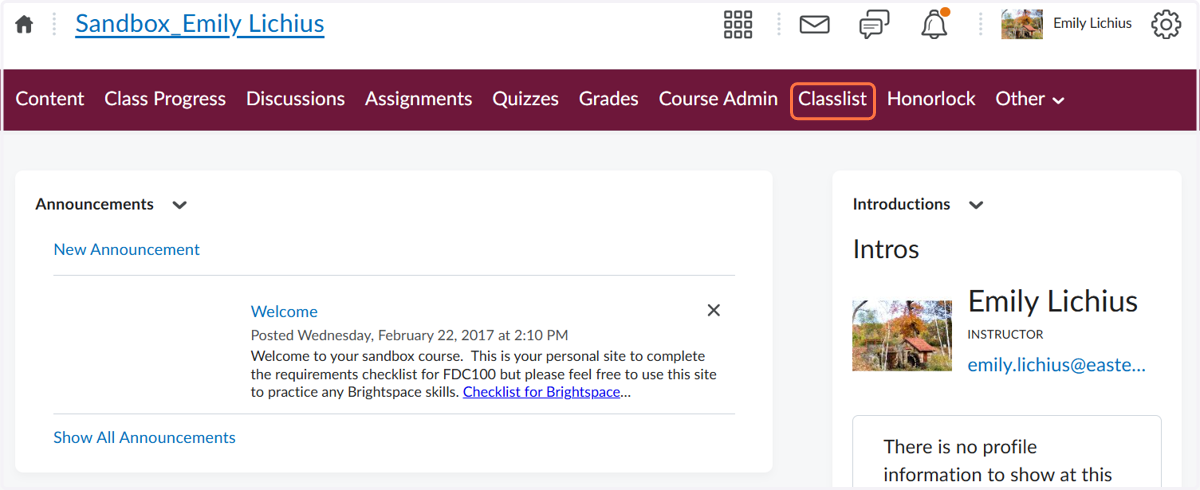
1. Click on Classlist
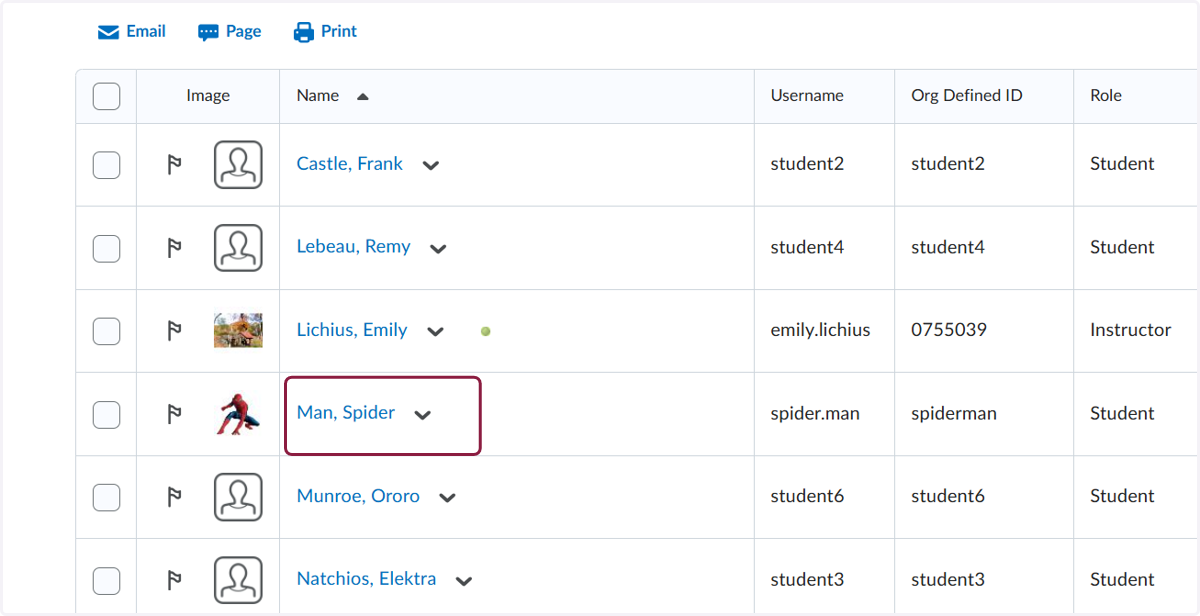
2. Locate the student who has an accommodation for extra time on tests/quizzes
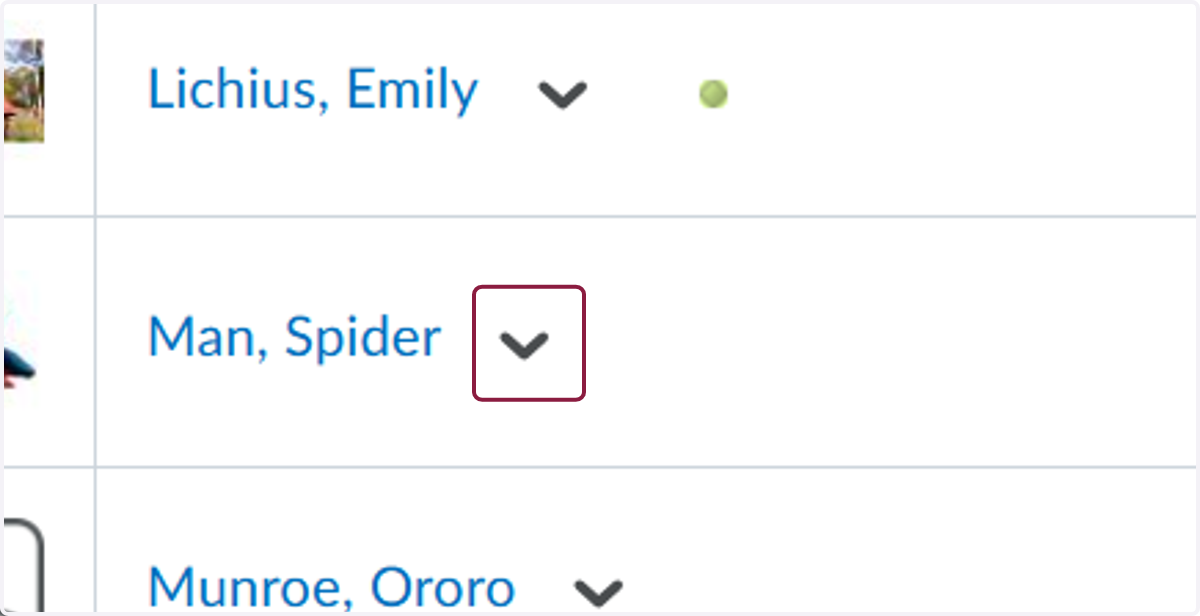
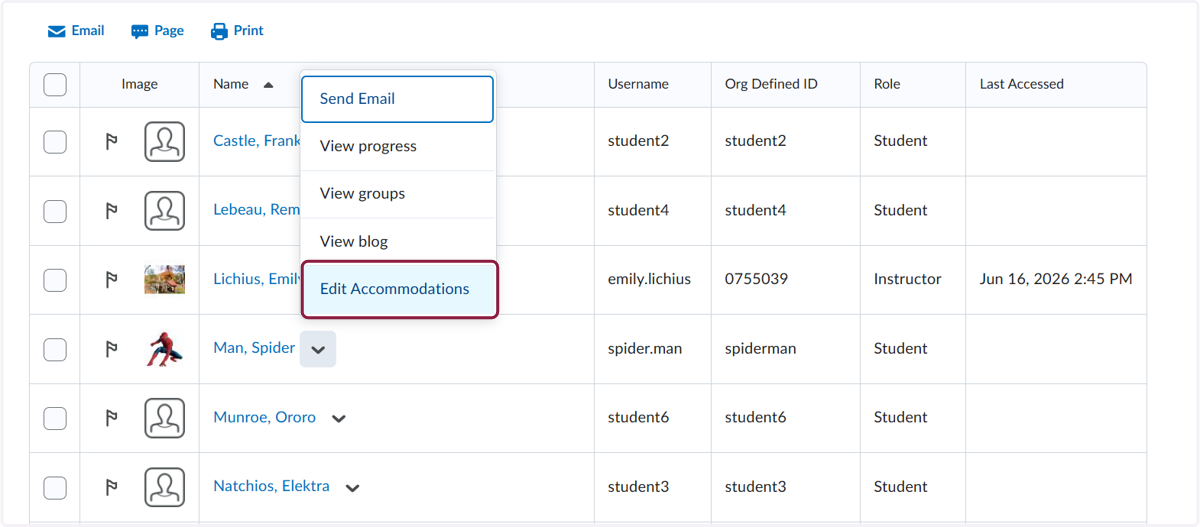
3. Click the carat next to the student's name
4. Click on Edit Accommodations
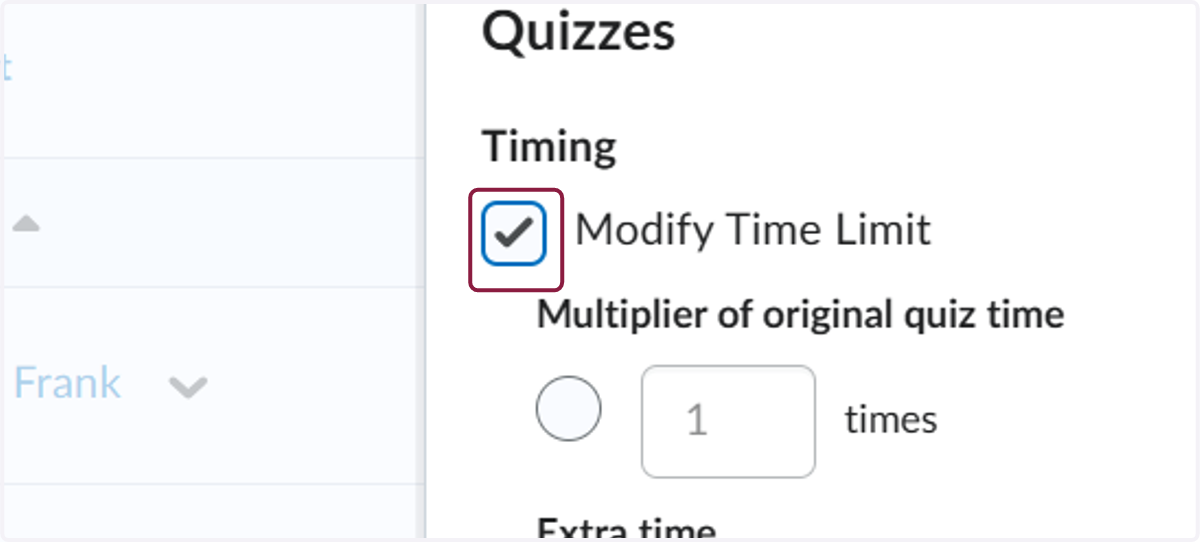
5. Check Modify Time Limit
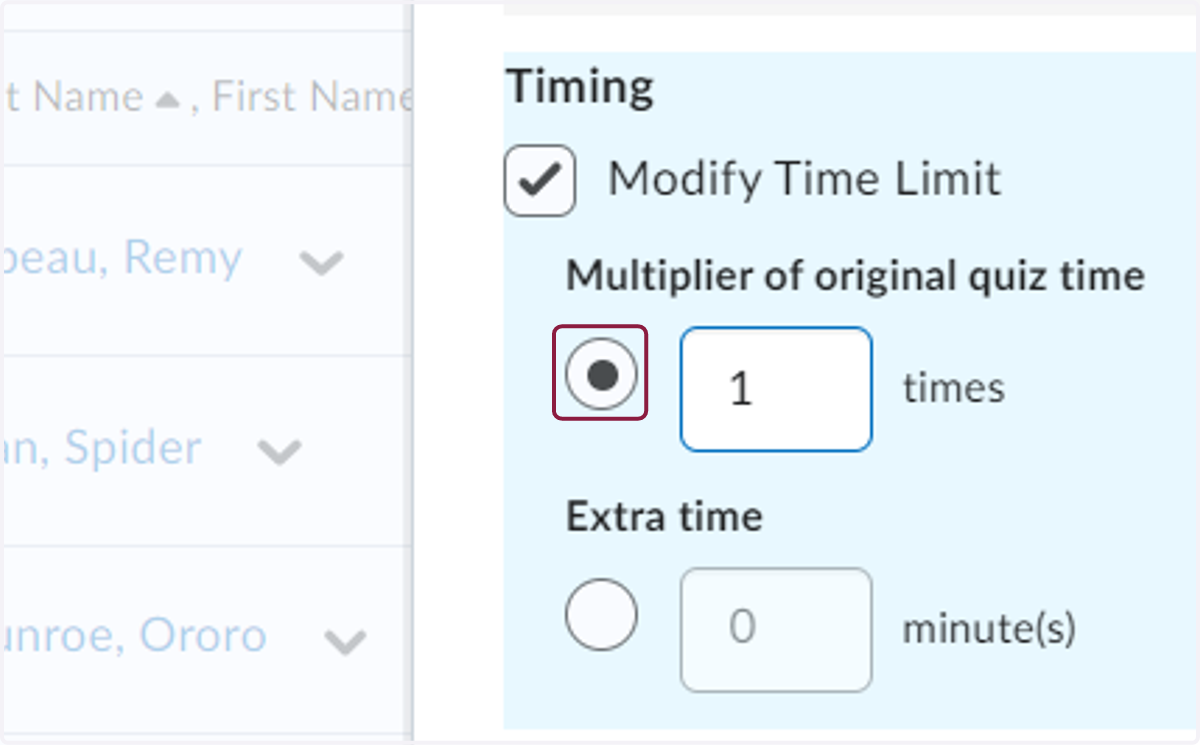
6. Select Multiplier of original quiz time
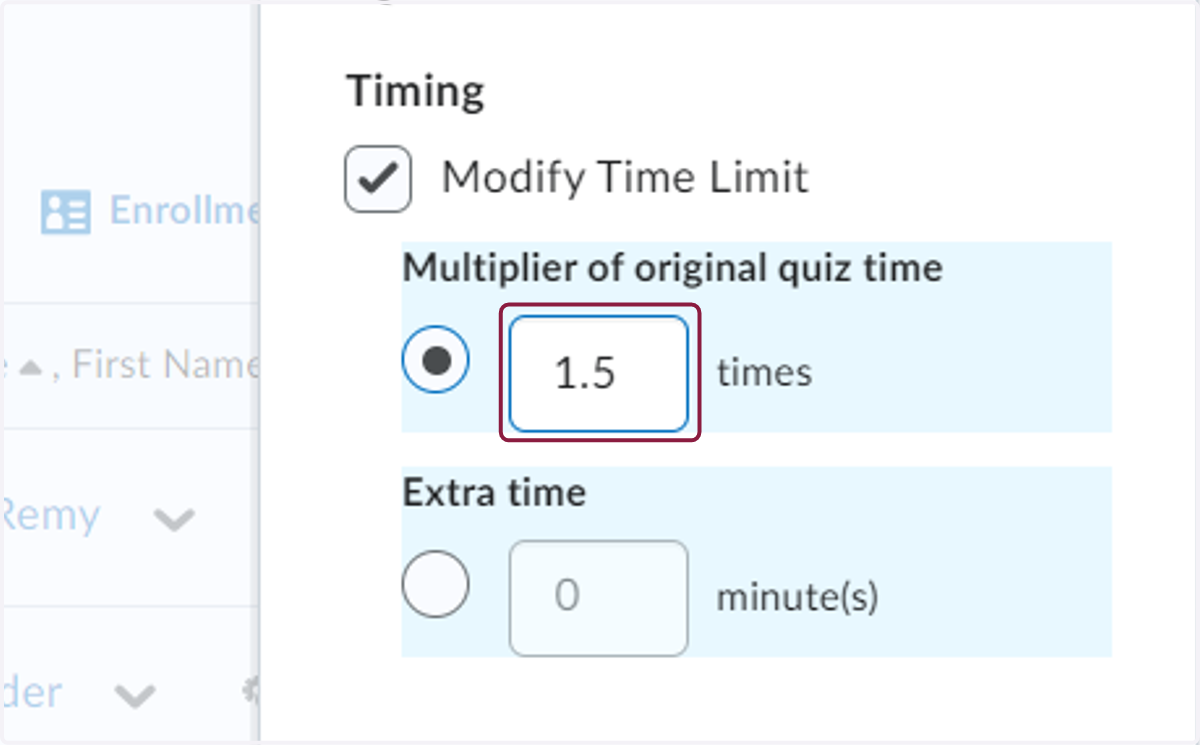
7. Enter the modified time limit (For example, enter 1.5 for the multiplier to give the student time and a half to complete their quizzes.)
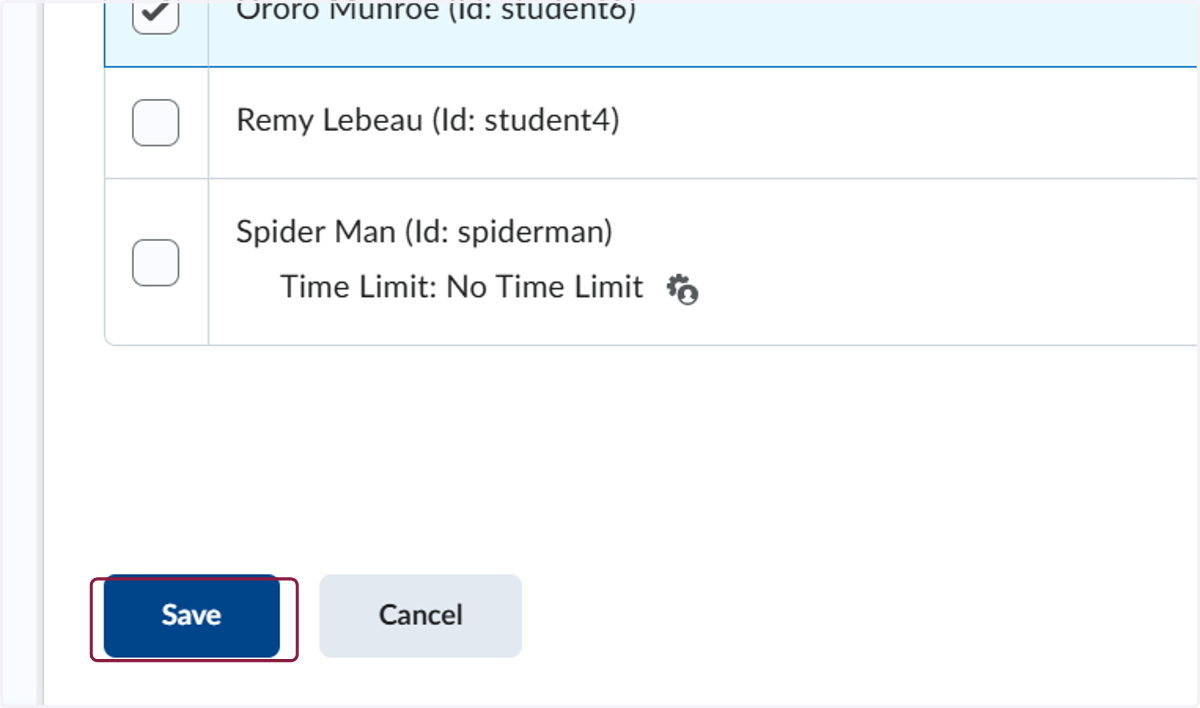
8. Click on Save
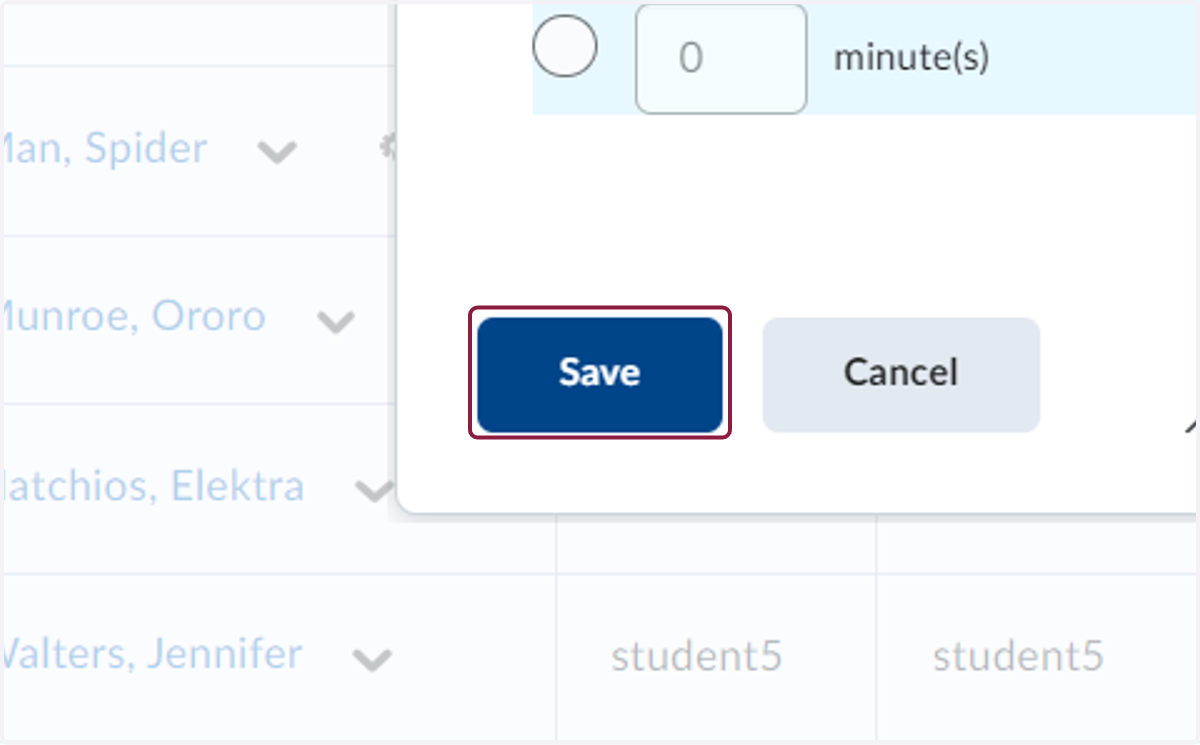
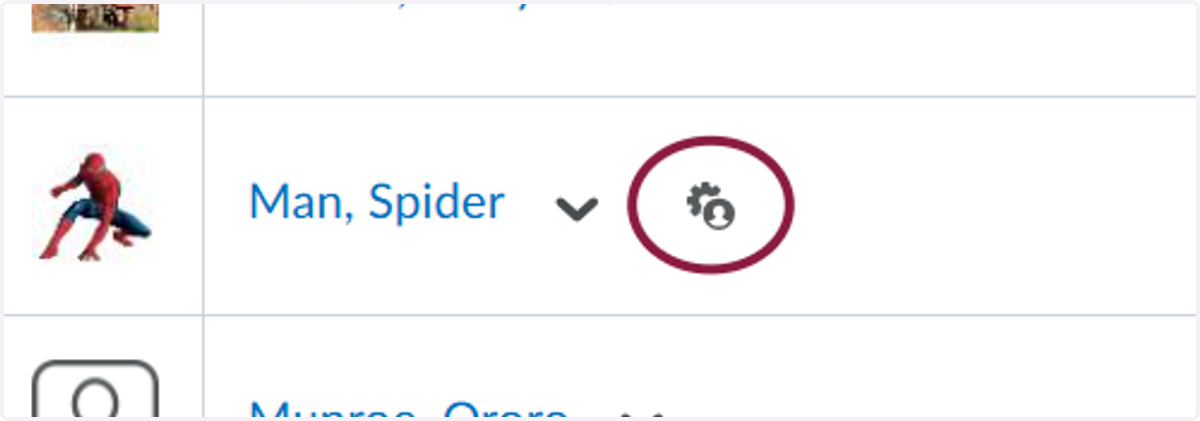
9. When you return to the class list, the student should now have this accommodation icon next to their name
Option 2: Grant Special Access on a Quiz by Quiz Basis
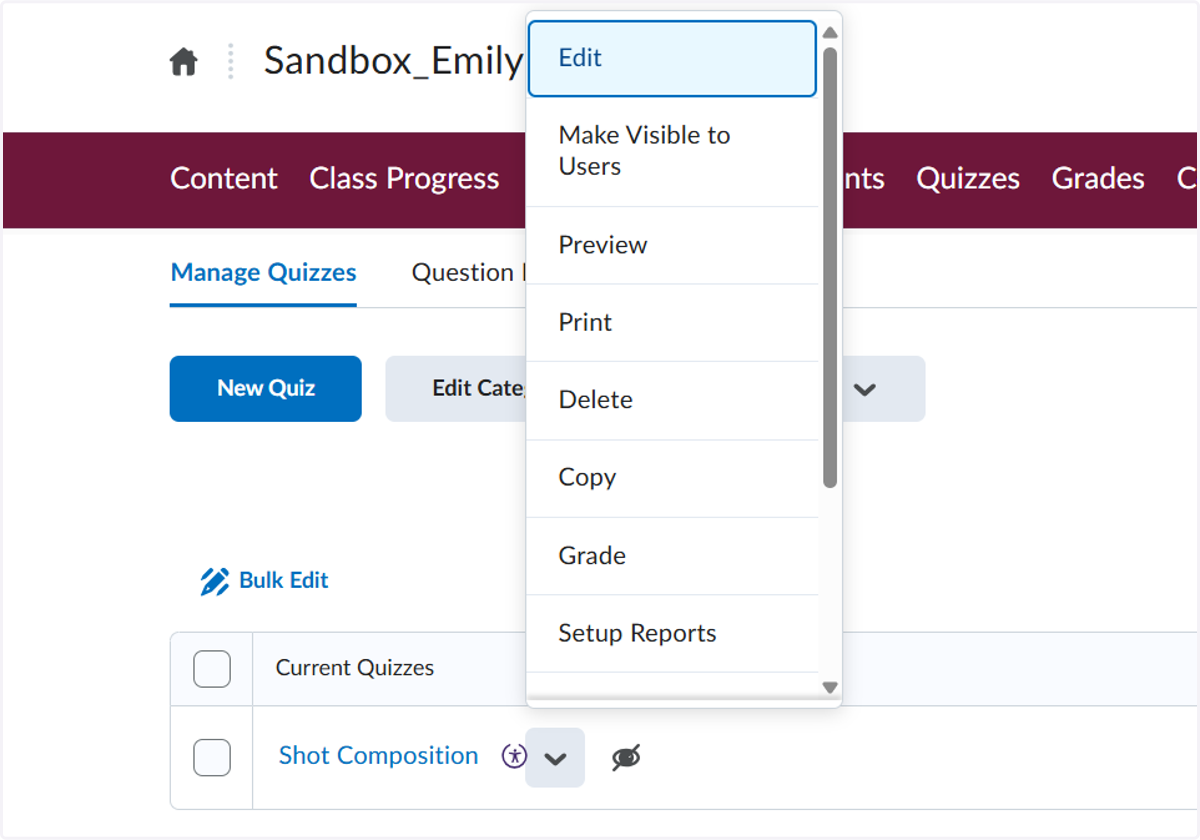
10. Click on Quizzes
11. Click on the upside down triangle next to the quiz
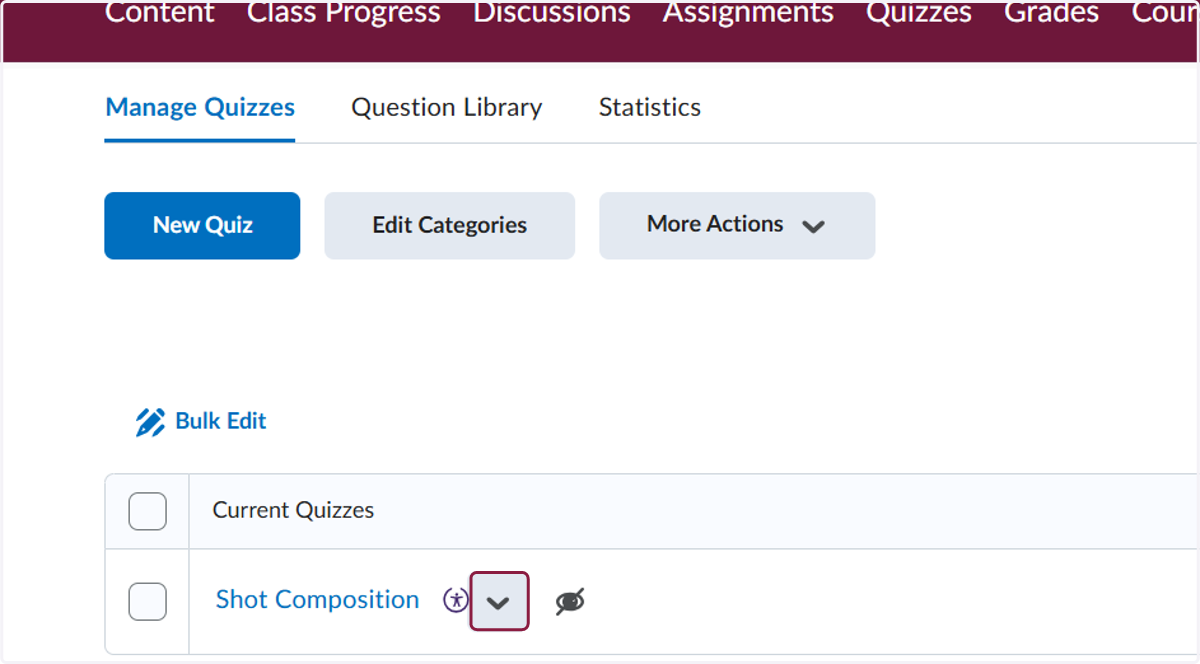
12. Click on Edit
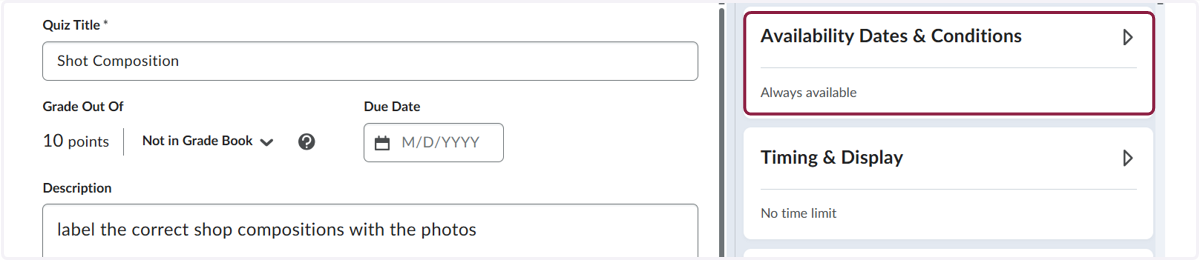
13. Click on Availability Dates & Conditions
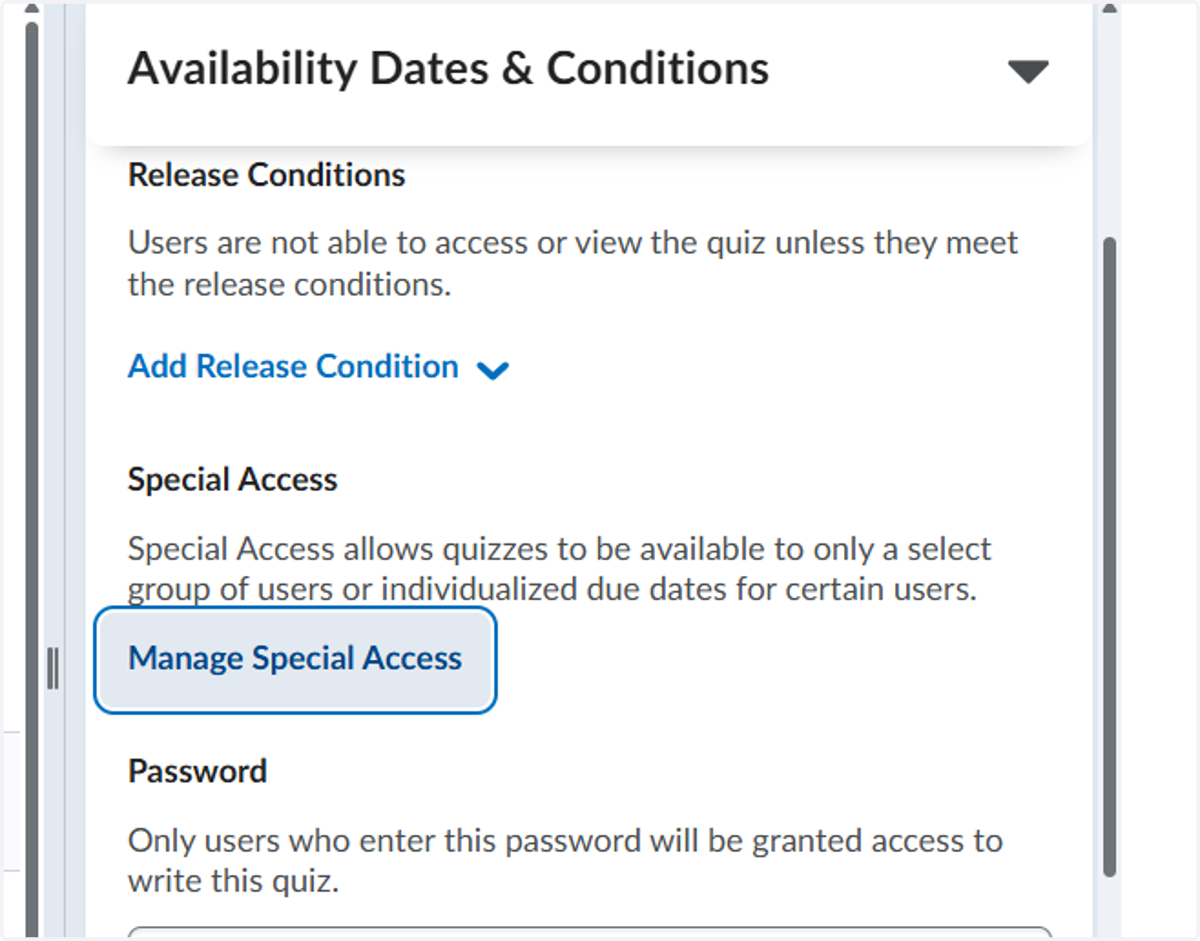
14. Click on Manage Special Access
15. Click on Add Users to Special Access
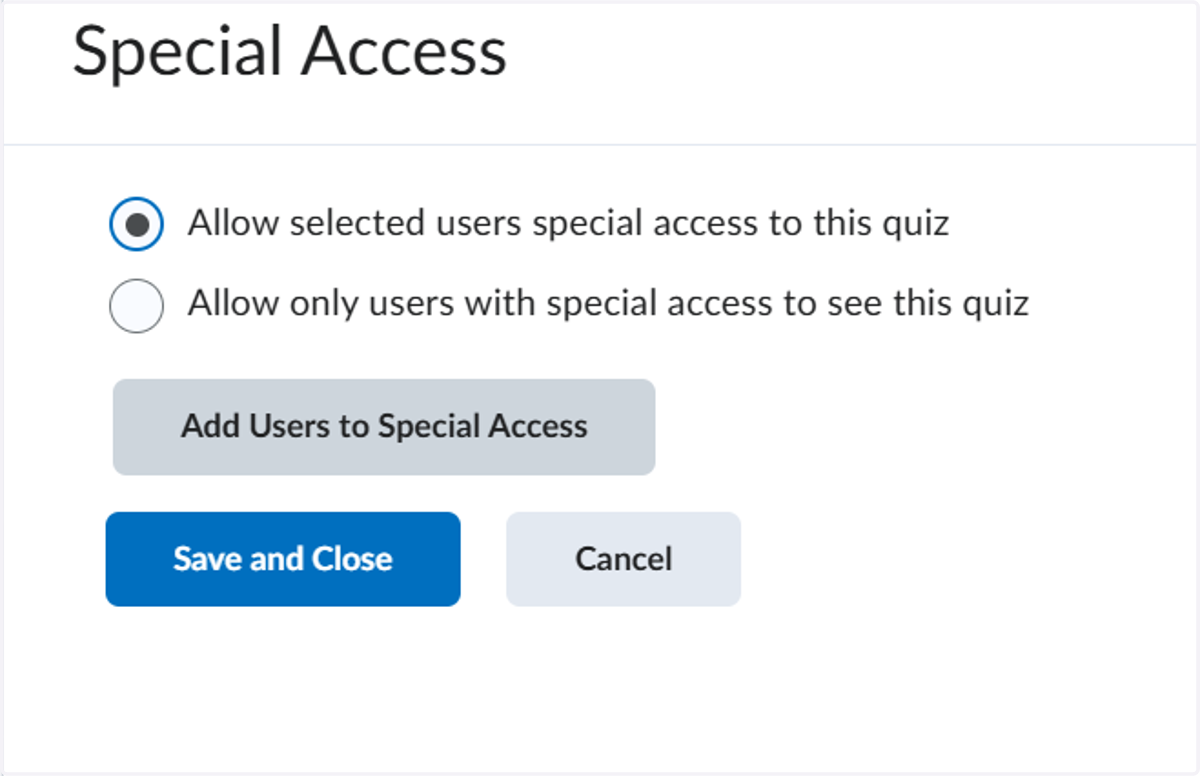
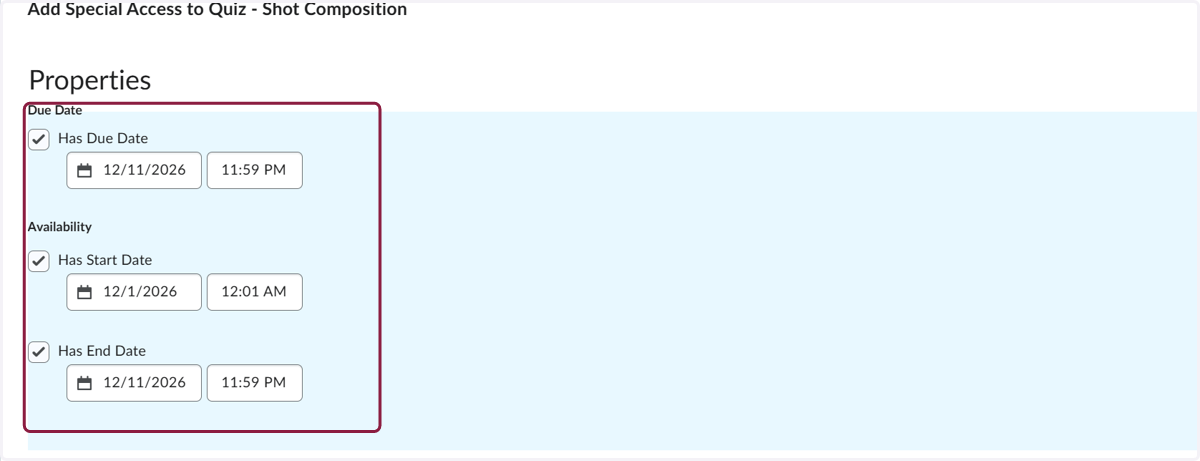
16. Select how you want the user to have special access (changed due date, changed availability dates, etc.)
17. Choose the users you want to give special access by clicking the checkbox next to their name.
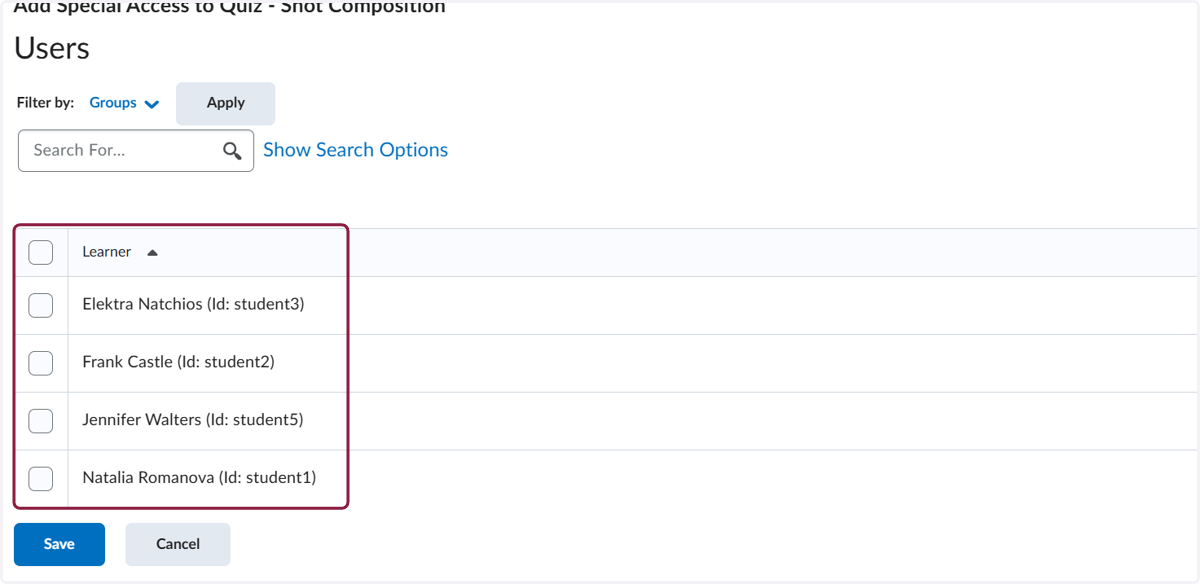
18. Click on Save