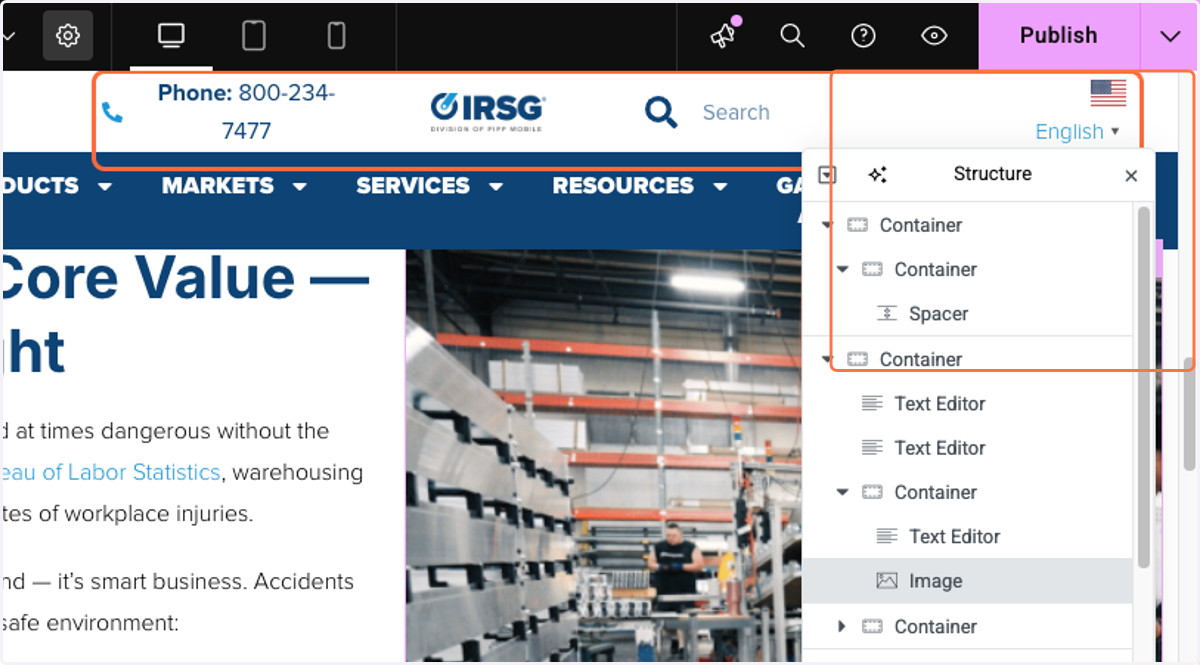
Putting Blog in WordPress
User Portal - WP Engine
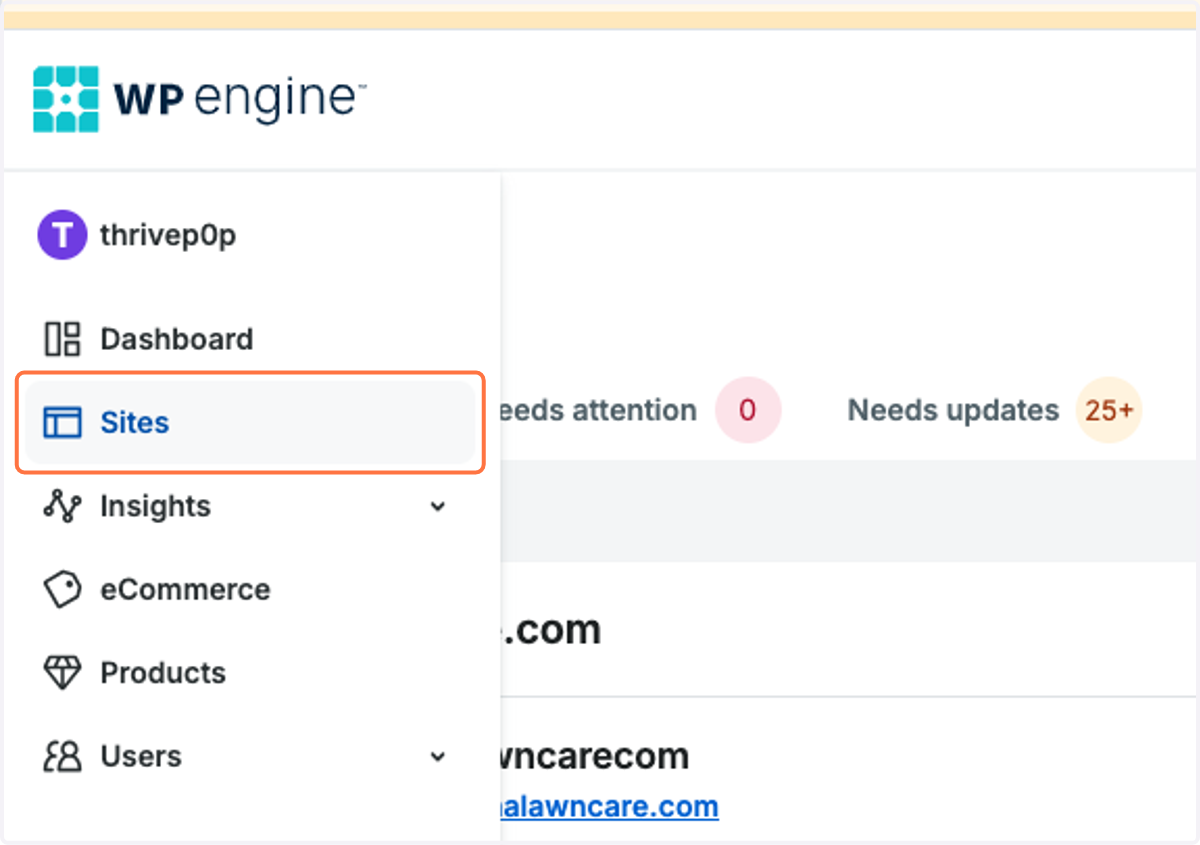
1. Click on Sites
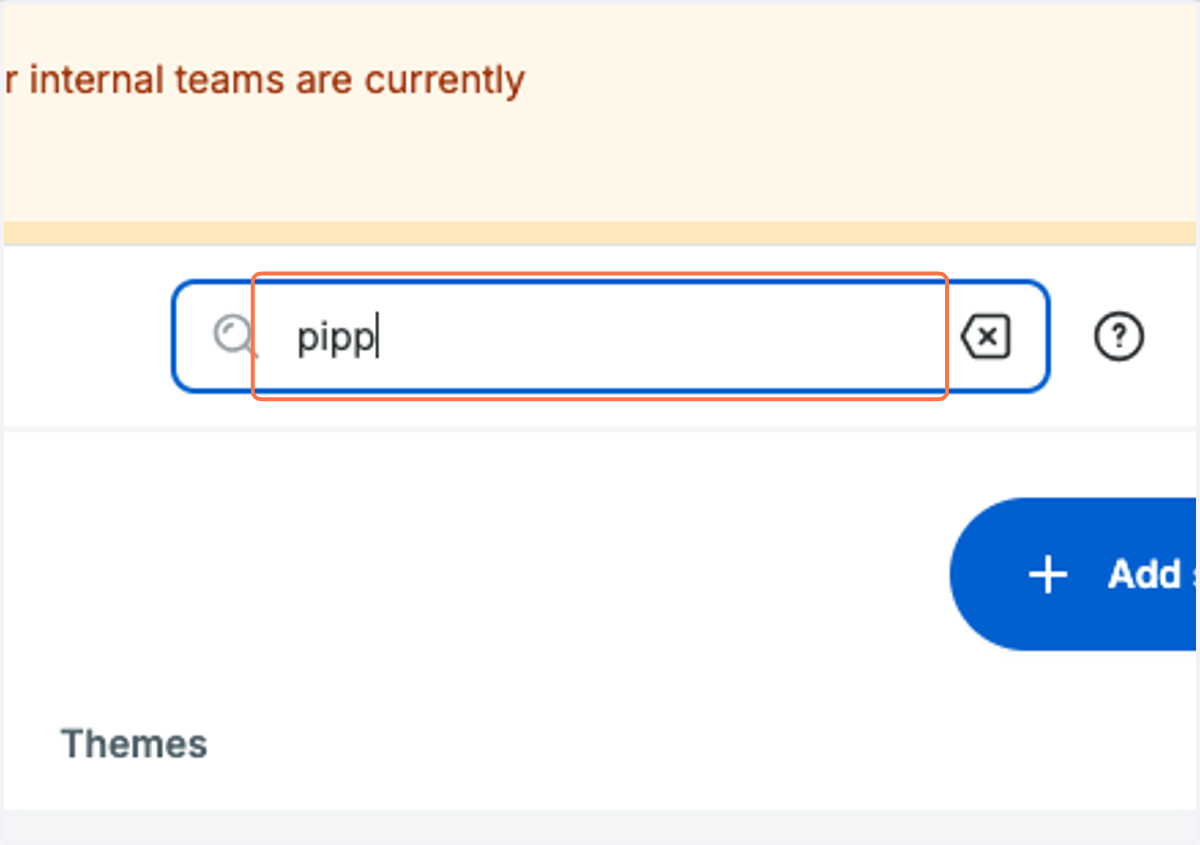
2. Type the name of the website you're looking for or scroll to find it
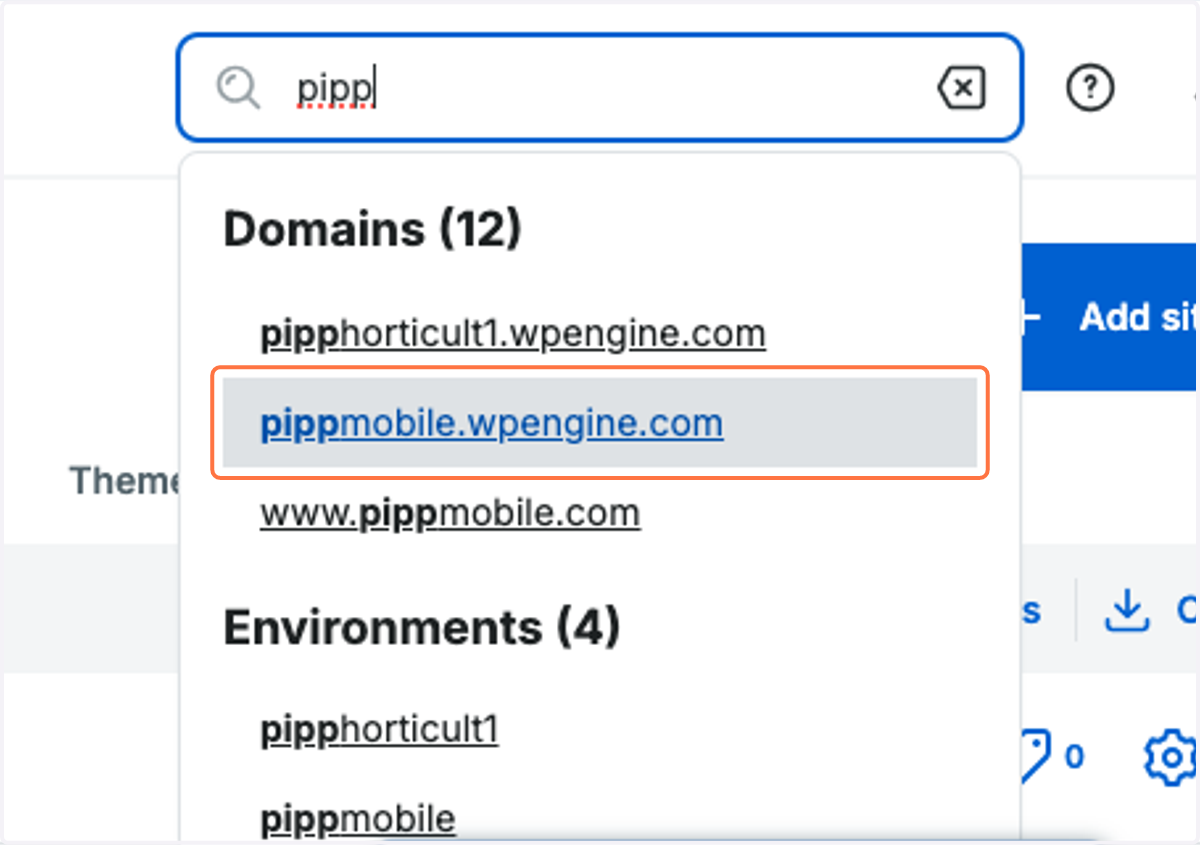
3. Click on the website you're looking for
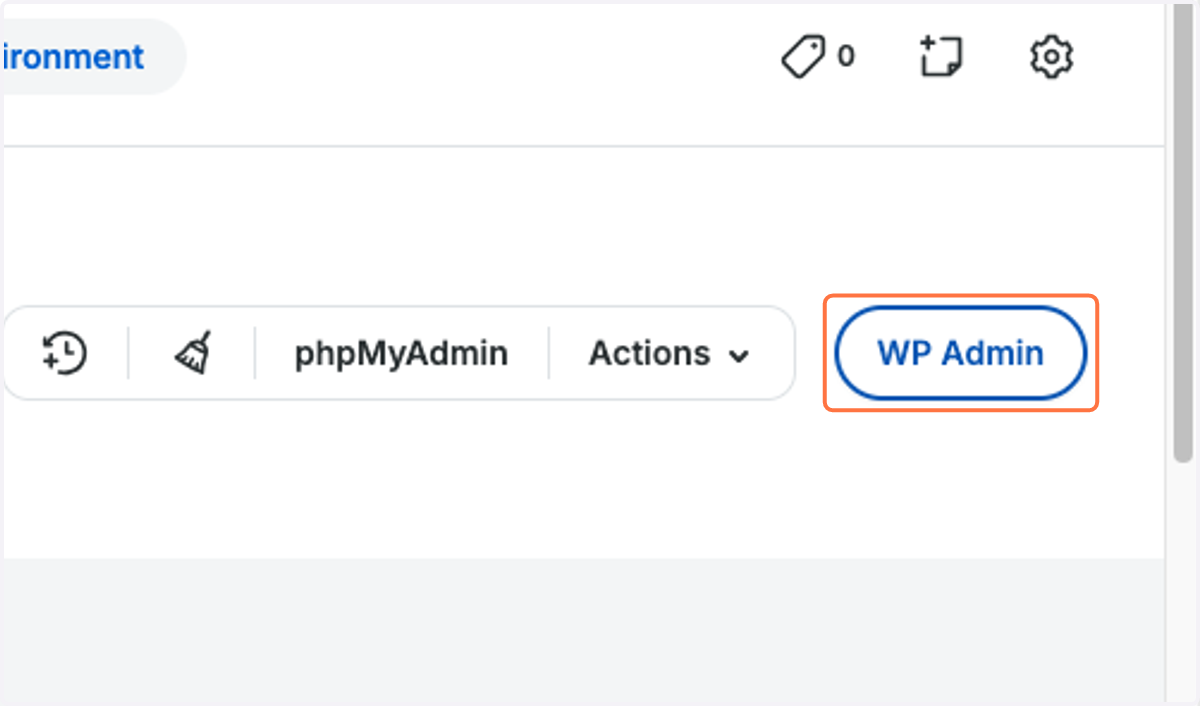
4. Click on WP Admin
Dashboard ‹ Mobile Storage Systems | Pipp Mobile — WordPress
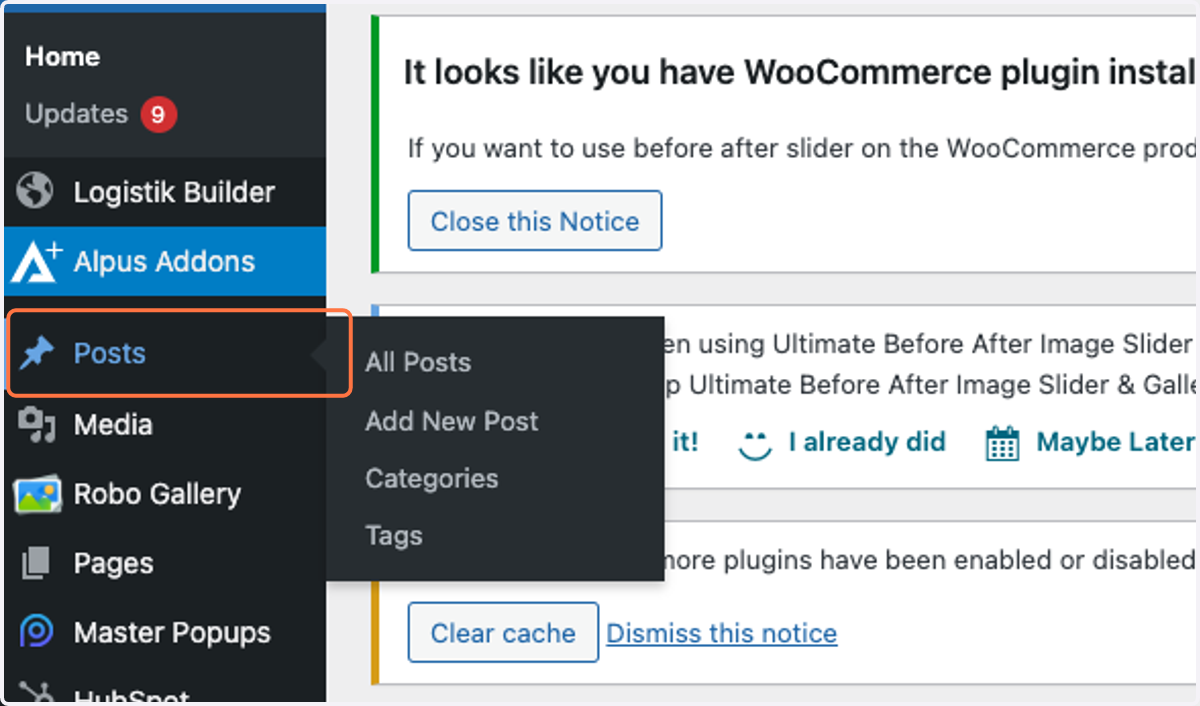
5. Click on Posts
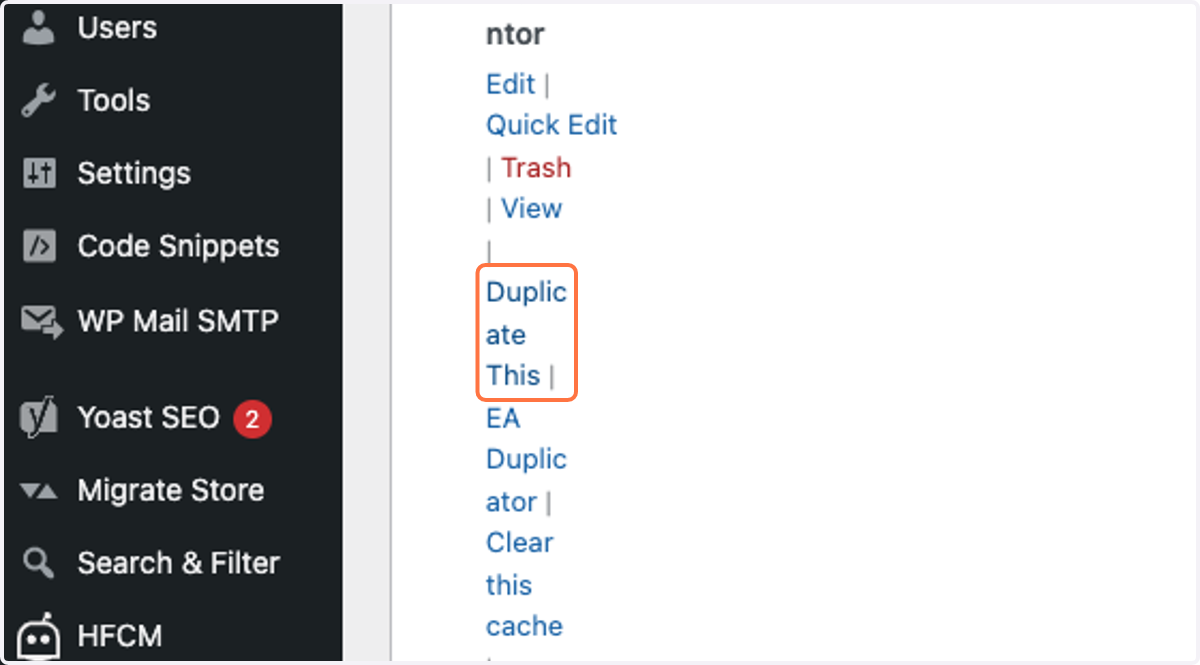
6. Click on Duplicate This
Duplicate the past blog so you don't have to worry about format
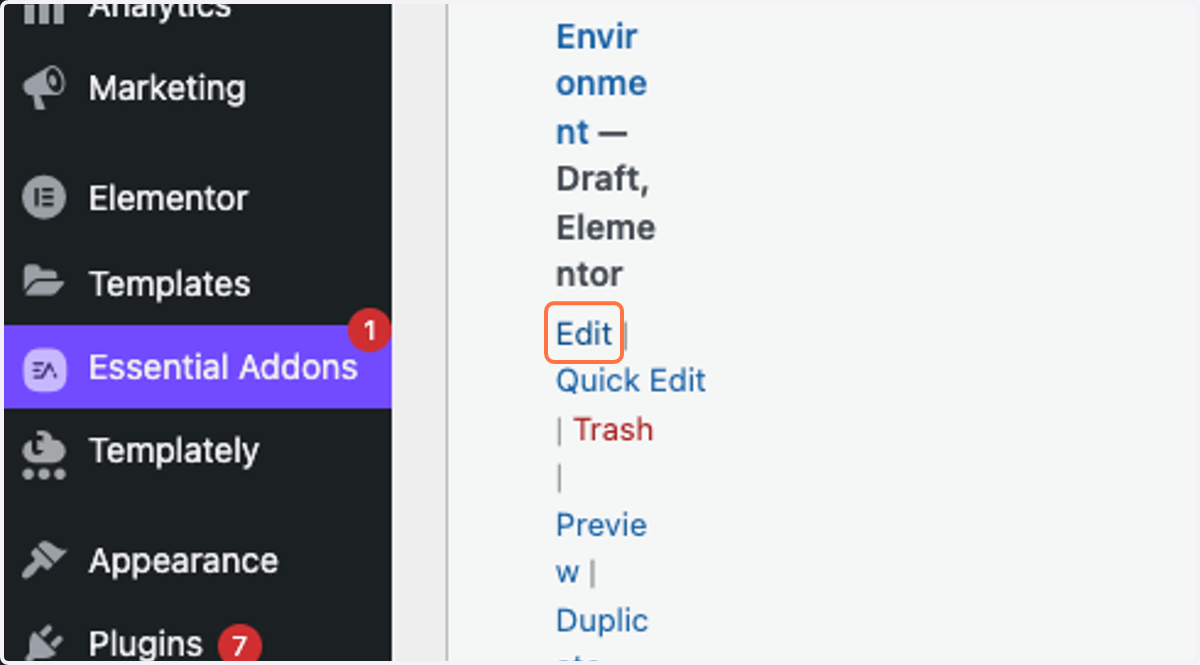
7. Click on Edit
8. type in new title
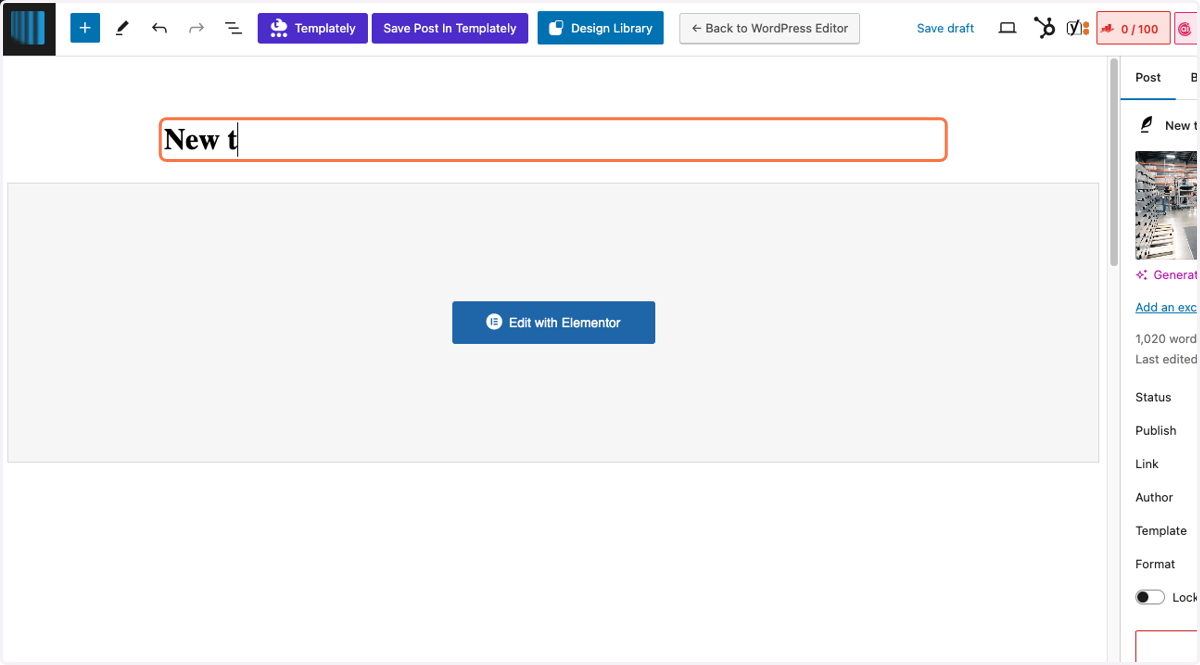
9. Scroll all the way down to SEO Section Type in the new title key words
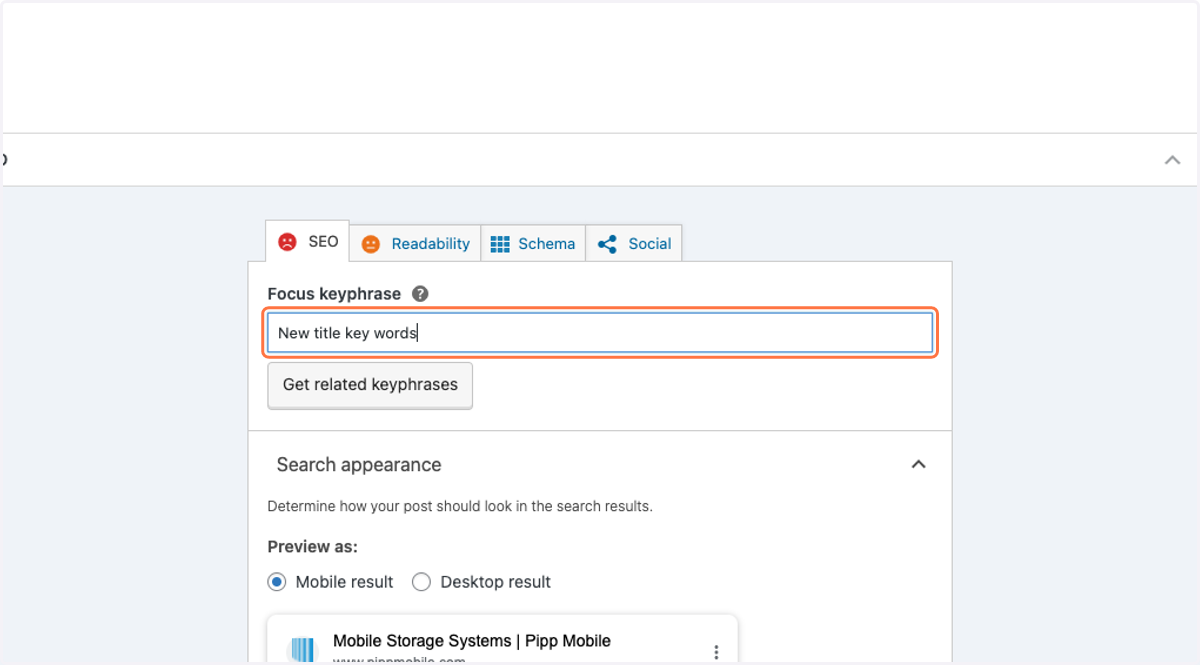
10. Type in slug (this will be the url)
Make the slug the title of the blog and put '-' inbetween each word.
Ex: If my title is "The ongoing mistakes of marketers" the slug would be the-ongoing-misktakes-of-marketers
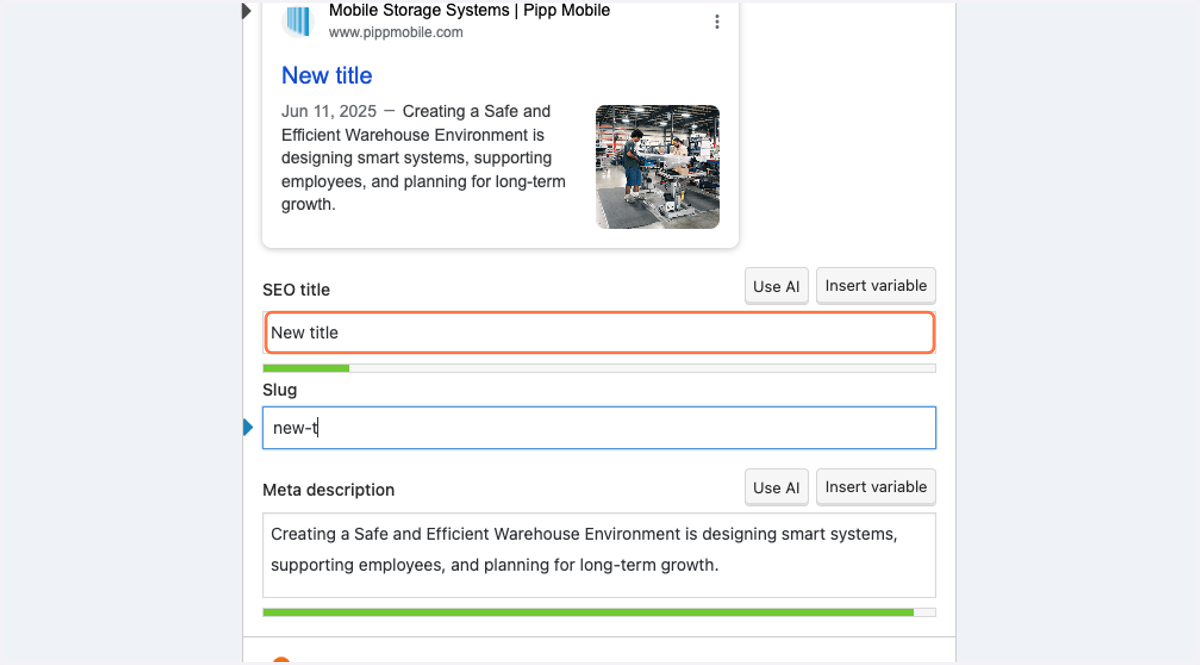
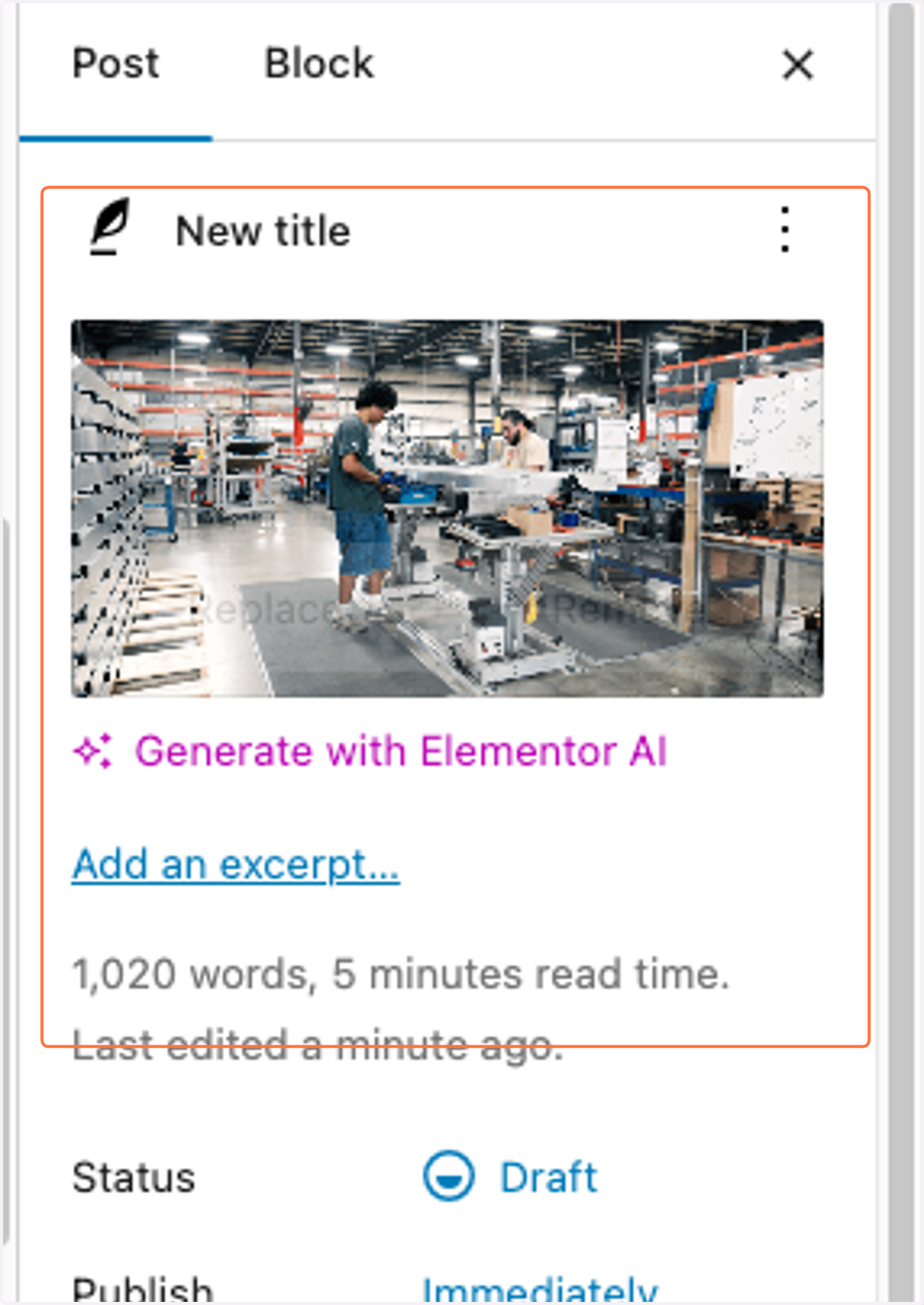
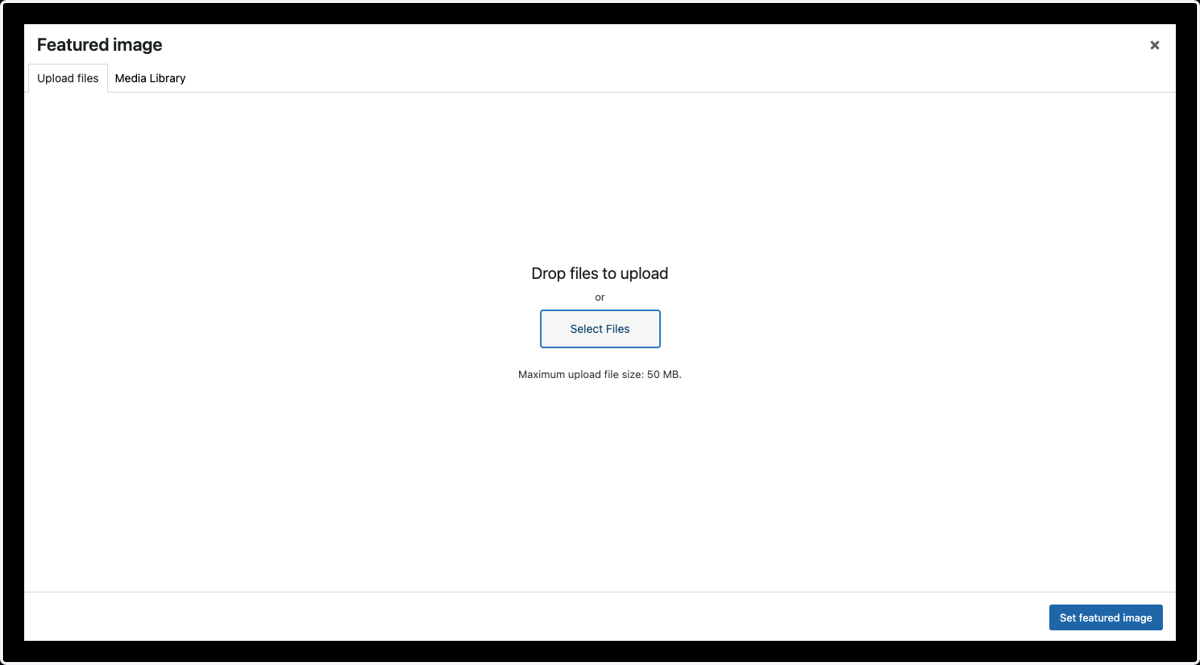
11. Head back up to the top and on the right size hover over this featured image to set a new one
12. Click on Select Files
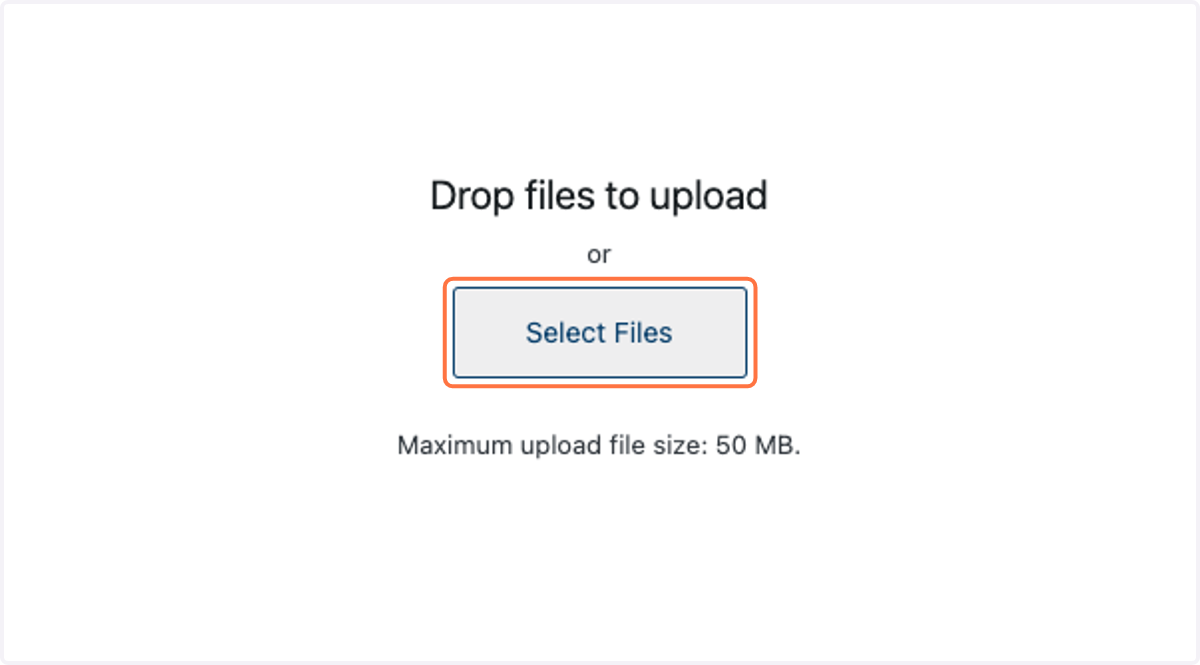
13. Upload the new featured image
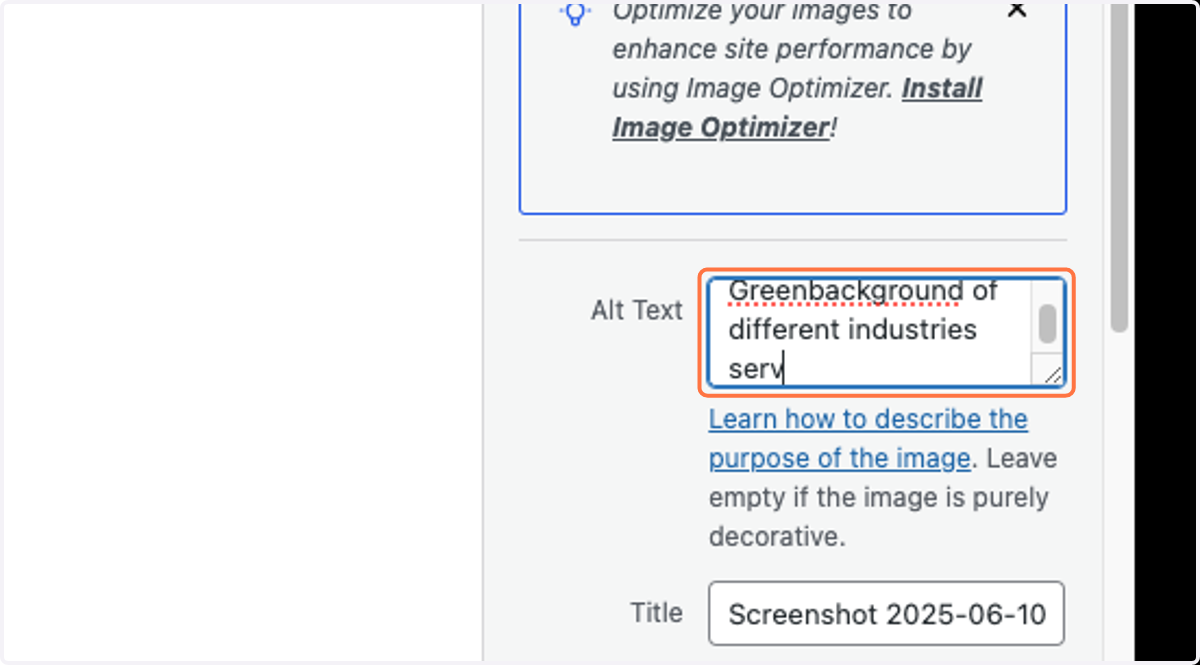
14. Give it a new ALT text.
15. Click on Set featured image
16. Click on Save draft
17. Click on Edit with Elementor

18. Click on old title
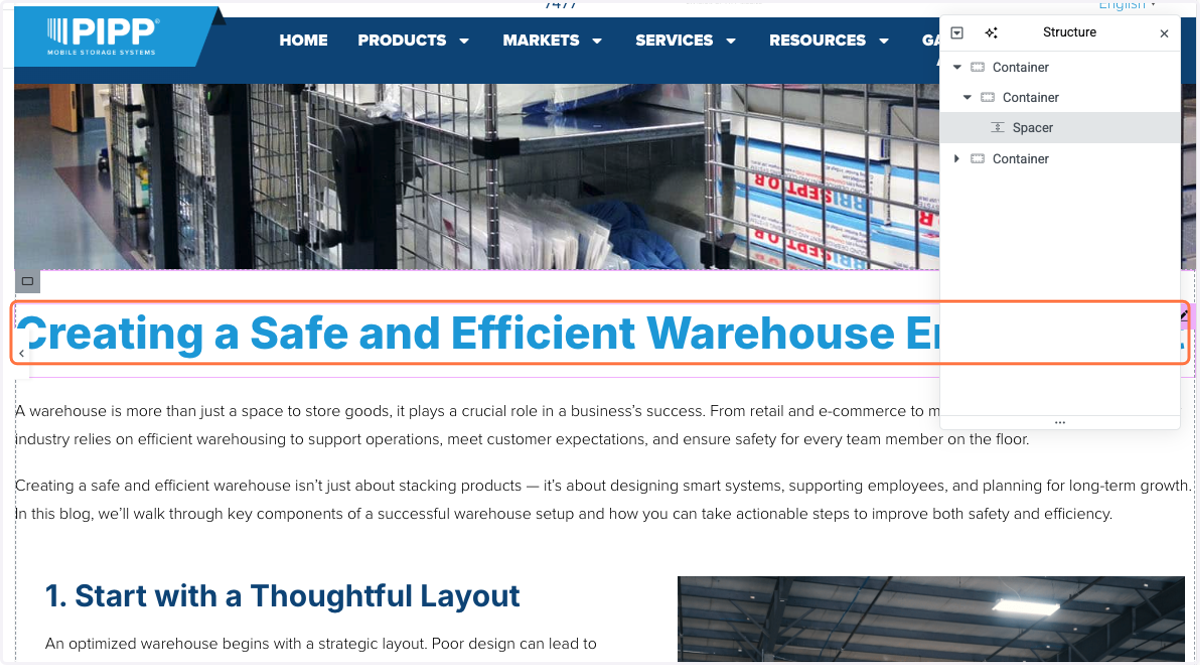
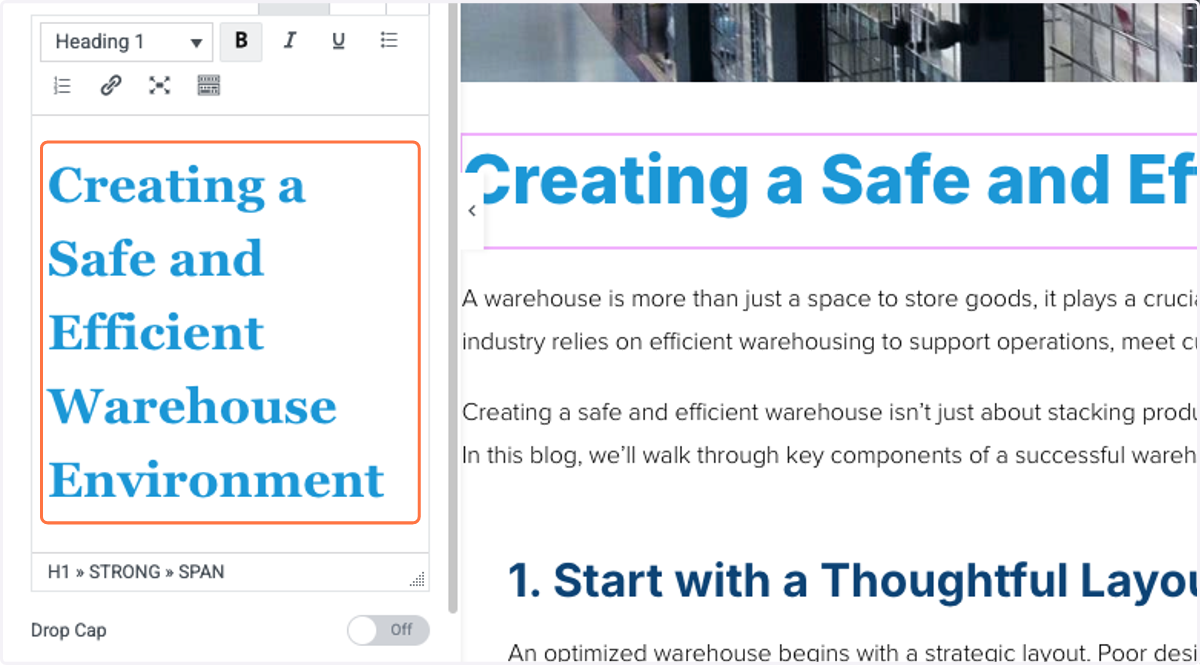
19. Type in the new title in the left box
20. Then click on the paragraph
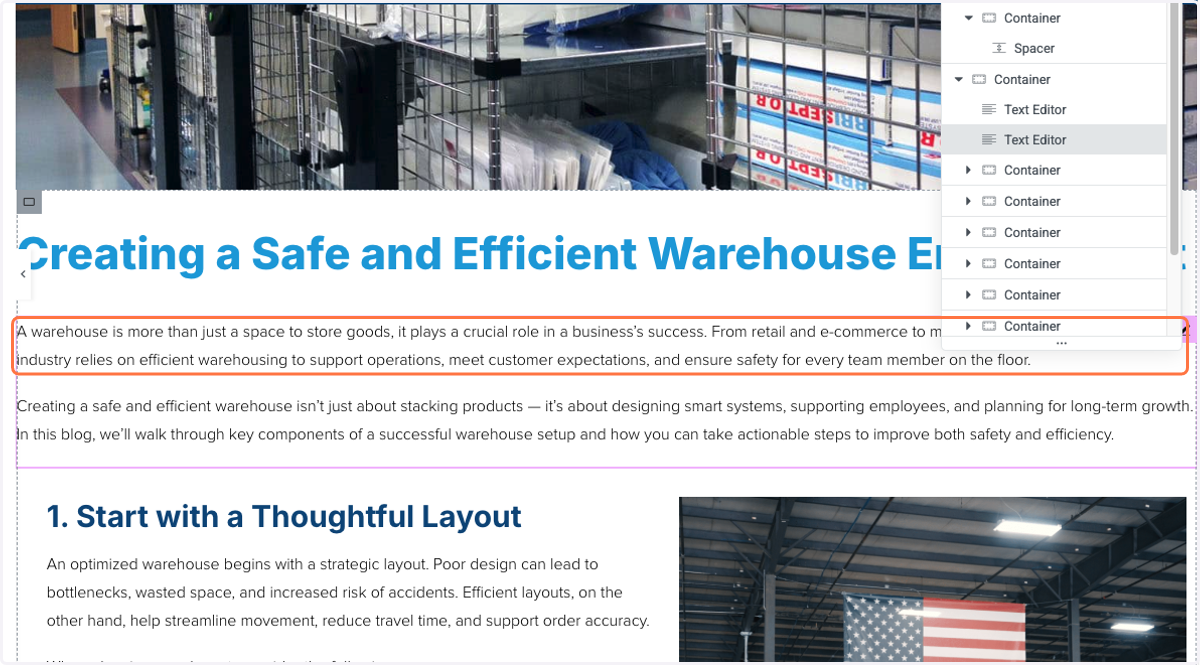
21. Start pasting new content in this section
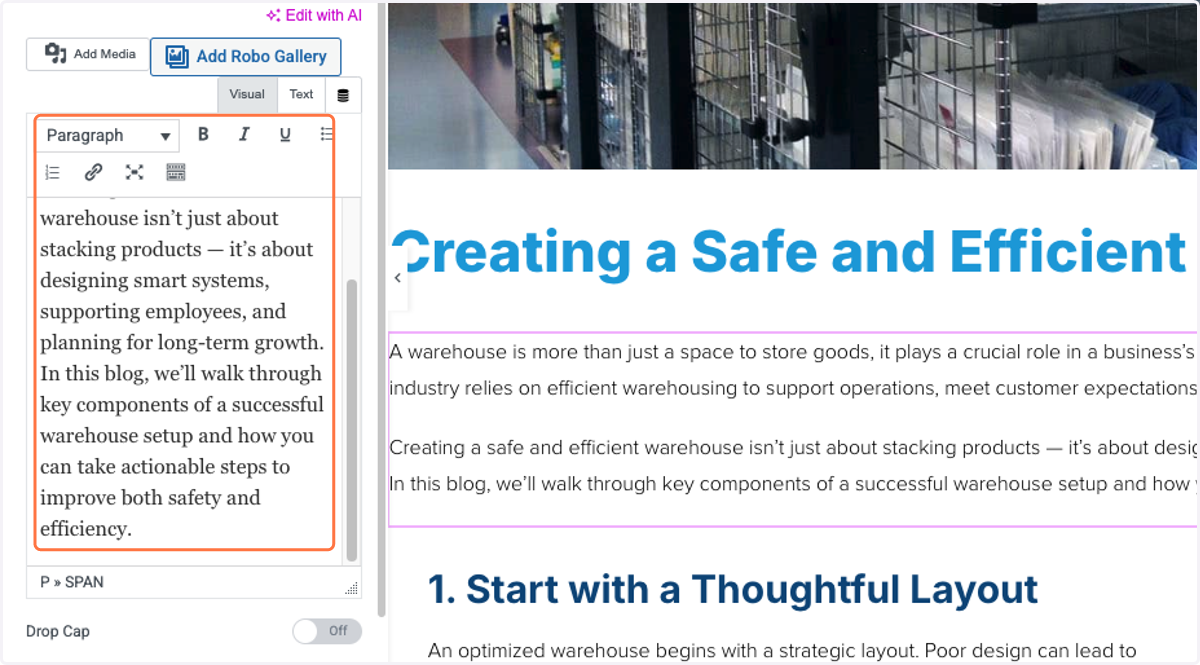
22. Click on the next section down and type in new h2 and keep going through the blog copy and pasting h2s and body content
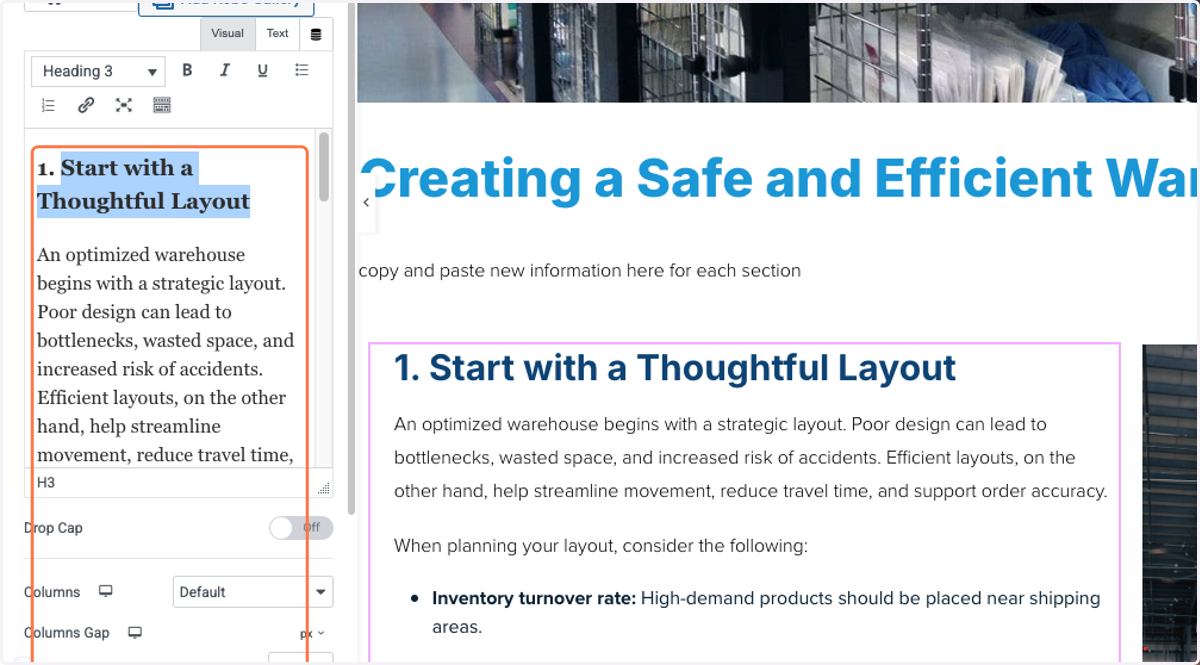
23. Click on the image for each section to change it
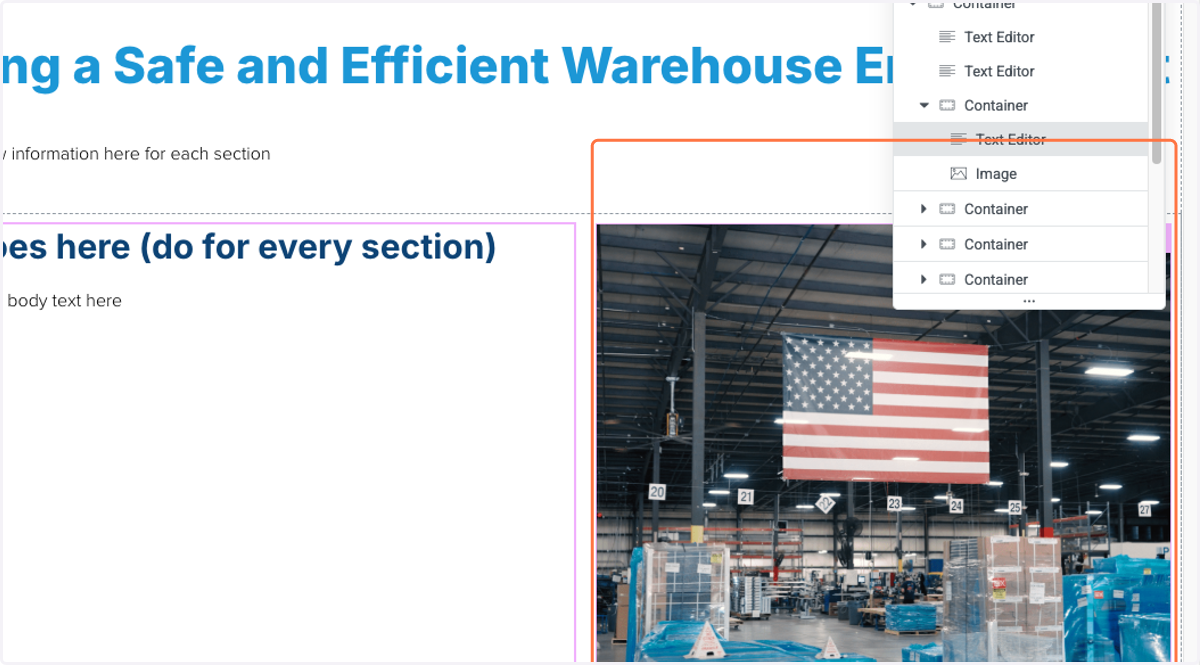
24. Click on Choose image
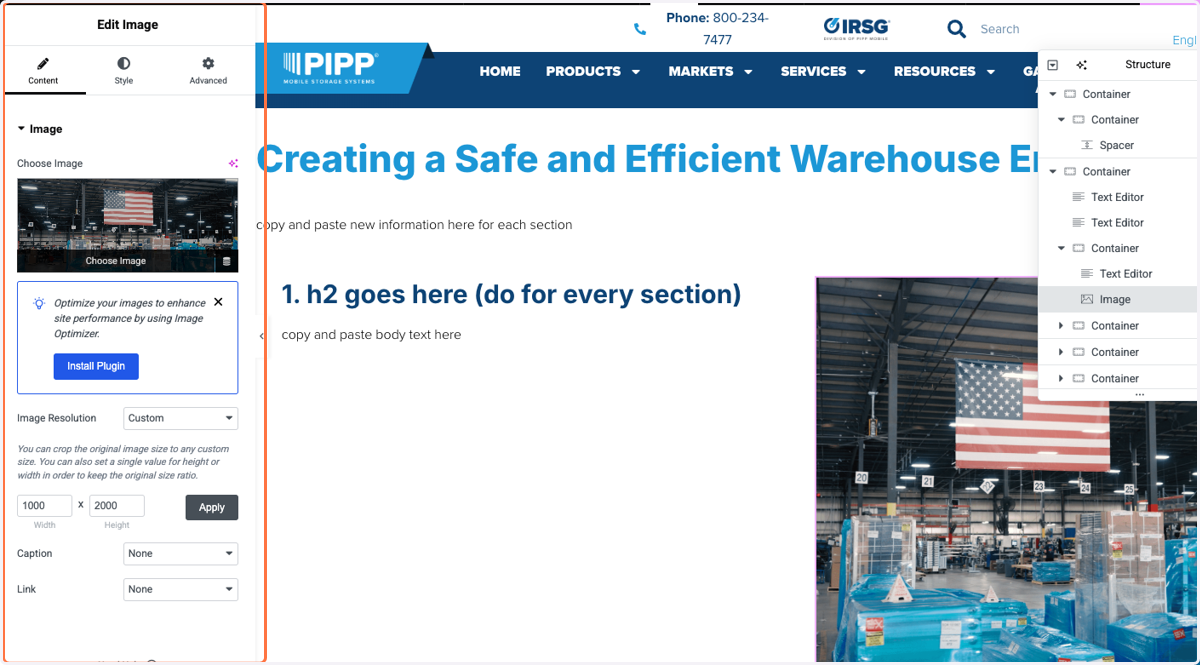
25. Choose new image
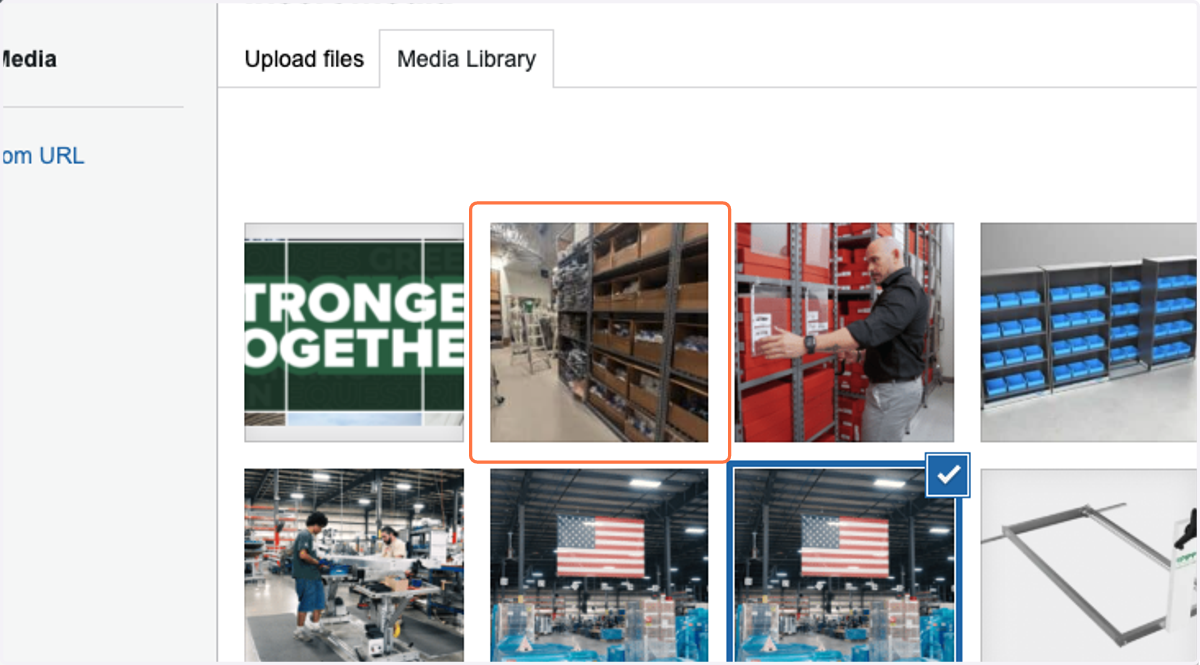
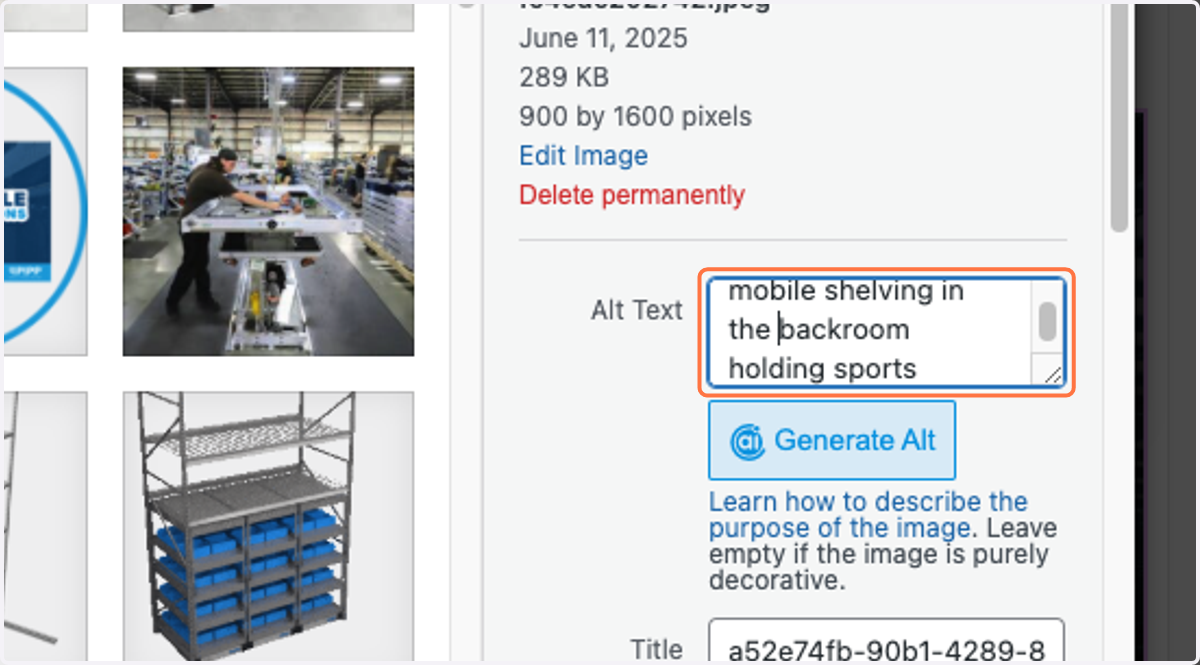
26. type in applicable alt text
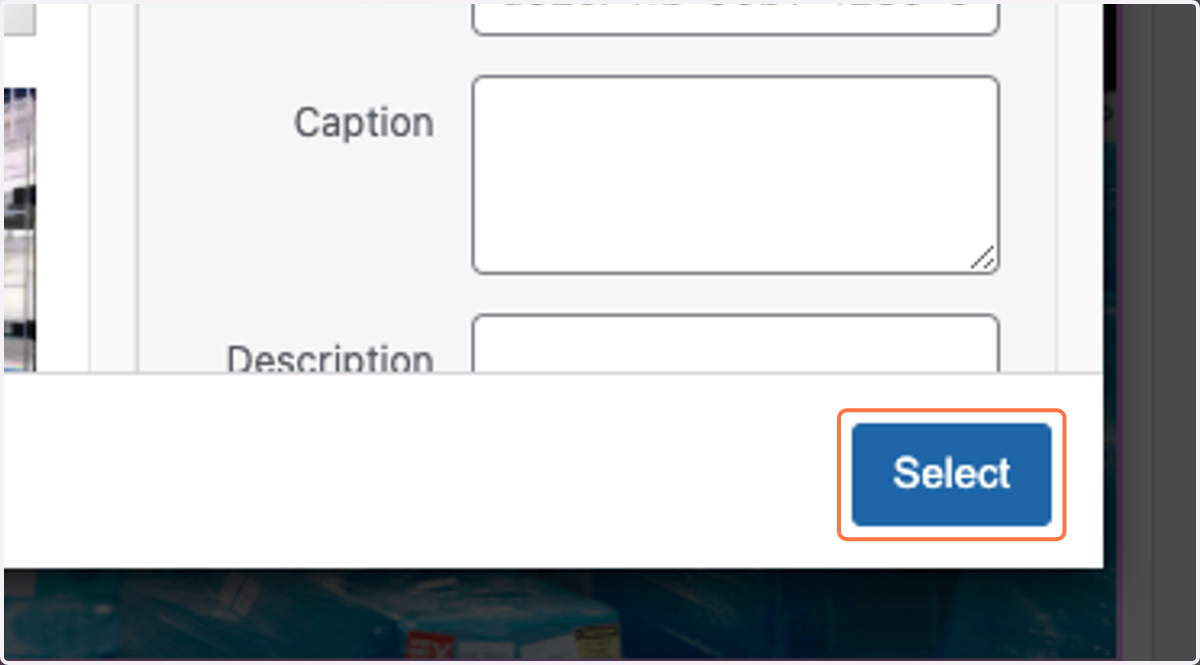
27. Click on Select
28. Continue on copy and pasting and when you're done head over to save options at the top right corner
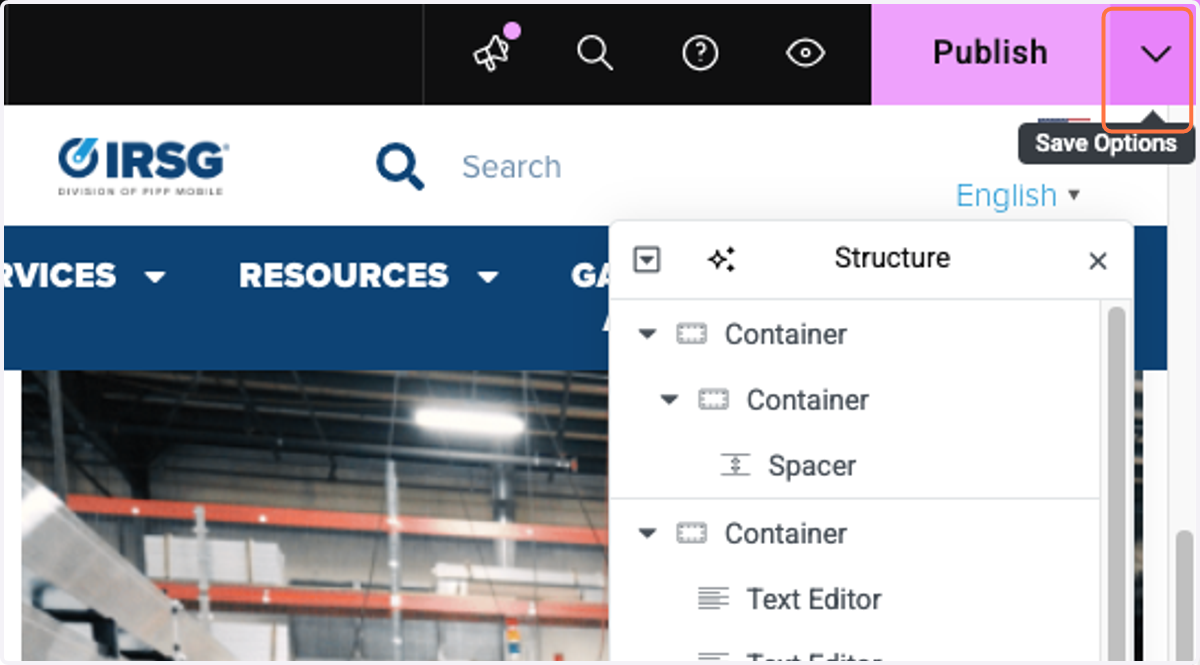
29. Click on Save Draft…
DO NOT publish until upper management has taken a look. Copy the url at the top of the page and update Monday to have them look at it.