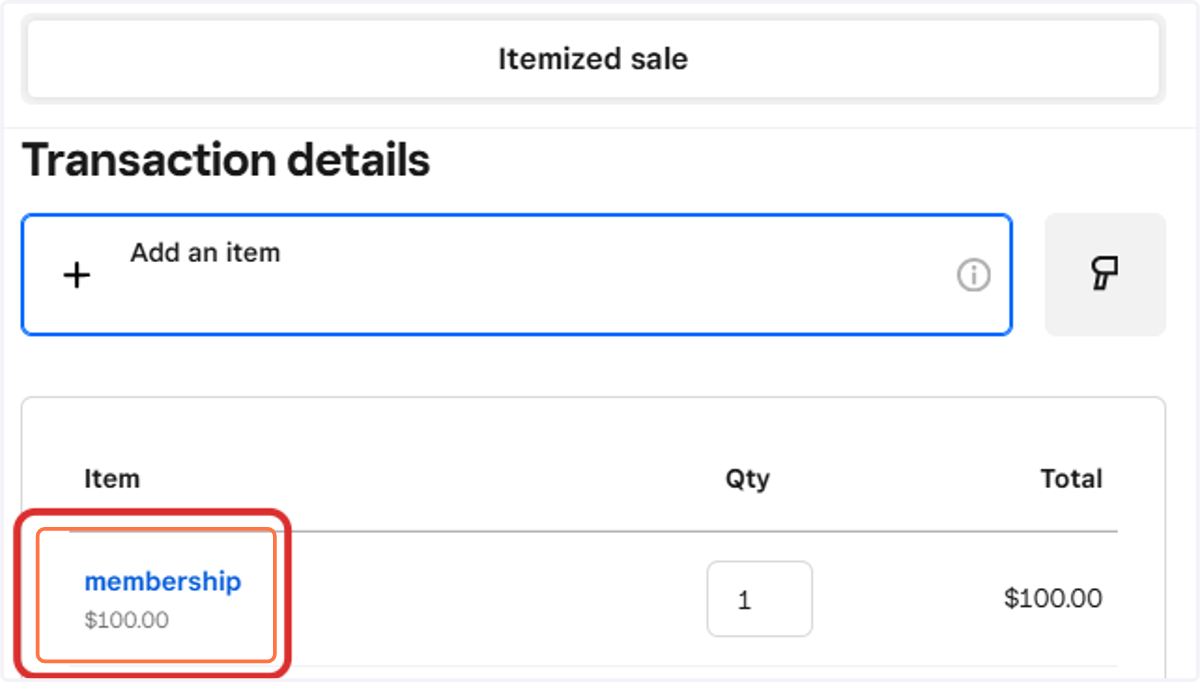
Process Payments in Square Virtual Terminal
General Reminders
Square Virtual Terminal How-To
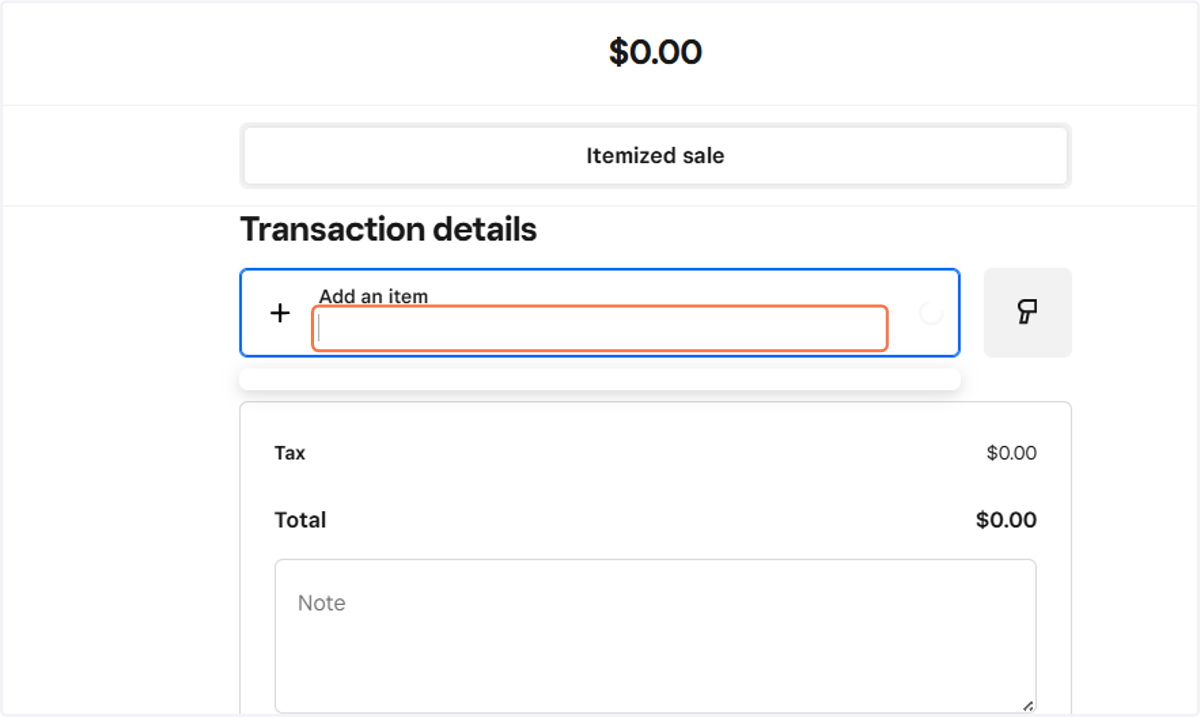
1. To add an item to the customer's payment order, click in the "Add an Item" field and either select from the drop-down menu directly, or start typing the item and then select from the drop-down.
Do not press ENTER! Click on the item desired instead.
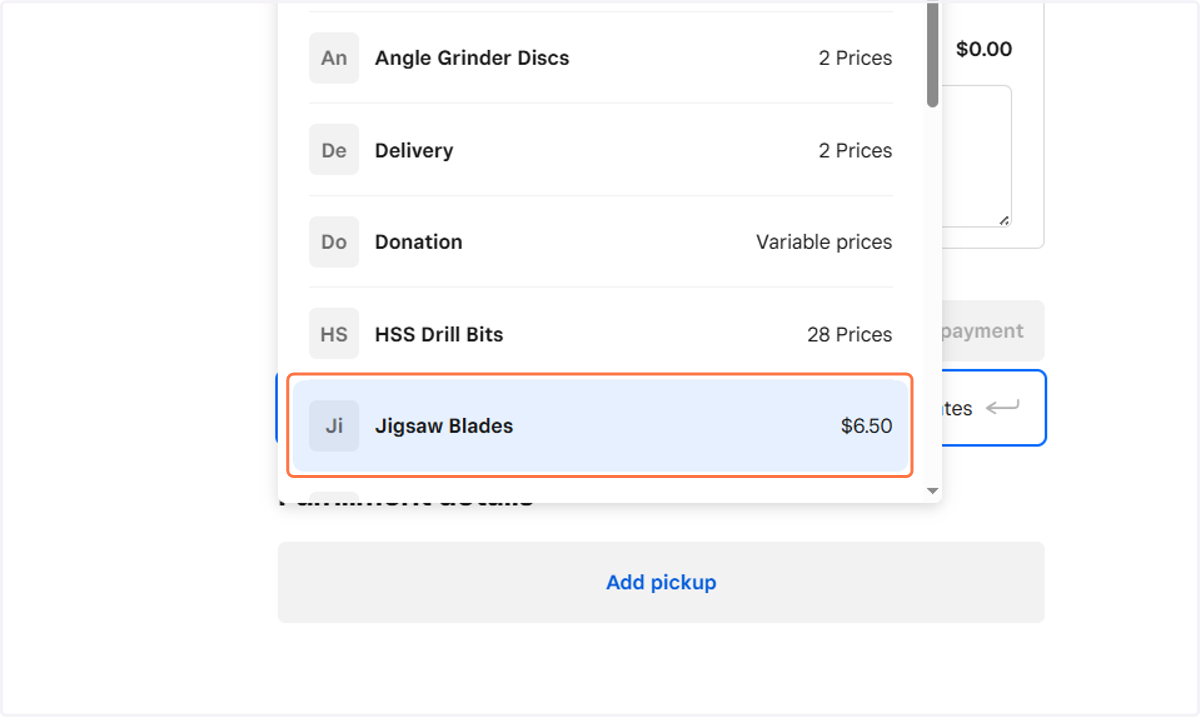
2. Some items only have 1 variation price, i.e. Jigsaw Blades. Simply select the item and then adjust the quantity if required.
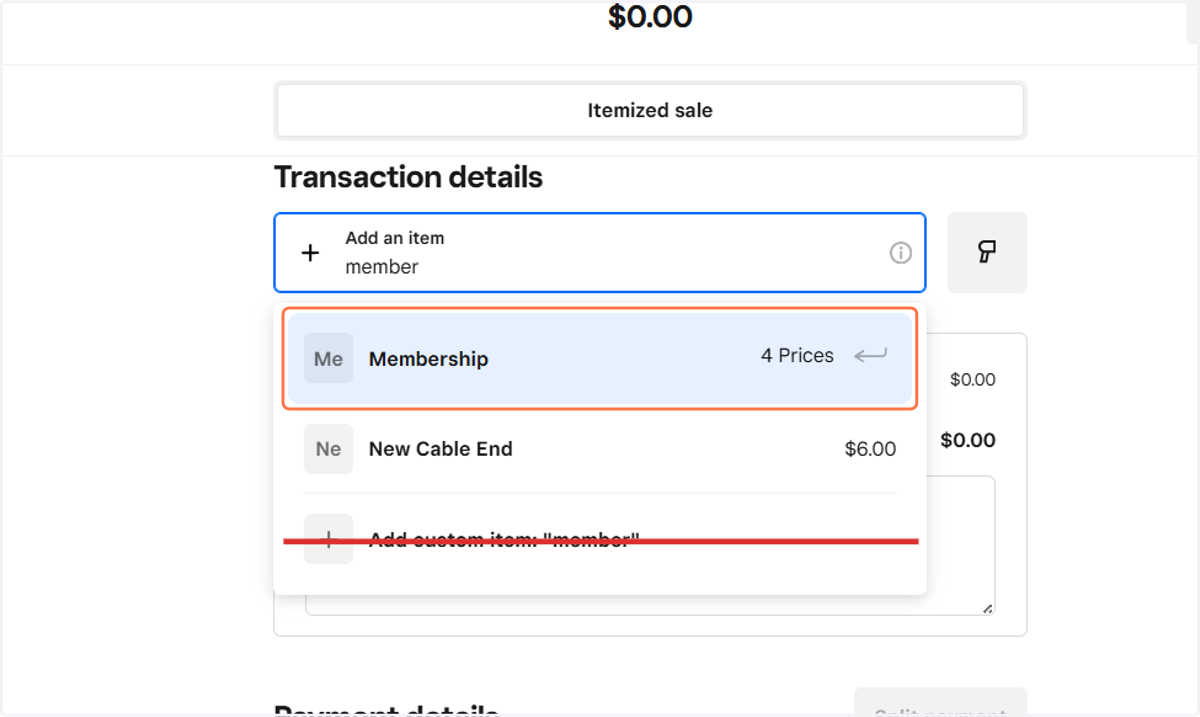
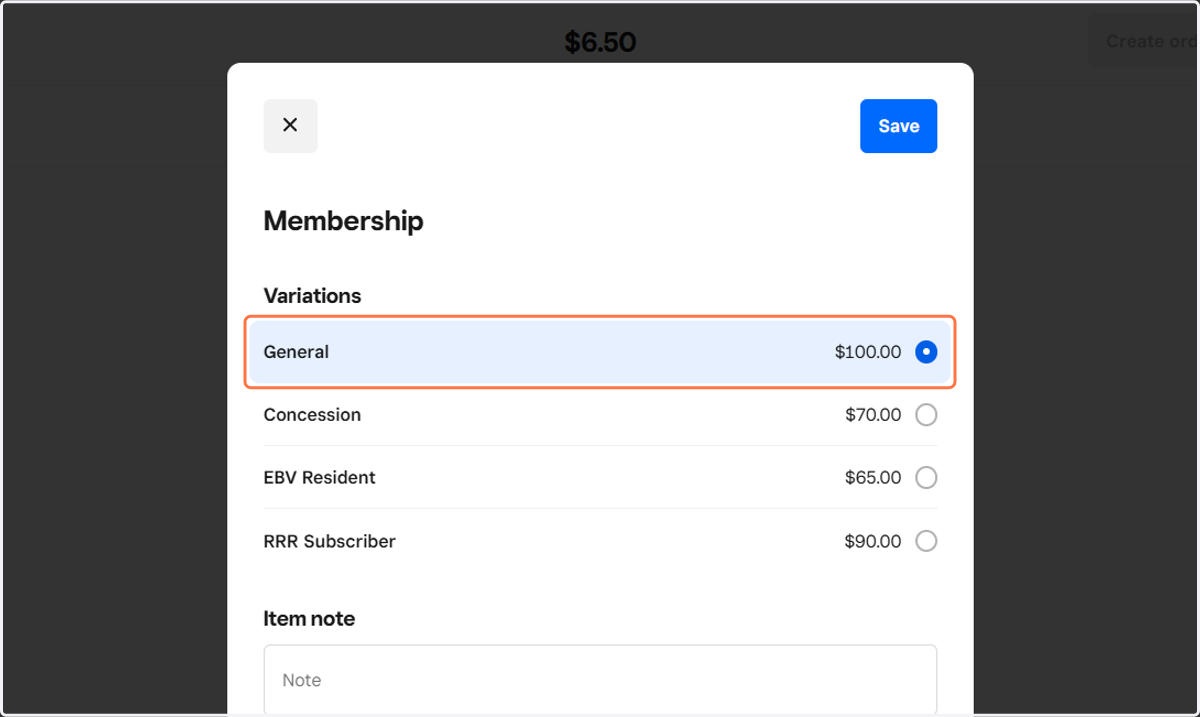
3. For Memberships, start typing in "membership" and then click on "Membership" - 4 Prices
4. Select the relevant variation
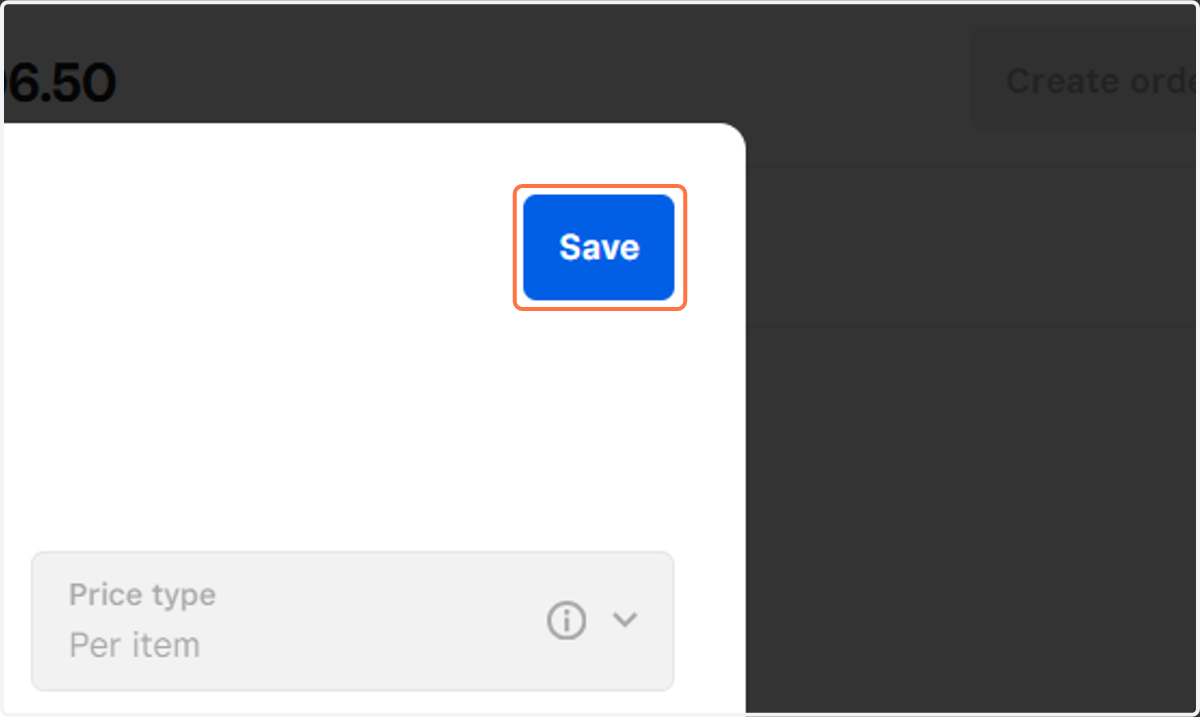
Some items have multiple variation prices, which pops up this window.
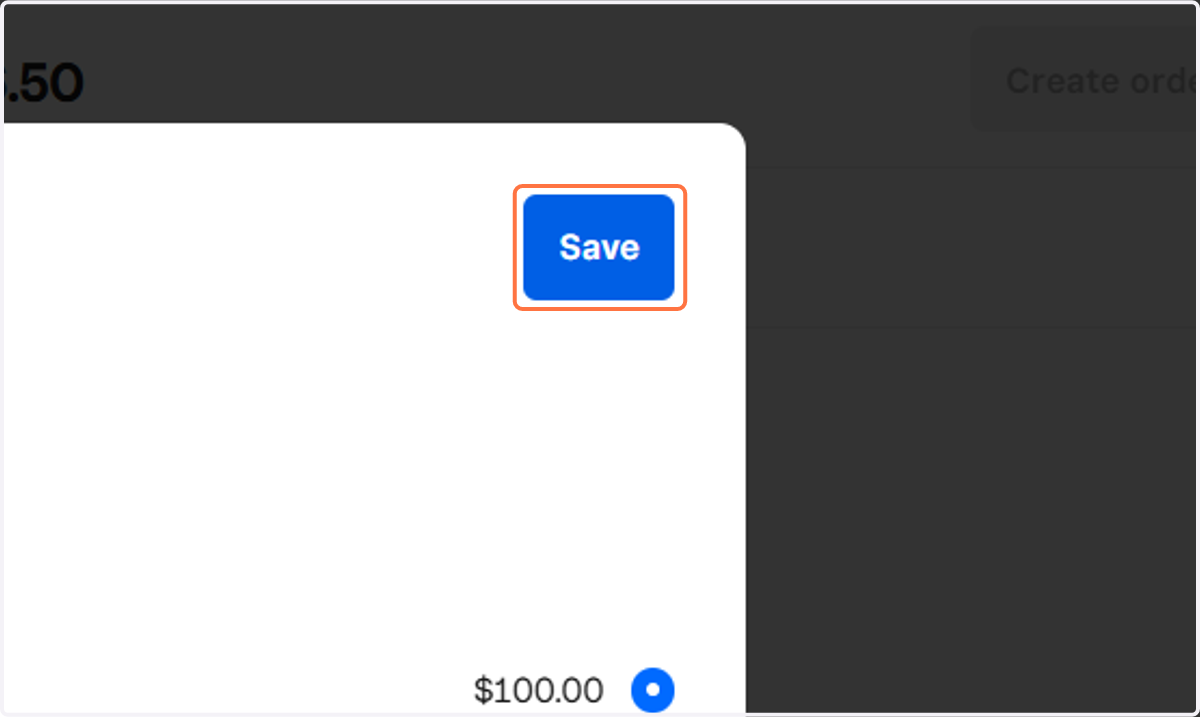
5. Click on Save
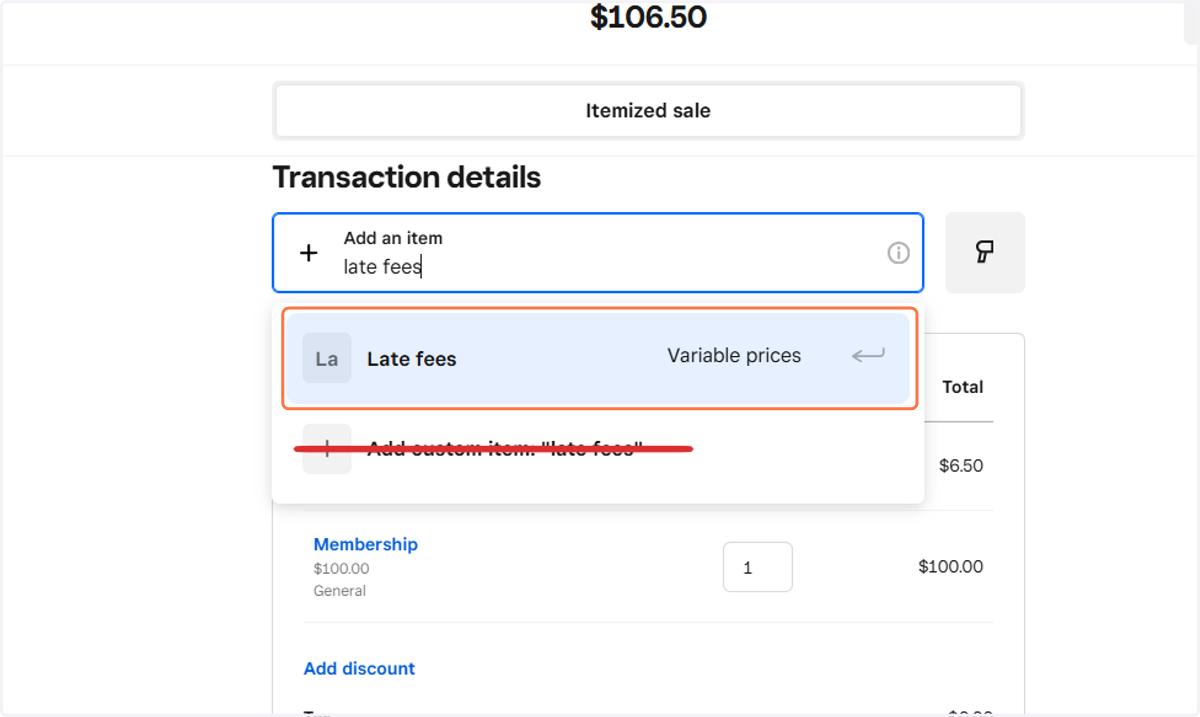
6. For Late Fees, type in late fees, then select "Late Fees"
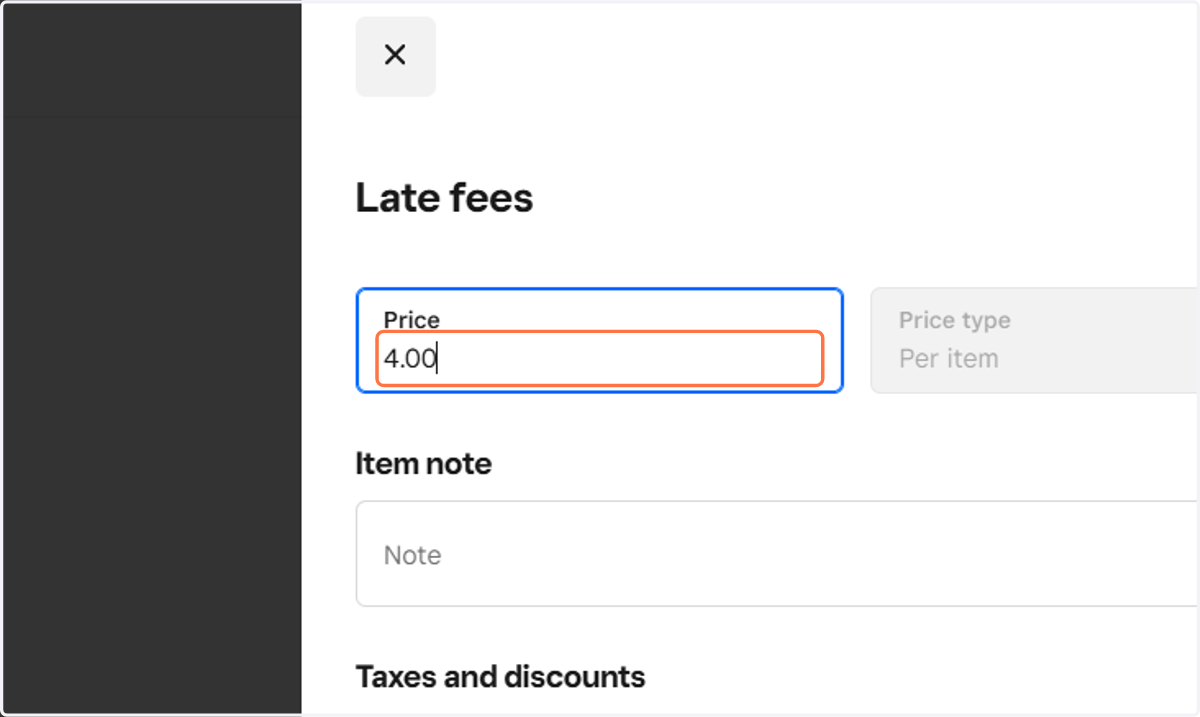
7. Type in the fee amount
Late Fees, Donations, Tool Sales, Tool Replacement fees, among other fee types, have a variable amount and the correct fee amount needs to be put in each time.
8. Click on Save
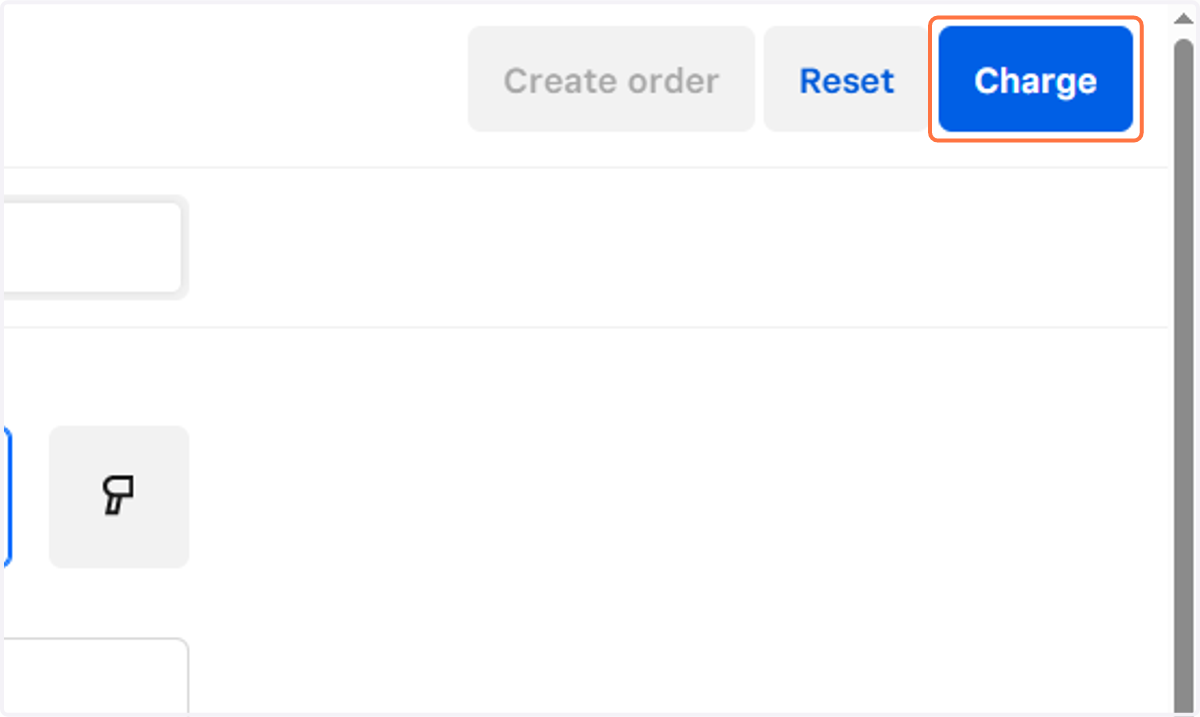
9. When you've added all the items to the payment cart, click on Charge
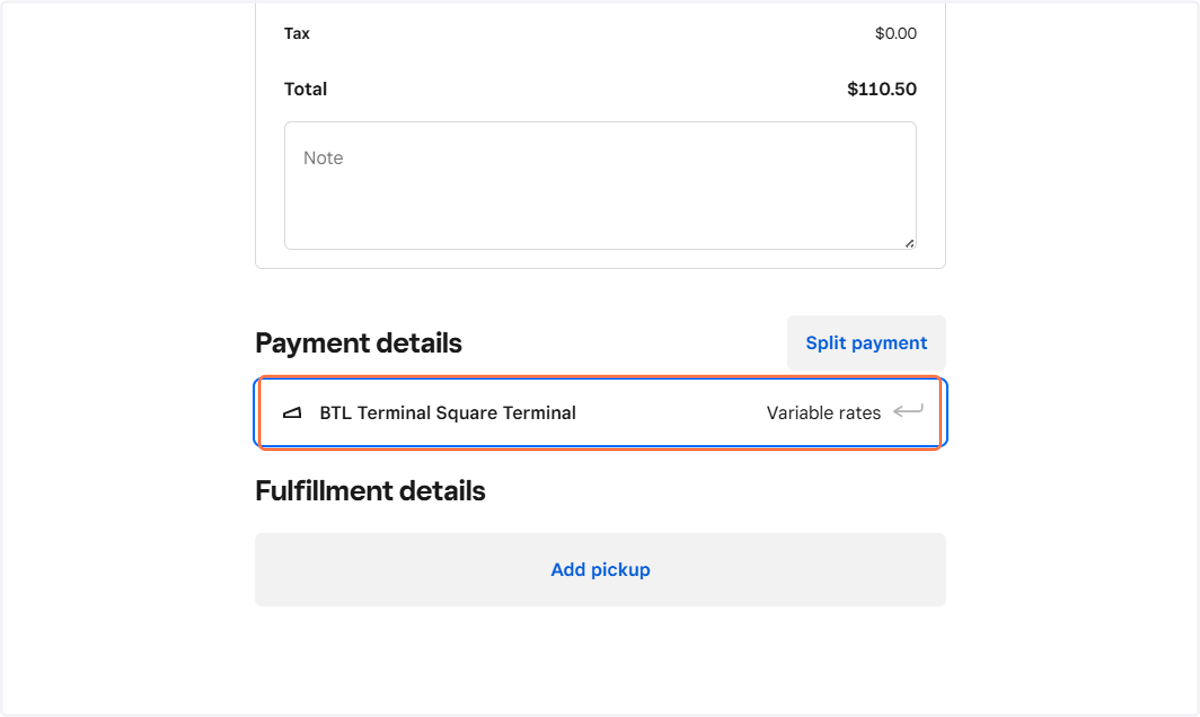
10. BTL uses the Square Terminal called "BTL Square Terminal"
No other payment methods inside Square are used. If the "Charge" button is greyed out, check that BTL Terminal Square Terminal is selected.
Dos and Don'ts
11. GOOD! (manual keyboard entry)
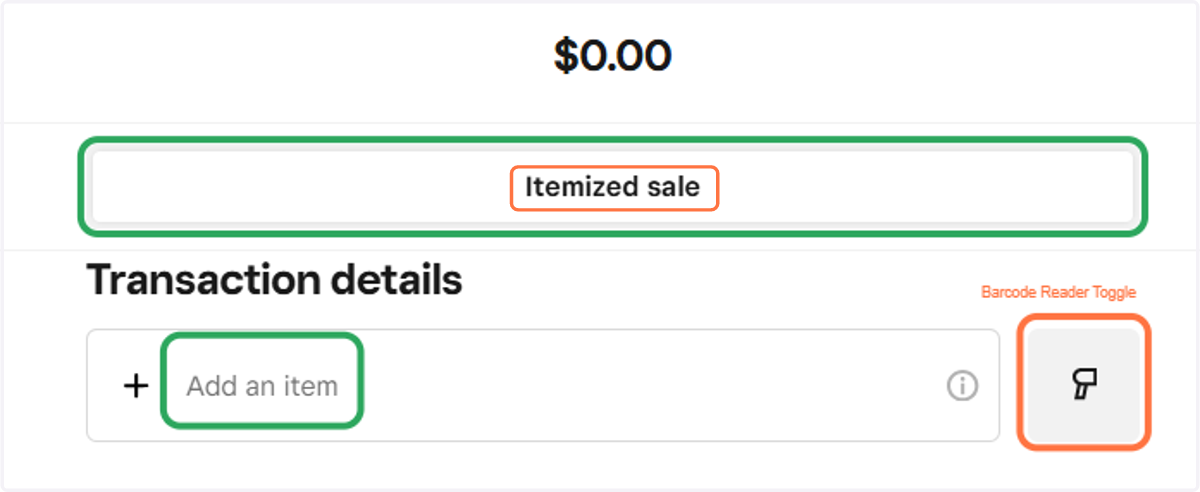
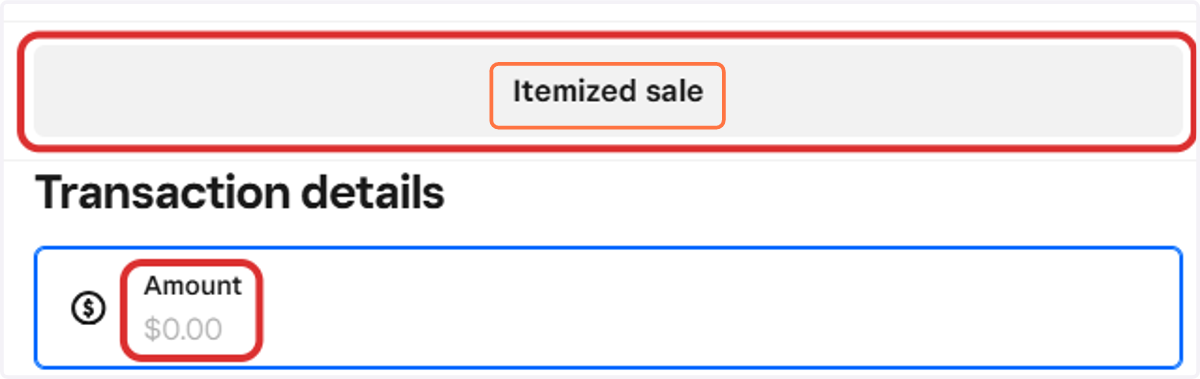
12. BAD!! To fix it, click "Itemized sale"
13. GOOD! (Barcode reader mode)
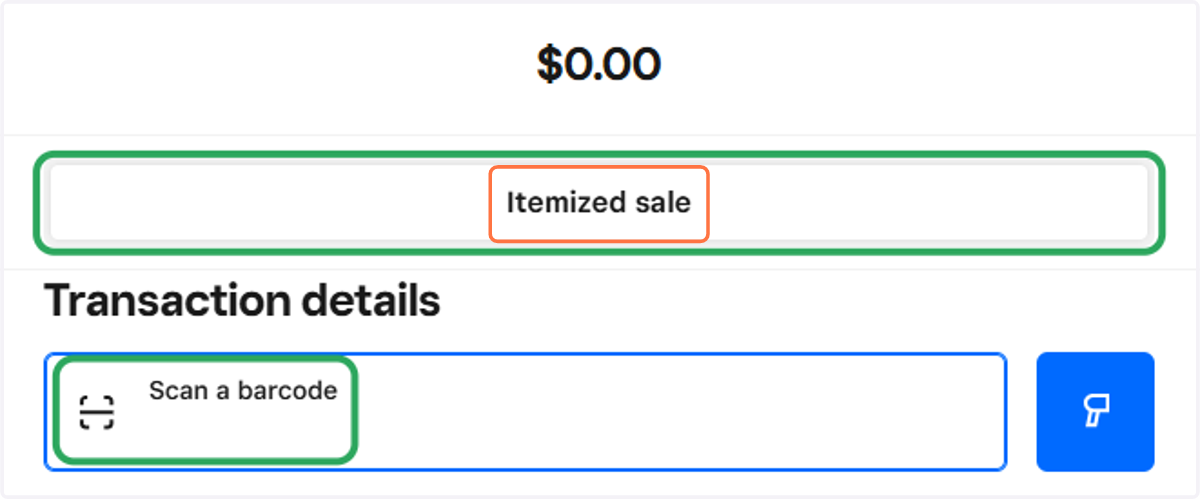
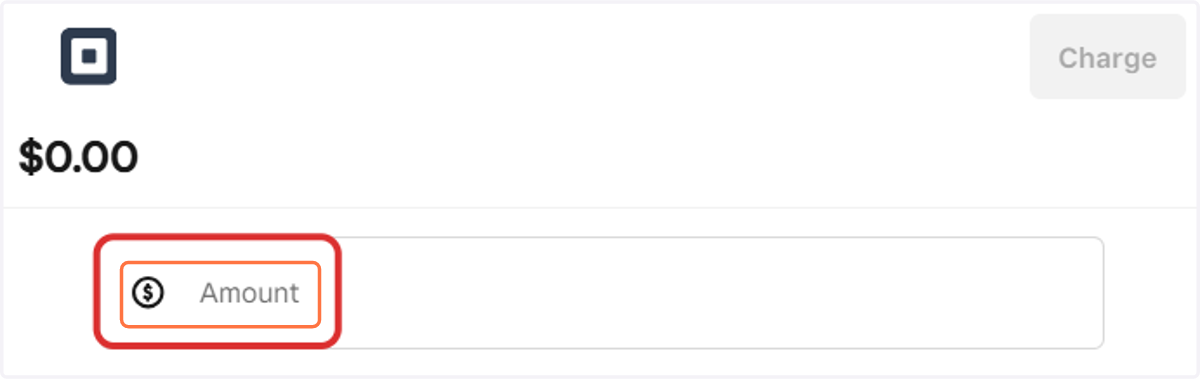
14. BAD!! To fix it, maximize the window and select "Itemized sale"
15. GOOD! Item selected correctly
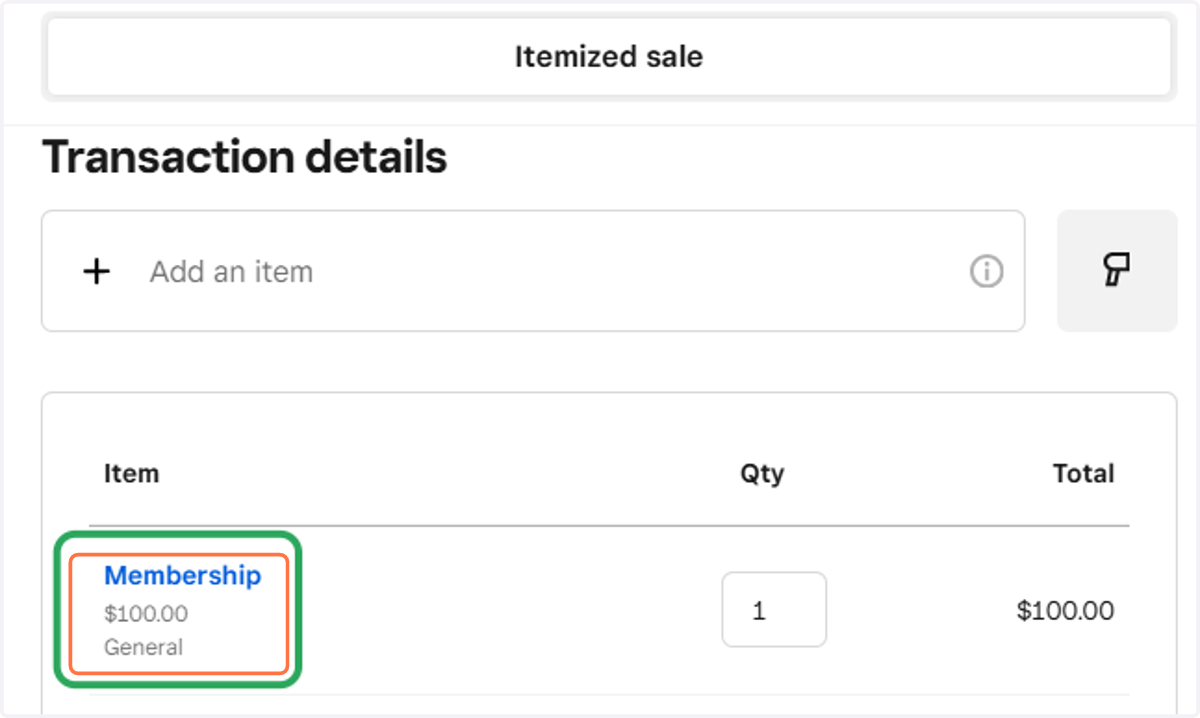
16. BAD!! Manually added custom item