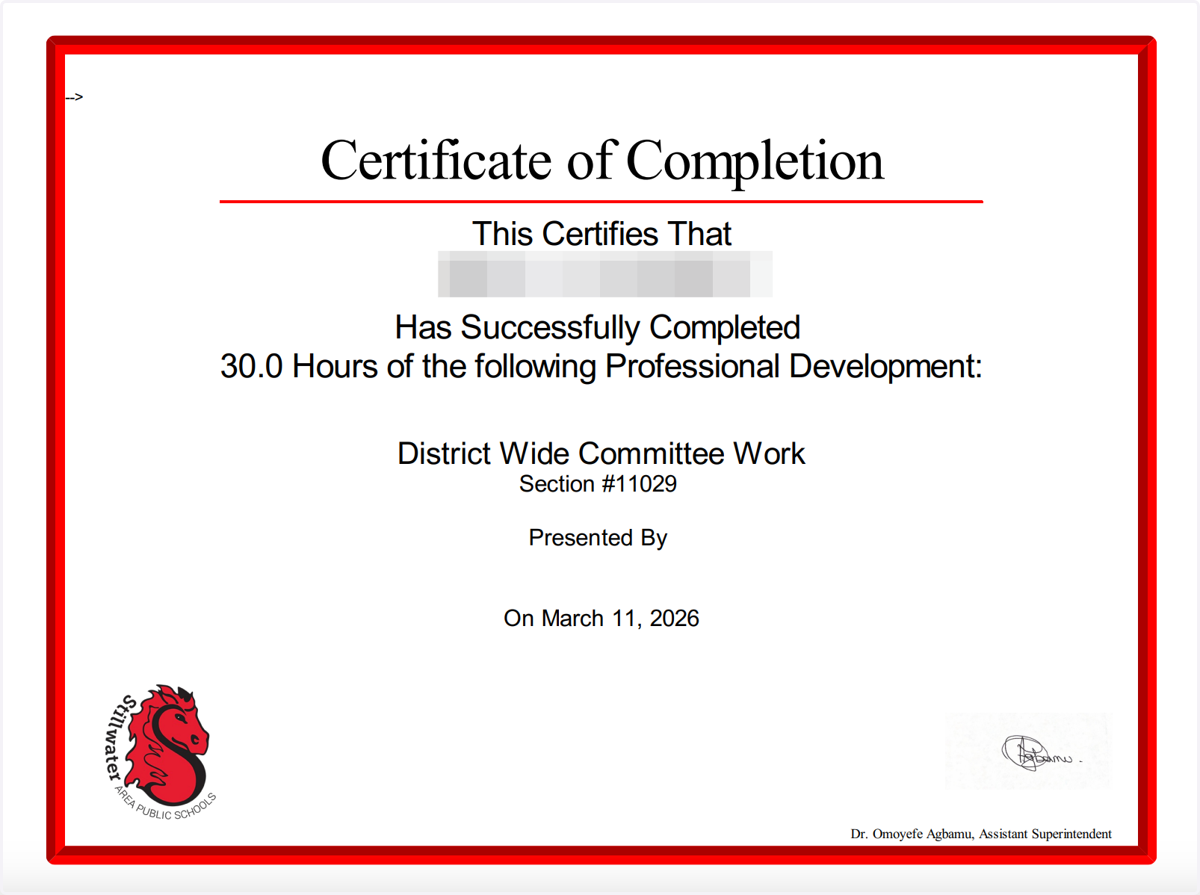
Print Your Professional Learning Transcript
Printing Professional Learning Transcript
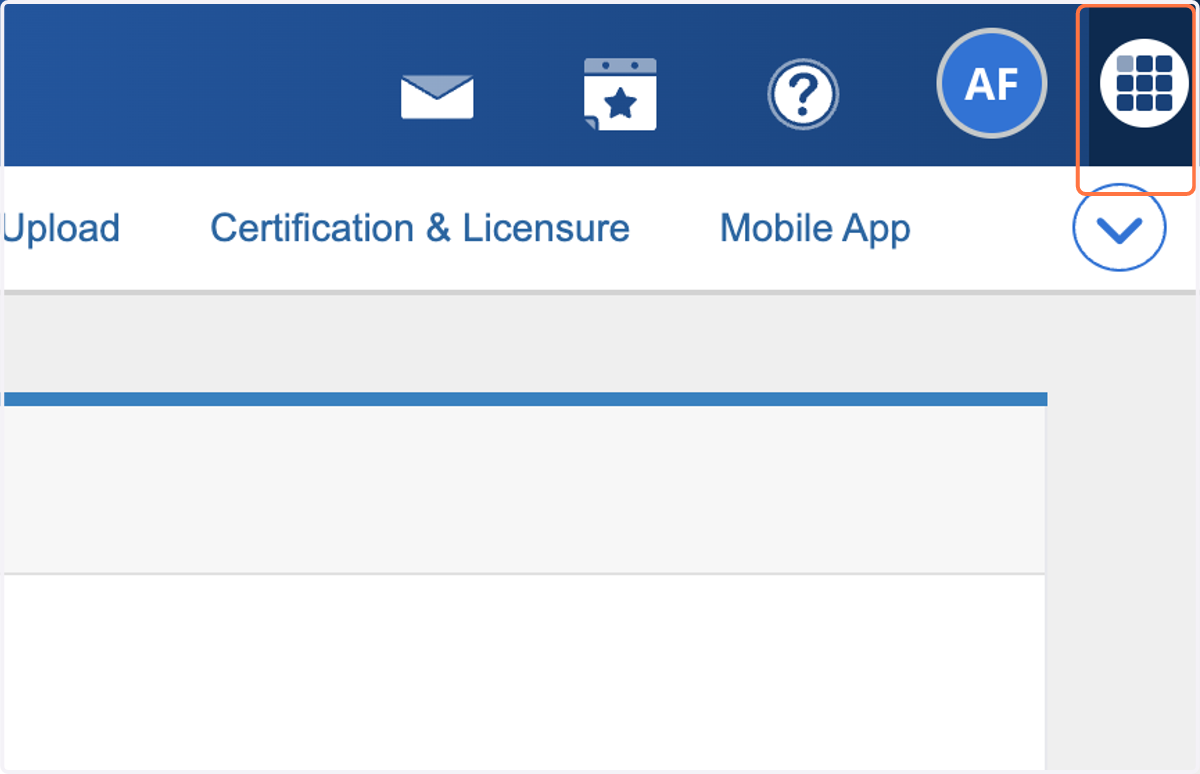
1. In any PowerSchool app, click on Open App Switcher
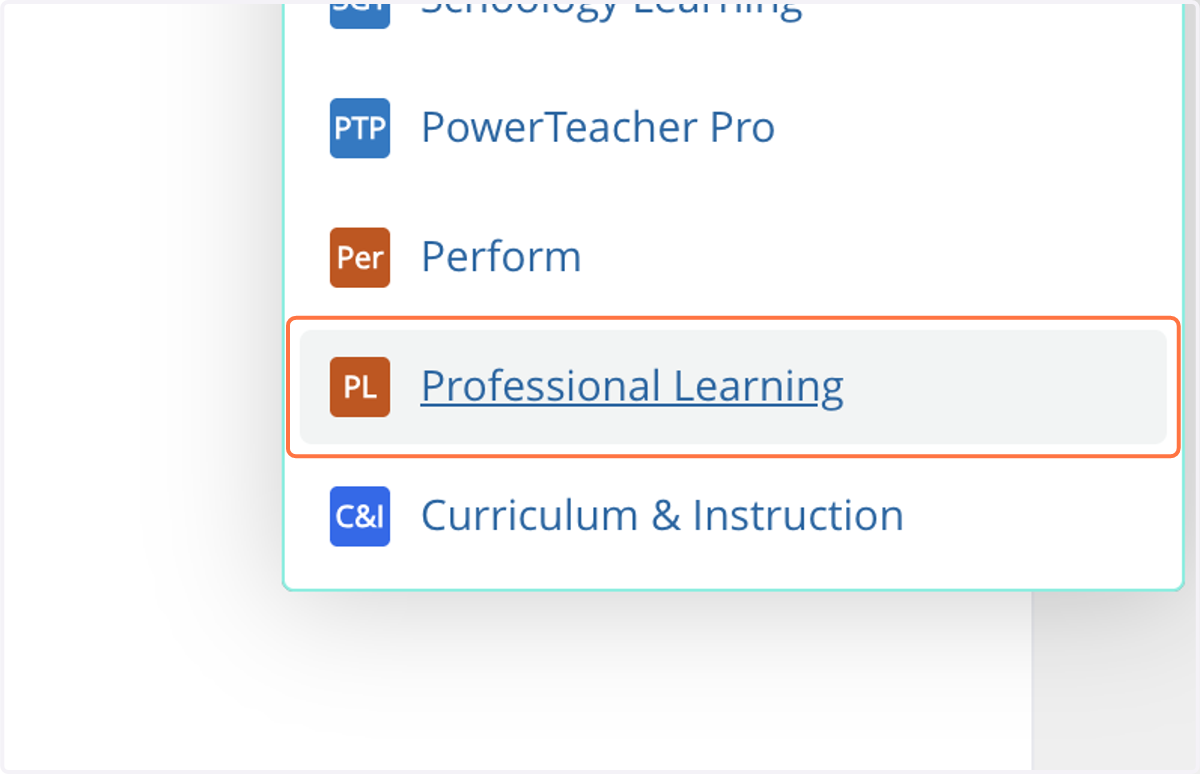
2. Click on Professional Learning
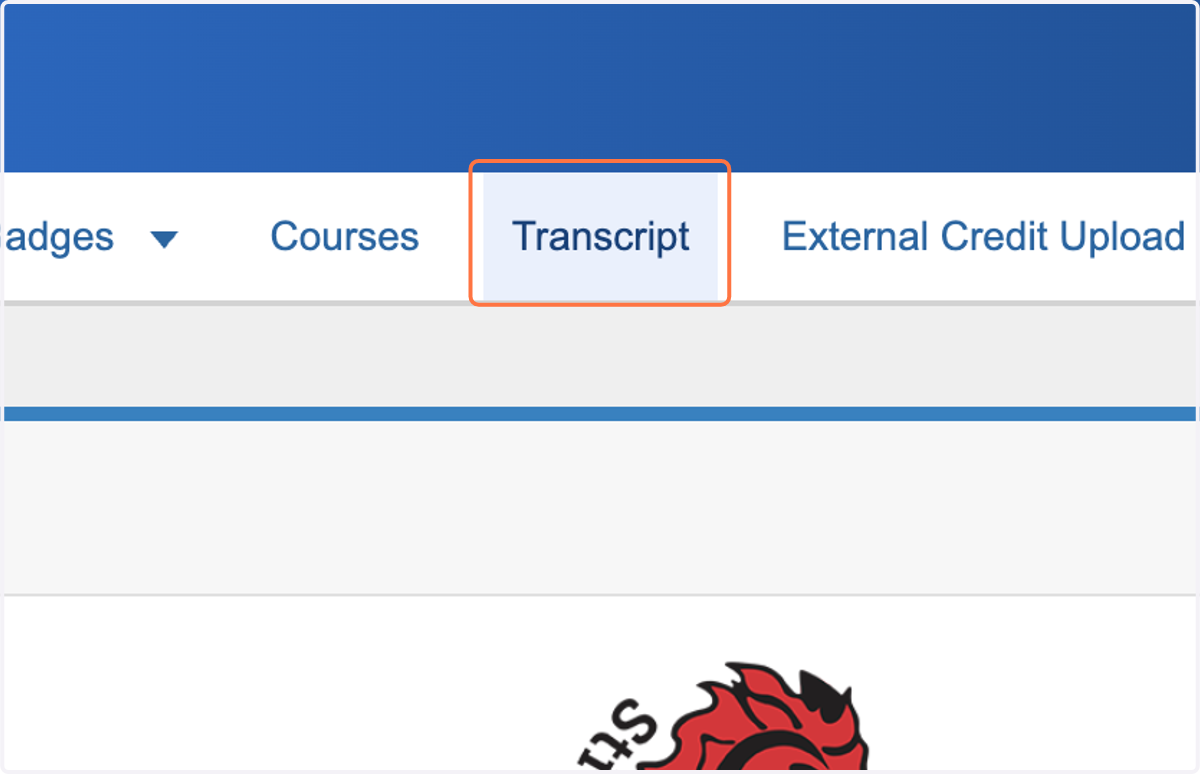
3. Click on Transcript
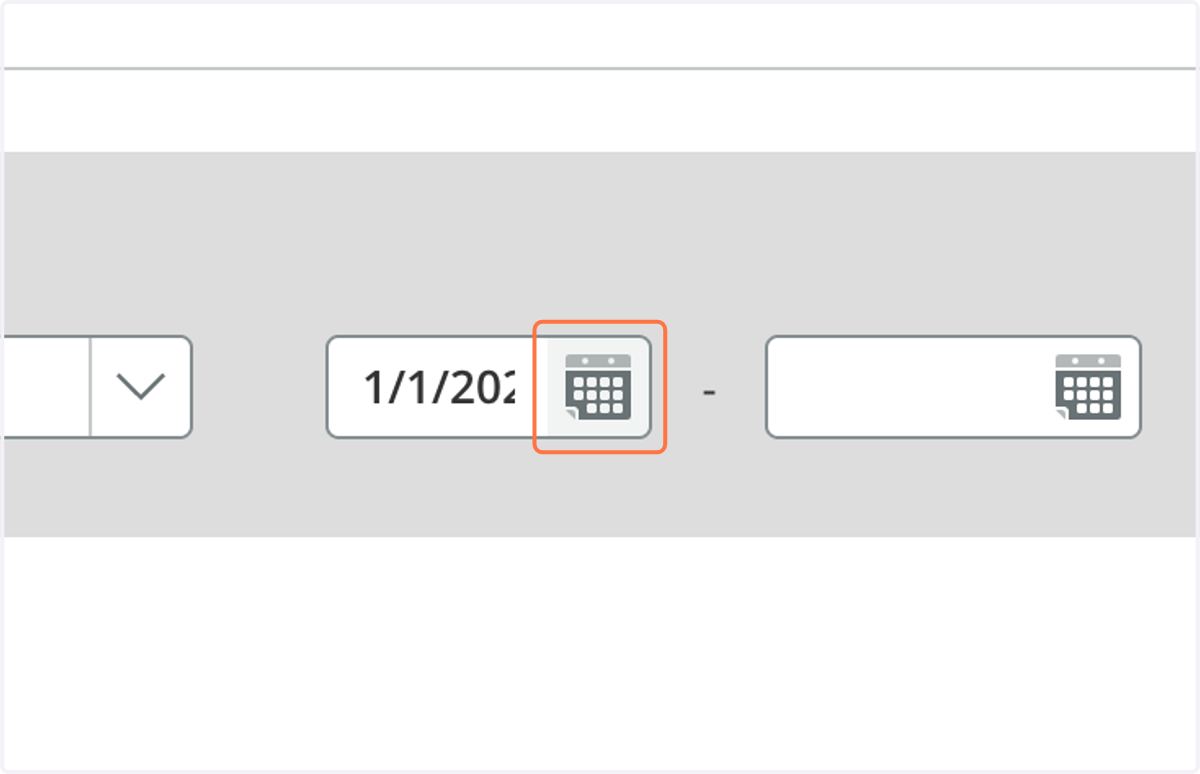
4. Click on Open Date Picker
Reset the Date Range to the last date that you renewed your license
Here is a link to the License Look Up with the State of MN: License Look Up - Click HERE
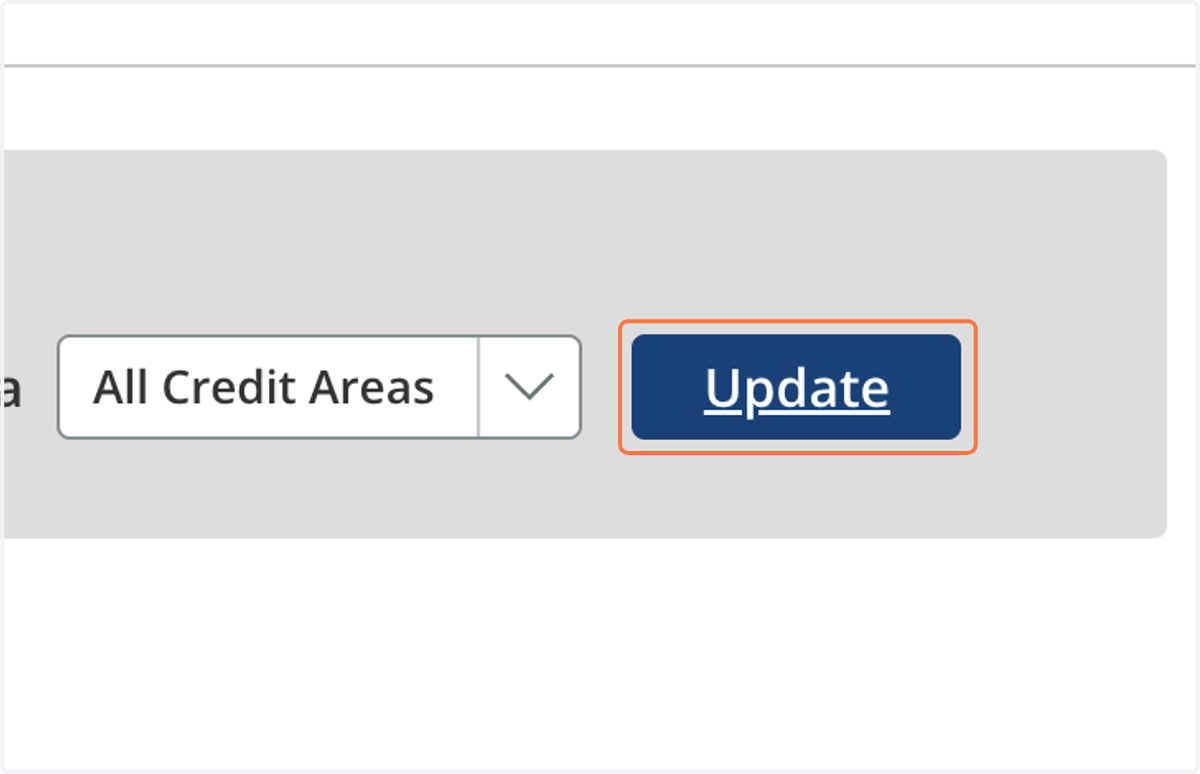
5. Click on Update
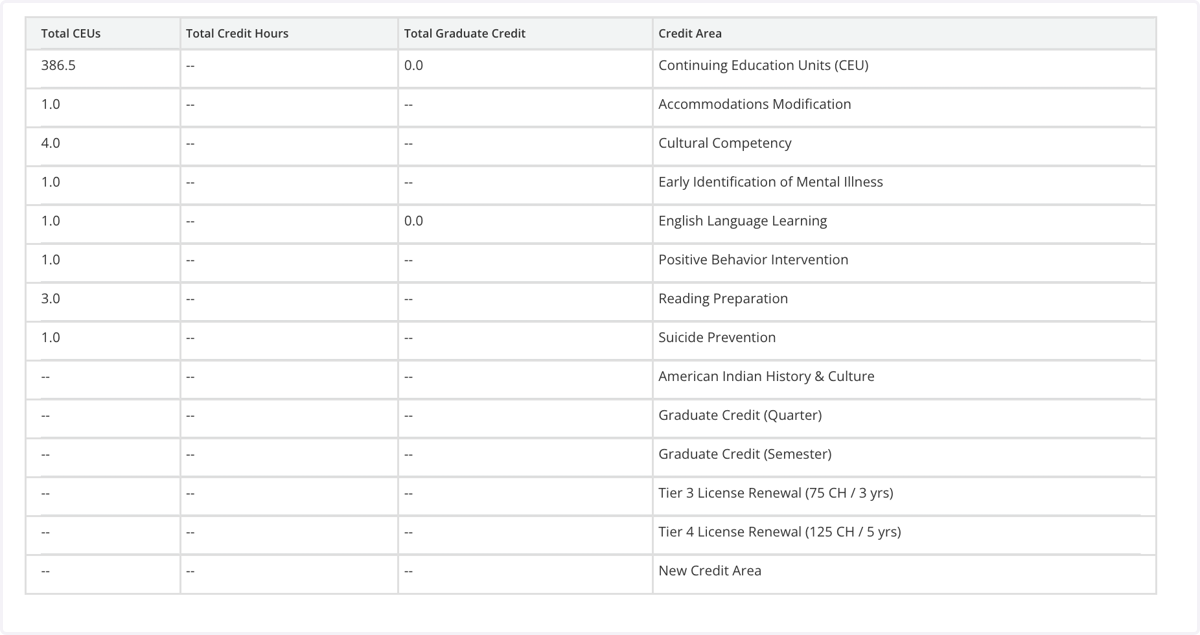
6. You will see a table with a summary of your transcript
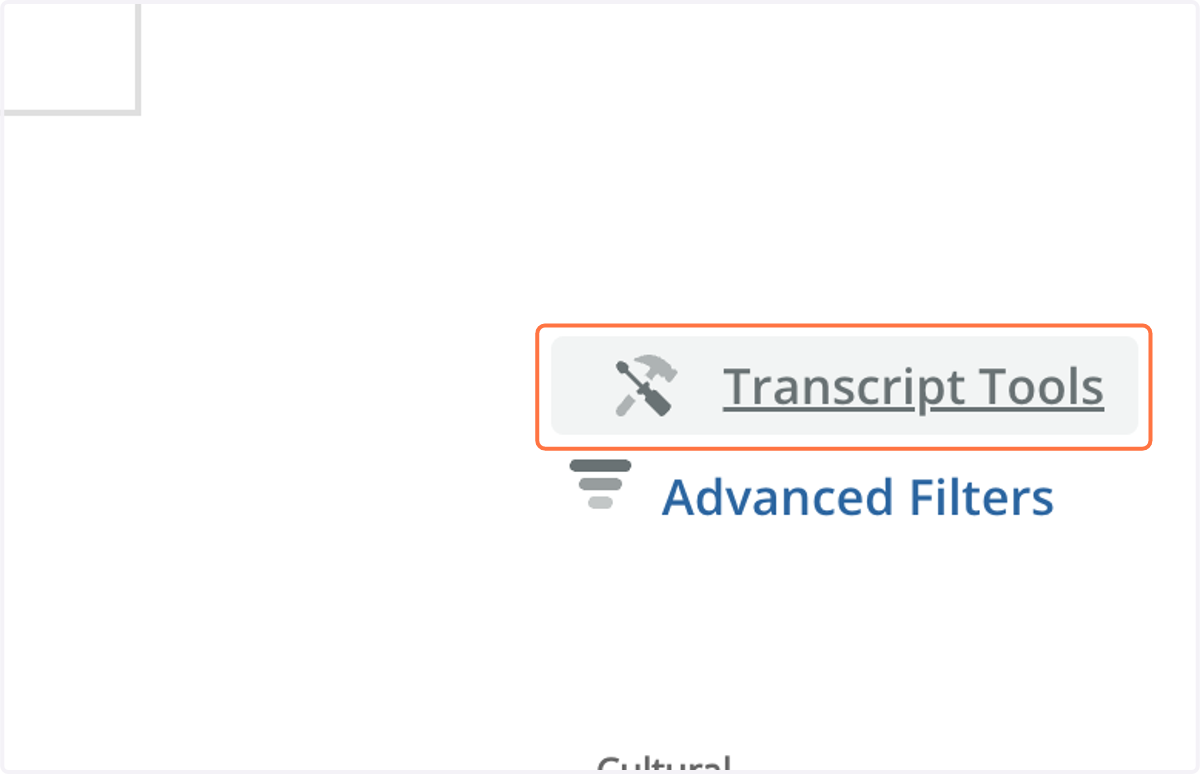
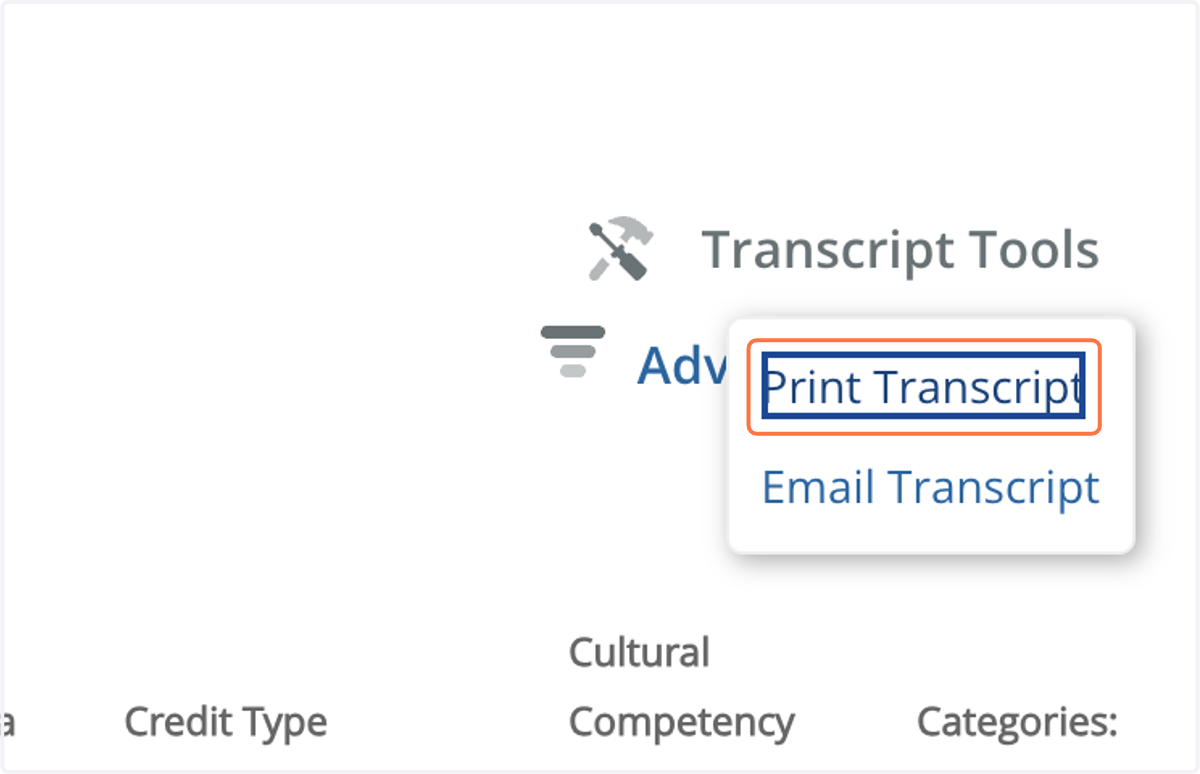
7. Scroll down below the table, and click on Transcript Tools
8. Click on Print Transcript
Printing Certificates of Completion for In-District PD
You can print individual certificates for in-district PD by scrolling down to the list of all the trainings you have attended.
9. Scroll down below the Transcript Tools, click each hyperlinked certificate
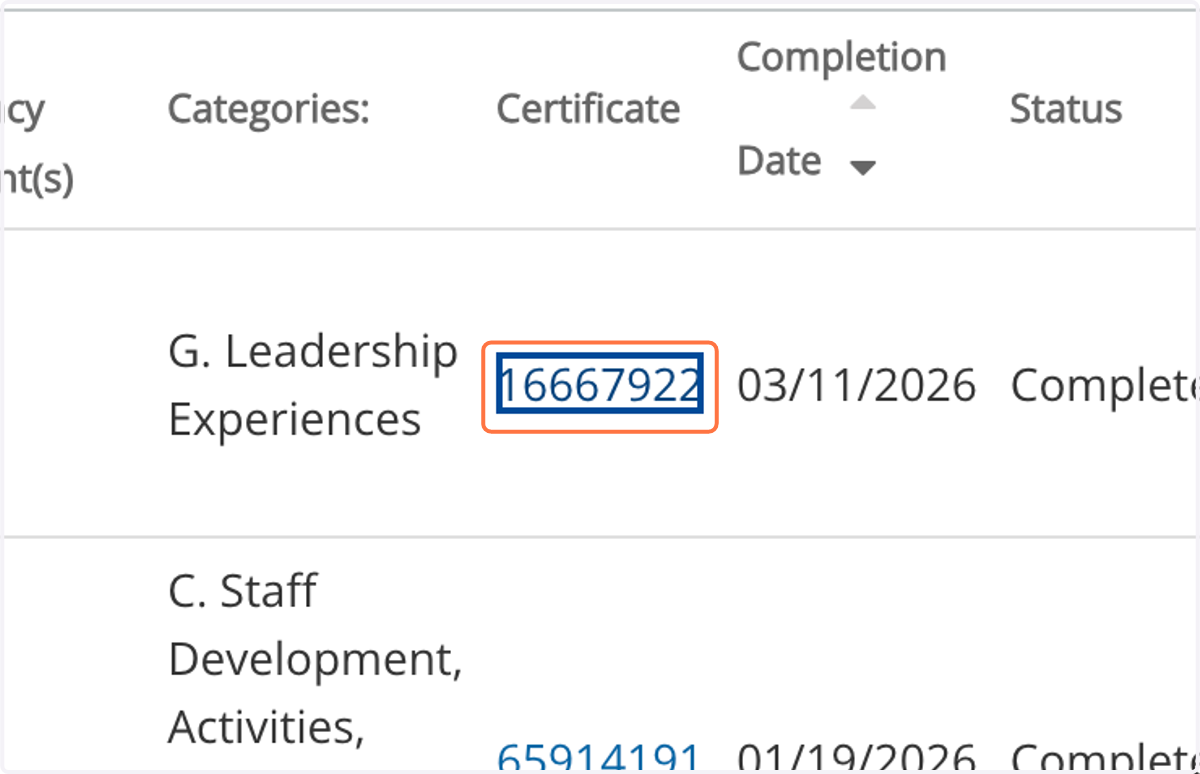
10. Print each certificate of completion