Preview a Quiz
This tutorial will show you how to preview a quiz or test you created. It will also show you want the feedback will look like.
Start Here - Patti - Practice as Instructor
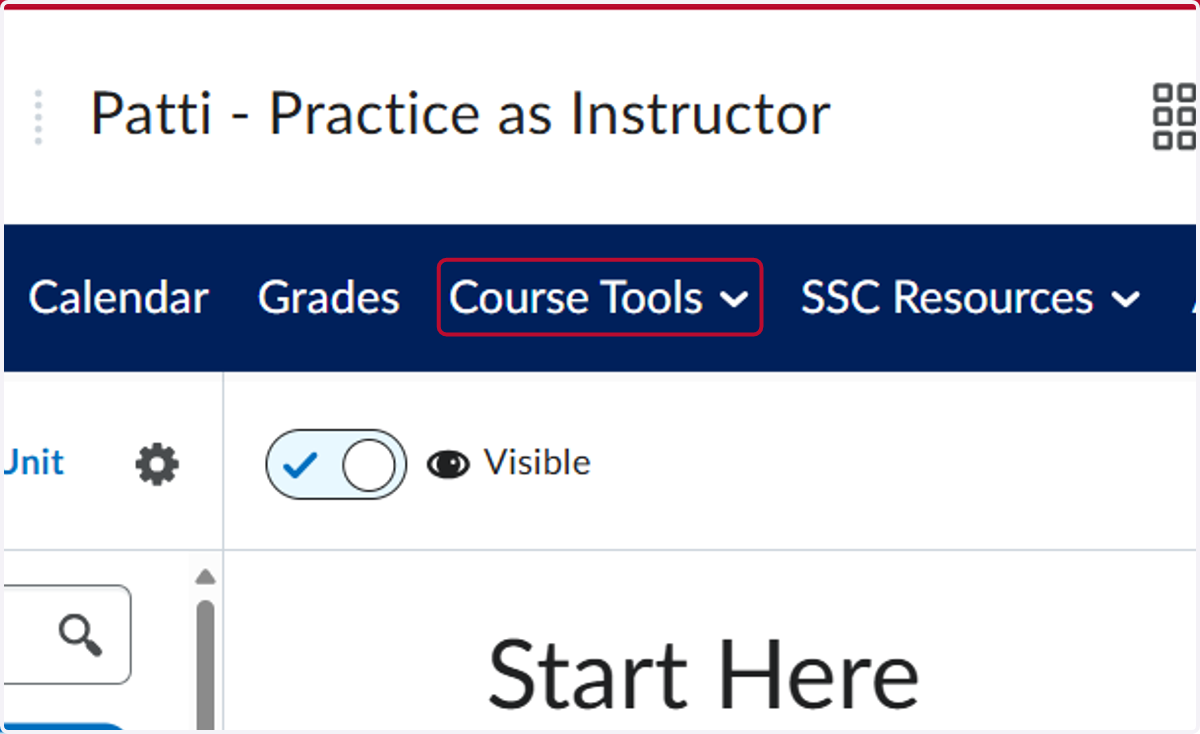
1. Click on Course Tools
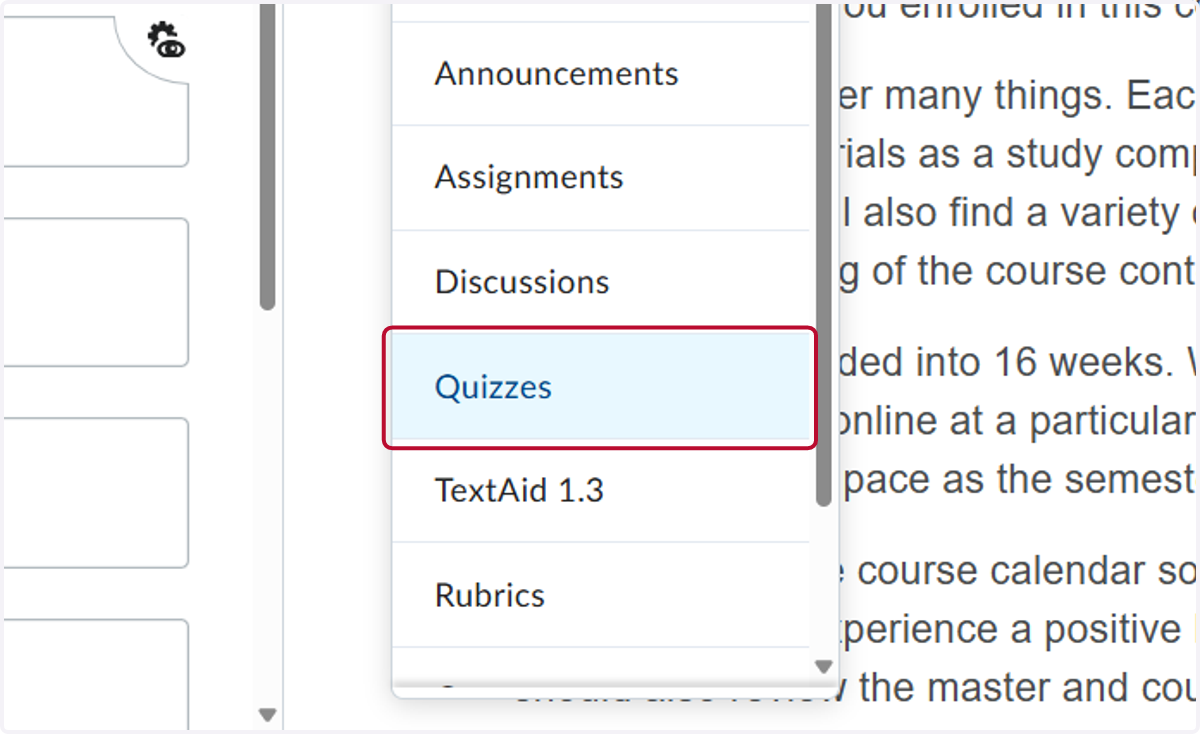
2. Click on Quizzes
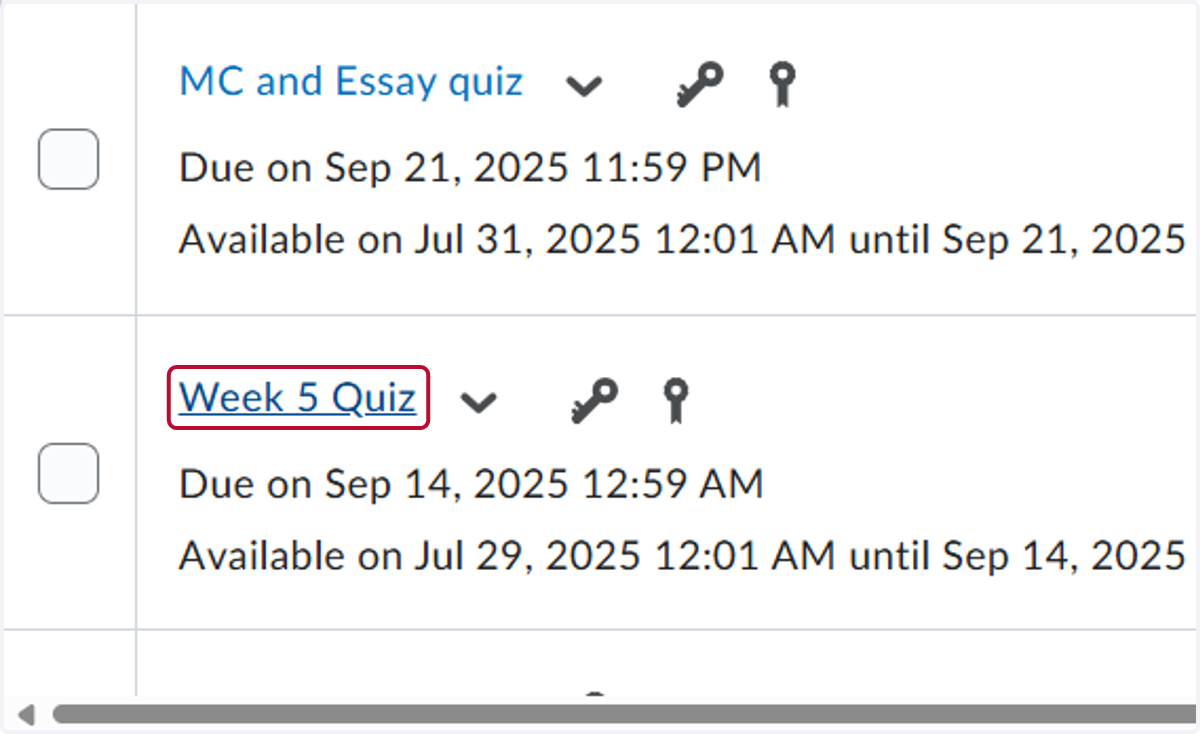
3. Click on the quiz or test you want to preview. In our example, we clicked on the Week 5 Quiz
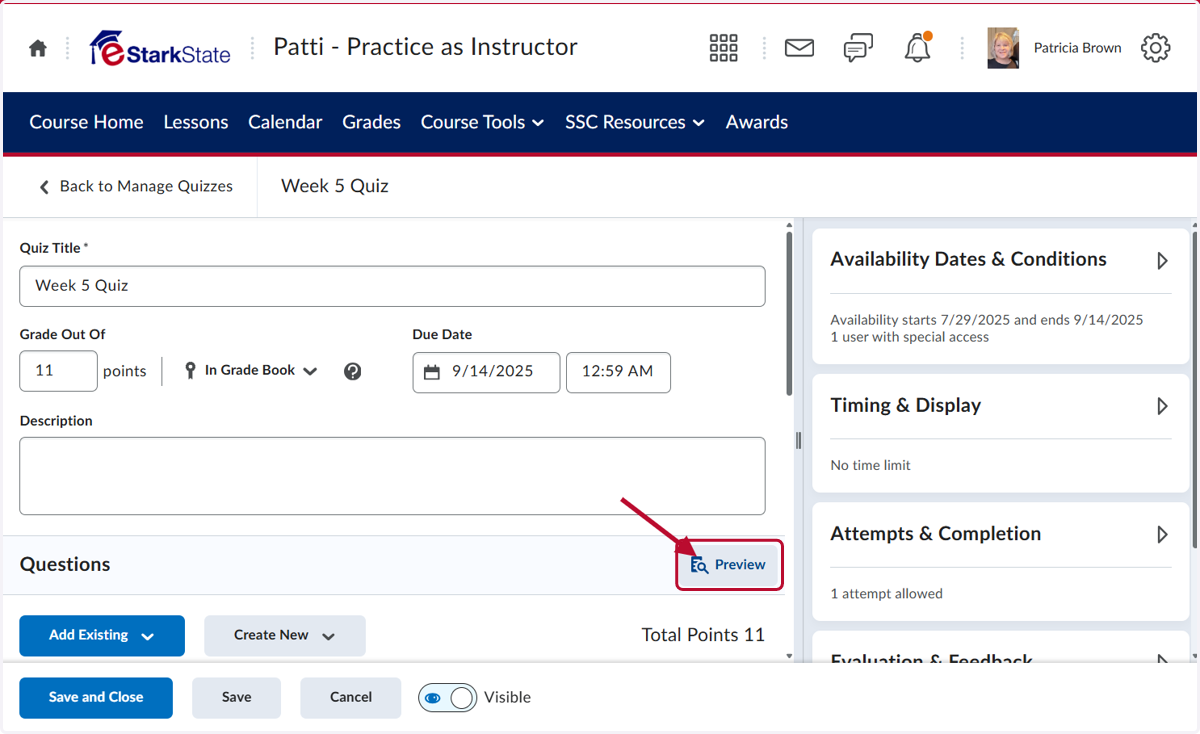
4. Click on Preview
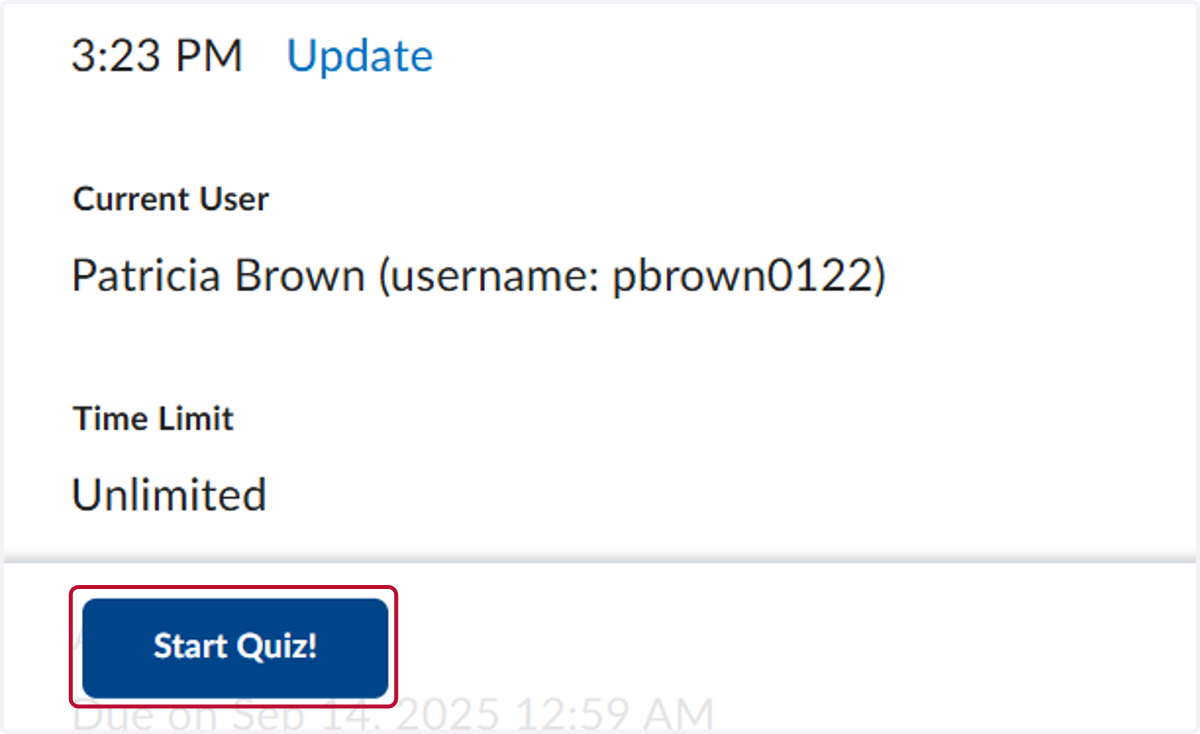
5. Click on Start Quiz!
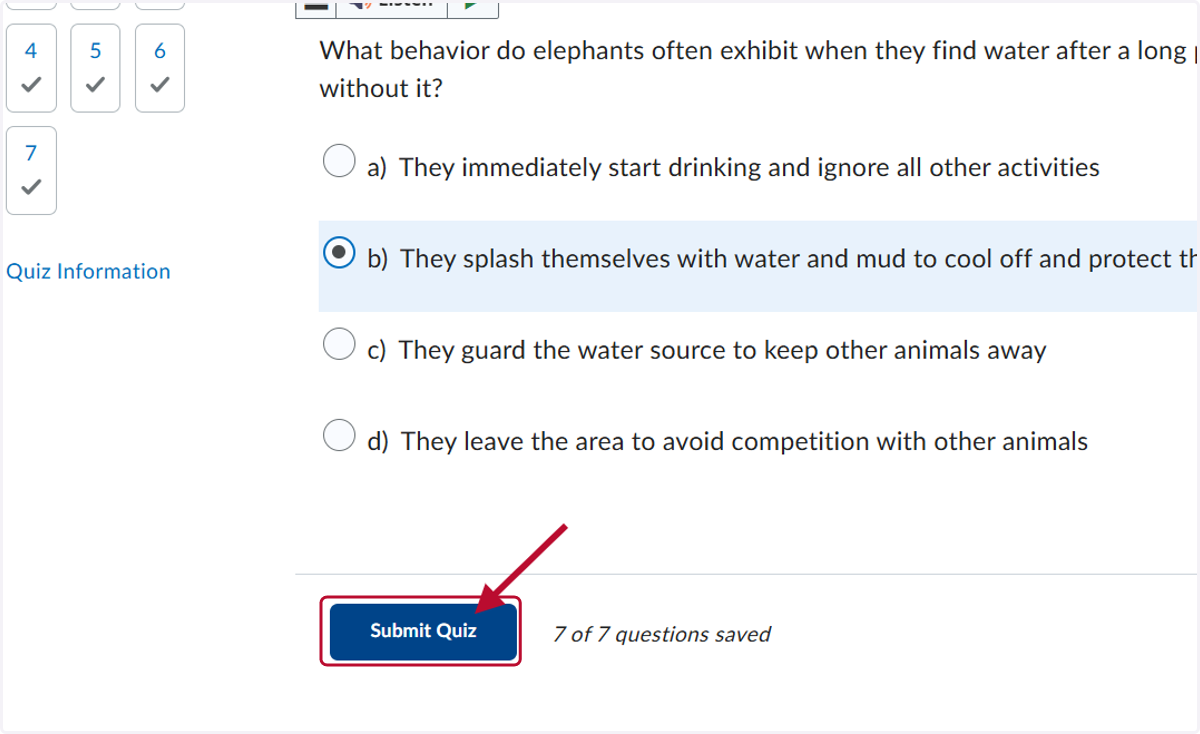
6. You can answer the questions and then click Submit Quiz.
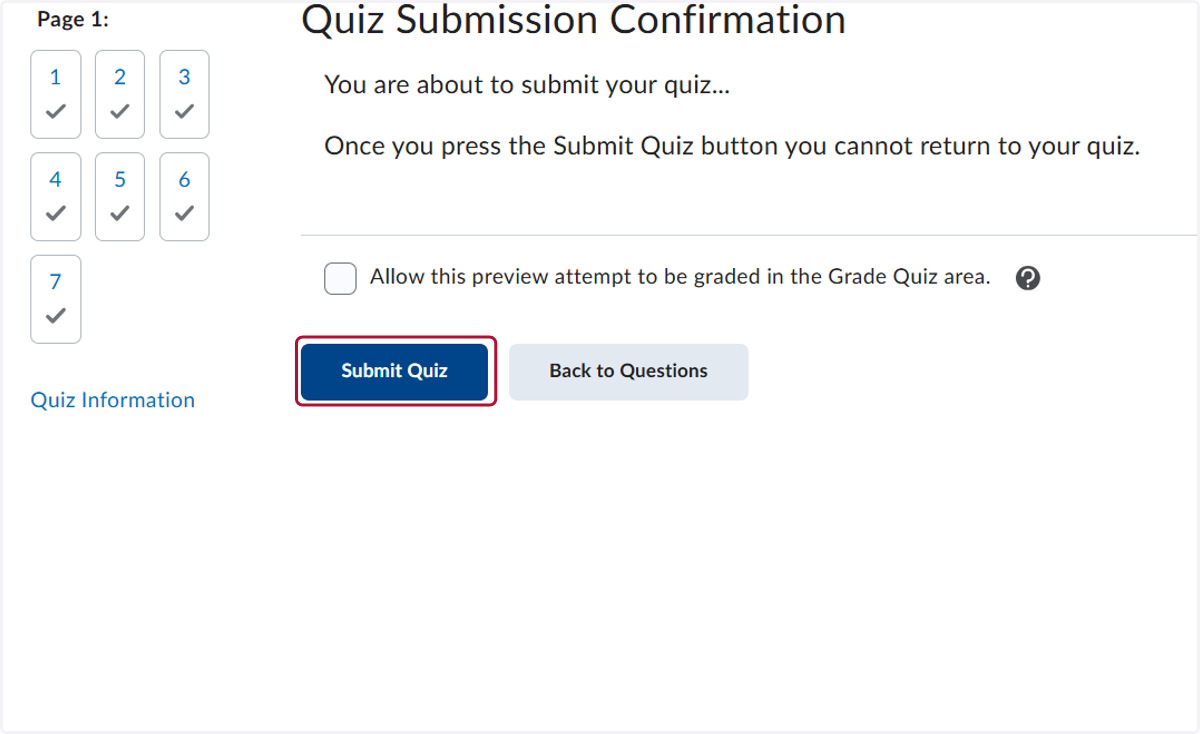
7. Click on Submit Quiz again.
8. This screen will show you the feedback you allow.
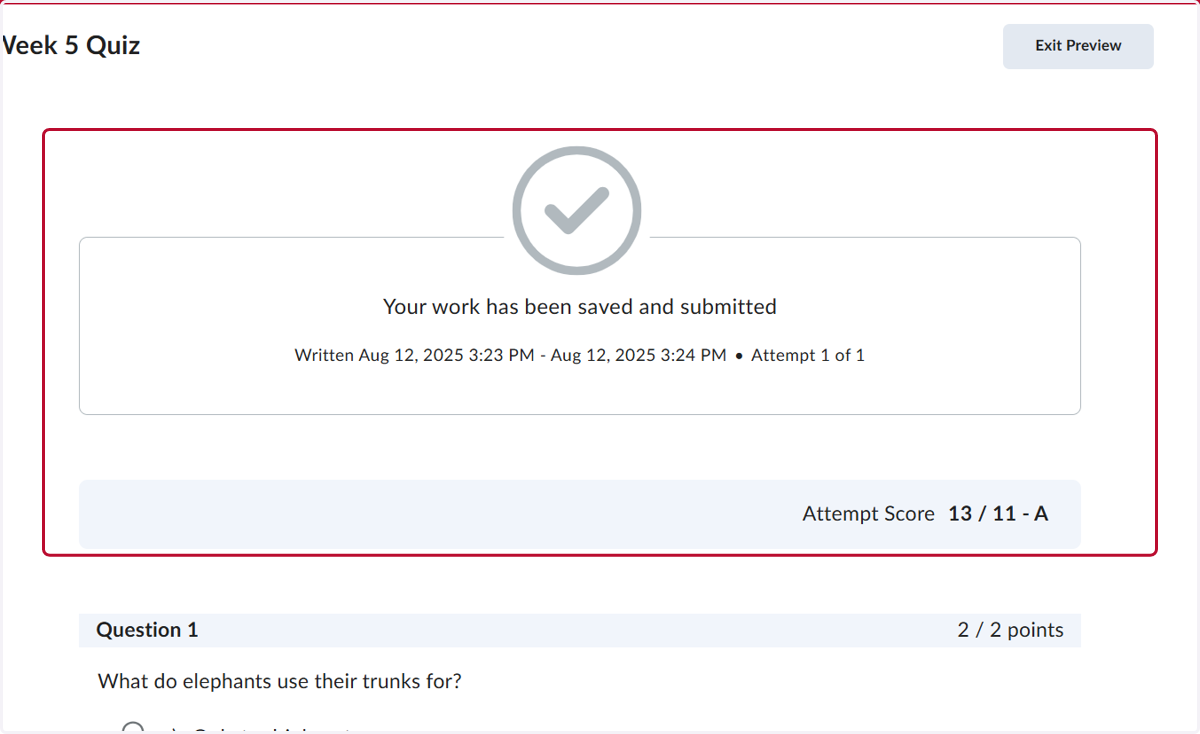
9. Click on Exit Preview to return to the list of quizzes