PowerSchool EFP Budget Transfer Process
1. 💰BUDGET TRANSFERS
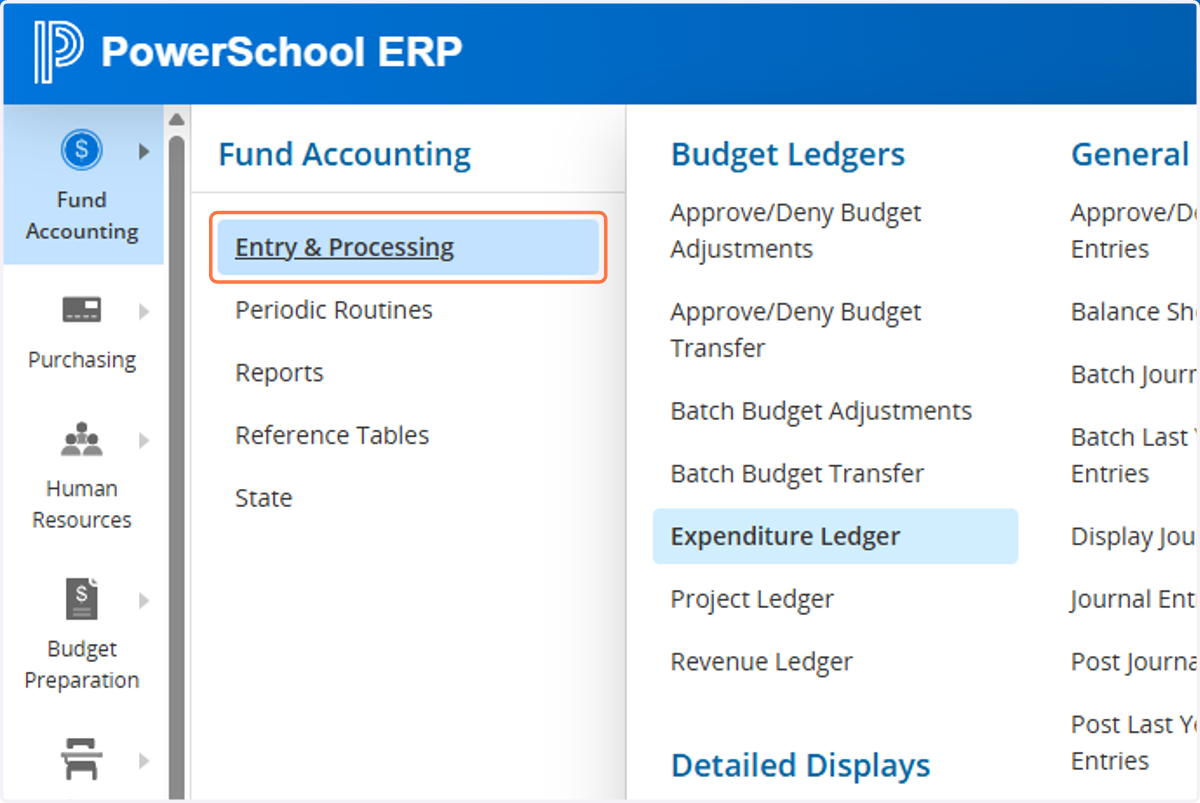
2. For Budget Transfer: Fund Accounting, Entry & Processing
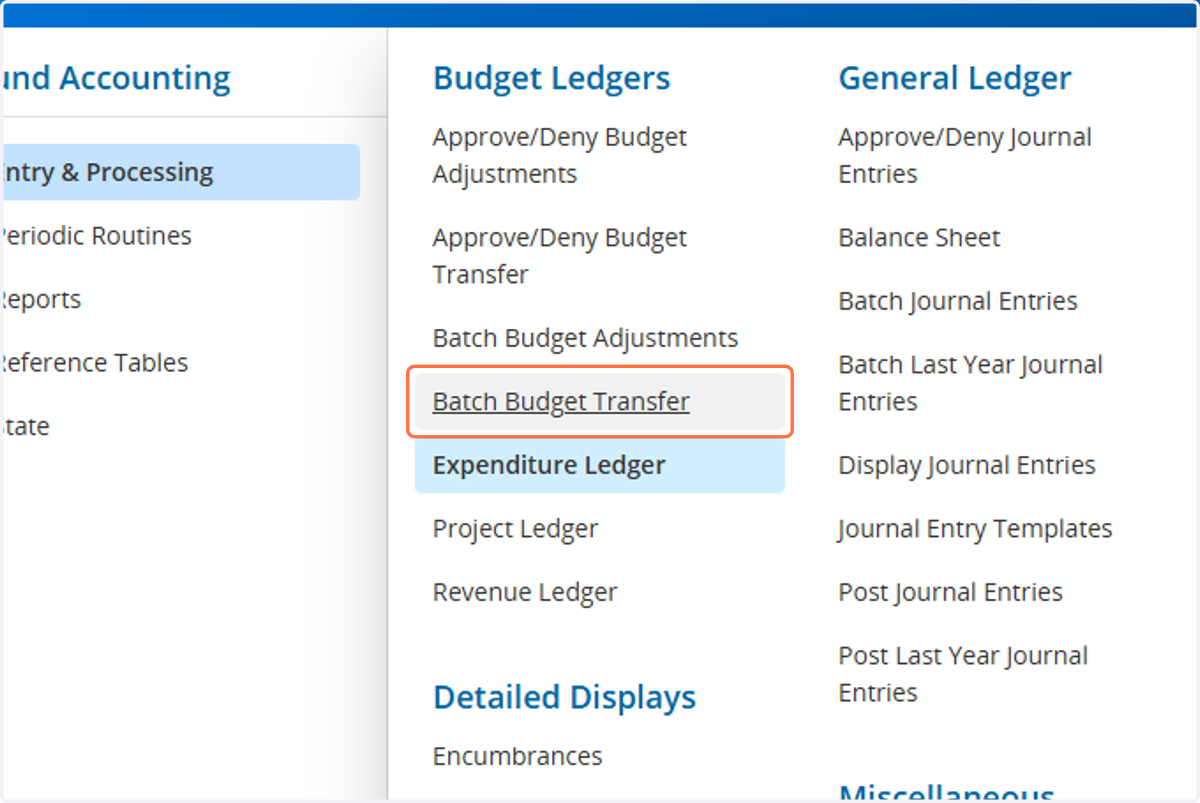
3. Click on Batch Budget Transfer
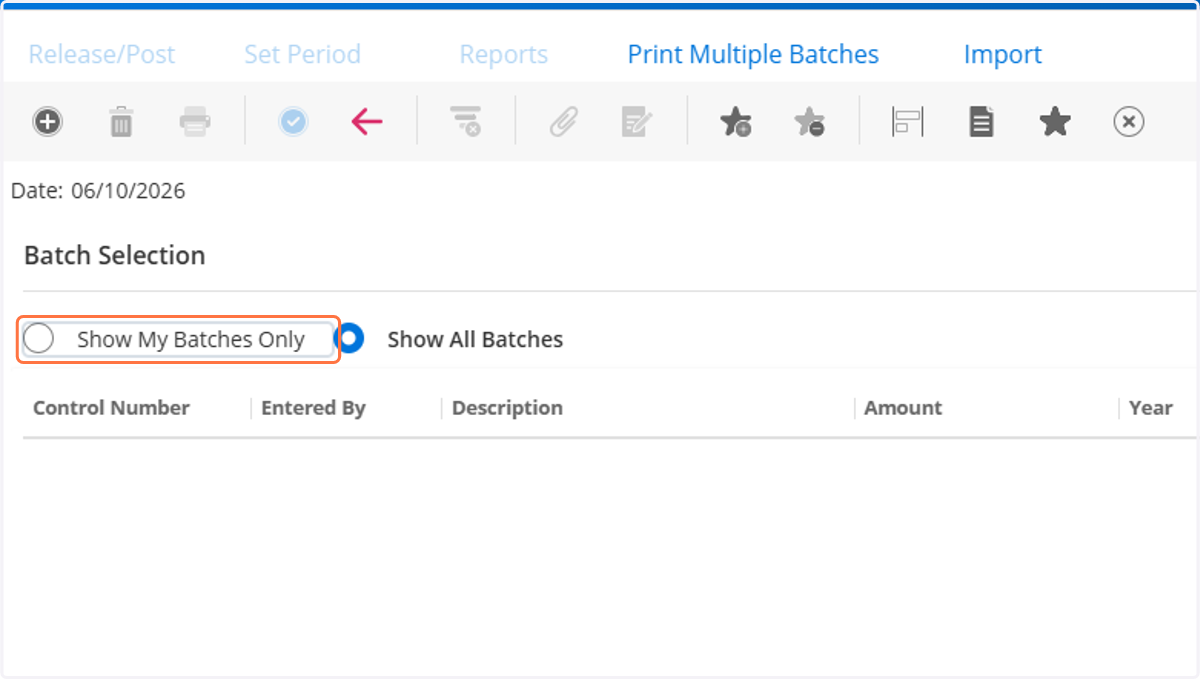
4. Click on Show My Batches Only
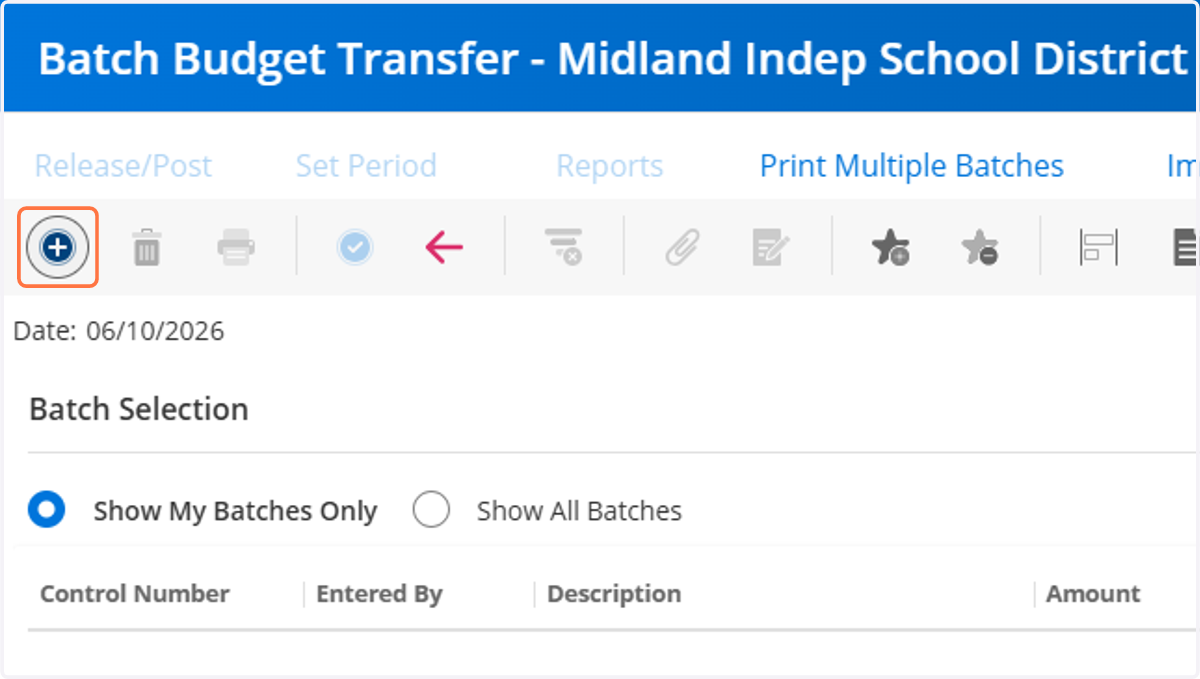
5. Click on PLUS sign in top left hand corner to start a new transfer.
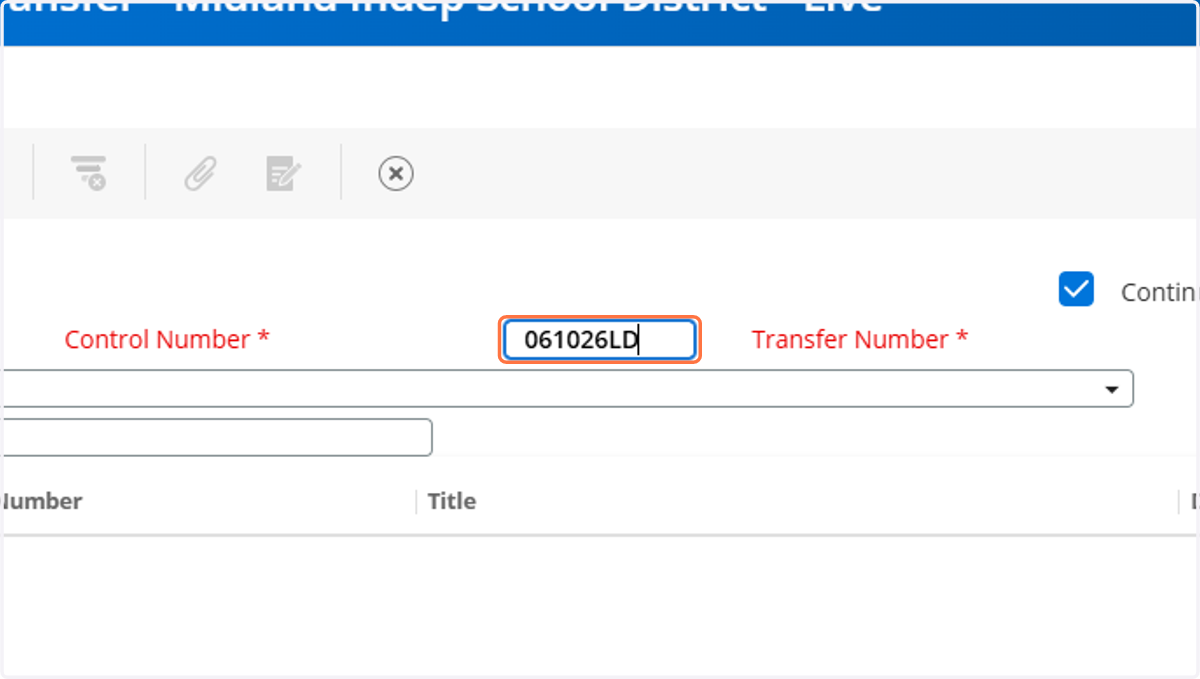
6. For Control Number: type "date and initials" (2 digit month, 2 digit date, 2 digit year, 2 digit initials)
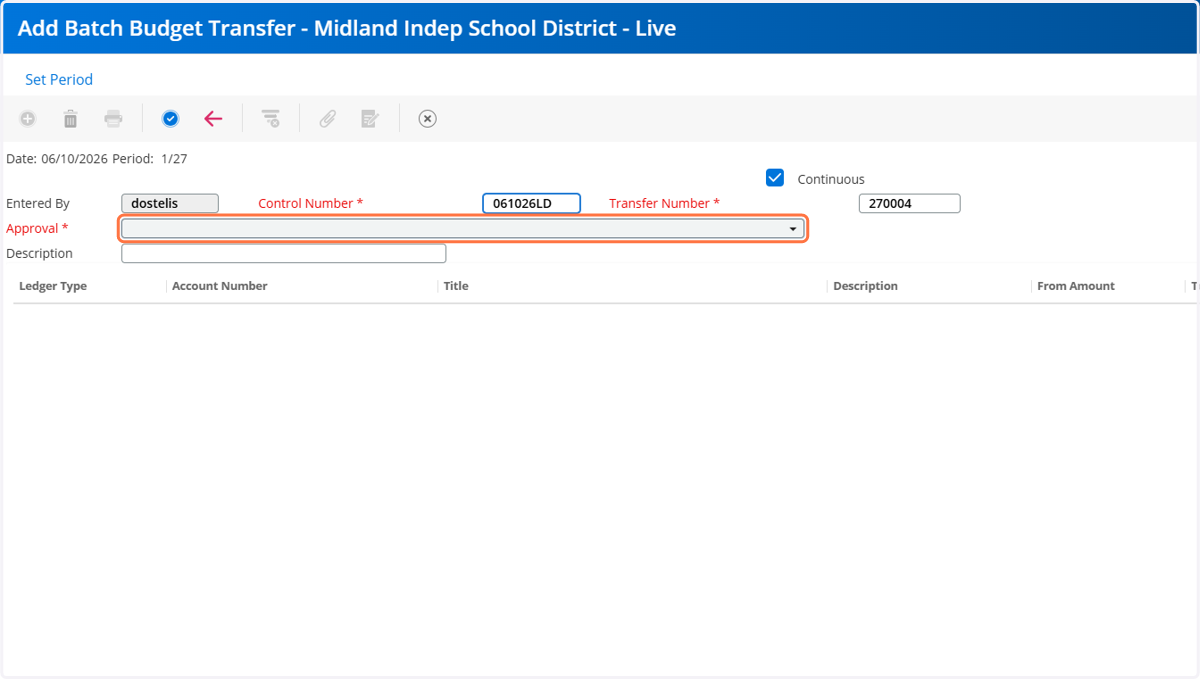
7. Click on Select approval group
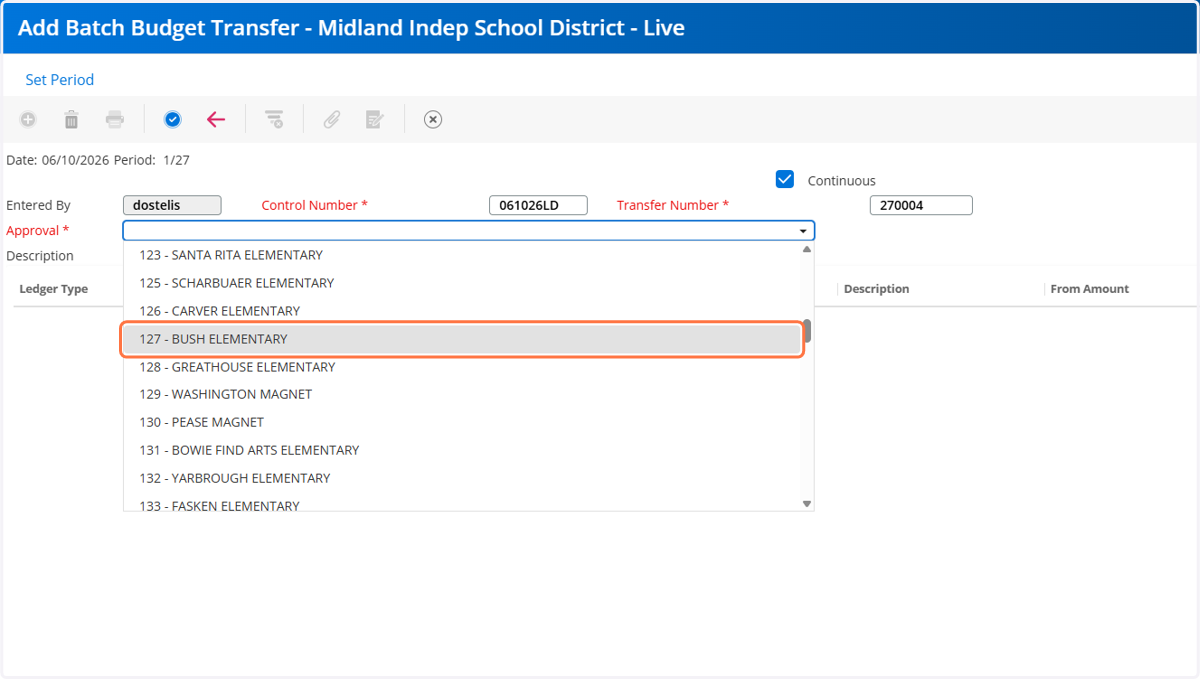
8. Select your campus or department.
9. Type your transfer description. NOTE**See Next Slide for REQUIRED descriptions
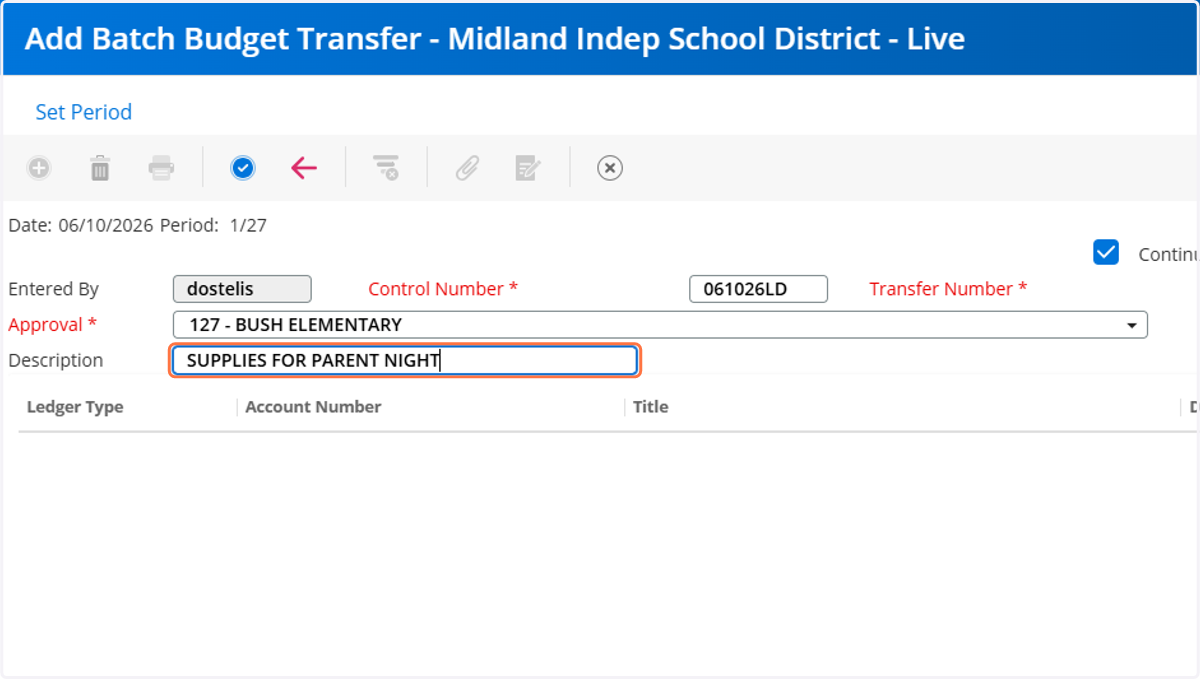
10. Untitled step
11. ✨***NOTE: Budget Transfer Description and Justification:
Same function transfer description should provide a brief justification for the transfer and labeled as follows:
XFR (there is enough space for 21 characters)
Cross Function Transfer description should be labeled as follows:
*CFT ORG MONTH BOARD APPR (Month is when the transfer will be presented to the Board, not the month the transfer request is submitted.) For Month type 3 letter abbreviation.
Complete the required justification form and attach it to the budget transfer request.
The justification should provide a clear and detailed explanation for the transfer.
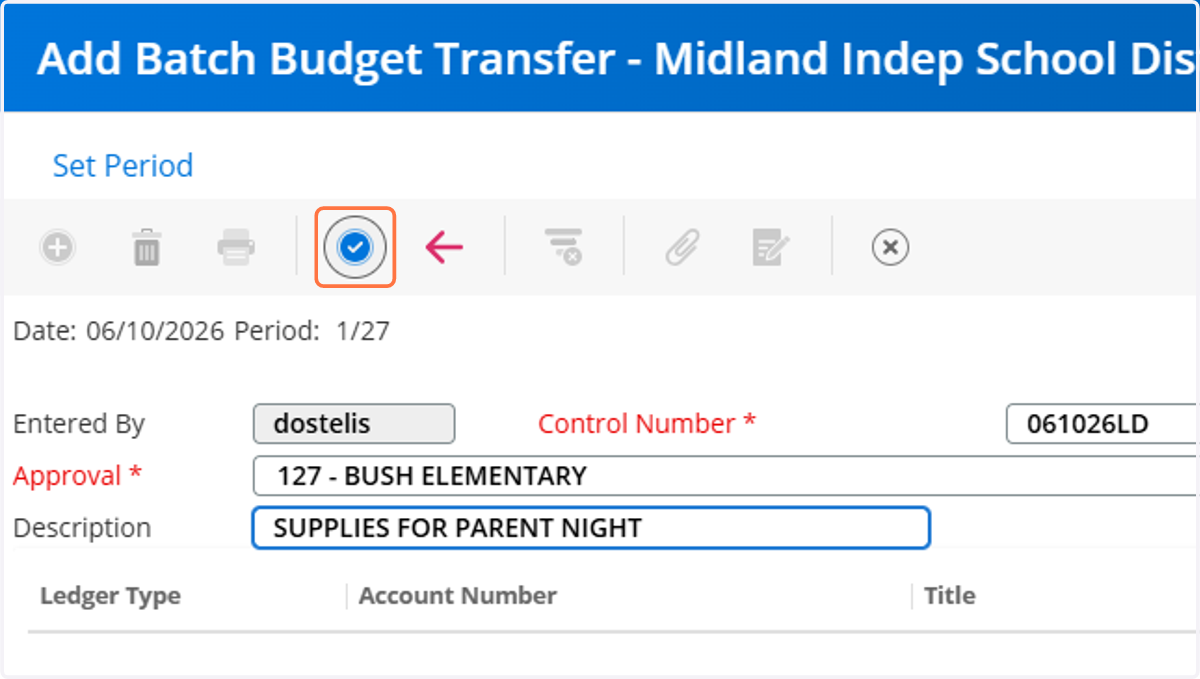
12. Click on Blue Check Mark
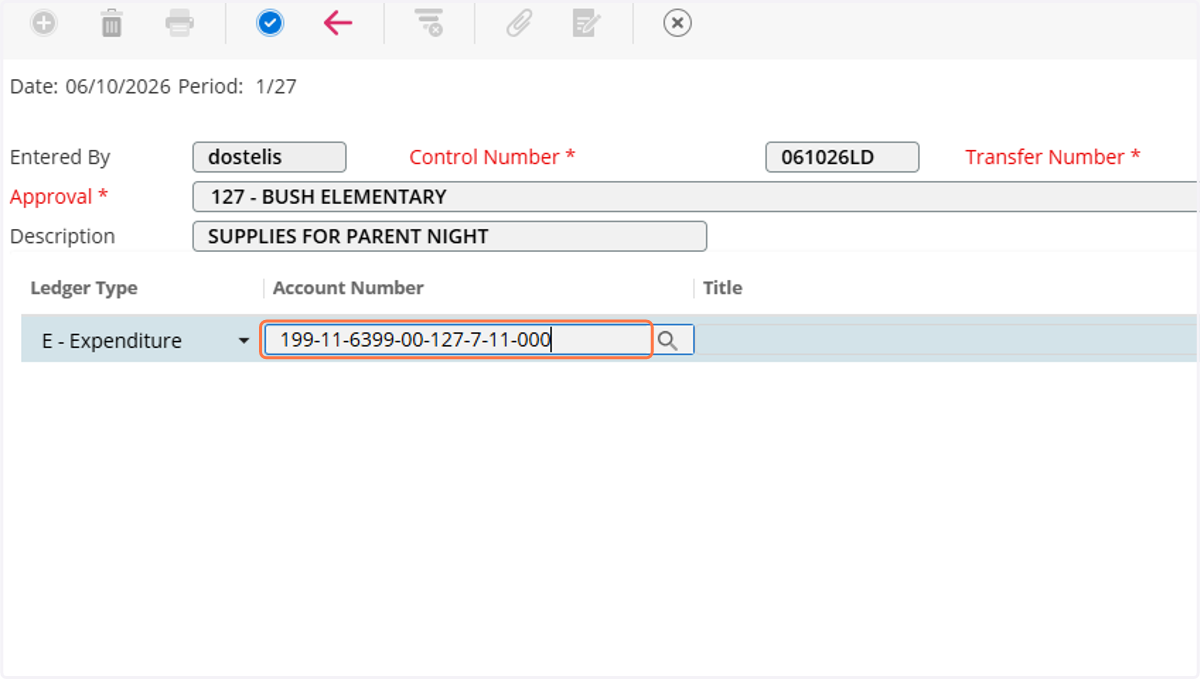
13. Type "account number to transfer from" (if not sure of account number click on the magnifying glass). TAB to next box.
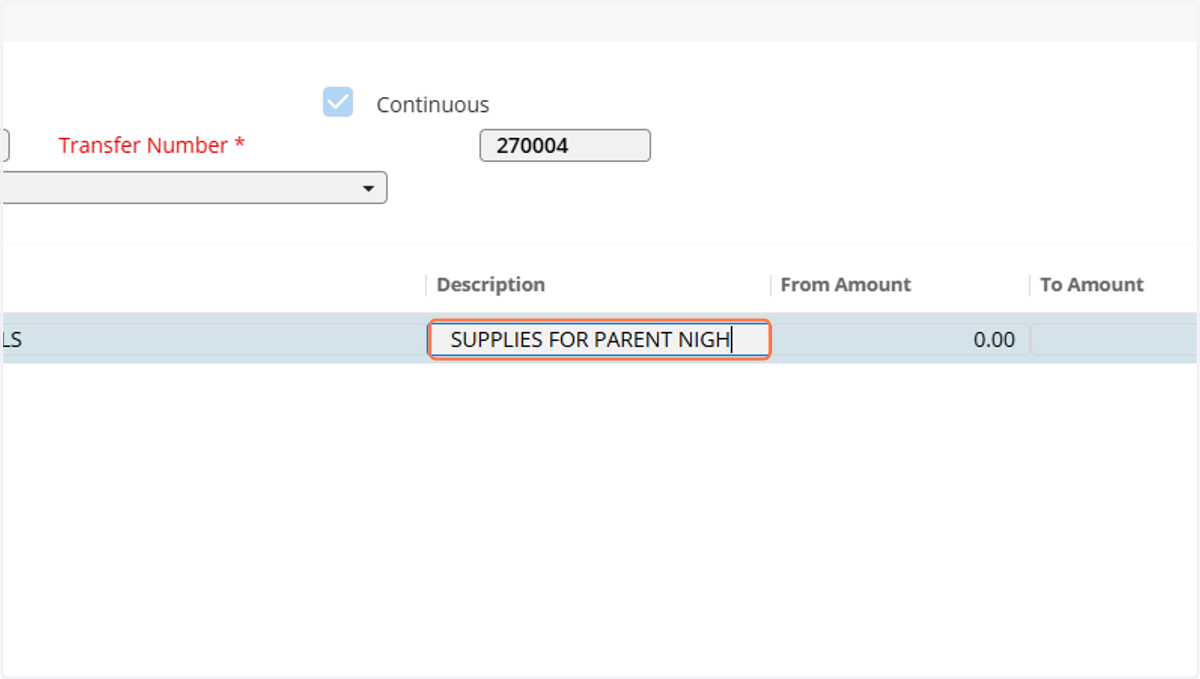
14. You can use the same description as transfer title or add more details here. TAB to next box.
15. Type "amount to transfer", TAB to next box.
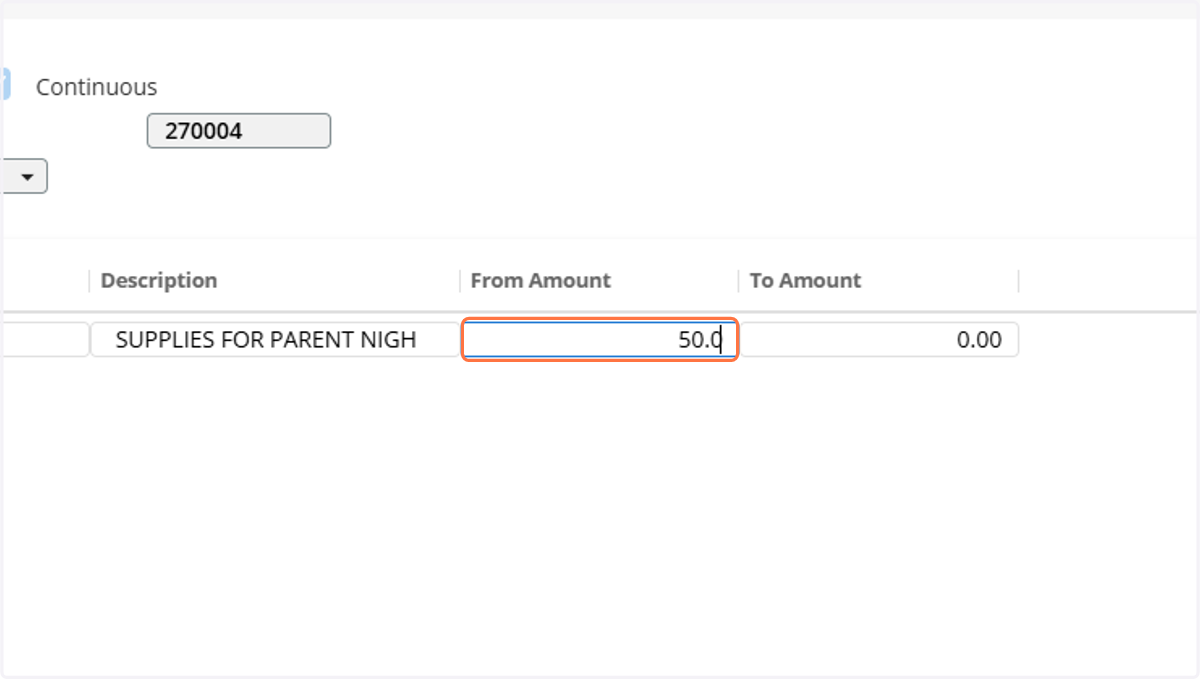
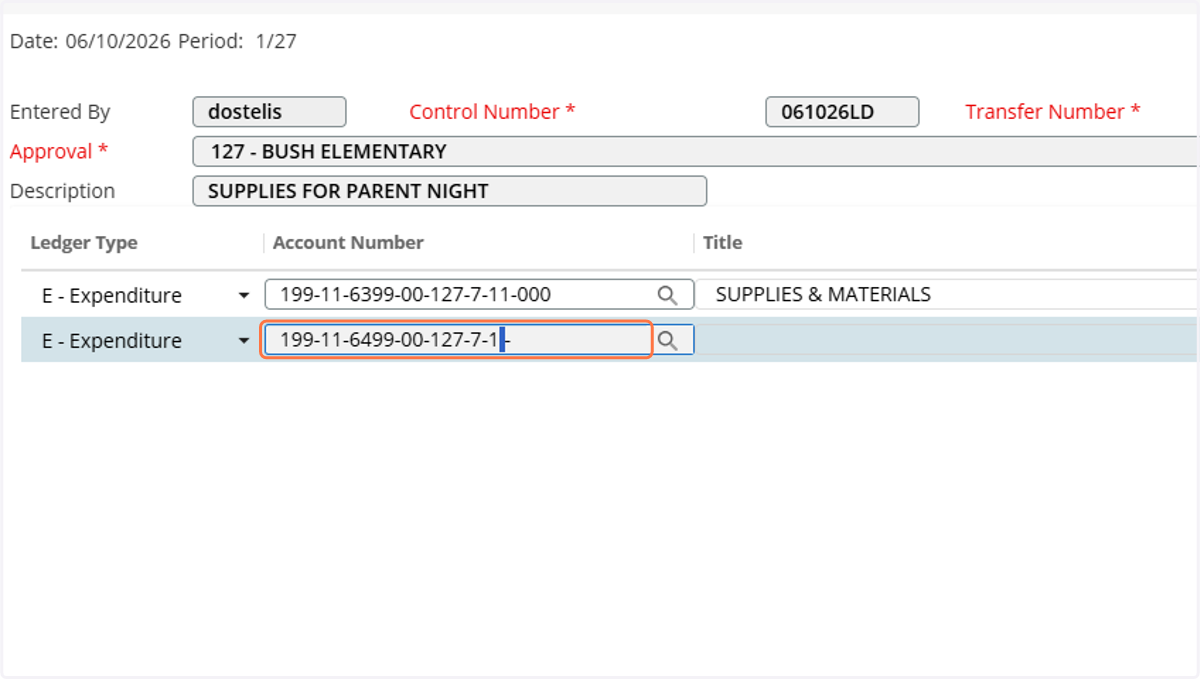
16. Repeat the same process: Type "account number to transfer to", TAB to next box.
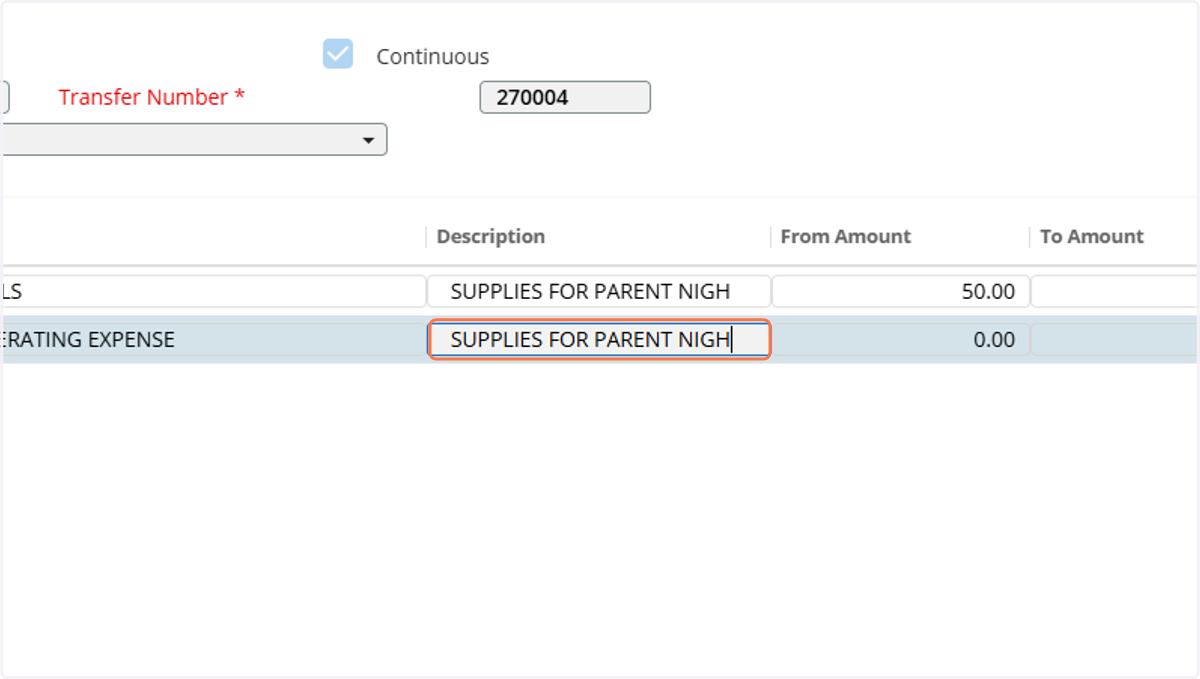
17. Add description, TAB to next box.
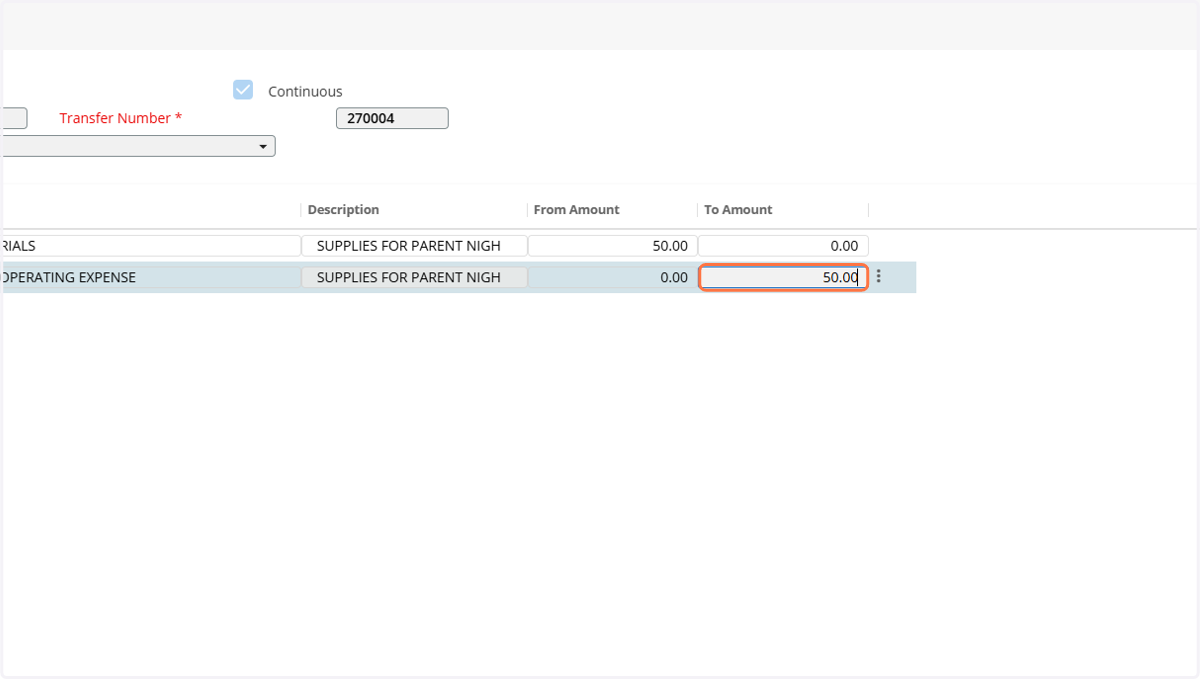
18. Type "amount to transfer to", TAB to next box for a new line if needing to distribute funds to multiple accounts OR go to next step. You may delete a line by clicking on the three dots at the end of the row.
19. You may repeat this process if you are
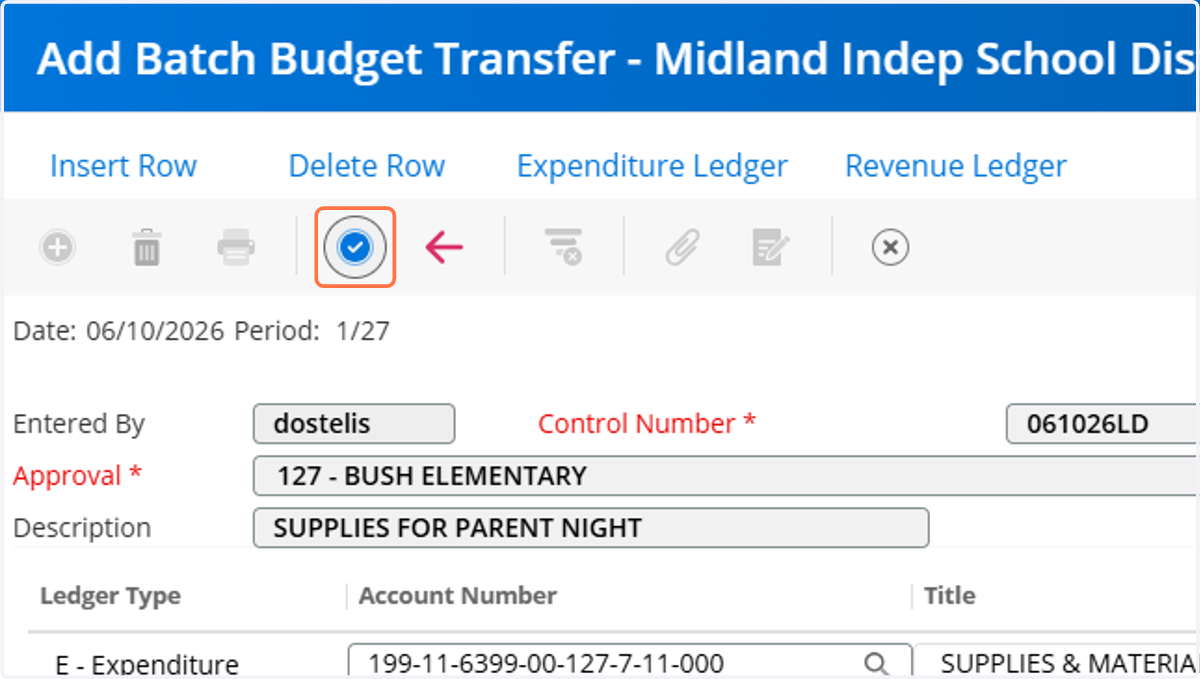
20. Click Blue Check Mark
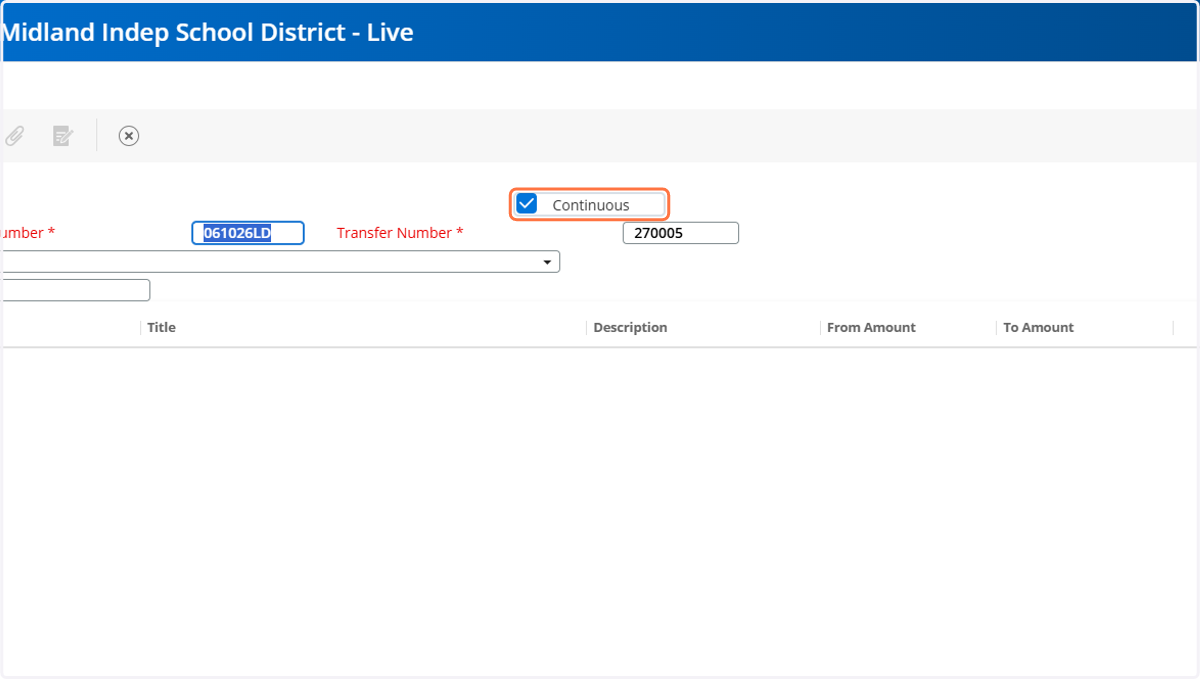
21. If "Continuous" is checked, then it will automatically be ready to start a new transfer, you may uncheck it for your preference.
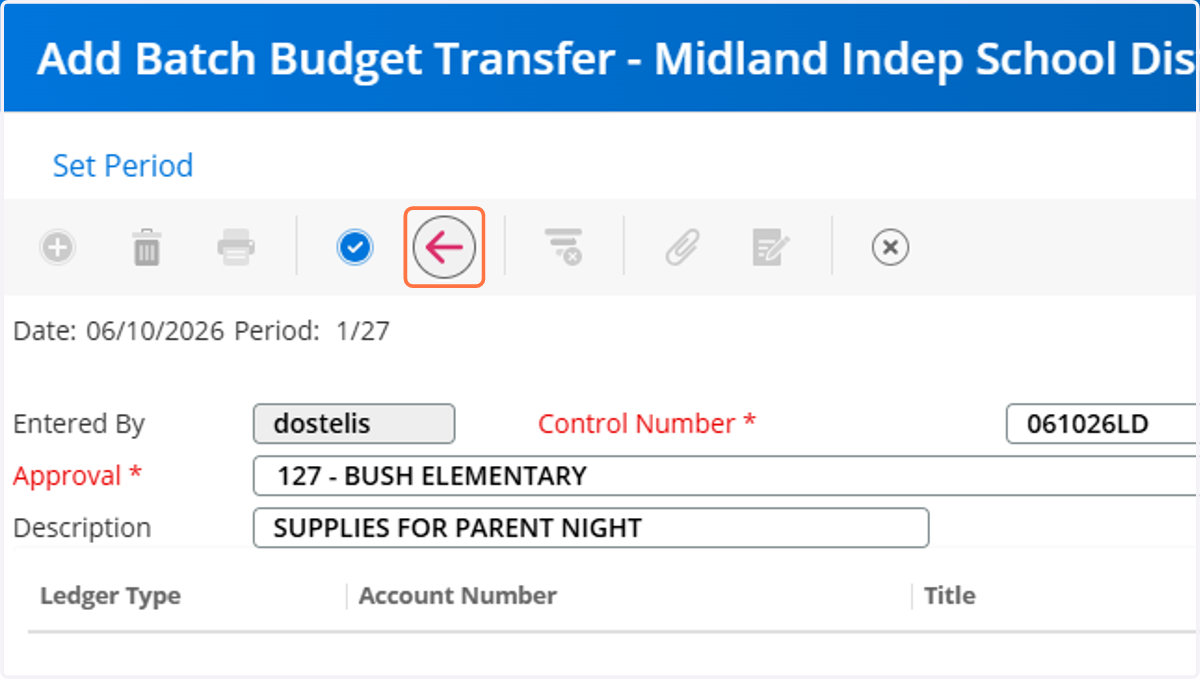
22. Click the Red Arrow to go back to the previous screen
23. You must next RELEASE/POST your transfer(s) to finish the process. *At this point you can also attach any documentation you may have by clicking back into the line item and clicking on the PAPERCLIP icon.
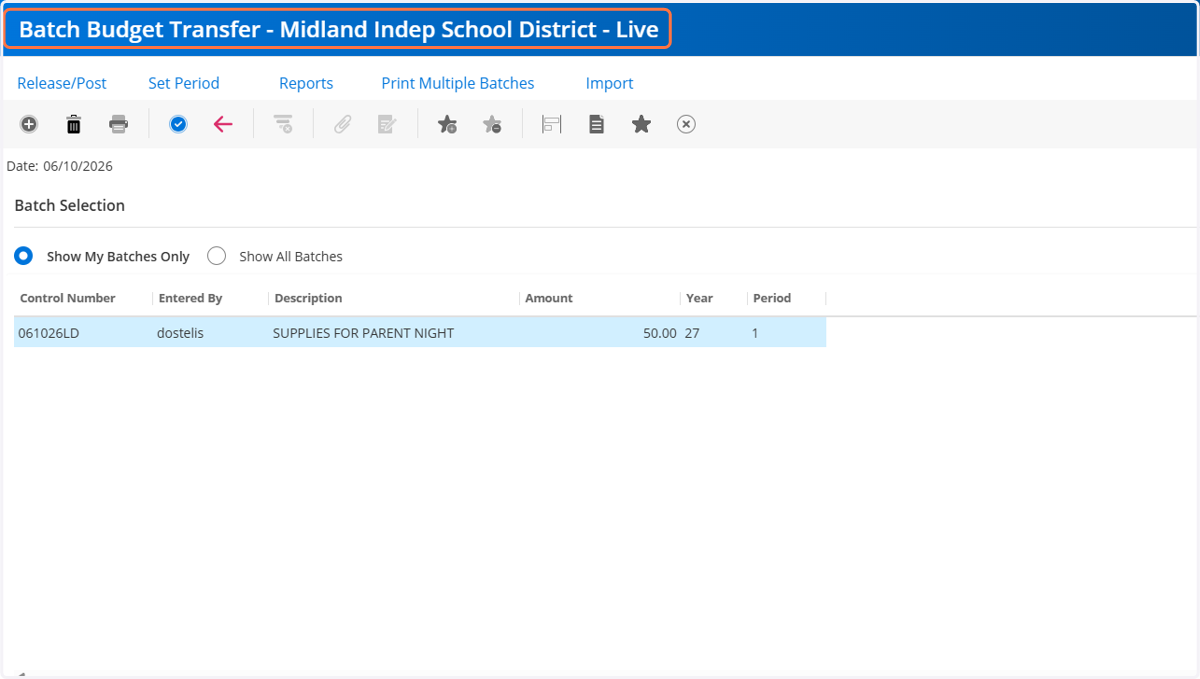
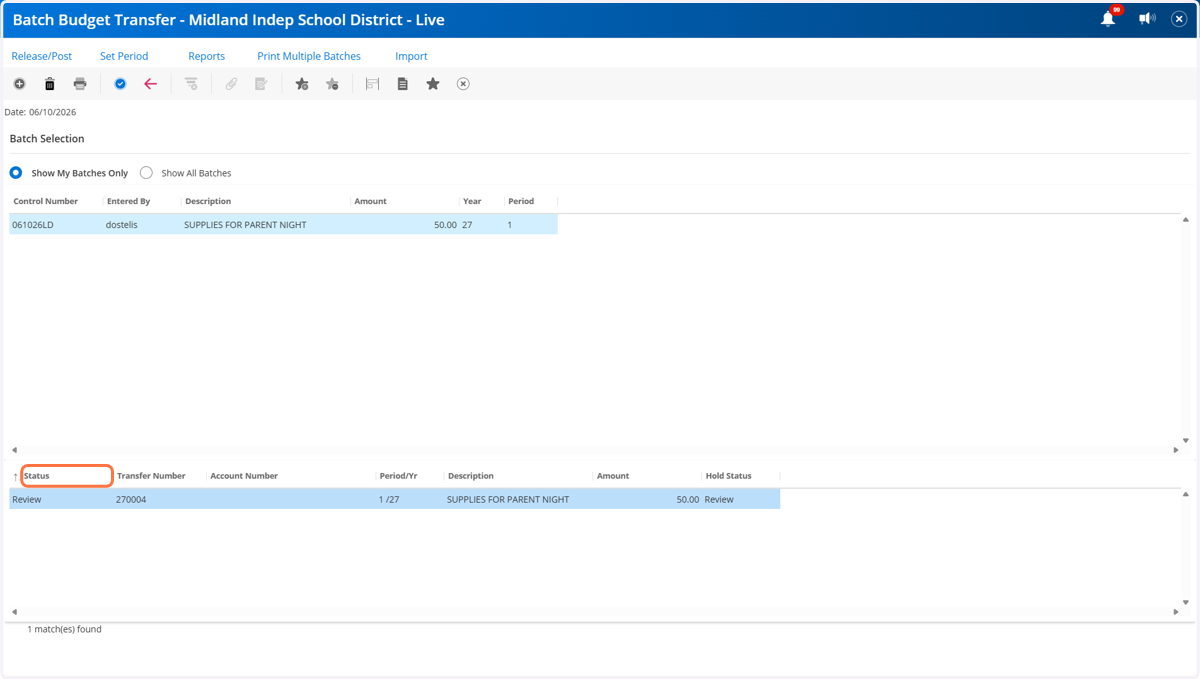
24. Click on Release/Post
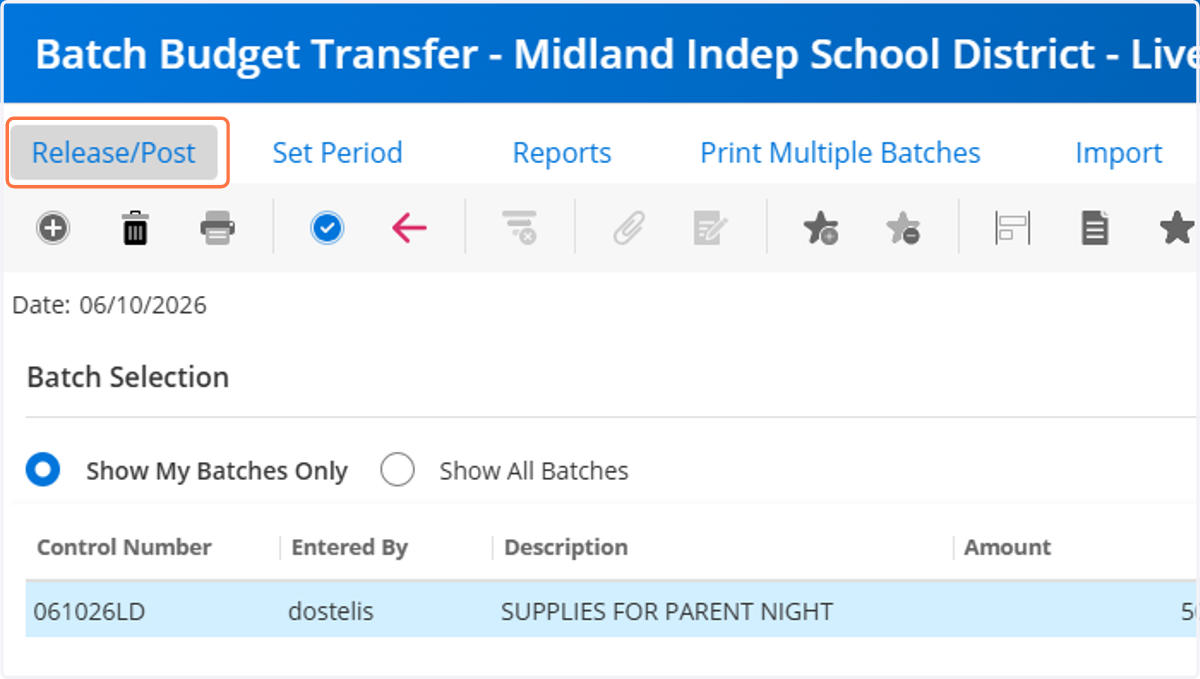
25. Click on Release/Post at the bottom
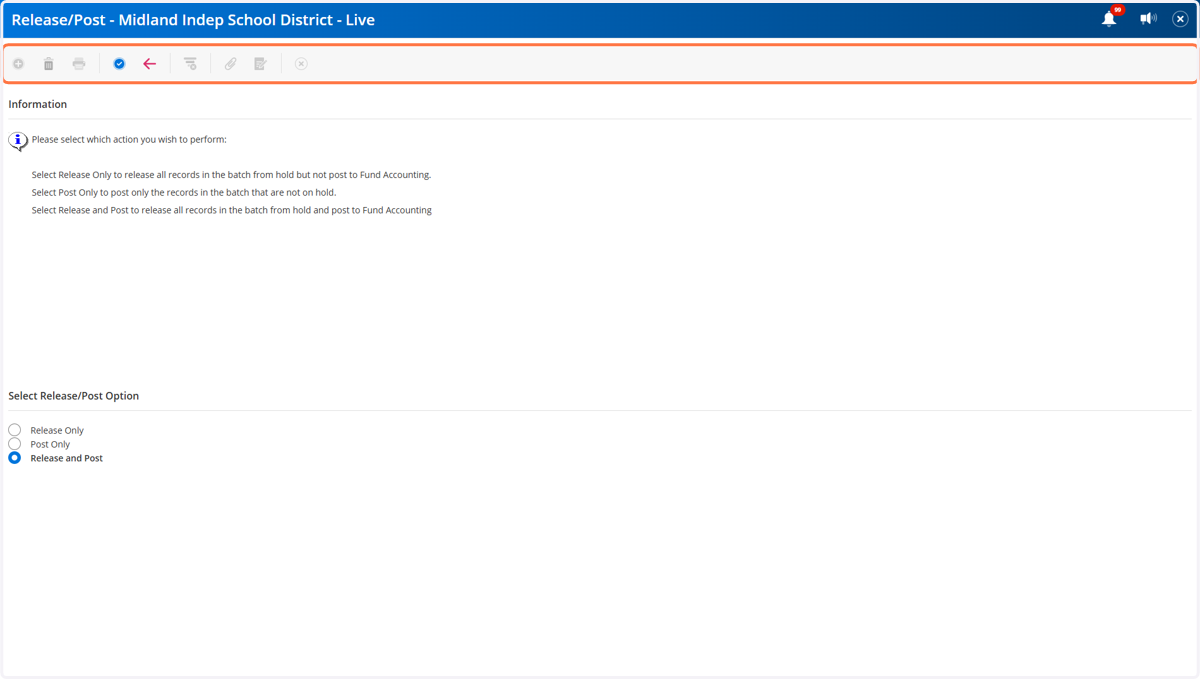
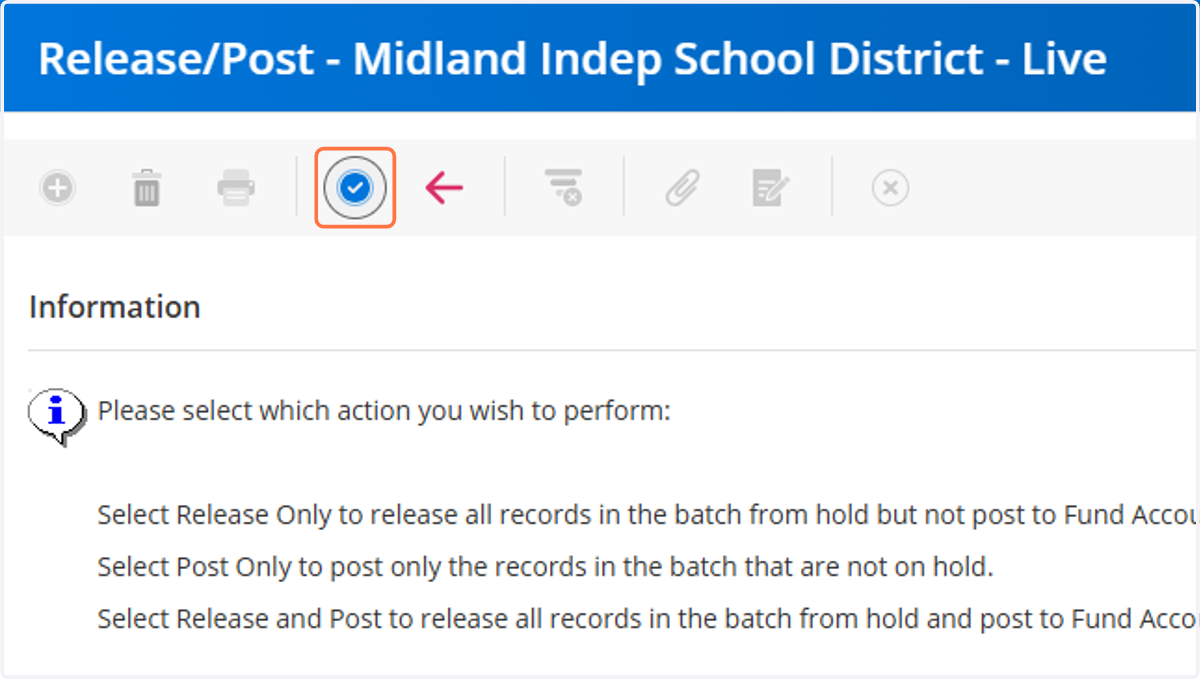
26. Click on the Blue Arrow to accept.
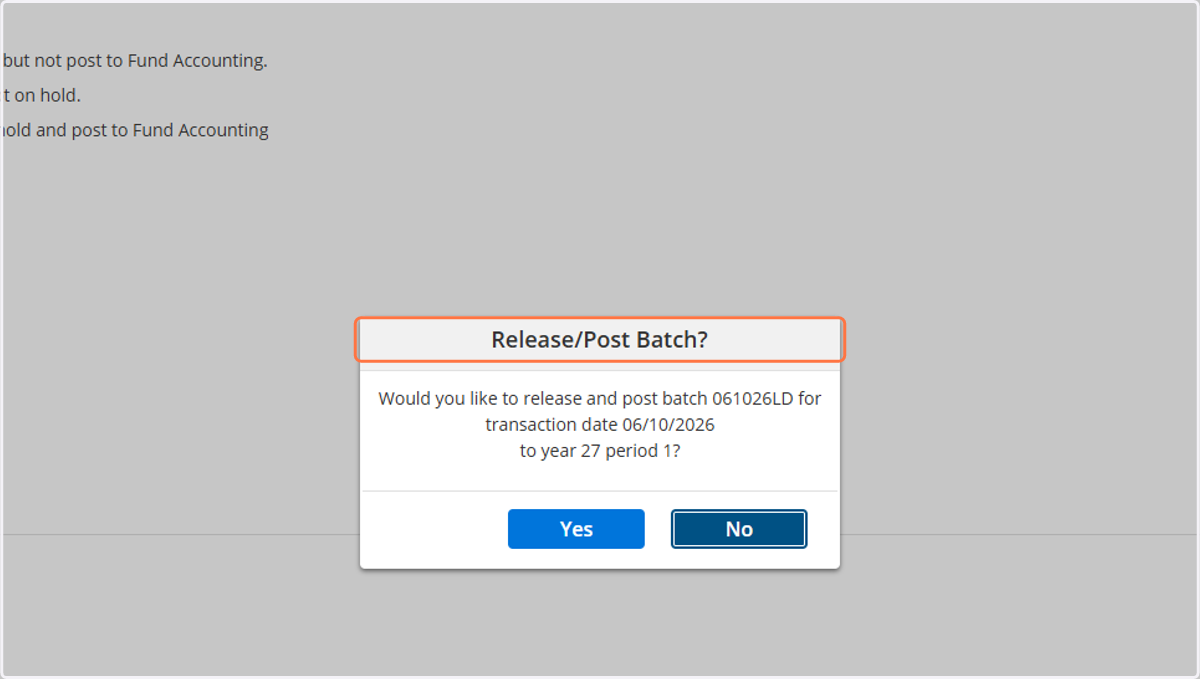
27. Yes or No
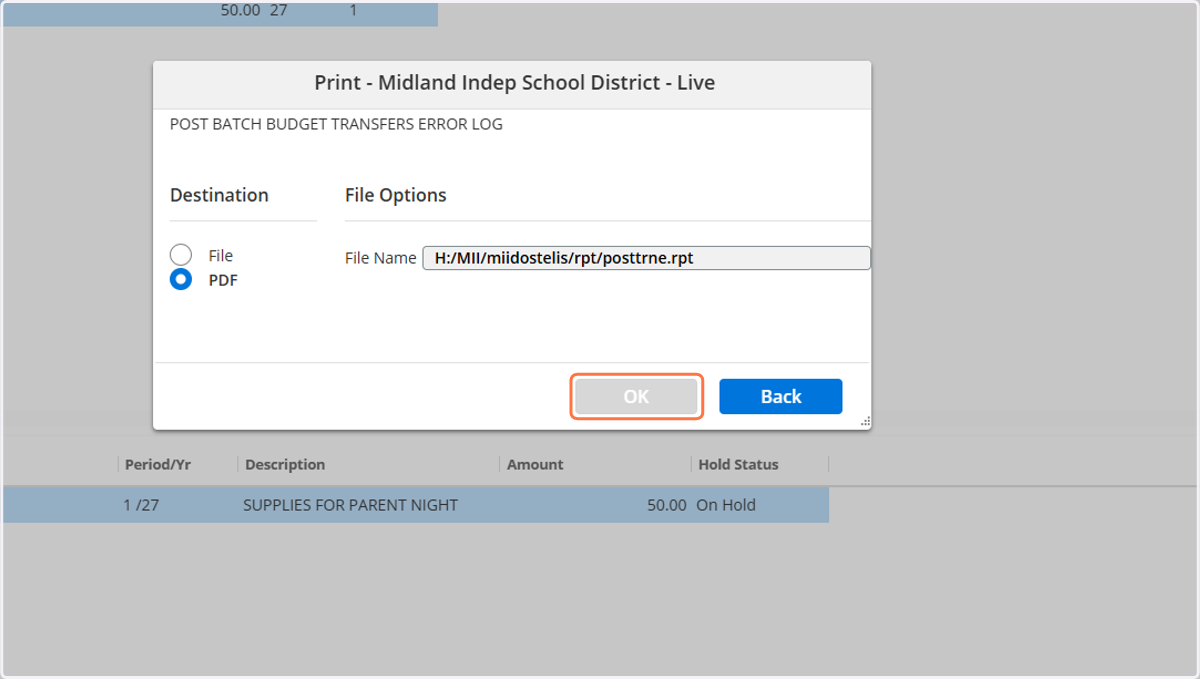
28. Click on OK to print/save report and for your records.
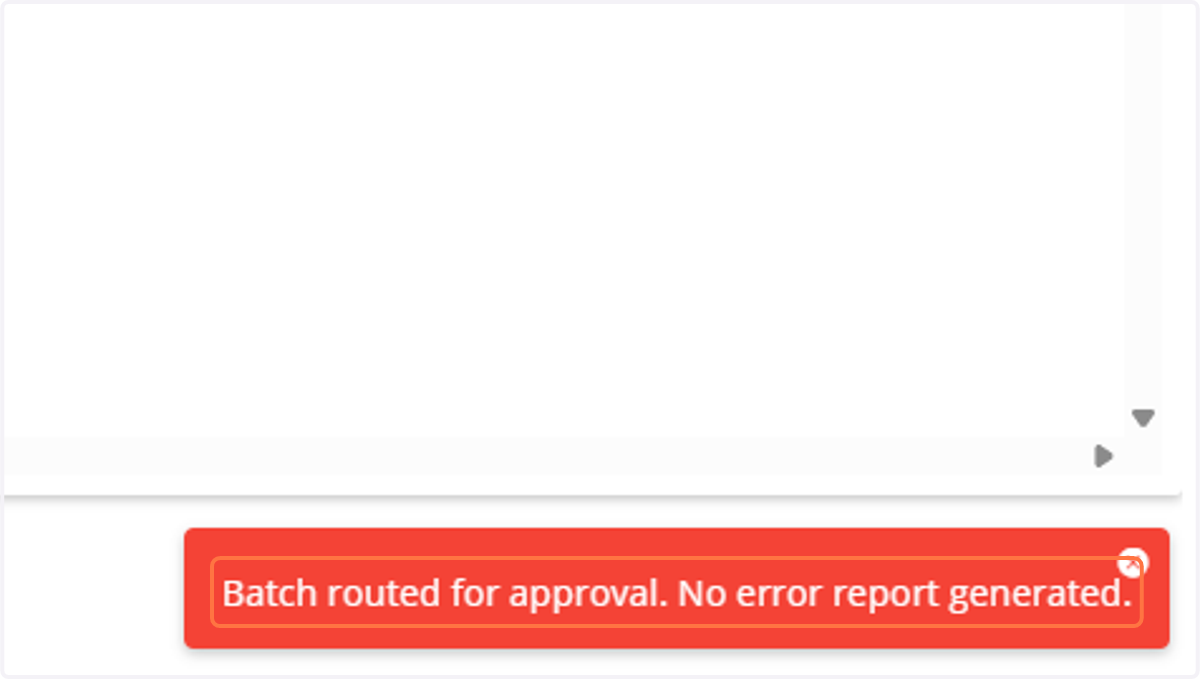
29. You should see the following message: Batch routed for approval. No error report generated. Your part of the transfer process has been completed!
30. You can see your status at the bottom. Click the Red Arrow to back out or the X to close the window. STATUS: OH HOLD - It's waiting on you to RELEASE/POST REVIEW - It's waiting on the next level of approval