PowerSchool EFP Budget Transfer Approval

Dashboard | PowerSchool ERP | PowerSchool

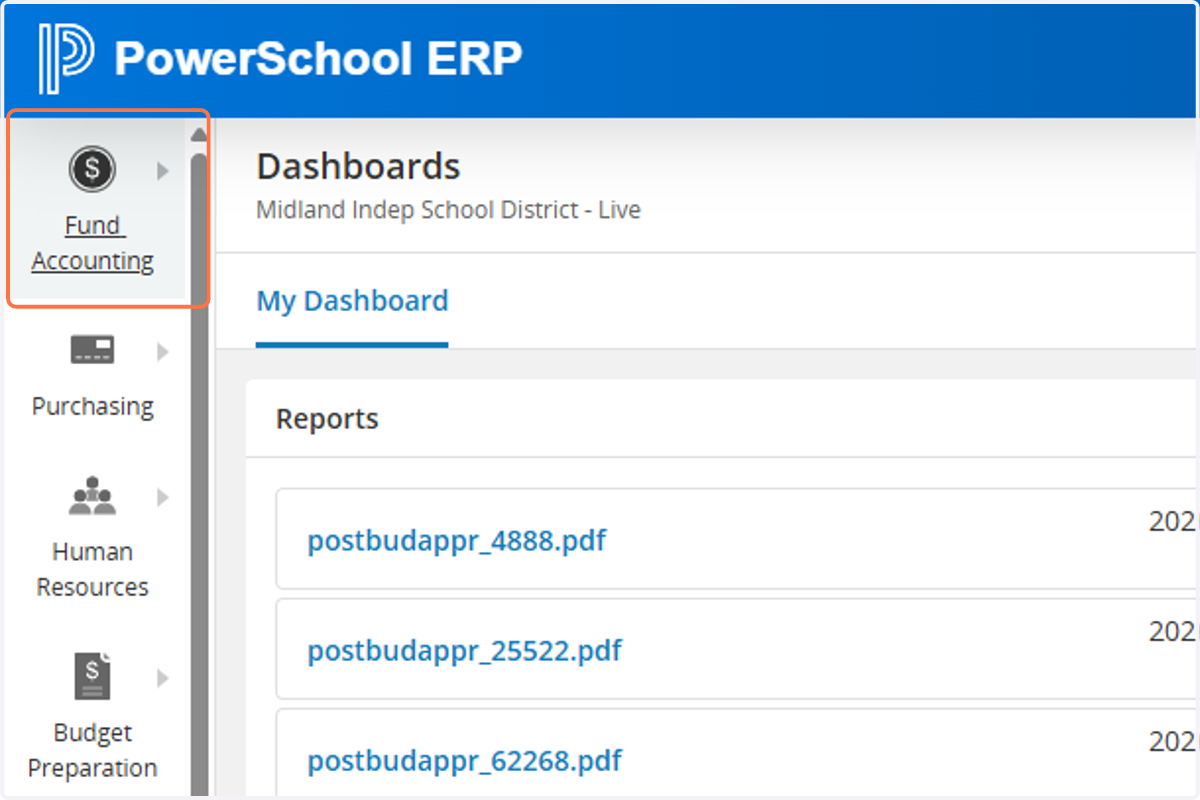
  1. 1. Click on Fund Accounting

    Click on Fund Accounting
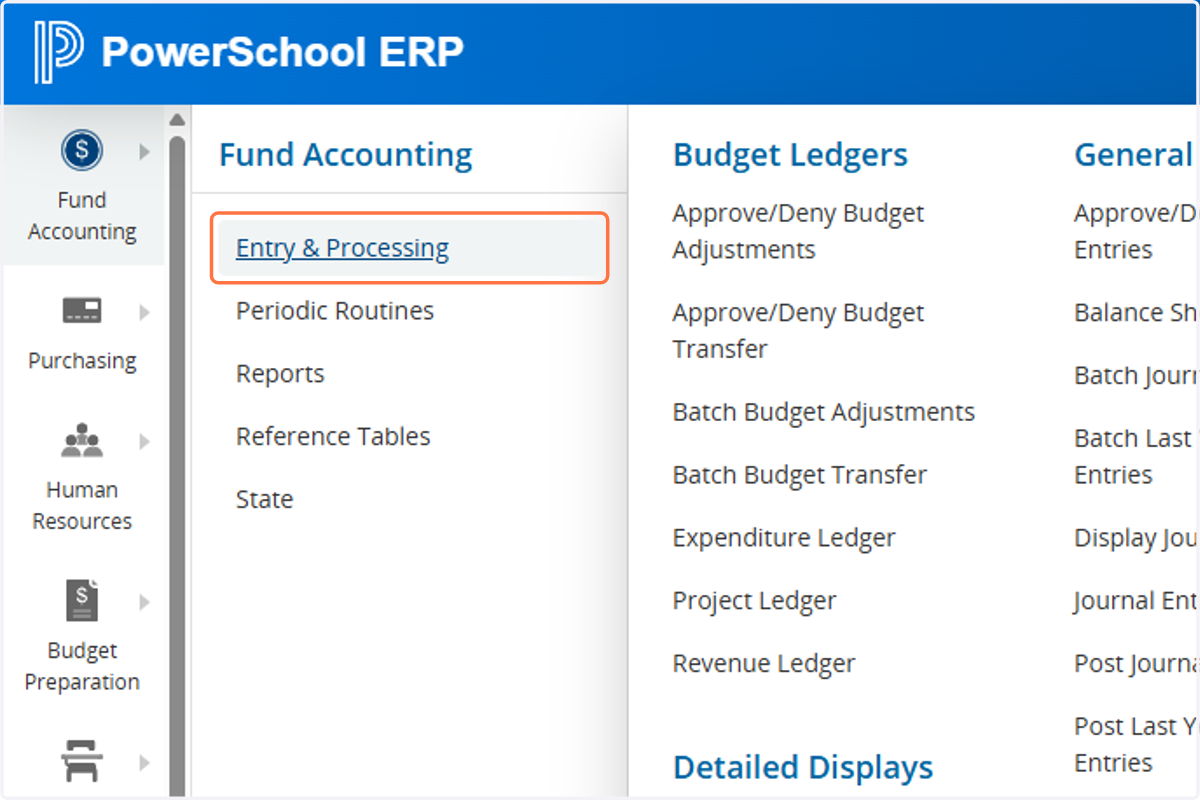
  2. 2. Click on Entry & Processing

    Click on Entry & Processing
  3. 3. Click on Approve/Deny Budget Transfer
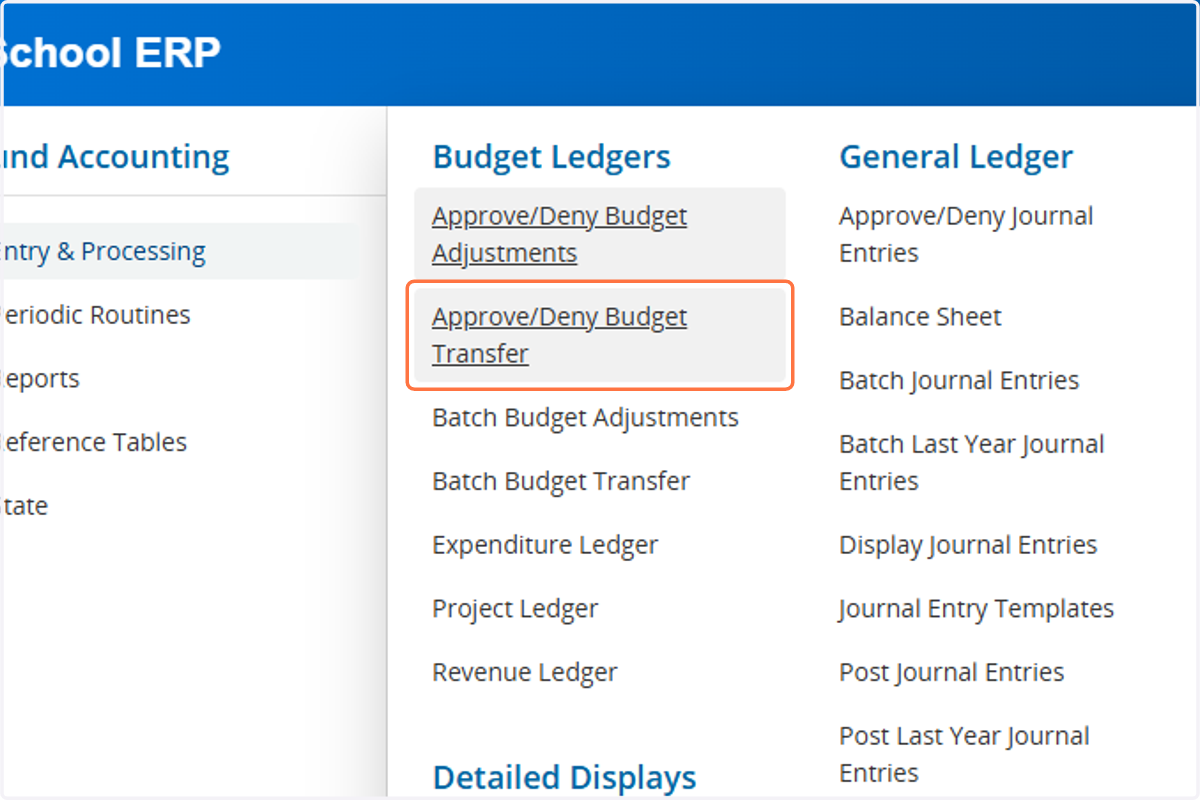
    Click on Approve/Deny Budget Transfer
  4. 4. Click on the BLUE ARROW to Accept

    Click on the BLUE ARROW to Accept
  5. 5. Highlight the lower line and double click on it or click on the BLUE ARROW to open up and view the accounts.
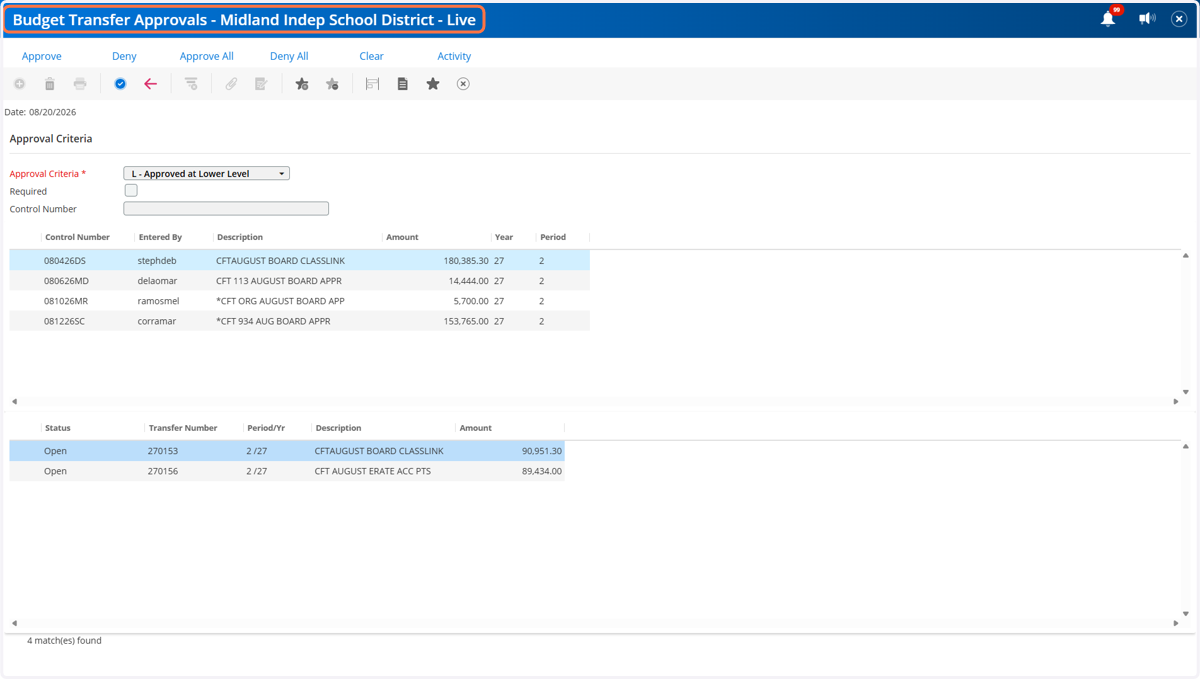
    Highlight the lower line and double click on it or click on the BLUE ARROW to open up and view the accounts.
  6. 6. Click on the RED BACK ARROW to to return to the previous screen and finish the transfer process.
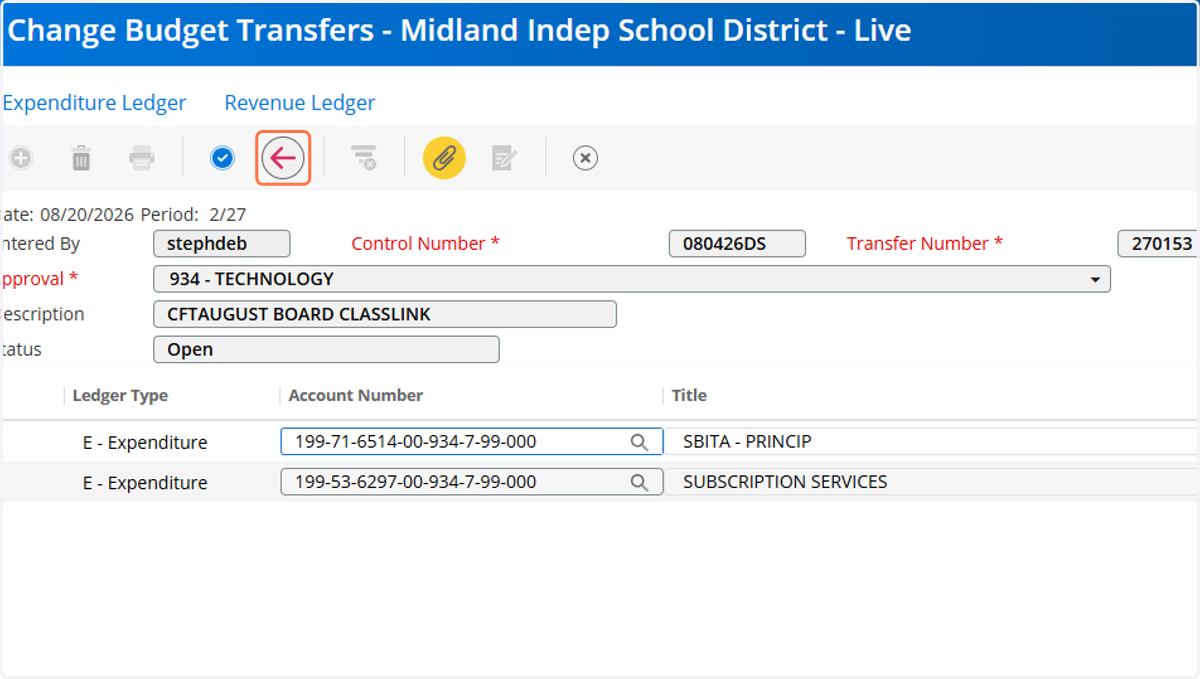
    Click on the RED BACK ARROW to to return to the previous screen and finish the transfer process.
  7. 7. Click on Approve and you will get a green arrow pop up next to the approved line item OR DENY and you will get a red check X.
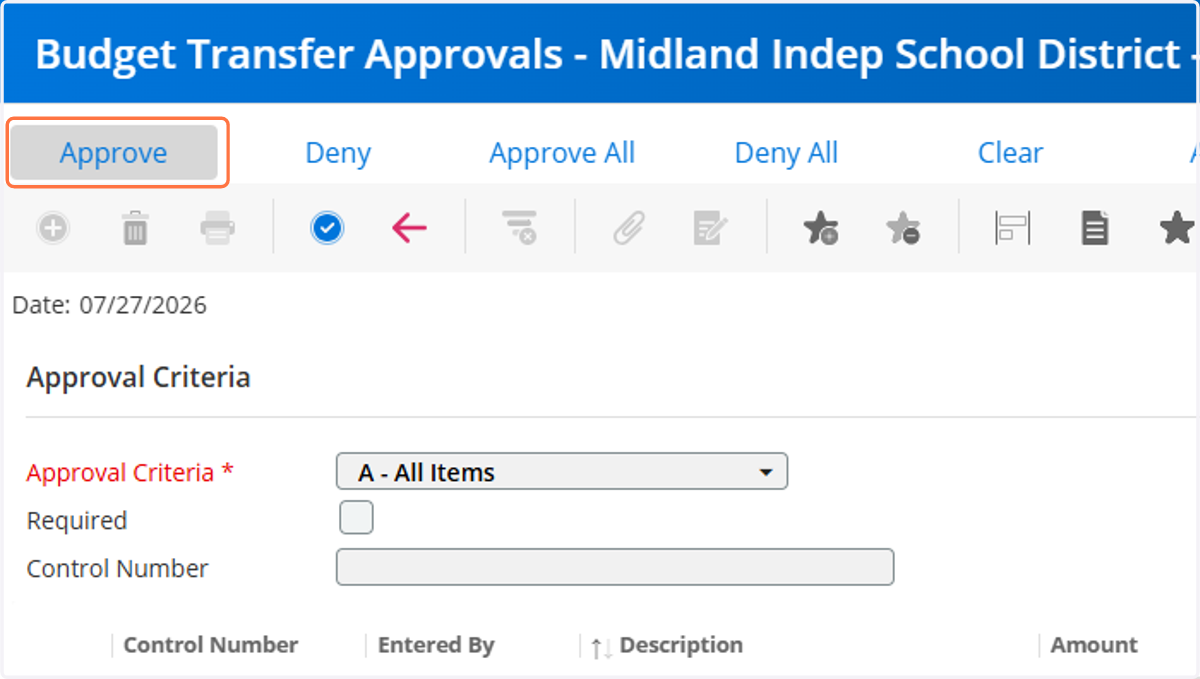
    Click on Approve and you will get a green arrow pop up next to the approved line item OR DENY and you will get a red check X.
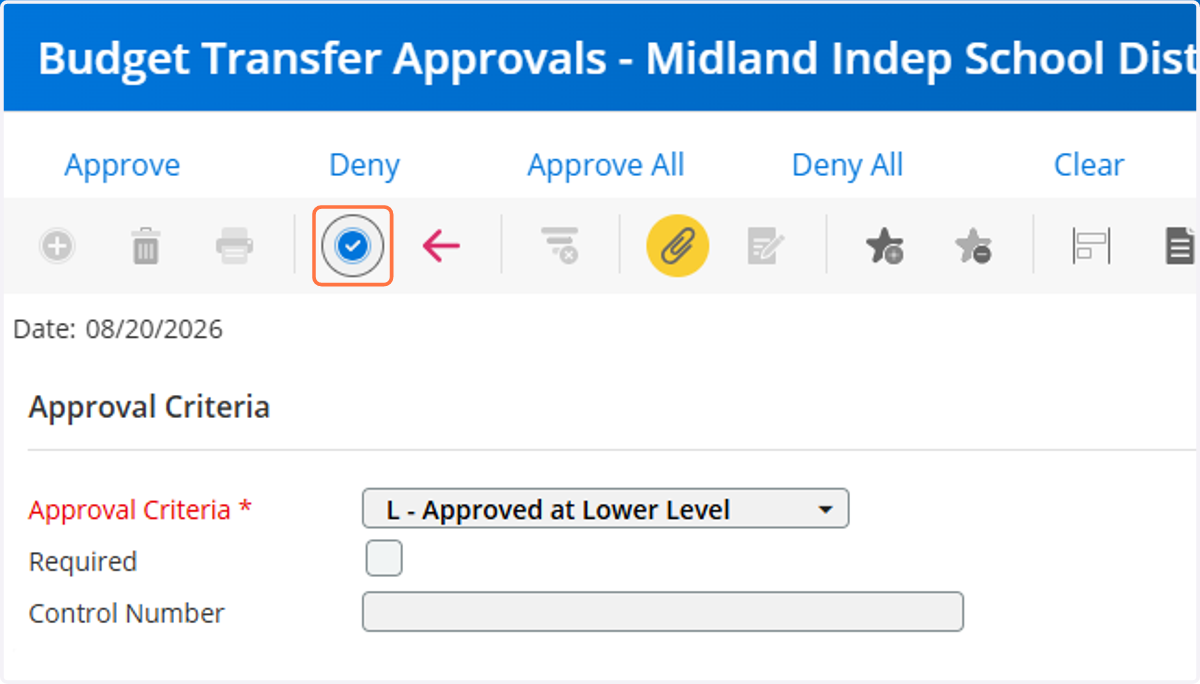
  8. 8. Click on the blue check mark to accept your APPROVE or DENY.
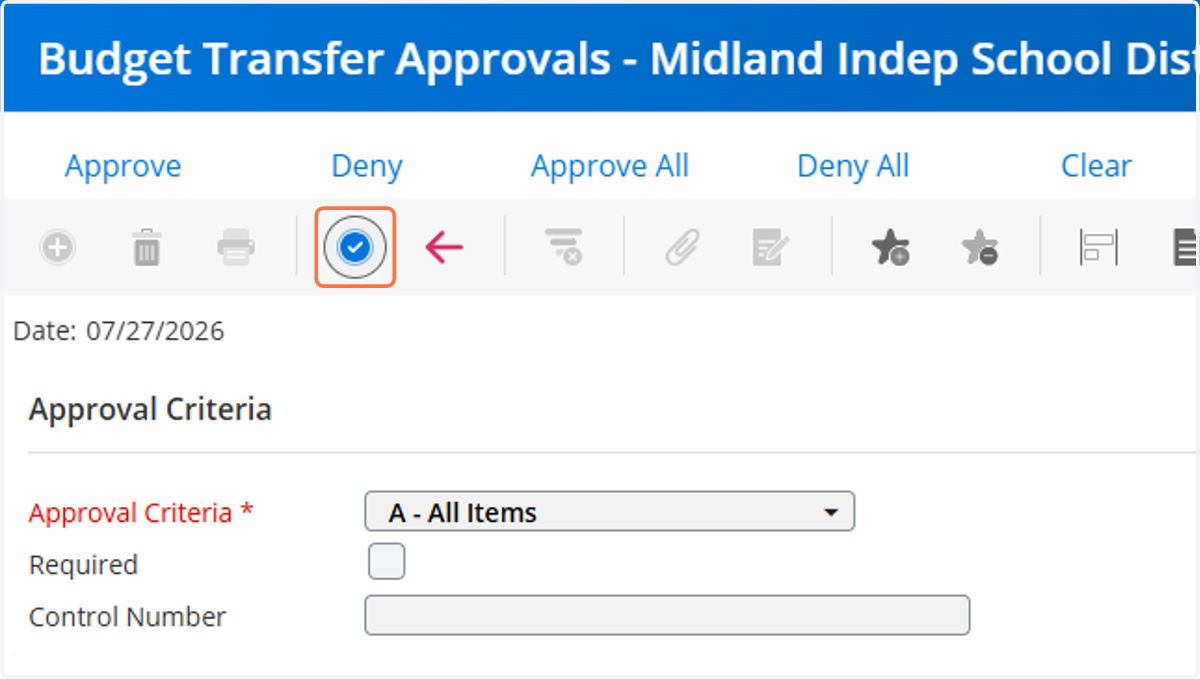
    Click on the blue check mark to accept your APPROVE or DENY.
  9. 9. Click yes to begin the posting process and follow steps.
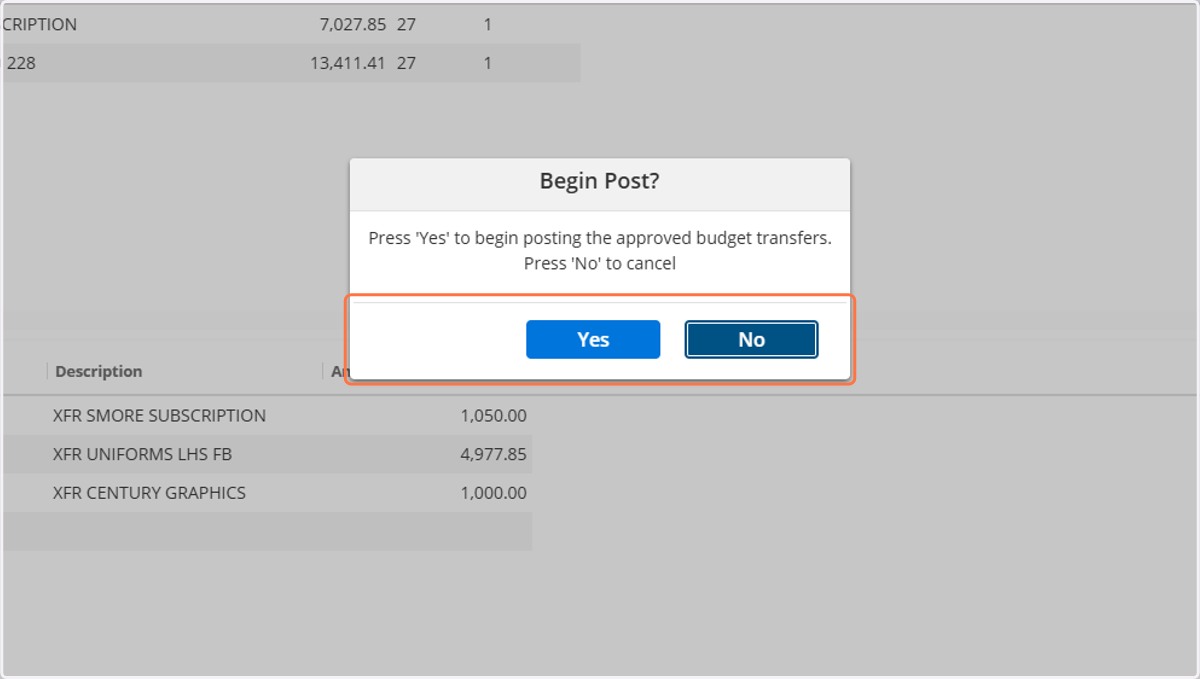
    Click yes to begin the posting process and follow steps.