Posting Fulfillment Process
Figma
Start with a Figma board to organize your ideas and thoughts in calendar view. Here, you can develop your weekly strategy and use HeyOrka insights to determine the best days and times to post, as well as which types of content perform best.
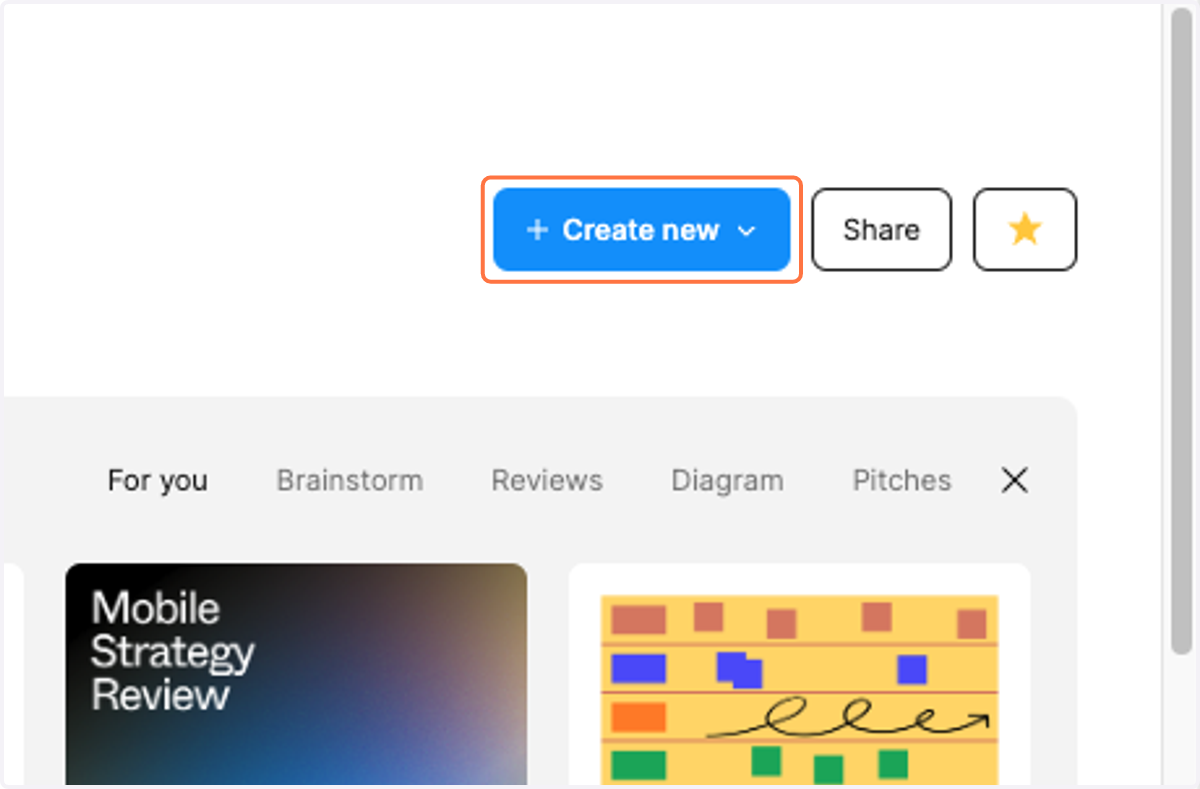
1. Click on Create new
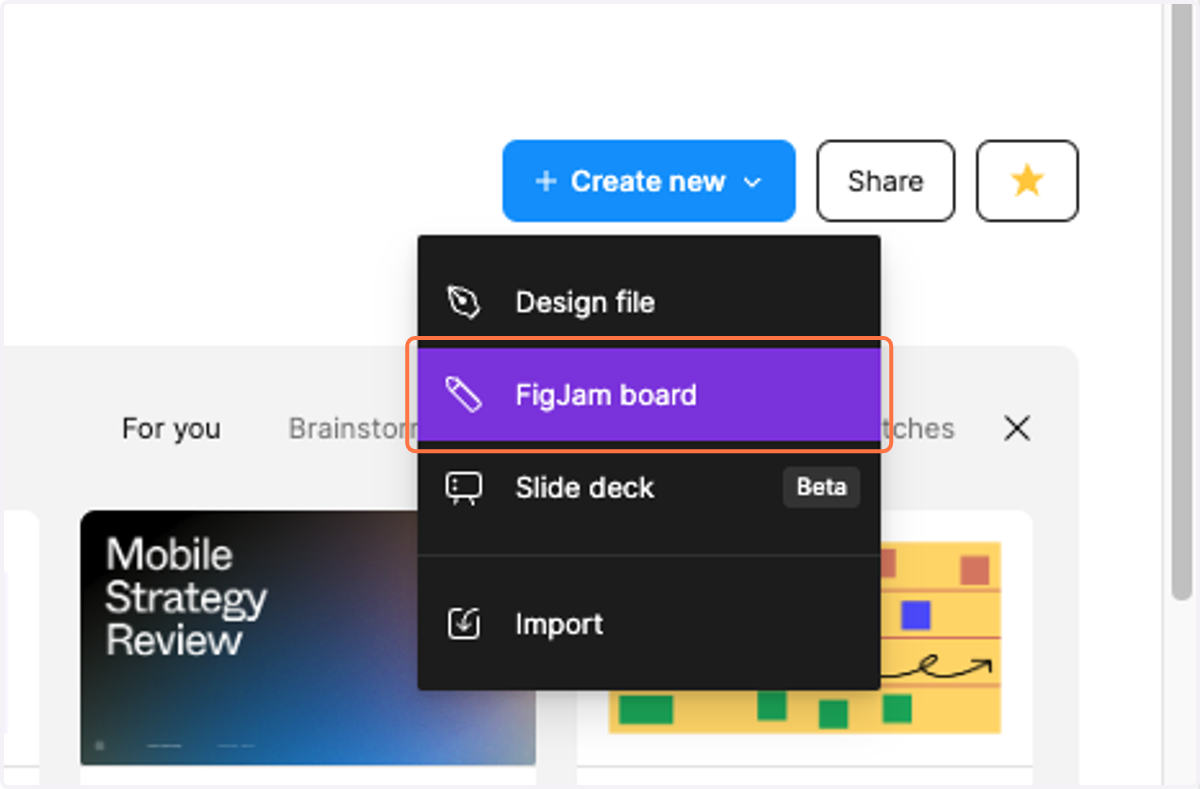
2. Click on FigJam board
Google Docs
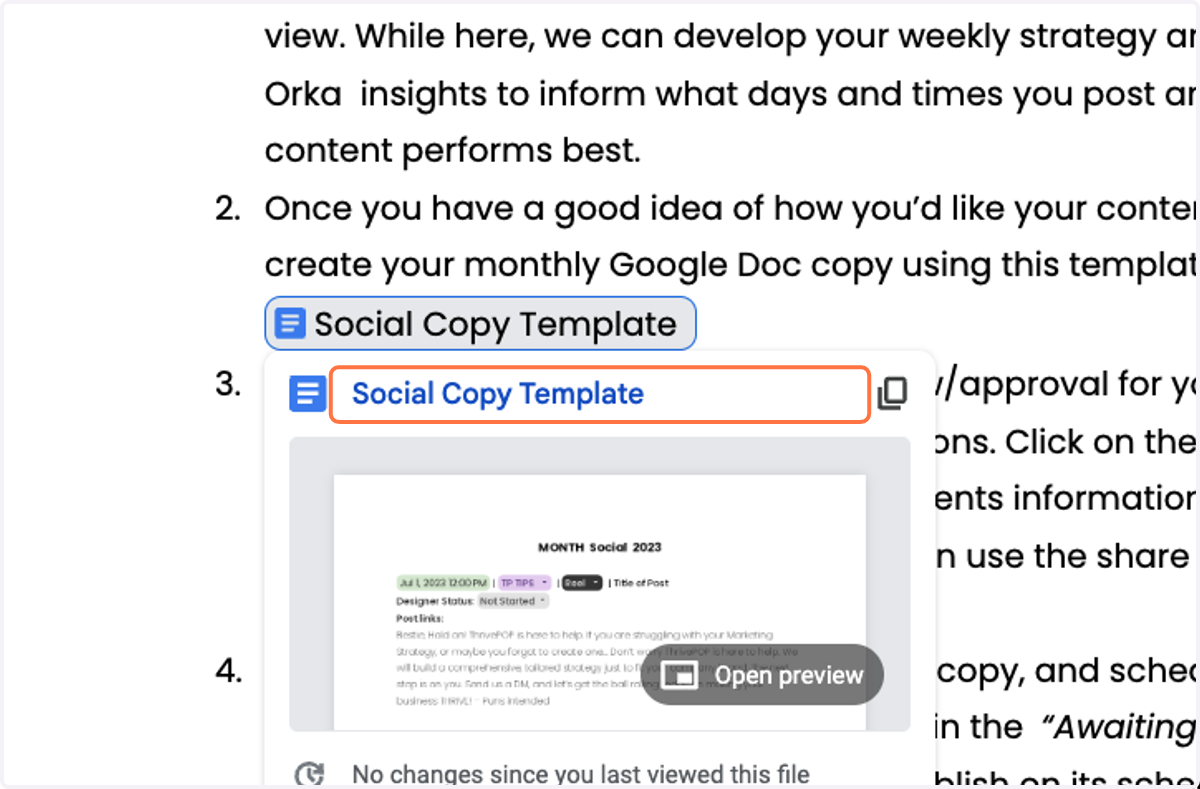
3. Click on the Social Copy Template
Once you have a solid idea of how you'd like your content laid out, create your monthly Google Doc copy using this template: Social Copy Template.
HeyOrca | The Social Media Scheduler for Teams
4. Navigate to HeyOrca for social posting
Once you are here, select the client you want to create content with.
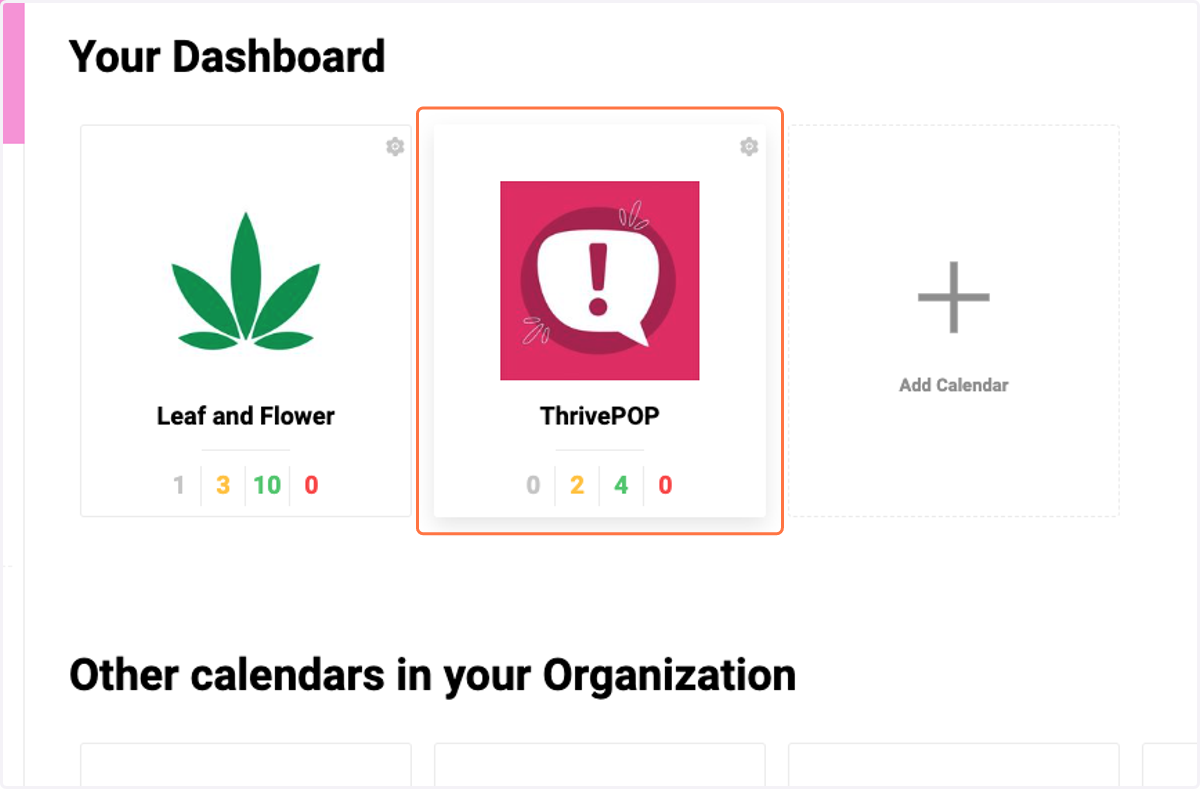
📱 Client Setup
If this is the first time
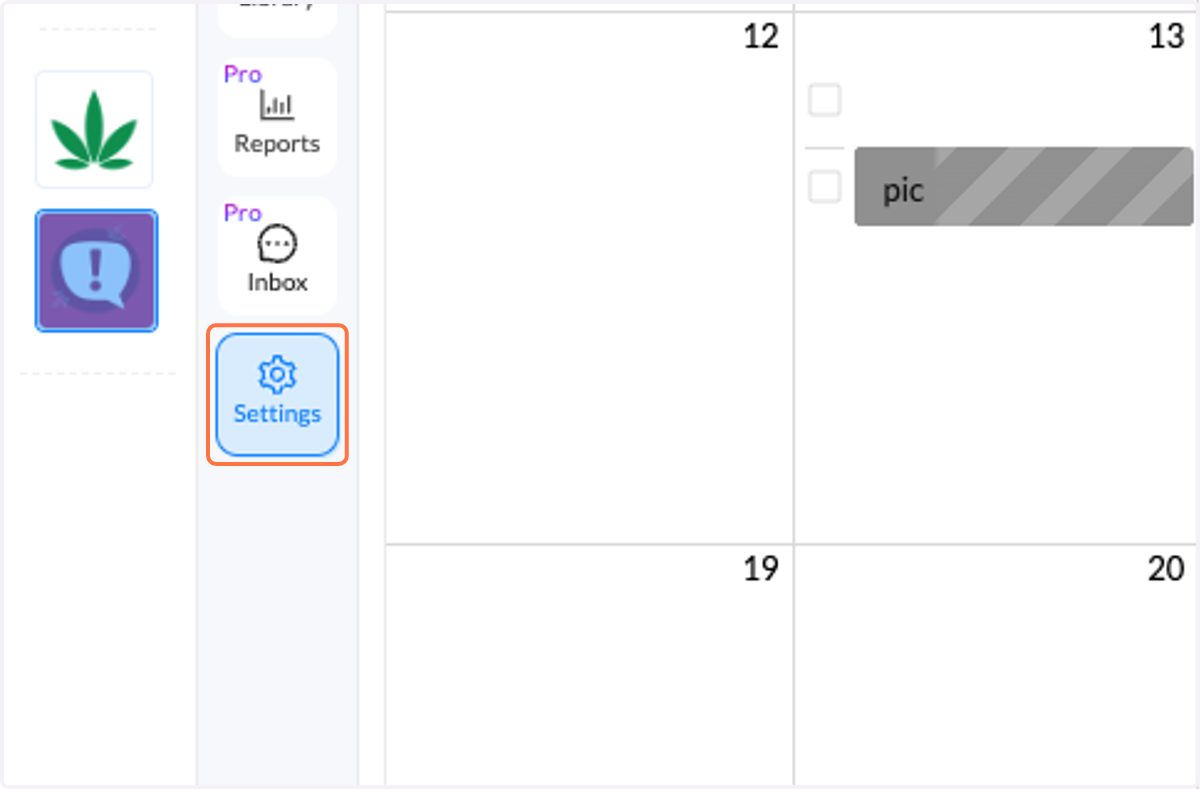
5. Click on Settings
Set up review/approval for your client (if this is your first time):
Log in to HeyOrka and go to the settings options.
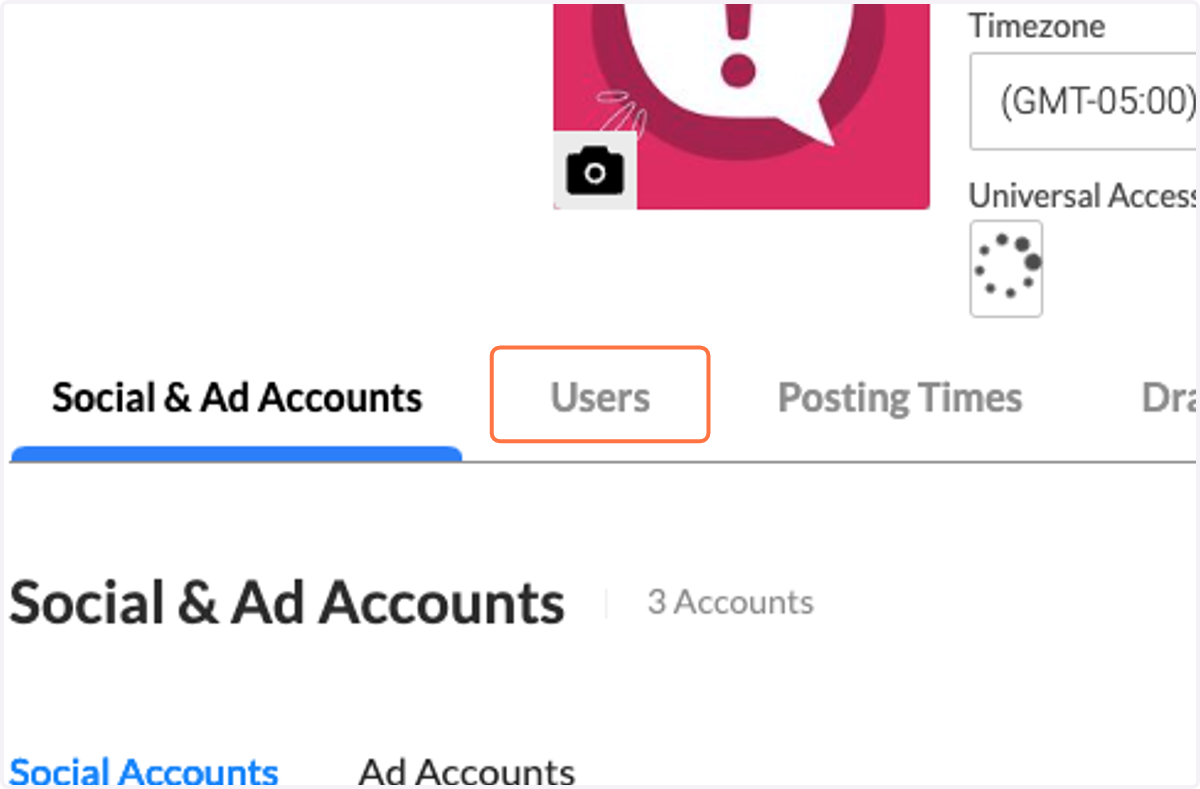
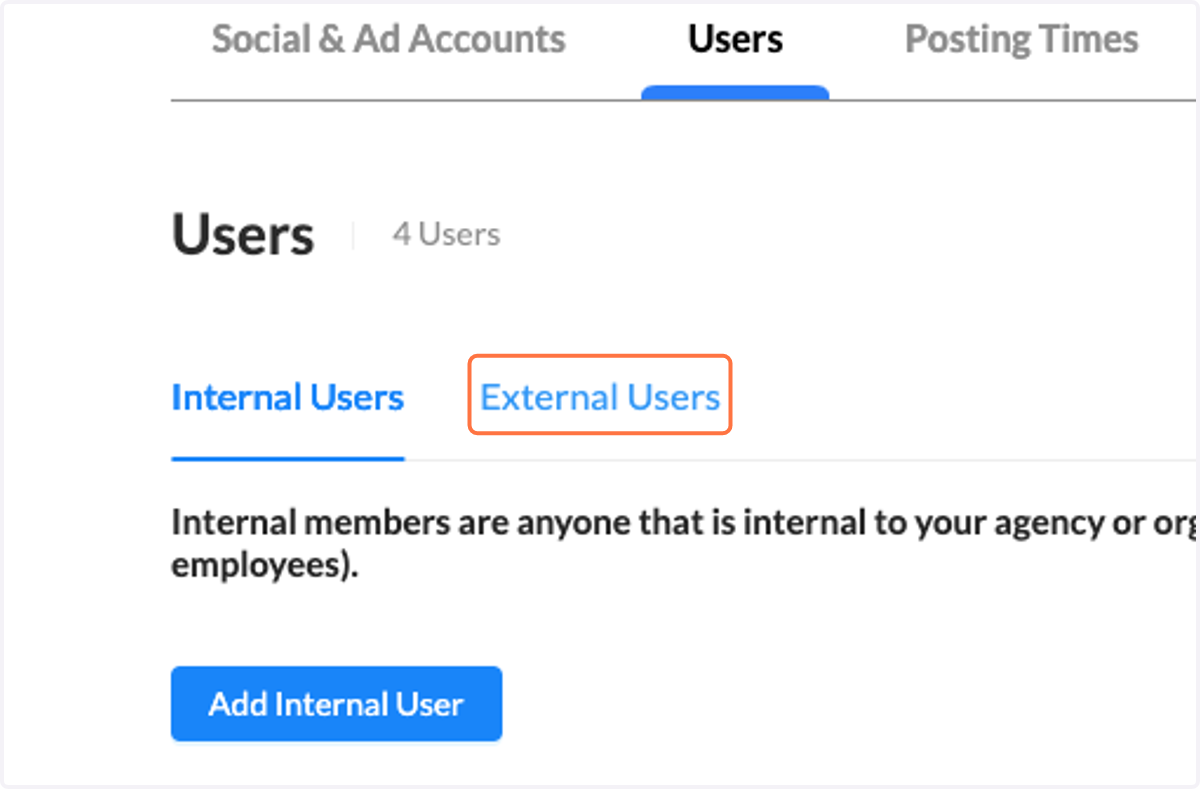
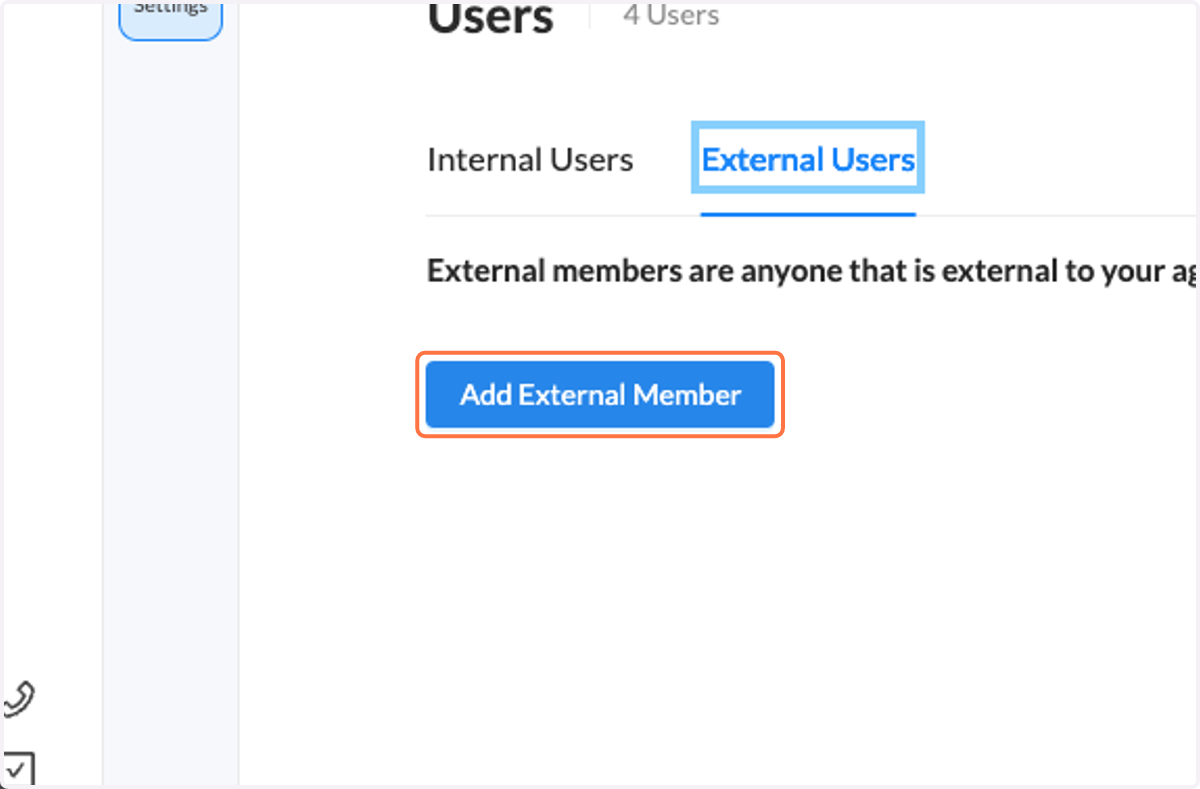
Click on the Users tab, then go to External User and enter your client's information.
After this step, use the Share button, and your client’s name will appear for review.
6. Click on Users
7. Click on External Users
8. Click on Add External Member
9. Check all associated content (images, copy, and scheduled dates) for each post.
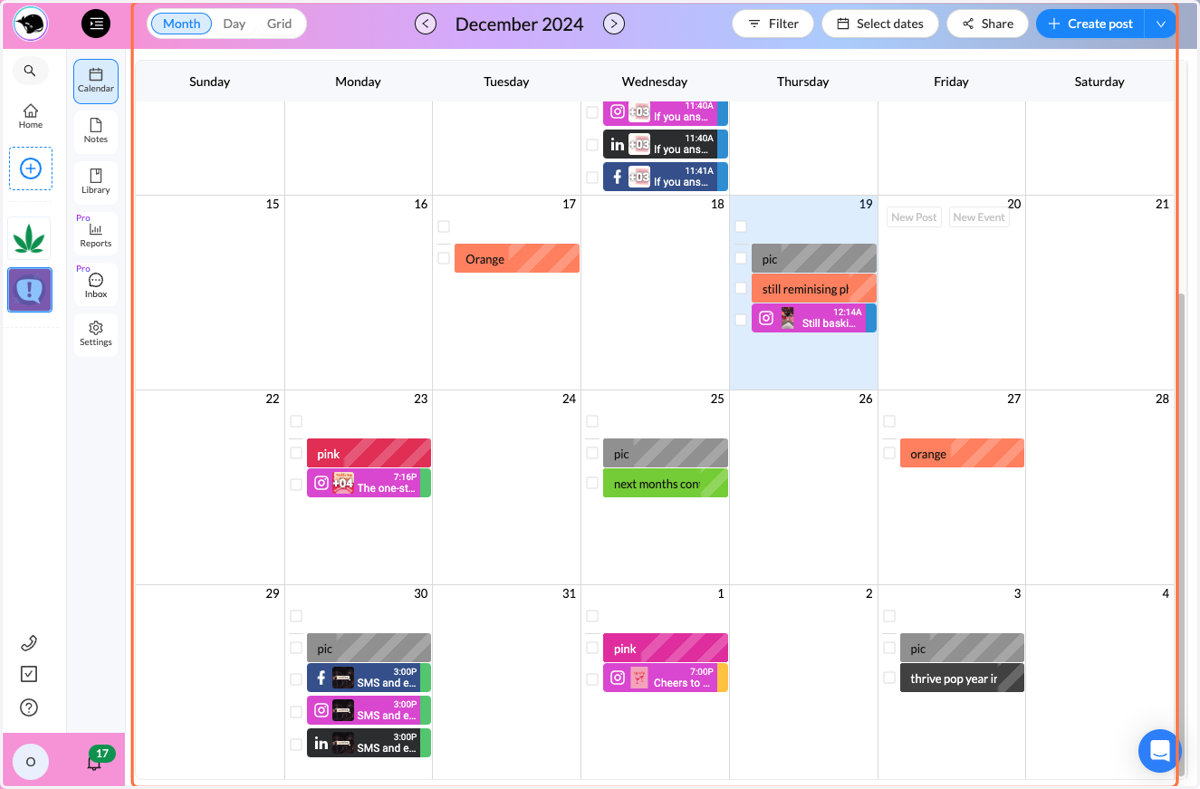
HeyOrca | The Social Media Scheduler for Teams
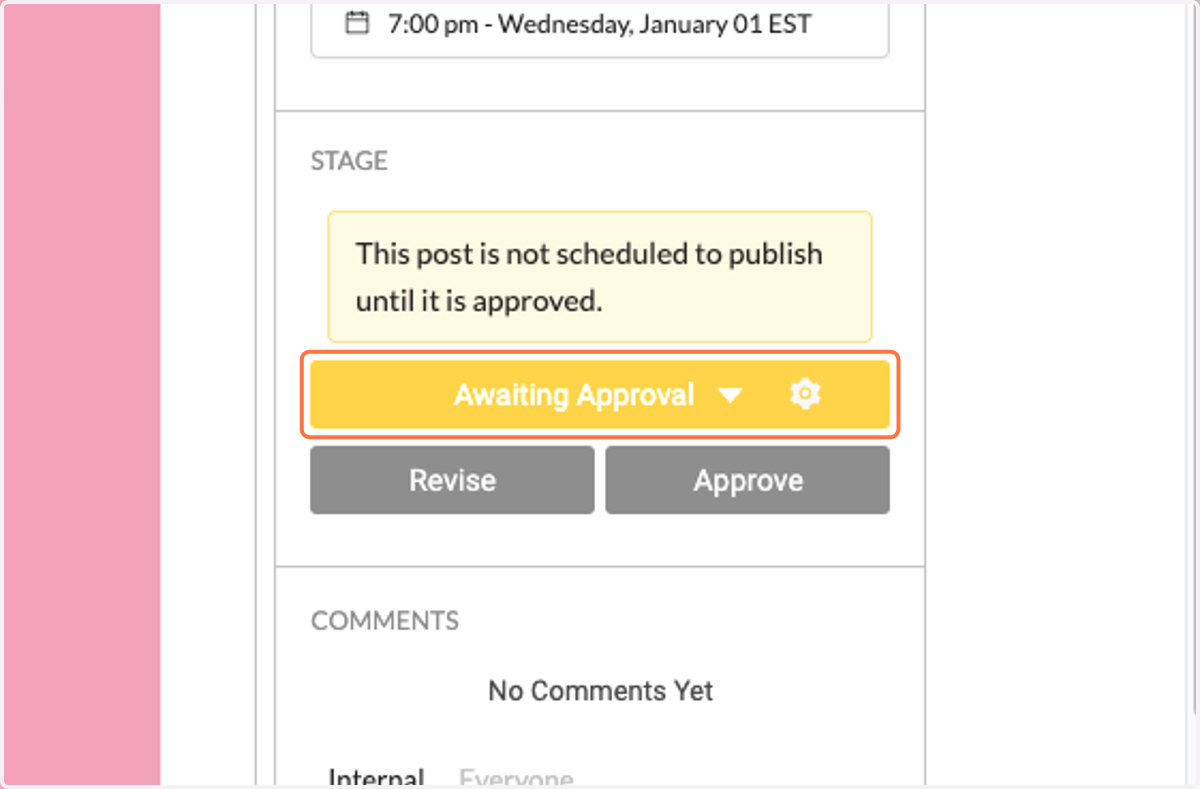
10. Post in Awaiting Approval
If everything looks good, make sure the posts are marked as "Awaiting Approval". This status ensures the posts will auto-publish on their scheduled dates.
11. Select the posts for review
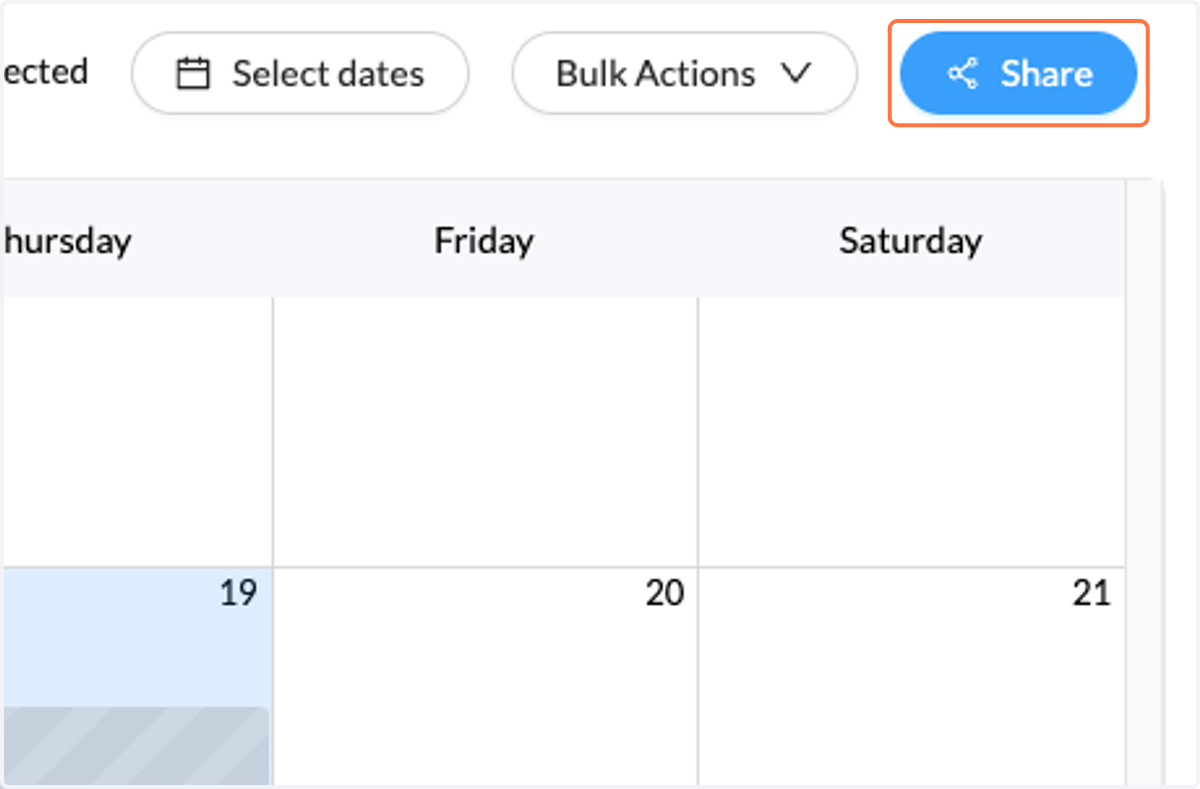
12. If you have specific posts you would like reviewed, click the checkboxes for those posts. When you click the Share button, only the selected posts will be sent for review.
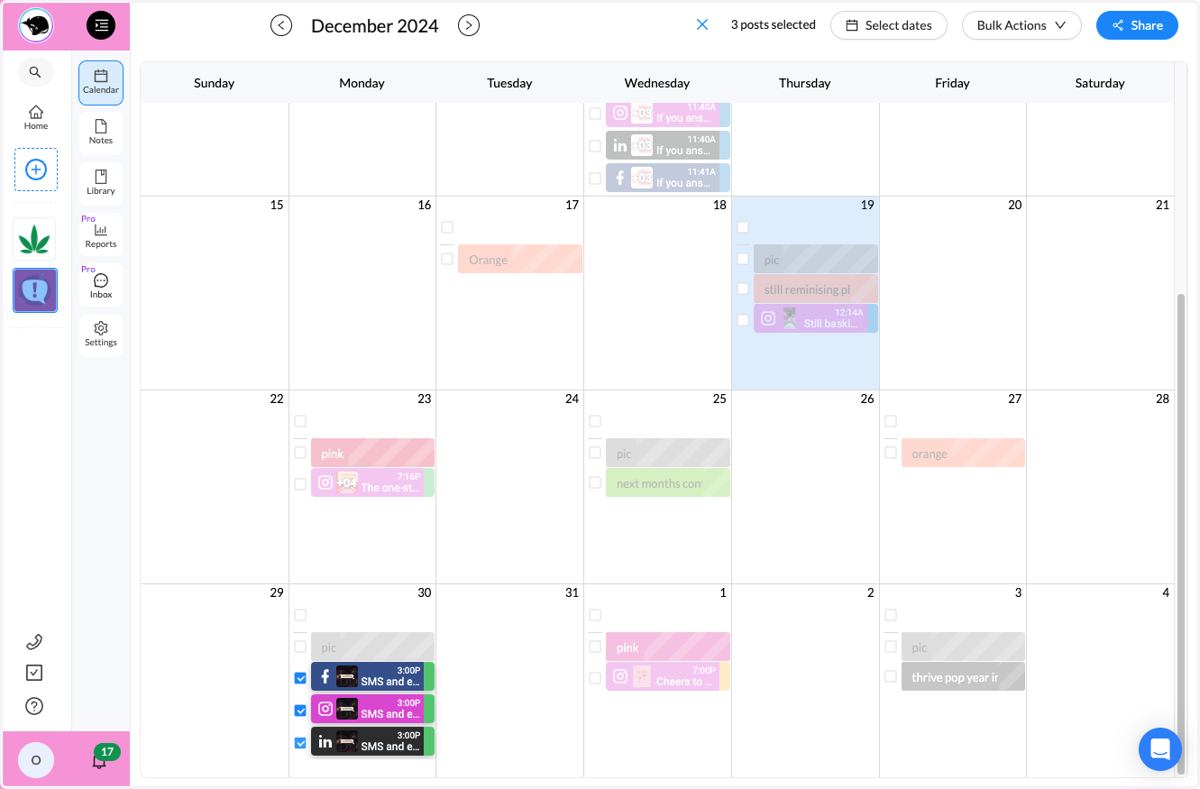
13. Click on Share | Approval from Strategist
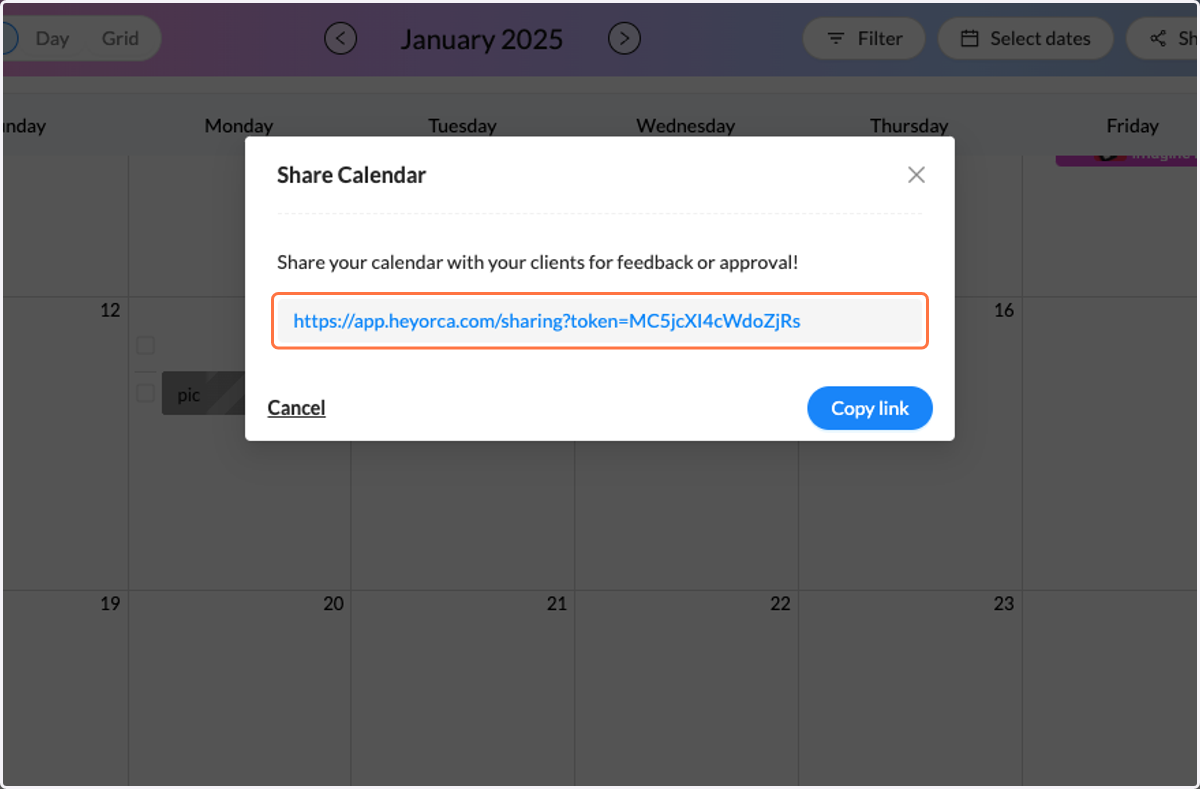
Once all your posts are complete and ready for review, send the calendar link for approval to your strategist.
14. Click on https://app.heyorca.com/sharing?token=MC5jcXI4cWdoZjRs
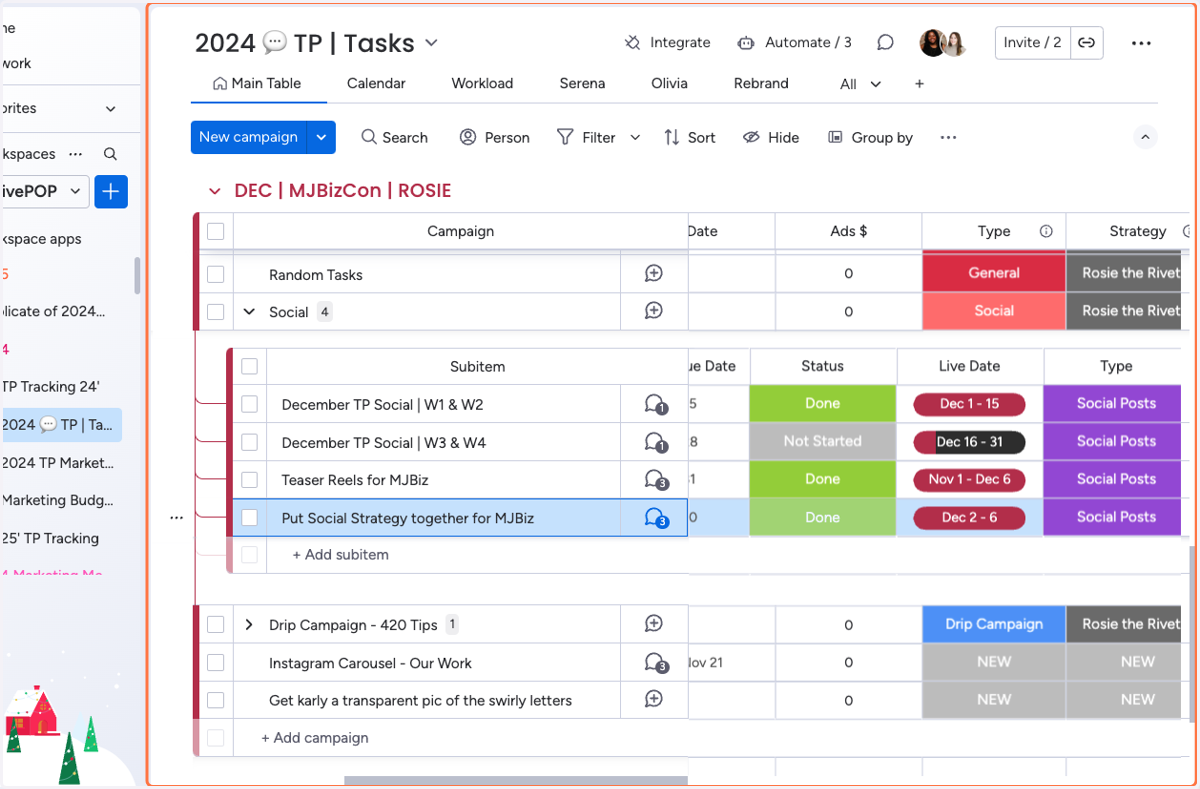
(8) 2024 💬 TP | Tasks
15. Adding Calendar Link in Monday.com
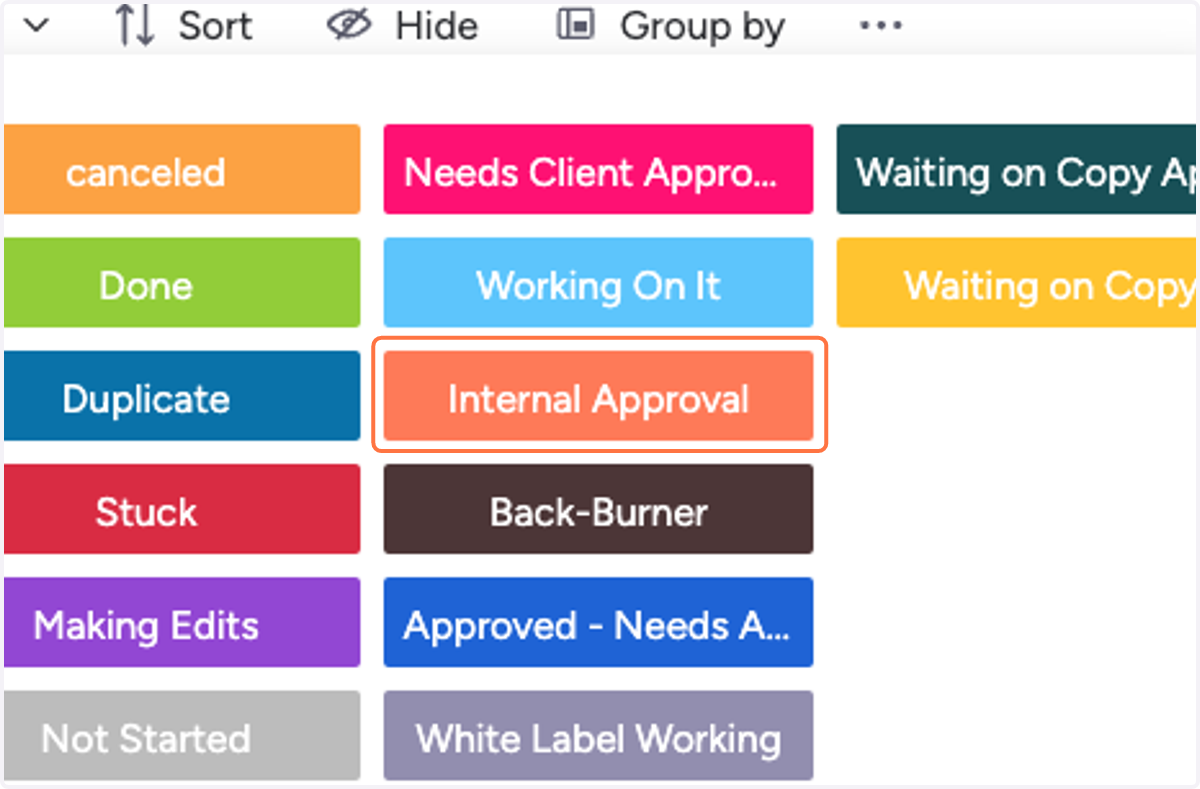
16. Click on Internal Approval
Be sure to update your status in Monday.com and tag your strategist to inform them that your work is complete and ready for review.
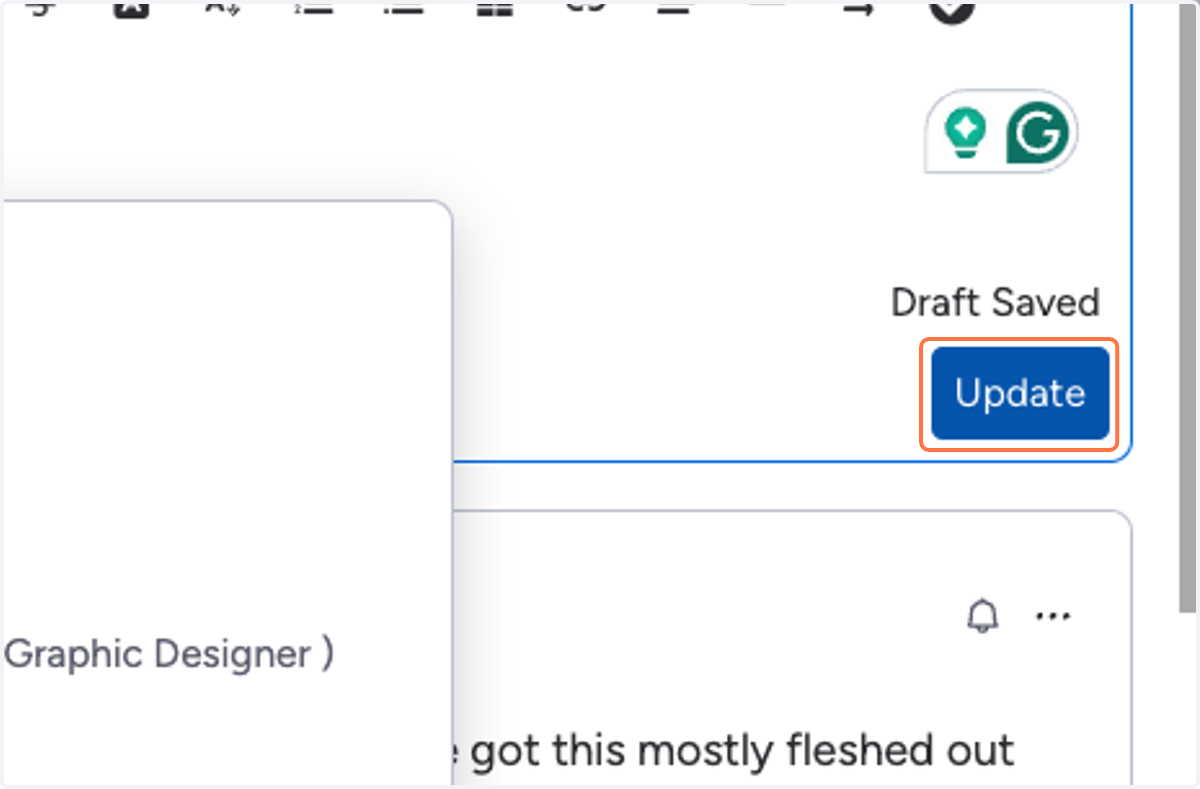
17. Click on Update
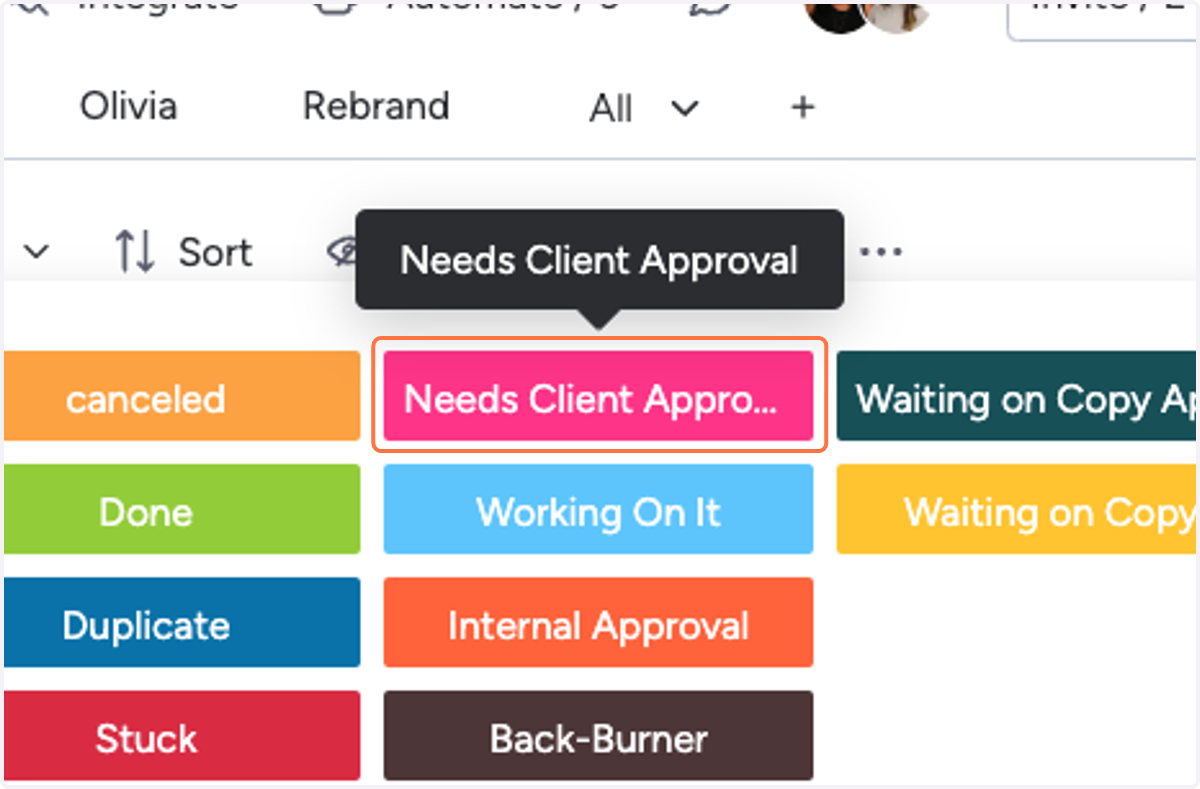
18. Click on Needs Client Approval
After you've received approval on all posts, you can now send it over to the client. Make sure to change your status to Needs Client Approval.
When sending the review calendar link to your client, make sure to remind them they must click "Approve" for the content to go live.
This is crucial because, without approval, the content will not be published on schedule. This also places the responsibility on the client for timely approval of the content.
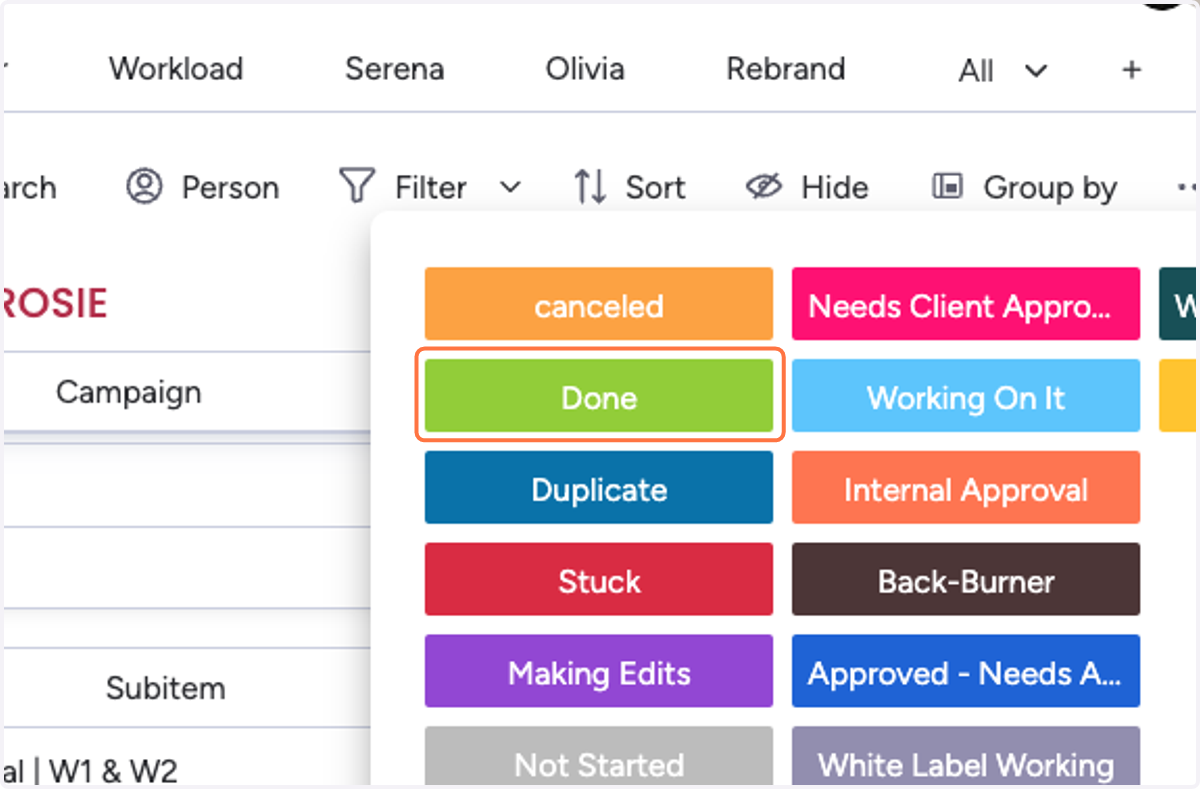
19. Click on Done
After receiving approval from the client, close out this task by clicking Done.