Placing a Recurring New Movers Order
Place an Order | DirectMail Portal
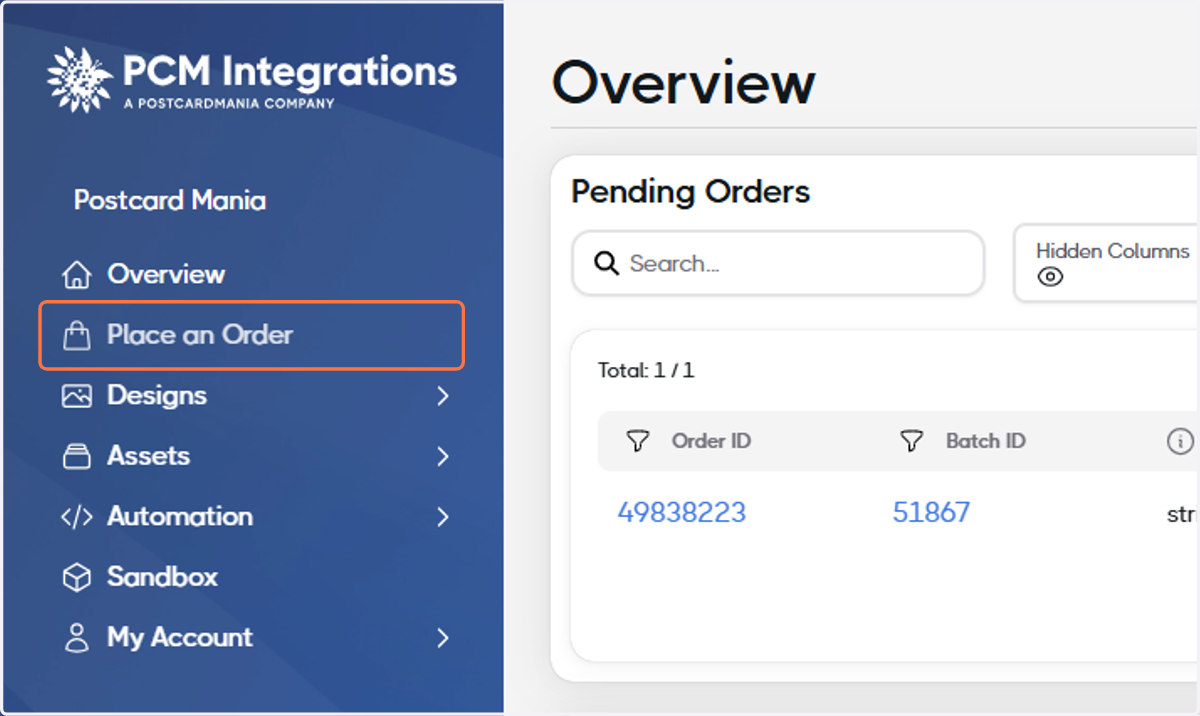
1. Click on Place an Order
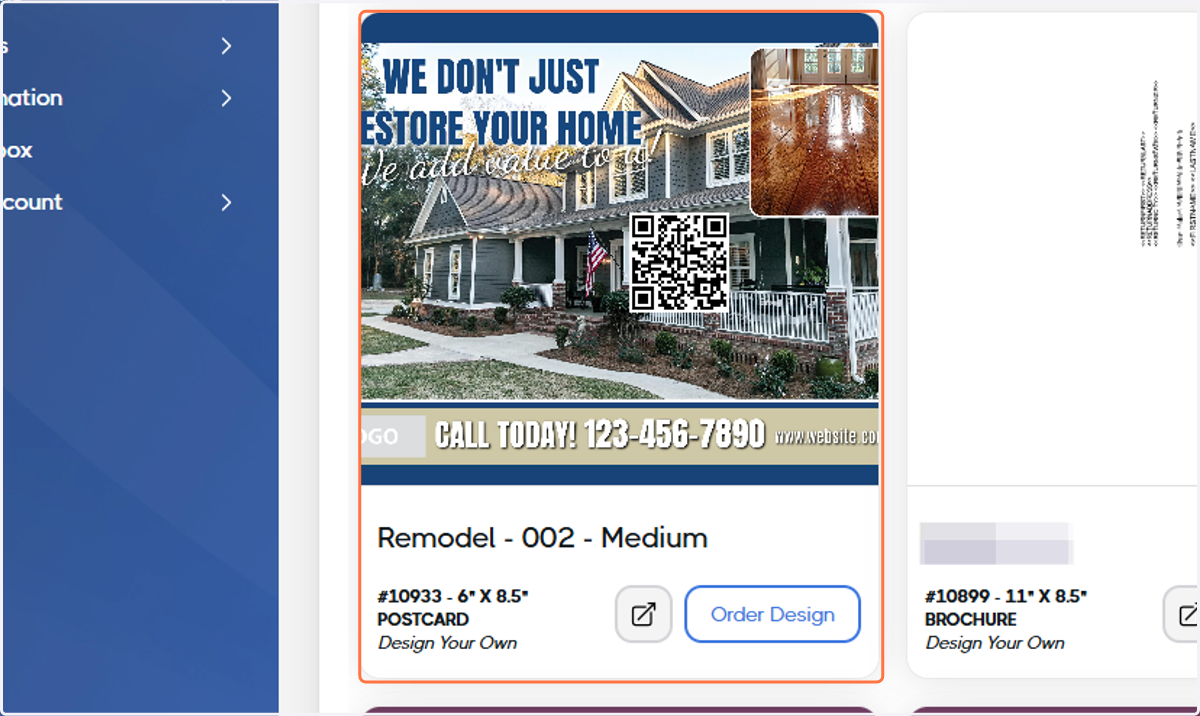
2. Search for your Design
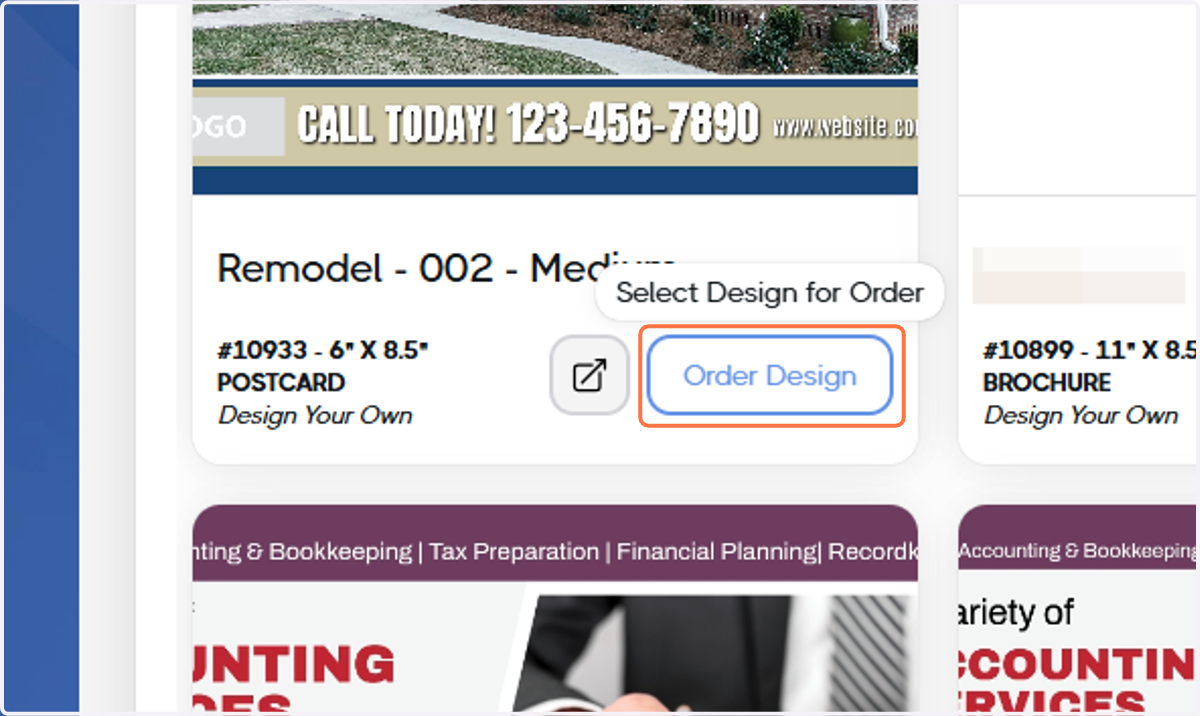
3. Click on Order Design
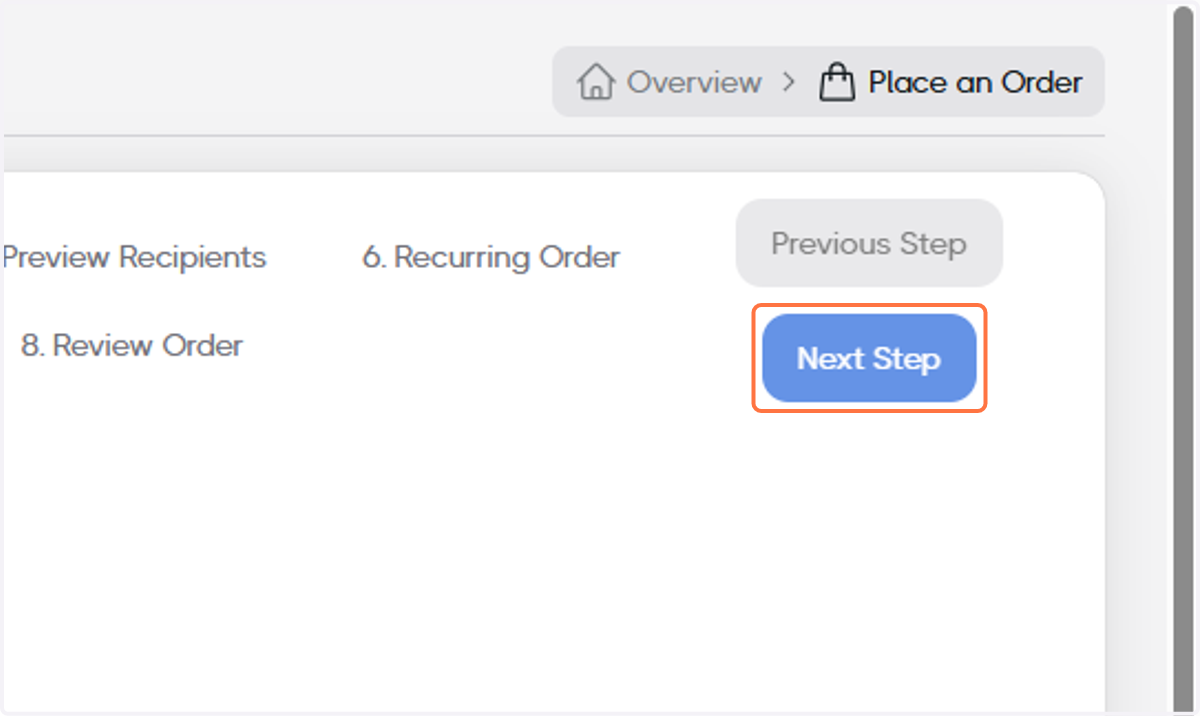
4. Click on Next Step
5. Select a Mail Class
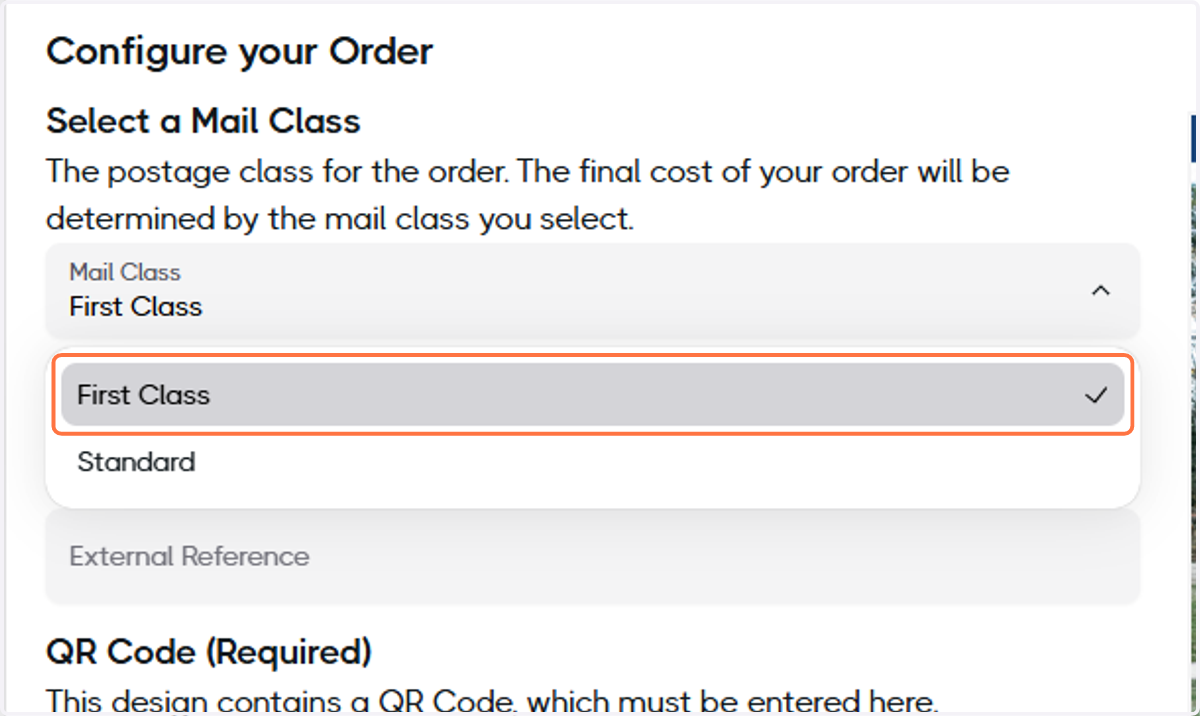
6. Optional: Add an External Reference number
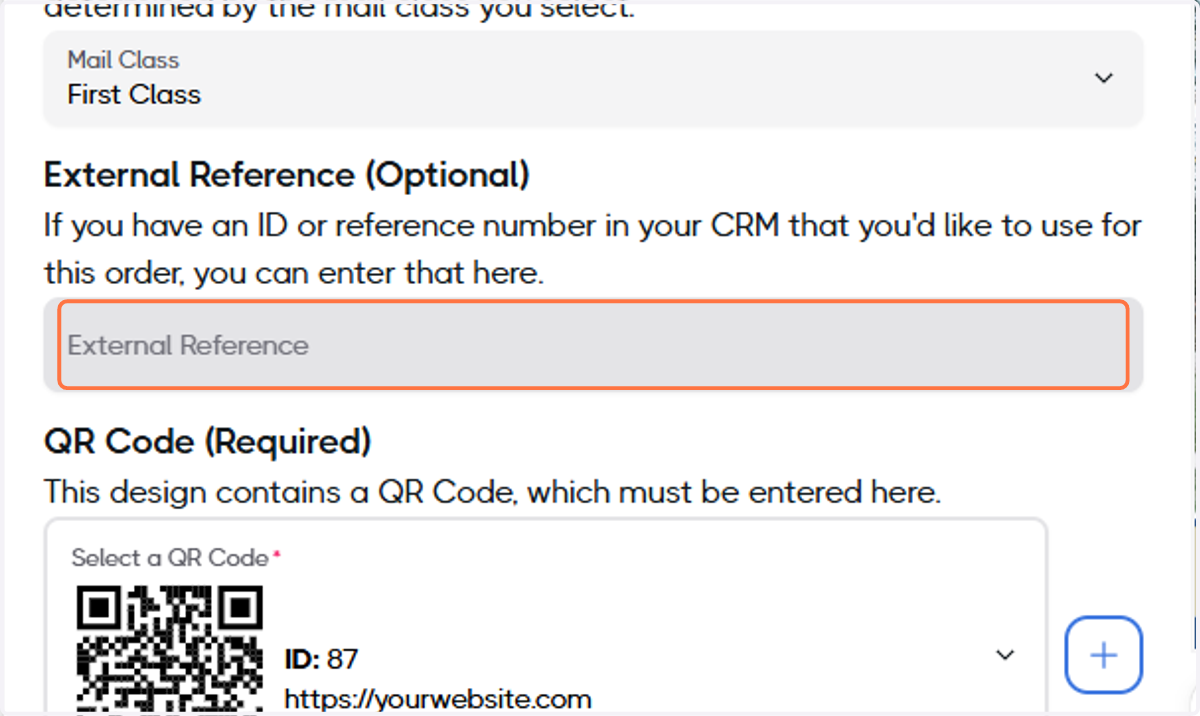
7. Ensure you have the correct QR Code selected
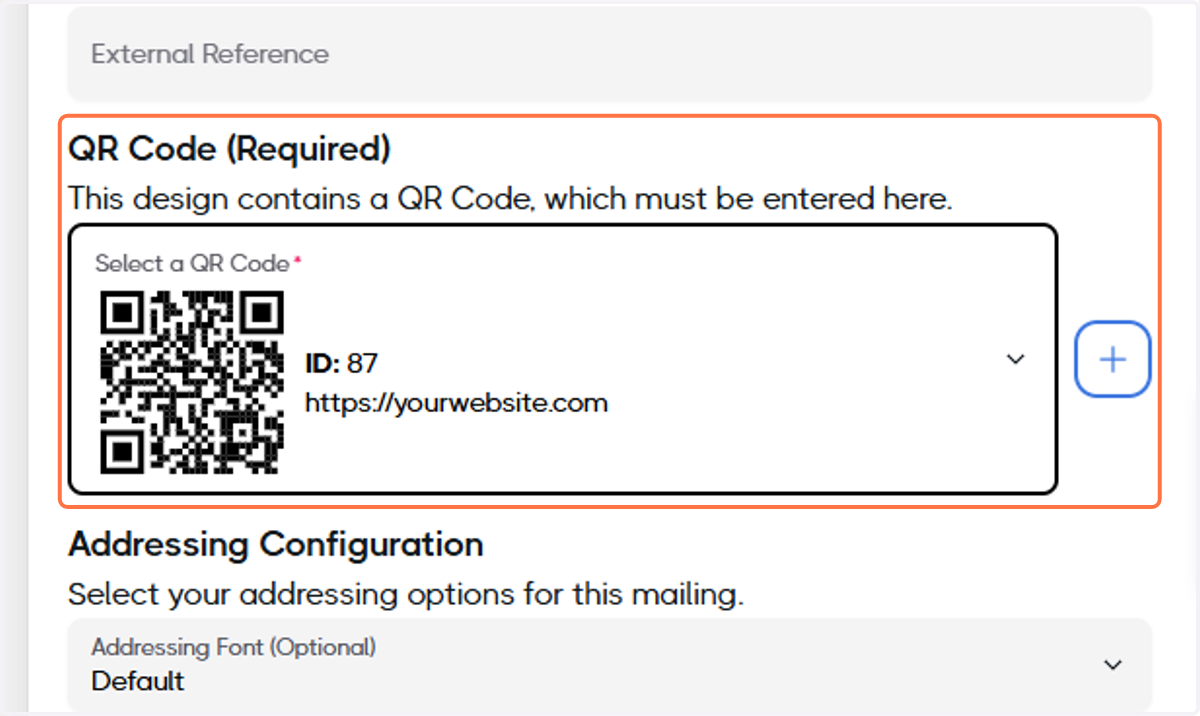
8. Optional: Select your Addressing Configuration
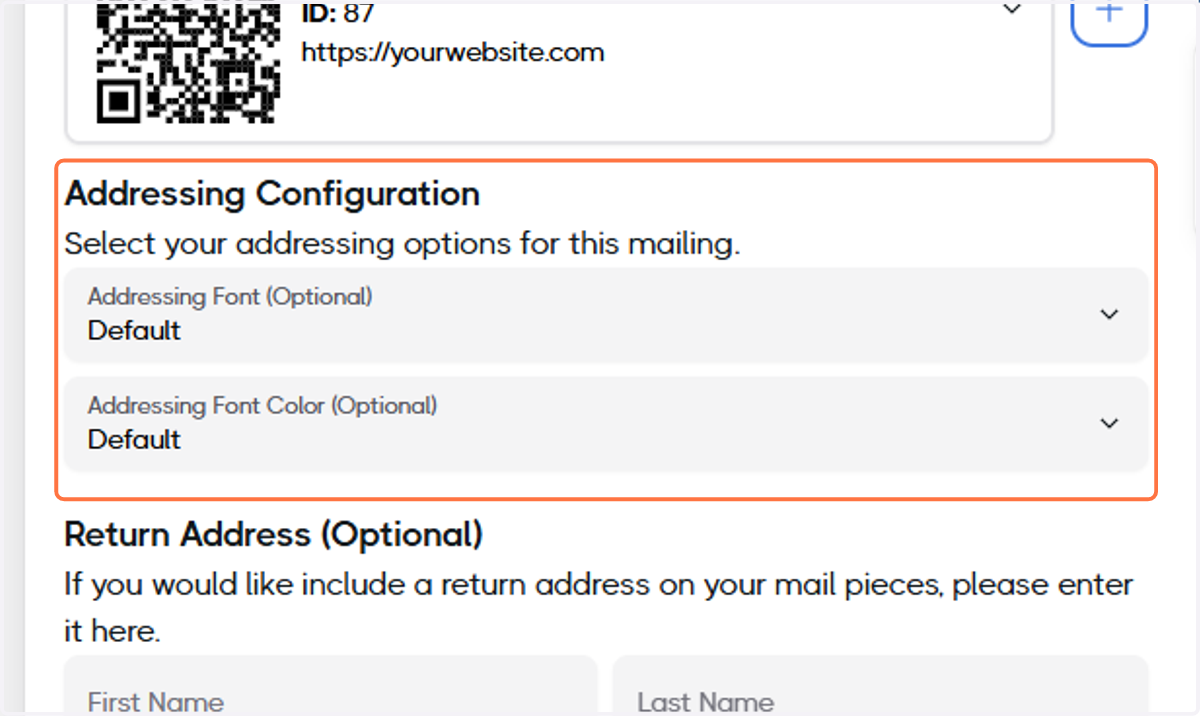
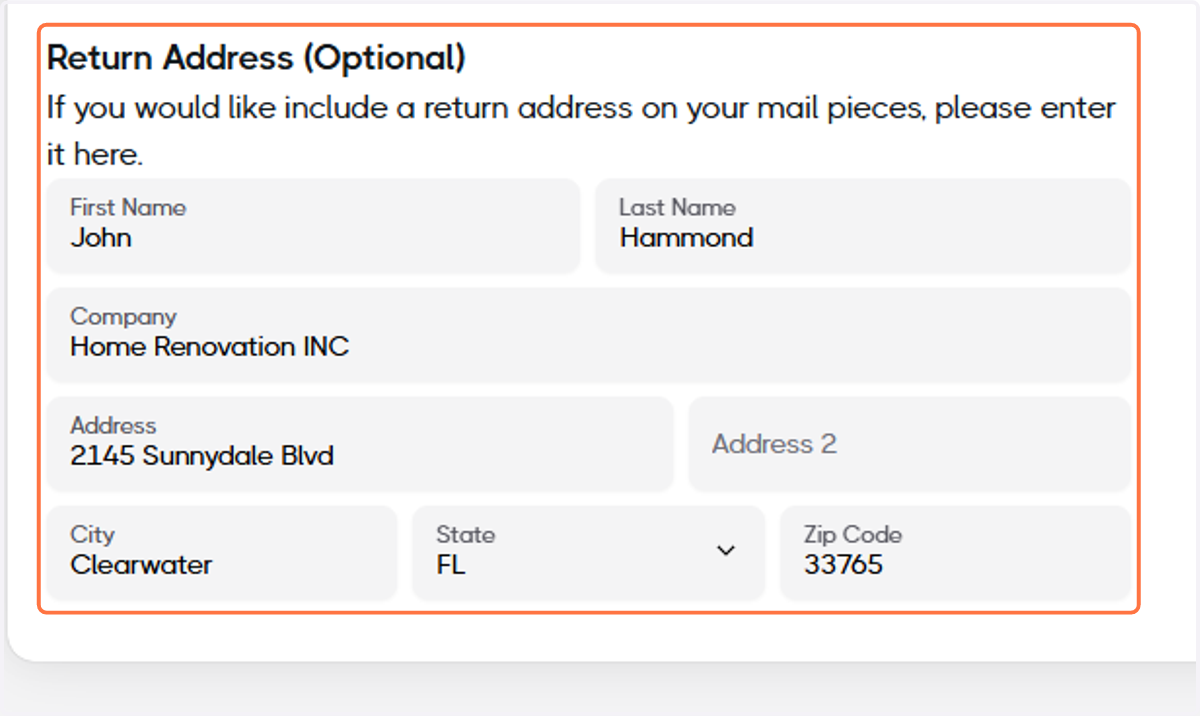
9. Optional: Add a Return Address
10. Click on Next Step
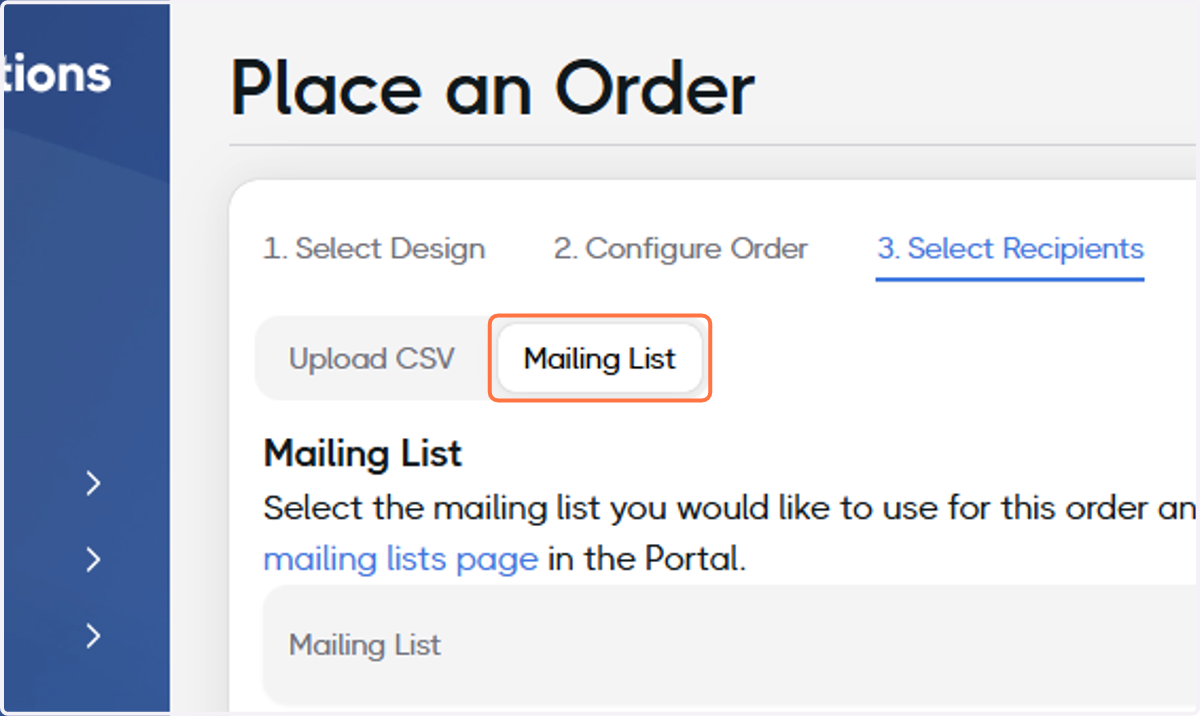
11. Click on Mailing List
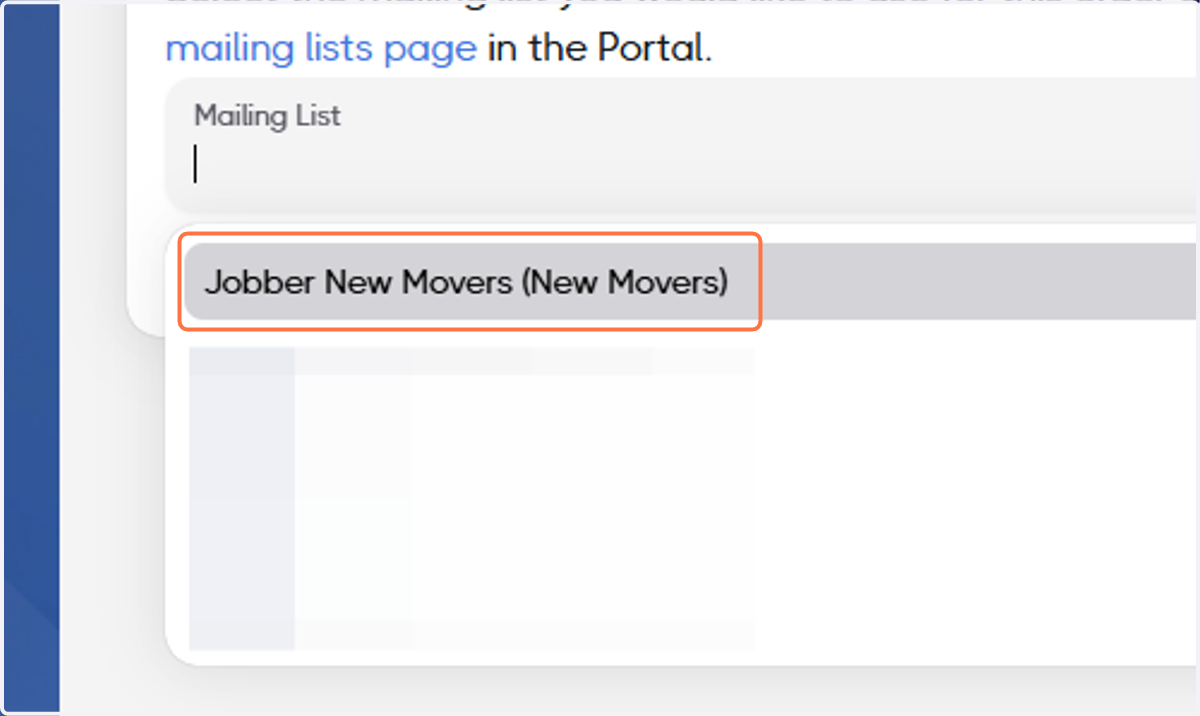
12. Select your New Movers mailing list
13. Configure the Date Range for this New Movers Order
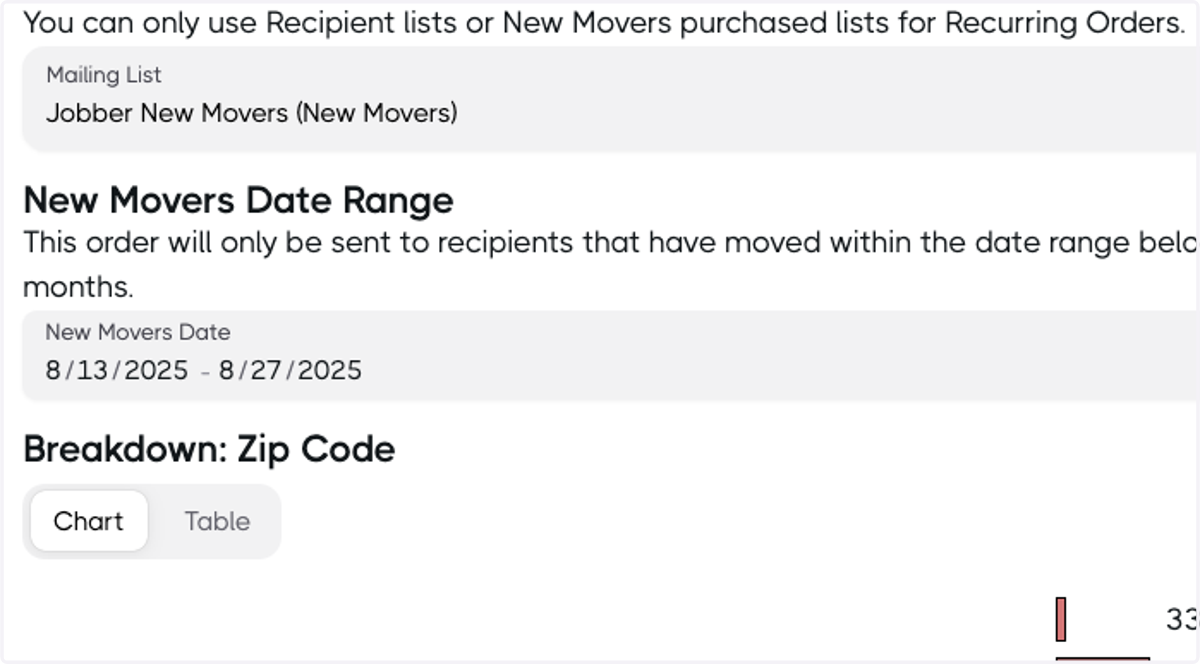
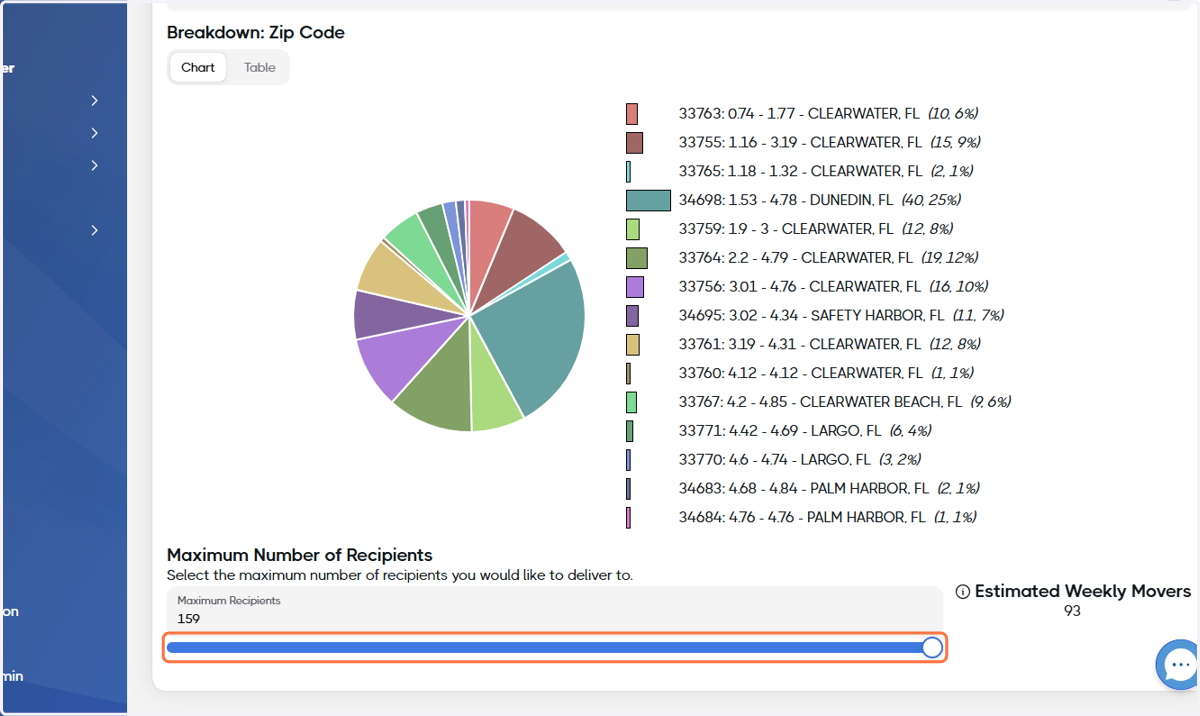
14. Optional: Set your maximum number of recipients
15. Click on Next Step
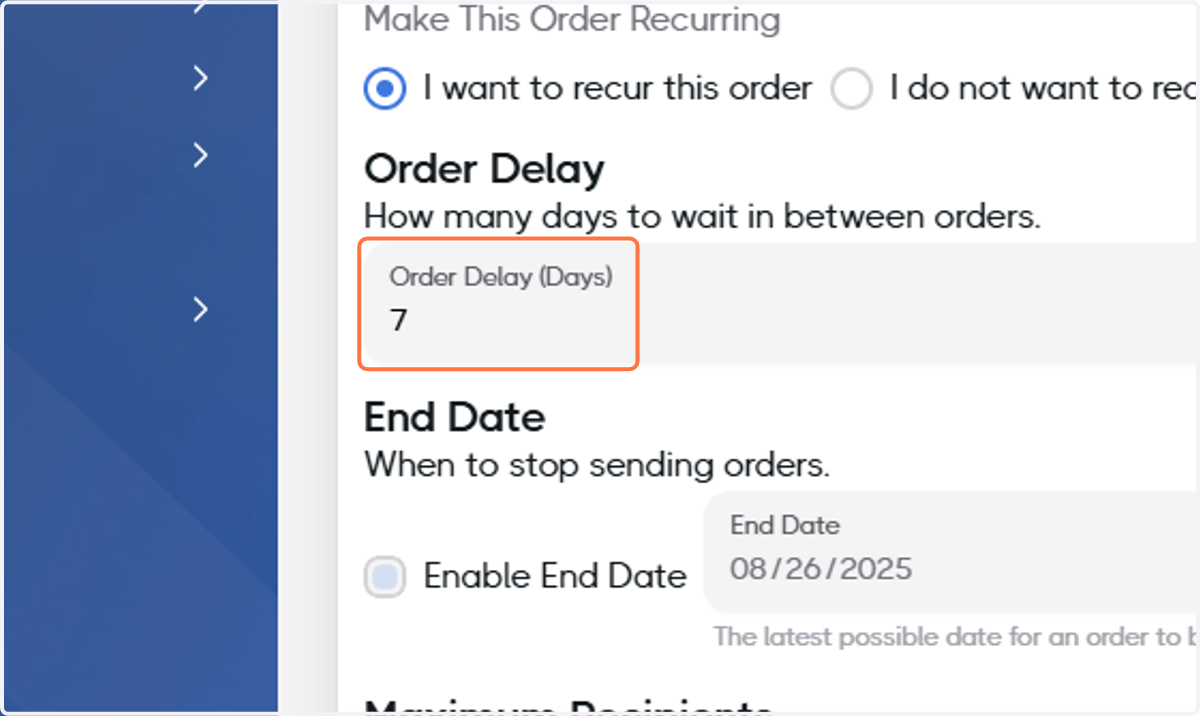
16. Select I want to recur this order
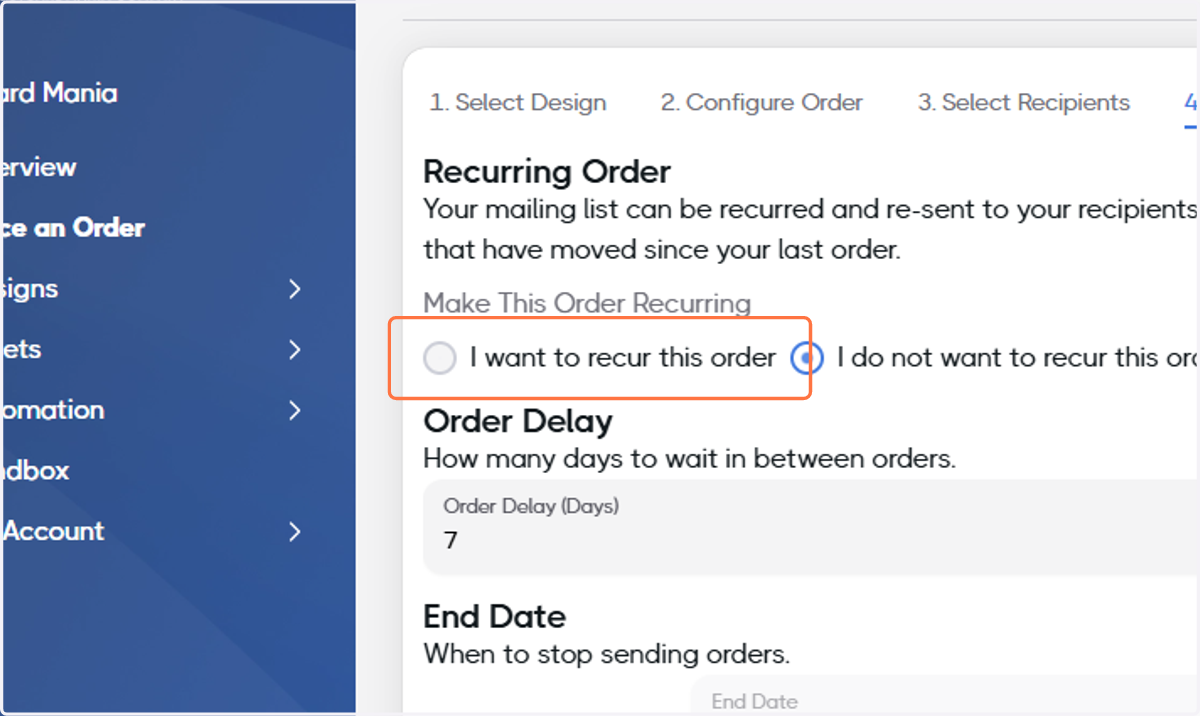
17. Determine the amount of days you'd like to wait between orders
When using a New Movers purchased list, your recurred orders will only be sent to recipients that have moved since your last order.
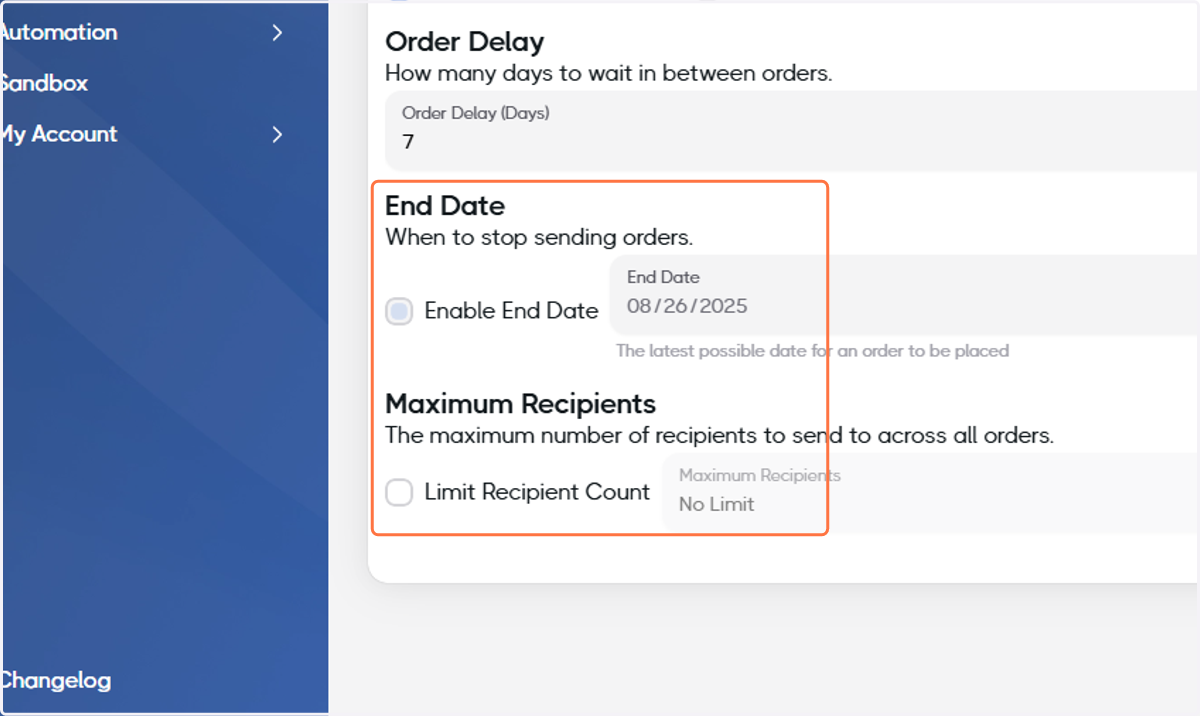
18. Check Enable End Date and/or Limit Recipient Count
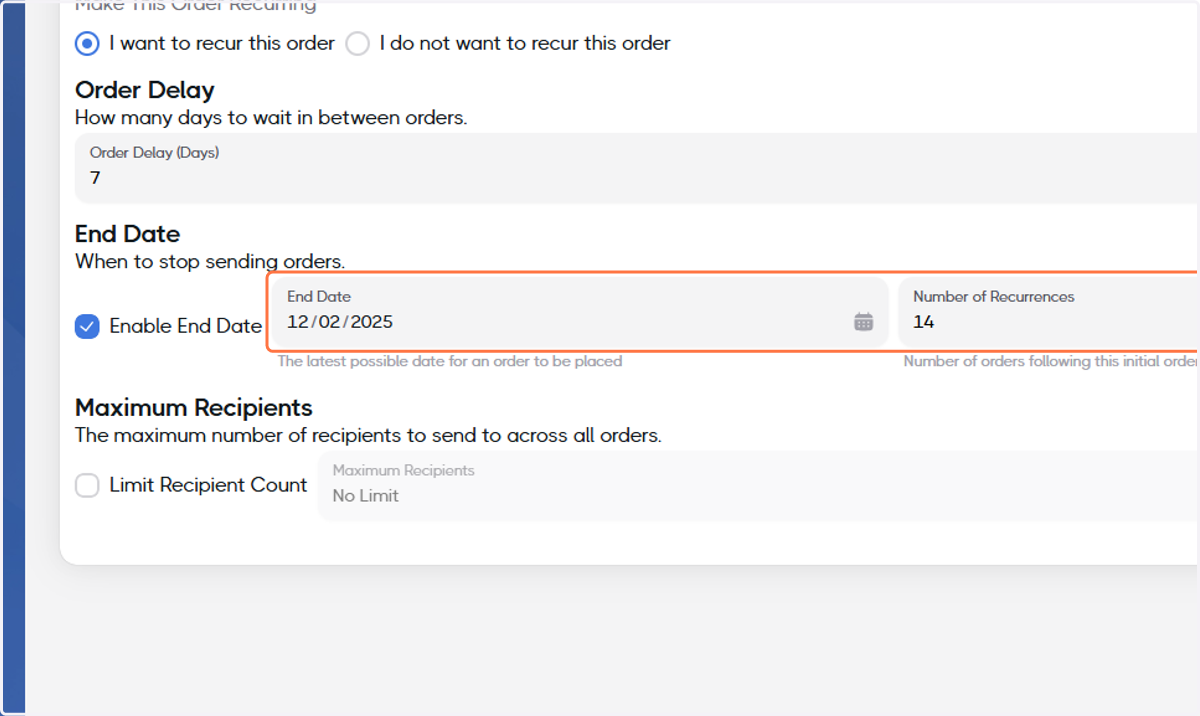
19. Select an end date from the calendar or set the number of recurrences
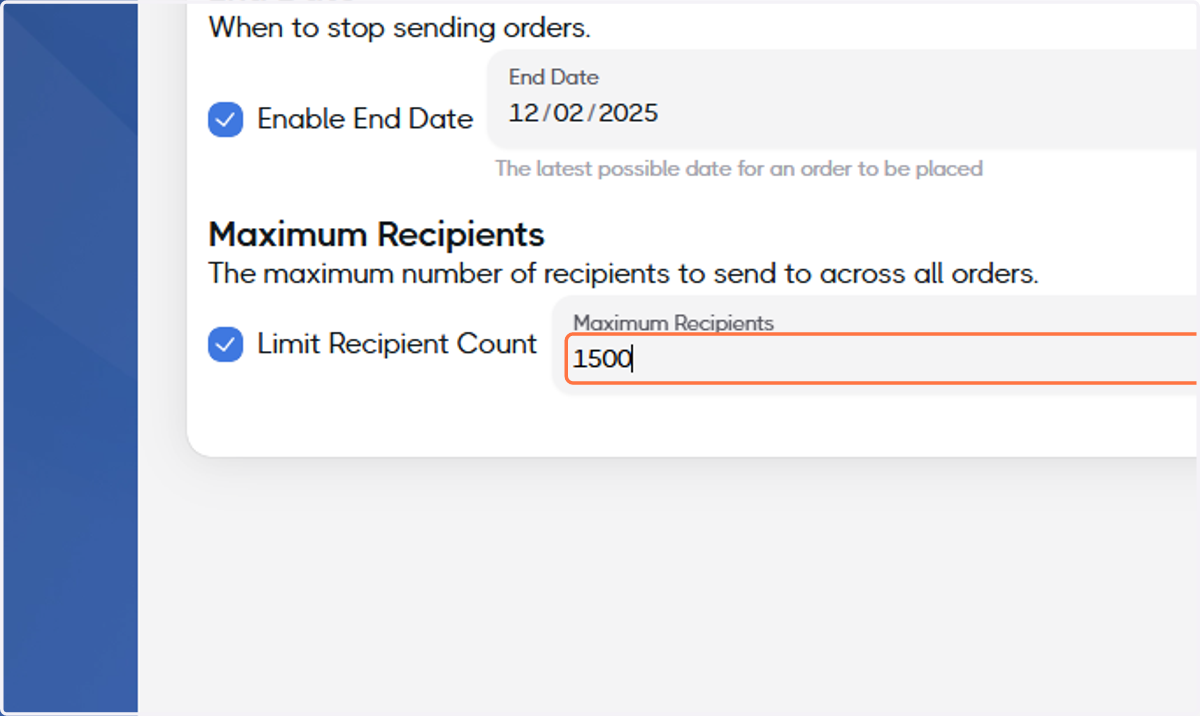
20. For Limit Recipient Count, set the maximum number of recipients for the entirety of the campaign
21. Click on Next Step
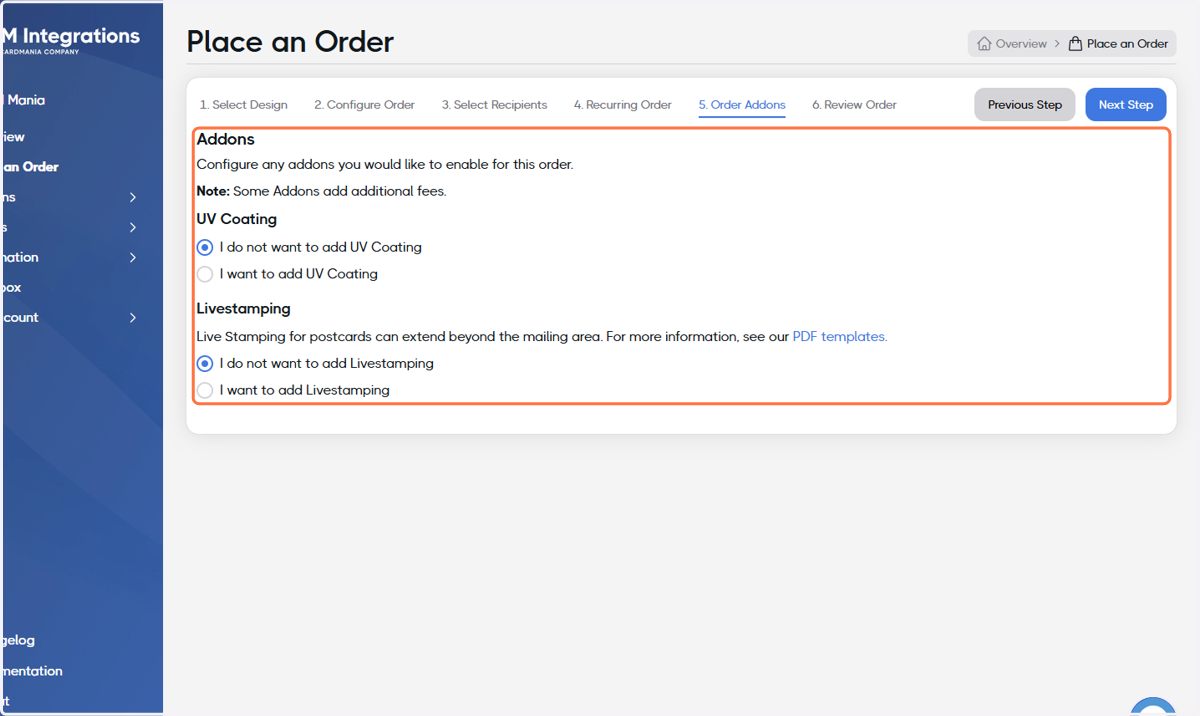
22. Optional: Select Addons
23. Click on Next Step
24. Analyze your Order Proof against the checklist on the left
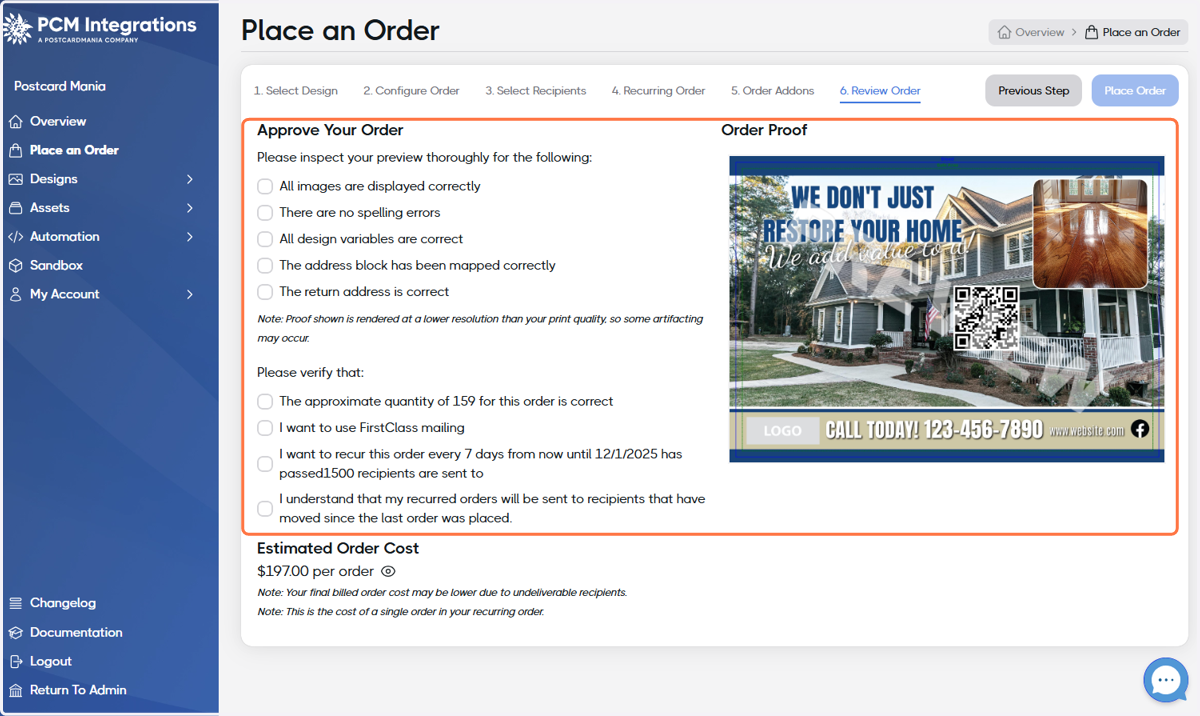
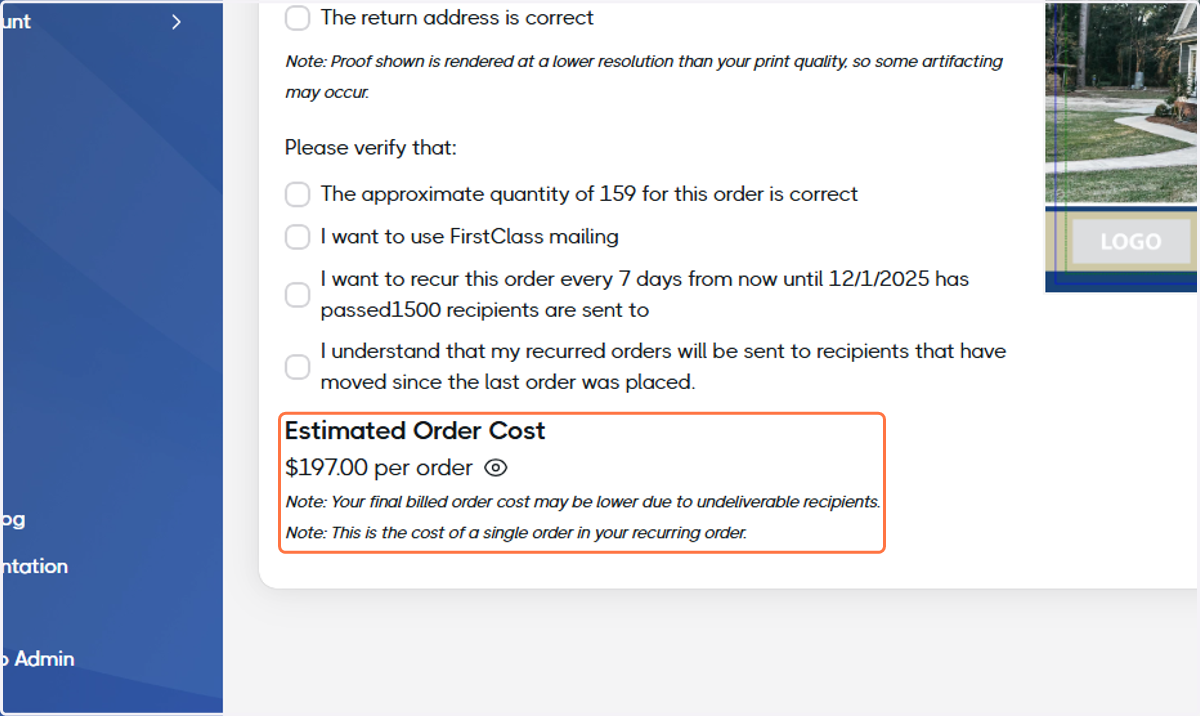
25. Review your Estimated Order Cost
26. If everything is ready, click Place Order!
