Pausing an exam

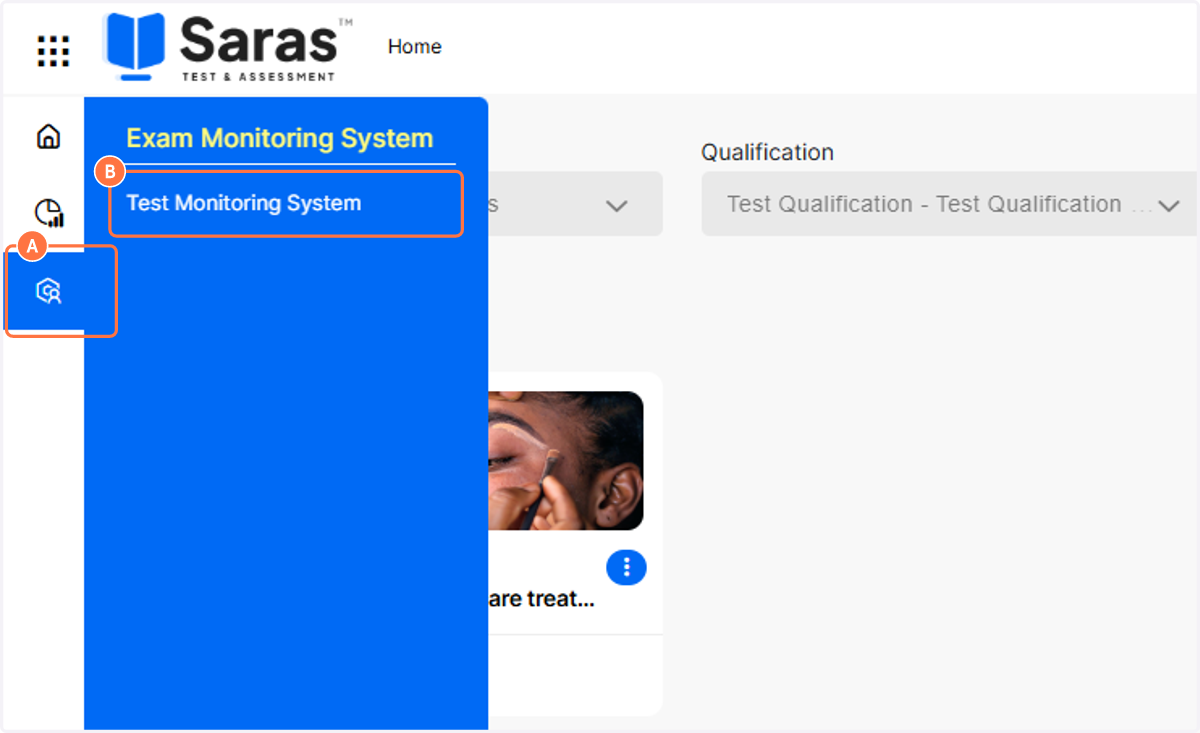
    1. 1. A. Hover over the Exam Monitoring System icon

    2. 1. B. Click on Test Monitoring System

    A. Hover over the Exam Monitoring System icon B. Click on Test Monitoring System
  1. 2. Locate the correct exam and, if required, use the scroll bar until you can see the Online proctoring column
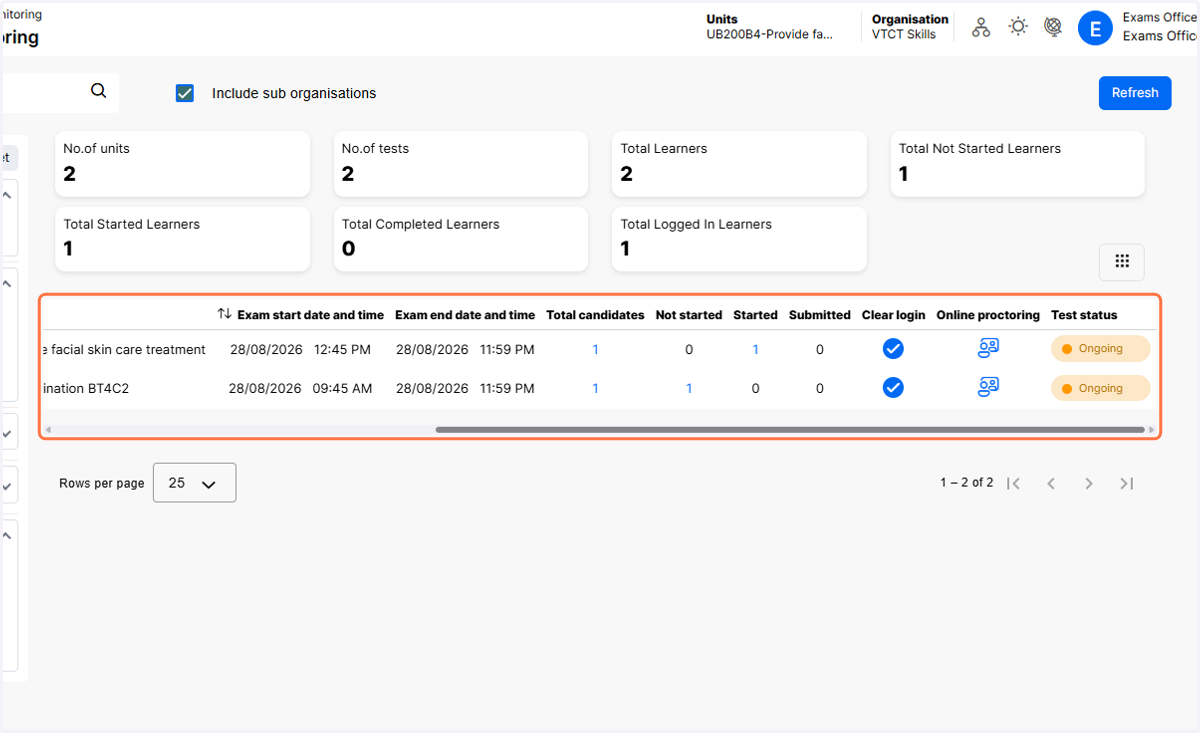
    Locate the correct exam and, if required, use the scroll bar until you can see the Online proctoring column
  2. 3. Click on the Online proctoring icon
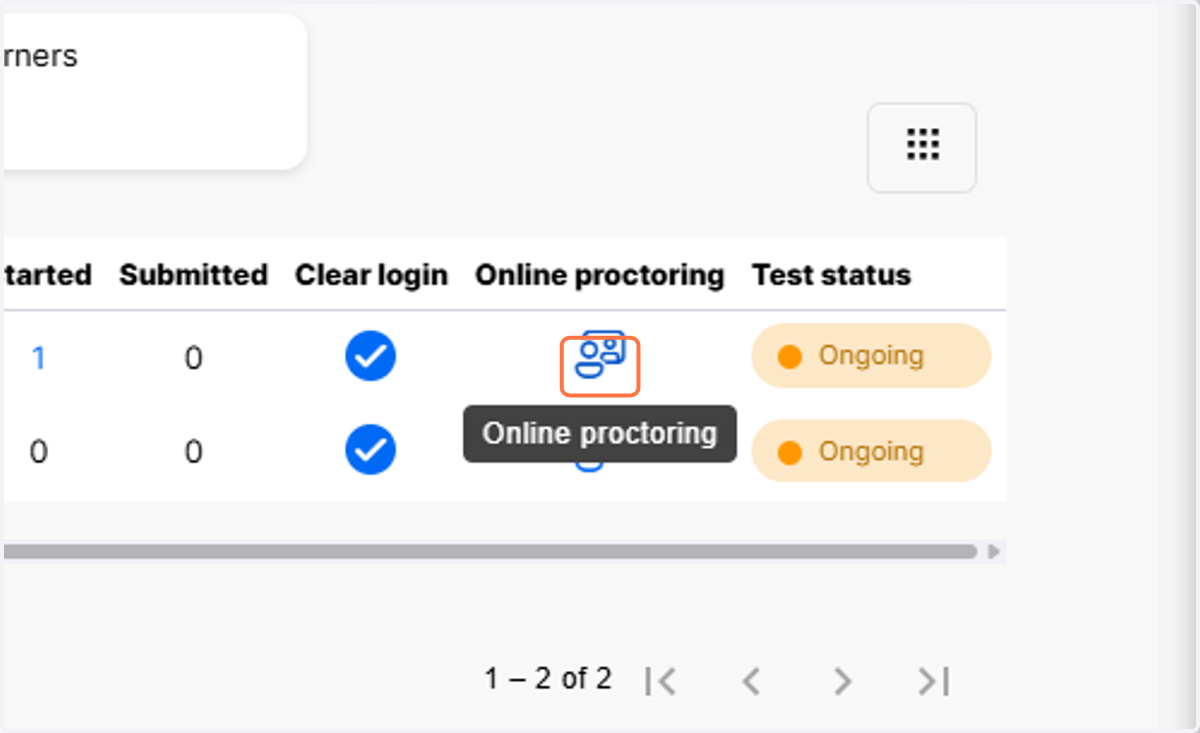
    Click on the Online proctoring icon
  3. 4. Locate the appropriate learner for the exam you need to pause
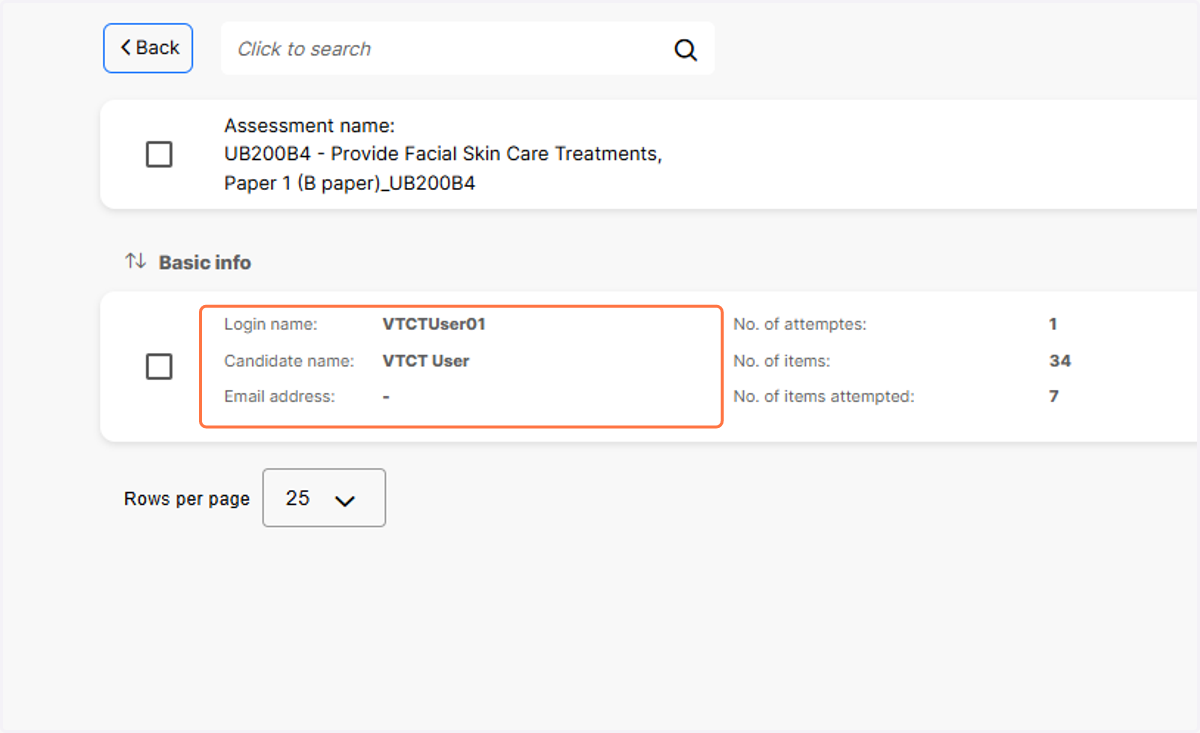
    Locate the appropriate learner for the exam you need to pause
  4. 5. Click on Pause for the appropriate learner
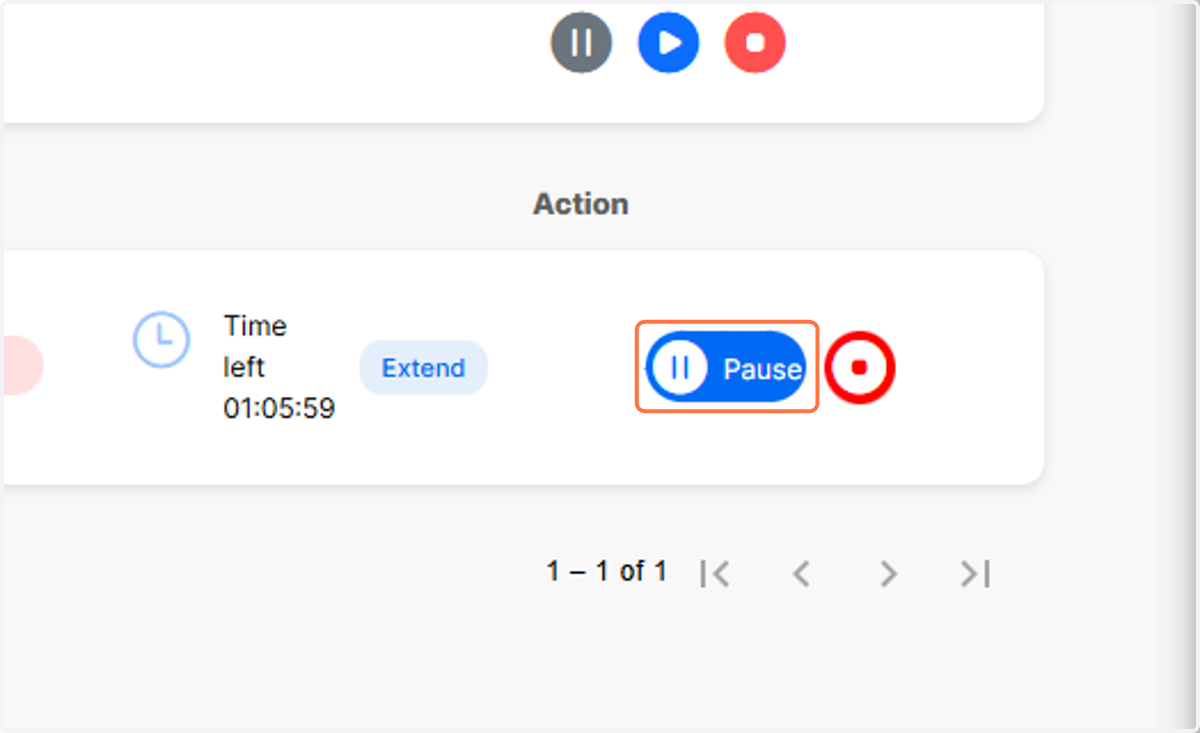
    Click on Pause for the appropriate learner
  5. 6. Click on Select and confirm the number of minutes the exam should be paused for
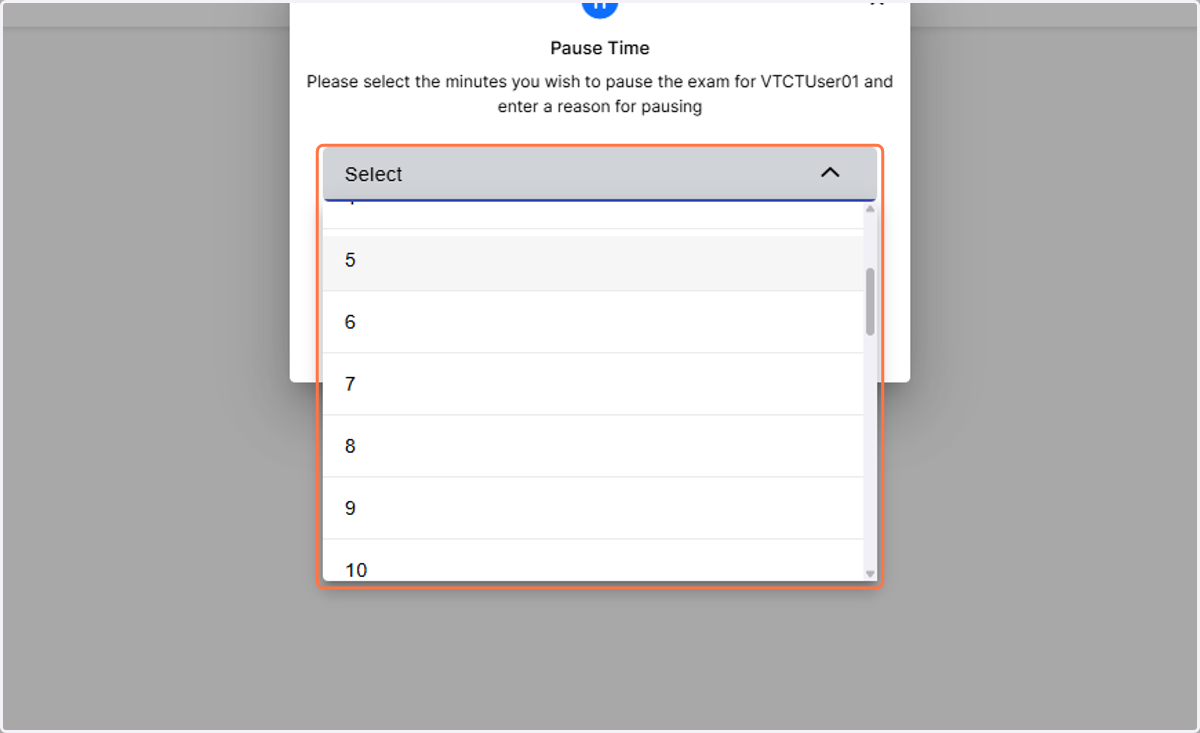
    Click on Select and confirm the number of minutes the exam should be paused for
  6. 7. Enter a reason for pausing the exam
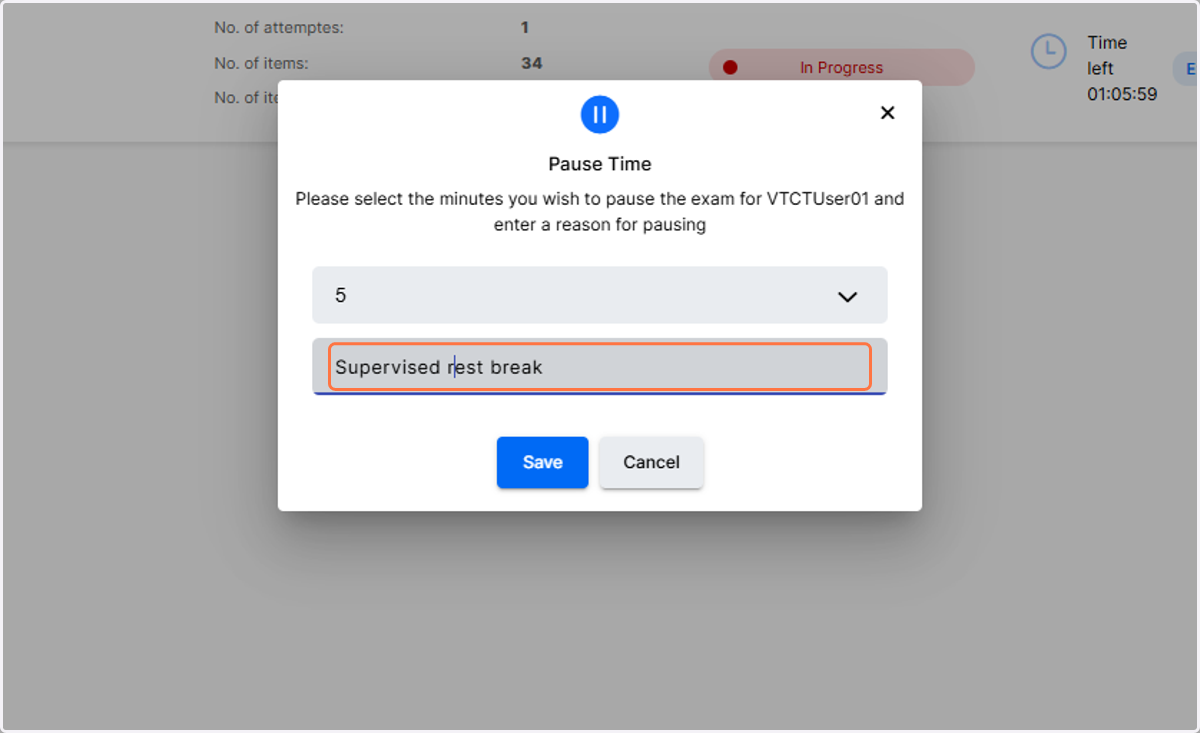
    Enter a reason for pausing the exam
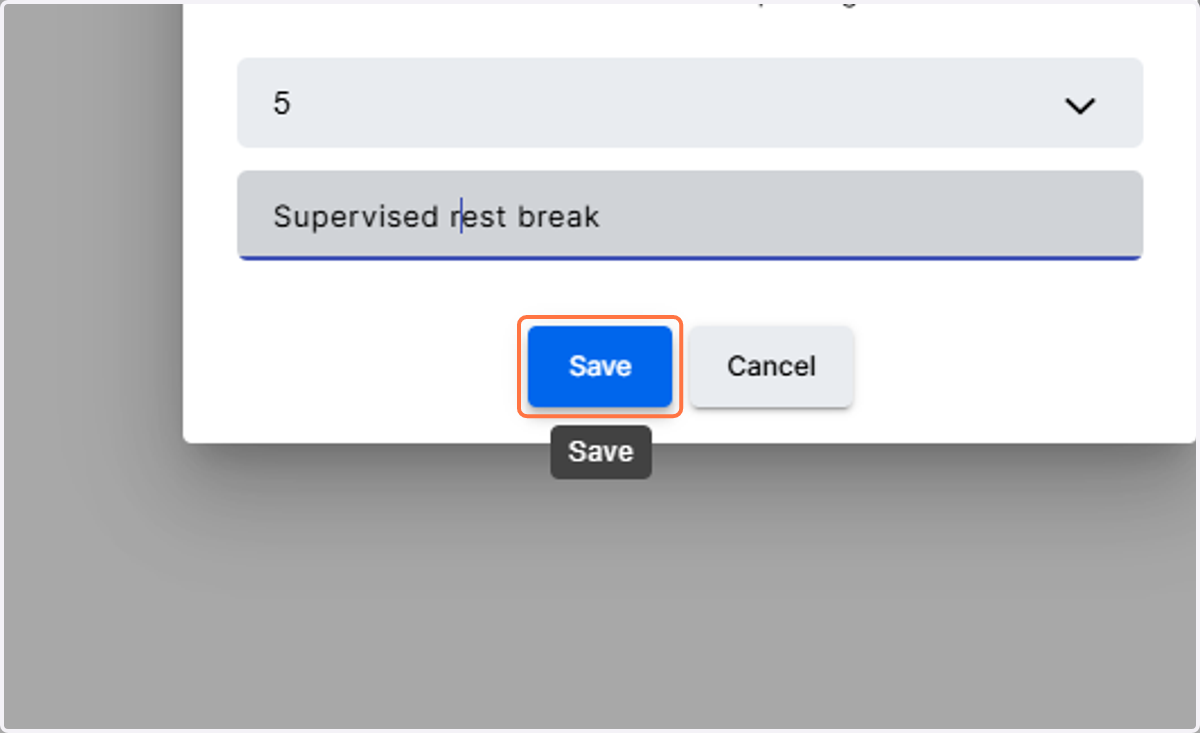
  7. 8. Click on Save to pause the exam

    Click on Save to pause the exam
  1. 9. Should the learner wish to resume the exam sooner than the pause duration, click on Resume
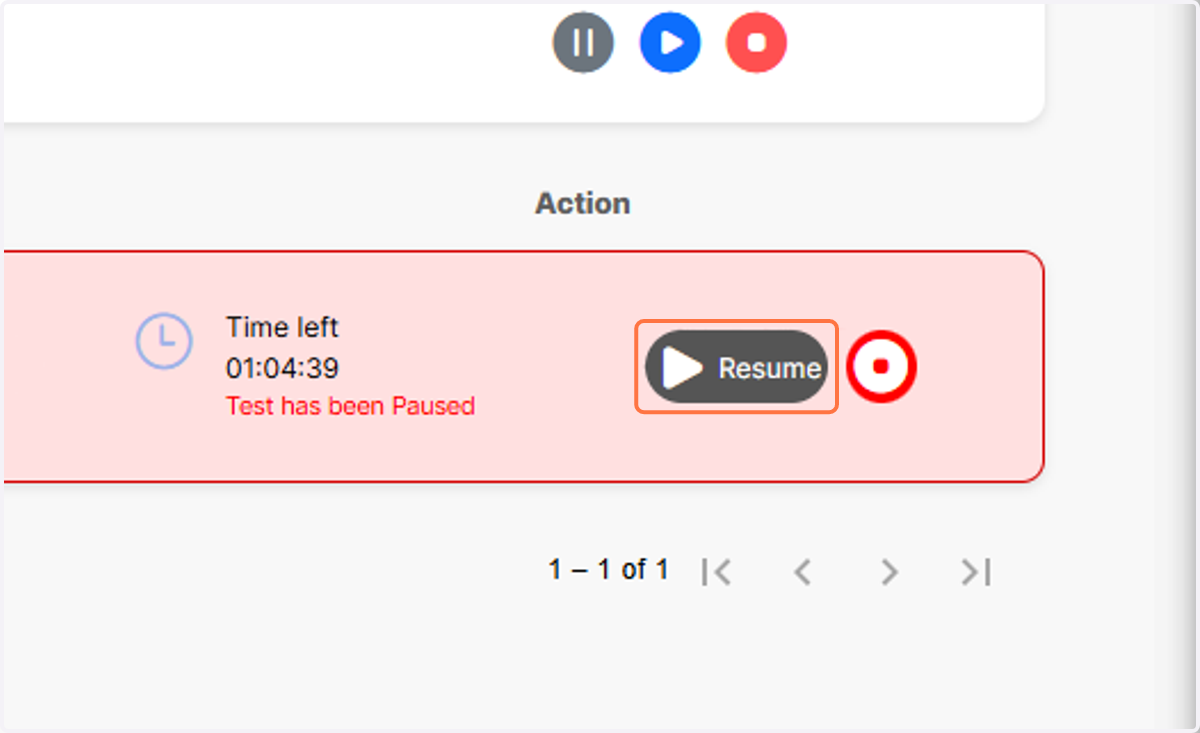
    Should the learner wish to resume the exam sooner than the pause duration, click on Resume
  2. 10. Enter a reason for resuming the exam
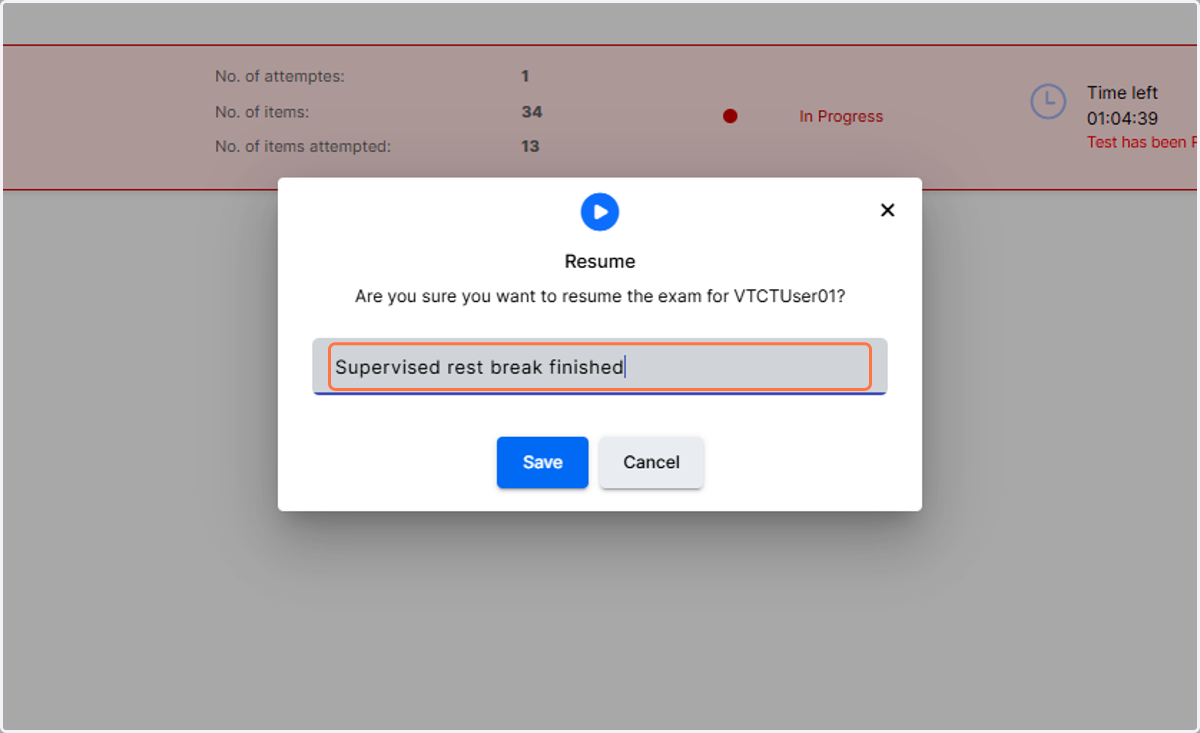
    Enter a reason for resuming the exam
  3. 11. Click on Save to resume the exam.
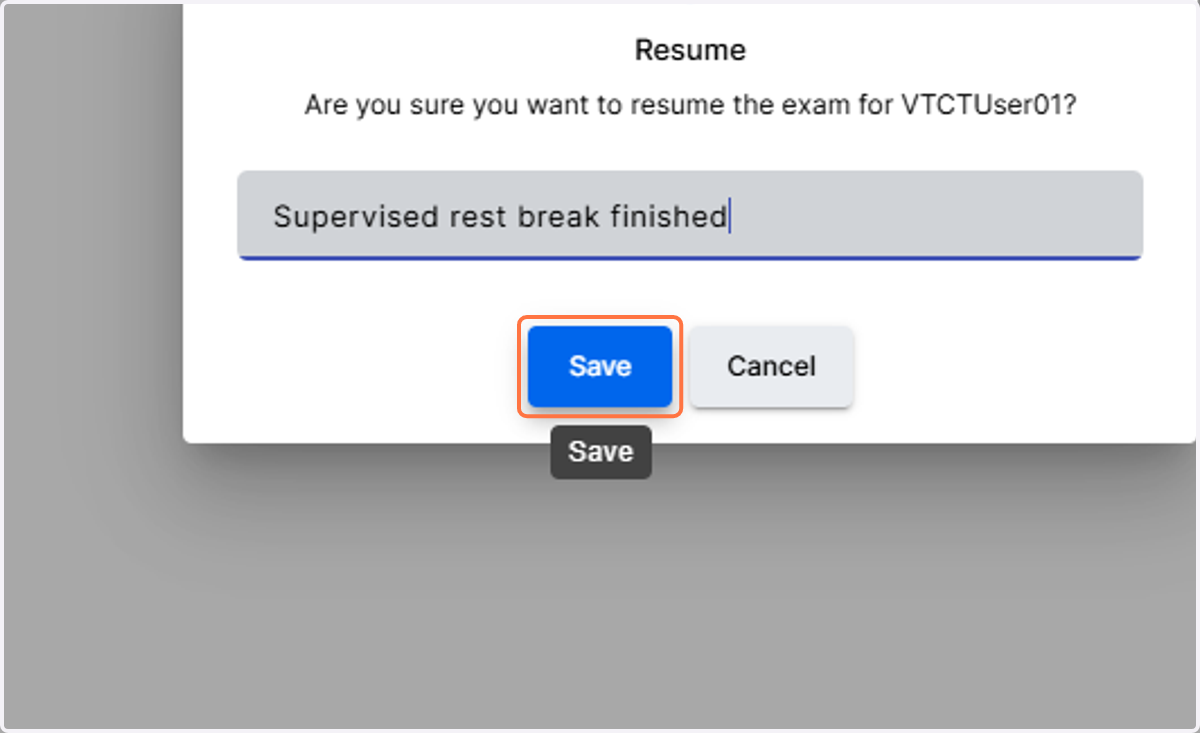
    Click on Save to resume the exam.