Participant Registration - RMH 2026
Rocky Mountain High
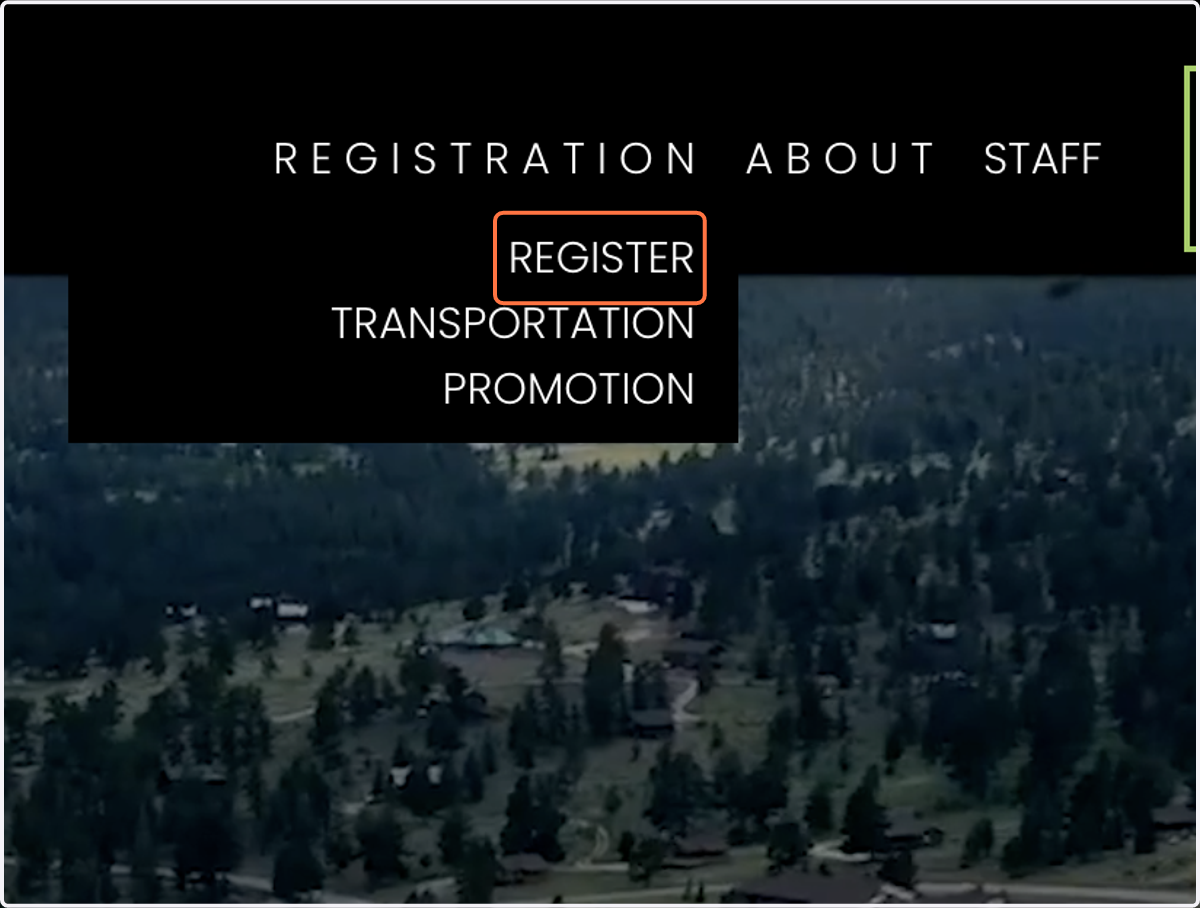
1. Click on REGISTER
2. Review the instructions if you're confused
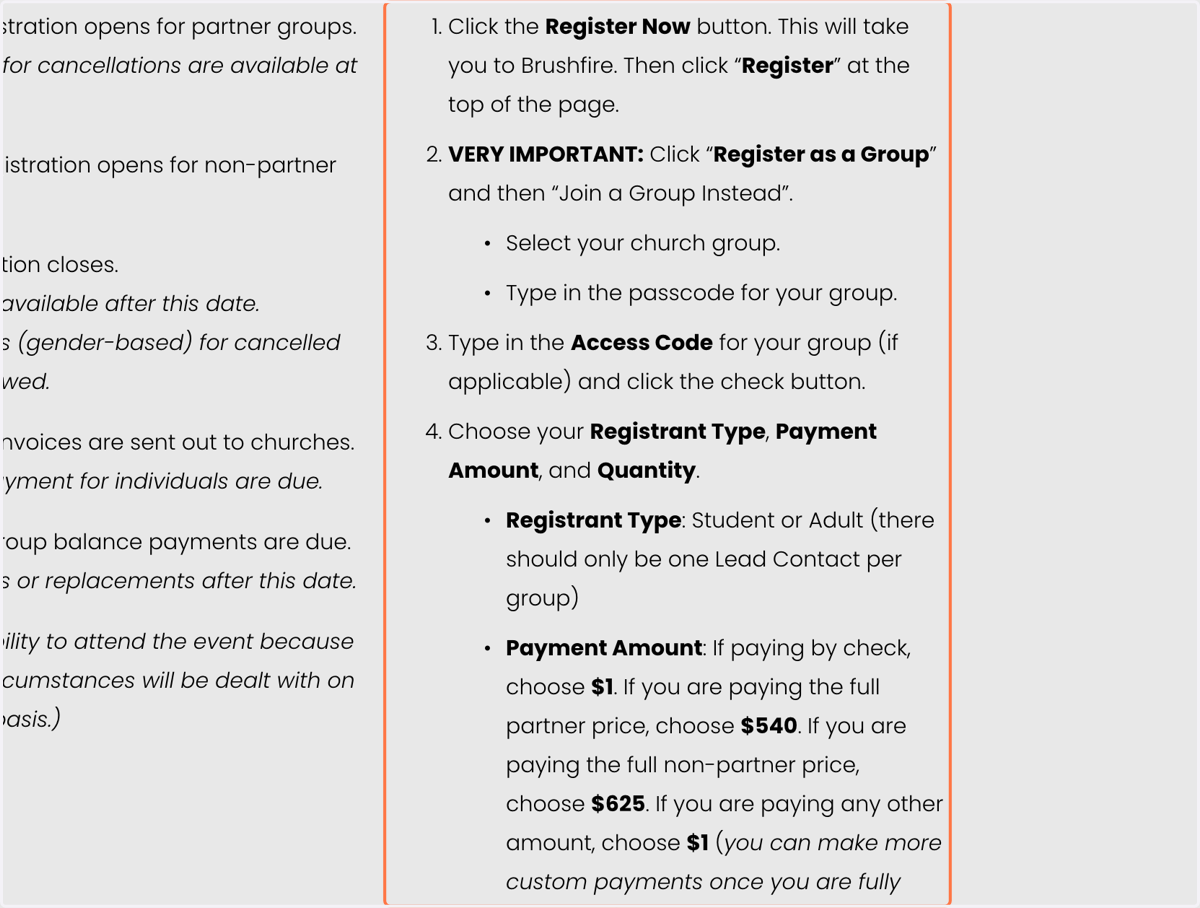
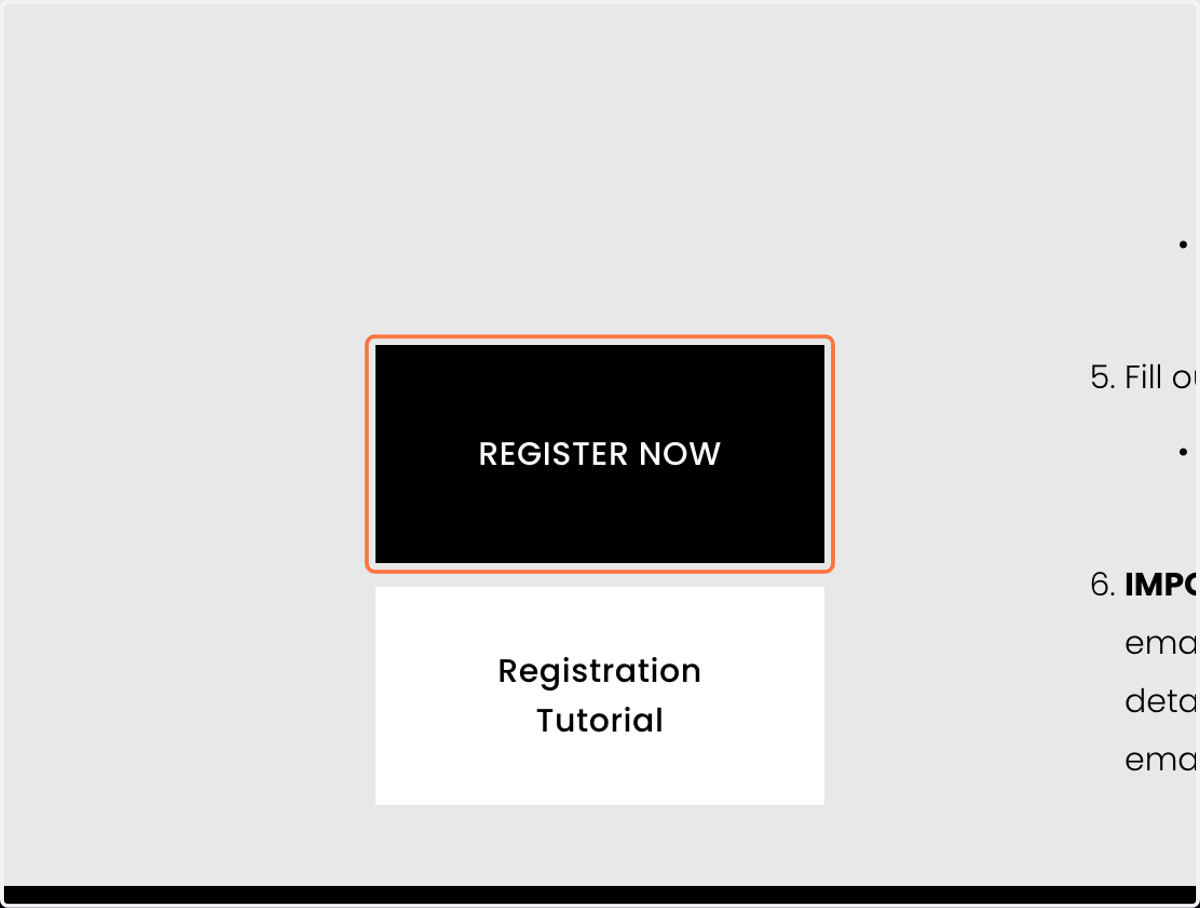
3. Click on REGISTER NOW - this will take you to our online registration system called Brushfire.
Brushfire Events
4. Click "Register" then click "Join a Group"
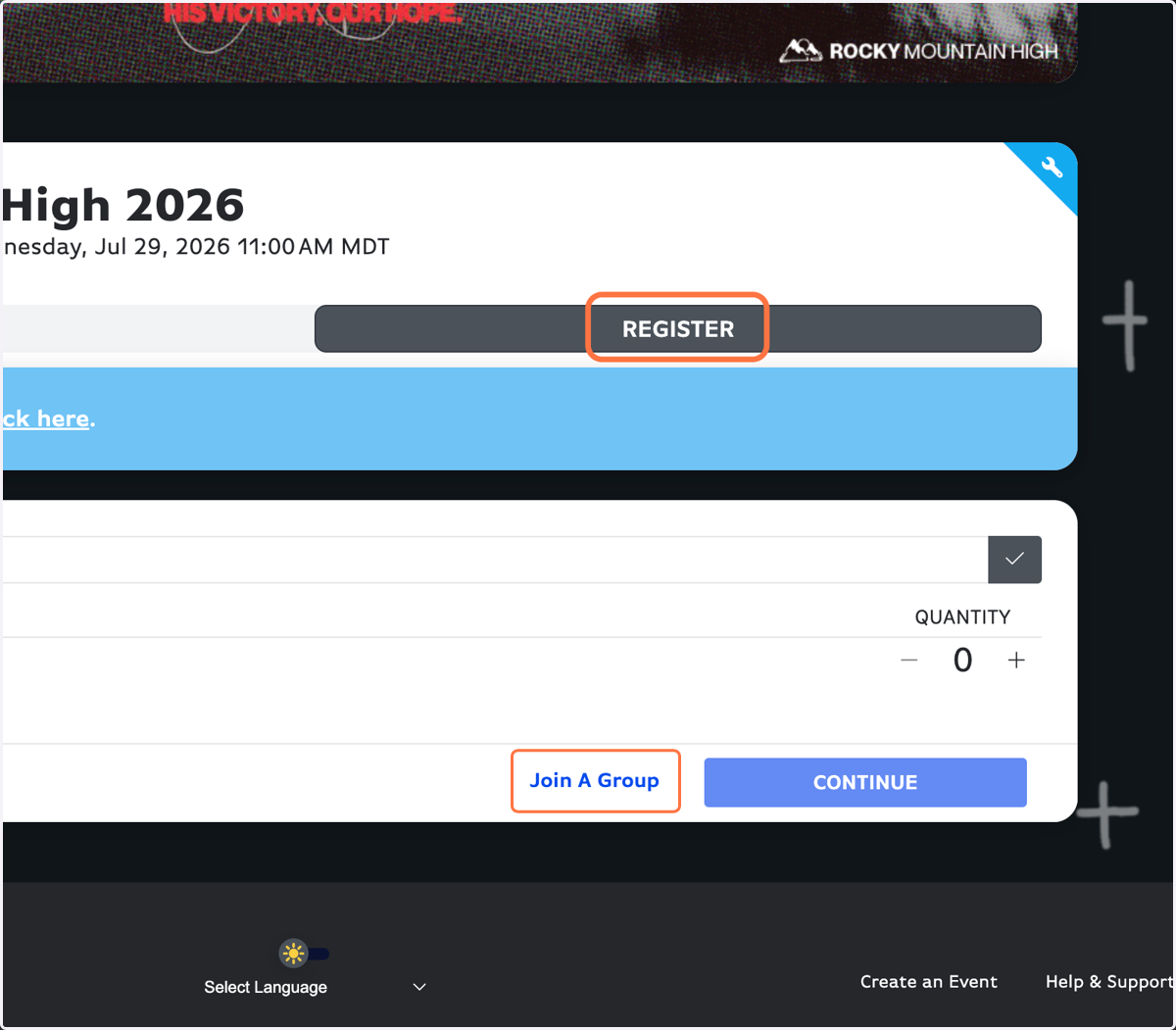
5. Find the name of your group
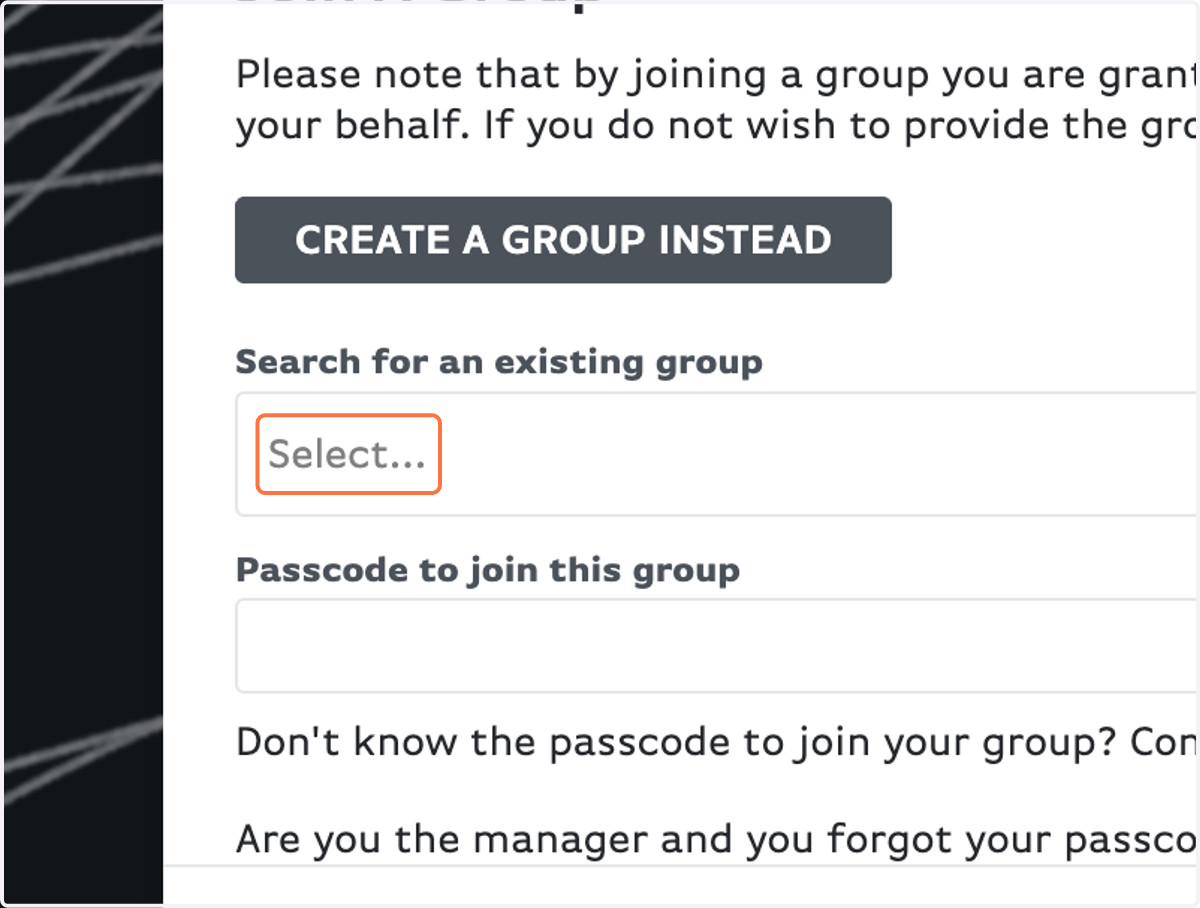
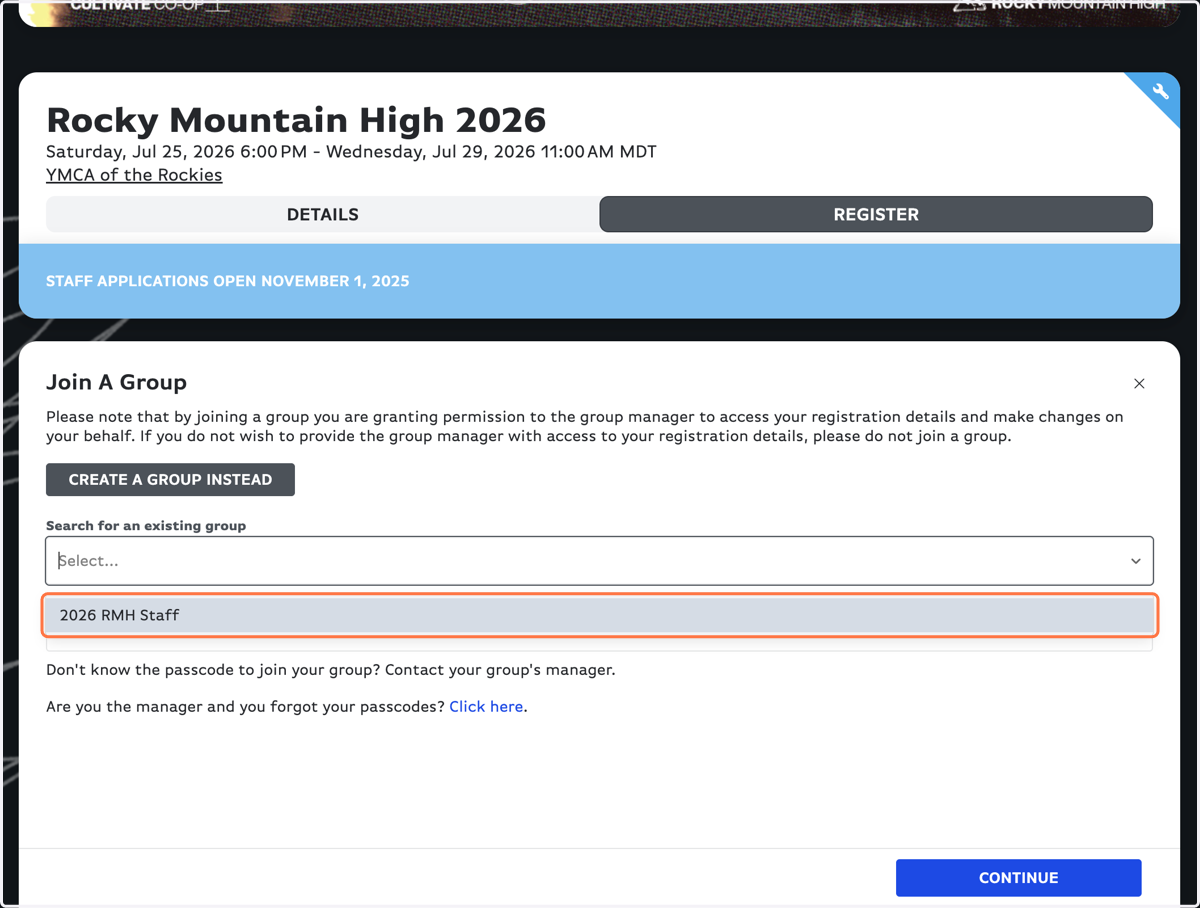
6. Select your group name
Church - Town
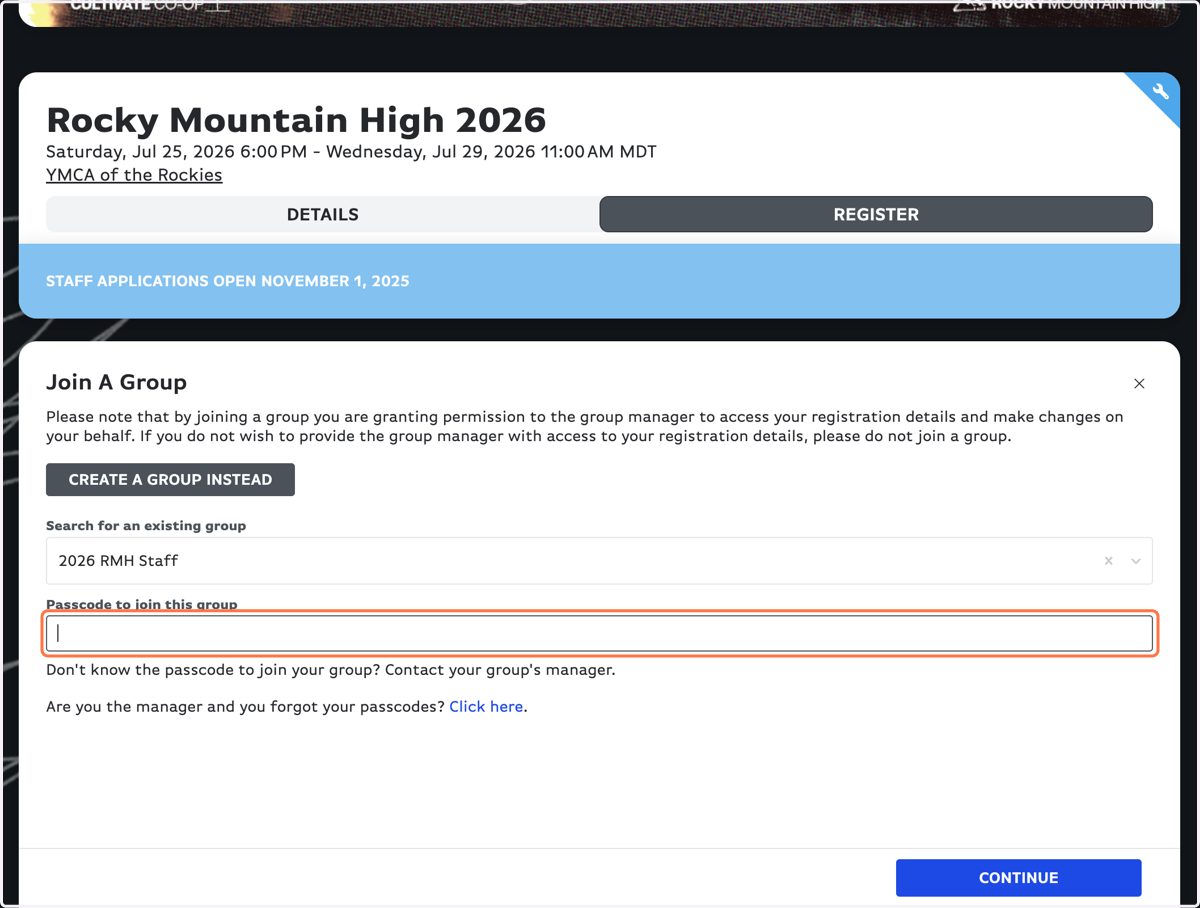
7. Click on Passcode to join this group
Your group leader has this passcode
8. Click on CONTINUE
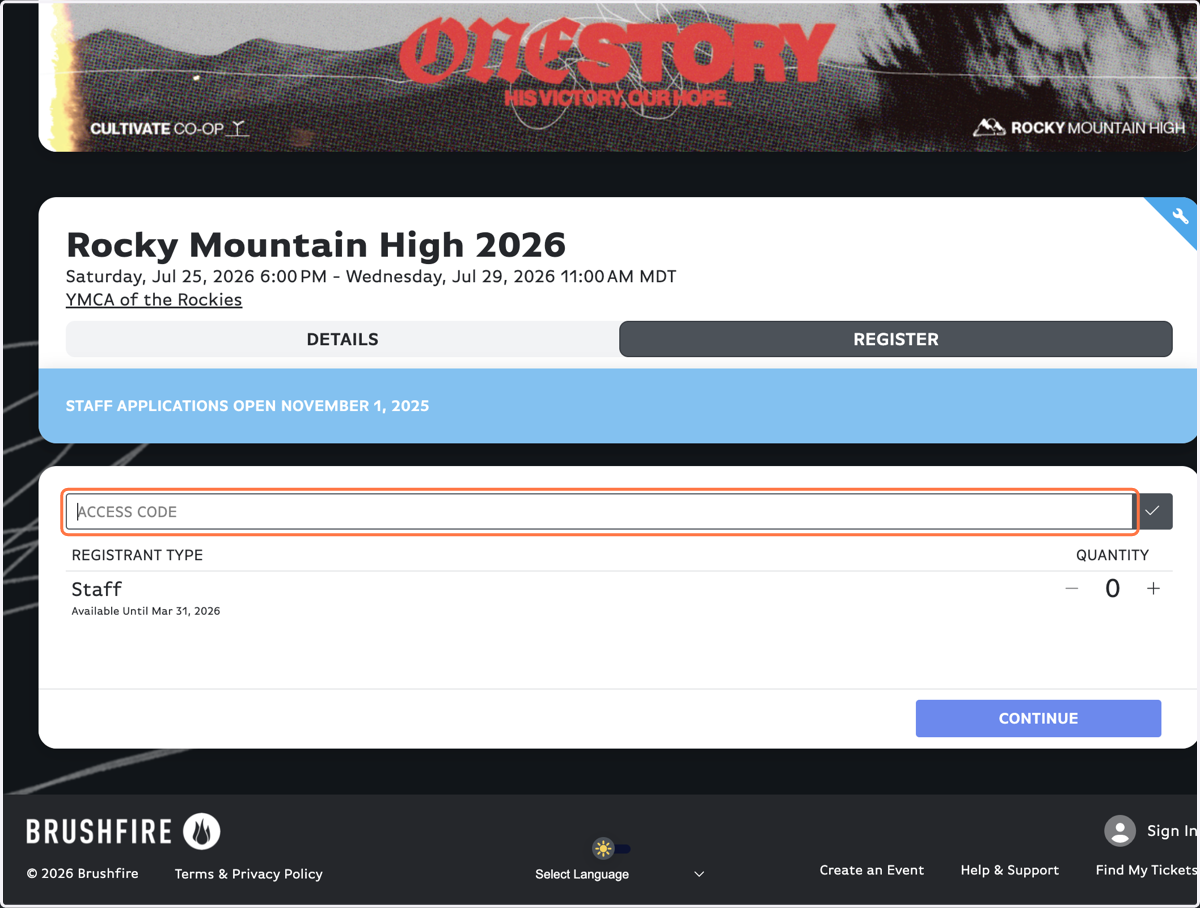
9. FEB 2-23: Partner groups put in the Access Code from your group leader
After Feb 23, no Access Code is needed
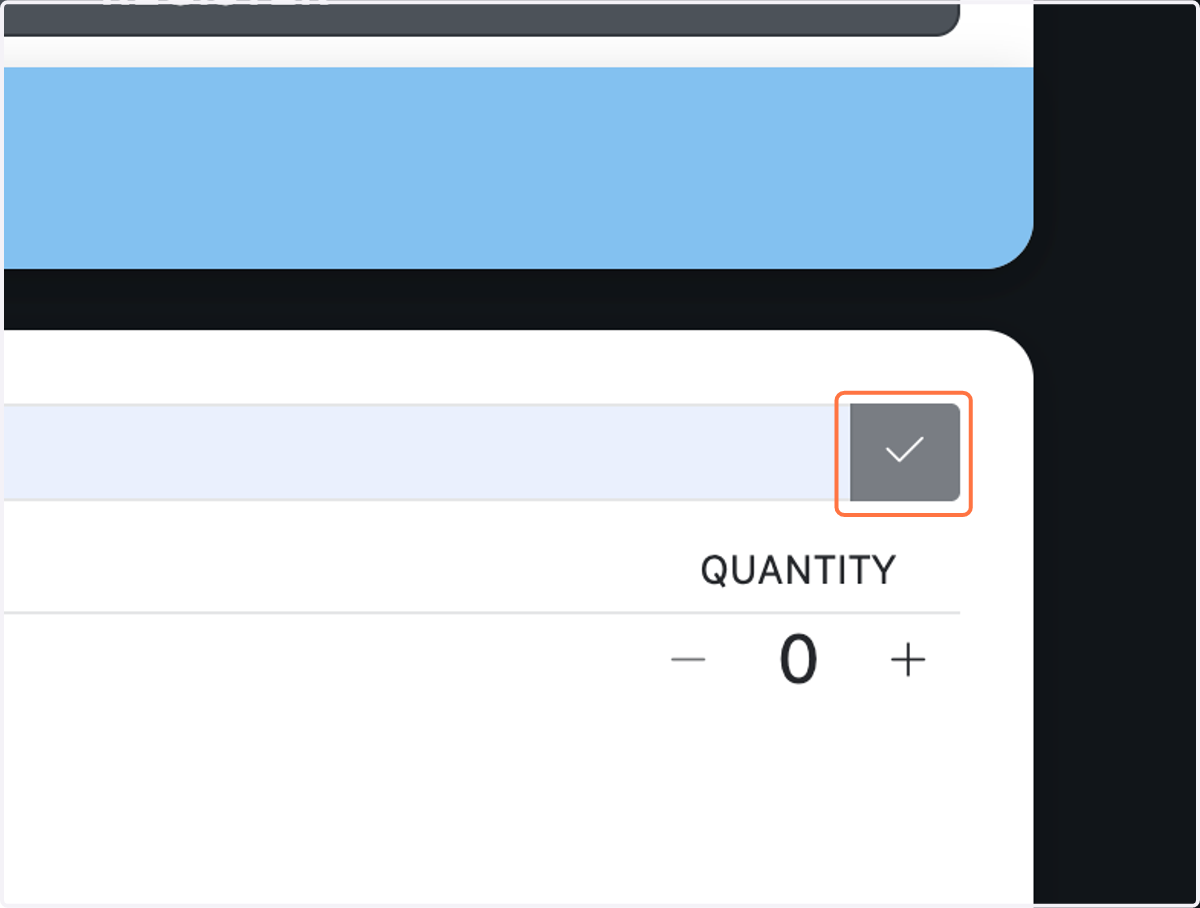
10. Don't forget the gray checkmark button!
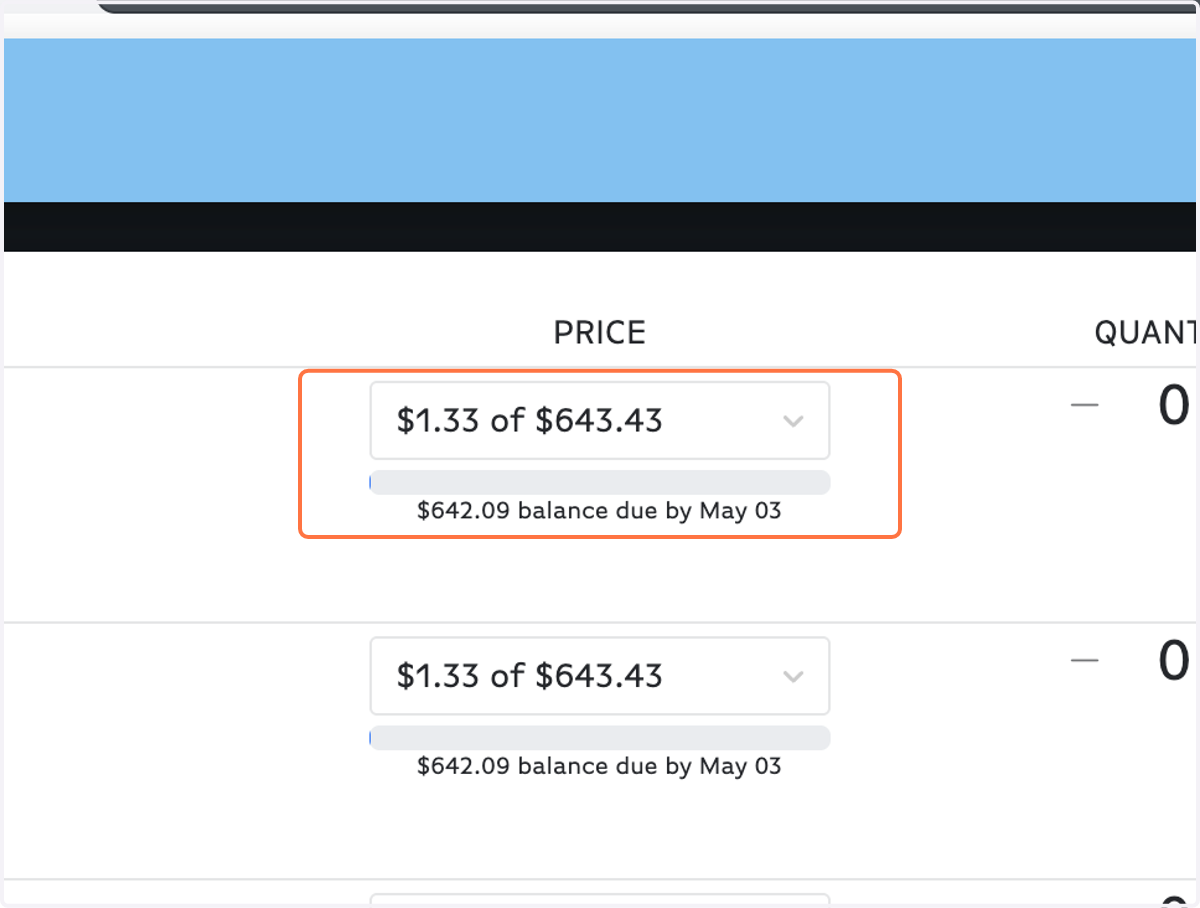
11. IMPORTANT: Choose your payment amount. There are only 3 options for a reason!
Brushfire shows the cost + service fees (there are actually no service fees if you choose to pay by check).
Choose $1.00 if: You plan to pay by check OR any amount not designated below. Once you register, you can go back in and make payments for any custom amount.
Choose $555.96 if: You are a partner group (this is your discounted price) and plan to pay the full amount upon registration.
Choose $643.43 if: You are a non-partner group and plan to pay the full amount upon registration.
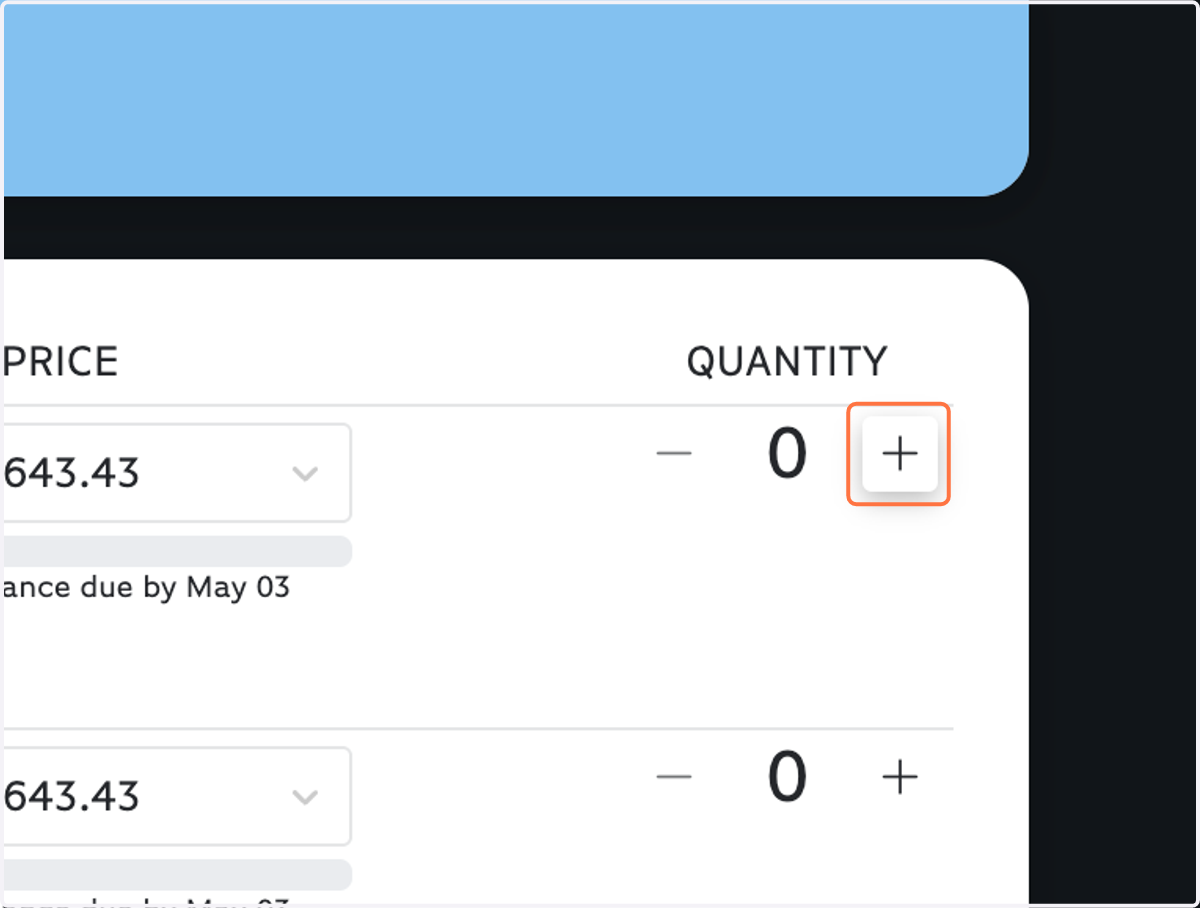
12. Click on Increment Amount for Students (number of participants you're registering).
13. Click on CONTINUE
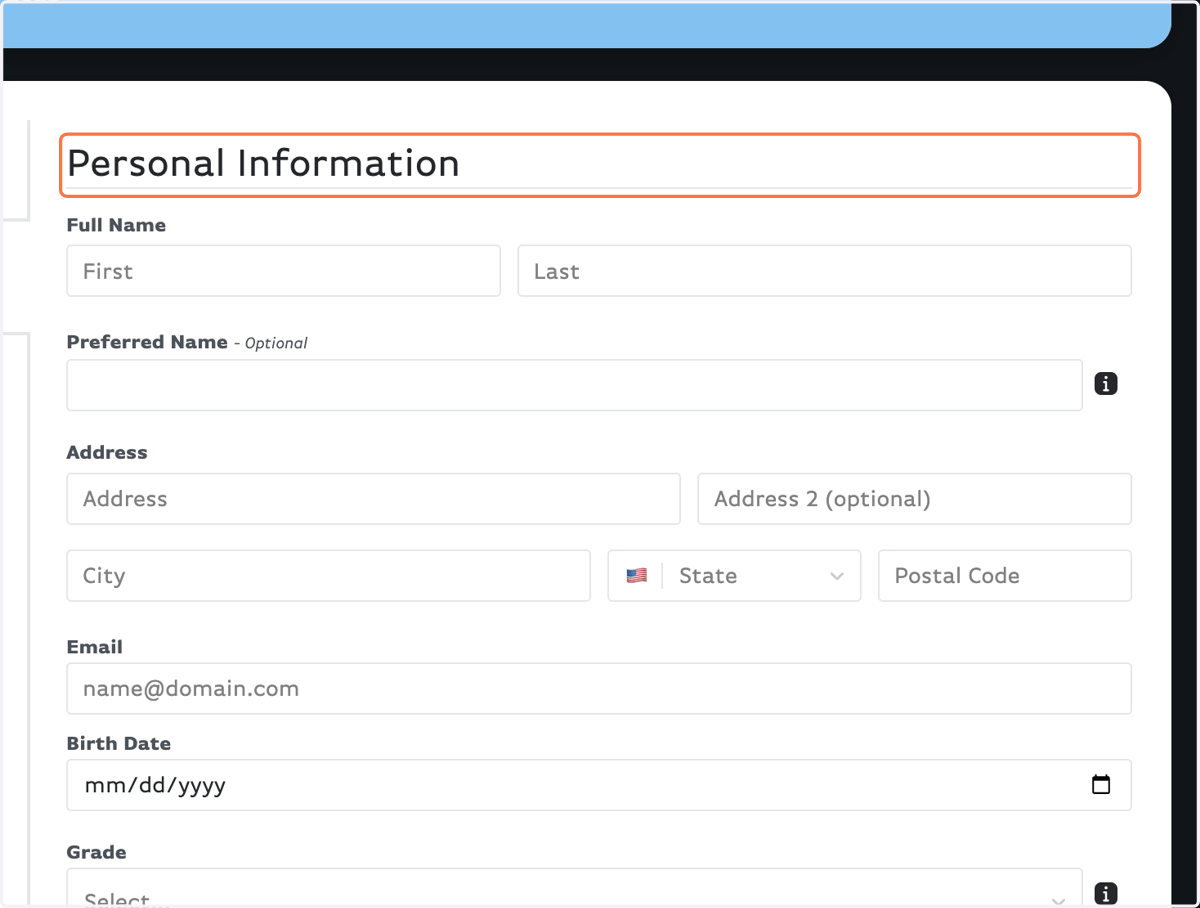
14. Fill out your Personal Information
15. Fill out your Medical Information
Please be specific about any allergies/dietary restrictions.
NEW THIS YEAR: If you have medical insurance, fill out the information.
Instead of adding an extra (complicated) step of digital signatures + insurance card upload, we are asking you to fill out your medical insurance information right in the form.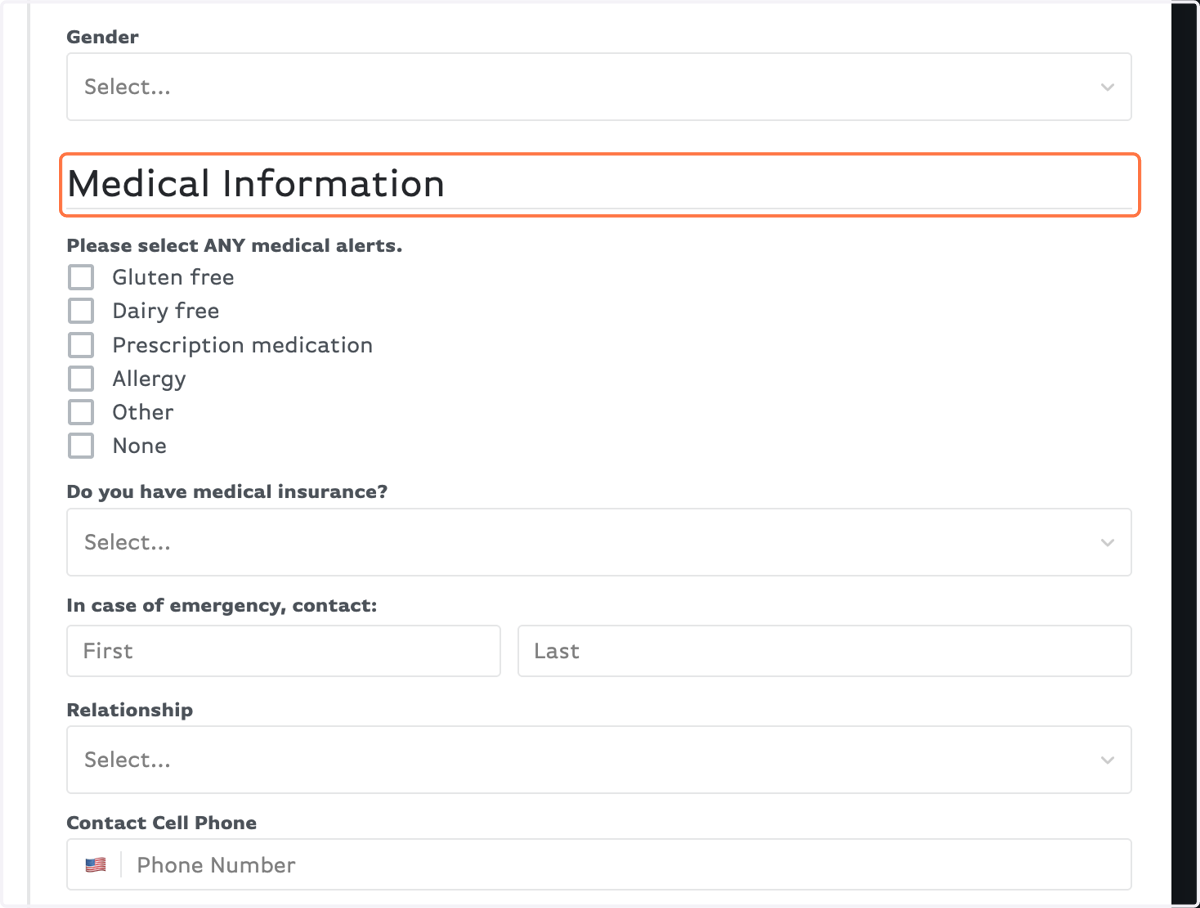
16. Select your Afternoon Recreation choices
Make sure you don't choose more than one Rec Plus option!
Pay attention to the River Rafting companies if you want to go with friends.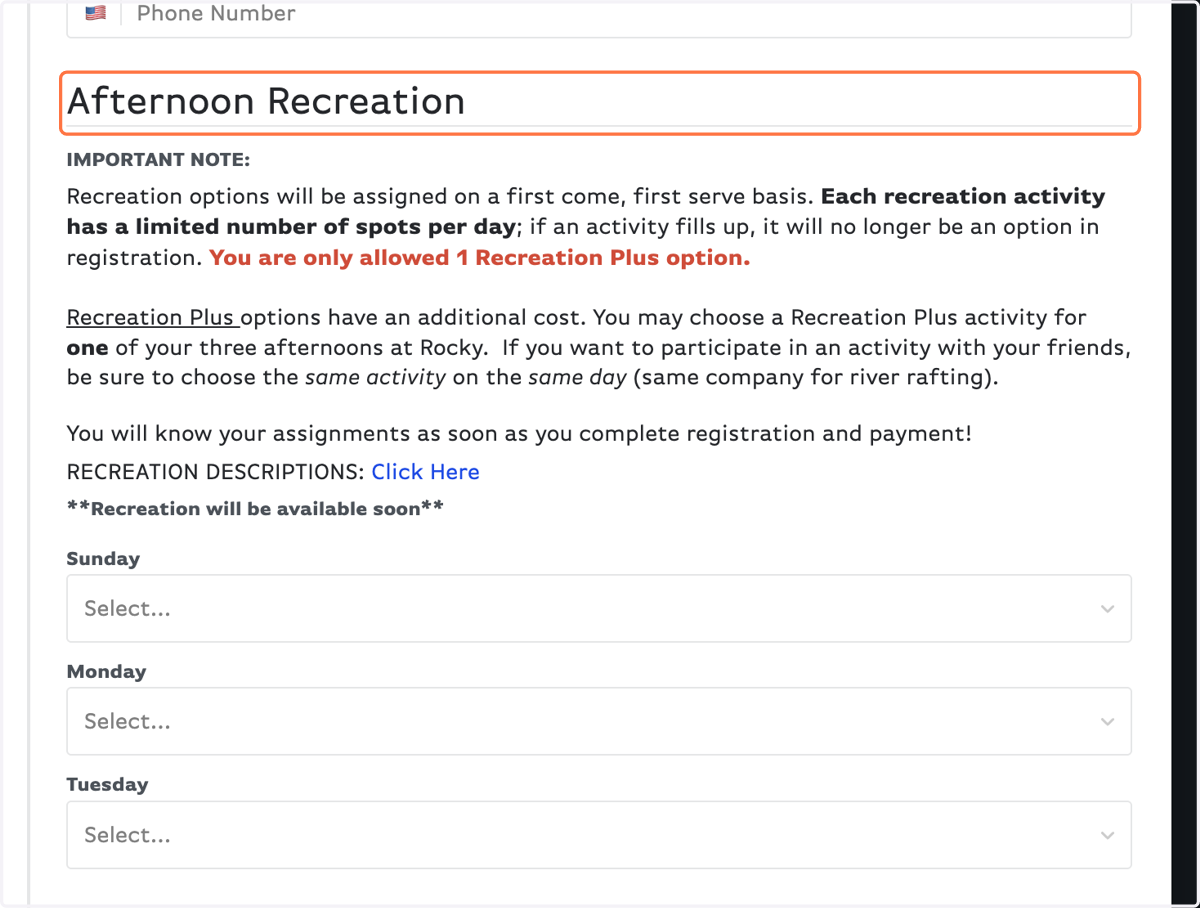
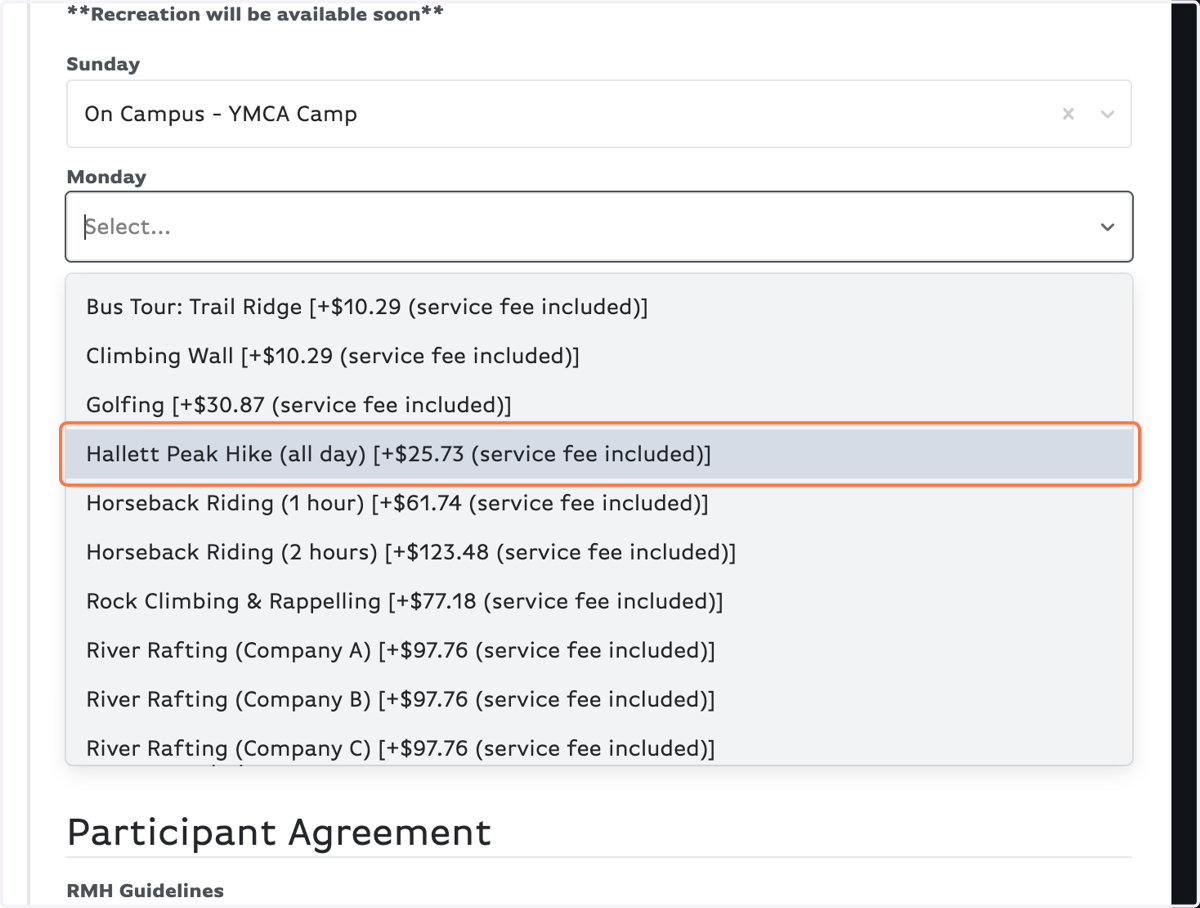
17. The options shown include service fees (not applicable for check payments)
The Recreation Descriptions link contains the base price for all Rec Plus options.
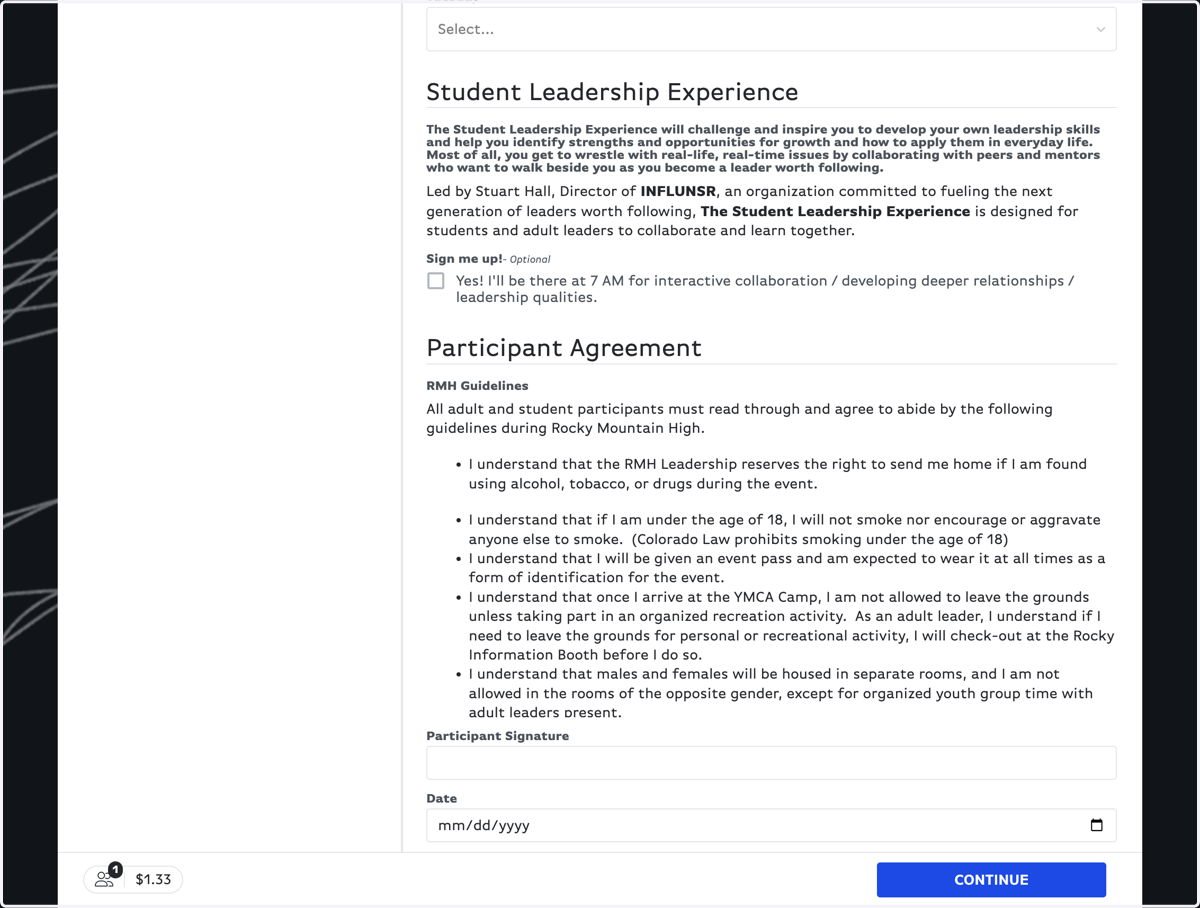
18. Be sure to select Yes if you want to attend the Student Leadership Experience!
You can still show up if you don't select this in your registration, we just want to get an idea of numbers for the space.
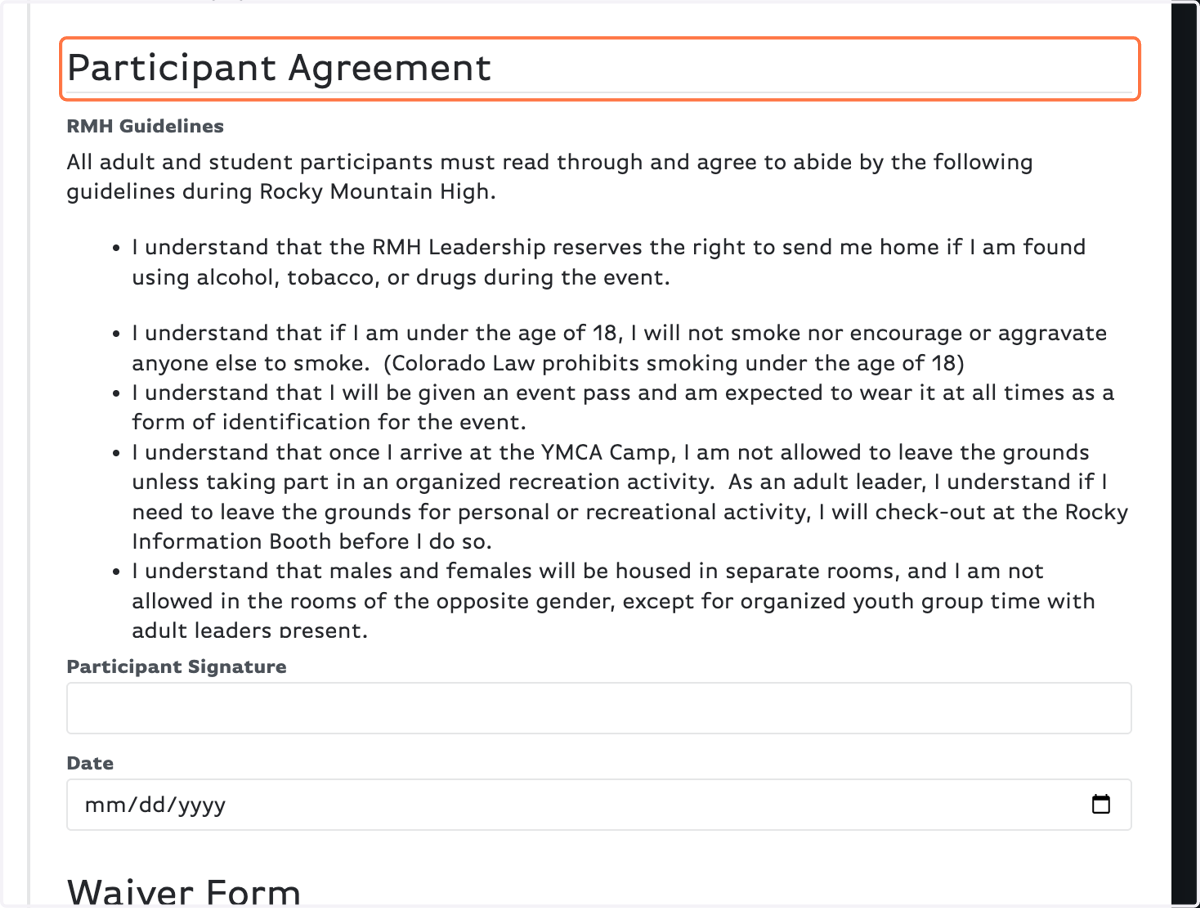
19. READ THE AGREEMENT FORM, then type your name to act as a digital signature for the Agreement Form.
This is something every single participant signs.
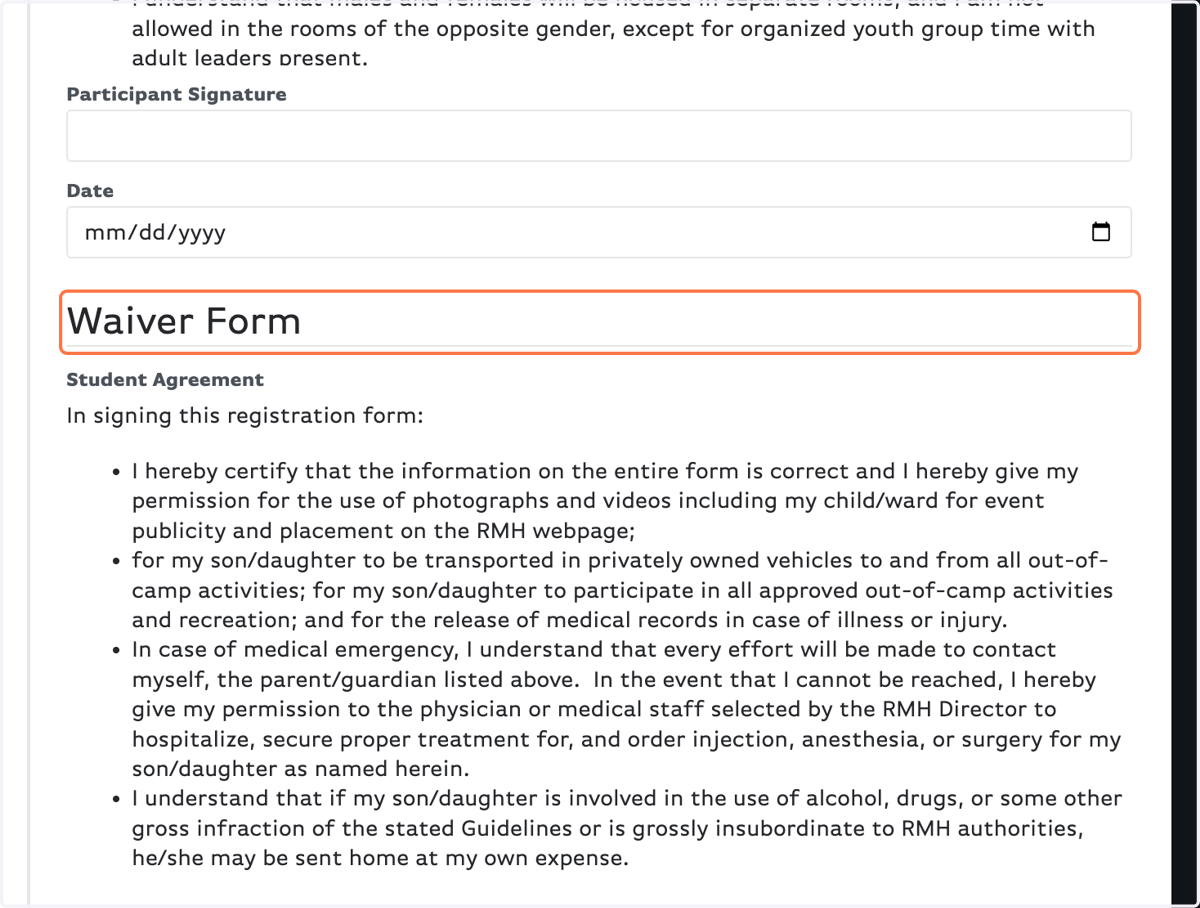
20. READ THE WAIVER FORM, then have a parent or guardian type their name to act as a digital signature for the Waiver Form.
This waiver is for all students
21. Once everything is filled out, click on CONTINUE
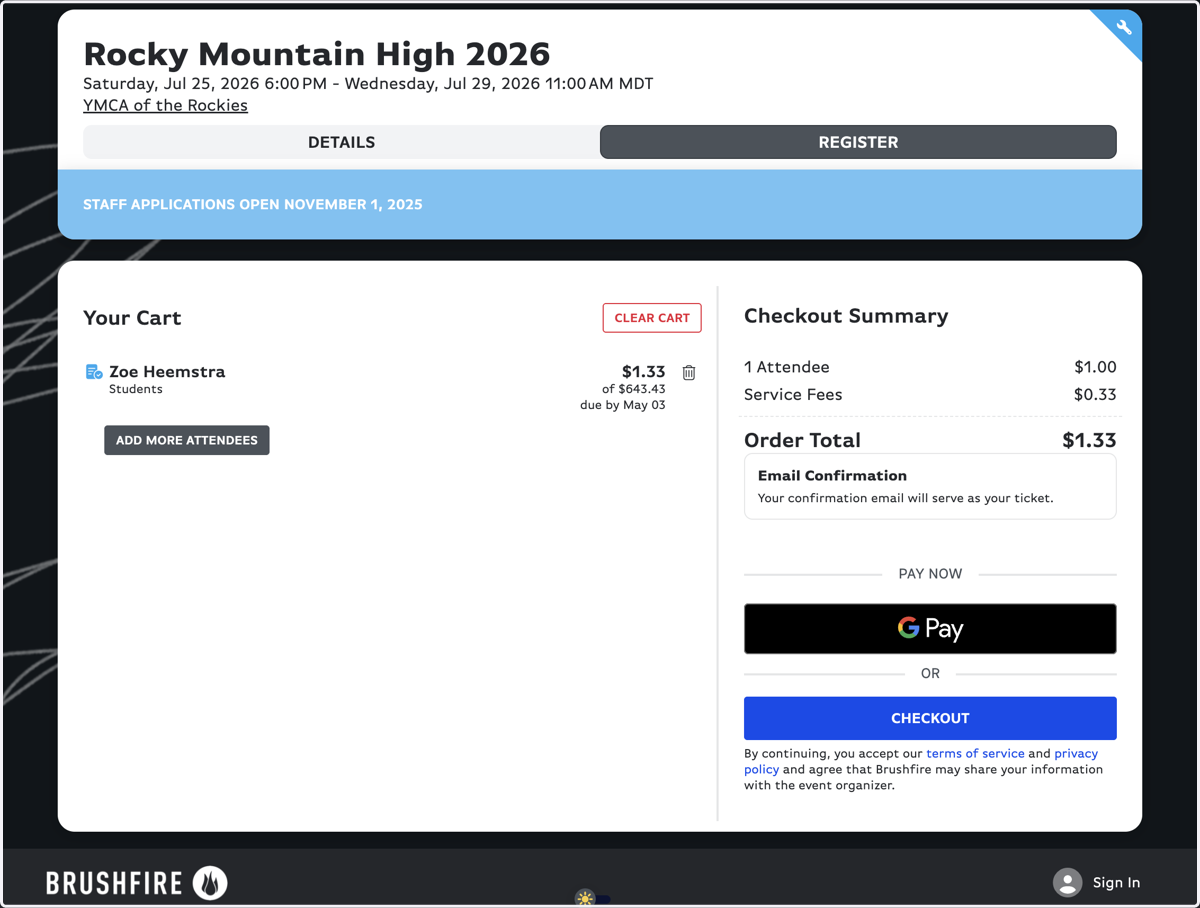
22. This is your "Cart" screen. Check that everything is accurate.
Notice the breakdown of cost and service fees on the right. Any Rec Plus options will appear below your name. You can ignore the service fees if you'll pay by check.
23. Click on CHECKOUT
24. Fill out your payment information.
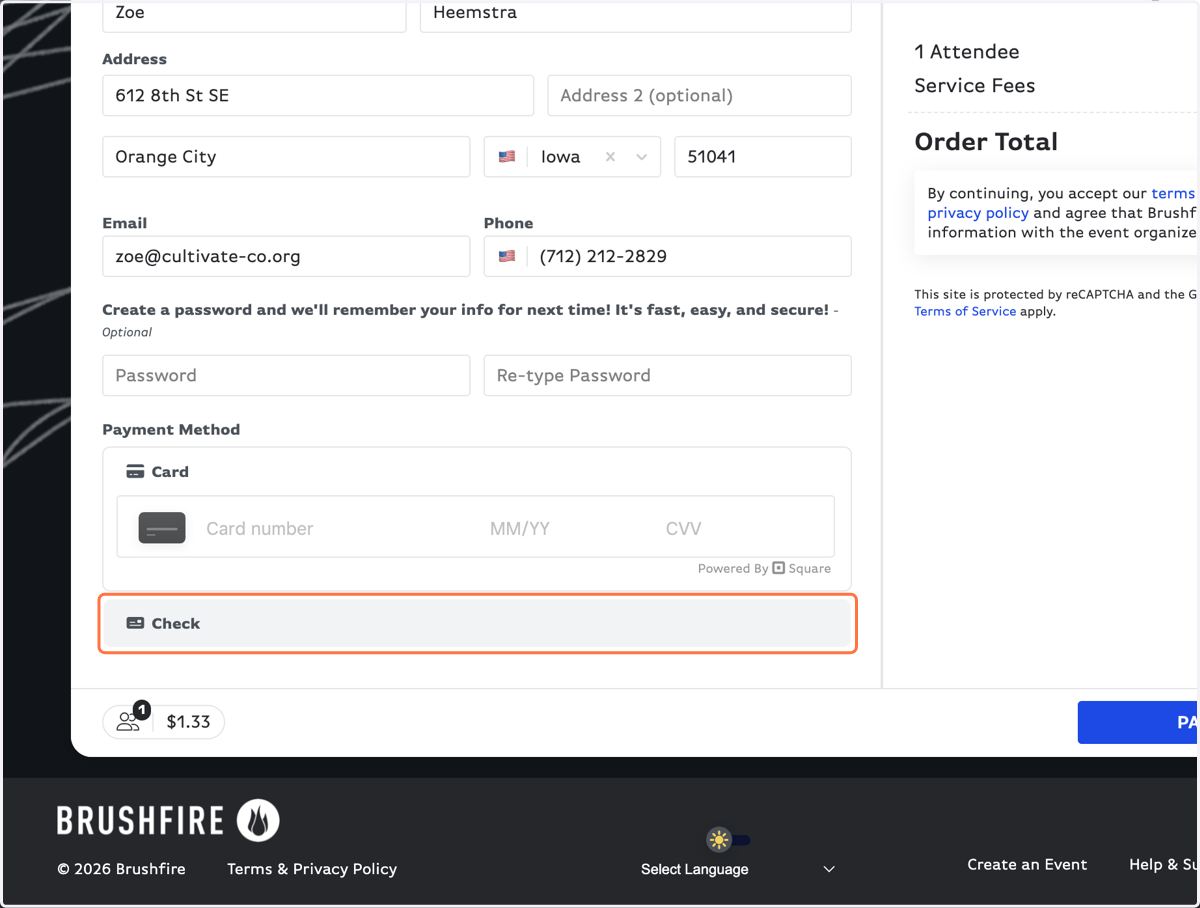
25. Click on PAY NOW
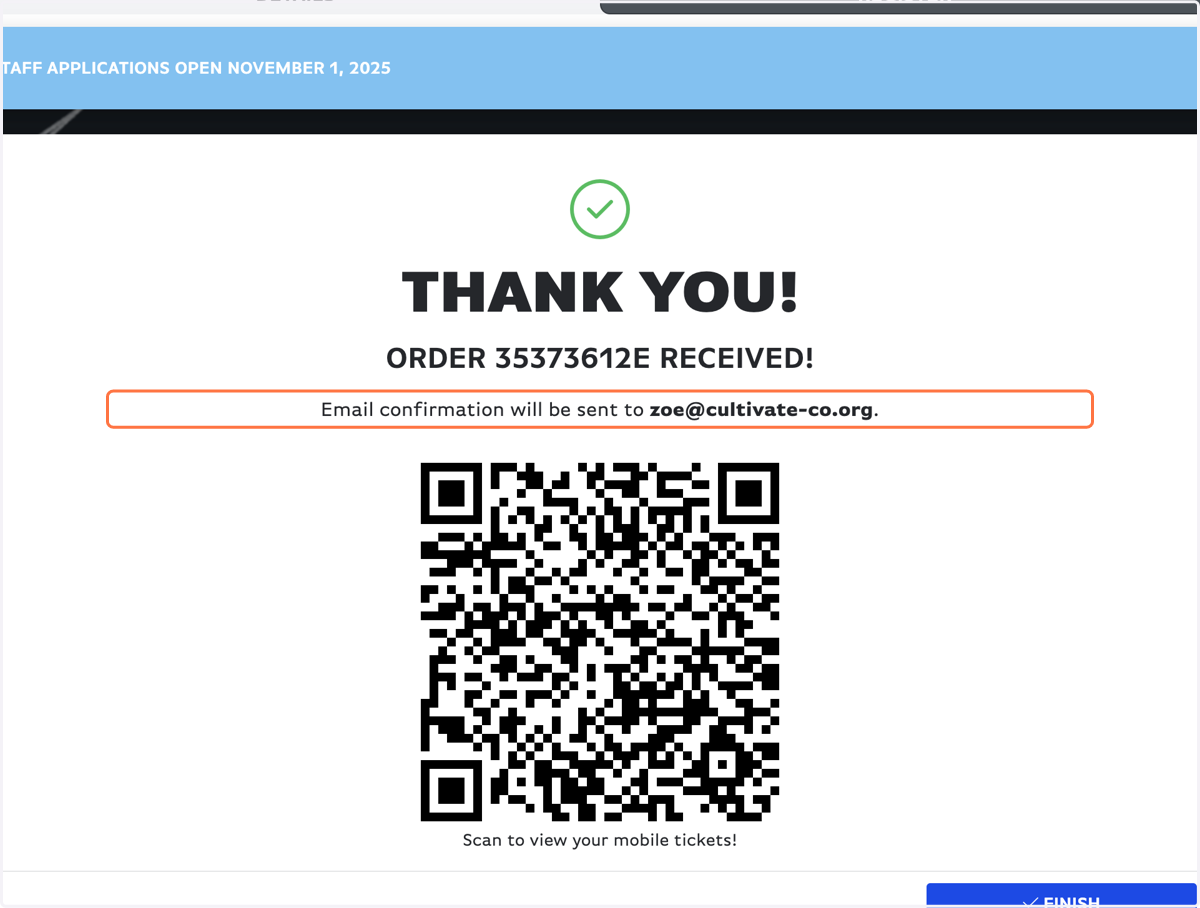
26. You did it! You're fully registered, and will receive a confirmation email from Brushfire.
Find that email to make custom payments, change attendee info (like Rec Plus options), or you can reply to that email with any questions!