Part Two: ClubSpark Integration
Part Two provides a step by step guide on
Adding a lock/s into ClubSpark
Creating a Exchange Code in the Igloohome app
Allocating locks into the Booking Module into Club Spark
1. Let's begin
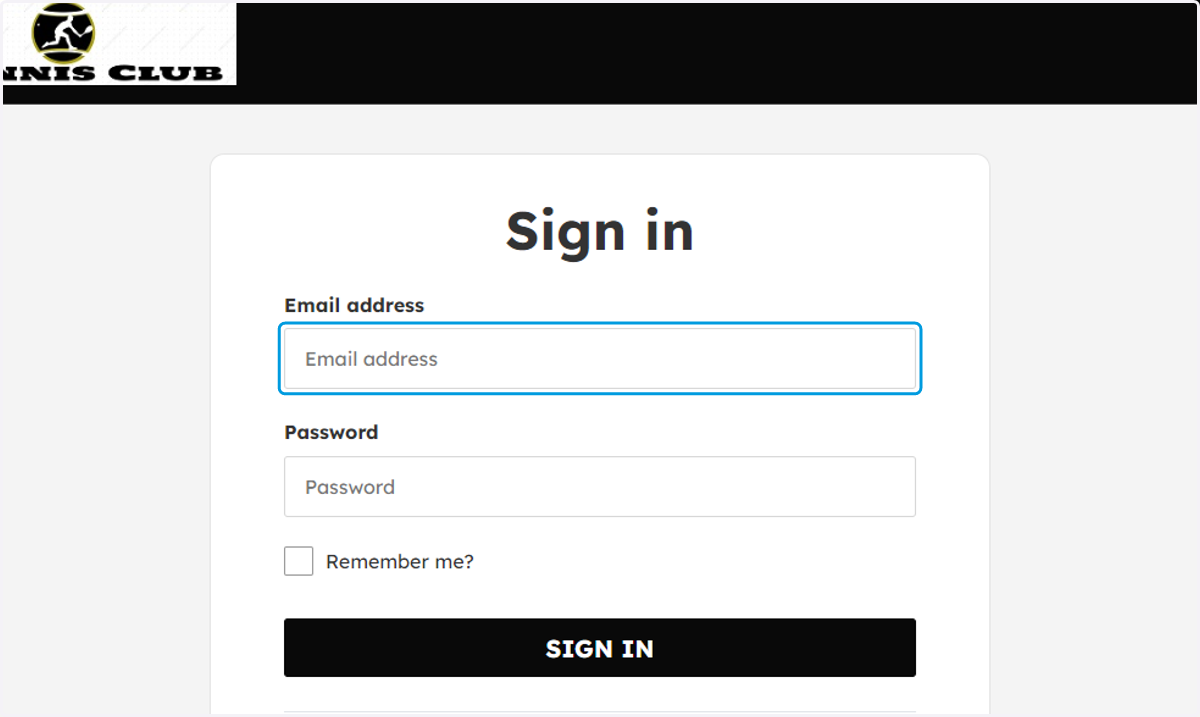
2. Login to ClubSpark
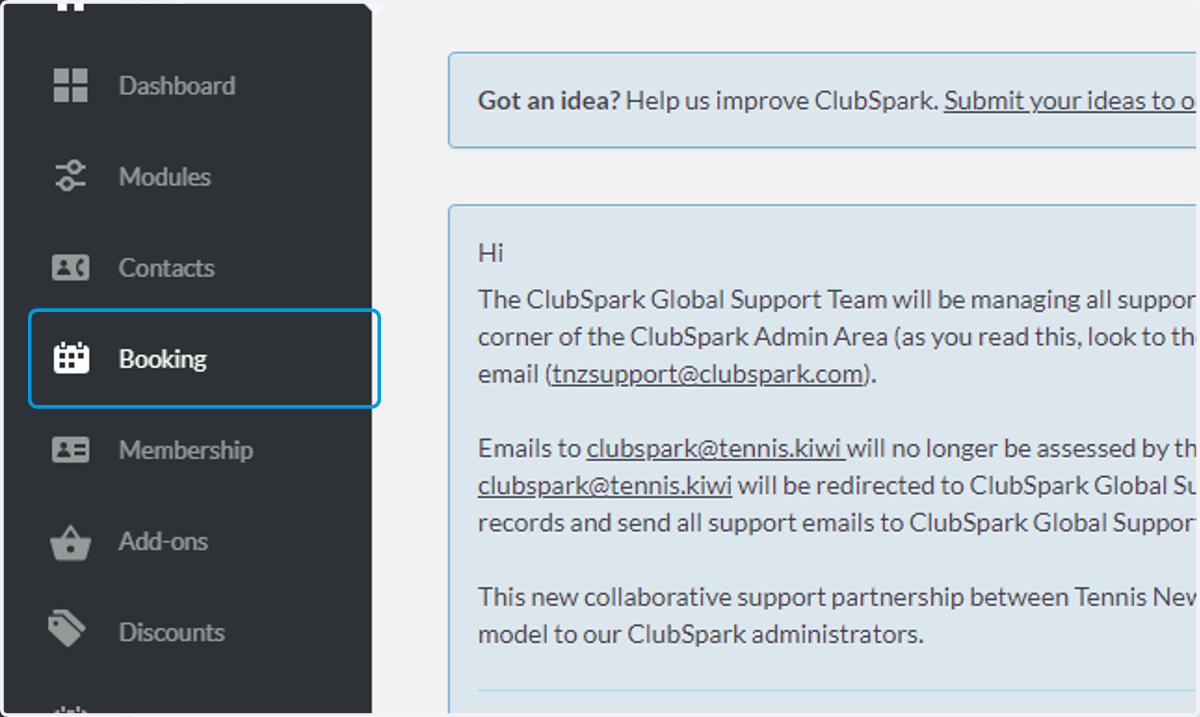
3. Click on Booking
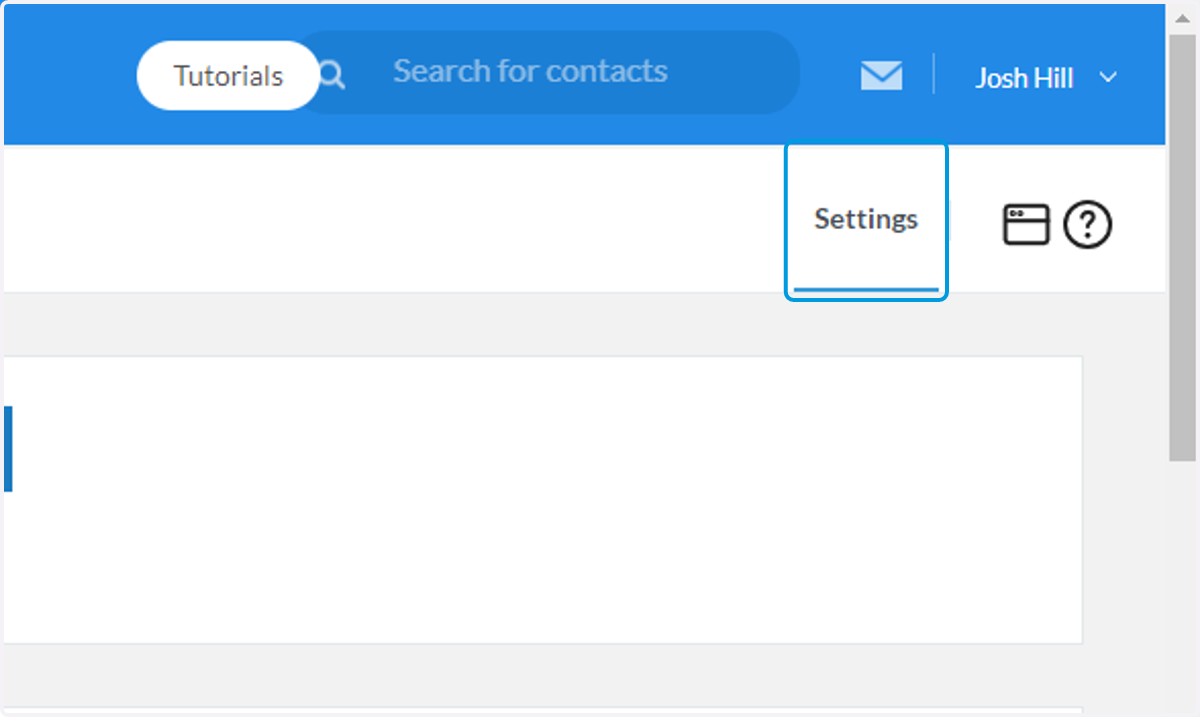
4. Click on Settings
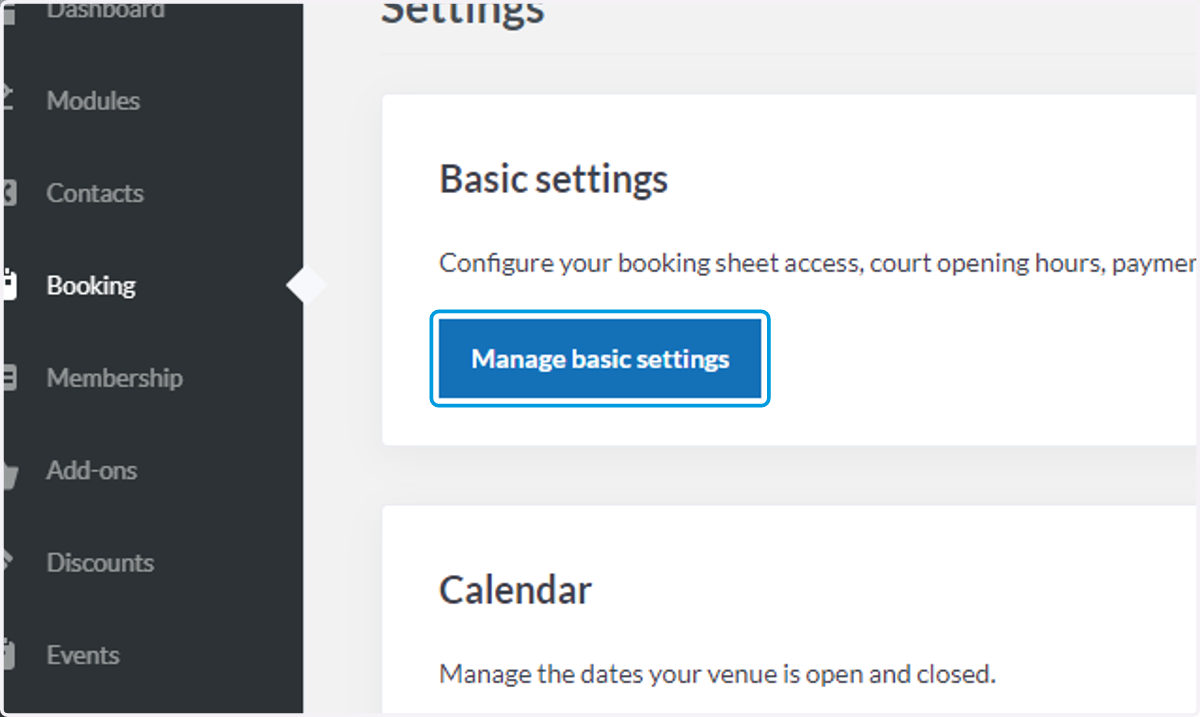
5. Click on Manage basic settings
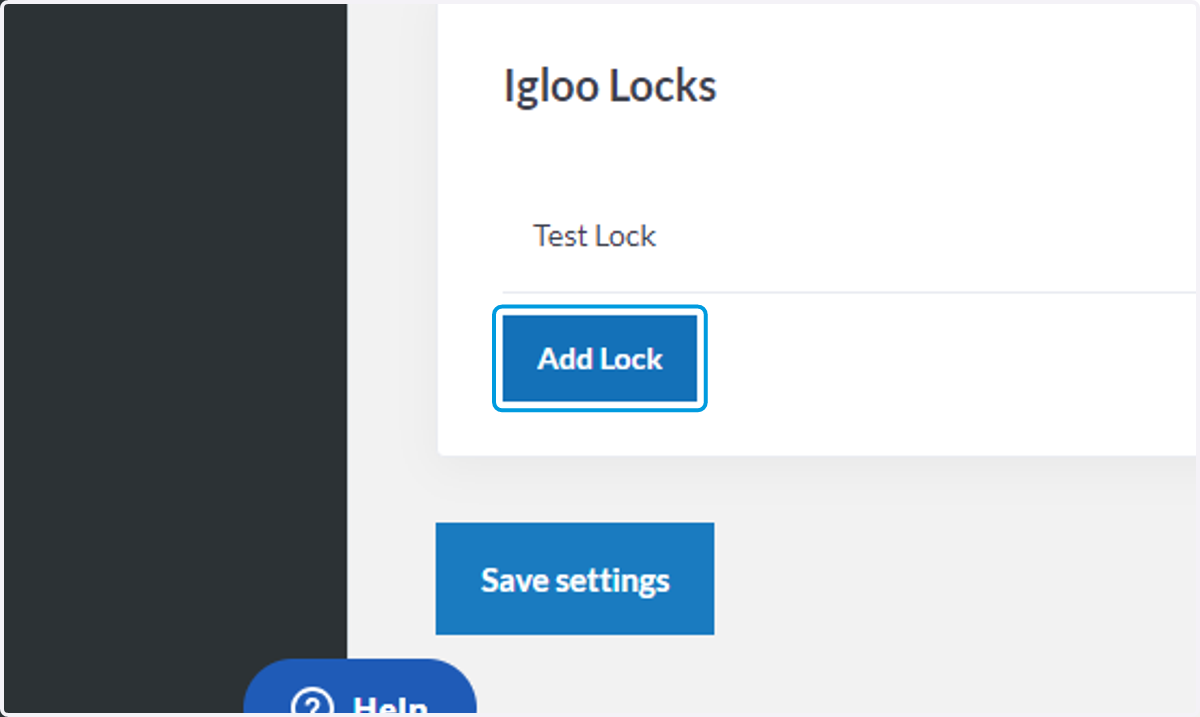
6. Scroll down and click on Add Lock
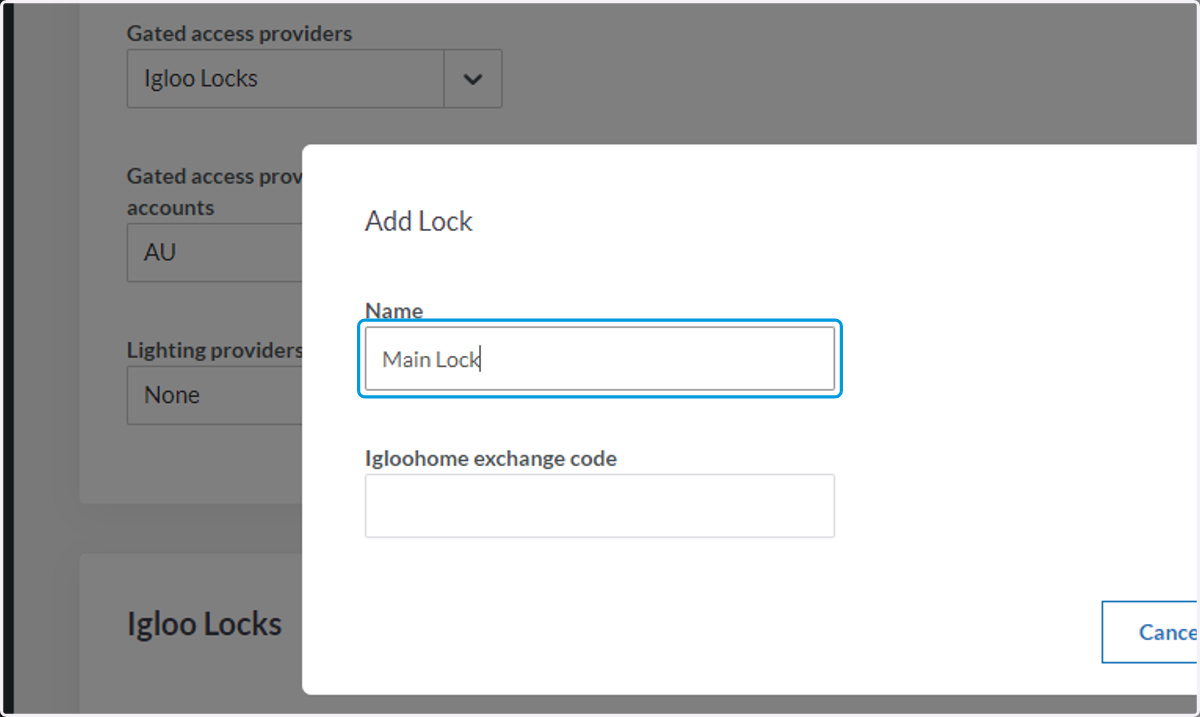
7. Type a name for your main lock
You may wish to name it according to how you named the lock in the Igloo Home App (Something you can identify) If you have two locks - You could name this Gate 1 or Courts 1,2,3,4 etc..
8. Head back to the Igloohome App
We need to create an exchange code for the lock to integrate with ClubSpark
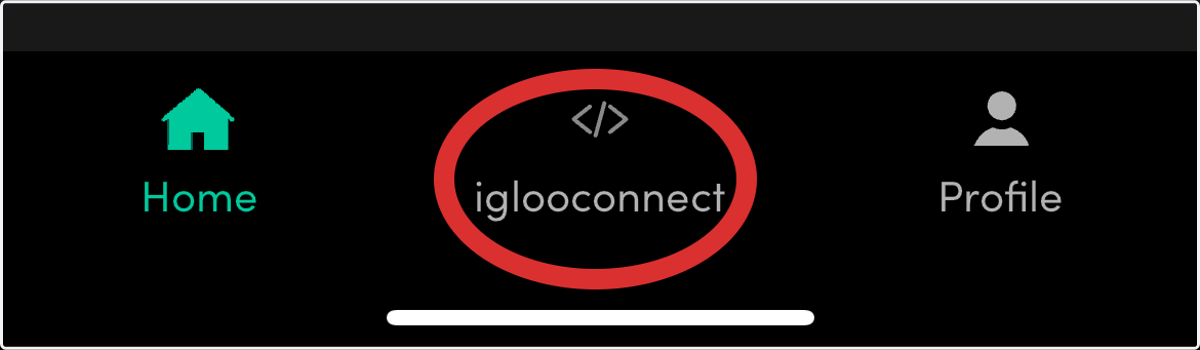
9. Tap "iglooconnect" on the bottom of the app
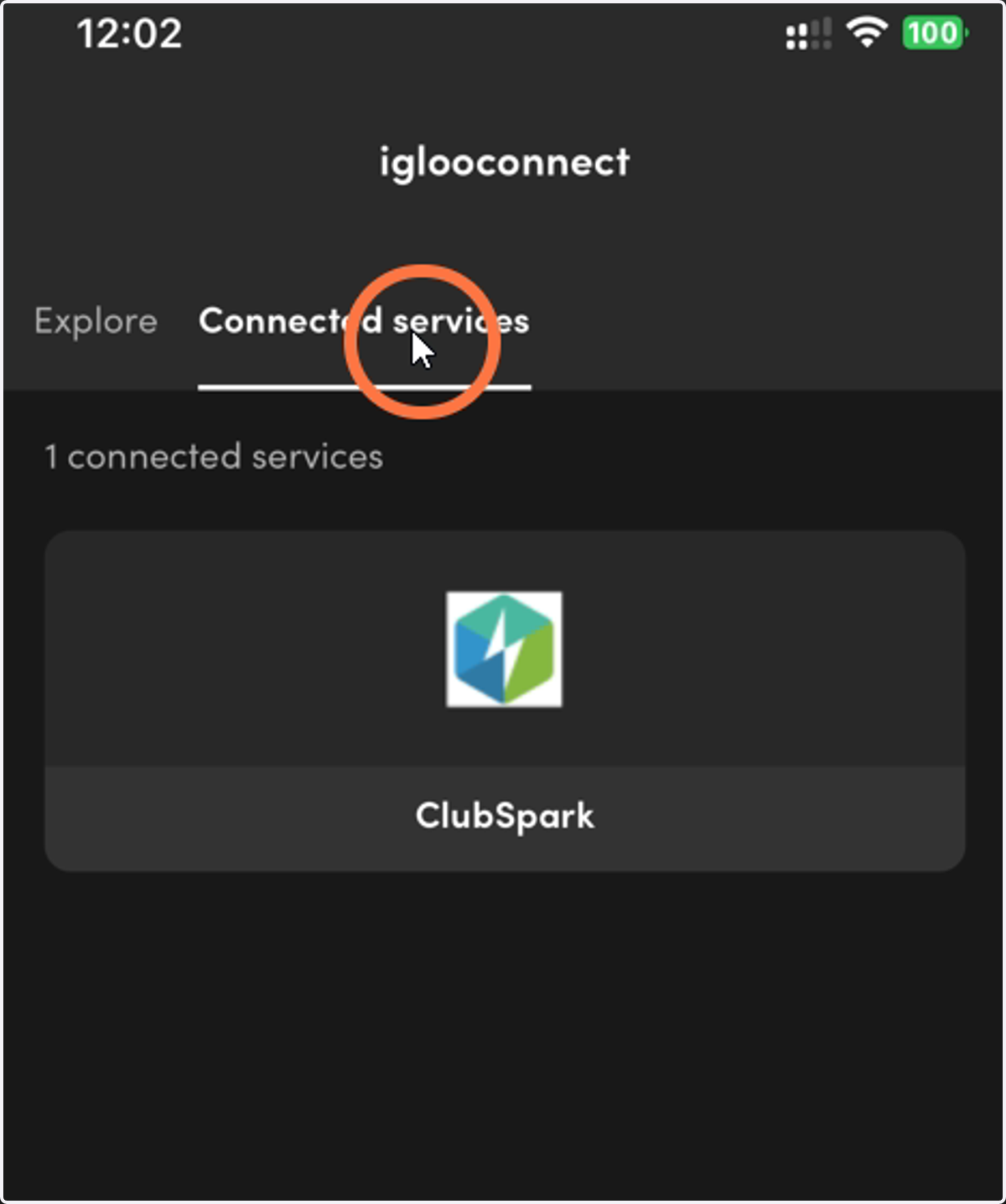
10. Tap Connected Services
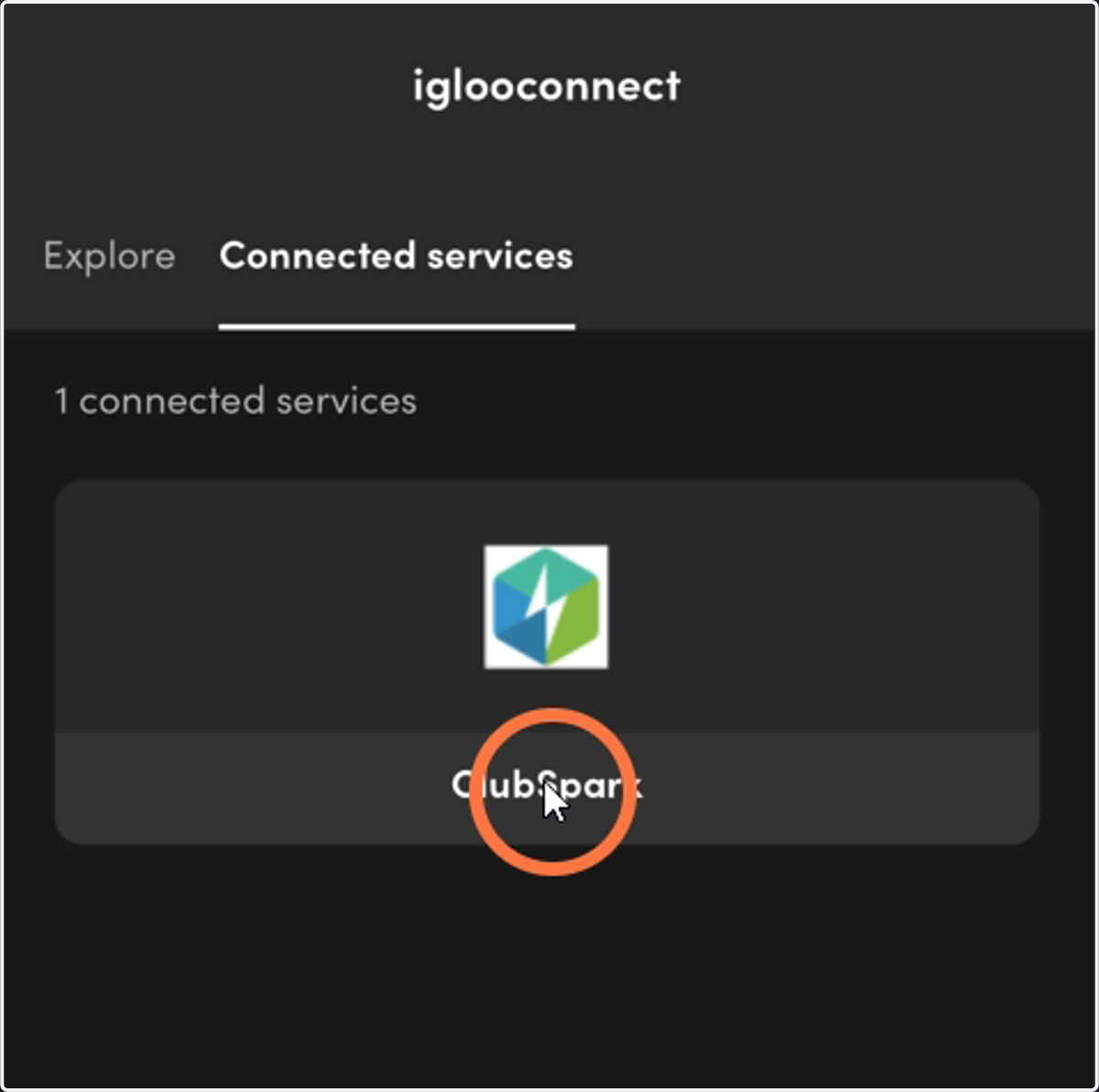
11. Tap ClubSpark
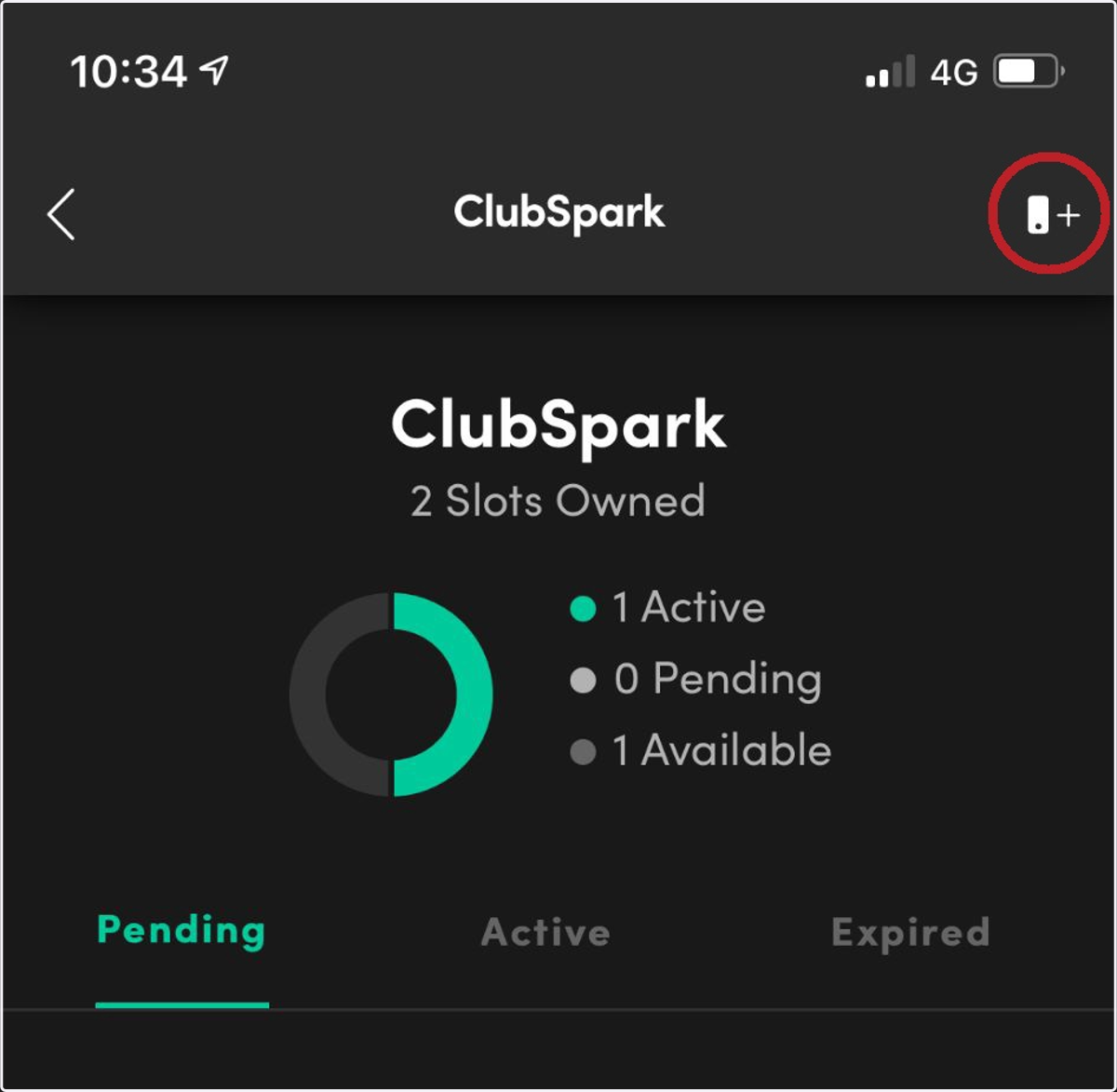
12. Tap the icon on the top right corner
13. Select your lock
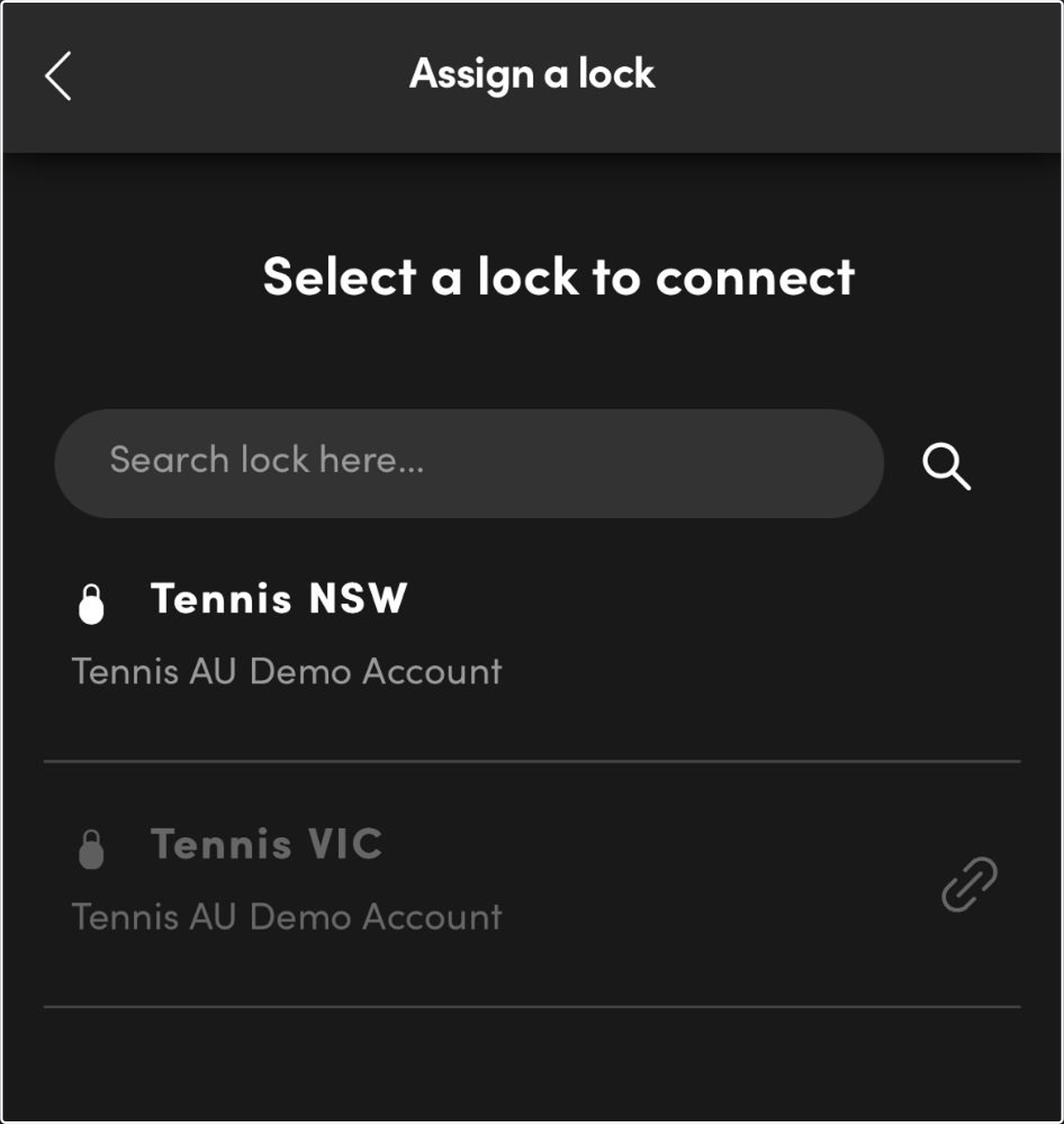
14. A tick will appear, then tap Connect
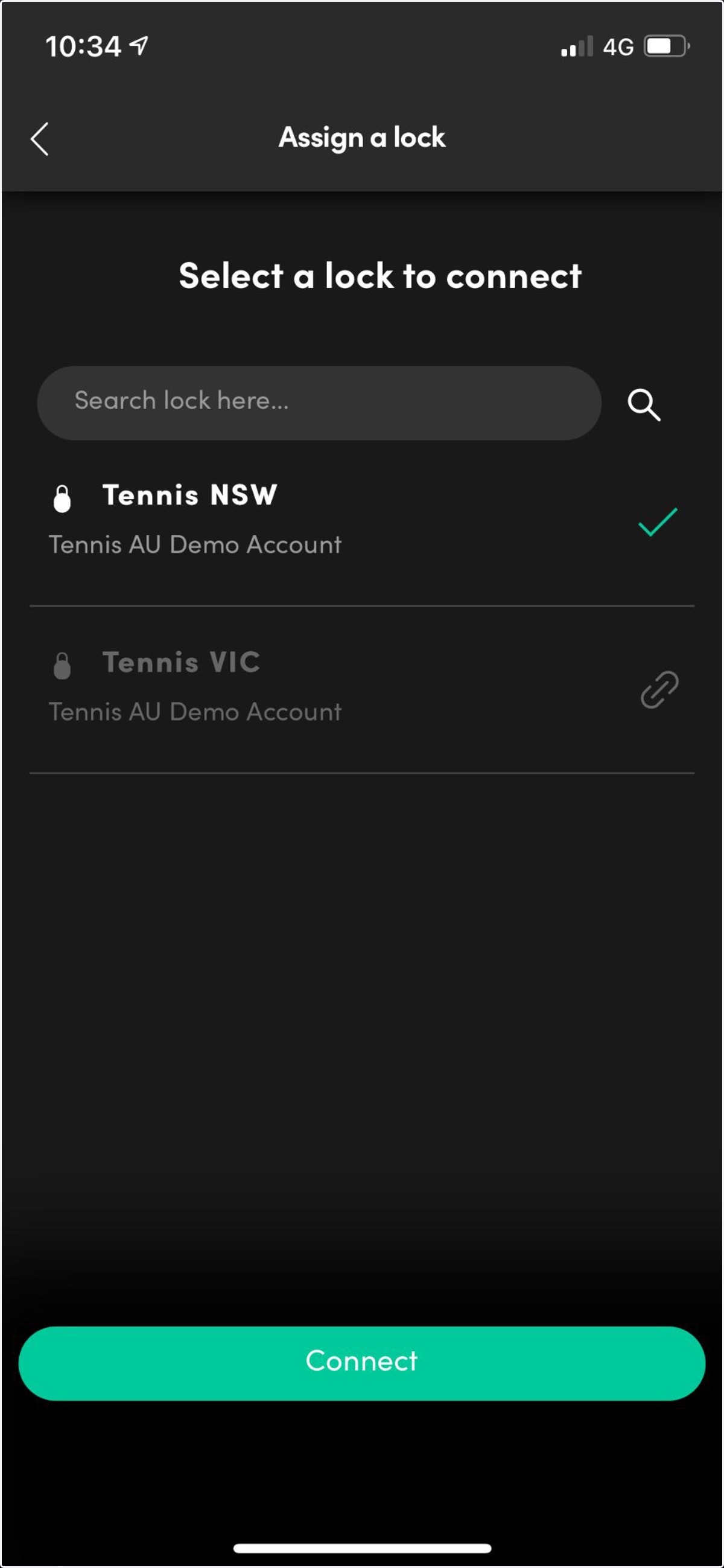
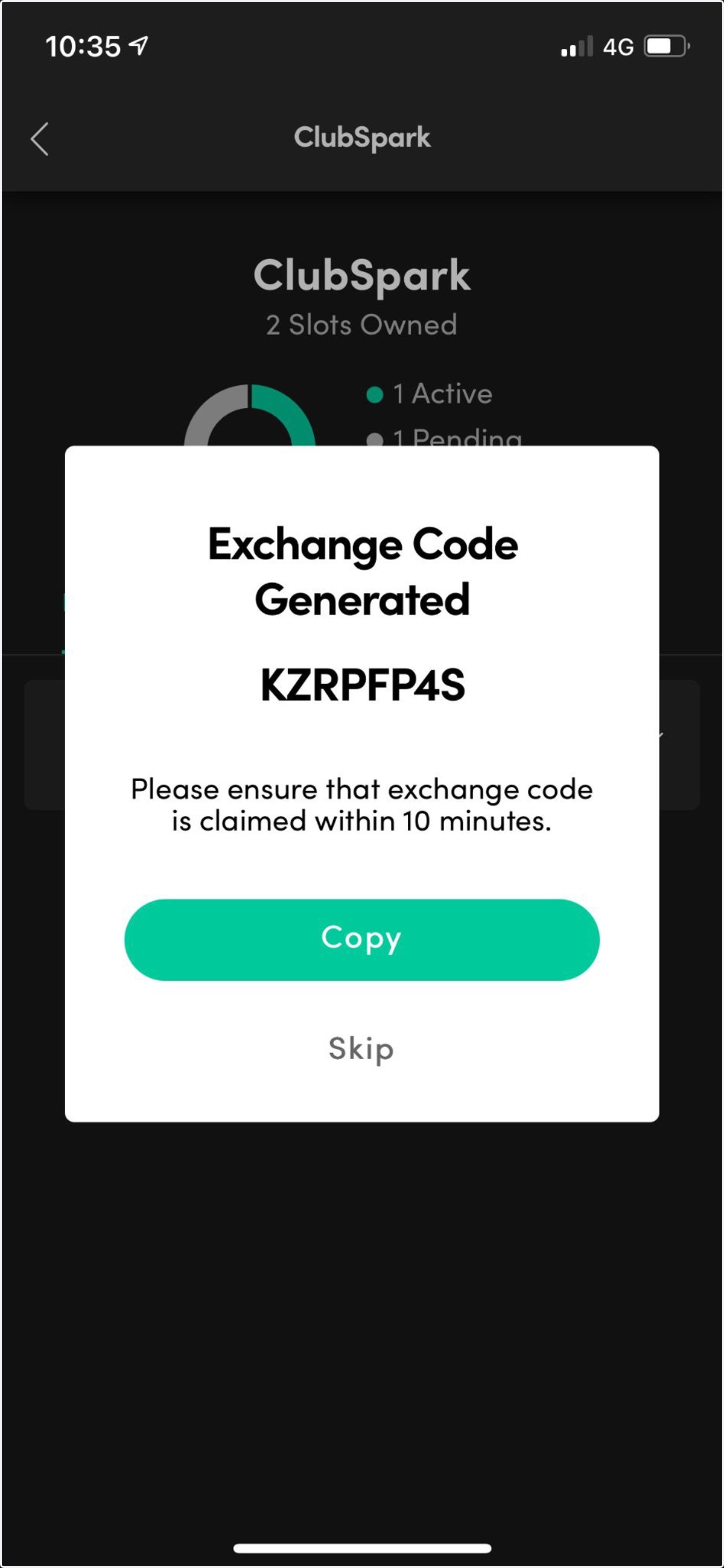
15. Your Exchange Code will be generated
Copy, note down this code
16. Return back to your Club Spark page
17. Enter in the Exchange Code as indicated below
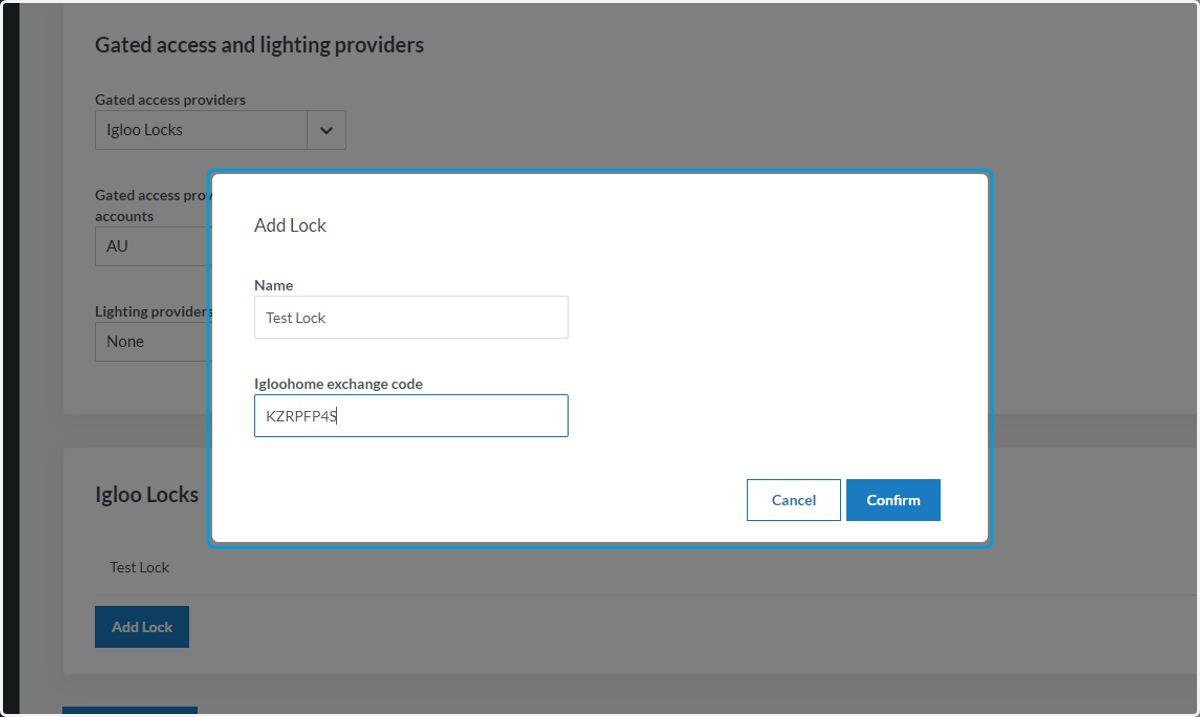
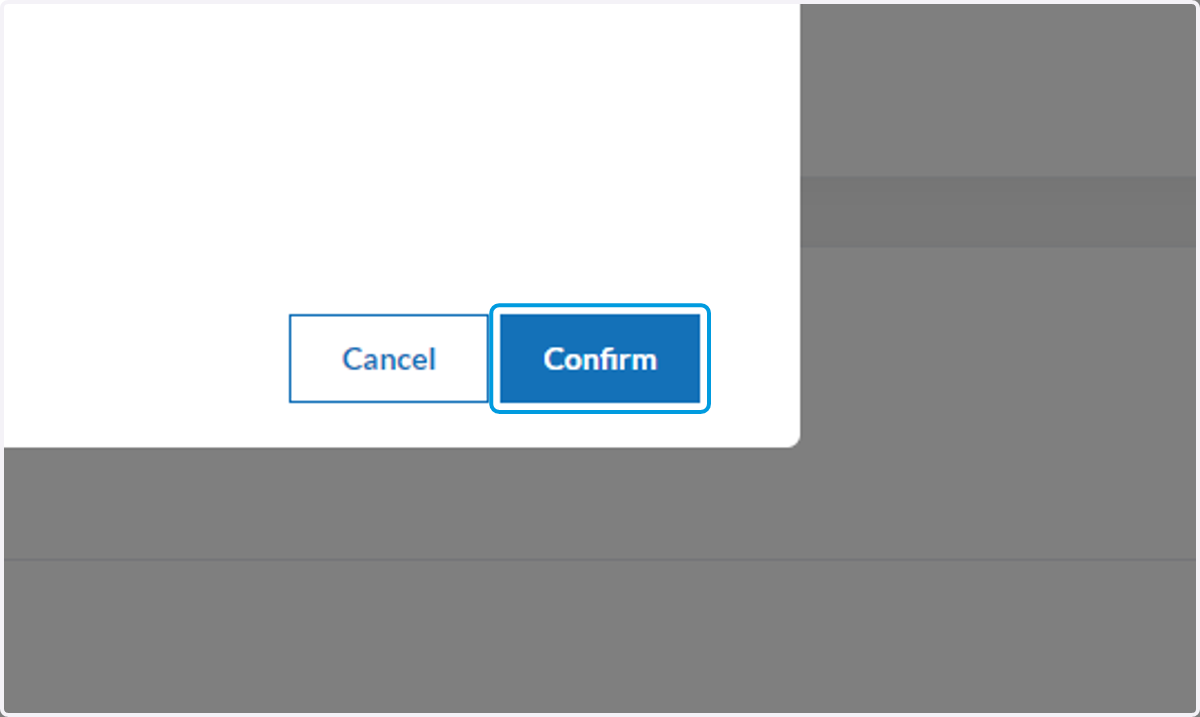
18. Click on Confirm
19. You will see your lock added
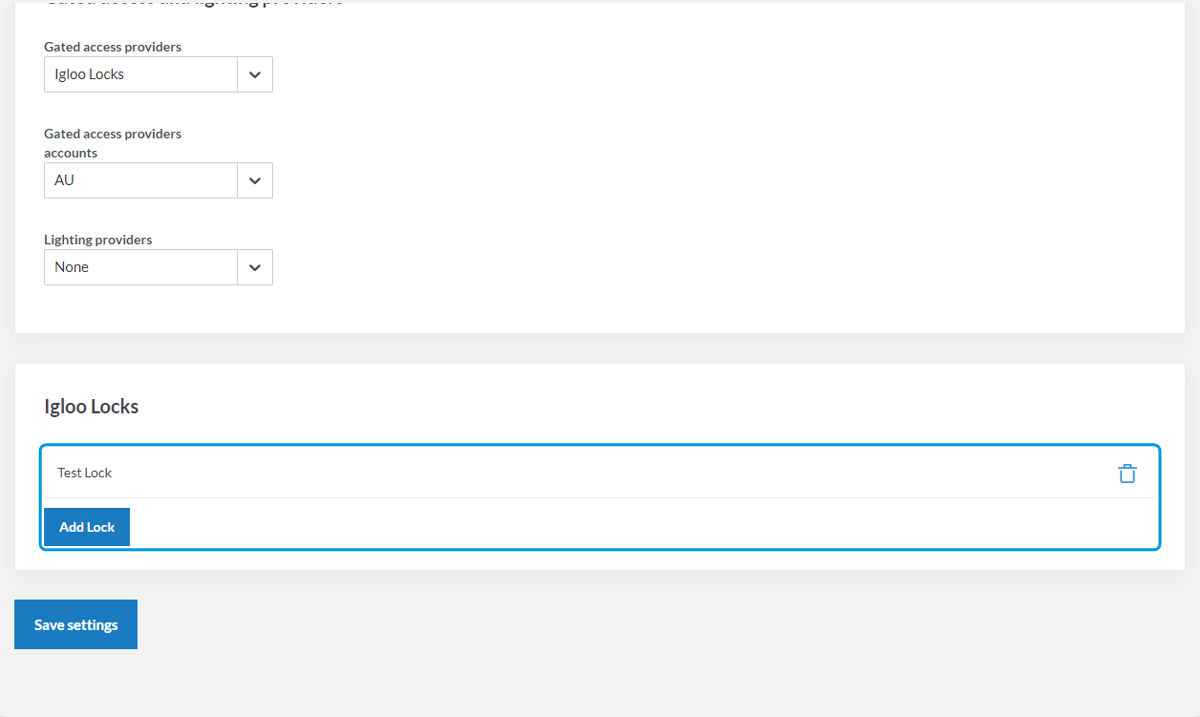
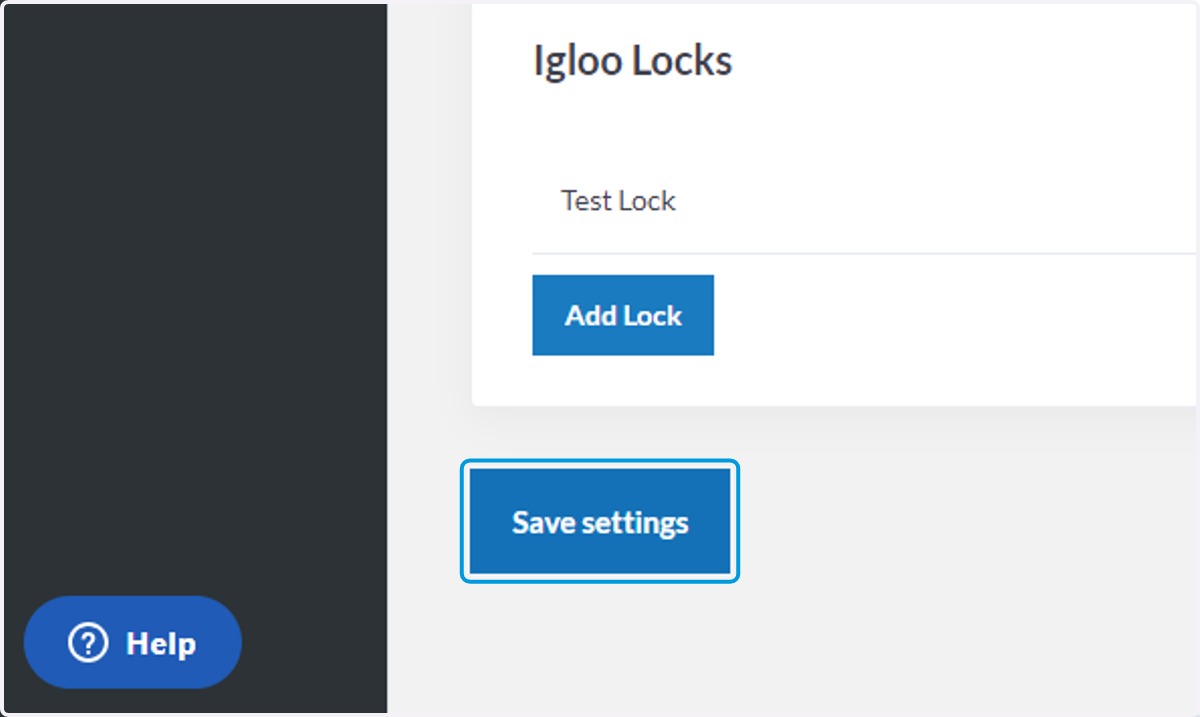
20. Click Save Settings
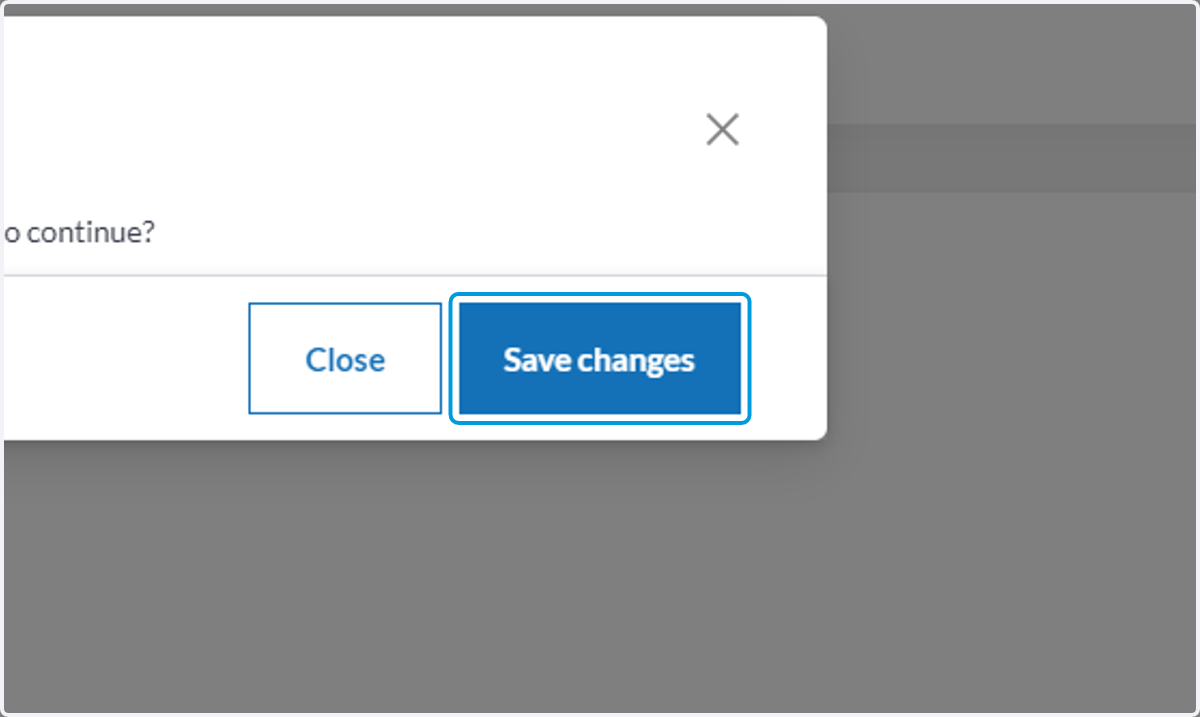
21. A popup may appear, click Save Changes again
22. Complete!
What happens now?
✅Your locks are now connected to Club Spark!
✅Please send through the Master Code and advise that you have completed the steps to support@tennis.kiwi to locate your master code please use this guide here
NEXT:
You are now ready for a Club Spark Booking Module Training Session where you will go through the modules, test the lock and ask any questions you have.
Sessions are conducted online via Google Meets.
You can book your session by contacting tnzsupport@clubspark.com