Parents/Guardians - Checking Student Grades and Attendance in Maestro
Login to your IVSA Parent/Guardian account at: https://ivsa.maestrosis.com
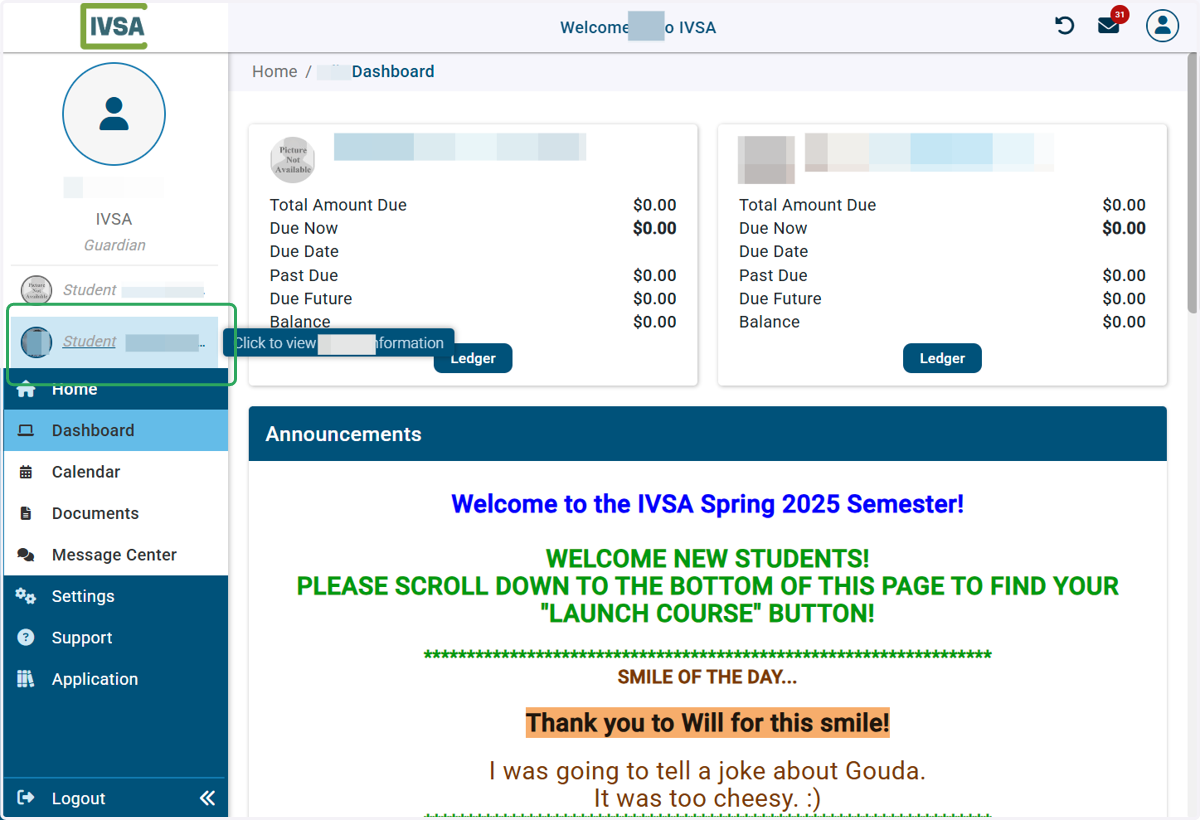
1. Click on your student's name on the left side of the Dashboard.
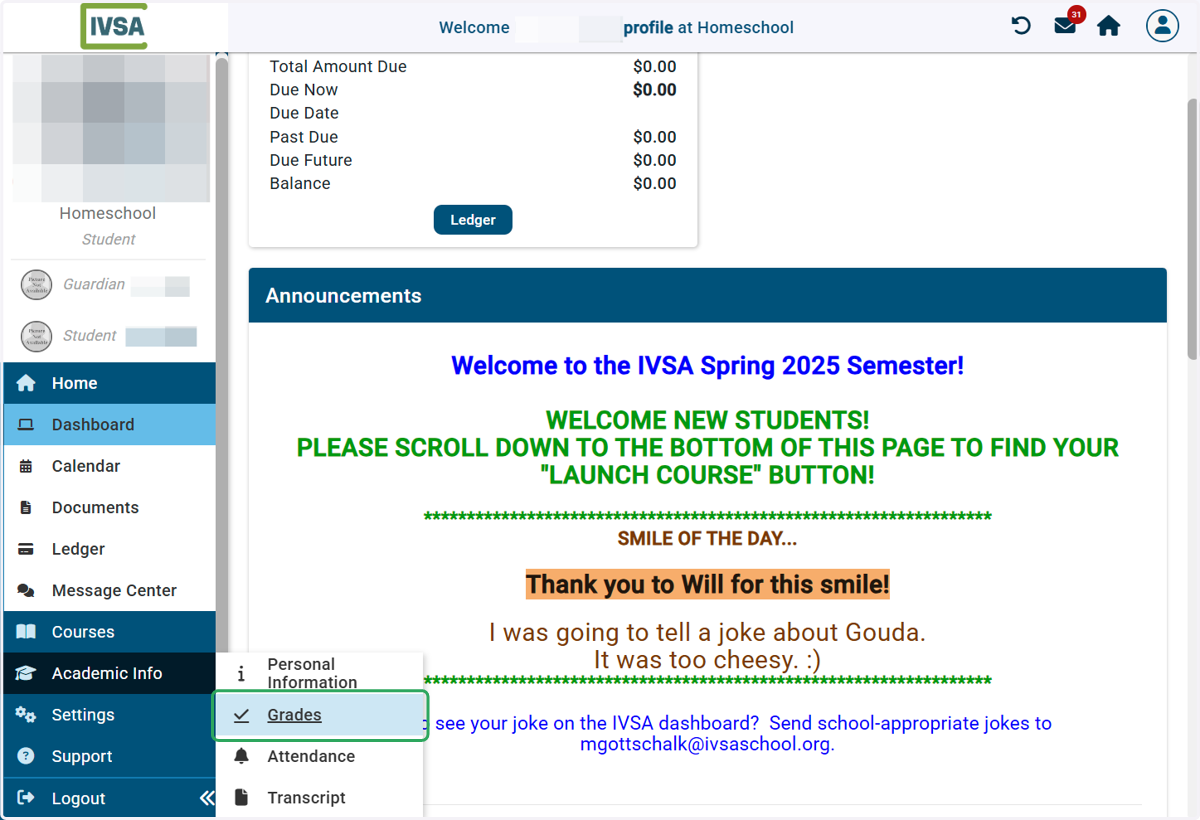
2. Hover over Academic Info and select Grades in the pop-out menu
3. By default, all active courses will be displayed.
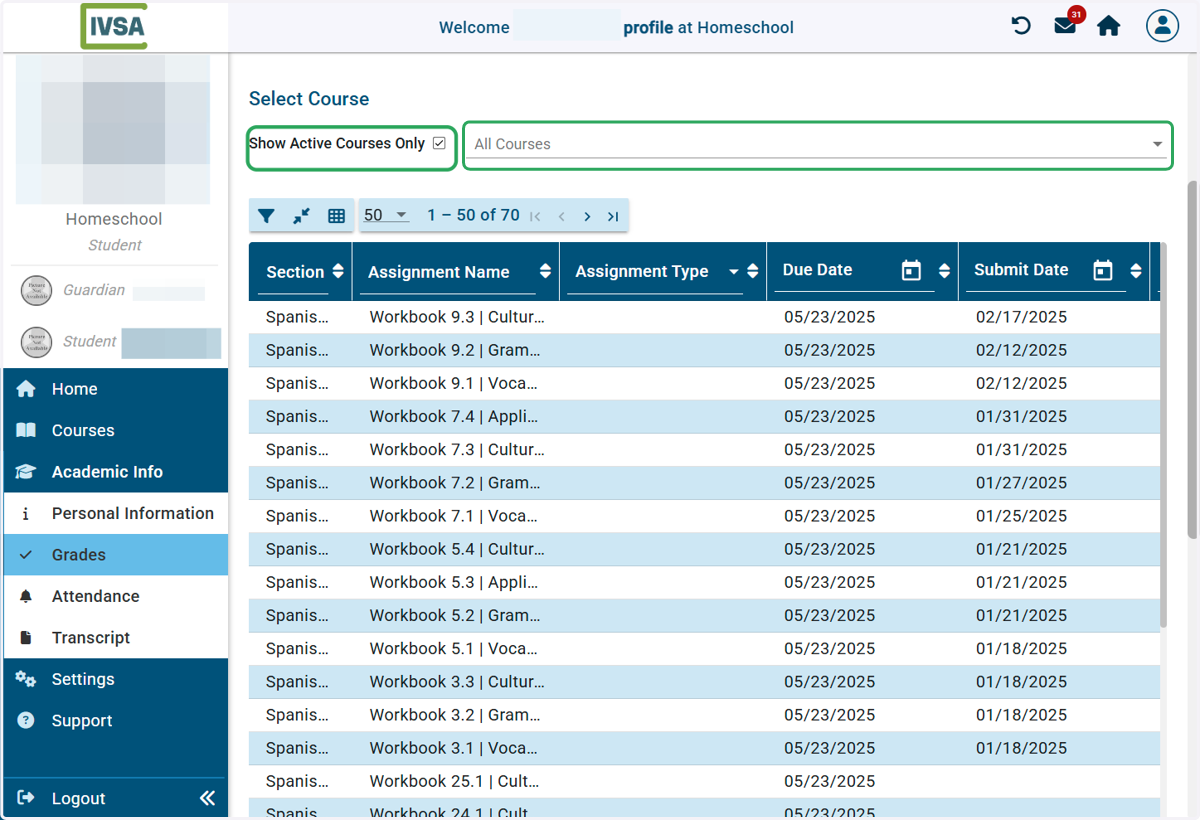
4. Use the drop down menu to select from active courses
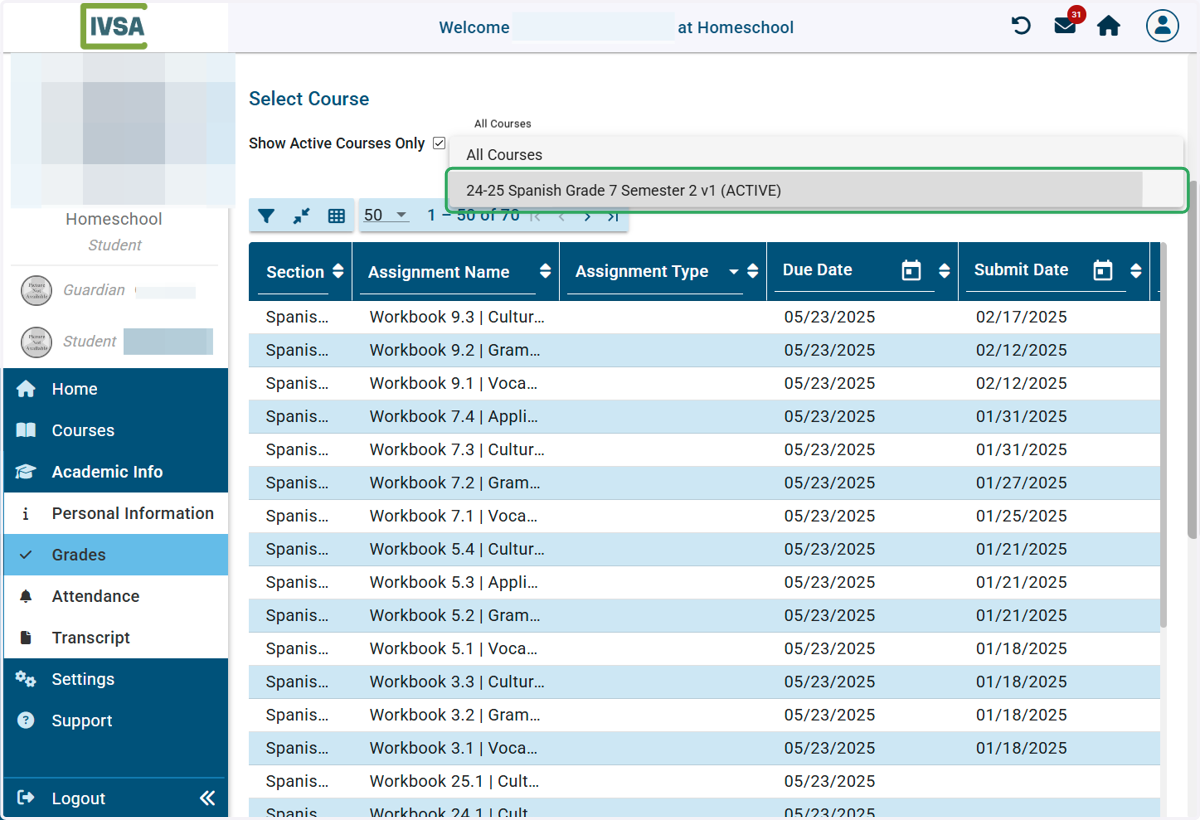
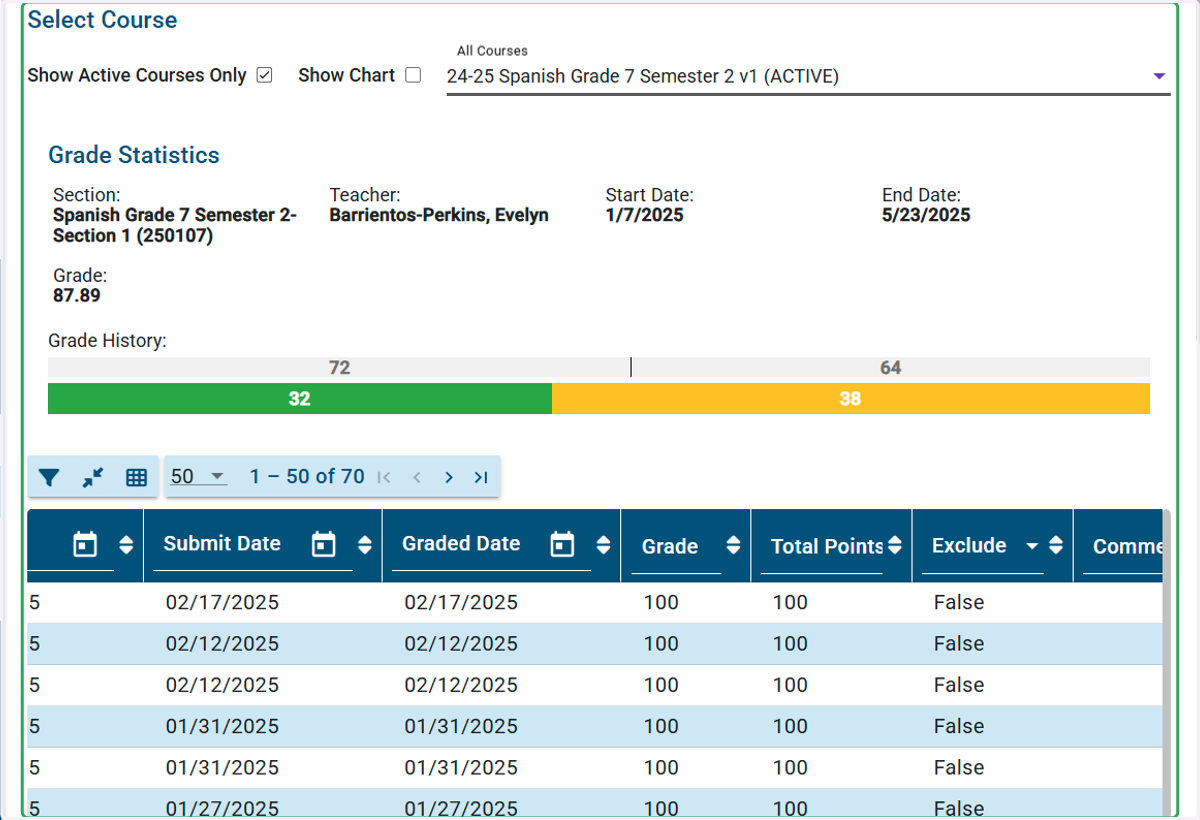
5. Select a course from the list for more detailed information
When you select a specific course, you will see the current grade to date and a pacing chart that displays the number of days gone by in the course and the number of days remaining (top numbers), and the number of submitted, pending, and overdue assignments (bottom numbers in green, red, and yellow).
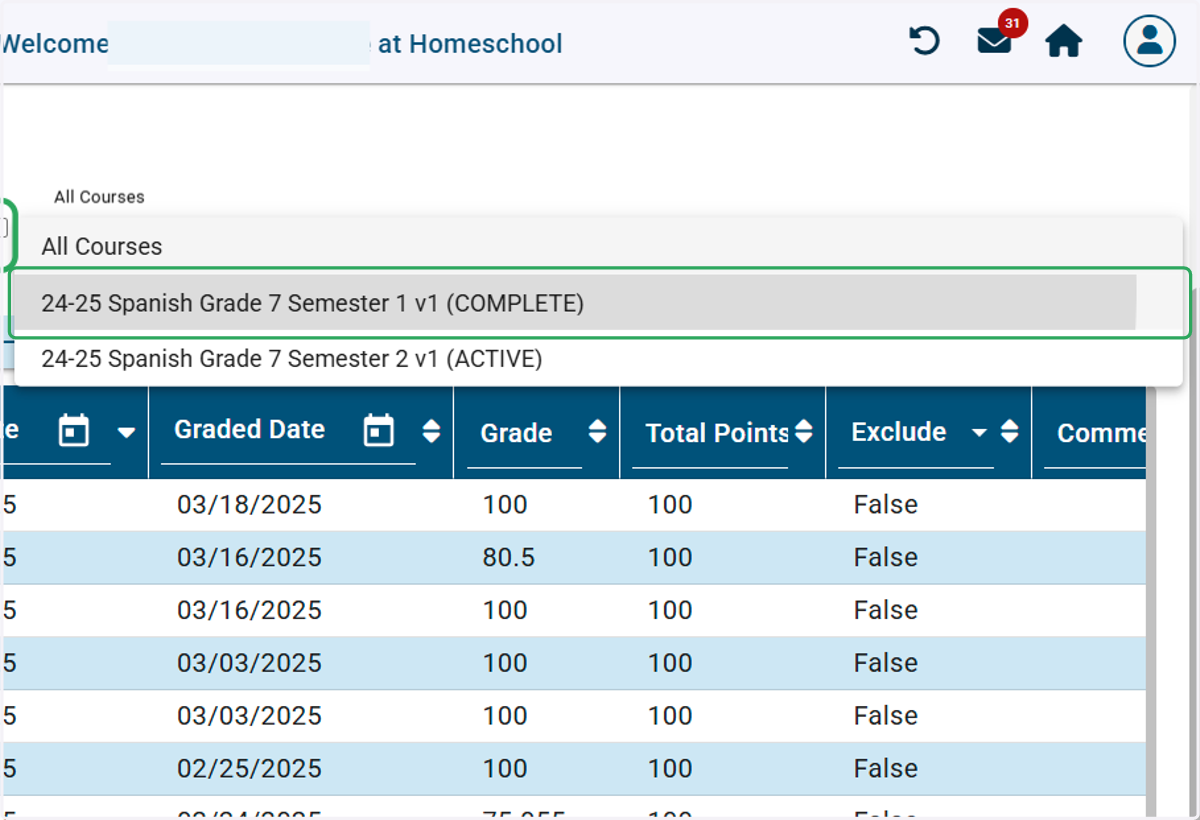
6. To see the grades for completed enrollments, uncheck the Show Active Courses Only box.
Now you will be able to select completed enrollments in the drop-down menu.
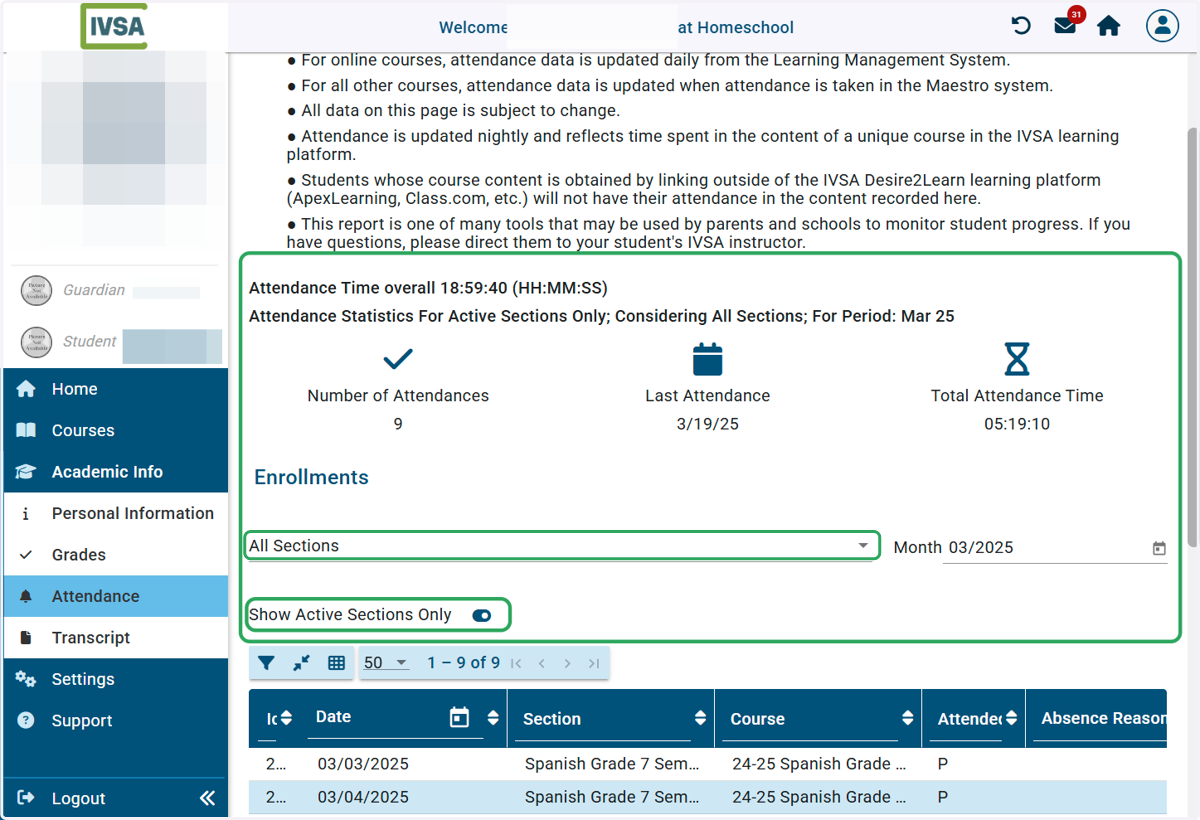
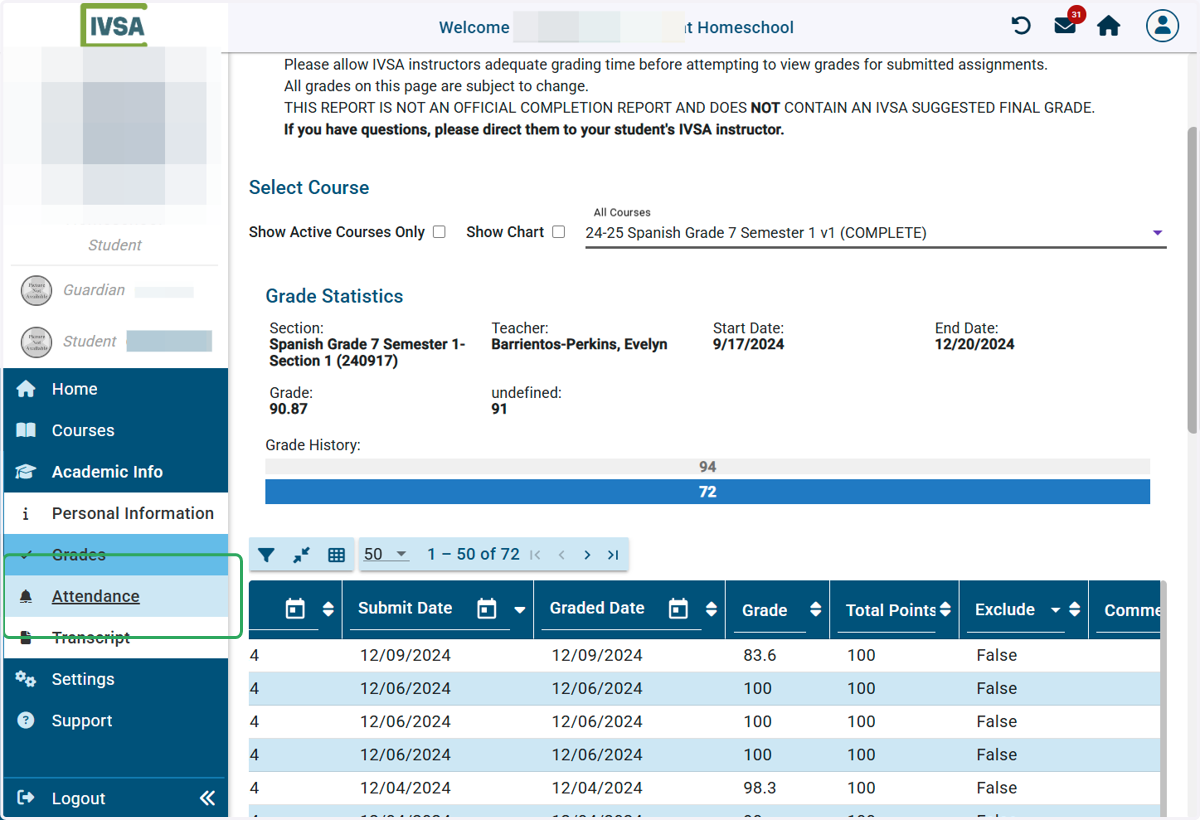
7. To view student attendance: Click the Attendance link in the left menu under Academic Info
8. Use the drop down menu to select a specific section
You can also select to view attendance for a certain month or for courses that have already been completed.