Creating an IVSA Canvas Observer Account
Canvas observer accounts allow parents/guardians, school mentors/coaches, and tutors the ability to:
Read course announcements
Review course assignments & due dates
Review course documents
View the course calendar
View students' grades
Communicate with the course instructor
Join conferences when invited
1. Login to the IVSA student account
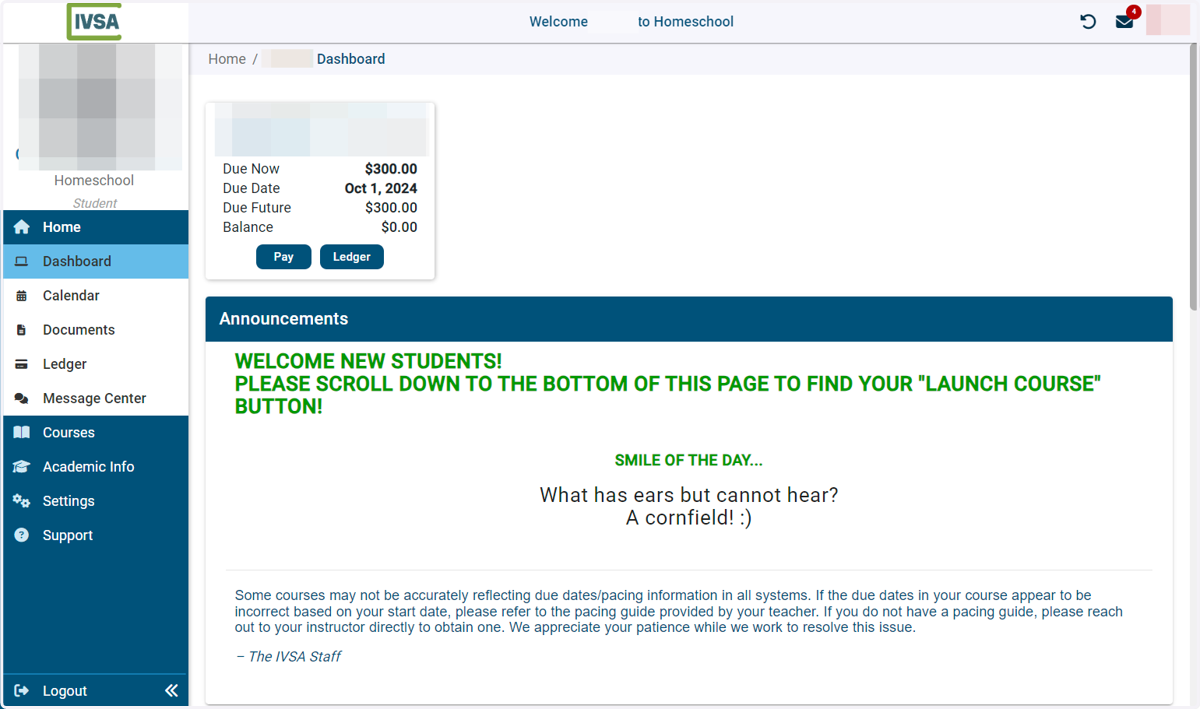
2. Scroll to the bottom and click Launch Course
Canvas
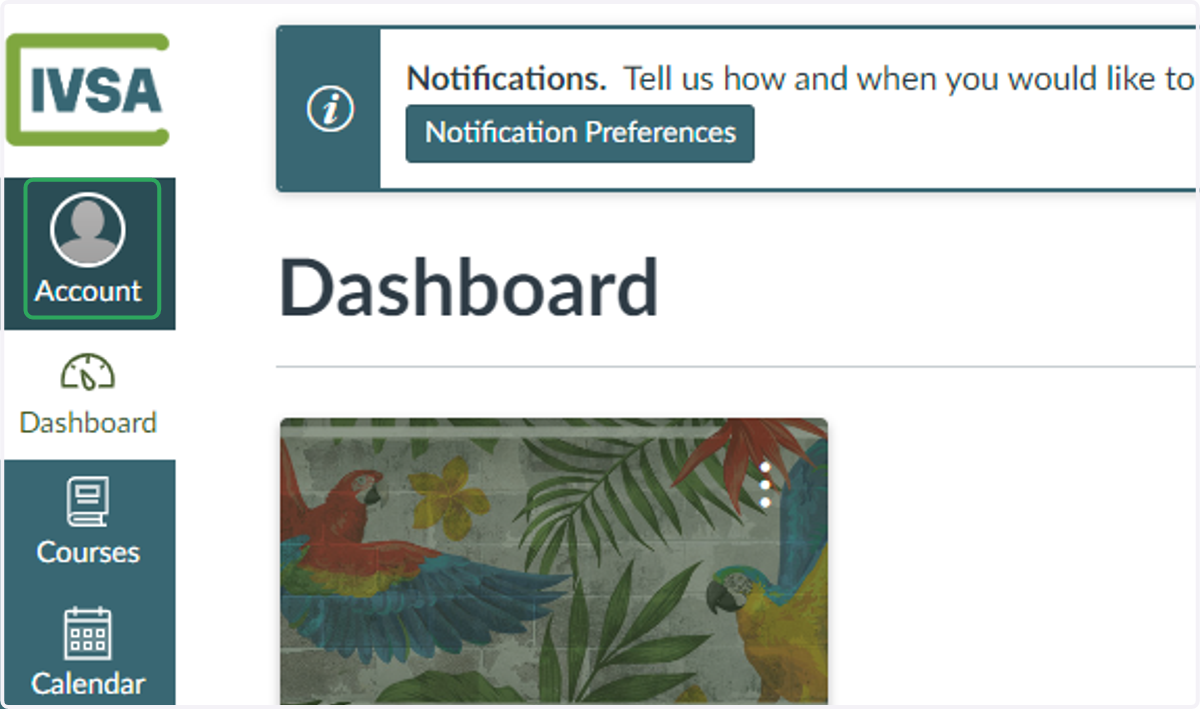
3. When the Canvas LMS opens in a new tab, click the Account button in the menu on the left
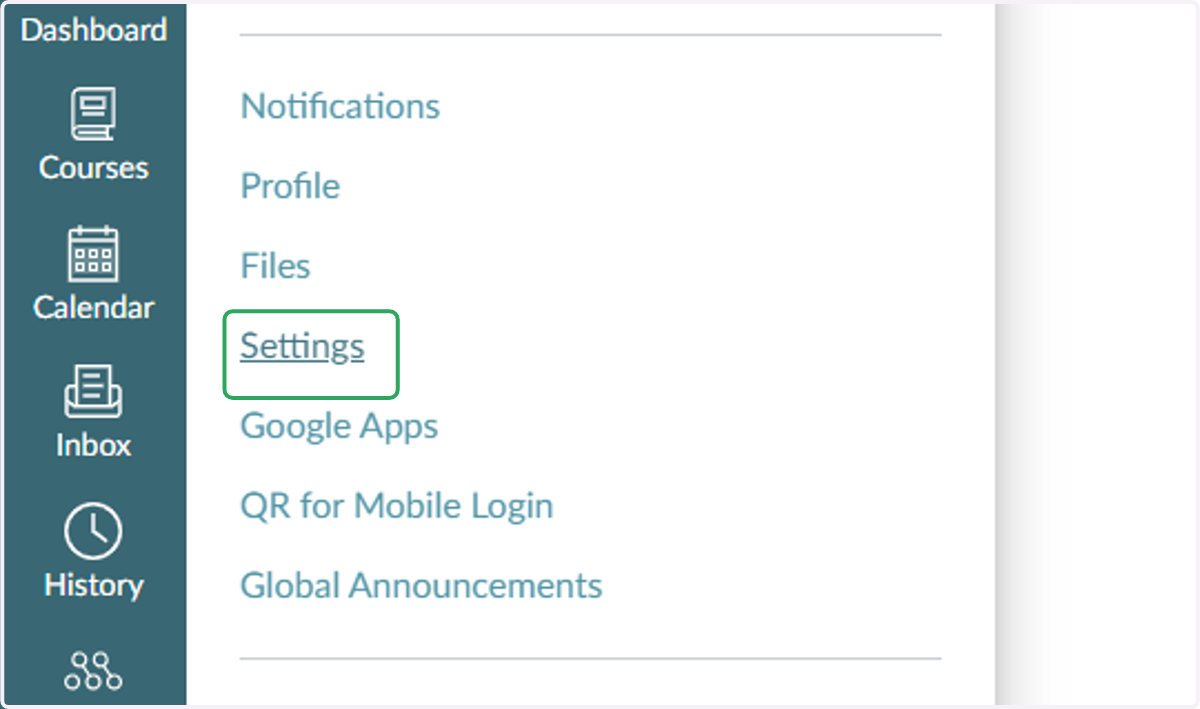
4. Select Settings
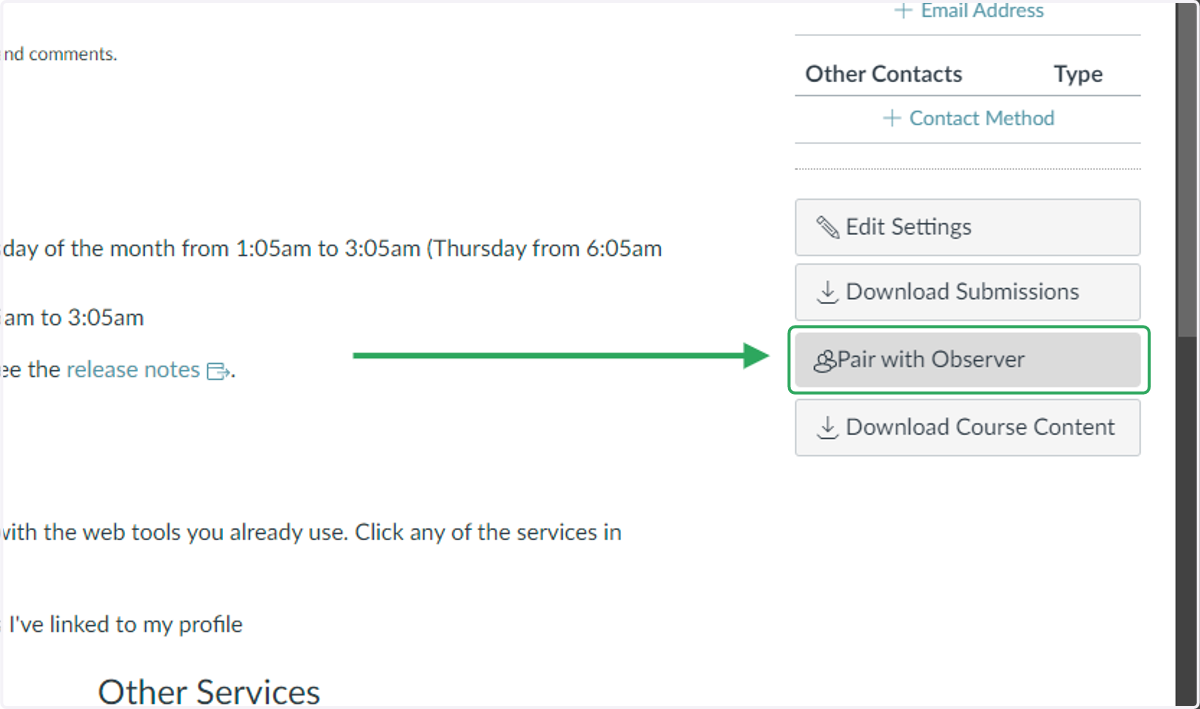
5. Click on Pair with Observer
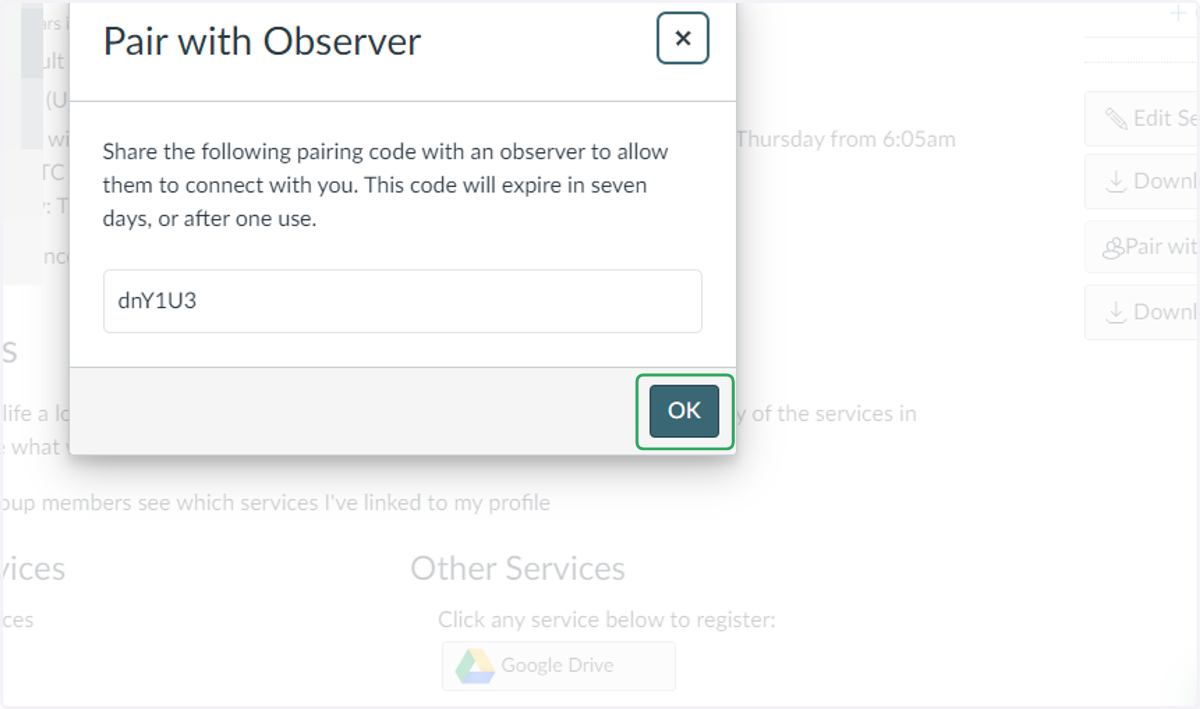
6. Copy the pairing code
The pairing code will expire in seven days or after one use.
Multiple pairing codes can be created from one student account.
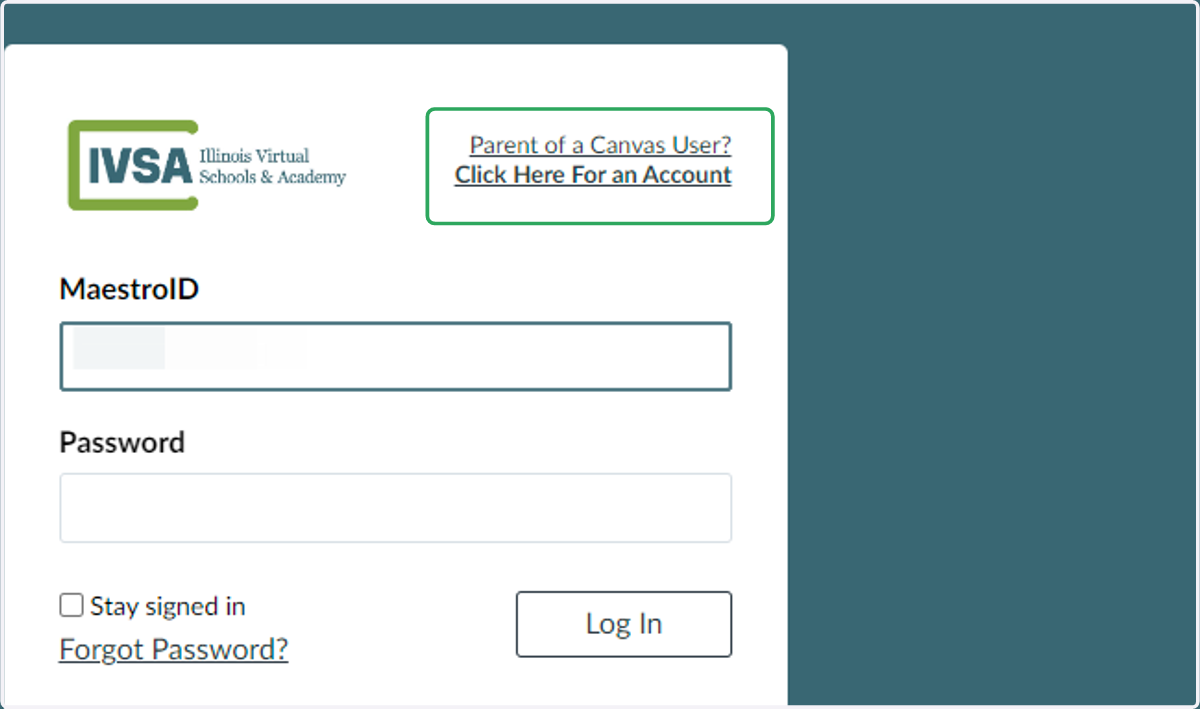
Now, it's time to create the observer account. Go to: https://ivsa.instructure.com/login/canvas
7. Go to: https://ivsa.instructure.com/login/canvas and click on Click Here for An Account
8. Complete the signup form and enter the pairing code at the bottom, then click Start Participating
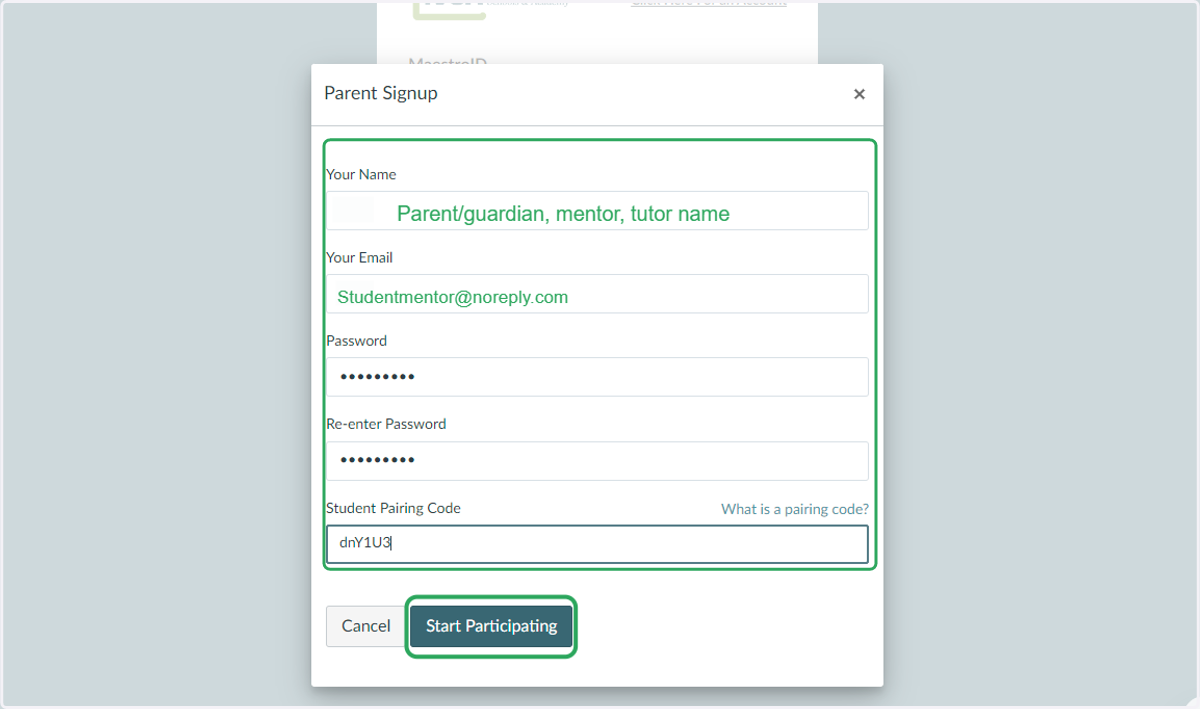
9. Success! Now you've created the Observer Account.
You can click on Account to set your Notification preferences and account settings.
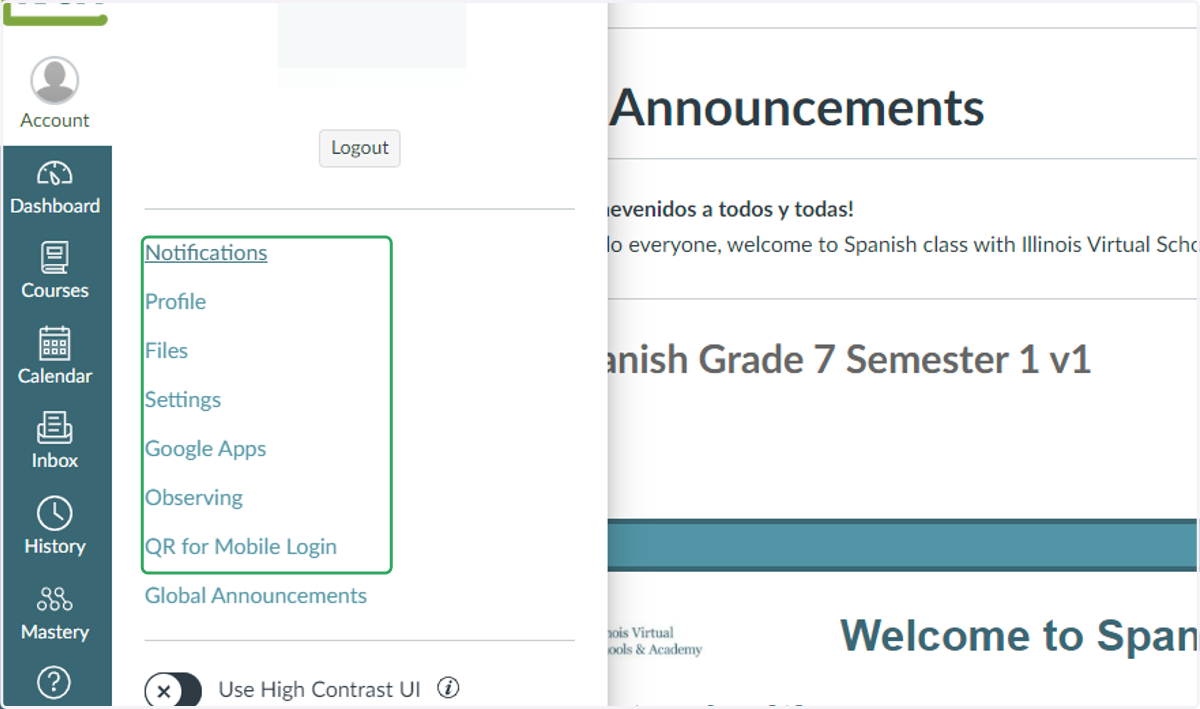
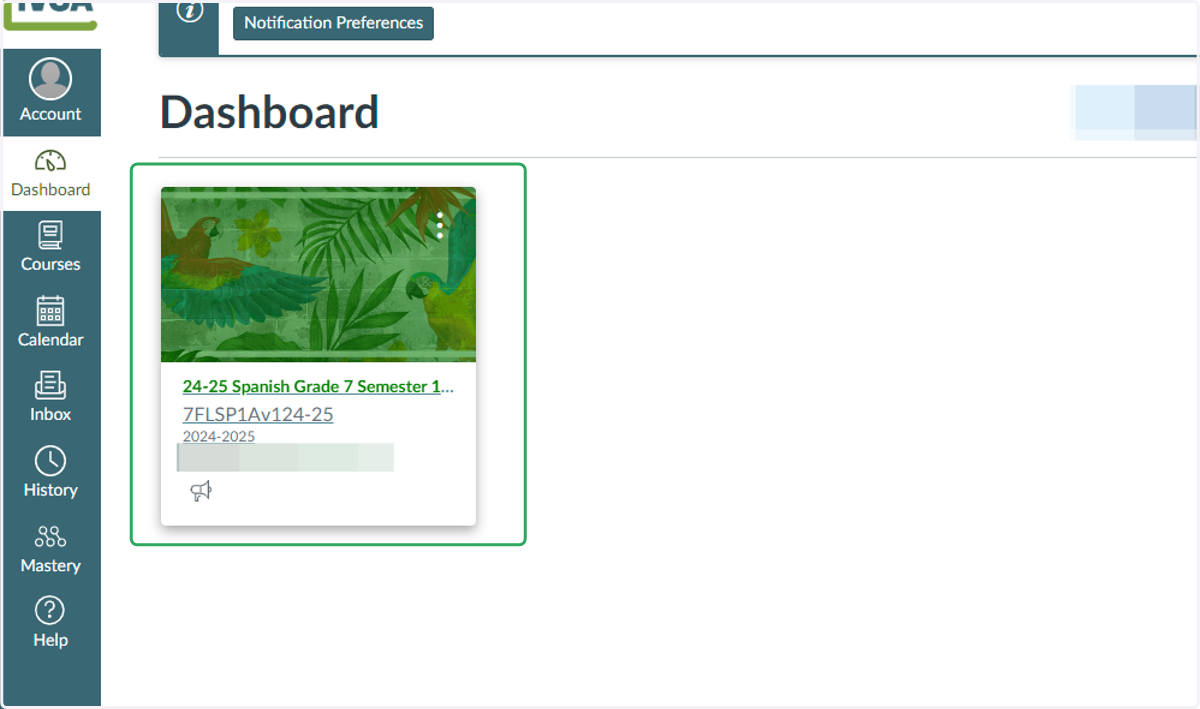
10. On the Observer Dashboard, you can click the course card(s) to access the student's course information.
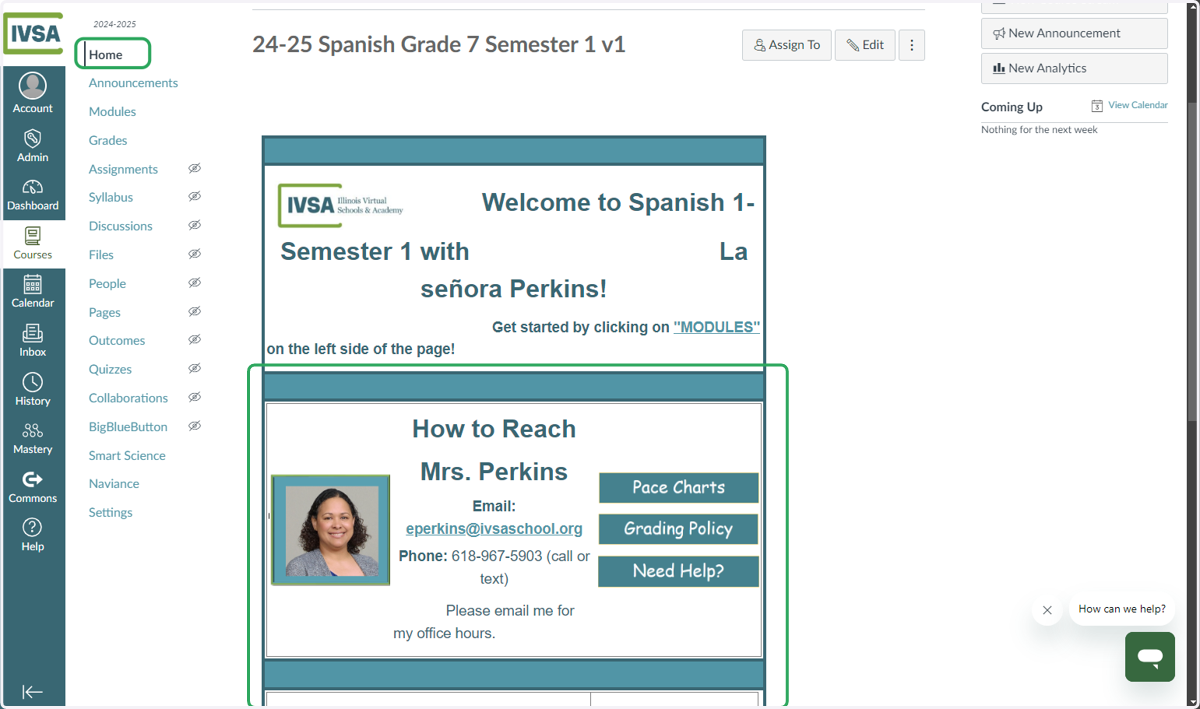
11. Home
Pace chart, grading policy and teacher contact information are all located on the course homepage.
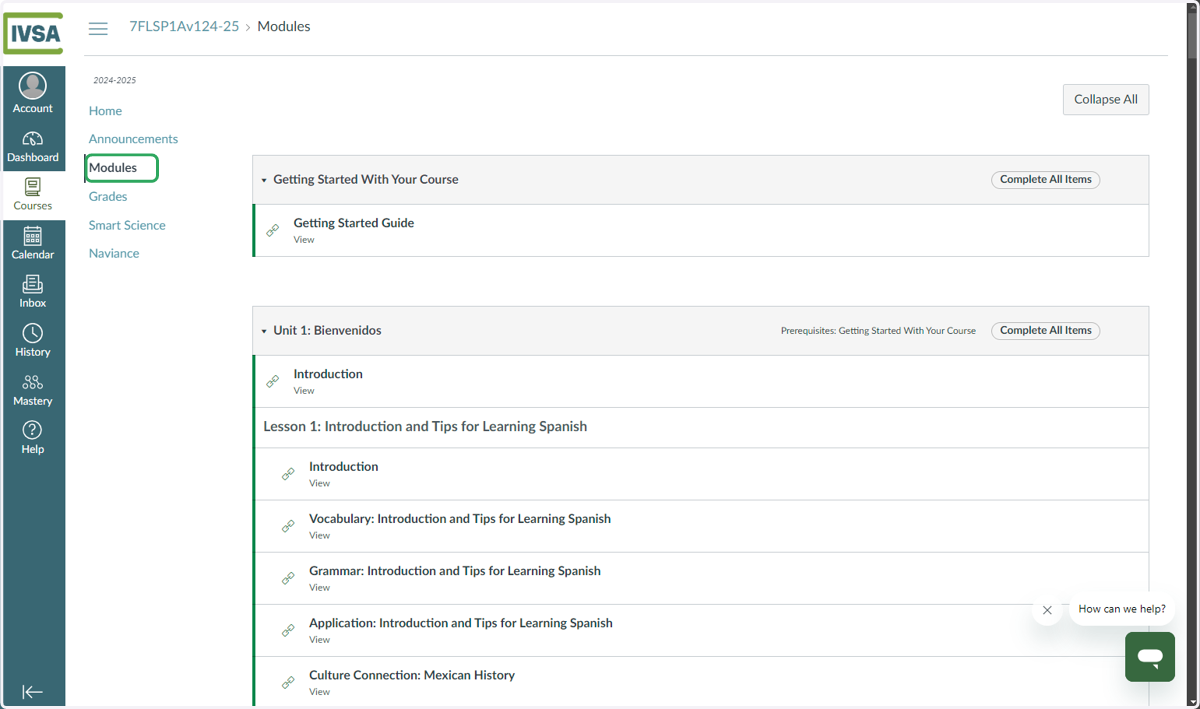
12. Modules
The modules section will show you the units and lessons for the course. You can click into the lessons to view the material.
Observers CANNOT submit assignments.
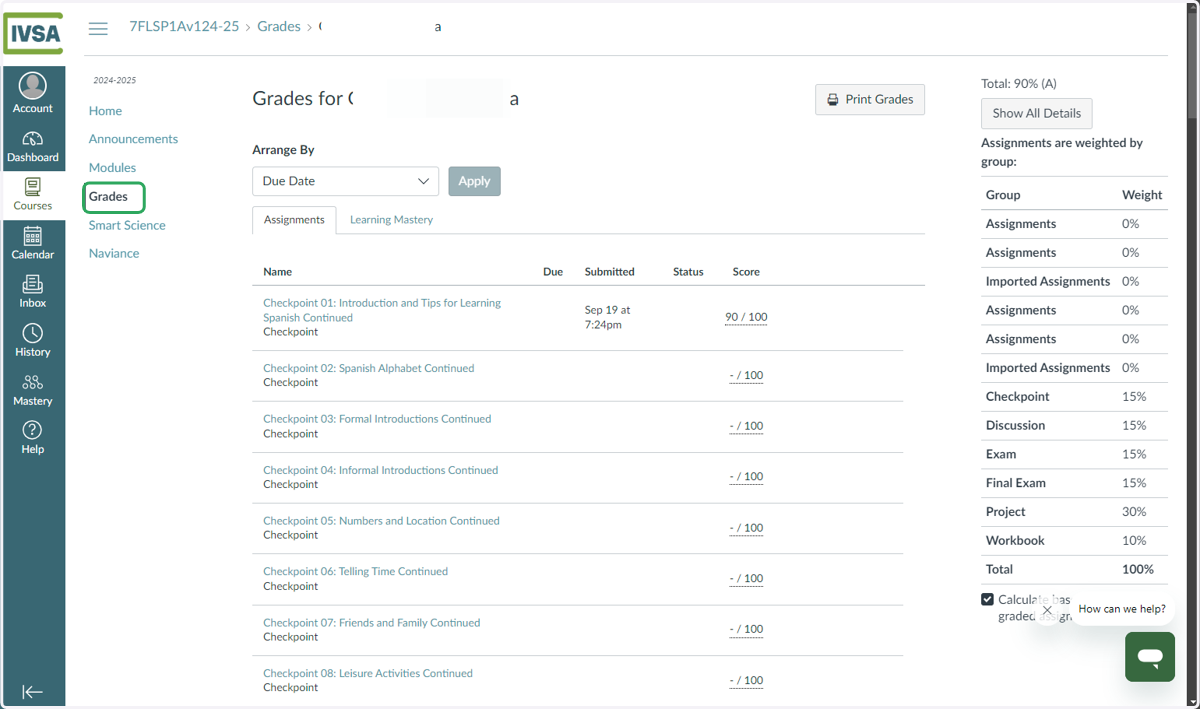
13. Grades
The gradebook will show submission date and scores for each activity.
Written activity scores may not be immediately available as teachers require time to grade each item.
Canvas
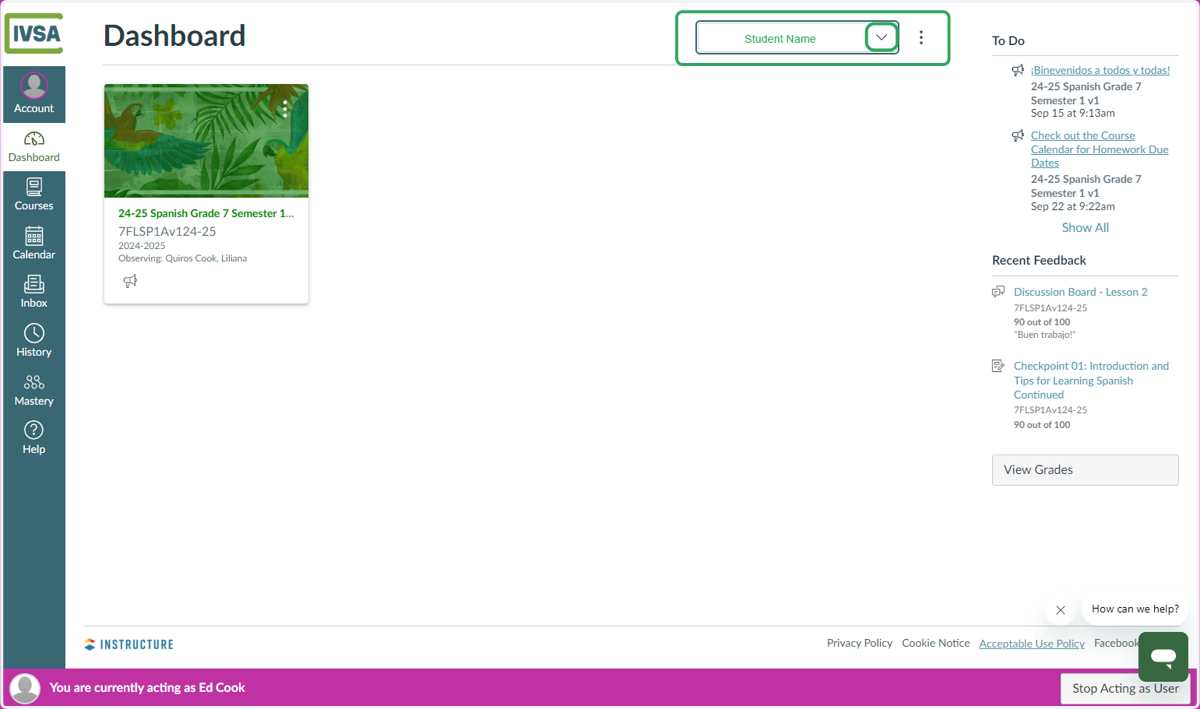
14. To add more students, Click the down arrow next to your student's name at the top of the page.
A unique pairing code will need to be generated from each students' account.
15. Click on Add Student
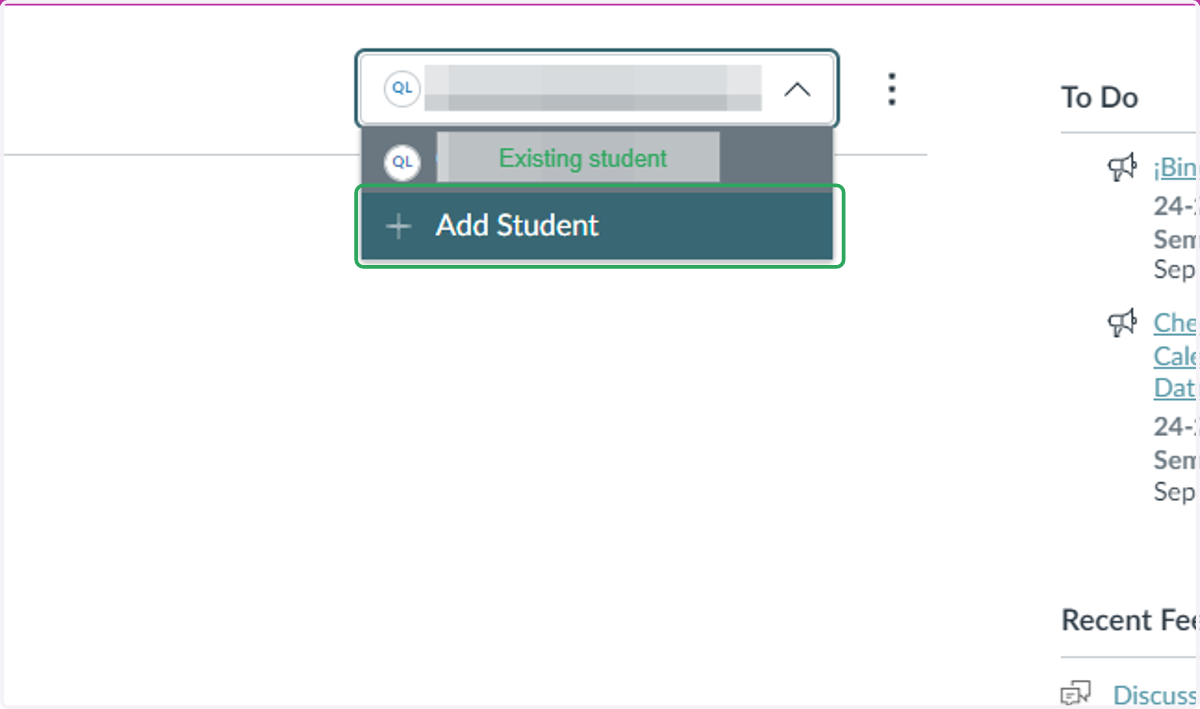
16. Enter the pairing code generated from the student account
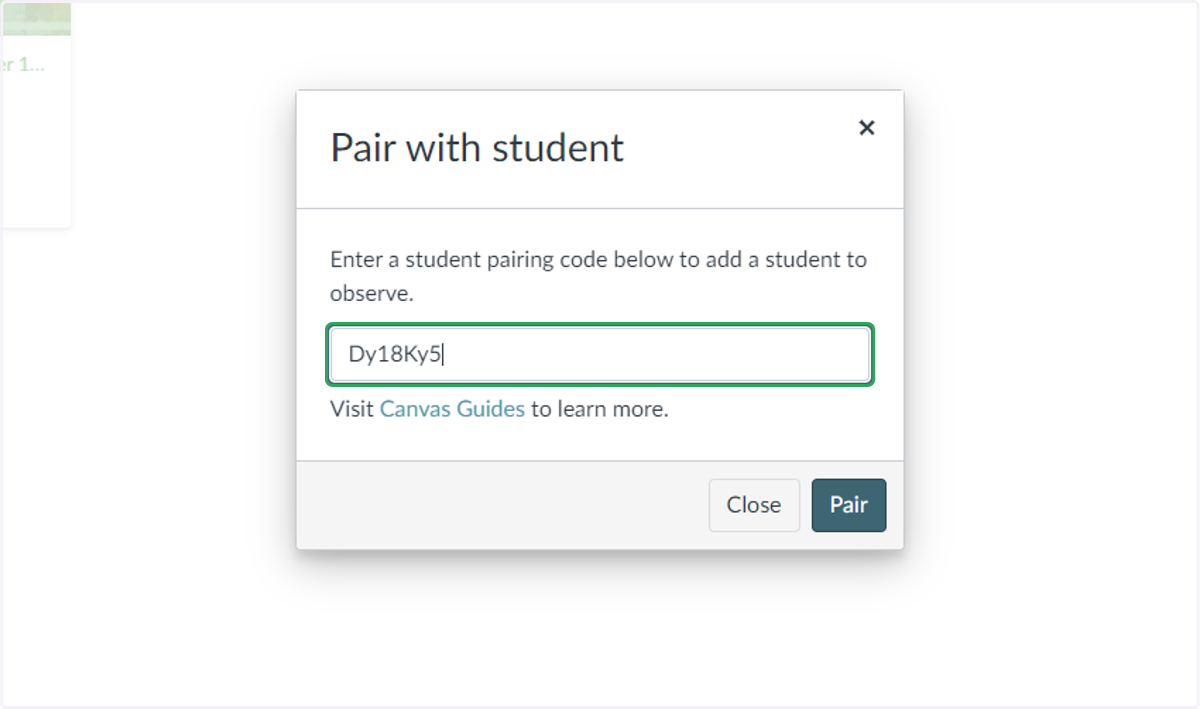
17. Click the Pair button to connect to the next student