Overview of HubSpot's New Navigation for Sales Users
HubSpot has announced that they are switching over their navigation starting in May. With this update, the navigation will be switched over to the left-hand side of your screen and will have shifted some items around. As you're getting used to the new navigation, we have put together this guide that will walk you through the important elements from a sales perspective and where they now live.
Collapsing the Navigation
1. The new HubSpot navigation will appear on the left-hand side of the screen
You'll notice that the buckets where different features are located have been updated. There are some from the old navigation, like Sales, that no longer exist. There are some that are new, like Content.
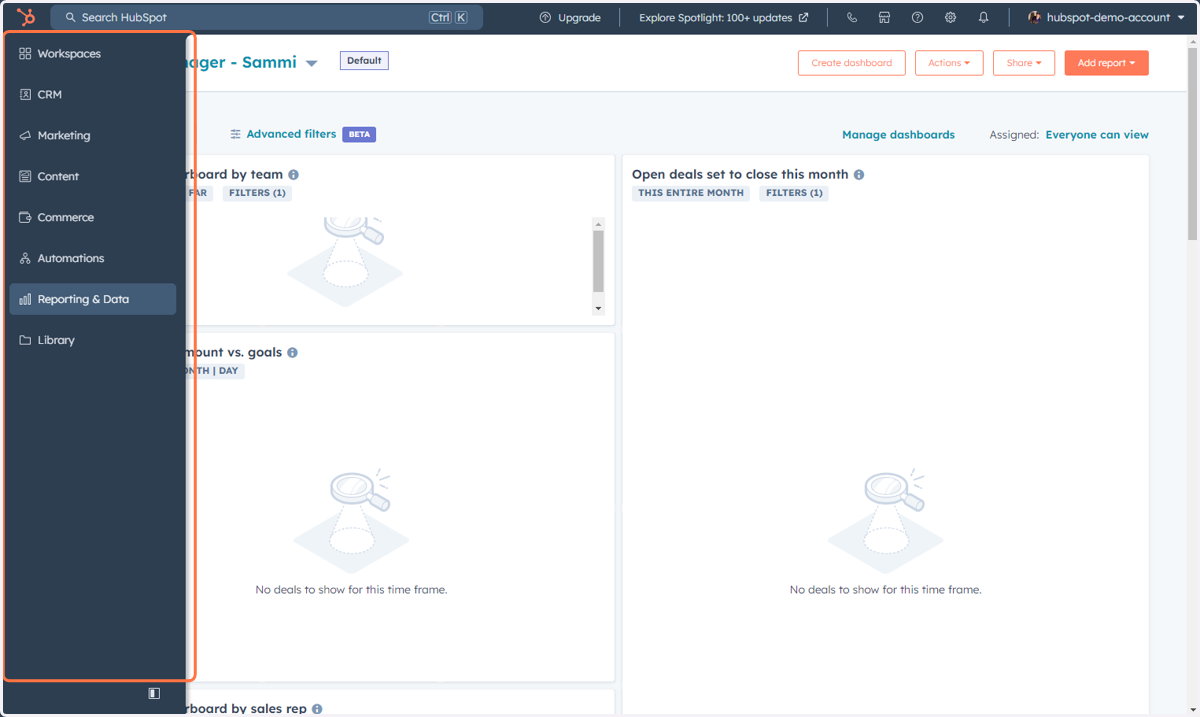
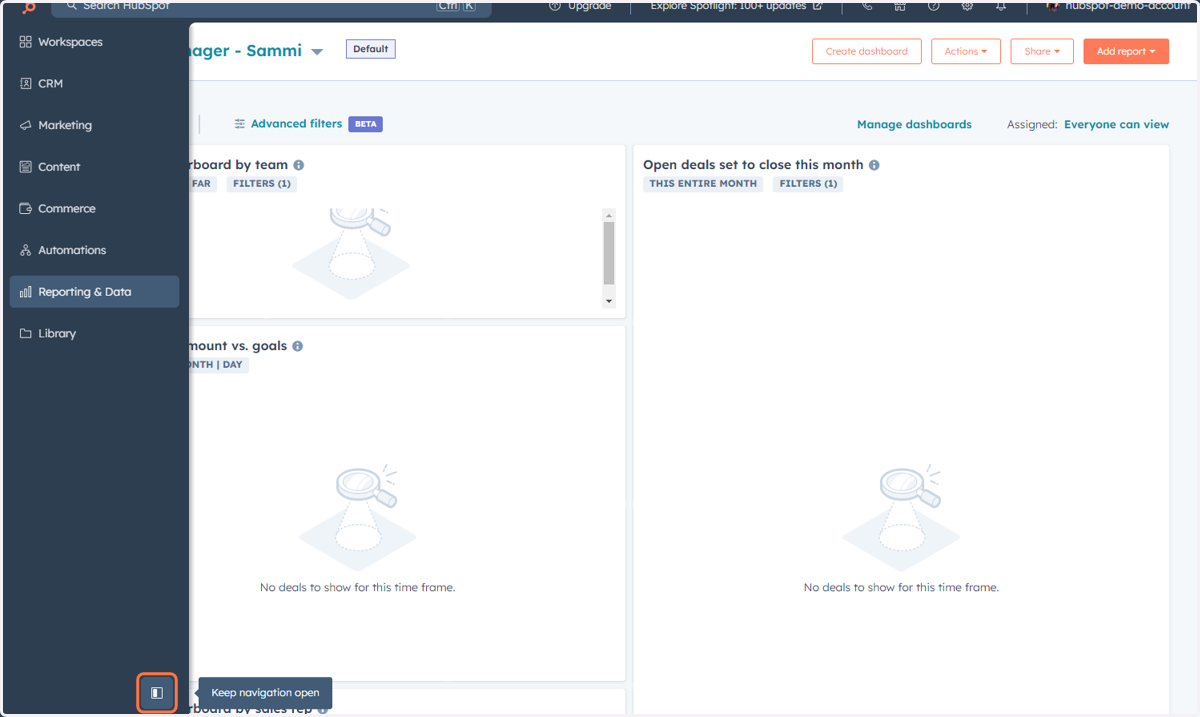
2. If you want to collapse the navigation to give your screen more space, Click the arrow at the bottom of the navigation
You can click this button again to keep the navigation open.
Accessing Items Under Workspaces
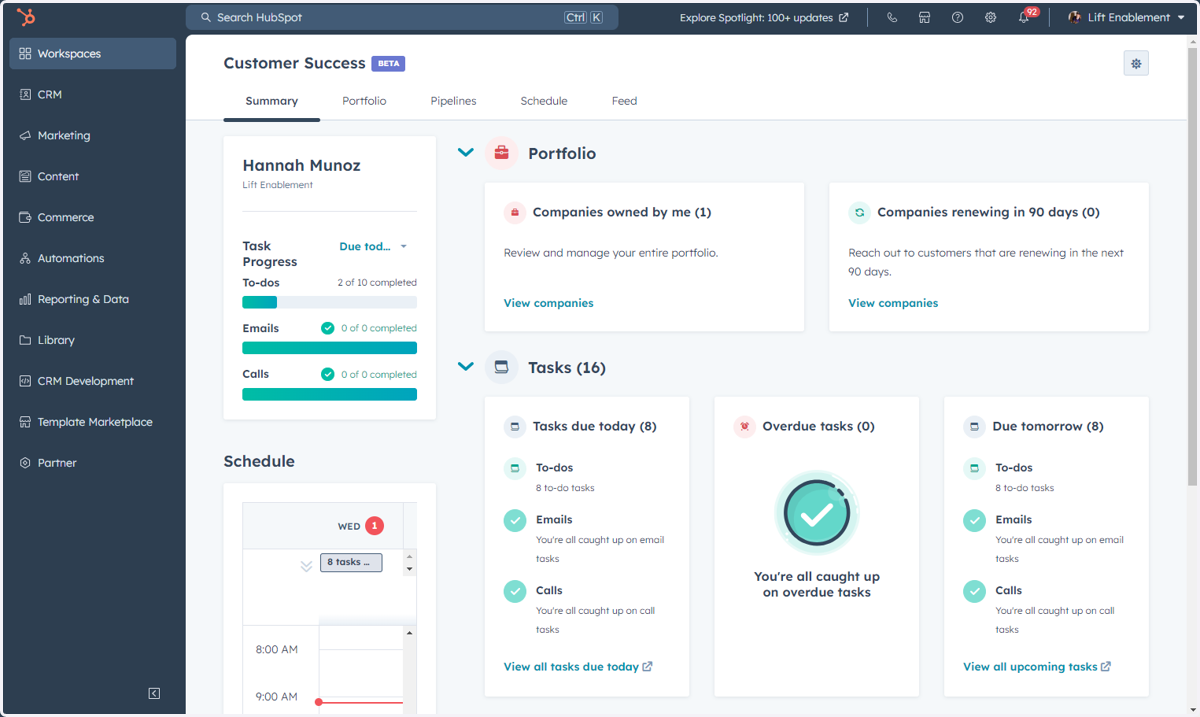
This includes accessing Customer Success.
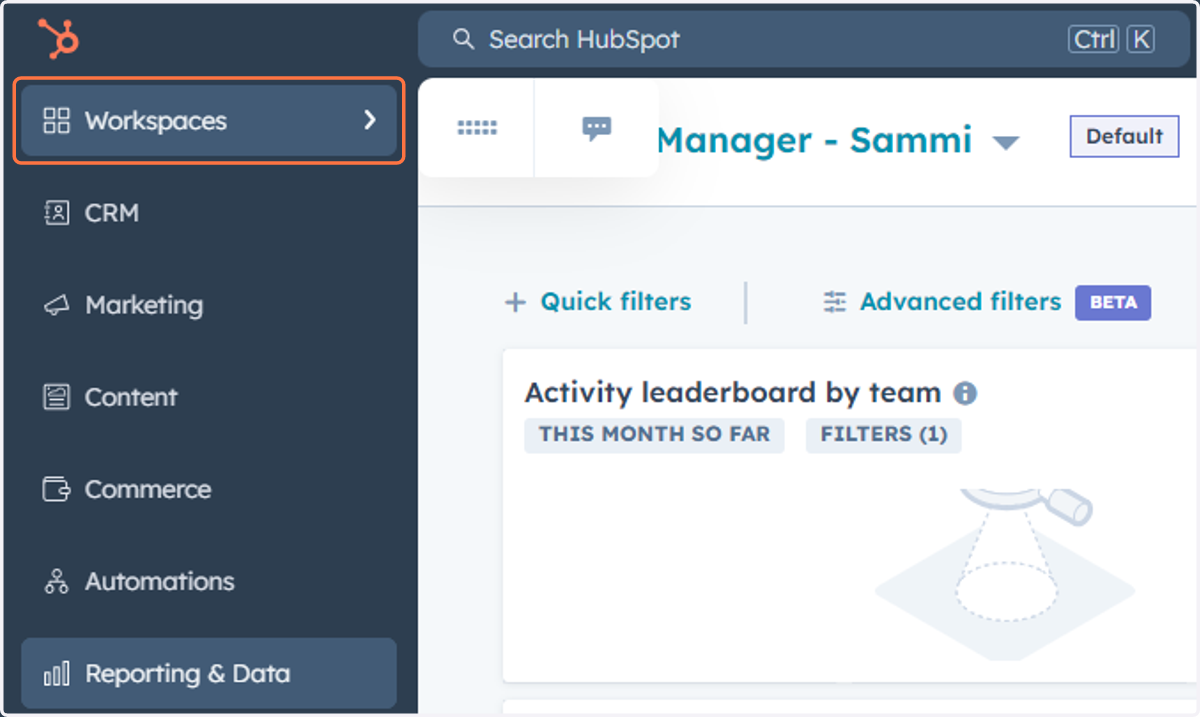
3. Click on Workspaces
4. Click on Customer Success…
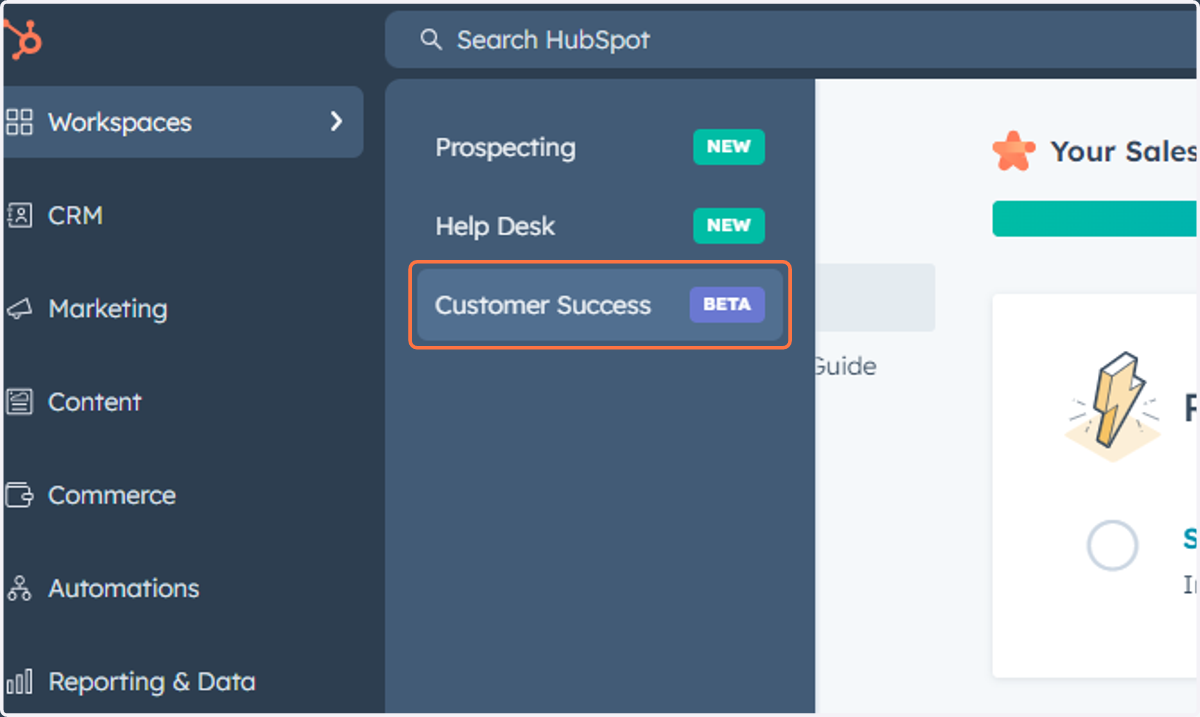
5. This is where you can access the Customer Success workspace
This workspace is designed to help customer success managers drive their book of business and increase retention. This workspace reminds CSMs of their daily tasks, allows them to create custom views of their most important segments, and helps monitor activities from key accounts.
Accessing Items Under CRM
This includes Contacts, Companies, Deals, Tickets, Custom Objects (listed by name), Calls and Tasks.
6. Click on CRM
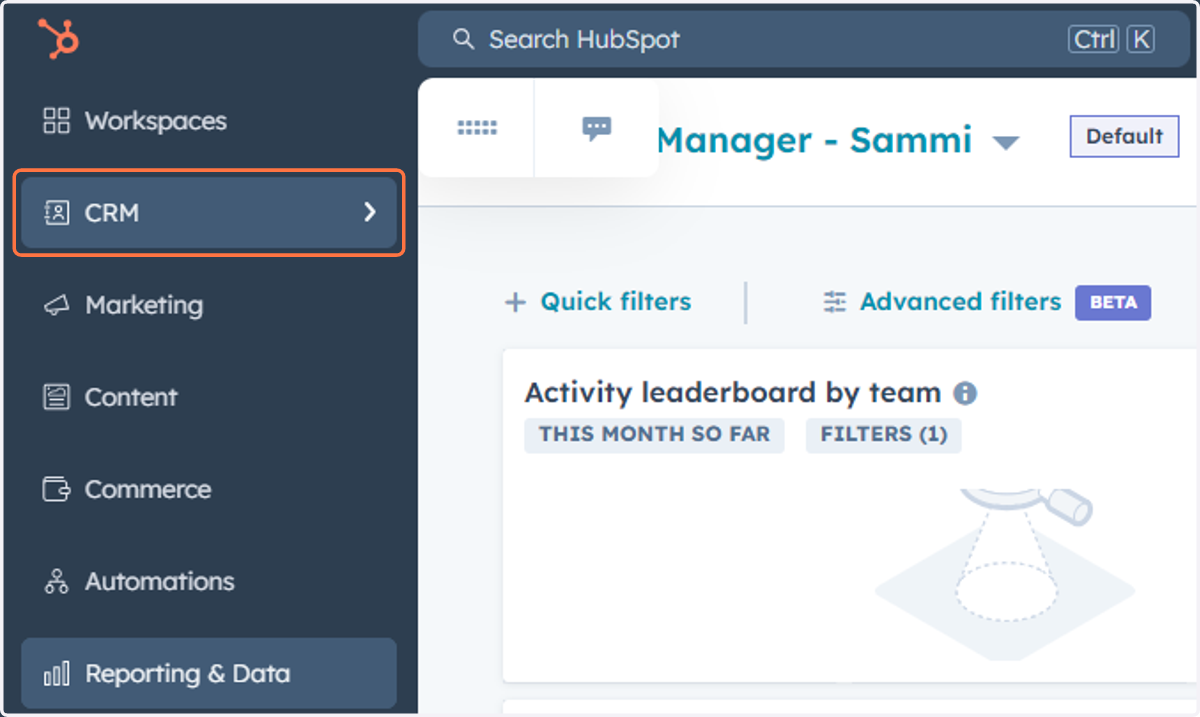
7. Click on Contacts
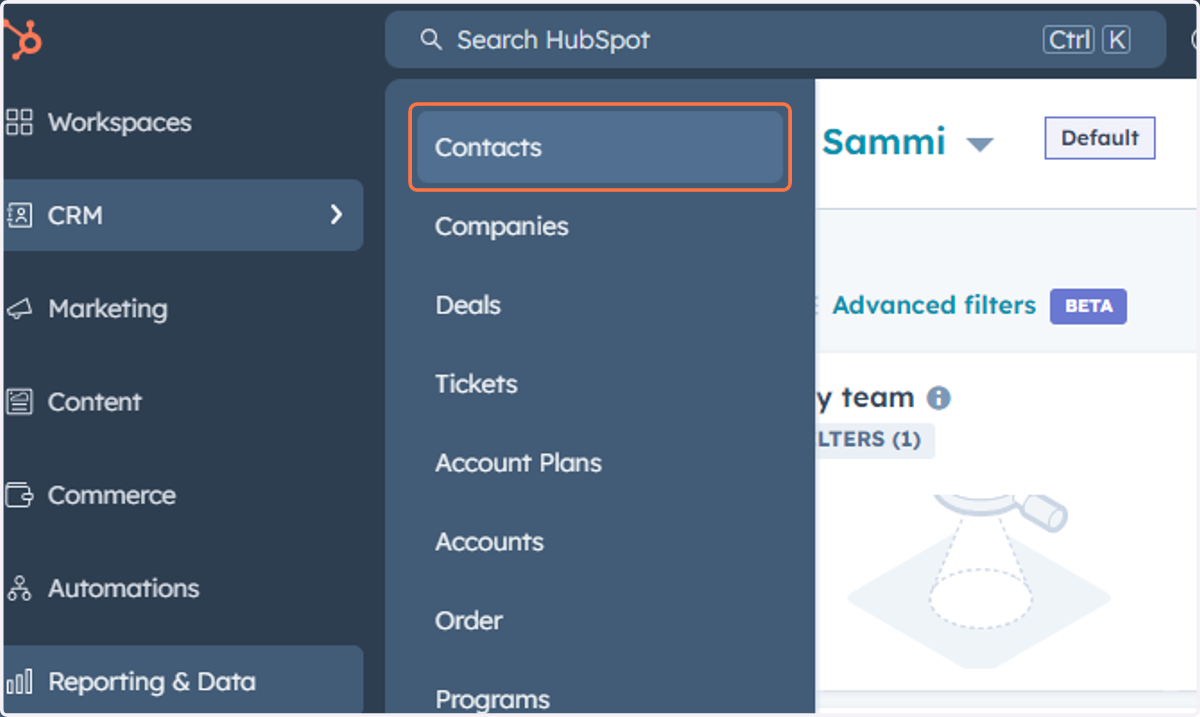
8. This is where you can access the Contacts in your database
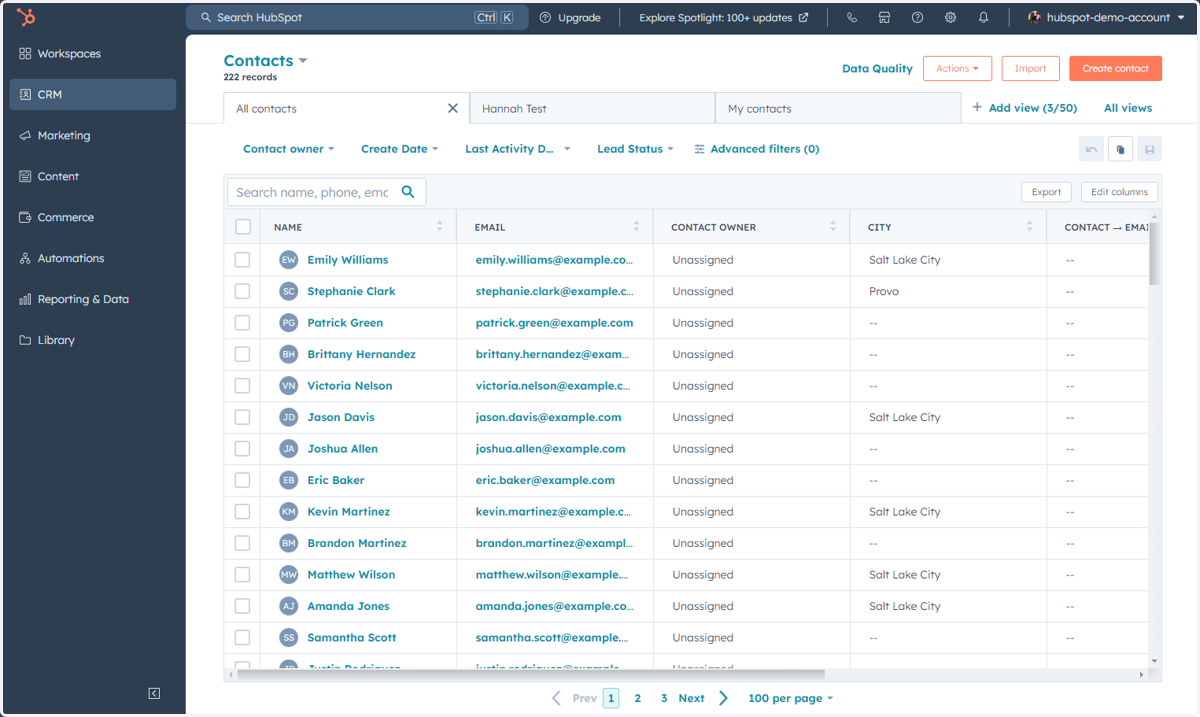
9. Click on CRM
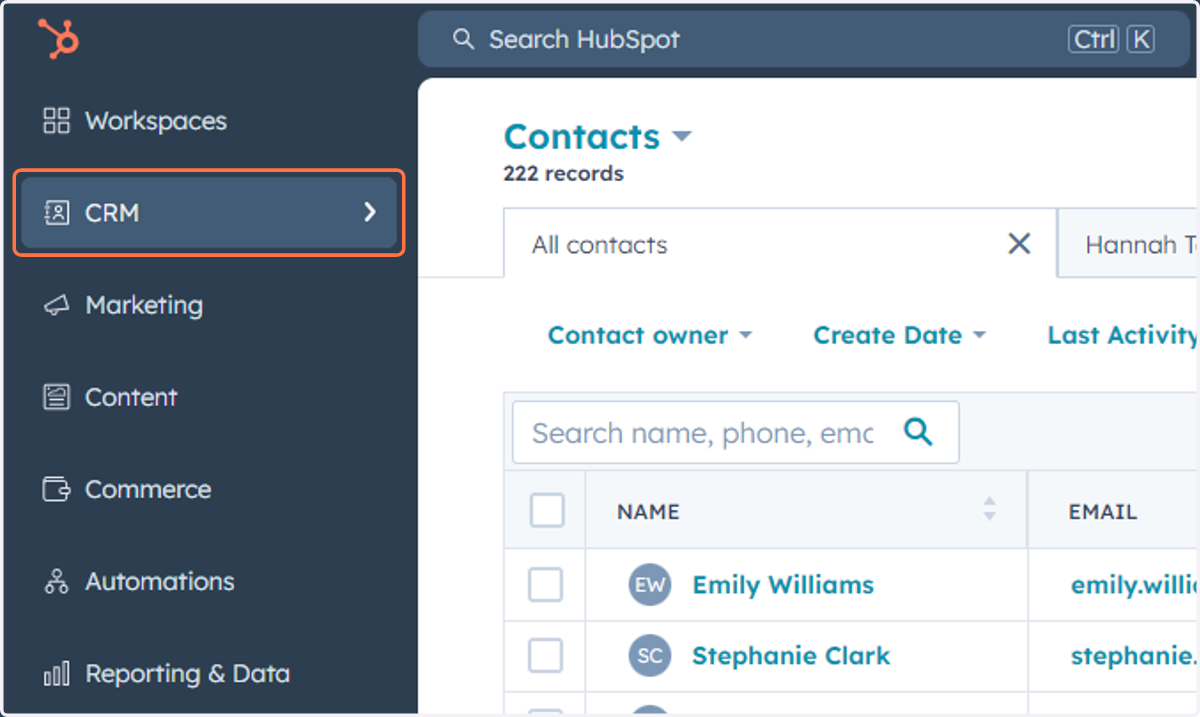
10. Click on Companies
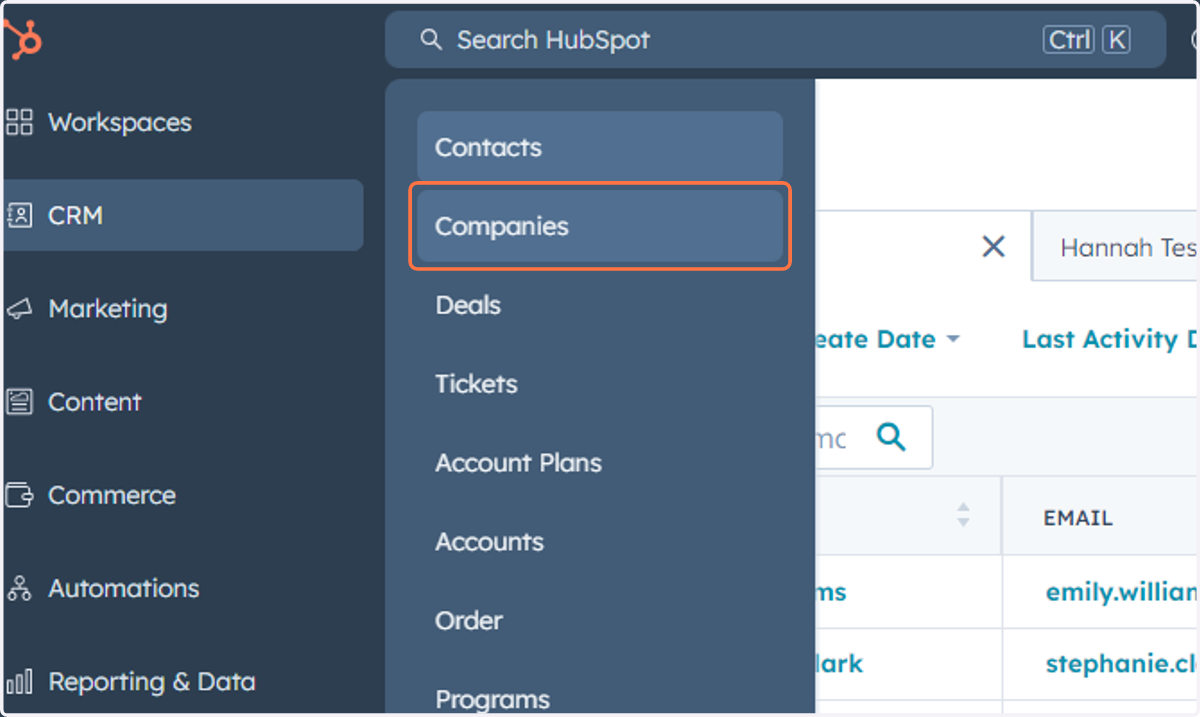
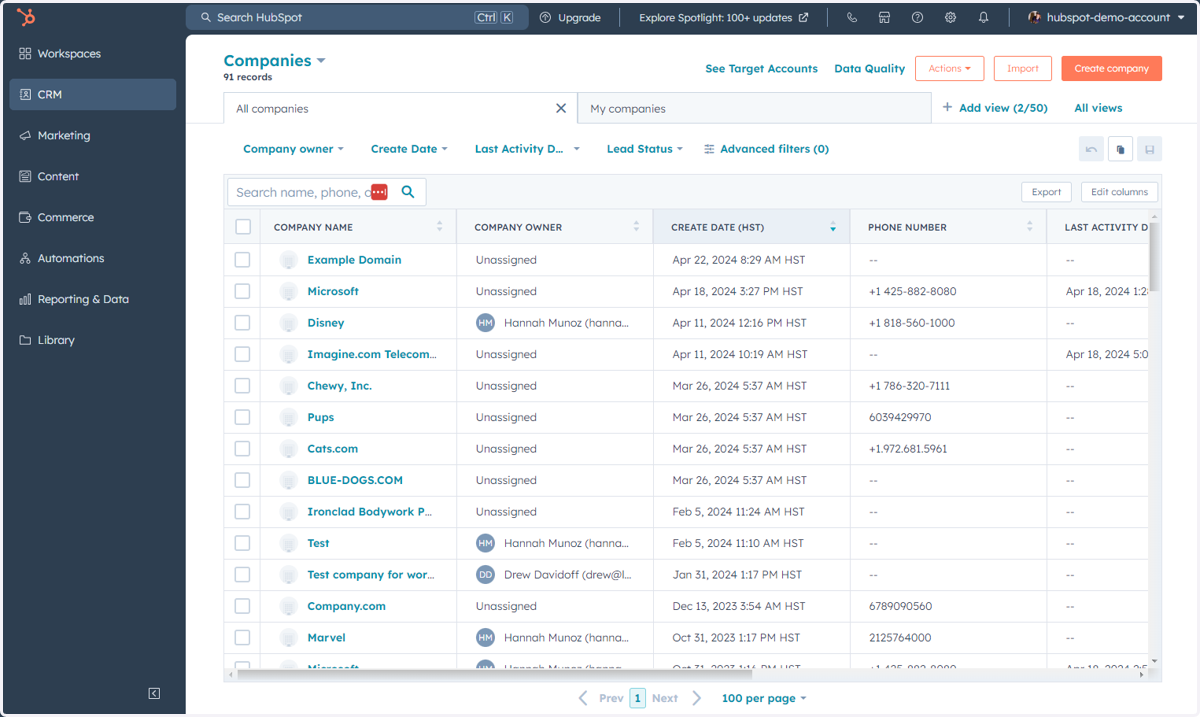
11. This is where you can access the Companies in your database
12. Click on CRM
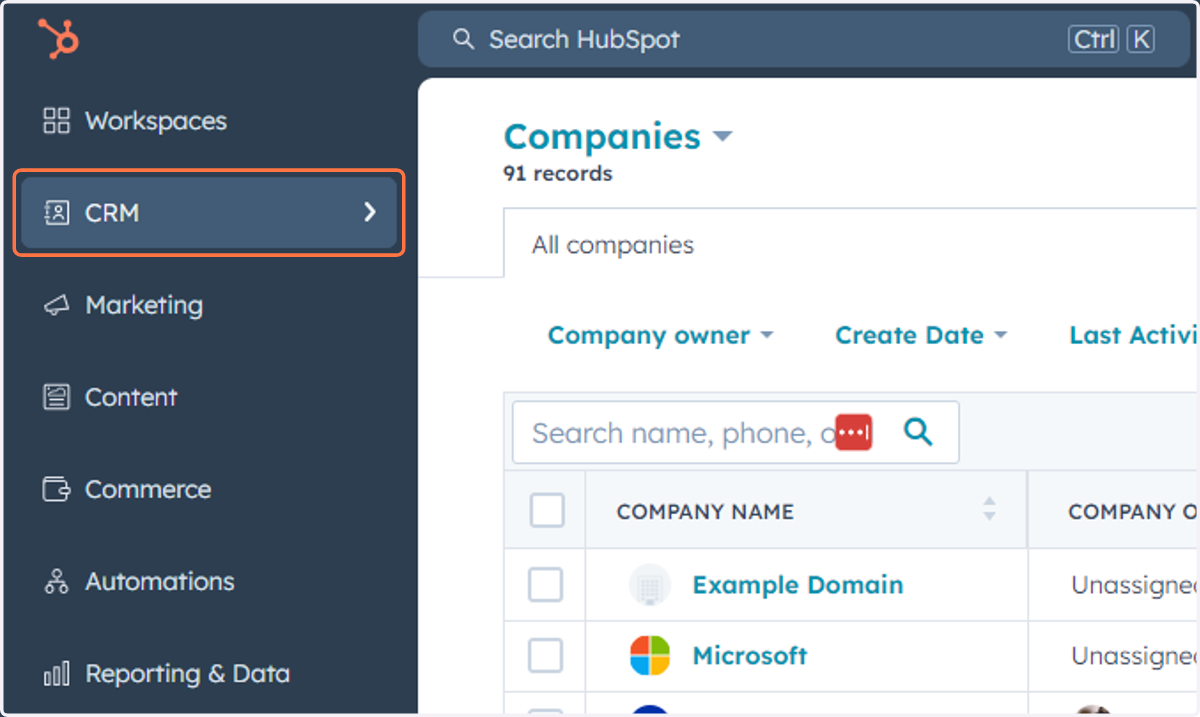
13. Click on Deals
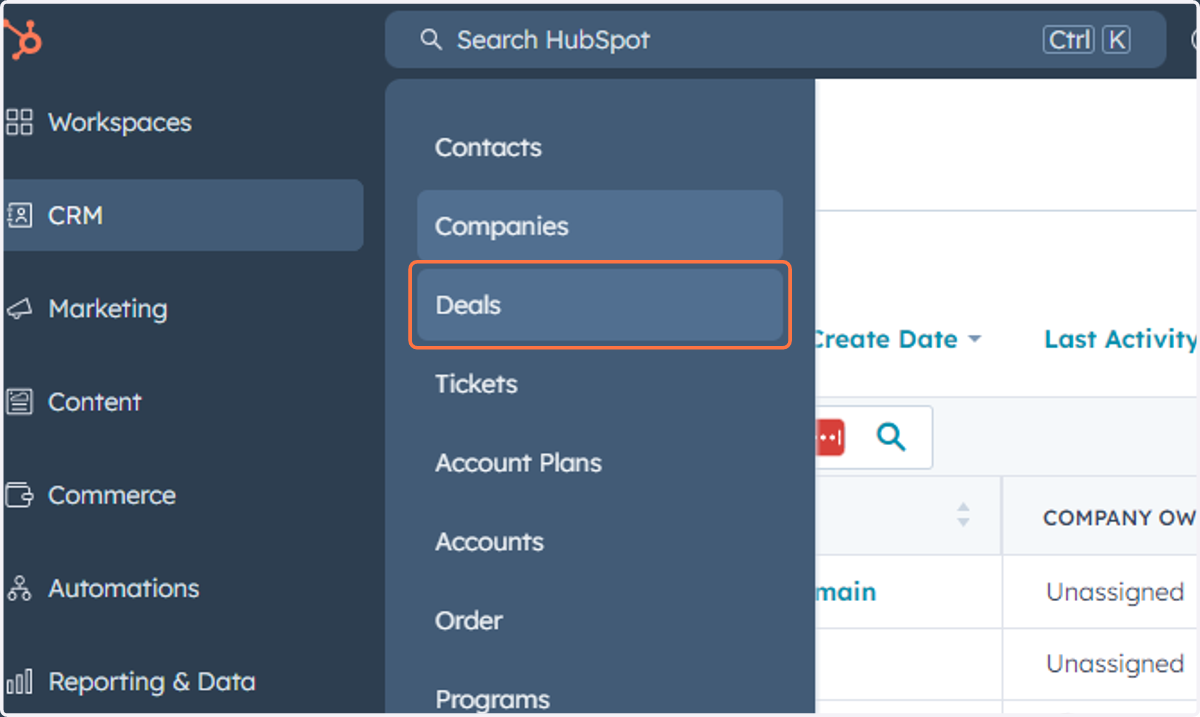
14. This is where you can access, manage and create Deals in your database
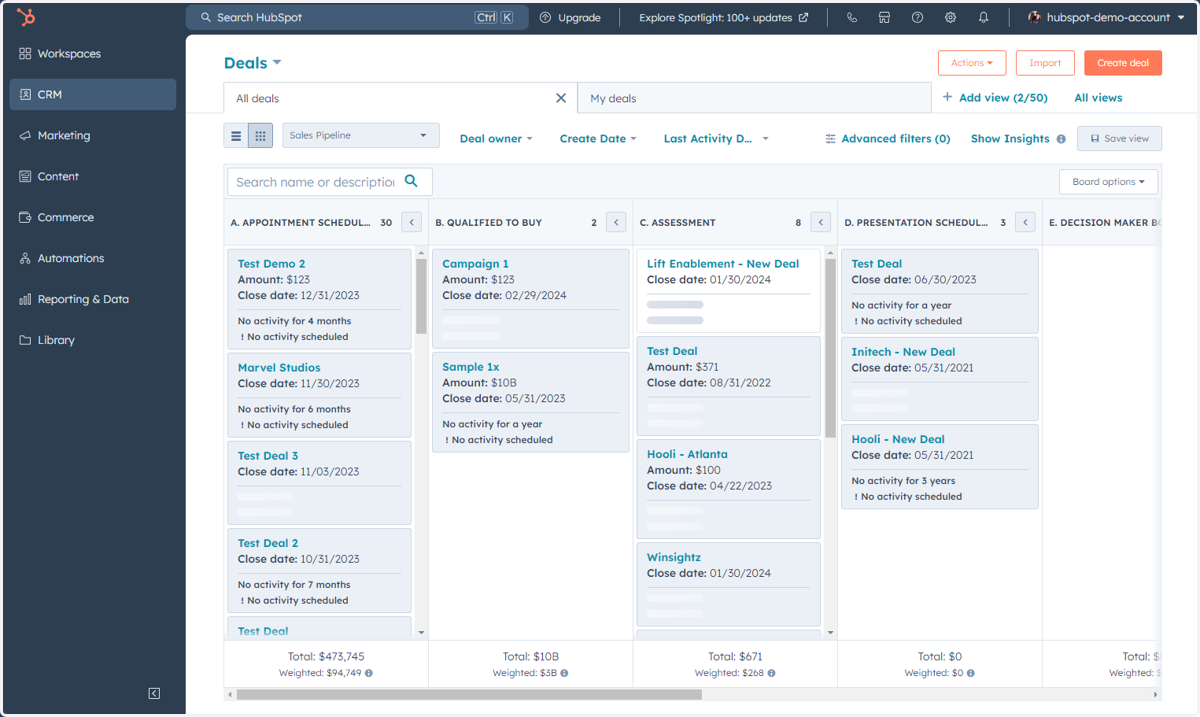
15. Click on CRM
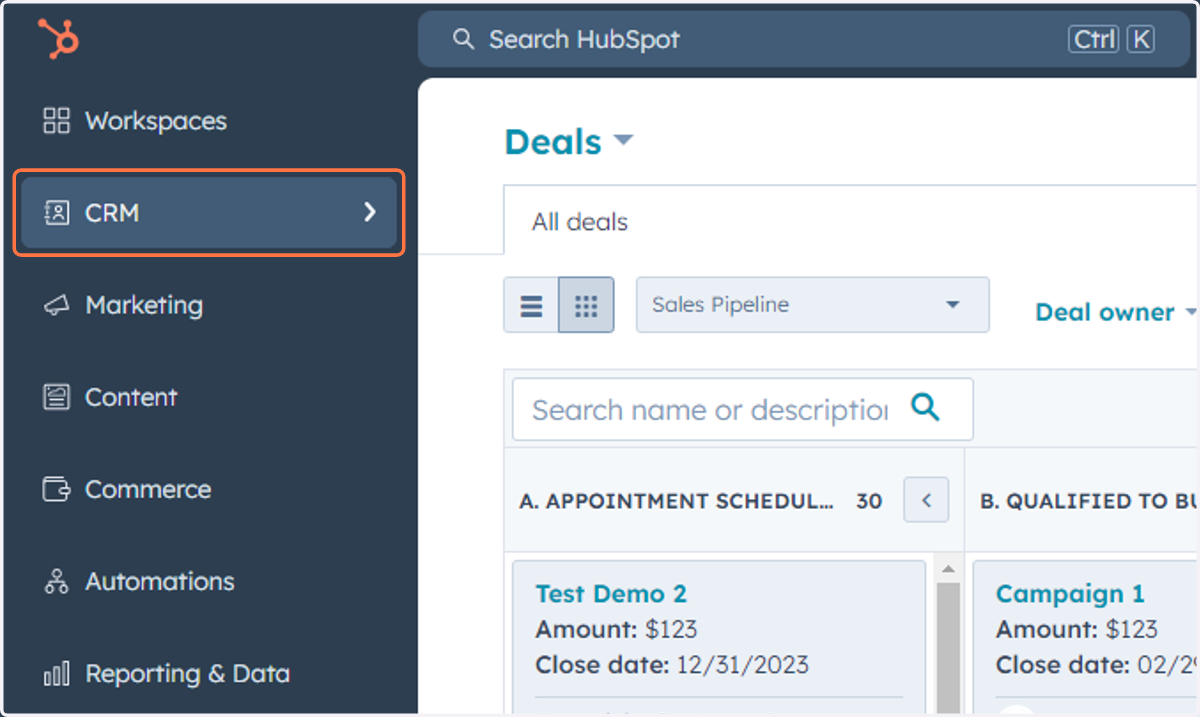
16. Click on Tickets
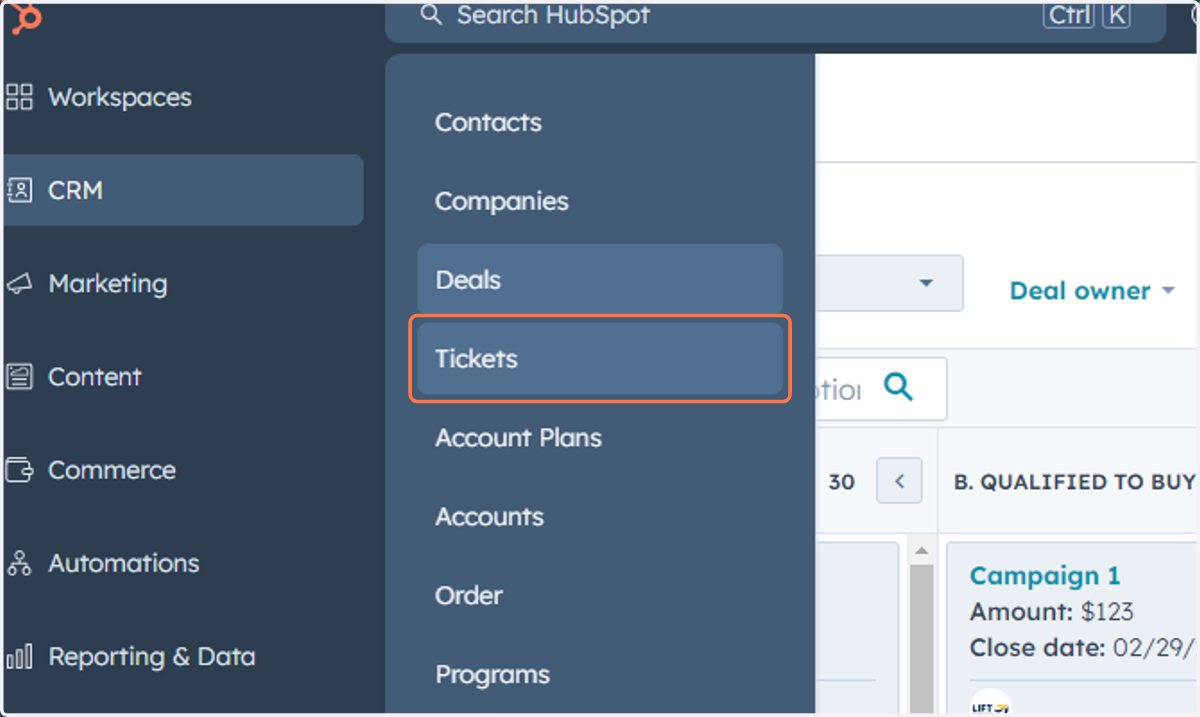
17. This is where you can access, manage and create Tickets in the system
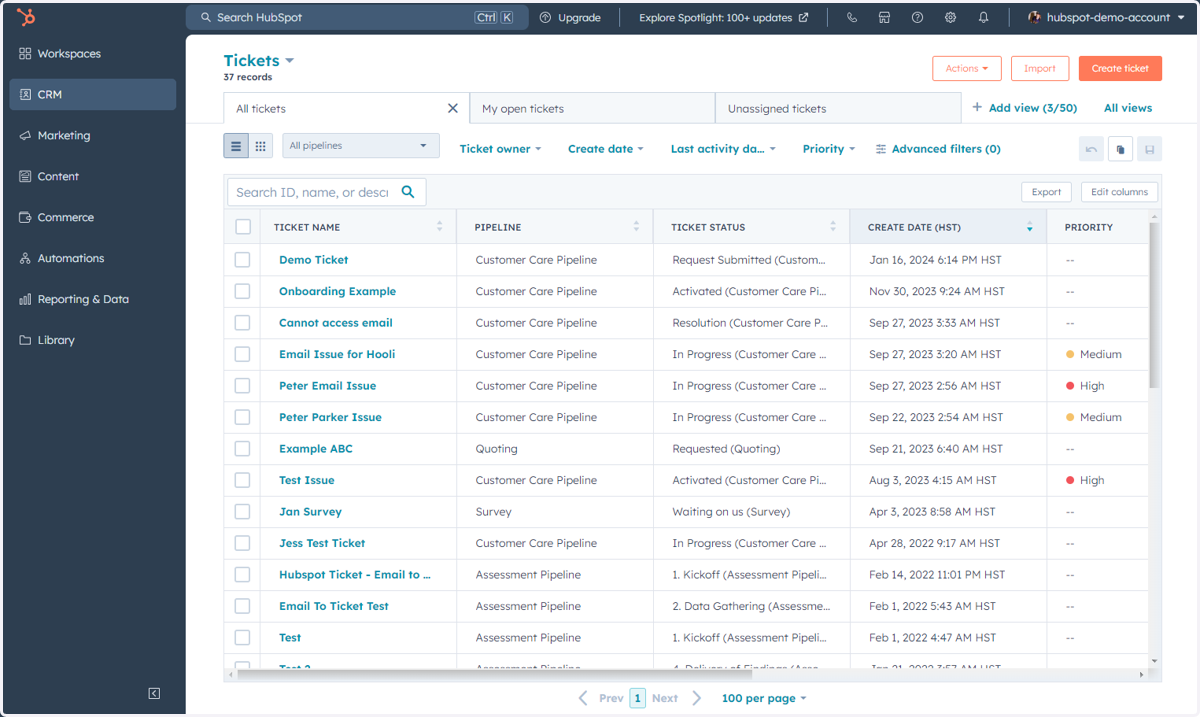
18. Click on CRM
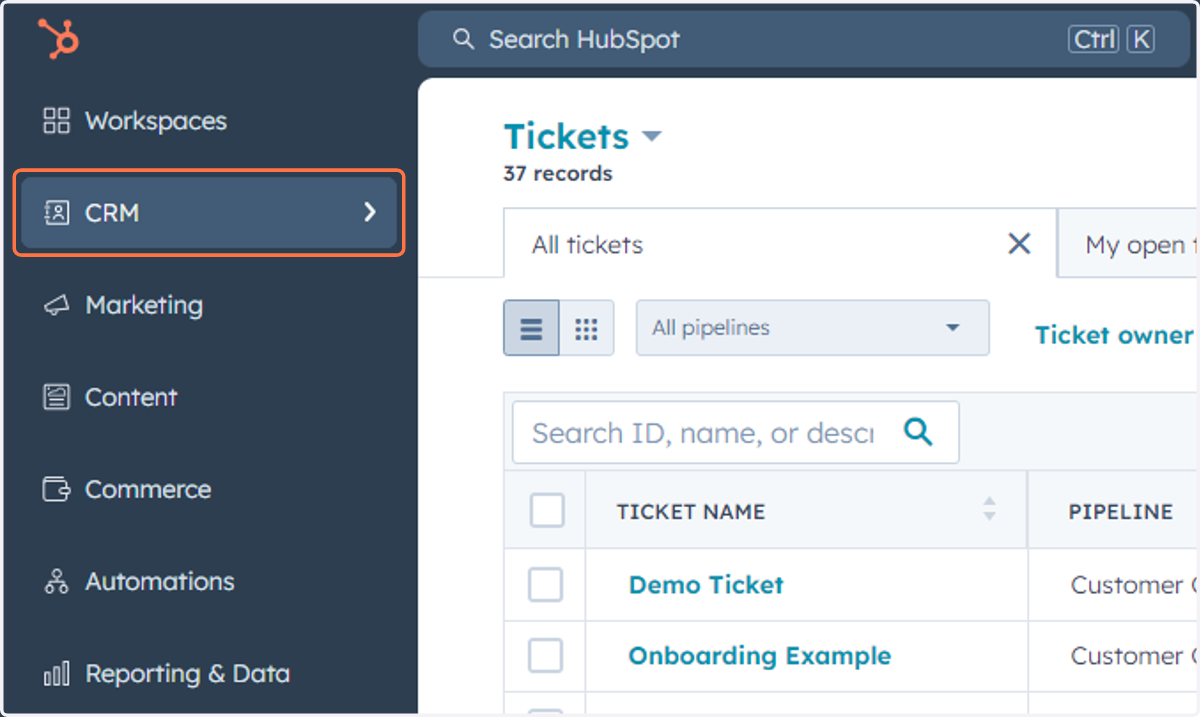
19. This is where you can access any Custom Objects
Your Custom Objects will be listed by name underneath Tickets.
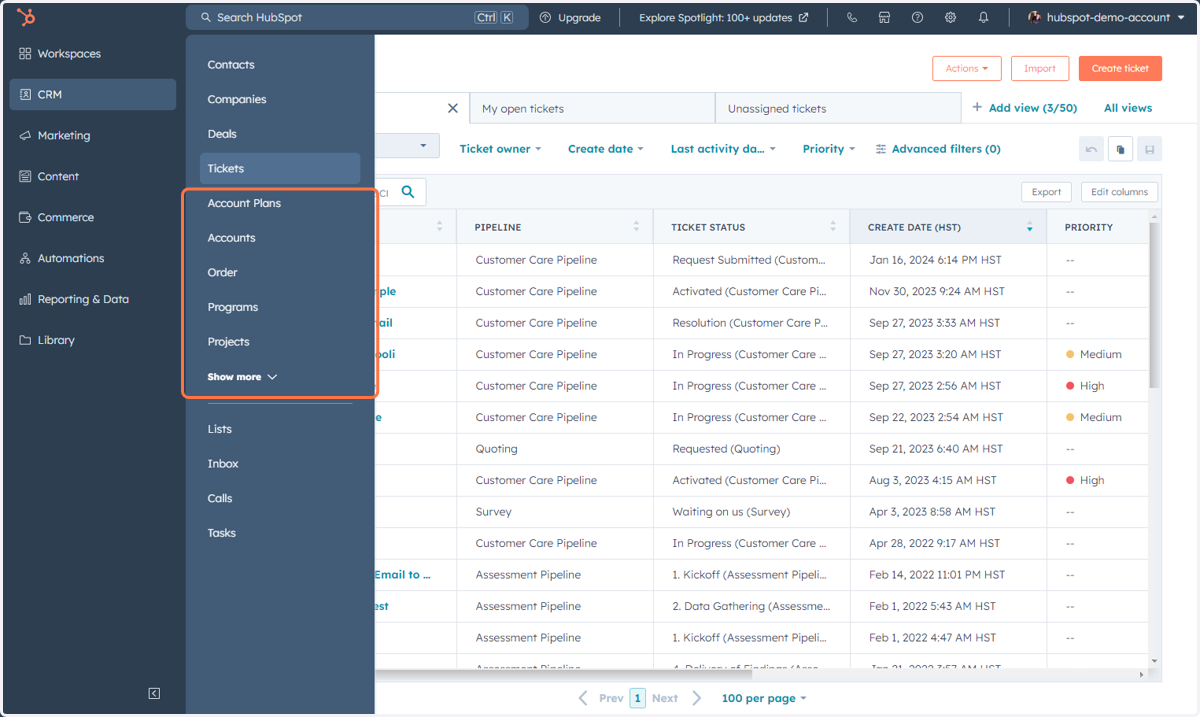
20. Click on Calls
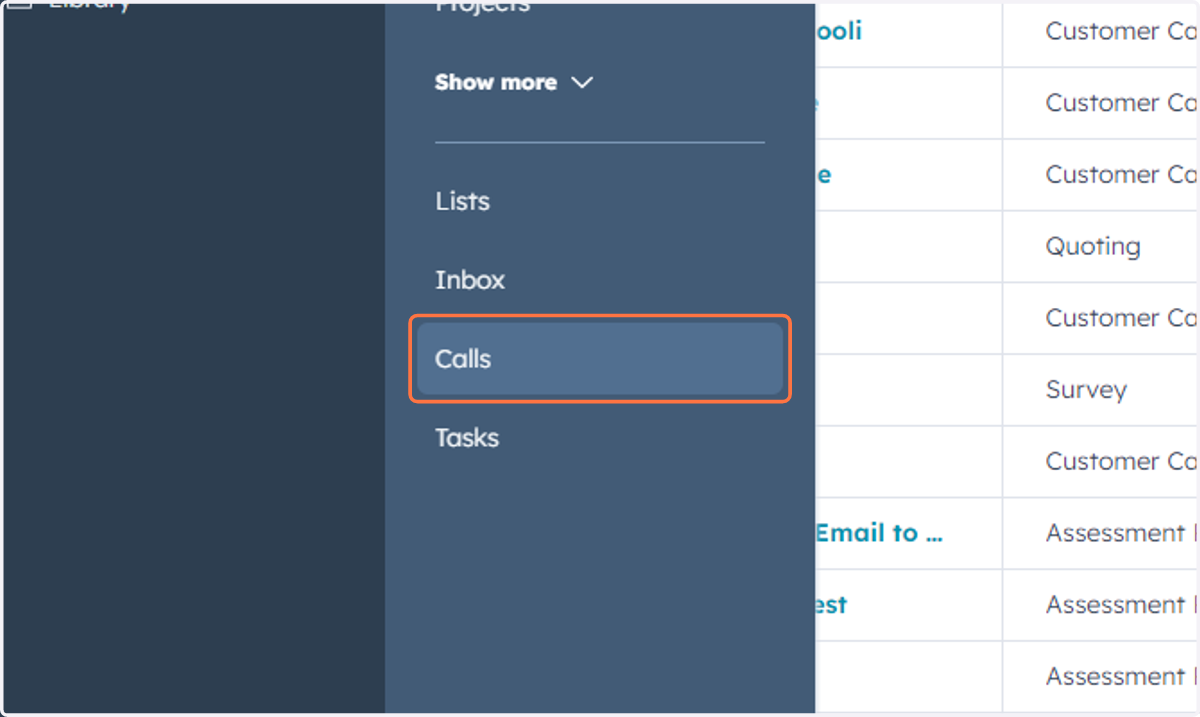
21. This is where you can access Calls in the database
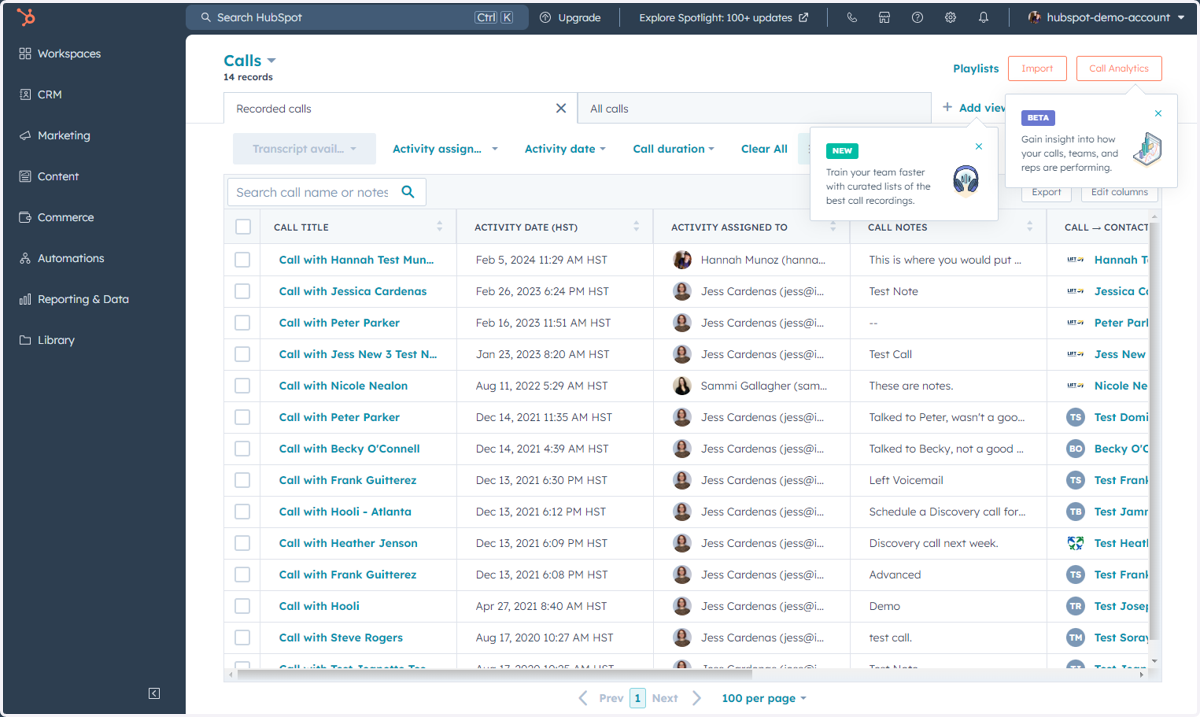
22. Click on CRM
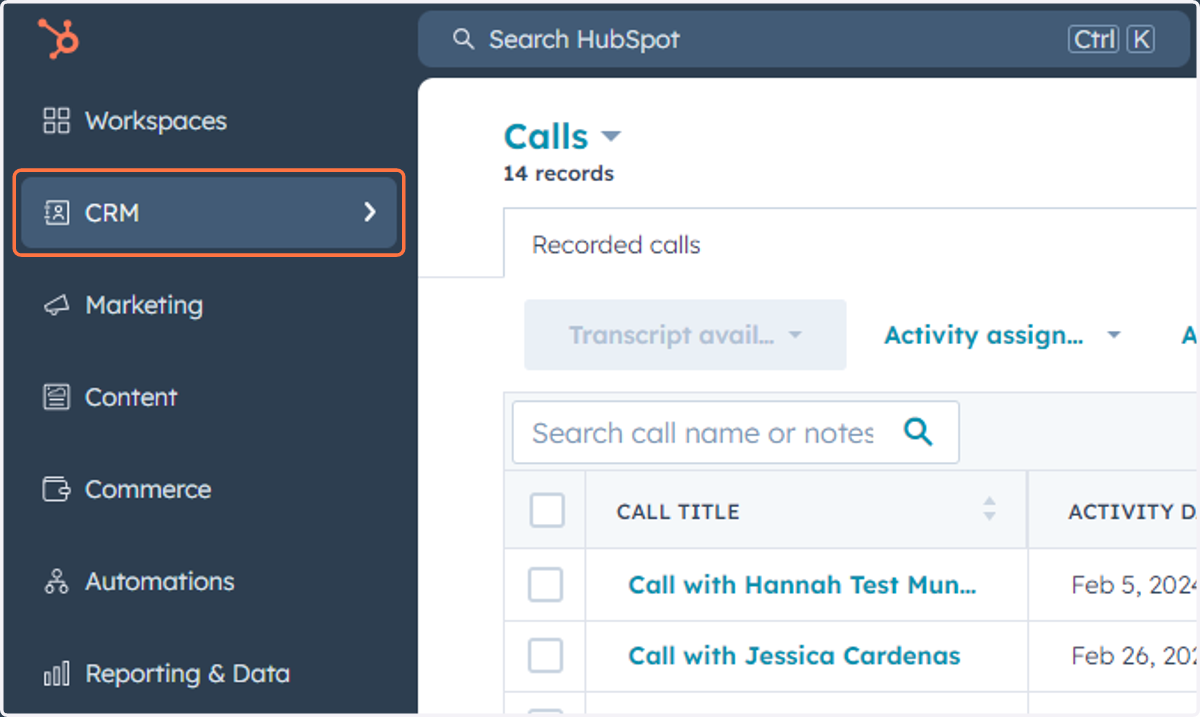
23. Click on Tasks
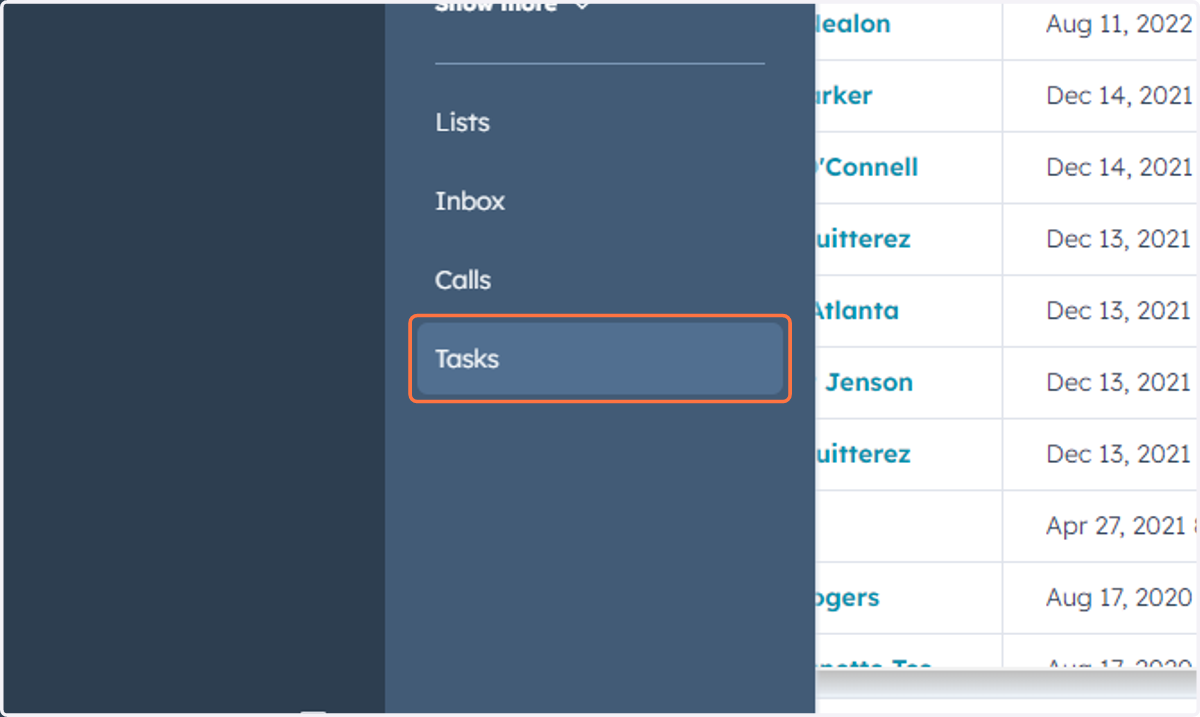
24. This is where you can access, manage and create Tasks
Accessing Items Under Commerce
This includes Commerce Hub, Payments, Invoices, Payment Links, and Quotes.
25. Click on Commerce
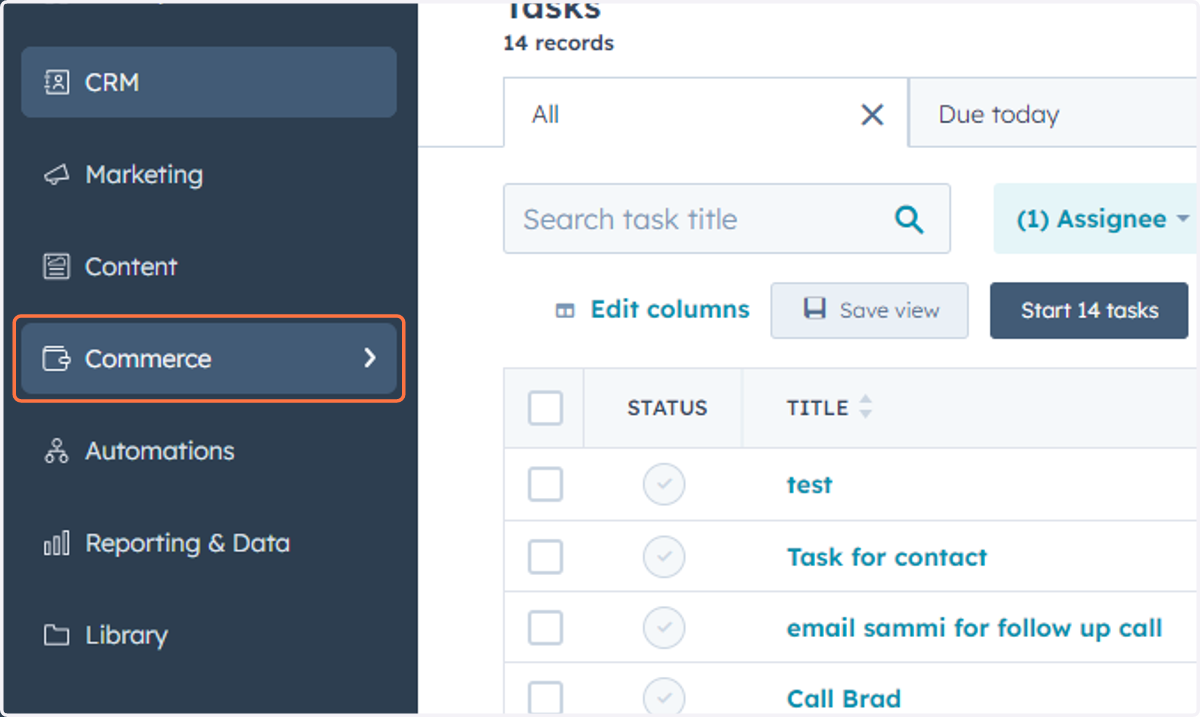
26. Click on Commerce…
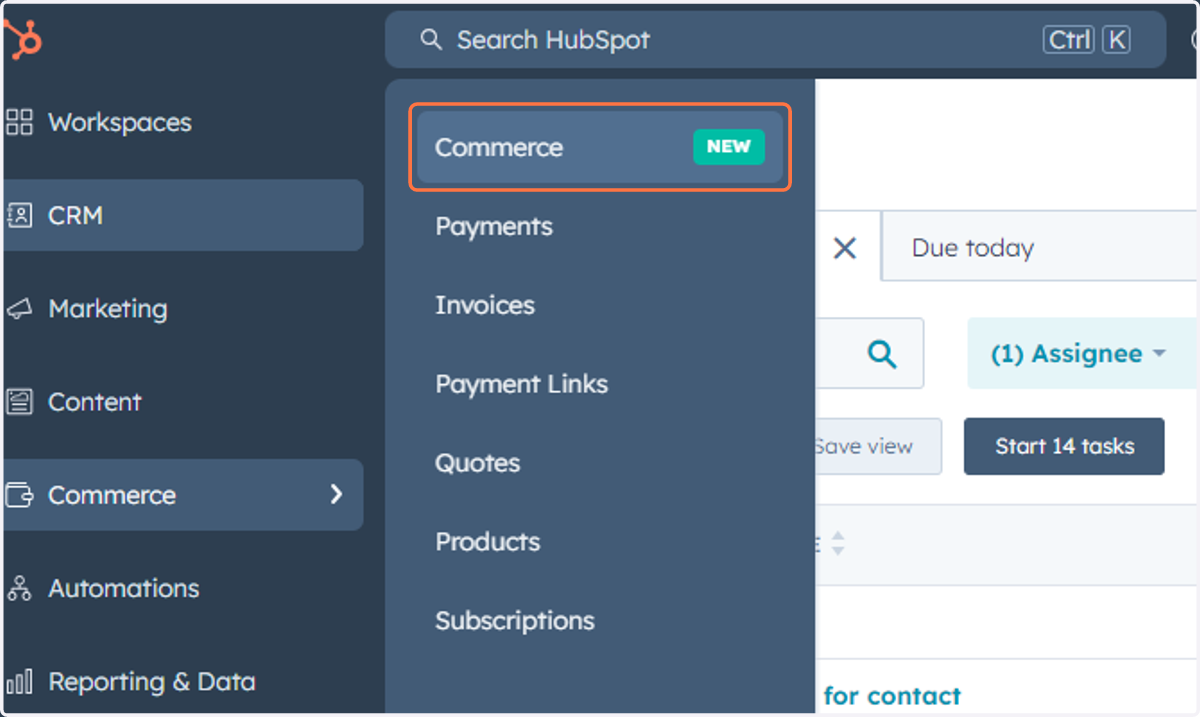
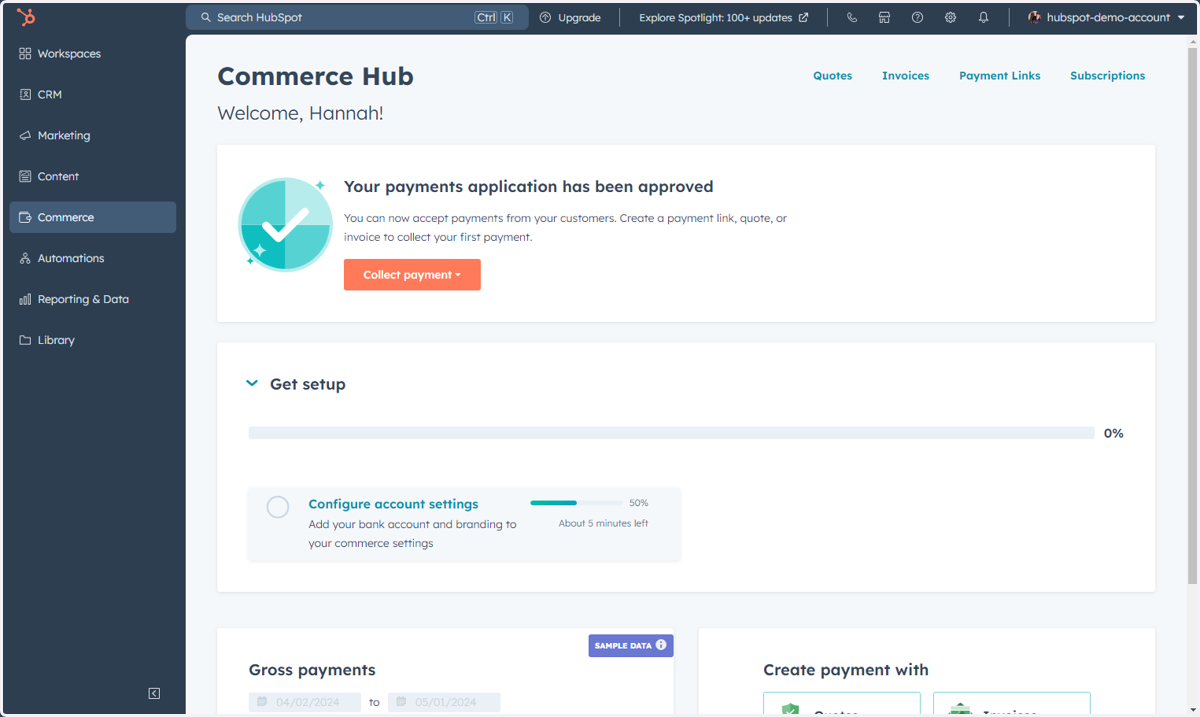
27. This is where you can access and manage Commerce Hub
Commerce Hub includes all the tools you need to manage payments. Request and collect payments, streamline subscriptions and utilize automation and reporting.
28. Click on Commerce
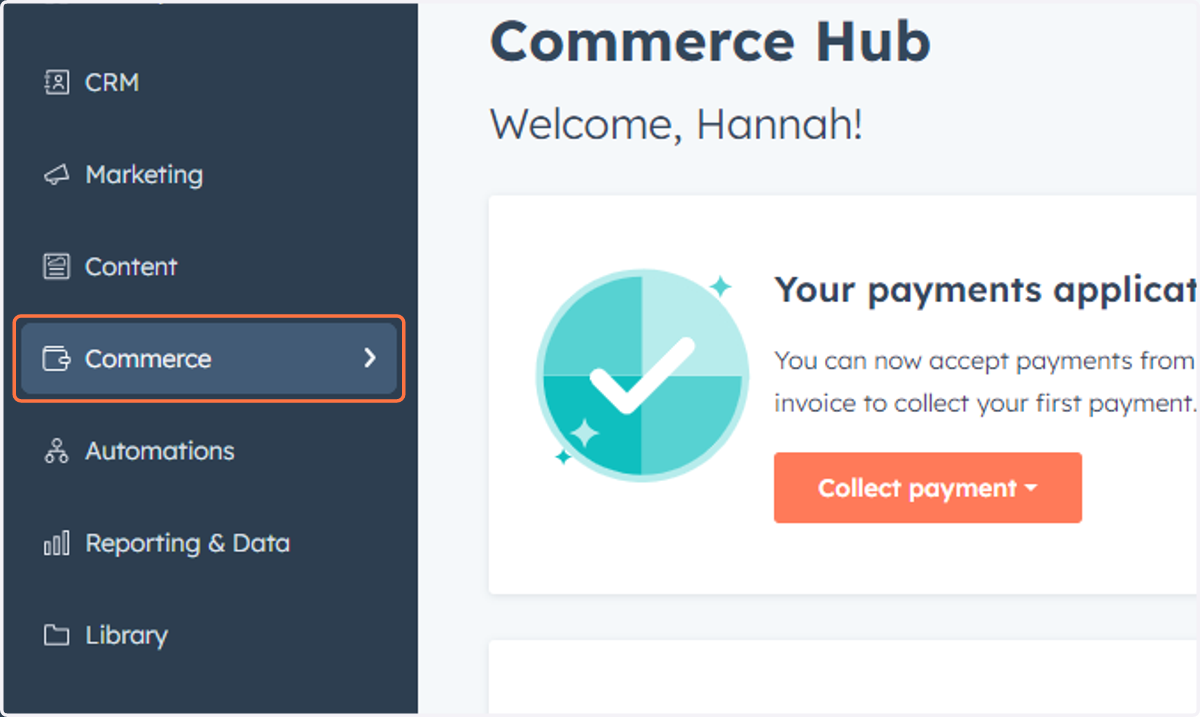
29. Click on Payments
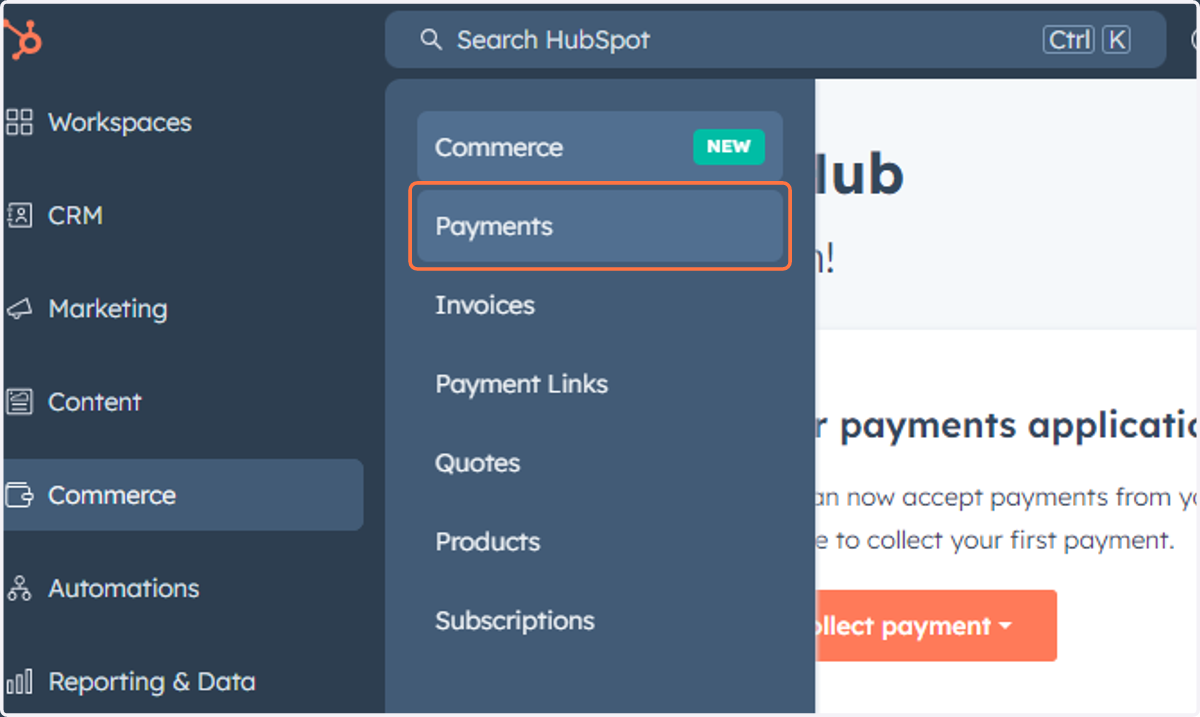
30. This will also take you into the Commerce Hub
Note: Payments and Commerce Hub are one in the same now, so clicking Payments will redirect you to Commerce Hub.
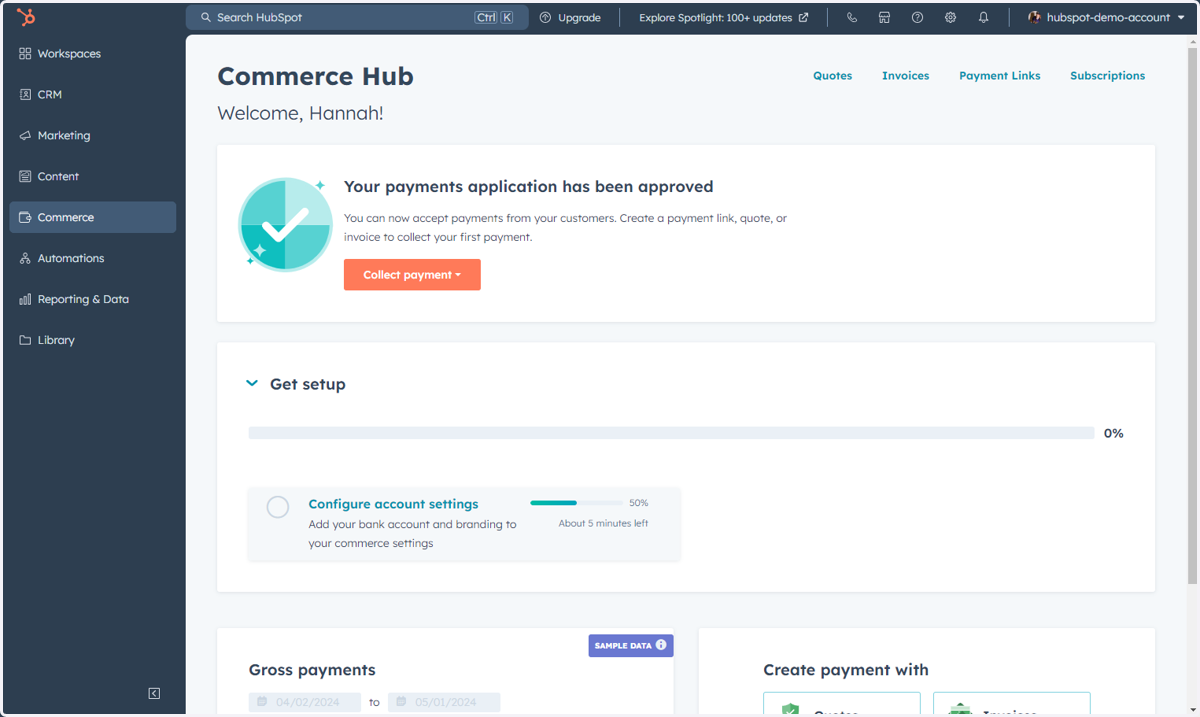
31. Click on Commerce
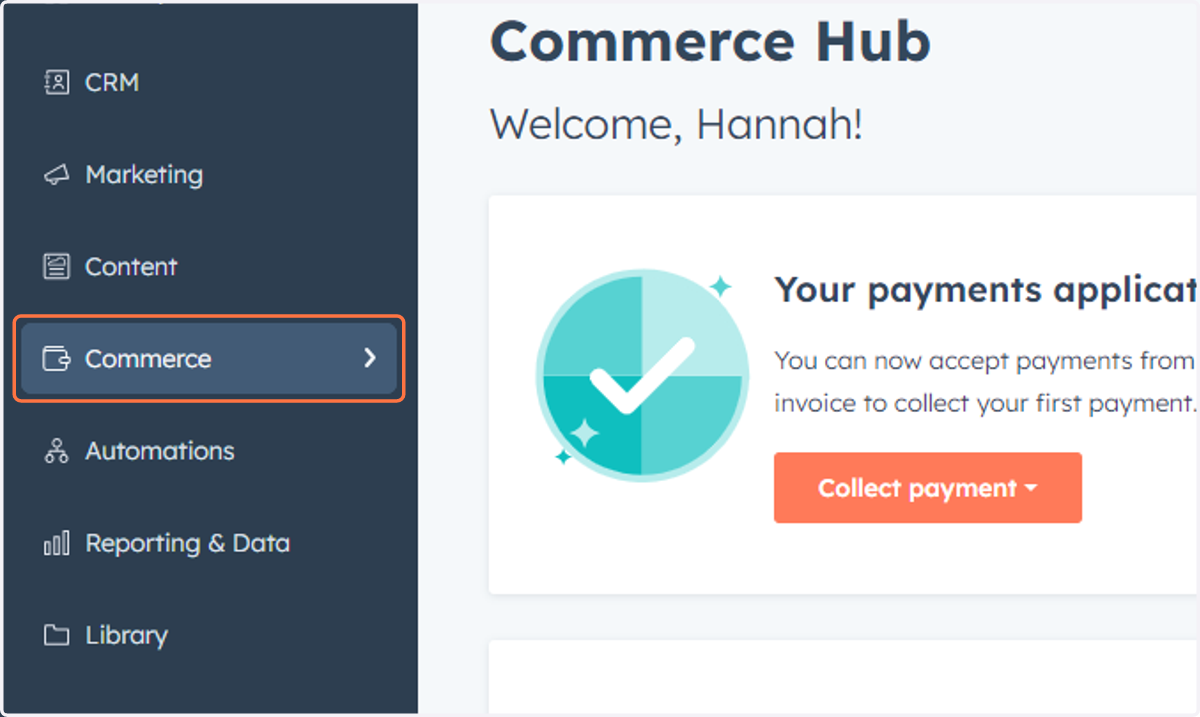
32. Click on Invoices
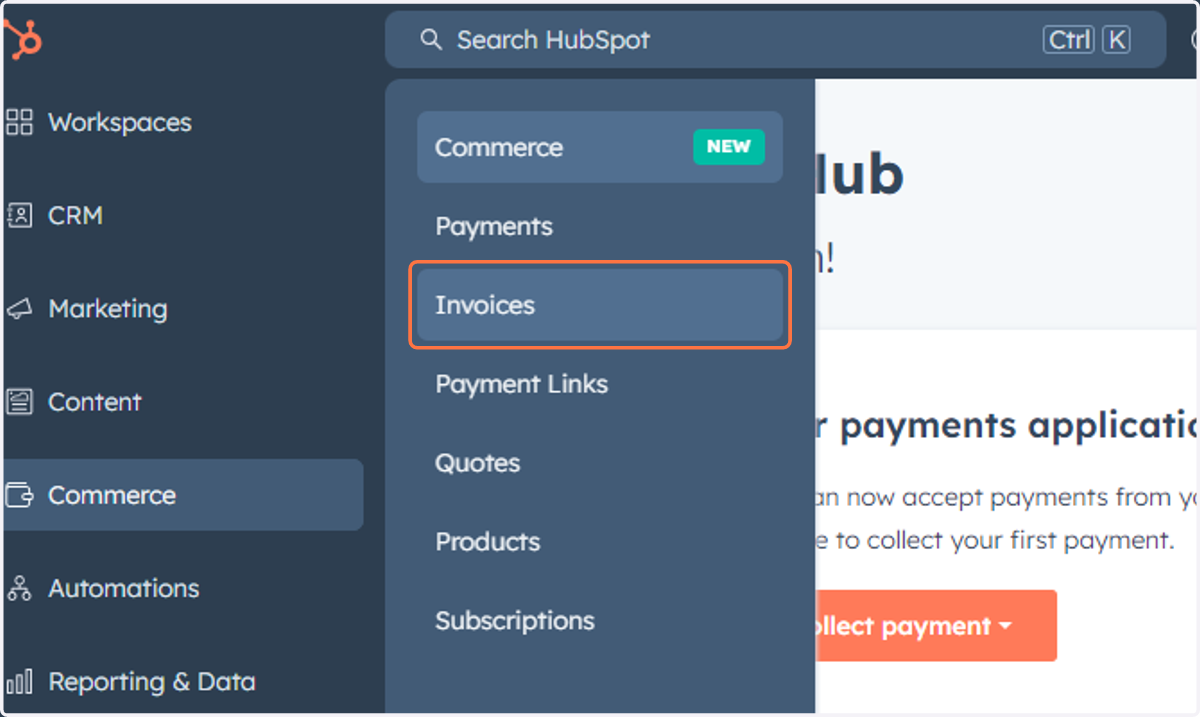
33. This is where you can access, manage and create Invoices
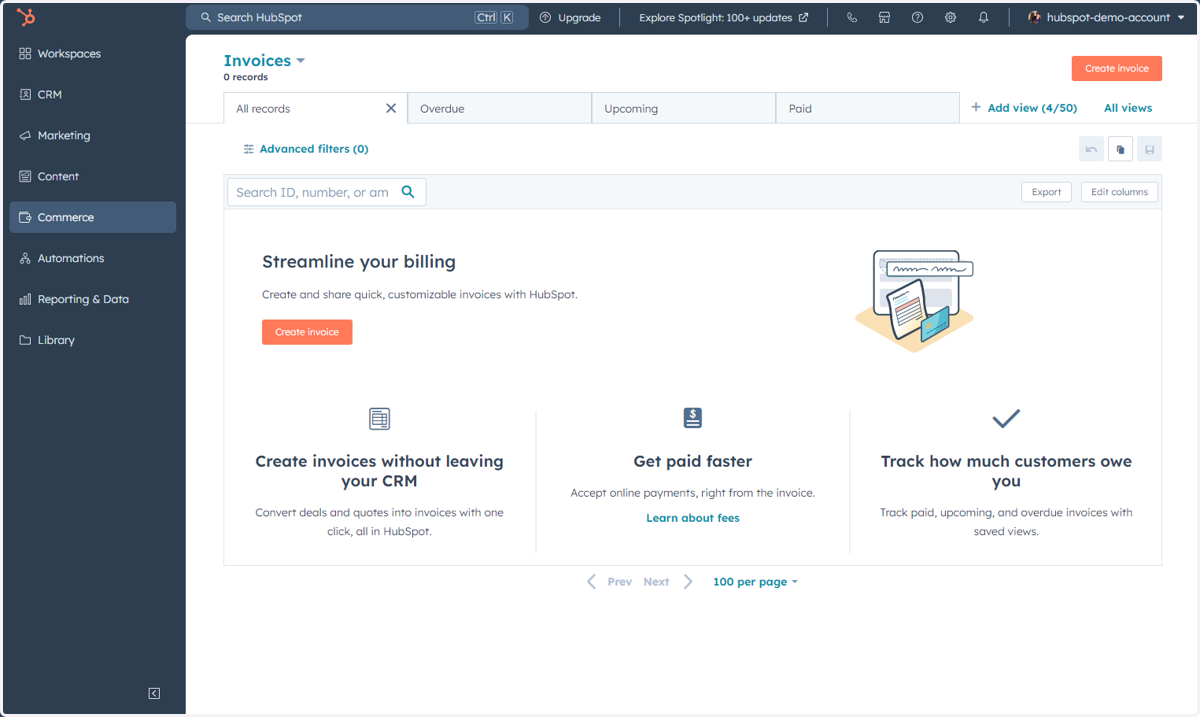
34. Click on Commerce
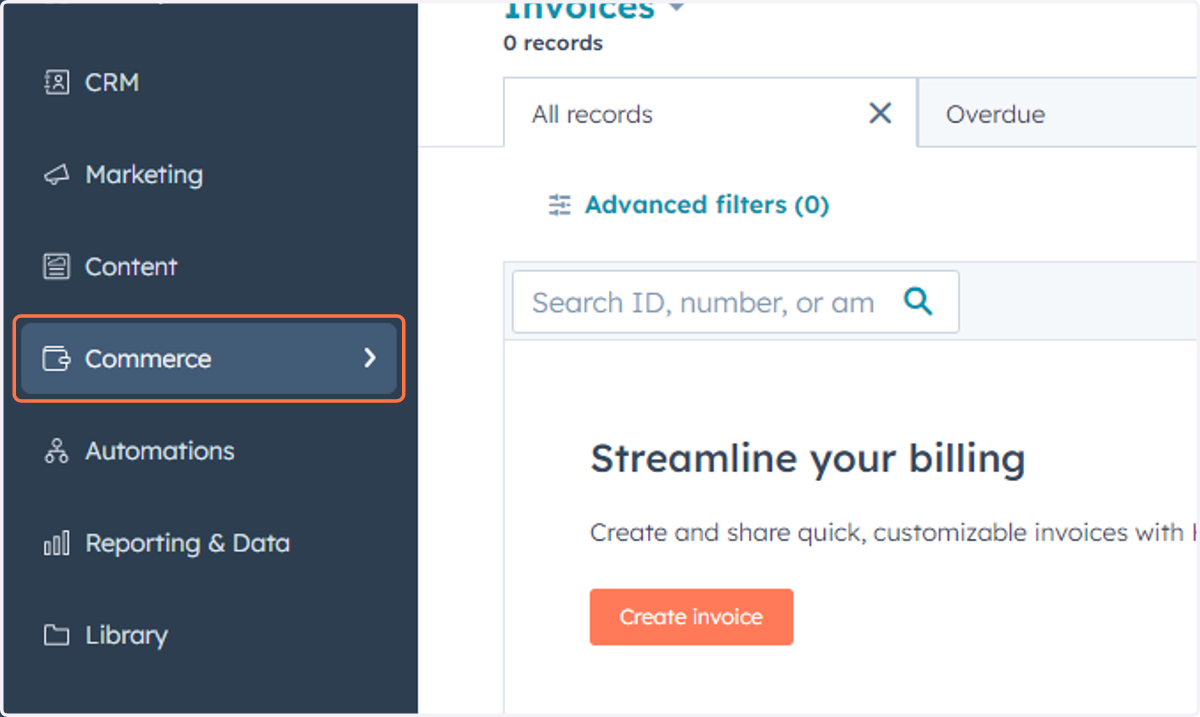
35. Click on Payment Links
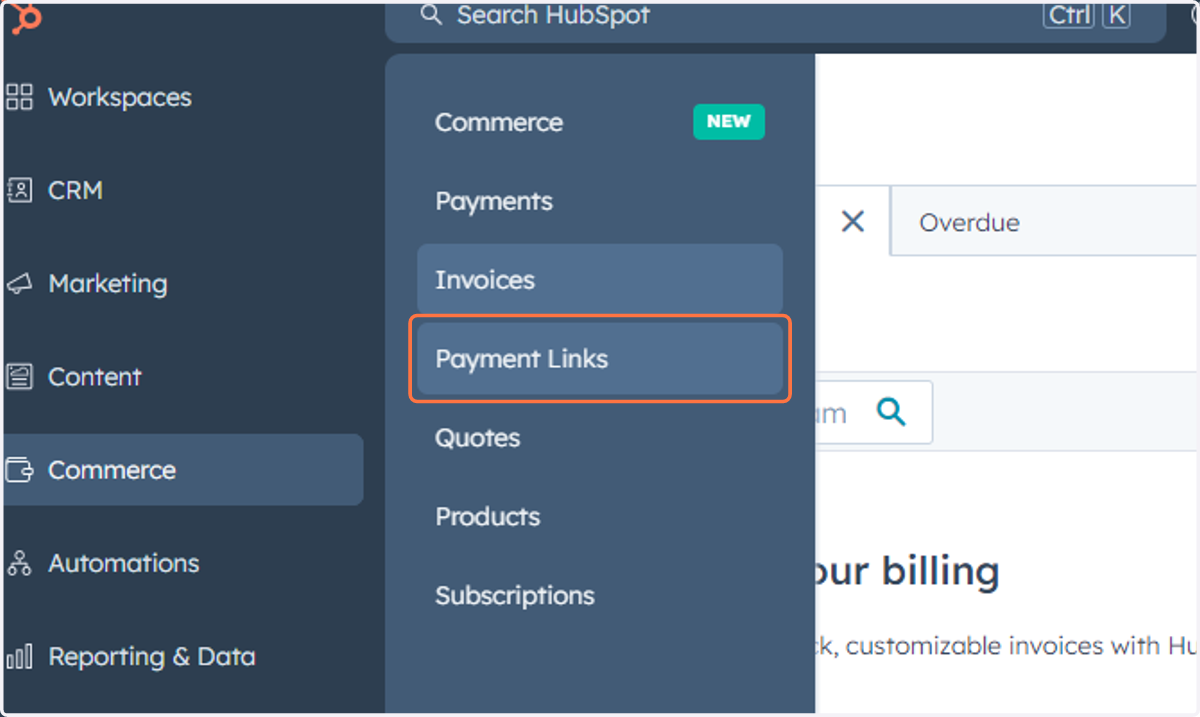
36. This is where you can access, manage and create Payment Links
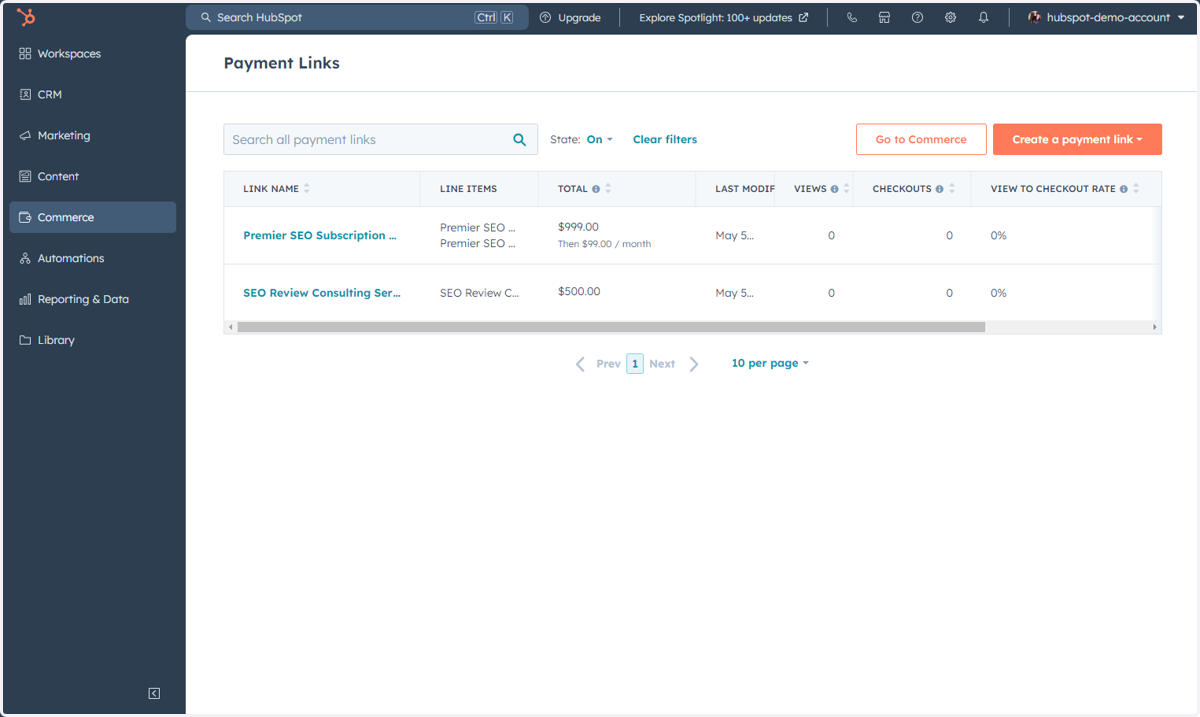
37. Click on Commerce
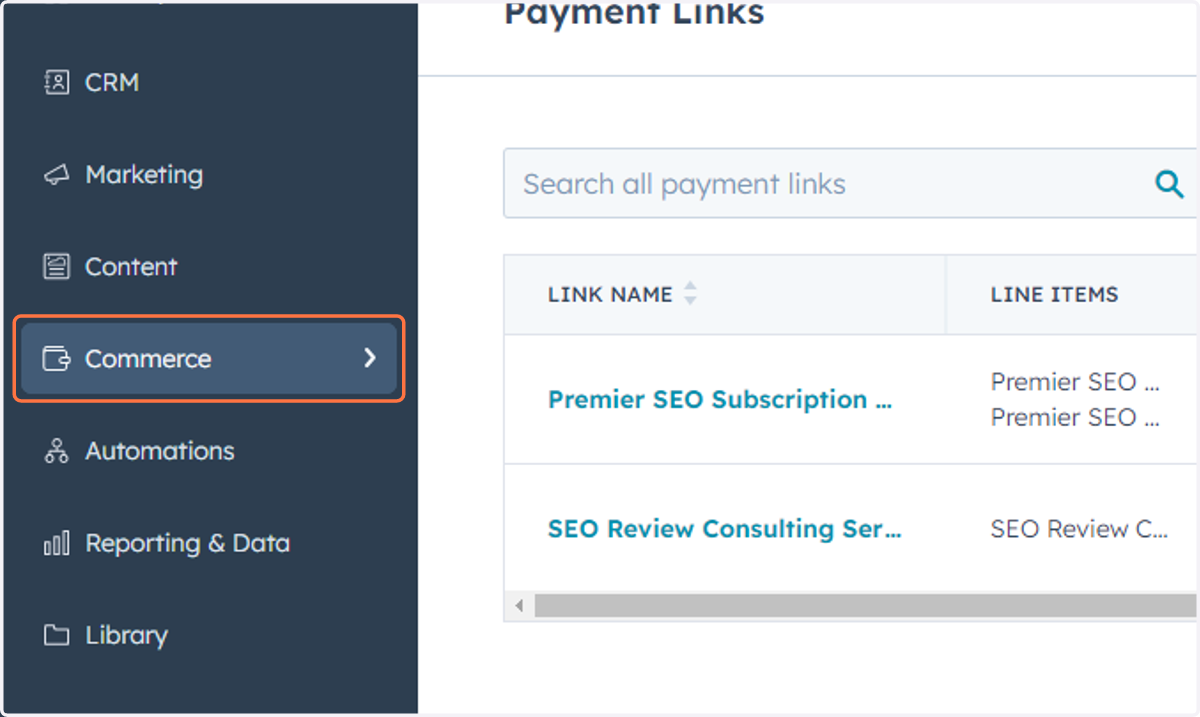
38. Click on Quotes
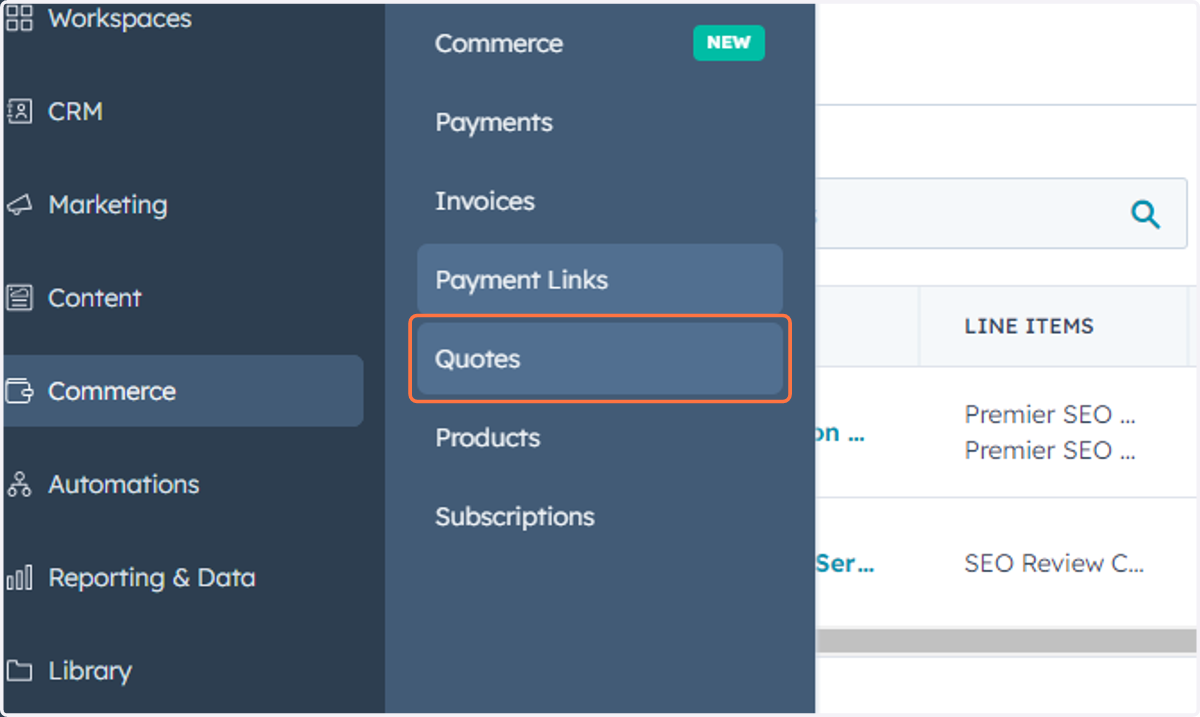
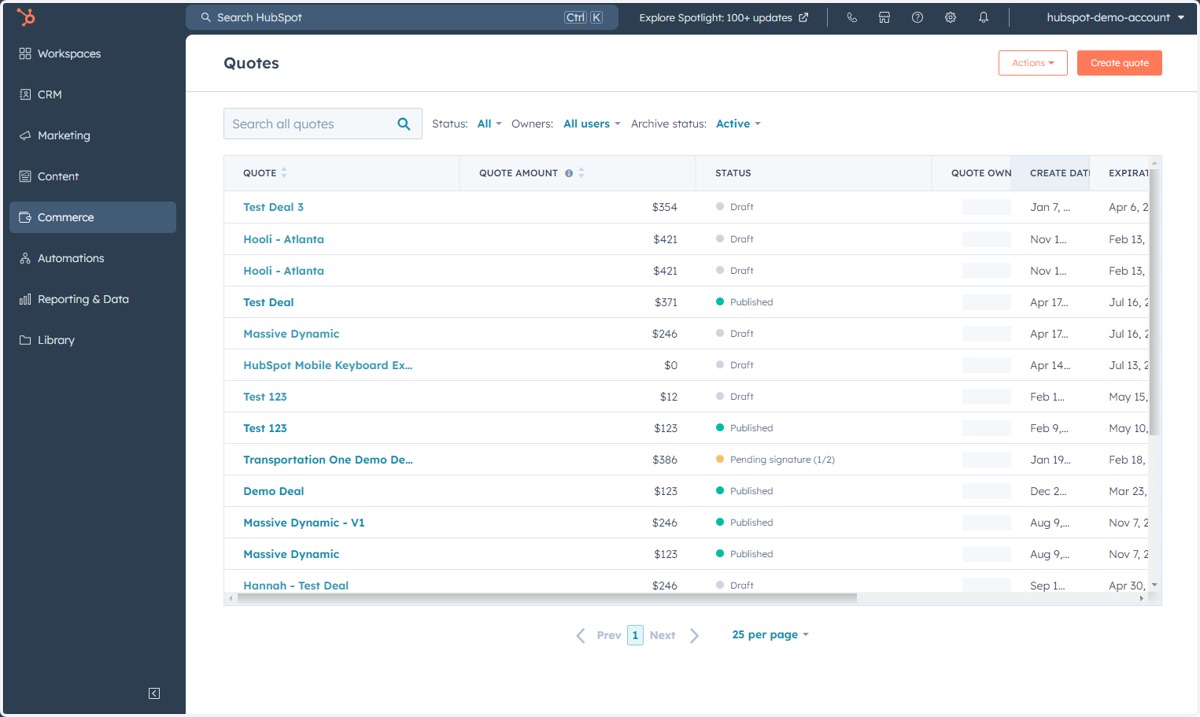
39. This is where you can access, manage and create Quotes
Accessing Items Under Automations
This includes accessing Workflows and Sequences.
40. Click on Automations
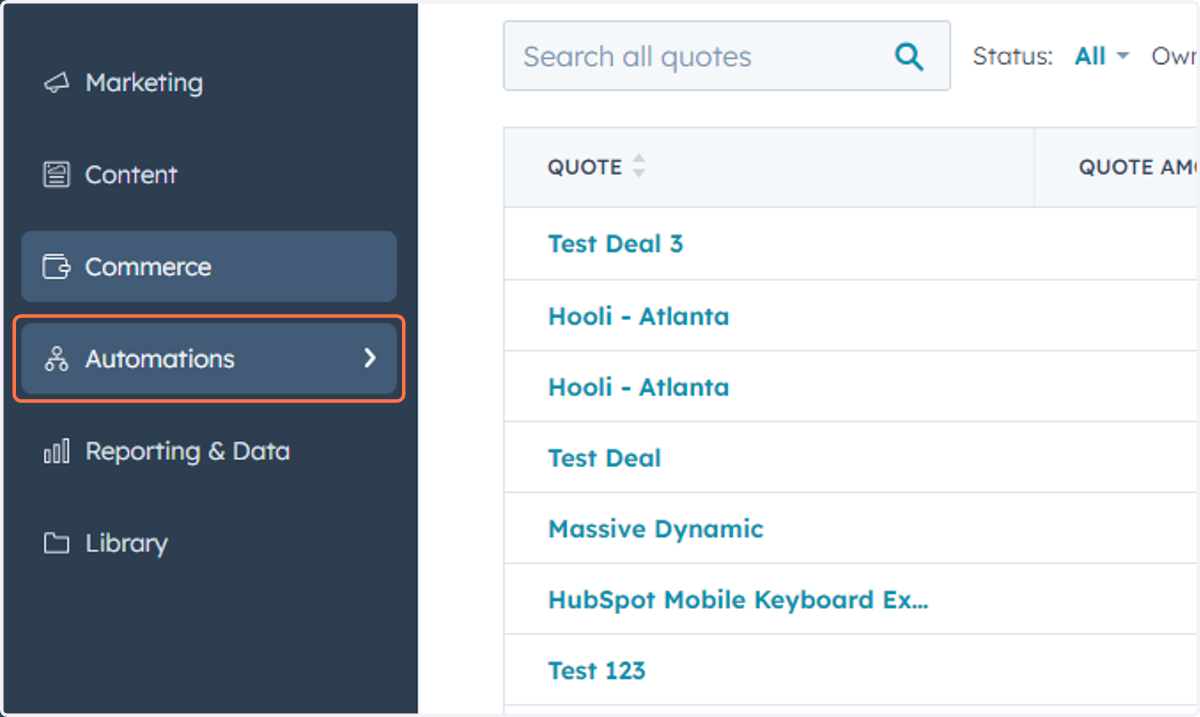
41. Click on Workflows
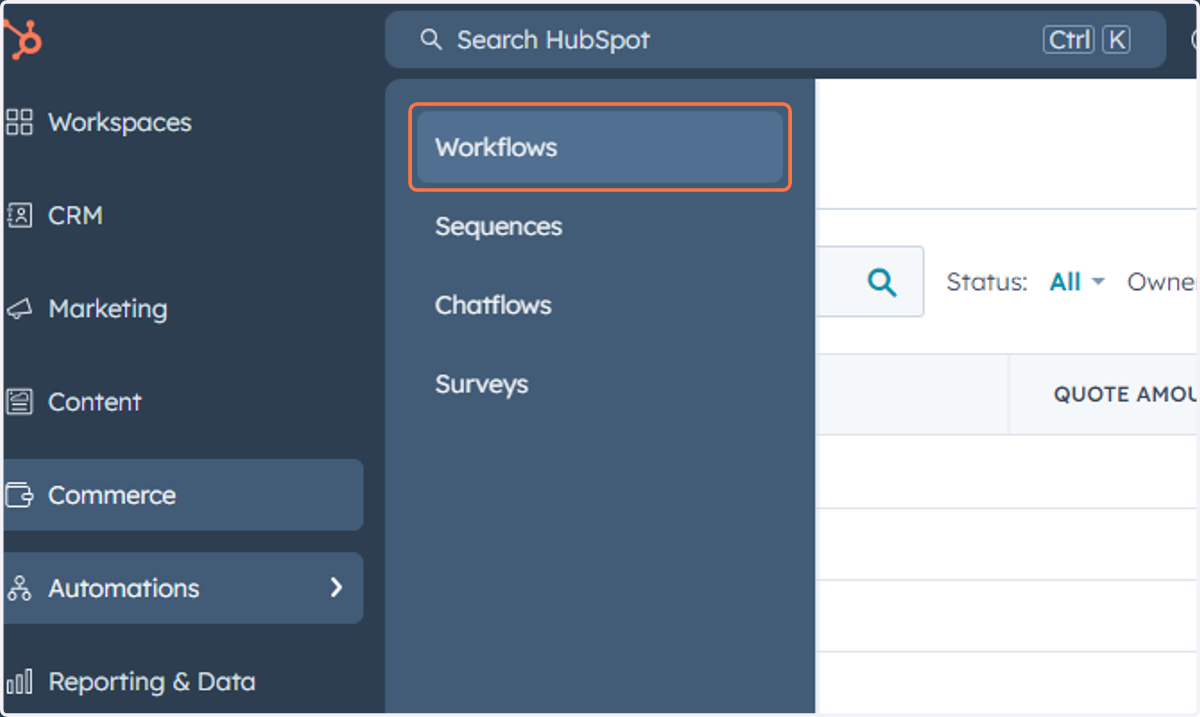
42. This is where you can access, manage and create Workflows
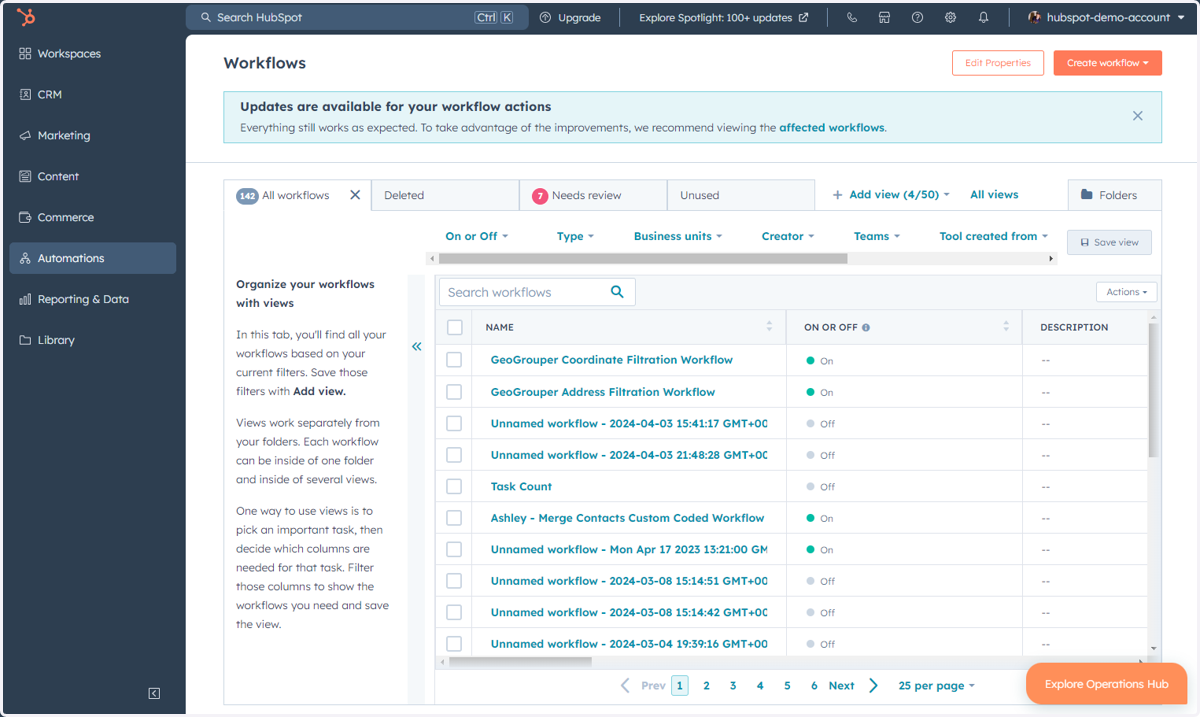
43. Click on Automations
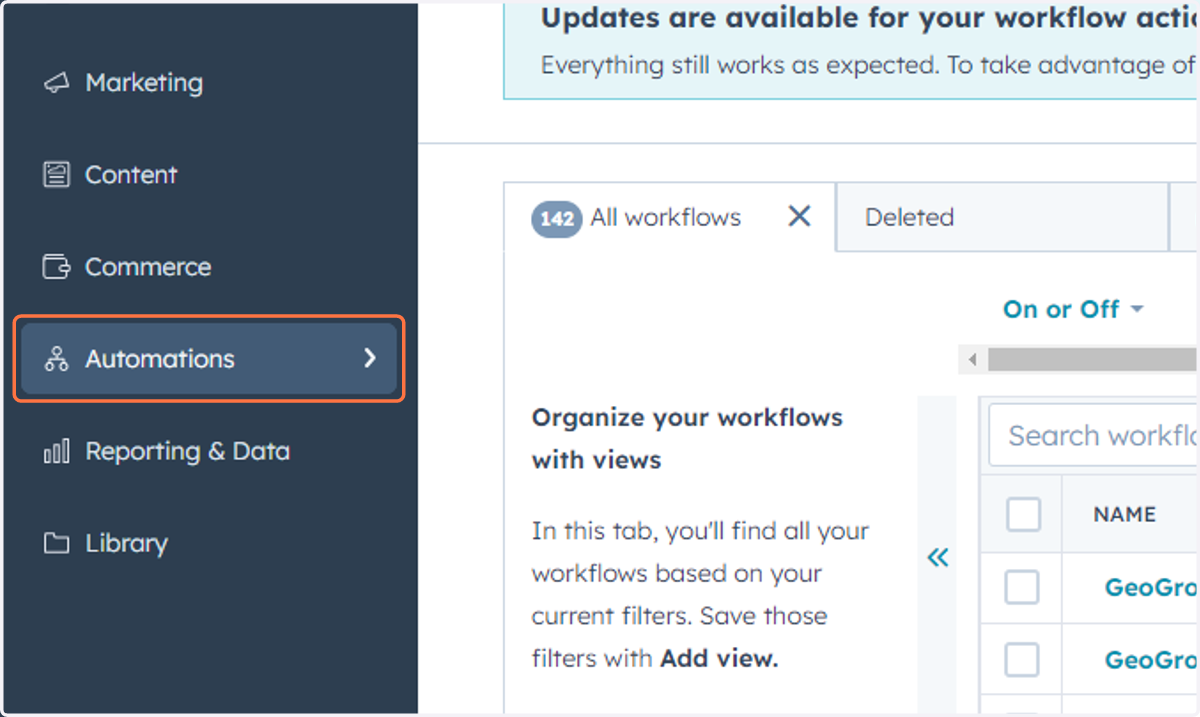
44. Click on Sequences
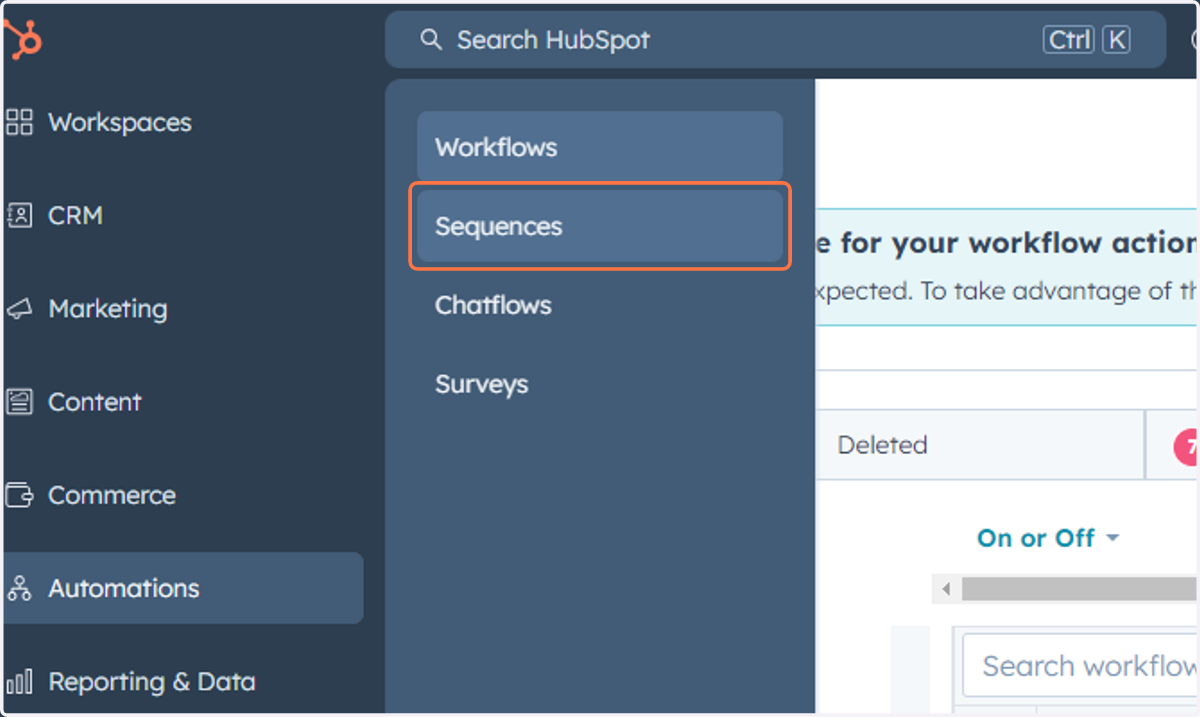
45. This is where you can access, manage and create Sequences
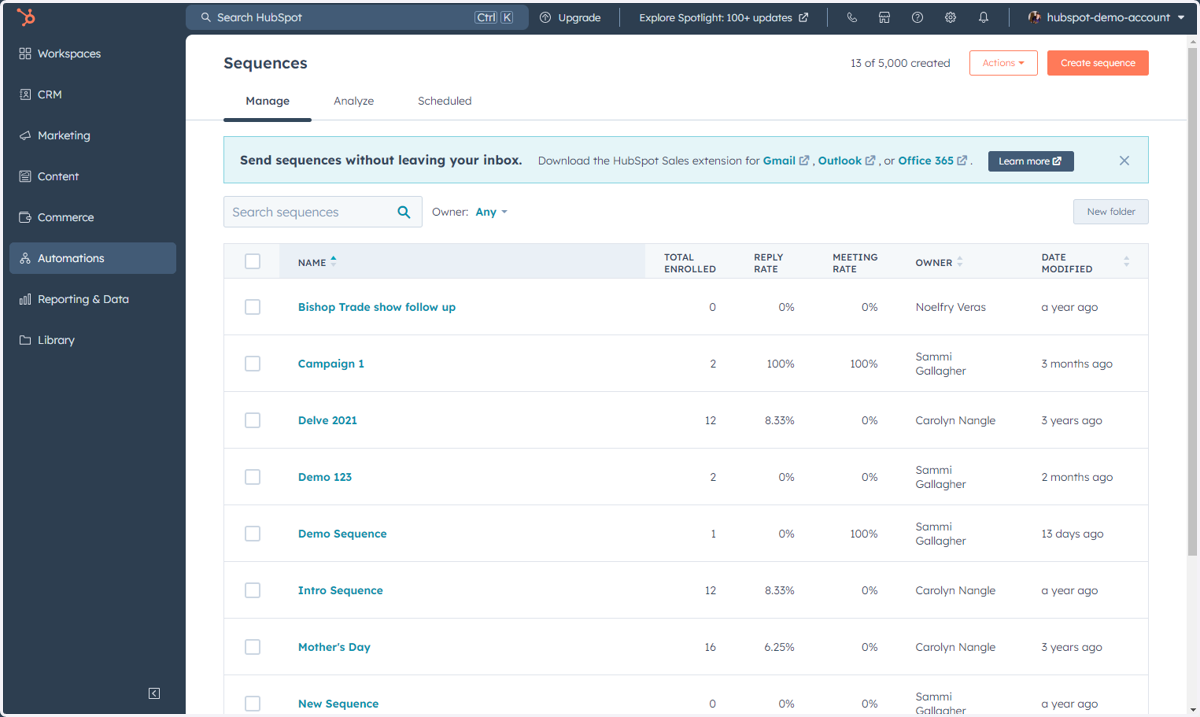
Accessing Items Under Reporting & Data
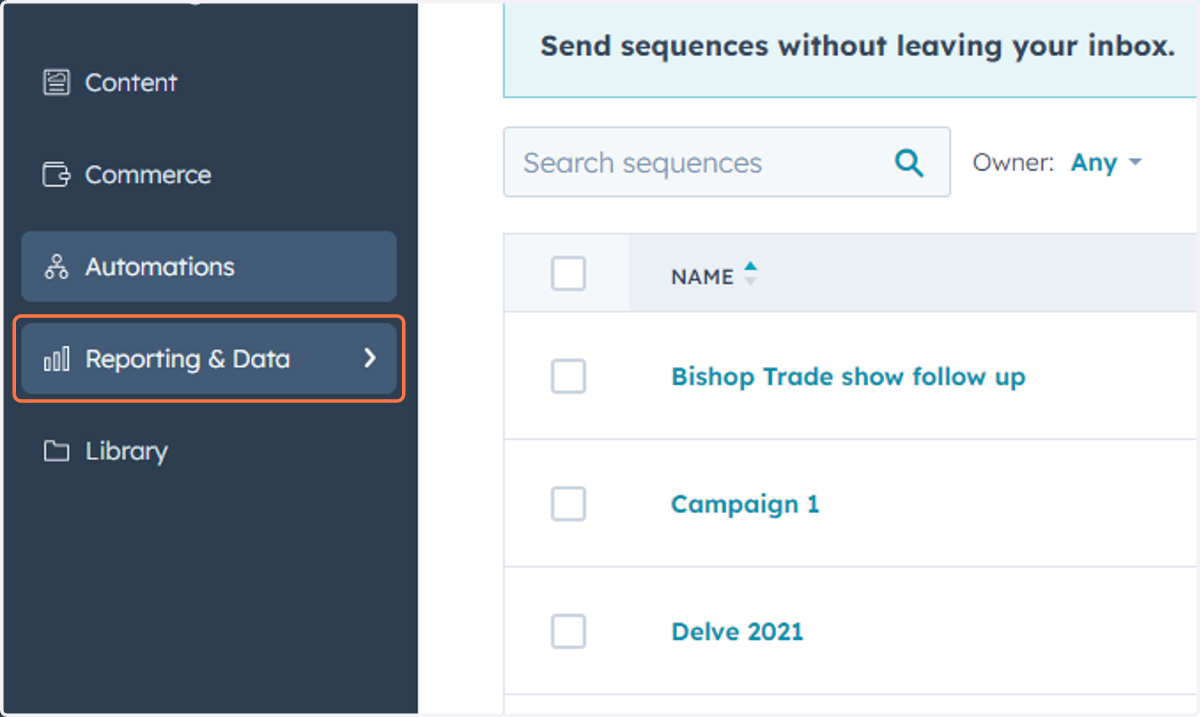
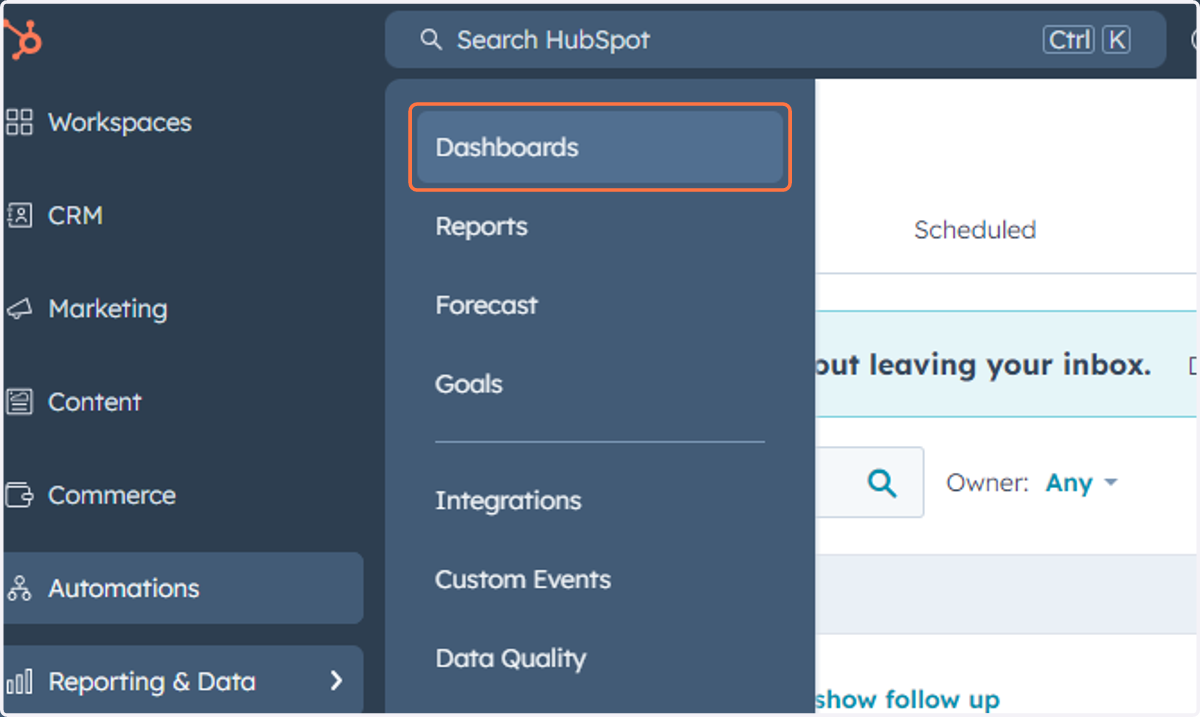
This includes Dashboards, Reports, Forecast, Goals, and Datasets.
46. Click on Reporting & Data
47. Click on Dashboards
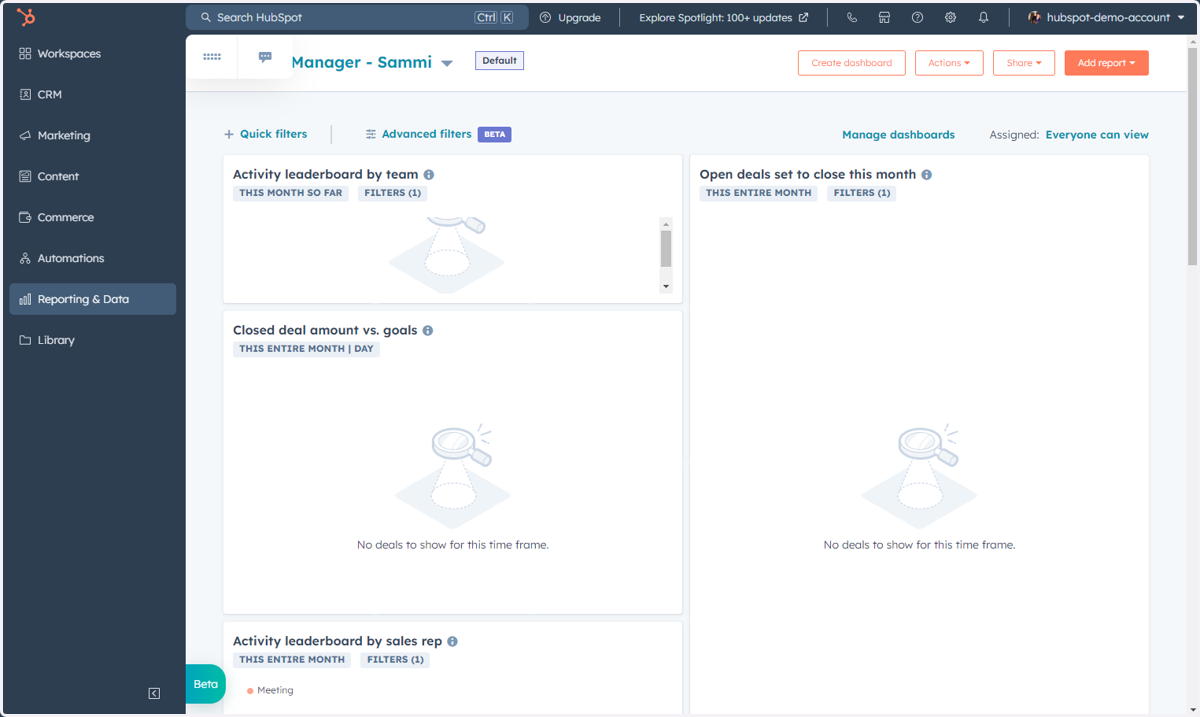
48. This is where you can access, manage and create Dashboards
49. Click on Reporting & Data
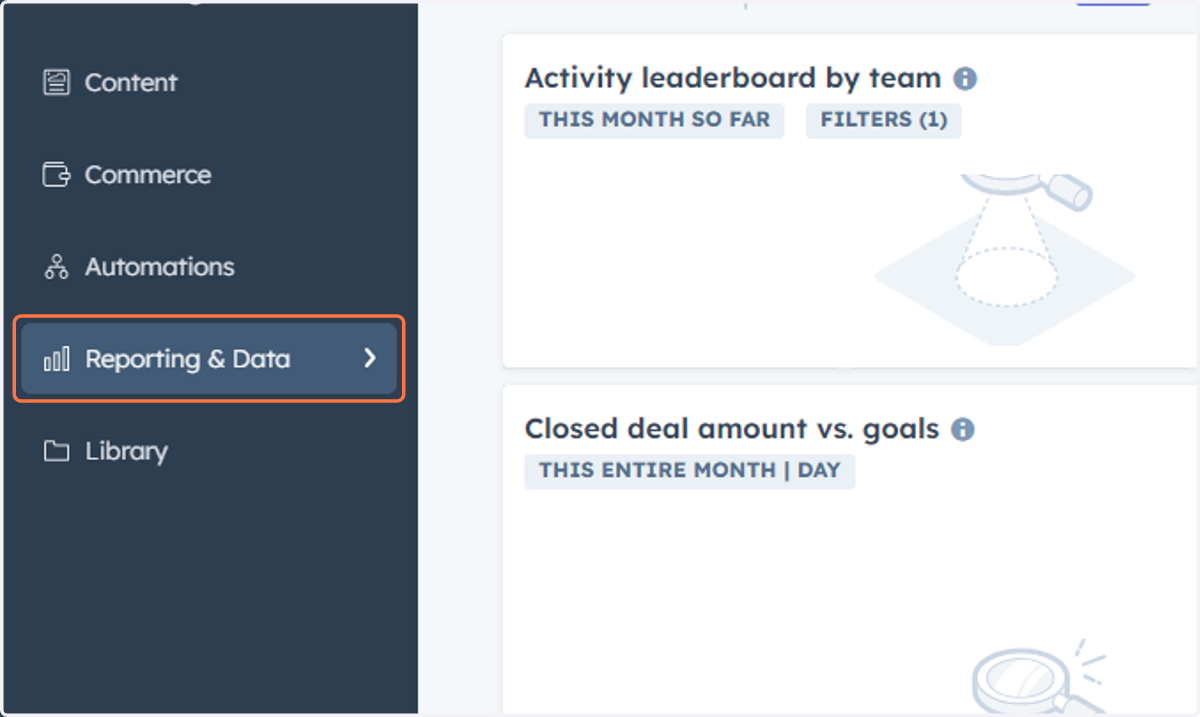
50. Click on Reports
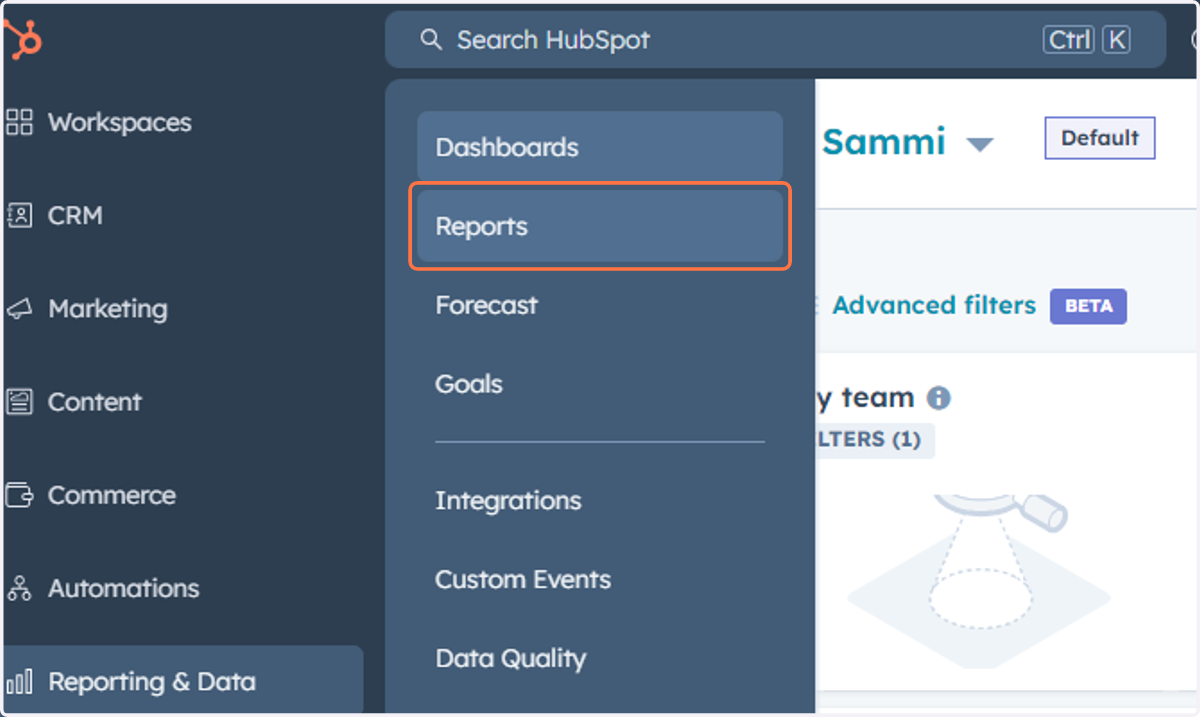
51. This is where you can access, manage and create Reports
You can view reports individually or add them to dashboards.
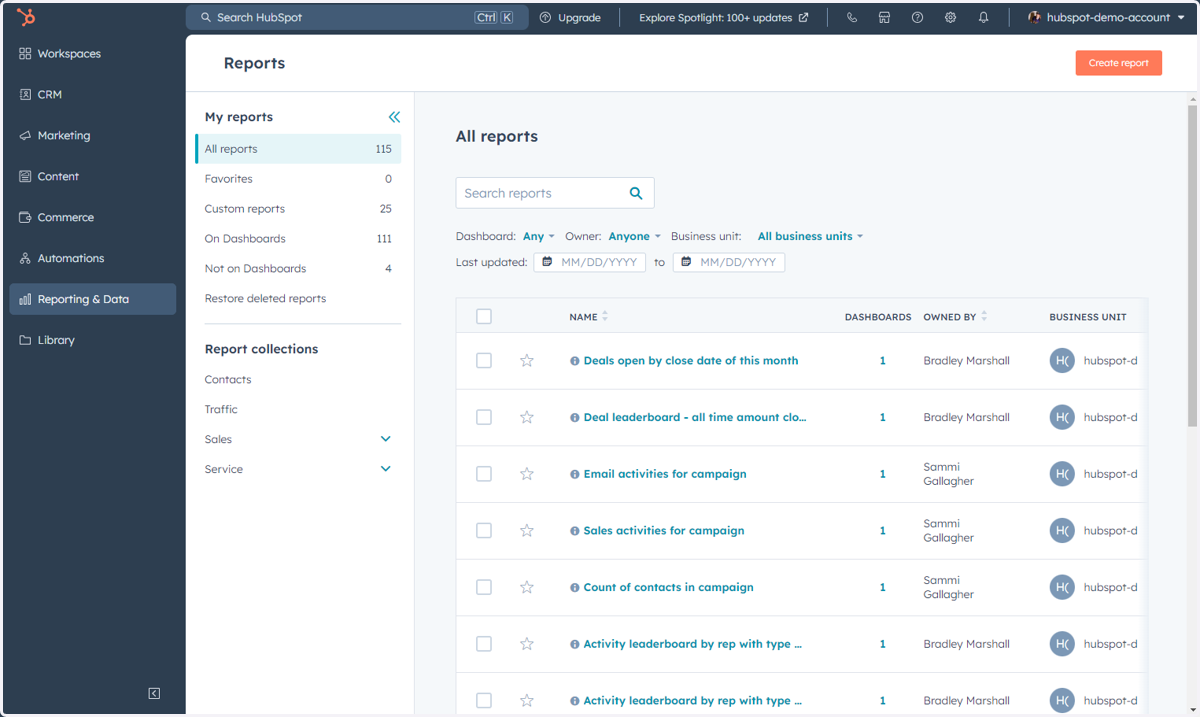
52. Click on Reporting & Data
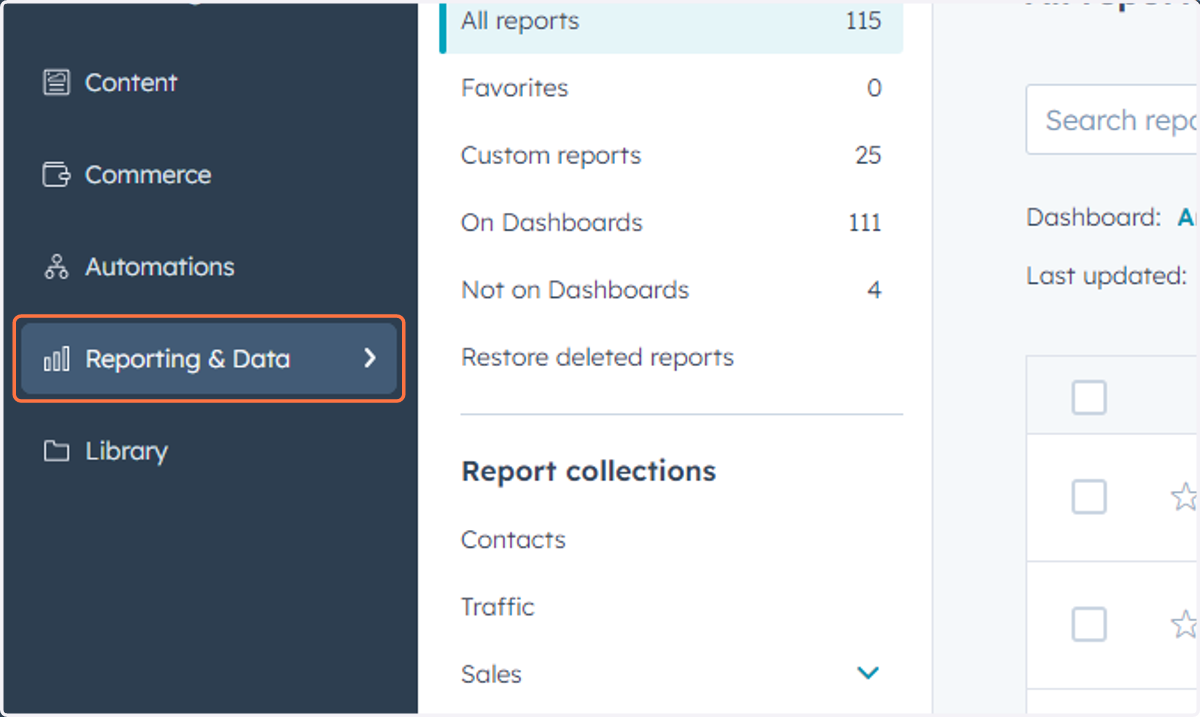
53. Click on Forecast
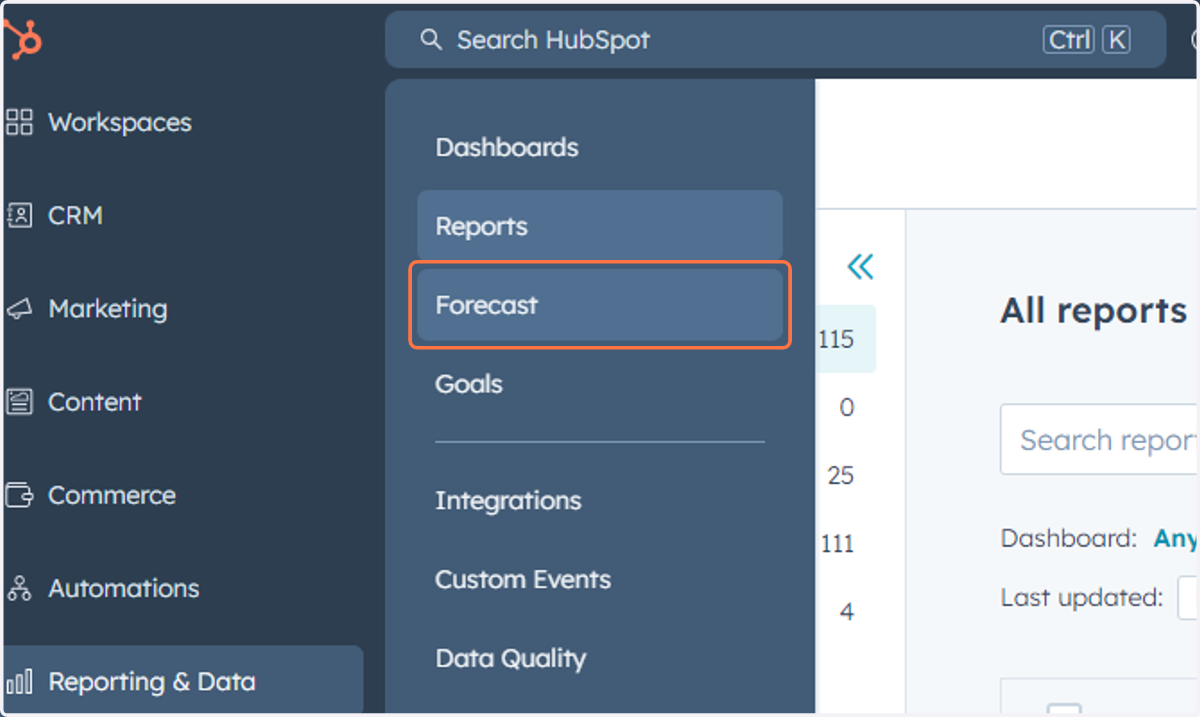
54. This is where you can access and monitor your Forecast along with create and edit your goals
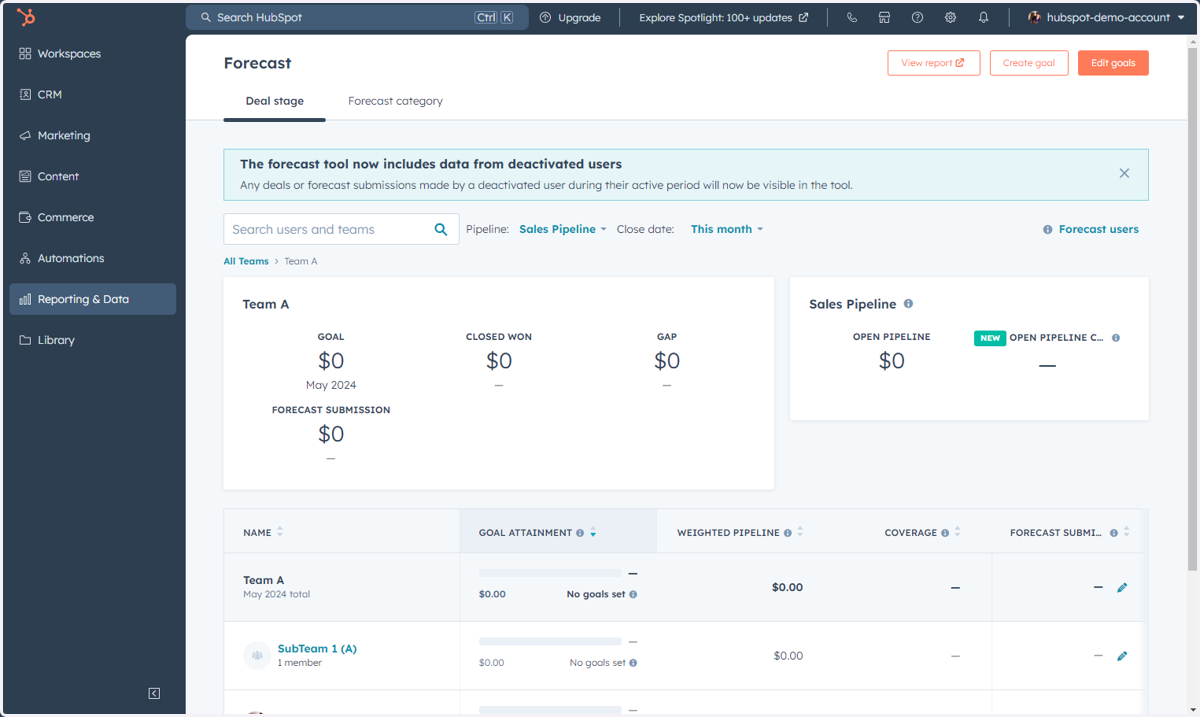
55. Click on Reporting & Data
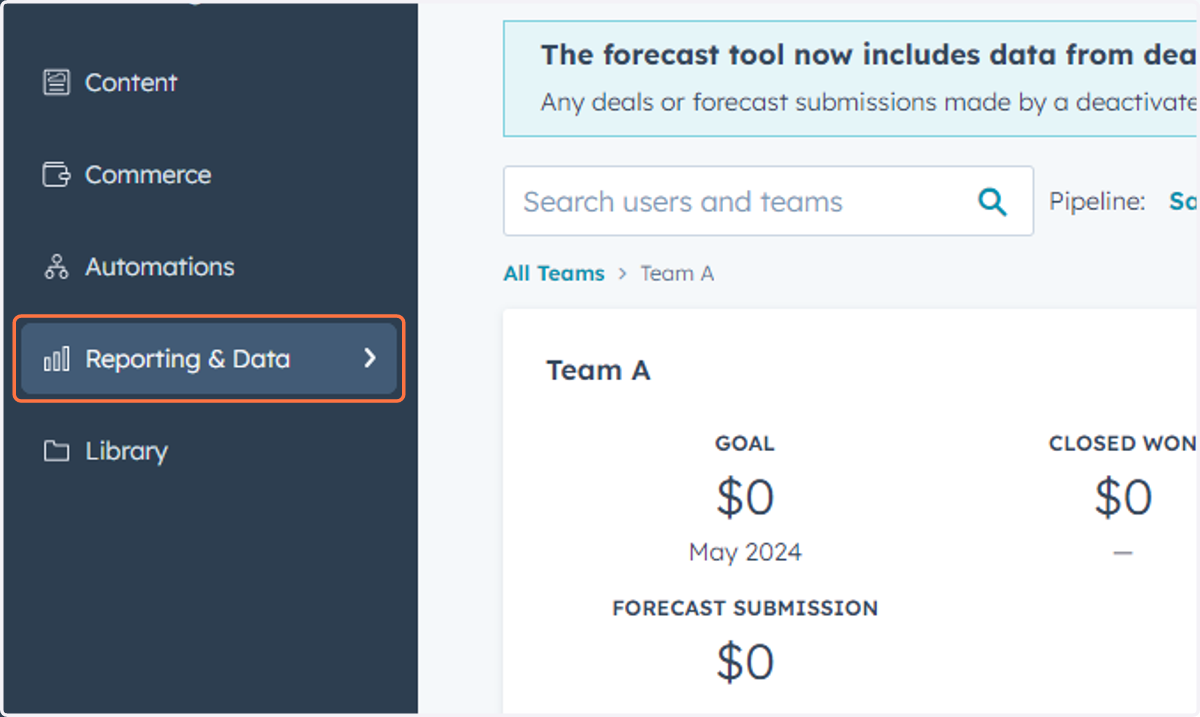
56. Click on Goals
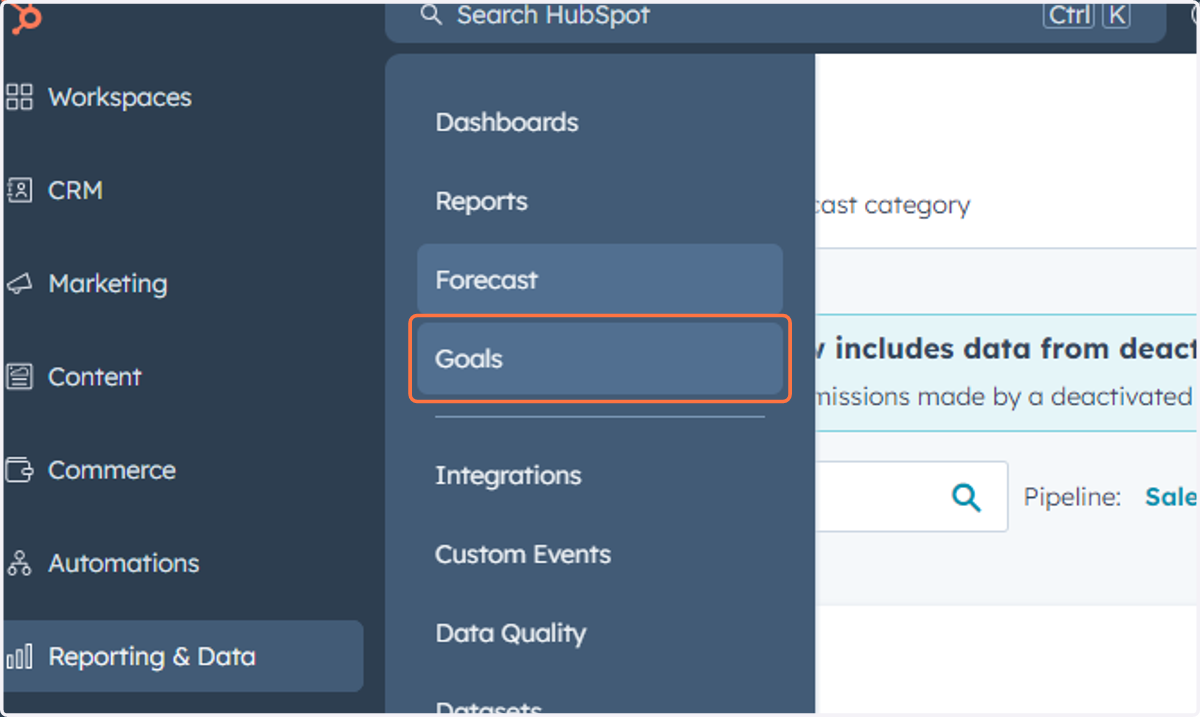
57. This is where you can access, manage and create Goals
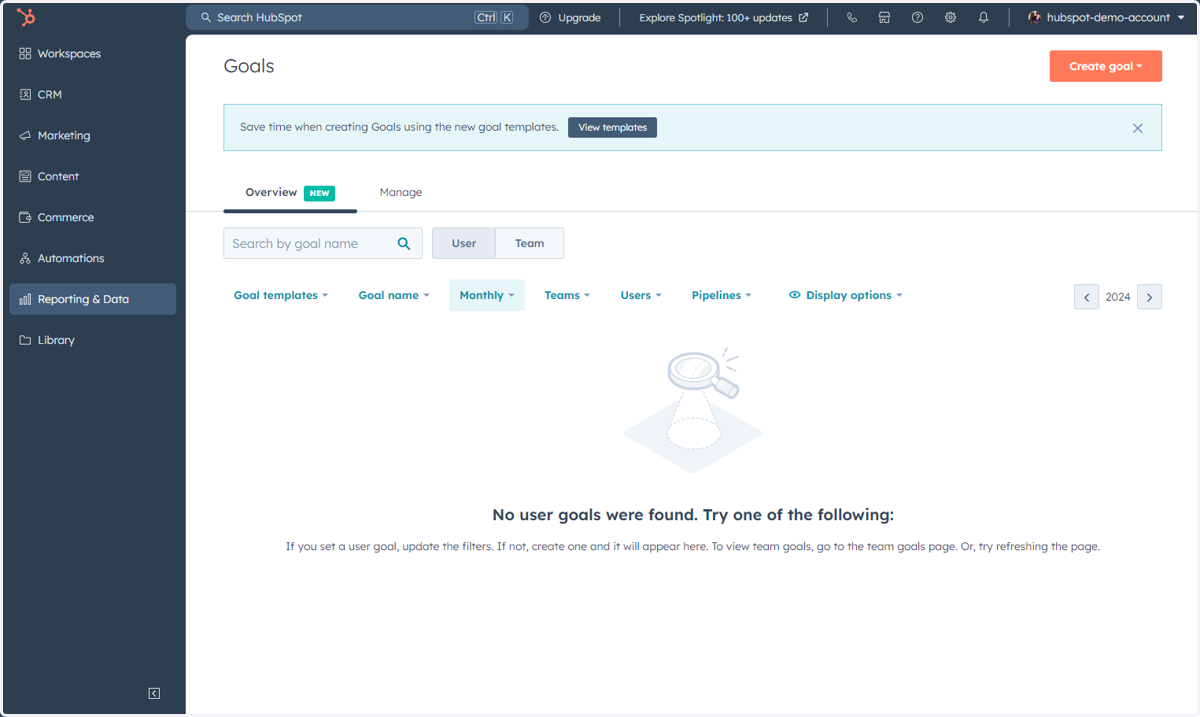
58. Click on Reporting & Data
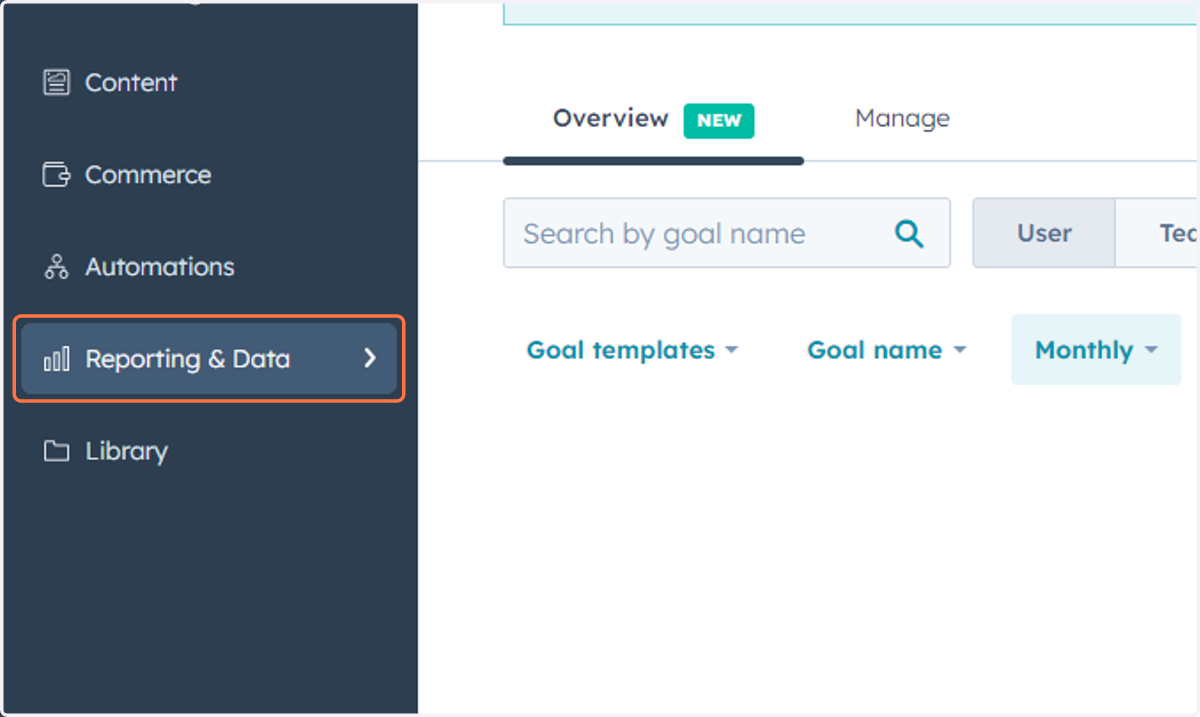
59. Click on Datasets
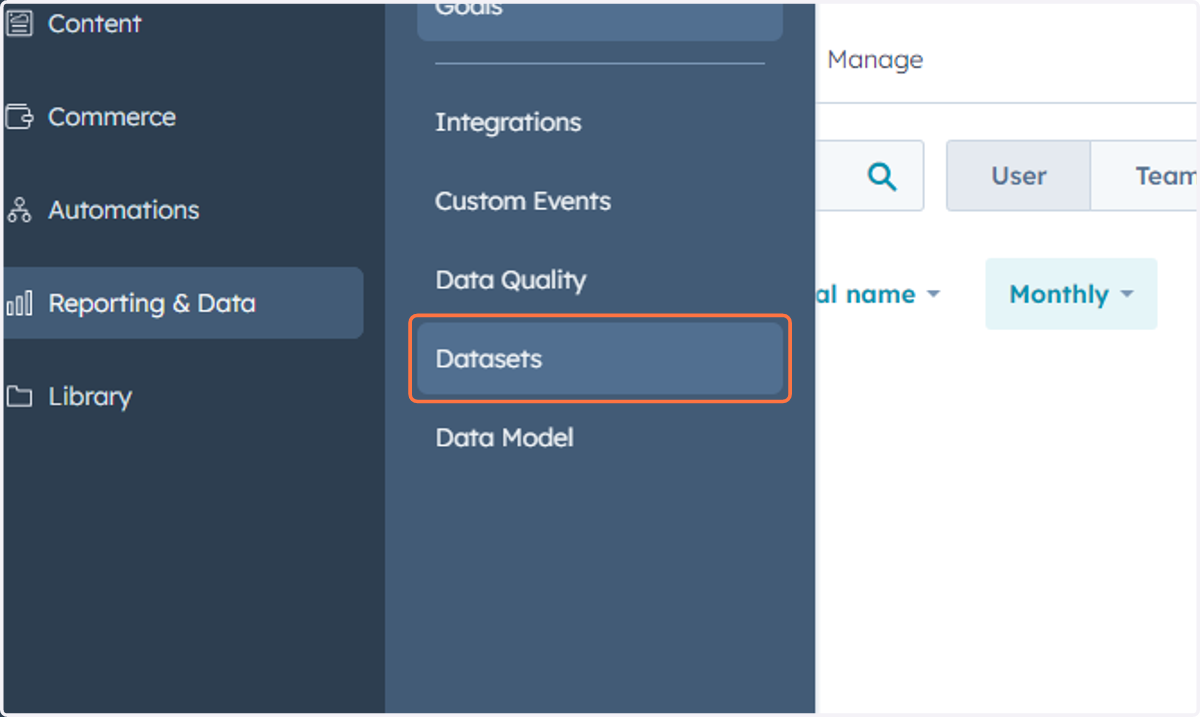
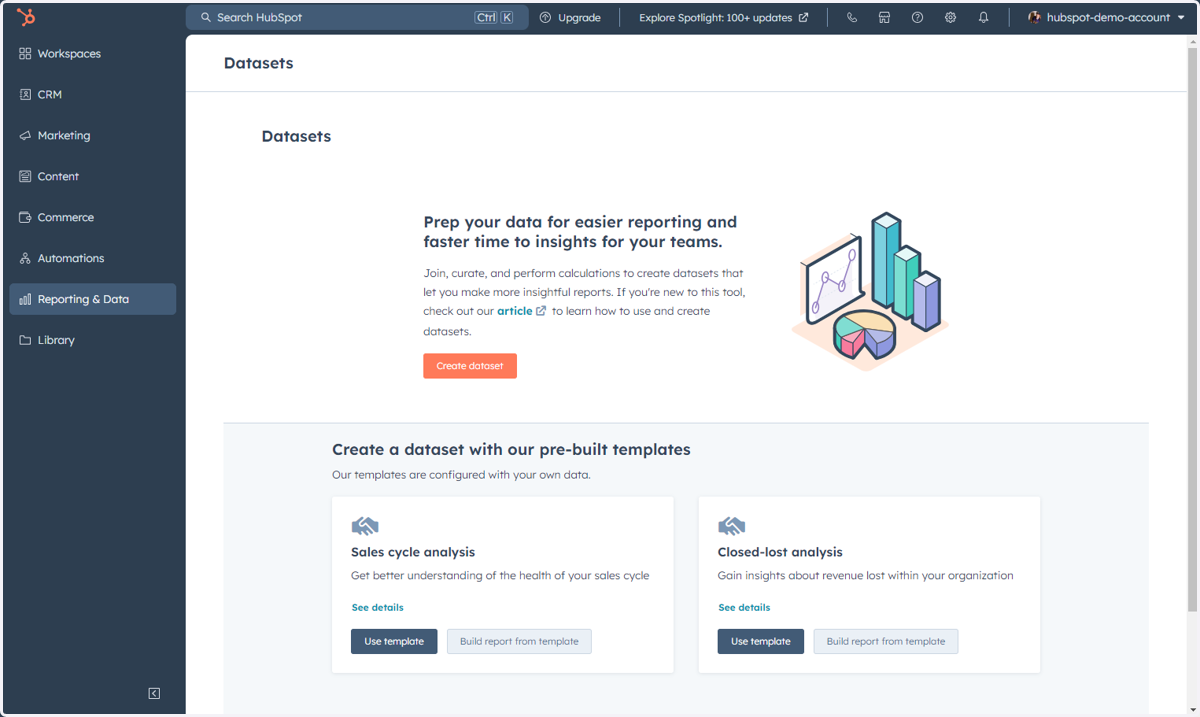
60. This is where you can access, manage and create Datasets
A dataset is a collection of data from across your HubSpot account that can be used in custom reports.
Accessing Items Under Library
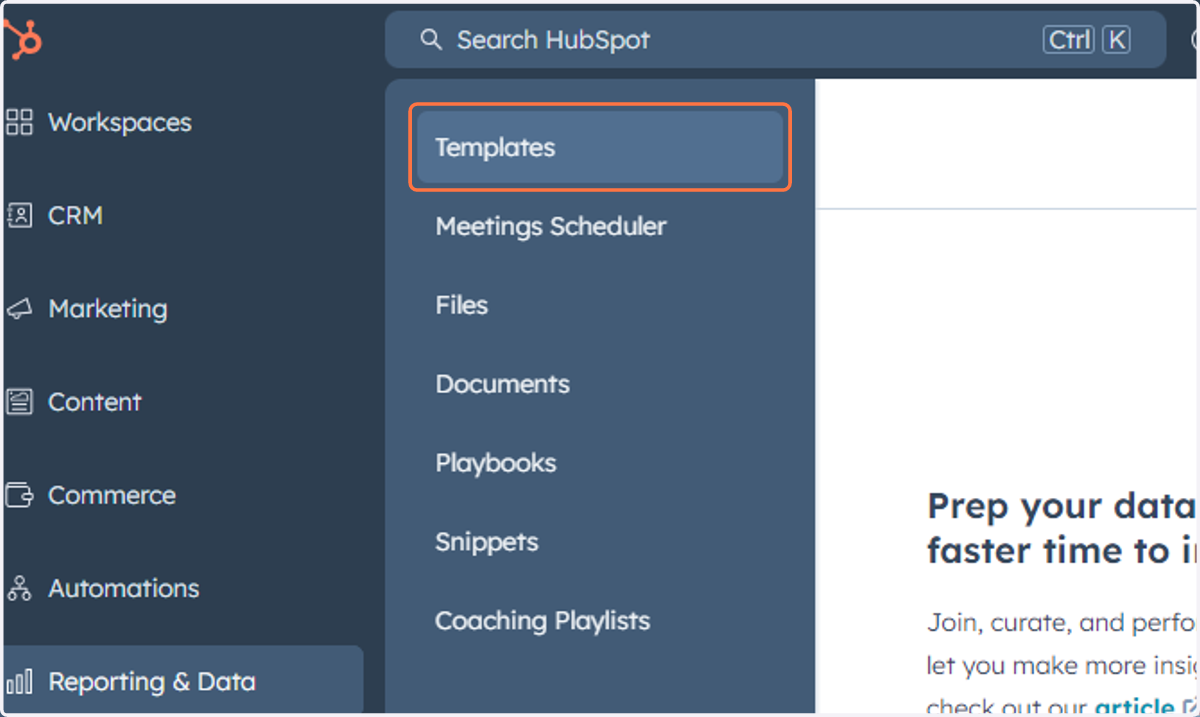
This includes Templates, Meetings Scheduler, Files, Documents, Playbooks, Snippets, and Coaching Playlists.
61. Click on Library
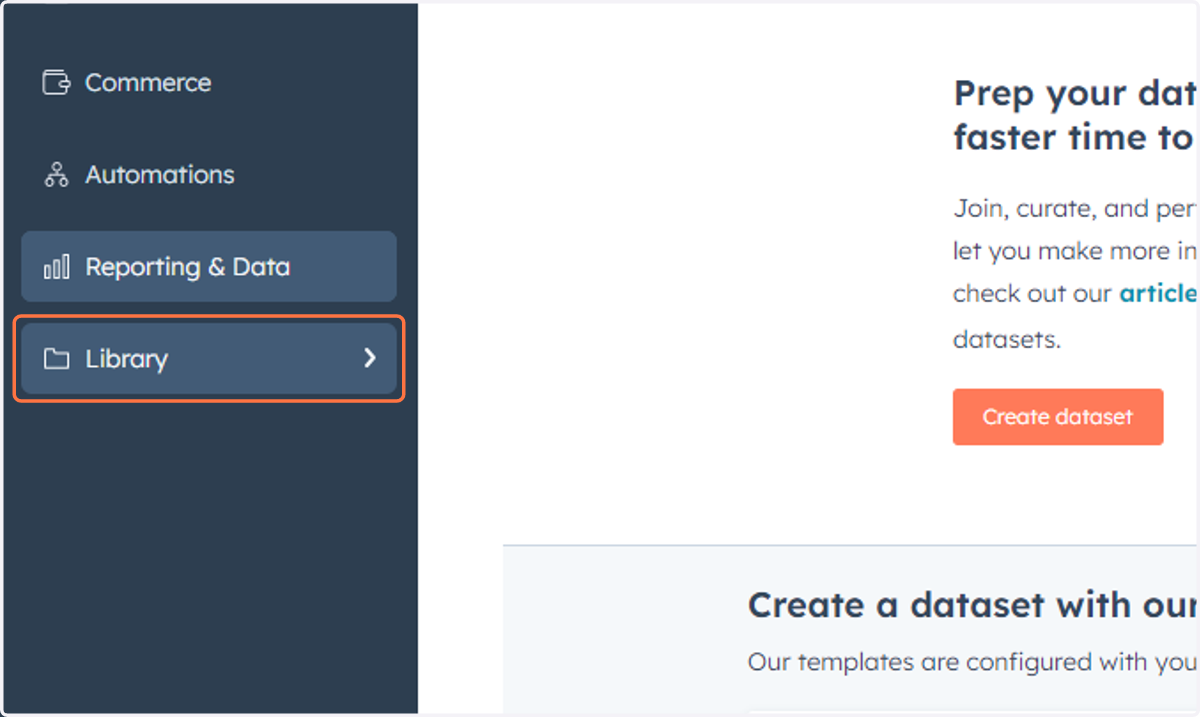
62. Click on Templates
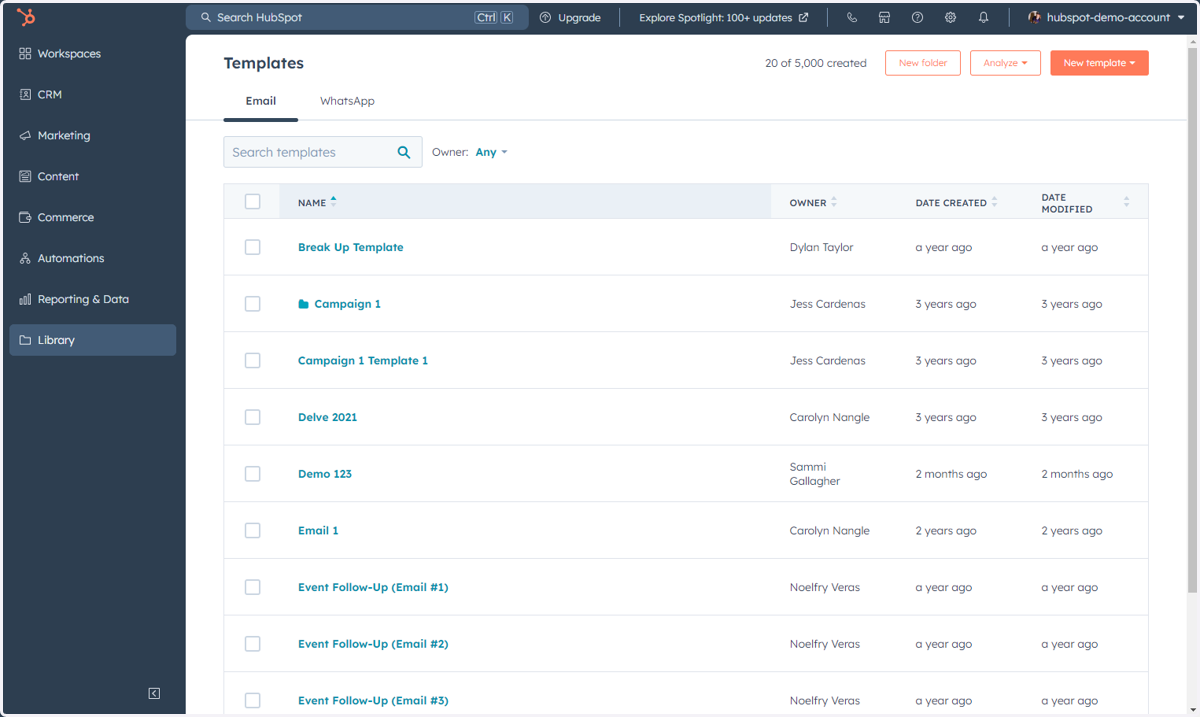
63. This is where you can access, manage and create Templates
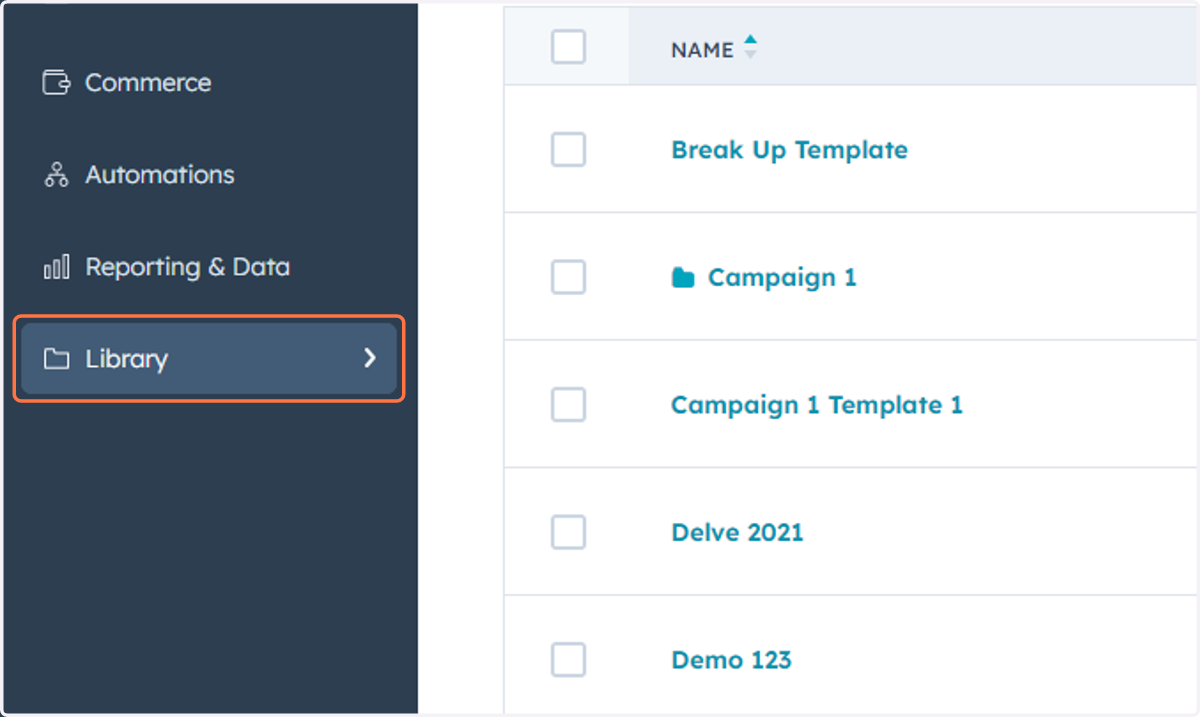
64. Click on Library
65. Click on Meetings Scheduler
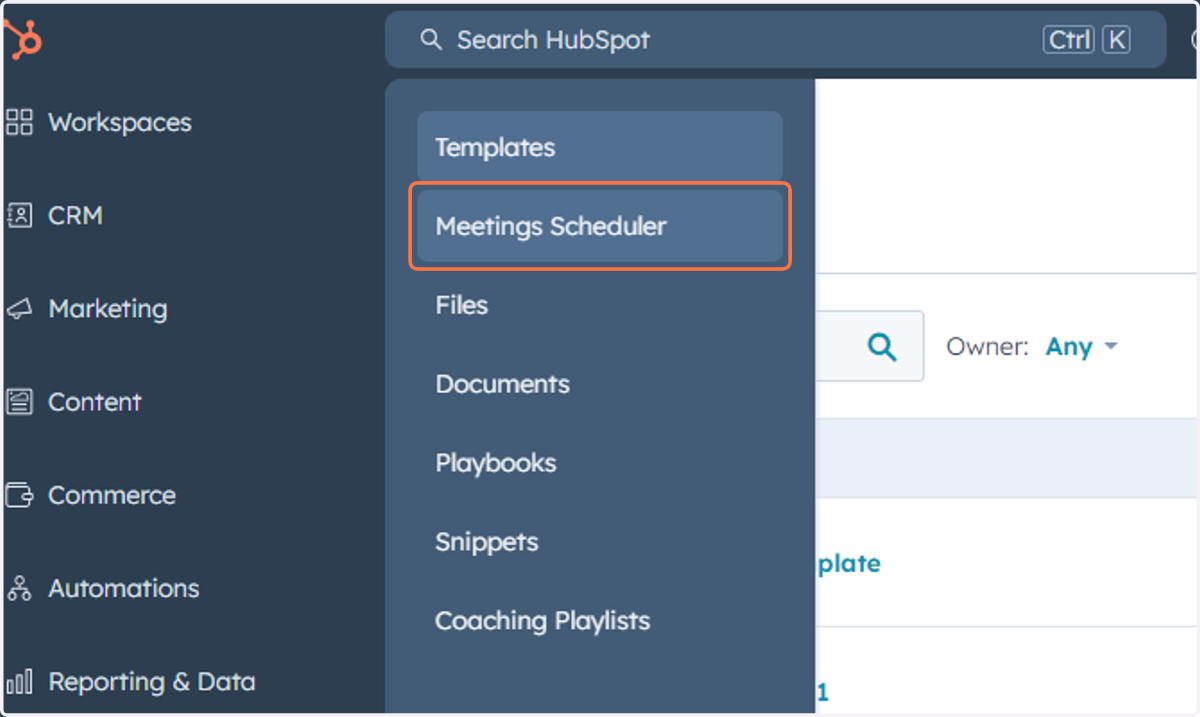
66. This is where you can access, manage and create scheduling pages
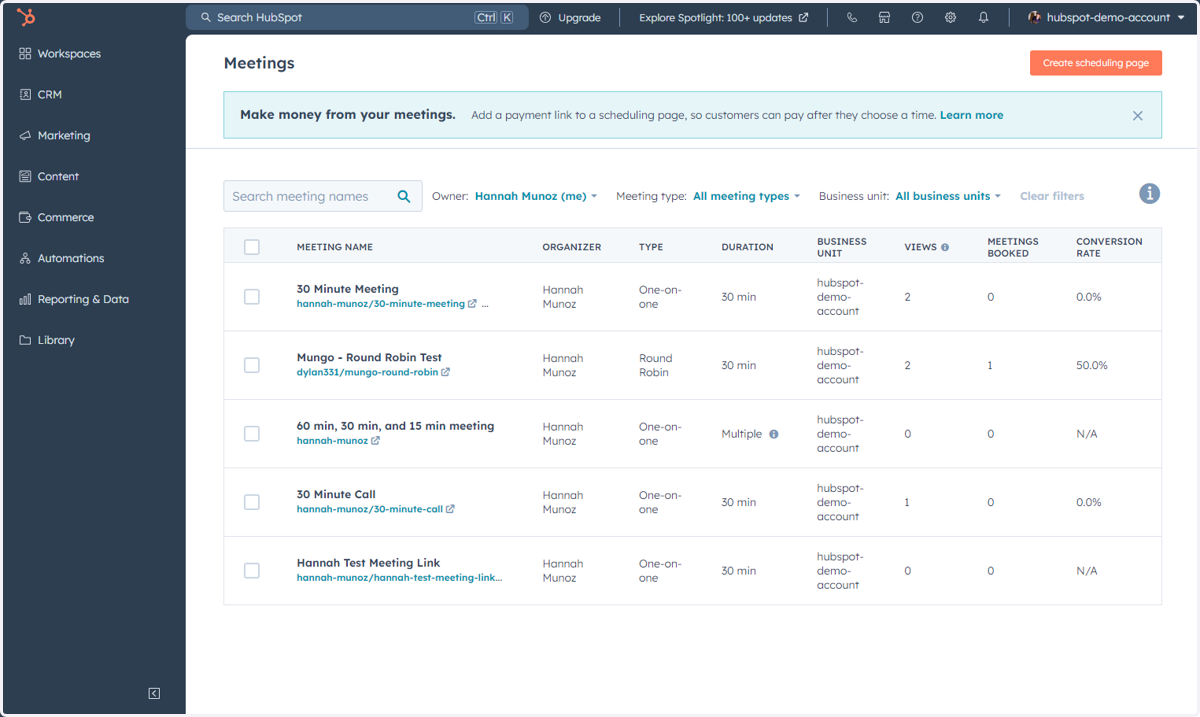
67. Click on Library
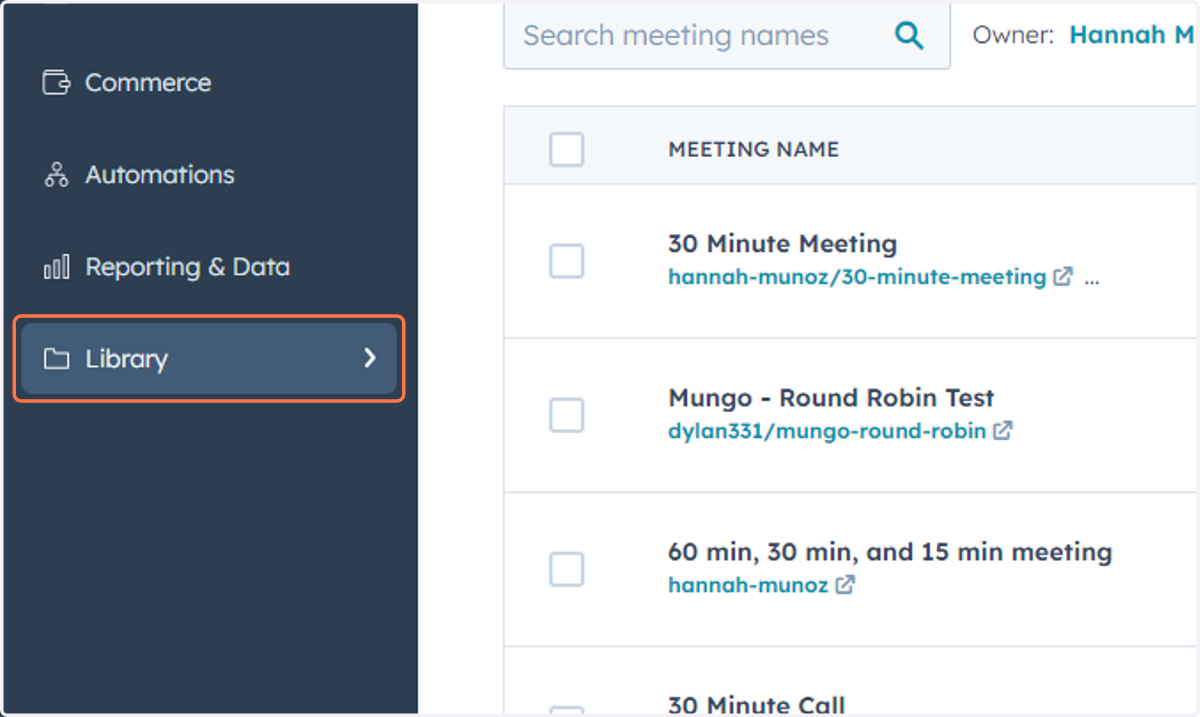
68. Click on Files
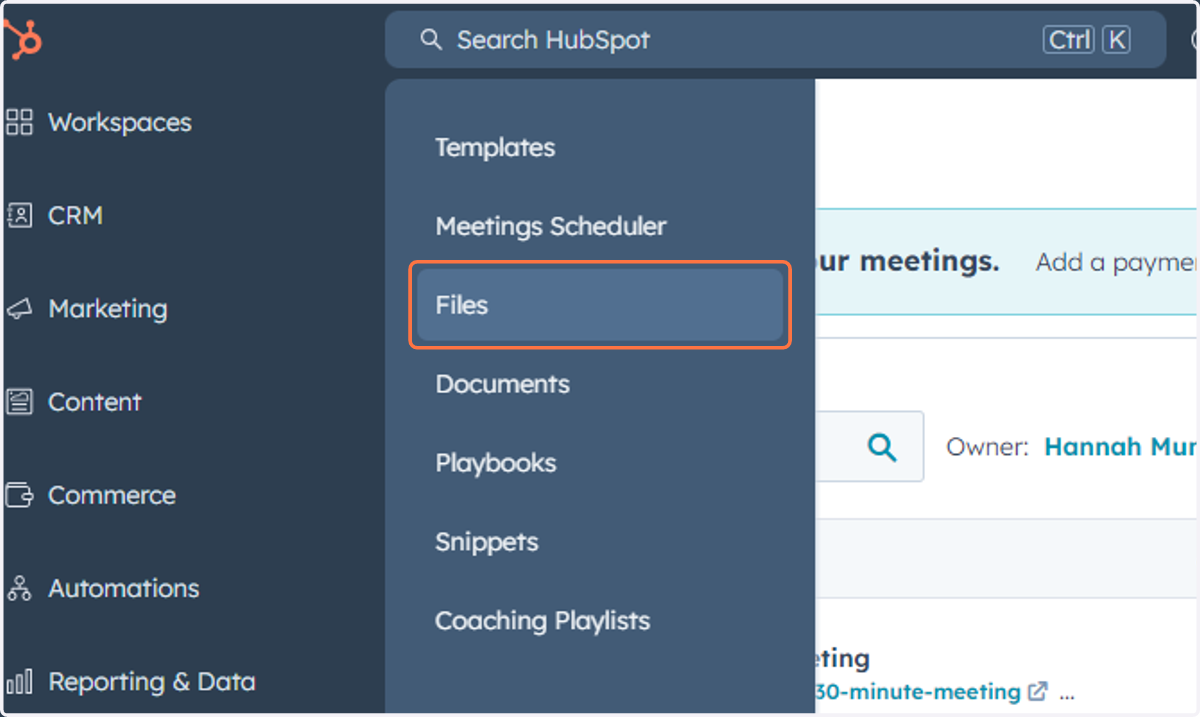
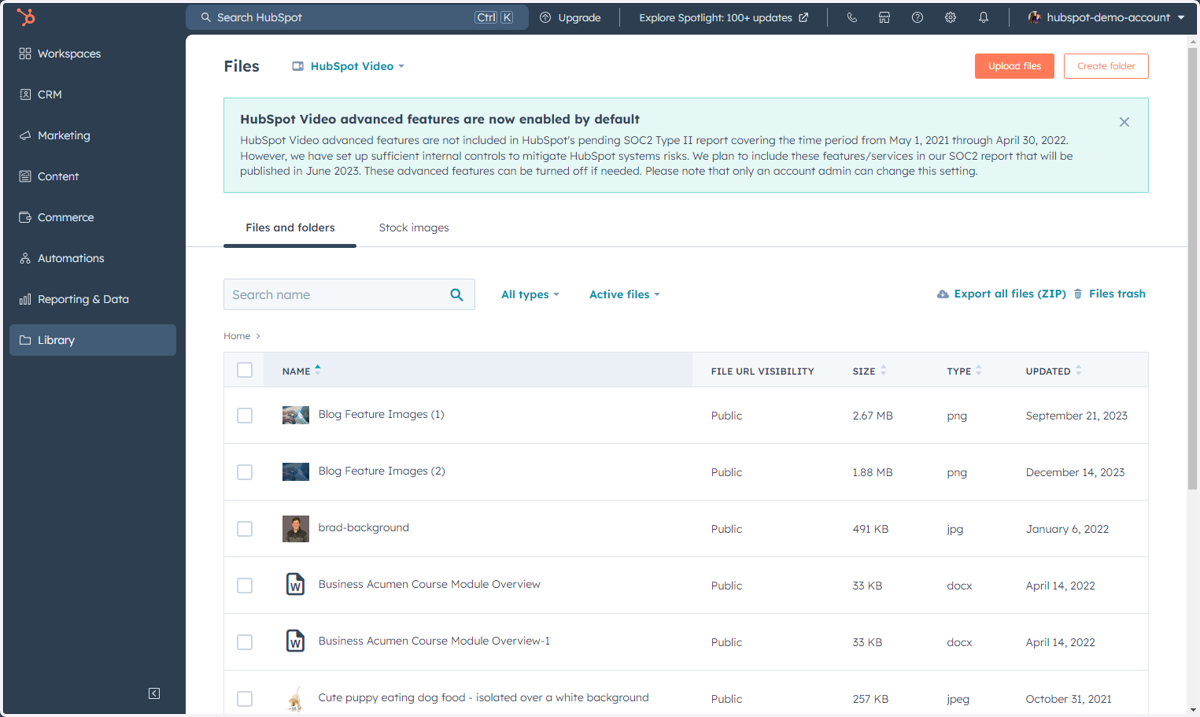
69. This is where you can access, manage and upload Files
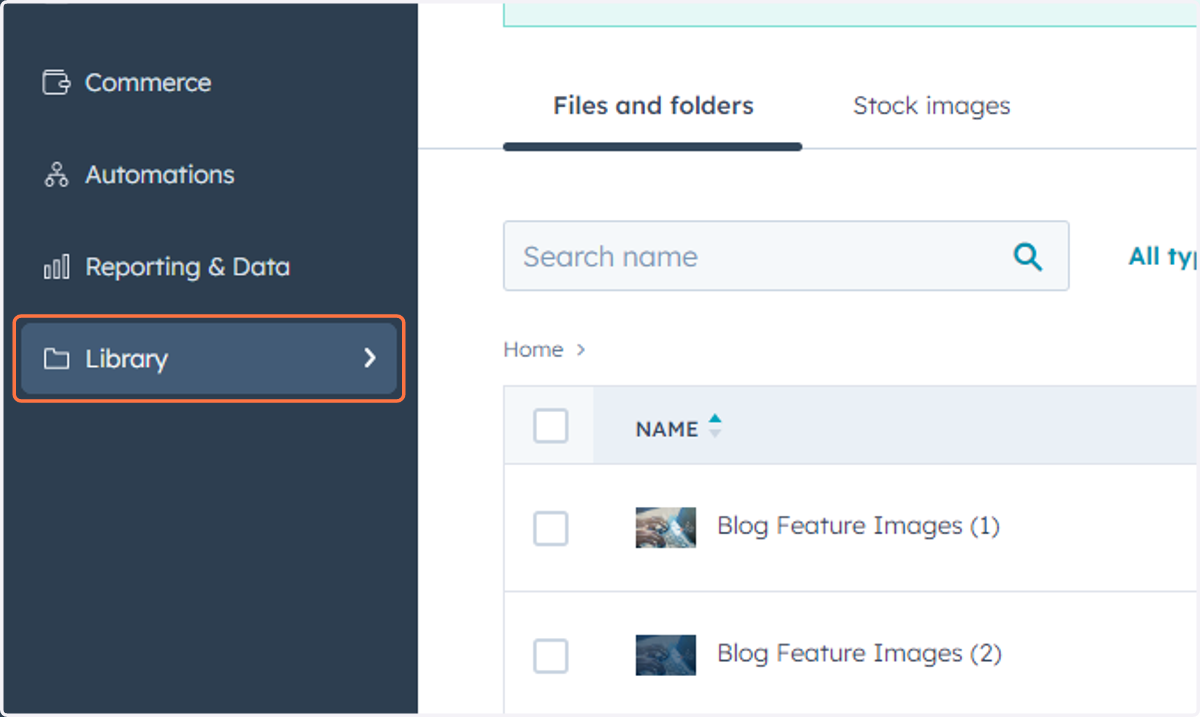
70. Click on Library
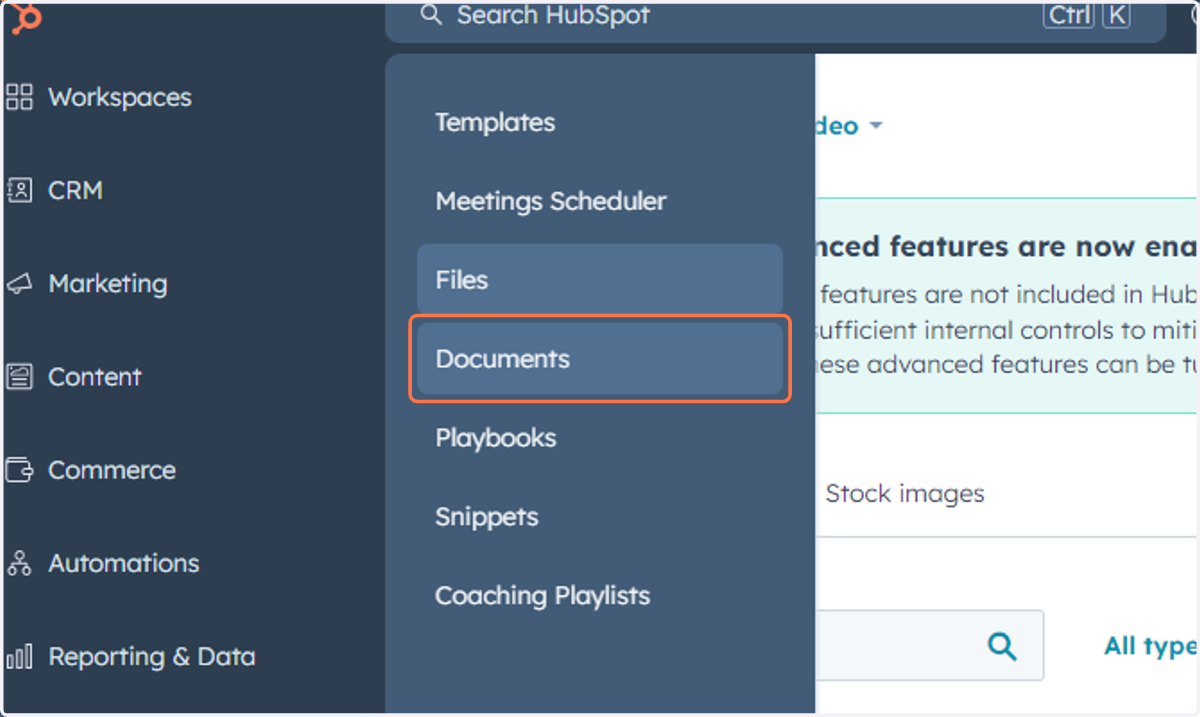
71. Click on Documents
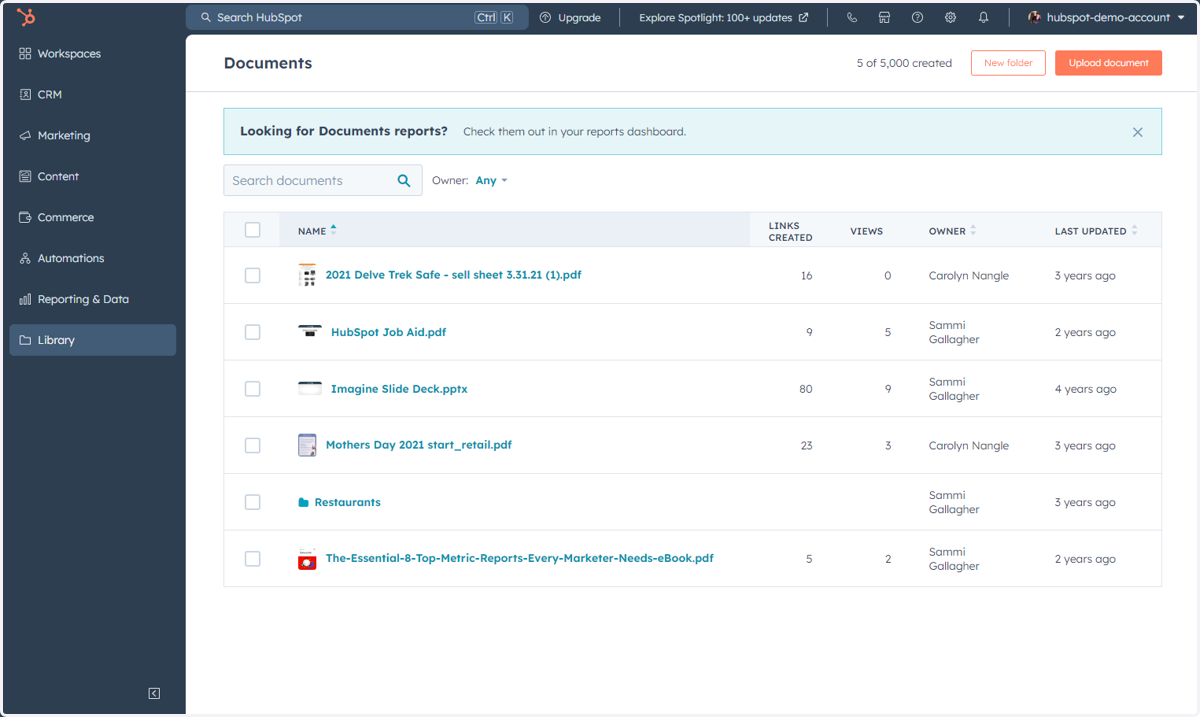
72. This is where you can access, manage and upload Documents
73. Click on Library
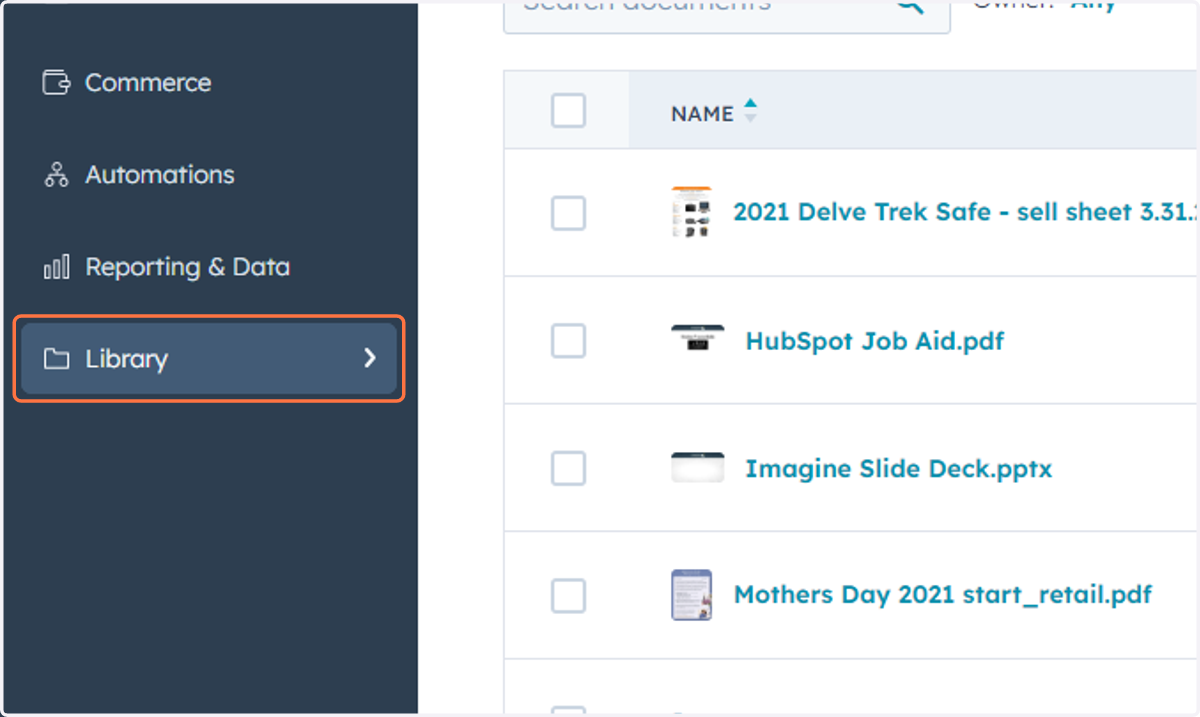
74. Click on Playbooks
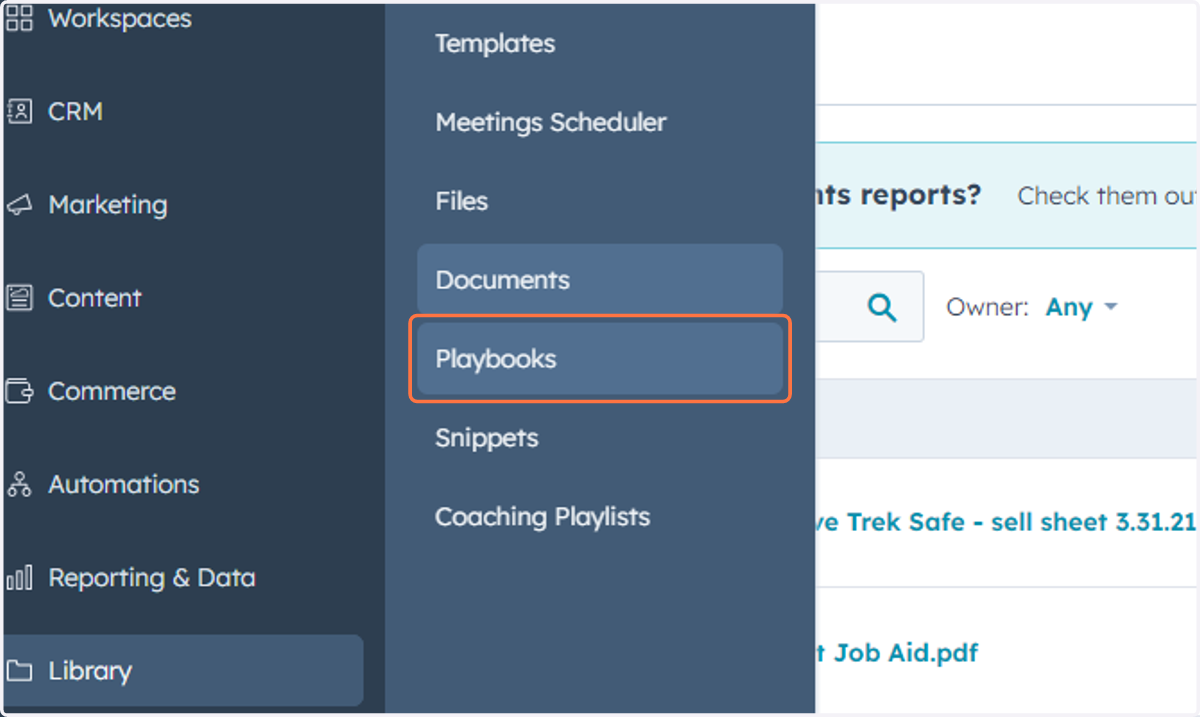
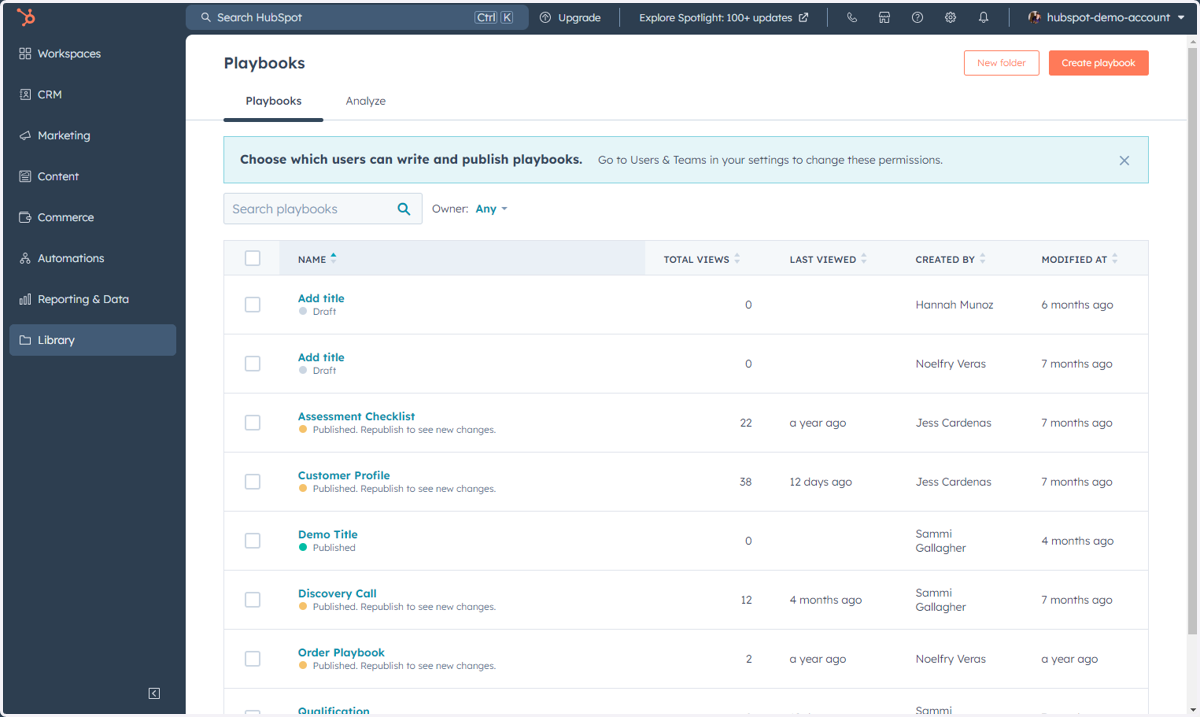
75. This is where you can access, manage and create Playbooks
76. Click on Library
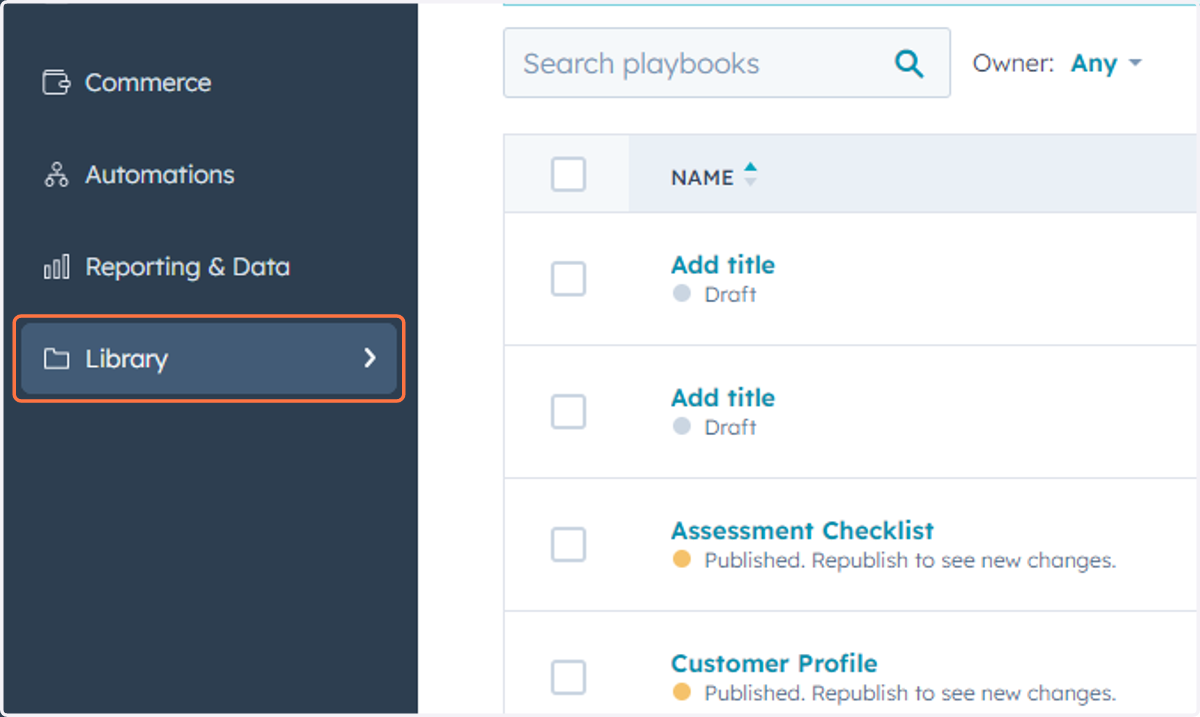
77. Click on Snippets
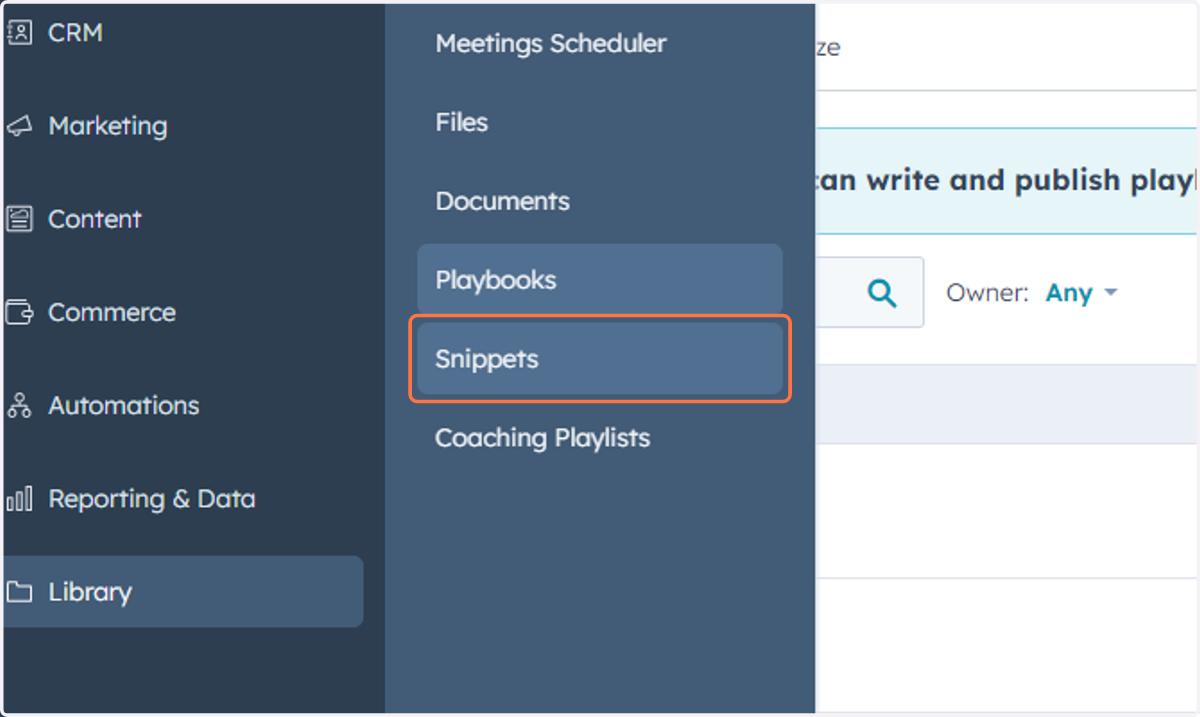
78. This is where you can access, manage and create Snippets
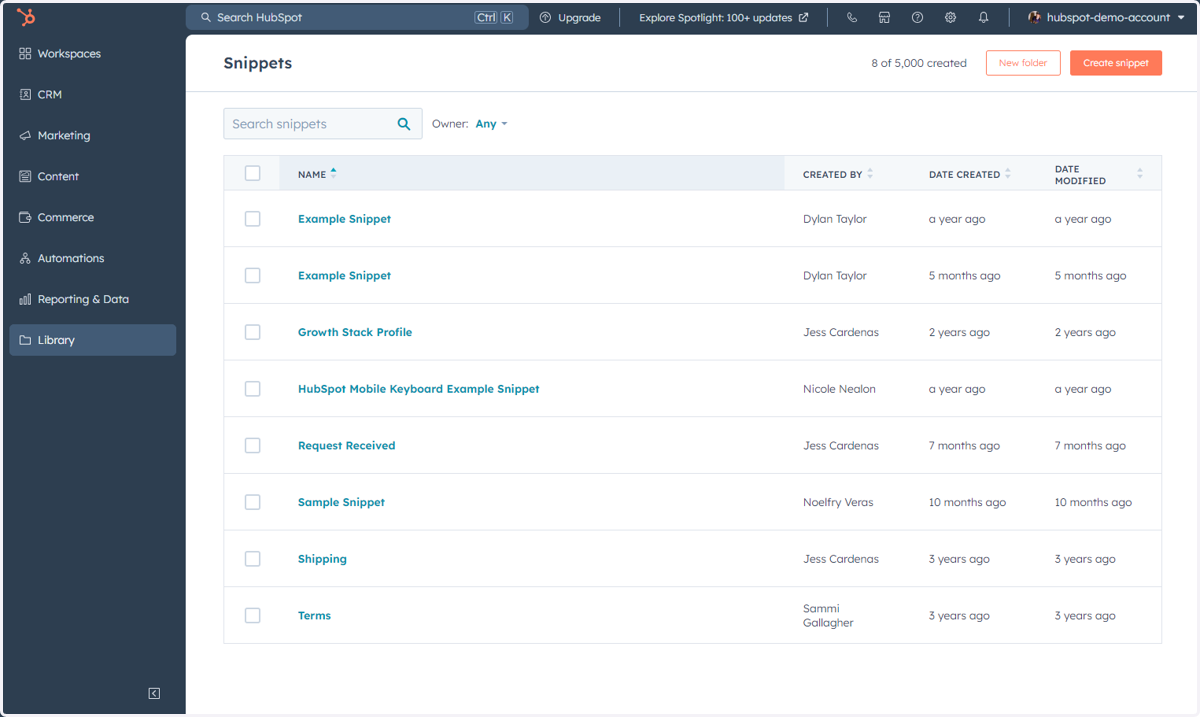
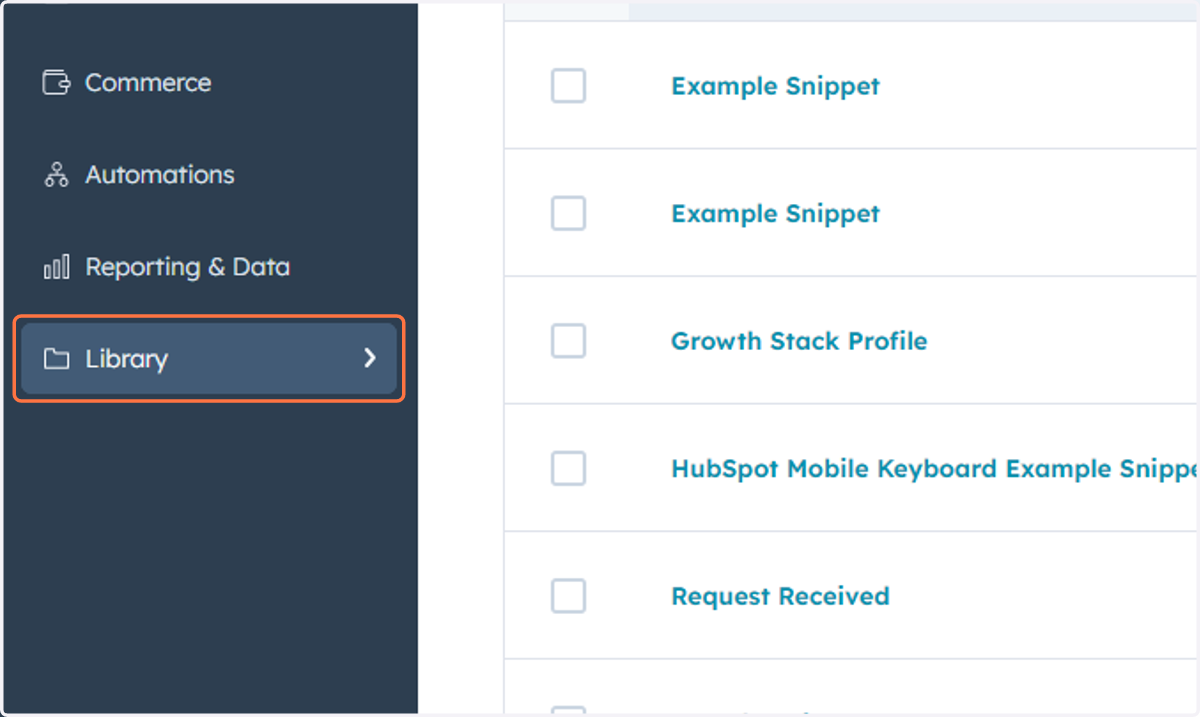
79. Click on Library
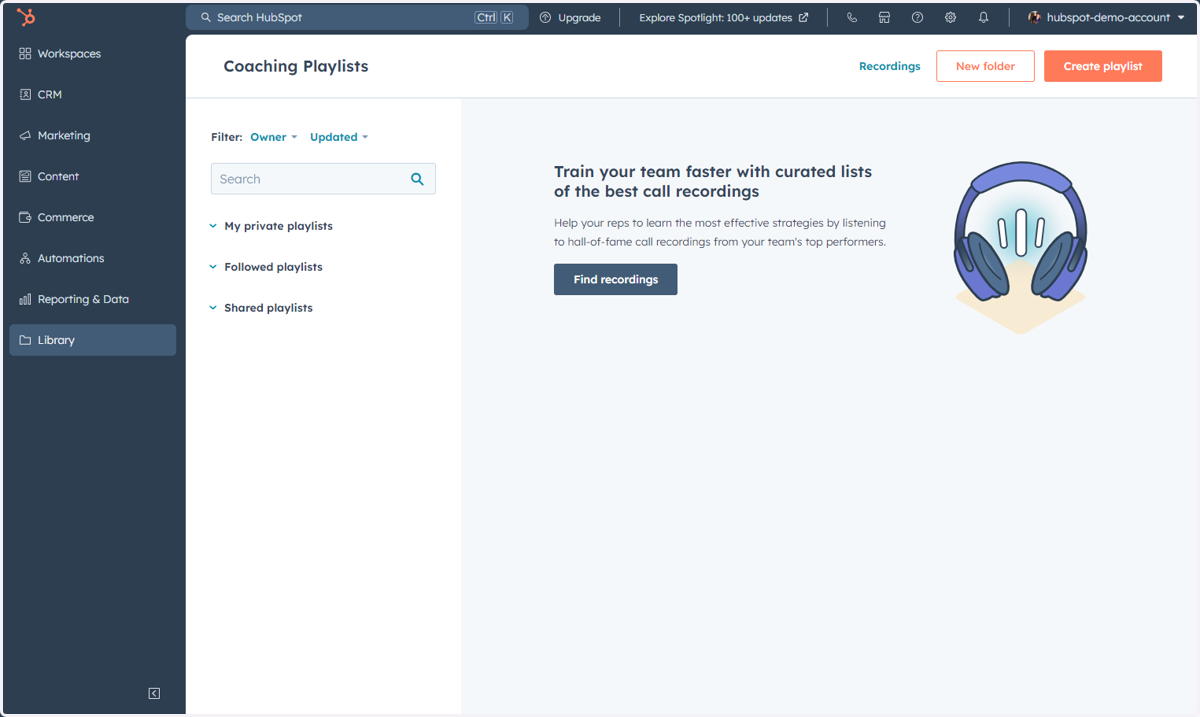
80. Click on Coaching Playlists
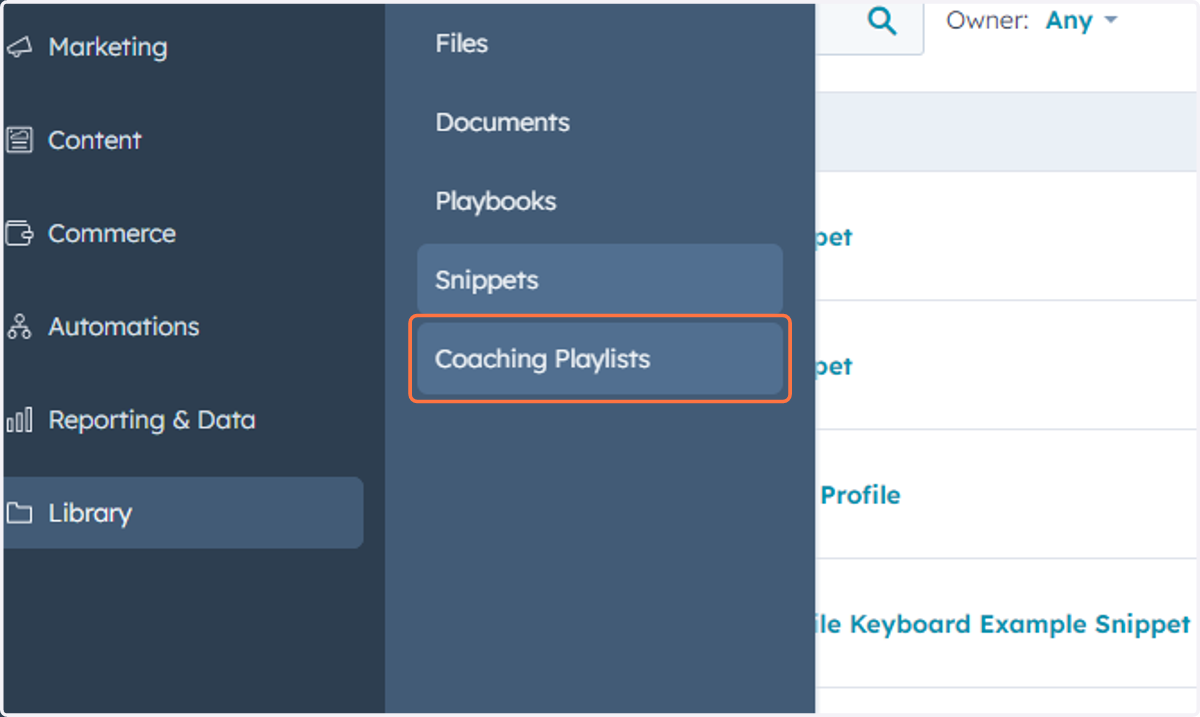
81. This is where you can access, manage and create playlists for coaching
Here you can create playlists of calls for your team to listen to to increase their sales performance.
82. Congratulations, you've made it to the end of the HubSpot navigation updates for Service!