Okta SSO Configuration - SAML 2.0 (EN)
👥 Who is this guide for?
Role(s): Assistant Admin, HR Admin
This guide is for all users who want to:
✅ Set up single sign-on (SSO) through Okta.
🎯 Purpose of this guide
This step-by-step guide walks you through setting up single sign-on between Okta and the Staff & Go solution using the SAML 2.0 protocol.
Module(s): GCRH, Socle RH
1. Create a SAML 2.0 application
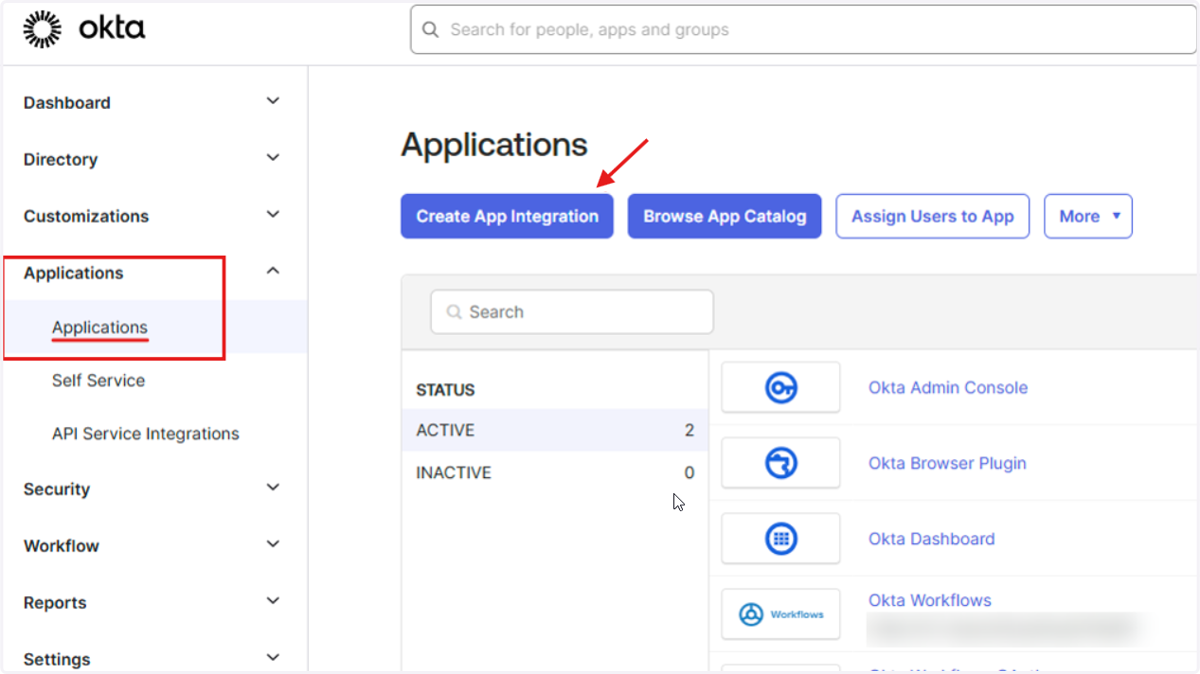
In the Okta Admin Console, go to Applications > Applications, then click “Create App Integration”. Select SAML 2.0, then click Next.
2. Application name
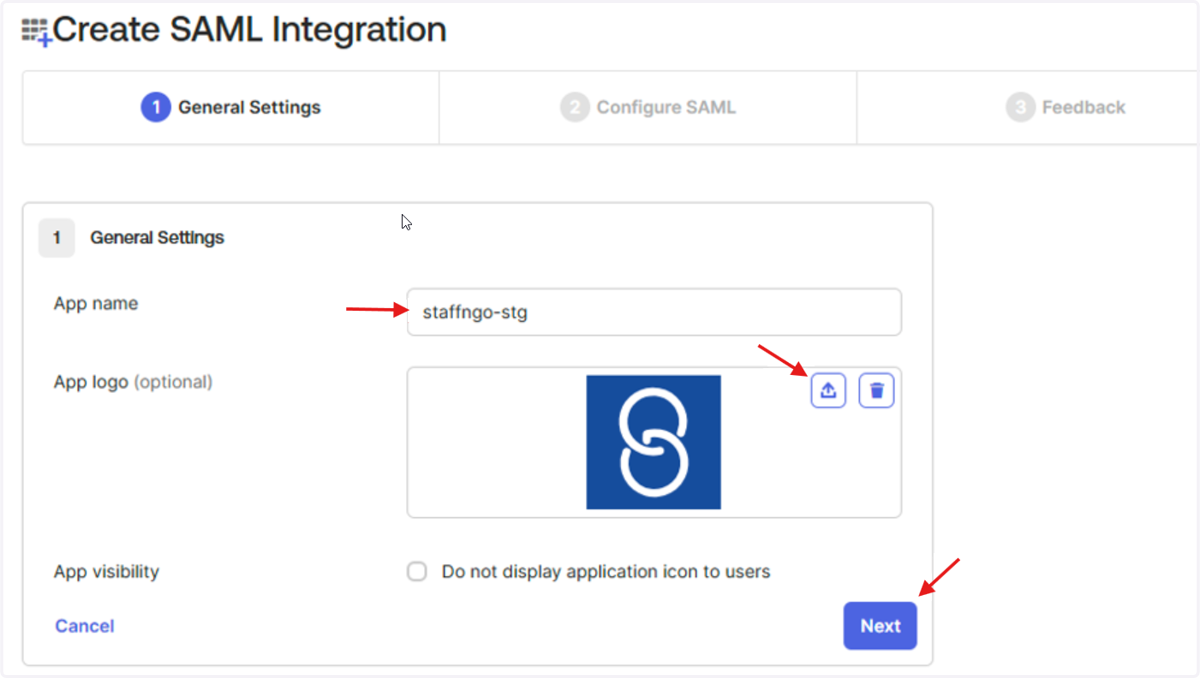
Enter the application name: Staffngo.
3. The logo to use
Upload the Staffngo logo so it appears on the Staffngo tile in your Okta portal. Click Next.

4. Configure the SAML settings
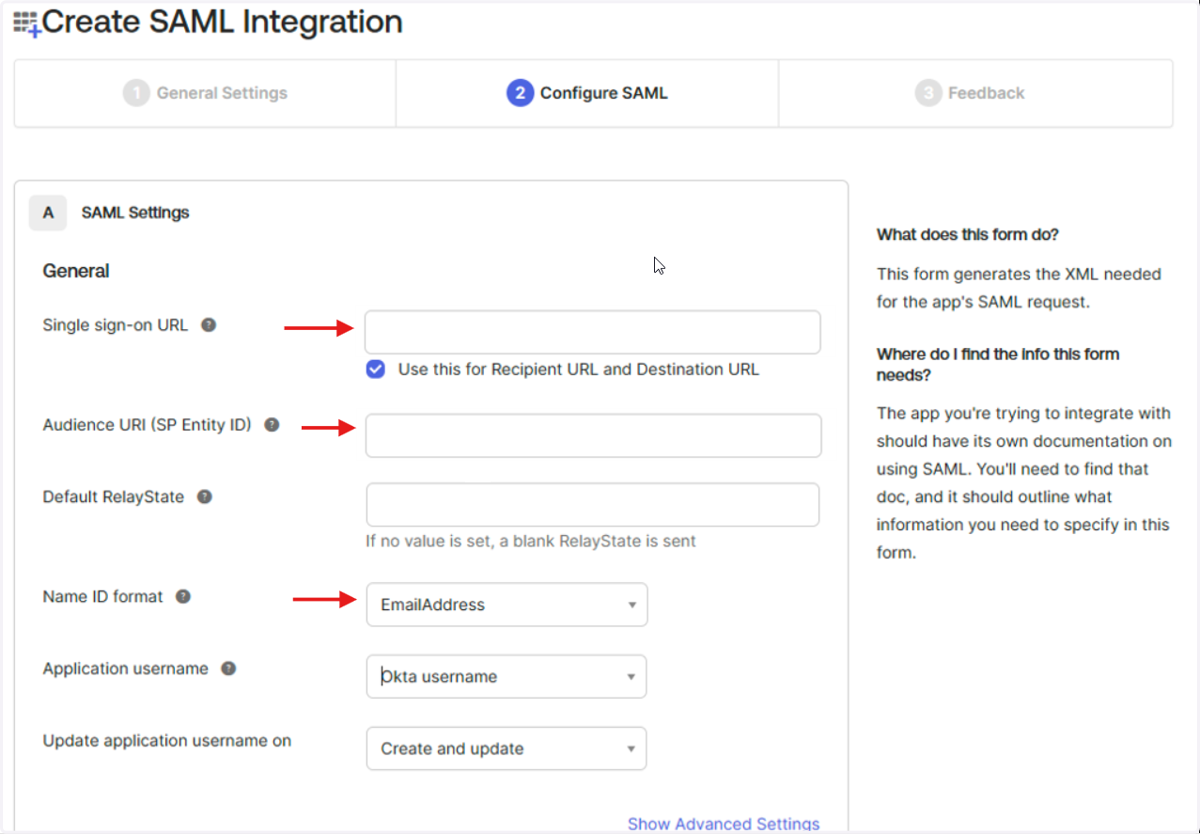
Single sign-on URL: the URL provided by Staff & Go support
Audience URI (SP Entity ID): the “Audience” value provided by Staff & Go support
Name ID format: EmailAddress
Application username: Email
No additional attributes are required: only the email address is sent. It lets Staff & Go match the user with the “work email address” field.
5. Finish the setup
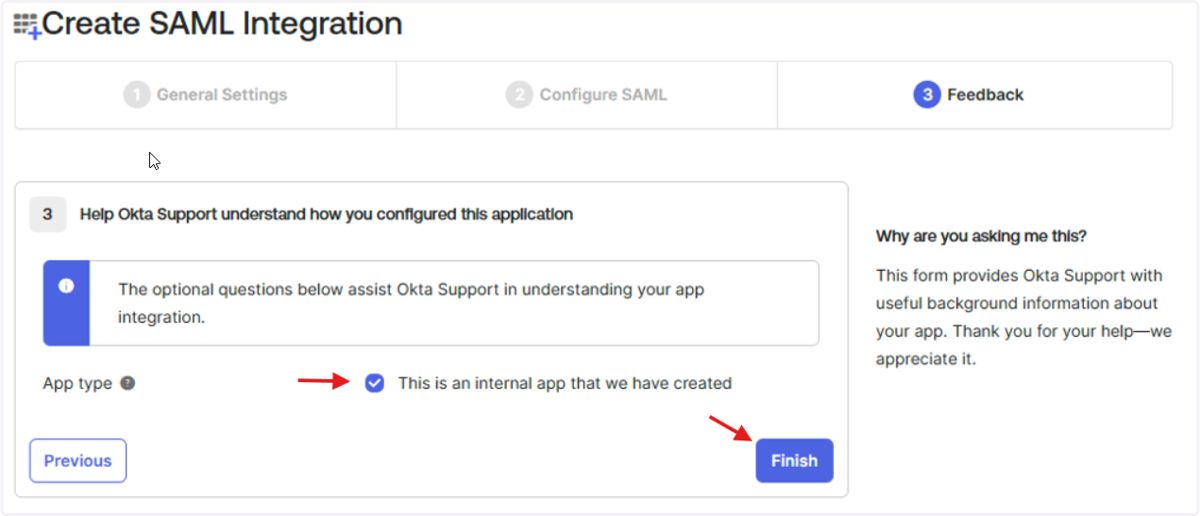
Click Next, select “I’m an Okta customer adding an internal app”, then click Finish.
6. Assign users
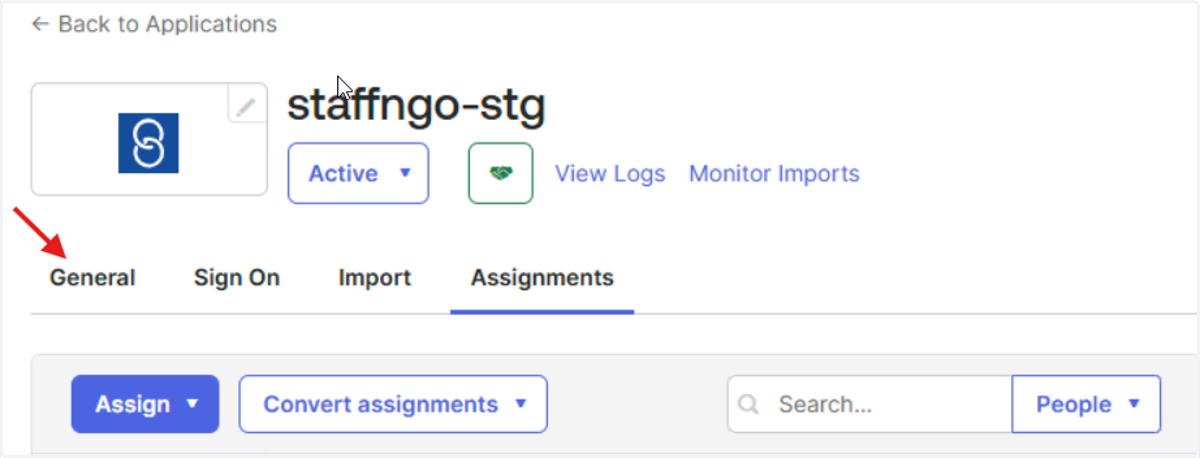
In the Assignments tab, click Assign, then add the users or groups allowed to sign in with SSO.
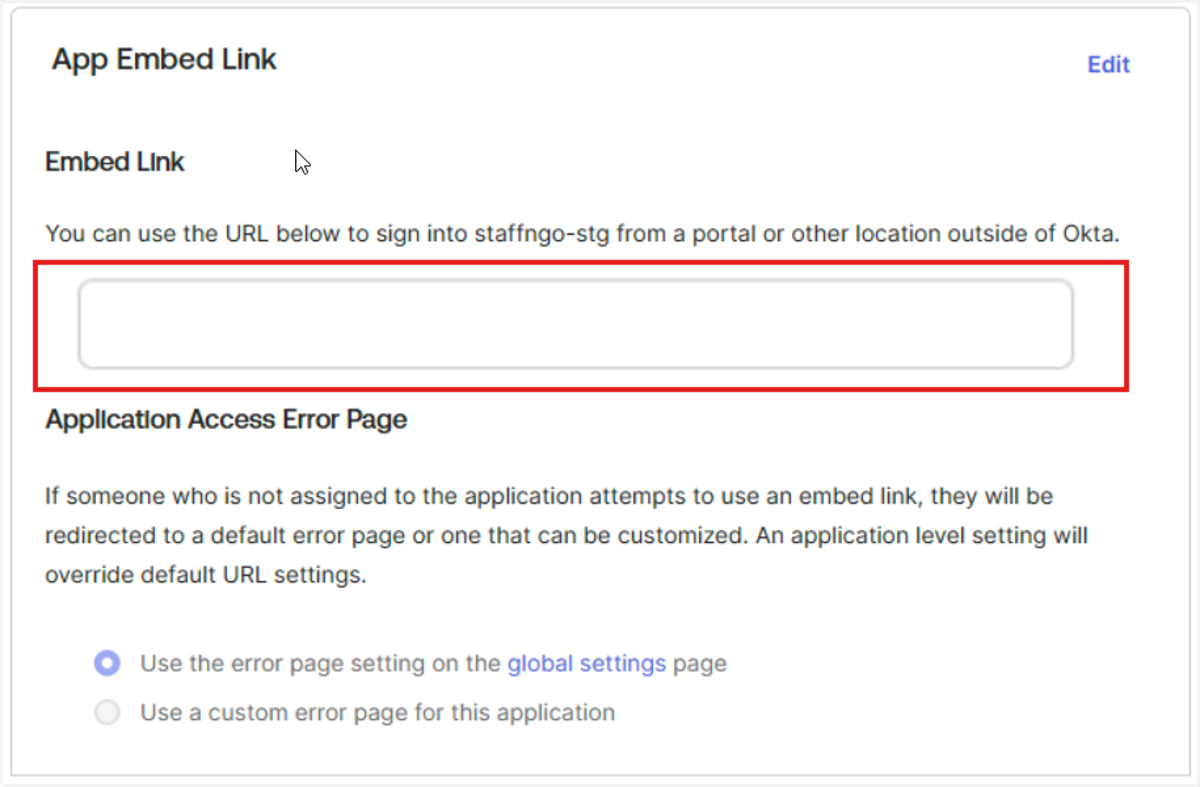
7. Copy the embed link
In the application’s General tab, under “App Embed Link”, copy the URL.
Example: https://yourcompany.okta.com/home/xxxxx_staffngo_1/0oaxxxxxxxxxxxxxxxx/alnxxxxxxxxxxxxxxxx