Nonprofit - How to Navigate Spokes Job Board
Learn how to navigate the Spokes Job Board page as a Nonprofit Admin!
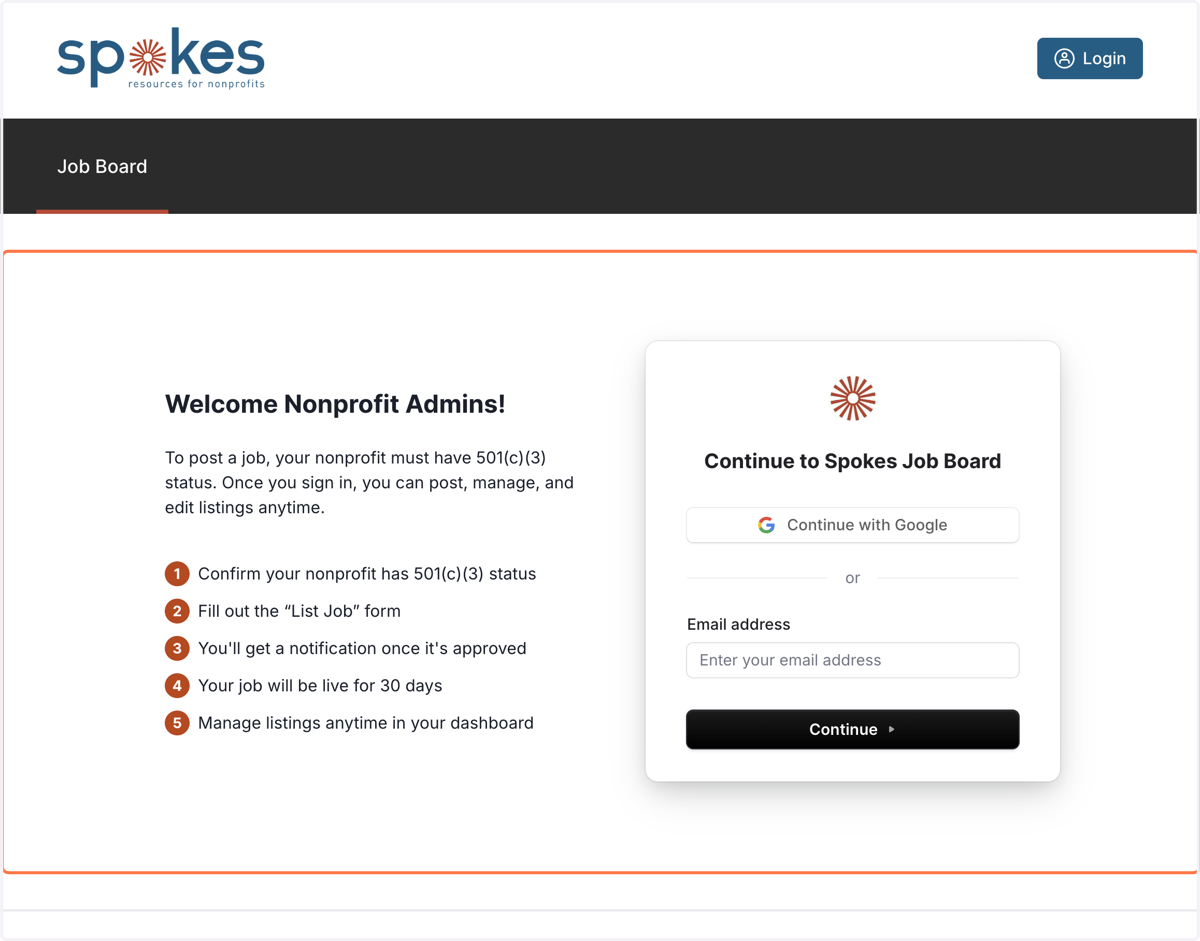
1. Login either with Google Auth or email
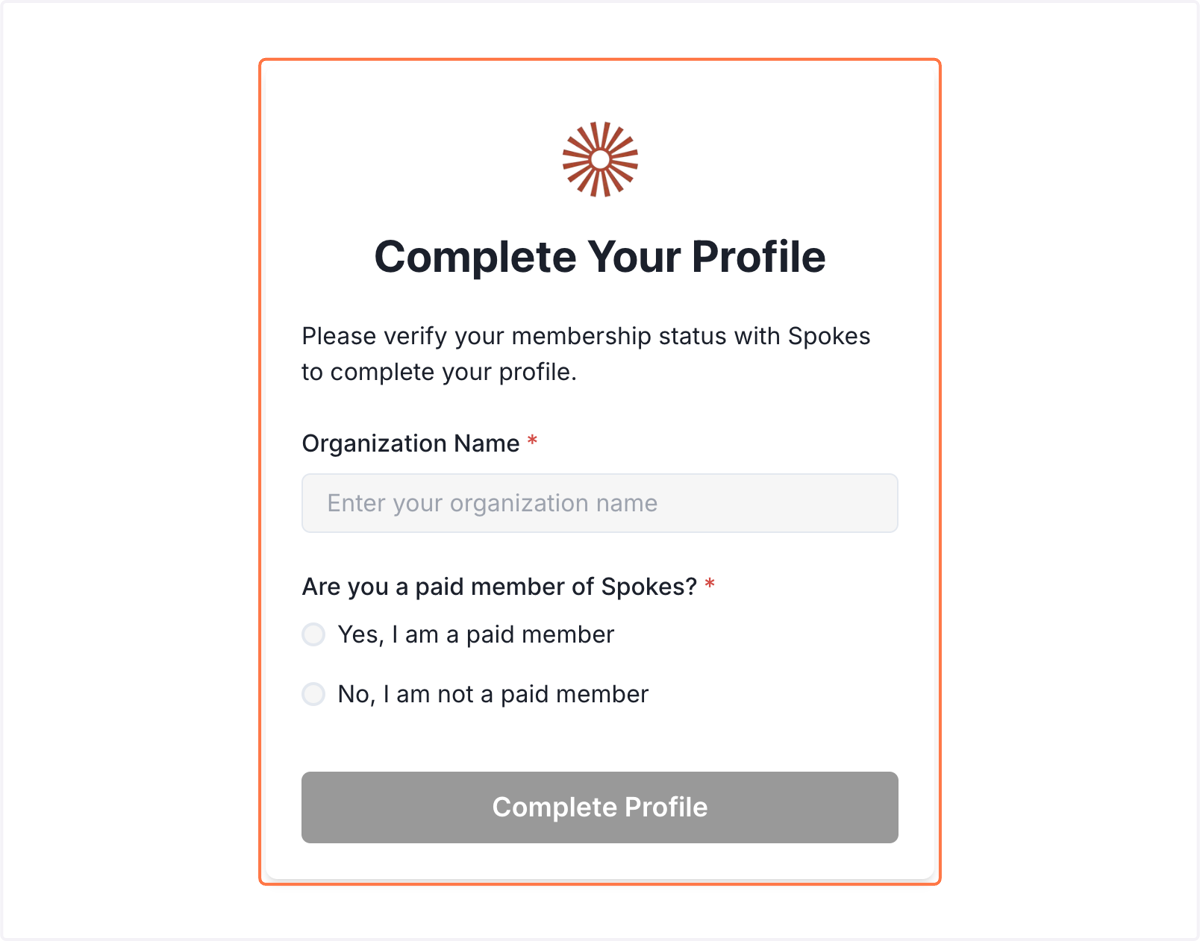
2. Your will be asked to add your Organization Name & if you are a paying Spokes Member or not. If you would like to view the benefits of being a paying Spokes member, visit this link https://www.spokesfornonprofits.org/membership/
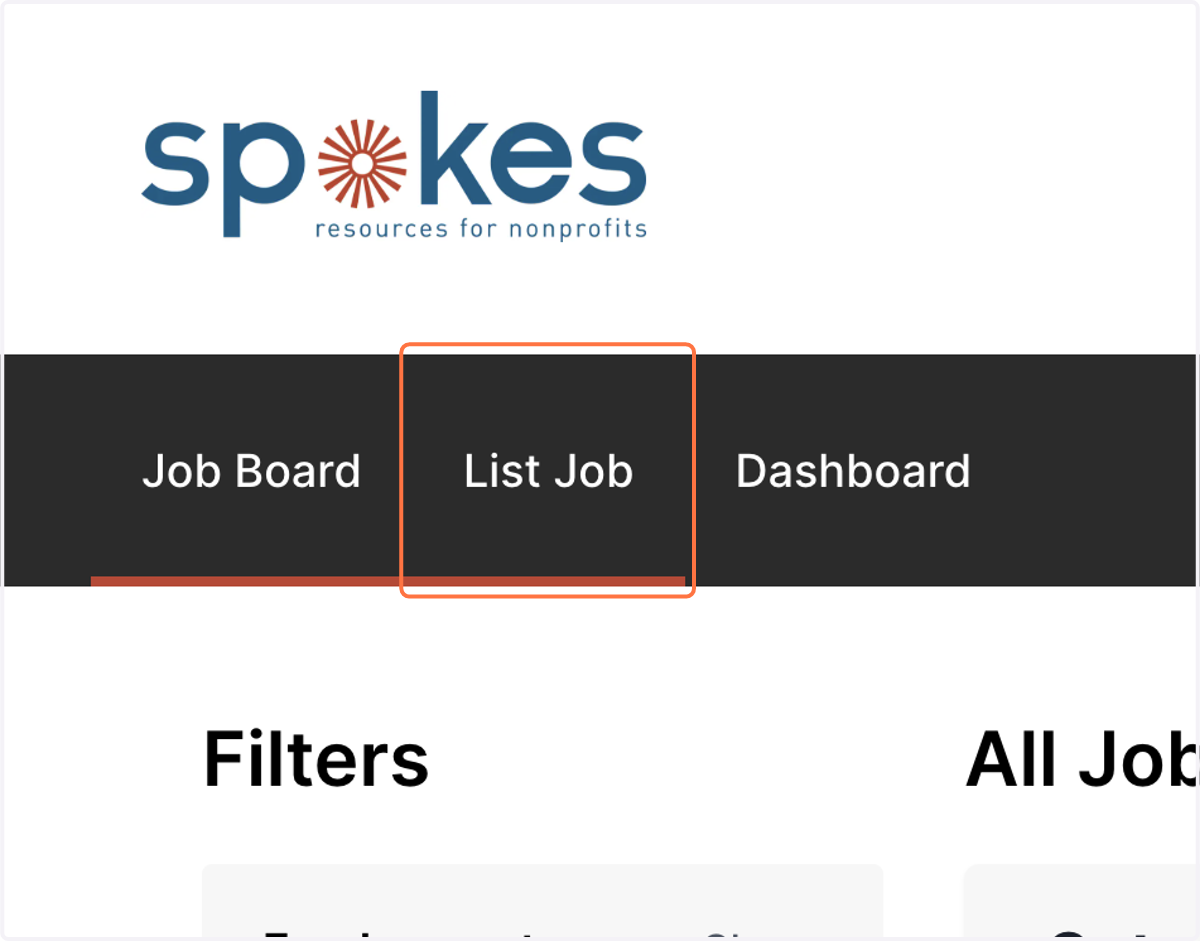
3. Navigate to the List Job Tab on the Nav Bar
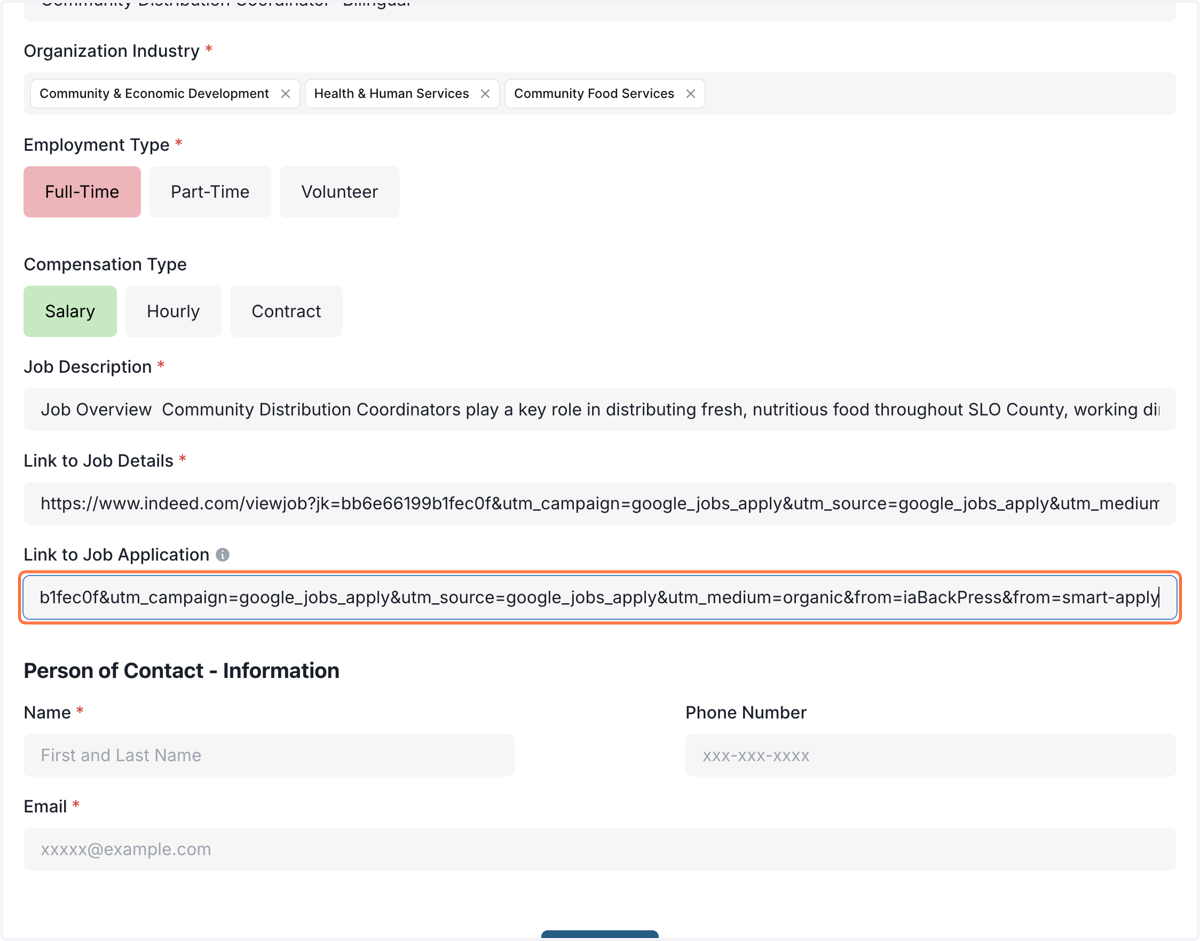
4. Please fill in your relevant info for your posting job. You can select up to 3 industries for your Organization. All this info will be reflected on the public job board.
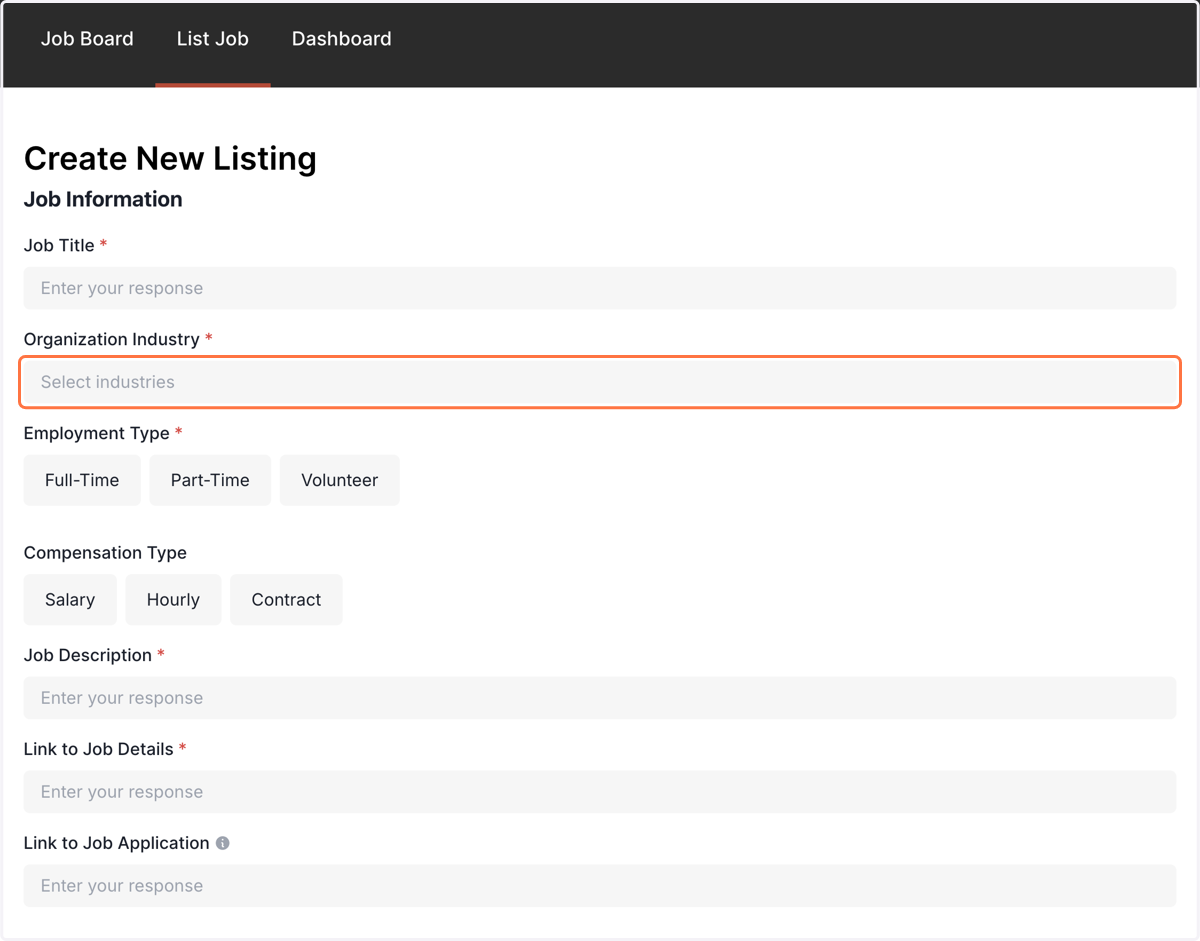
5. You can also add another industry name in "Other" if none of the industries in the dropdown satisfy your organization.
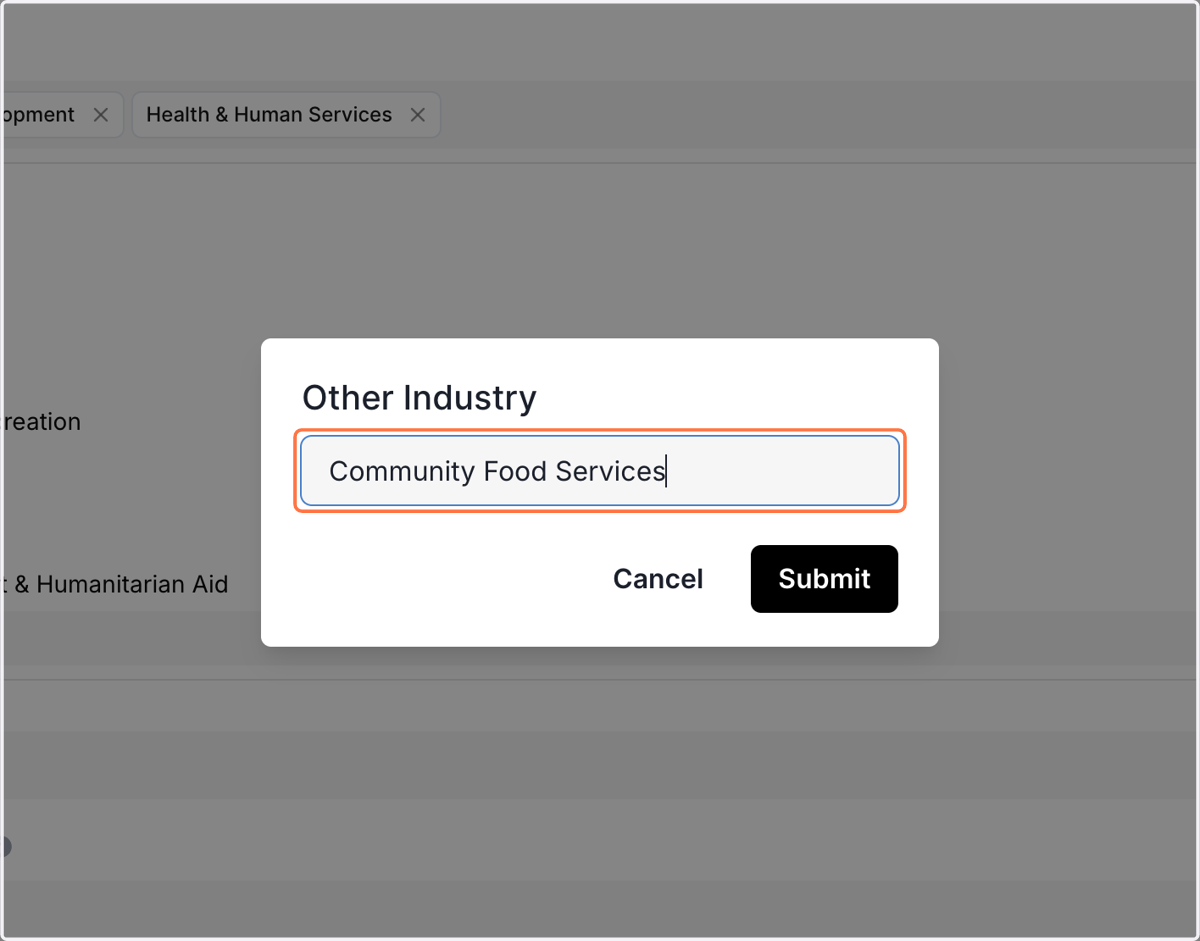
6. Paste your entire job descirption here. This text will be scrollable for the job seeker.
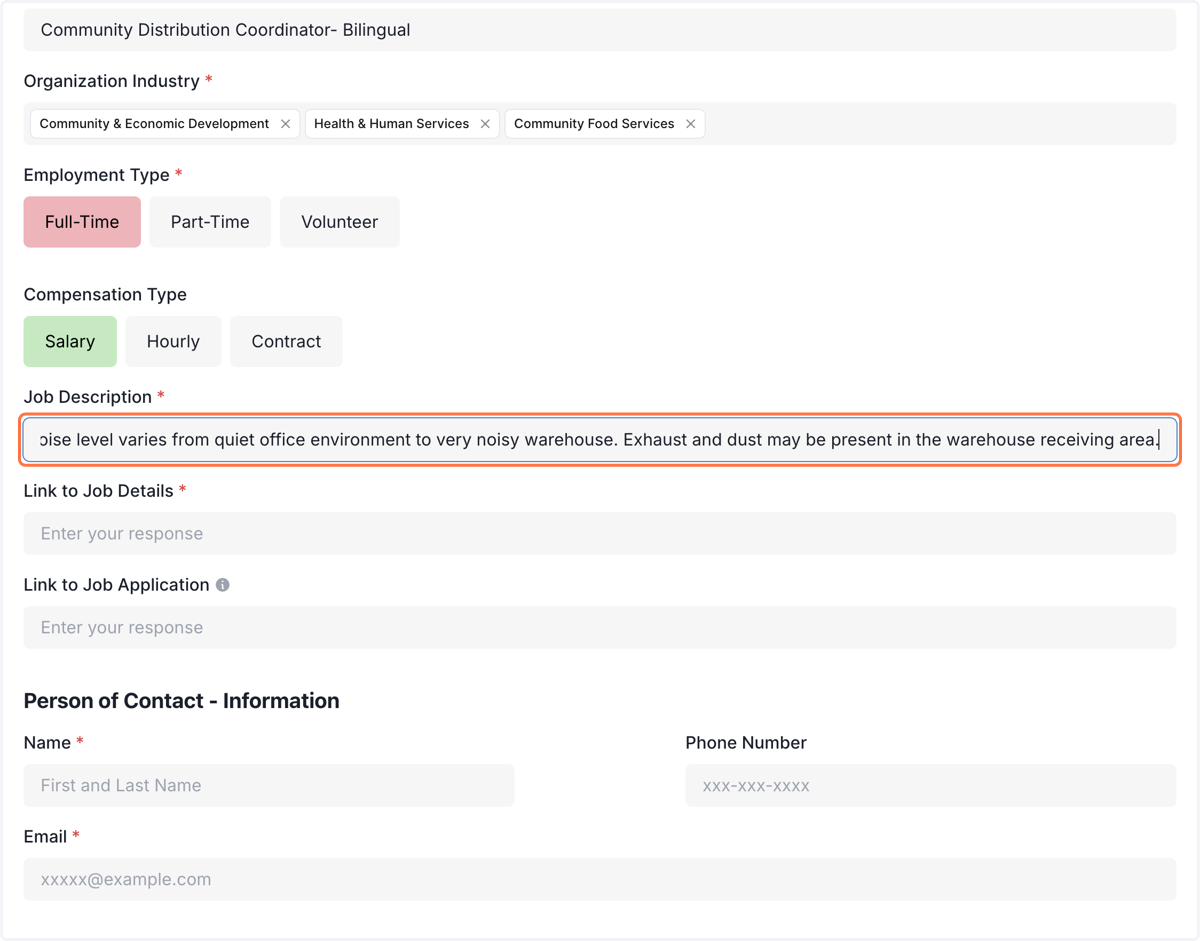
7. Add the link to any job details here (PDF, your nonprofit website, Google Doc Link, etc)
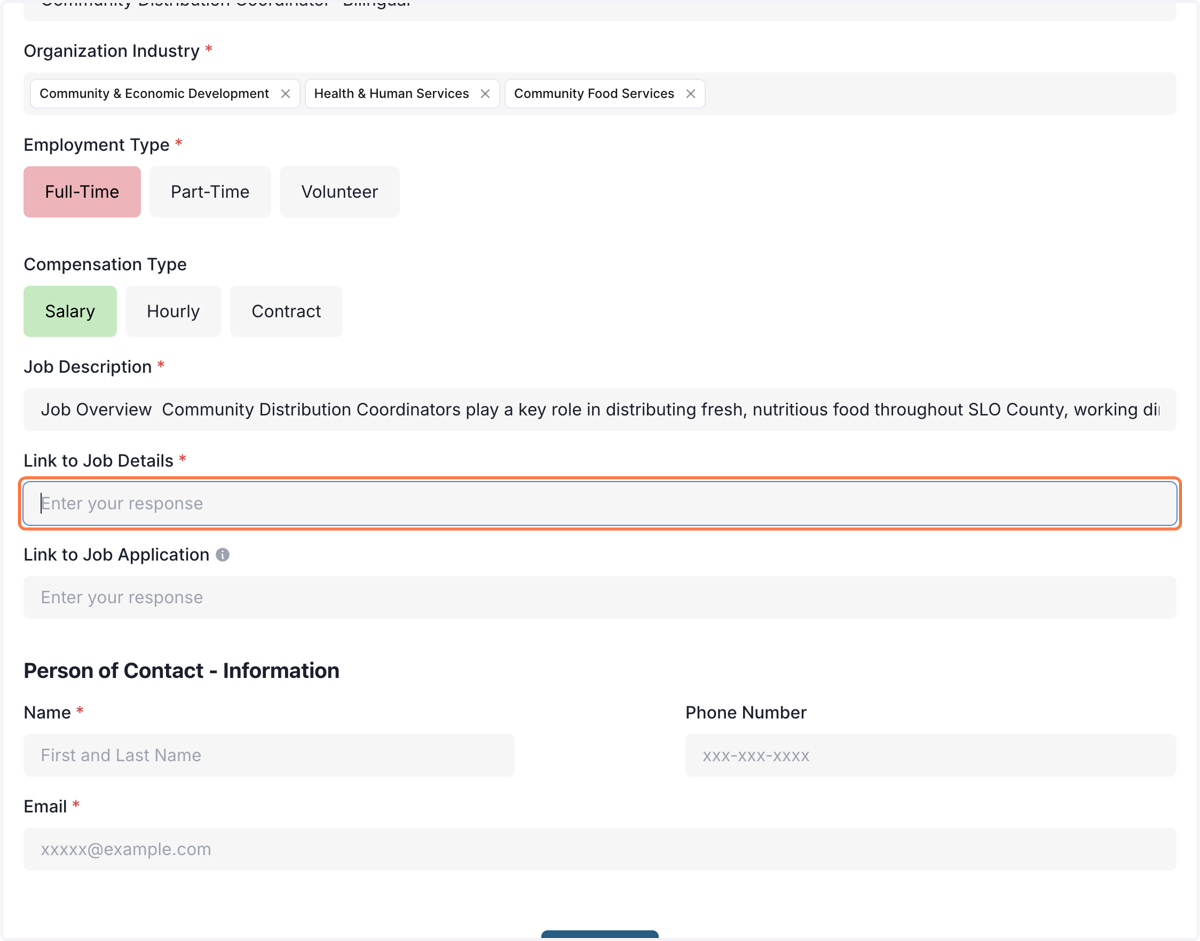
8. Paste Link to your Job Application HERE. If you would rather have them email you directly, SKIP this field and they will email the email filled out under (Person of Contact
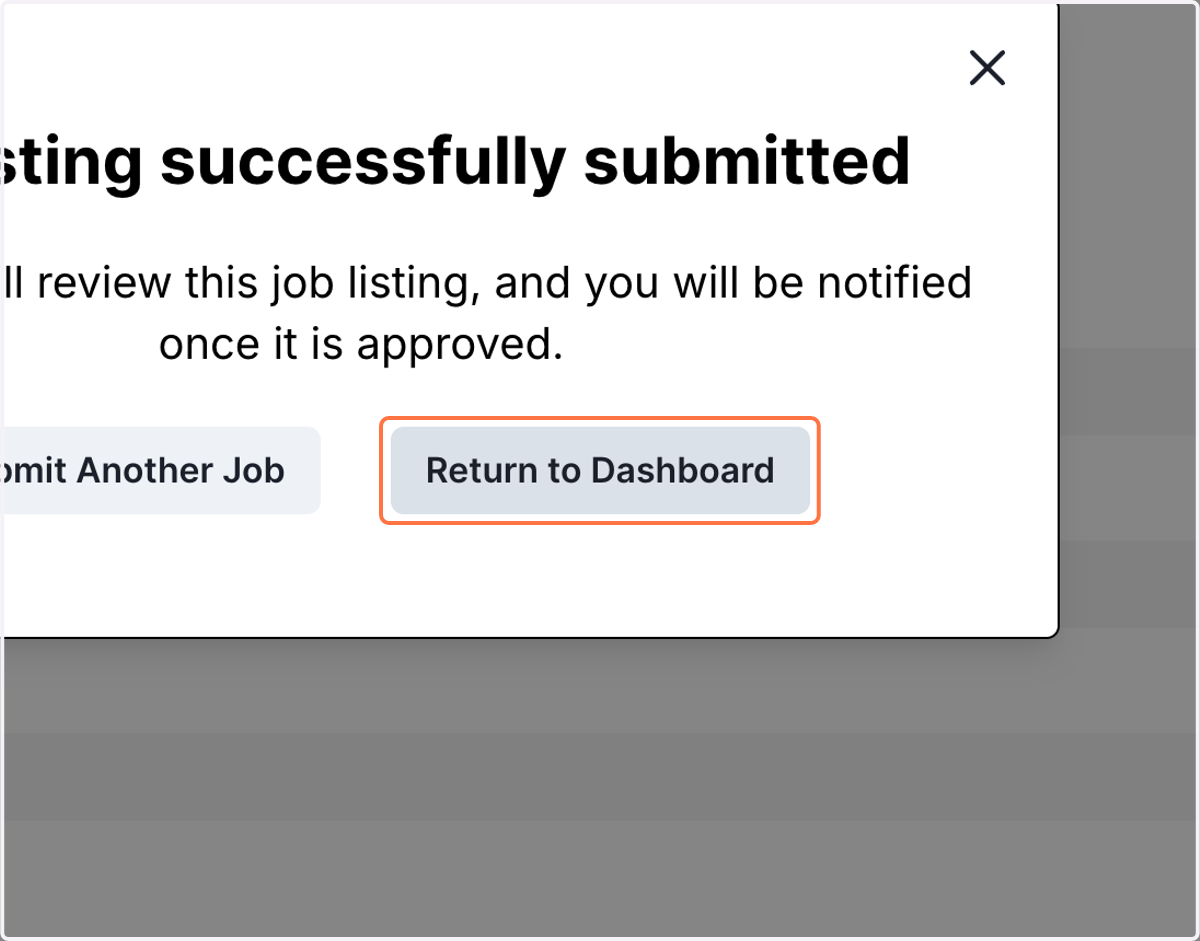
9. Once you click Submit your Listing is ready for review! Spokes Admin will approve it as soon as possible. If you have any questions view this site https://www.spokesfornonprofits.org/contact-us/
10. Navigate to your Dashboard Here or on the Dashboard Tab to manage your job.
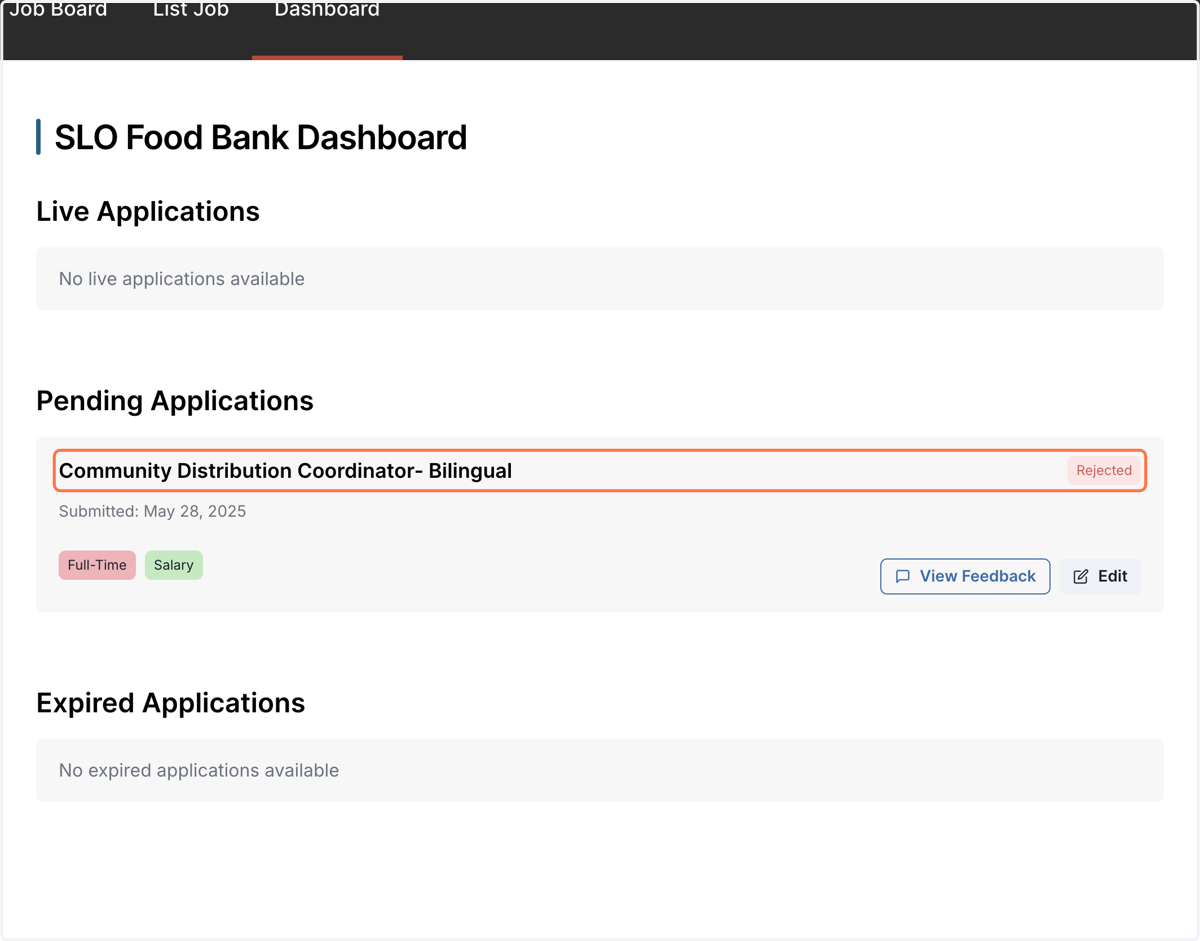
11. This is the Dashboard for your Organization. Here you can manage what jobs you posted. You can view the status (Pending approval, Live, and Expired).
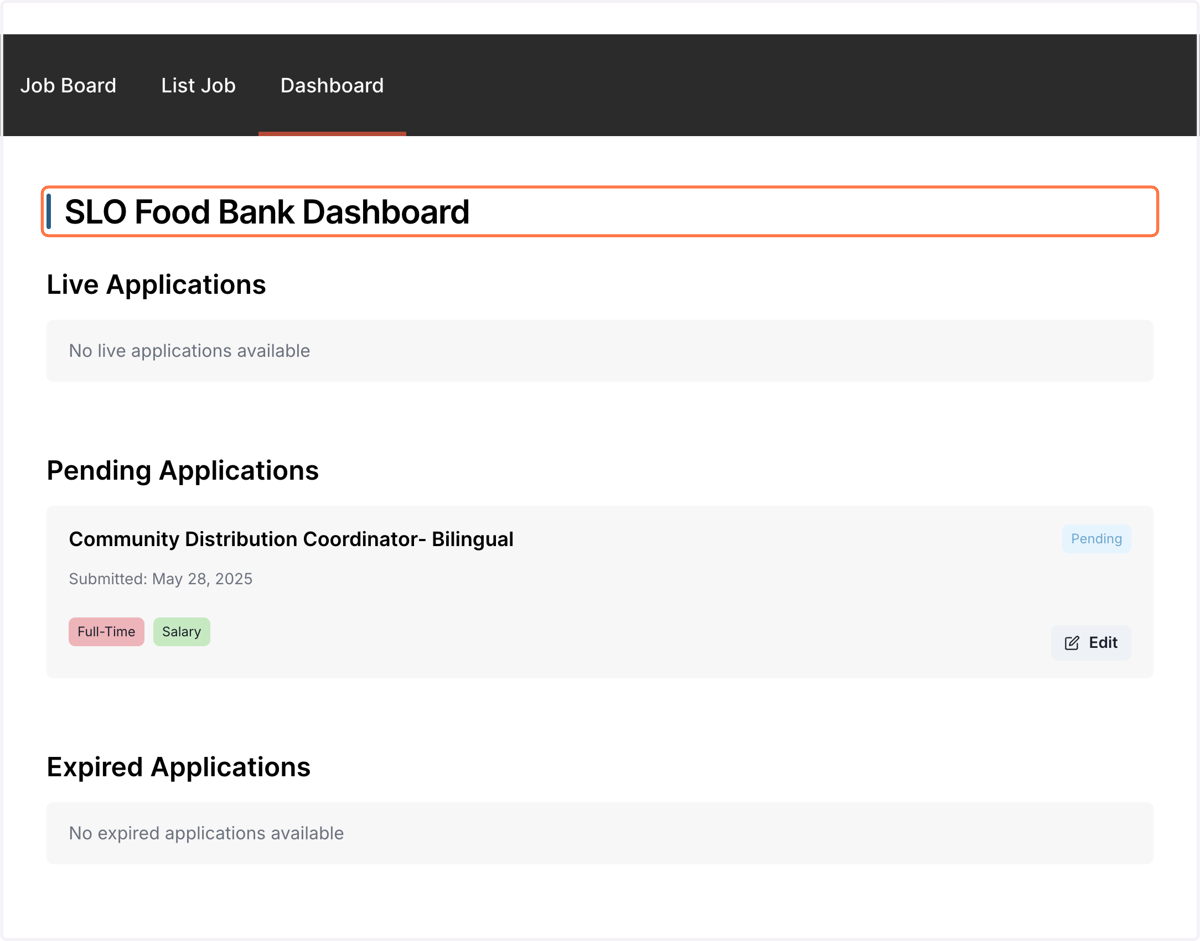
12. Spokes Admin can reject your job if there are any problems. After receiving notification of rejection, you can edit your job listing to submit for reapproval.
13. Once your job is approved, it will be live for 30 days! You can renew the job as soon as it is expired.
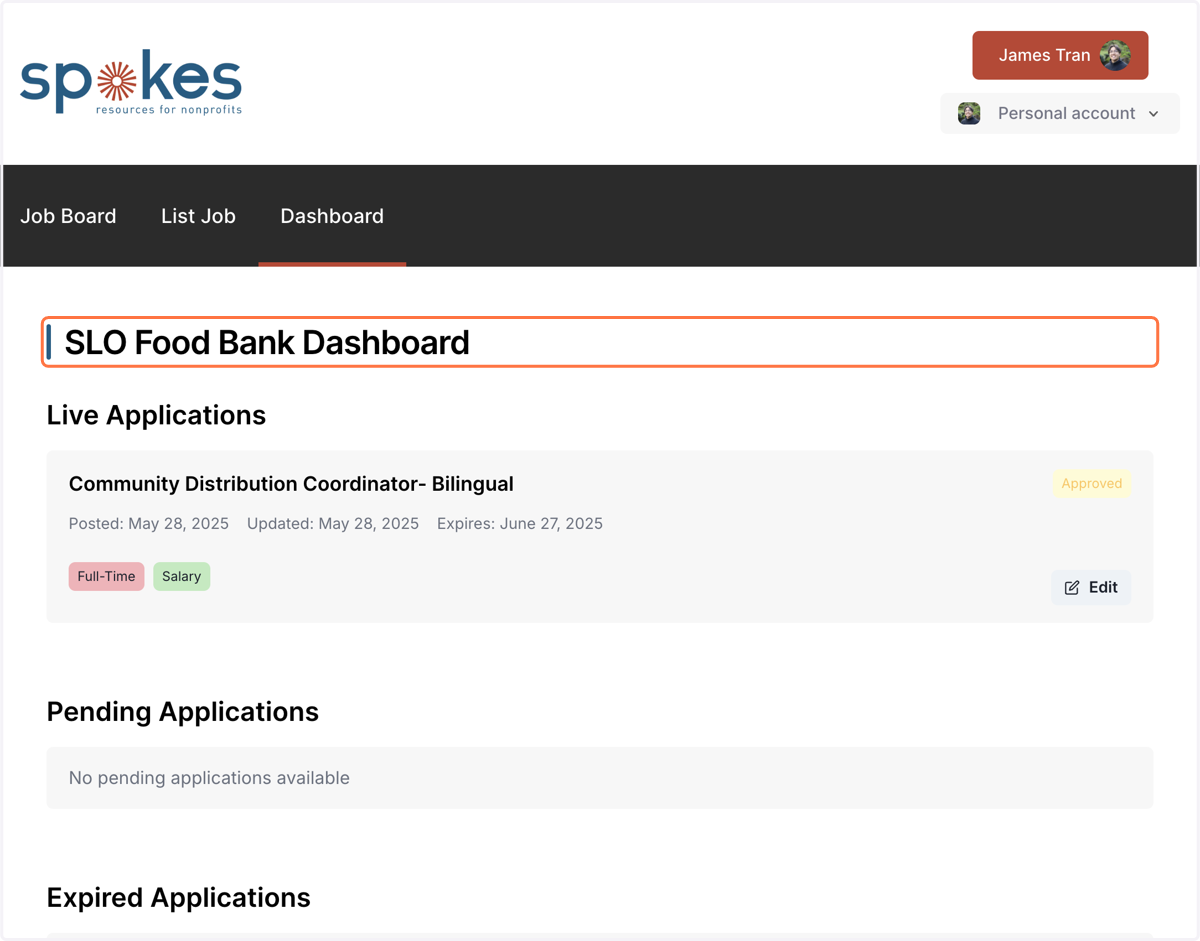
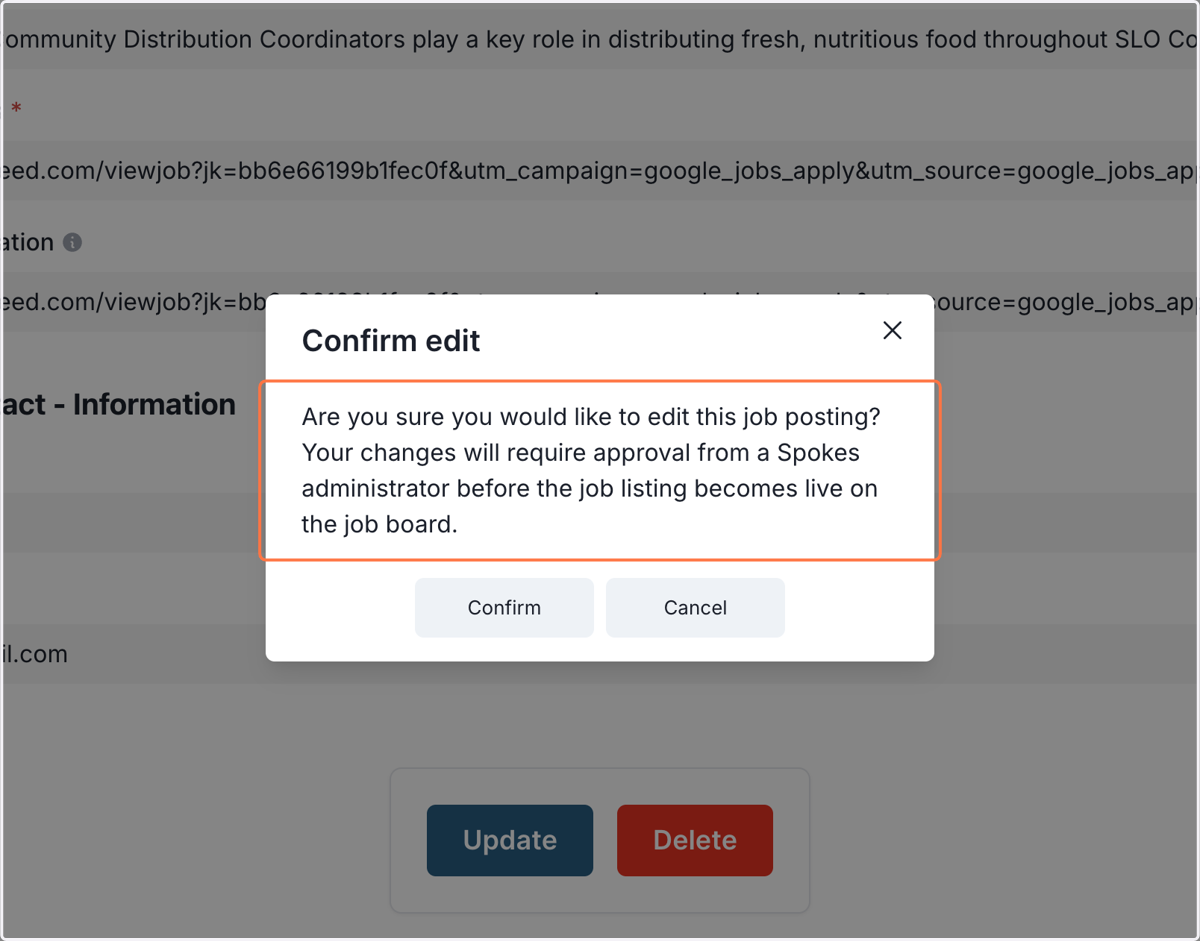
14. At anytime you can update your job details. However this will require reappoval from Spokes Admin before going Live again.