Newsfeed - Creating Survey Groups from Newsfeed Events
Survey groups allow you to gather valuable feedback directly from members who engage with specific newsfeed events. By creating survey groups linked to these events, you can target the right audience and collect meaningful insights to improve future offerings. This guide will walk you through how to create and manage survey groups, helping you make informed, member-driven decisions.
Pacesettertechnology
1. Go to Pacesetter Technology
2. Click on Newsfeed
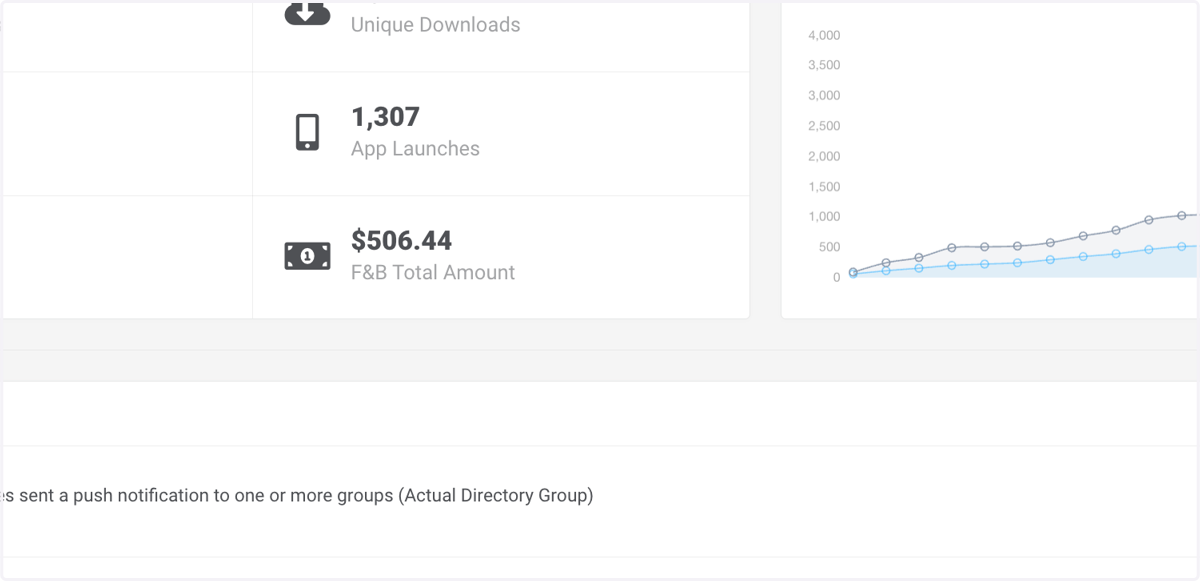
3. Click on List
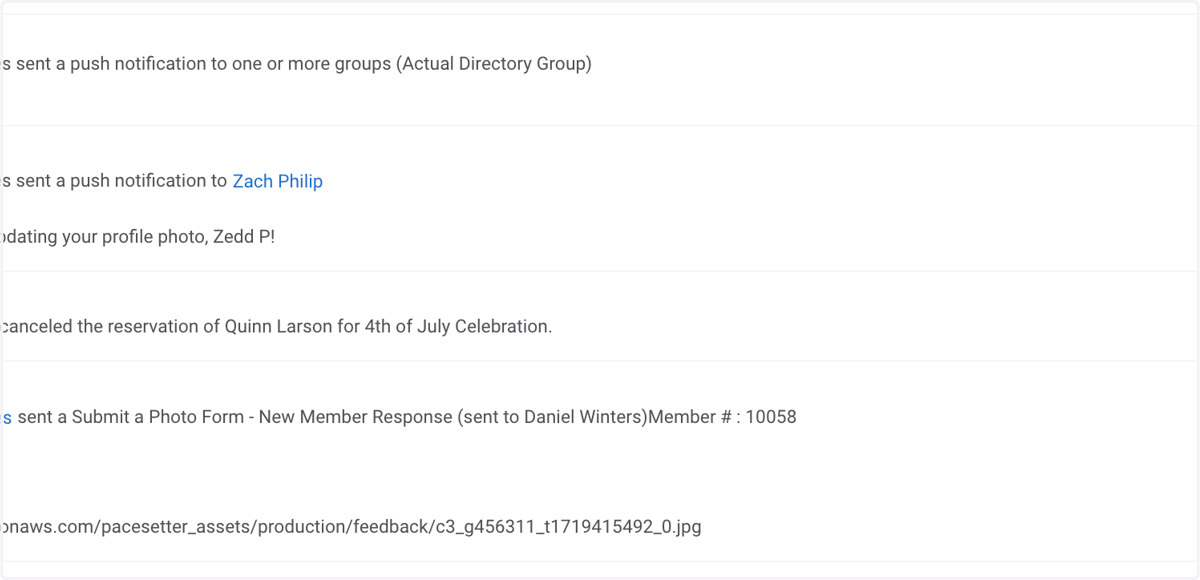
4. Go to the Sign-Ups page of the event in question.
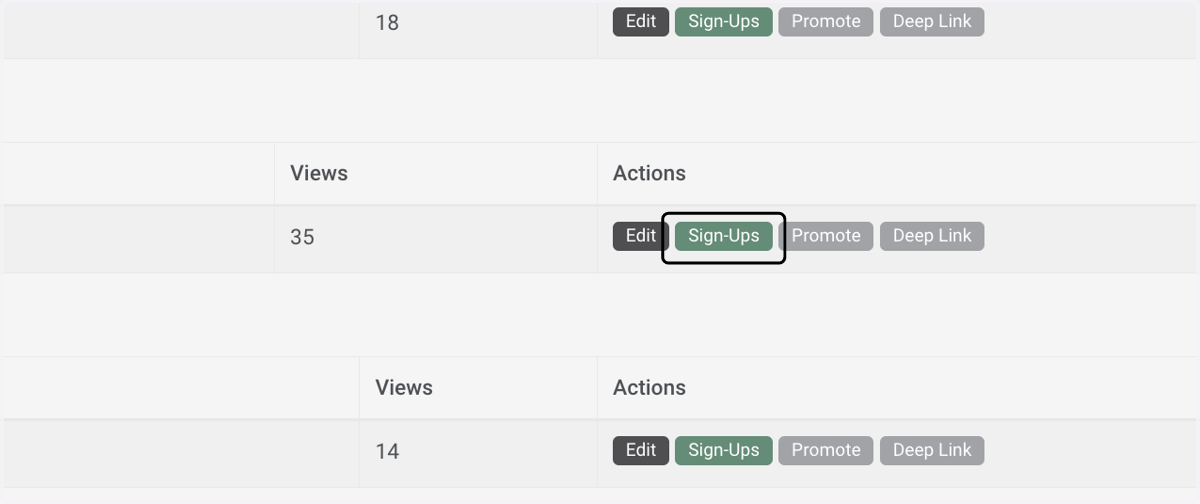
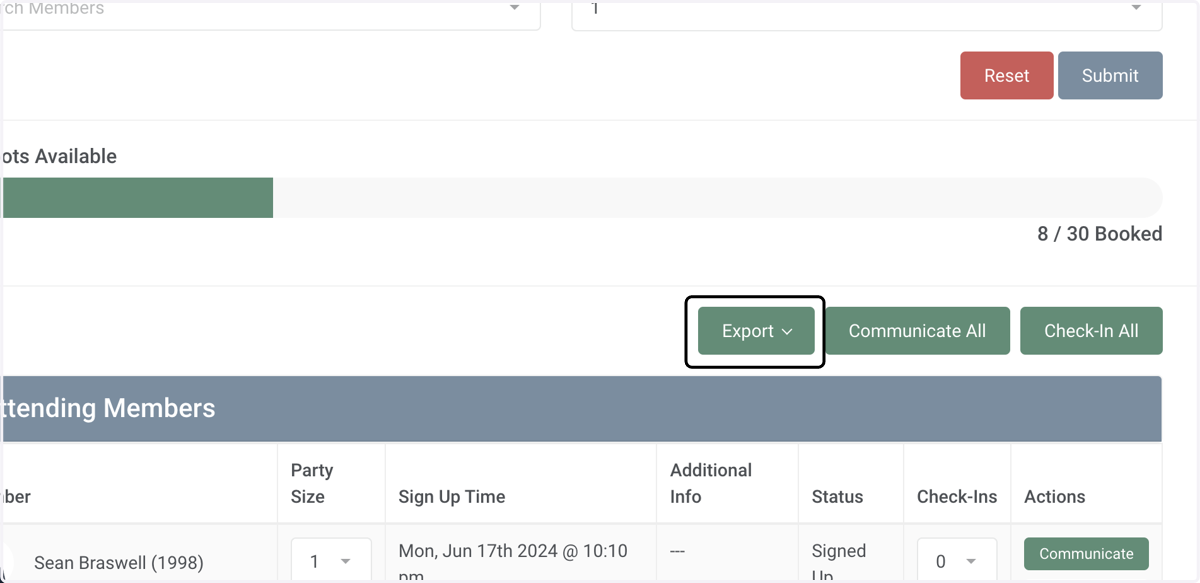
5. Export the list of members attending. These are the members who will receive the survey. If you'd like to send a survey to canceled members, you can export a list of Canceled instead.
Once you get the CSV, delete all information except for the External ID column. Delete the External ID header so now you are left with just a single column with External IDs.
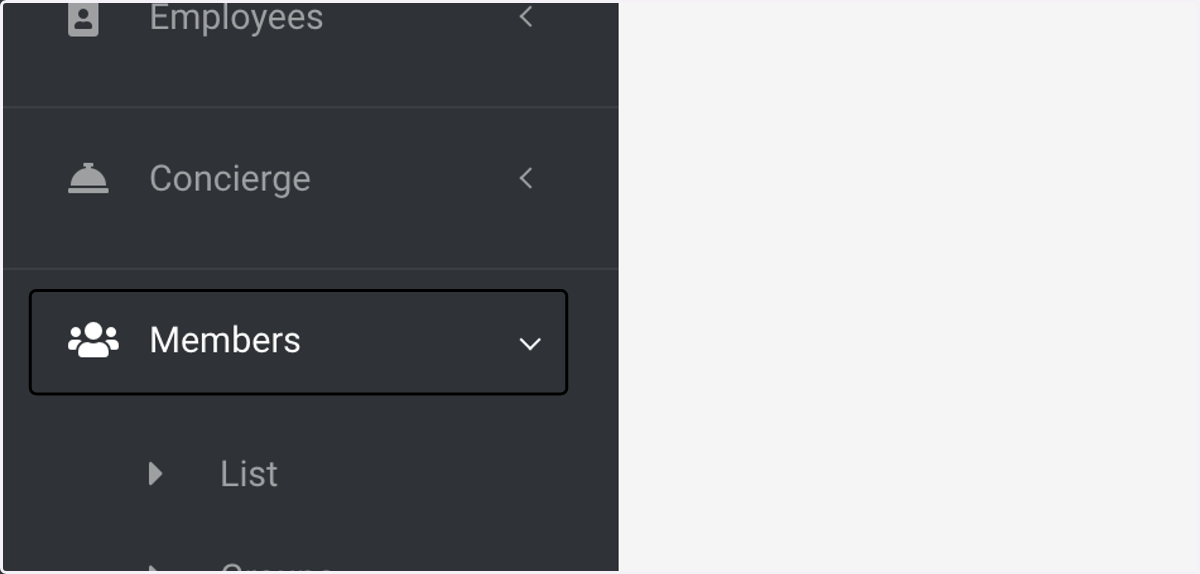
6. Next, click on Members
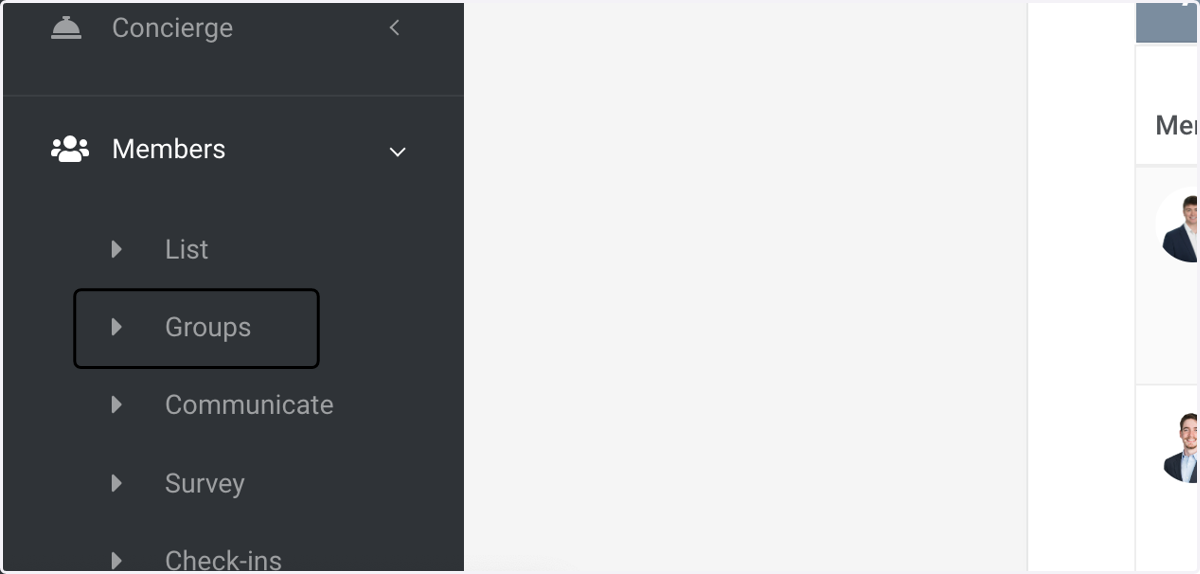
7. Click on Groups
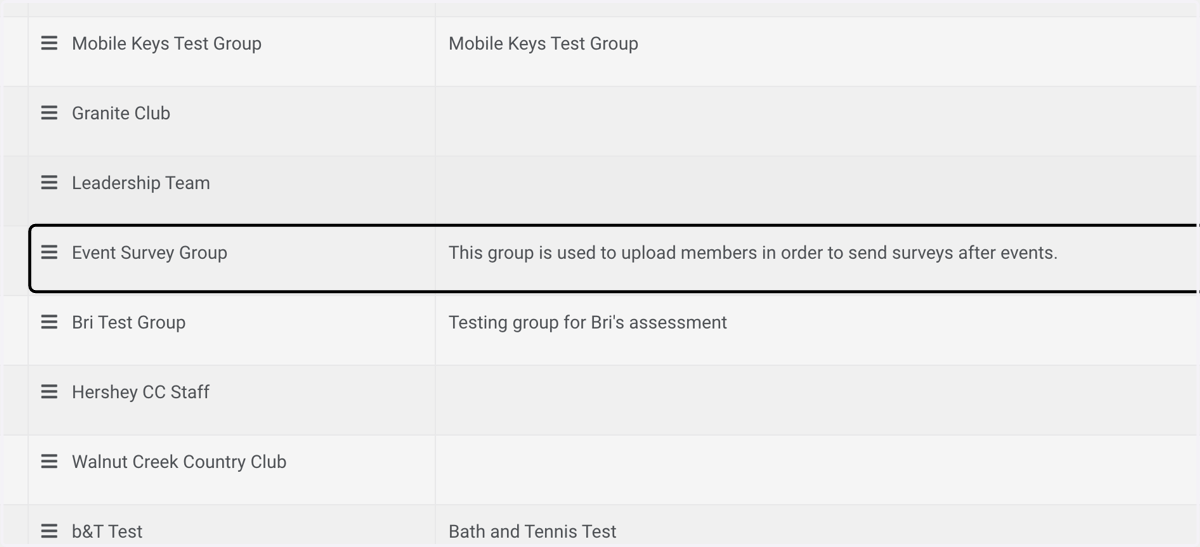
8. Scroll down to the event survey groups.
Feel free to rename from "Group X" to the name of the event in question. This will make things easier when sending the push notification.
9. Click on Edit > Import
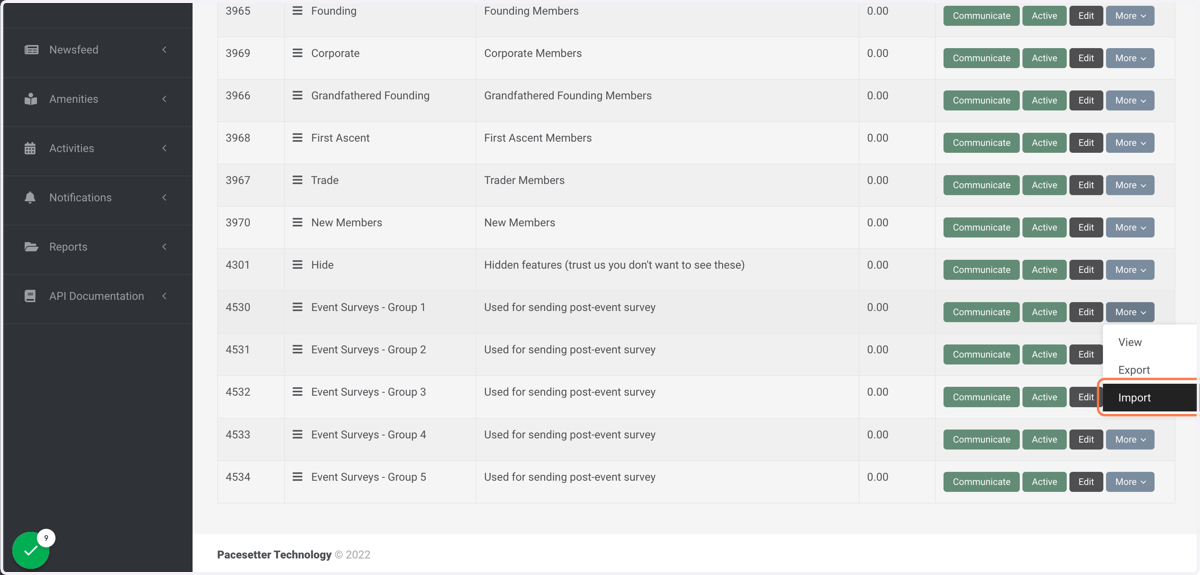
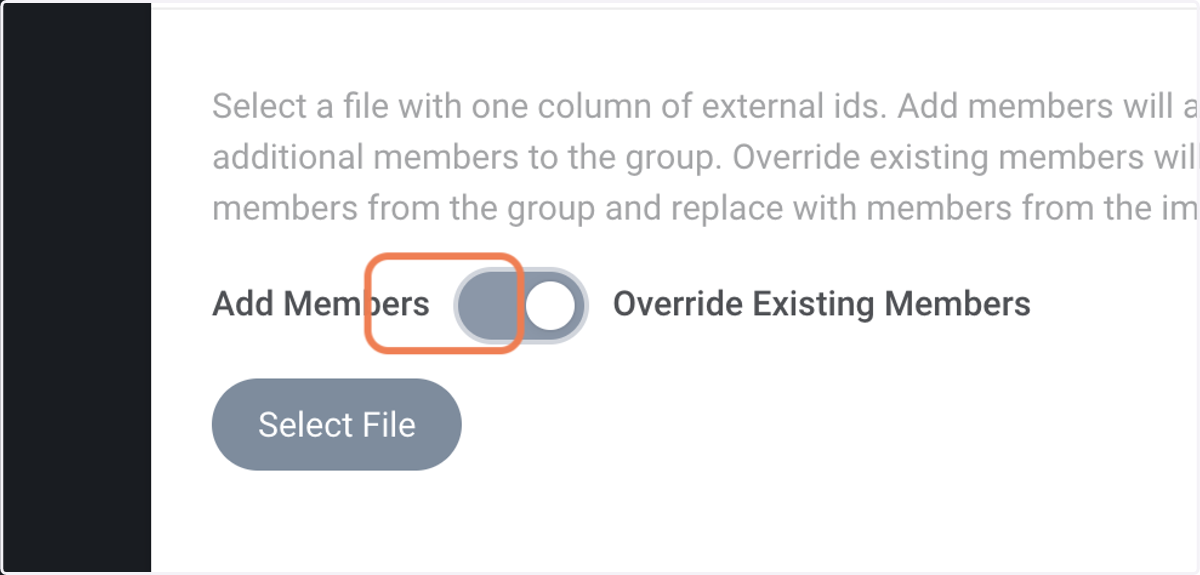
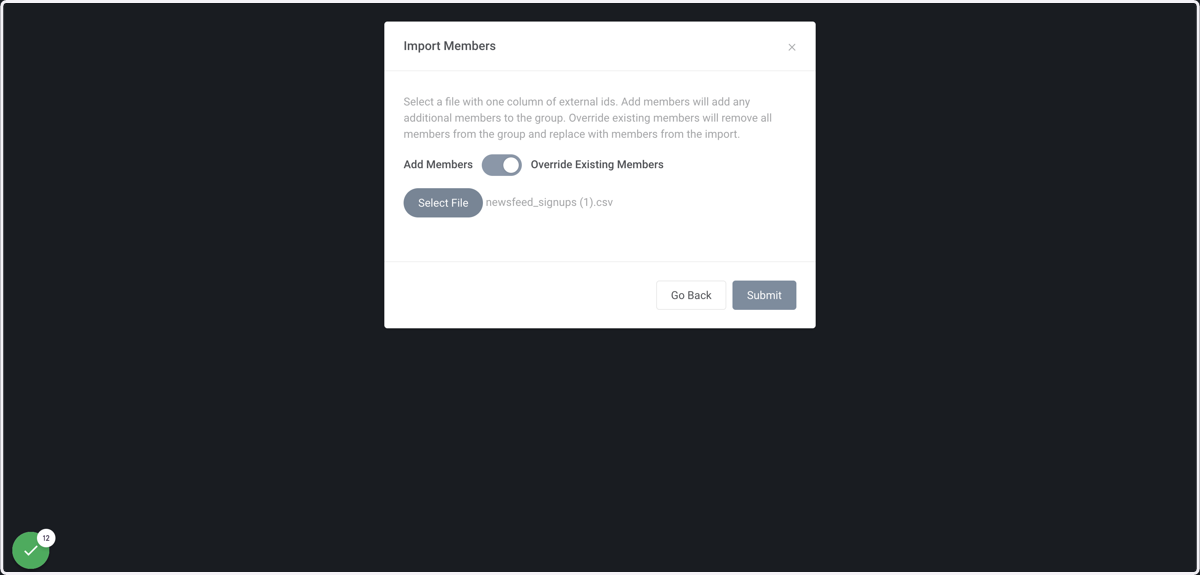
10. Select whether you want to override existing members in the group, or add to the existing group
11. Select the file you exported
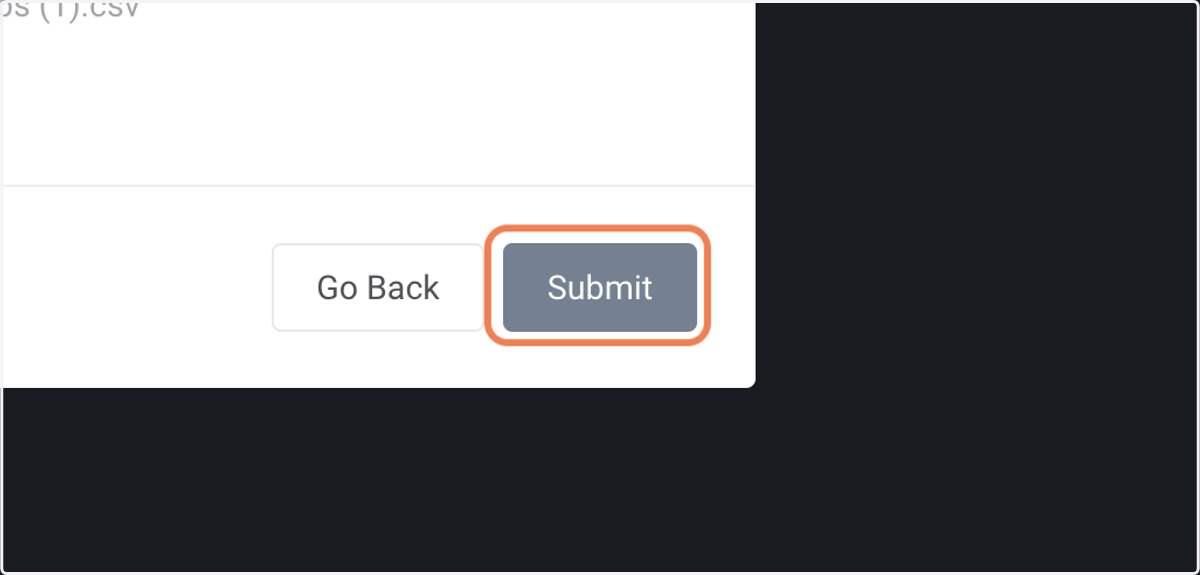
12. Click on Submit
13. Click on Finish.
Now you have an updated group to communicate with!