(FI/SS) Timesheets
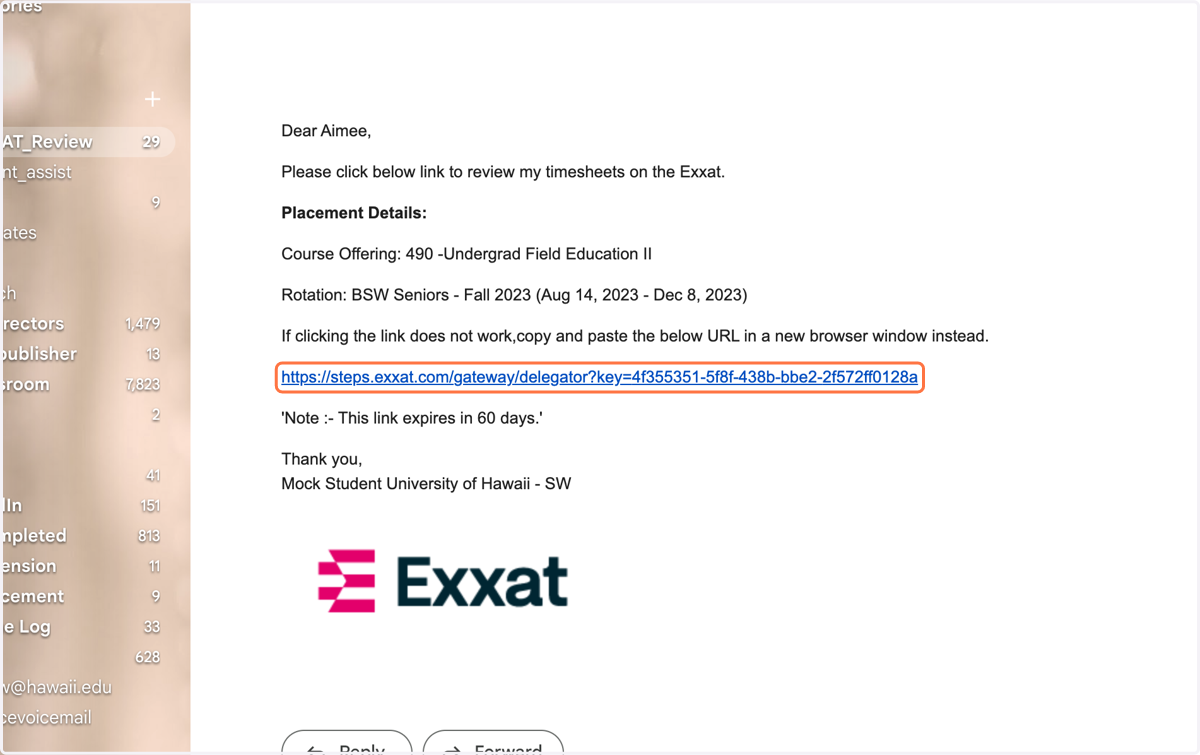
1. When the student submits hours for review, the FI/SS gets an email. Click the link to review timesheets.
Exxat
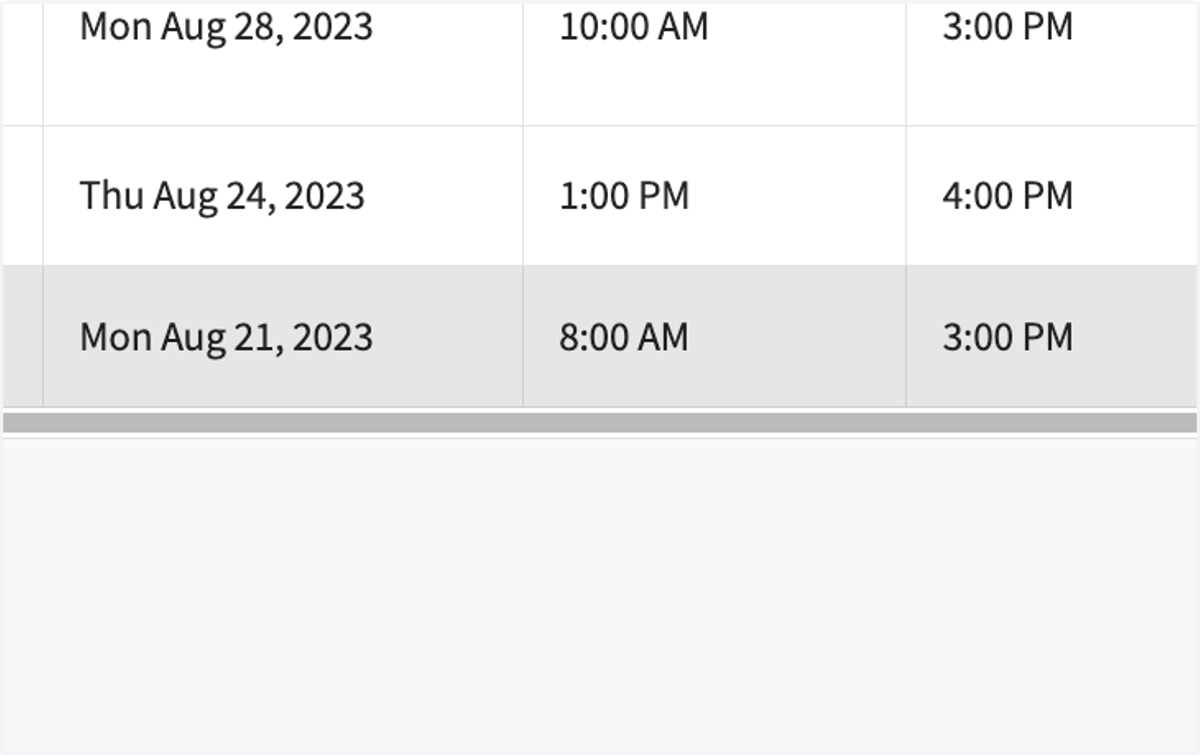
2. See list of hours sent for review. Scroll to the right to view all columns.
Note that the deduction of breaktime minutes is at the discretion of the FI/SS.
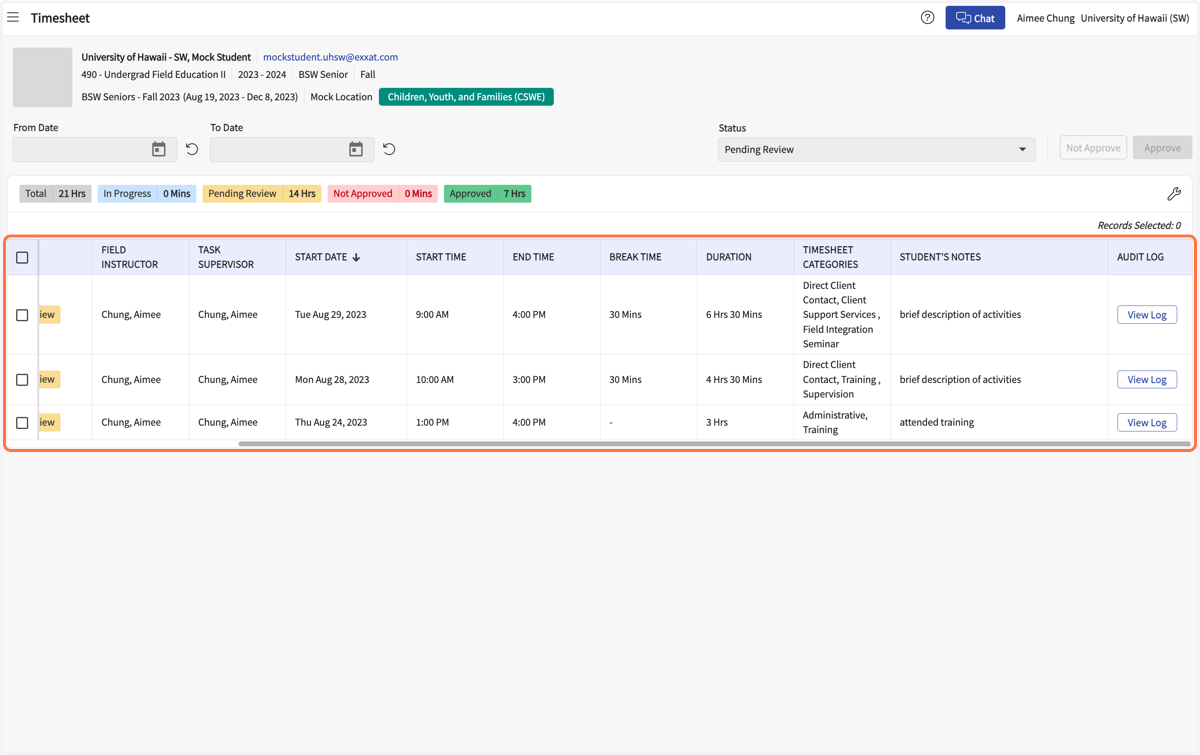
3. Students are instructed to enter a brief description of activities completed in addition to selecting from a predetermined list of "timesheet categories."
4. To add comments for the student, click on Add comment
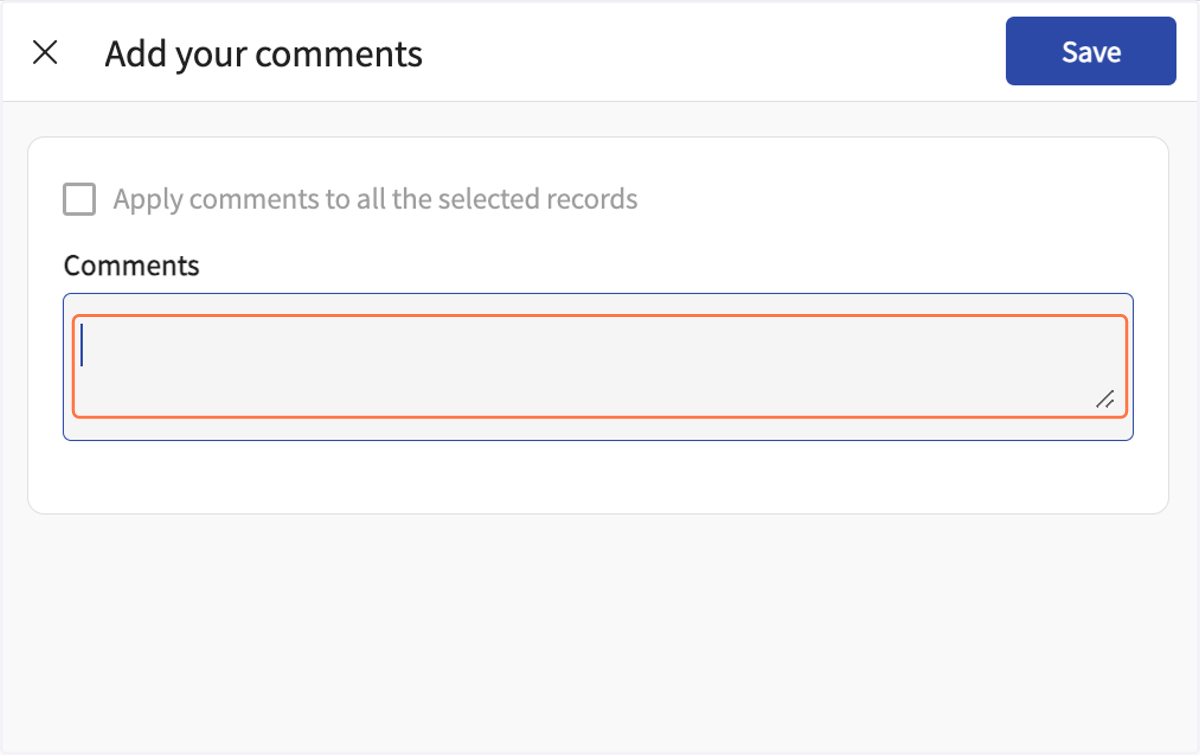
5. A side window pops up on the right, add Comments in the box.
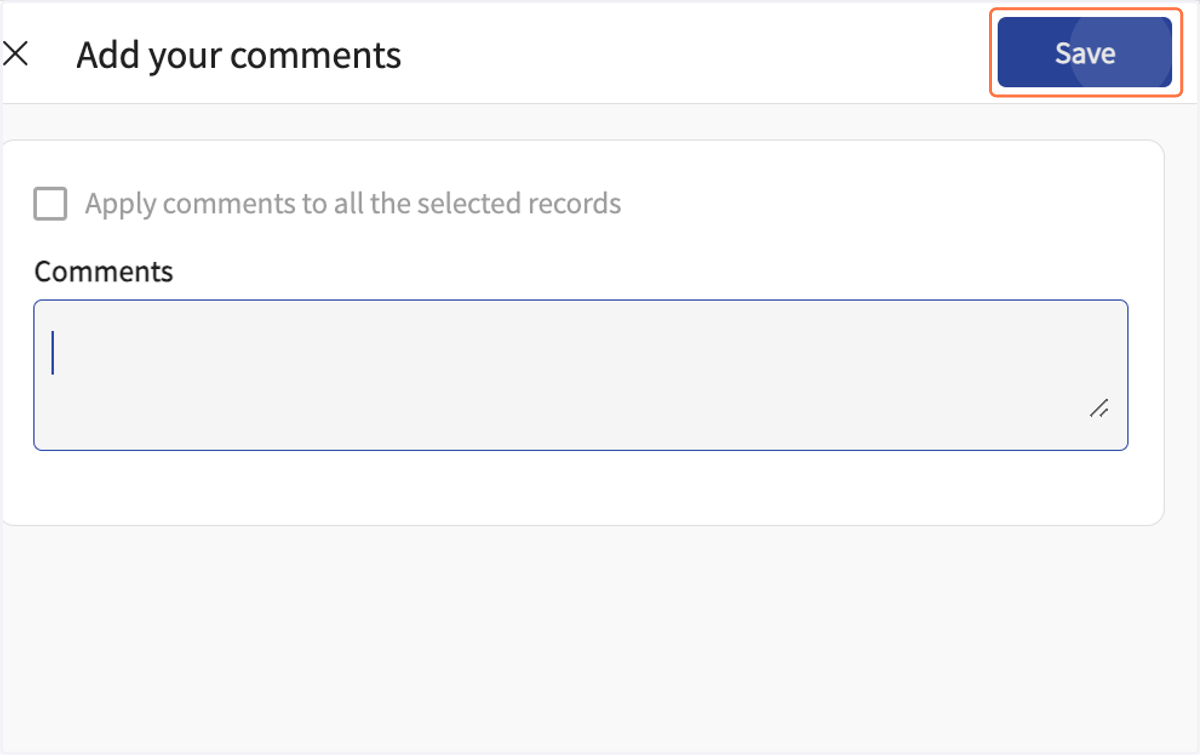
6. Click on Save
7. Check the weeks to approve or...
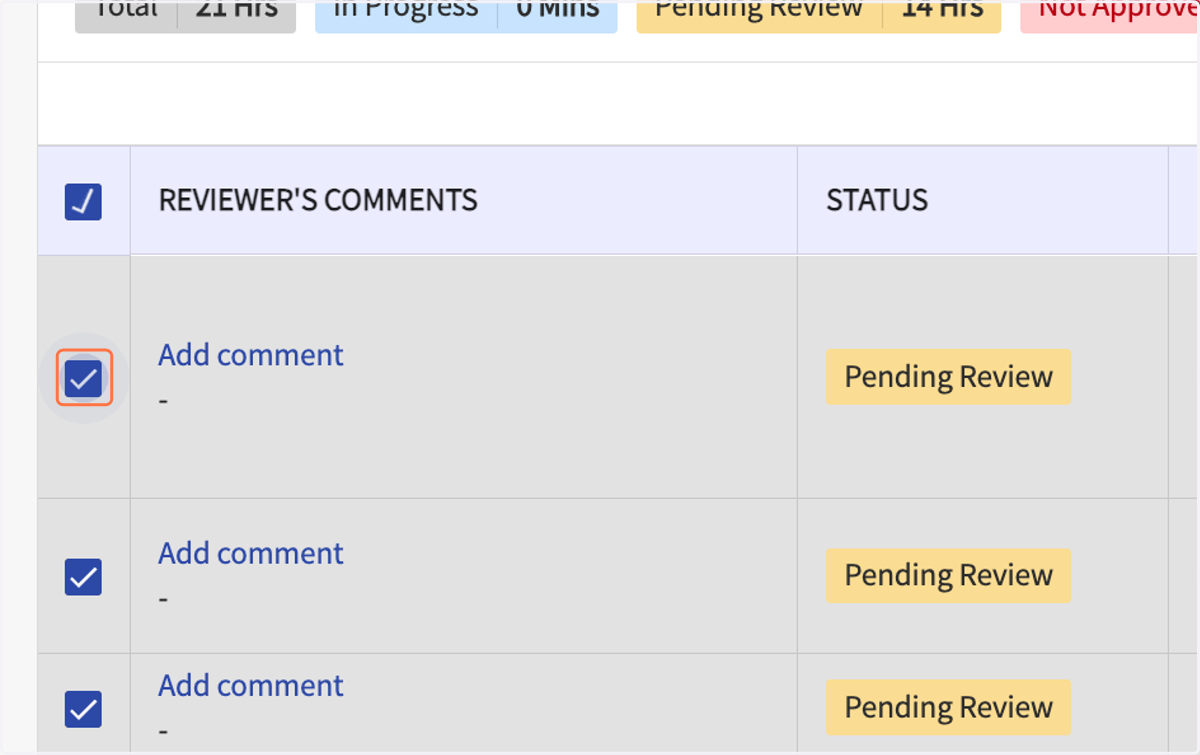
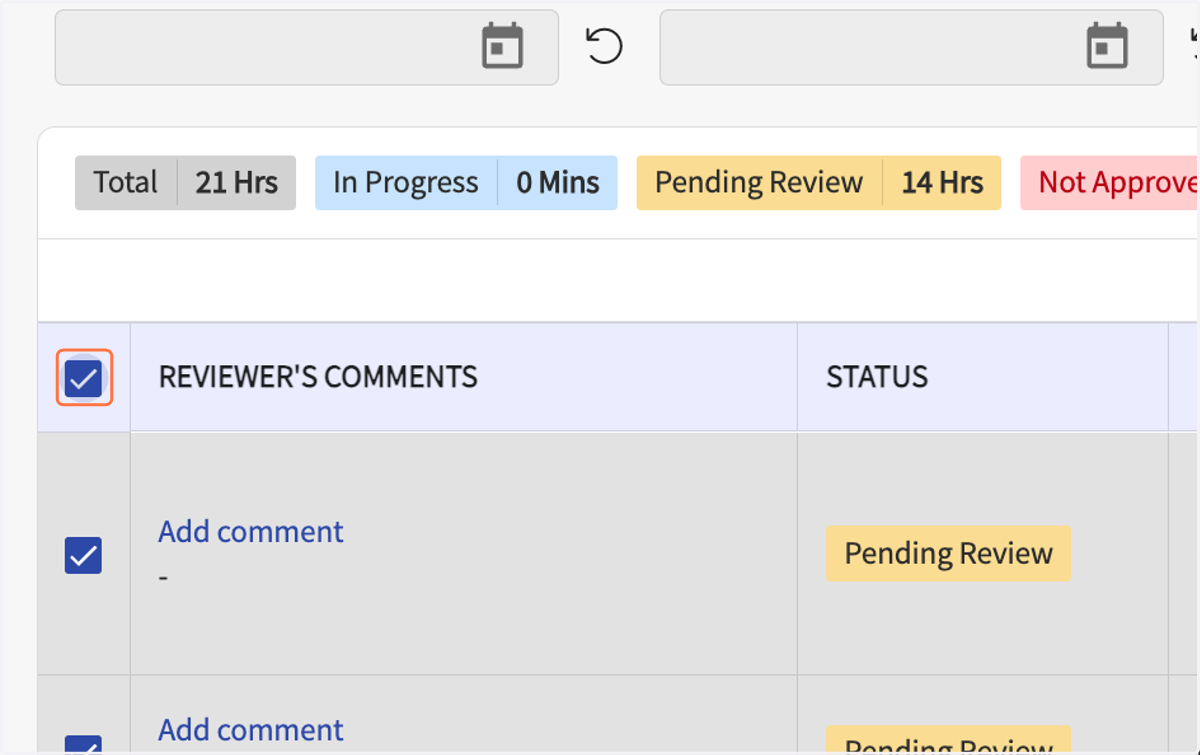
8. Check the box at the top of the column to select all listed hours to approve.
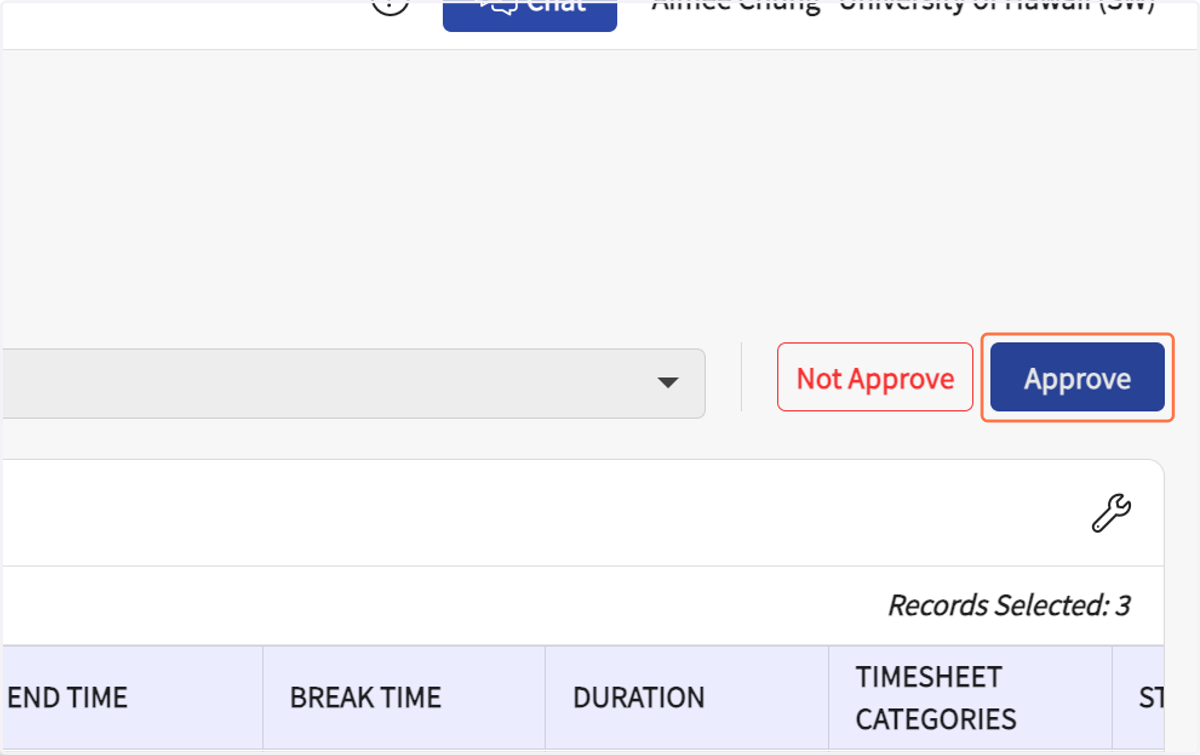
9. Click on Approve
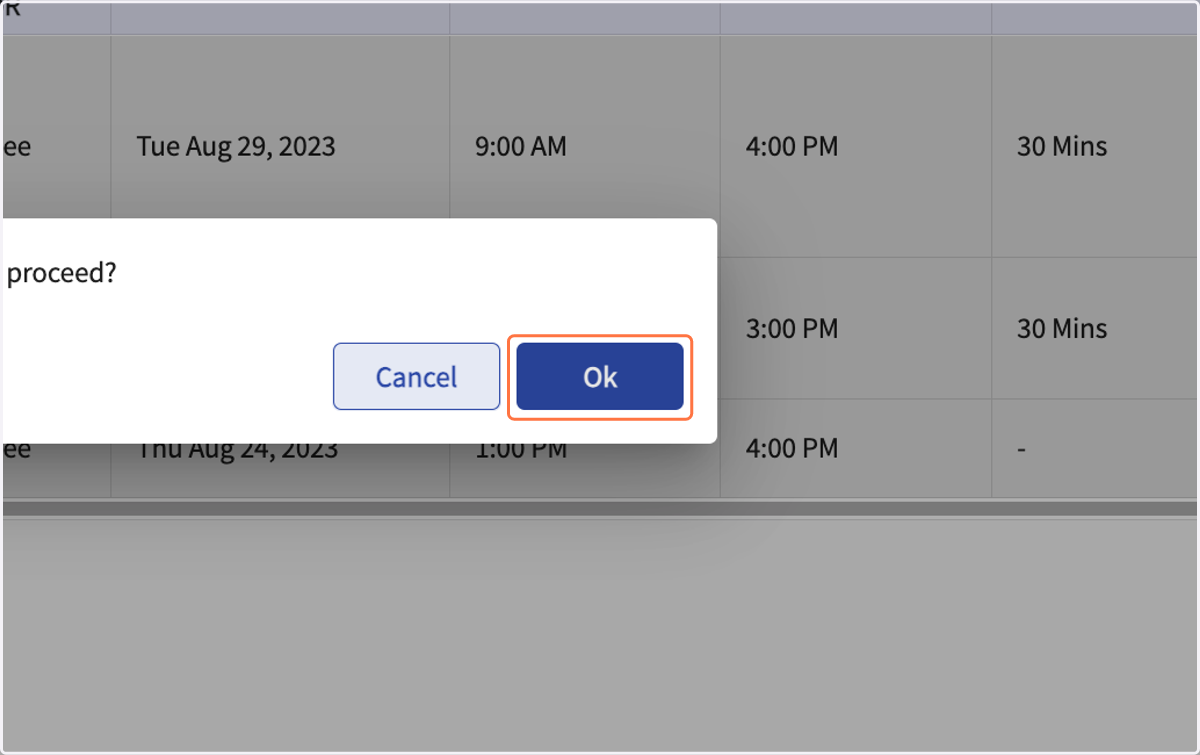
10. Click on Ok in the pop-up
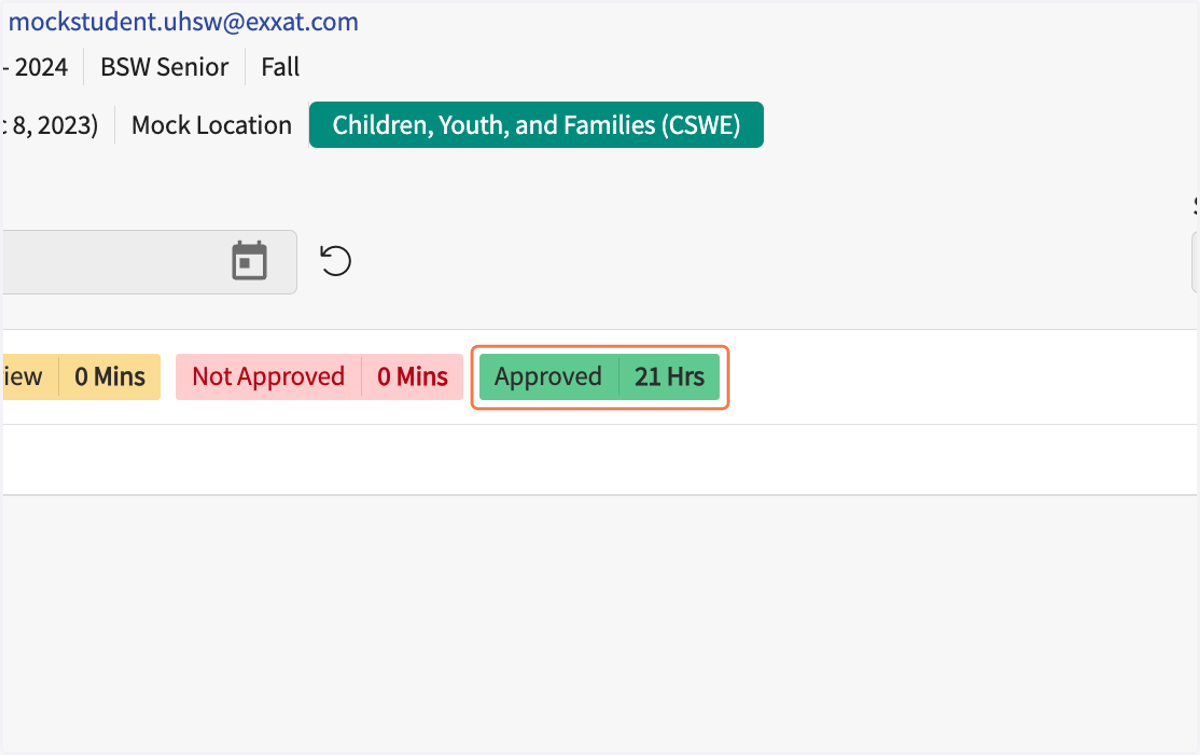
11. At the main screen the green box shows the total hours approved.
12. To see hours approved, click on the Status drop down arrow.
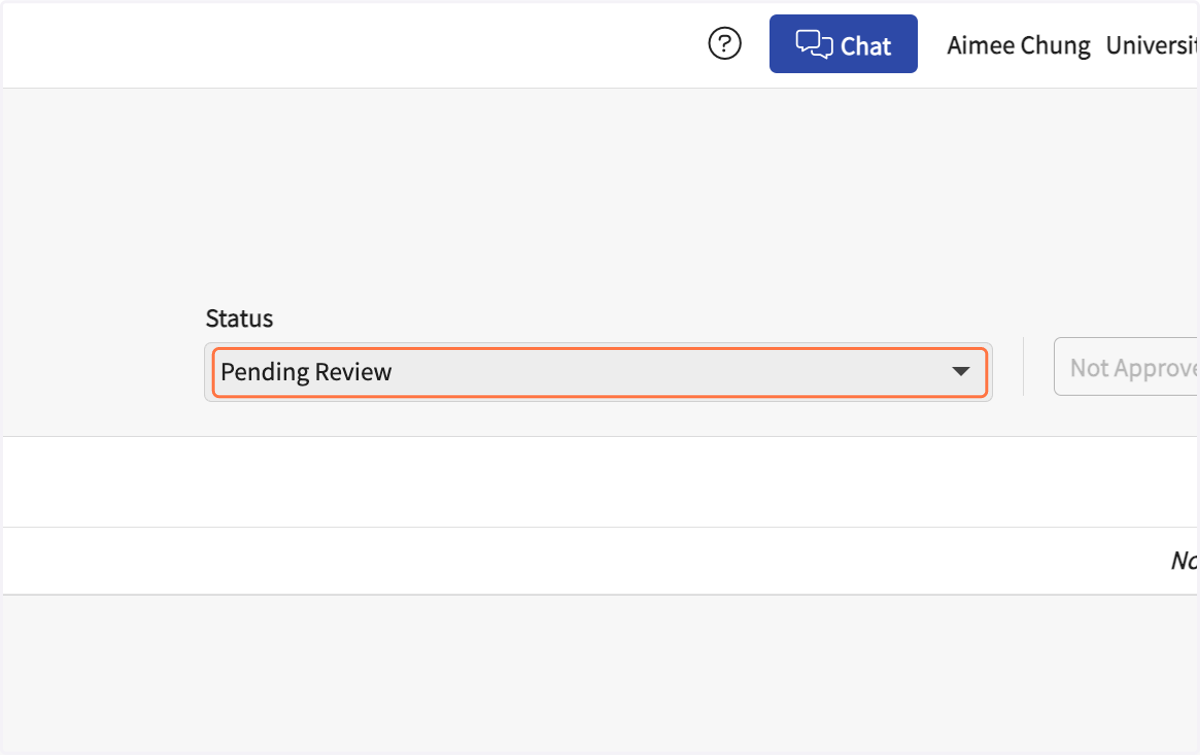
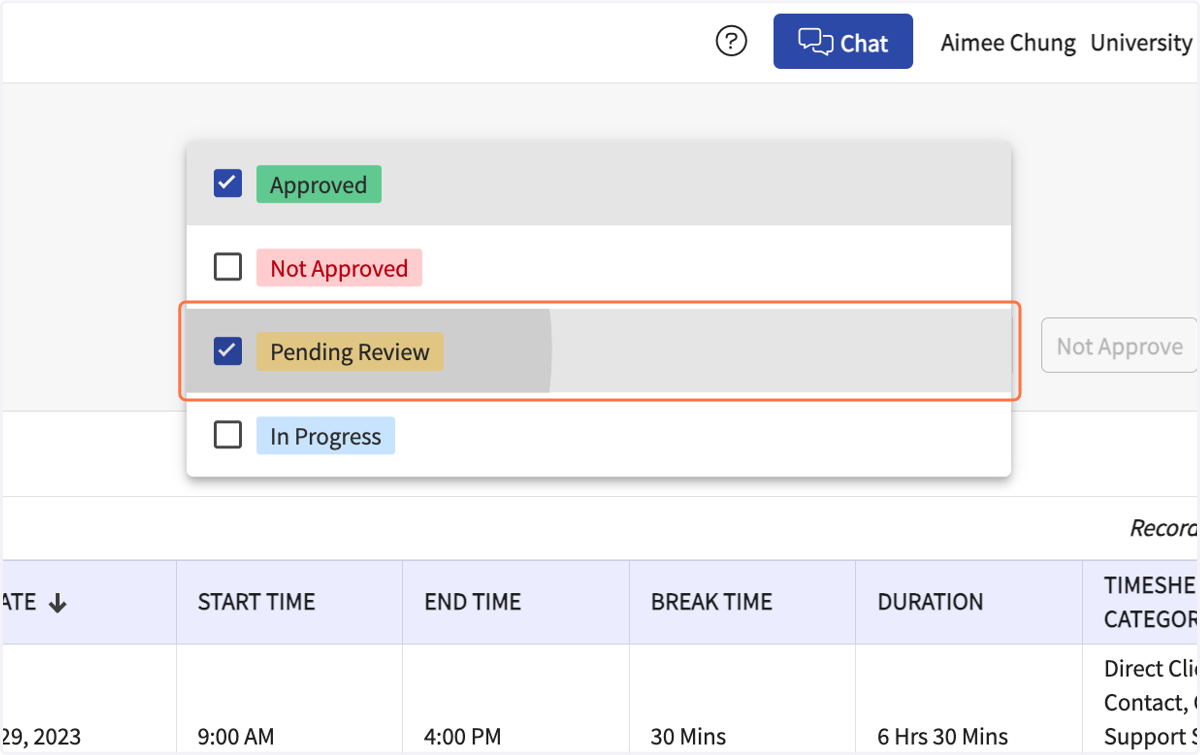
13. Select Pending Review (or other status categories to view).
14. The hours will be listed with the green Approved box in the status column.
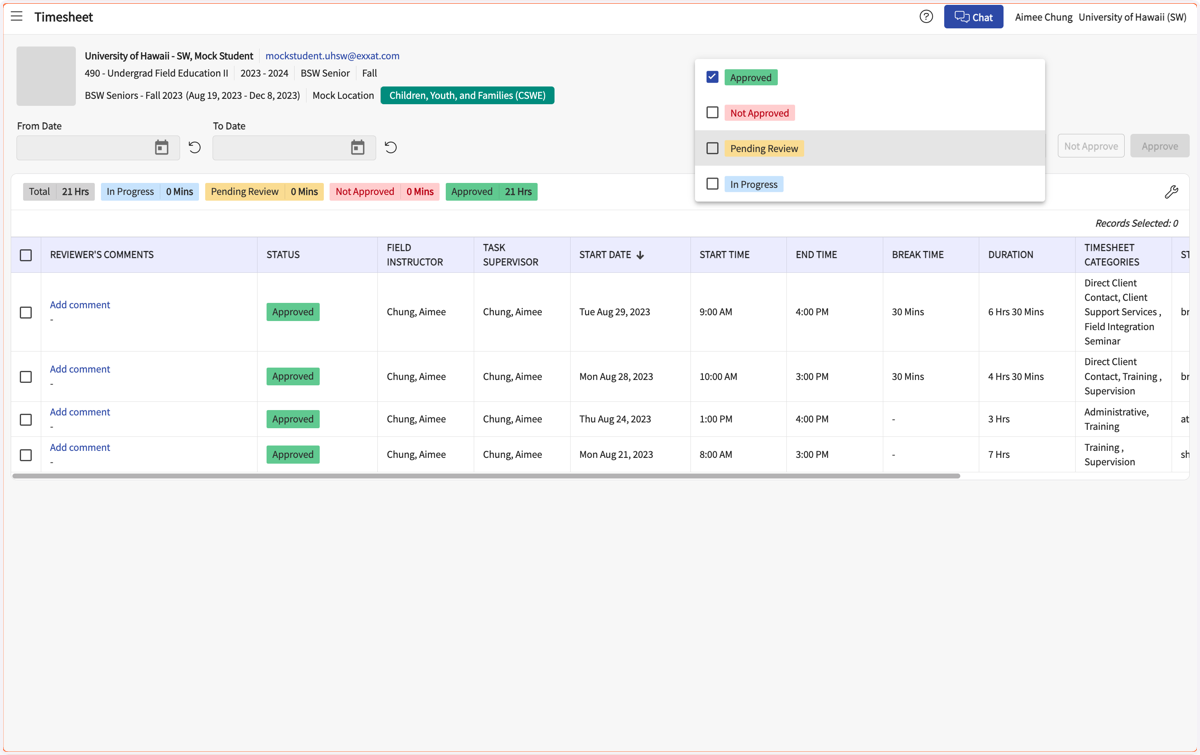
15. Scroll sideways to view all columns
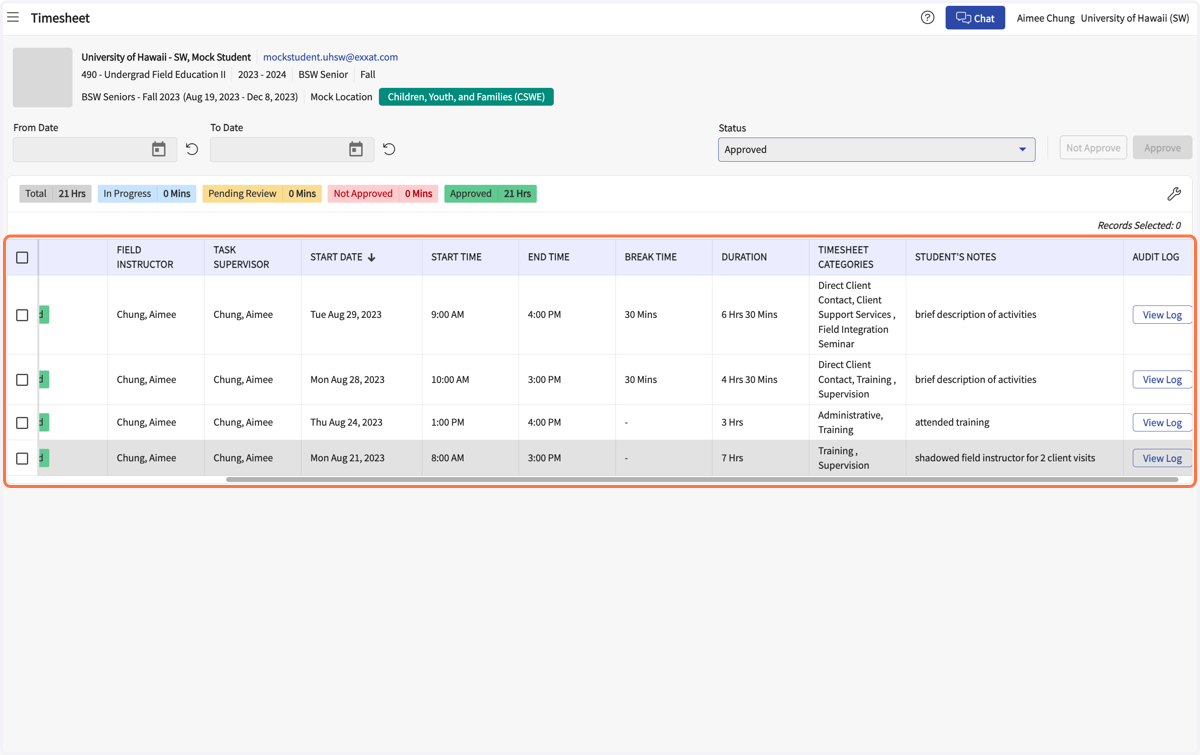
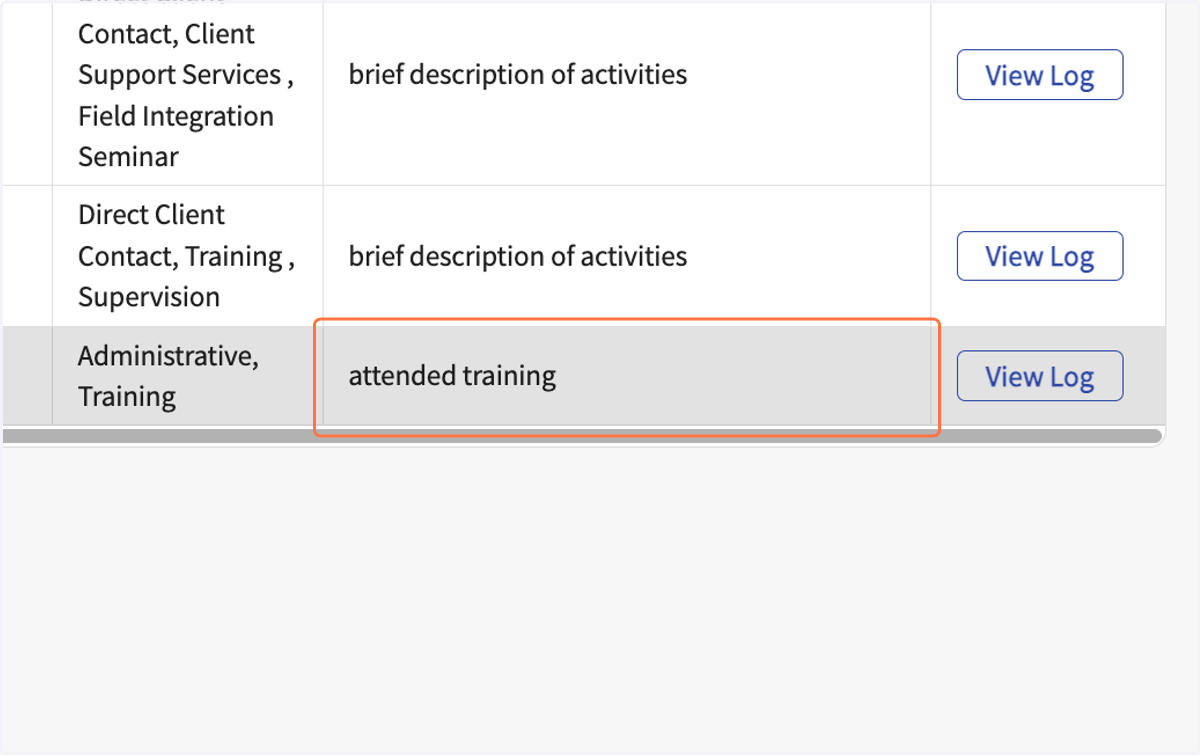
16. The notes entered by the student are on the far right.
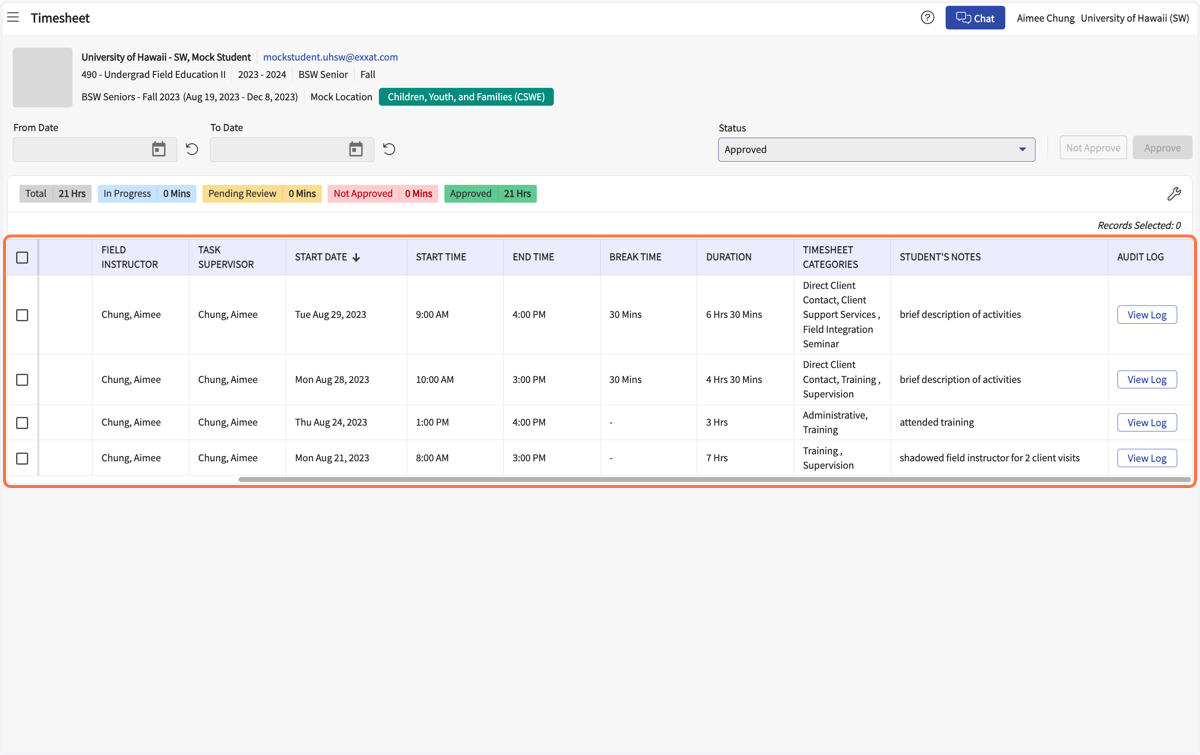
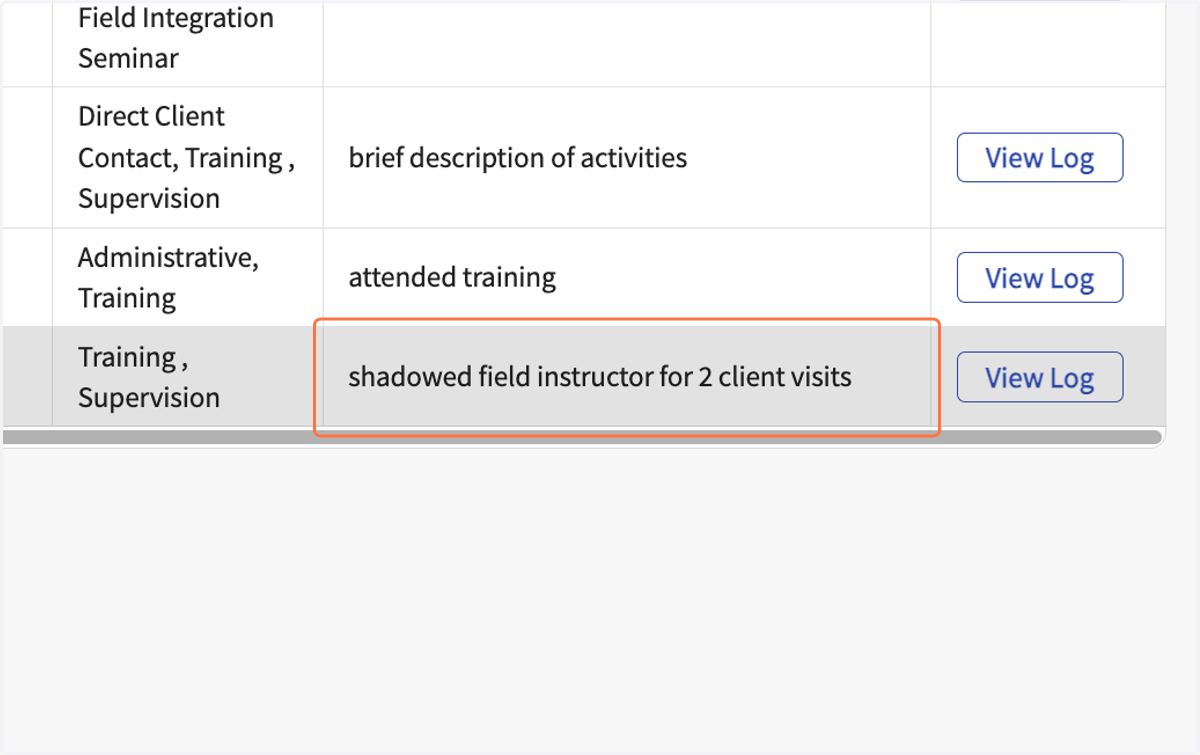
17. Example of student note entires
If you would like the student to enter more or less in the comments, discuss in supervision.