coreSTORE - Employees: Navigating Time Clock Functions in coreSTORE
If you have enabled the Time Clock function in Company Settings, you will be prompted to clock in every time you log in to coreSTORE. Follow this article to learn how to use the Time Clock!
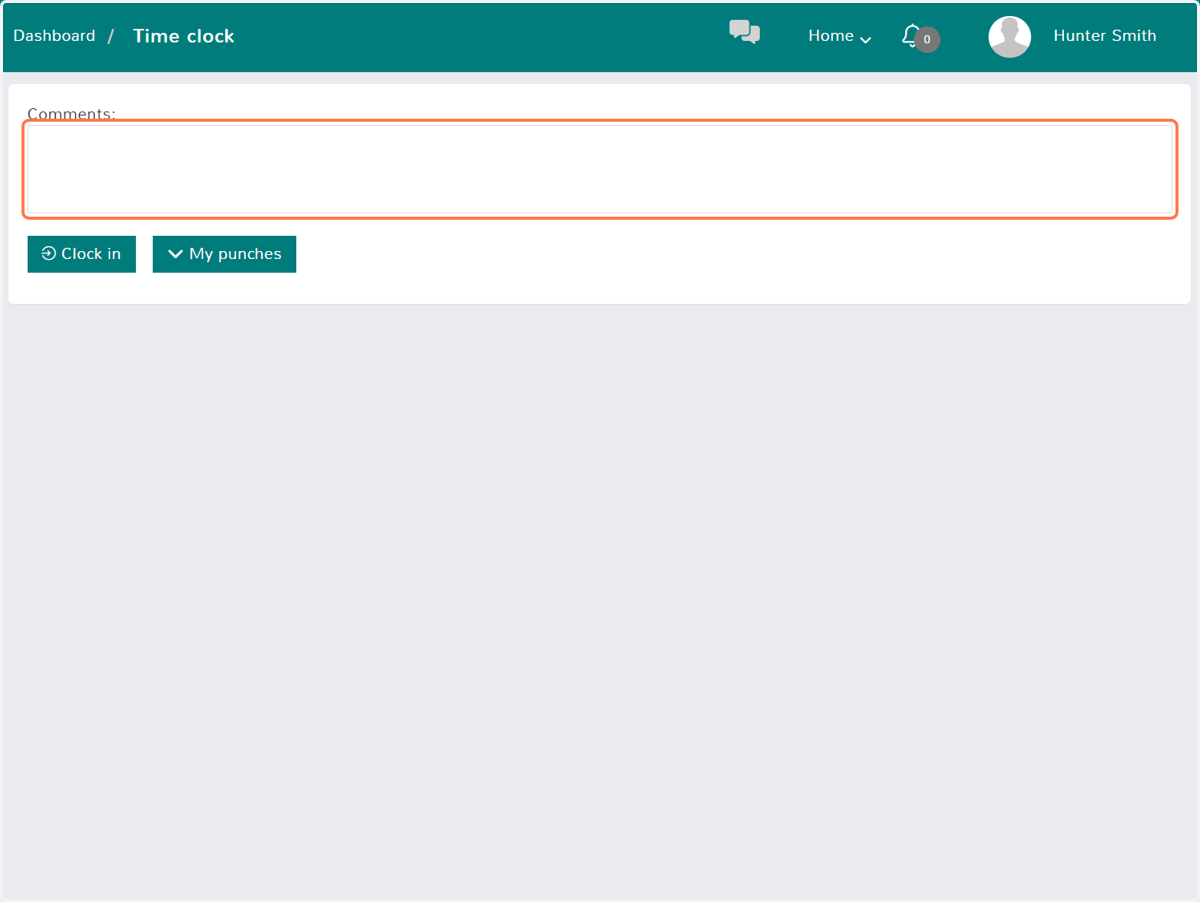
1. Comments
When an employee logs into coreSTORE they will be brought to this screen where they will have the option of adding a comment to their punch, Clocking In, or view their Punches.
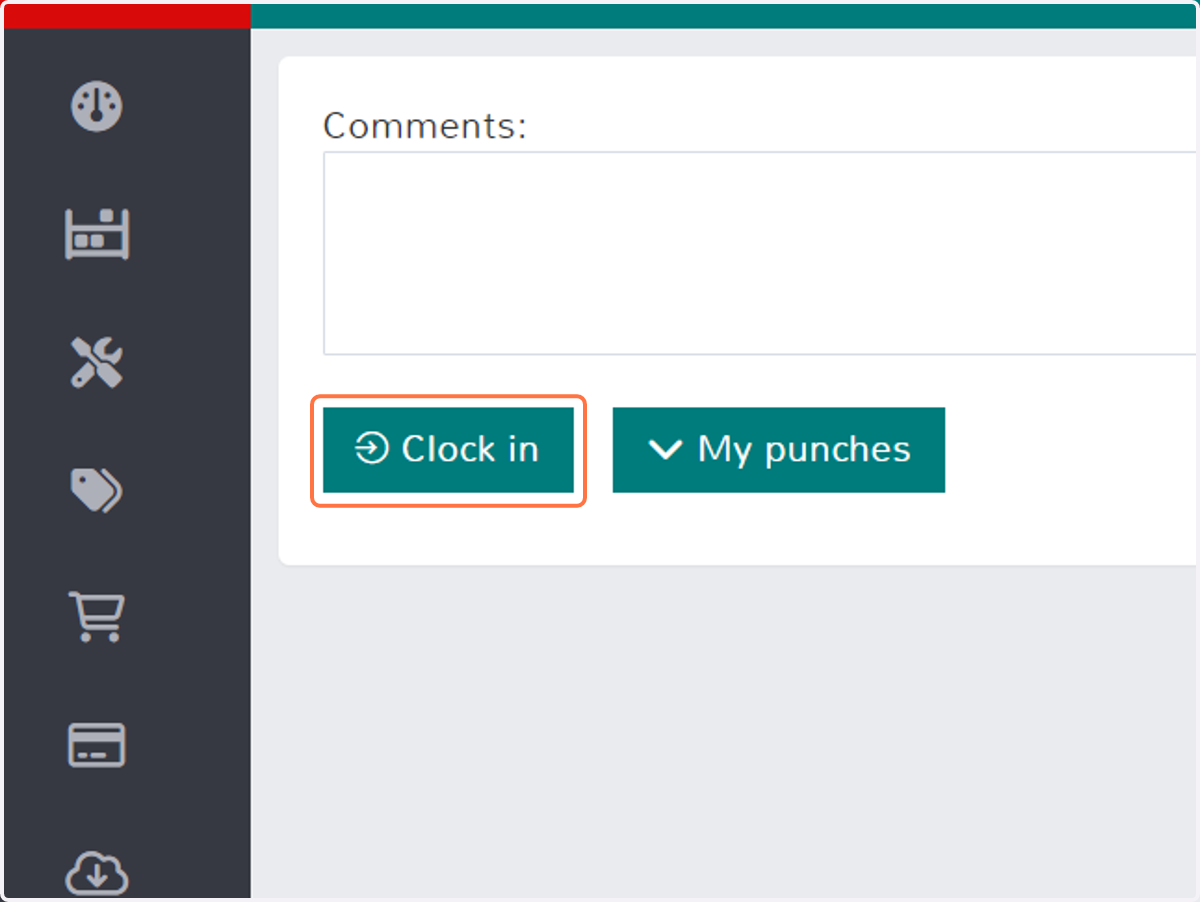
2. Clock in
After a employee Clocks In they will be able to navigate around coreSTORE.
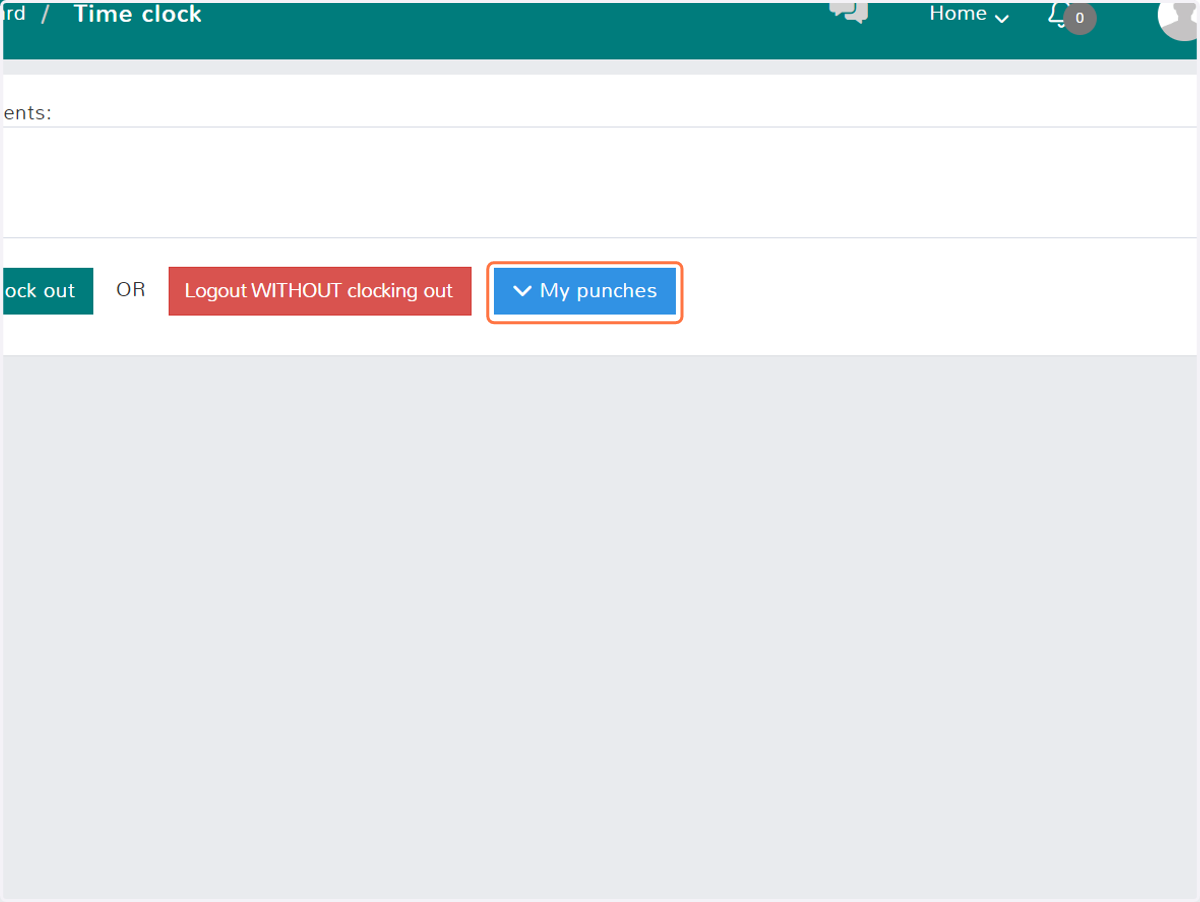
3. My punches
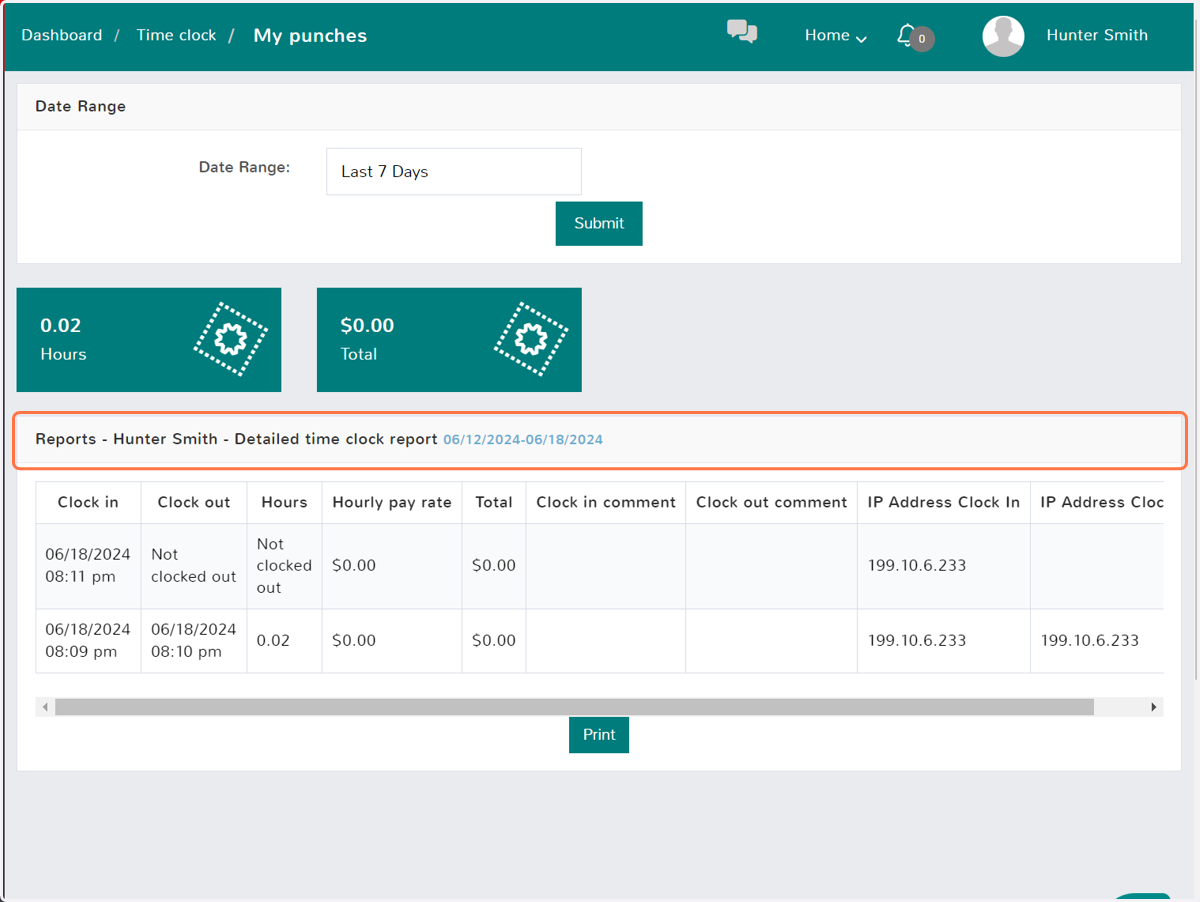
My punches will allow the employee too see their time sheet report.
4. Time Sheet Report
Inside of the time sheet report, they can filter by date range, see their total hours, and each clock in/clock out itemized.
5. How to access the Time Clock
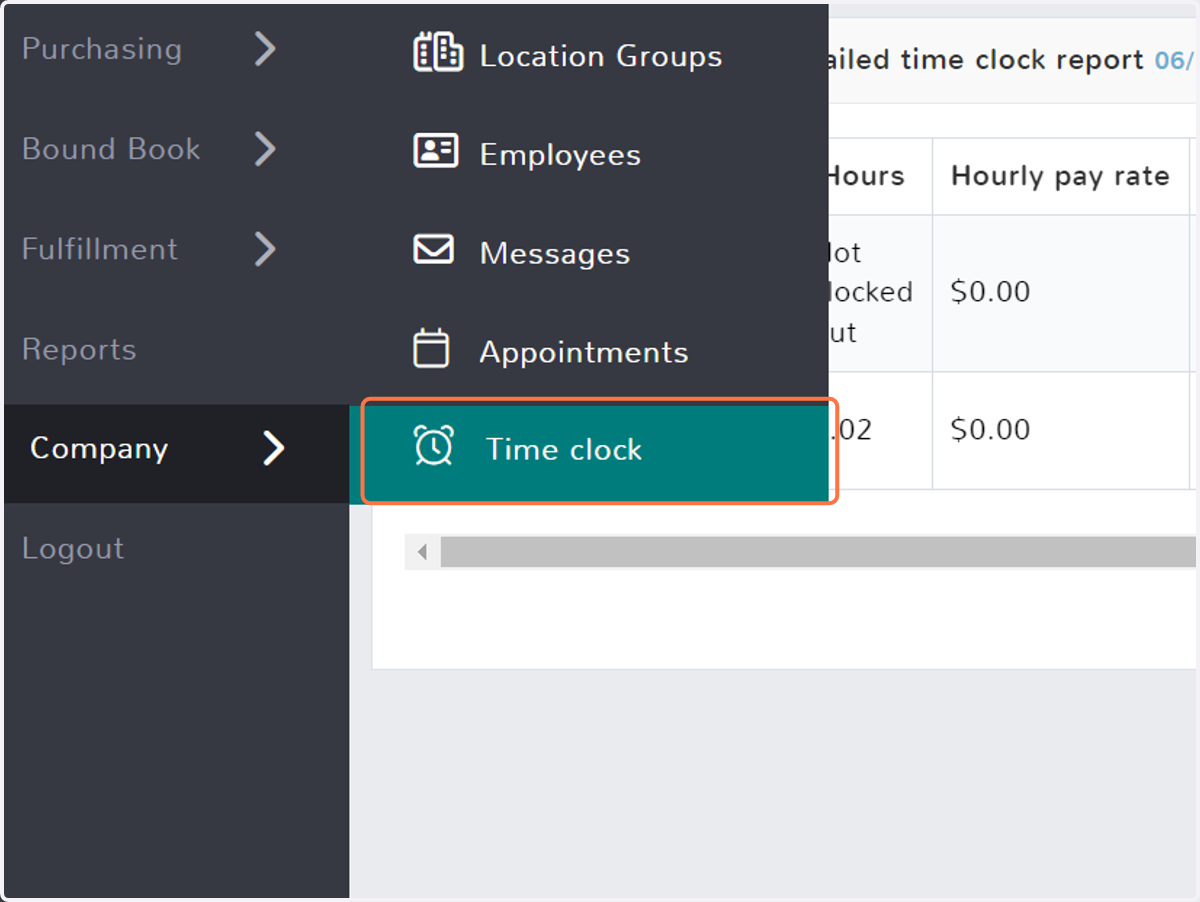
You can always access the Time Clock by clicking on Company.
Note: You can also access the Time Clock by clicking on your profile in the top right corner of coreSTORE.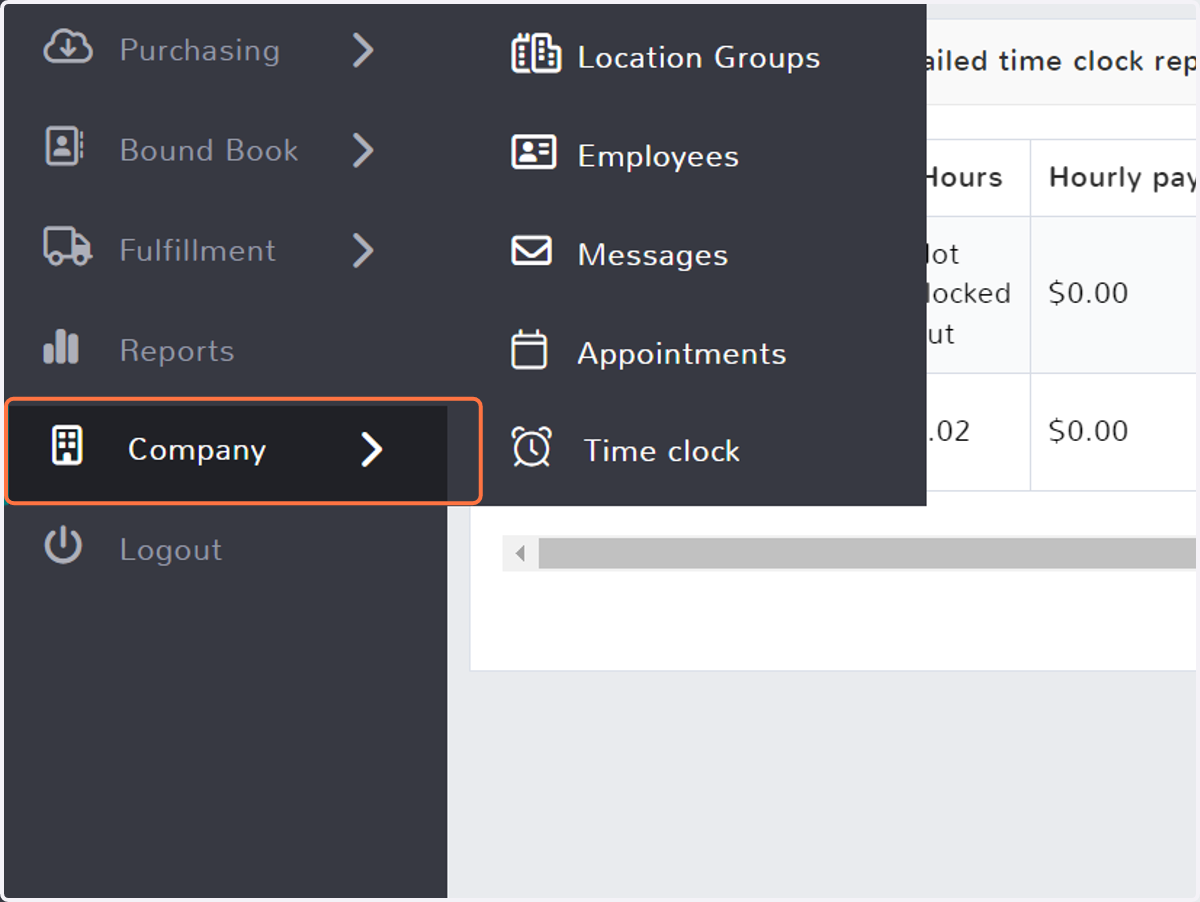
6. Click on Time clock