(FI/SS) Midterm Evaluation
See email from Exxat/Prism.
1. Click the link to see the midterm self-evaluation form.
The subject line should read "Evaluation Review Request."
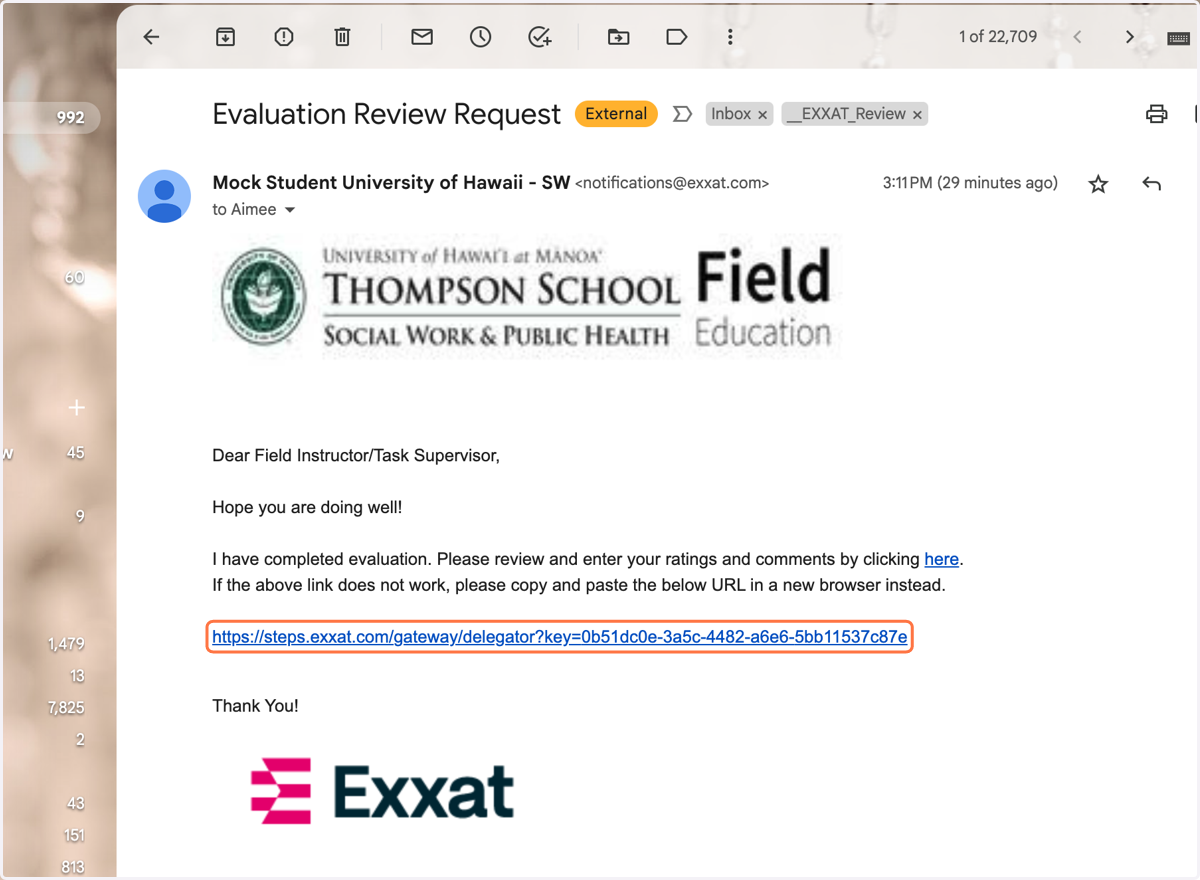
Exxat/Prism will open the Midterm Evaluation in a new tab.
Task/Site Supervisors (SS) - if applicable, complete the form, click "Save" when complete, do not click "submit."
Field Instructors (FI) - if you have a SS, review their ratings and comments and edit as needed. If you do not have an SS, complete the form and click "Submit" when complete.
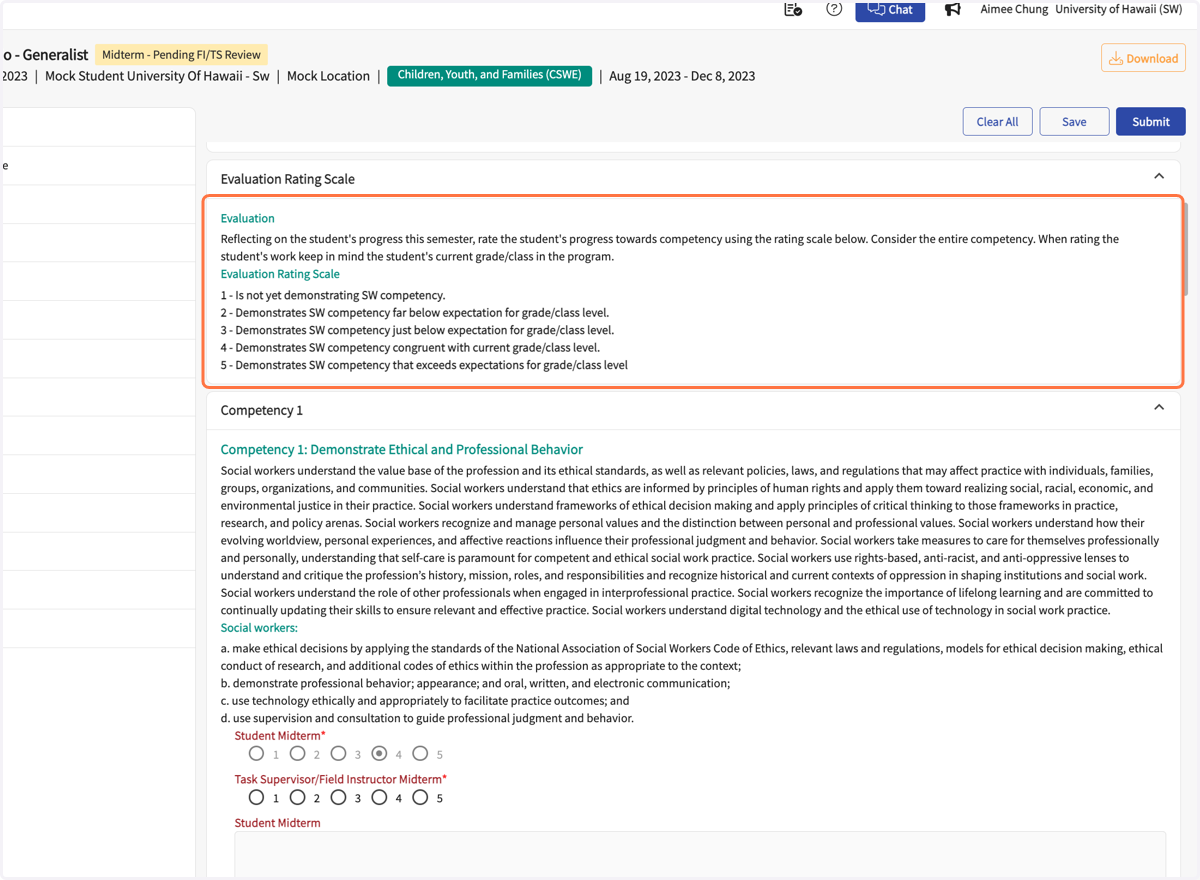
2. Review the Evaluation Rating Scale.
Rate the student according to where they are in the program, not where we expect them to be upon field placement completion or graduation.
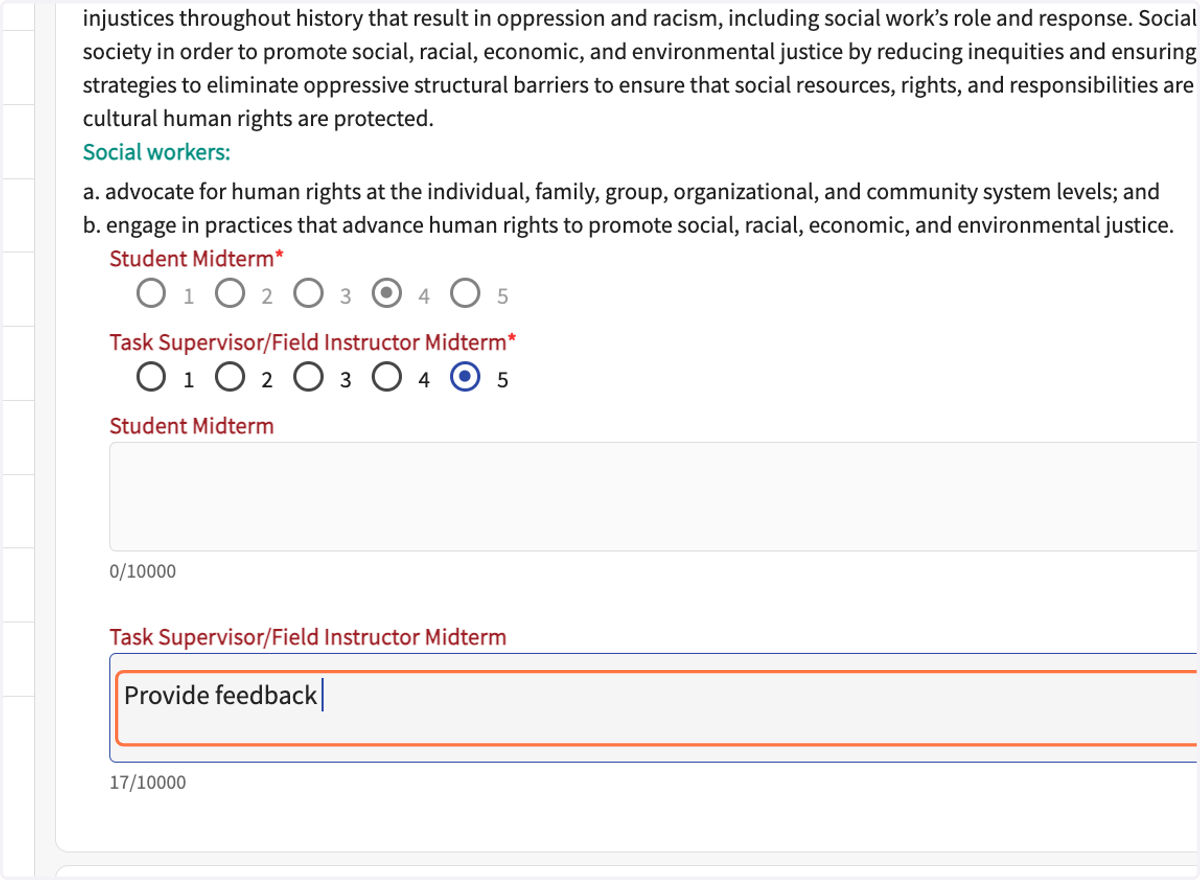
3. Select a rating for the student for all 10 competencies. You will see how the student rated themself. Select your rating on the "Task Supervisor/Field Instructor Midterm" line.
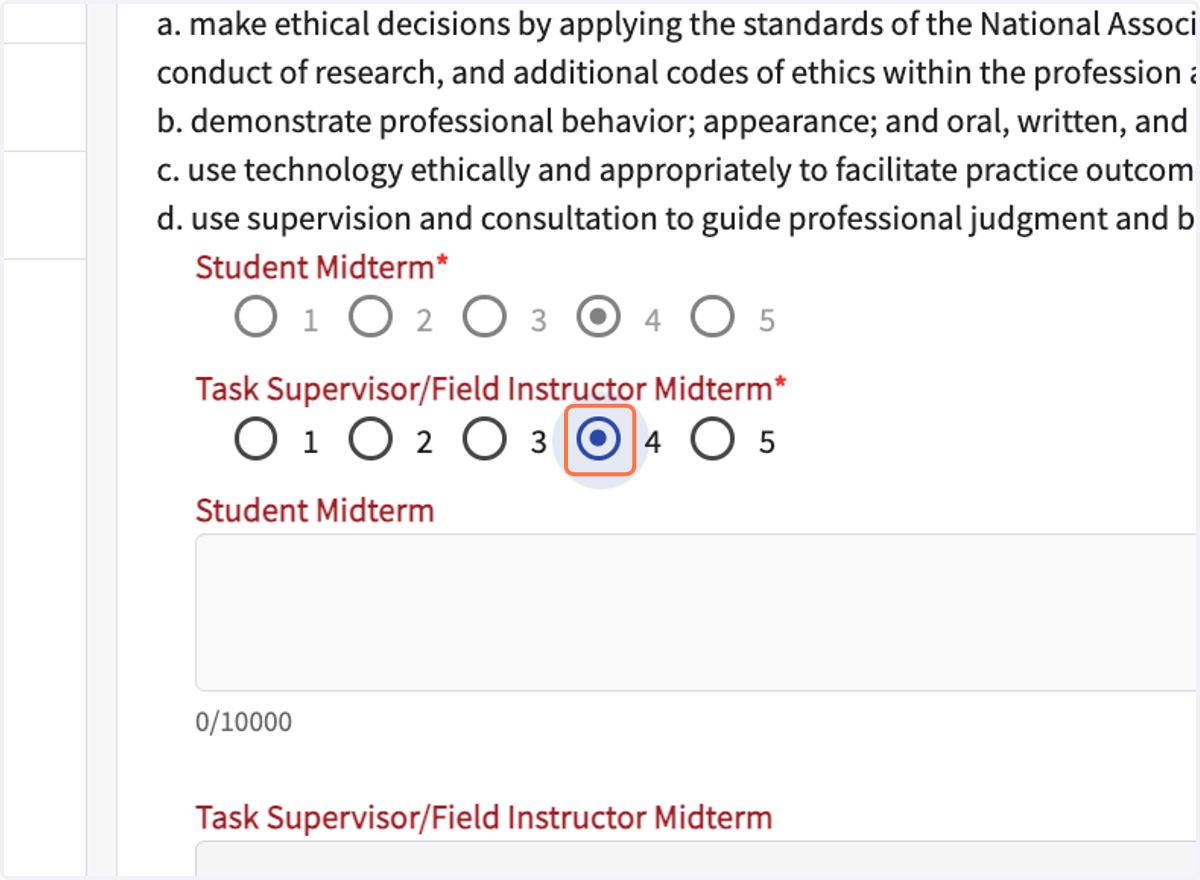
4. Provide the student with feedback in the comment boxes for each Competency. Any rating below 5 should include comments or suggestions on how the student can improve.
5. The signature box is for the Field Instructor only. Site/Task Supervisor does NOT sign.
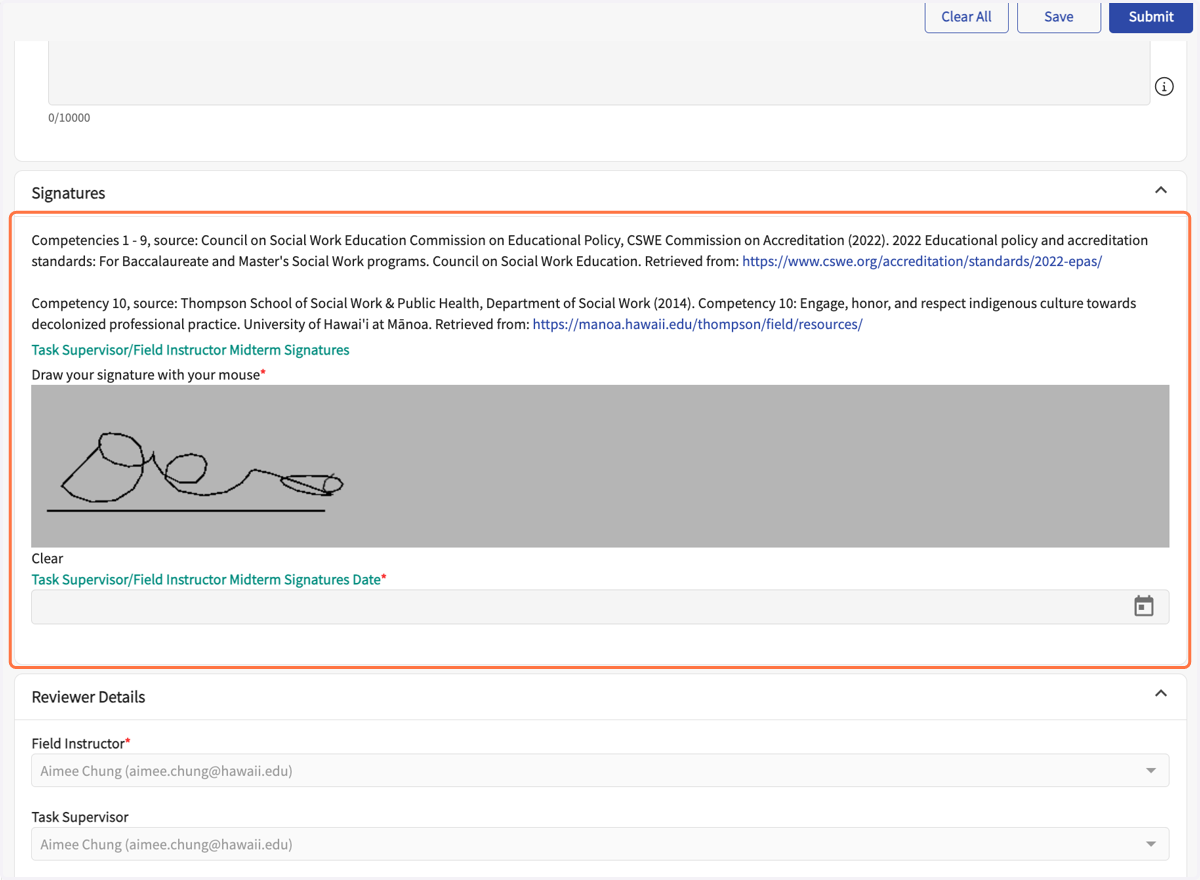
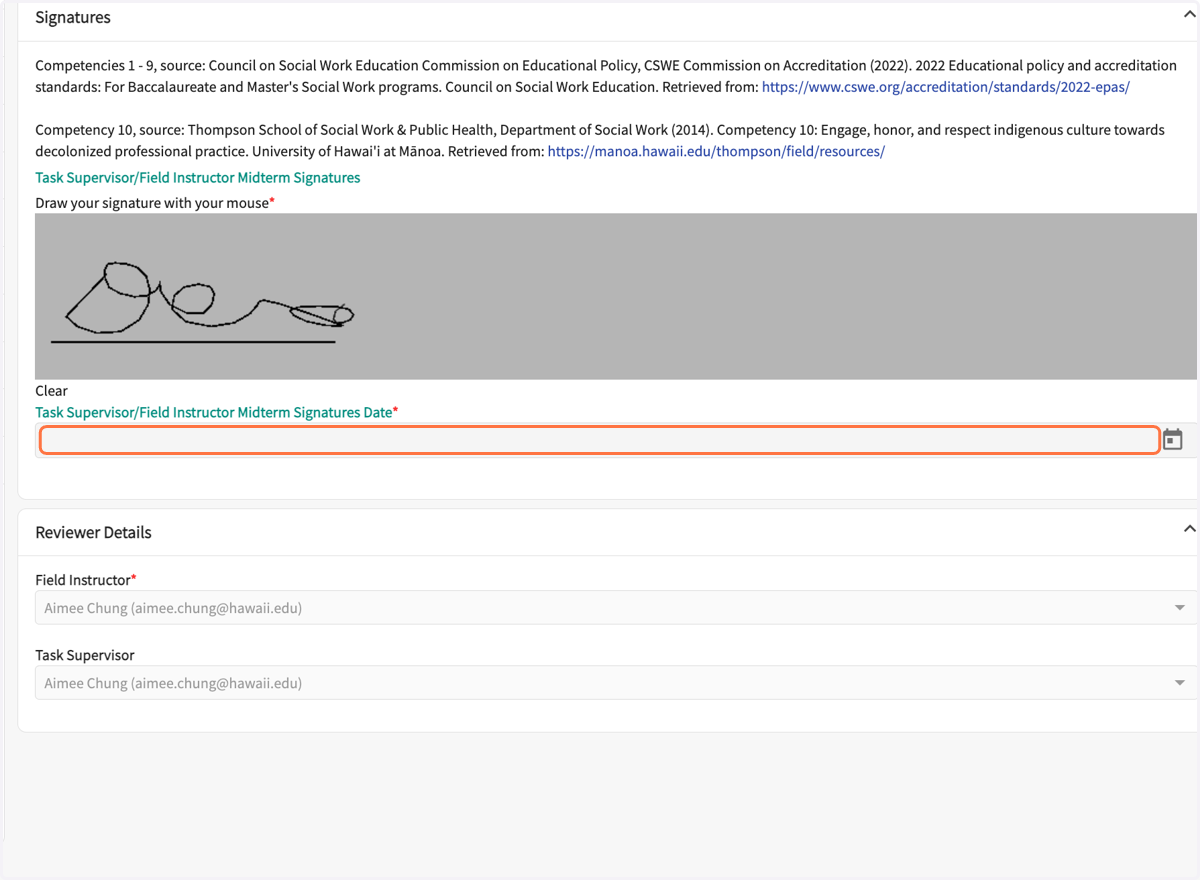
6. Select date signed.
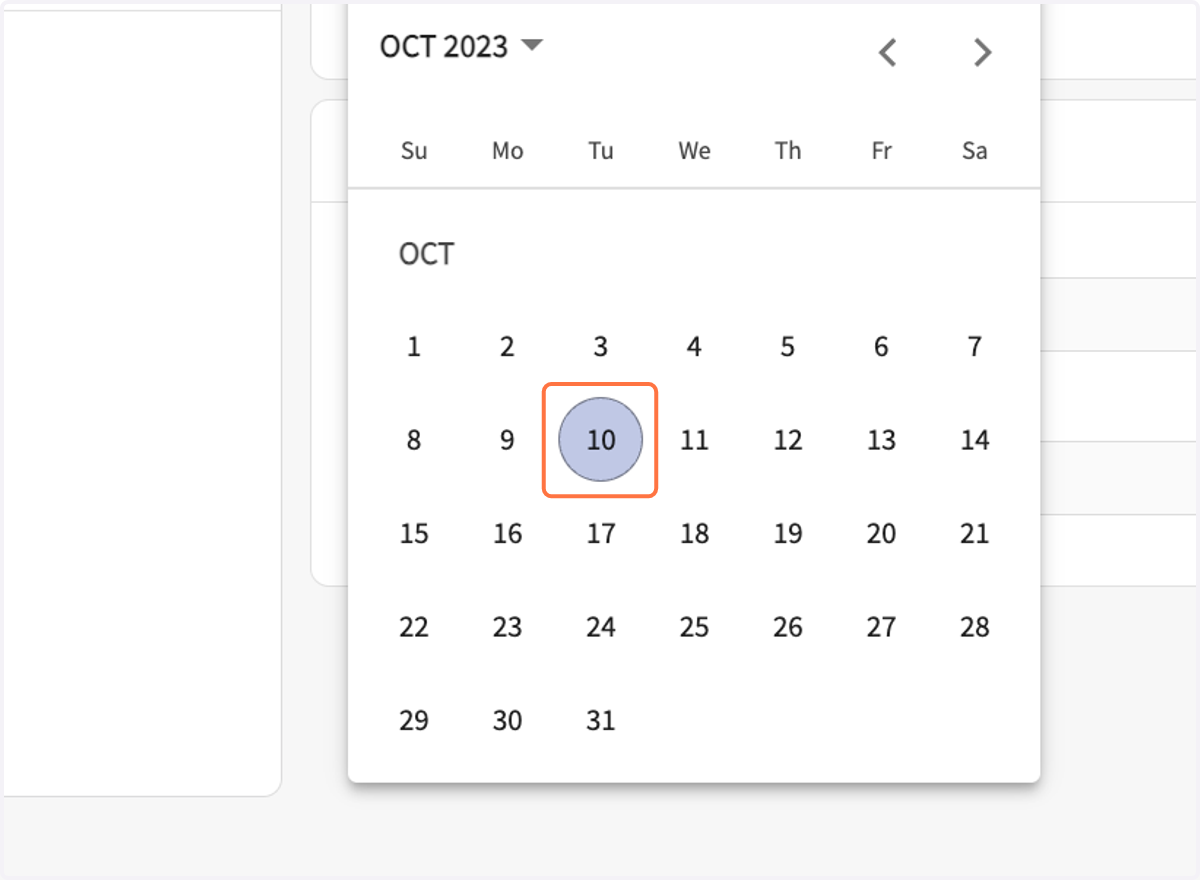
7. Select date from the pop-up calendar.
8. Click on Save at any time to save progress. Task/Site Supervisors - when complete, click "Save," do NOT click "Submit."
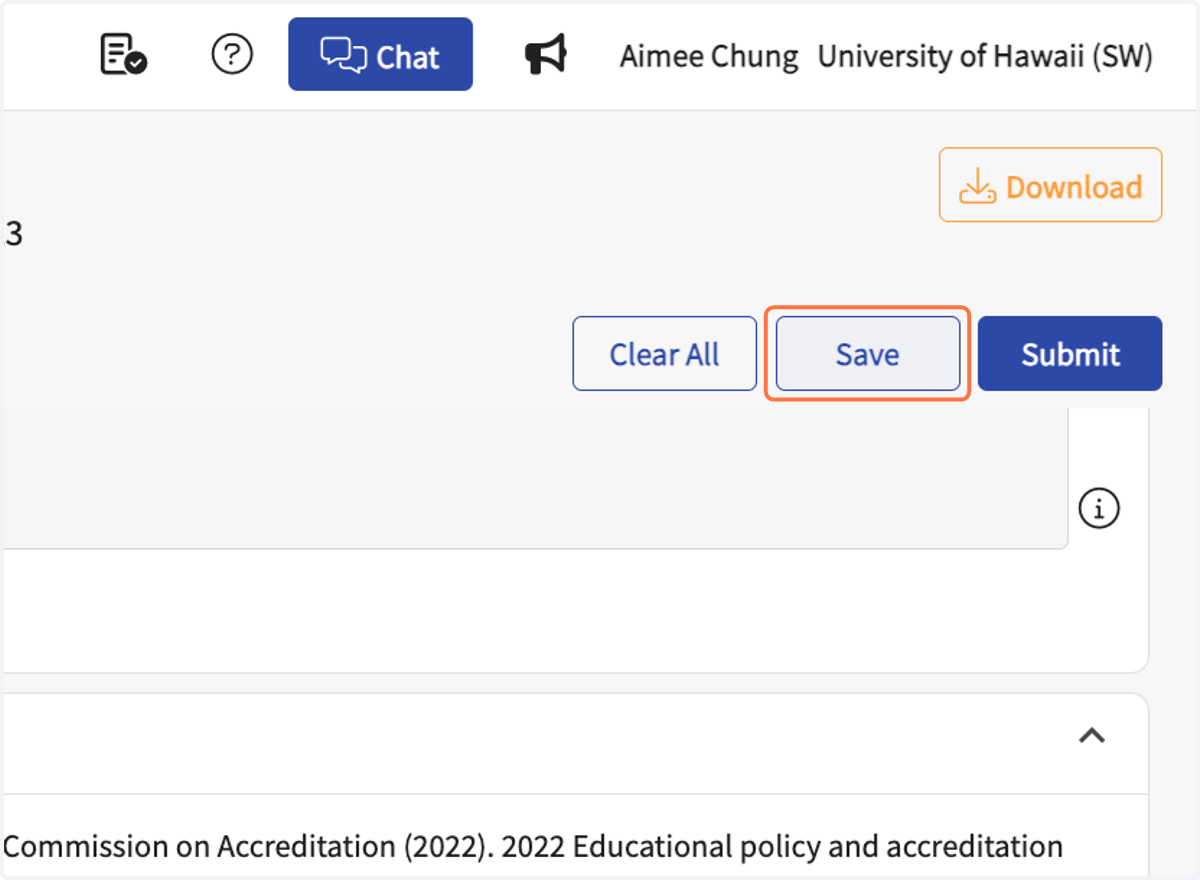
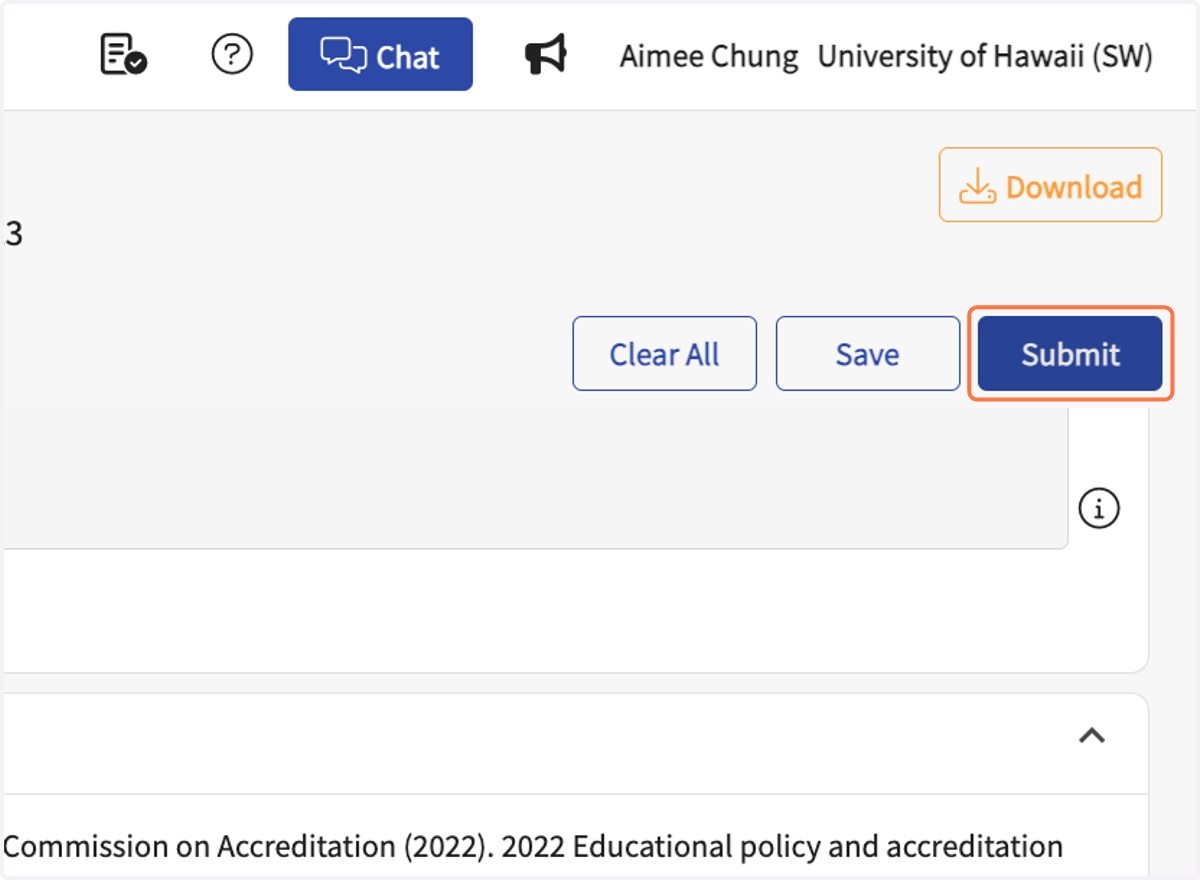
9. Field Instructors - when complete, click on "Submit."
Task/Site Supervisors - do NOT click on Submit.
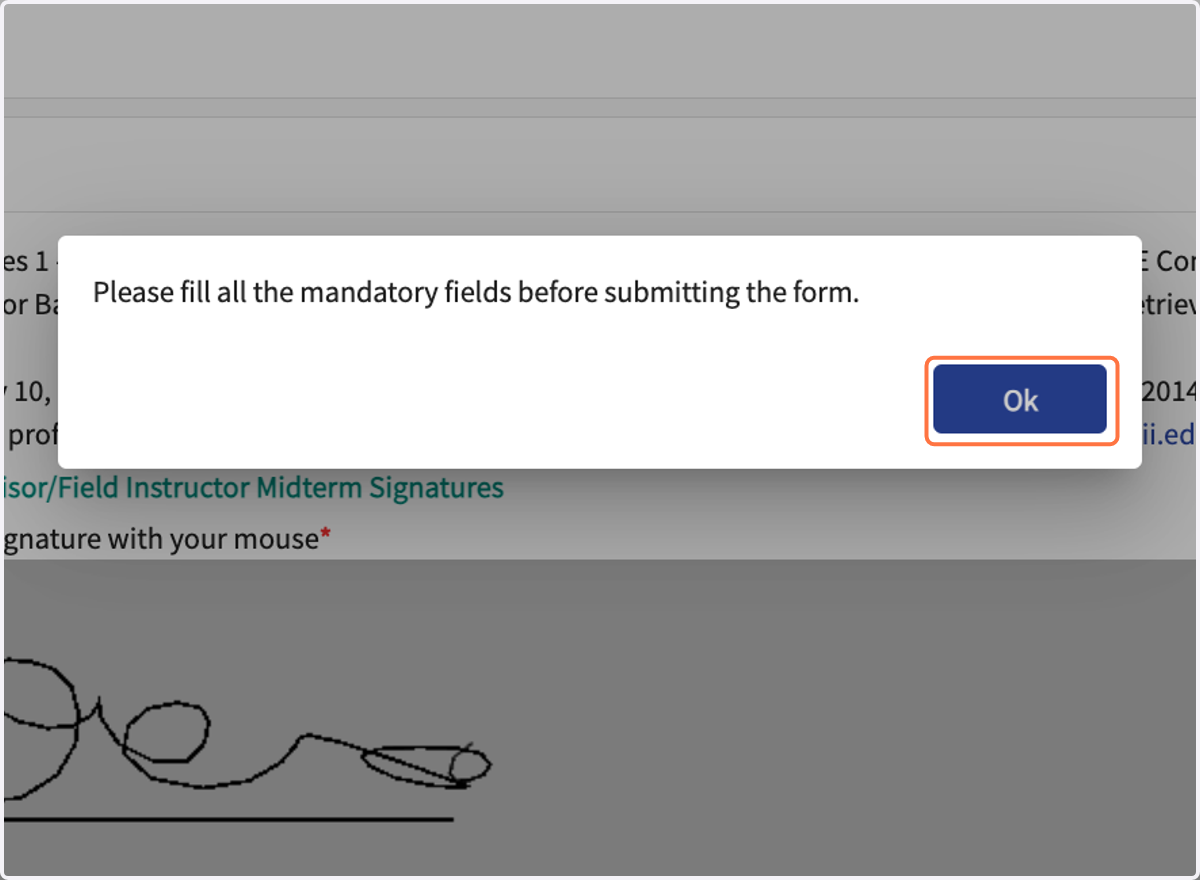
10. If you click on "Submit" and see this pop-up, click "OK" and go back to completely fill out the form.
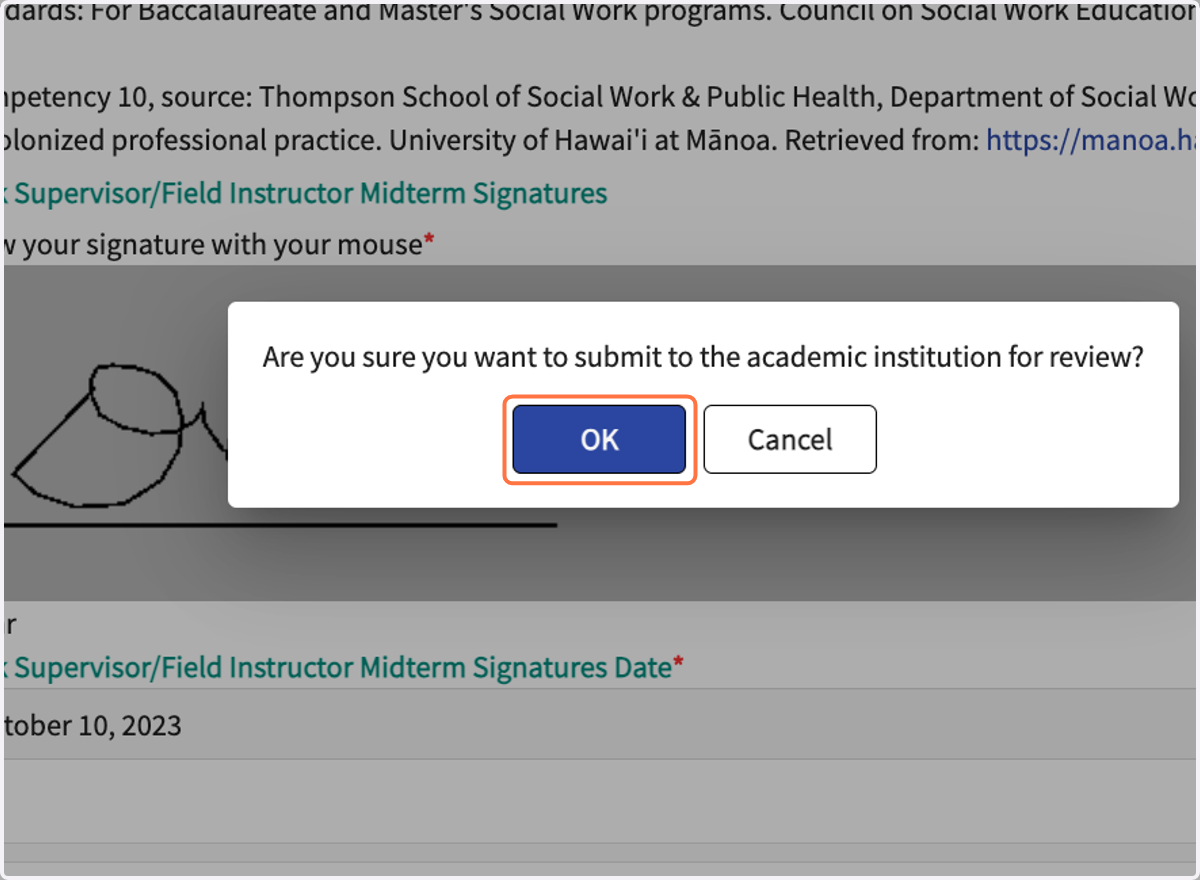
11. If the form is completely filled out, this pop-up will show when clicking "Submit."
If you do not see this pop-up, check your browser's settings. Be sure it is not preventing pop-ups from Exxat/Prism.
12. When the form is successfully submitted, you will see this window.
To see the submitted form, click on "Click here to view submitted responses."
If desired, the form can be downloaded from that page.