Navigating NDTA Distance Learning Registration
NDTA
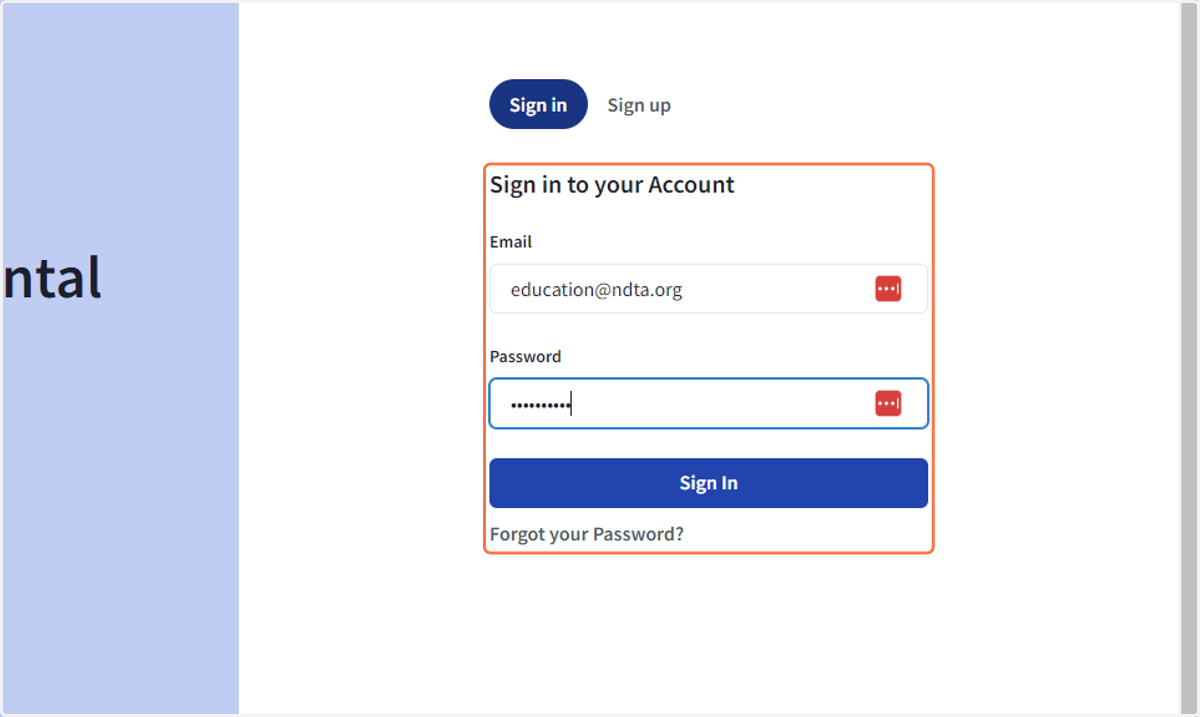
1. Sign into your NDTA account
Please contact info@ndta.org if you need assistance logging into your account
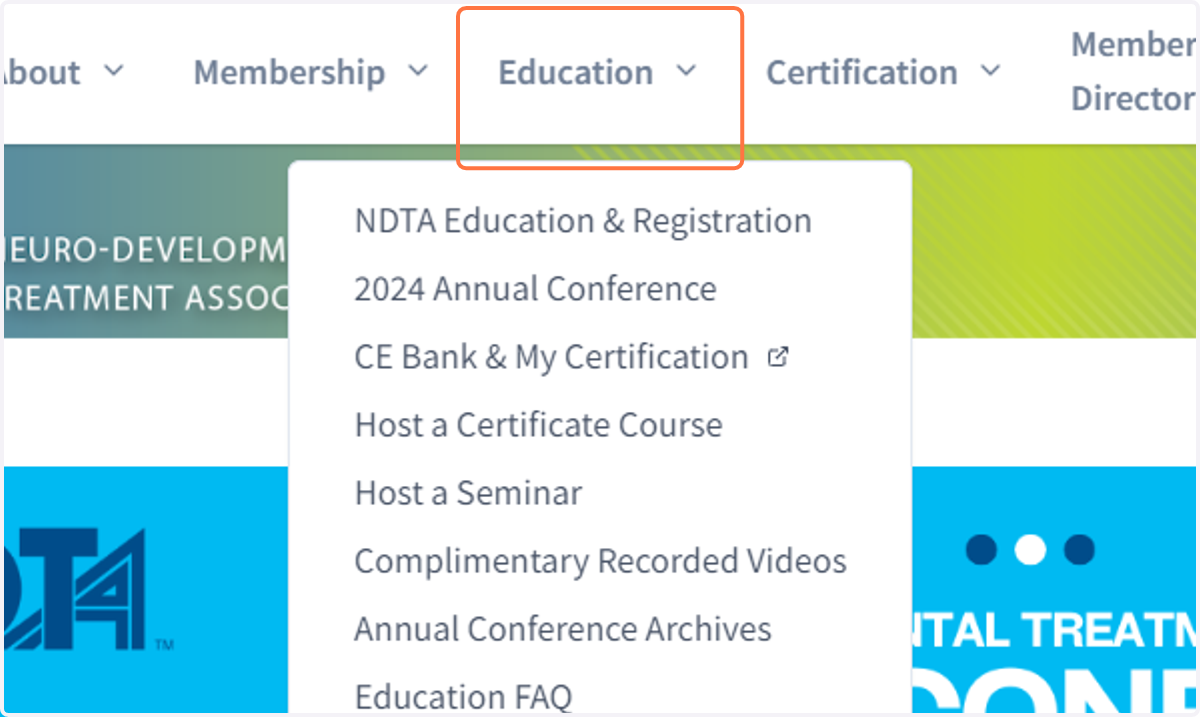
2. Once logged in, hover over Education
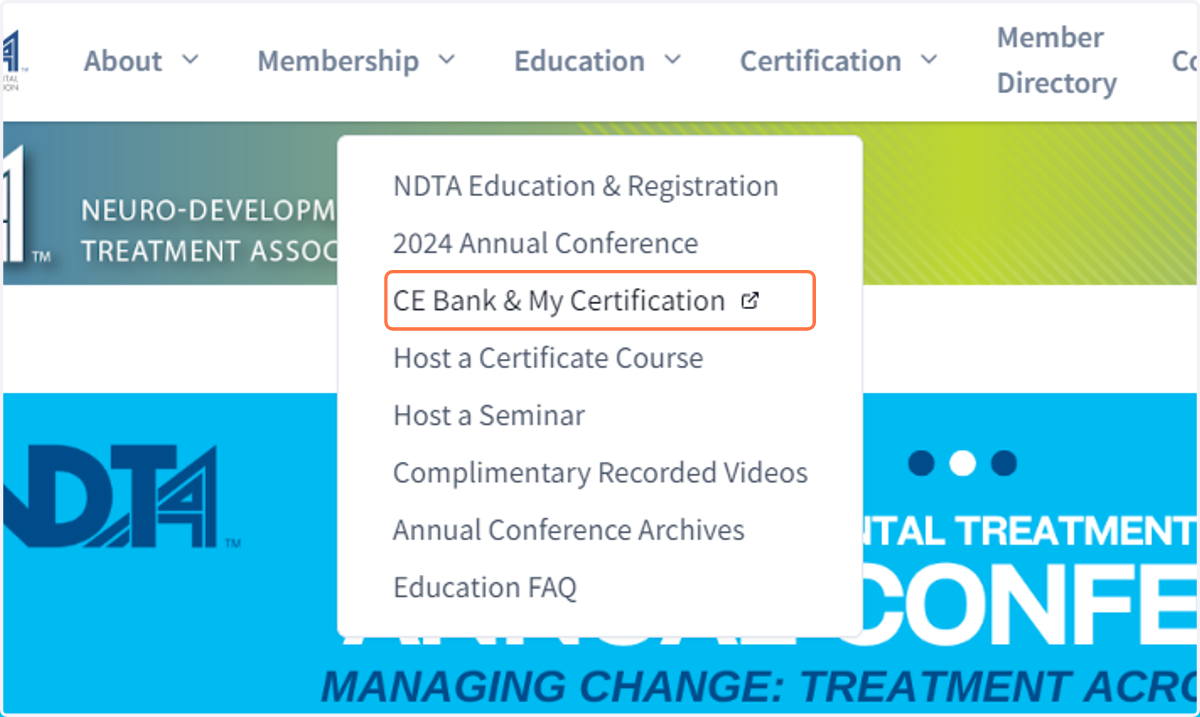
3. Click on CE Bank & My Certification
4. Your CE bank will be the application entitled Register for Continuing Education under In Progress Applications
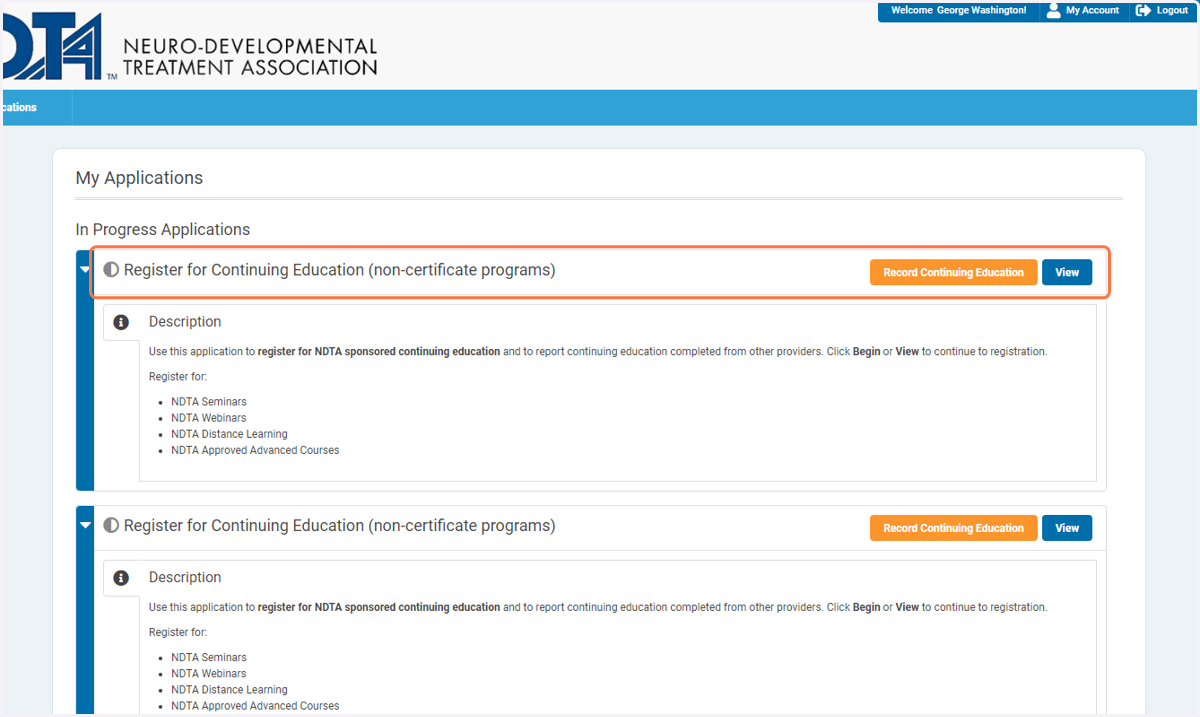
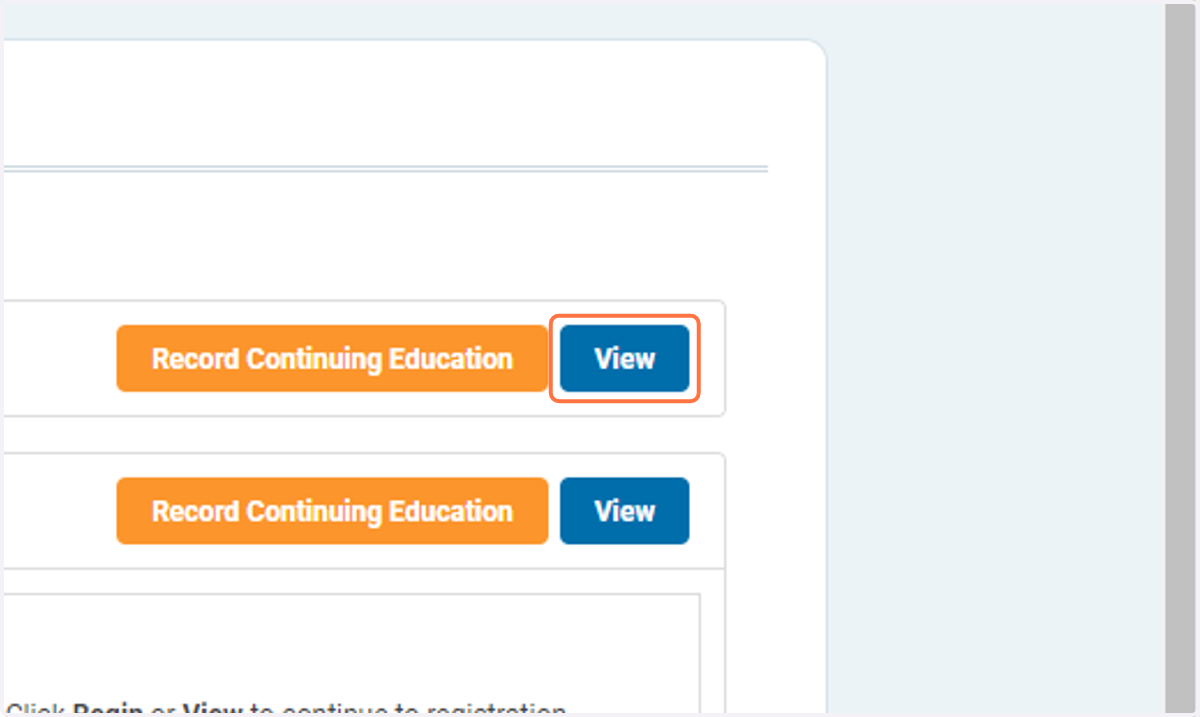
5. Click on View
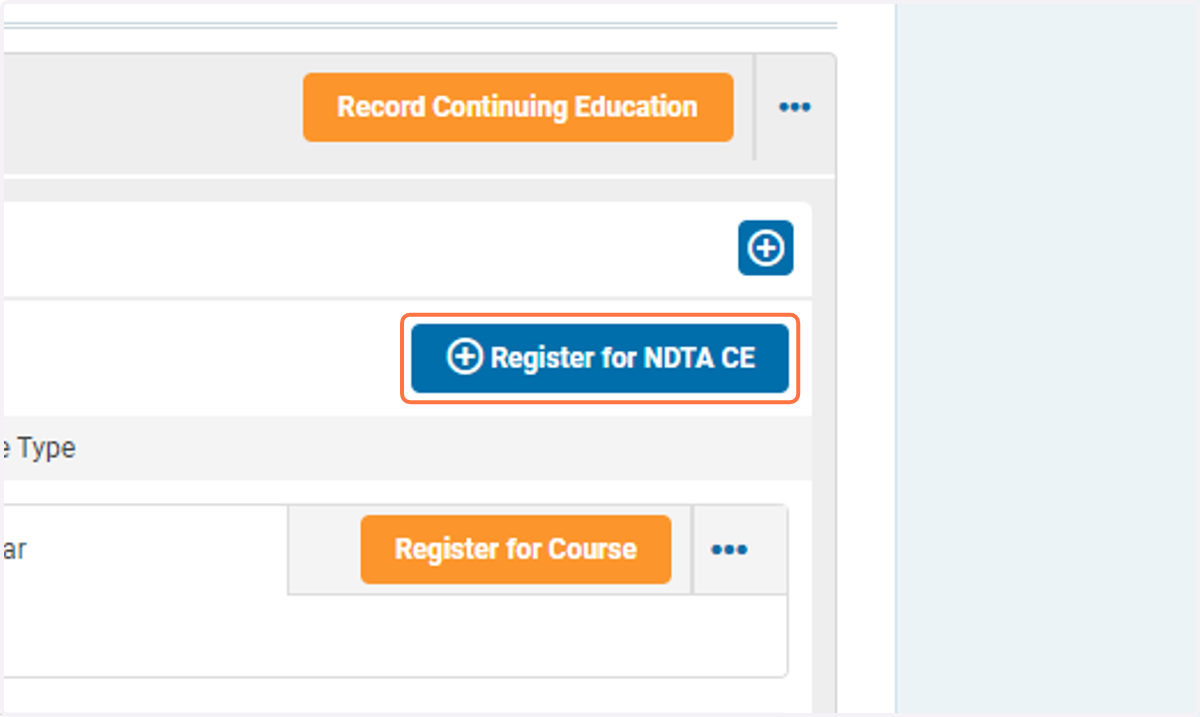
6. Click on Register for NDTA CE
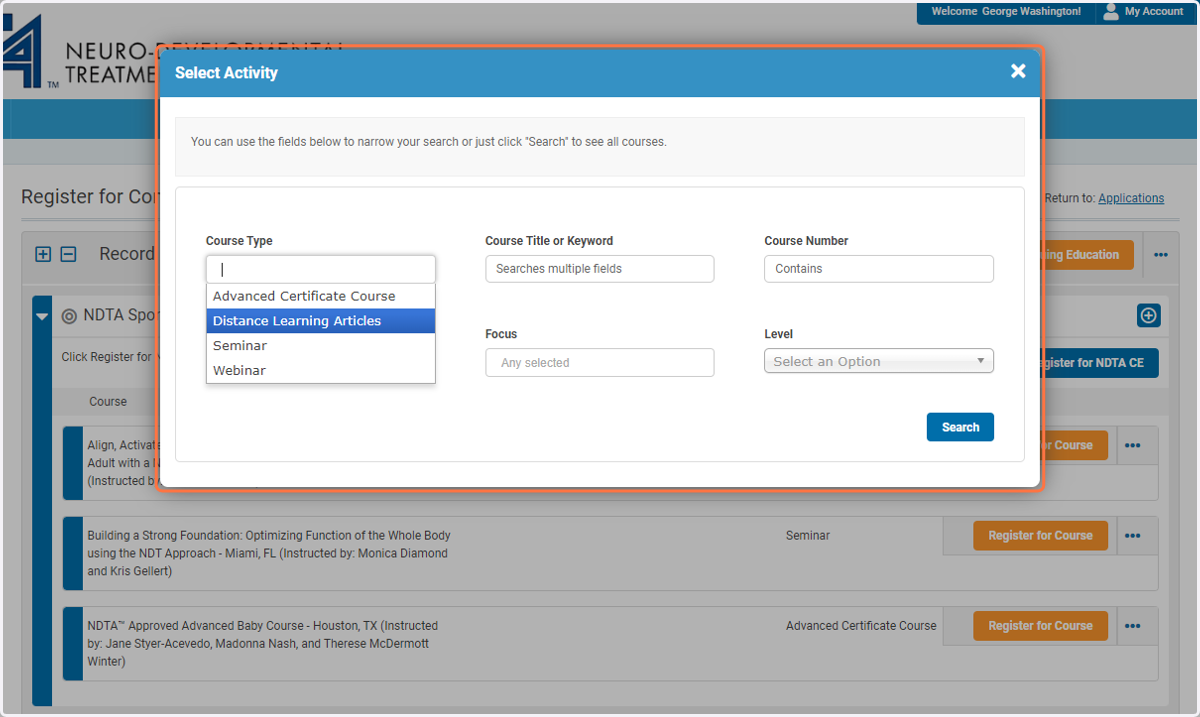
7. You can search for NDTA continuing education courses by a variety of criteria
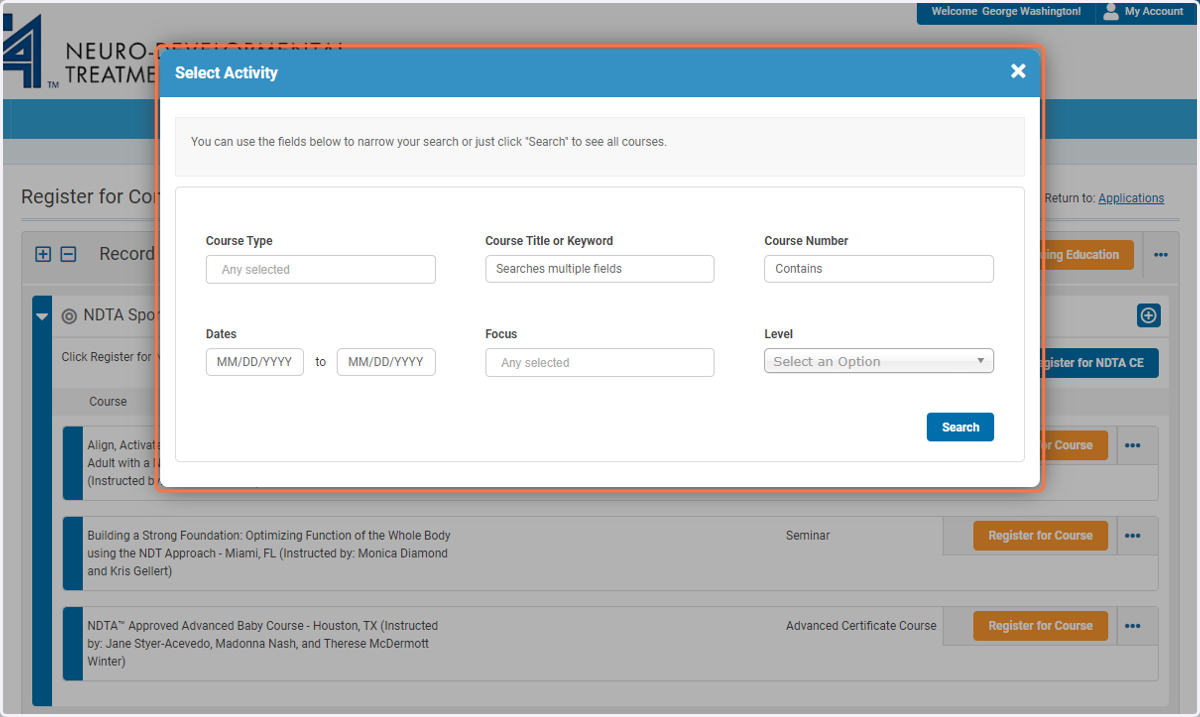
8. If you search by Course Type, select Distance Learning or Distance Learning Articles from the drop down menu. Most other search boxes are text boxes, not drop down menus
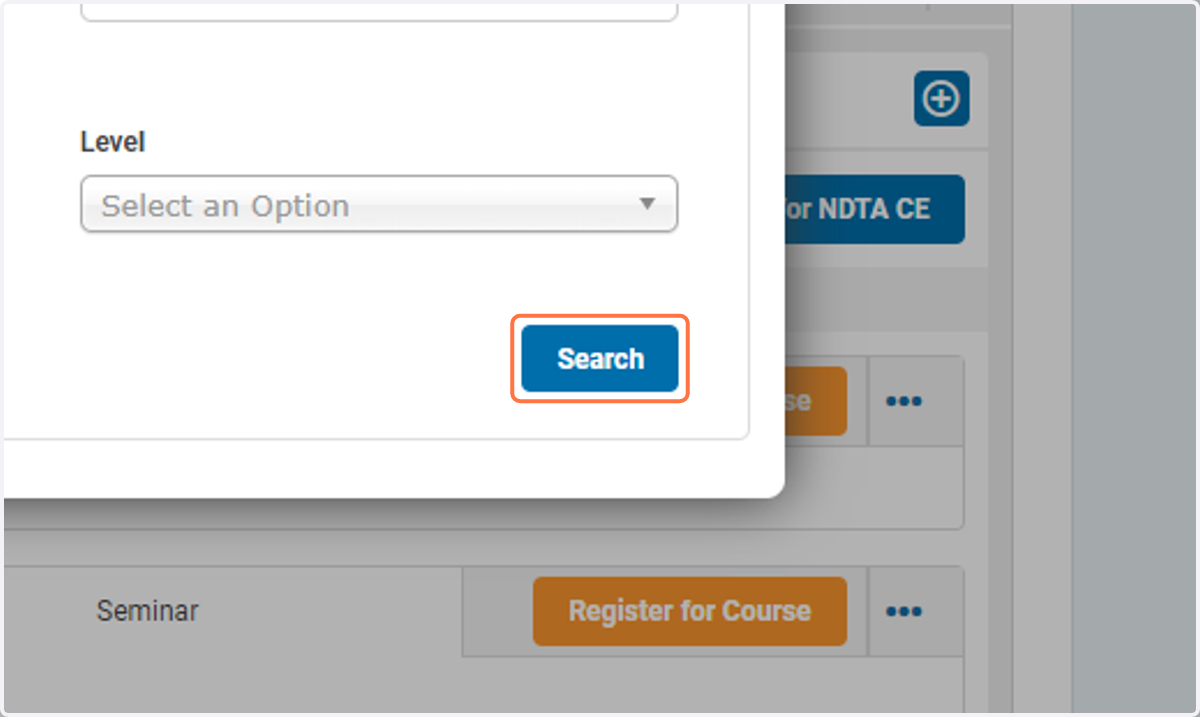
9. Click on Search
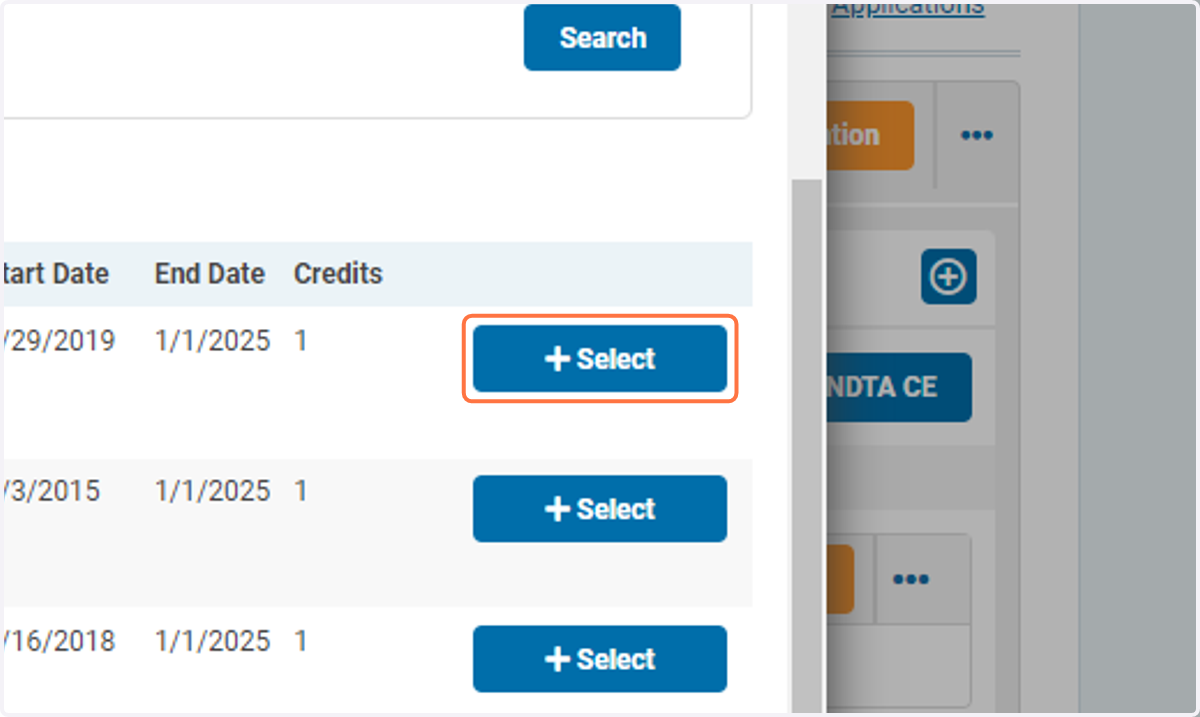
10. When you've found the course you're looking for, click Select
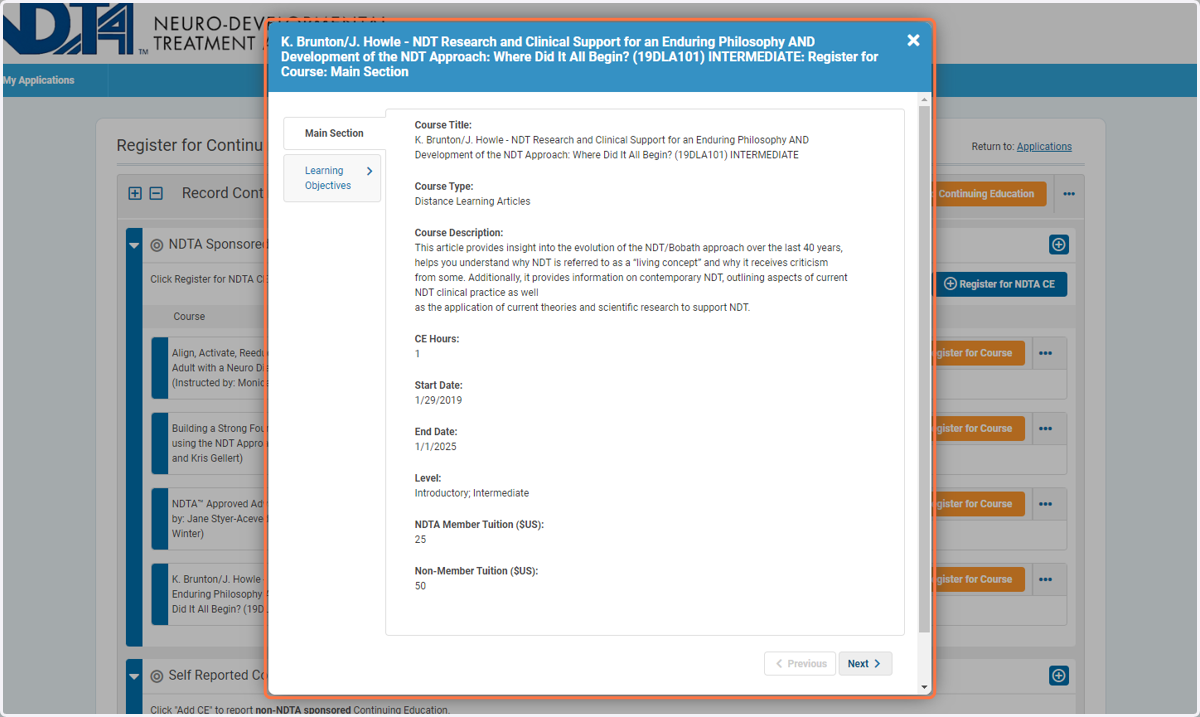
11. Course information will pop up. Click Next when you are ready to proceed
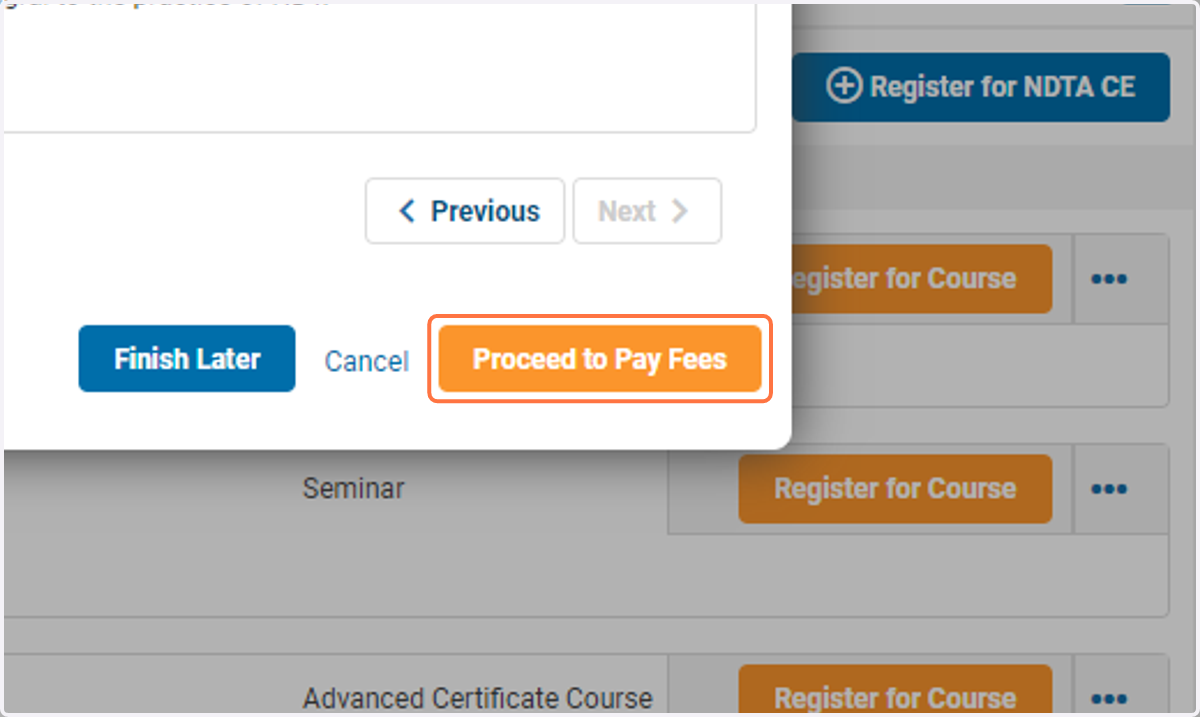
12. Click on Proceed to Pay Fees to pay for your course registration
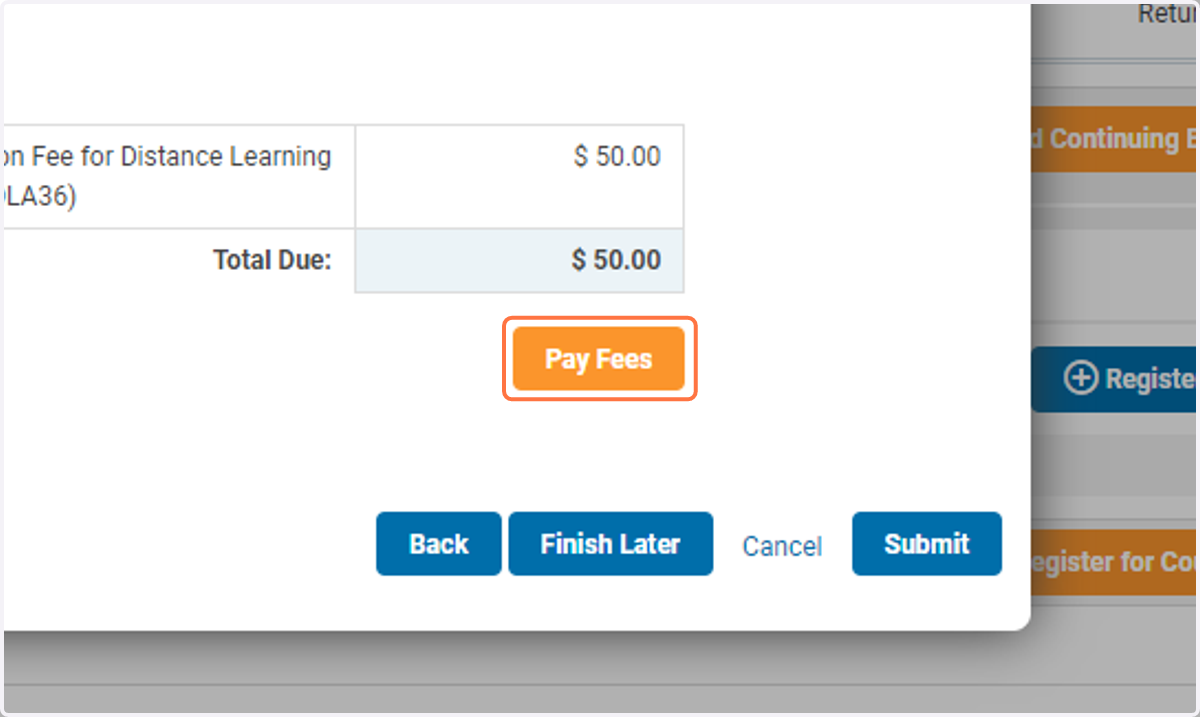
13. Click on Pay Fees
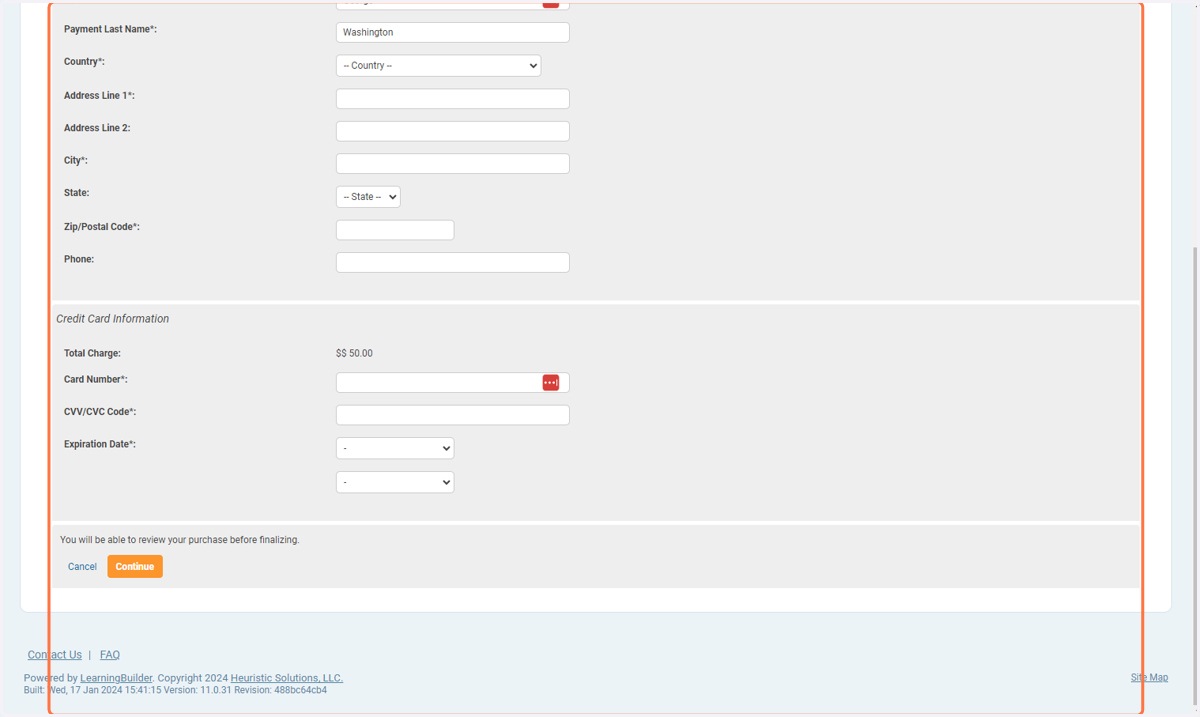
14. Enter your billing information and click on Check Out…
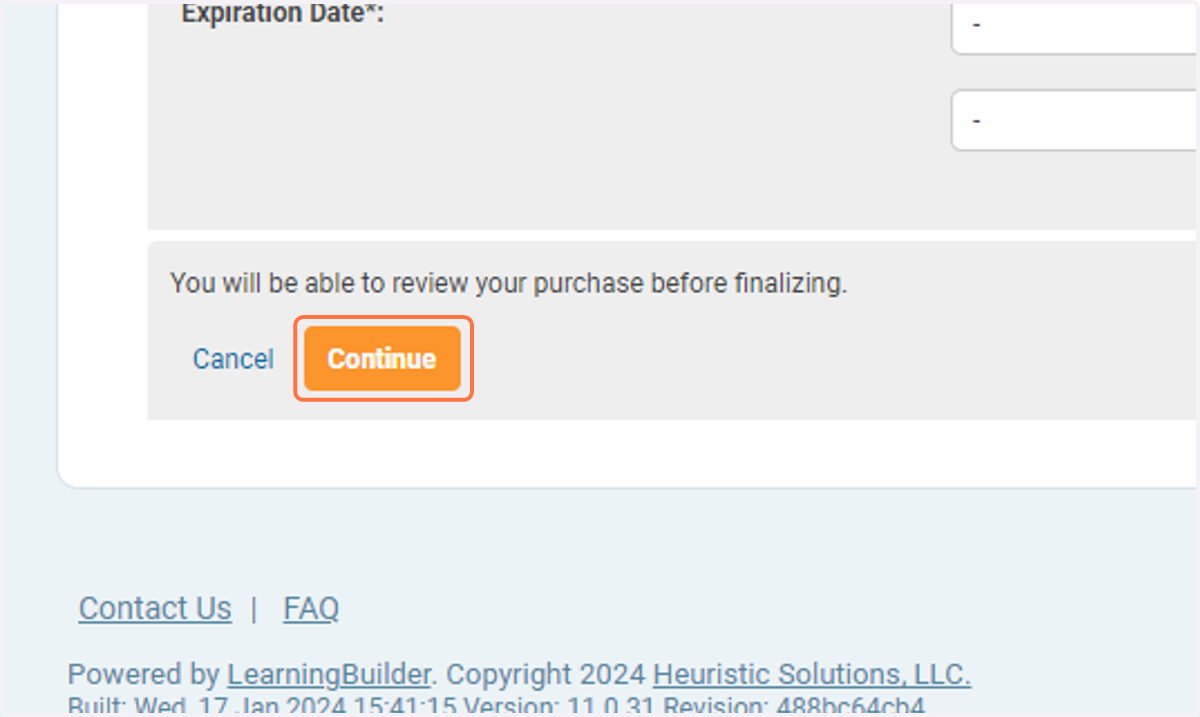
15. Click on Continue
16. The course will now be in your CE bank
For distance learning programs, the orange button will say Read Article or Watch Video
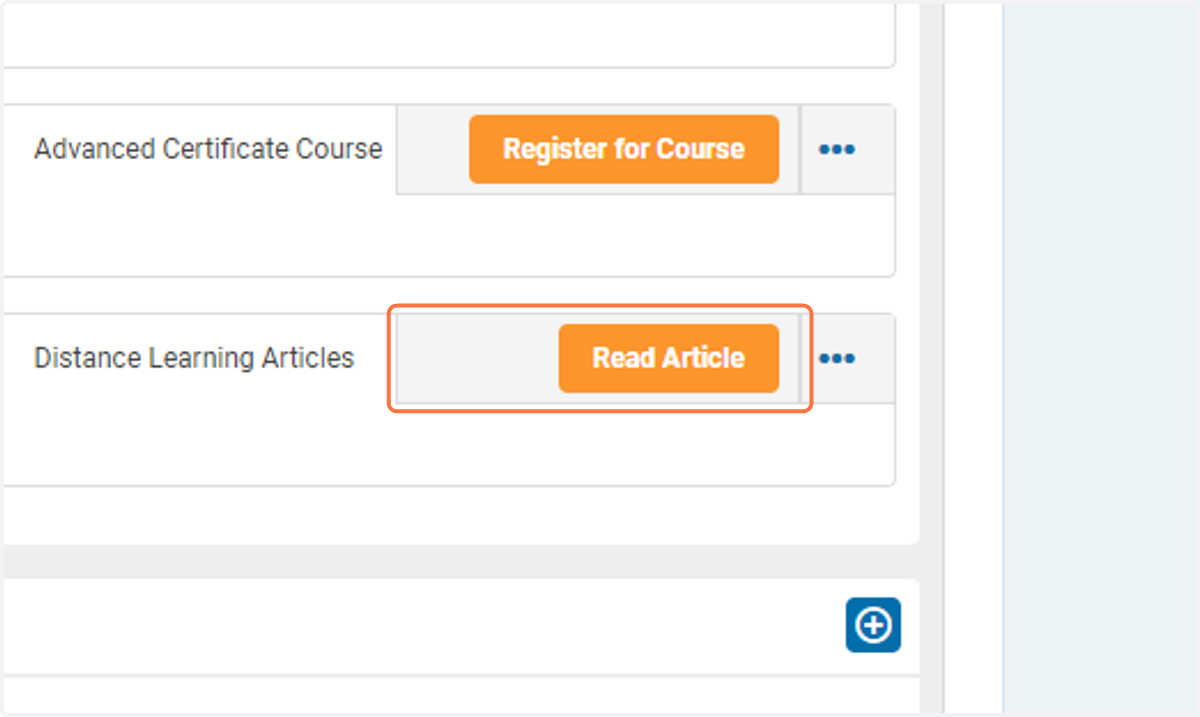
17. Click on Read Article
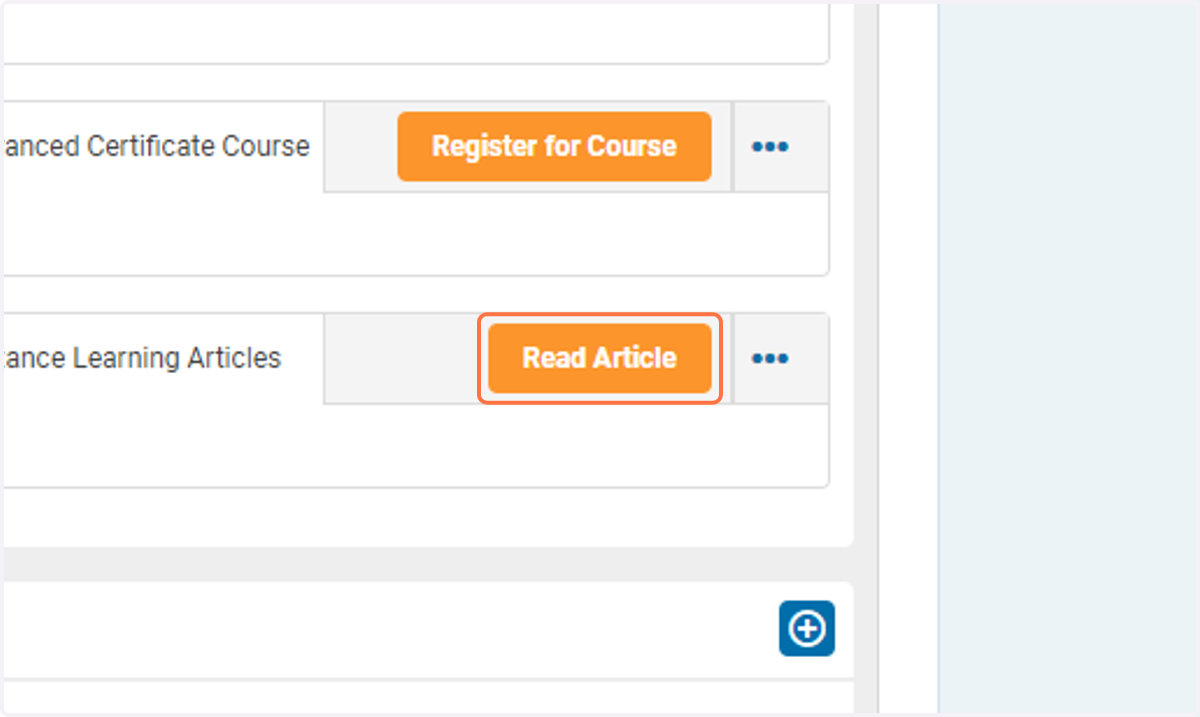
18. Download the article or watch the video
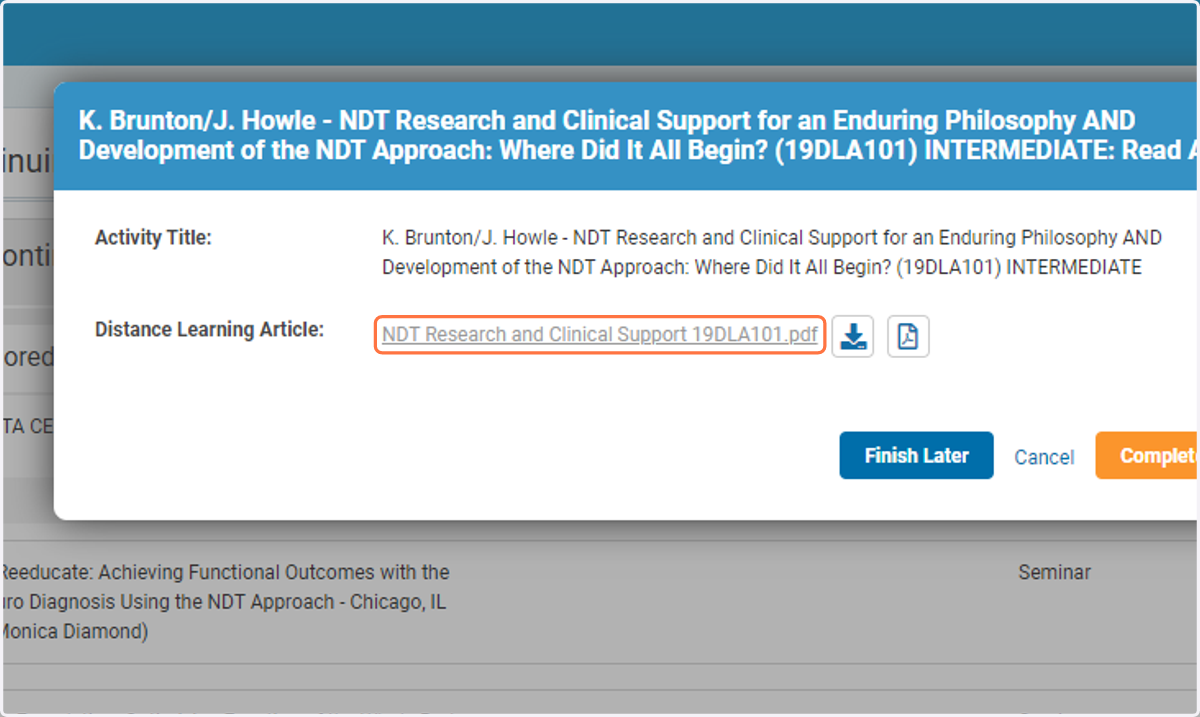
19. Click on Complete Assessment after completing the course
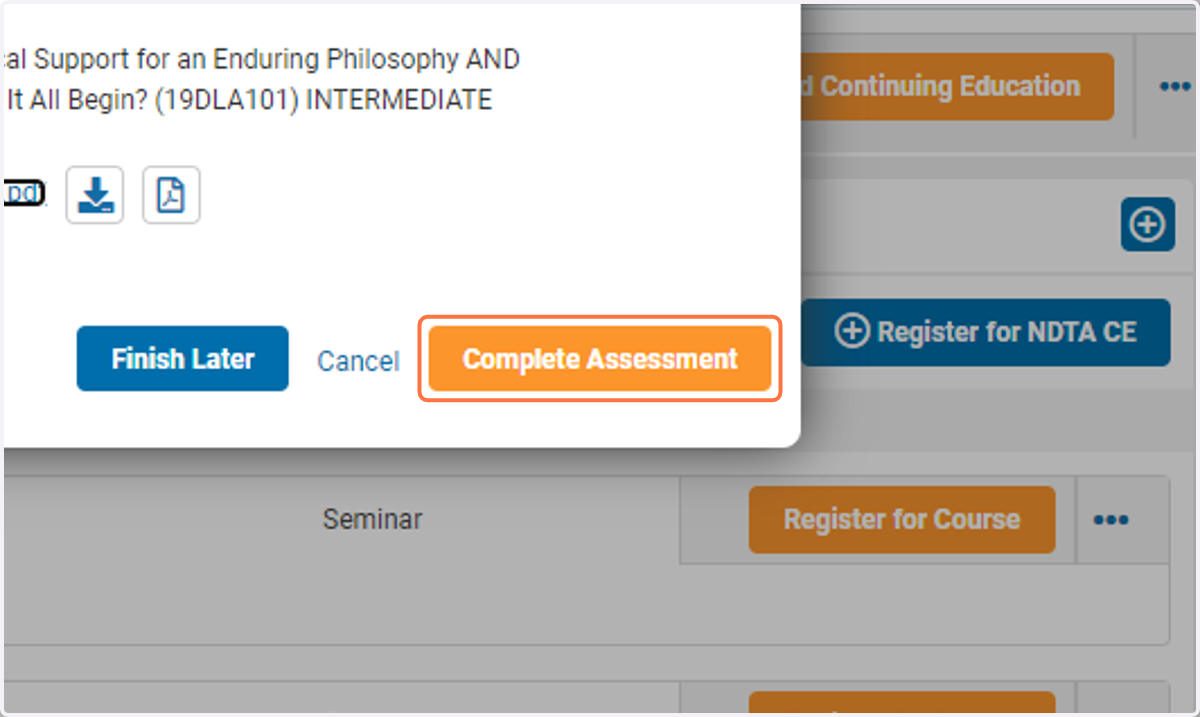
20. Click on Begin Assessment
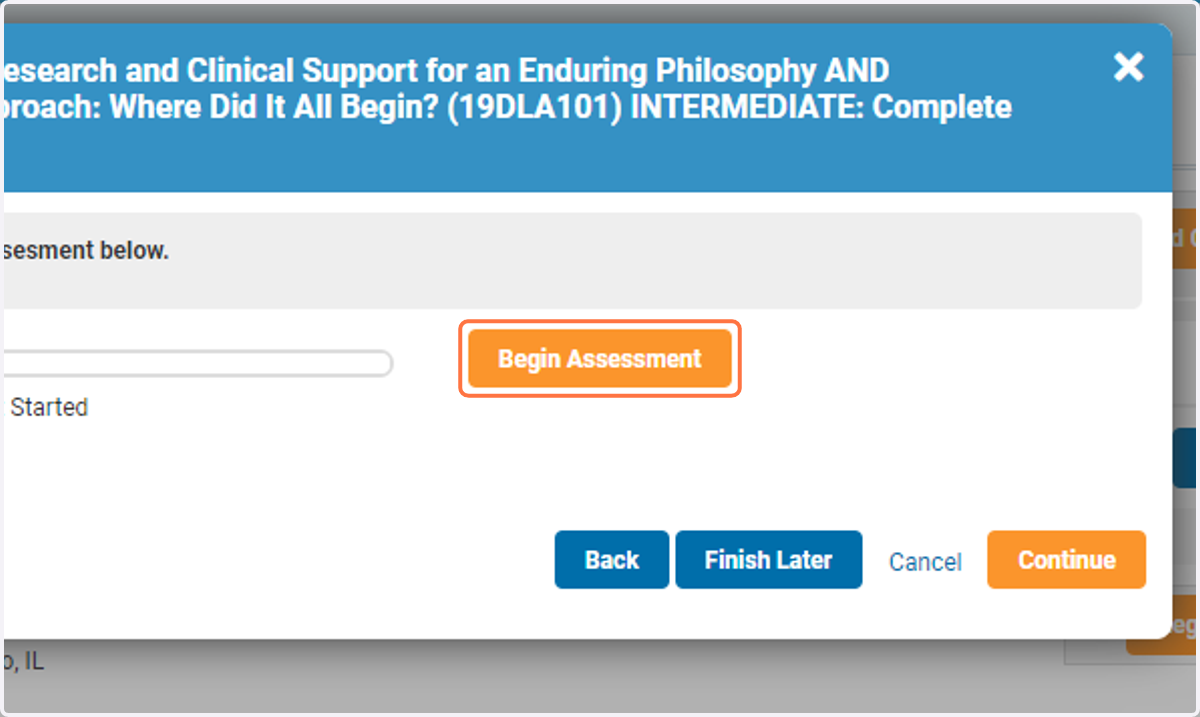
21. Please note: you must receive over 70% on your course assessment to receive CE credits
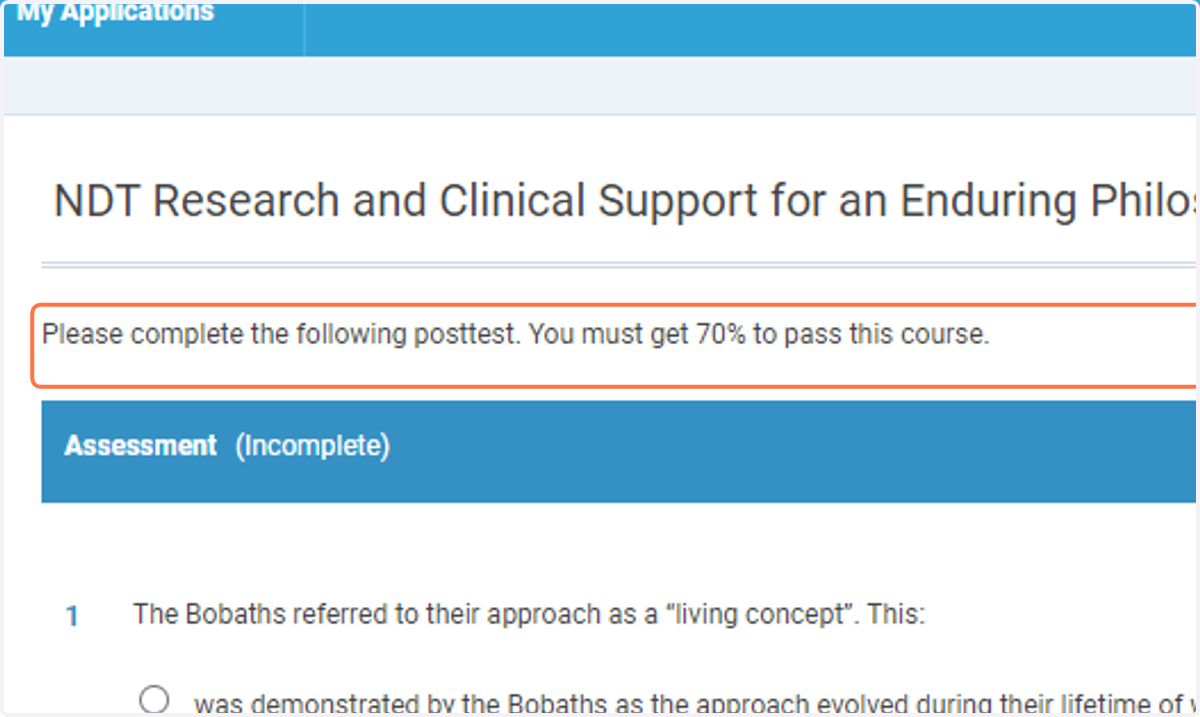
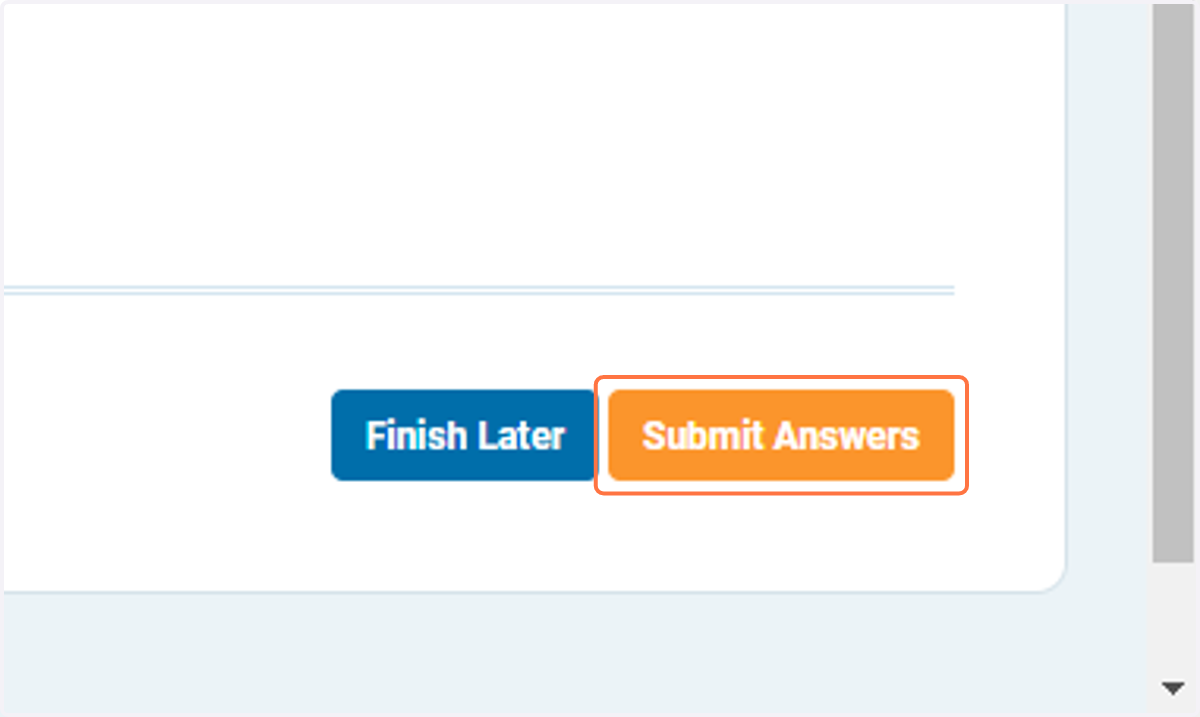
22. Click on Submit Answers and receive your results. Your CE certificate will be available after successfully completing the course
You have three opportunities to pass the course assessment. If you have questions regarding the assessment process, please reach out to info@ndta.org.