(Student) Completing Timesheets
Exxat - Dashboard
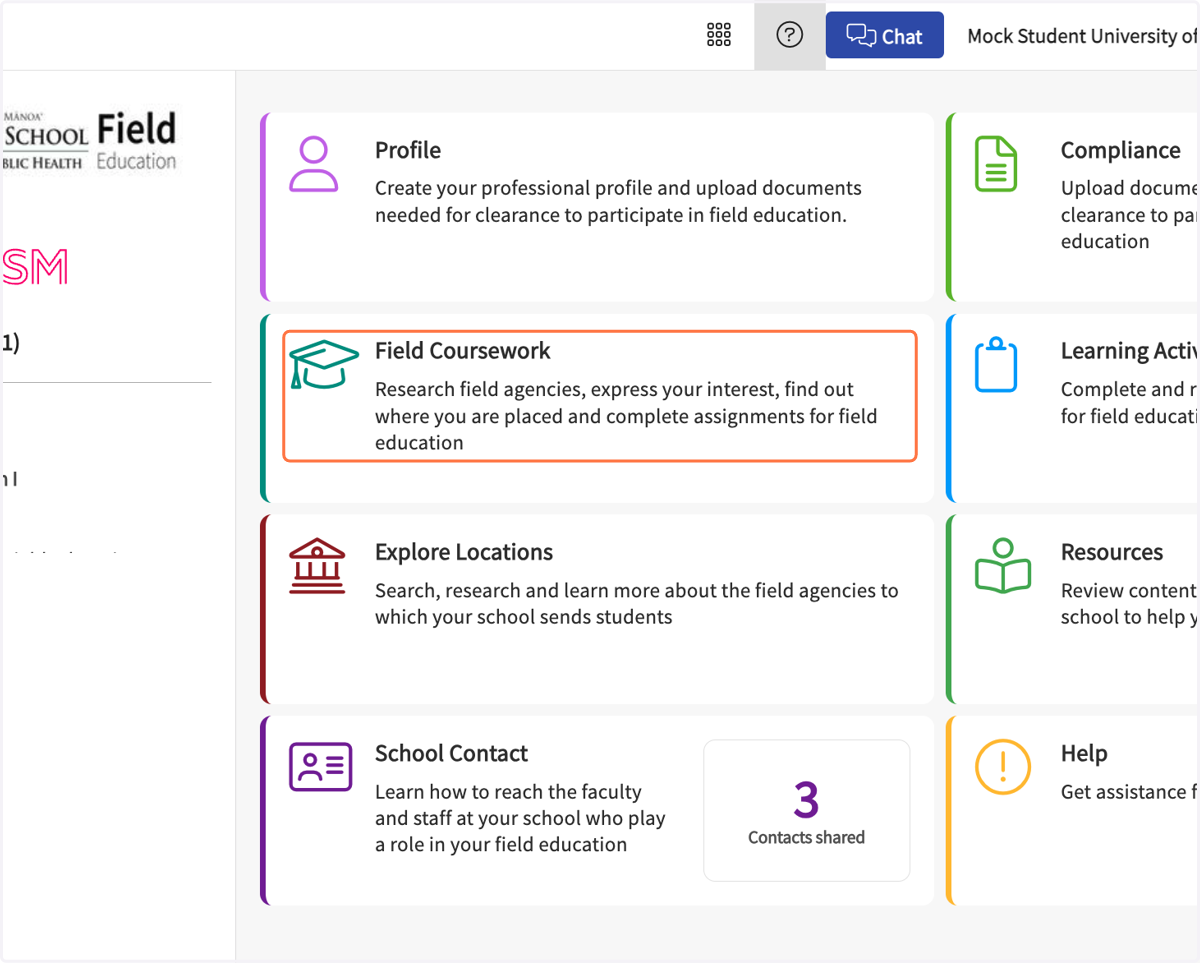
1. Click on Field Coursework…
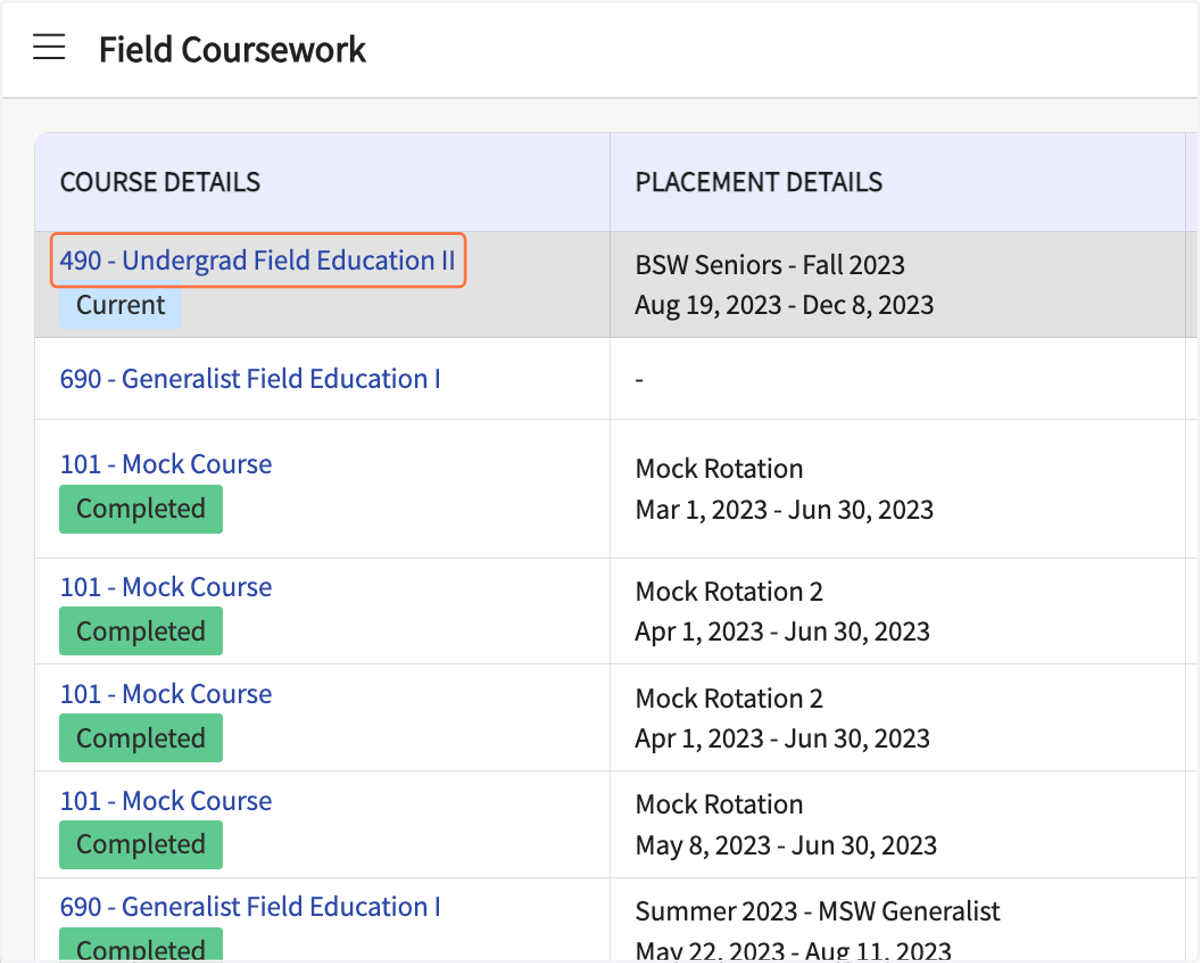
2. Click on your current Field Education course
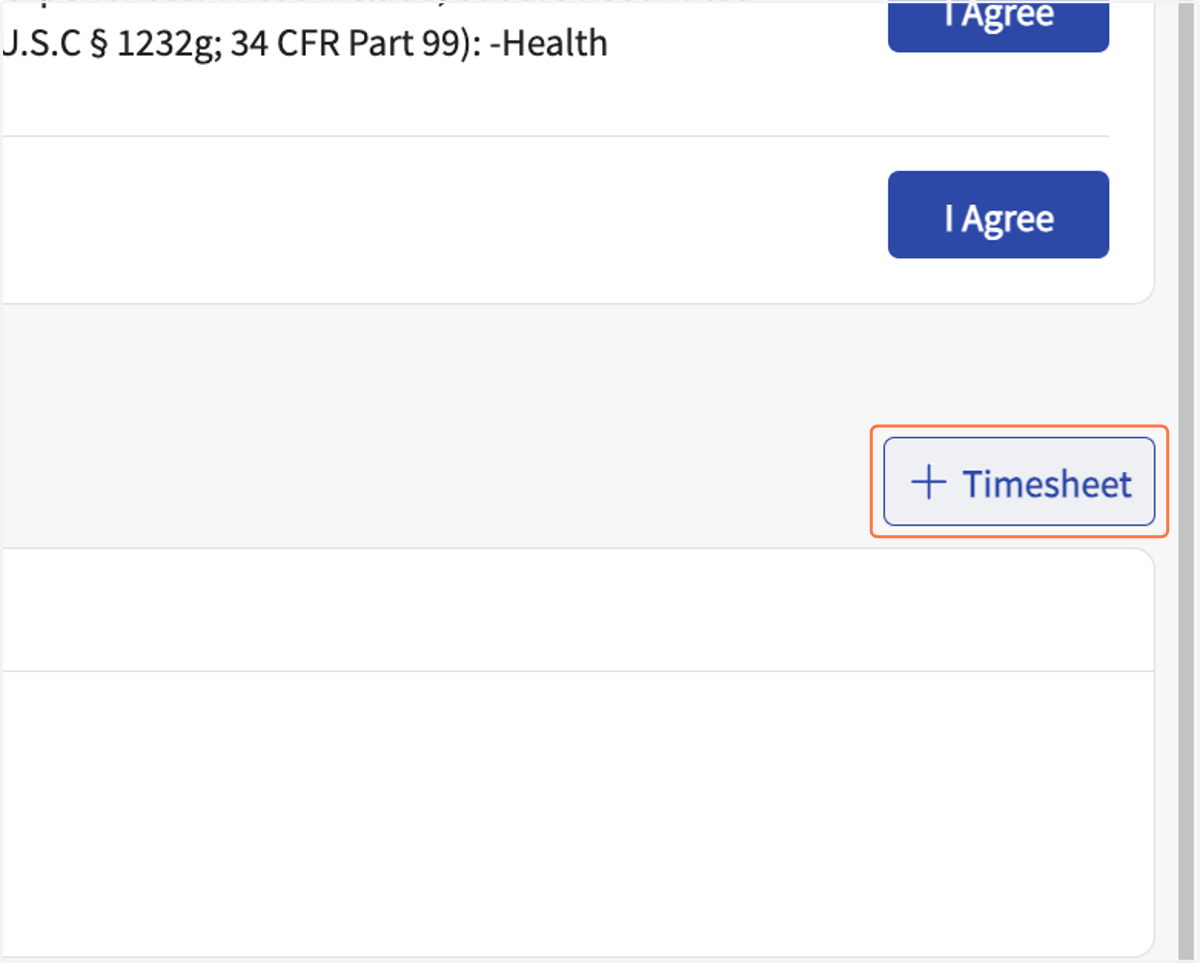
3. Click on Add timesheet
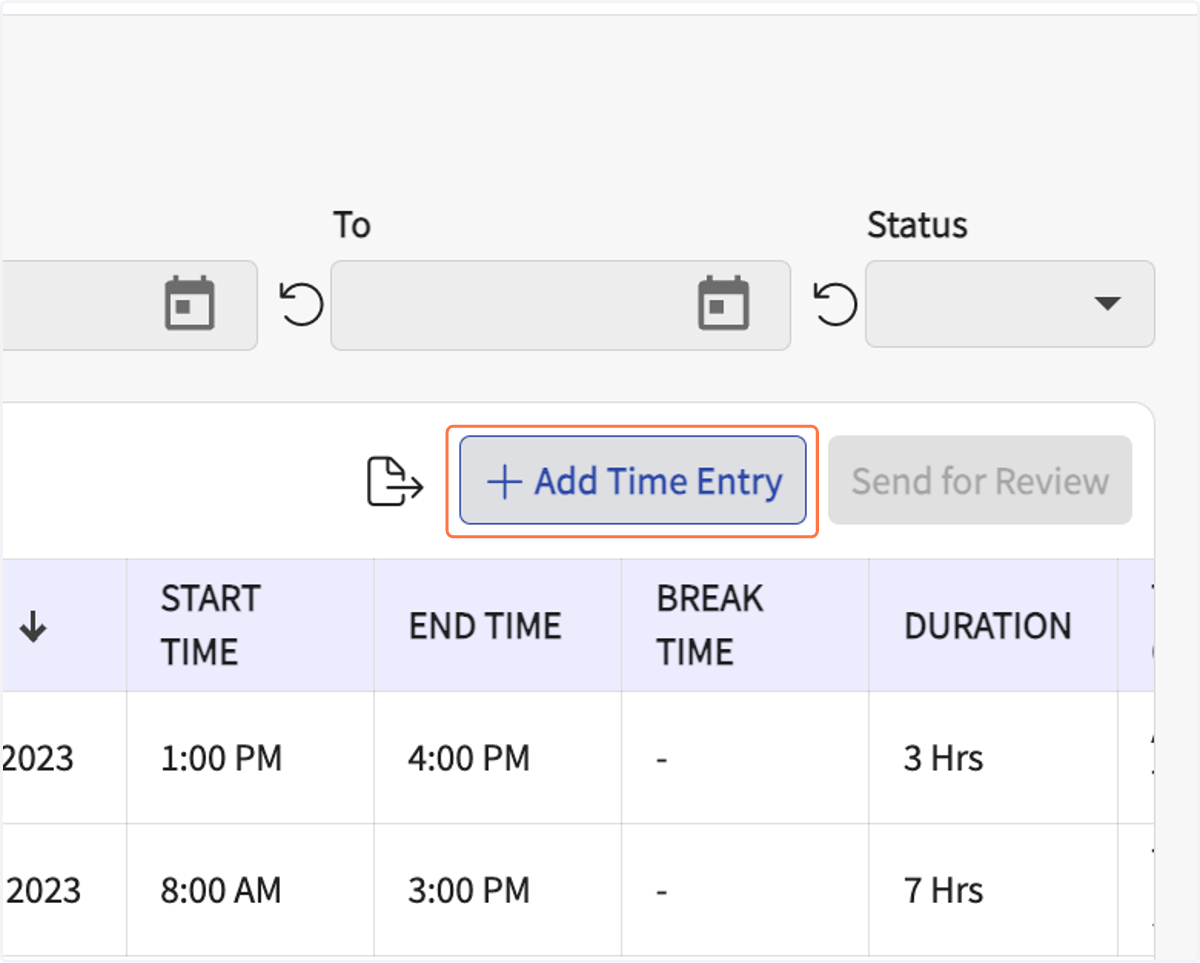
4. Click on Add Time Entry
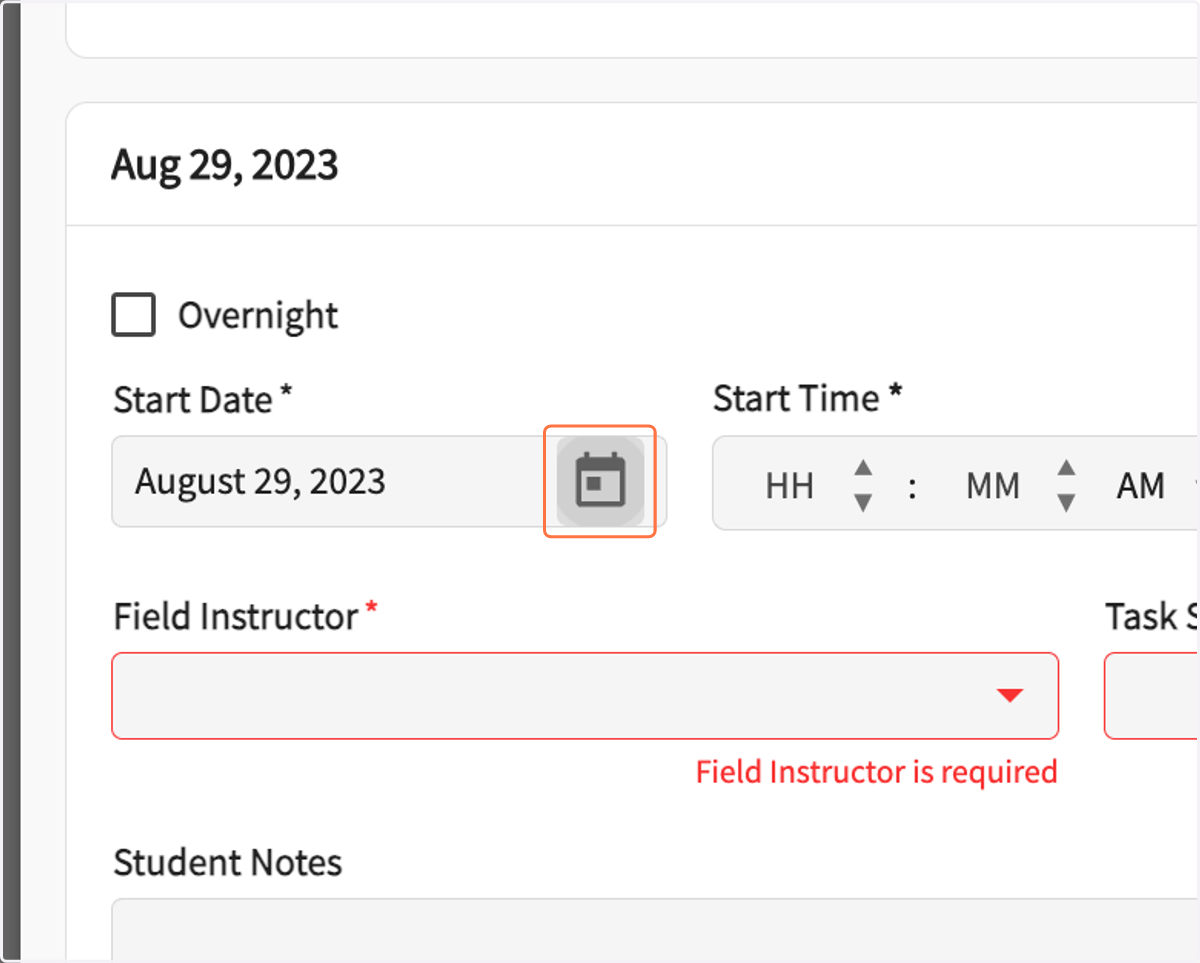
5. Click on Open calendar to select the date for which you want to enter hours.
Note that you can enter time for a full day in one time entry, or use multiple time entries for different time blocks during the day. Please ask your FI/SS how they prefer to review and approve hours.
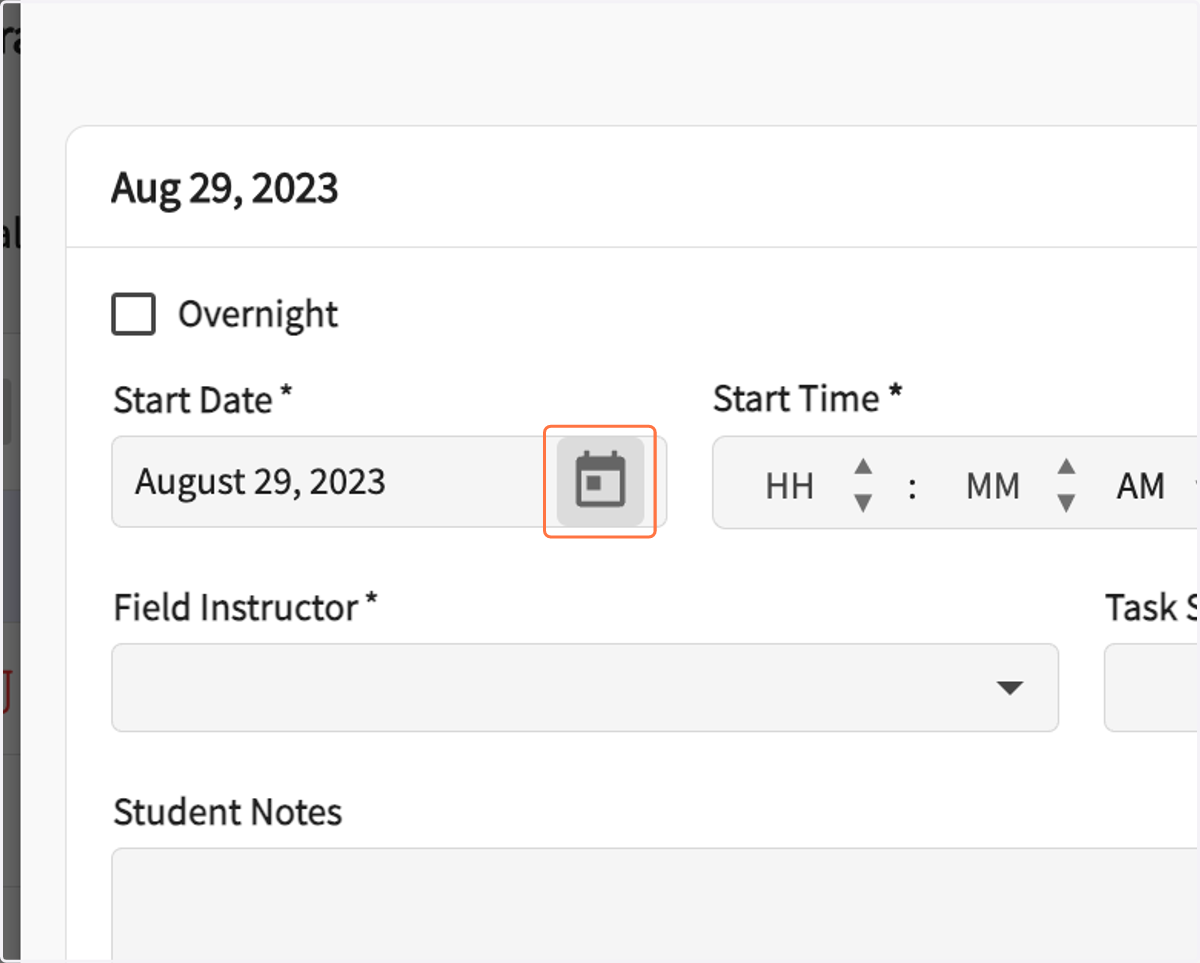
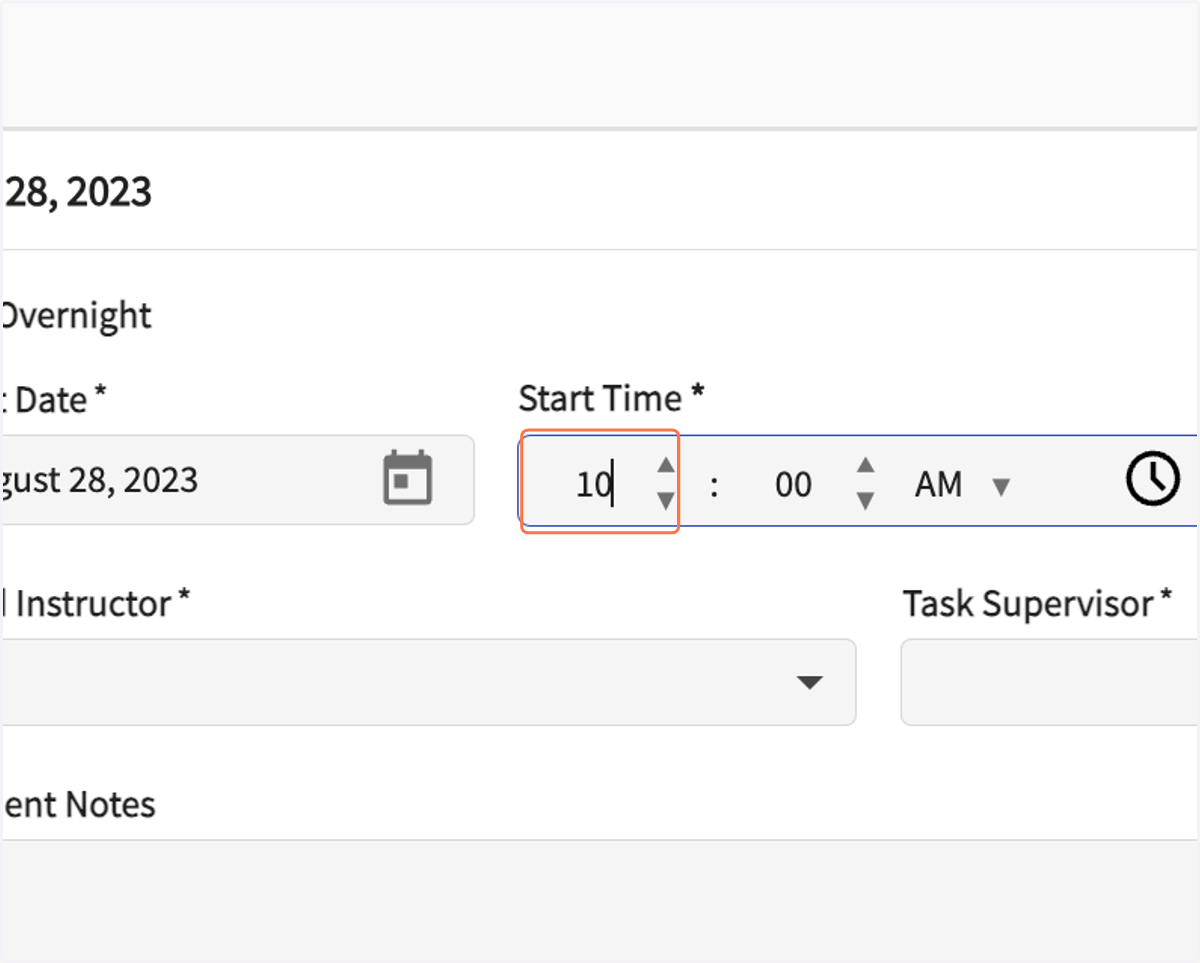
6. Enter the start time
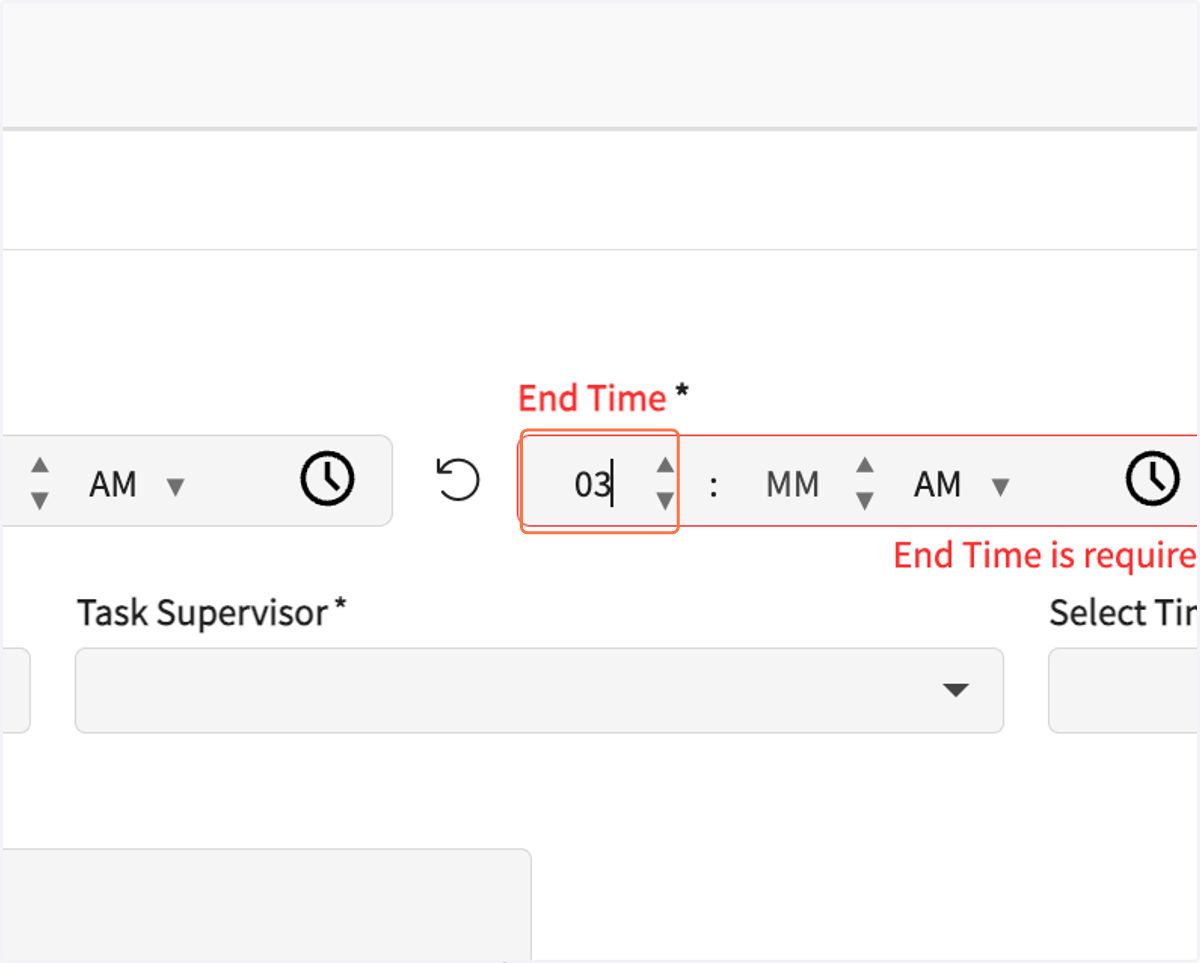
7. Enter the end time
8. If your field site wants you to deduct lunch or breaks, add that time here, in minutes.
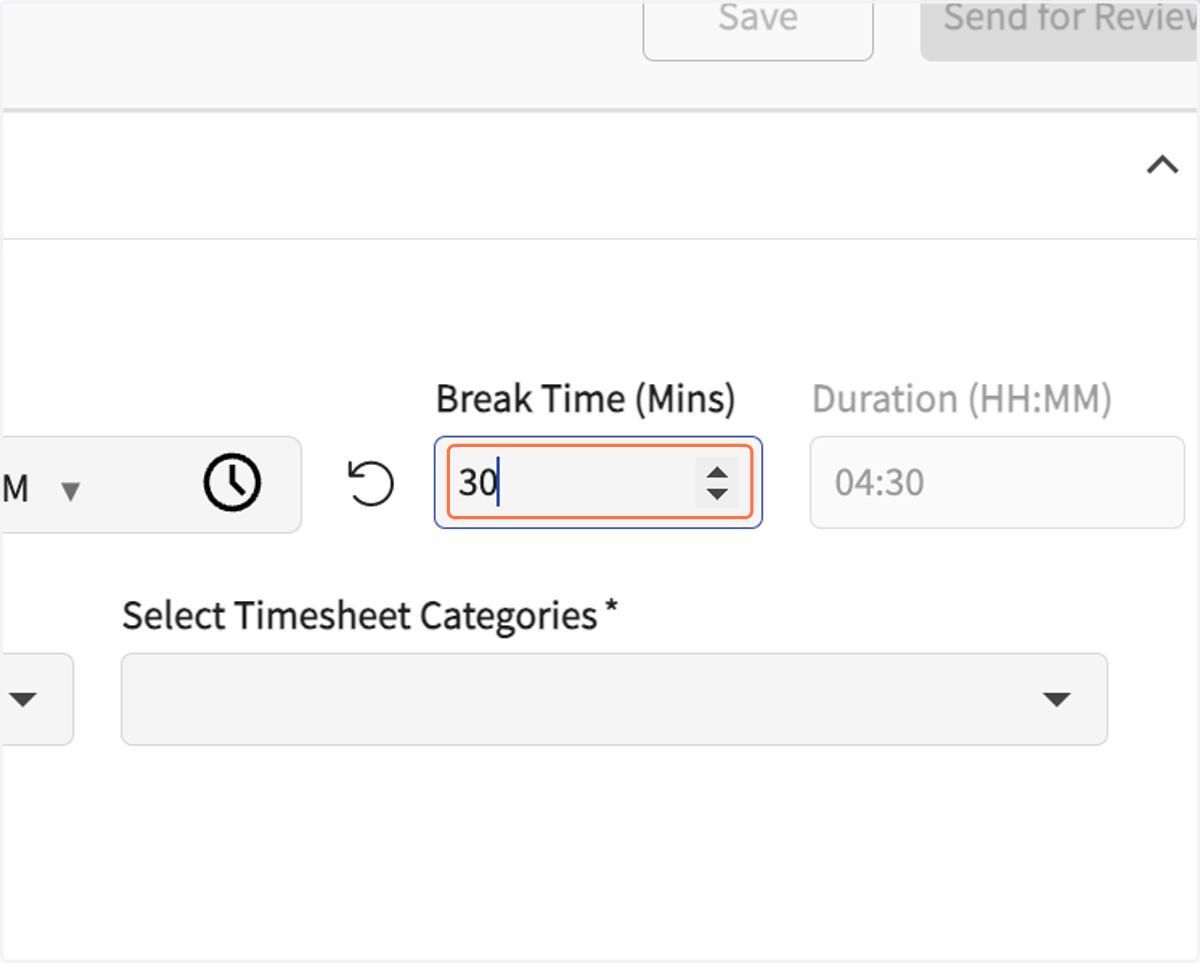
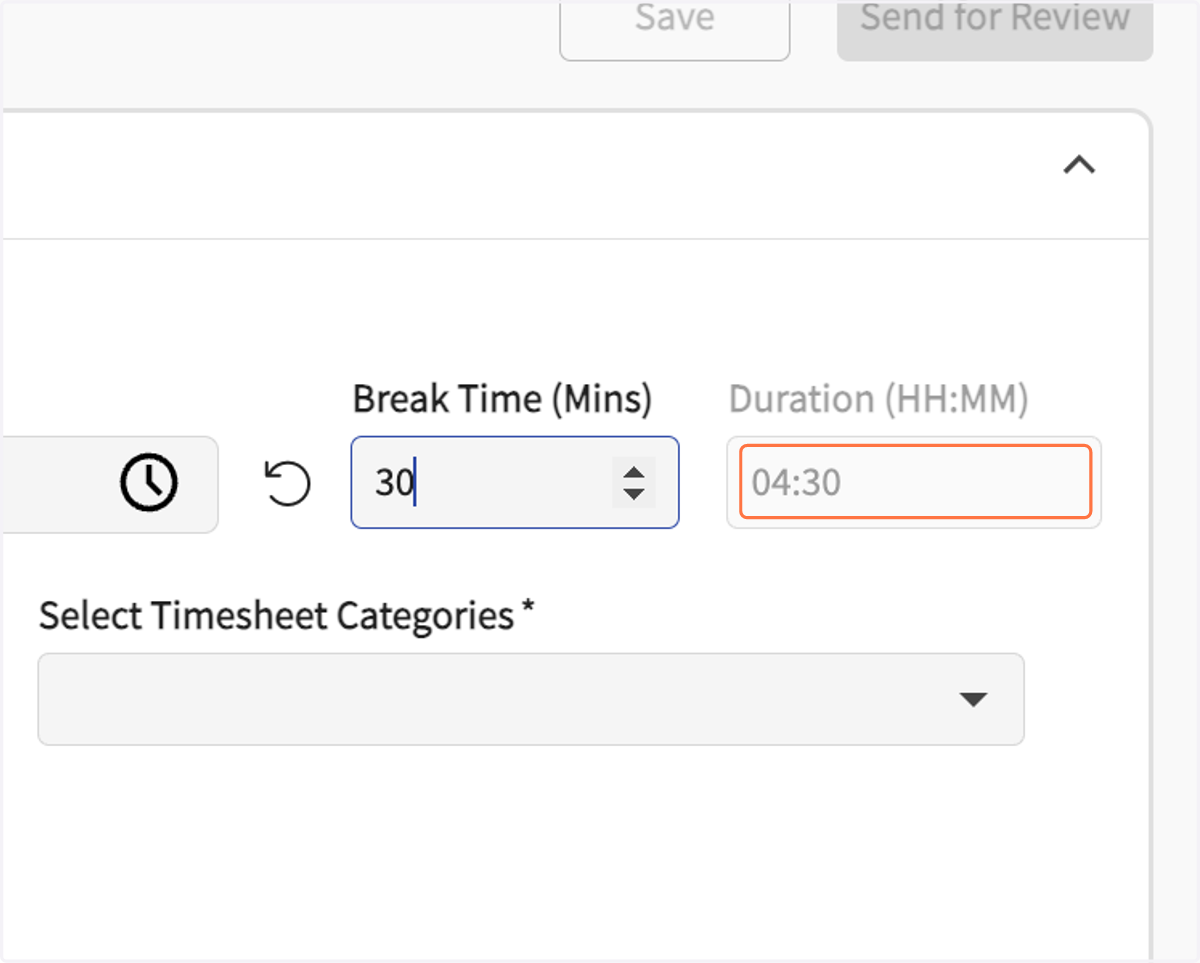
9. Check that the total hours for that day displays correctly in the duration window.
If it does not look correct, check that your start and end times are accurate.
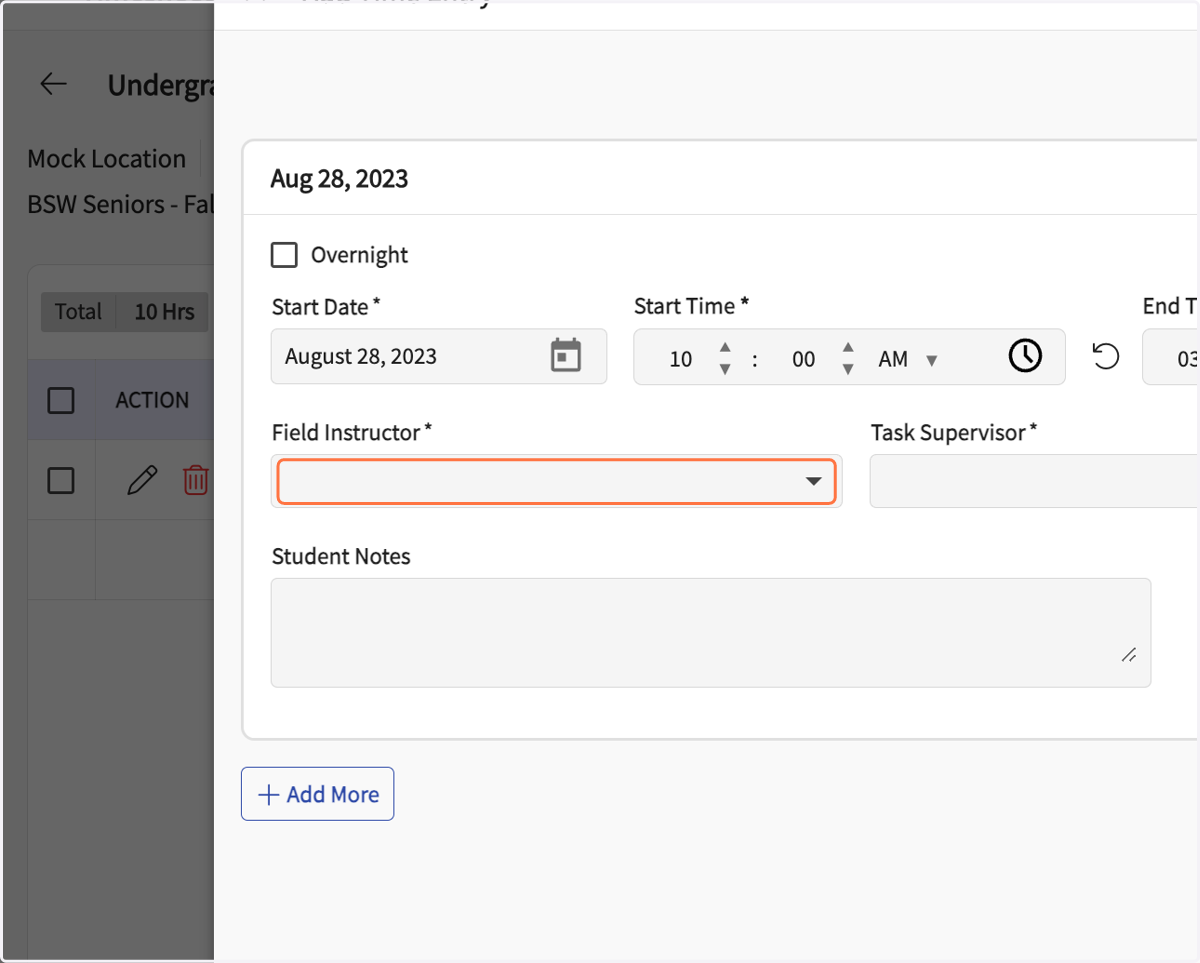
10. Select your Field Instructor's name
This is required. However, if there are particular hours that are to be approved by the Field Coordinator or Field Liaison (not the FI/SS), then submit and leave this BLANK and email the appropriate person to request approval.
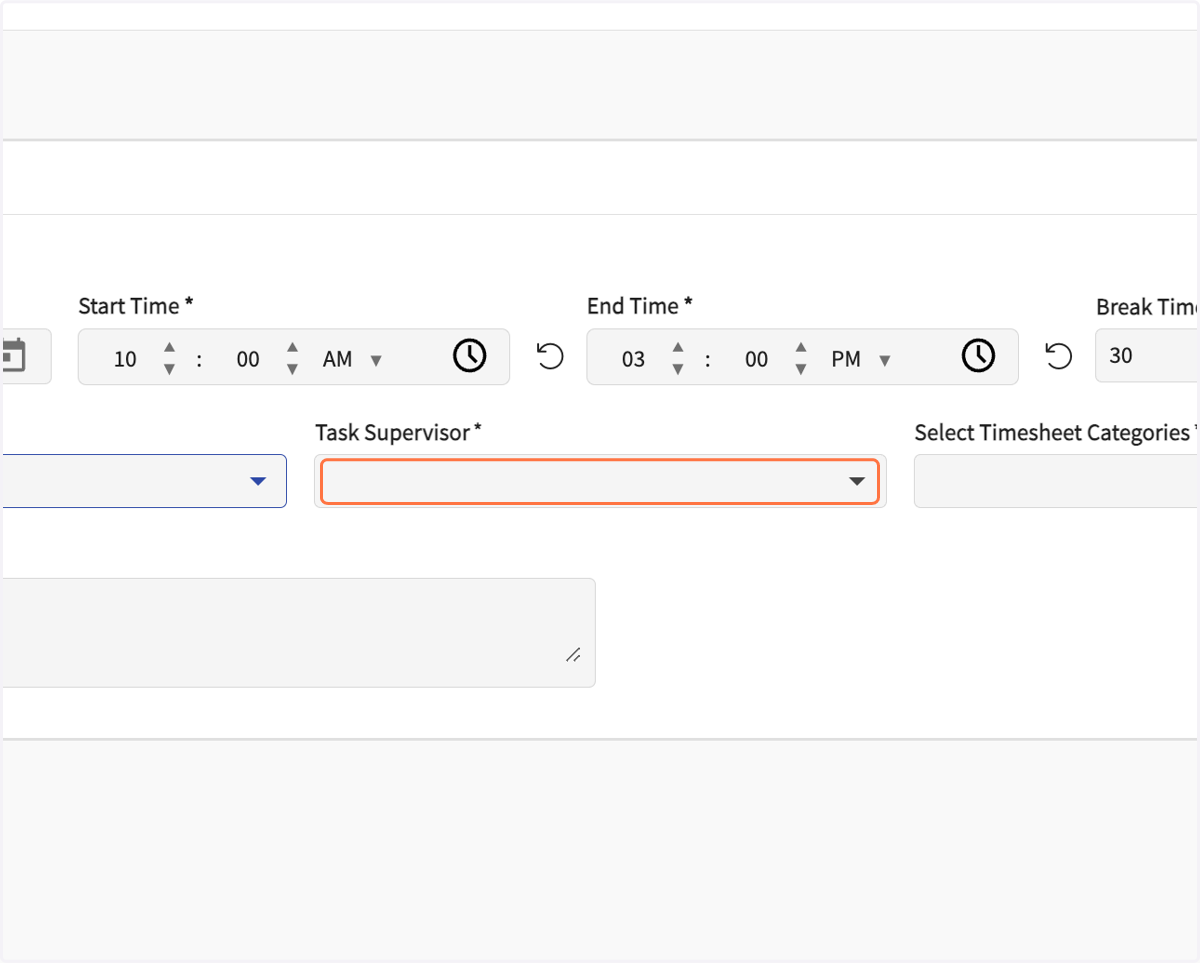
11. Select your Site/Task Supervisor's name (if applicable).
This is required. However, if there are particular hours that are to be approved by the Field Coordinator or Field Liaison (not the FI/SS), then submit and leave this BLANK and email the appropriate person to request approval.
12. Click on Select Timesheet Categories…
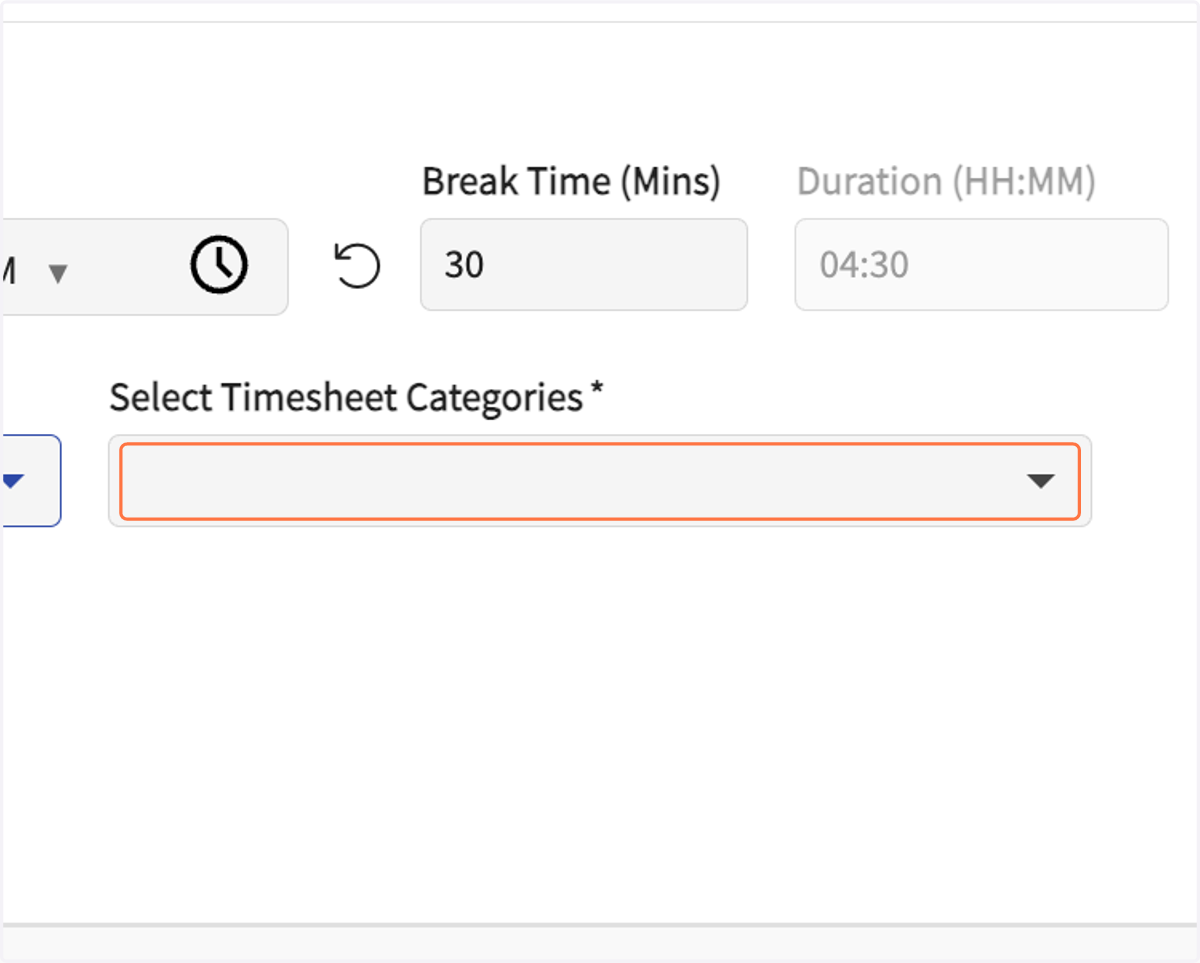
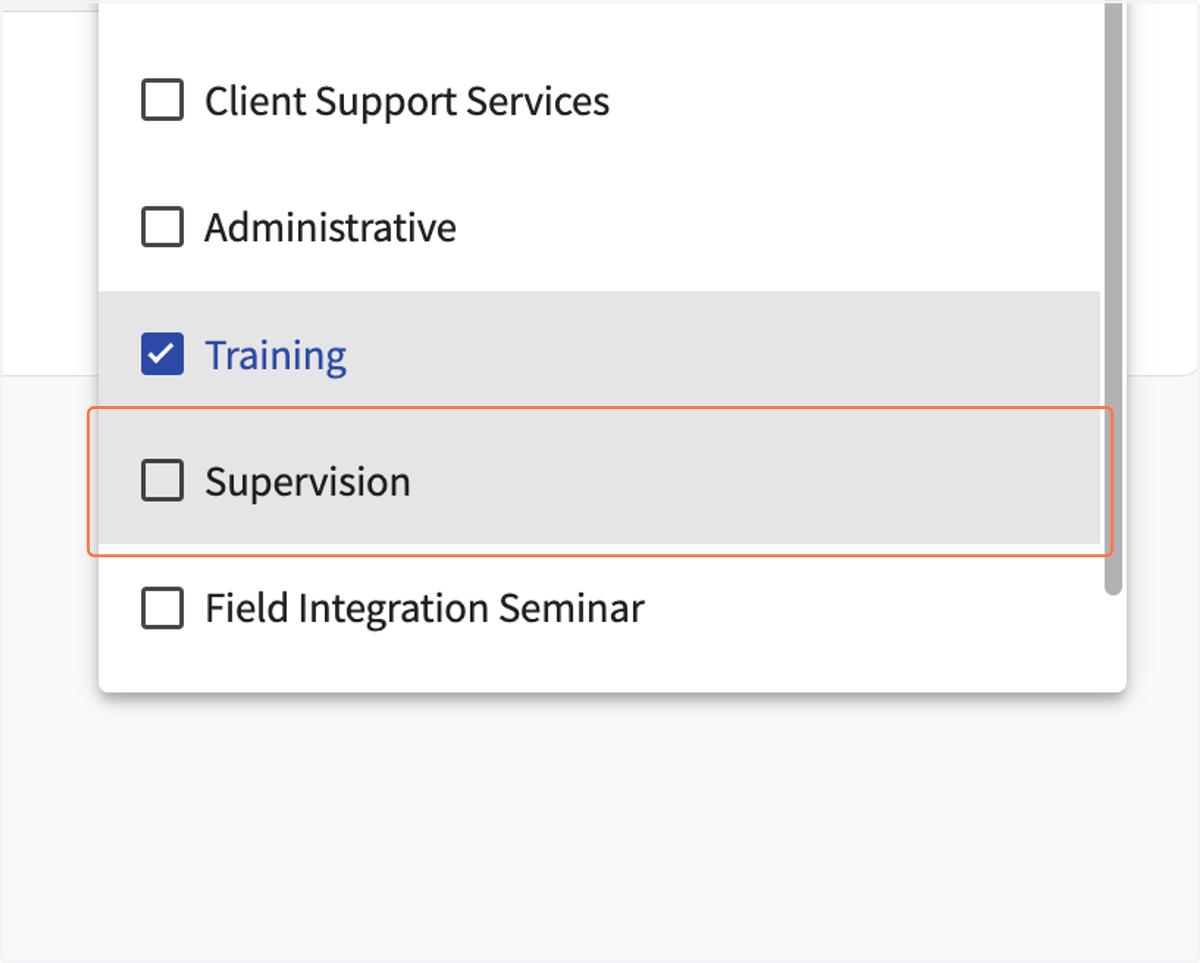
13. Click on applicable categories for this time period
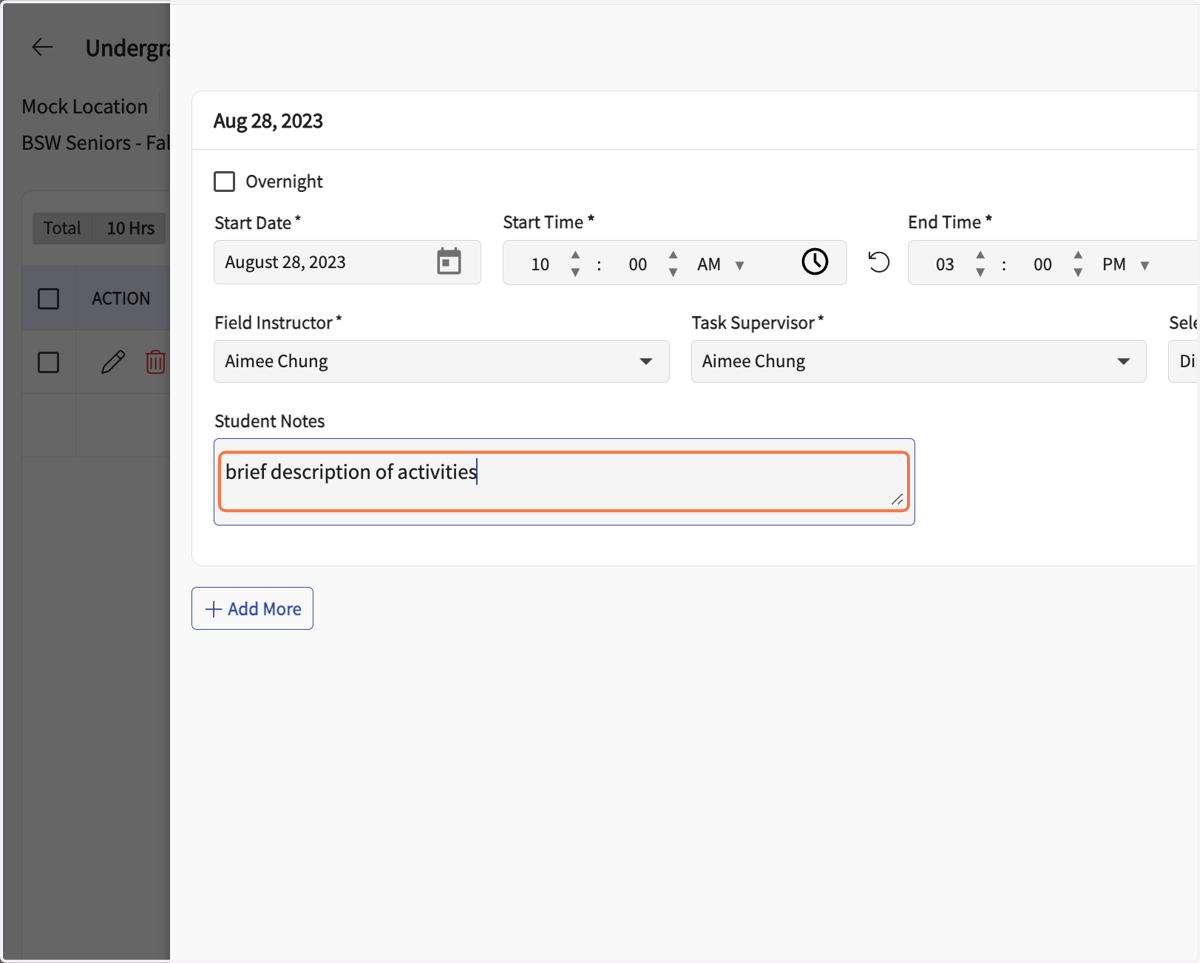
14. Enter a brief description of activities done during this time period.
15. To add hours for another day, click on "+ Add More."
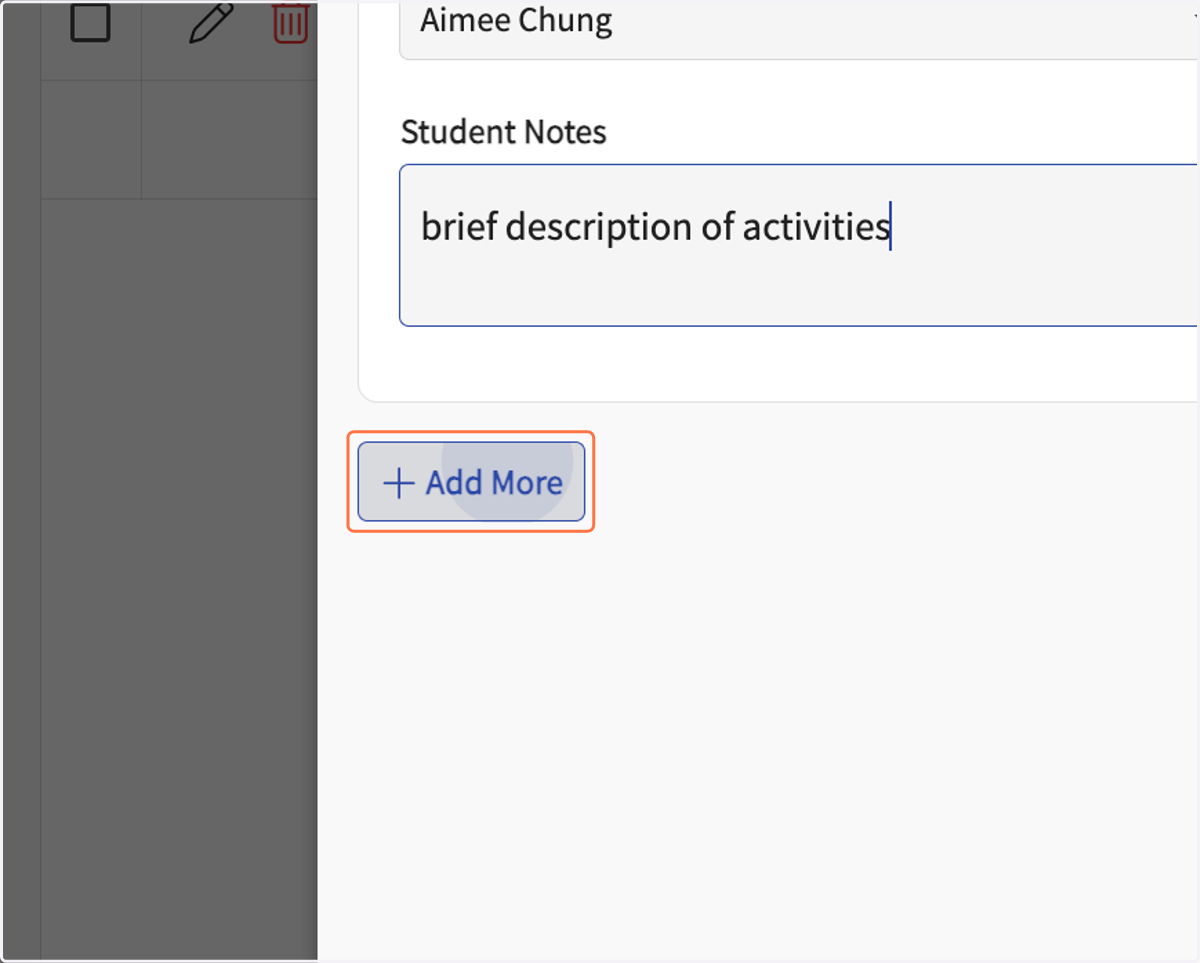
16. Follow the same steps to add hours for additional days.
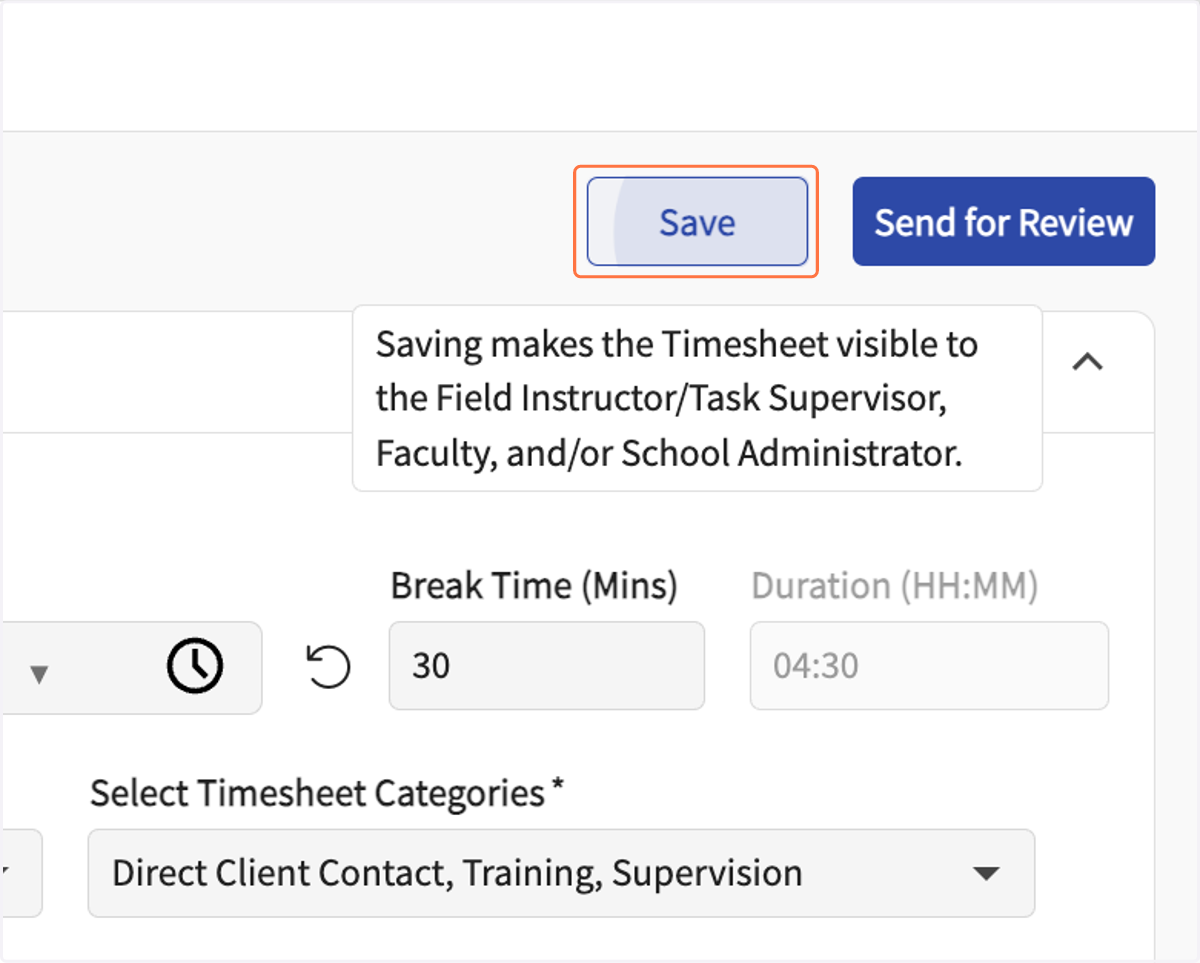
17. Click on Save at any time to save data entered. Click on Send for review to send these hours. To send hours already saved, return to previous screen.
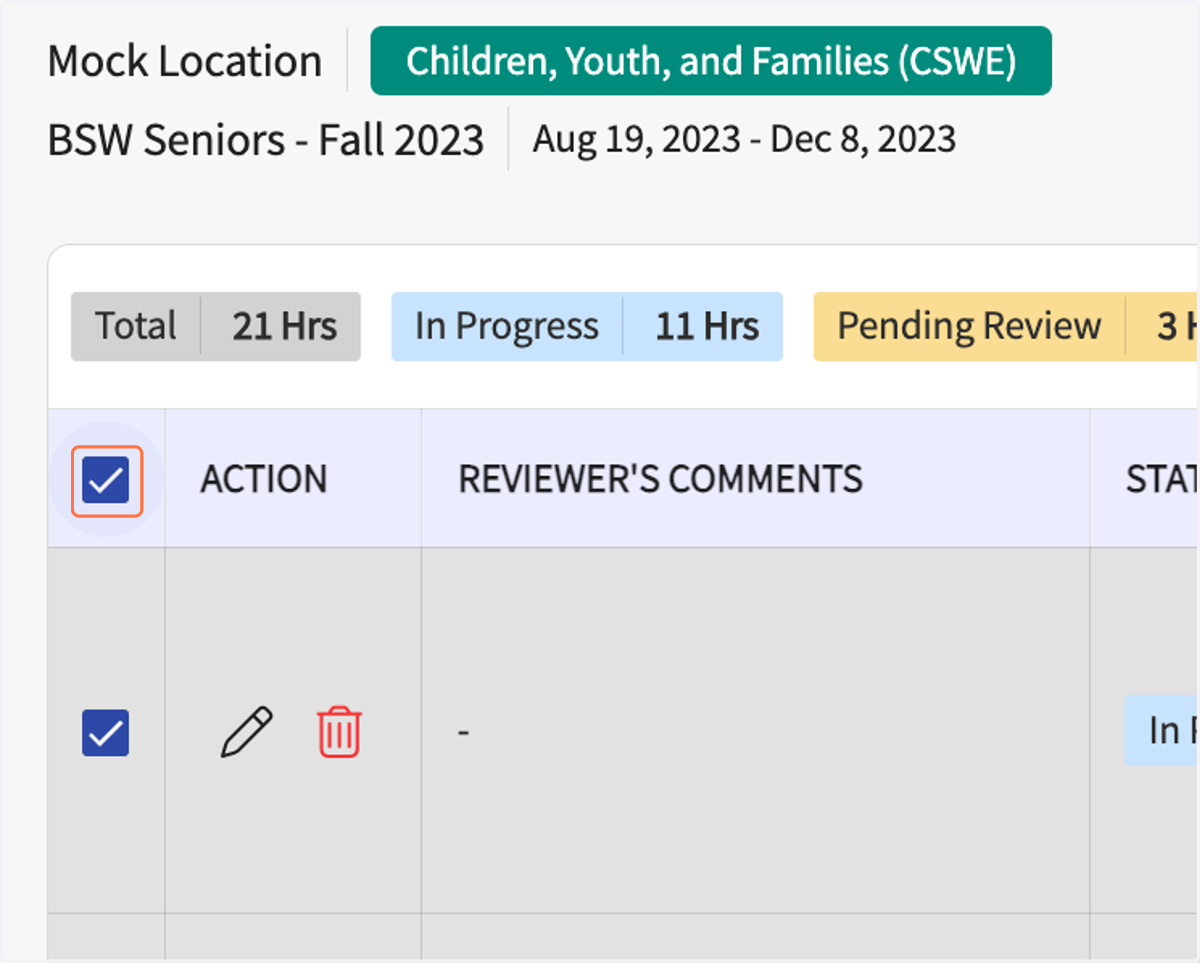
18. At the list of saved hours entered, check each row of desired hours to send or check the box at the top of the column to select all unsent hours.
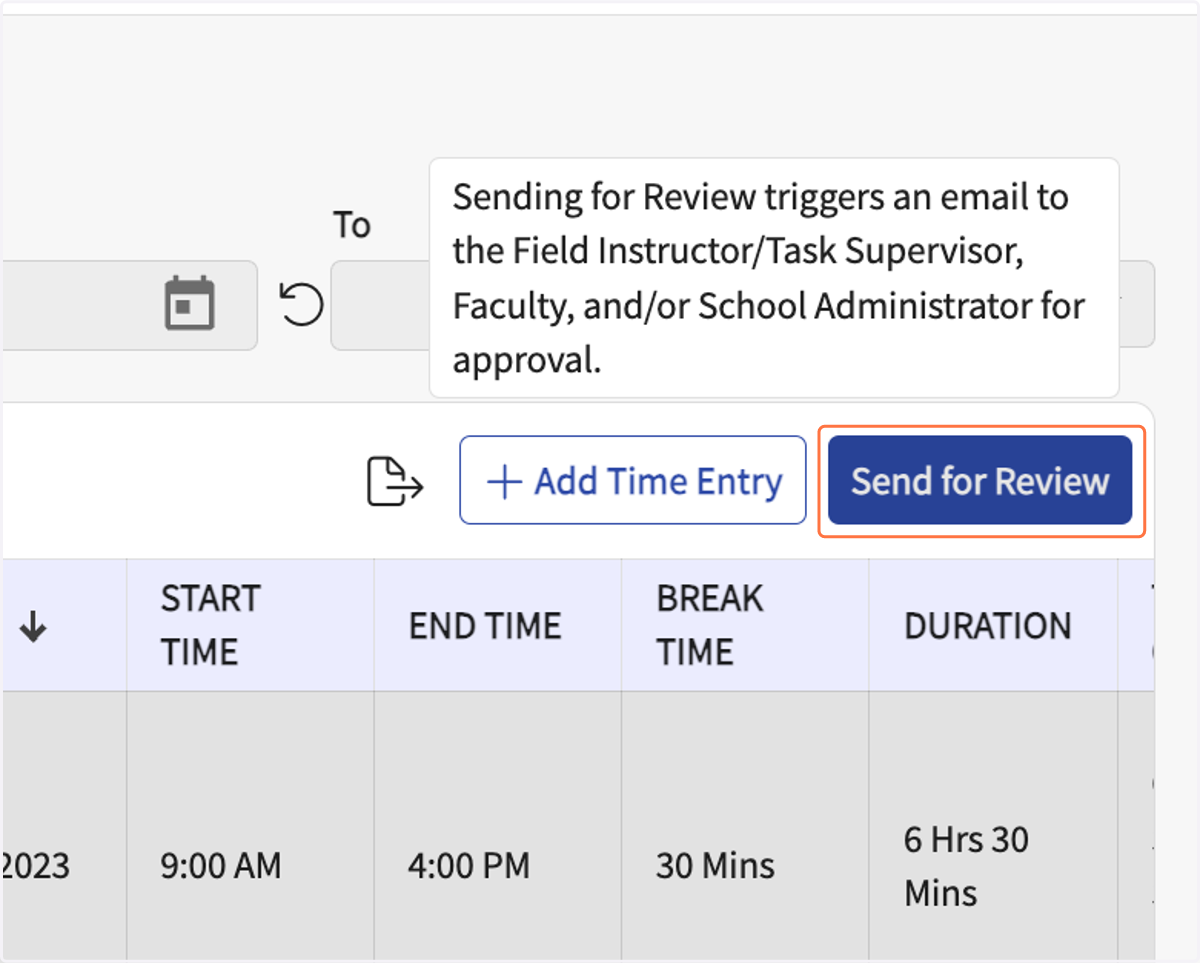
19. Click on Send for Review/
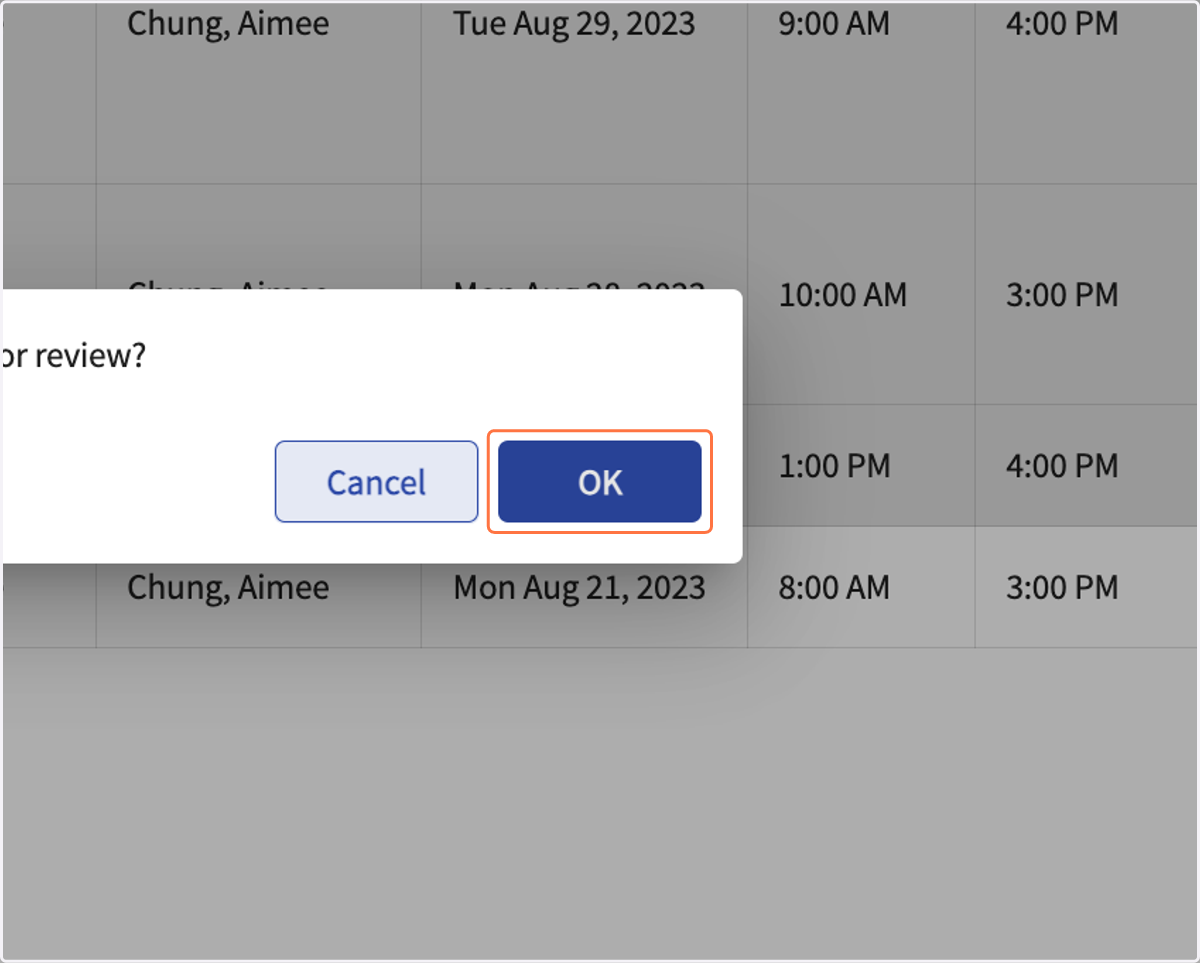
20. Click on OK in the pop-up.
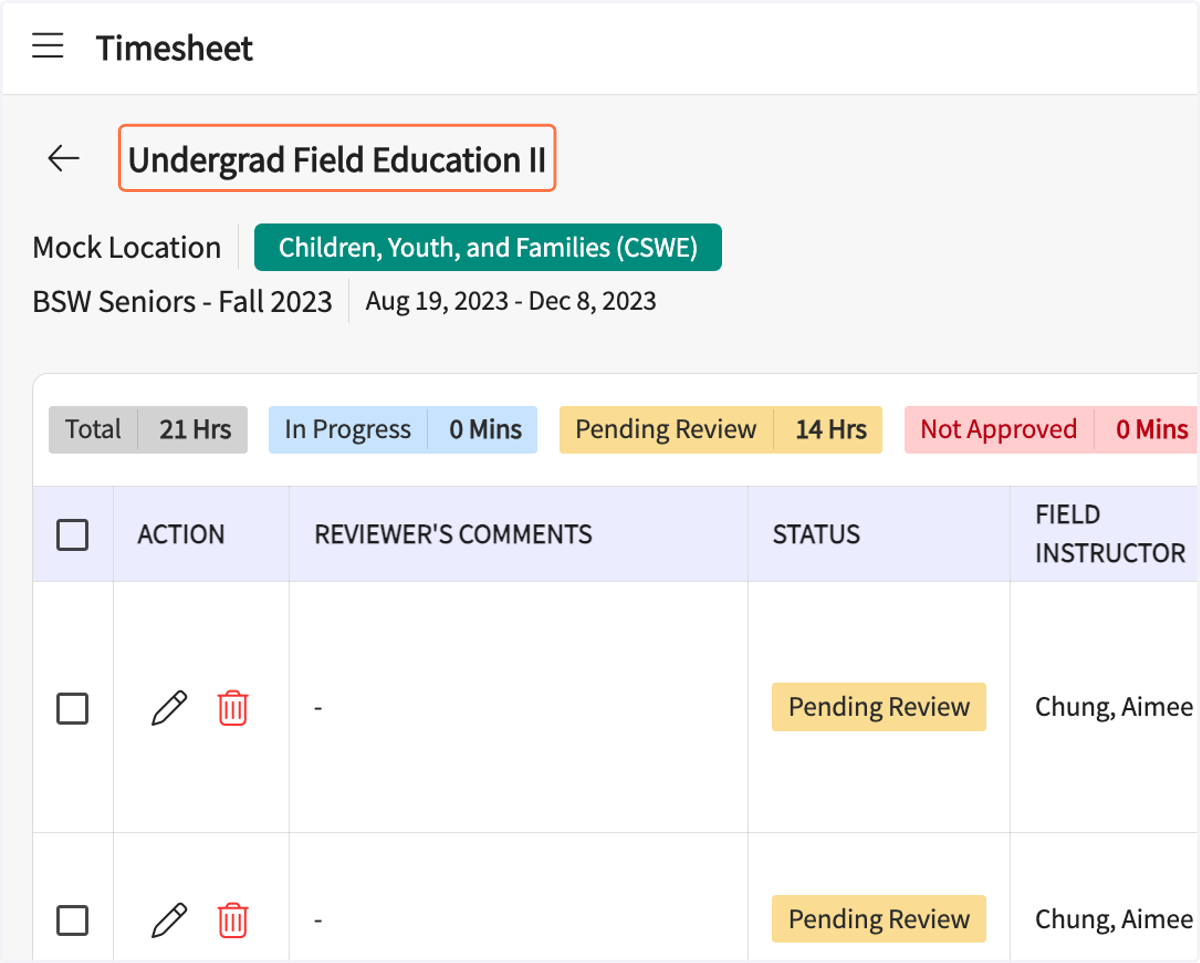
21. The sent hours should show the yellow "Pending Review" tag in the Status column. Once approved, the green "Approved" tag will appear.