NWEA MAP- Batch Printing Student Reports and Family Reports with Projected Proficiencies
Reports | NWEA
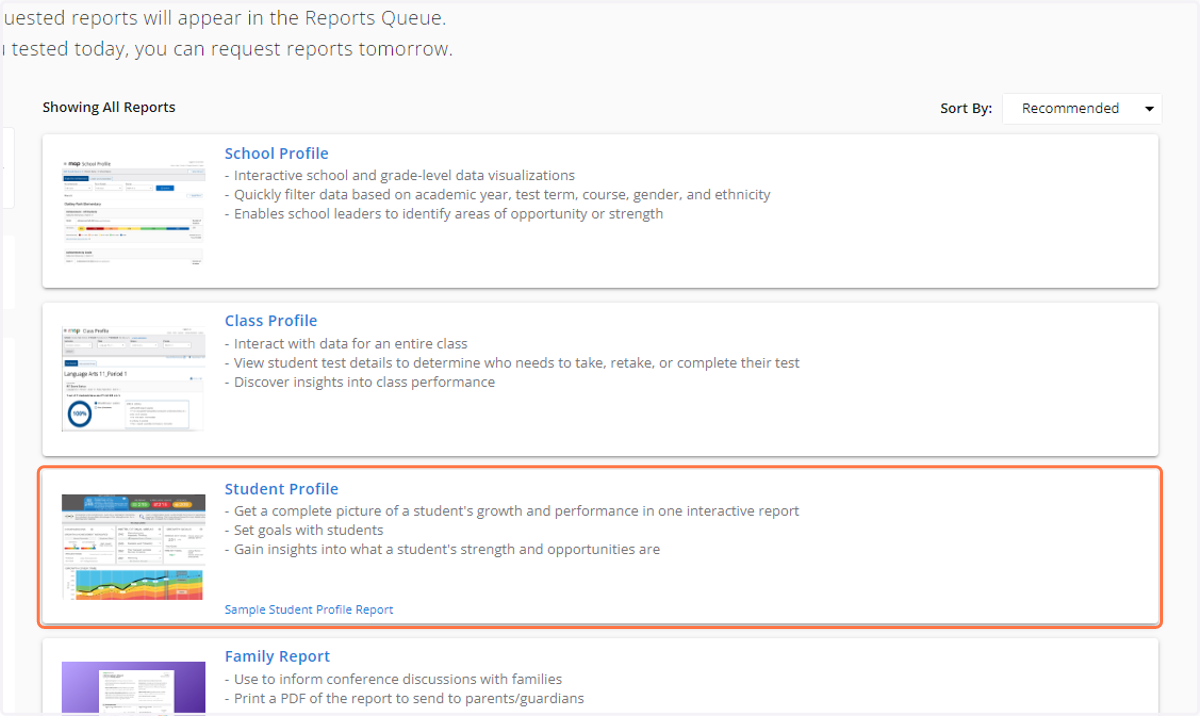
1. Click on Student Profile…
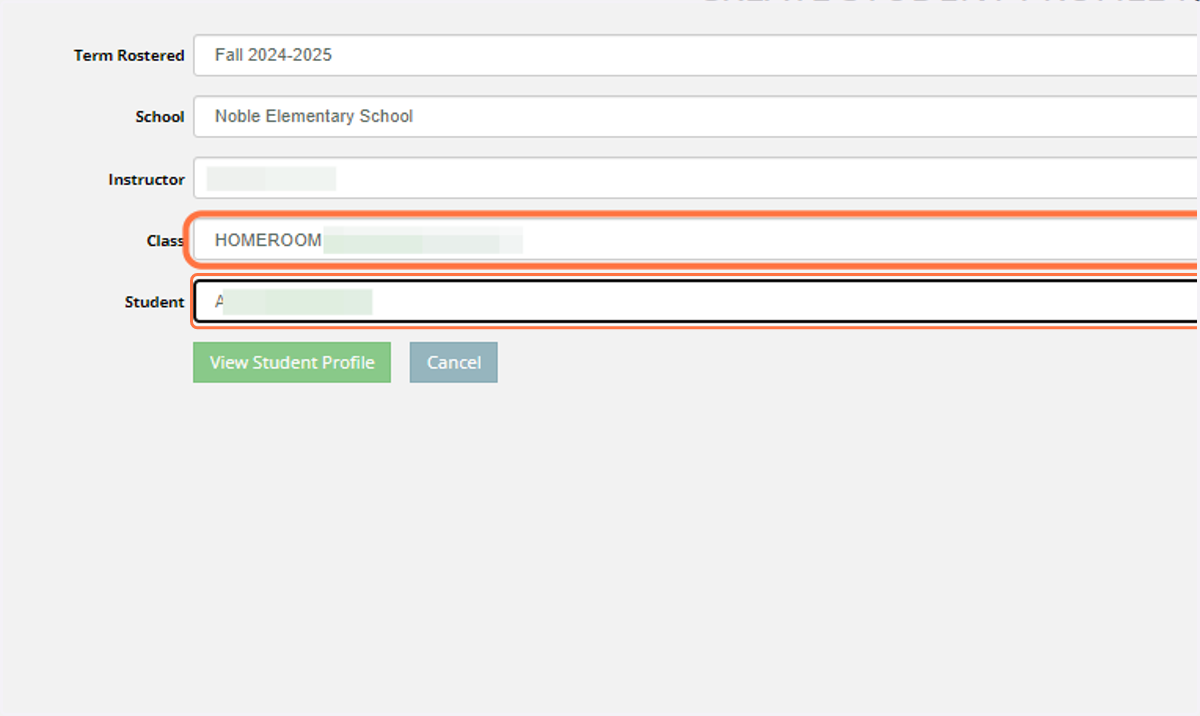
2. Select a class and a single student then click on View Student Profile
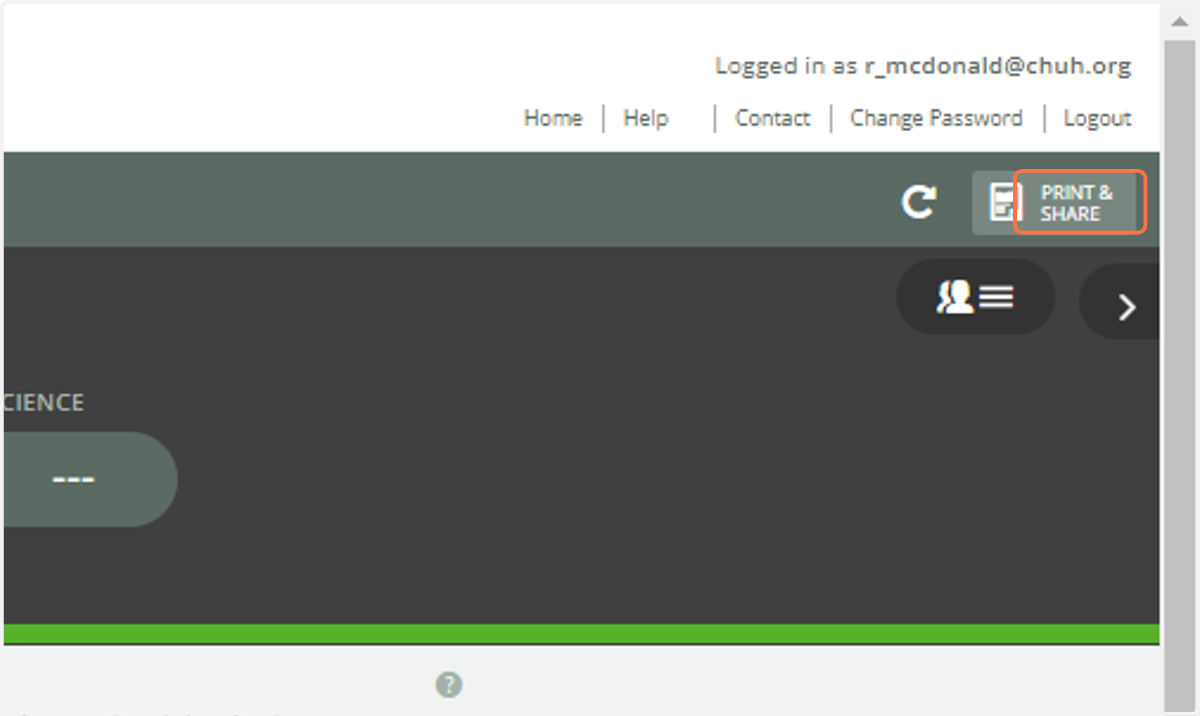
3. Click on PRINT & SHARE in the top right corner
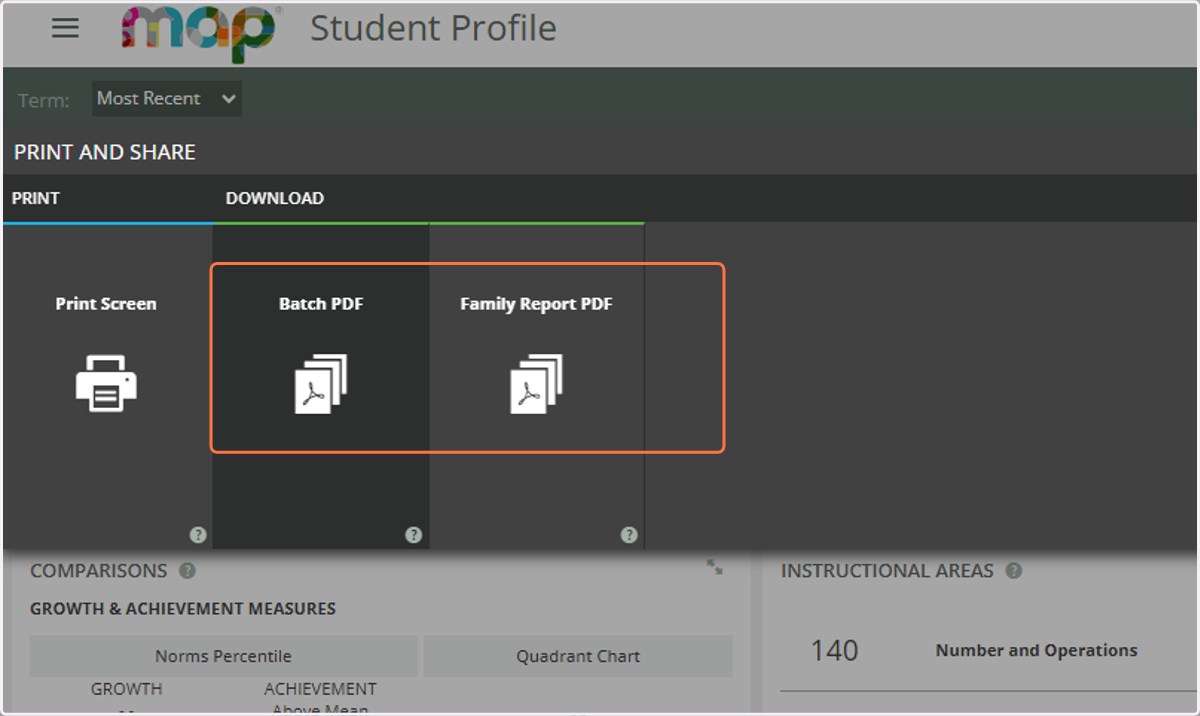
4. You have two options. The Batch PDF are all the standard reports. The Family Report has more description of what each part of the report is sharing in case you aren't there to answer families questions.
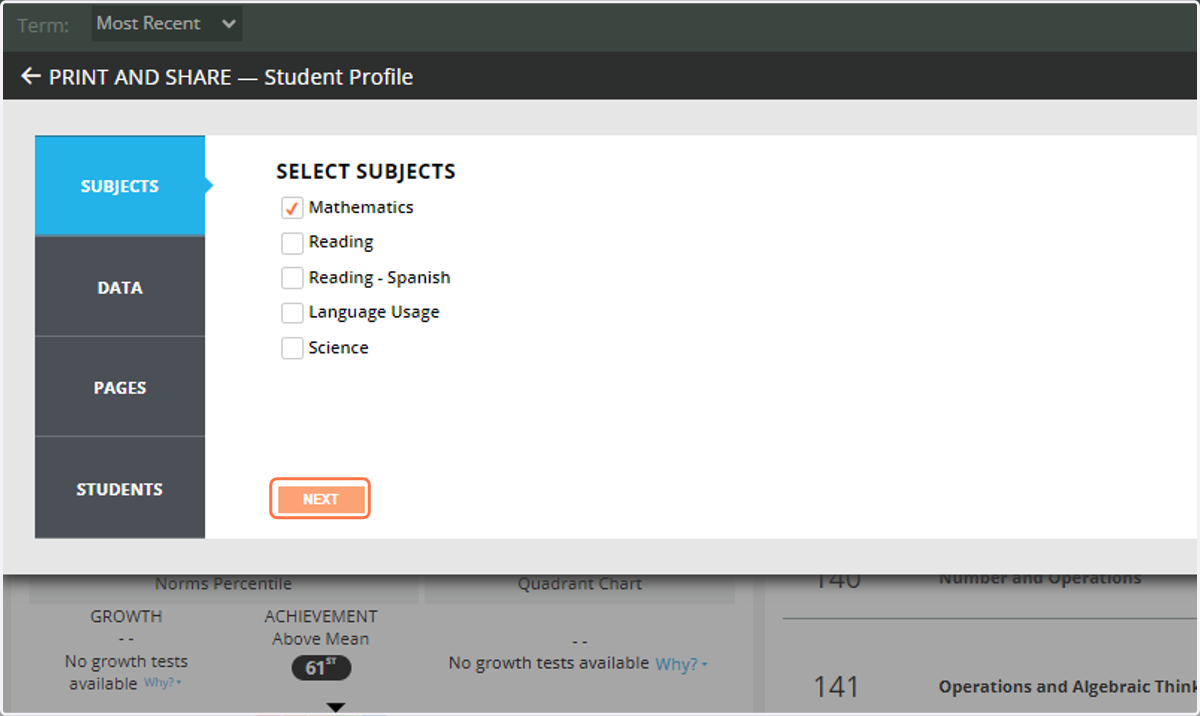
5. For either report you will select the subject(s)
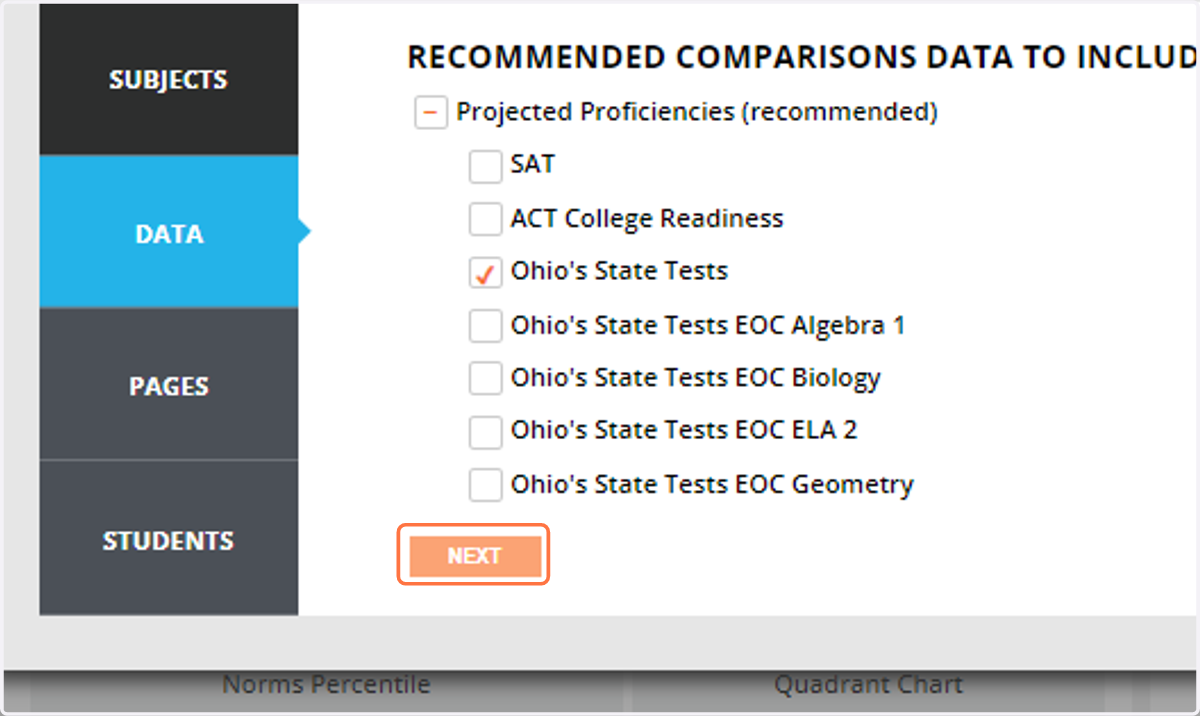
6. Select if you want the Projected Proficiencies
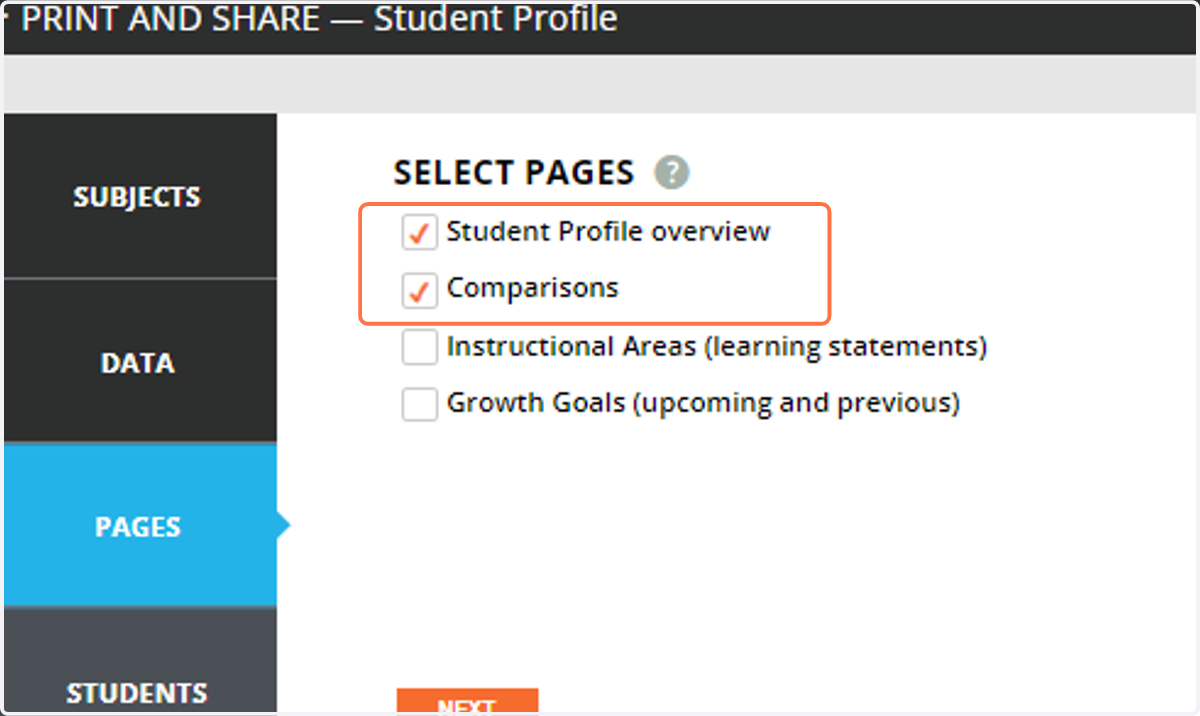
7. Select which pages you would like.
We recommend selecting the Student Profile Overview and Comparisons.
The Instructional Areas (learning statements) are lengthy and confusing so we recommend not selecting that option.
Growth Goals will be blank unless you set goals for selected students.
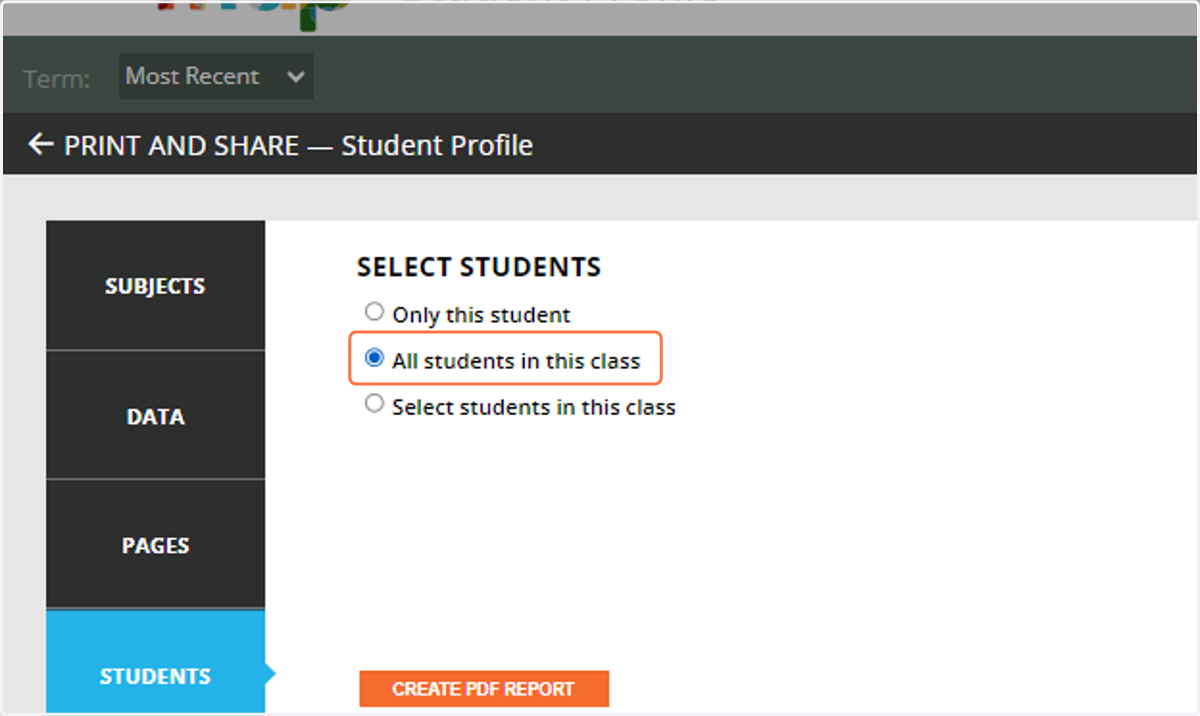
8. Select All students in this class
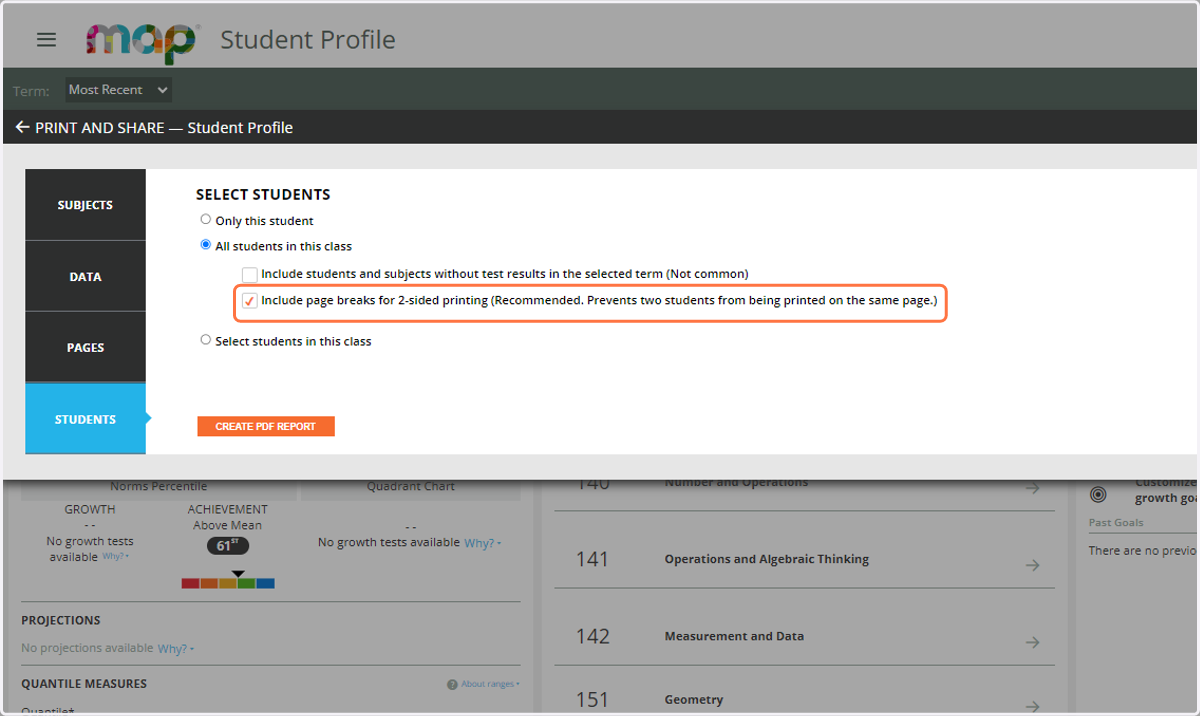
9. Check Include page breaks for 2-sided printing (Recommended. Prevents two students from being printed on the same page.) then Click on CREATE PDF REPORT
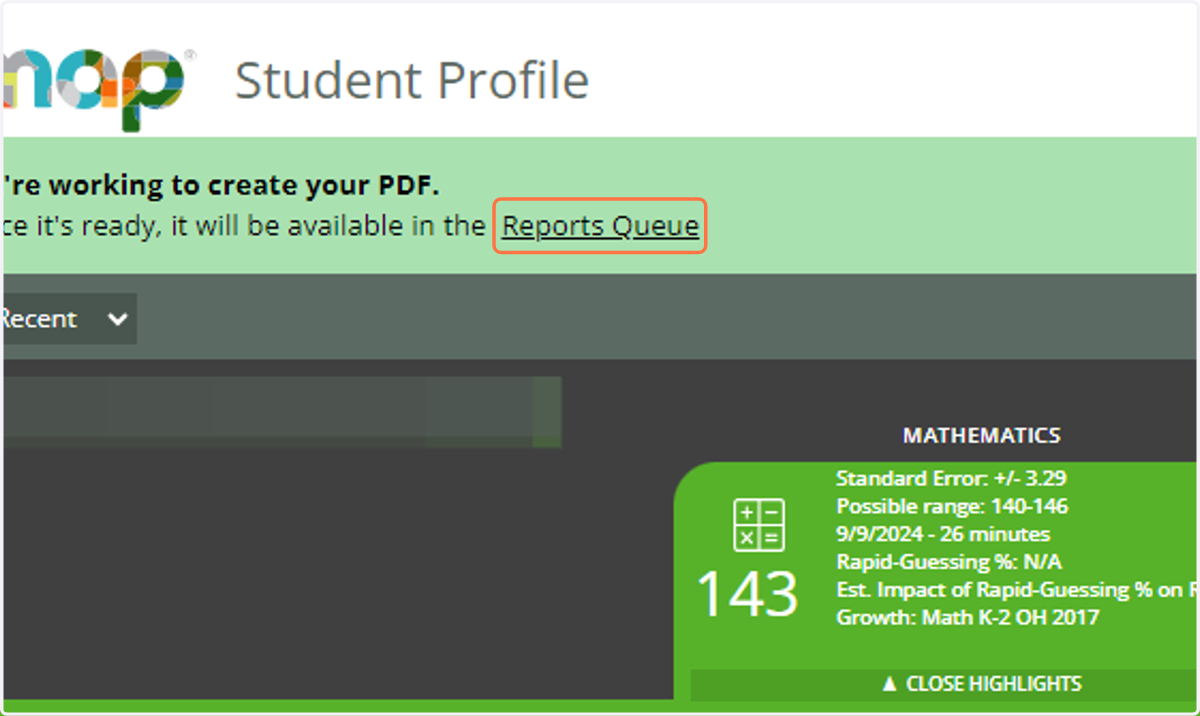
10. You will find the reports in the Reports Queue