MyRestaurant Crew Coach Setup
Crew Coaches need to be assigned access to Enter Waste and view Daily Training List on MyRestaurant.
For any promotions from Crew to Crew Coach, you will need to provide this access level upon changing their position to Crew Coach, as per below procedure.
Crew Coaches will access myRestaurant just as Managers do, using their Single Sign-On.
Mcdonalds
1. Go to myrestaurant.mcdonalds.com.au
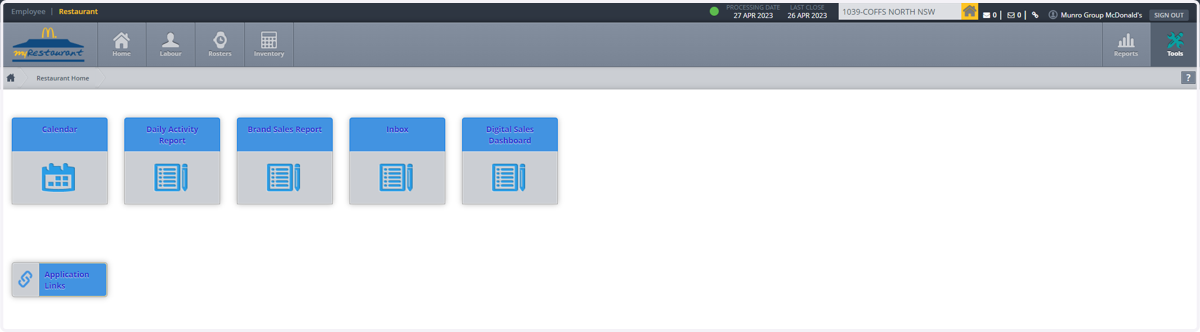
2. Click on Tools
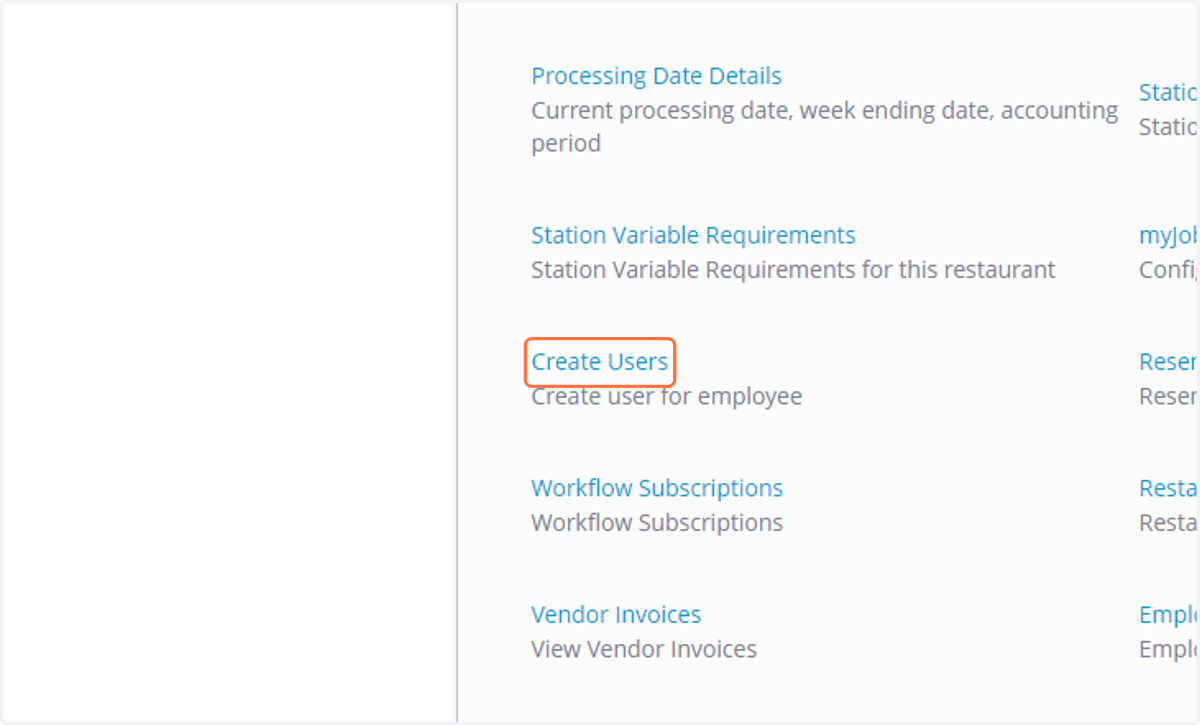
3. Click on Create Users
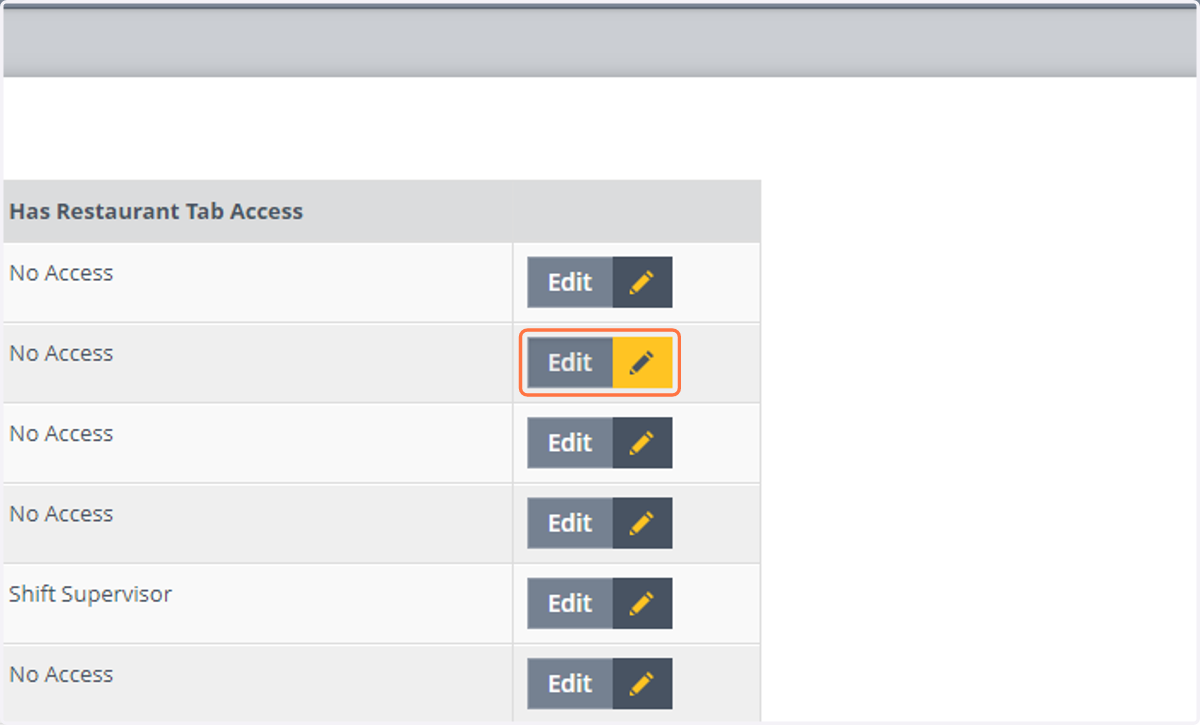
4. Search the Crew Coach name and select “Edit”
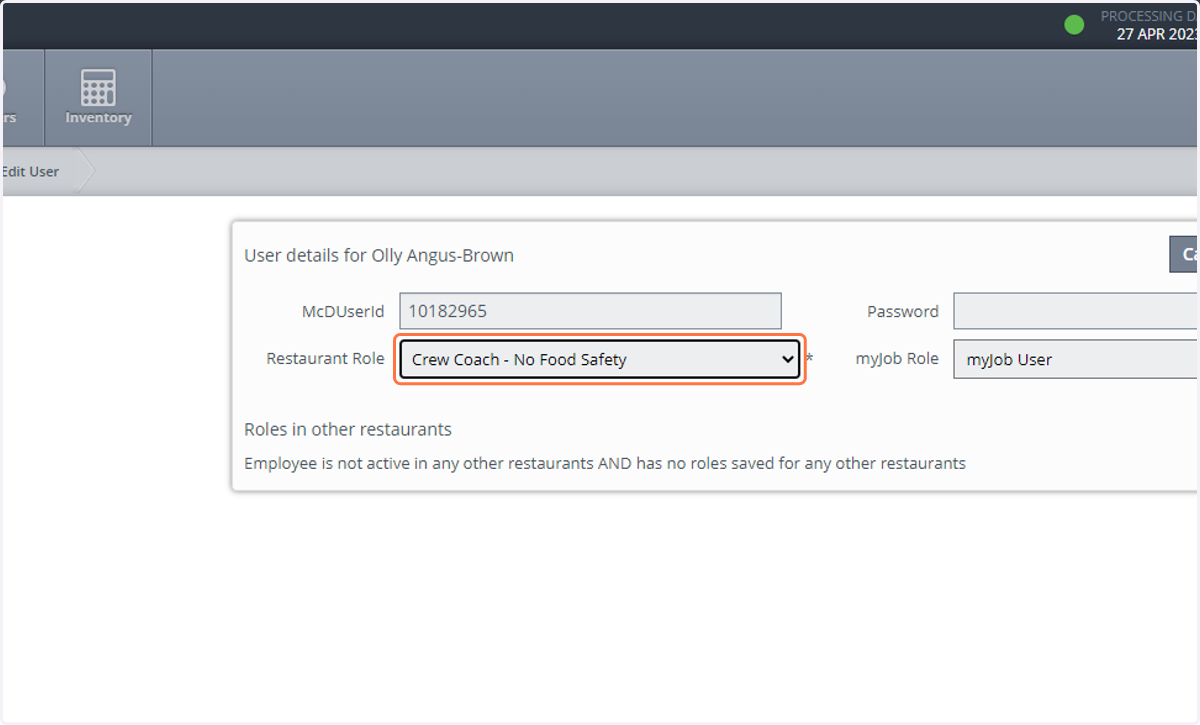
5. Change the “Restaurant Role”
There are 3 options to choose from for the Crew Coach permission access level;
Food Safety - No myRestaurant Access - Only gives the employee access to BrandMate -
Crew Coach - Food Safety Access – Gives employee access to the inventory section including the waste tool and BrandMate
Crew Coach - No Food Safety Access – Gives employee access to the inventory section including the waste tool but not BrandMate.
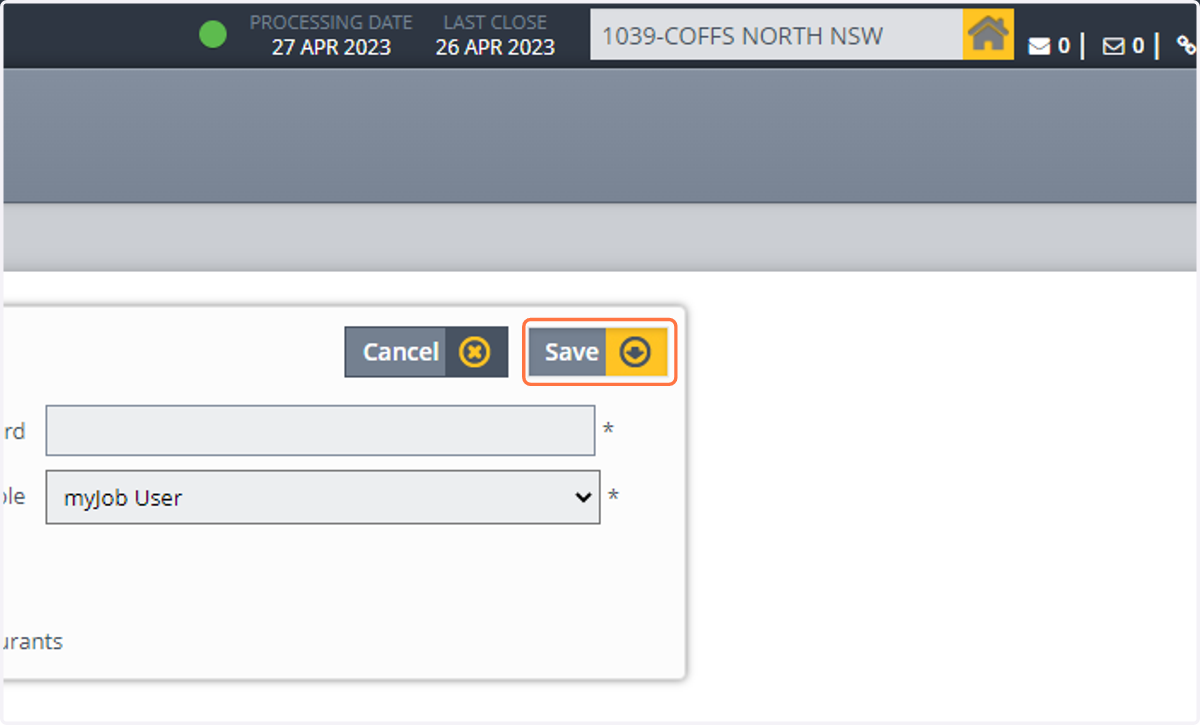
6. Click on Save