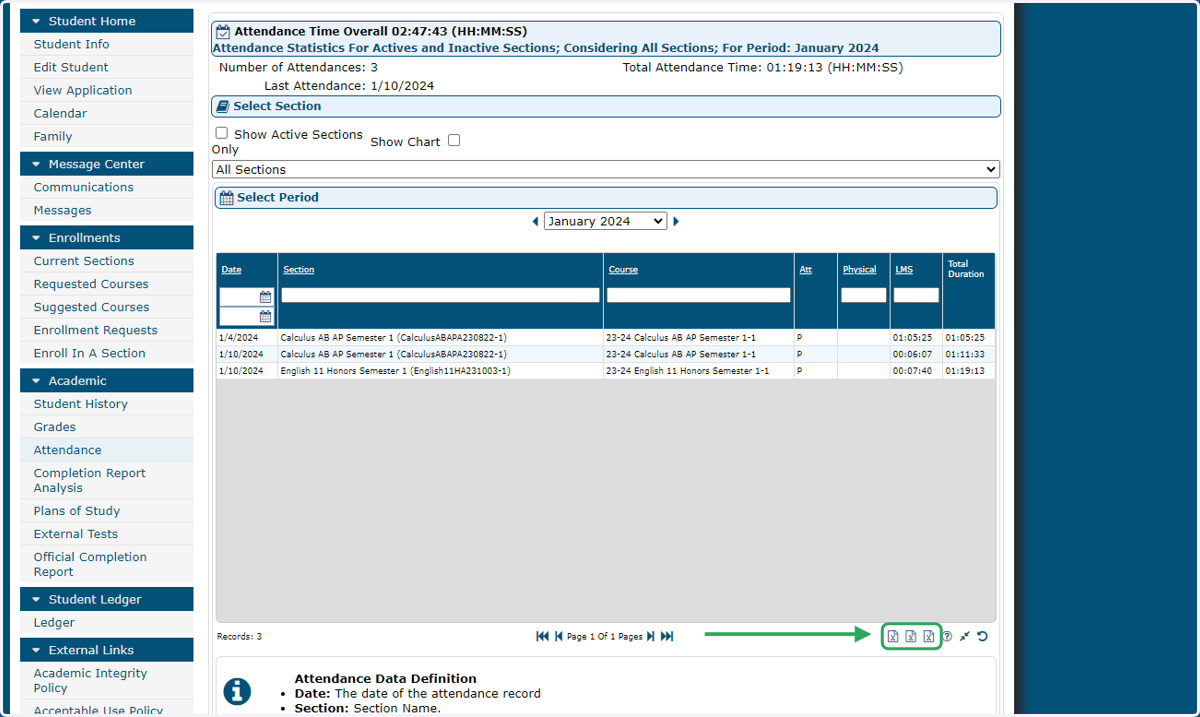
Mentor and Registrar - How to view student attendance in Maestro
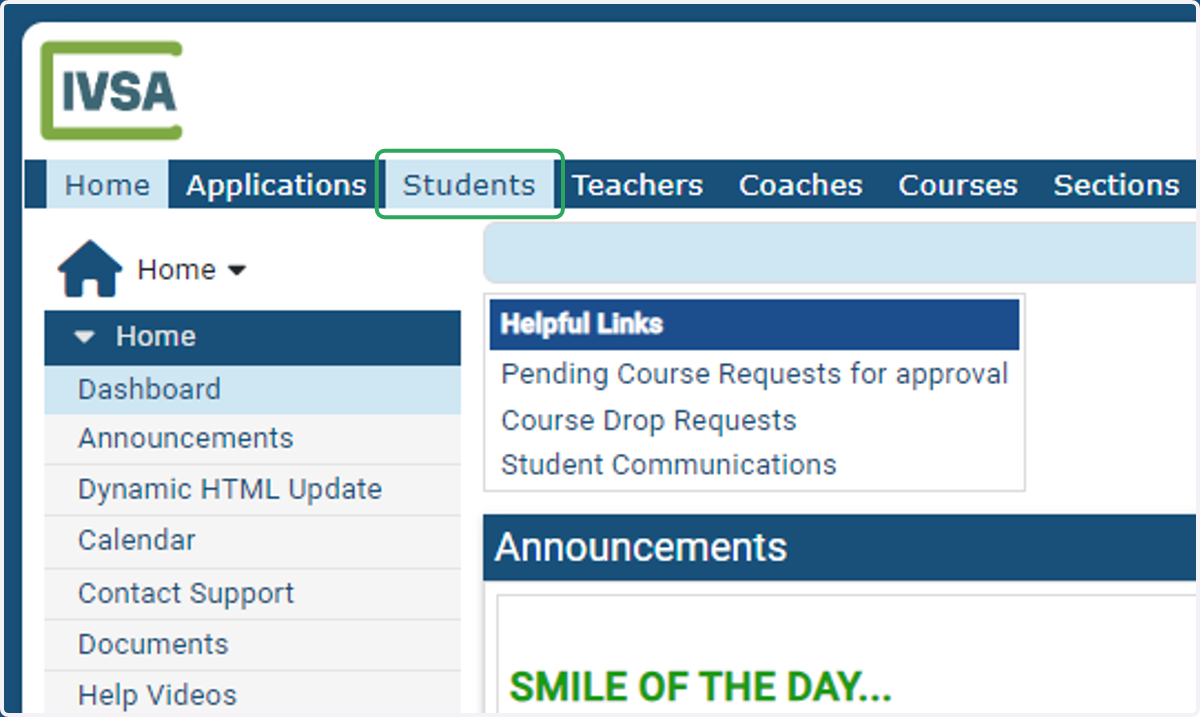
1. From the IVSA Registrar or Mentor dashboard, click the Students tab at the top of the page.
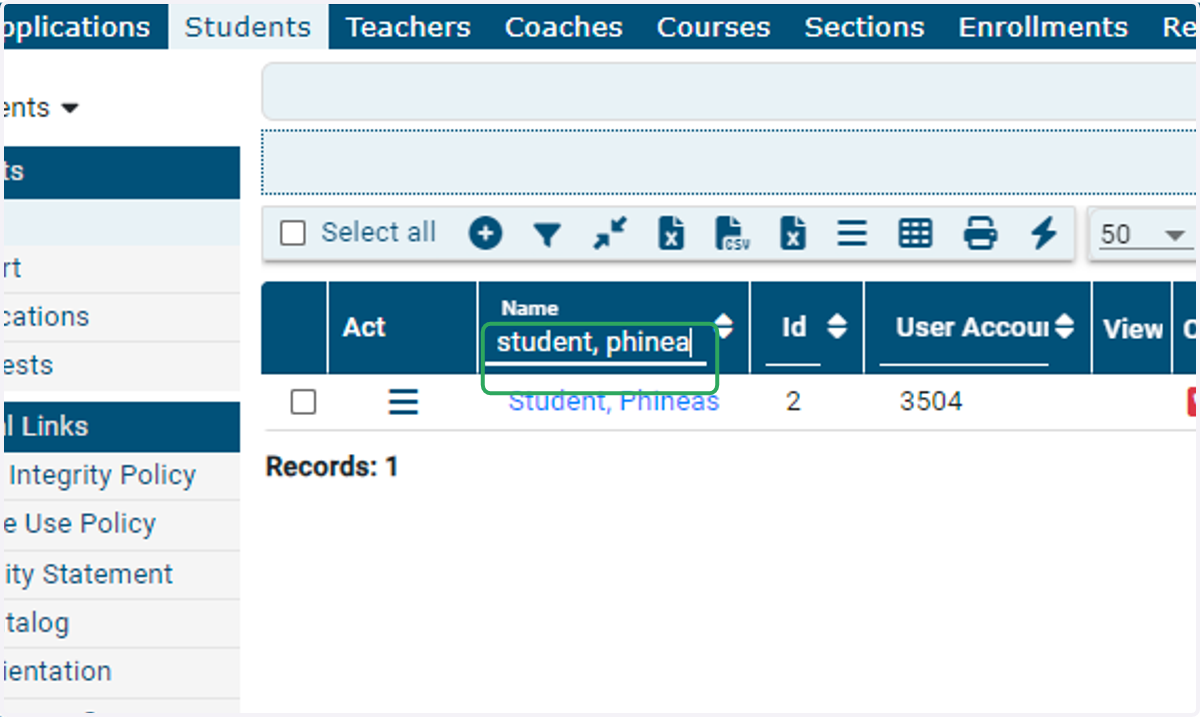
2. Search for your student under Name and the database will populate results as you type.
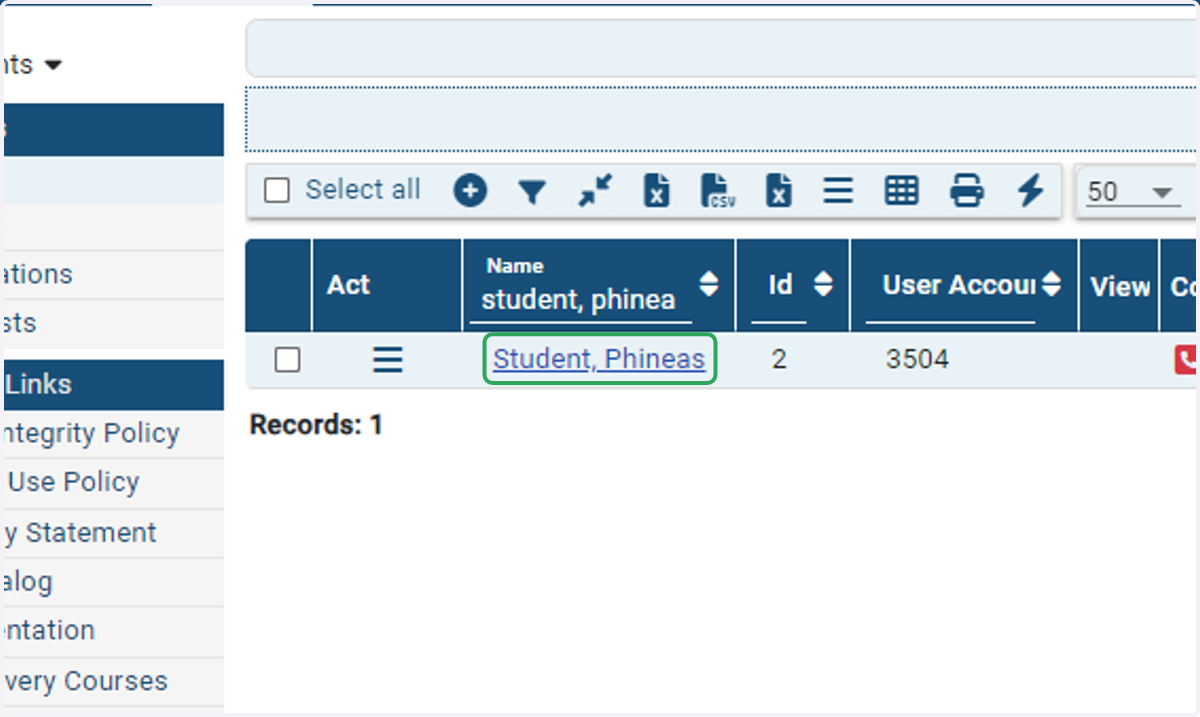
3. Click on the student's name.
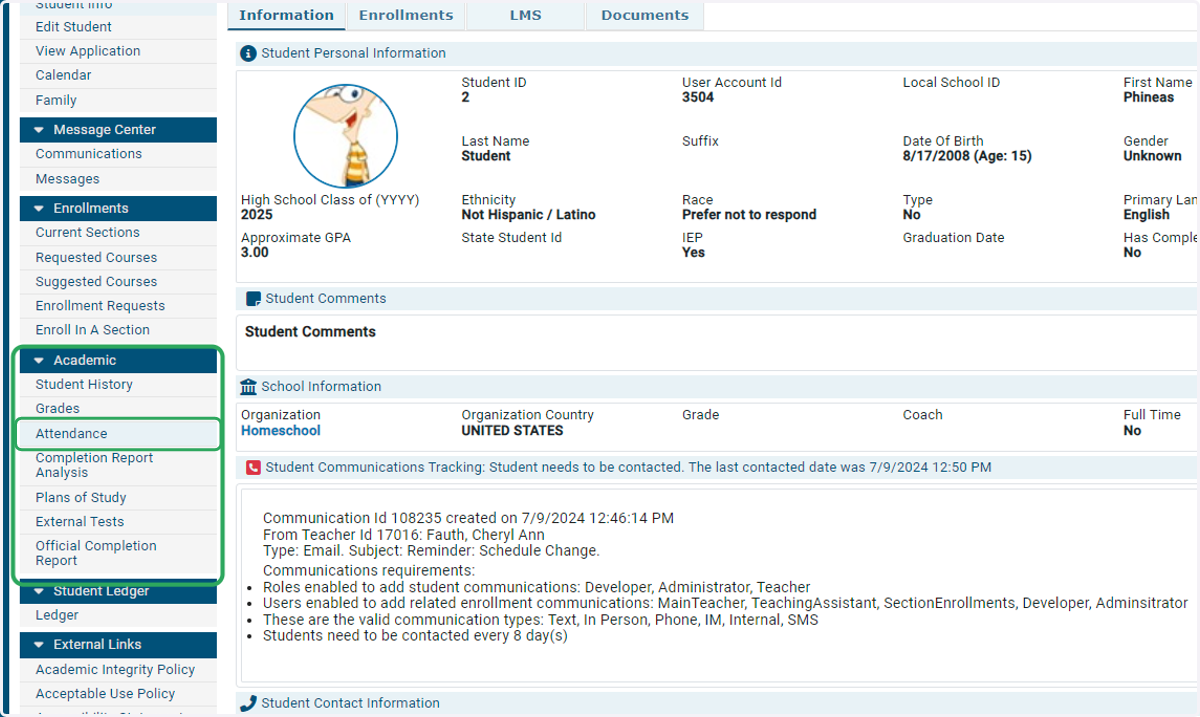
4. On the student information page, click Attendance under the Academic Tab on the left side of the screen.
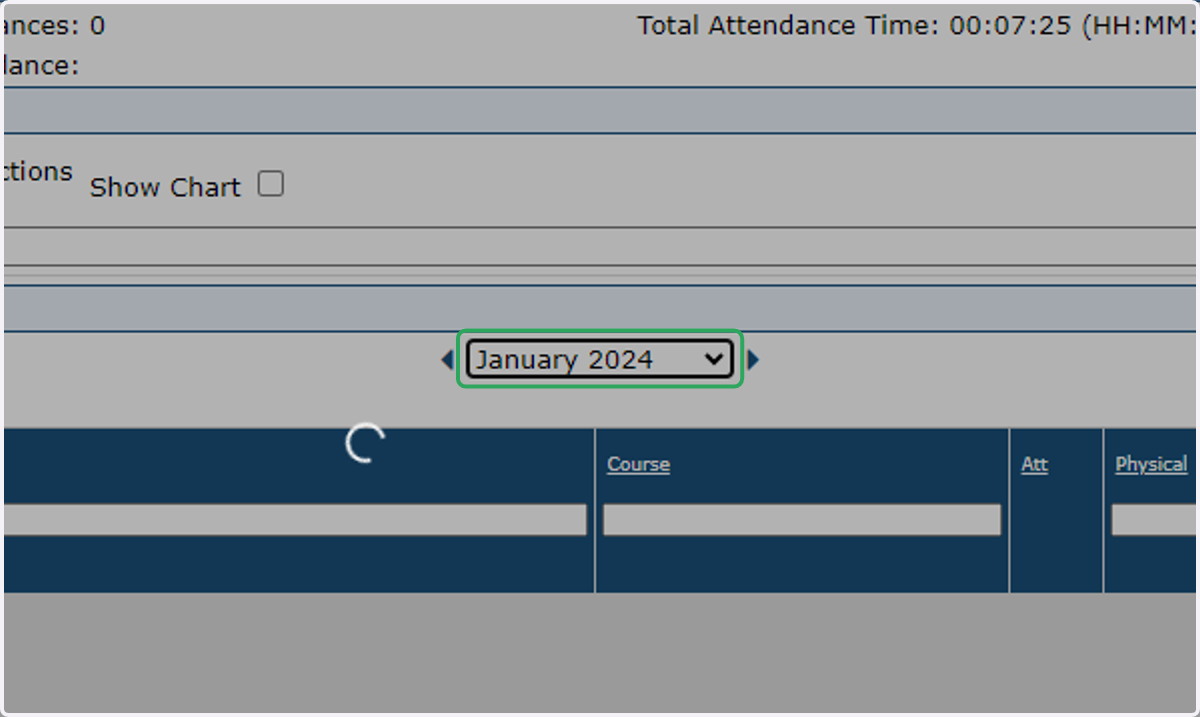
5. Select the month for you want to view the student's attendance.
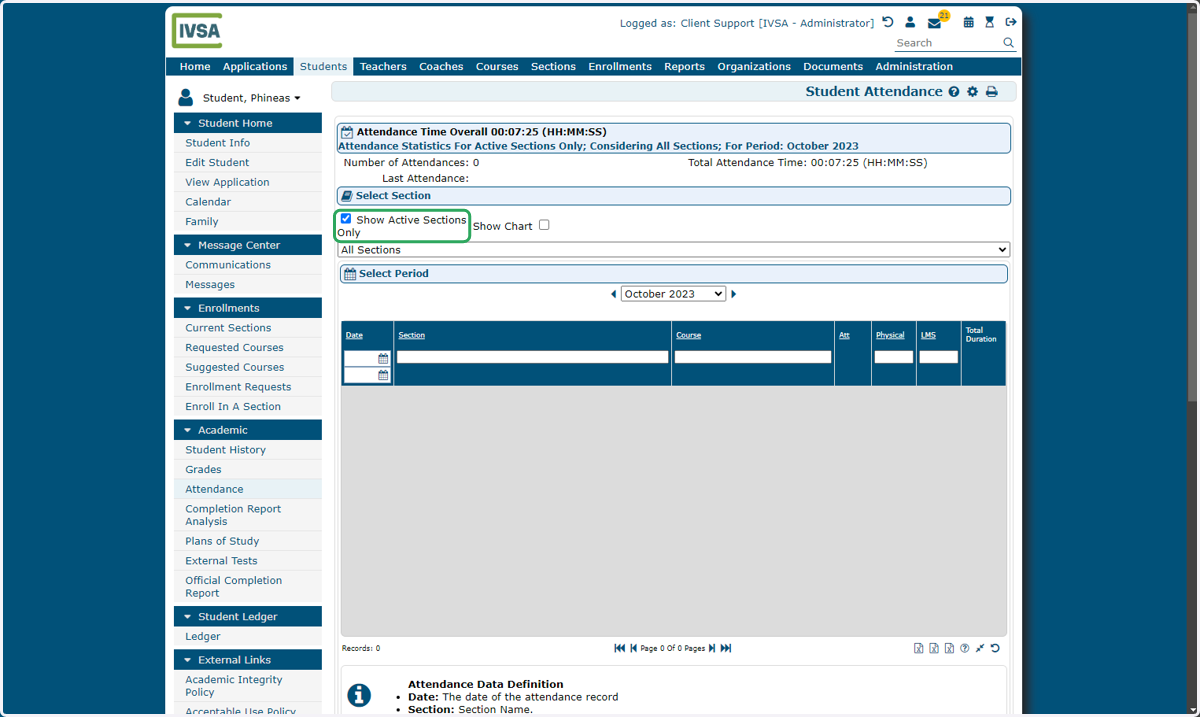
6. By default, attendance is only displayed for active courses. You can uncheck the box to show attendance for all enrollments.
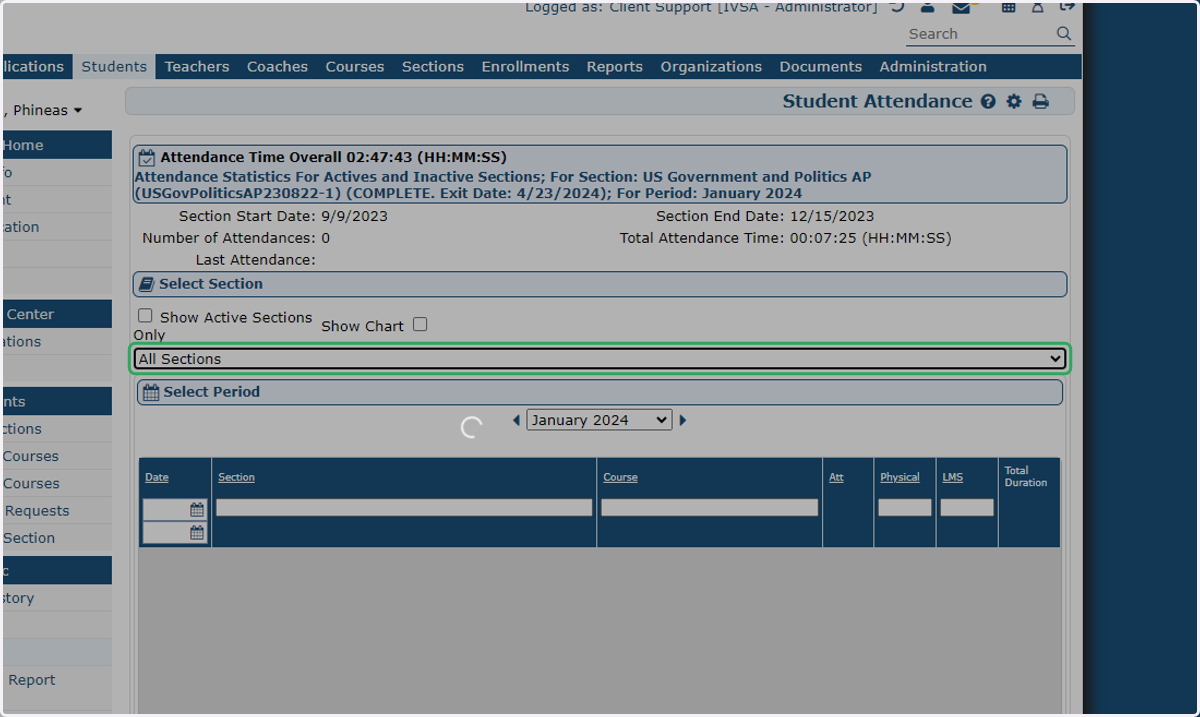
7. By default, all sections are displayed. You can use the drop-down menu to check the attendance of a specific enrollment.
8. The table will display the date of attendance, the section and course the student accessed, the session duration (LMS), and the total amount of time the student has spent in all their courses.
You can use the headers at the top of the table to sort and filter.
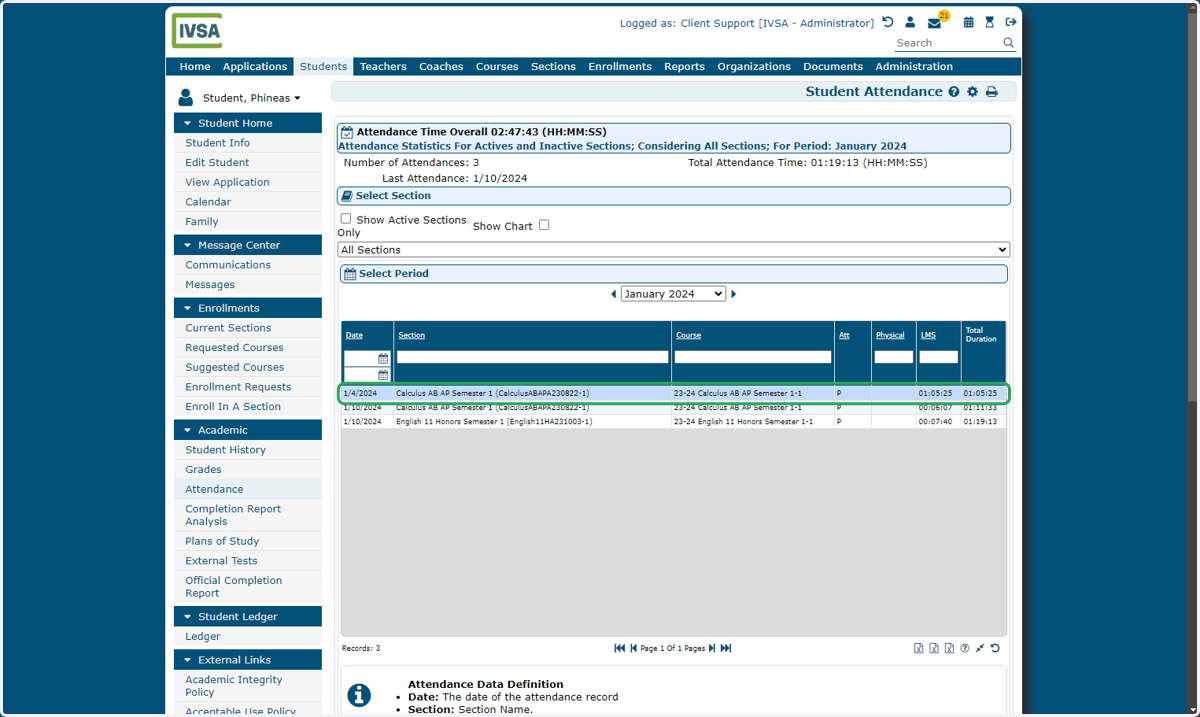
9. In the lower right corner of the table, you can select to export the report as an Excel or comma delimited file.
If you have any questions regarding your students' attendance, please contact us at info@ivsaschool.org.