Mentor and Registrar - How to check student grades
Computer based activity scores are updated daily. Written activities may take longer to report as IVSA teachers need to grade those assignments.
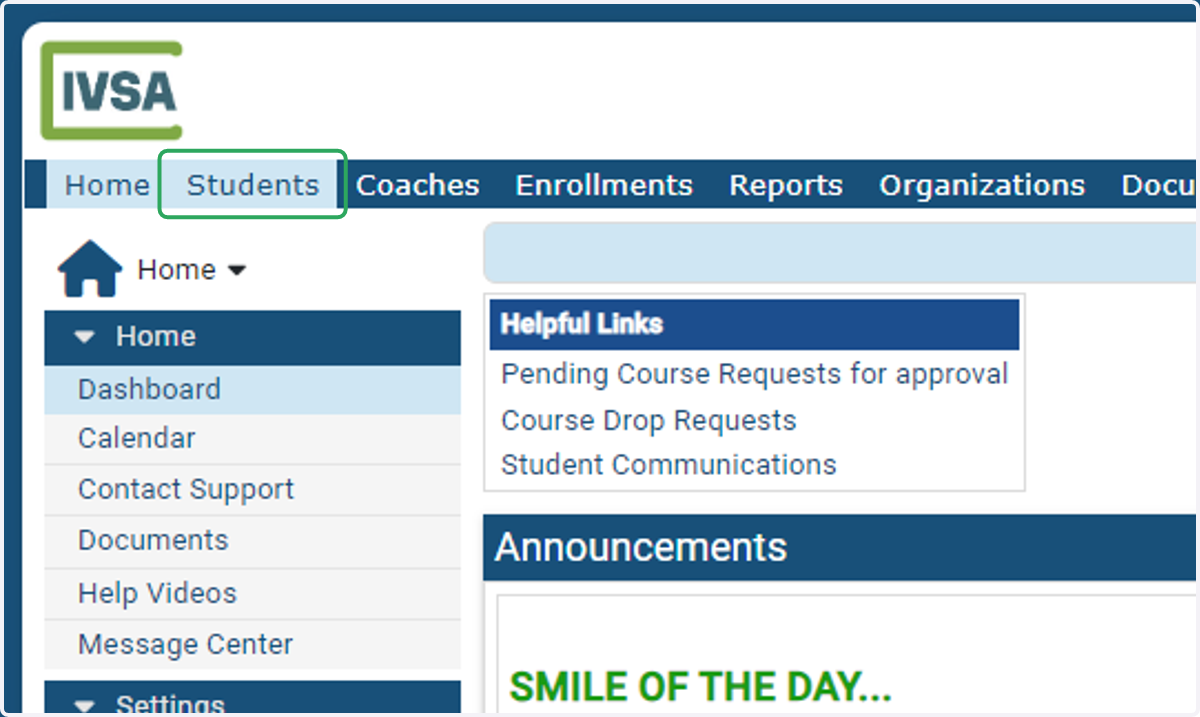
1. From your IVSA Registrar or Mentor dashboard, click the Students tab at the top of the page.
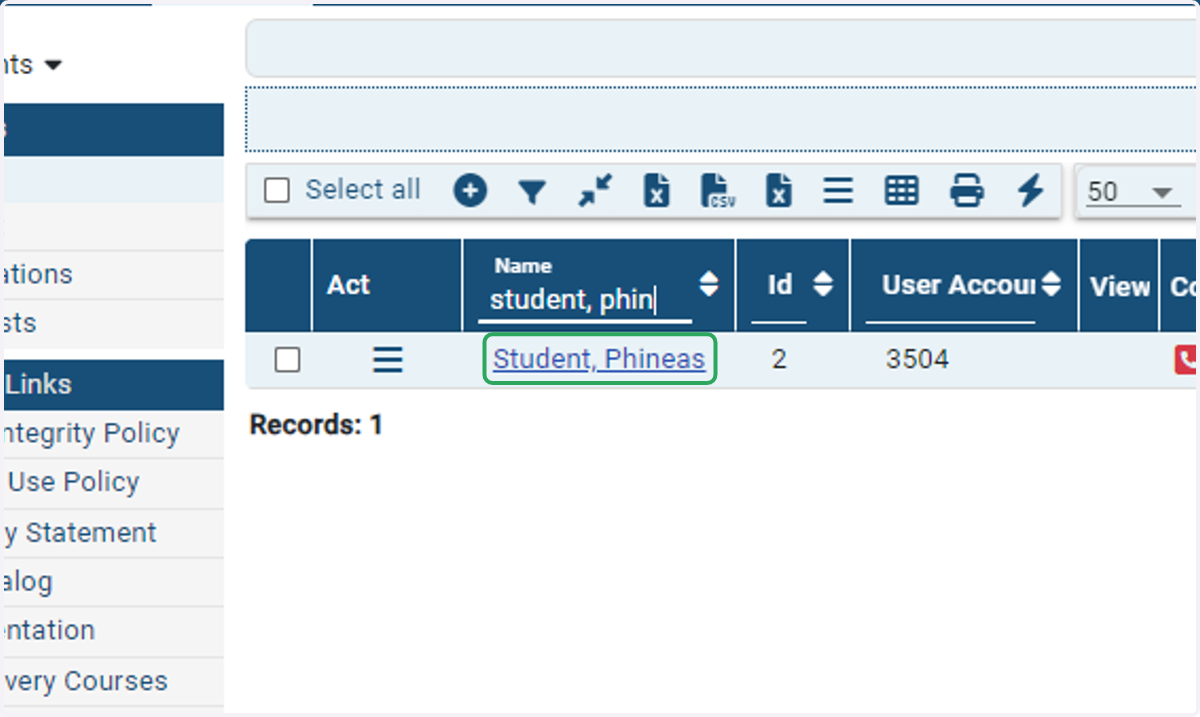
2. Search for and click on the student's name.
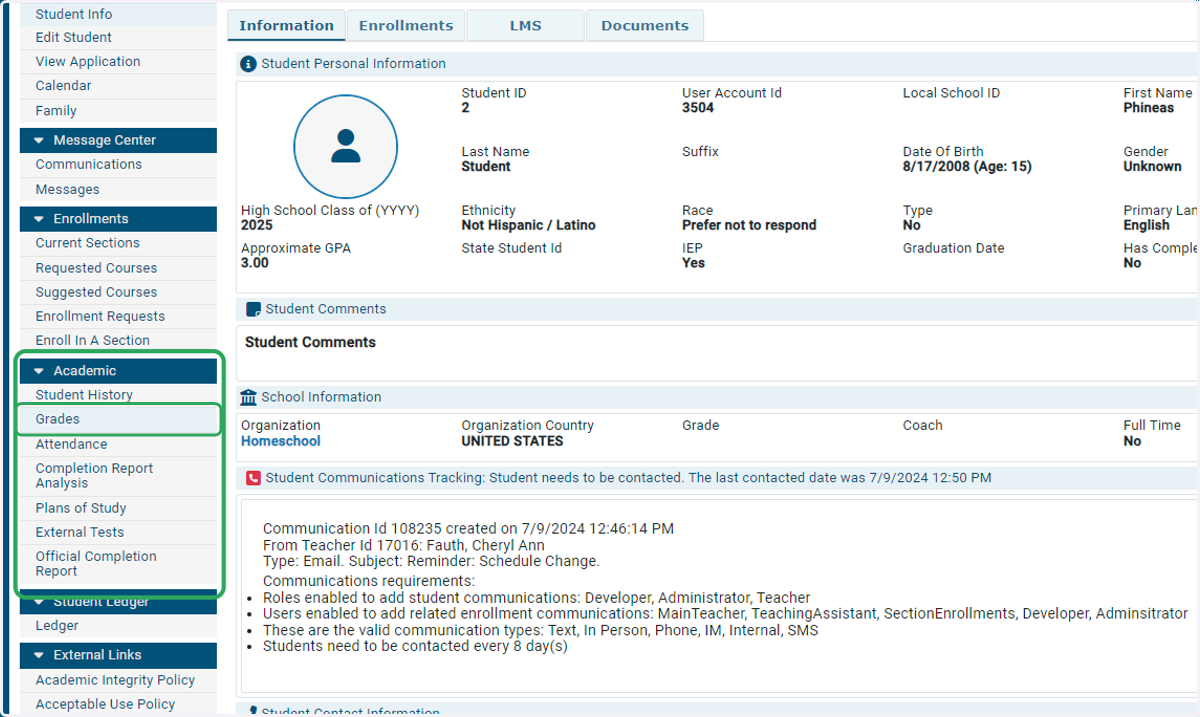
3. Click on Grades under the Academic tab on the left side of the screen.
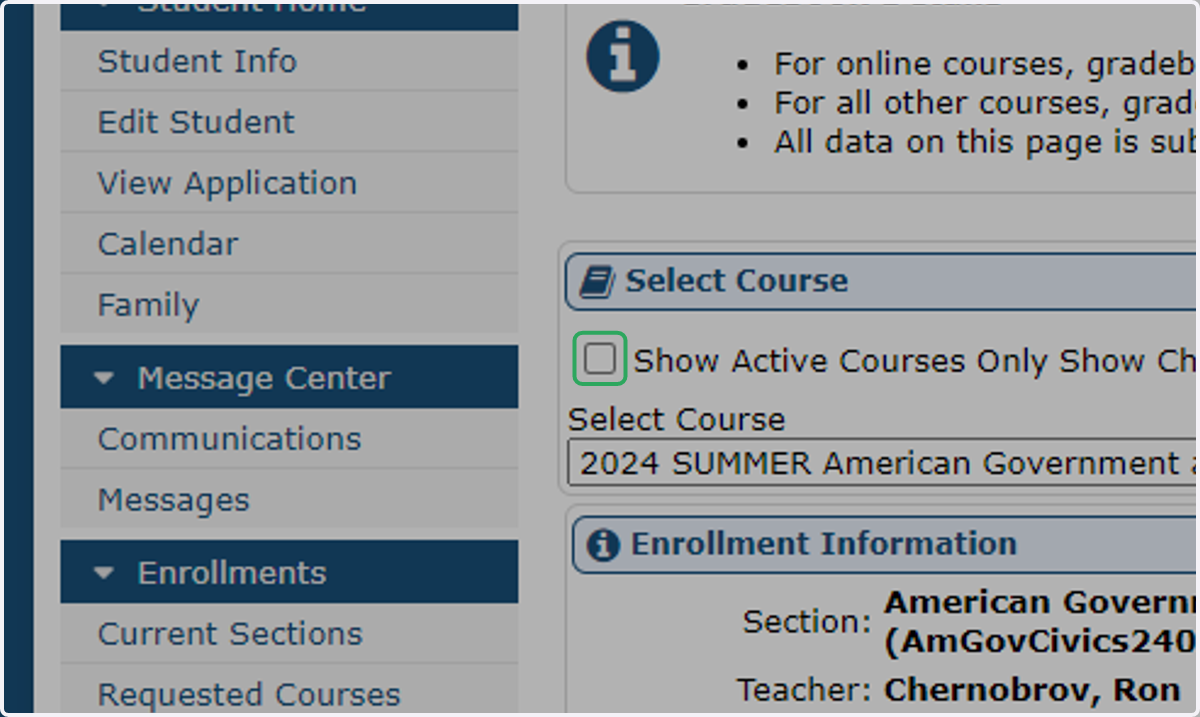
4. By default, the Select Course drop-down menu will display all active courses.
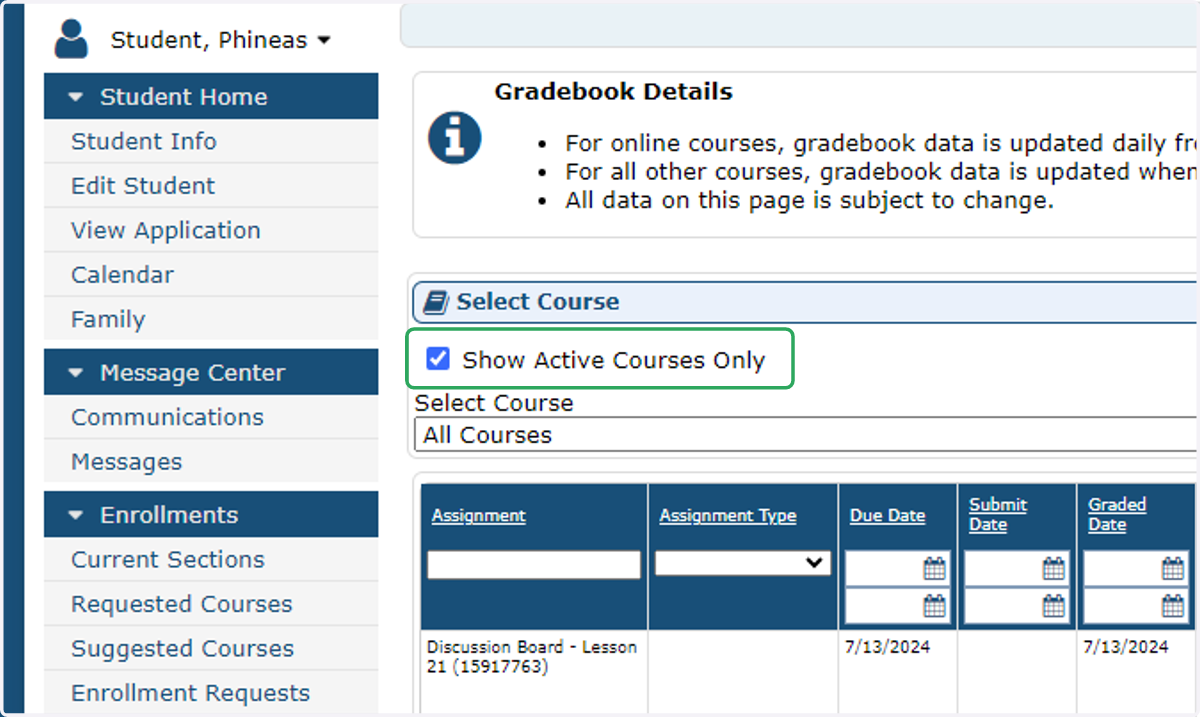
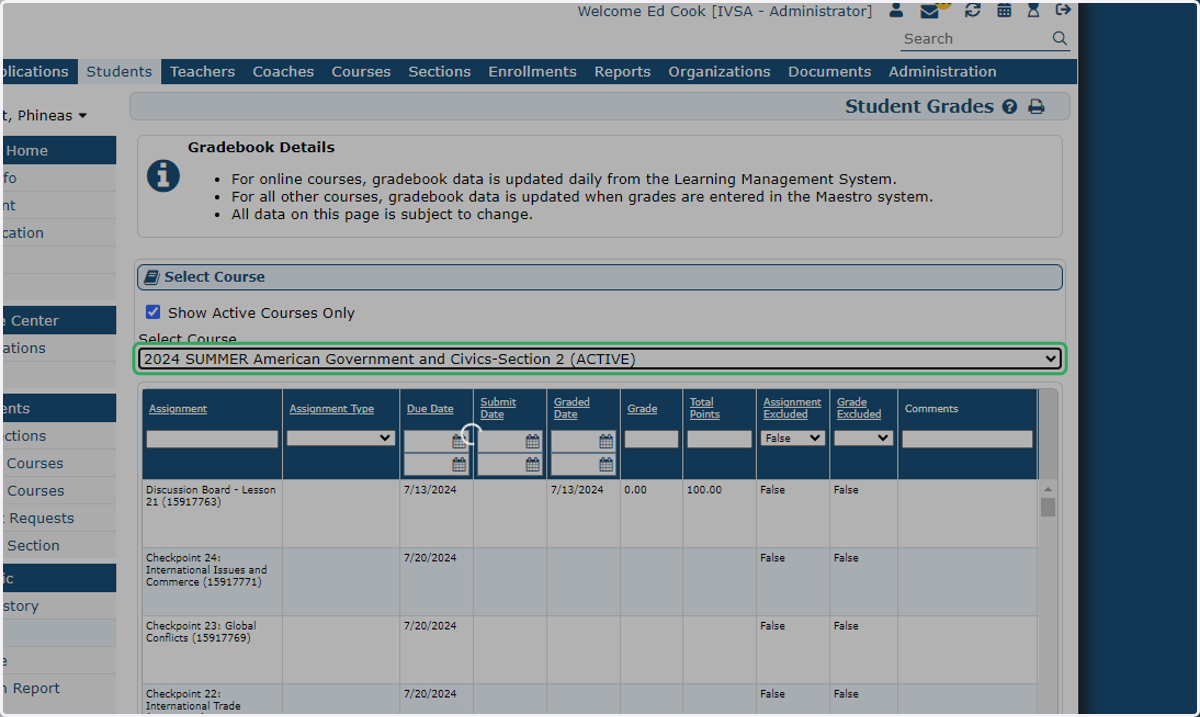
5. You can drop down to select a specific course.
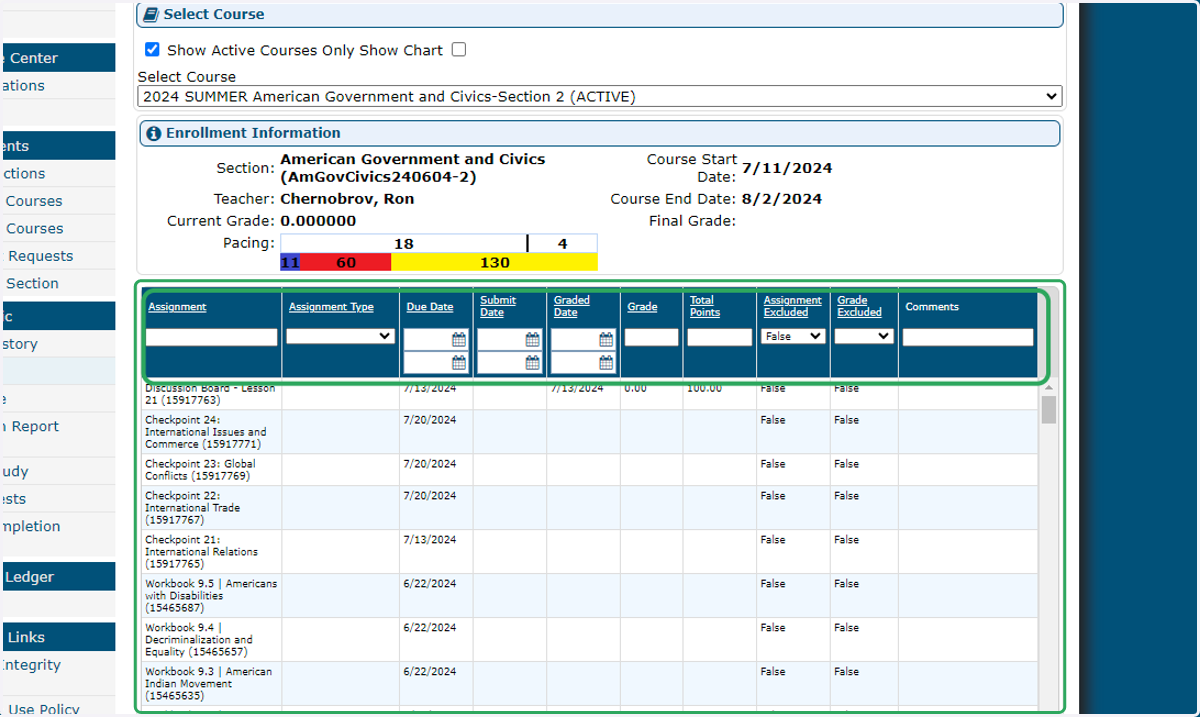
6. Use the filters and sort feature at the top of the table to organize your view.
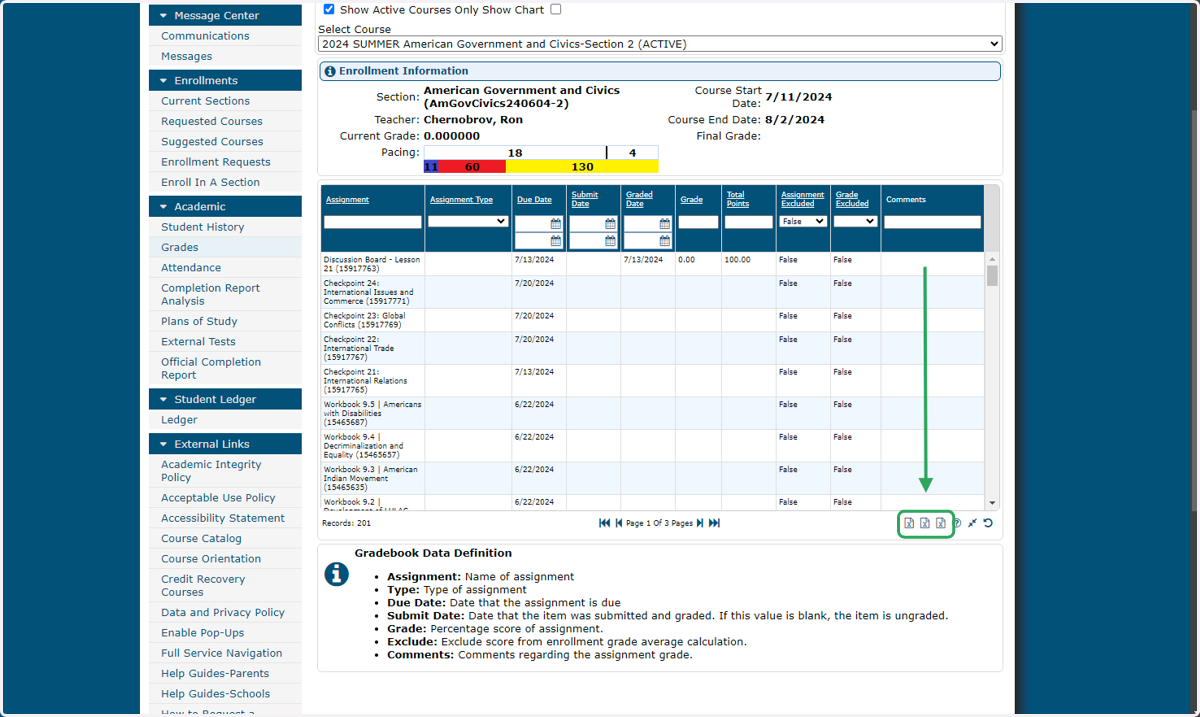
7. You can review the student's grades on the table, or you can export them as an Excel or comma delimited file.
You can either export a single course, all active courses, or all enrollments (Active, Complete, and Dropped).
8. You can also uncheck Show Active Courses Only to show all the student's enrollments.