Members - Send a Push Notification
Push notifications are a fast and effective way to keep your members informed and engaged in real time. Whether you’re promoting events or sharing important updates, push notifications help you reach members instantly through the club’s app. This guide will walk you through how to create, customize, and send push notifications to ensure timely communication with your community.
Pacesettertechnology
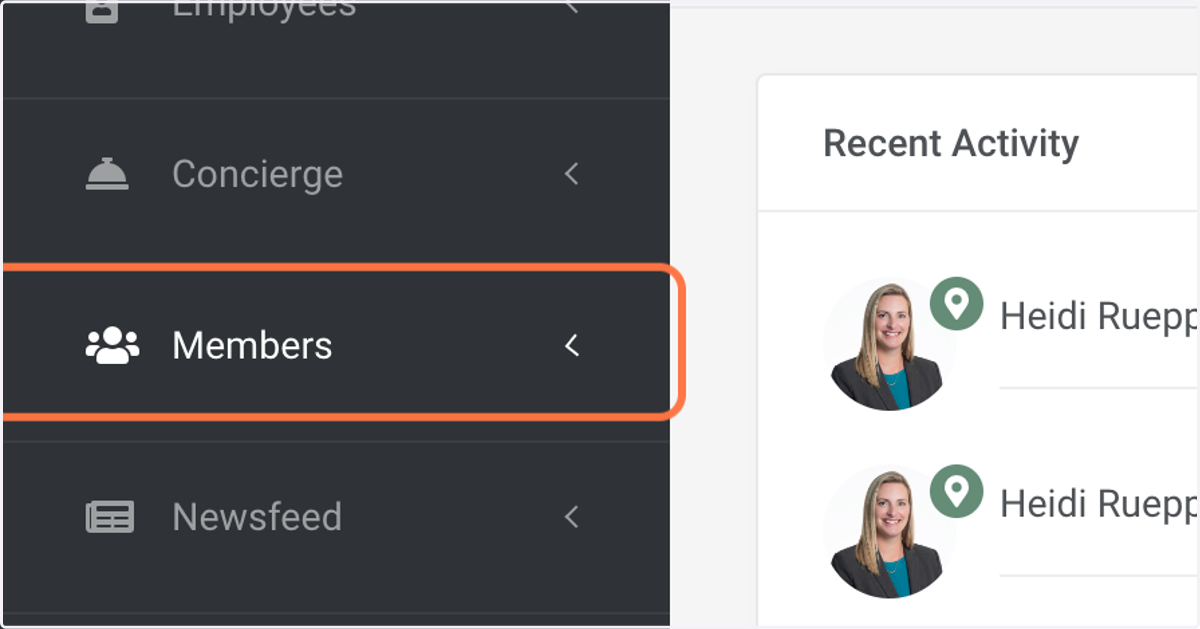
1. Click on Members
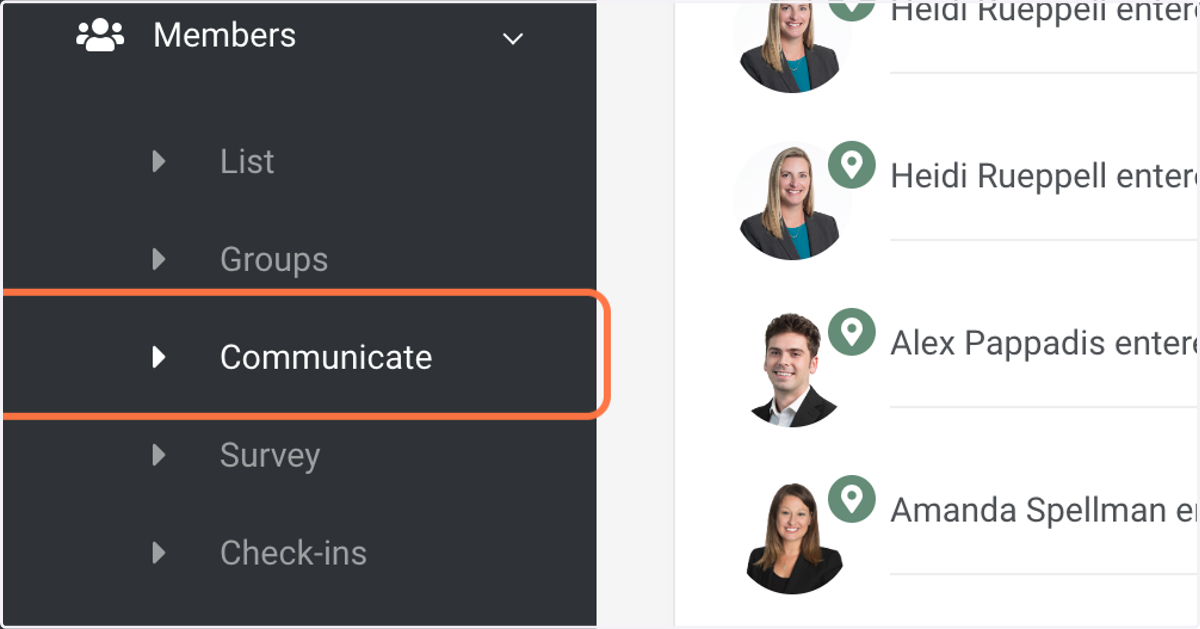
2. Click on Communicate
3. Type the message you'd like to send to members
IMPORTANT: the message has 170 character limit, keep it brief! Remember that members cannot respond to these so don’t ask questions.
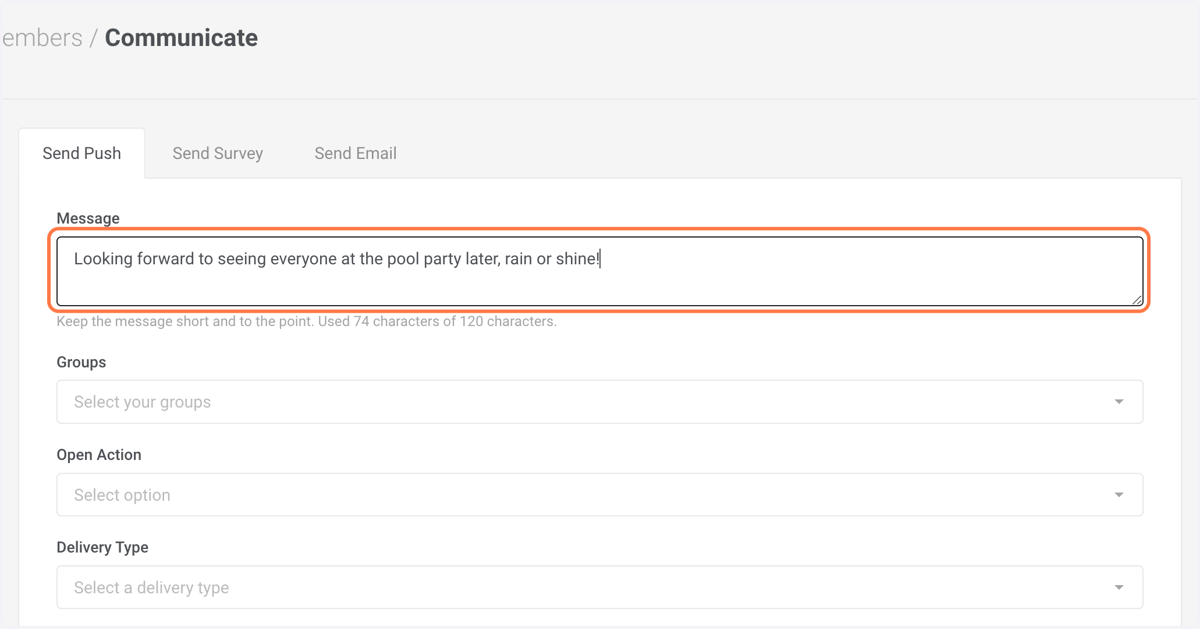
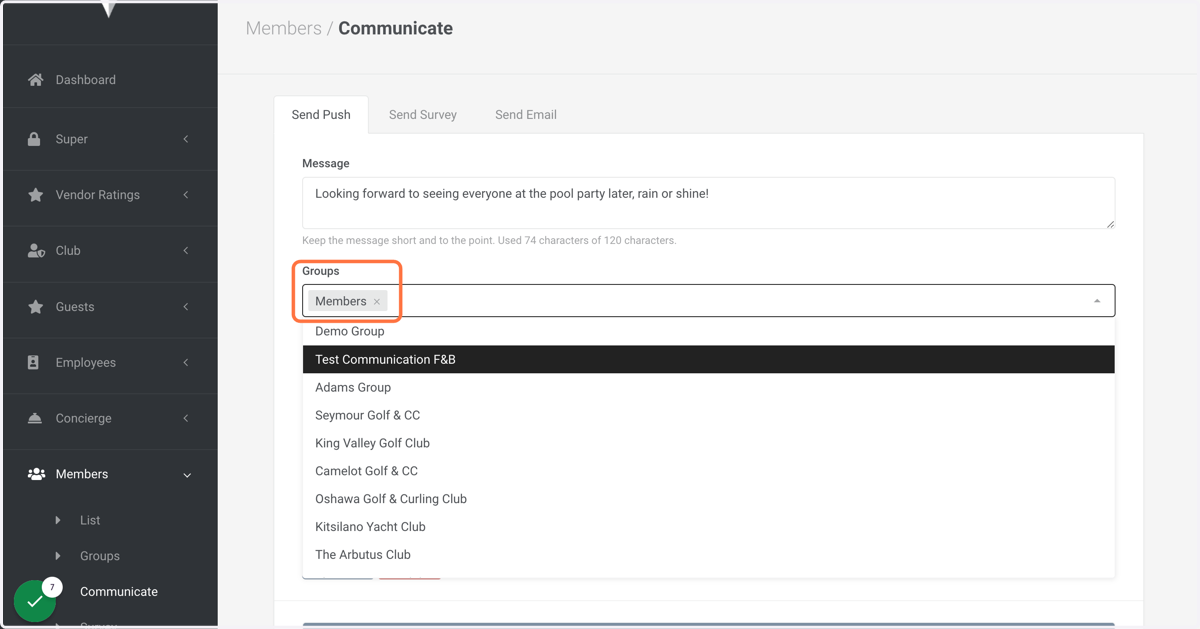
4. Select the target audience, typically this will be Members
Groups: designates who to send the push to. When sending to all membership, select the “Member” group. You can send to multiple groups at once!
5. Open Action (not required)
Allows you to link the push notification to a feature in the app. Once the member clicks “OK” within the push, the feature you select from this list will open. For example, you could launch the club calendar, a dining menu, or a form.
Skip this step if you don't want to link a feature.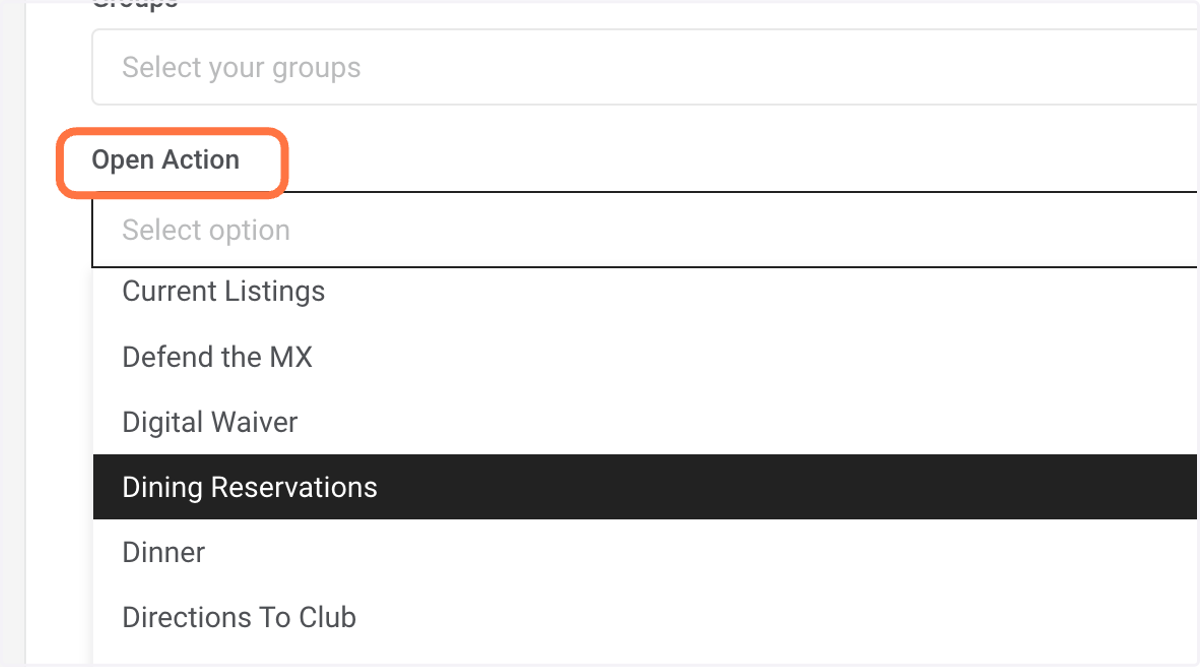
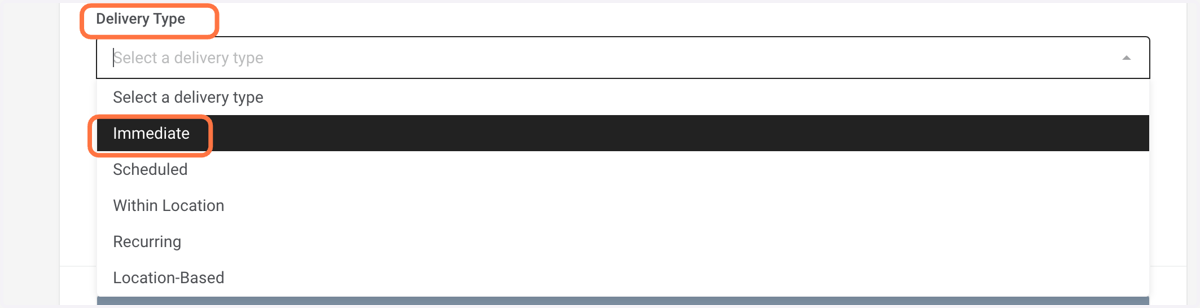
6. Select Delivery Type
Immediate, Scheduled, & Location Based.
Immediate will send the message immediately.
Scheduled allows you to schedule the message to be sent at certain date and time.
Location Based allows you to send the push to members every time they enter a certain location where a beacon has been set up, within the Clubhouse’s GPS radius, or at any location we establish.
7. Click on Submit
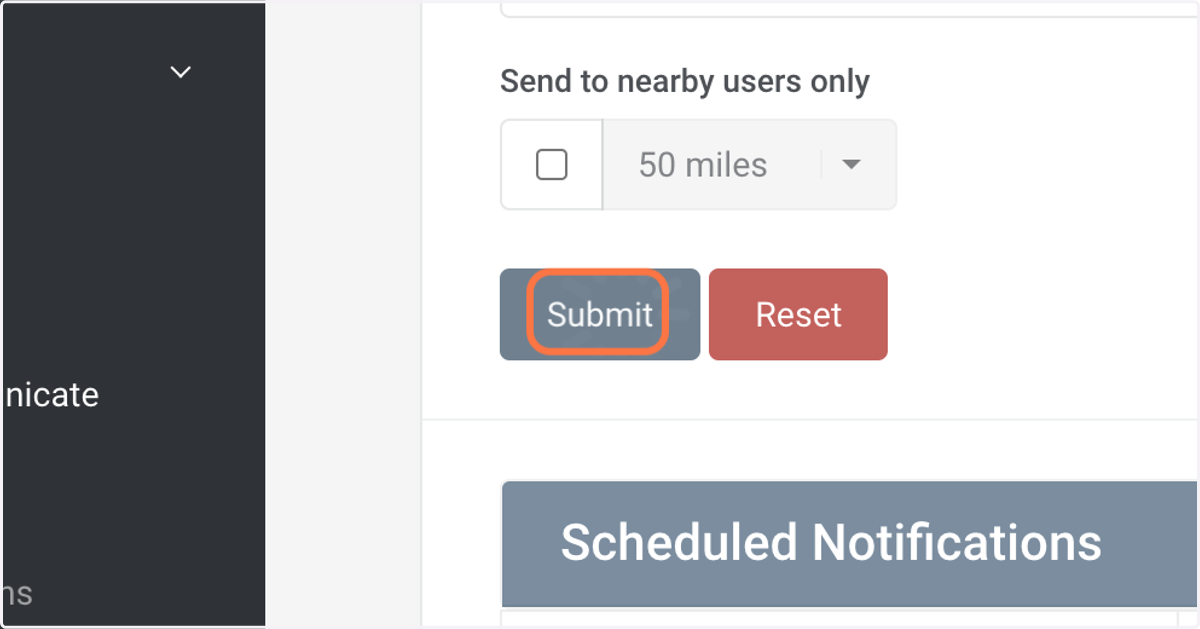
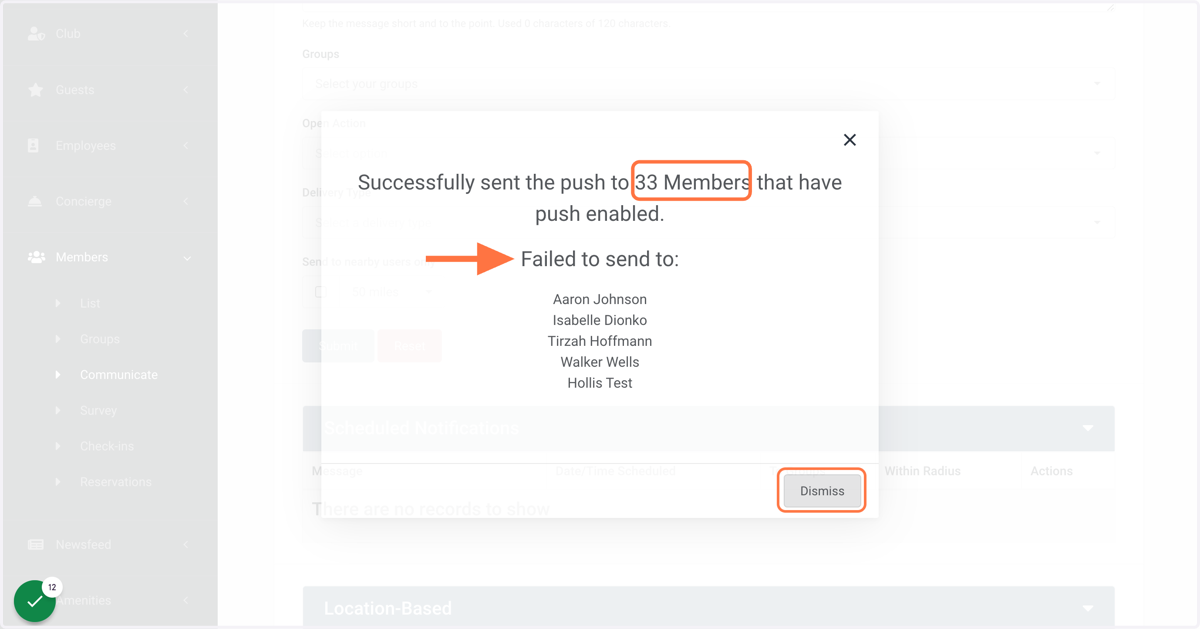
8. A pop-up will show how many members your message was sent to
Any members who do not have push notifications enabled for their app will not receive the message. These members will appear under "Failed to send to."