Members - Creating App Credentials
Member profiles are the key to granting access to your club’s app. Each profile connects a member to the app, allowing them to view events, make reservations, and stay engaged with the club. This guide will walk you through how to create member profiles and set up app credentials, ensuring members can seamlessly login and start enjoying all the benefits your club offers.
Pacesettertechnology
1. Go to Pacesetter Technology
2. Click on Members
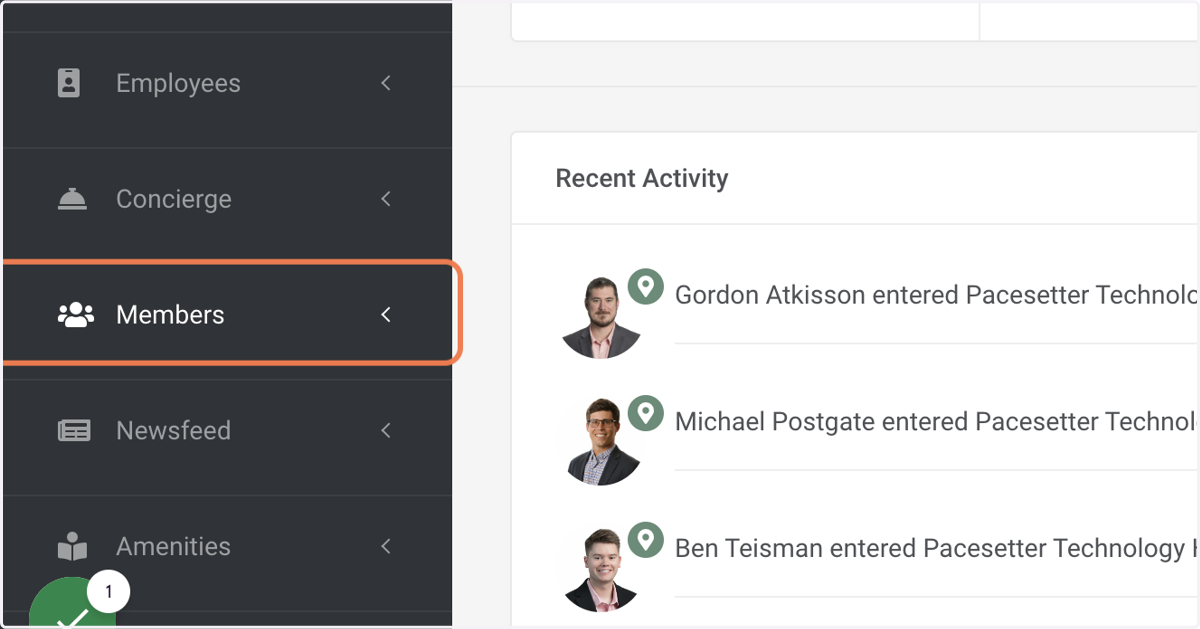
3. Click on List
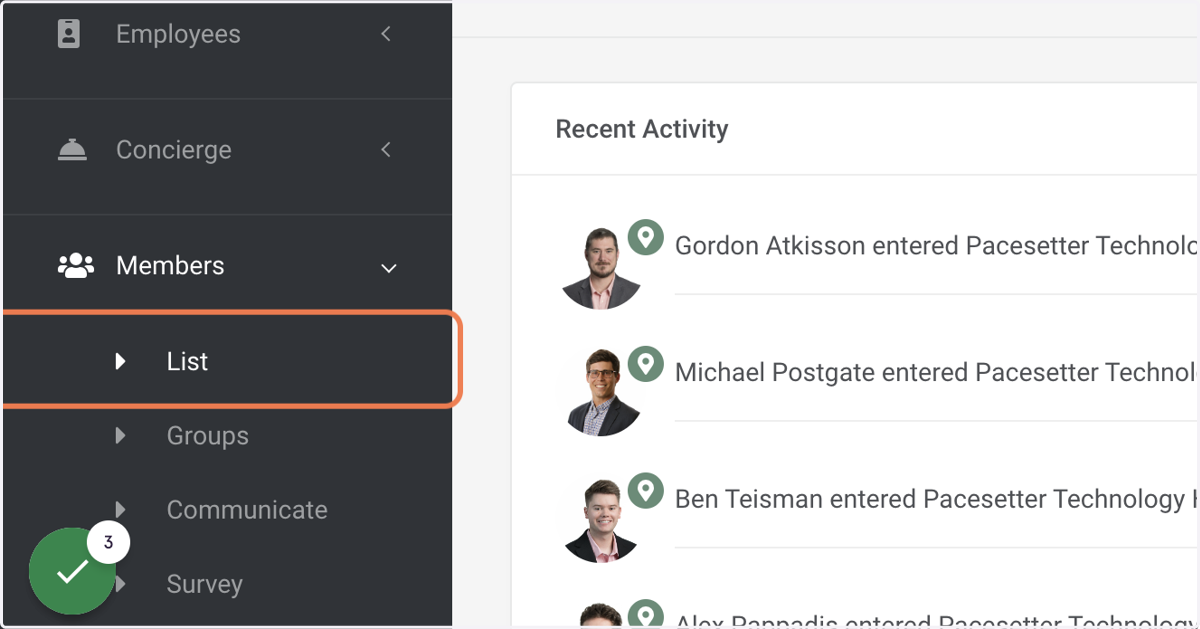
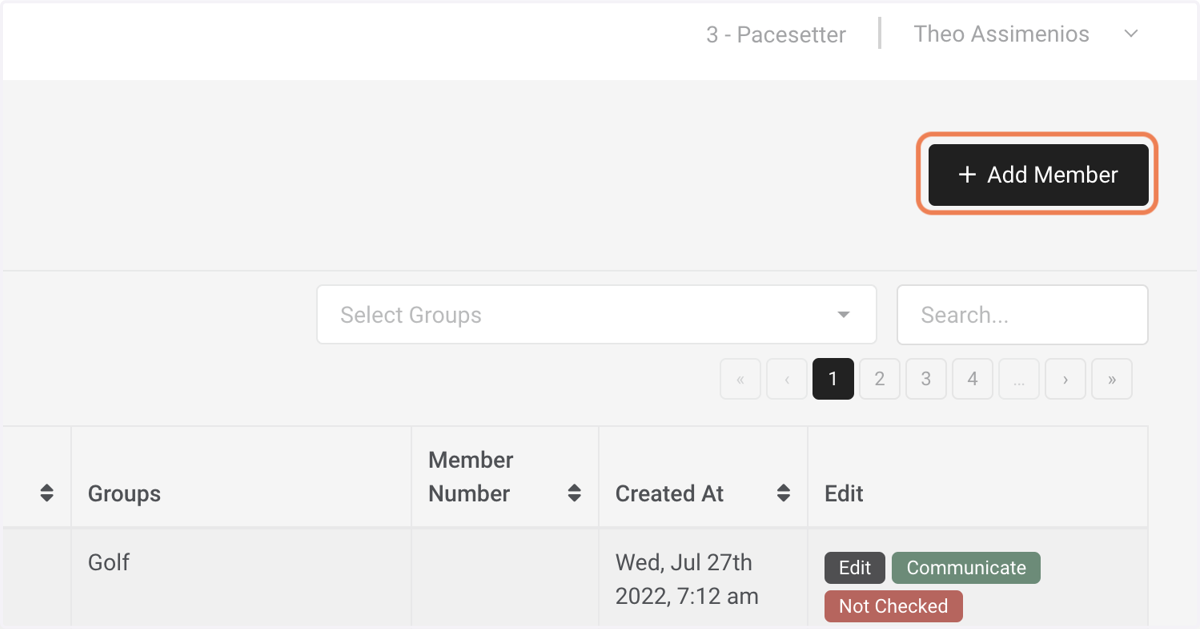
4. Click on Add Member
5. Click on the upload button under "Profile Image" if you would like to upload a profile photo for this app user.
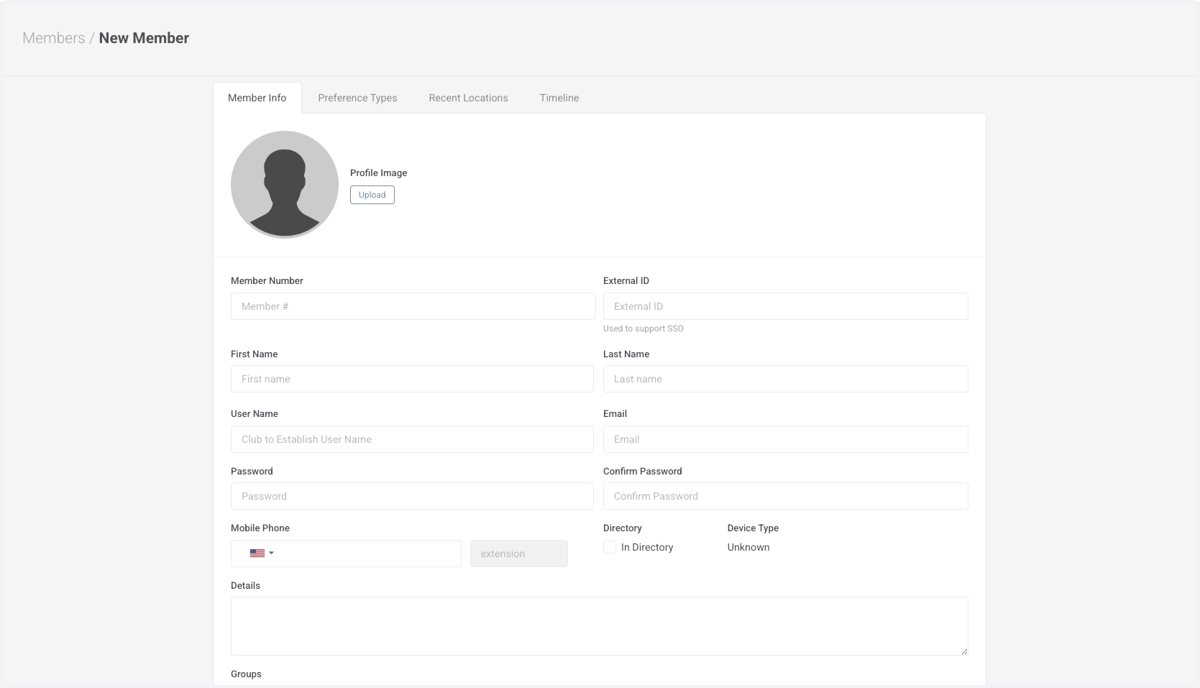
6. Upload an image
Make sure to crop the image before saving or it will stretch on the members device!
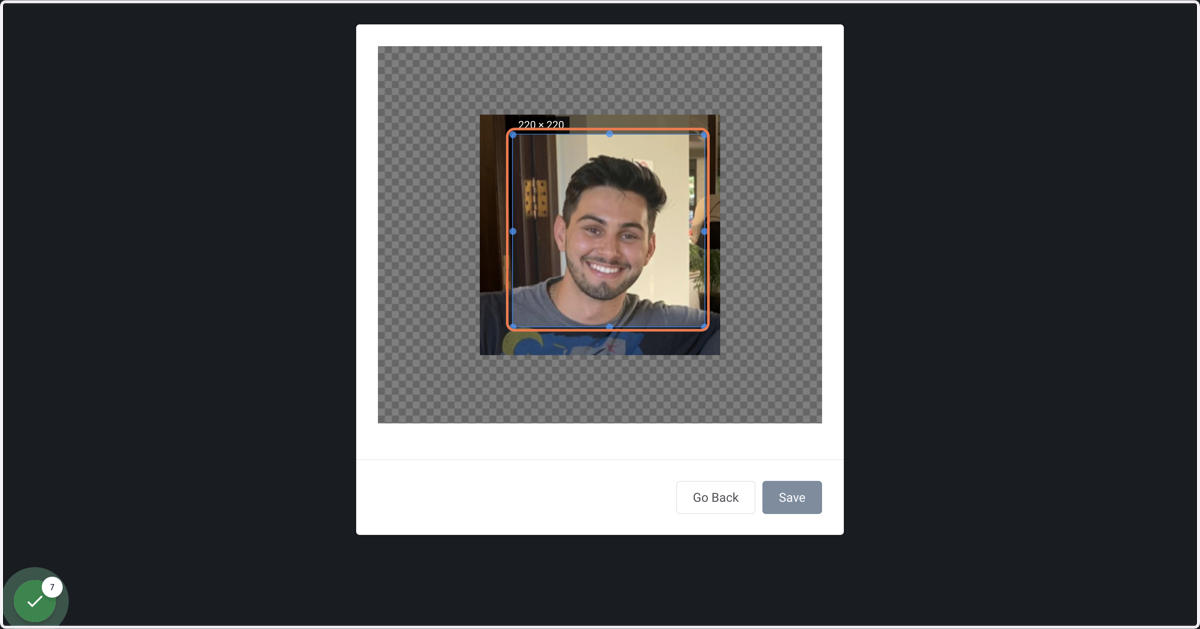
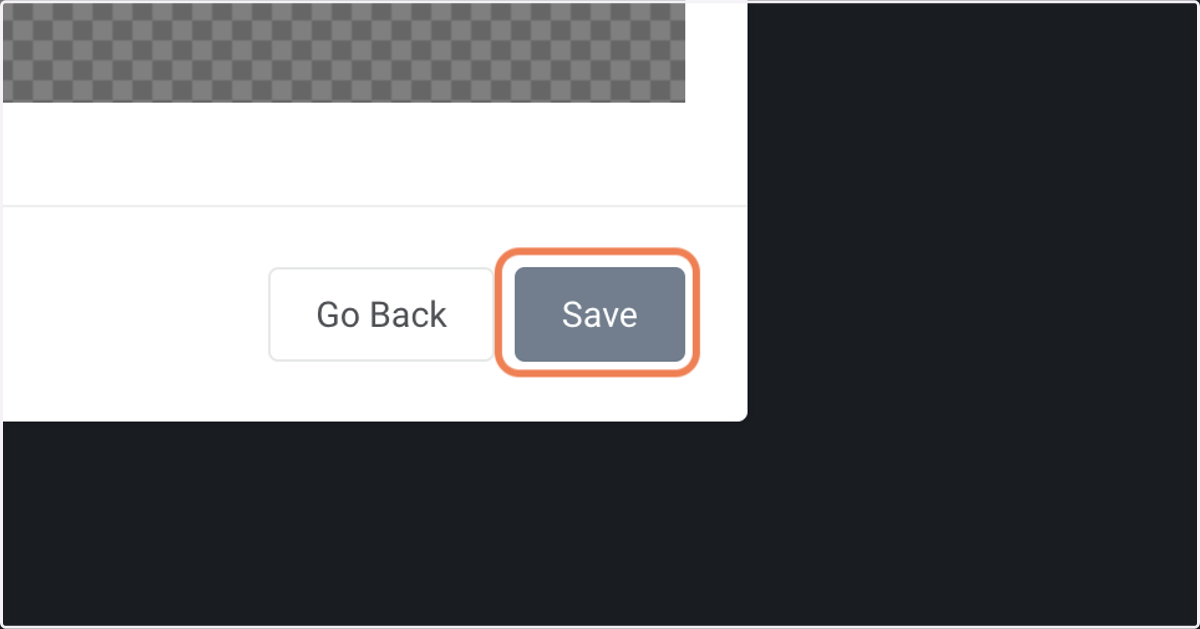
7. Click on Save
8. Enter the member number
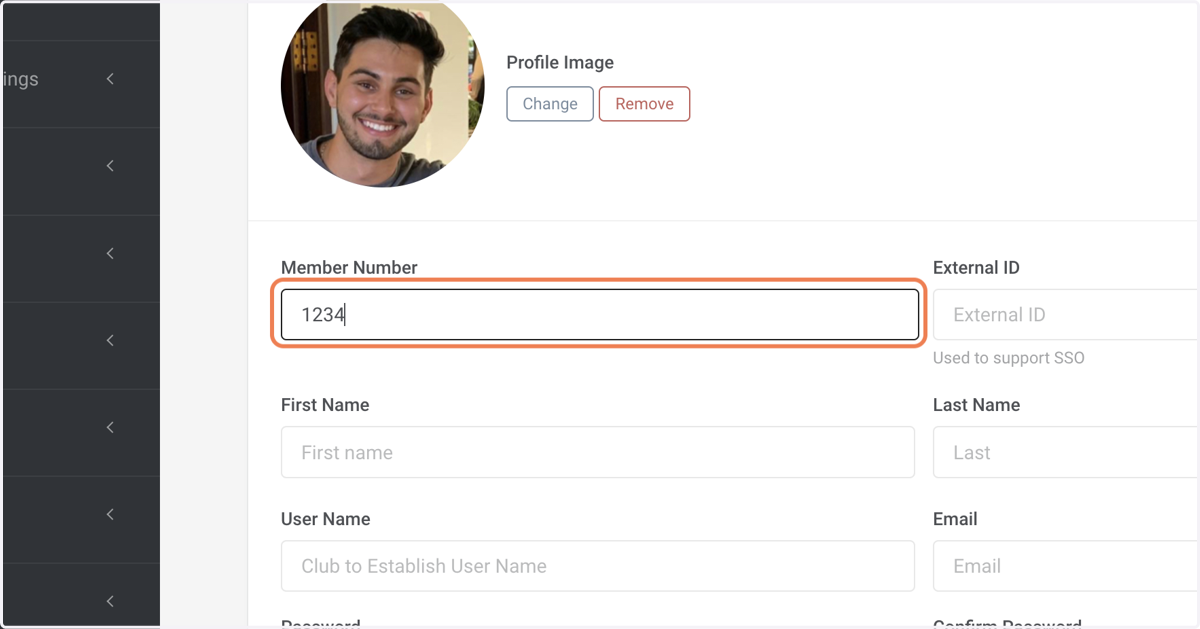
9. Repeat the member number in the External ID field
This is used for single sign-on features and must match the member number
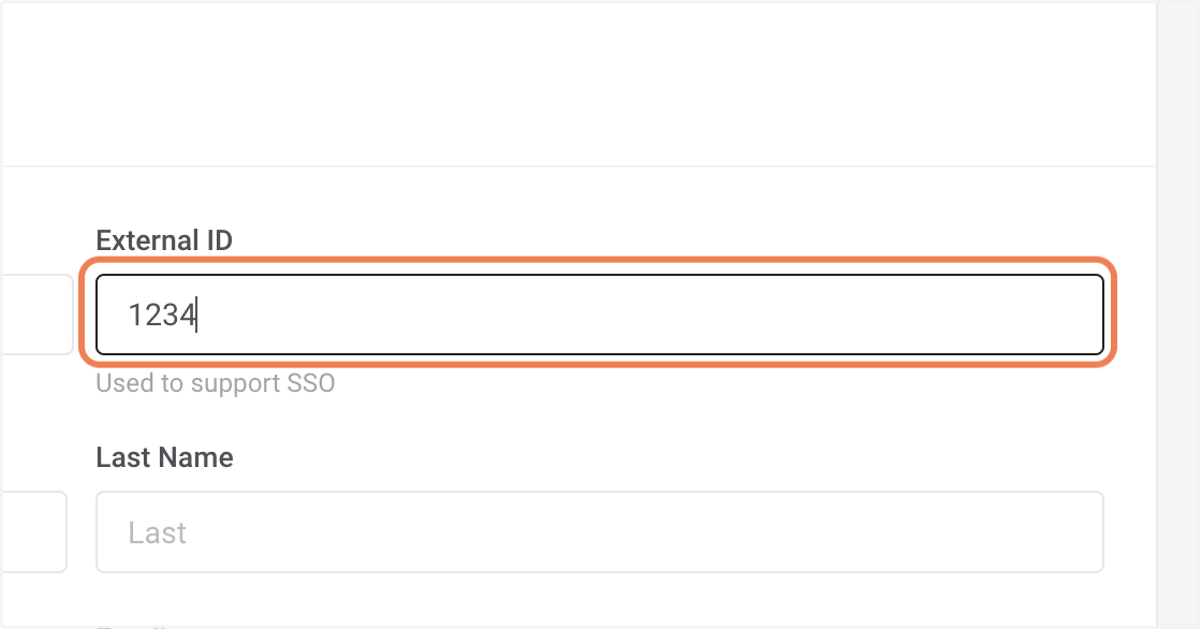
10. Enter the first name as the member would like it to appear in their app
This is also how it will appear in the app member directory
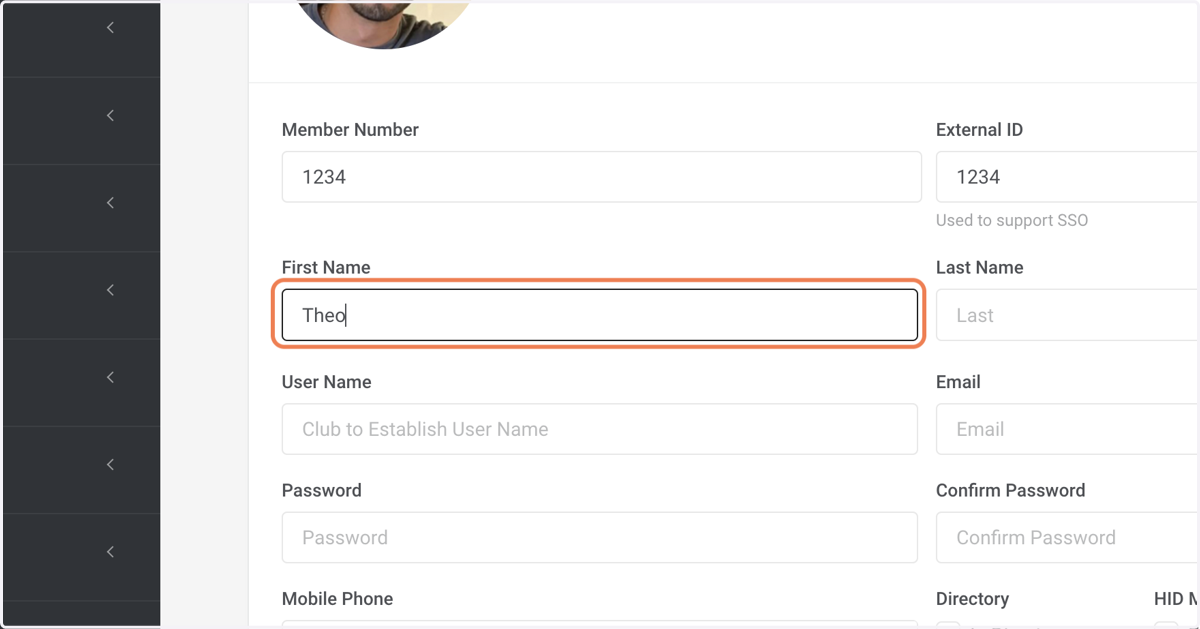
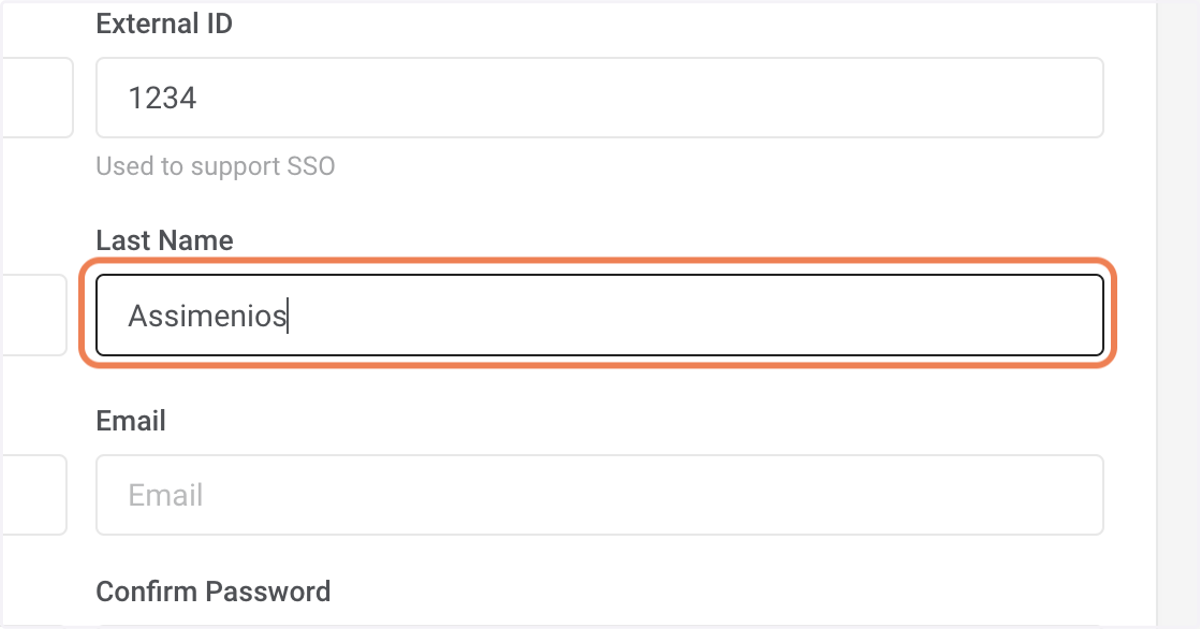
11. Enter the last name as the member would like it to appear in their app
This is also how it will appear in the app member directory
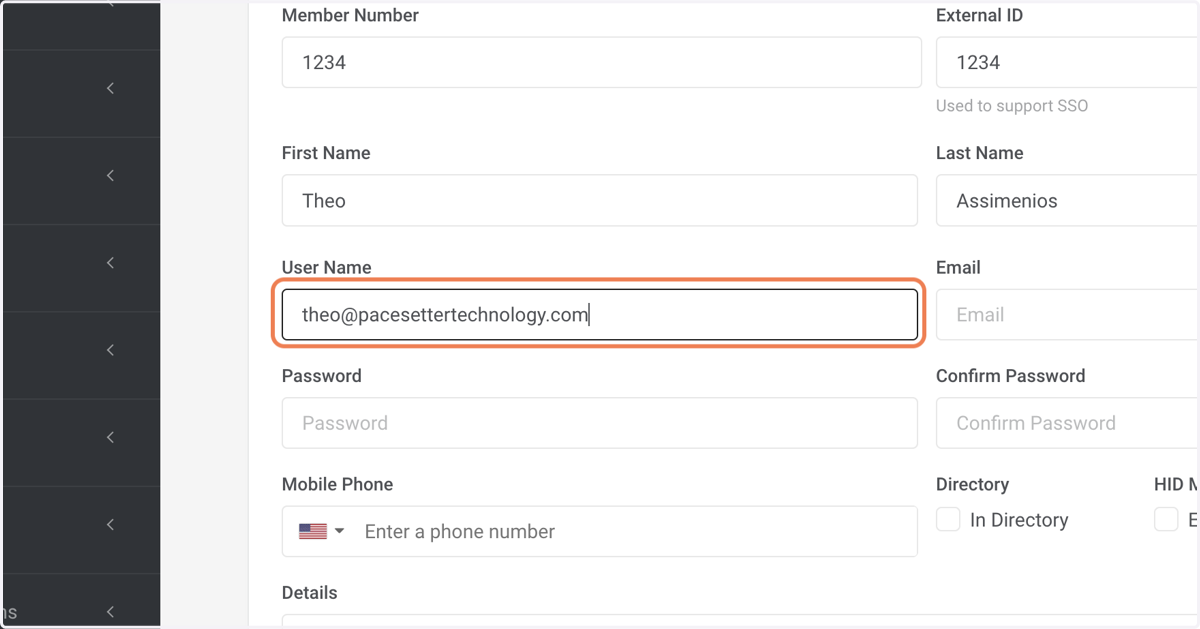
12. Enter a username
NOTE: each username must be unique. Typically member username is their member number, and staff username is email address
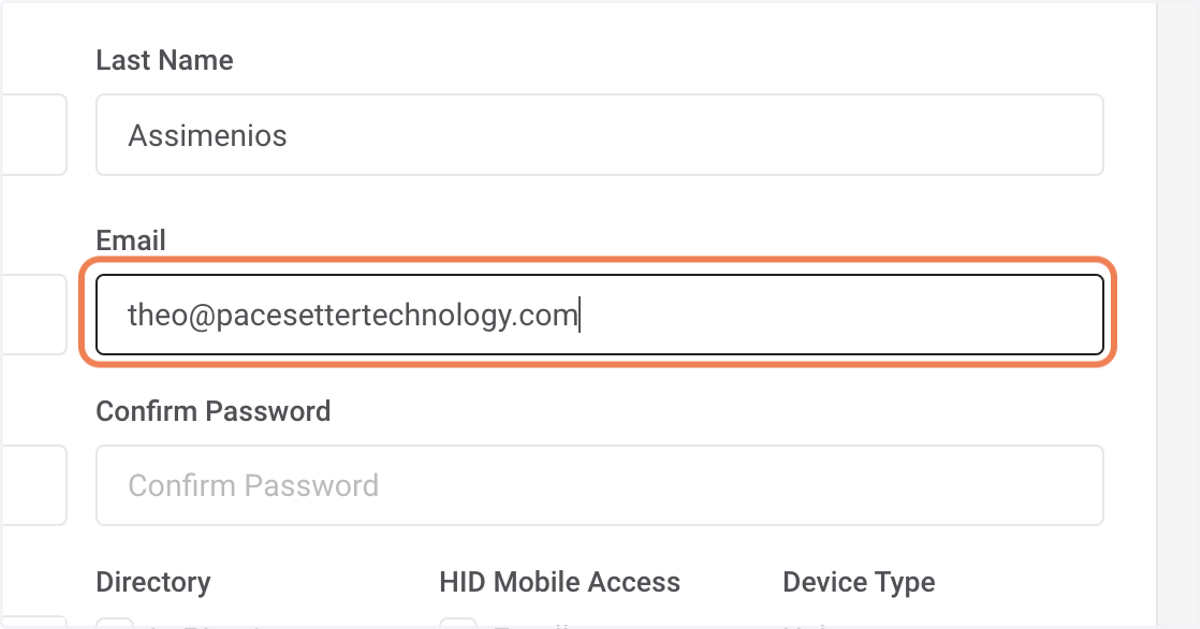
13. Enter the email address
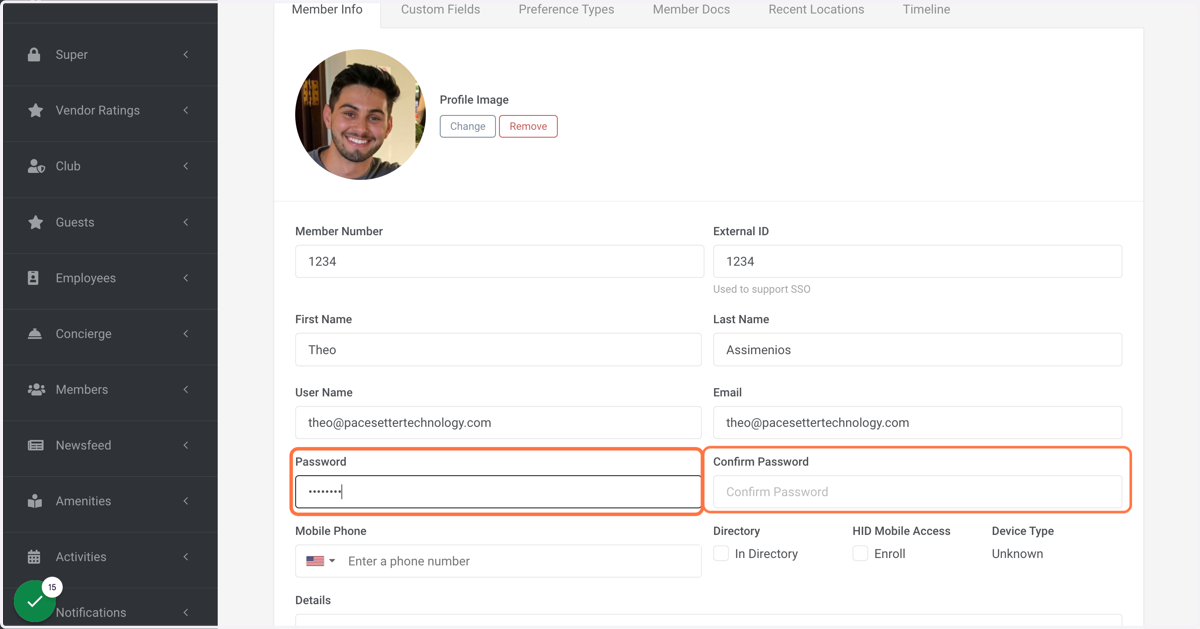
14. Enter the password twice
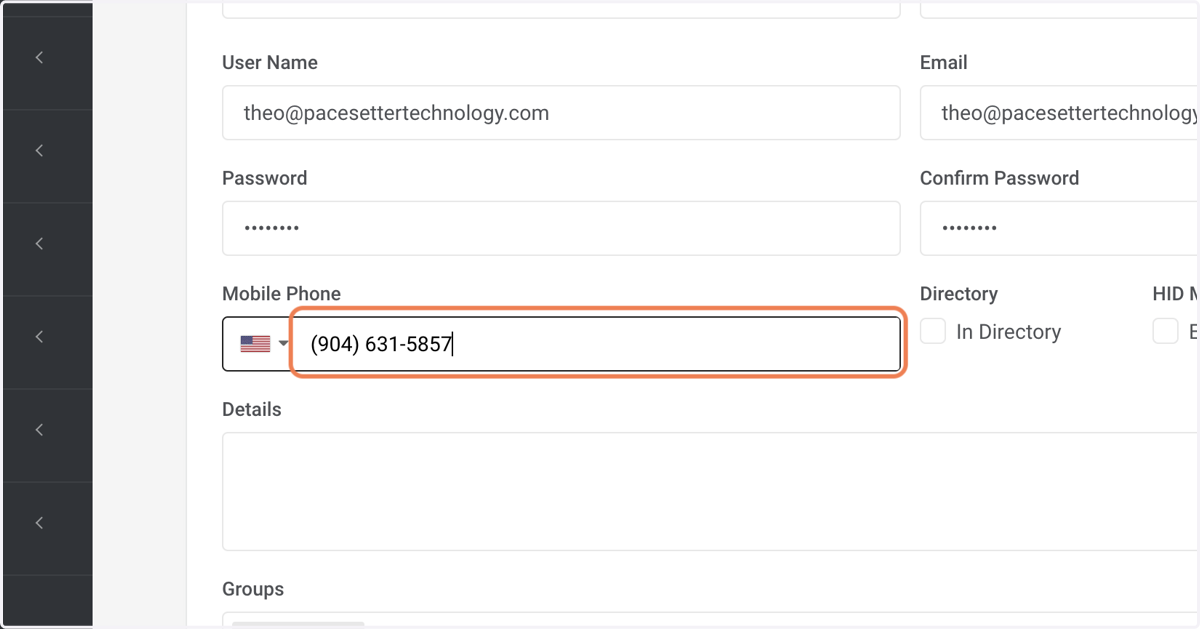
15. Enter a phone number
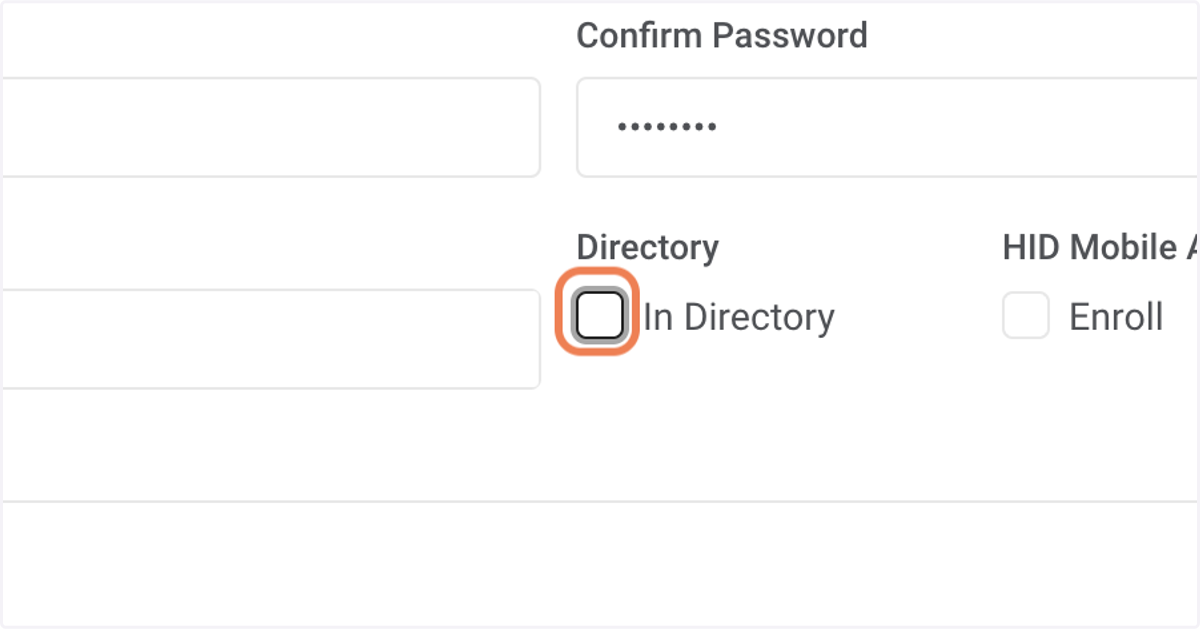
16. Select this box for the entry to appear in the Member Directory
Do NOT check this box for staff, vendors, or users who simply need app credentials but are not members
17. Enter any details specific to the member
Note: This information is displayed in the Sixth Sense+ app on iPads and appears when members arrive to the club, send a message, or an F&B order. The member does NOT see this info, it is used for internal purposes only. The more info., the merrier!
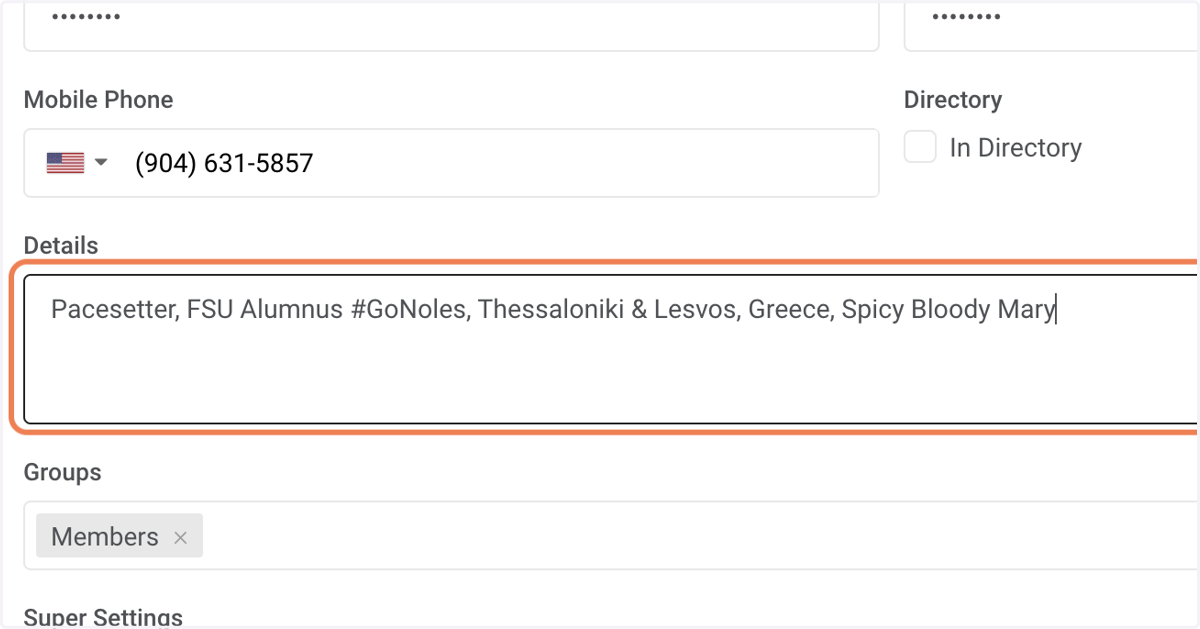
18. Add the user to the Member group, and any other appropriate groups
Note: All users, including staff, must be in the Member group to view the app properly.
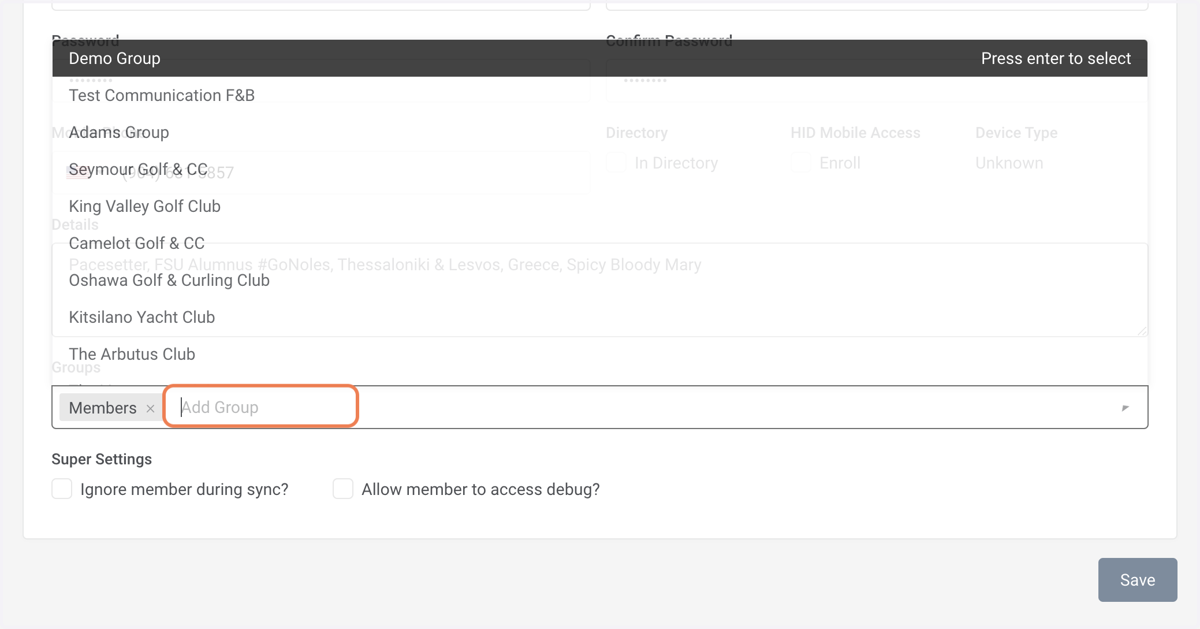
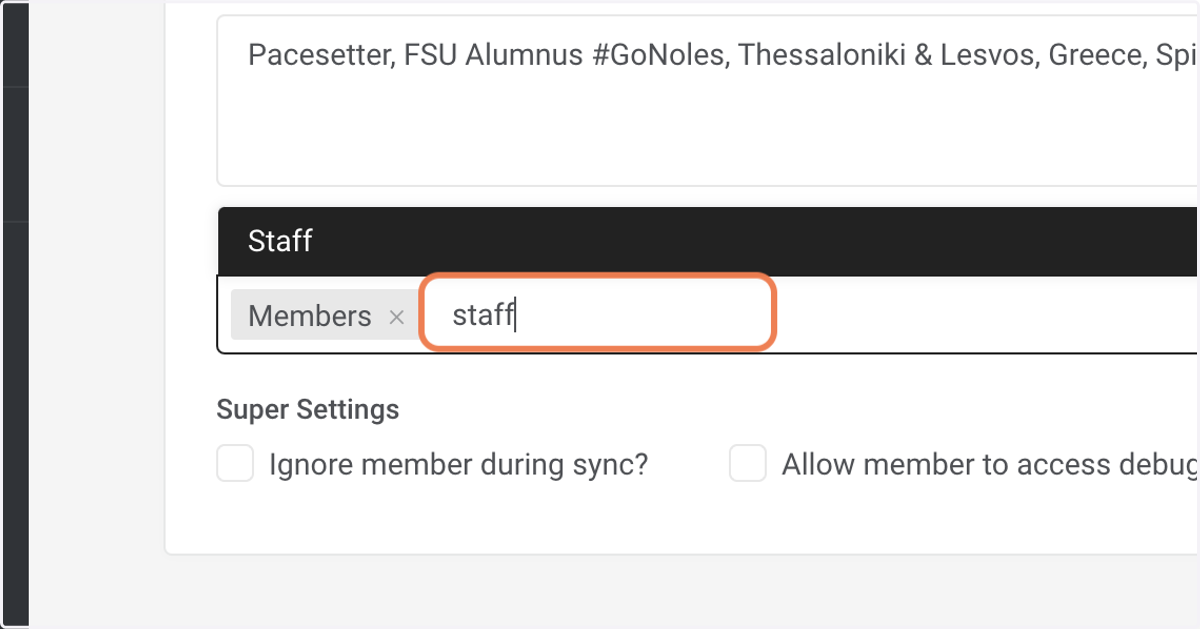
19. Add staff to the Staff group. Add any interest groups here as well.
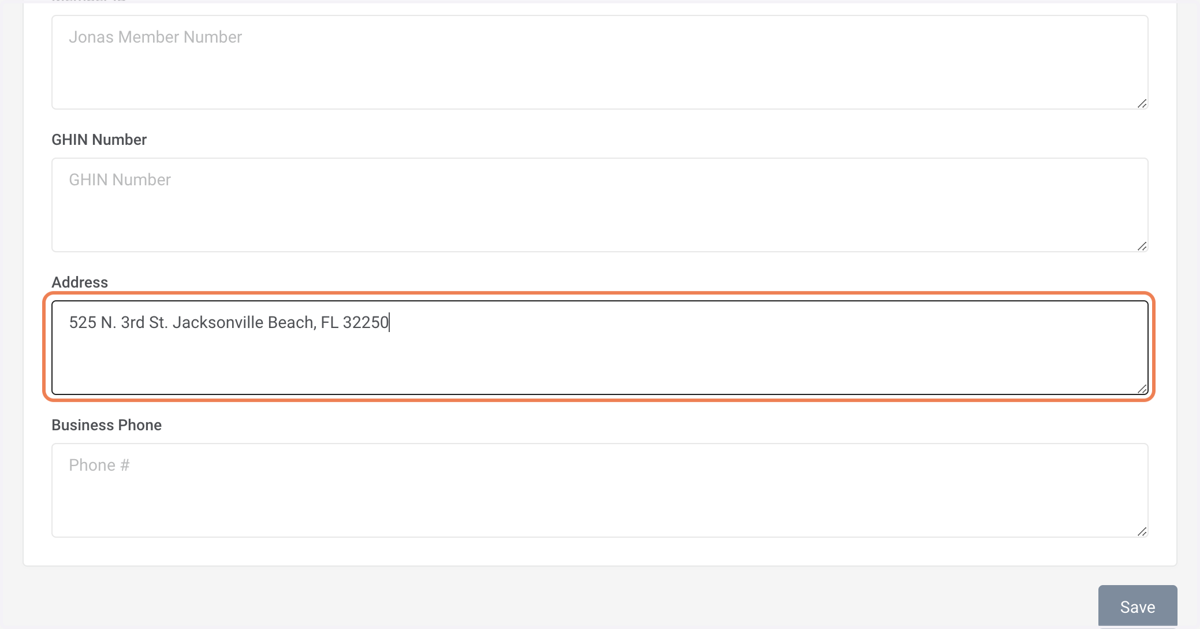
20. Click on Custom Fields (May not apply to all users)
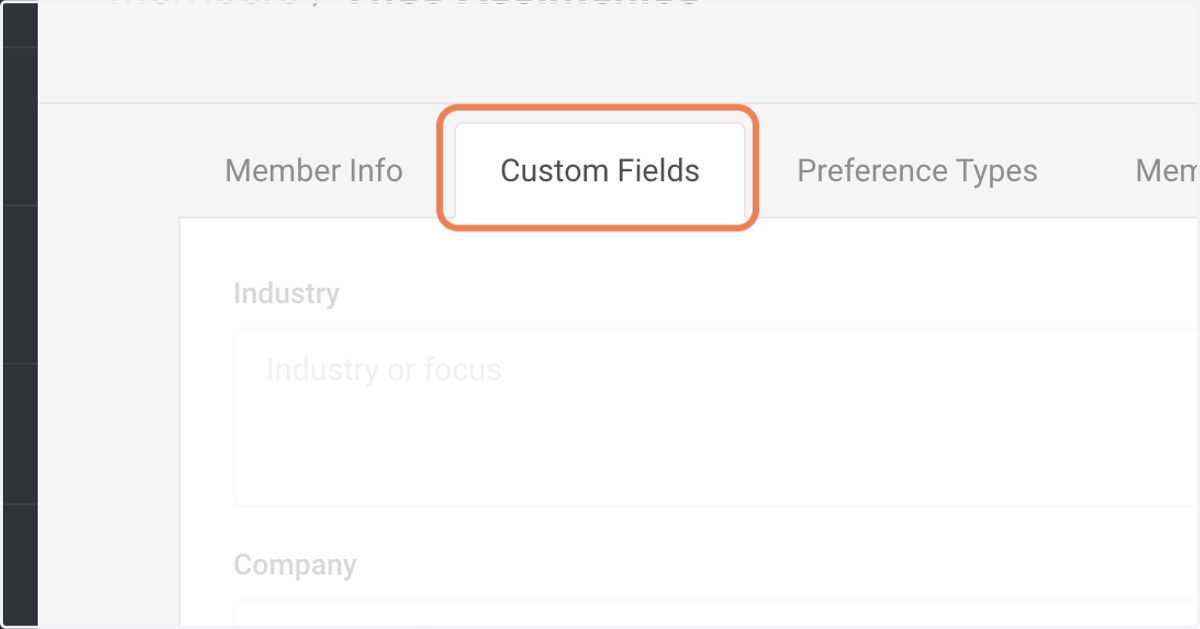
21. Custom fields allow you to add additional information to a users profile
Ex: Spouse, Primary Address, Secondary Address, Membership Type, Bio, etc...
This information can be displayed under their entry in the member directory.
22. Click on Save to finish