Manual Enrollment for Students
This is an effective method for enrolling students into your course that are scheduled with another teacher. A prime example of this would be SPED students who are assigned to another teacher on campus, but attend your classes for core content.
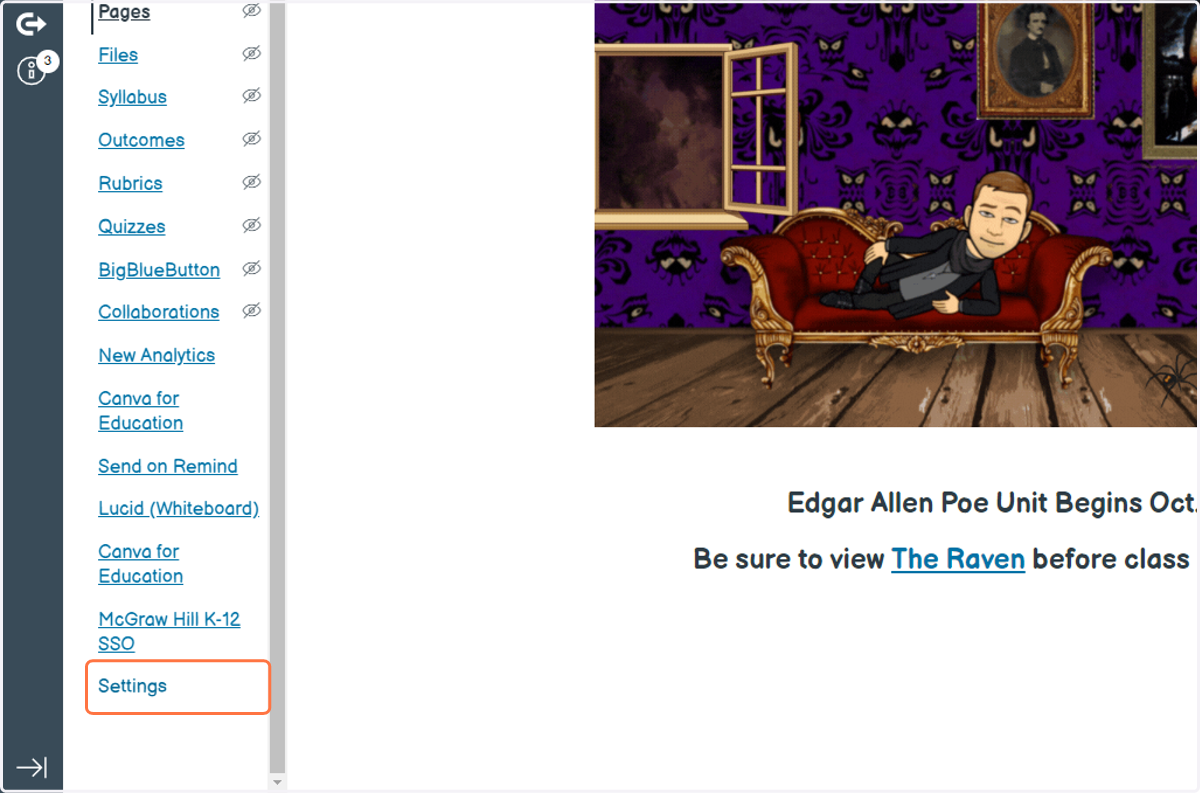
1. From your course page, click on Settings
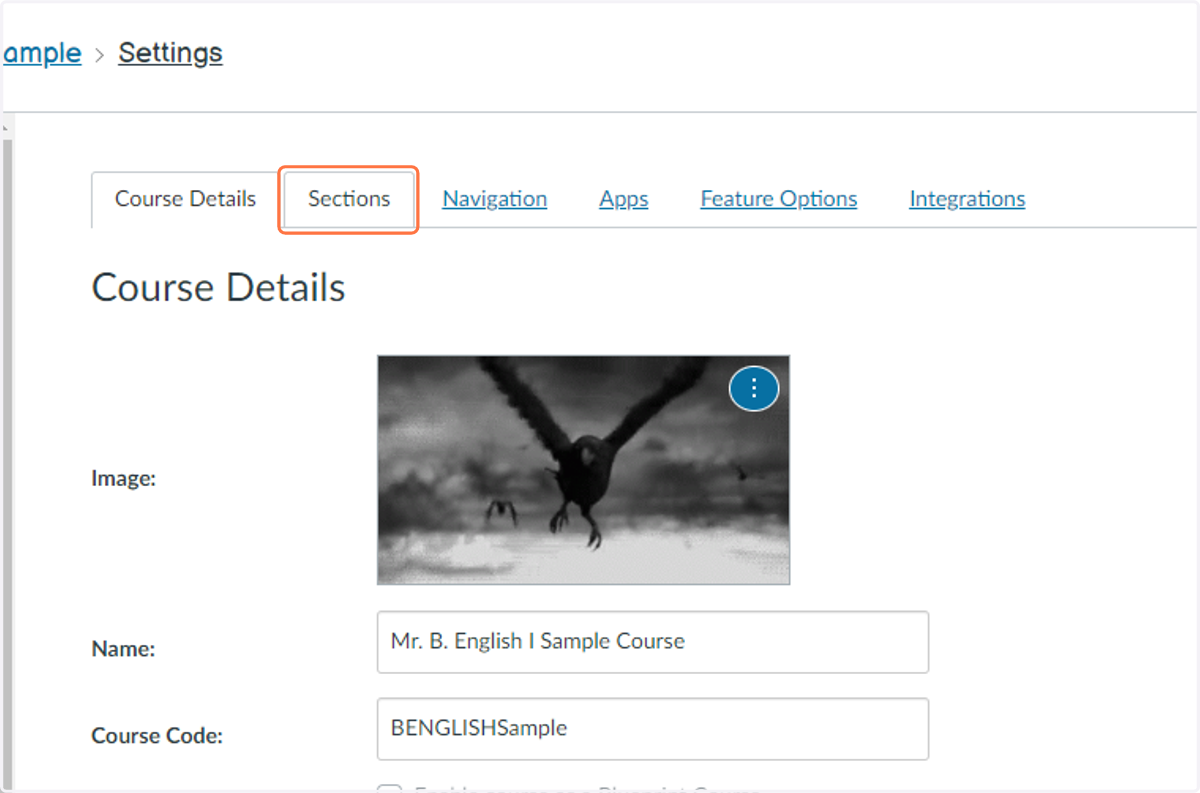
2. Choose the Sections tab
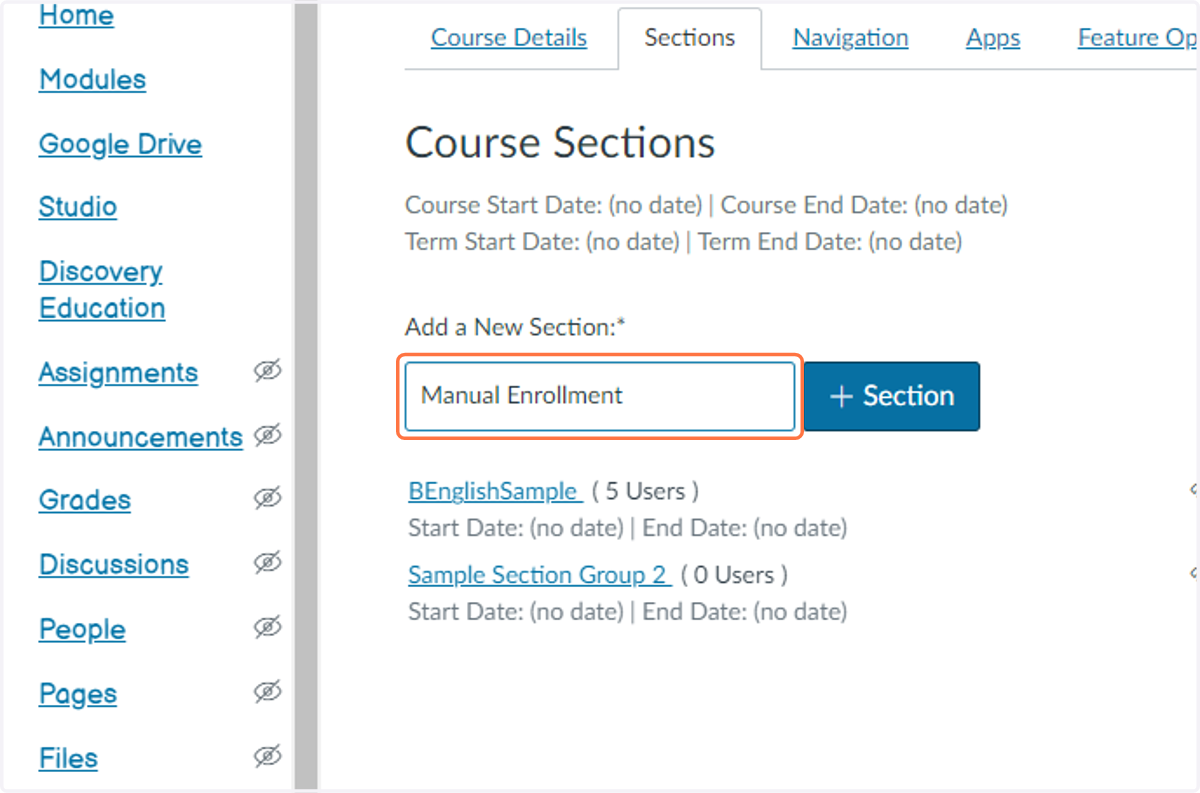
3. Type "Manual Enrollment" in the Add a New Section field
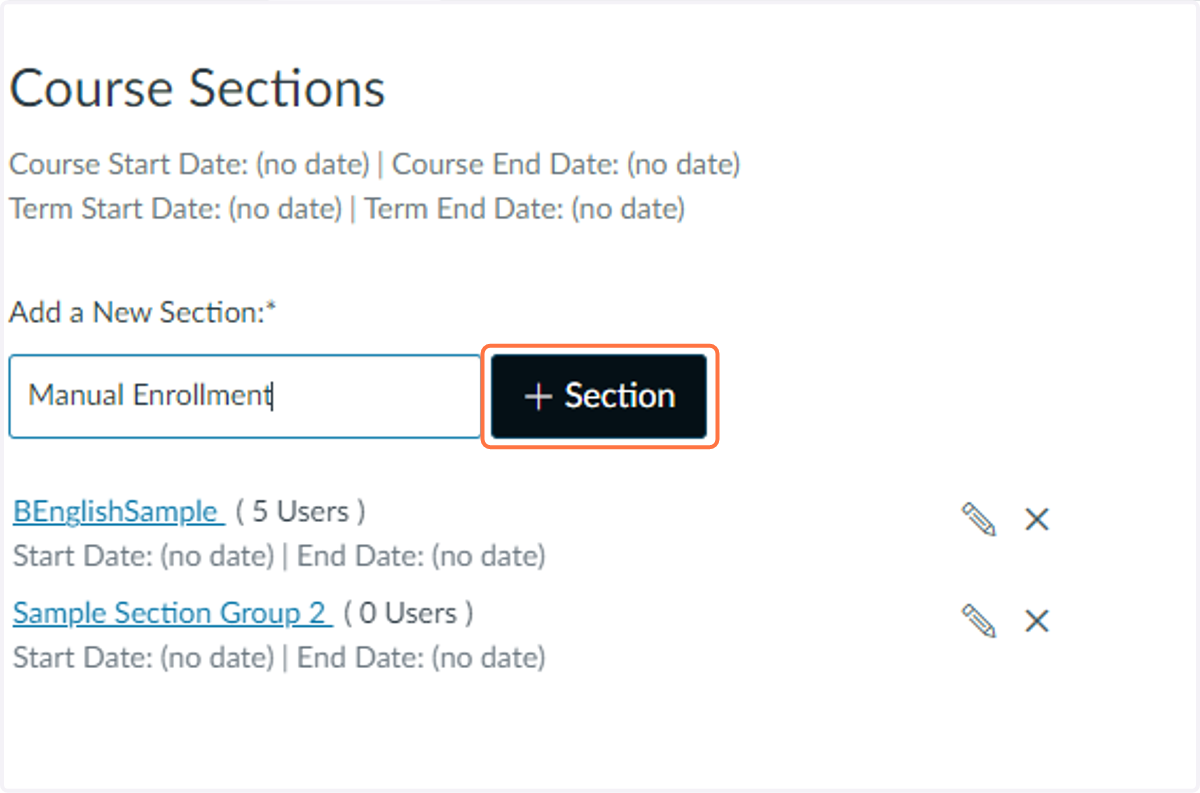
4. Click the +Section button to save the section
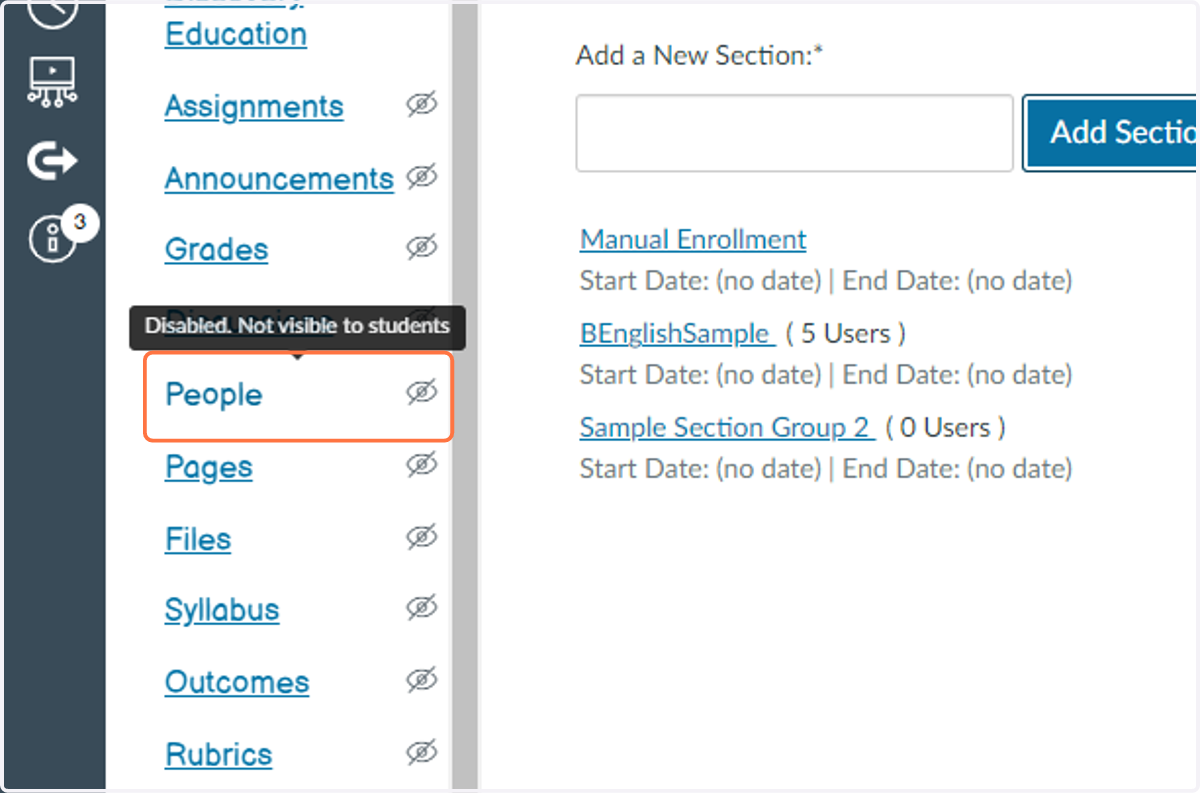
5. Select the menu item for People
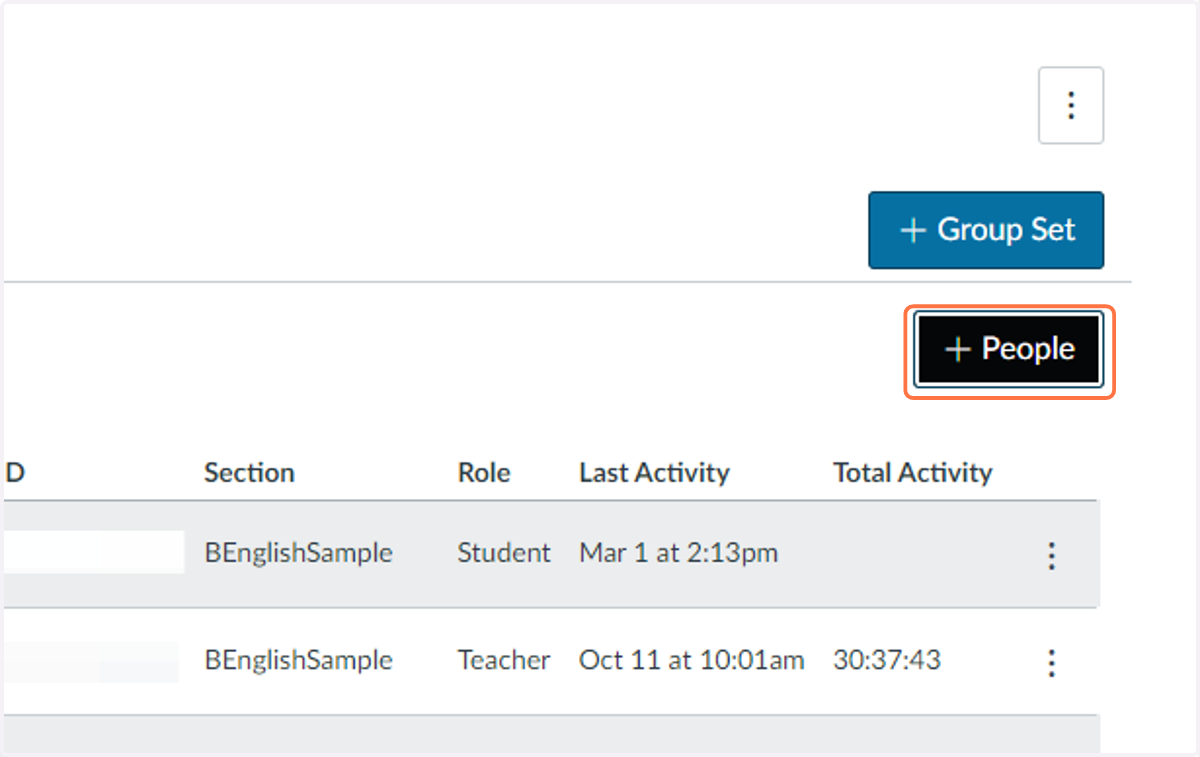
6. Select the People button
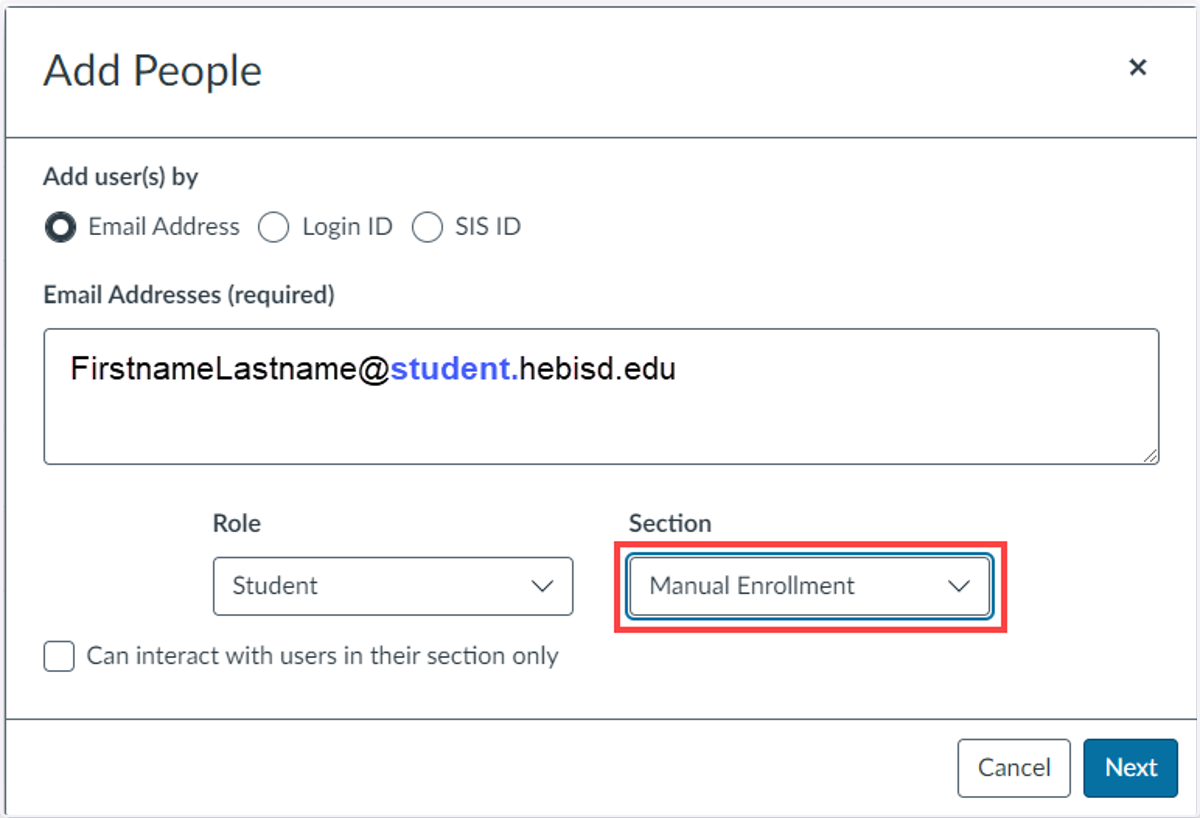
7. Type Email of student to be added & Change Section to Manual Enrollment
Alternate method: you can choose Login ID and enter the students district username to enroll them (e.g, ab123456) instead of their email.
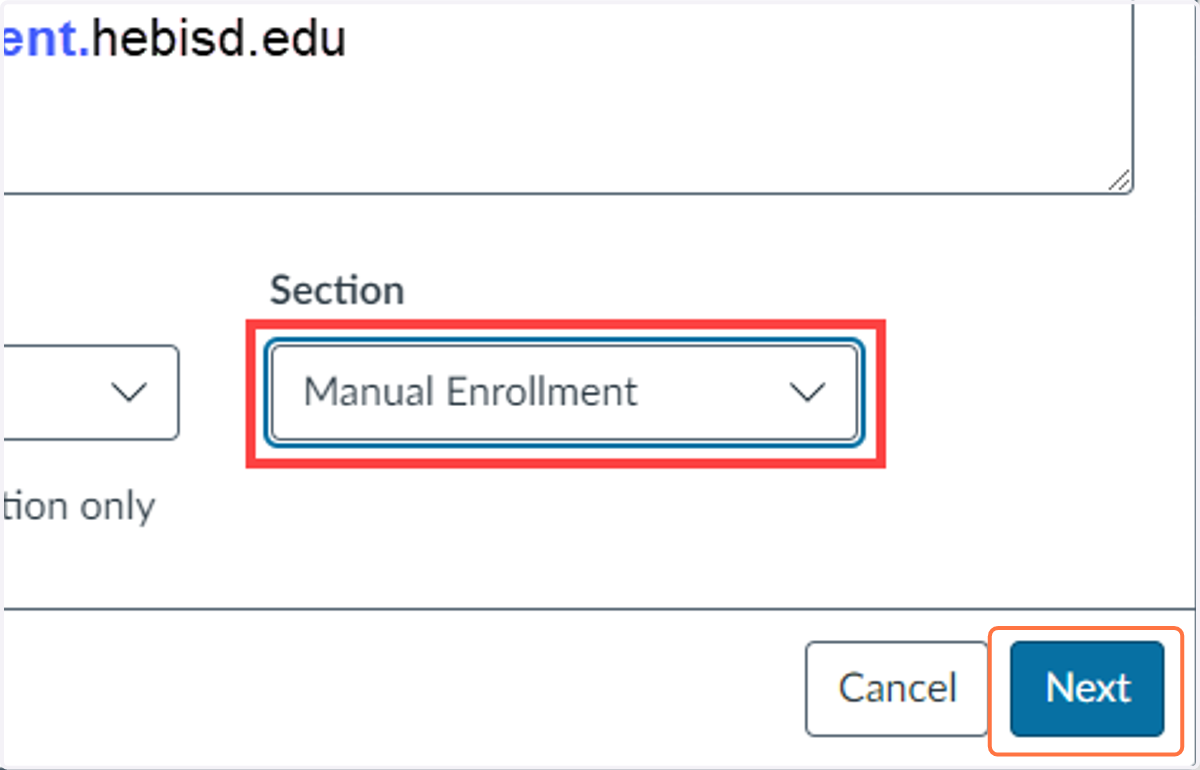
8. Select Next
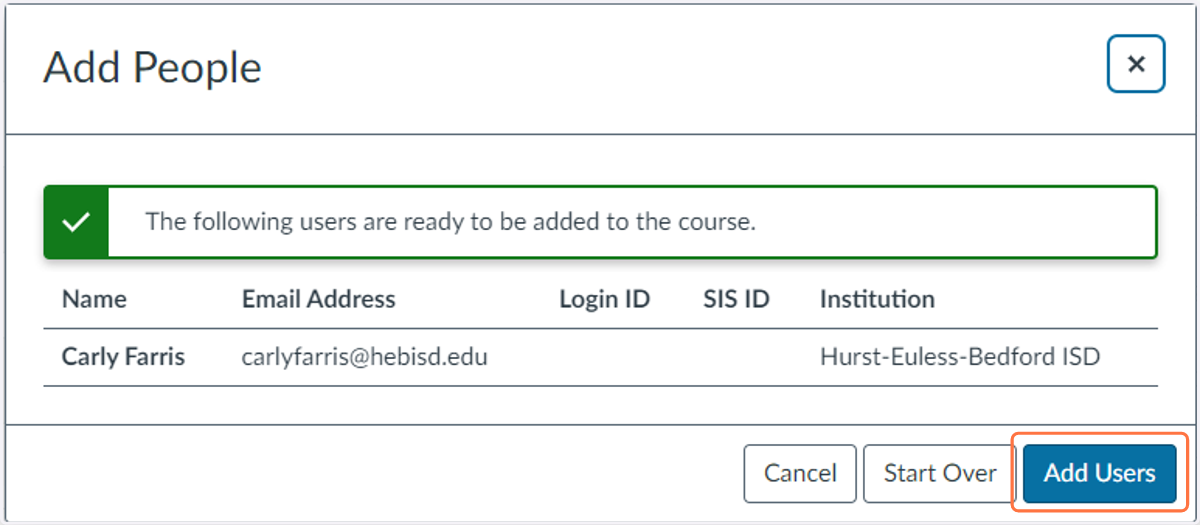
9. Verify student name and choose Add User
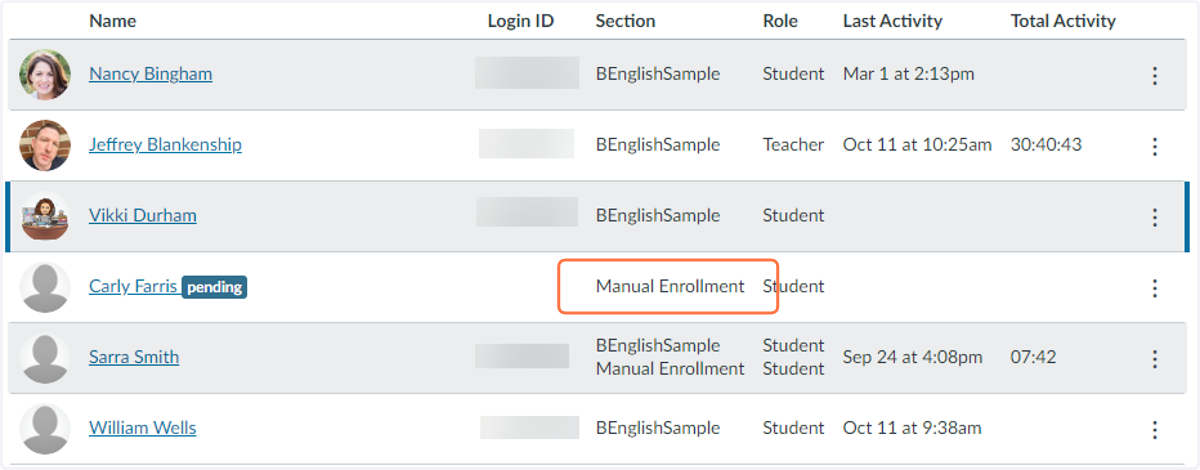
10. Double check that the student is enrolled in the Manual Enrollment section for your course.
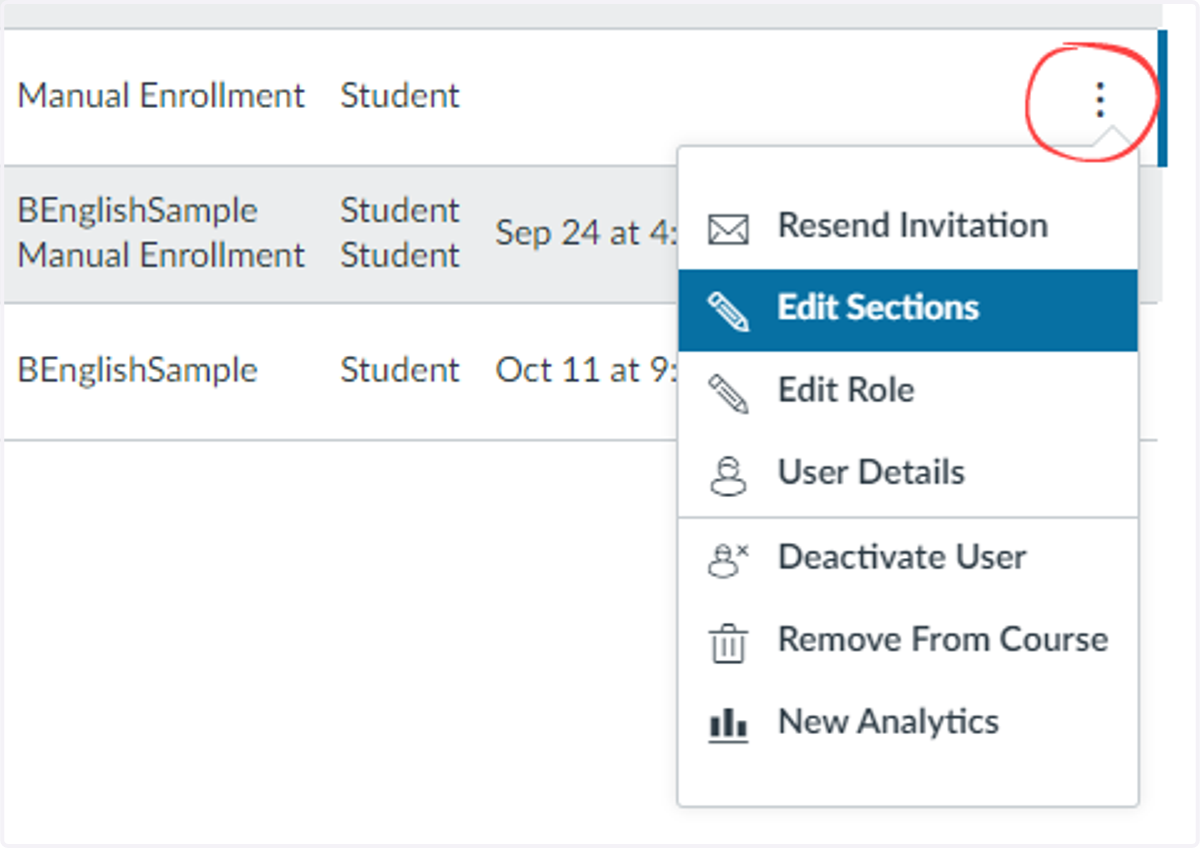
11. Optional step: if you ever need to modify the section, choose Settings and Edit Sections to make the change.
This step can be used to modify existing students in your course as well.
12. Visit bit.ly/edtechheb for more great tips!