Managing Groups - Allthenticate Admin Portal
How to create a group with users?
How to add a user into an existing group?
How to remove a user in an existing account?
How to delete a group?
admin.allthenticate.com/users
1. Navigate to Allthenticate's Admin portal (admin.allthenticate.com)
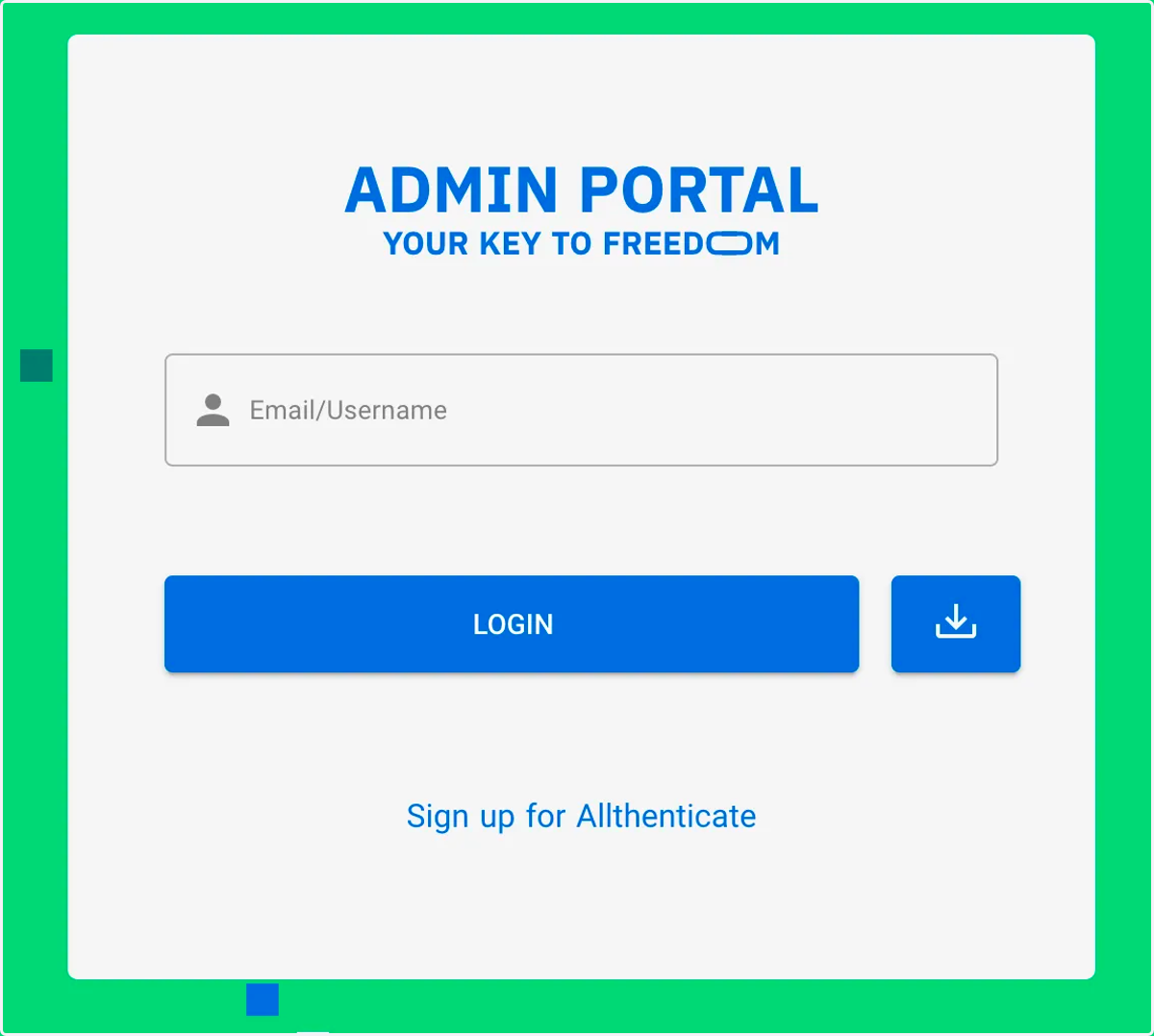
2. After typing in the username, confirm the request from your phone.
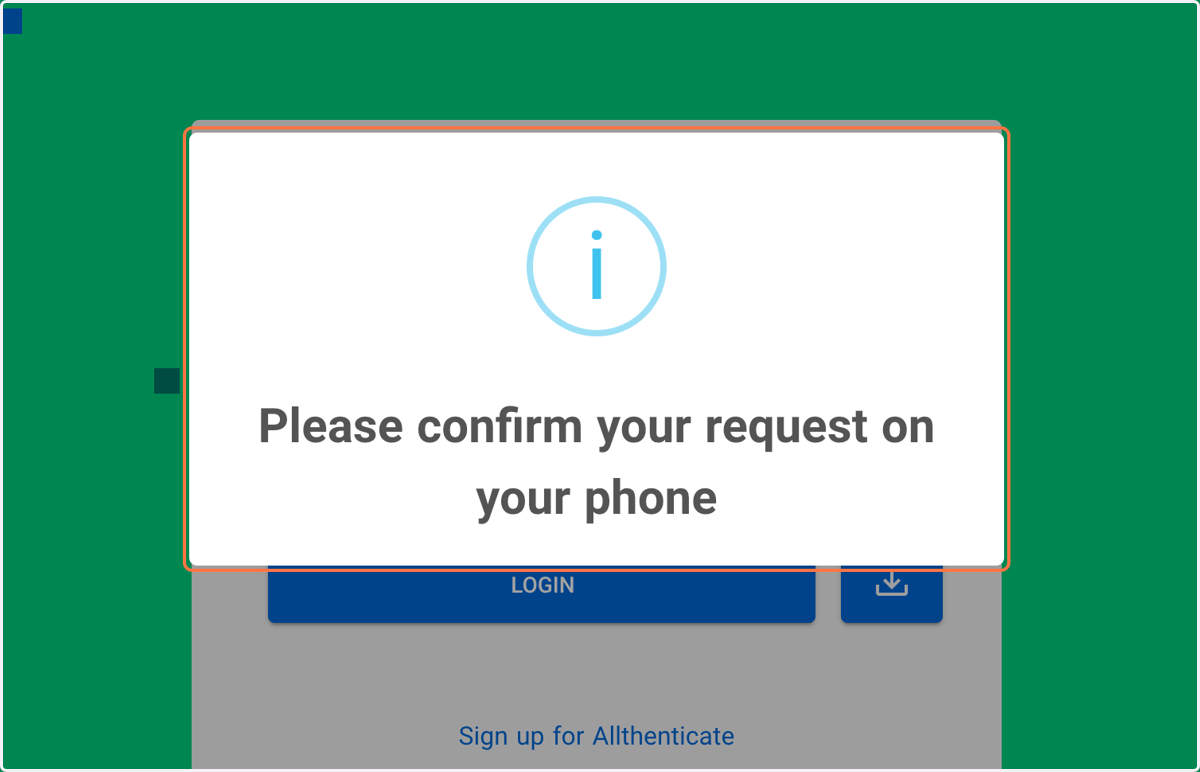
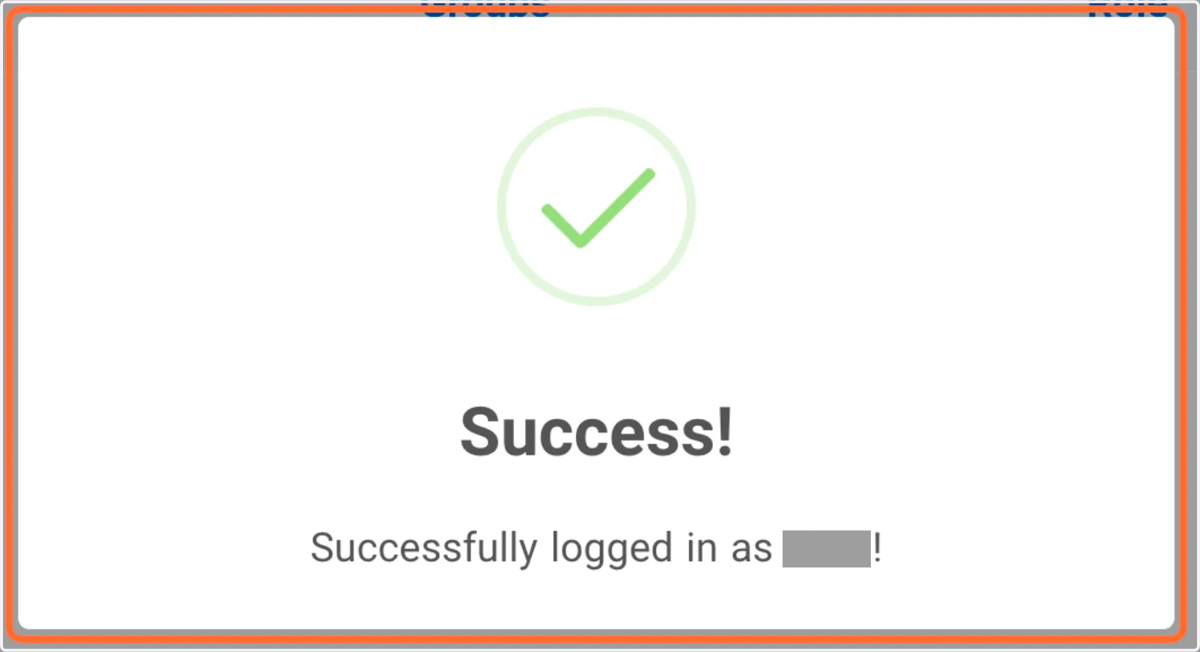
3. To confirm you are logged in, a pop appears on your screen.
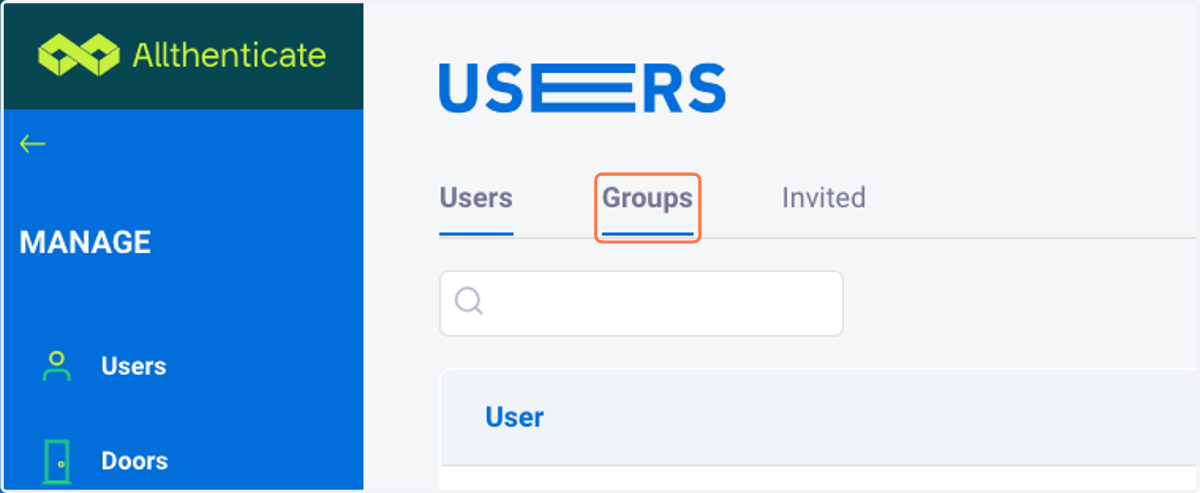
4. Click on "Groups" on the homepage.
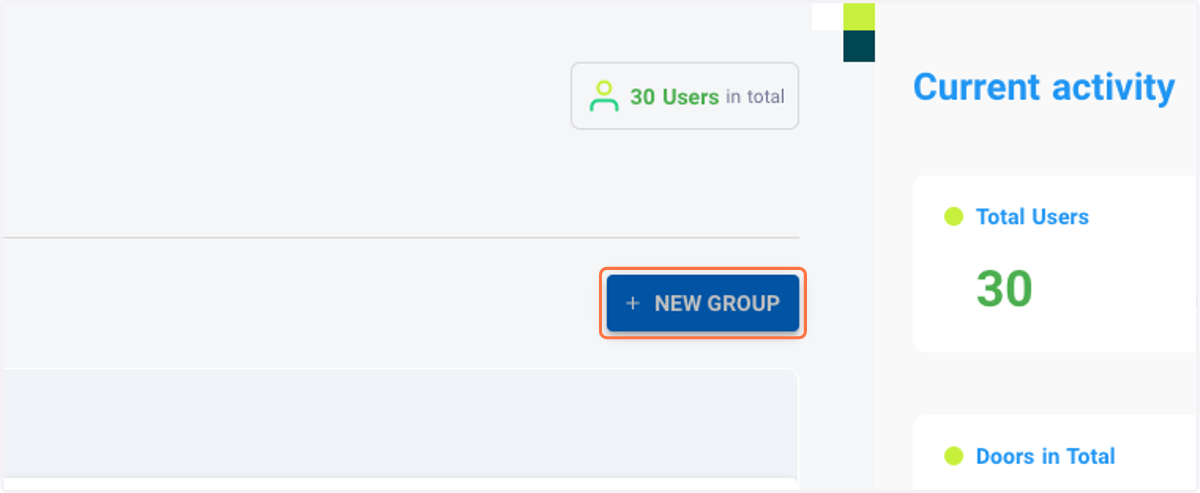
5. Click on "New Group" on the right side of the page.
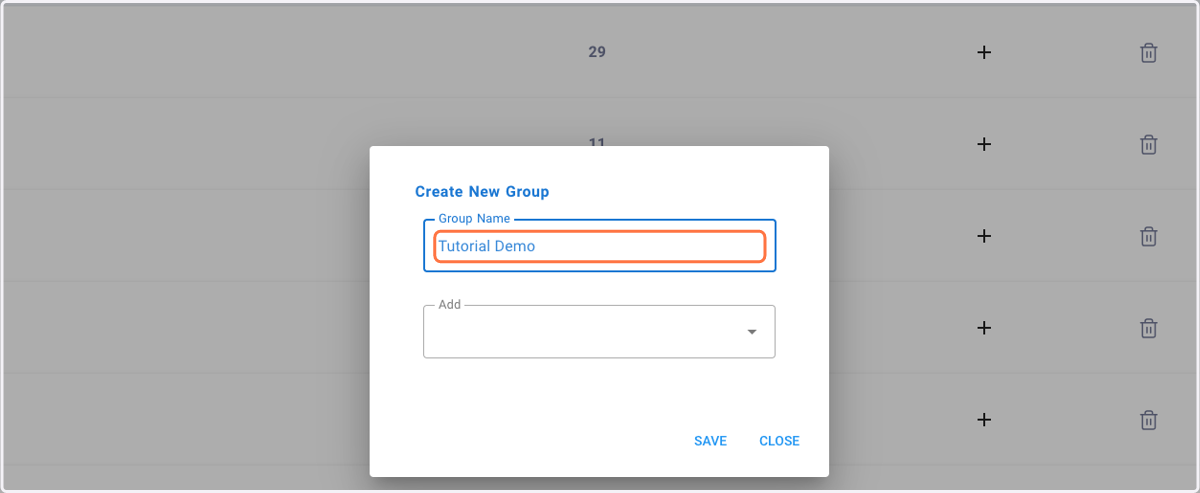
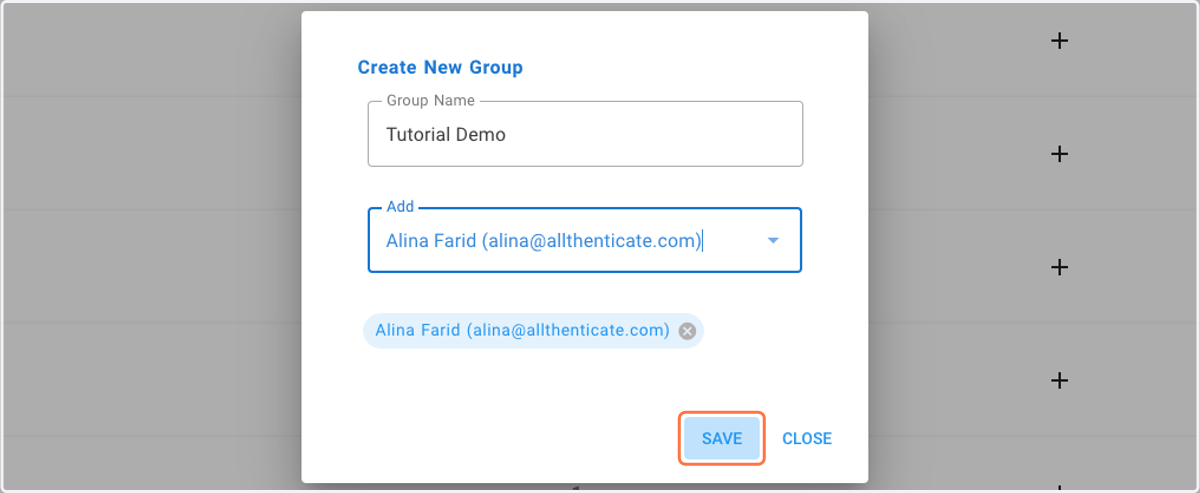
6. Type the name of the new group.
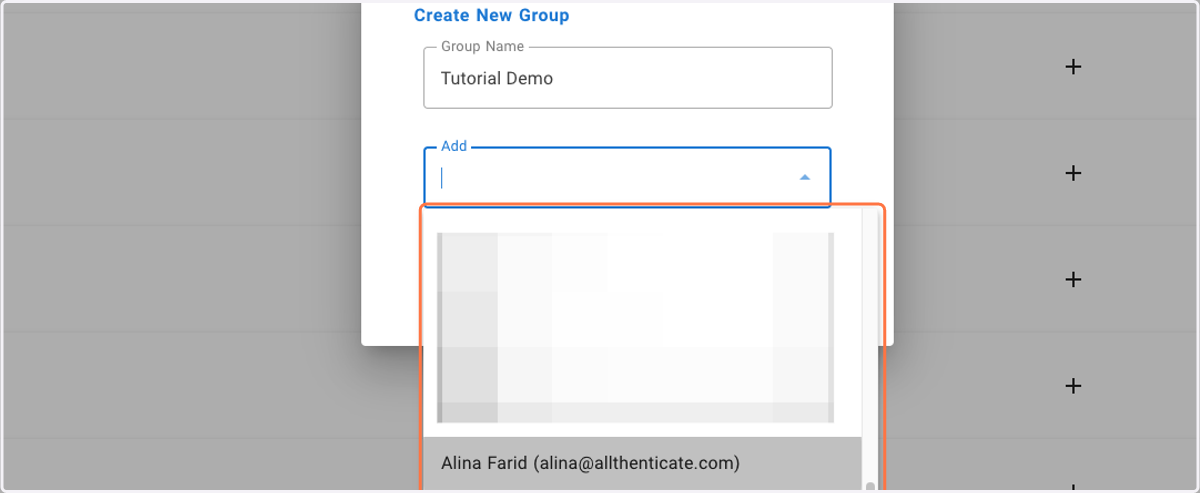
7. Type the email or add the users in the group from the drop- down menu.
8. Click on "Save" to create the group.
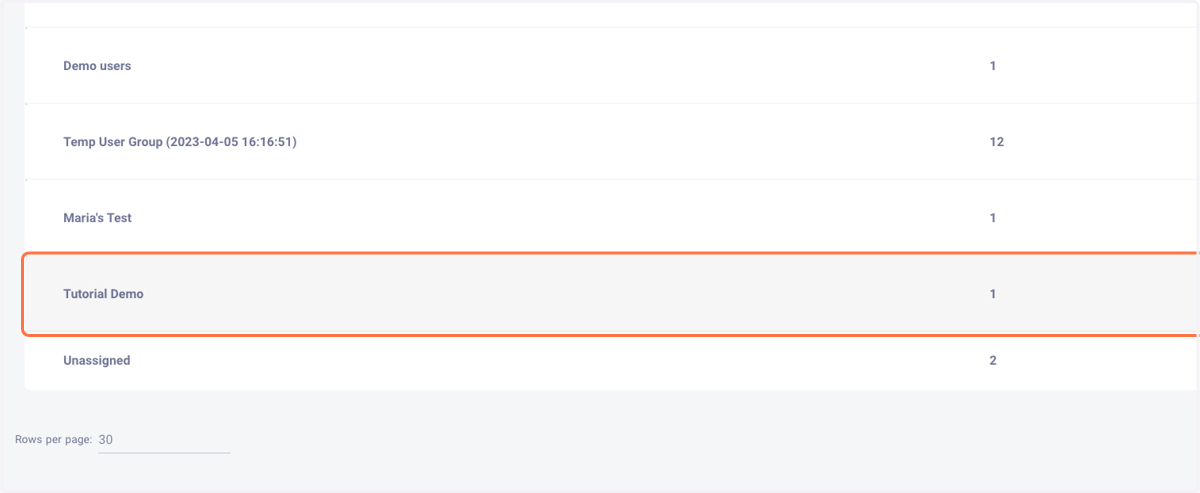
9. On the "Groups" page, the new group has been added.
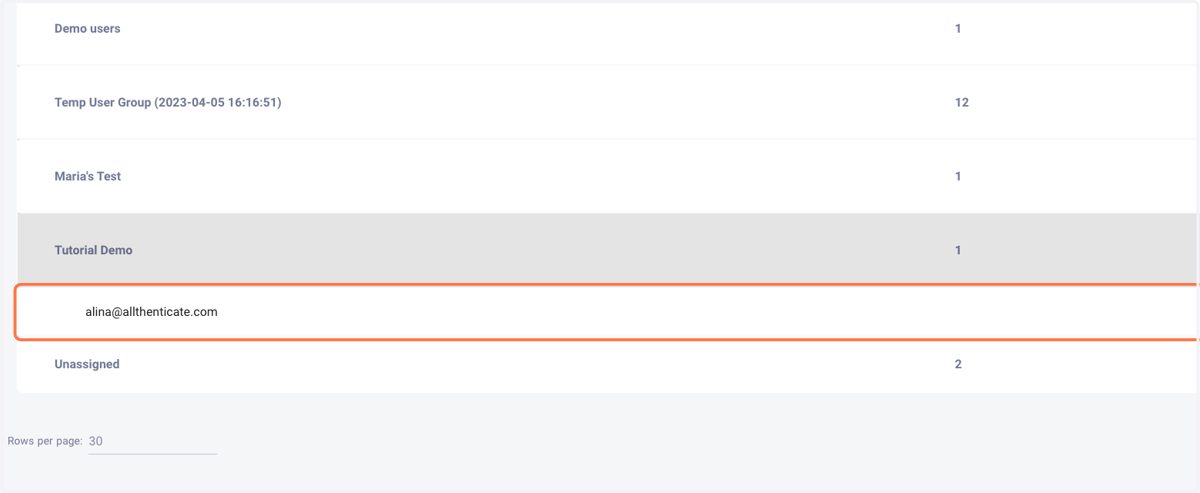
10. Click on the group name to see the users in it.
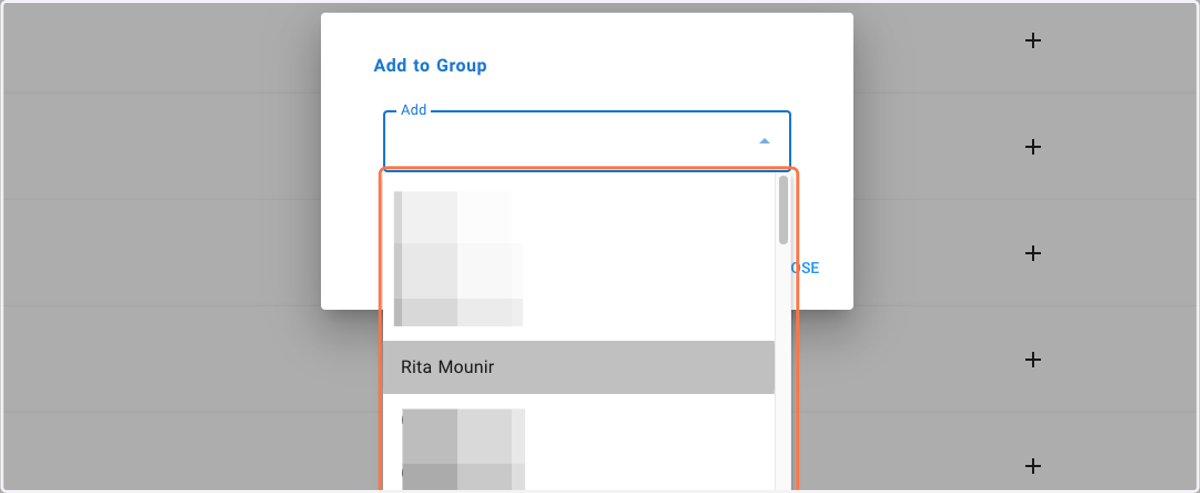
11. To add more users, click on the + sign in front of the group.

12. Type the email or add the users from the drop- down menu.
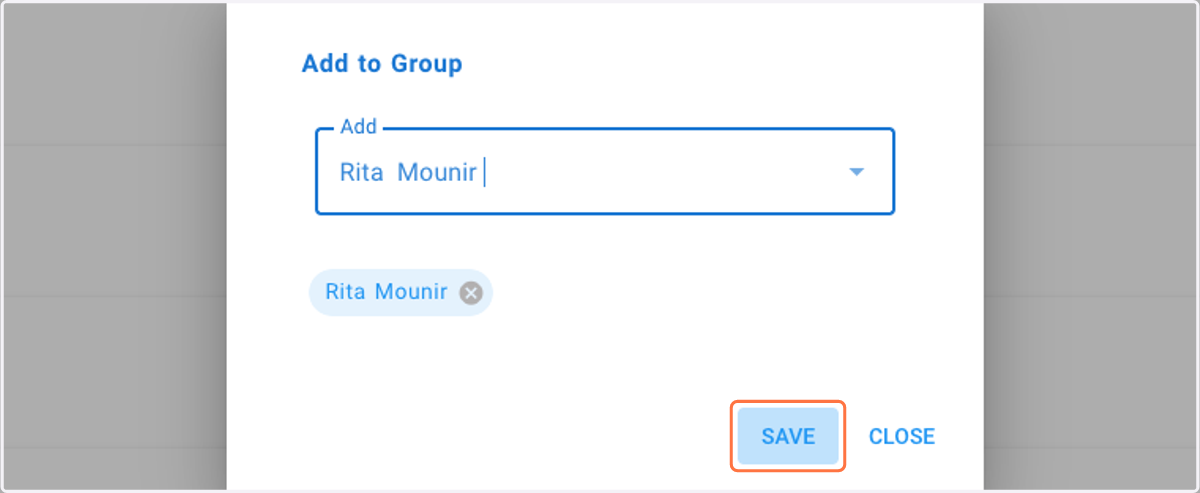
13. Click on "Save" to add the users to the group.
14. Click on Tutorial Demo…
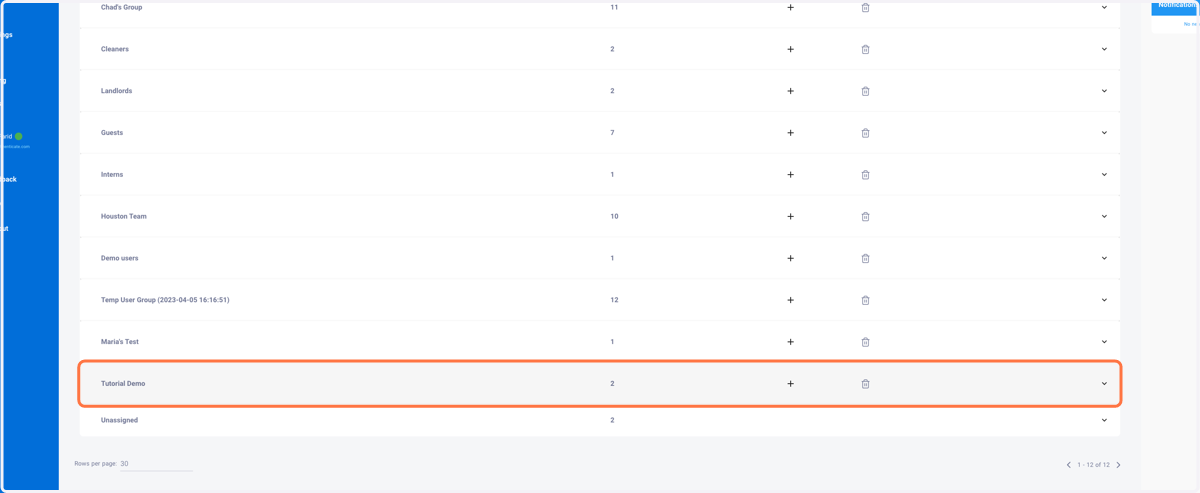
15. To remove a user from the group, click delete in front of the user's name in that particular group.

16. To delete the overall group, click on delete in front of the group name.

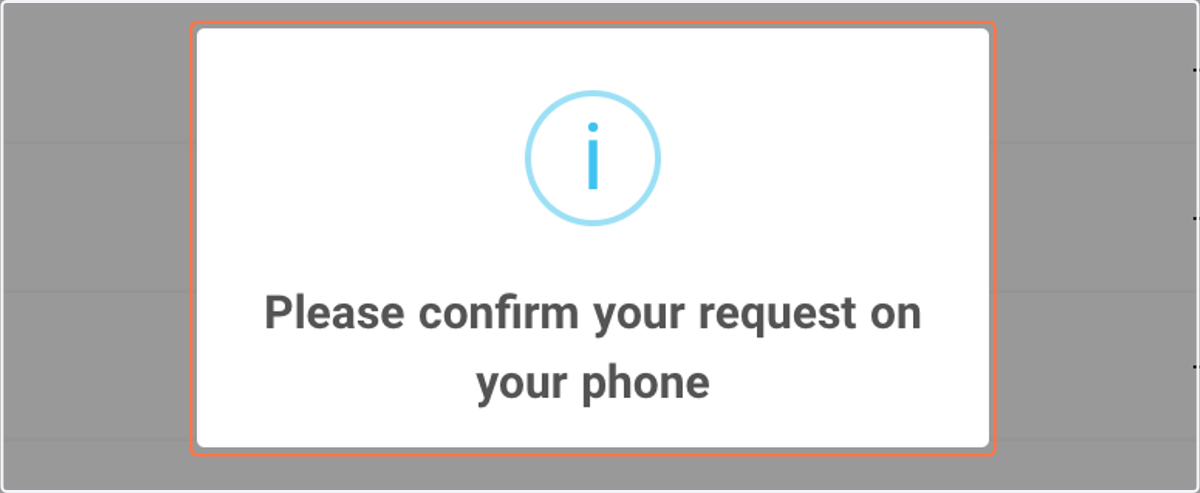
17. Confirm the delete request from your phone.
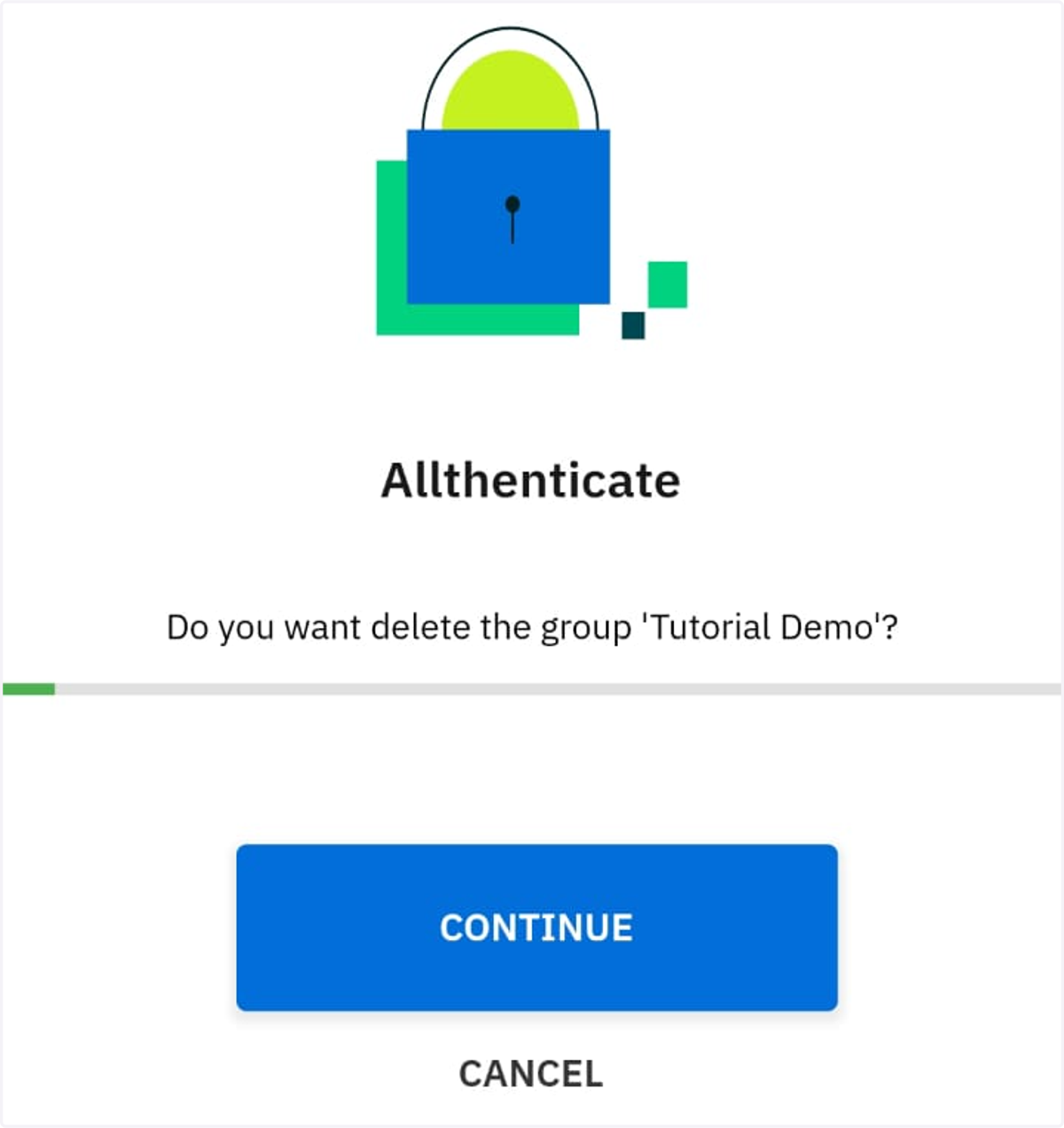
18. The following pop- up appears on your phone.
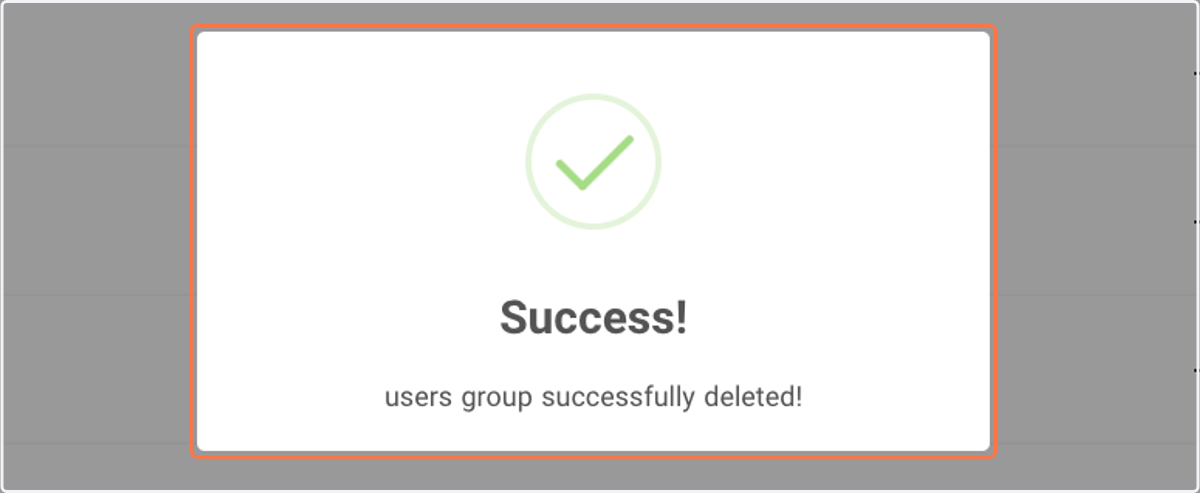
19. The group has been deleted.