Manager Steps for launching employee self-evaluations
(From define criteria to ...
Usg
1. Visit oneusgconnect.usg.edu and log-in to Manager Self Service (MSS)
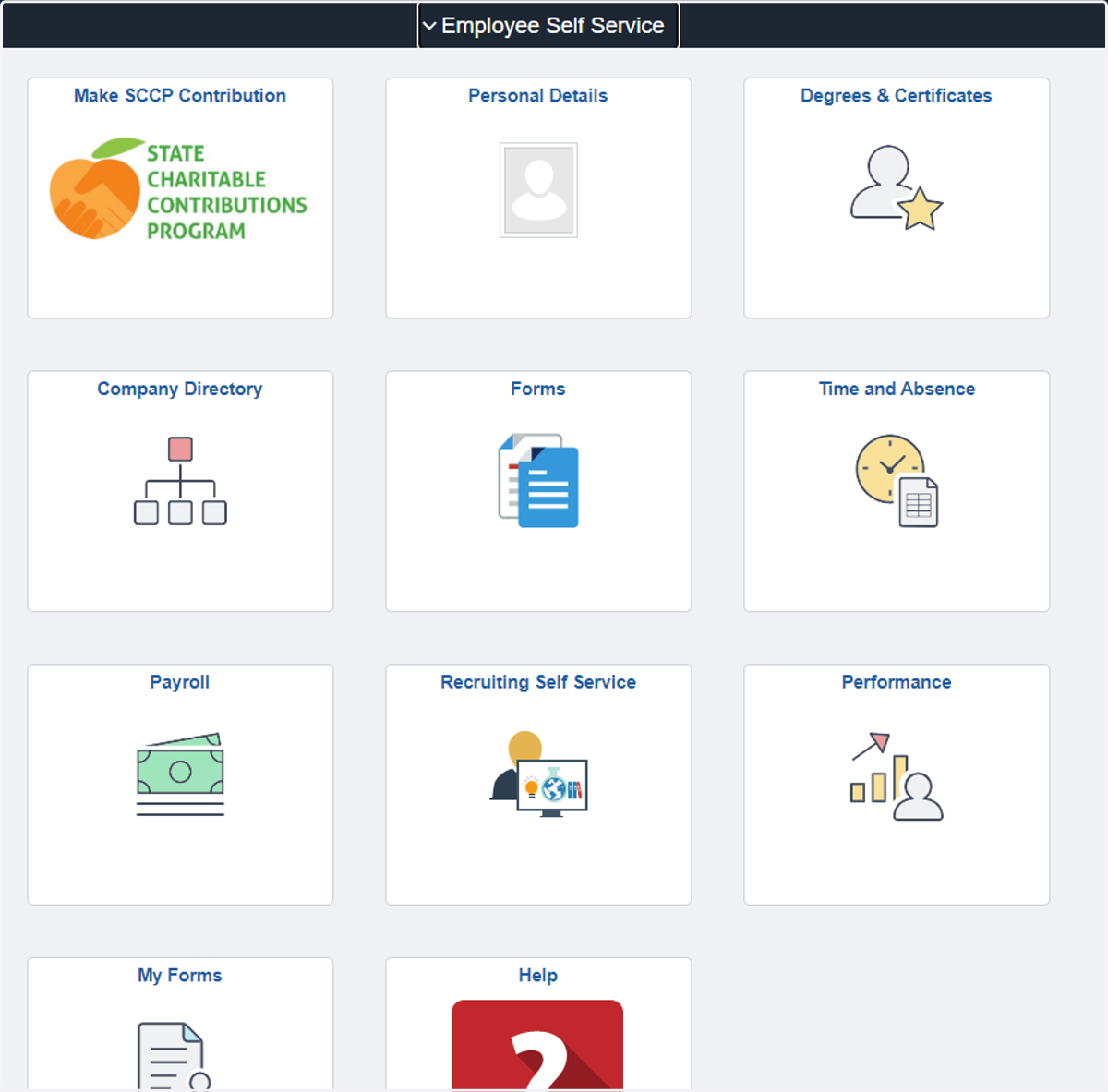
2. Click on the "Team Performance" tile
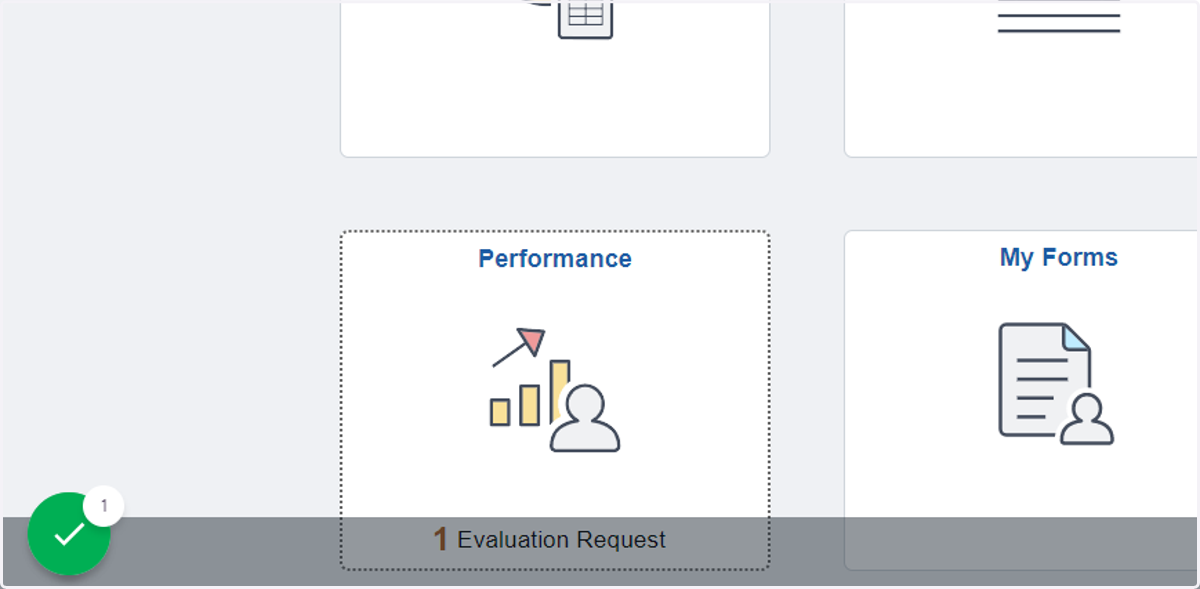
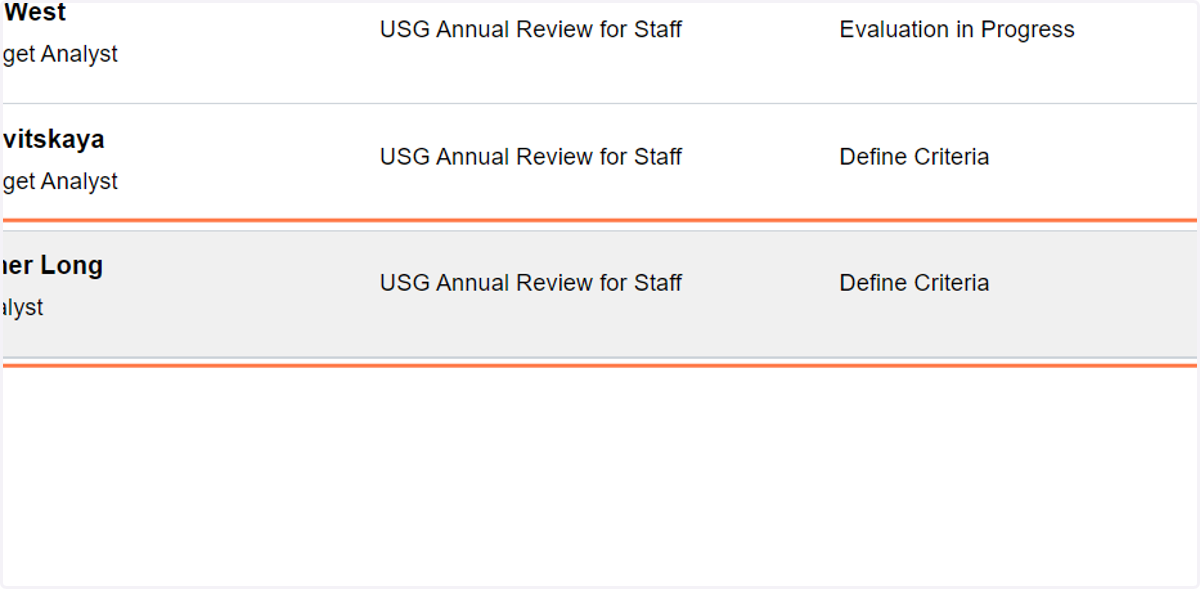
3. Click on employee's name
4. Click on …
5. In the left navigation column, click on "Define Criteria"
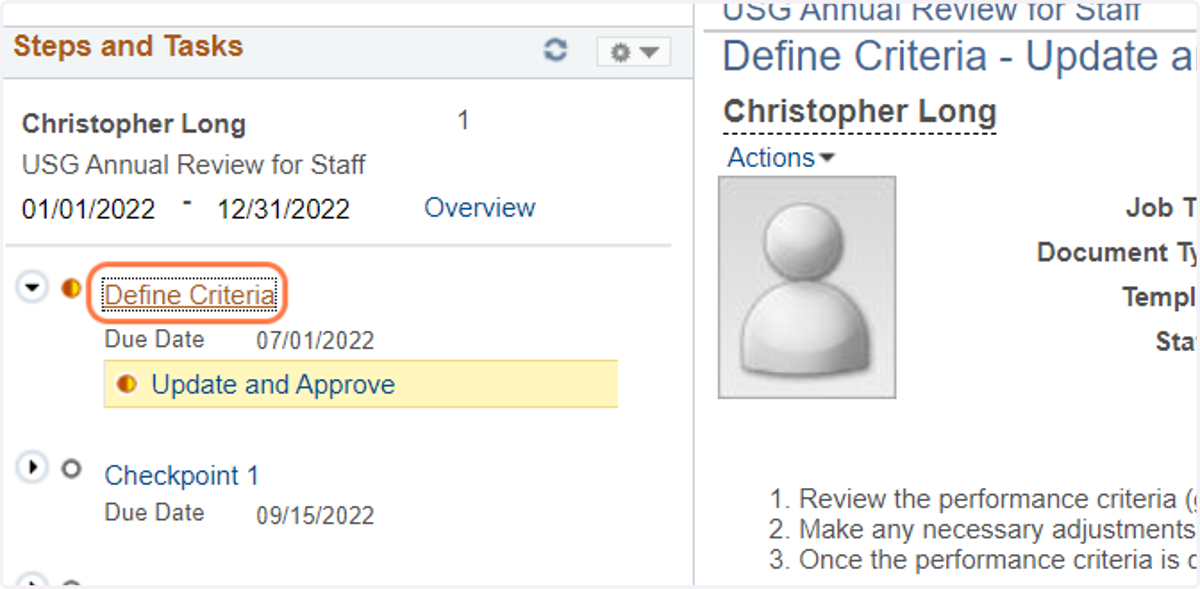
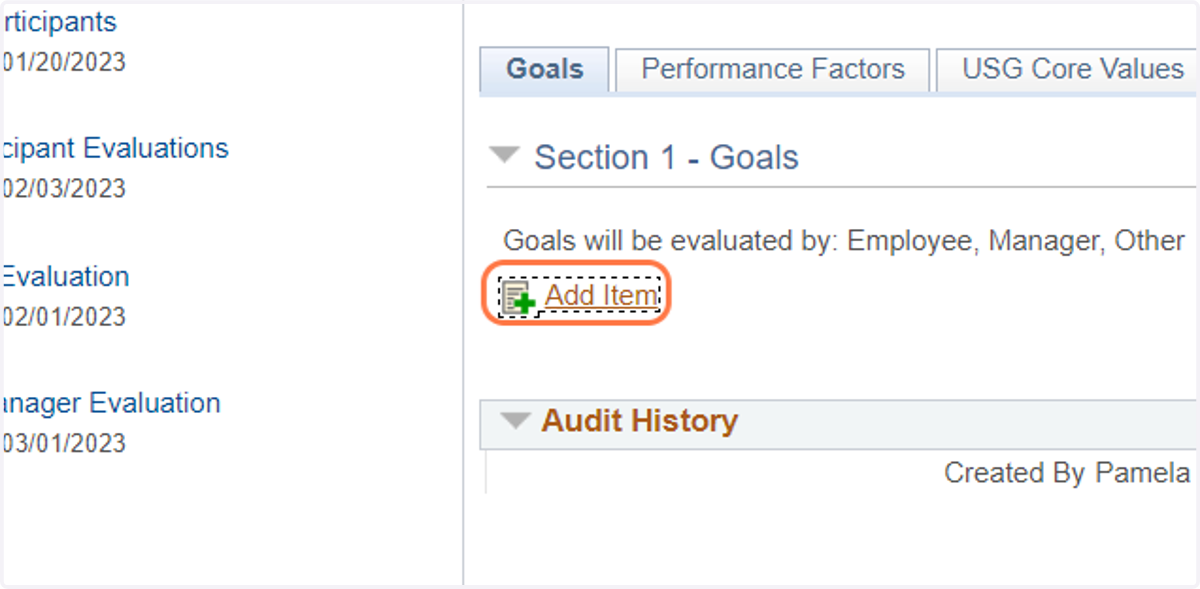
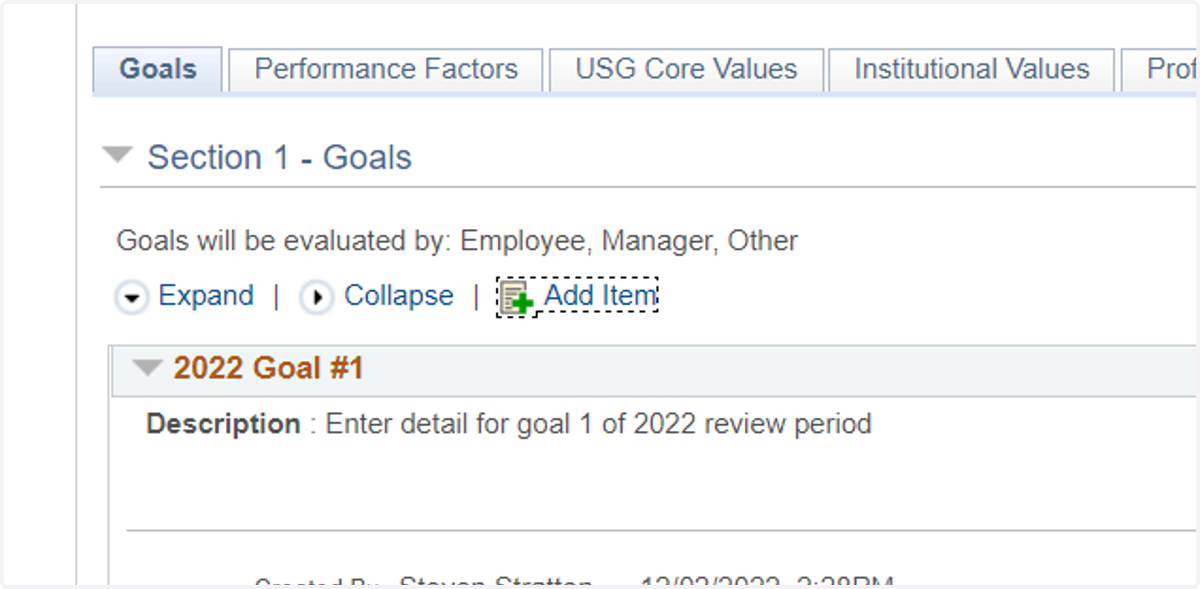
6. To document goals, click on add items under the Goals Tab.
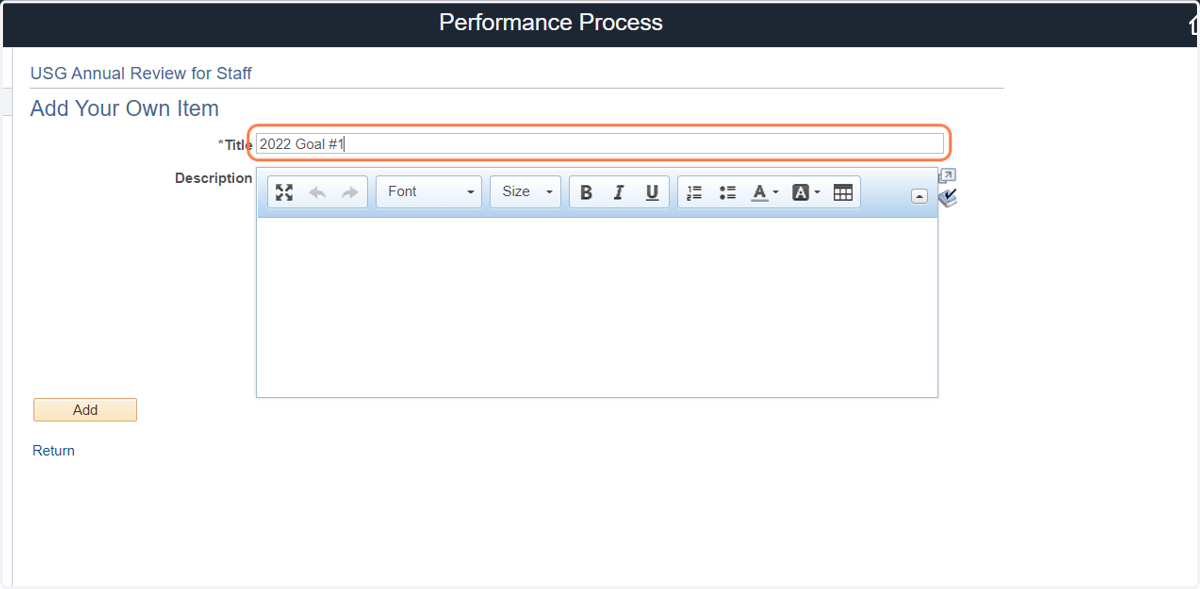
7. Type the label of the first goal to be documented.
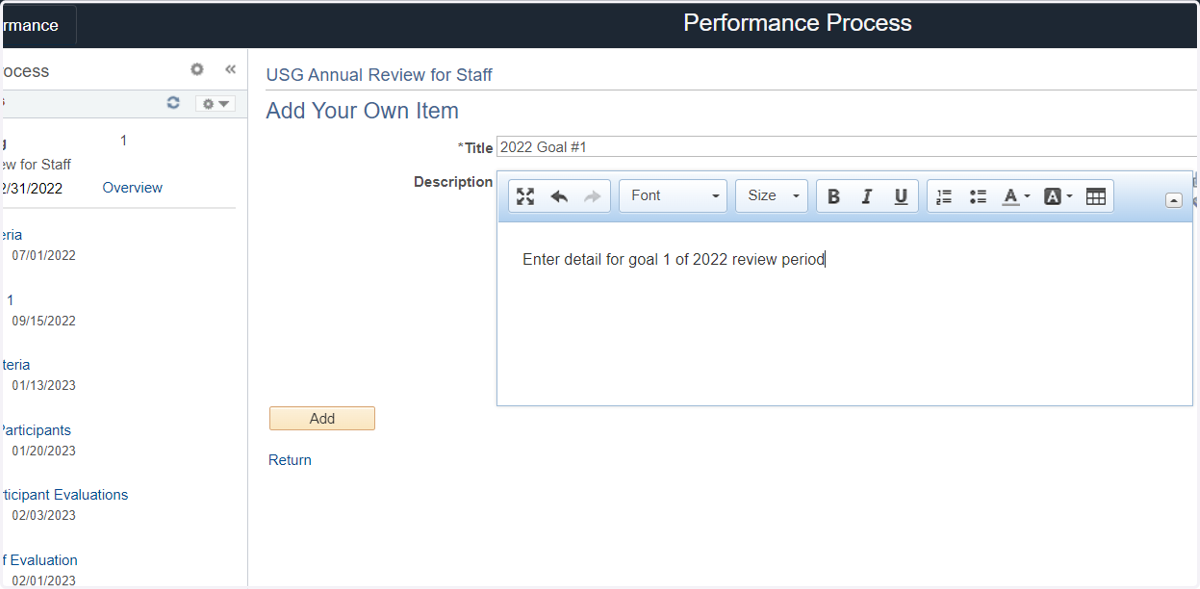
8. Add details of the first goal to be documented.
9. Press the "Add" button to confirm the goal
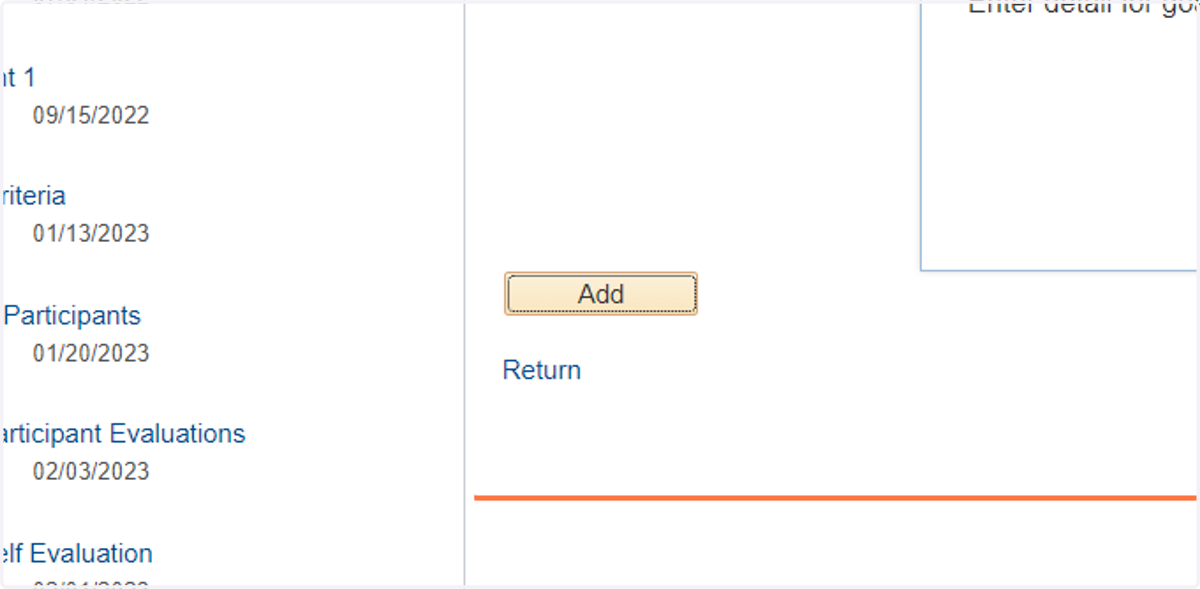
10. Add additional goals as appropriate.
11. Click on "Save"
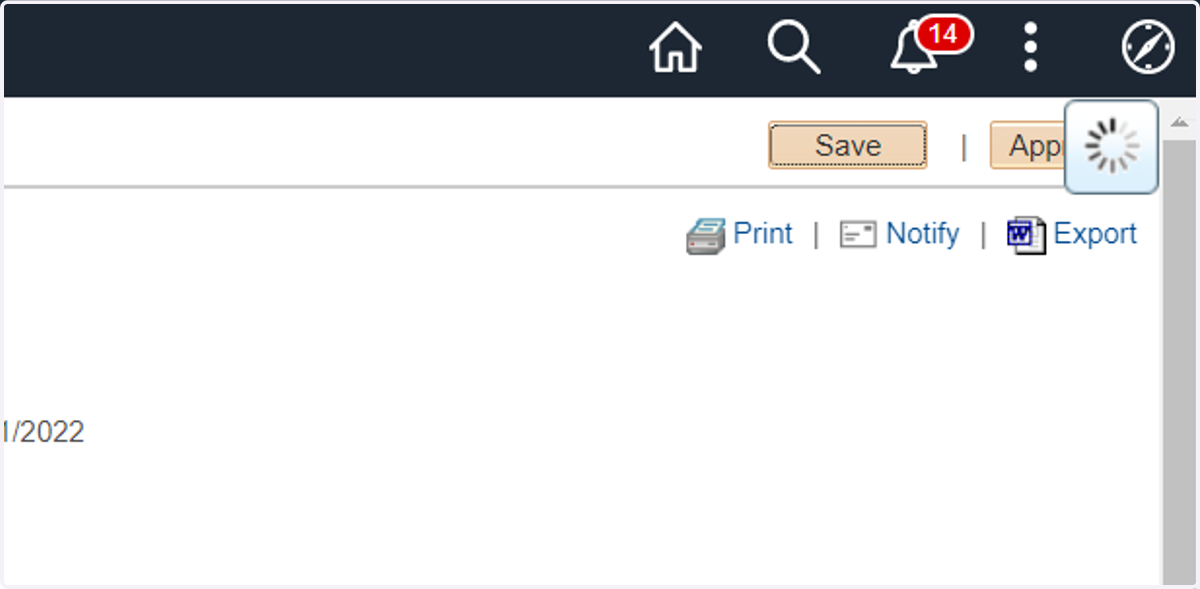
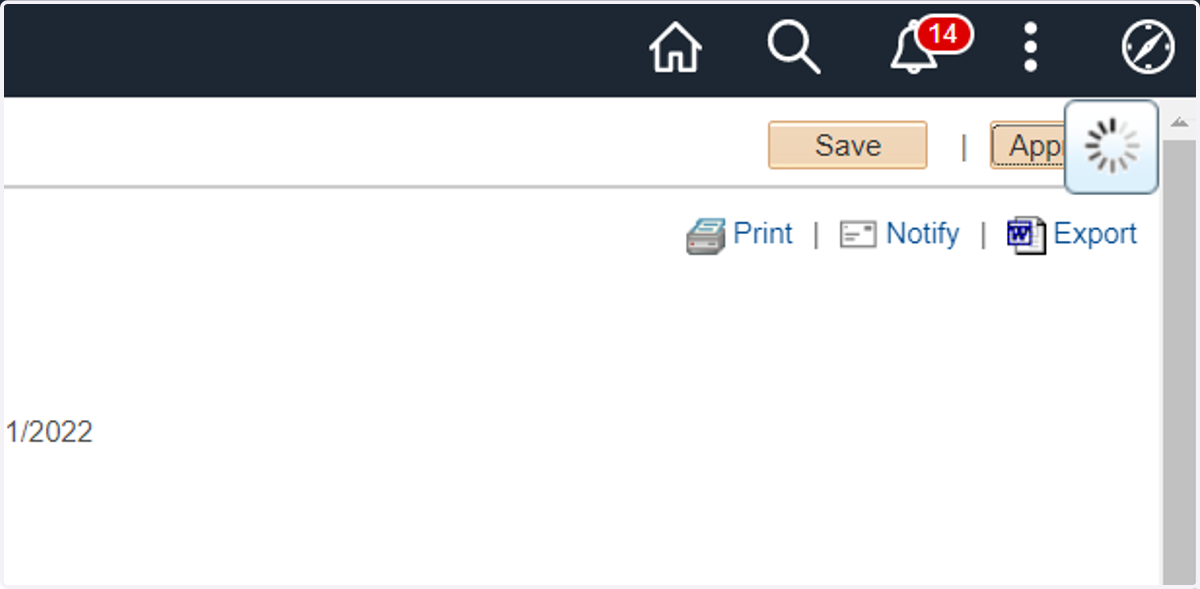
12. Click on "Approve"
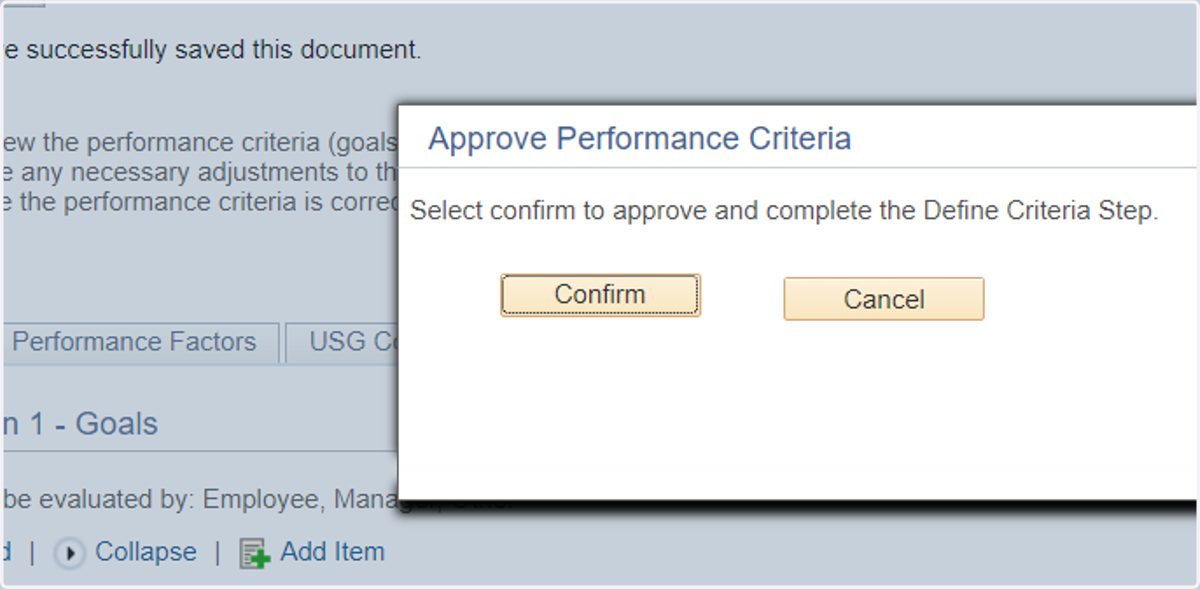
13. Click on "Confirm" to approve and move to next step
14. Refresh your browser and click on Checkpoint 1
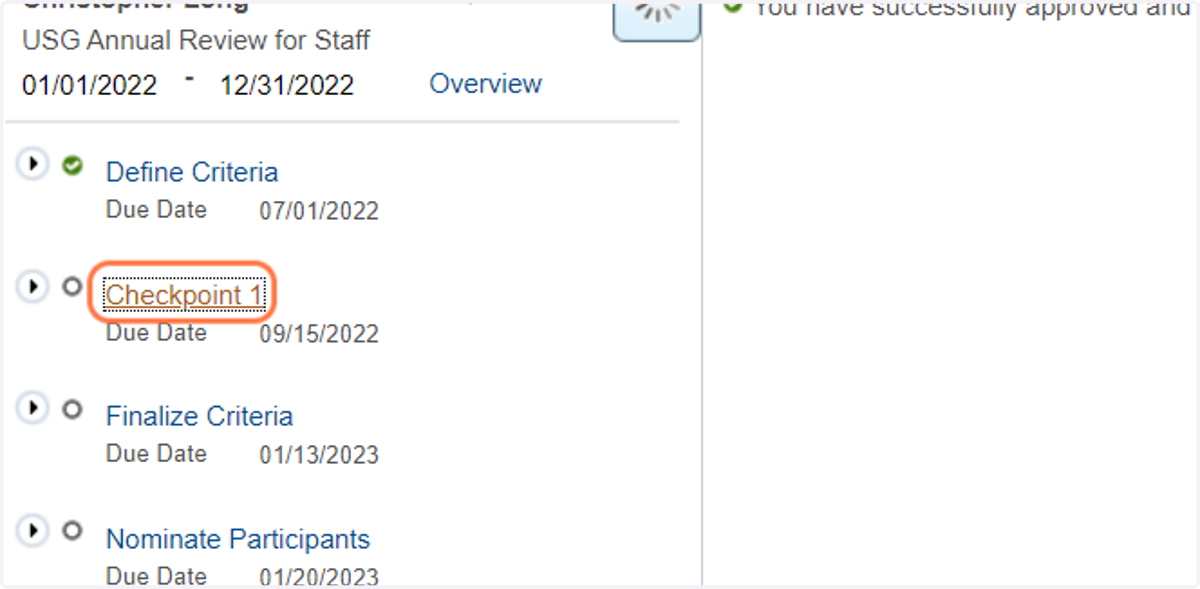
15. Click on Update and Share
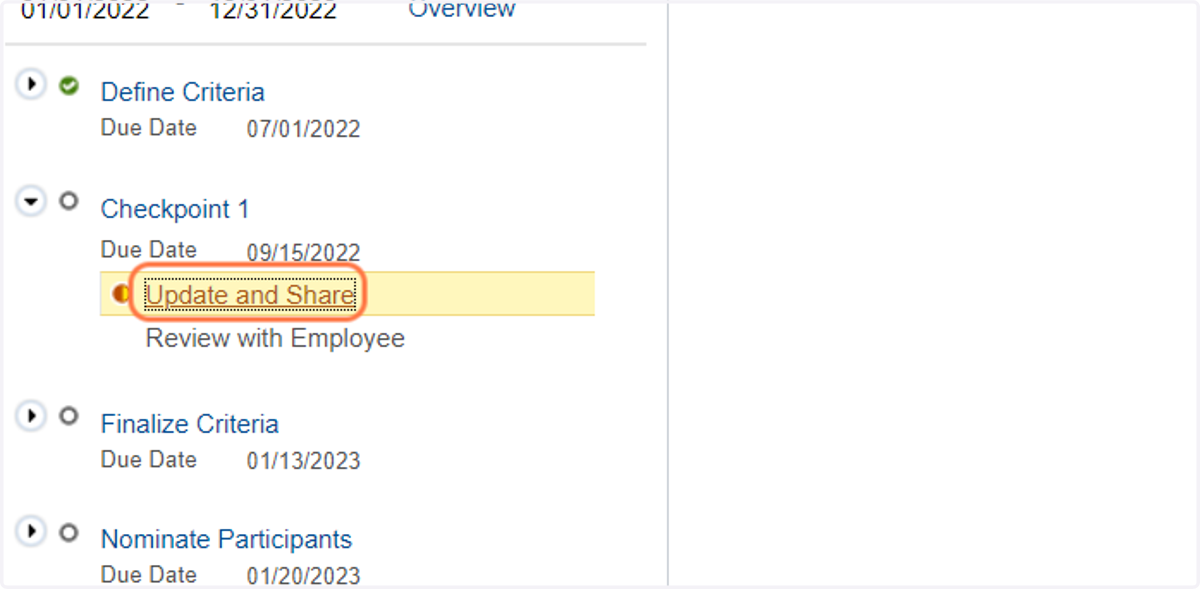
16. Checkpoint 1 - At this stage, managers are able to edit or delete goals, and provide progress feedback to employees using the option to share with employee. Alternatively, managers can skip checkpoint, as it is not a required step.
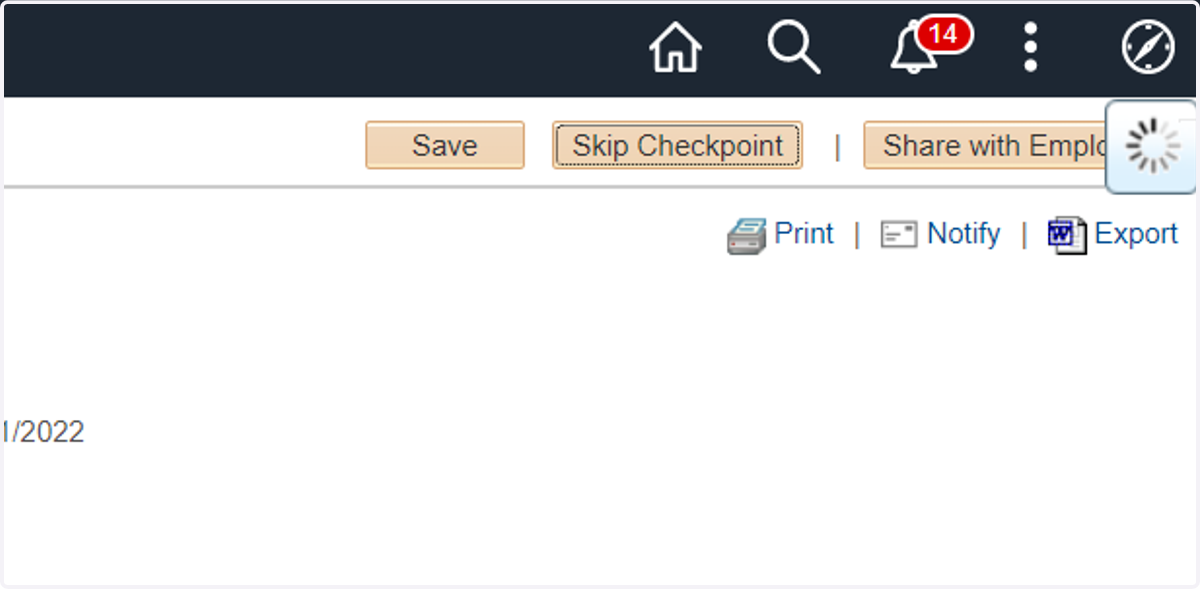
17. Click on Confirm
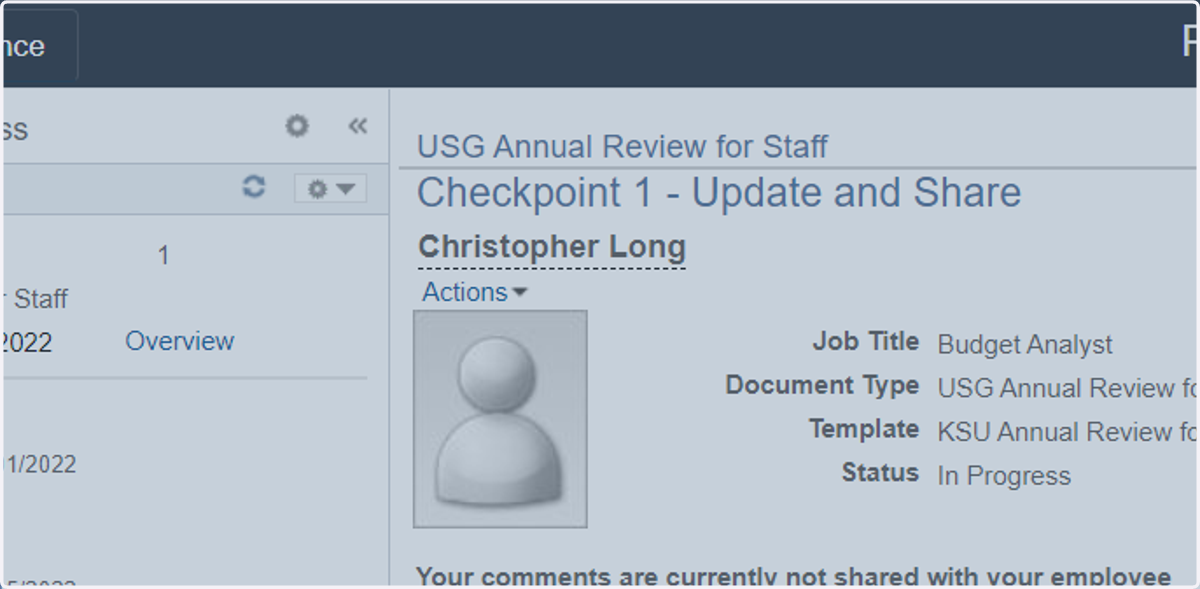
18. Refresh your browser and click on Finalize Criteria
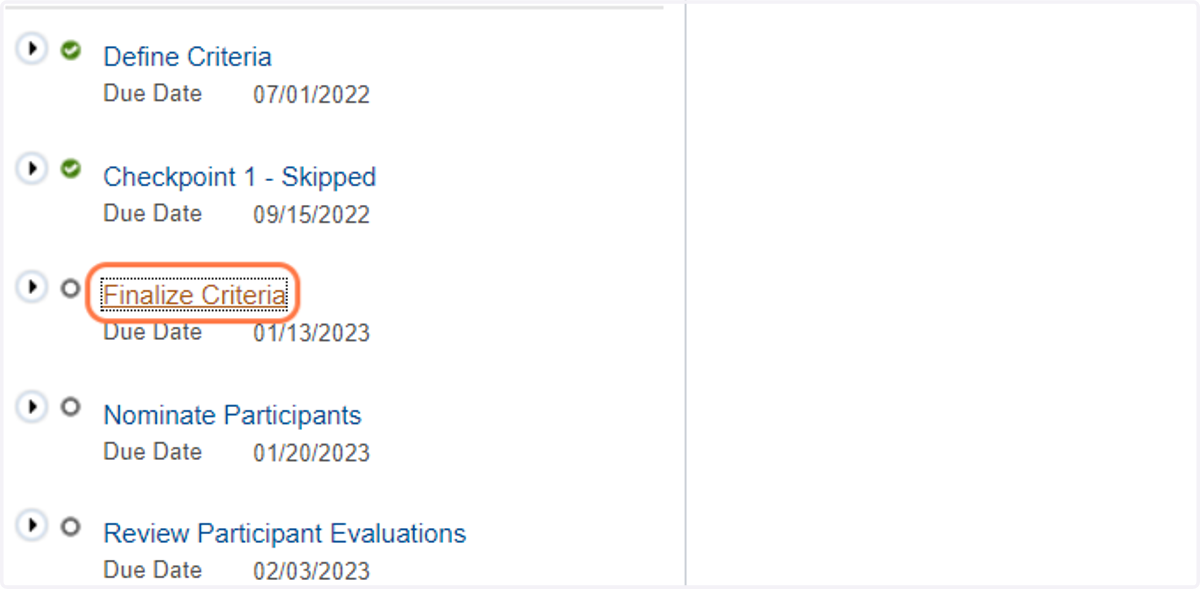
19. Click on Update and Complete
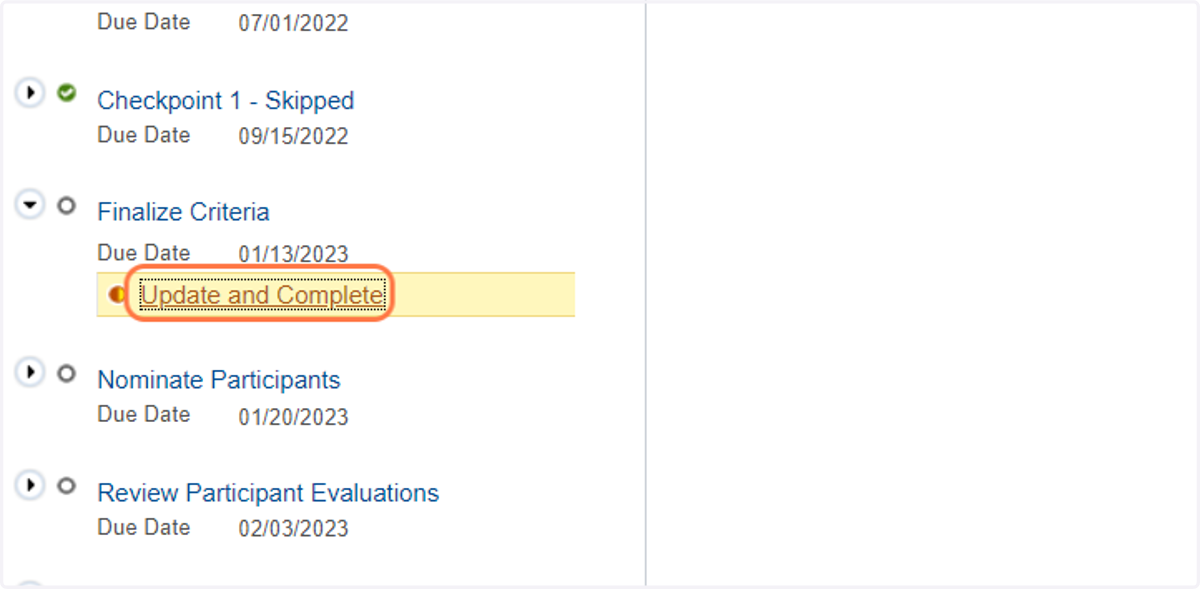
20. Click on Complete
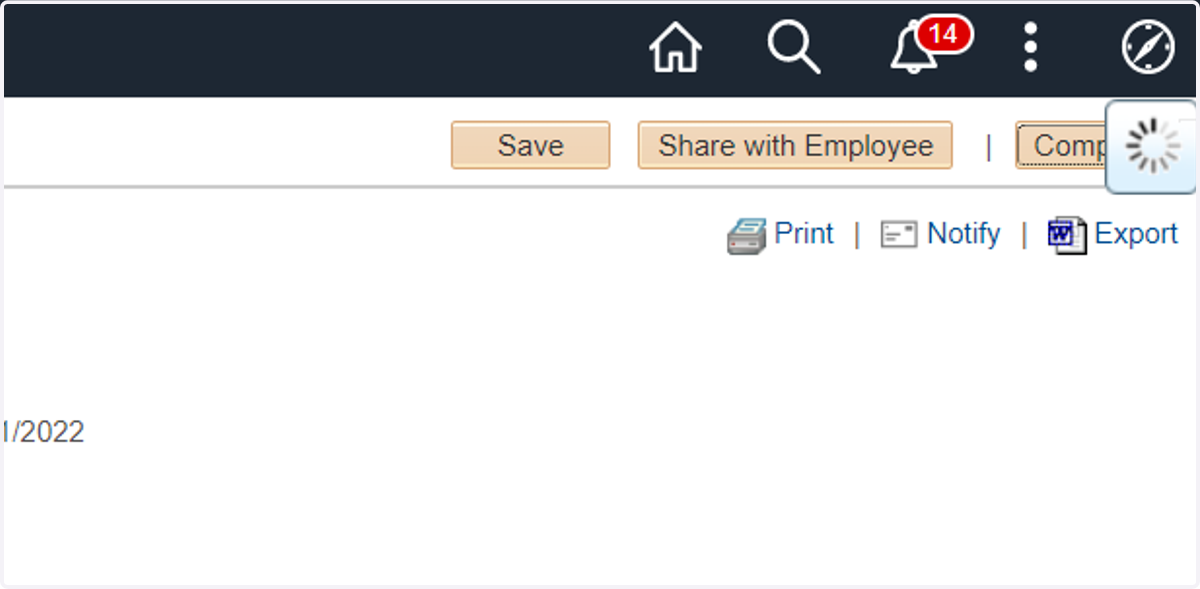
21. Click on Confirm
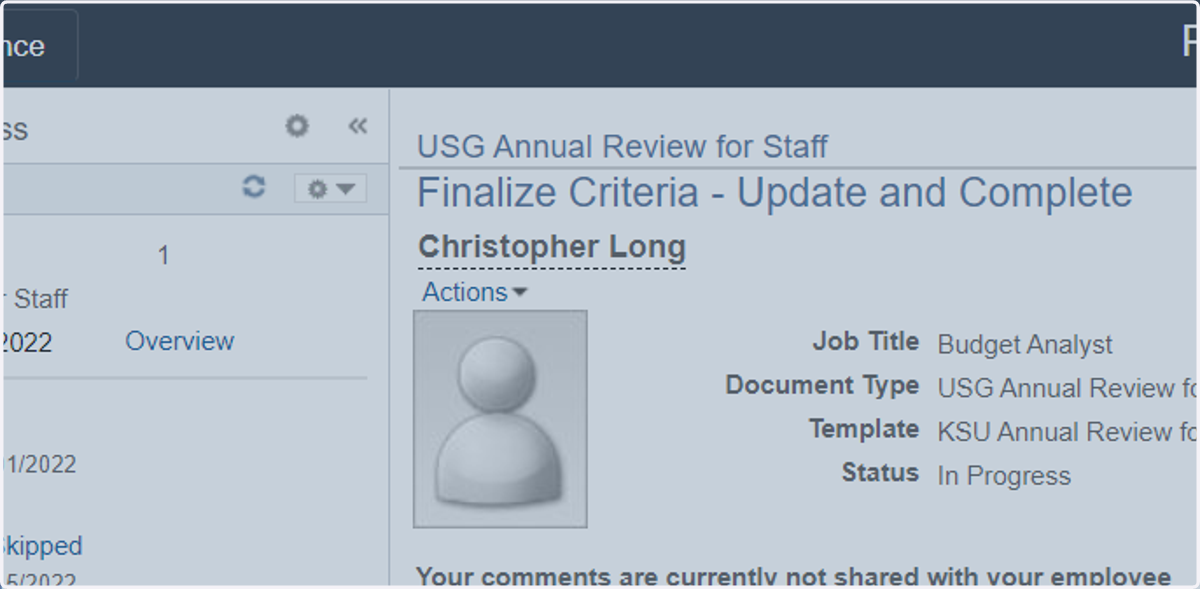
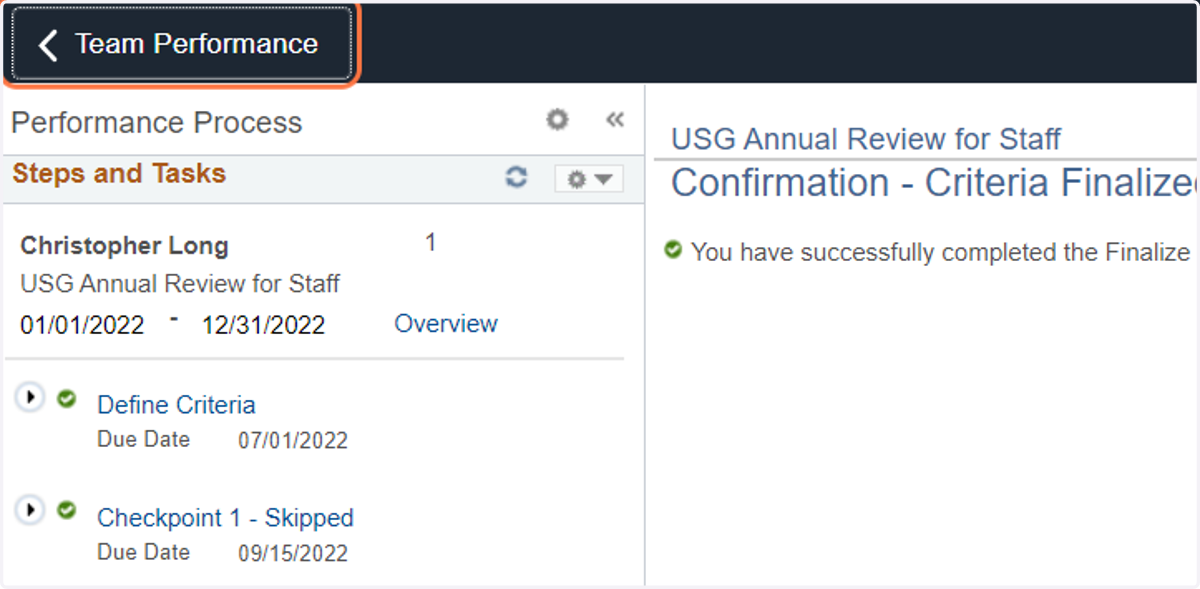
22. To return to the employee list - click on Team Performance
23. Untitled step