Manage Users in the National Impacts Database (For Institutional Administrators)
National Impacts Database
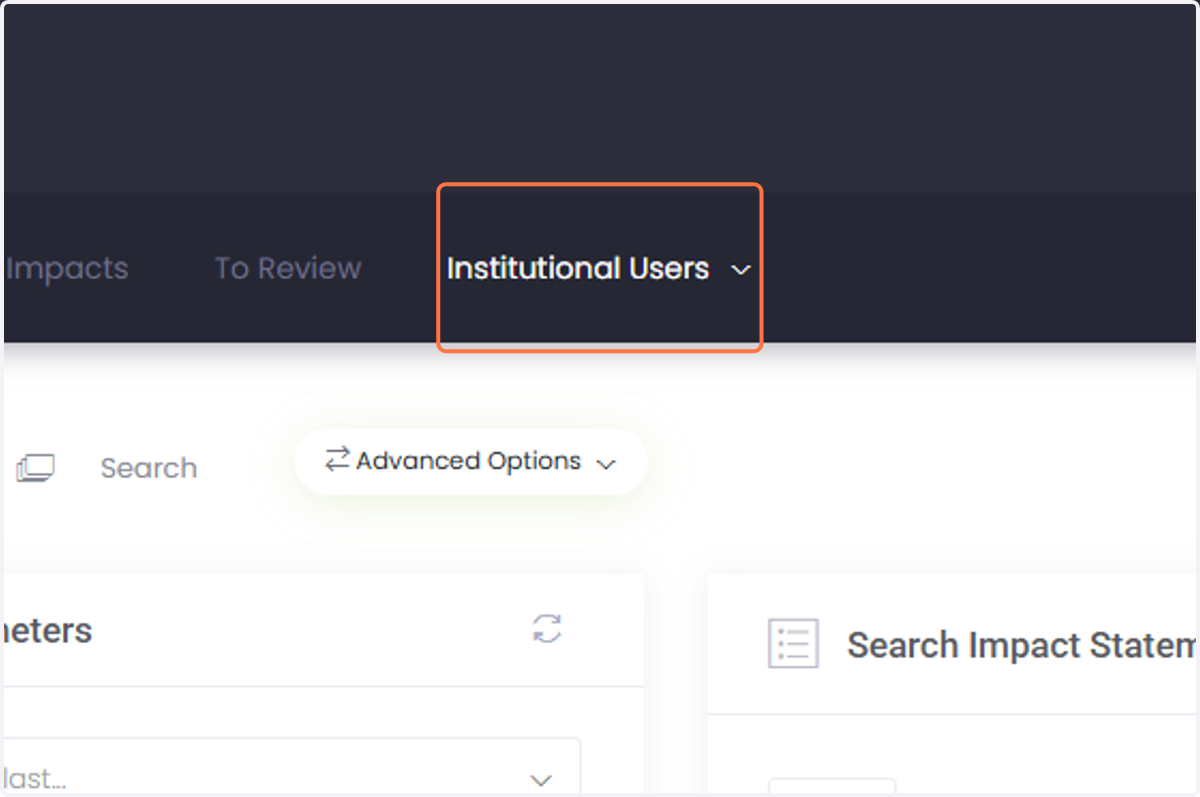
1. Click on Institutional Users
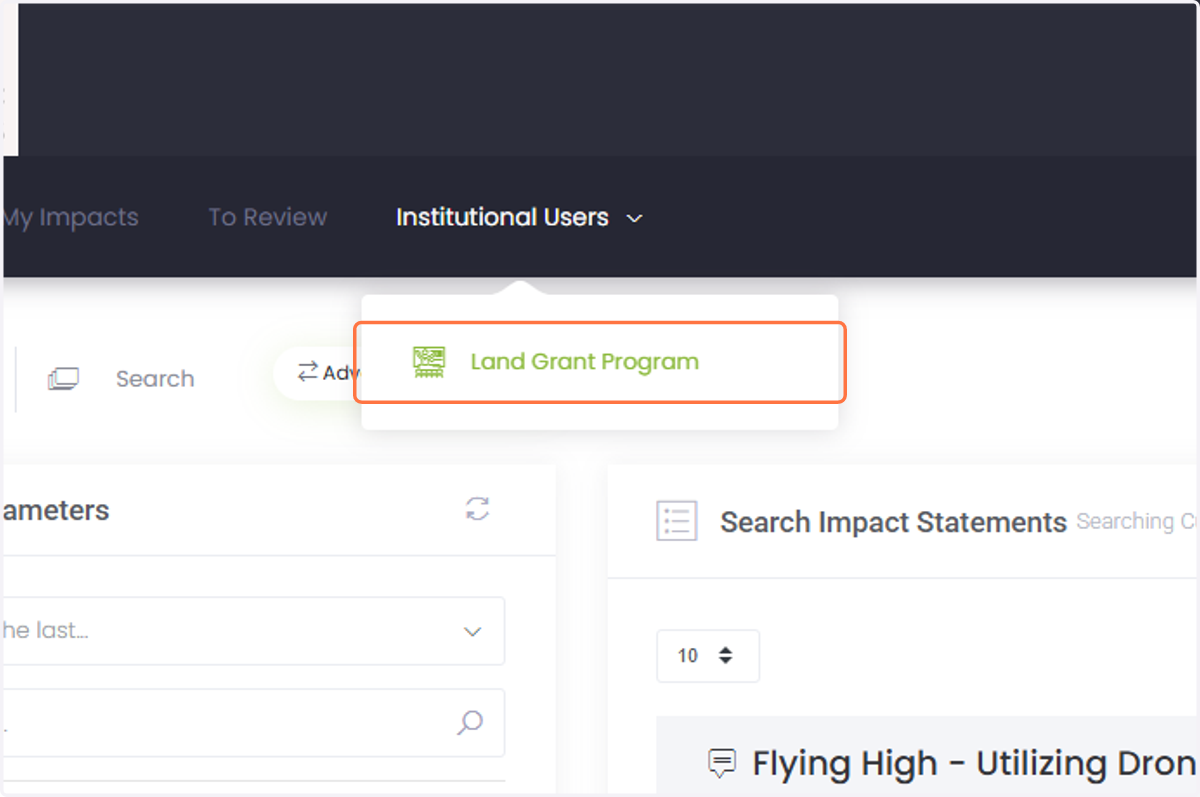
2. Click on the unit that you want to modify.
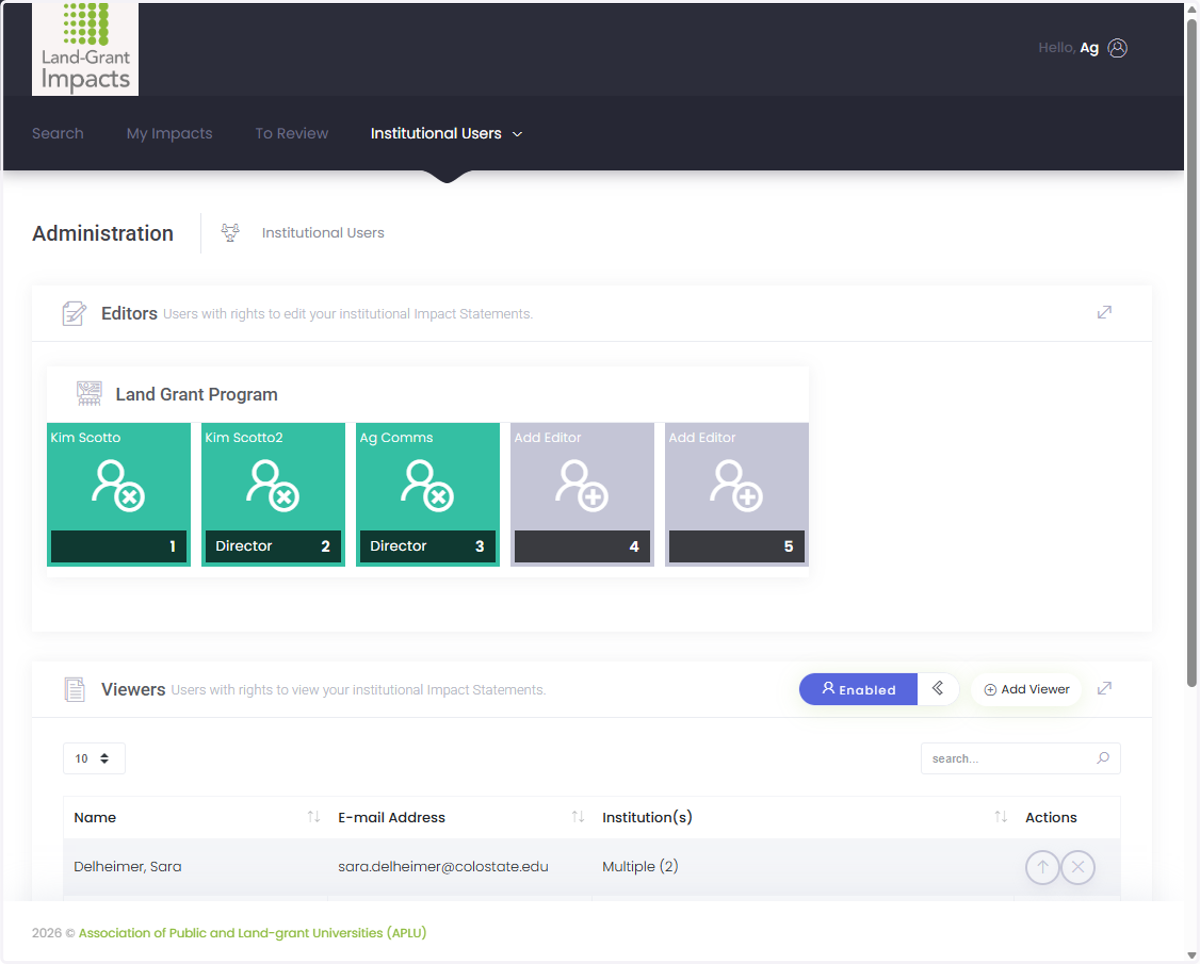
3. This is your portal as an Institutional Administrator.
Adding a Brand New User
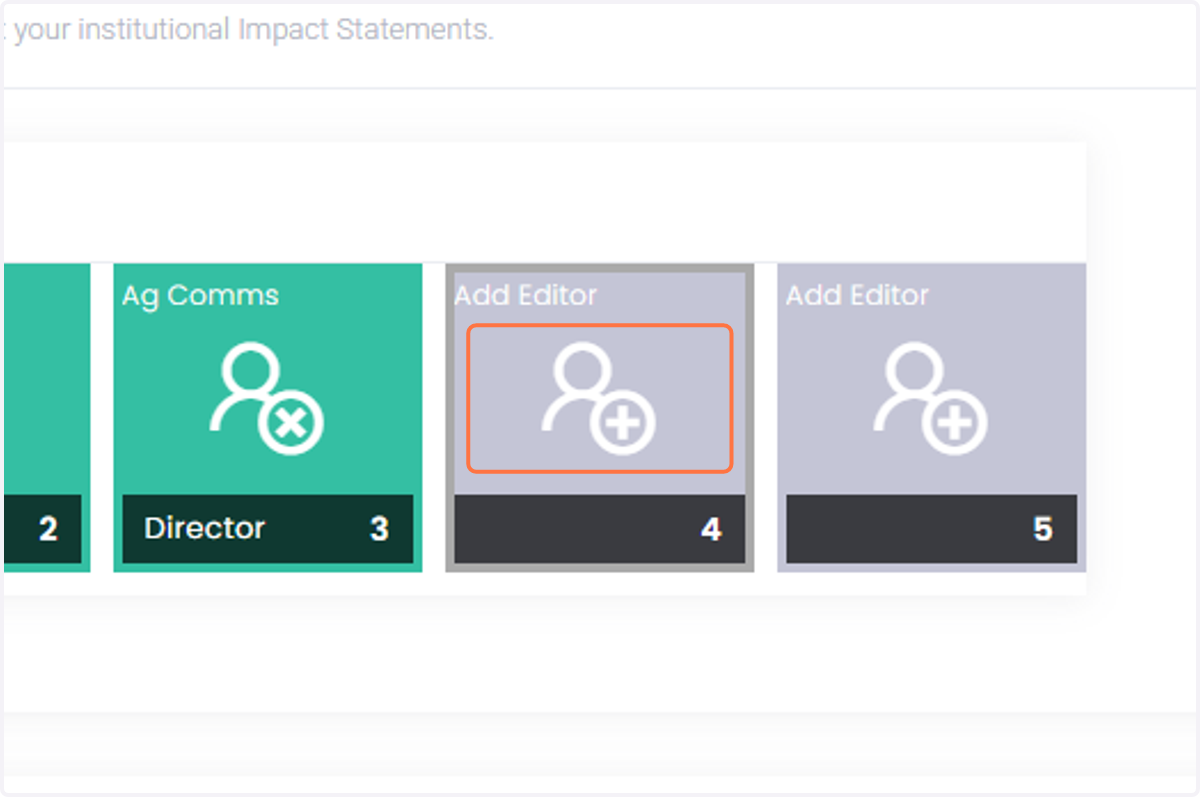
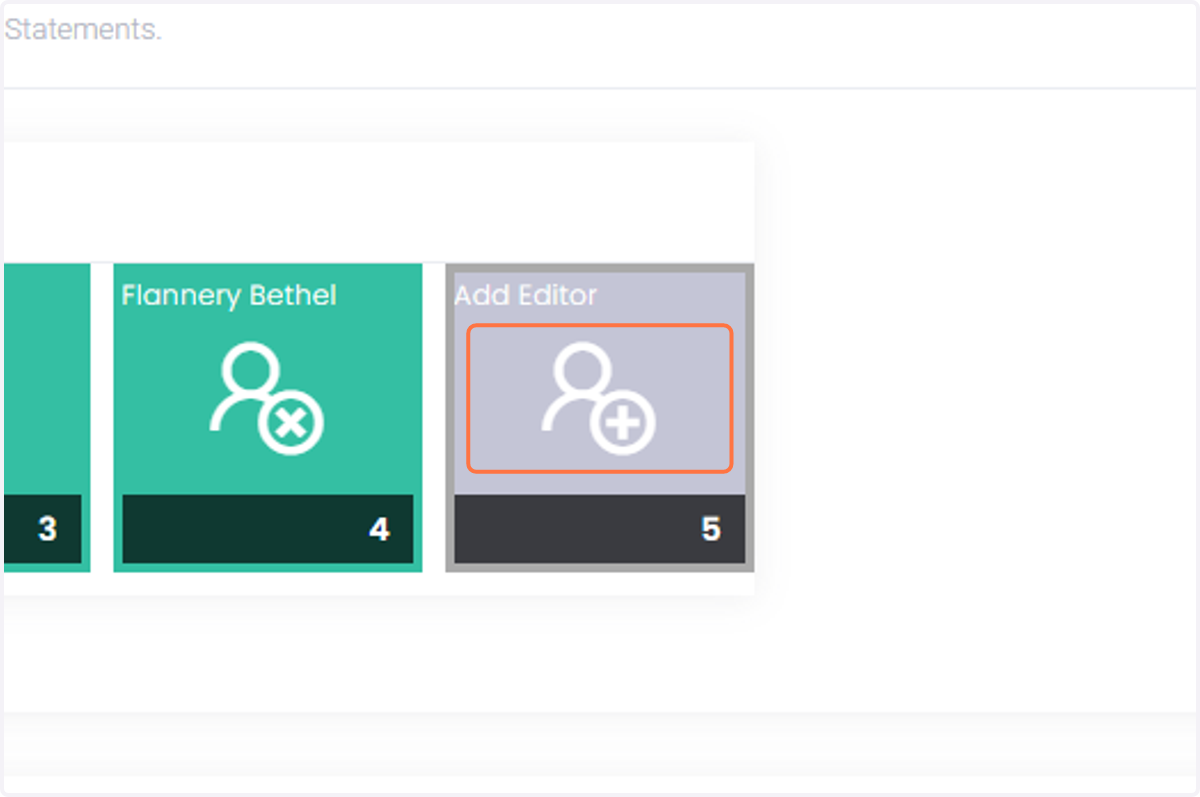
4. Click the button to add an Editor.
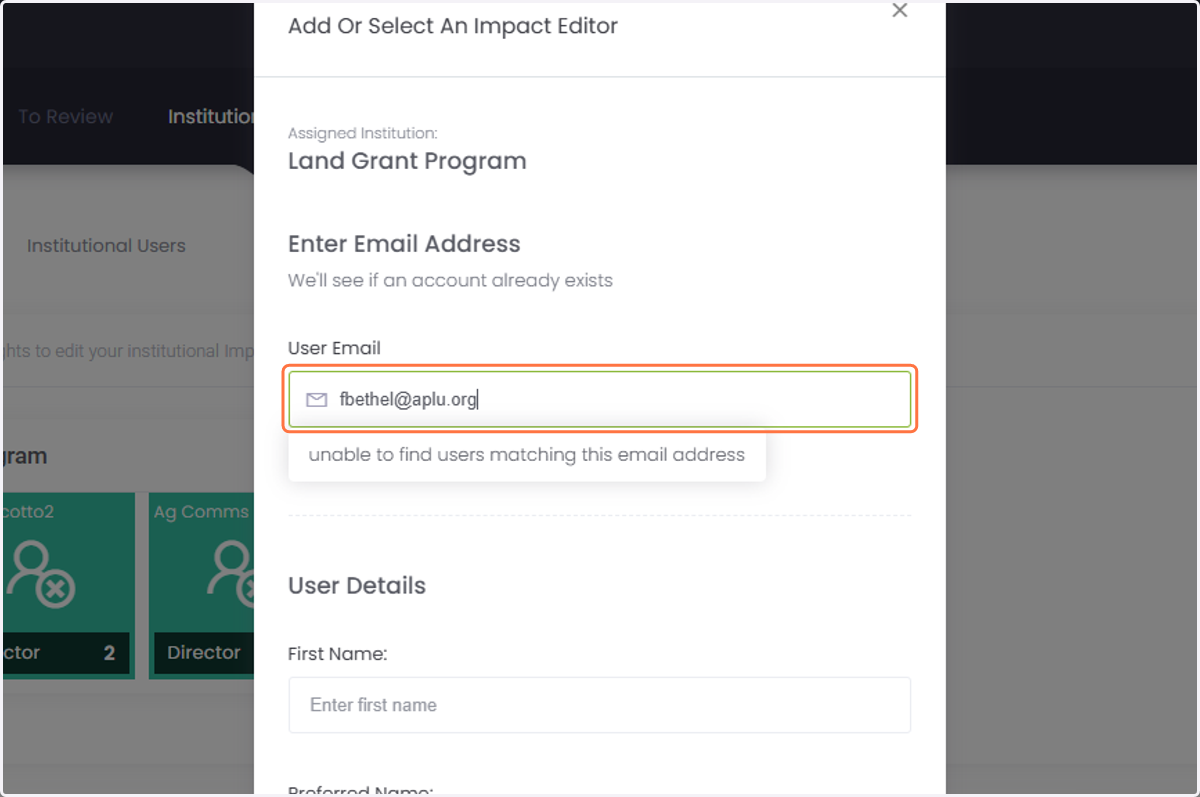
5. Type your Editor's email to see if they already have an account.
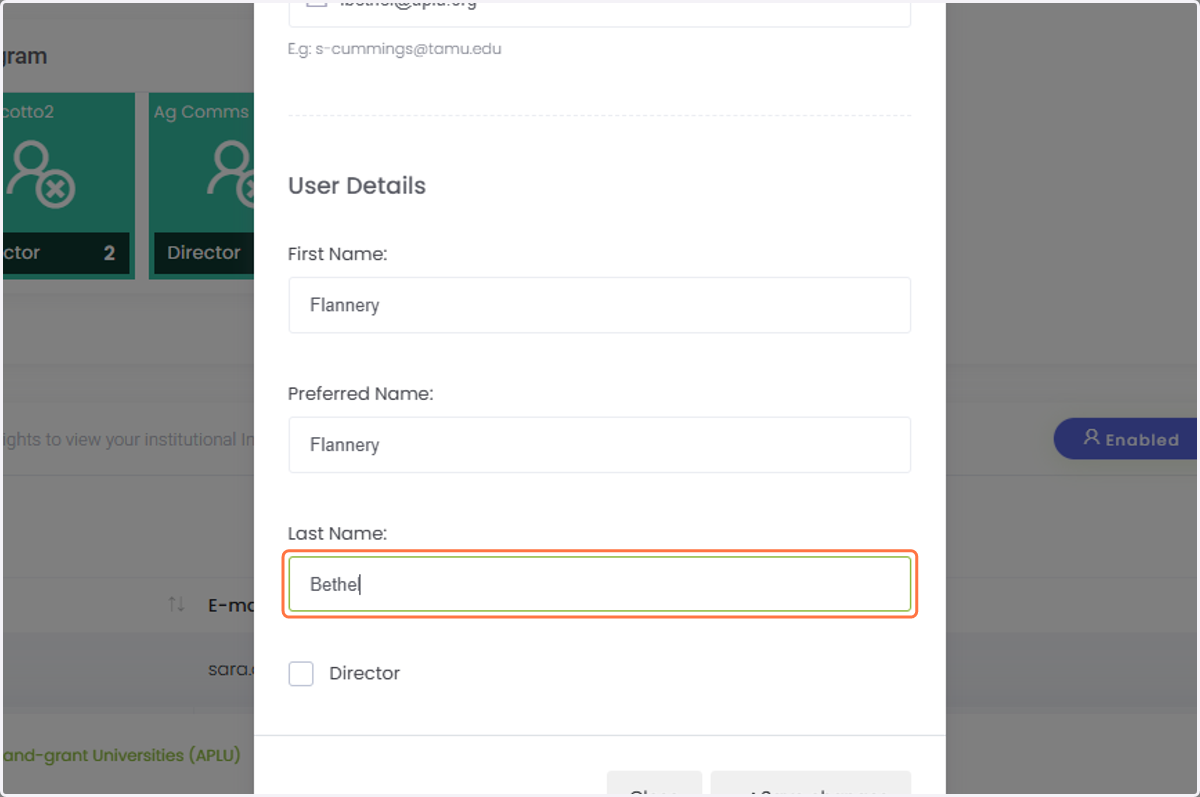
6. If they do not have an account, add their information under User Details. Check the box for Director* if they are the Assistant, Associate, or Director of the unit or Dean of the College of Agriculture.
*All new users will be added as Editors. Director is a secondary designation but does not give any additional permissions in the database. Contact Kim Scotto at agcomms@aplu.org if you are adding a Director that needs to be changed to an Institutional Administrator. All units are required to have at least one Director as an Institutional Administrator.
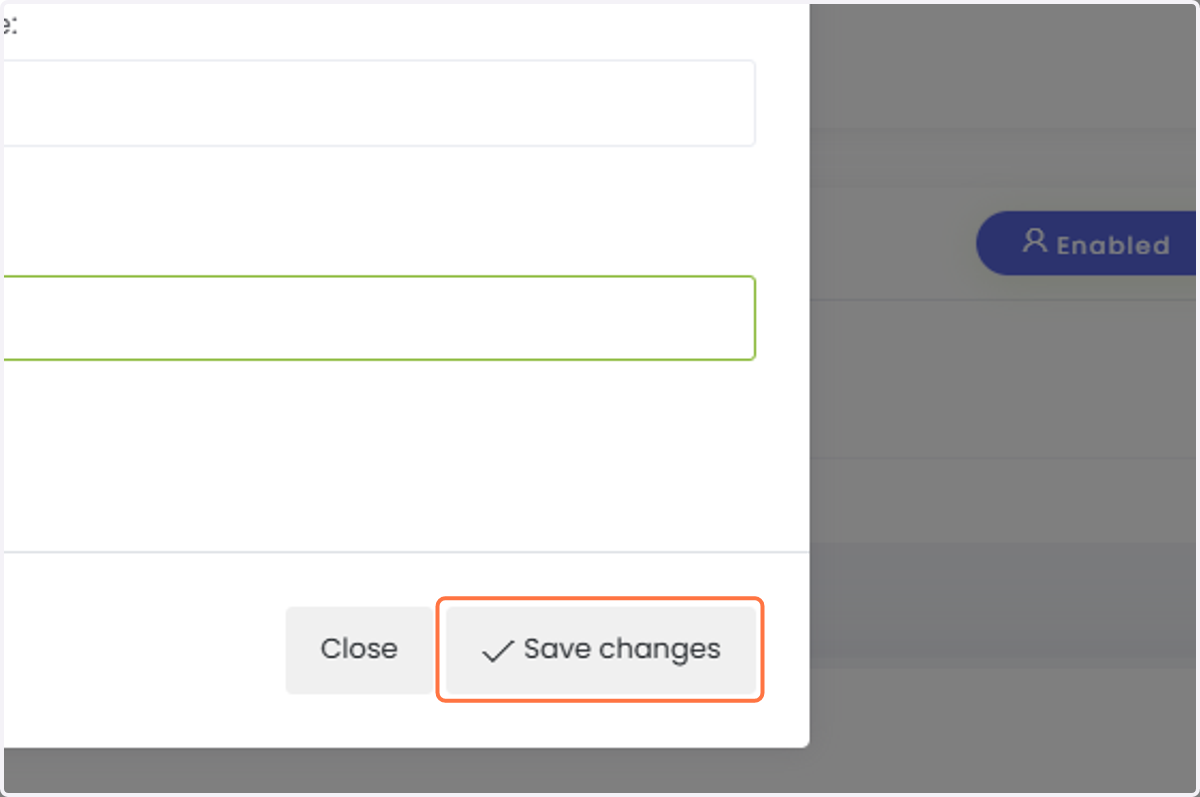
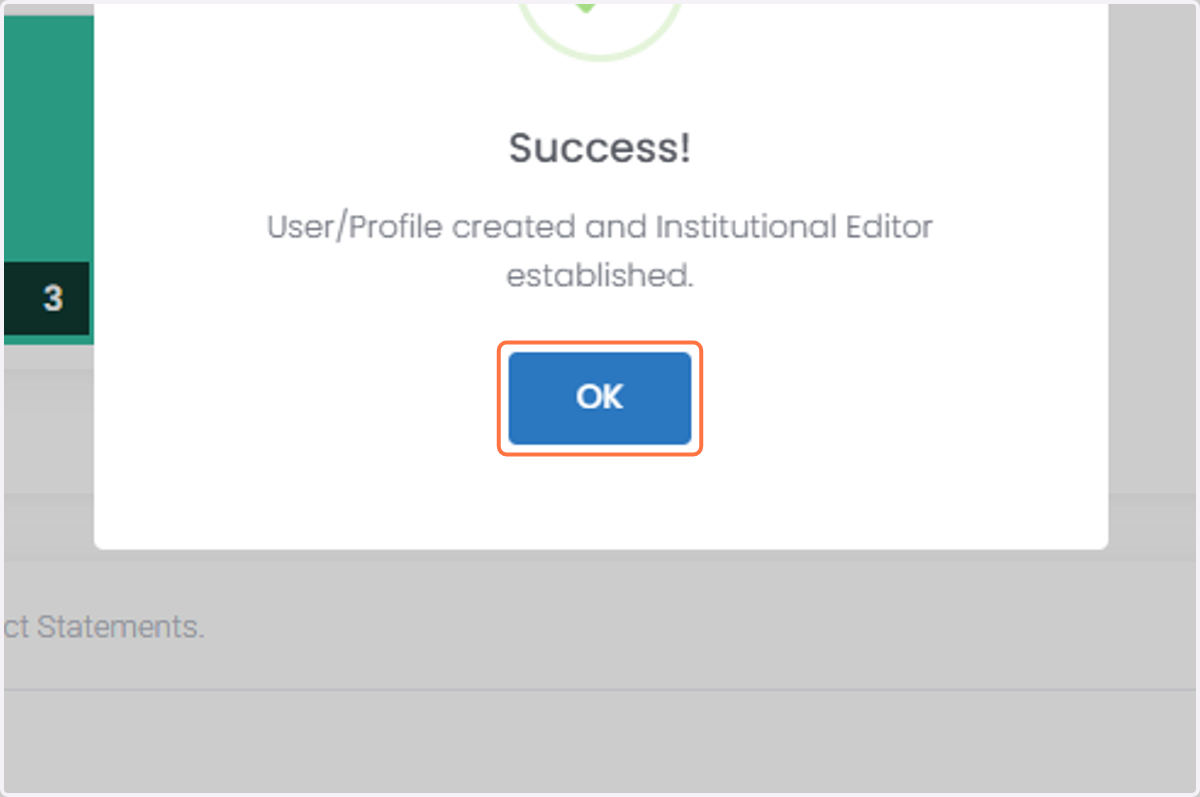
7. Click on Save changes.
8. The user will automatically receive an email from the system with instructions for setting up their account.
Adding a pre-existing user to your unit.
9. Now, we'll try adding an Editor that's already in the system. Maybe they have been submitting for the Extension unit, and now we want them to also submit for research.
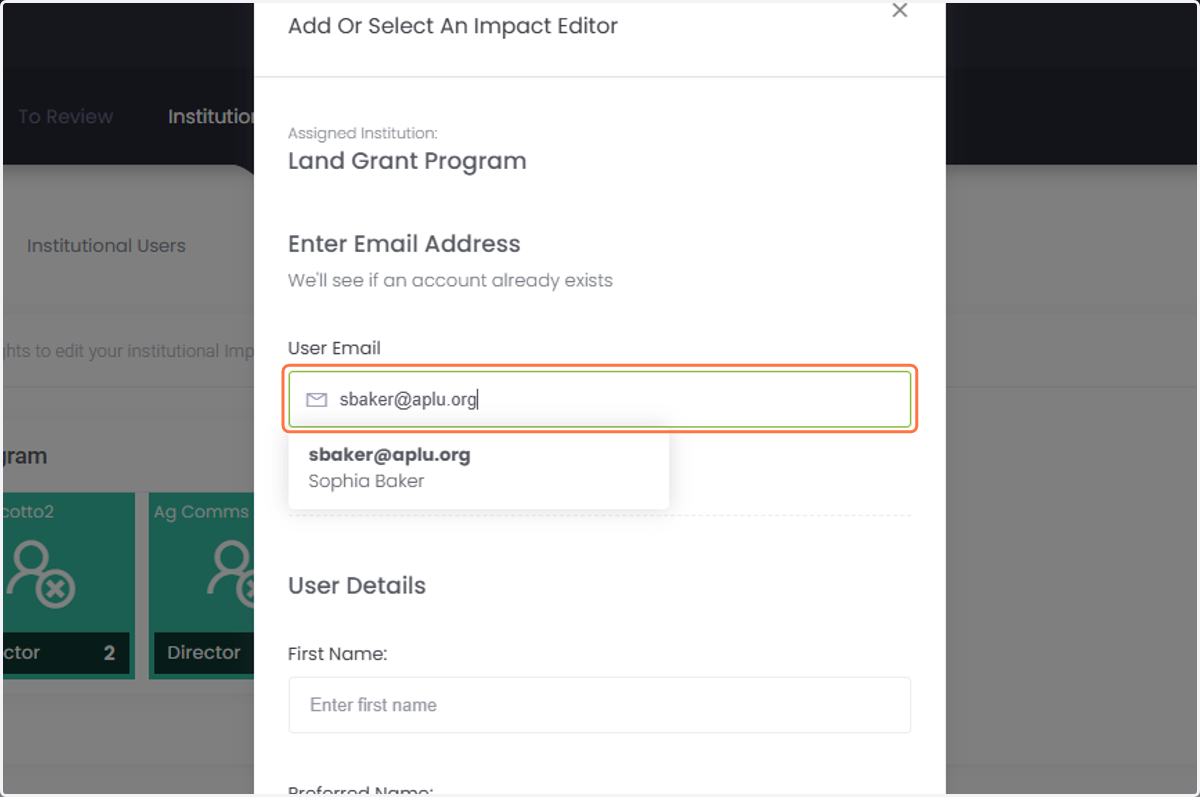
10. Type their email address.
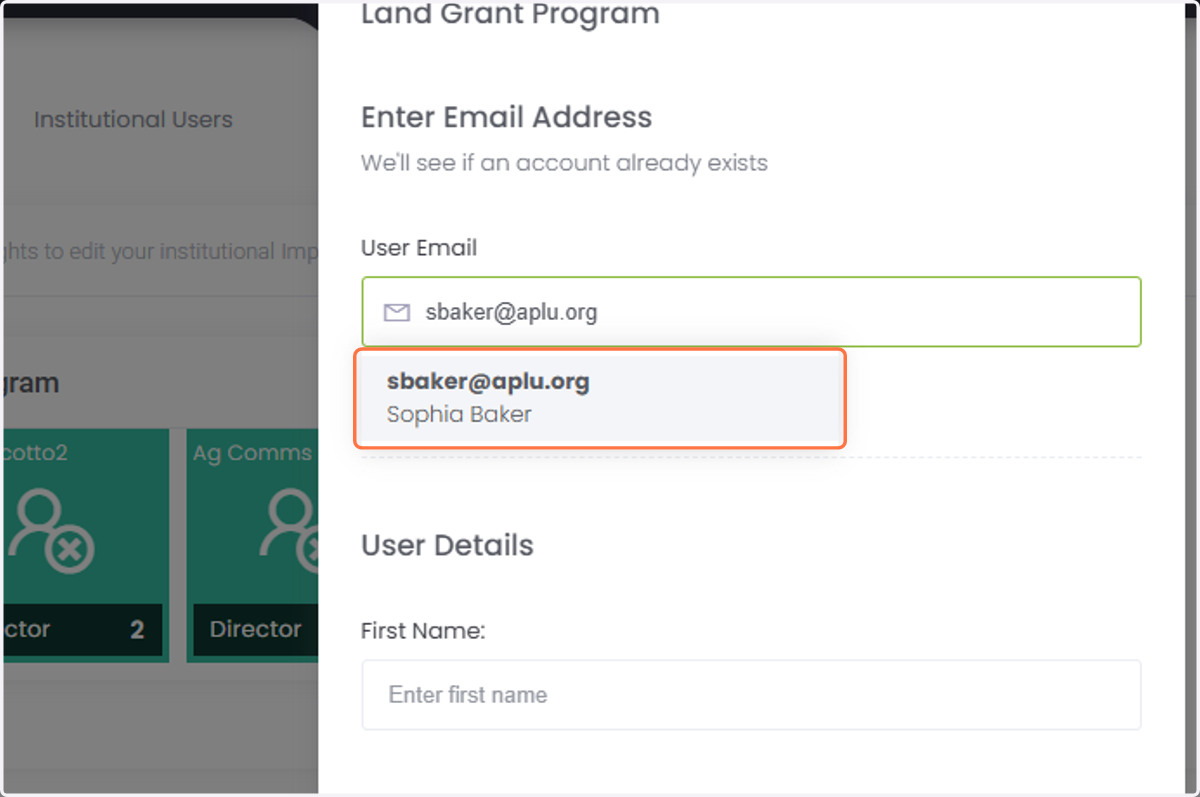
11. If they already have a profile, click their name and their information will autofill.
12. Click on "save changes."
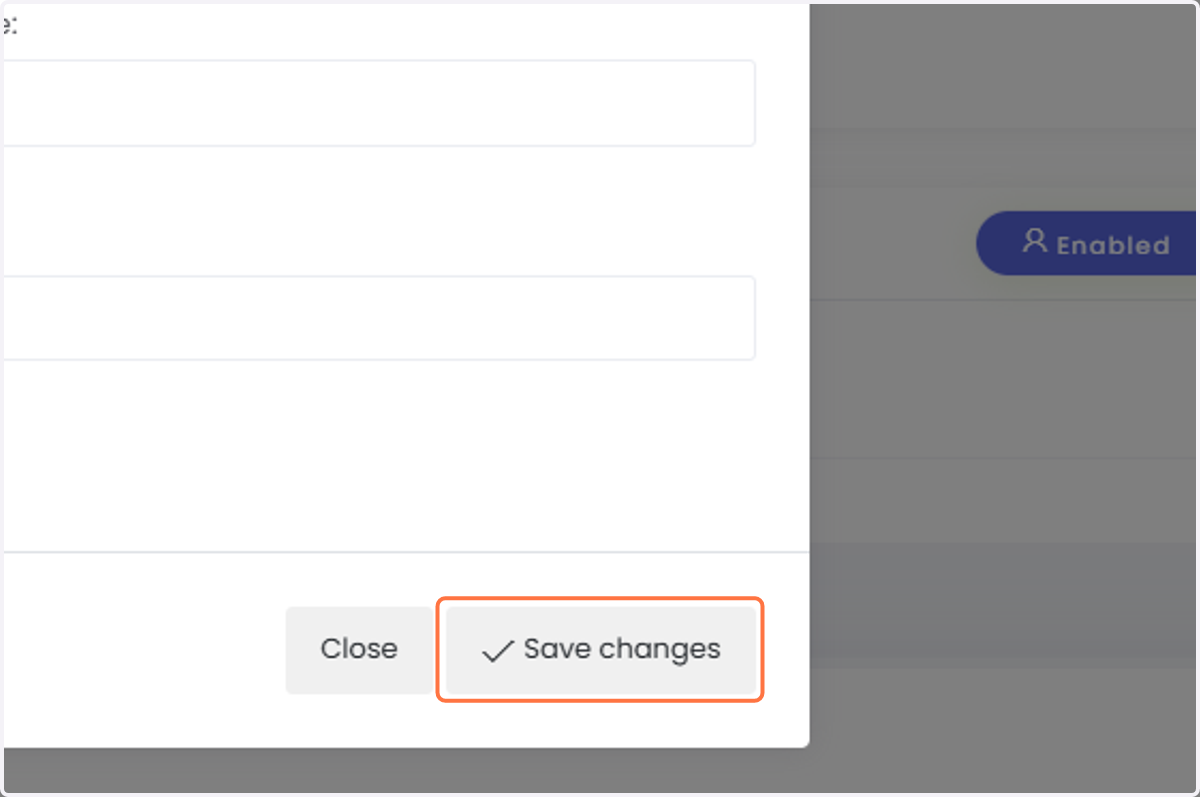
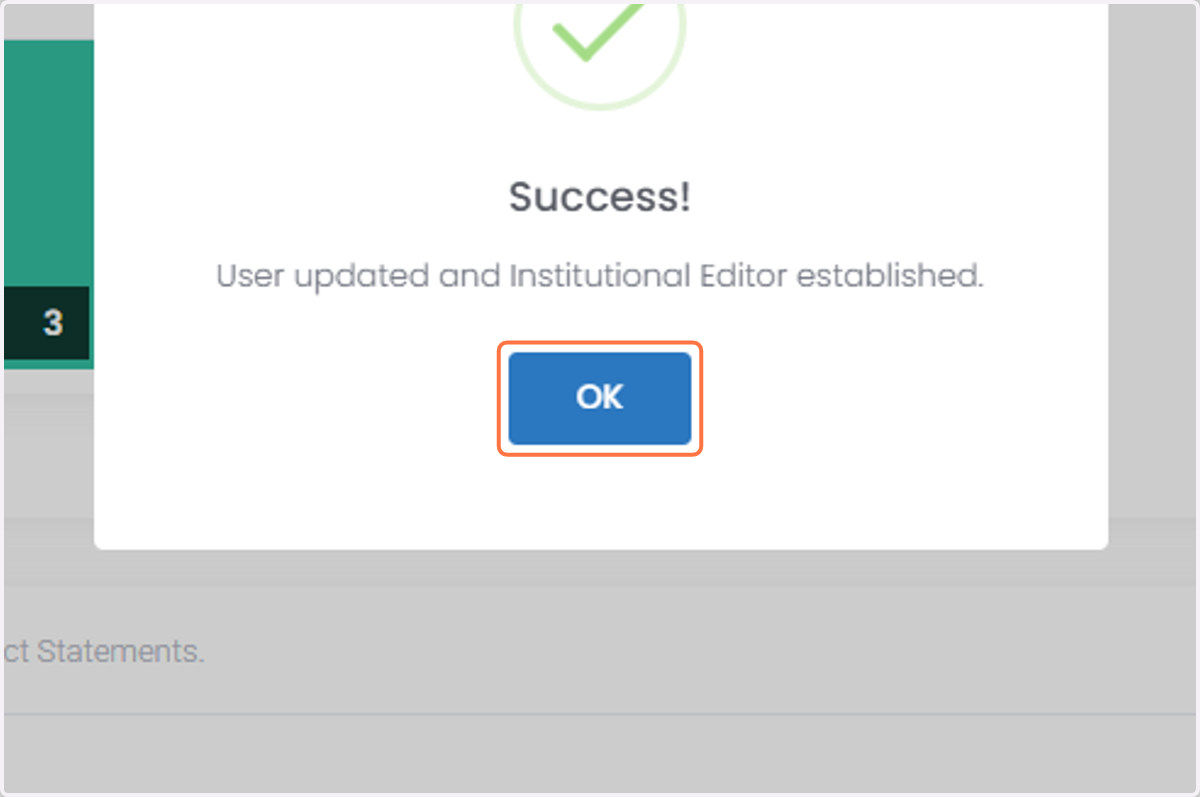
13. Done! Because the user already had an account, they will not receive an email about the change. Please let them know that you've added them.
Demoting/Removing Users
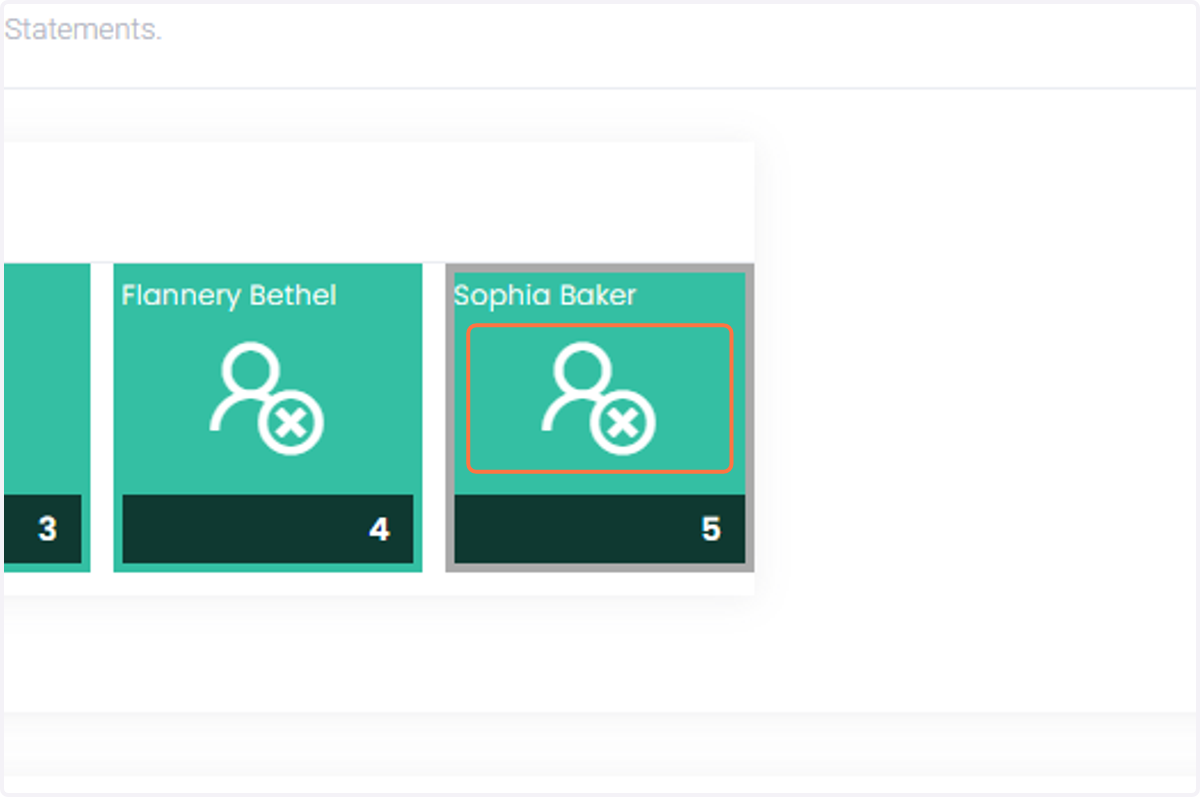
14. What about when someone switches roles or leaves your institution? You can now also remove Editors and Viewers from your unit. Click on the user you'd like to demote/remove.
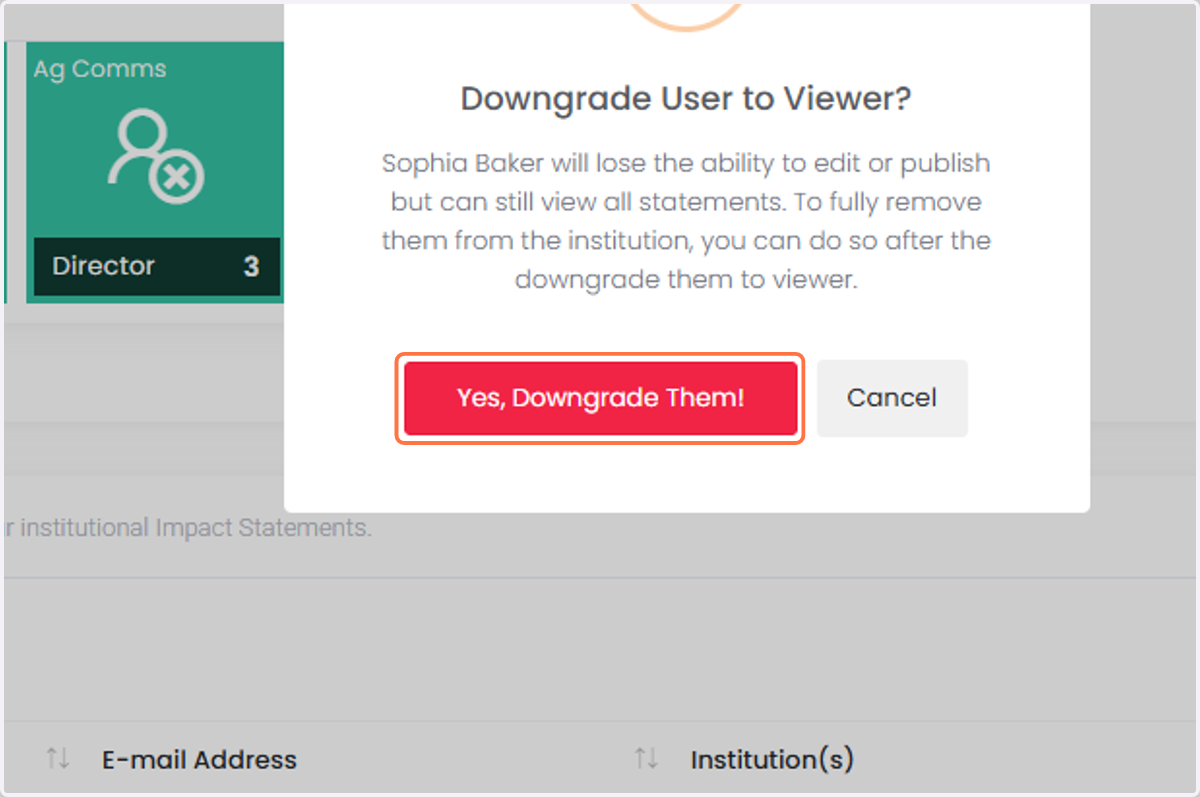
15. Click on "Yes, Downgrade Them!"
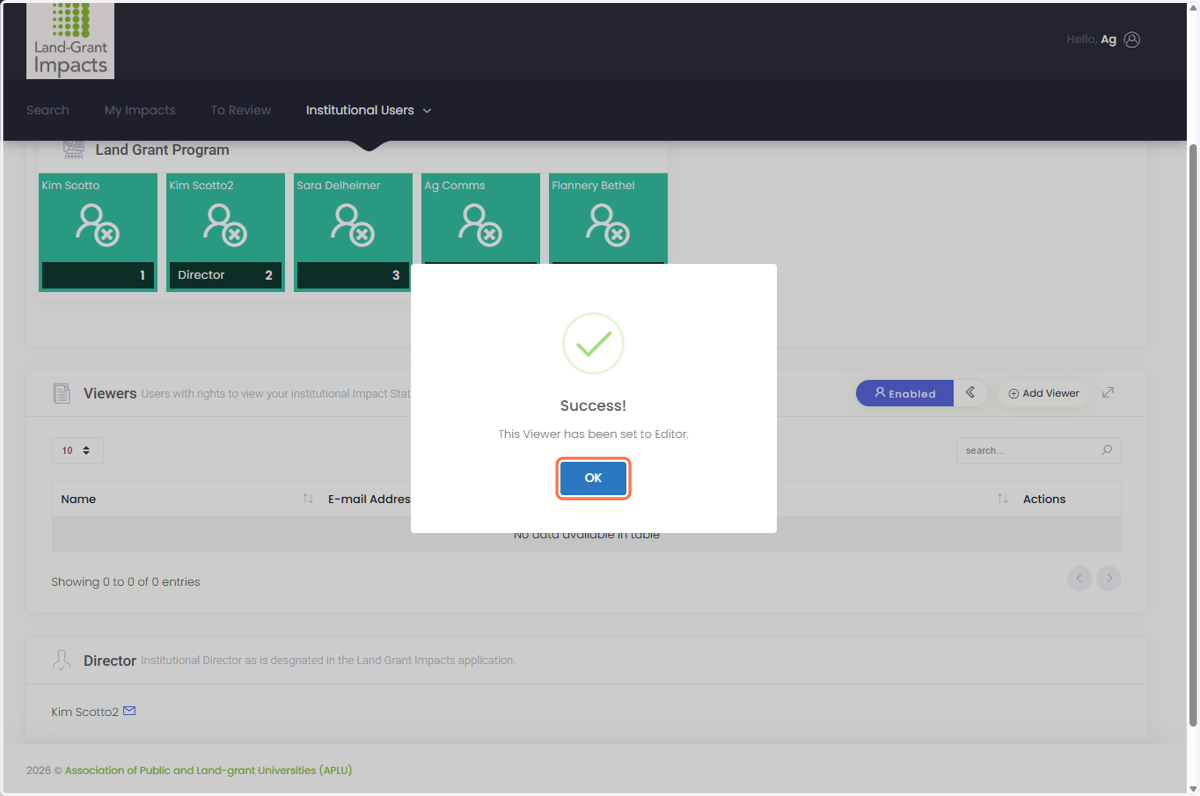
16. Click "ok".
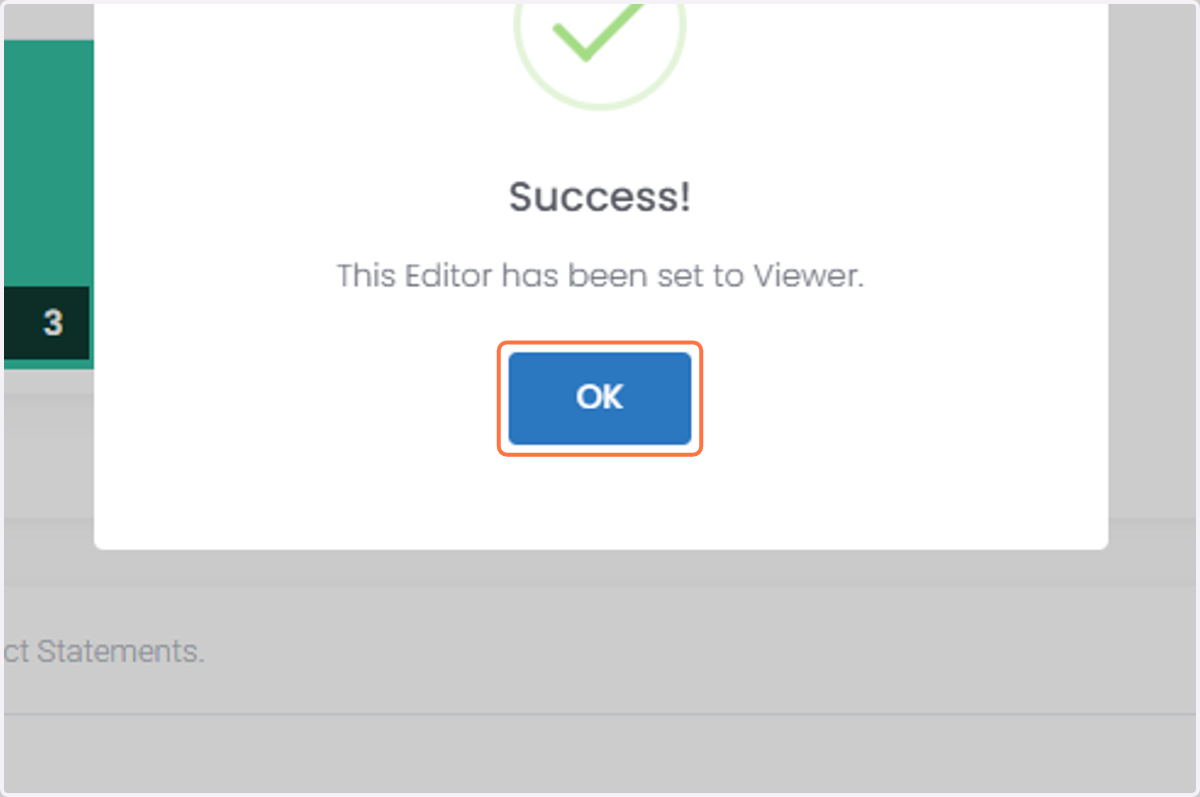
17. The user will move down to the Viewer section.
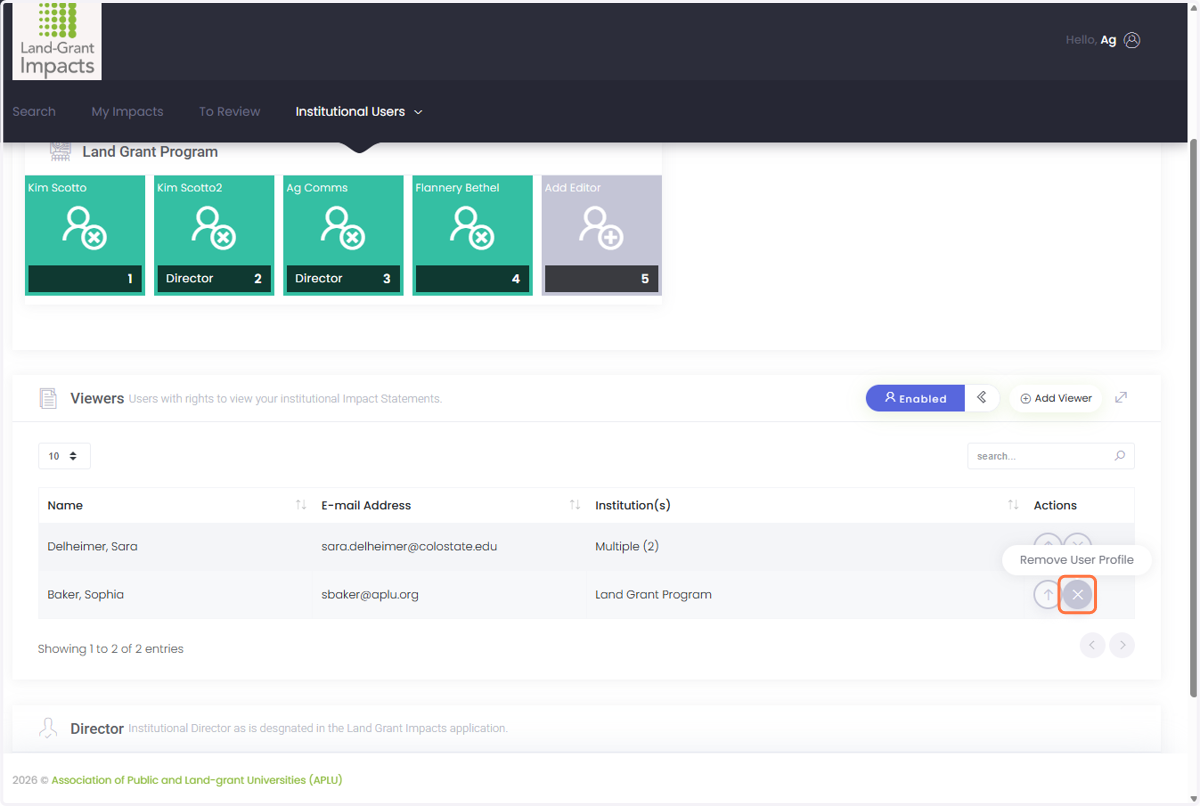
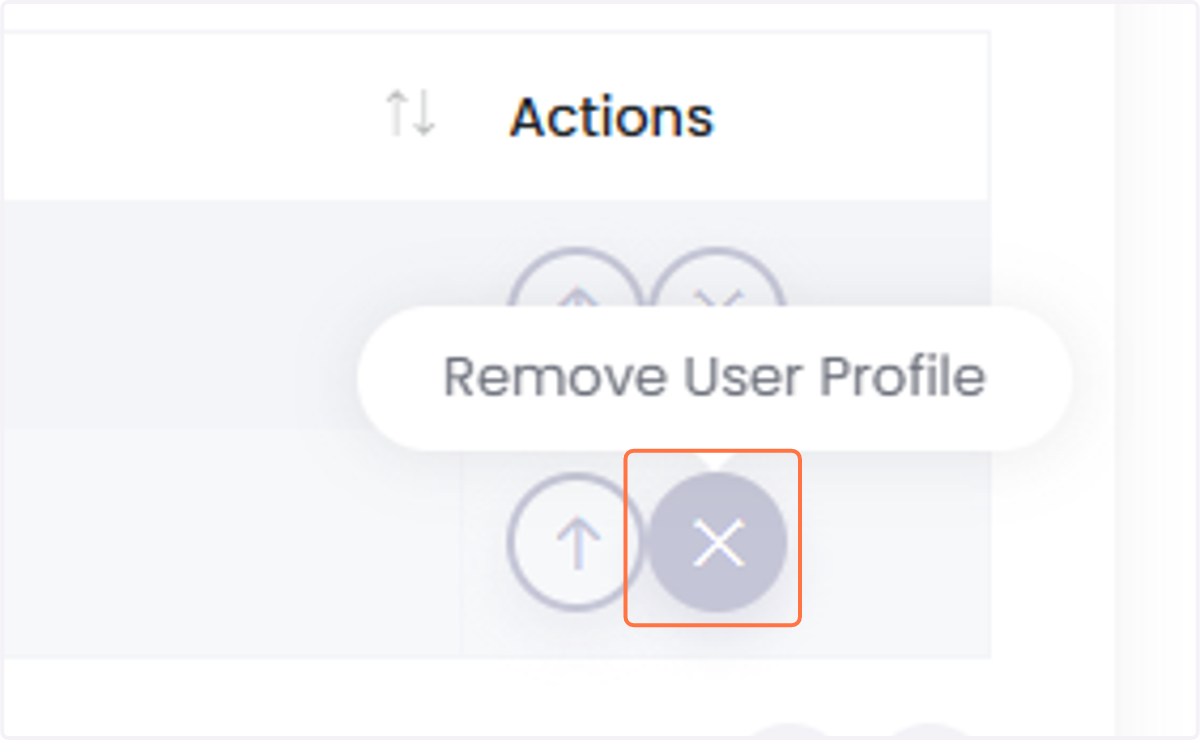
18. Click the "x" to fully remove the user from your unit.
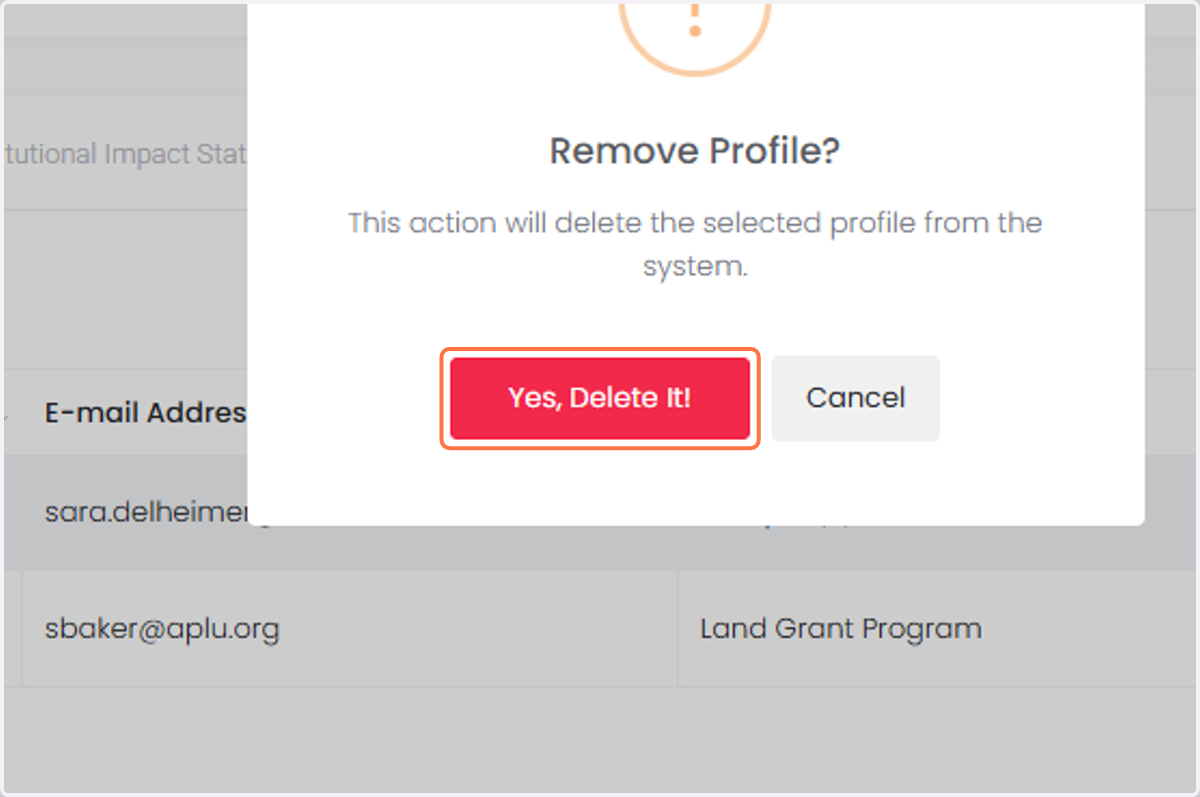
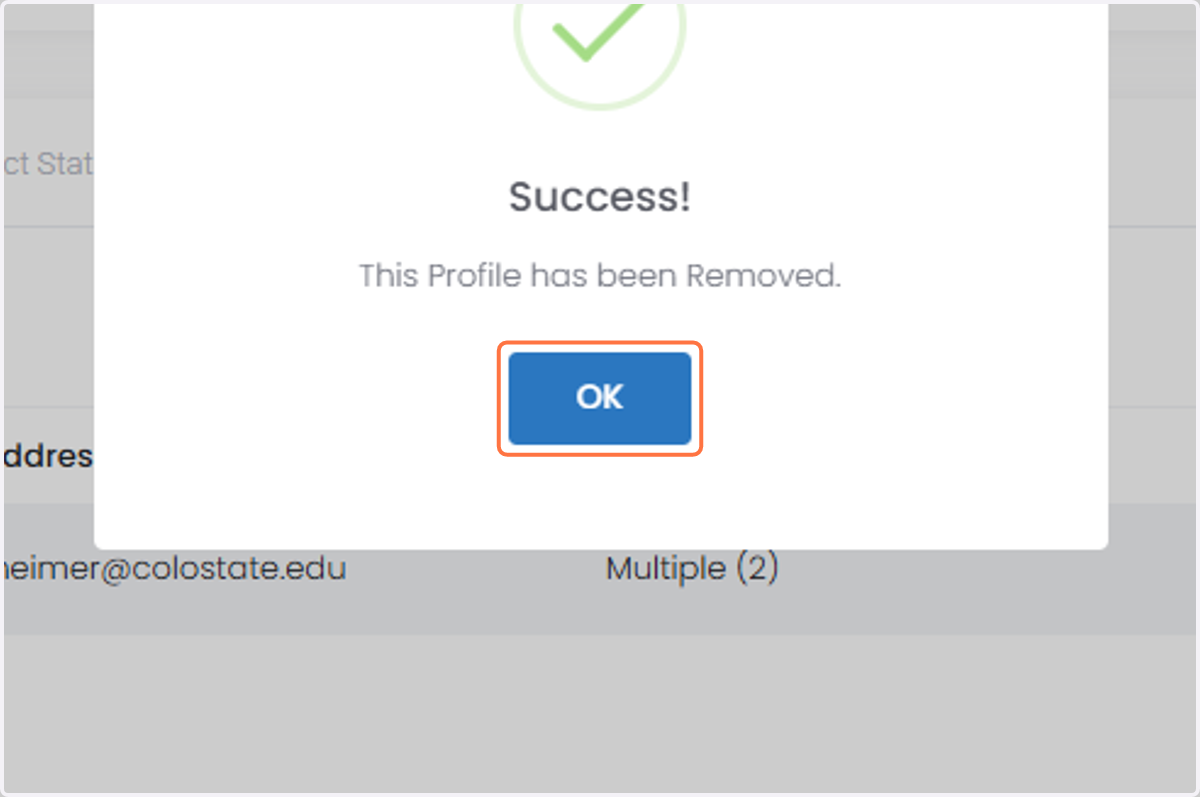
19. Click "Yes, Delete It!" This will remove the user from the unit you are editing, but will NOT remove them from other units (for example, if they are assigned to both Extension and research).
20. Click on OK
Promoting a Viewer to an Editor
21. Find the user in the viewer section you'd like to promote, and click the up arrow button.
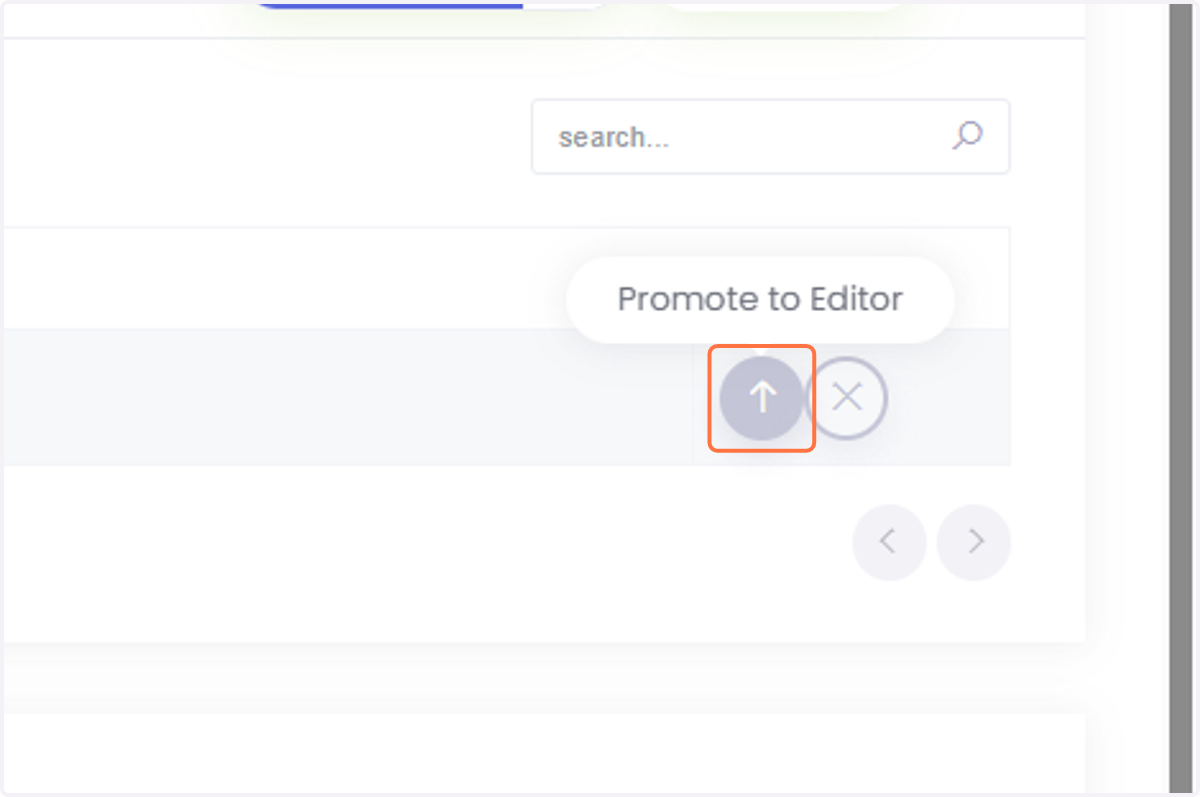
22. You will see the user move from the Viewer to the Editor section. Because the user already had an account, they will not receive an email about the change. Please let them know that you've added them.