Manage Stock in Digital Shop
Digital Shop
Visit https://digitalshop.com.ng
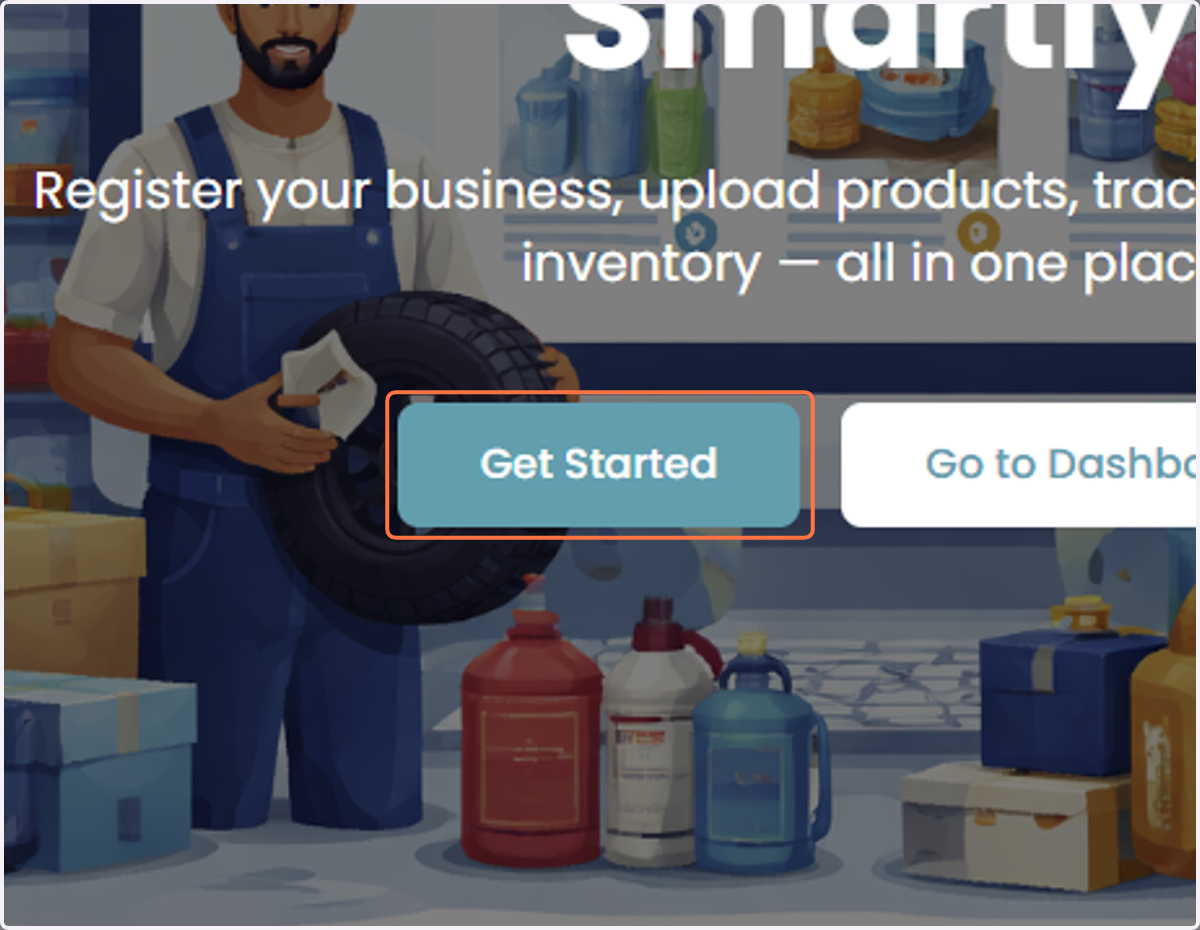
1. Visit https://digitalshop.com.ng and click on Get Started
2. Provide the business name, business type, and the rest of the information to create your business page. Create a strong password and confirm it before saving
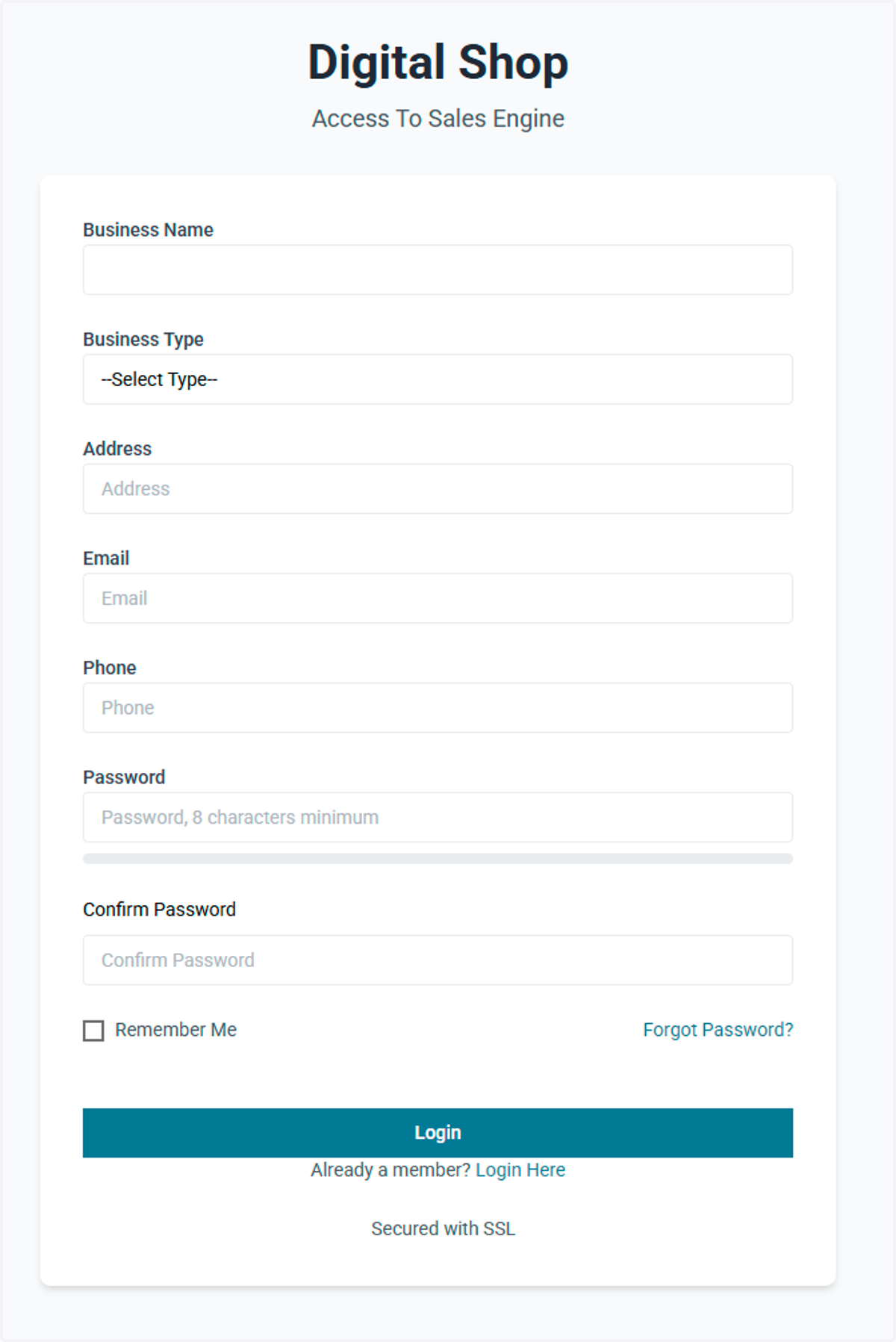
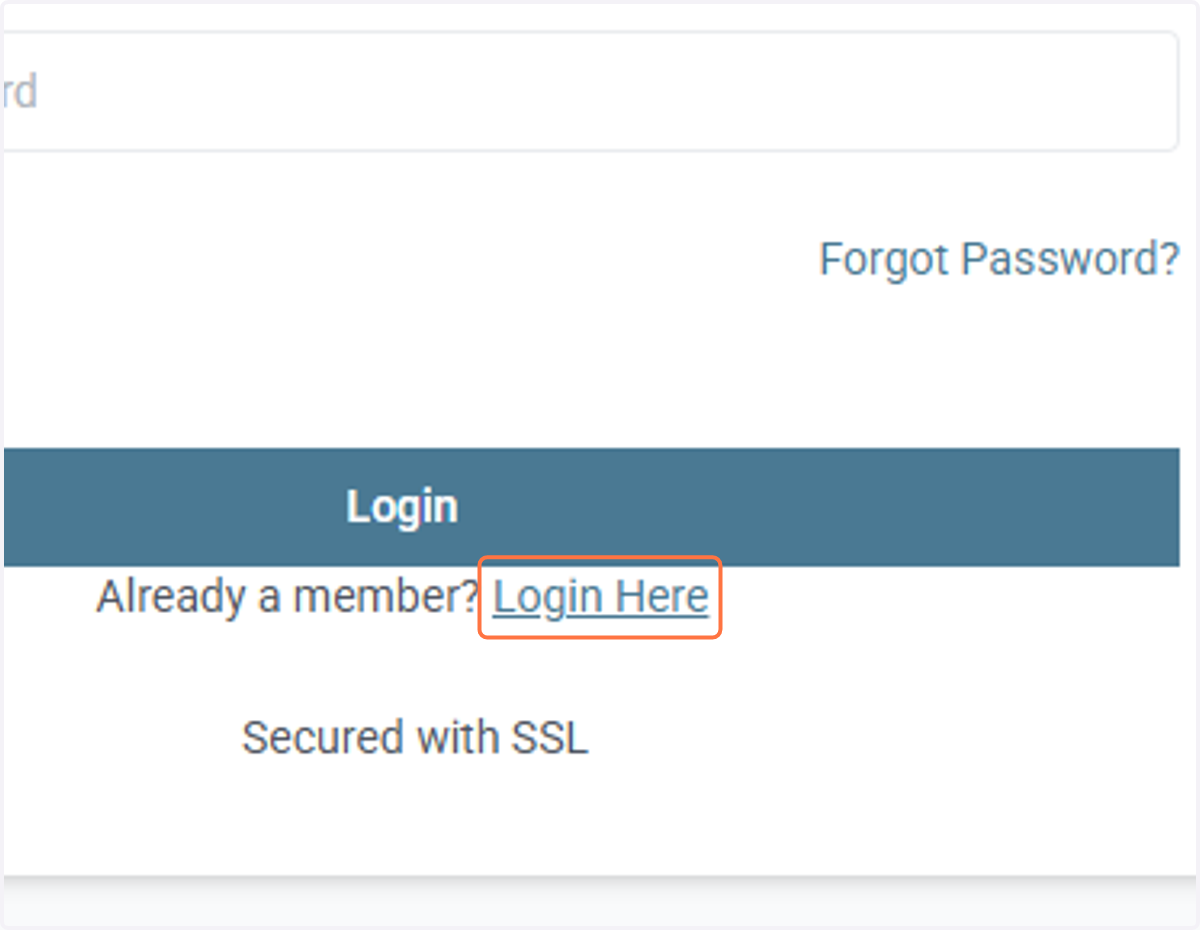
3. When the profile of the business is created, click on Login Here link to login to your account using the email address and set password
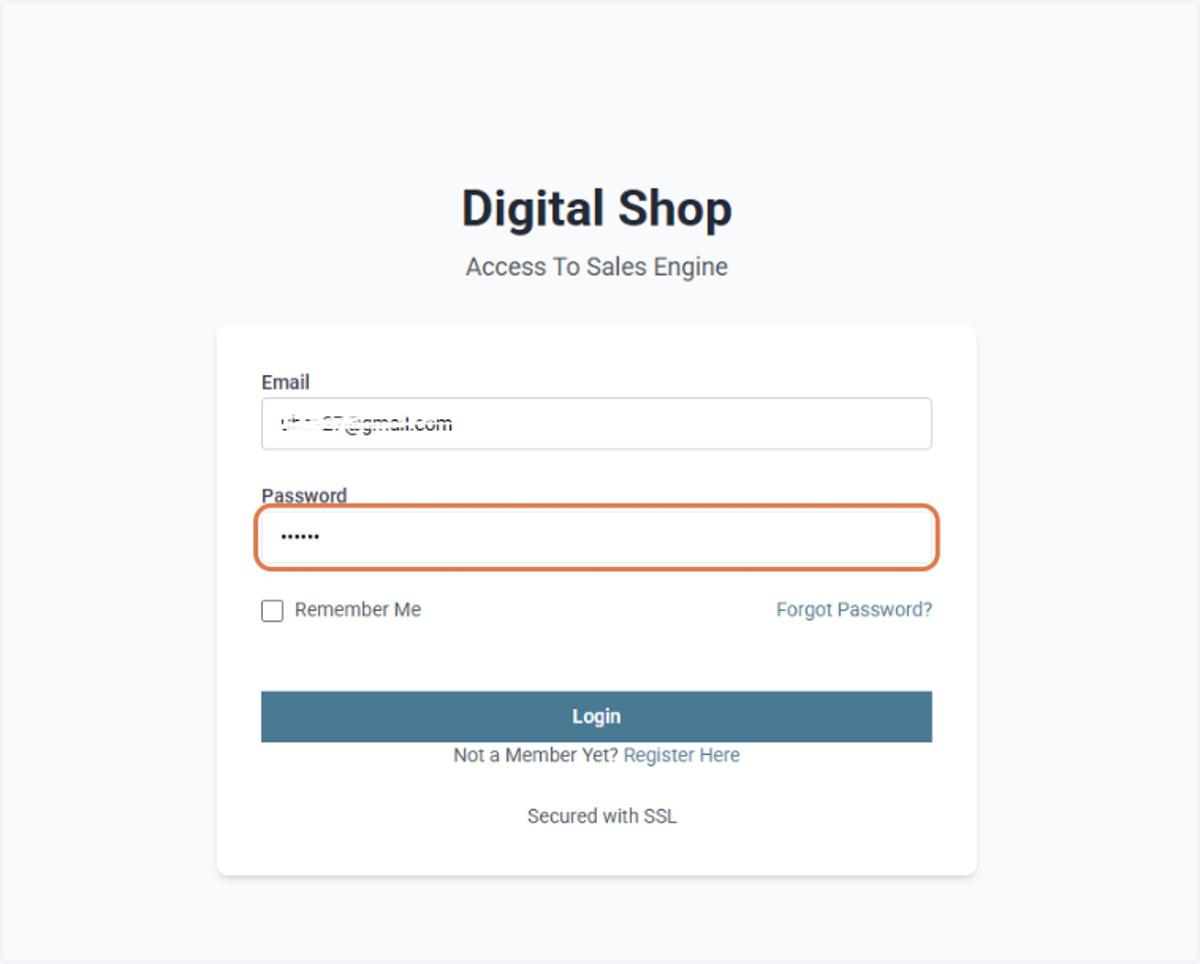
4. Type Your email and password to login
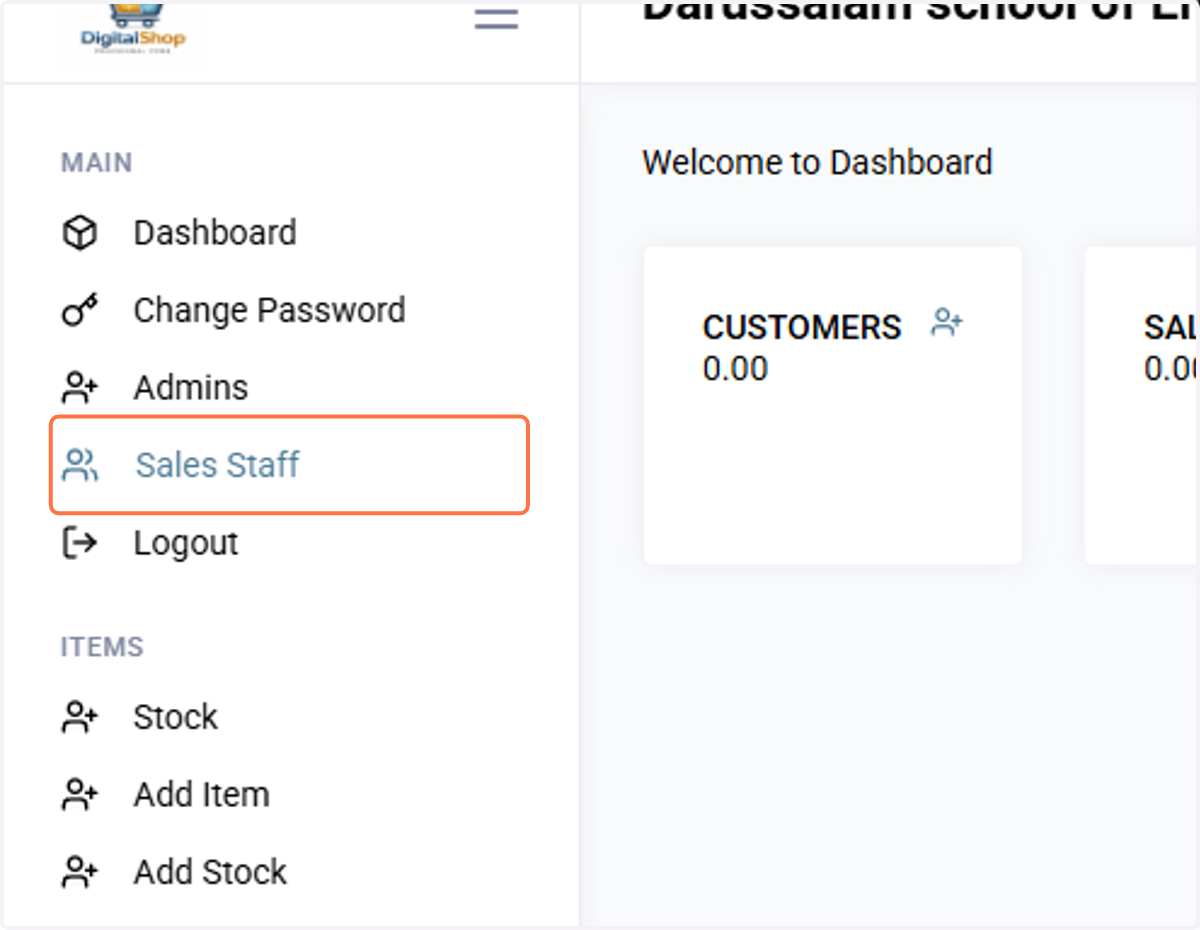
5. The system after login will bring you to your dashboard. To create sales staff, click on Sales Staff menu by the left.
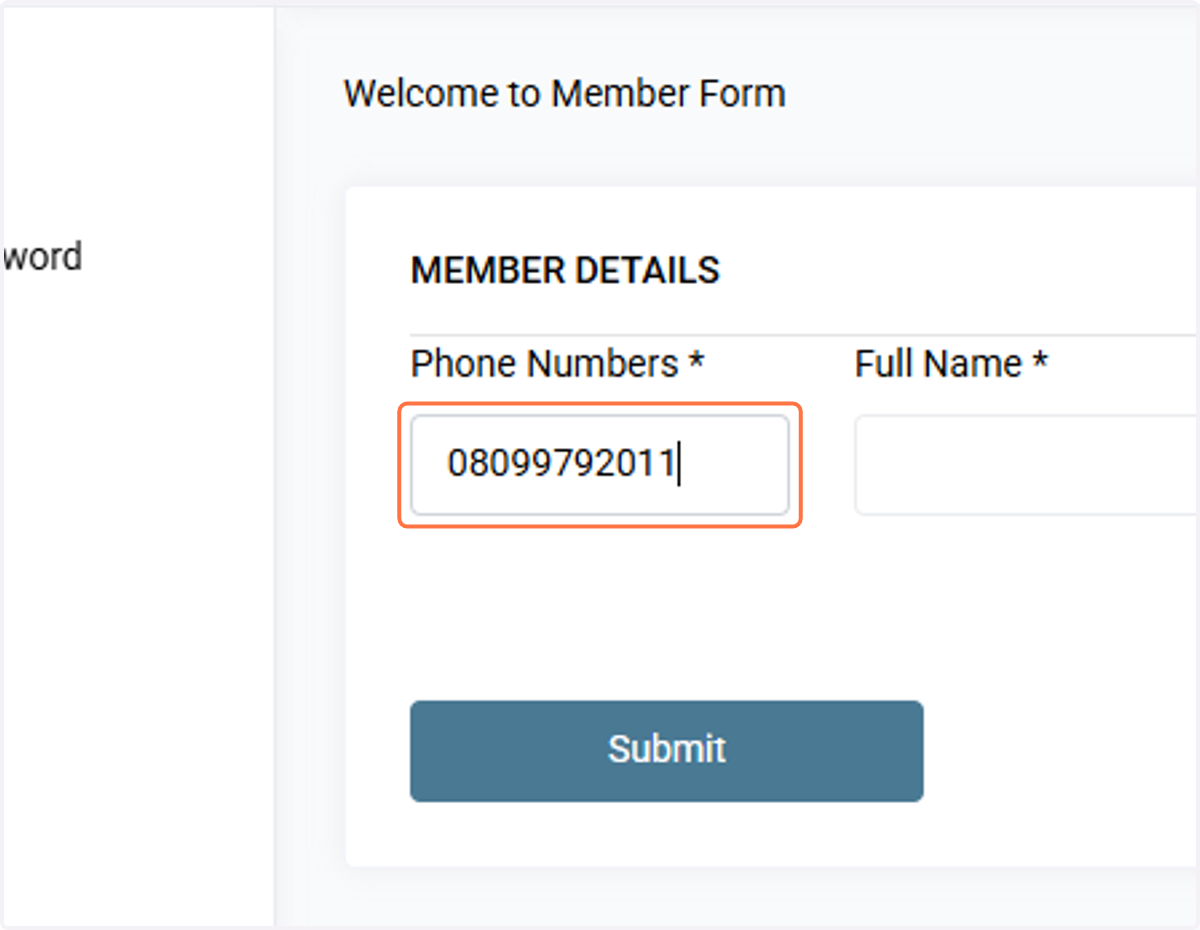
6. Provide his phone number which will be used as his username.
7. Type Full Name
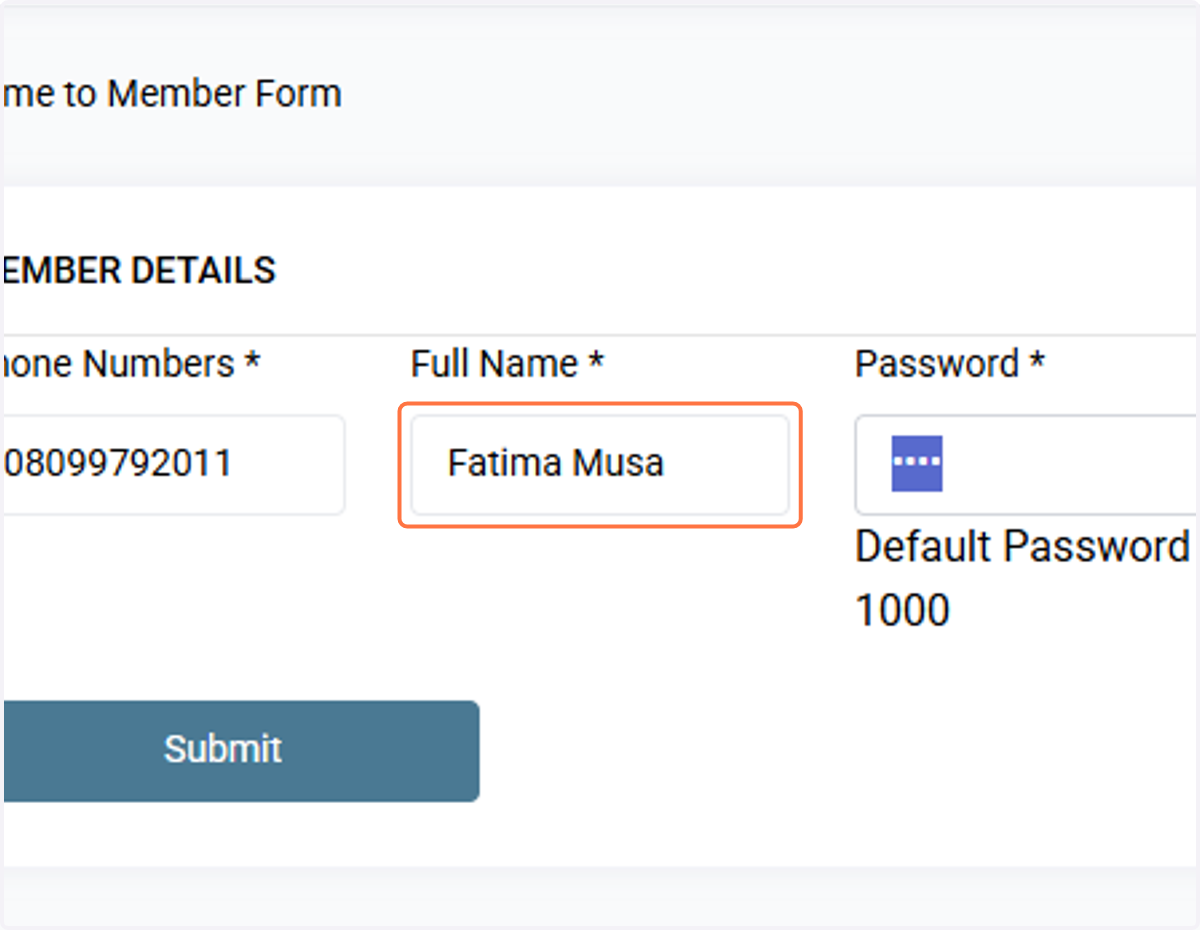
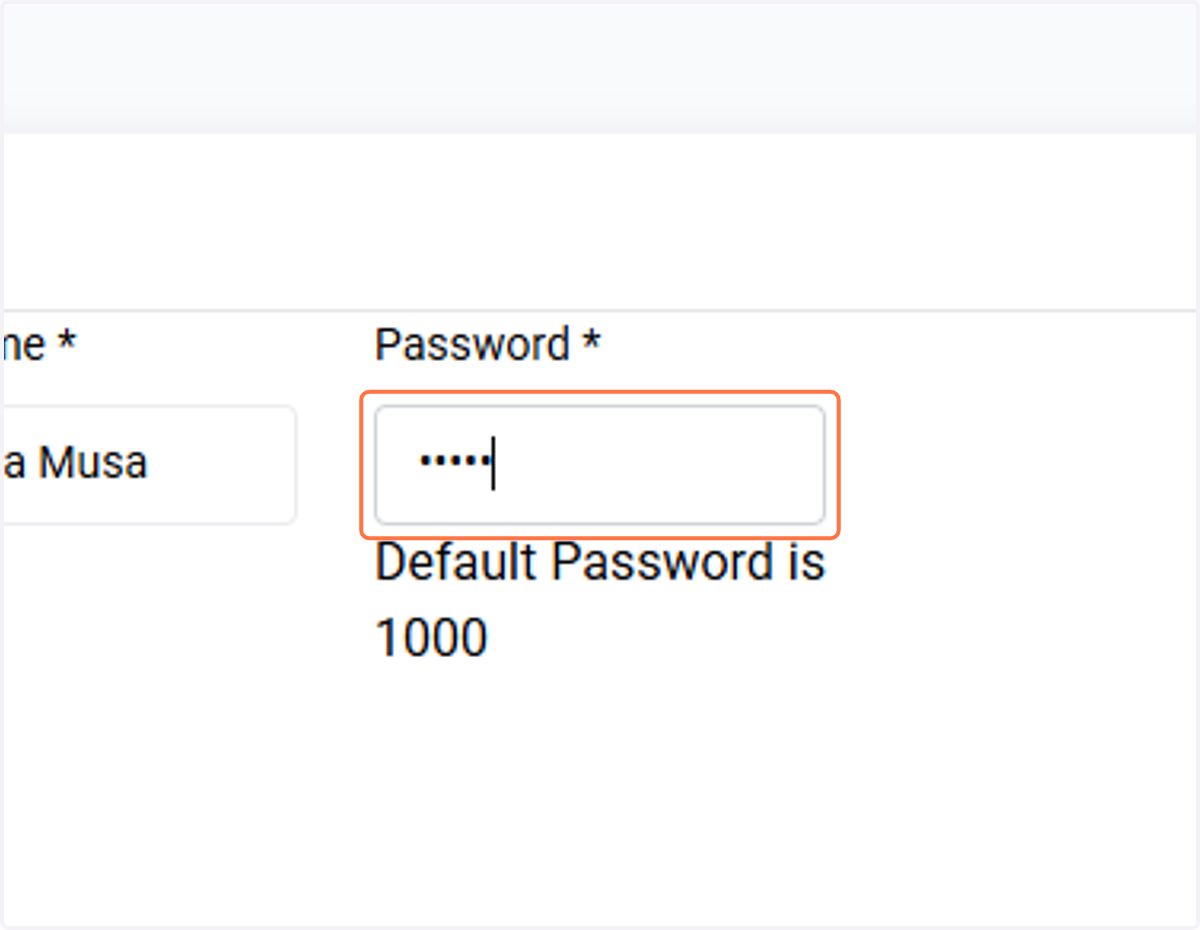
8. Type his password
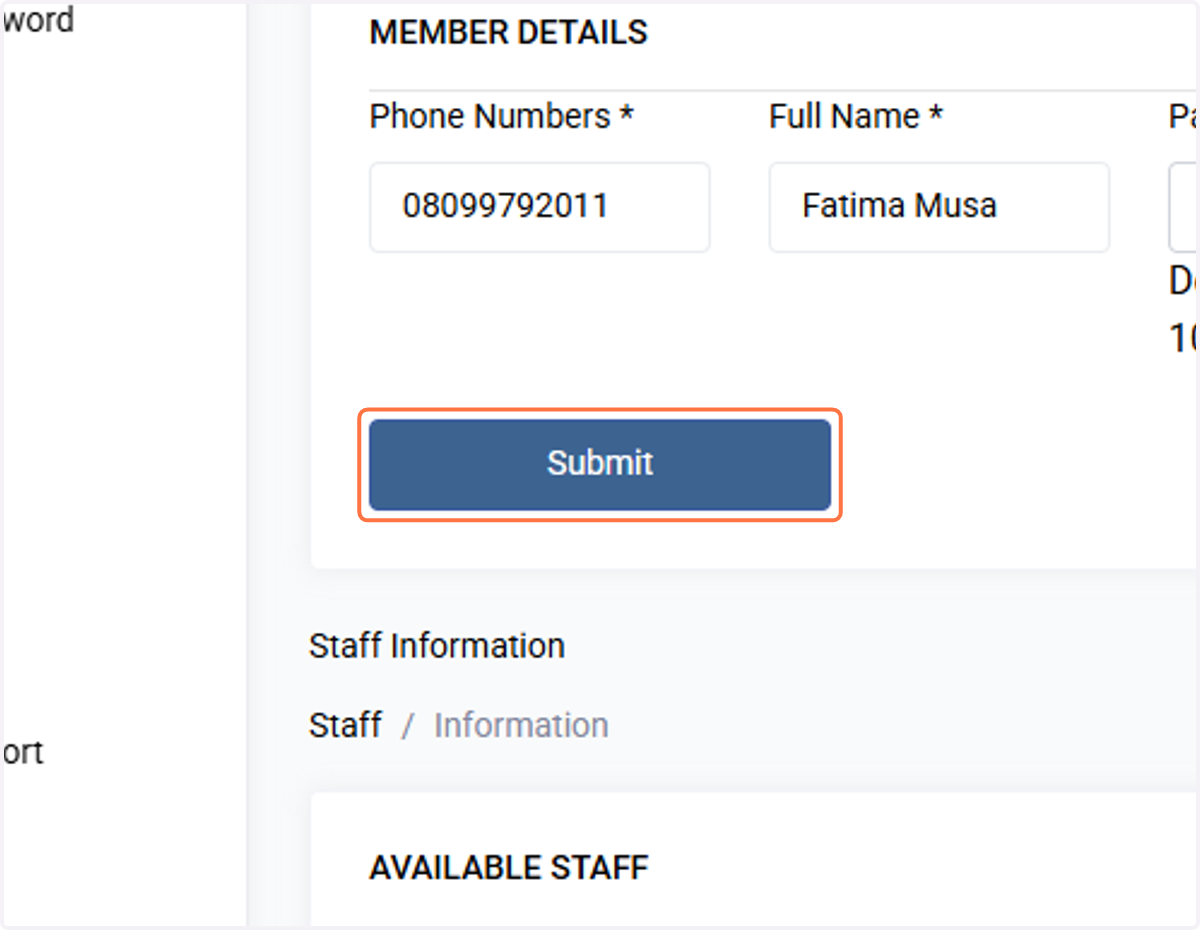
9. Click on Submit to save his record
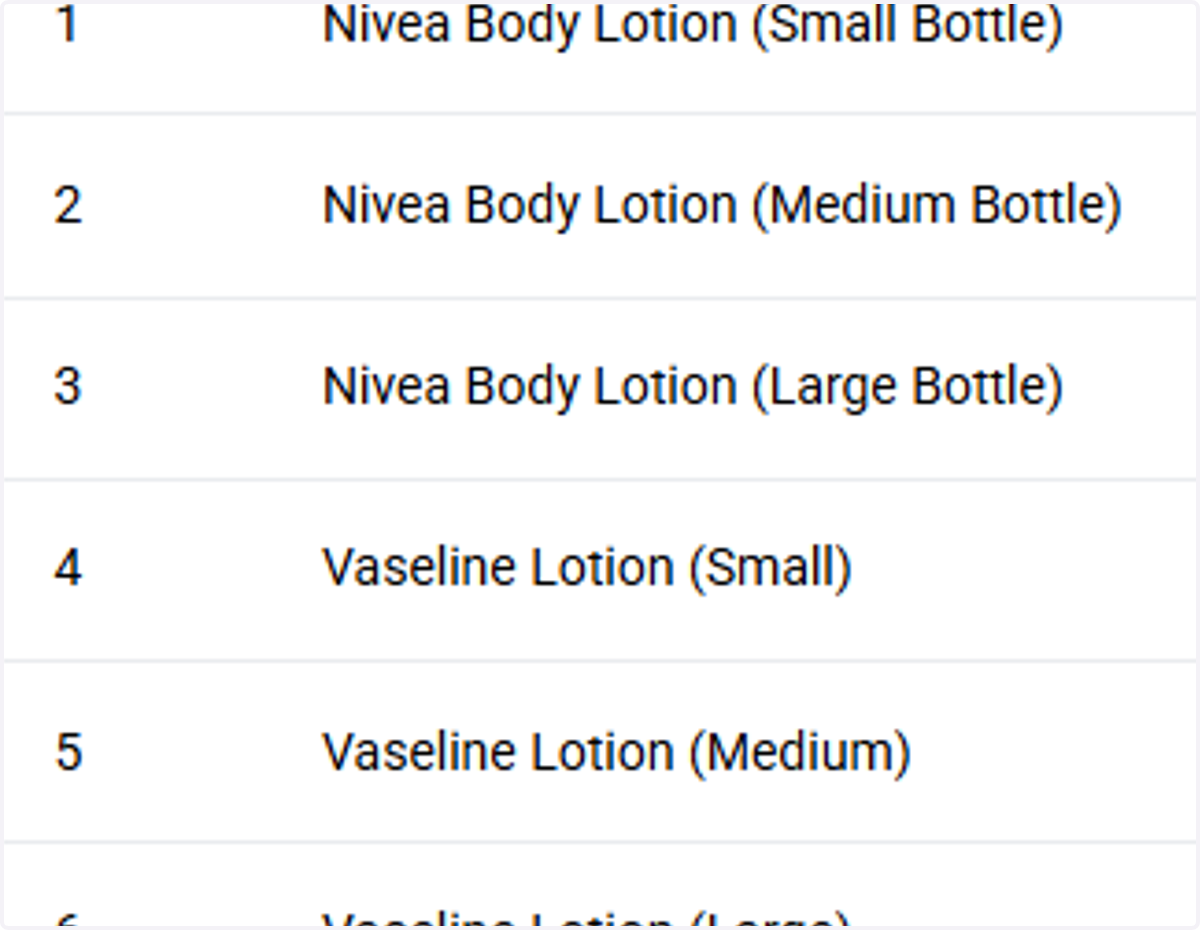
10. To add stock, click on Stock menu, it will display all the items with their prices, and available stock in the shop
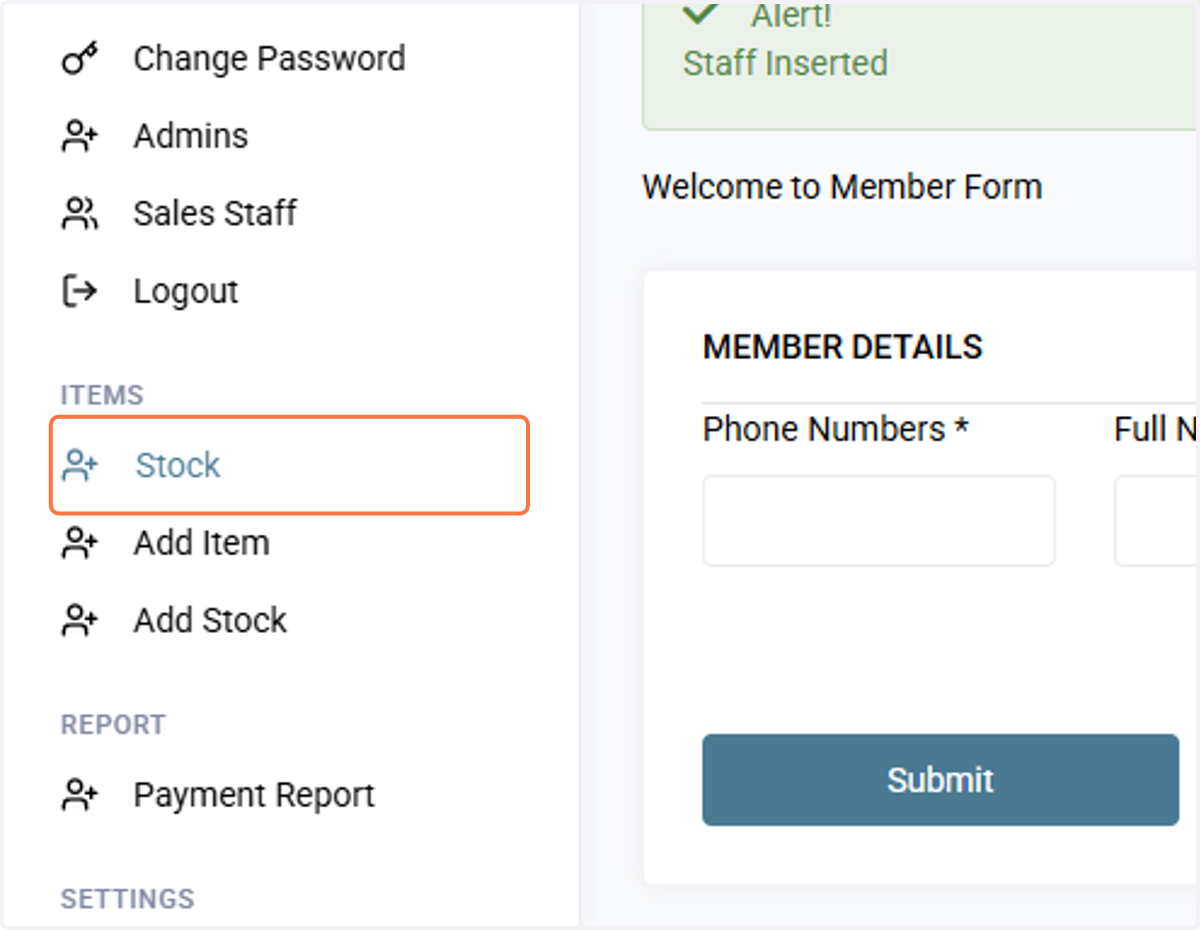
11. Click on highlight
12. To add stock, Click on Add Stock,
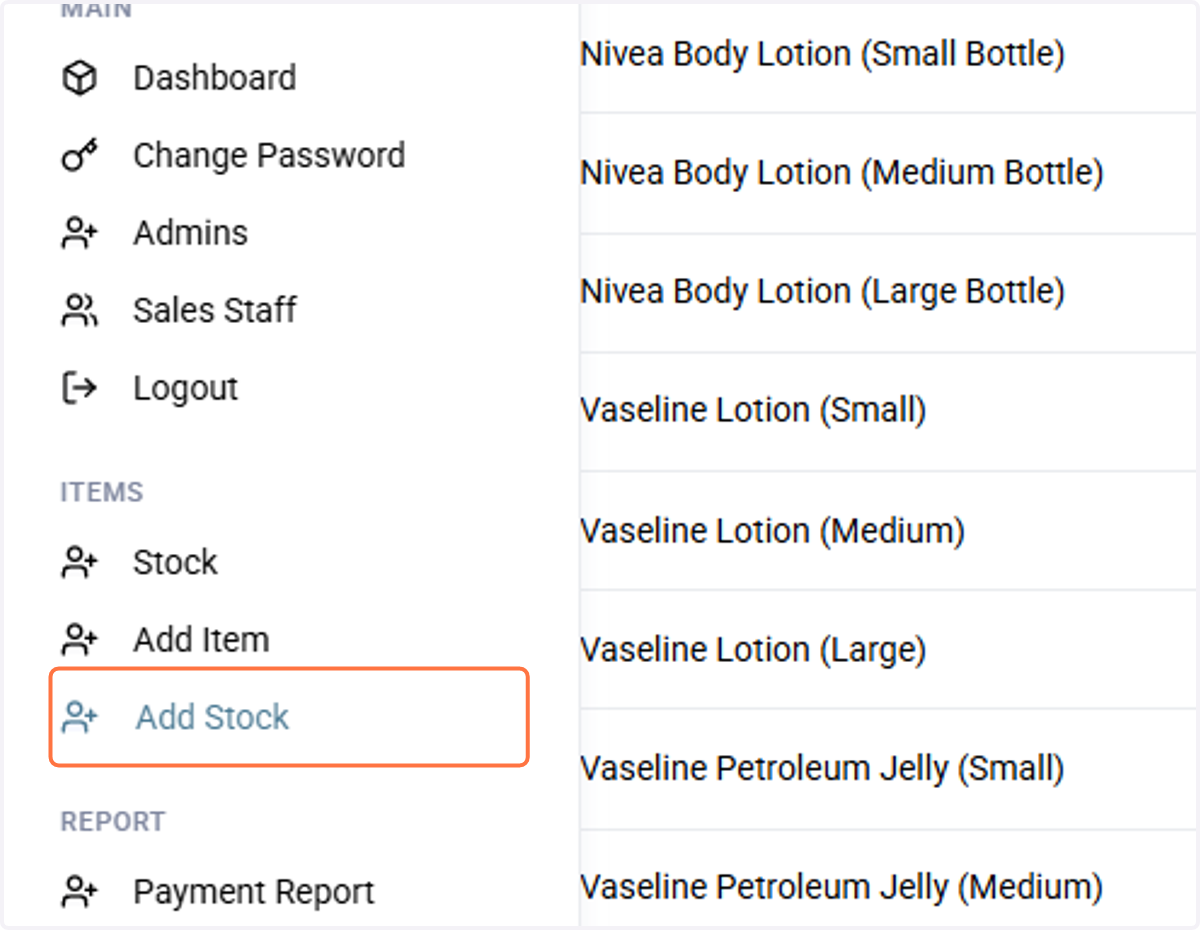
13. Select item name to update it price or stock
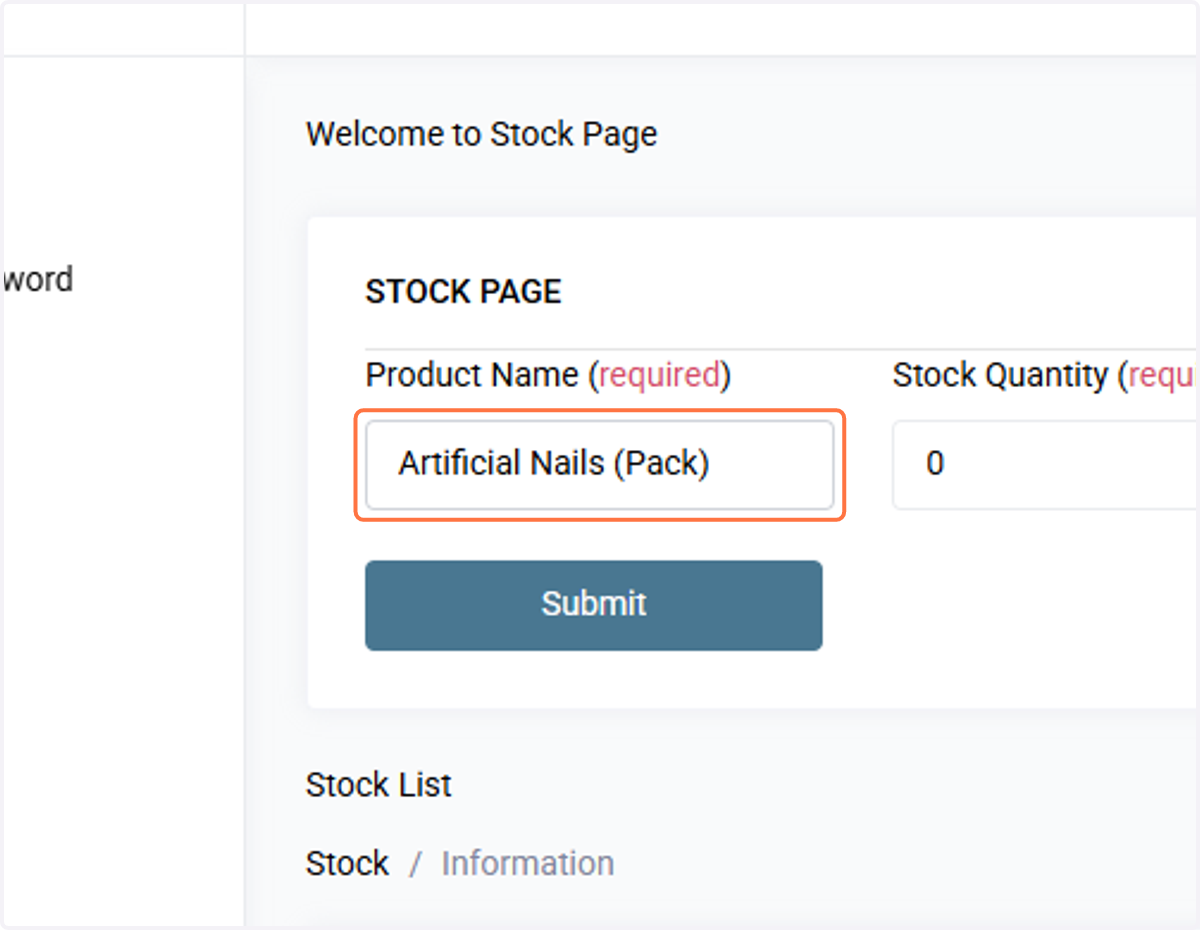
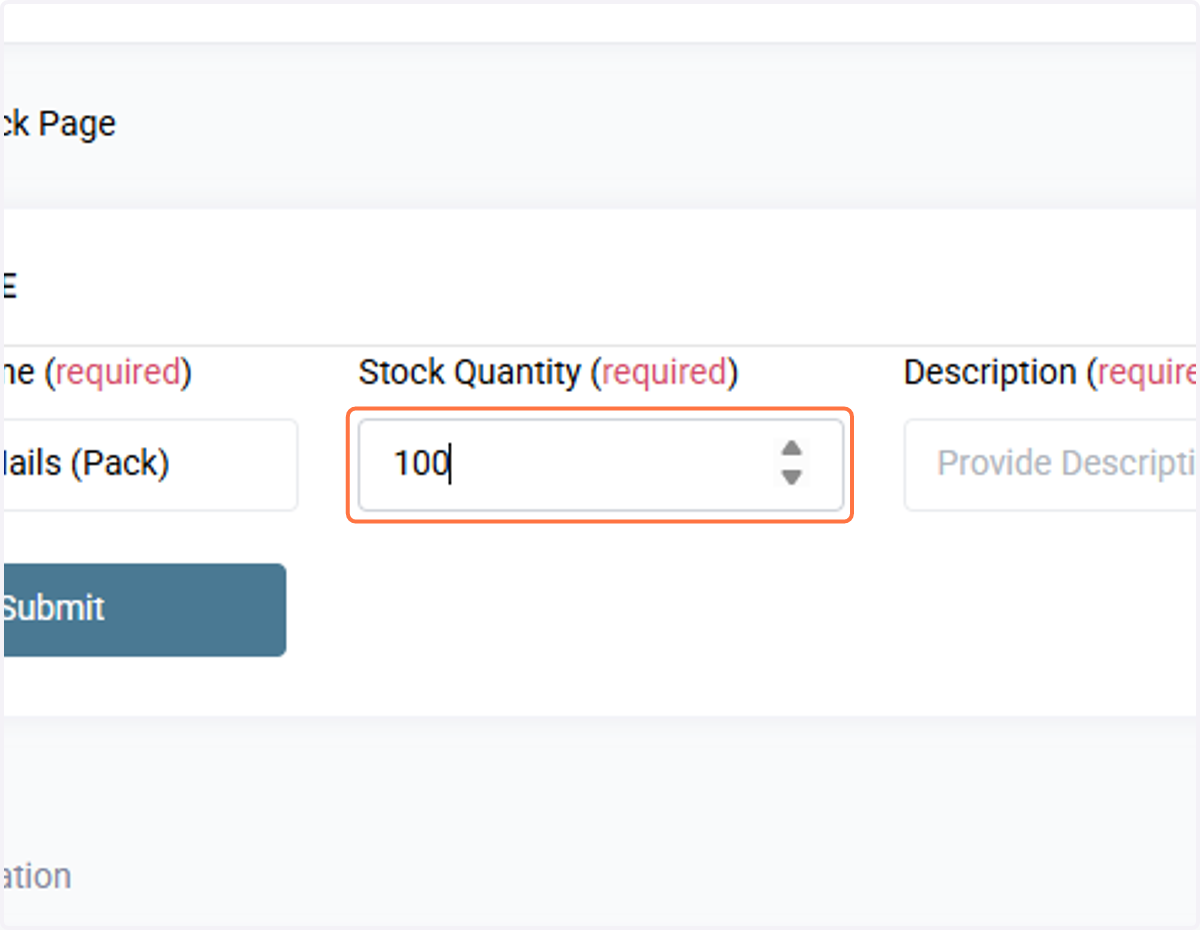
14. Provide the quantity
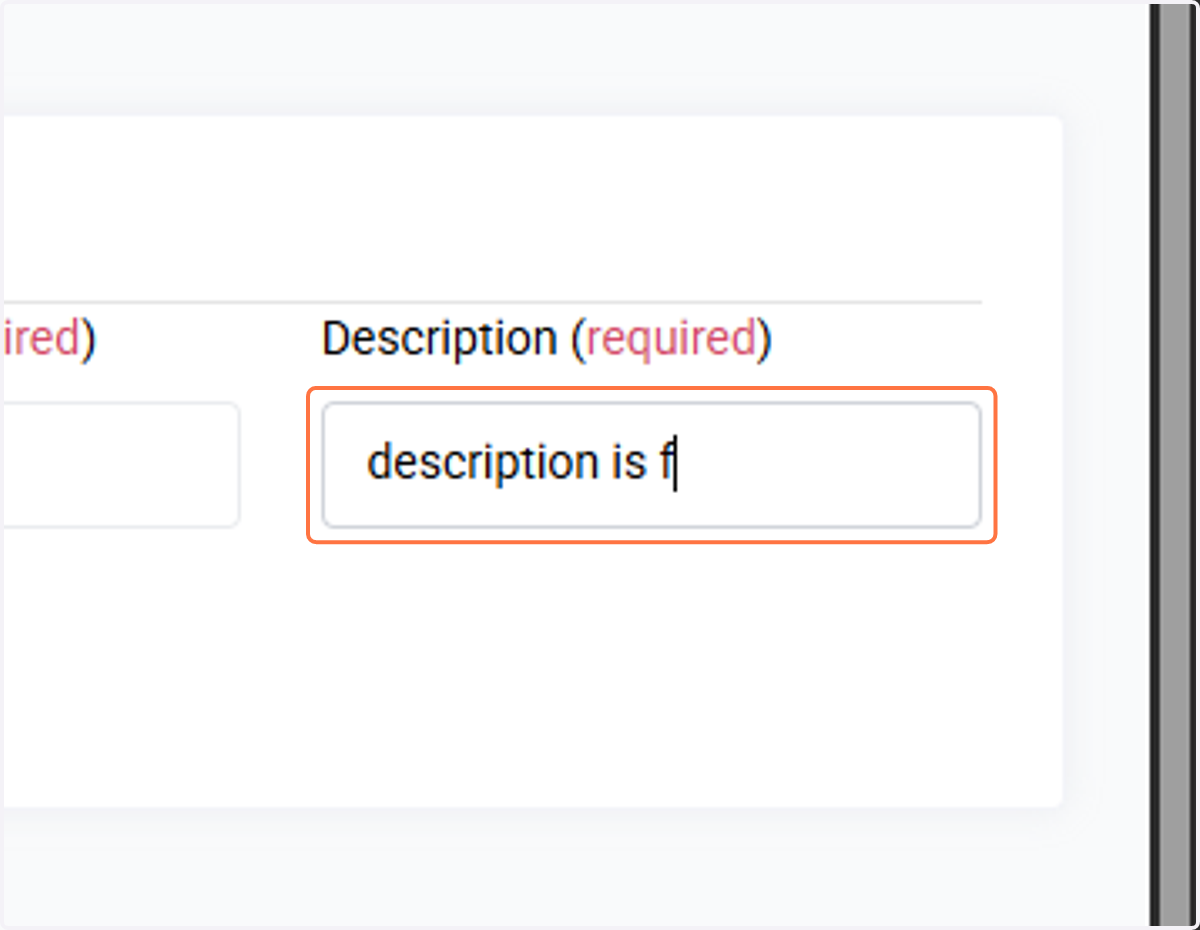
15. Type "description is any"
16. Update the record
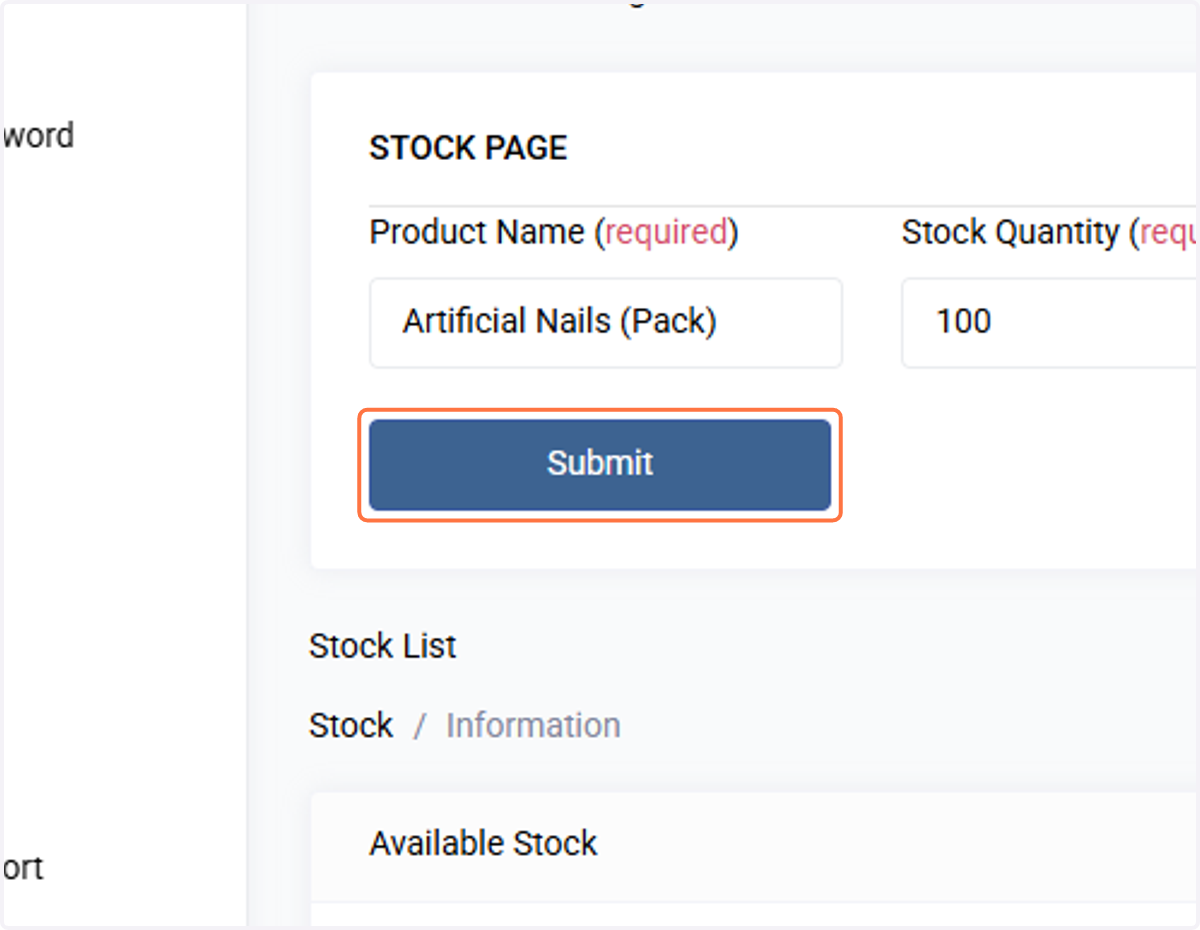
Click the submit button to update the record
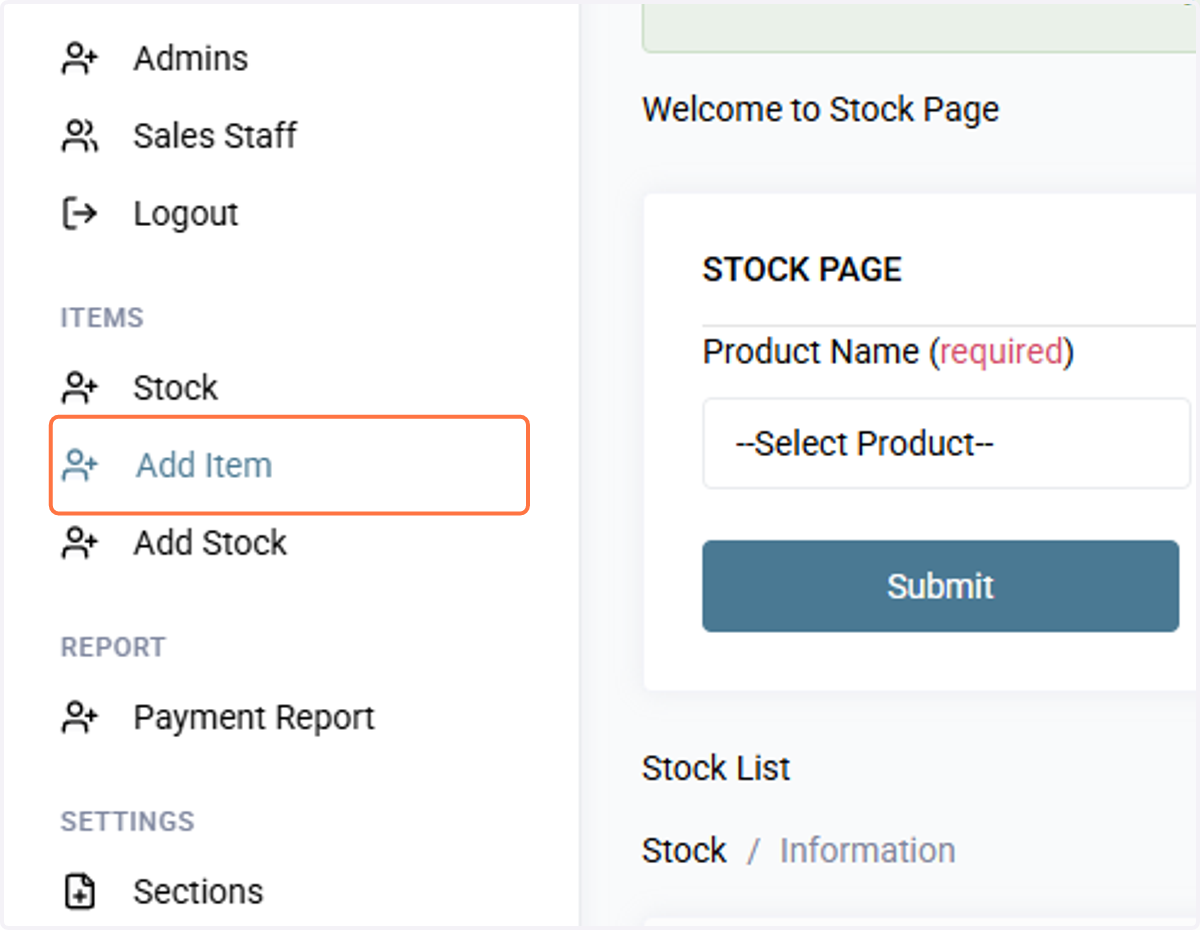
17. Add New Item
Click on Add Item
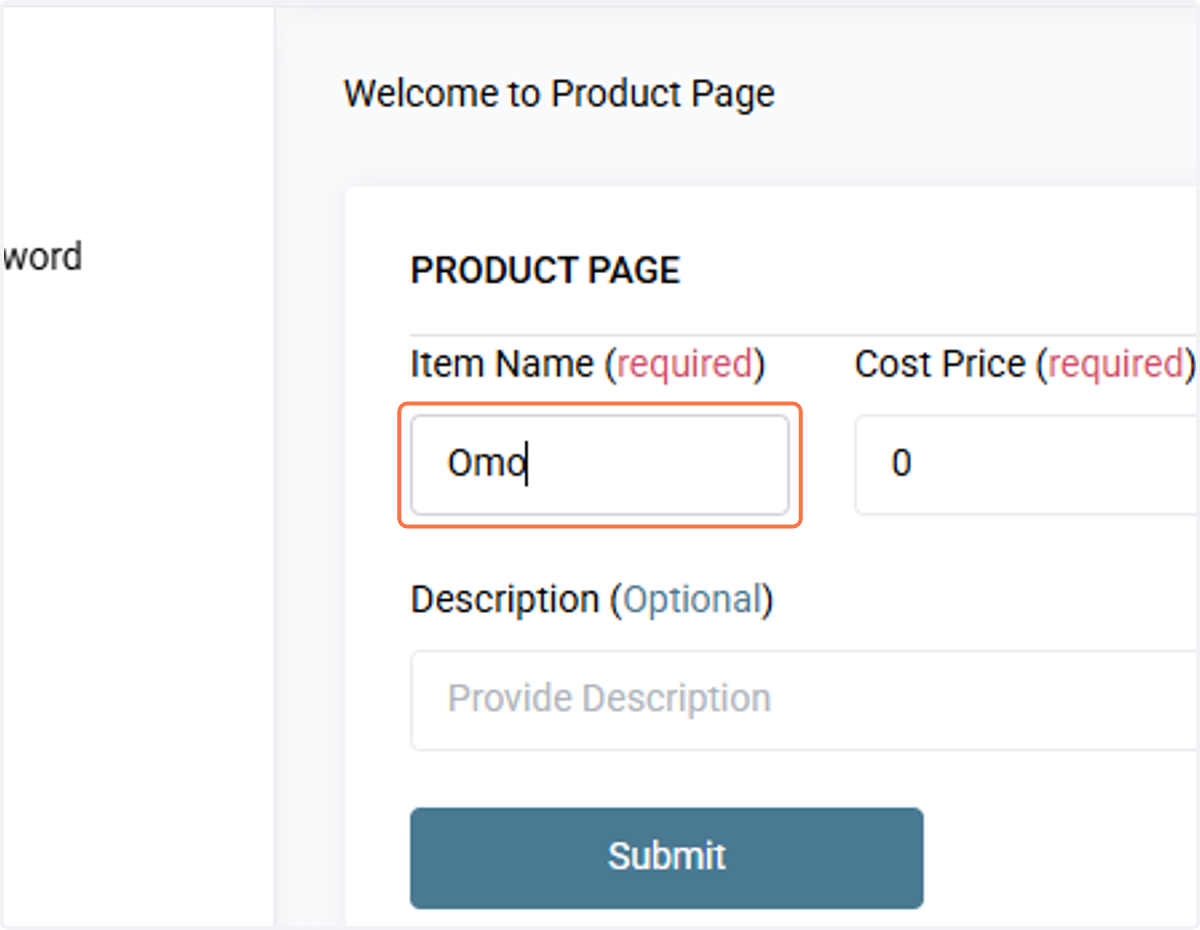
18. Type Item Name
Type the item name eg Omo
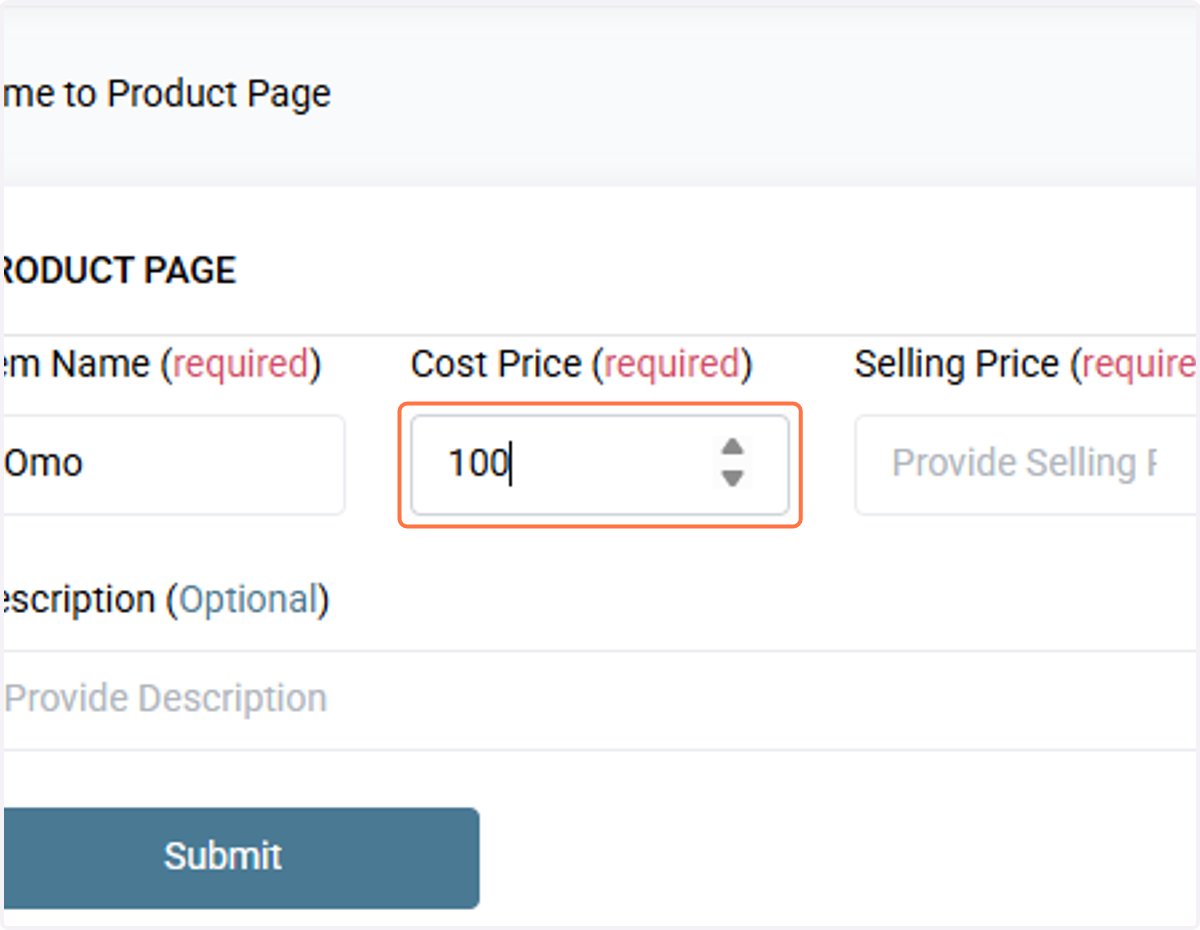
19. Type purchasing price of the item
Provide the purchasing price
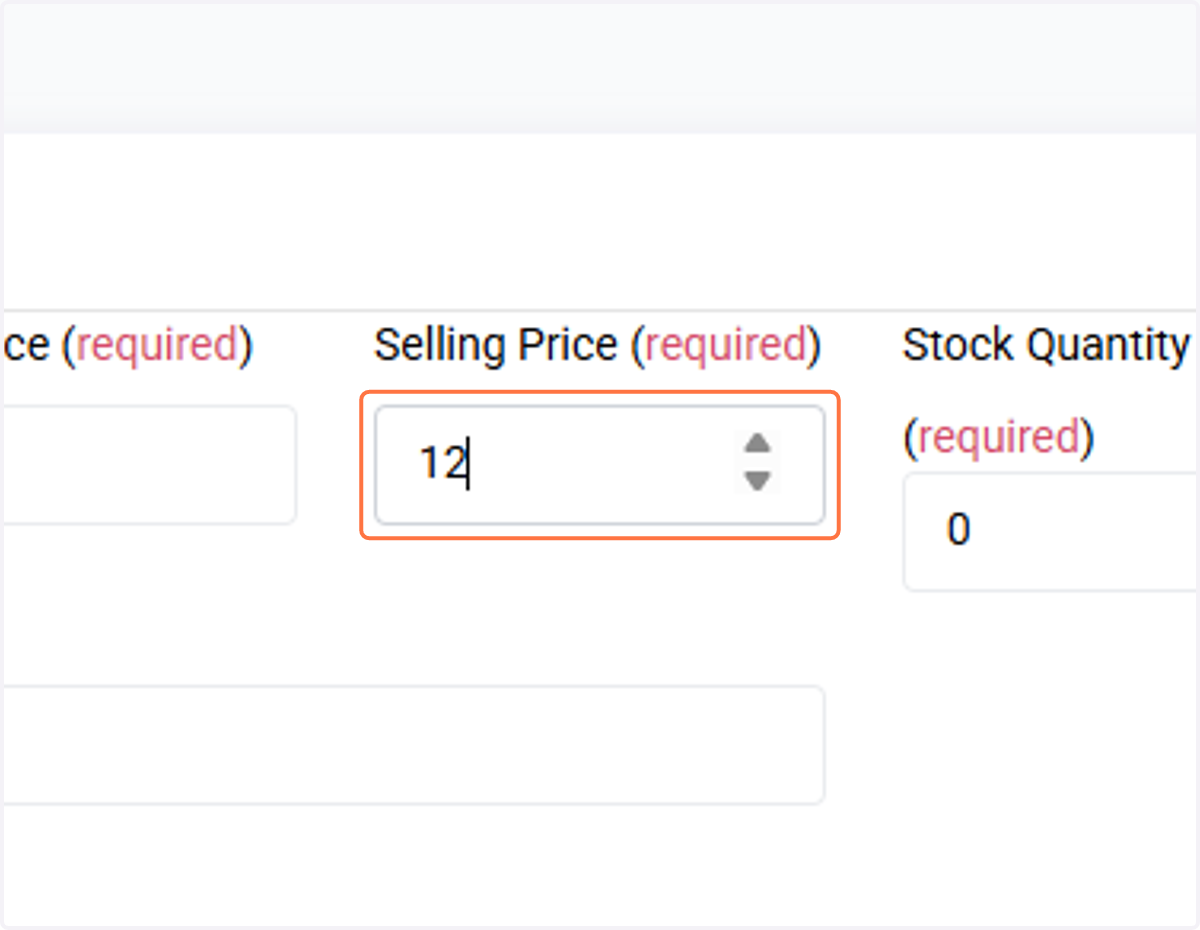
20. Selling Price
Add the selling price to the system.
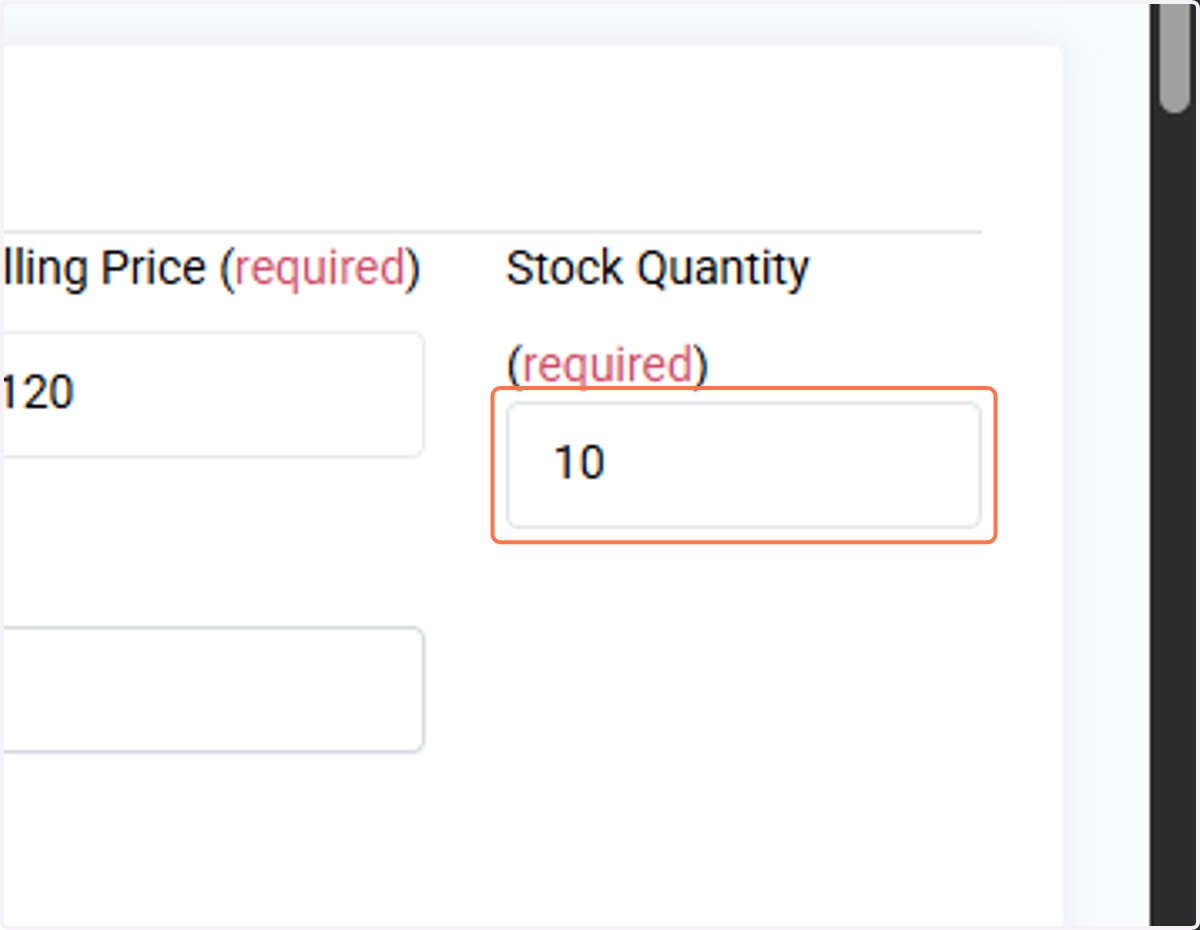
21. Quantity
Add the quantity for the item
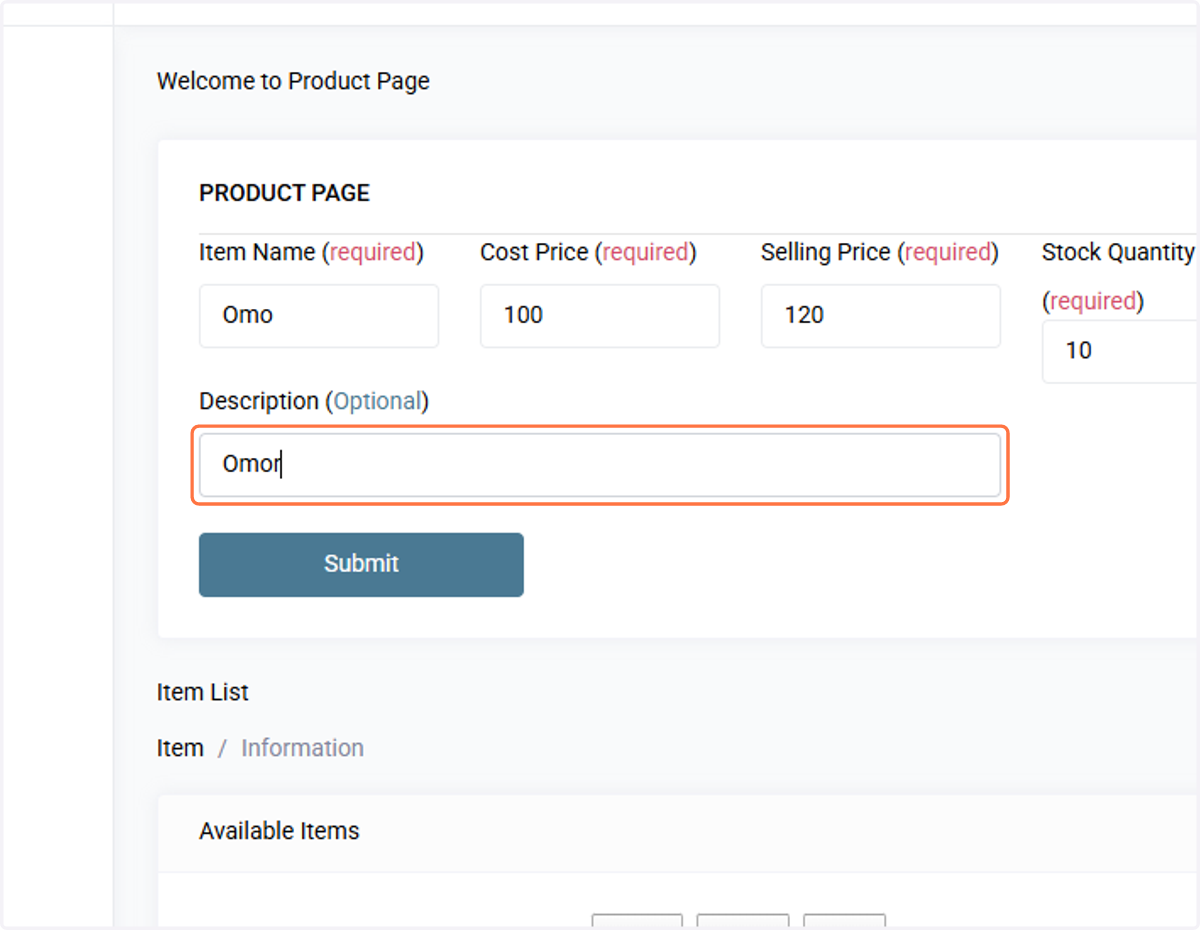
22. Provide description of the item
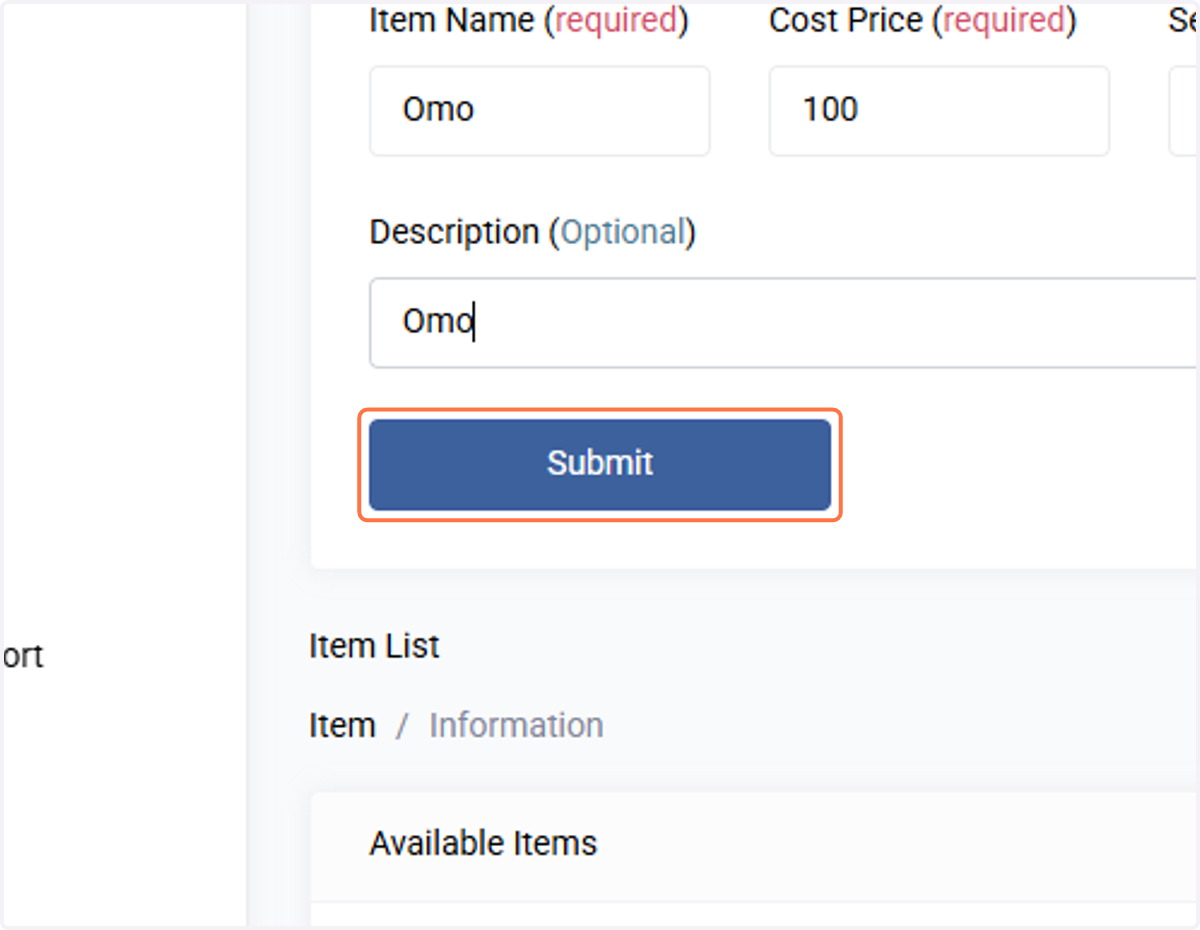
23. Save item
Click on Submit to save the item details
24. Sales Staff Account
To log in to the sales section, the user is to click on https://digitalshop.com.ng/member. He is to provide his username (his phone number)
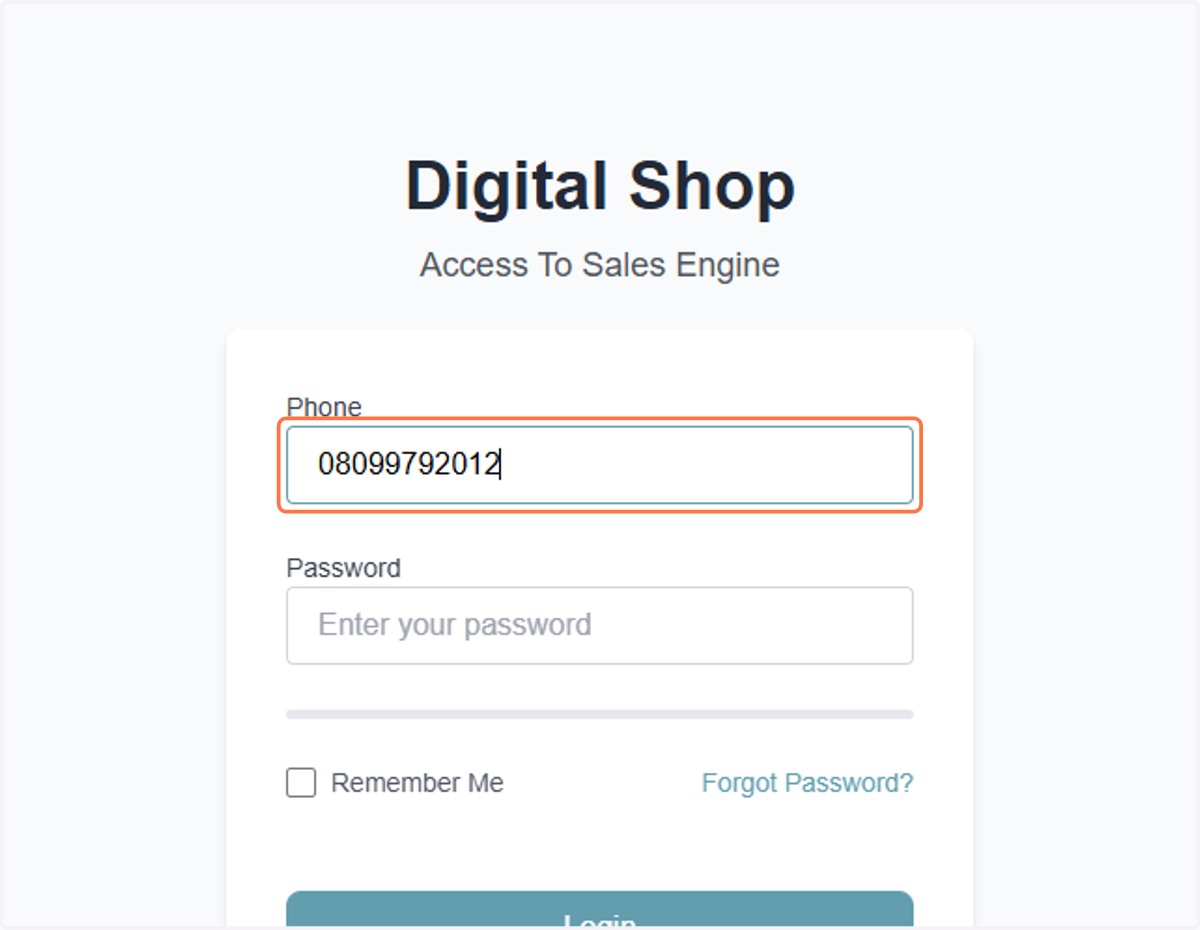
25. Type password
26. Click on Login
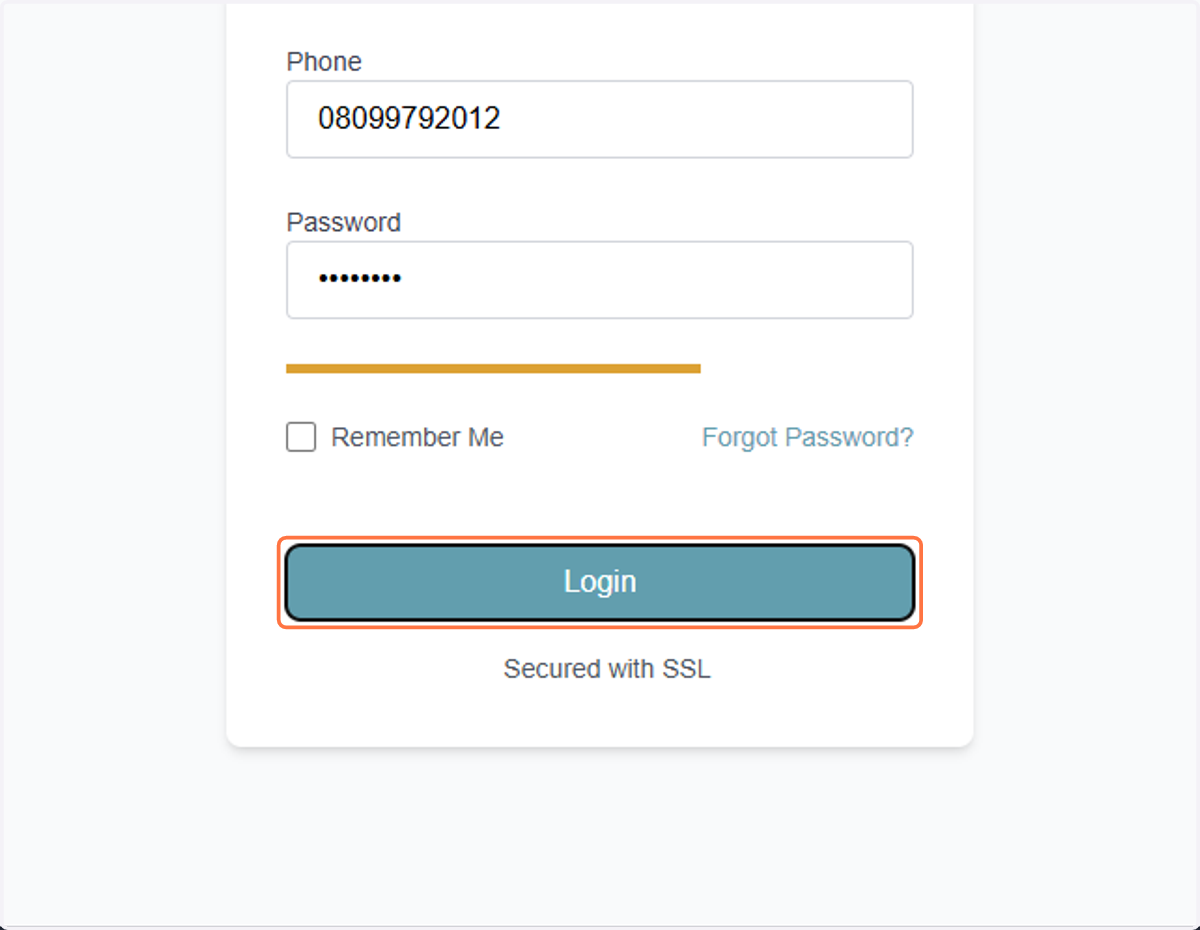
27. Click on Login
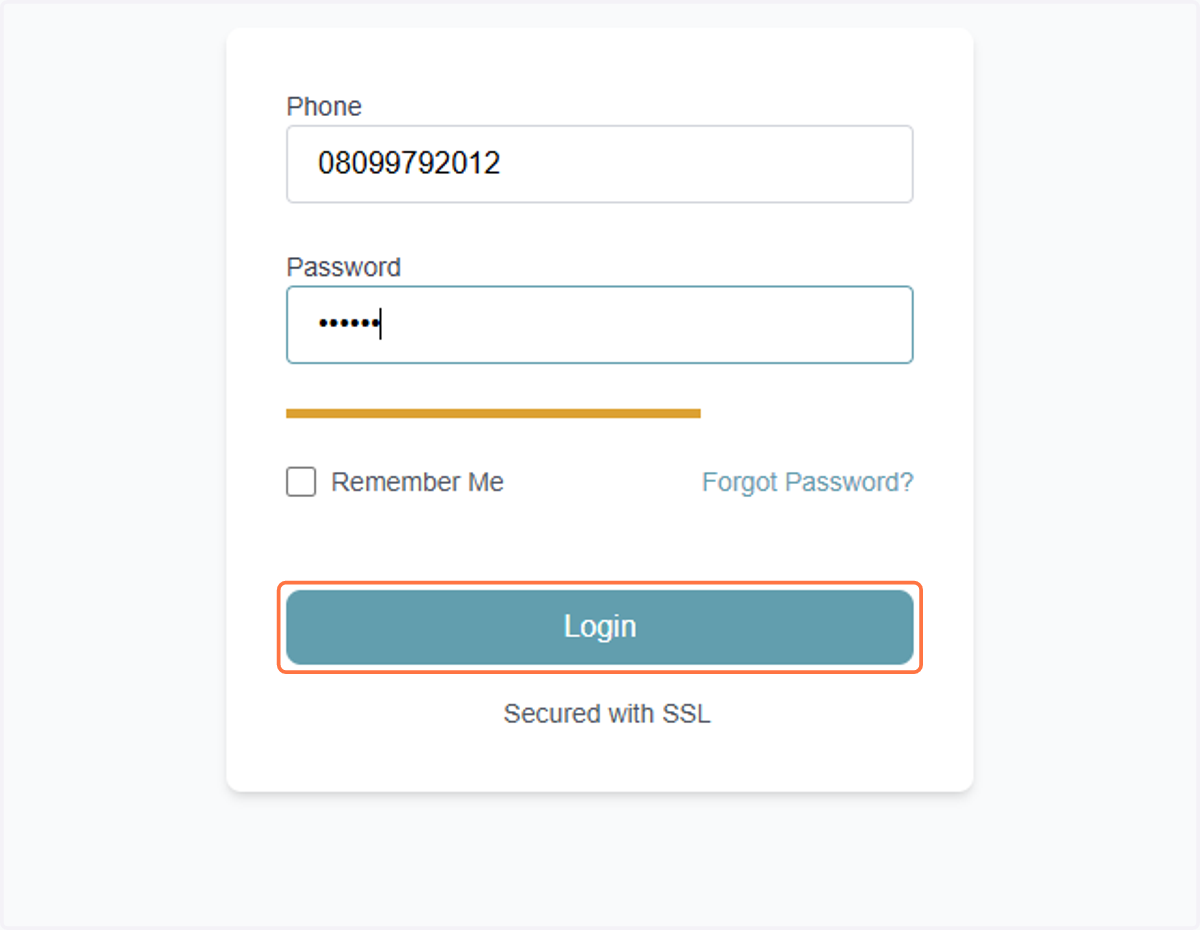
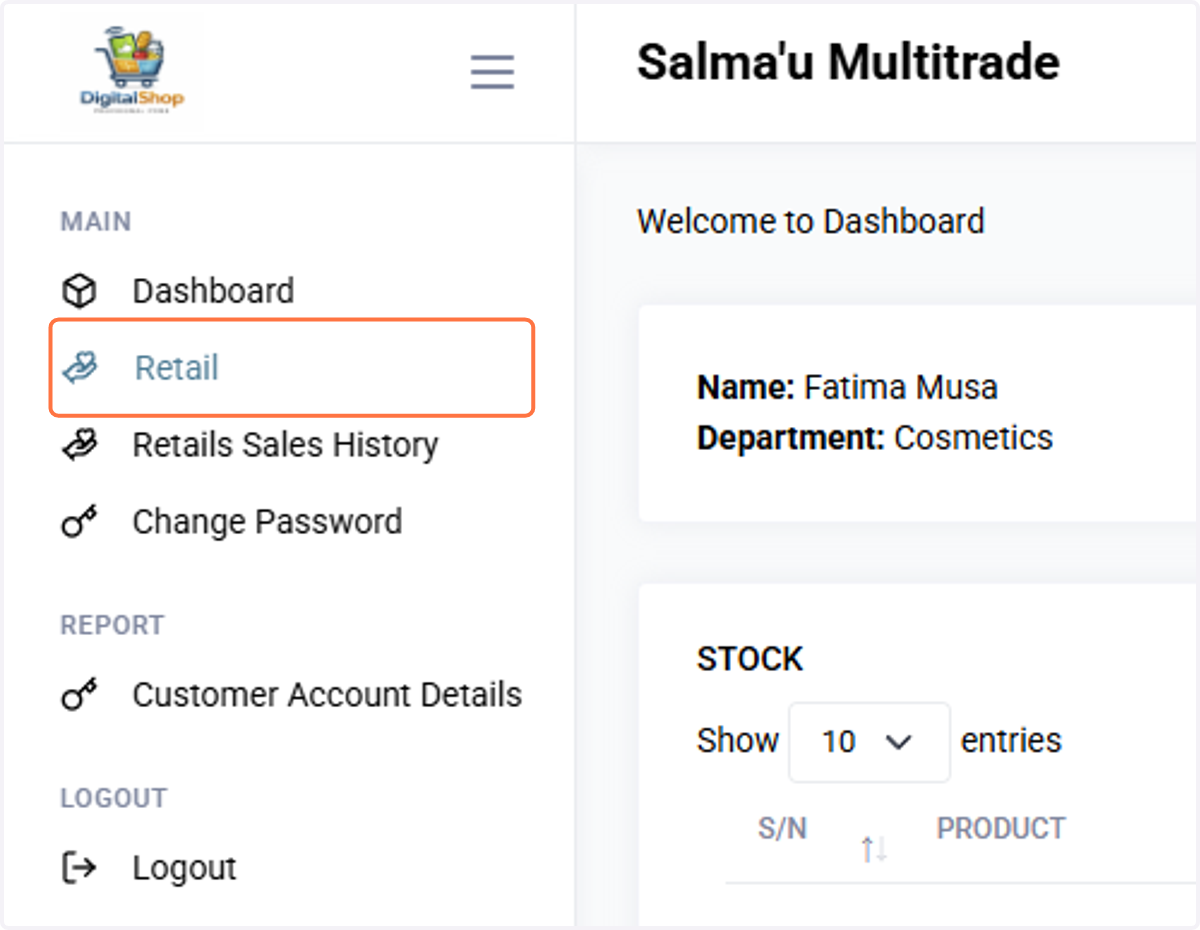
28. Sales
Click on Retail menu to record the sold products
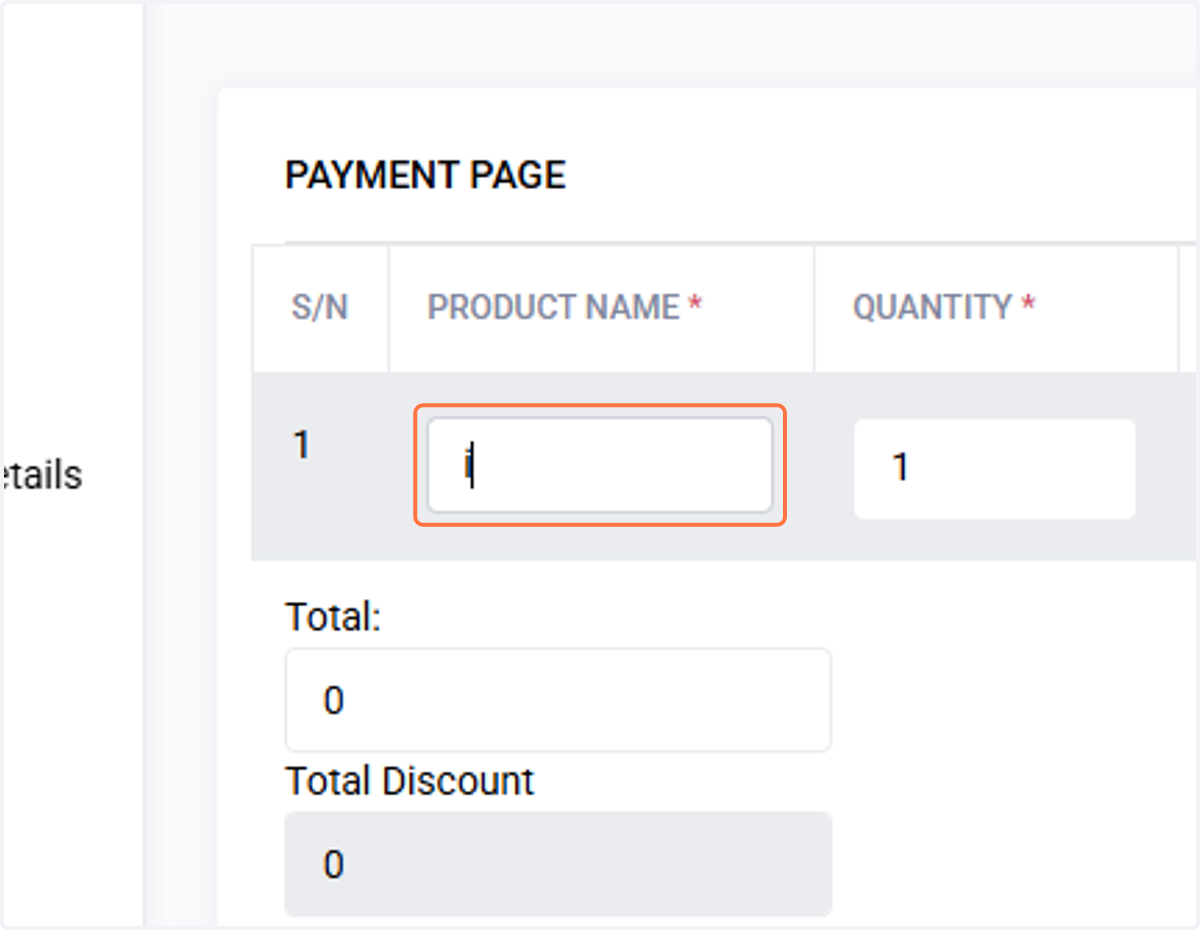
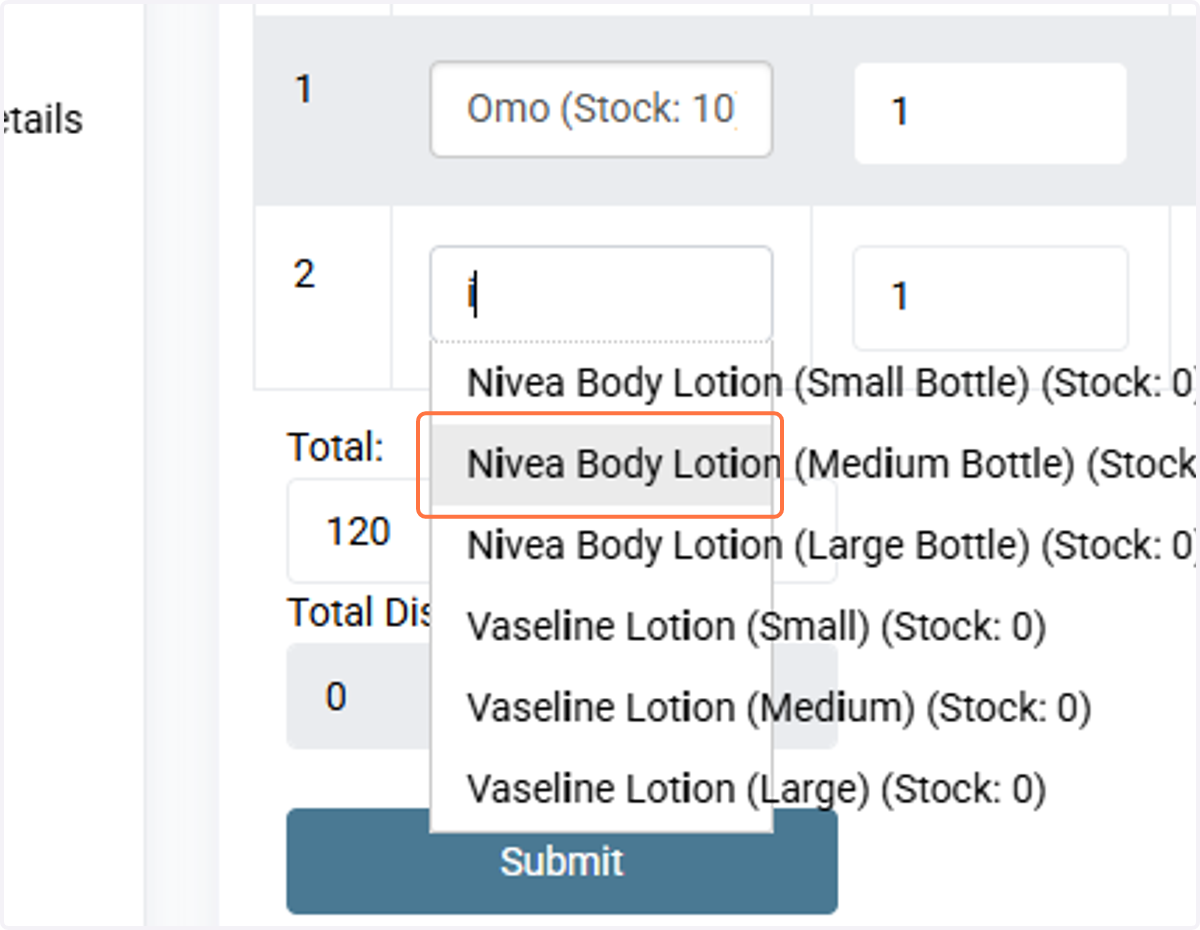
29. Select item
Type the item name, the full name, and available quantity will be available for selection
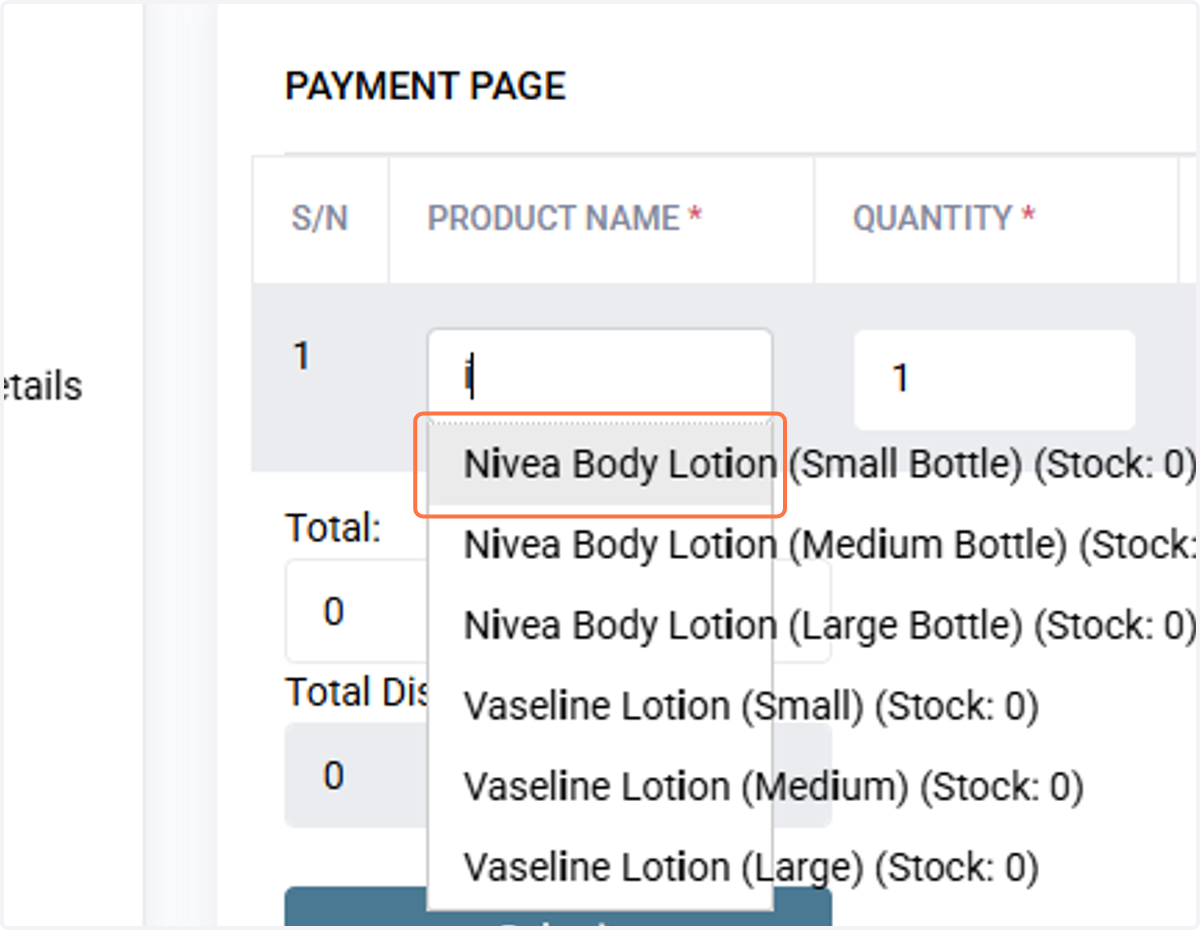
30. Selection
Click on Nivea Body Lotion (Small Bottle) (Stock: 0) as an example to record to the system
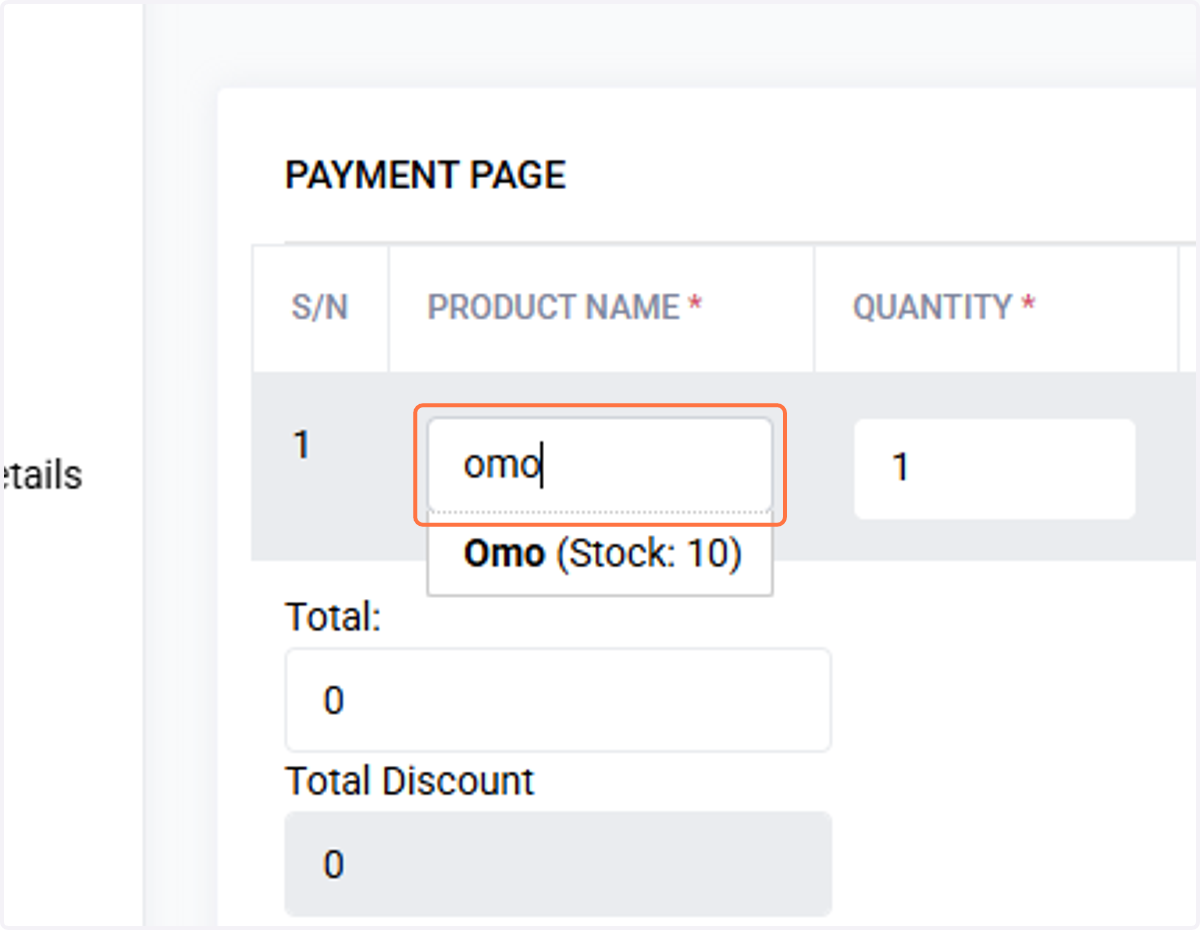
31. Example
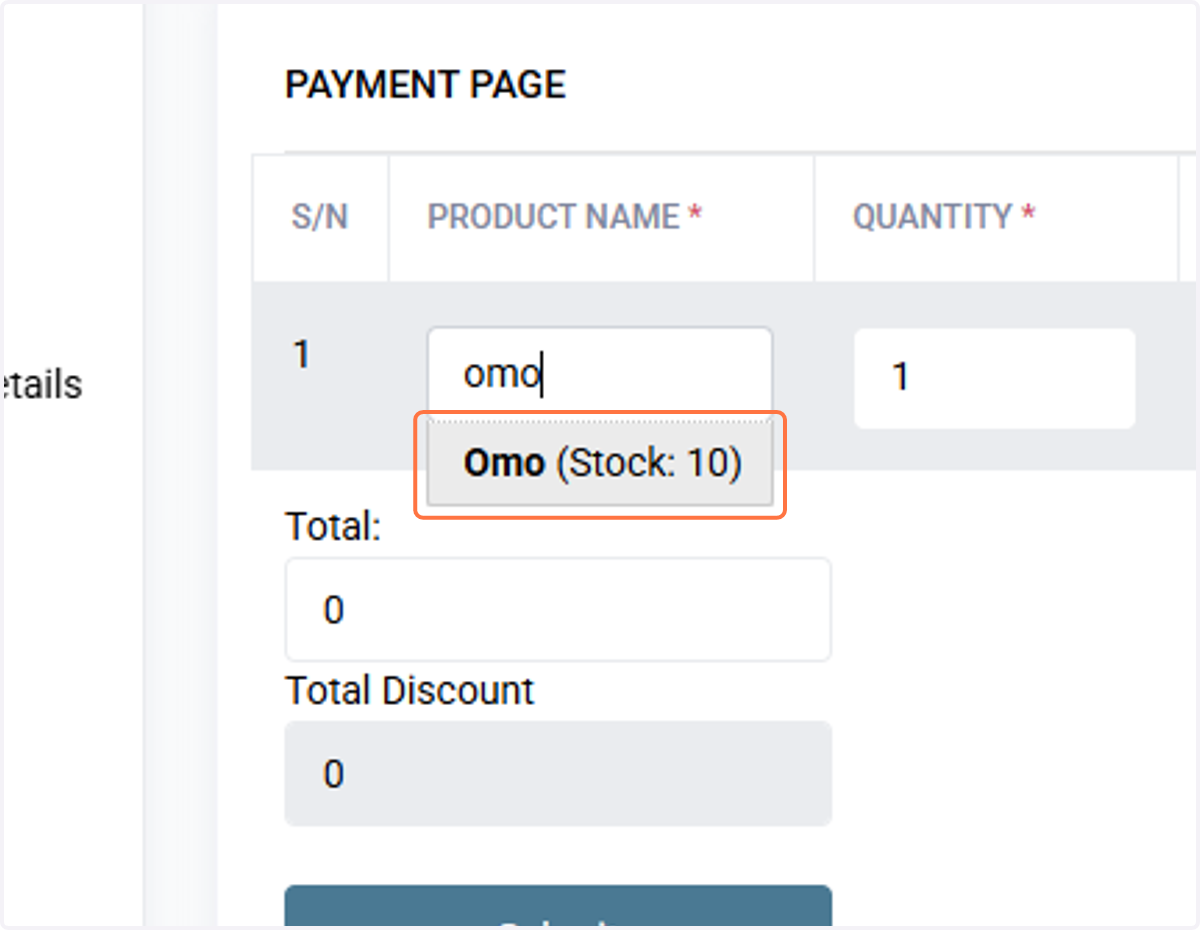
By selecting Omo as an example, the system will provide the unit price and total based on the provided quantities
32. Click on Omo (Stock: 10)
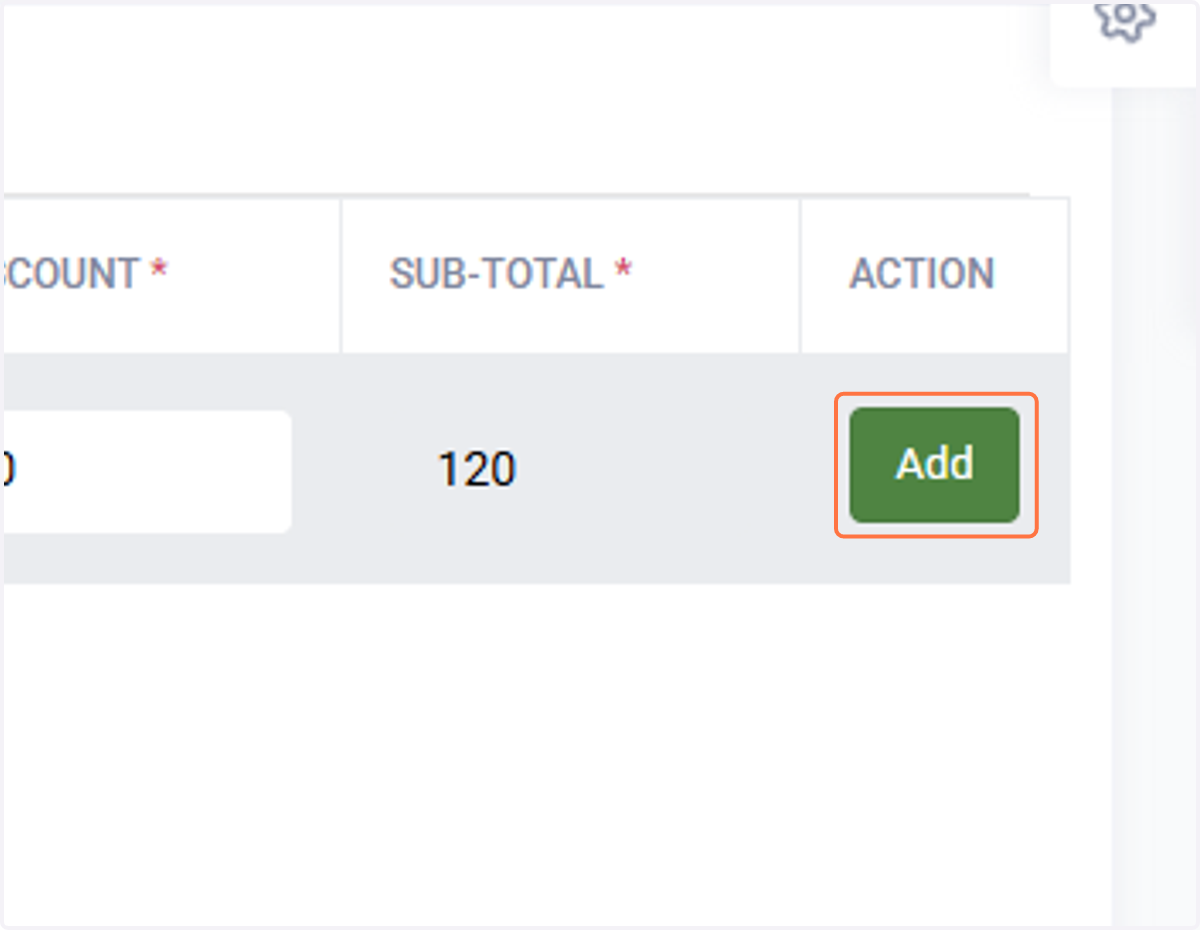
33. Add another item
Click on the Add button to add another item
34. Click on another item
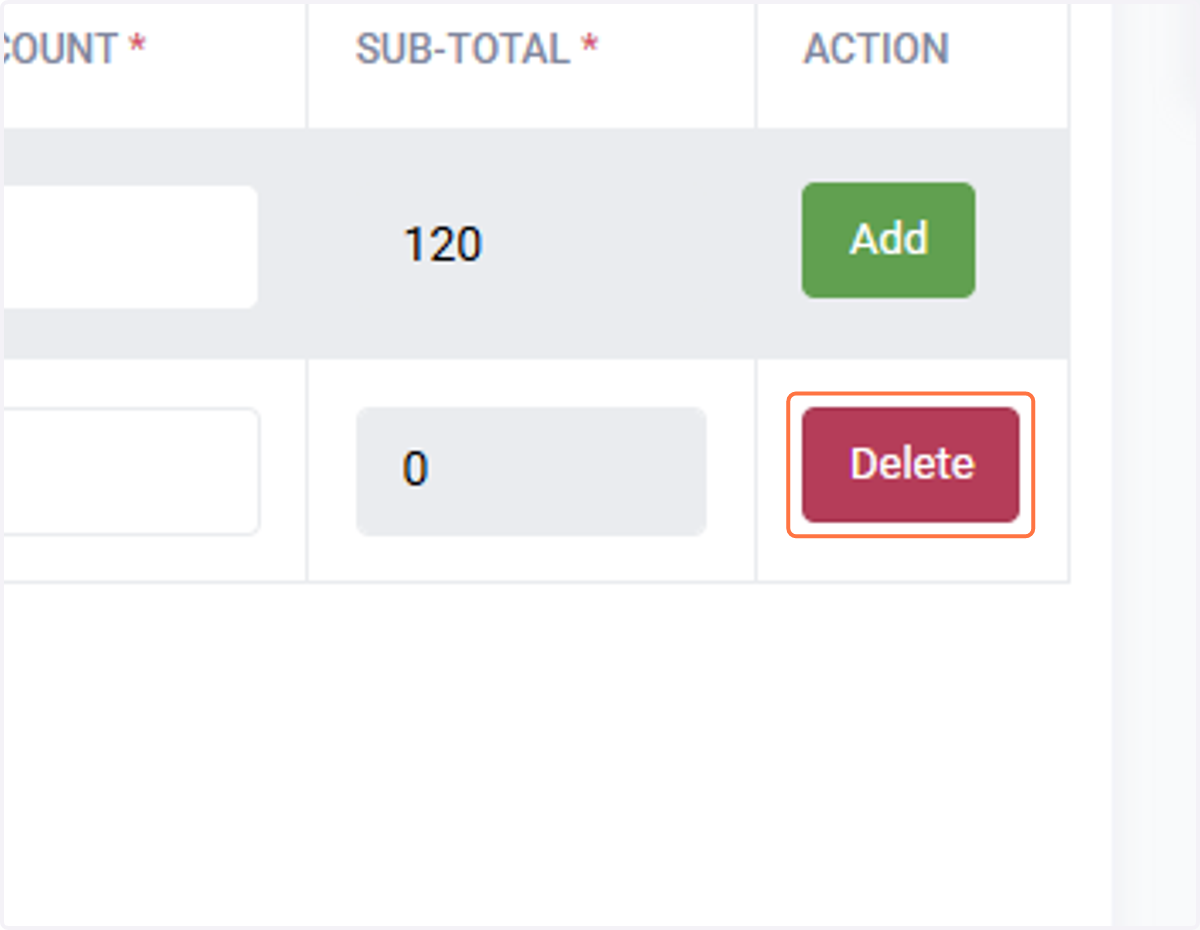
35. Remonve item
Click on Delete button to delete a previously selected itemthe
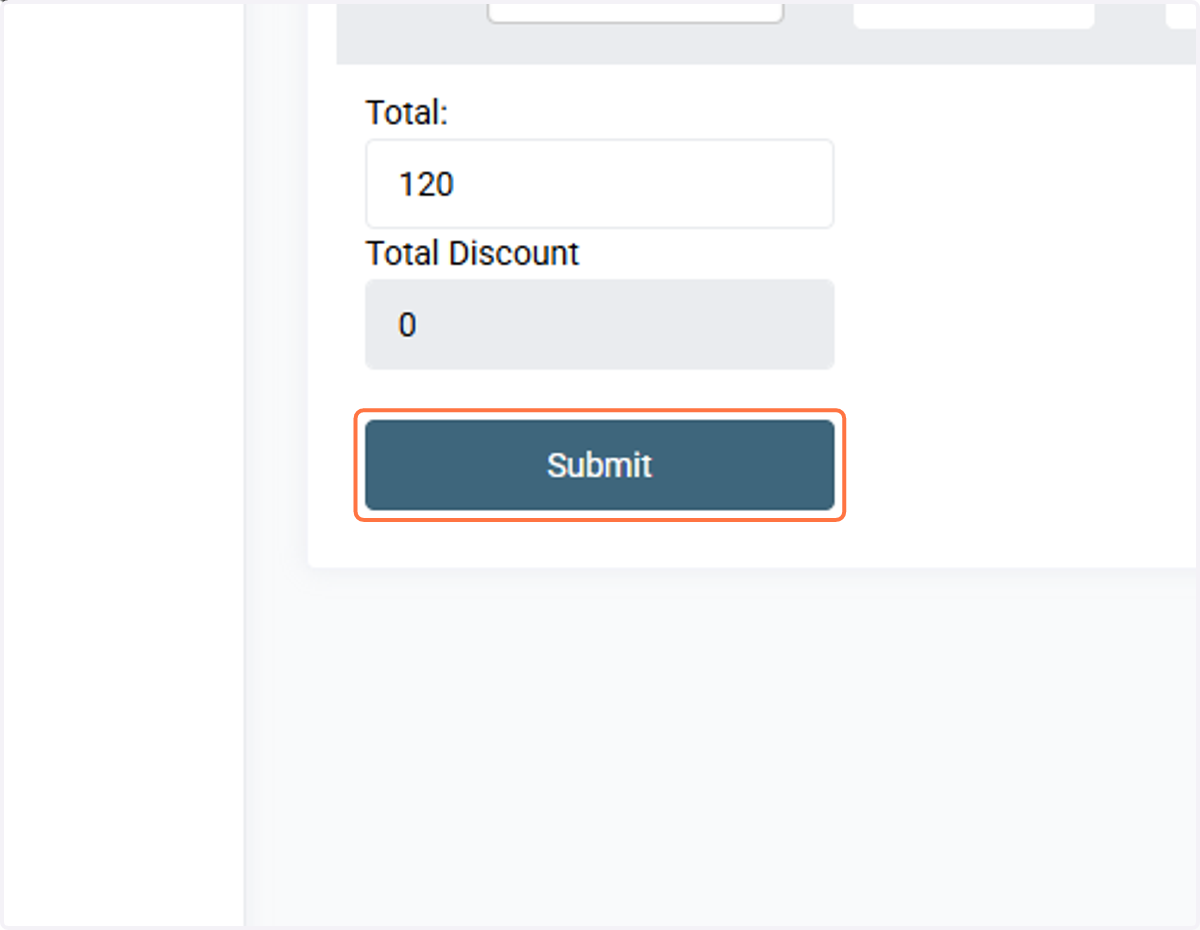
36. Save the selected items
Click on Submit/Save to save the record
37. Click on Logout