Manage Special Access to a Quiz
This tutorial will show you how to manage special access to a quiz.
Start Here - Patti - Practice as Instructor
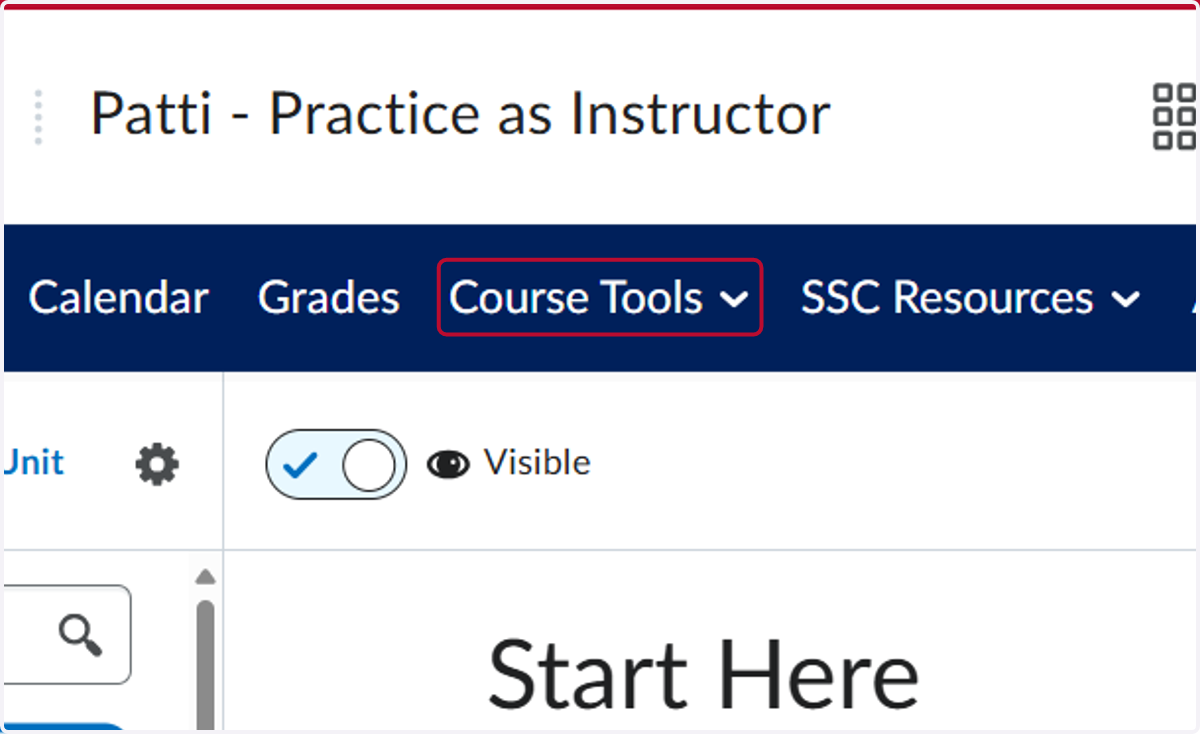
1. Click on Course Tools
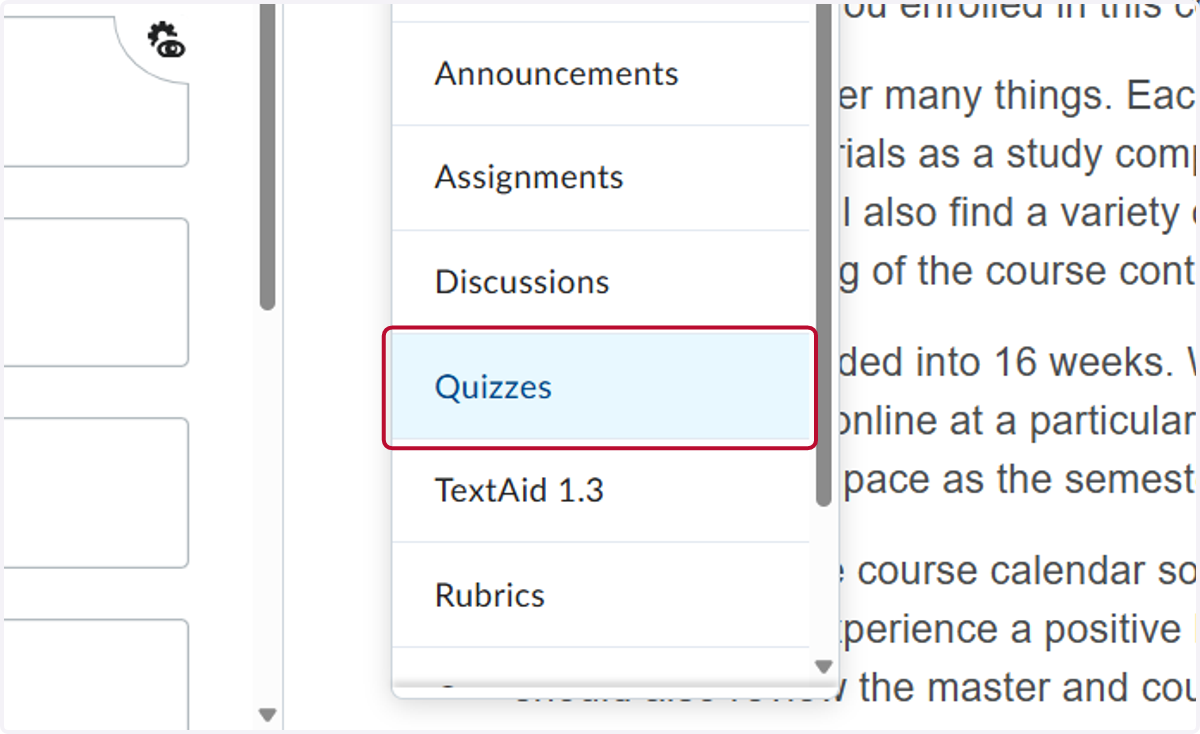
2. Click on Quizzes
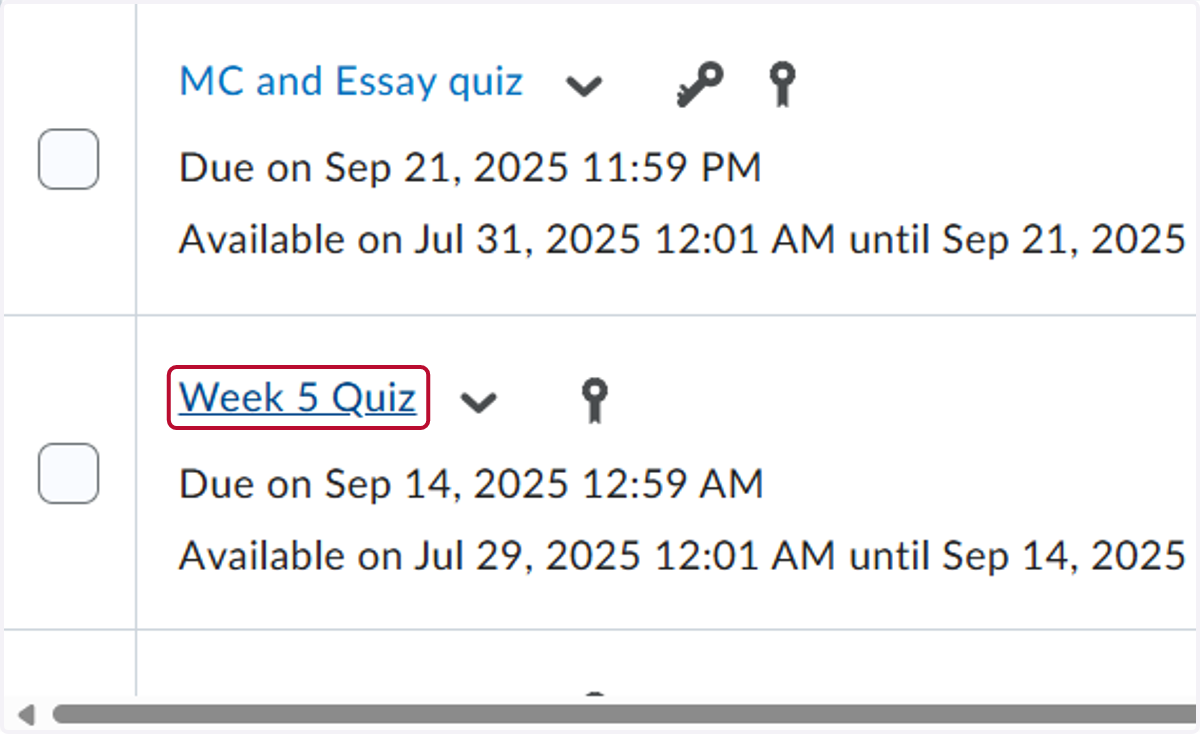
3. Click on the quiz. In our example, we will use Week 5 Quiz
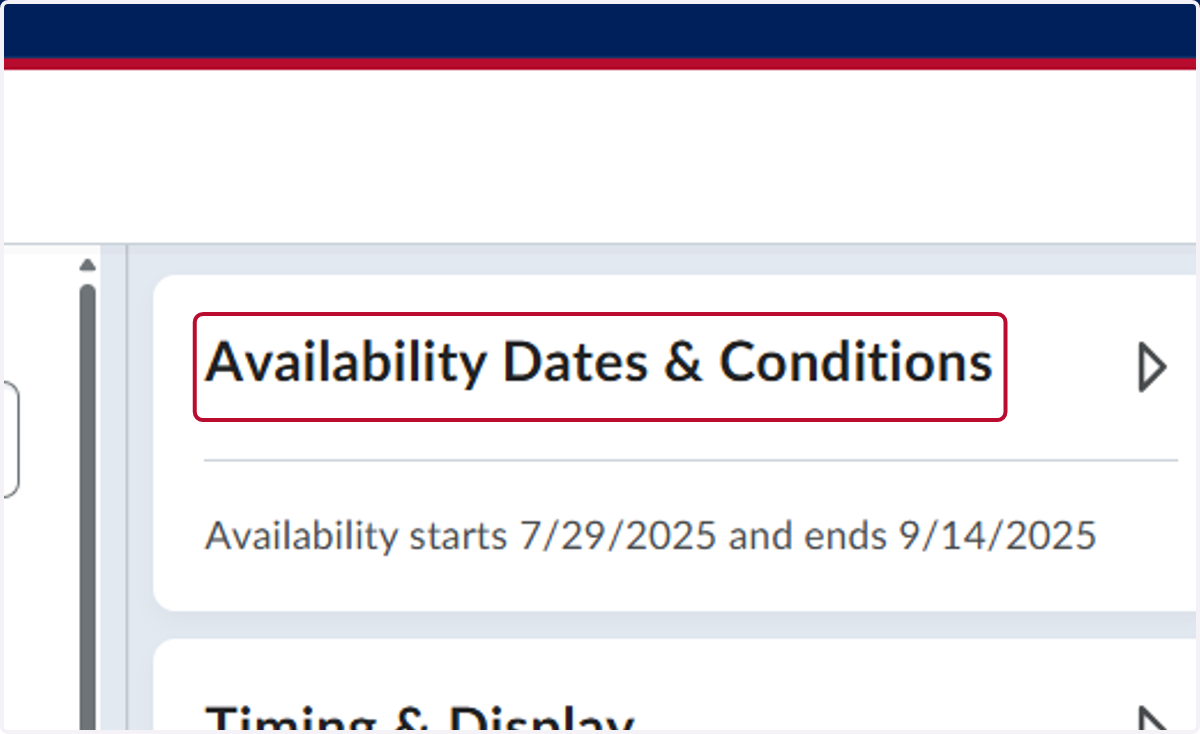
4. Click on Availability Dates & Conditions
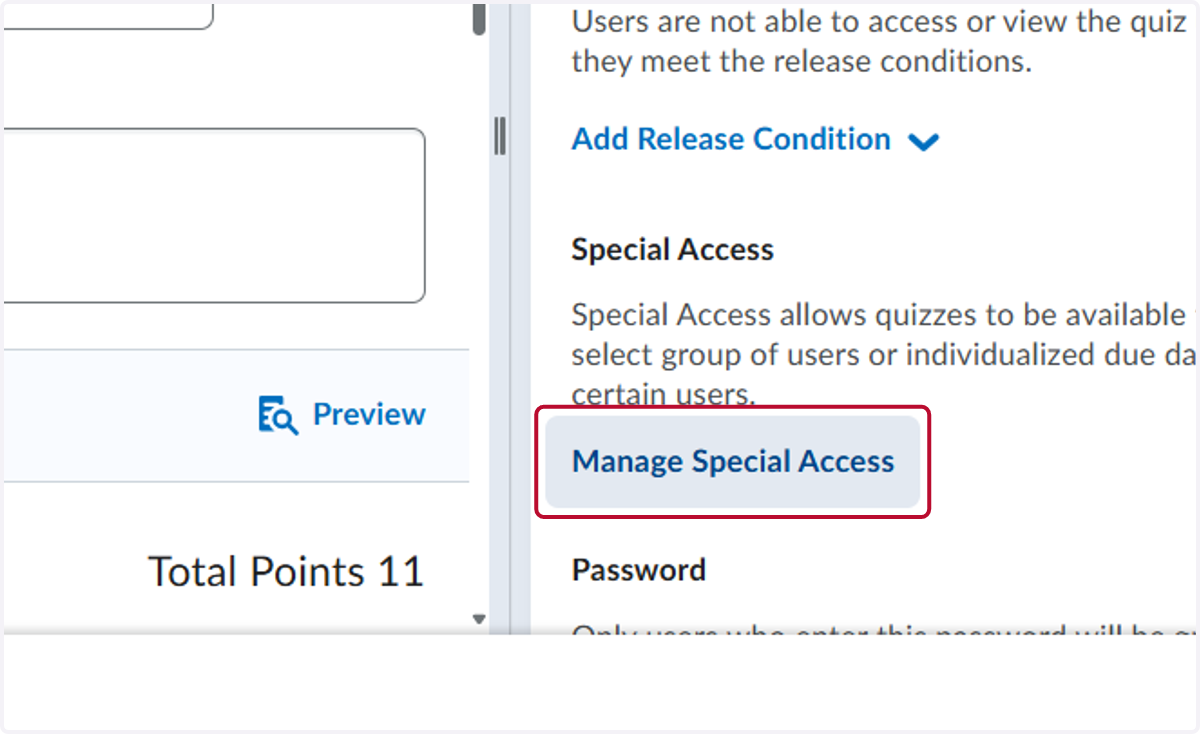
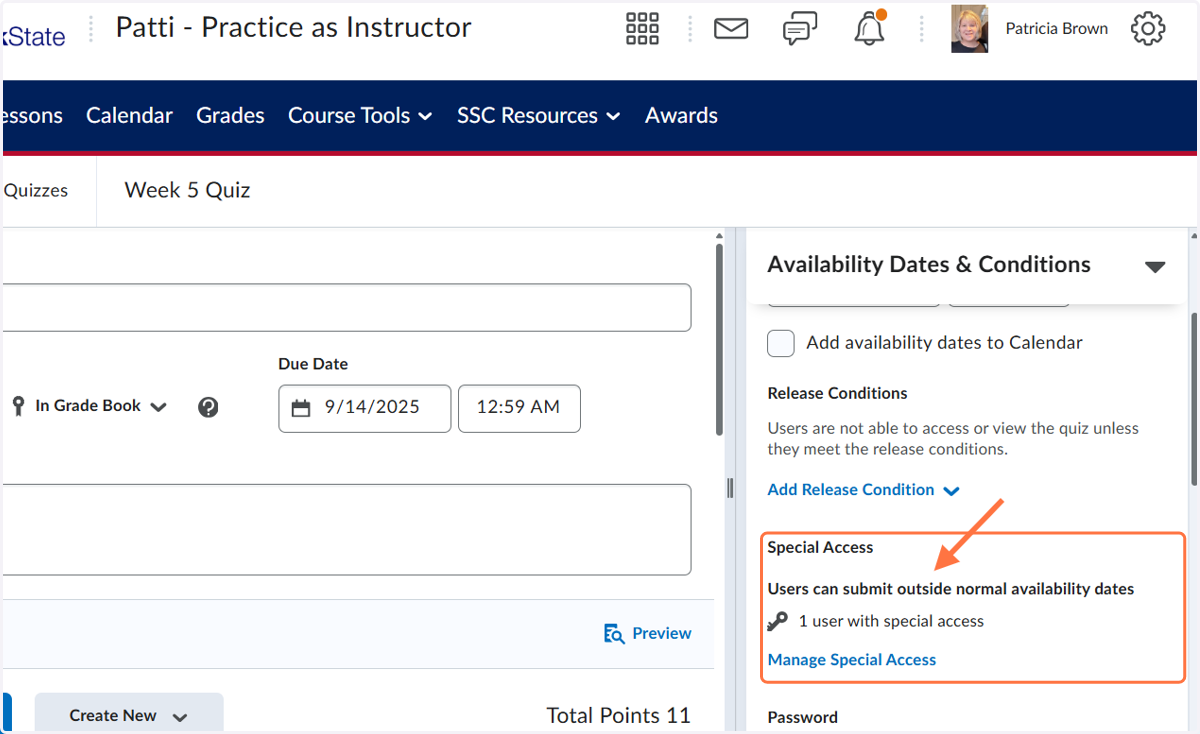
5. Click on Manage Special Access
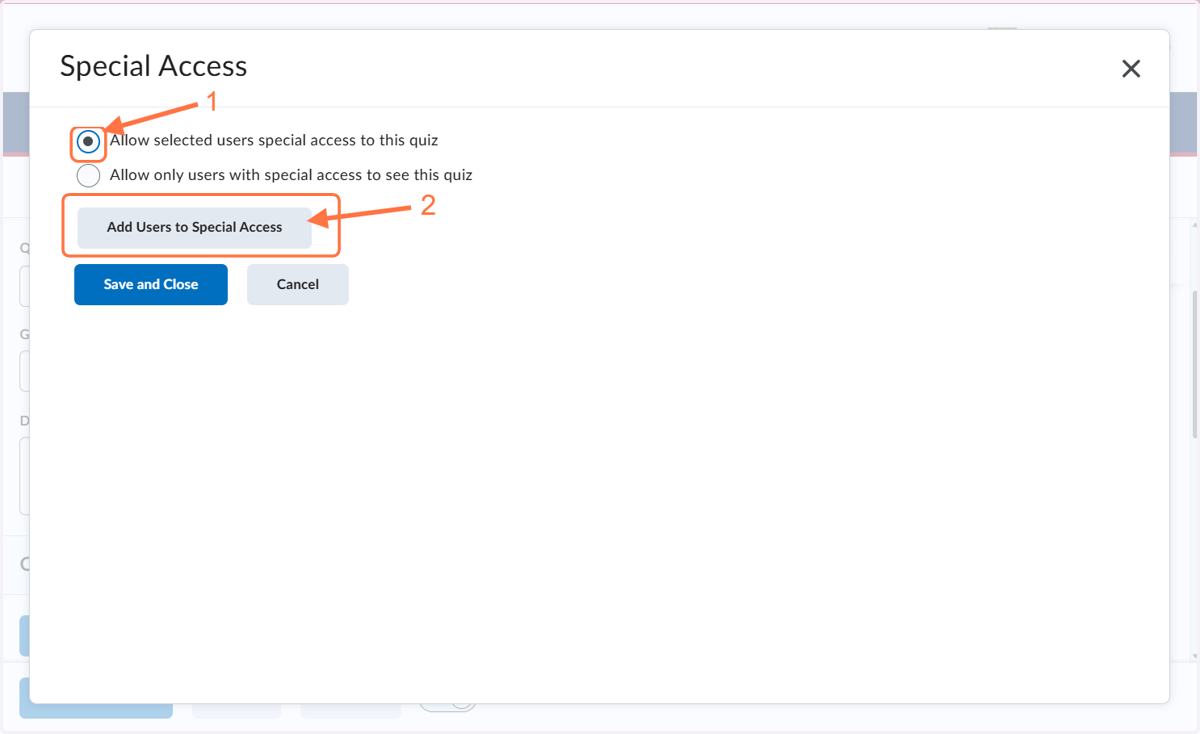
6. Click on Allow selected users special access to this quiz and then click Add Users to Special Access
7. Modify the due dates or availability dates for your student(s)
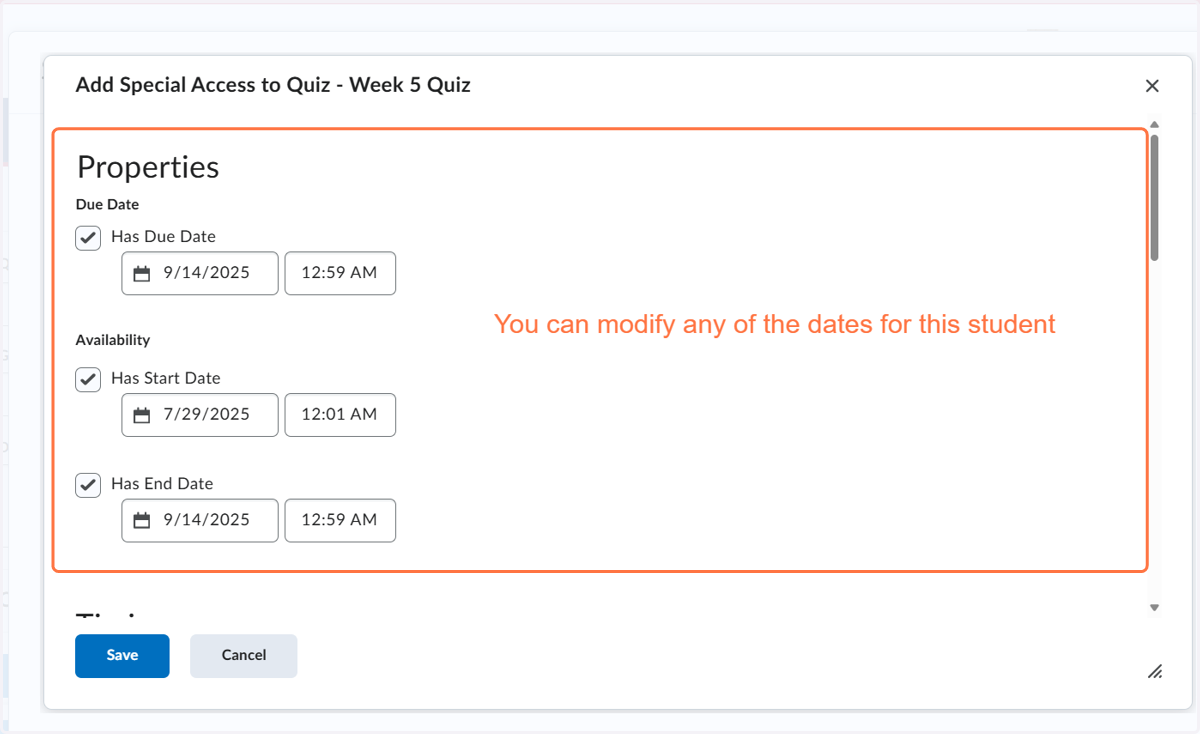
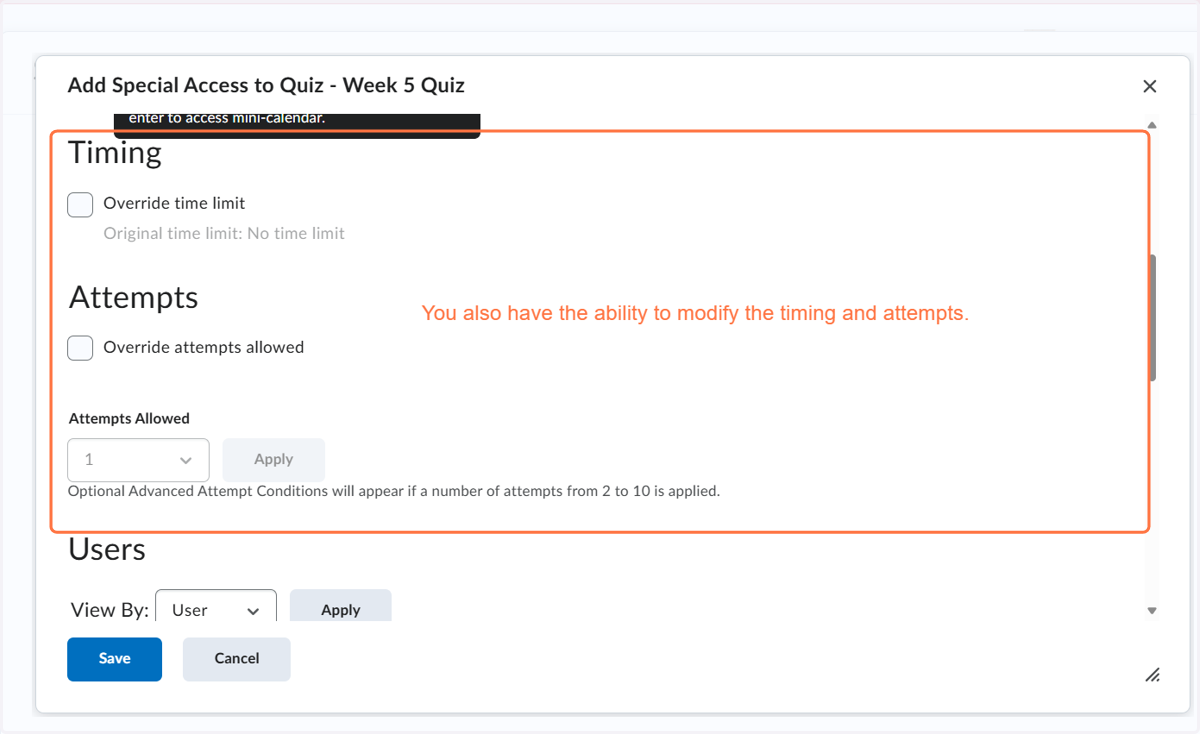
8. You can modify the timing and attempts if needed.
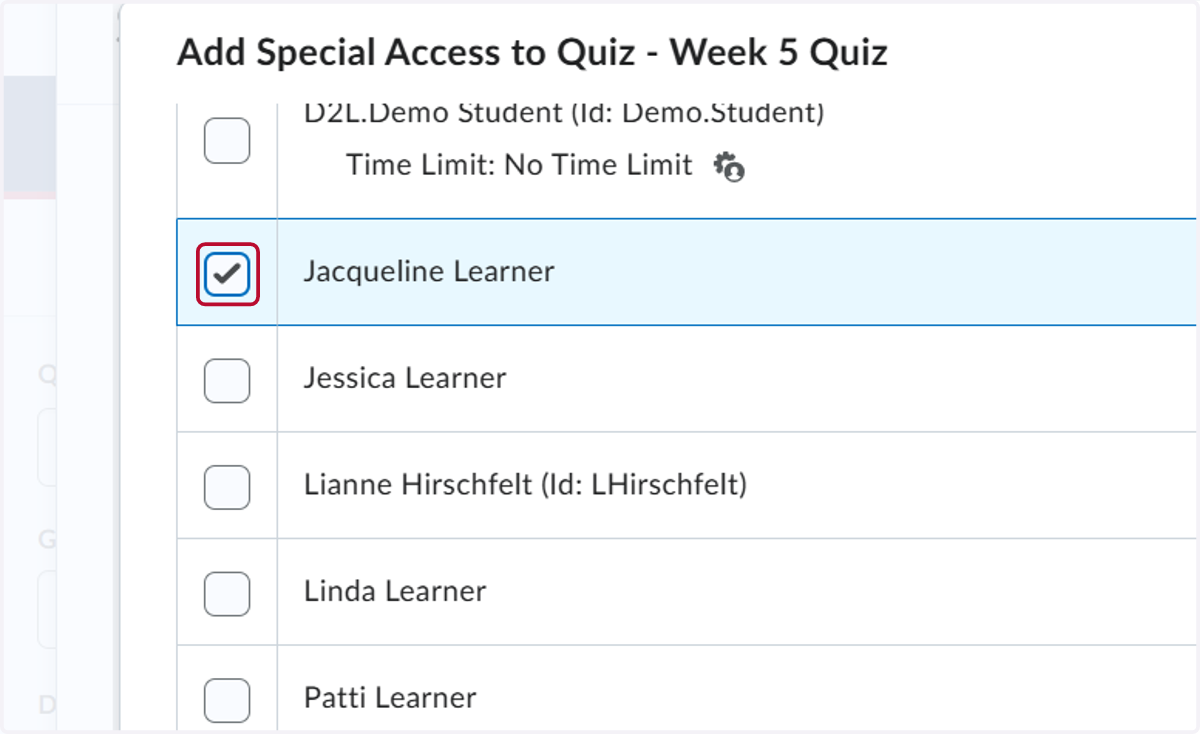
9. Select the student or students you want to include
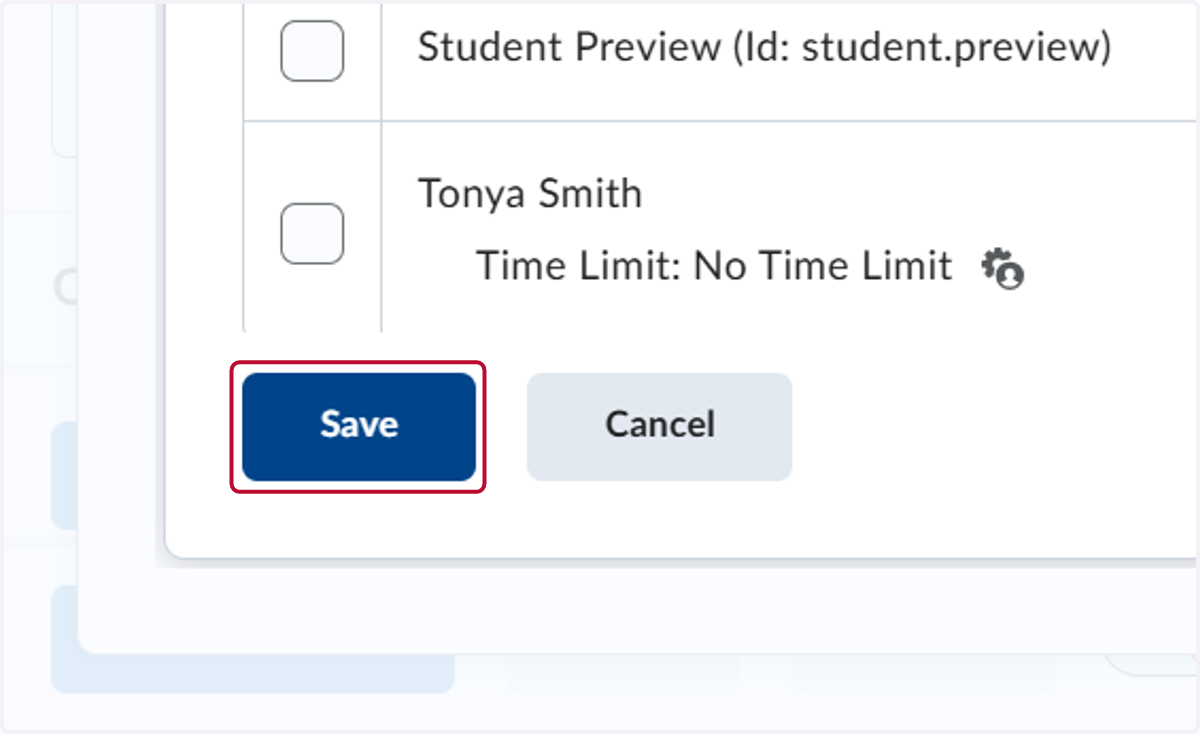
10. Click on Save
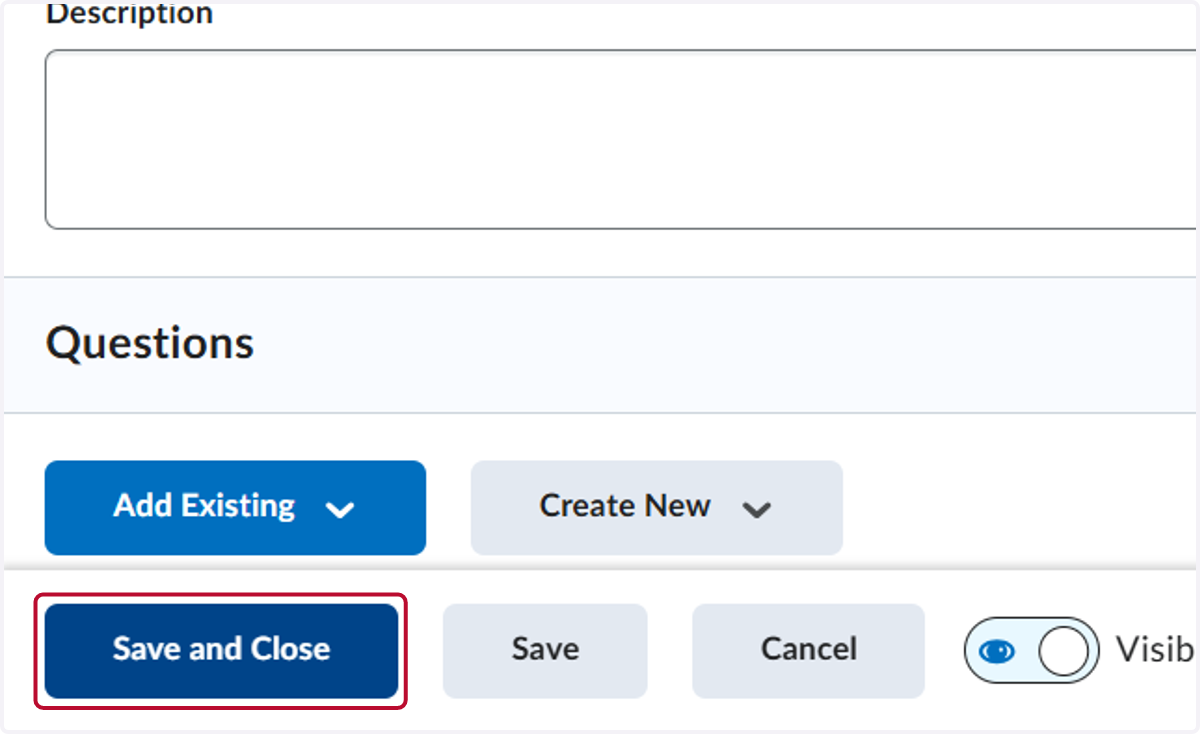
11. Click on Save and Close
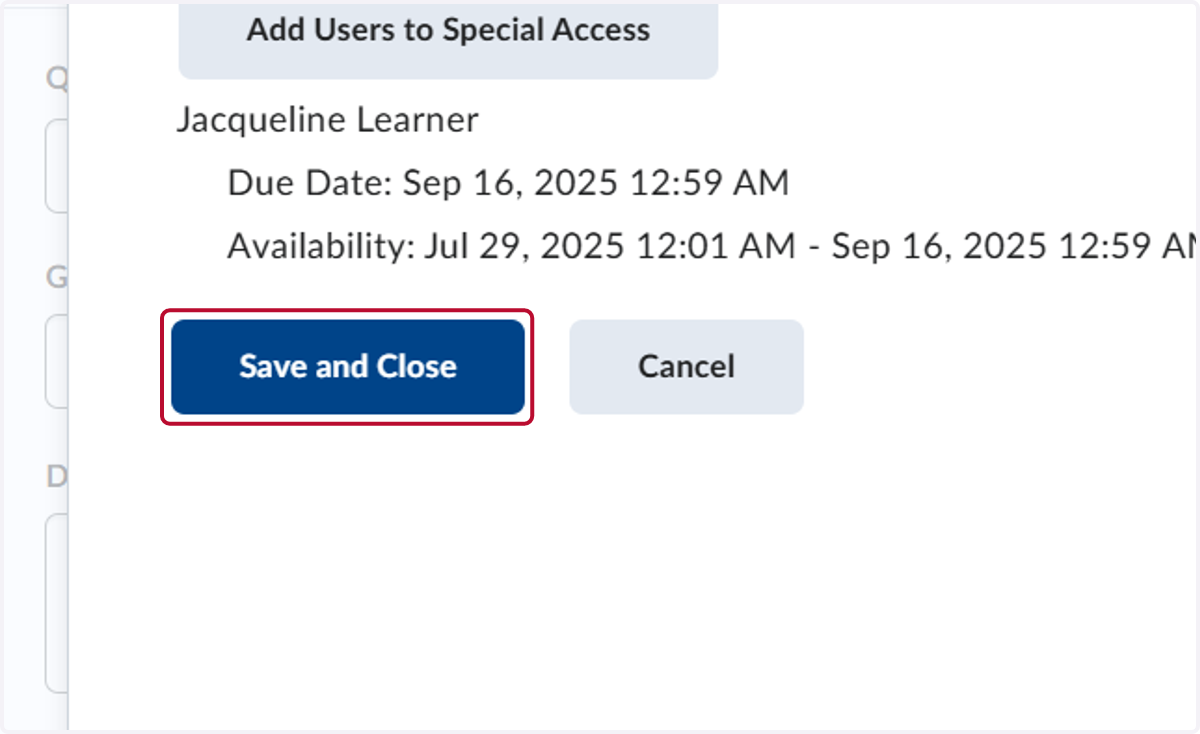
12. You can see that you have set special access
13. Click on Save and Close