Manage Grading Windows for Standards Grading
Below are steps to open a grading window for a year. Grading windows can be open all at once for the year or can be open as the term ends. Grading Windows can be edited, and exceptions can be created when needed. More information on grading windows can be found in the following article form Infinite Campus: Grading Window | Infinite Campus.
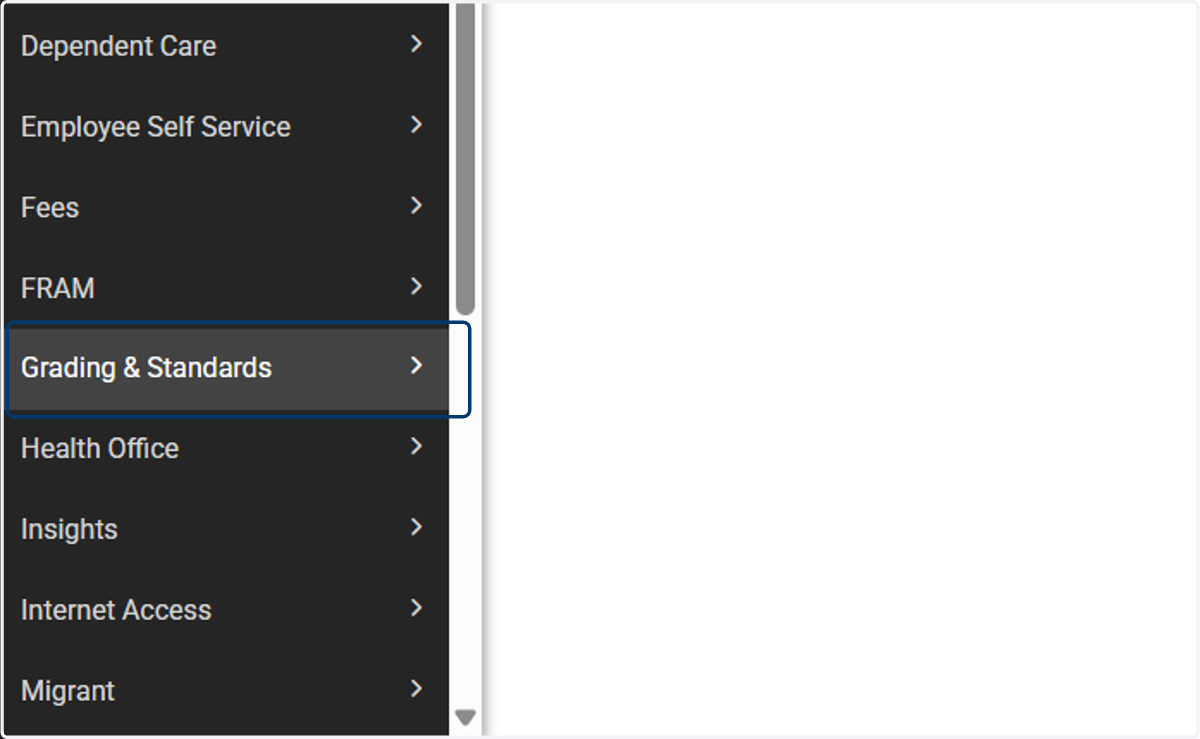
1. In the Menu, navigate to Grading & Standards
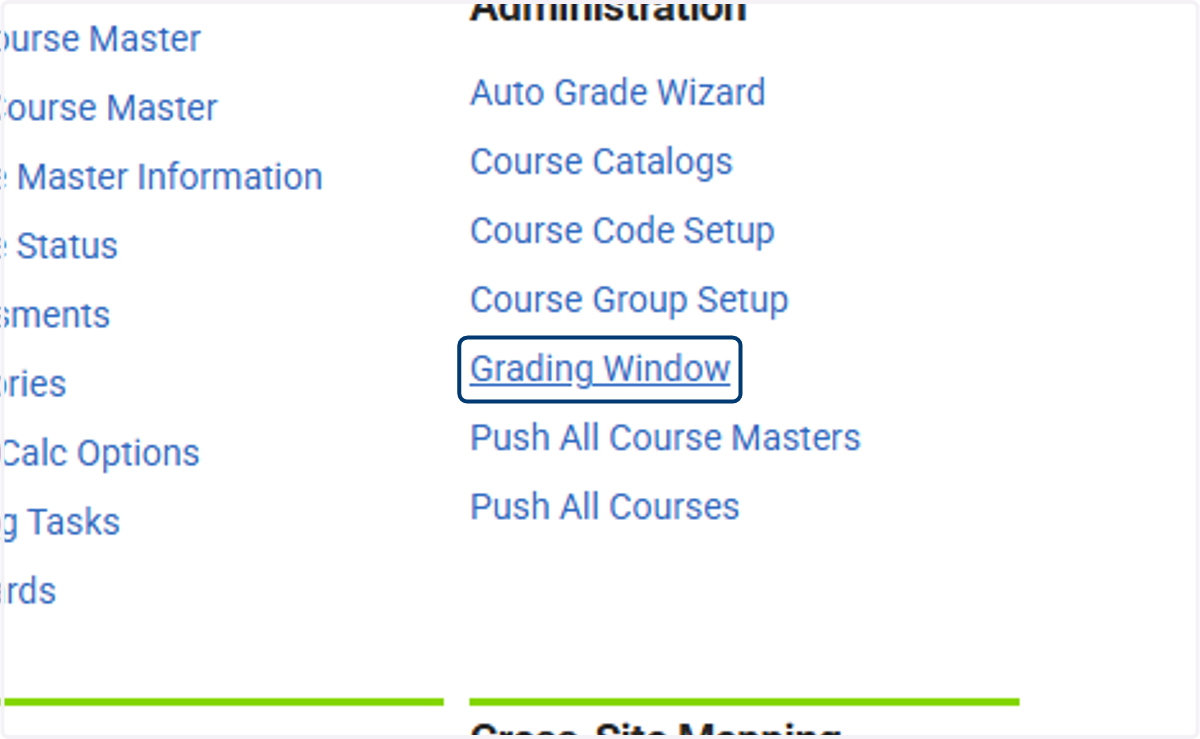
2. In the Grading & Administration section, select Grading Window.
Add Grading Window
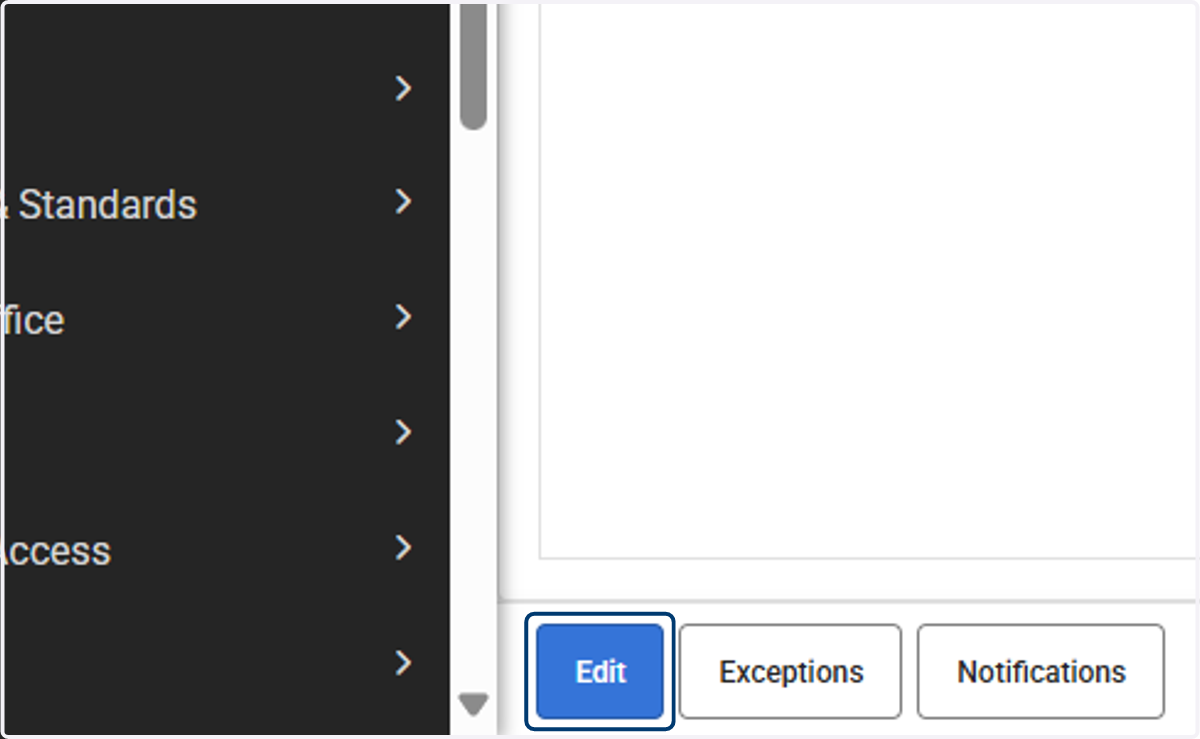
3. Click on Edit to add multiple grading windows or an individual window as needed.
4. Click on Add
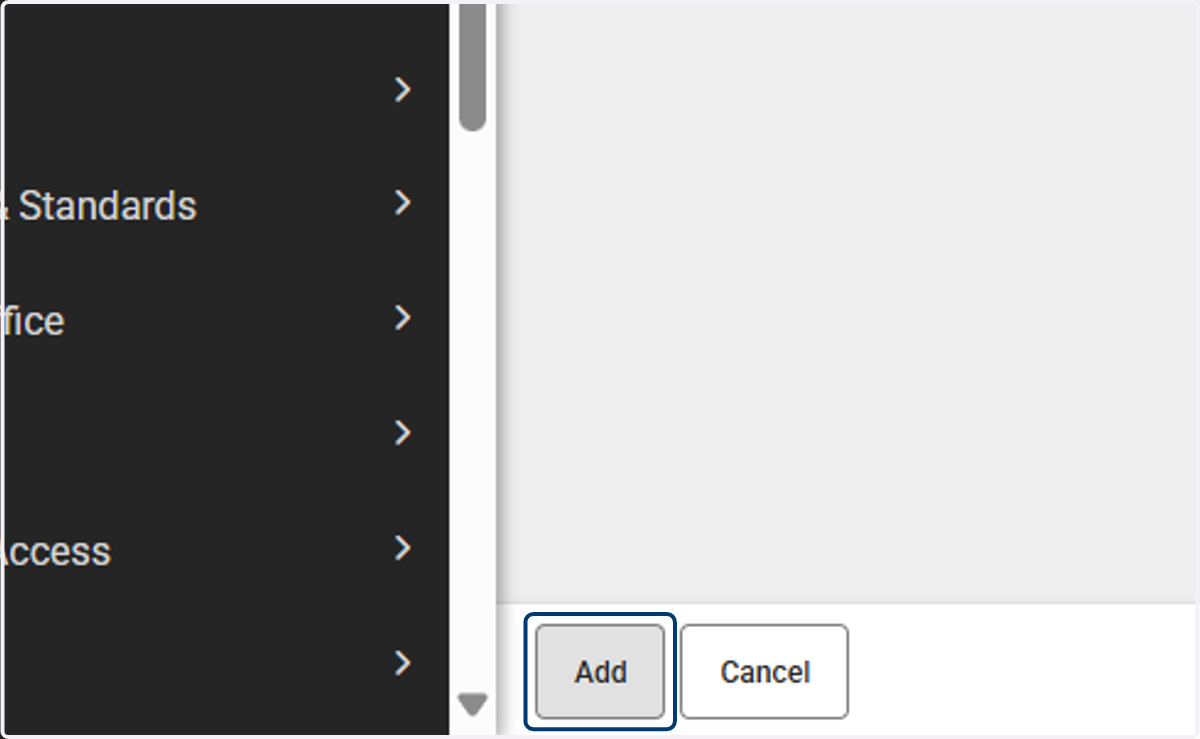
5. Calendars and terms listed will be based on the user tool rights. Select the terms and calendars as available.
All windows can be opened at one time or one term at a time. It is a PSU's decision on when to open the grading windows.
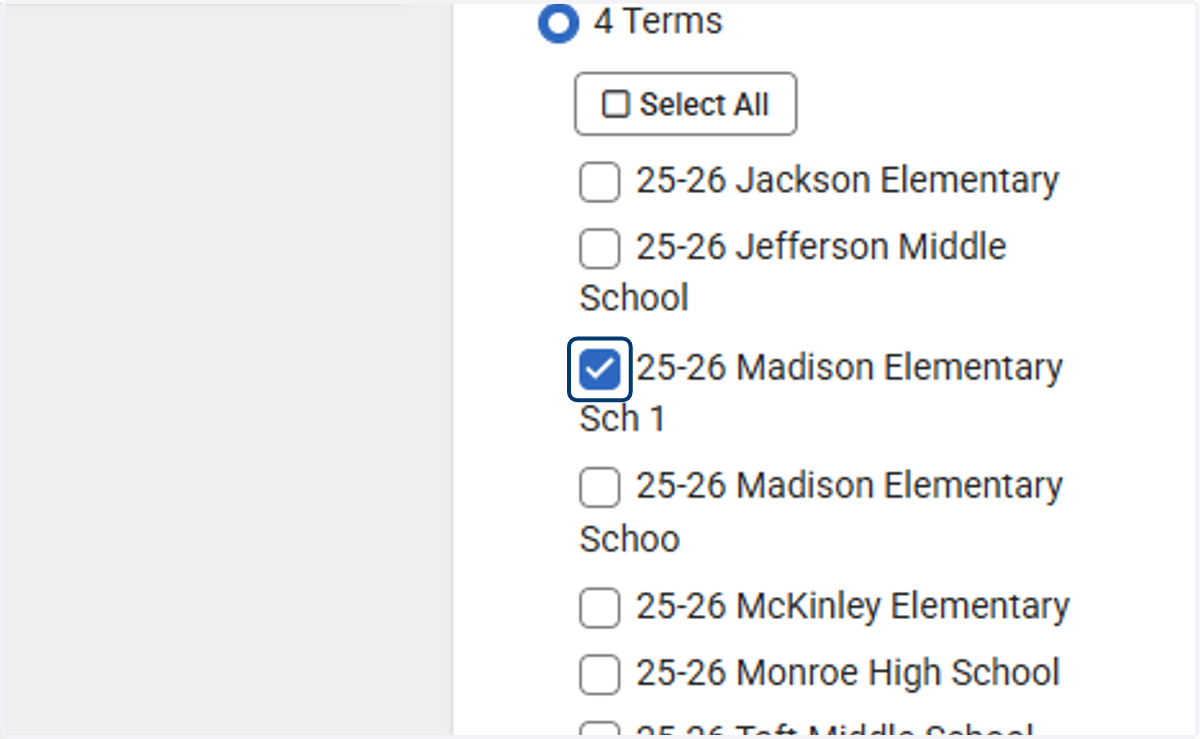
6. Select which terms to open a window.
All windows can be opened at one time or one term at a time. It is a PSU's decision on when to open the grading windows.
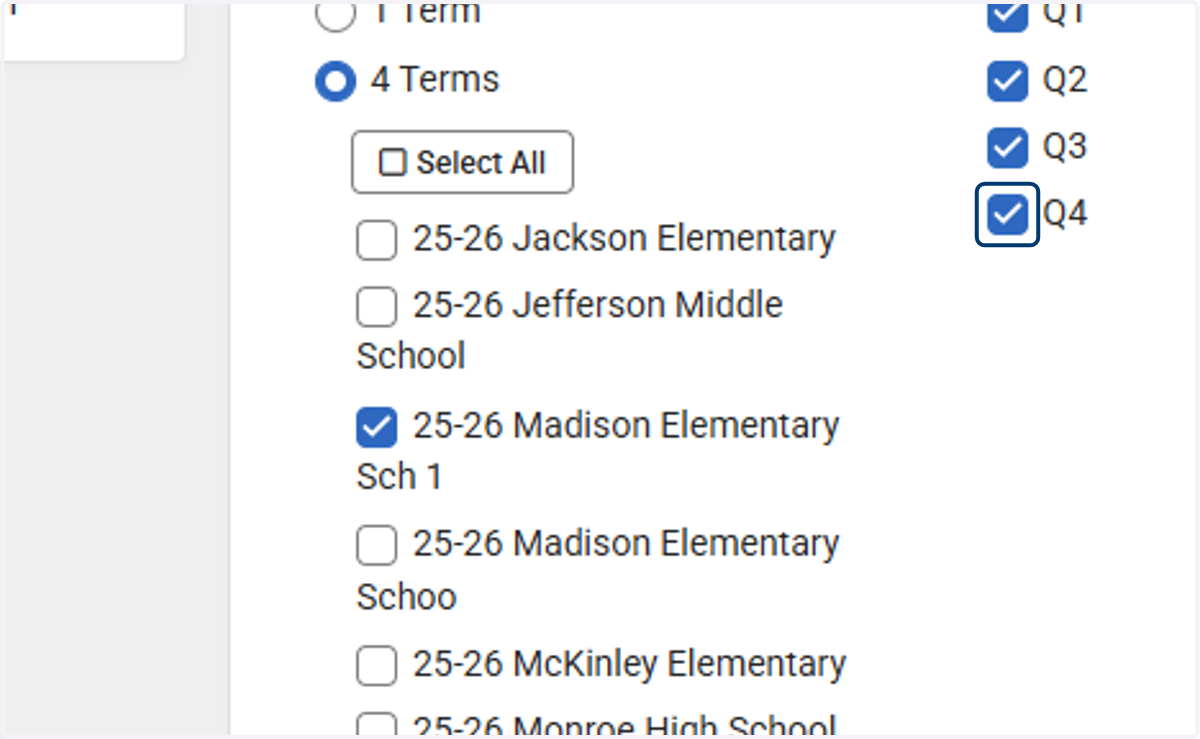
7. Click on Next
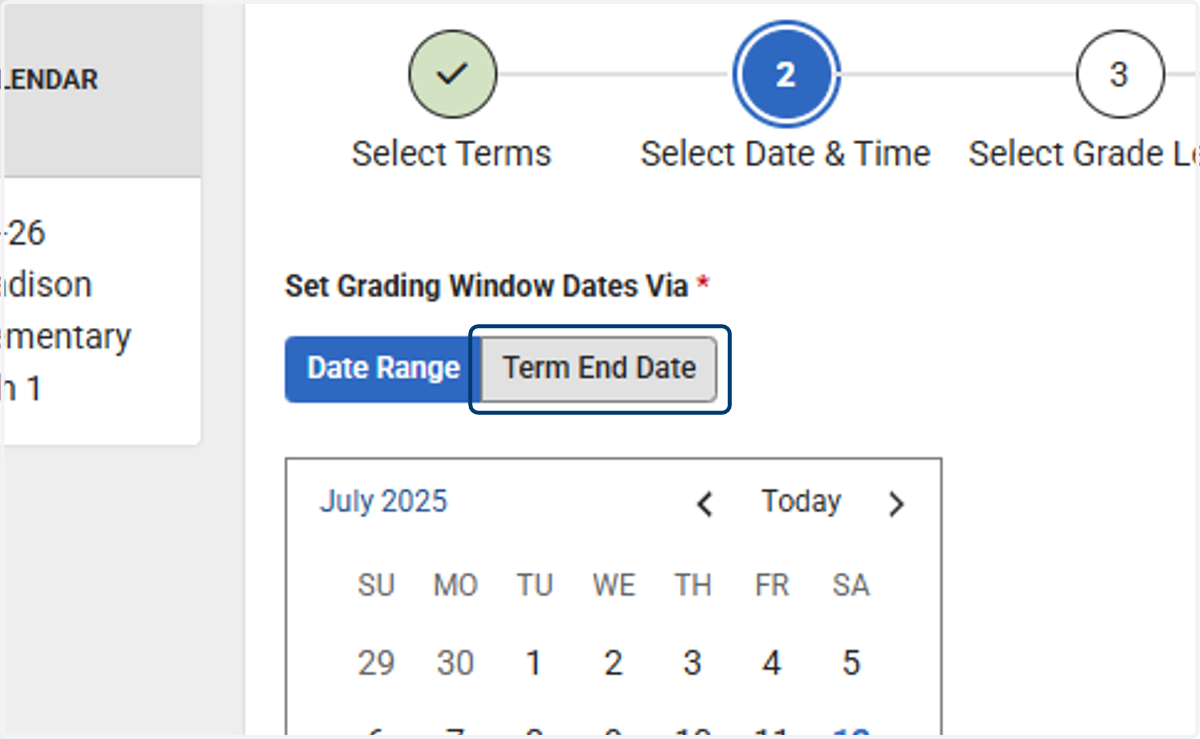
8. Select Date Range to set specific dates or use the Term End Date to set the window based on when the term ends.
The following steps walk a user through setting up the window based on the term end dates, however the date range selection steps are similar.
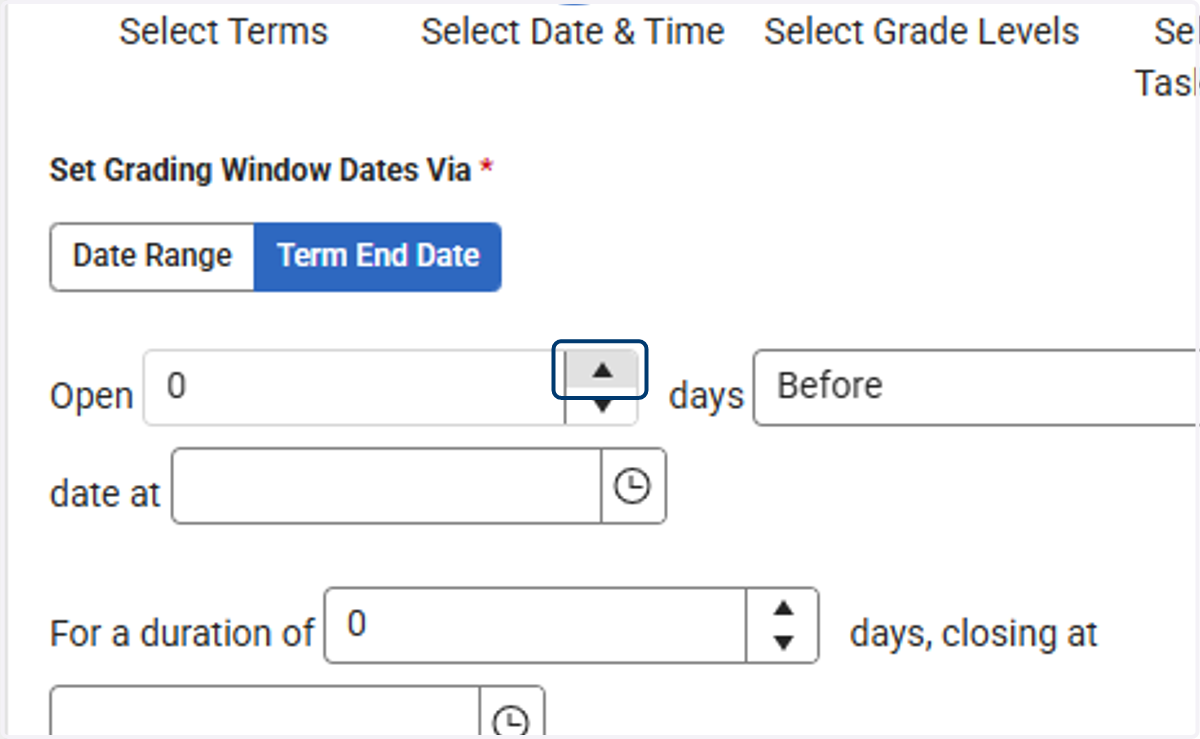
9. Select how many days before the term ends to open the grading window.
All dates will be set based on the term dates for each term.
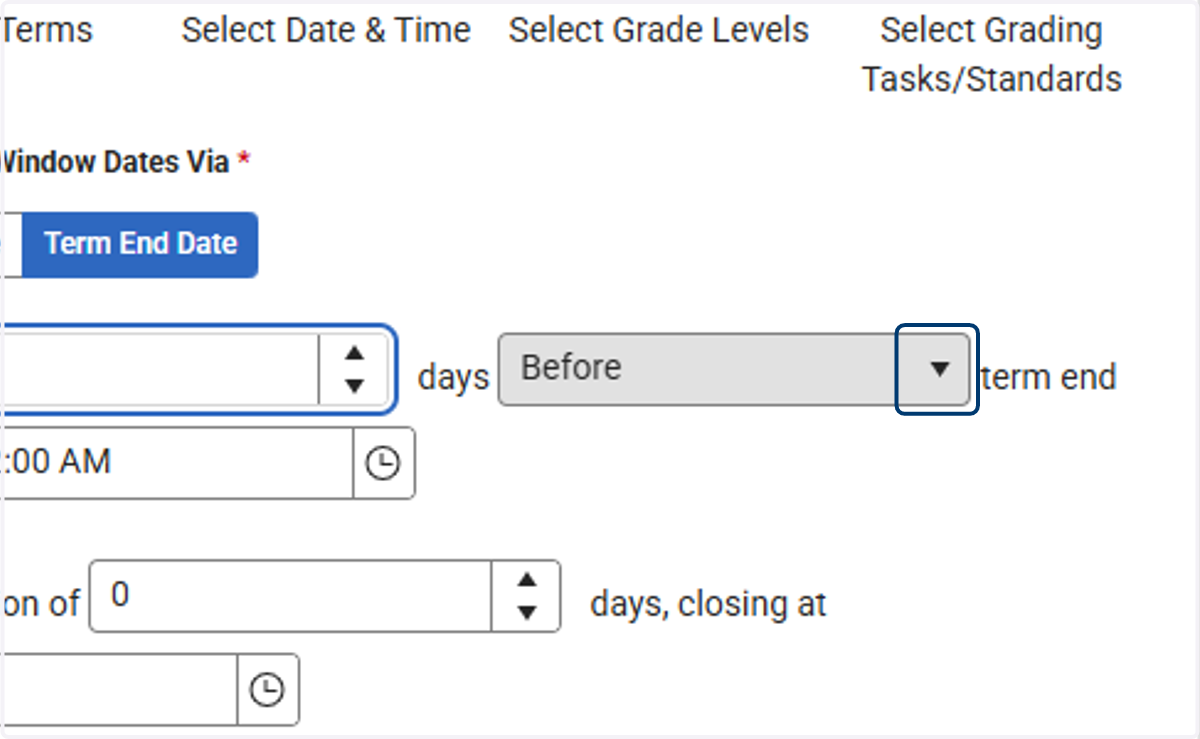
10. Select to open before or after the term ends.
The example below is setting the grading window before the term ends.
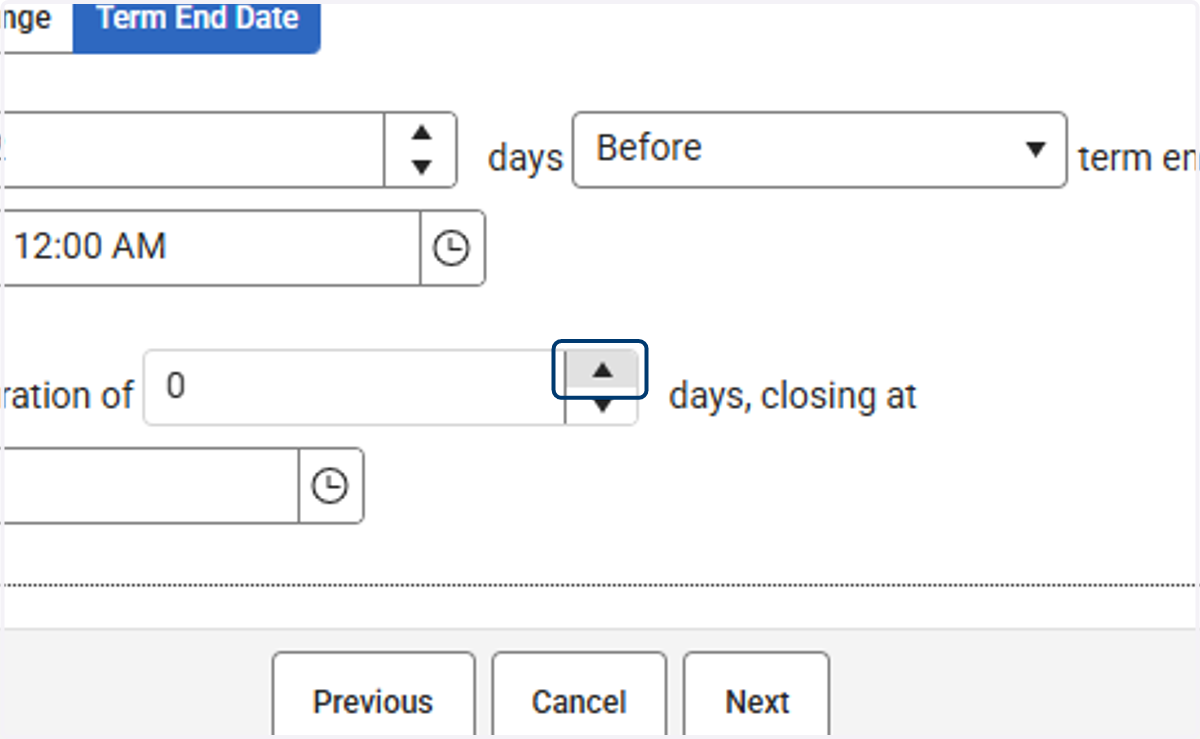
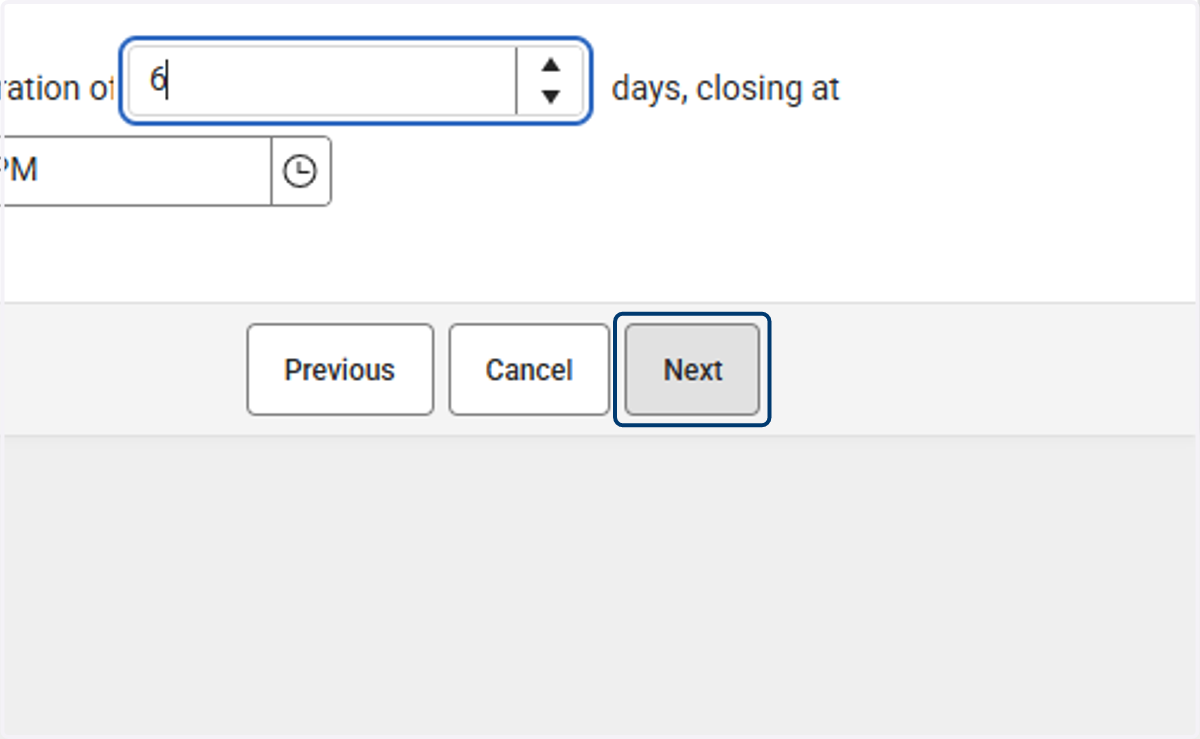
11. Select the number of days the window will be open. Adjust the times for the window by clicking on the clock icons as needed.
It is a PSU decision on how long the grading window will be open for teachers to post grades.
12. Click on Next
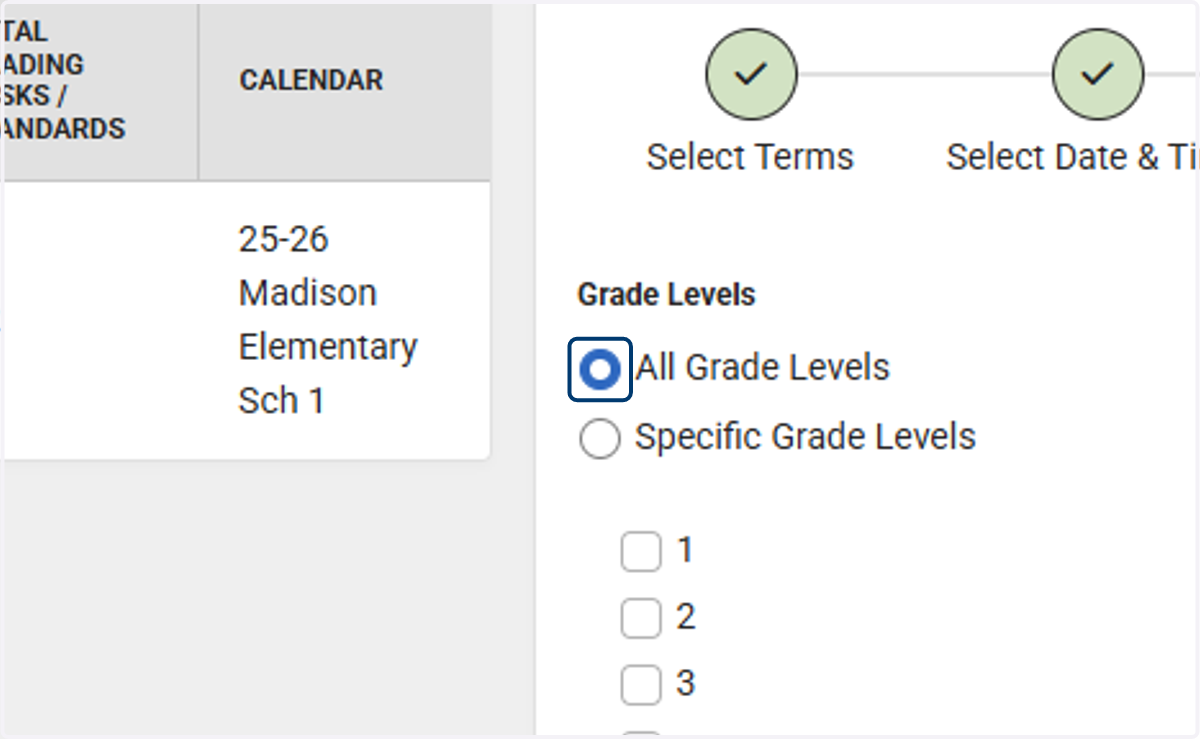
13. Select all grades levels or set the window for one or more grade level.
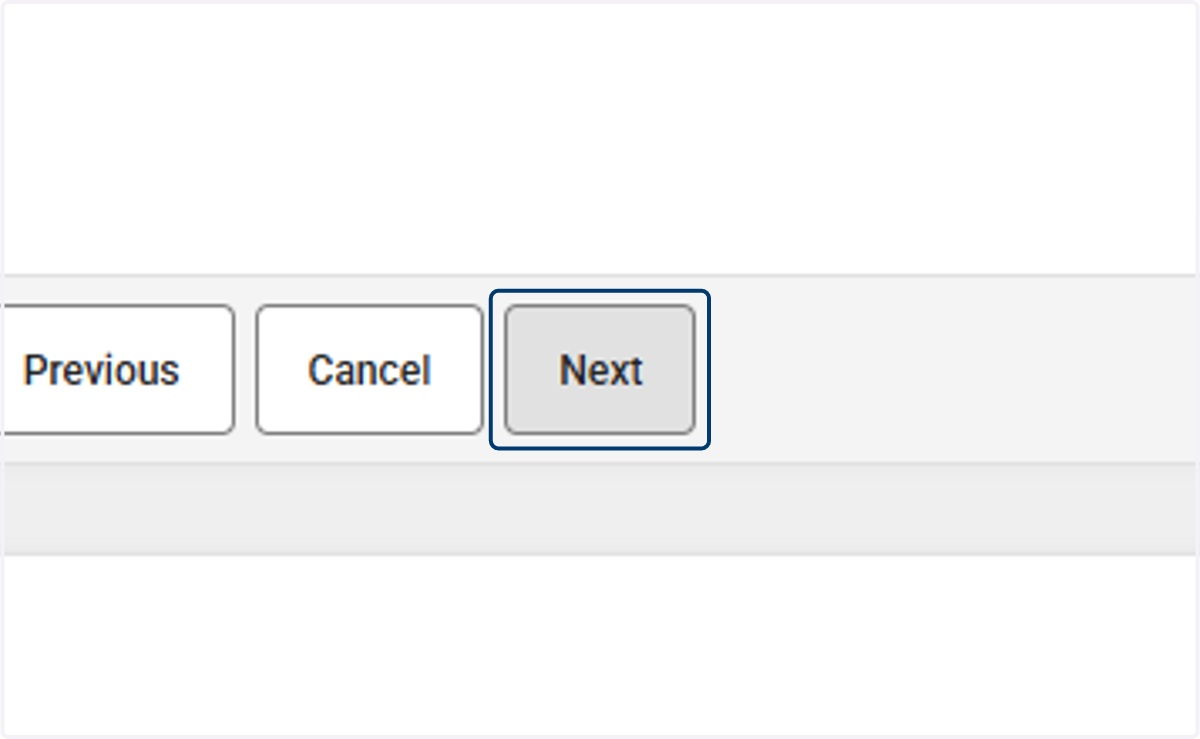
14. Click on Next
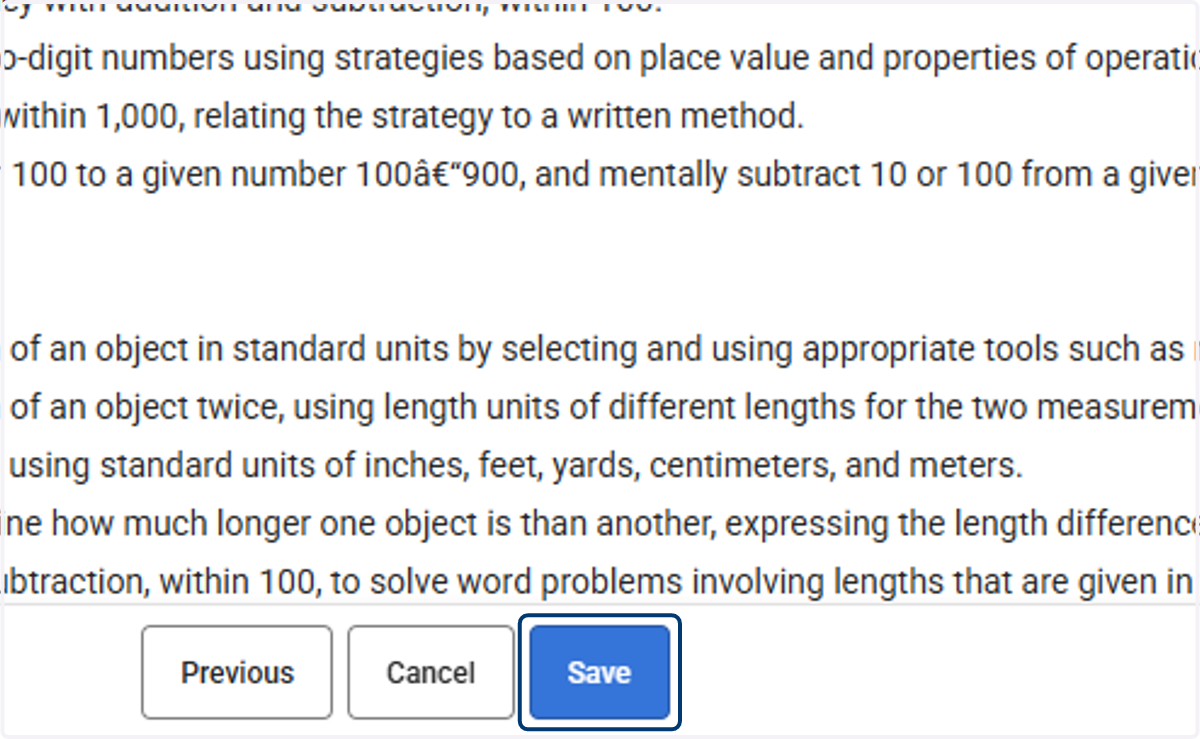
15. Select which Standards will be included during the grading window.
Standards will only appear during a specific term if they are included in that term’s configuration in the course’s term mask setup.
For example, if the Reading Foundational Skills standard is not added to the Term 1 setup, it will not be available for use in Term 1. However, if it is assigned to Term 4, it will be visible and usable during that term.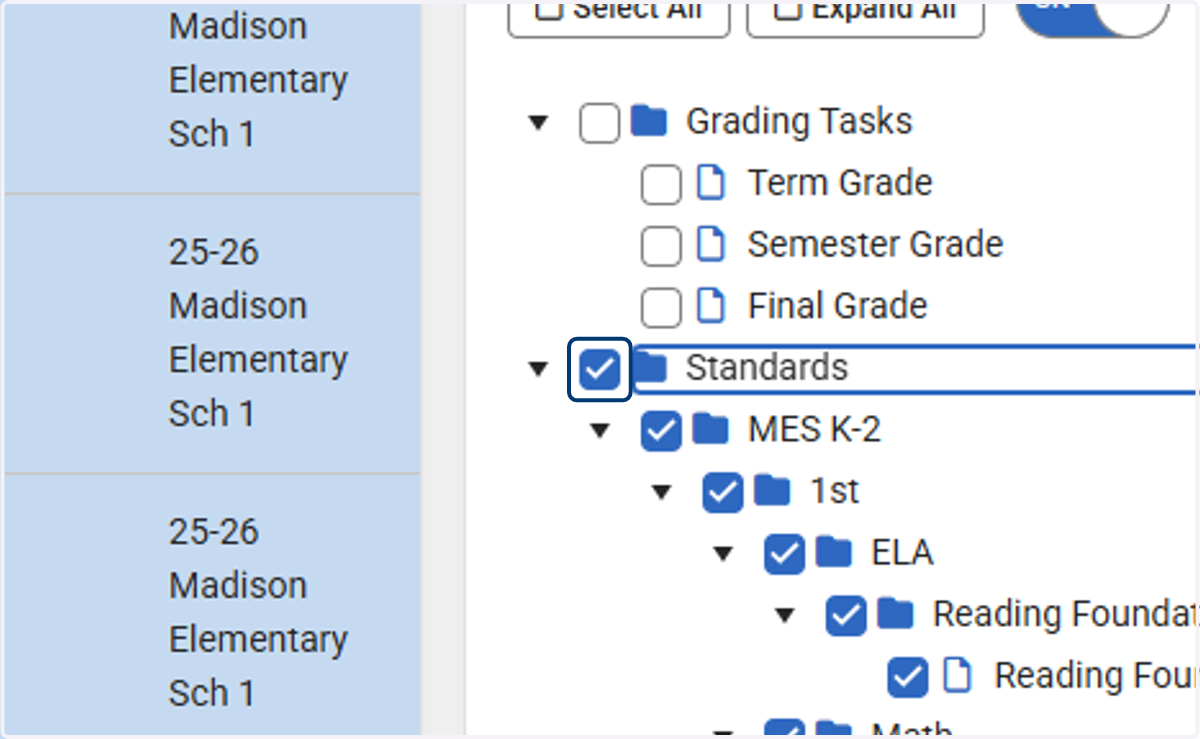
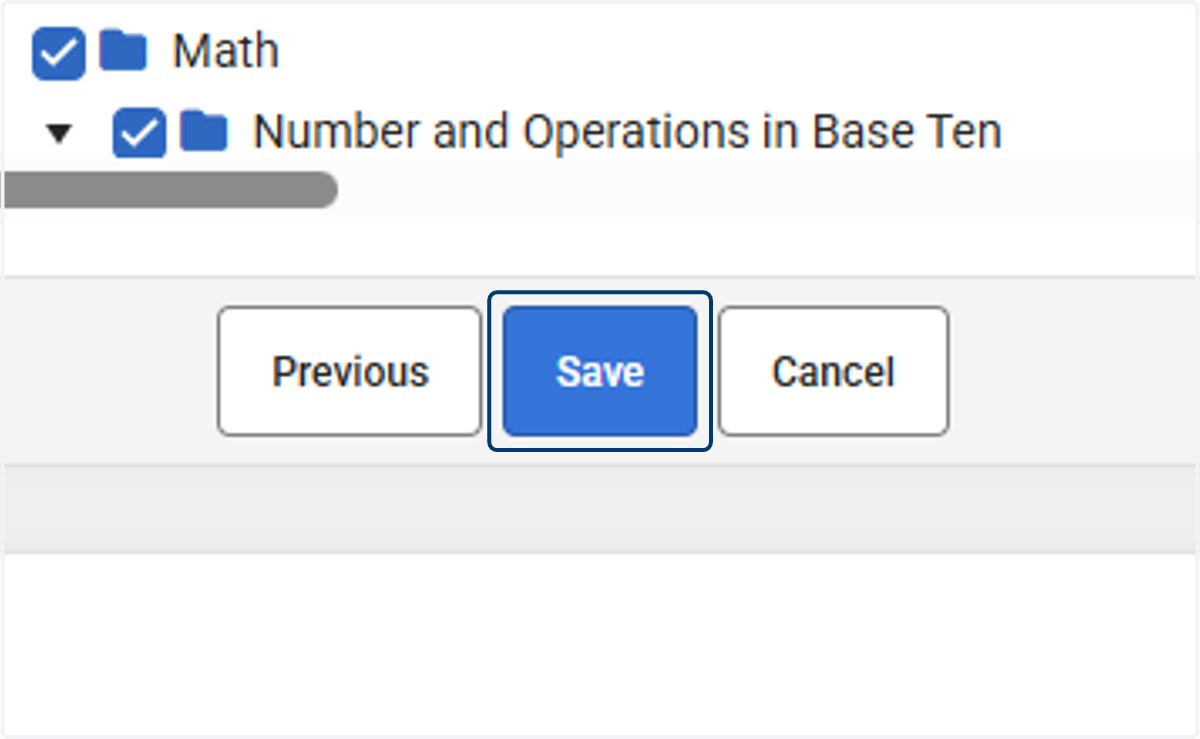
16. Click on Save
Change and Existing Grading Window
Navigation: Grading & Standards > Grading & Standards Administration > Grading Window
Use the steps below to change the dates and times of an existing grading window.
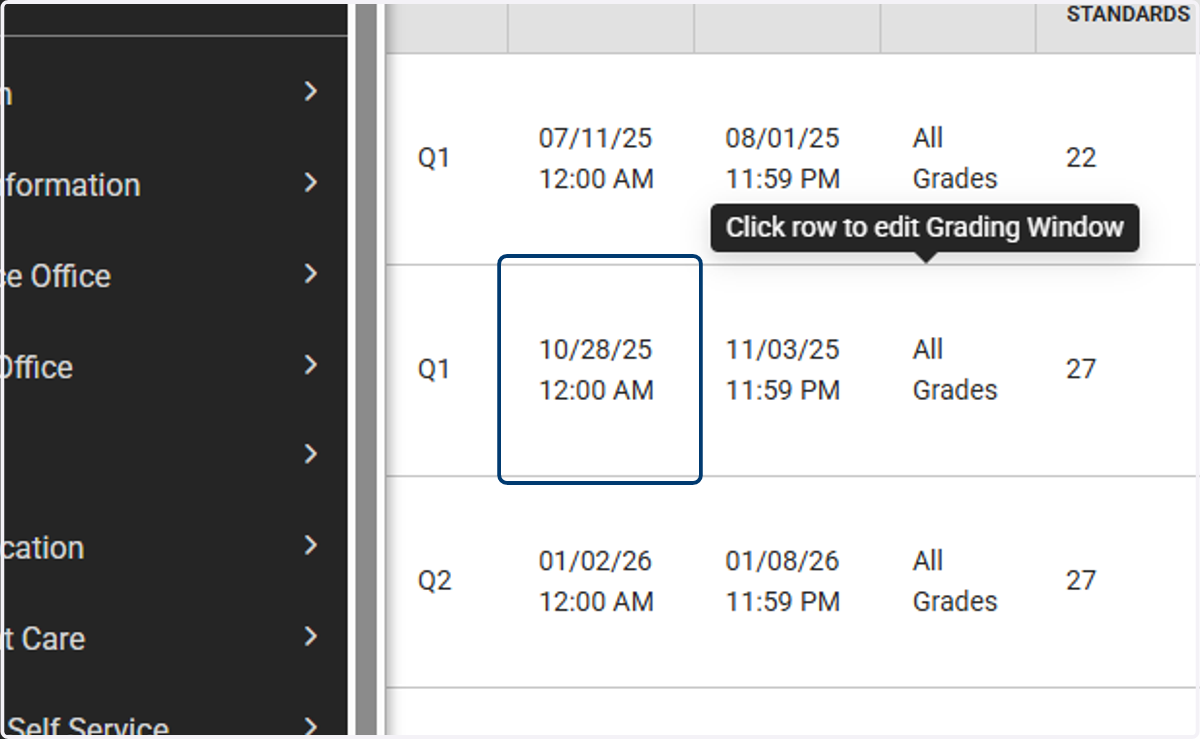
17. Click on Edit to see the list of existing grading windows. Select the grading window to edit.
18. Click on Next
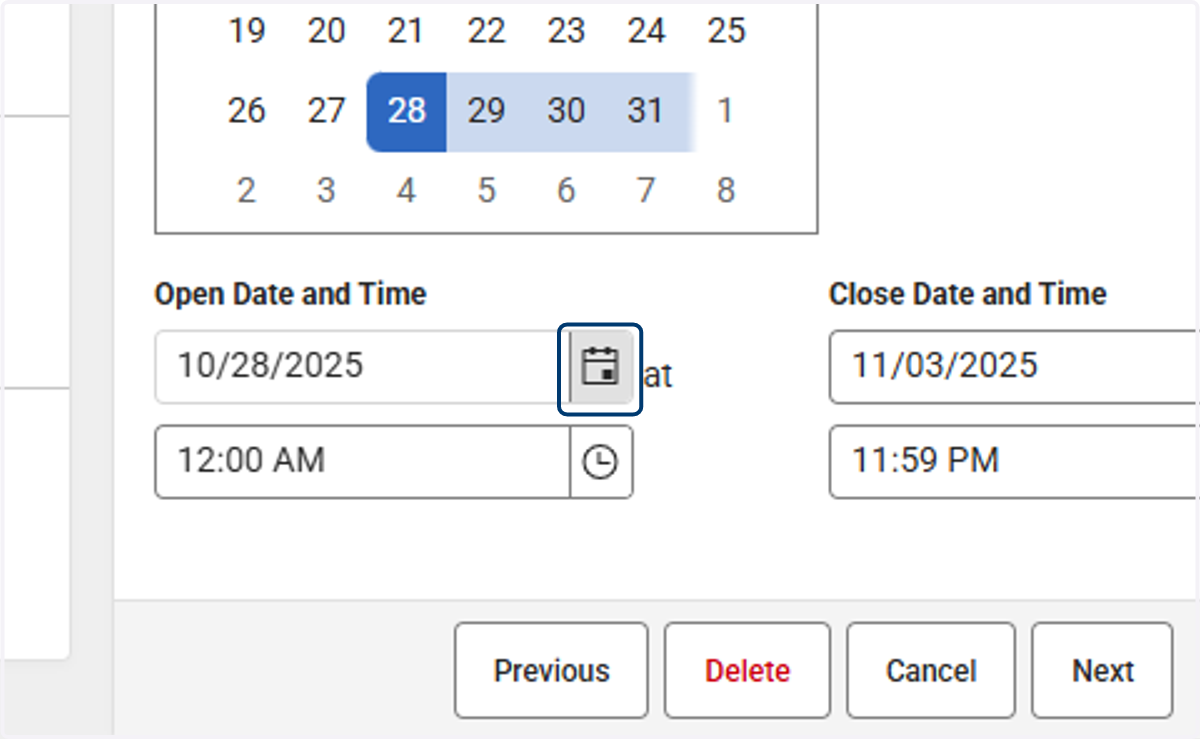
19. Adjust the start and end date by using the calendar icon and selecting the date on the calendar. Adjust the times as needed by selecting the clock icon.
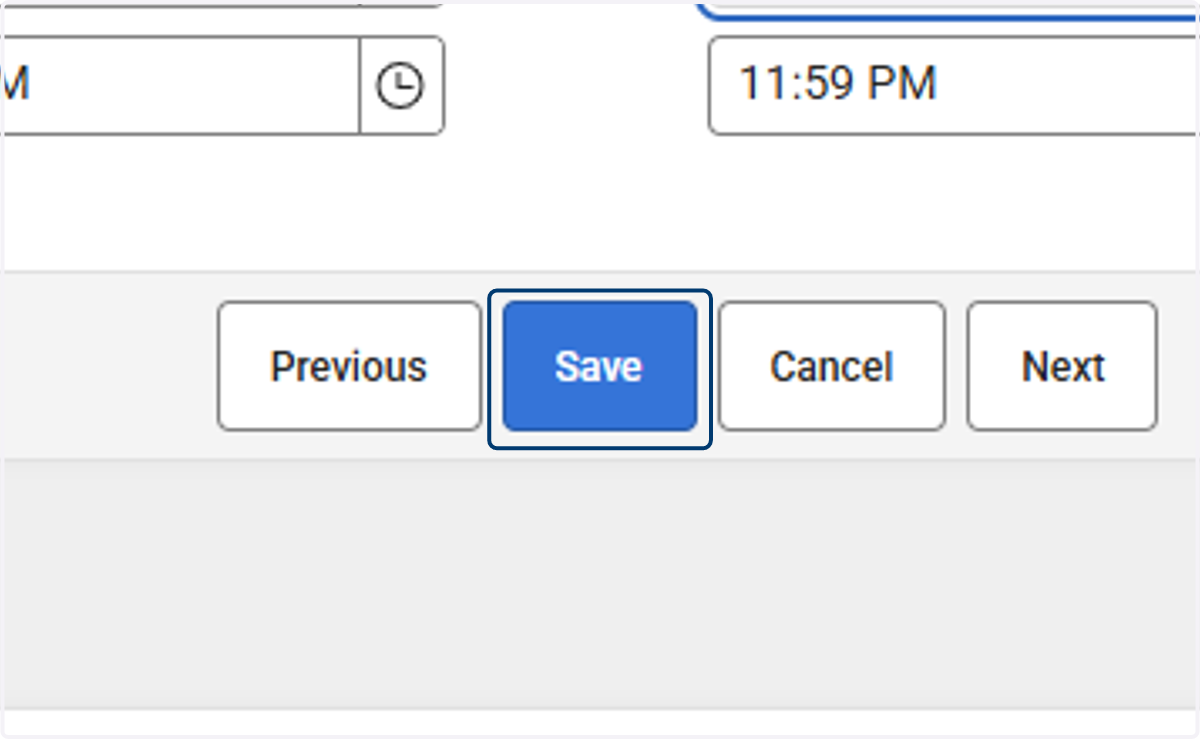
20. Click on Save
Add an Exception Grading Window
Navigation: Grading & Standards > Grading & Standards Administration > Grading Window
Use the steps below to add an exception grading window that may occur outside of the existing grading window.
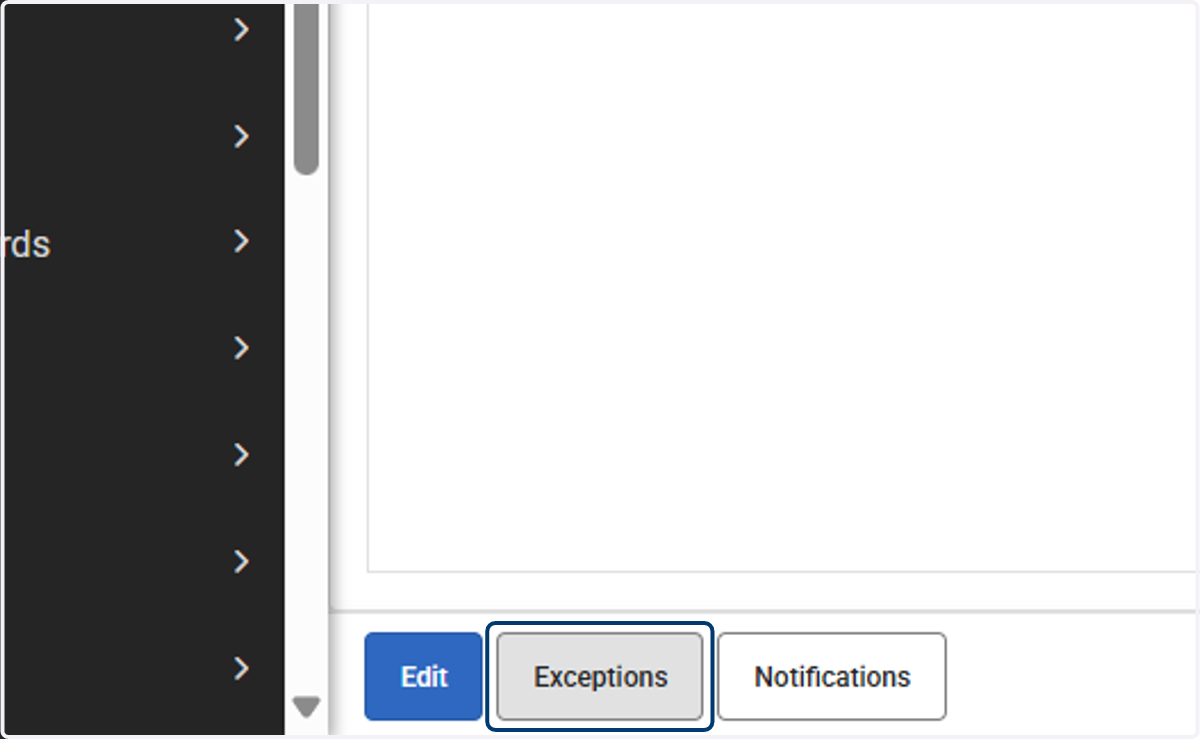
21. Click on Exceptions
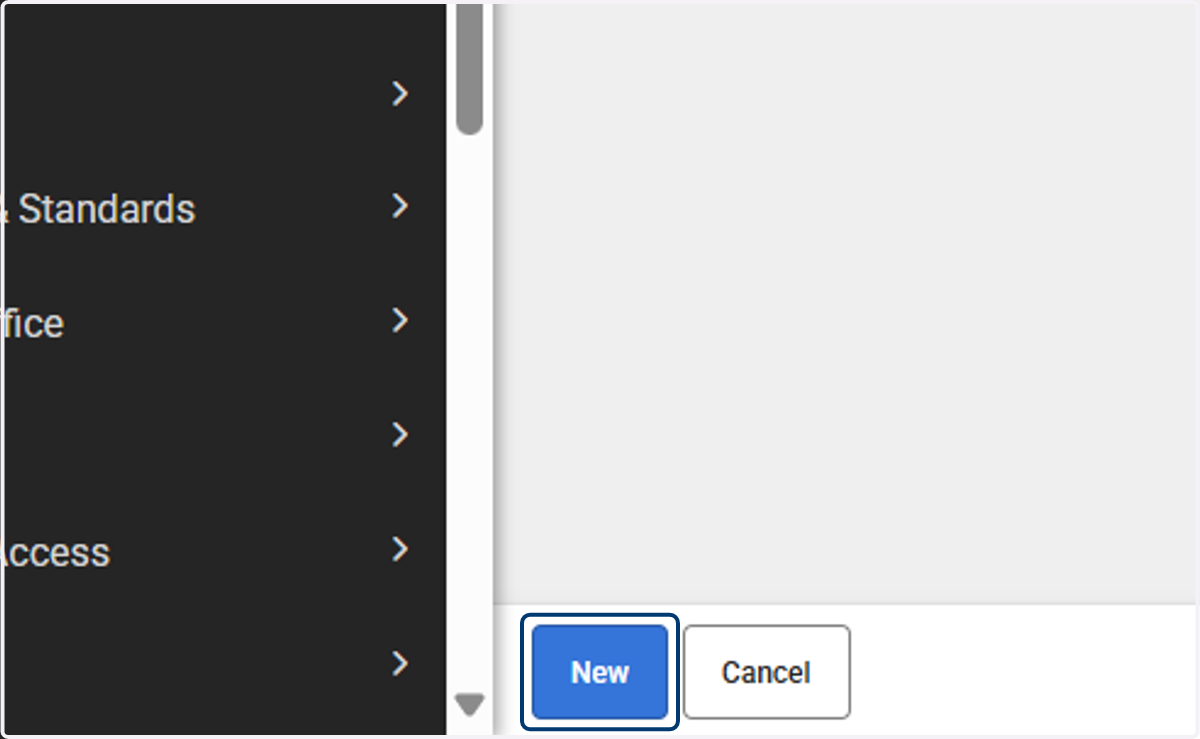
22. Click on New
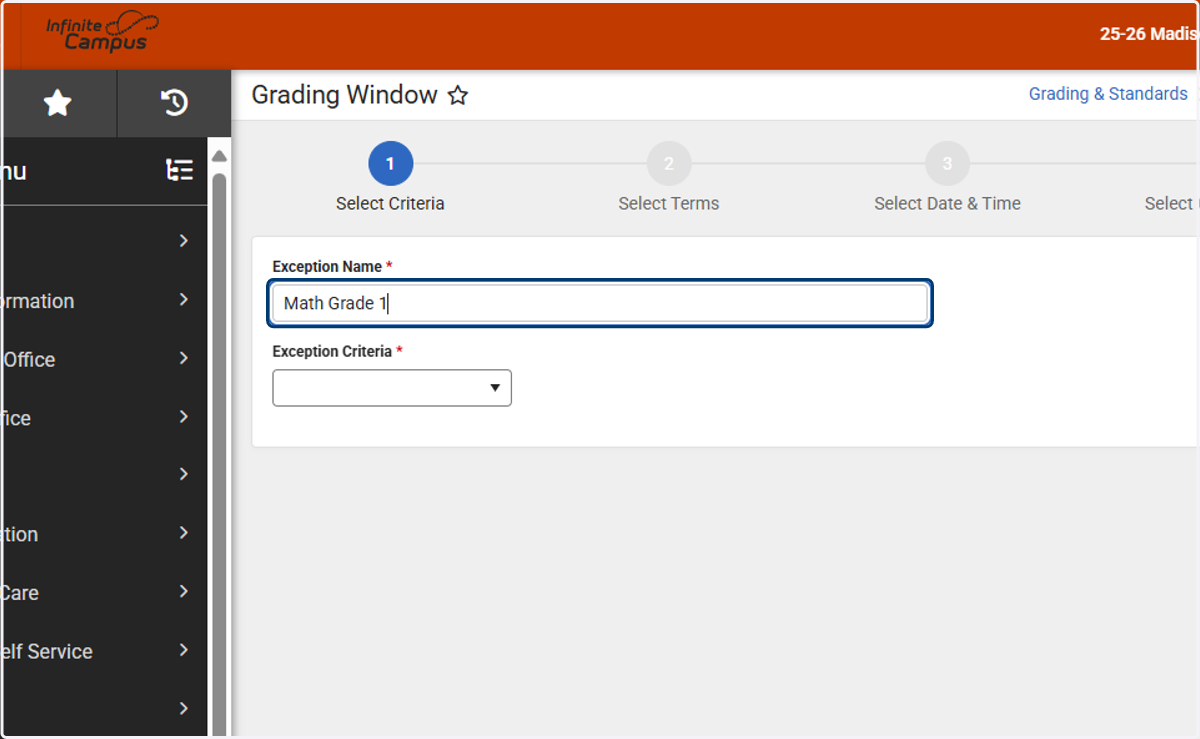
23. Enter an Exception Name
Tip: Be descriptive in the name of the exception to know what the exception was for.
24. Select the exception criteria
Exceptions can be opened by course/sections, student, grade level, student and section, and grade level and section. This gives a variety of options that may be encountered for exceptions. The example below is based on Course/Section.
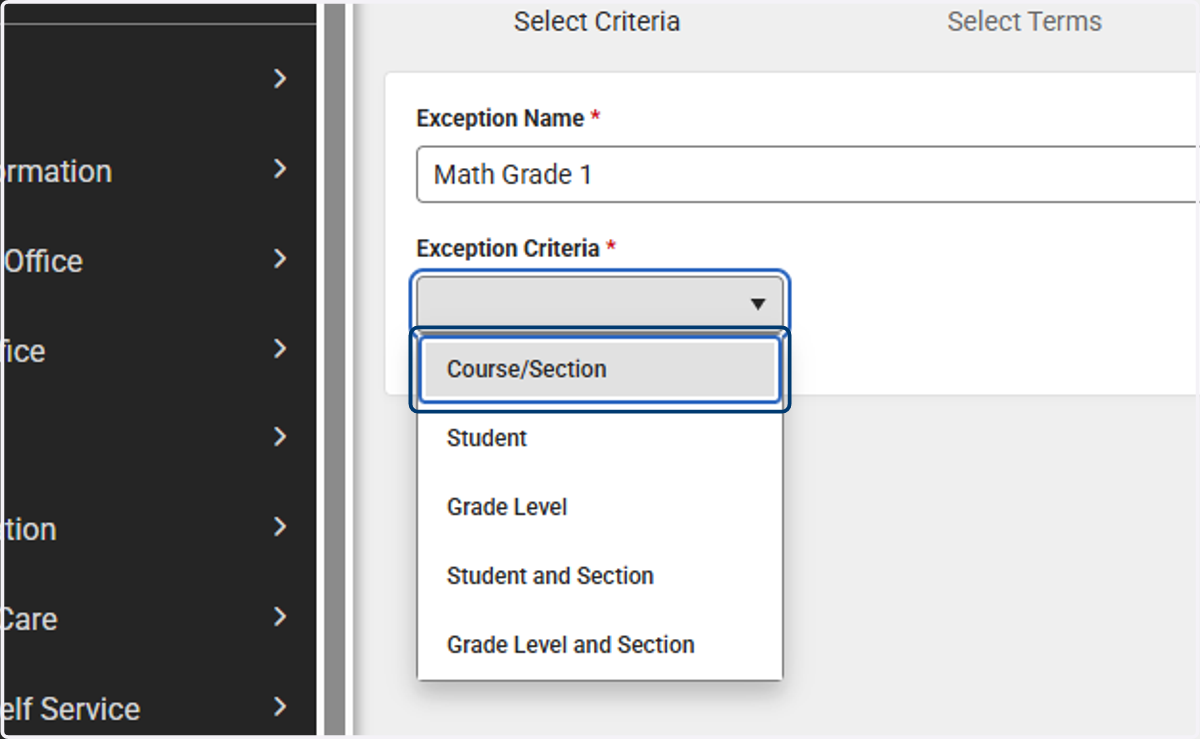
25. The exception criteria options will vary based on the criteria chosen.
The example below is showing criteria based on Course/Section.
For more information on what will display for each option, visit the article Grading Window Exceptions | Infinite Campus.
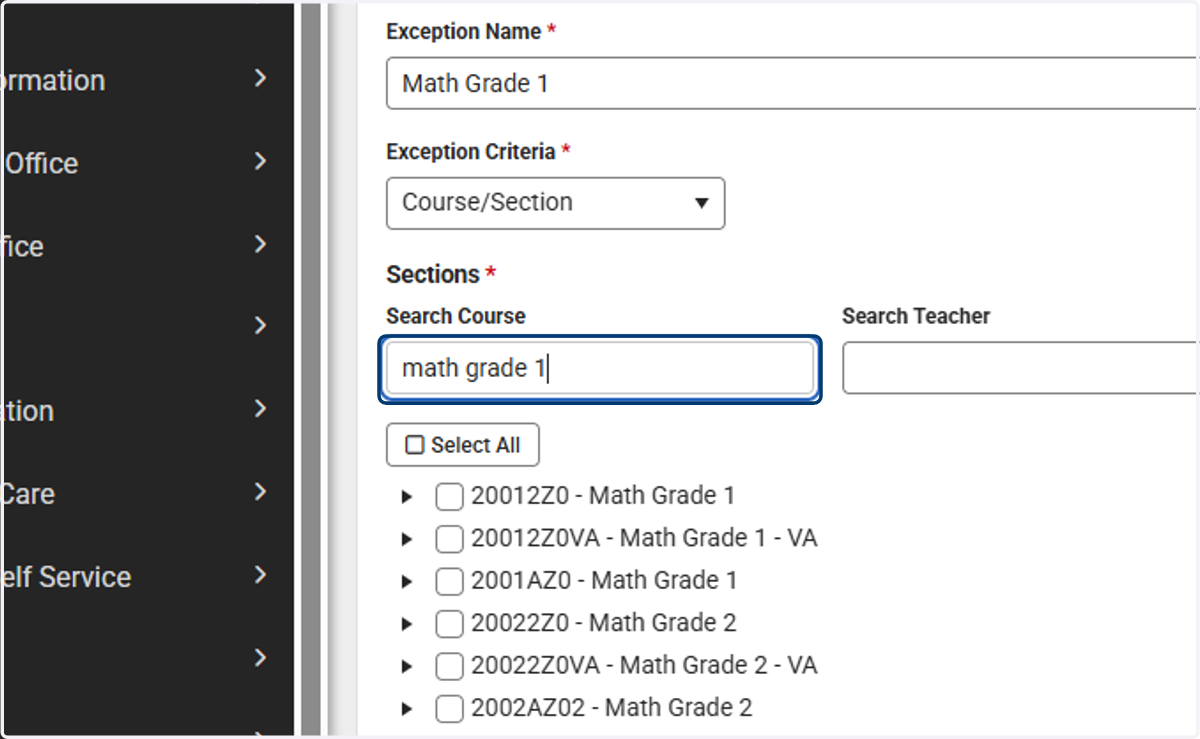
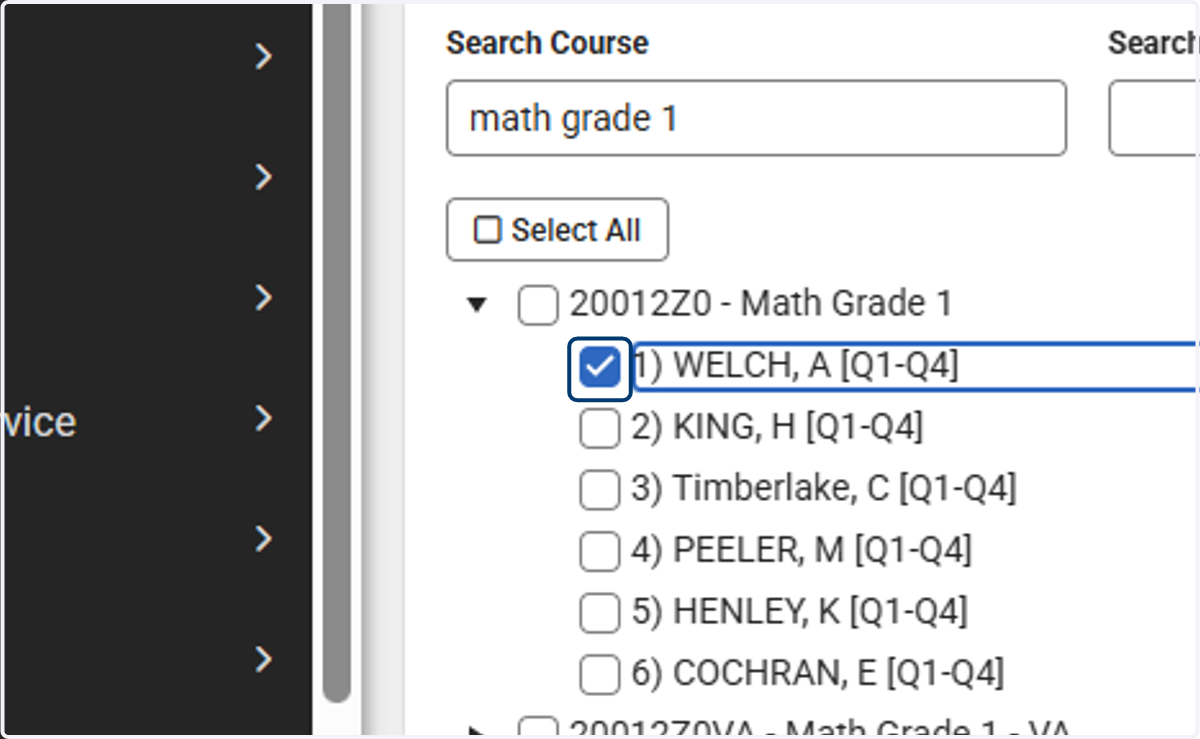
26. Select the criteria to include in the exception.
Use the search options to narrow the results to select.
The options will vary based on the criteria chosen. The example below is based on the Course/Section criteria.
27. Click on Next
28. Select the term(s) for the exception.
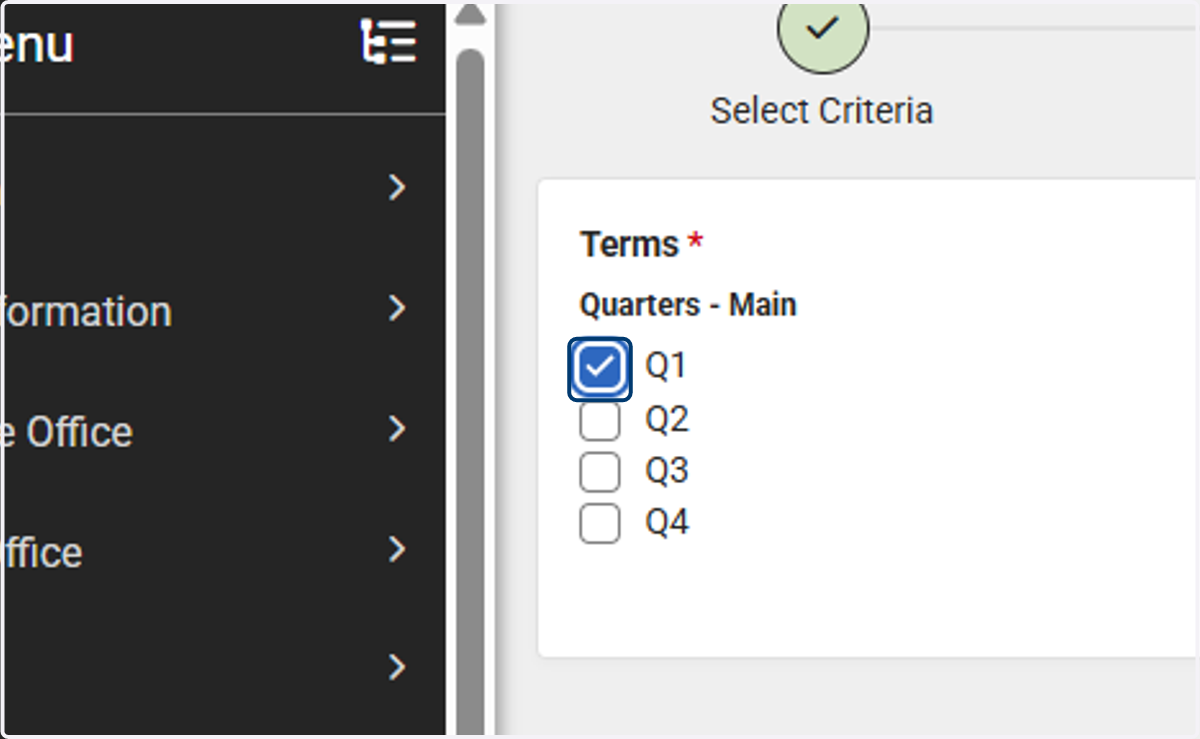
29. Click on Next
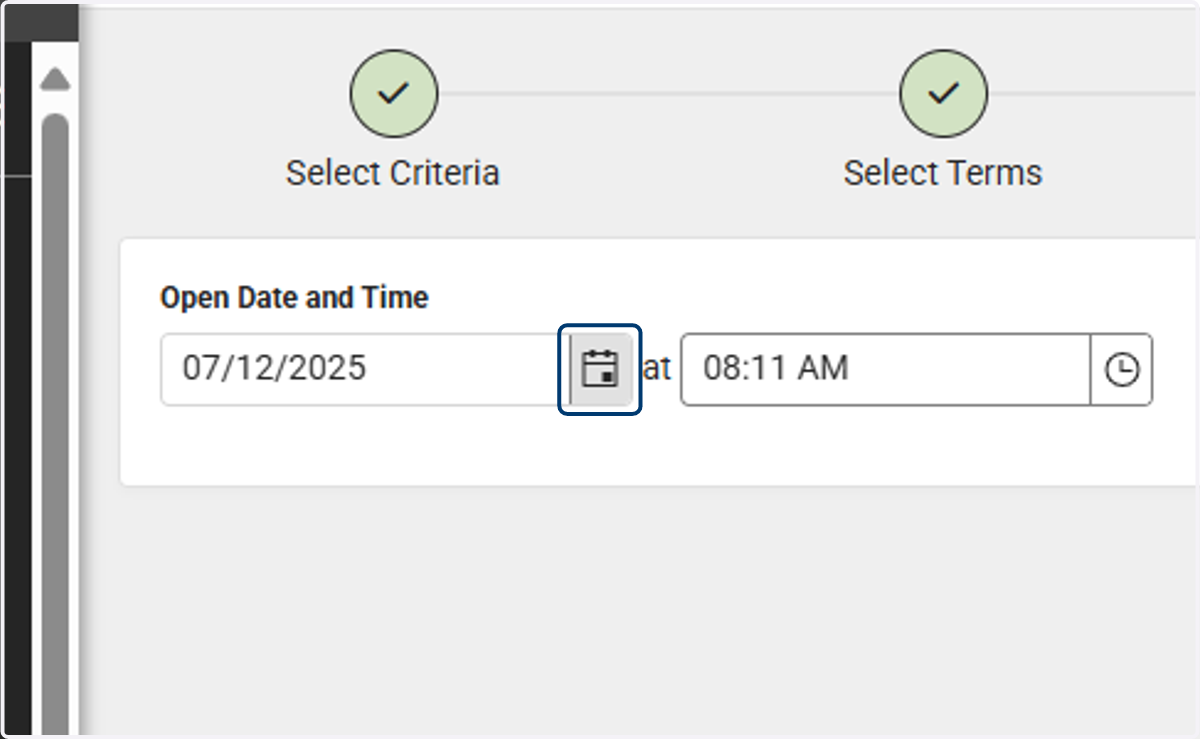
30. Enter the open date and time by clicking on the calendar and time icons or typing in the date and time.
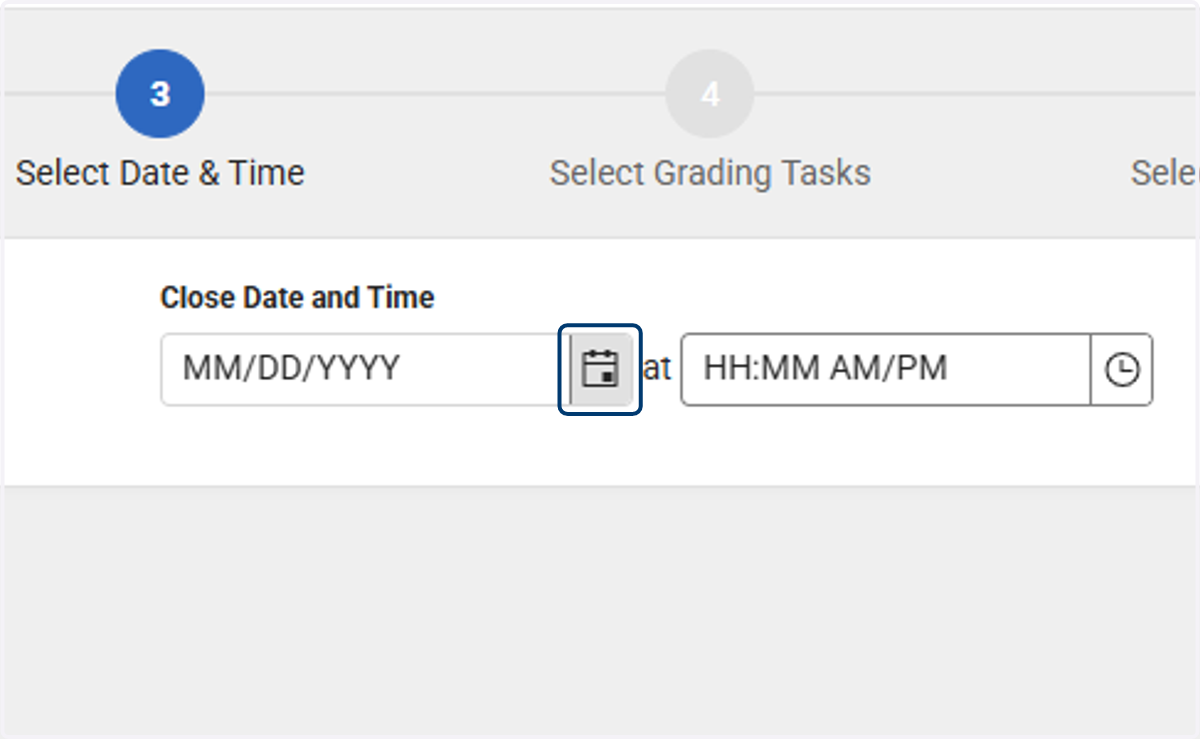
31. Enter the close date and time by clicking on the calendar and time icons or typing in the date and time.
32. Click on Next
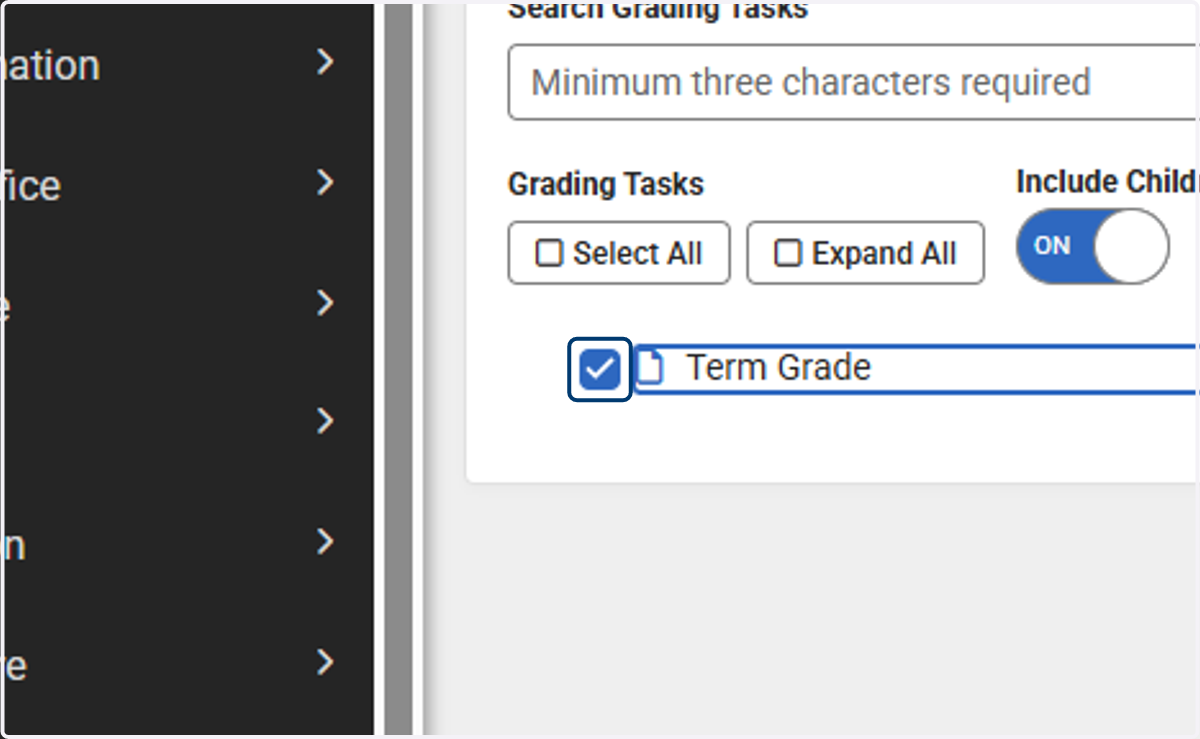
33. Check which grading task to include for the exception.
Grading tasks will display based on the terms selected in the earlier step.
34. Click on Next
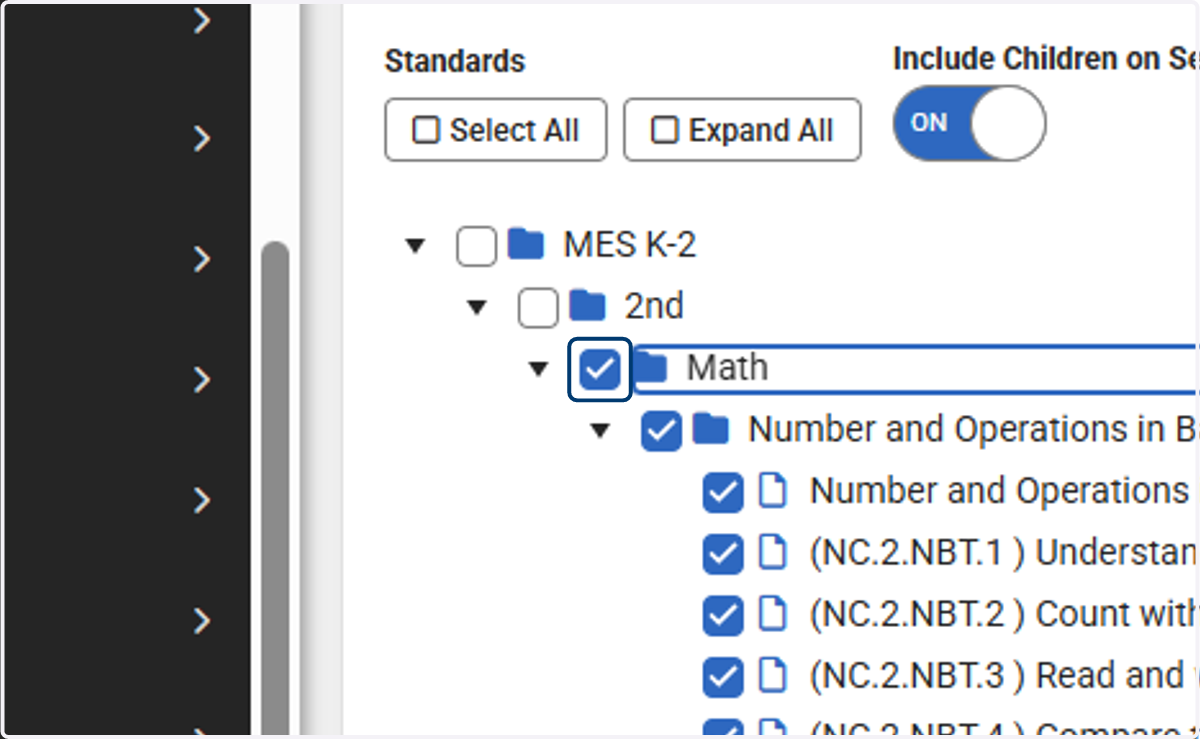
35. Select the standard(s) to open for the exception window.
36. Click on Save