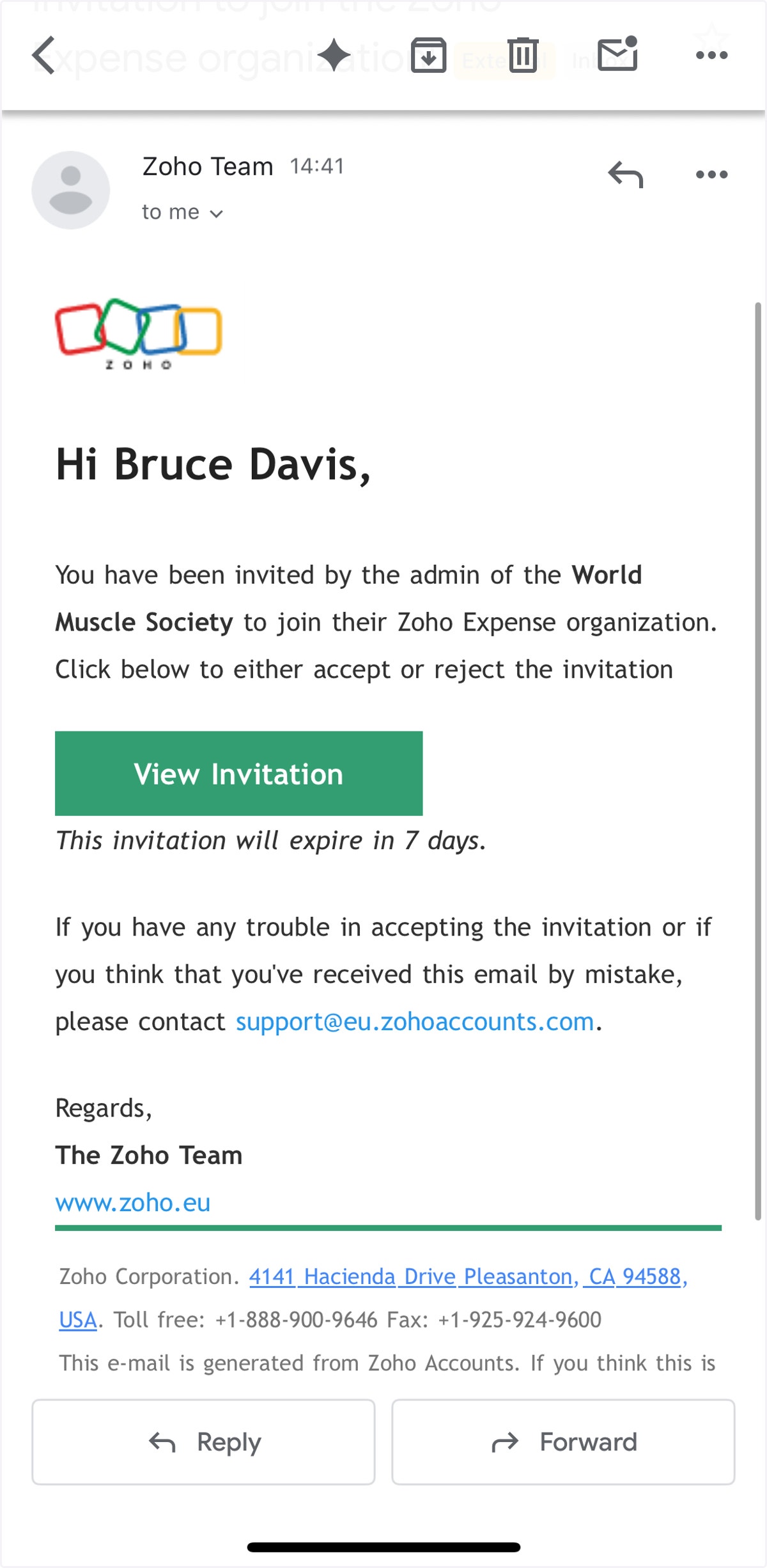
1. You will receive an email inviting you to join the WMS Zoho Expenses organisation.
Accessing Zoho Expense.
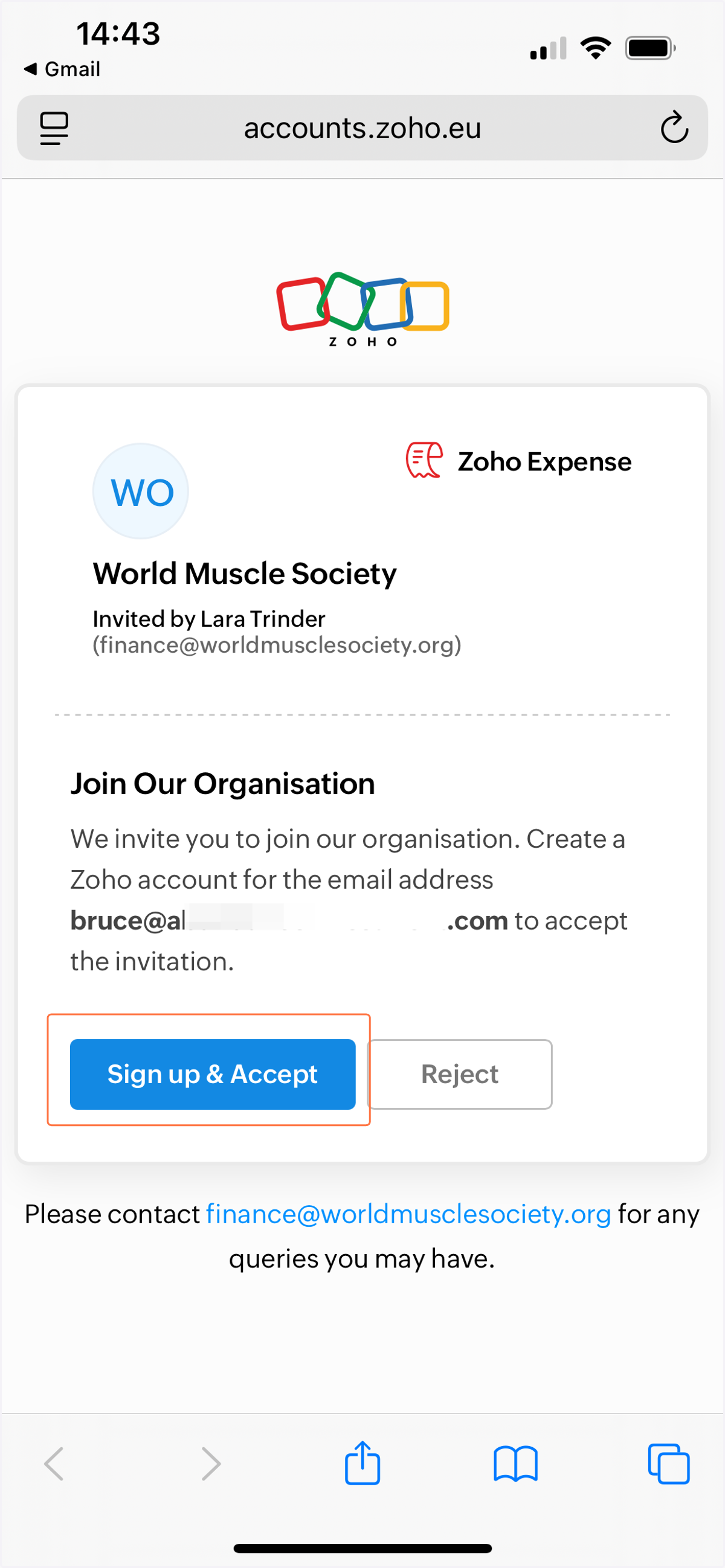
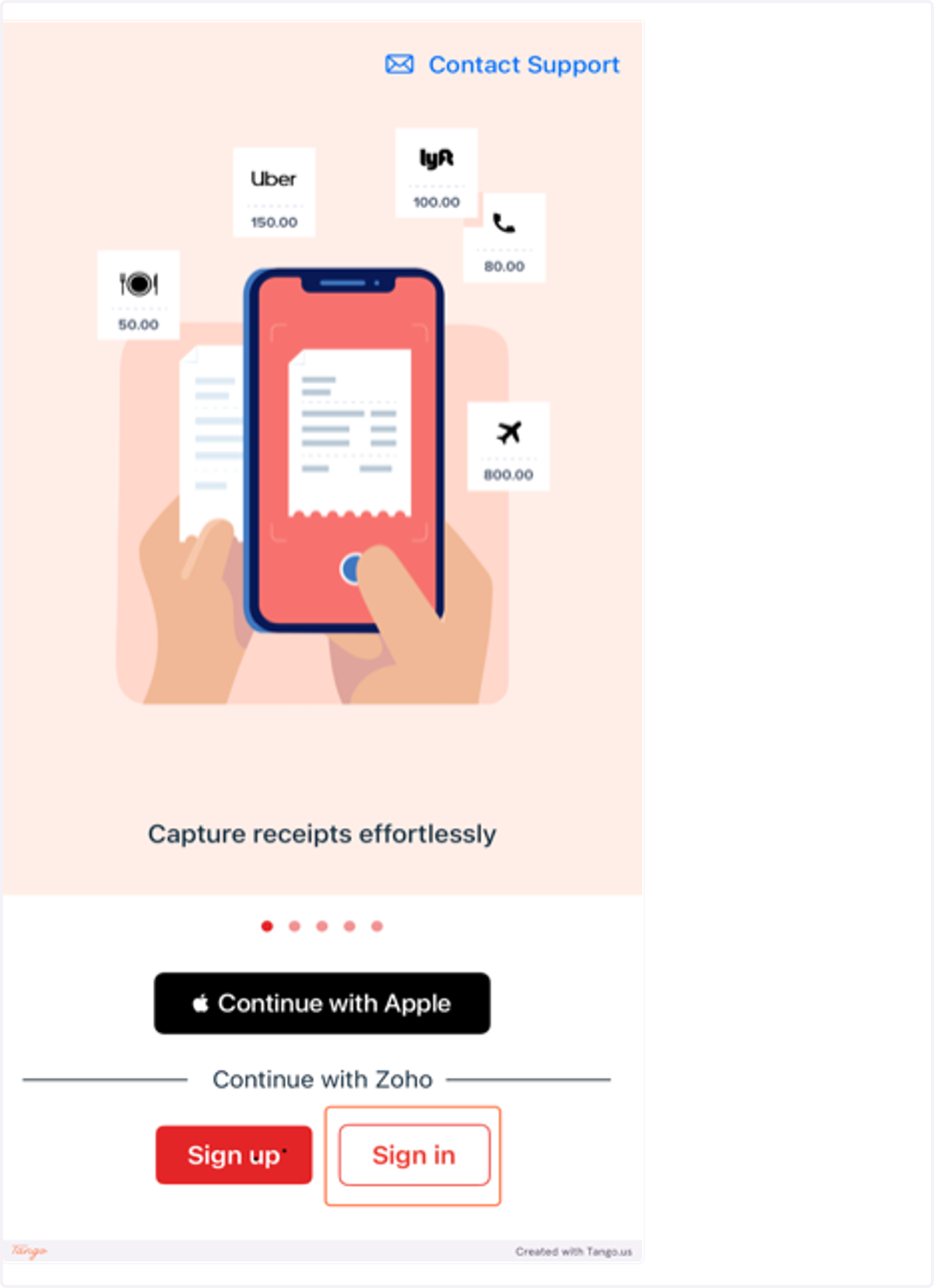
2. Click sign up and accept on the Welcome Page (orange box highlights main action for each step).
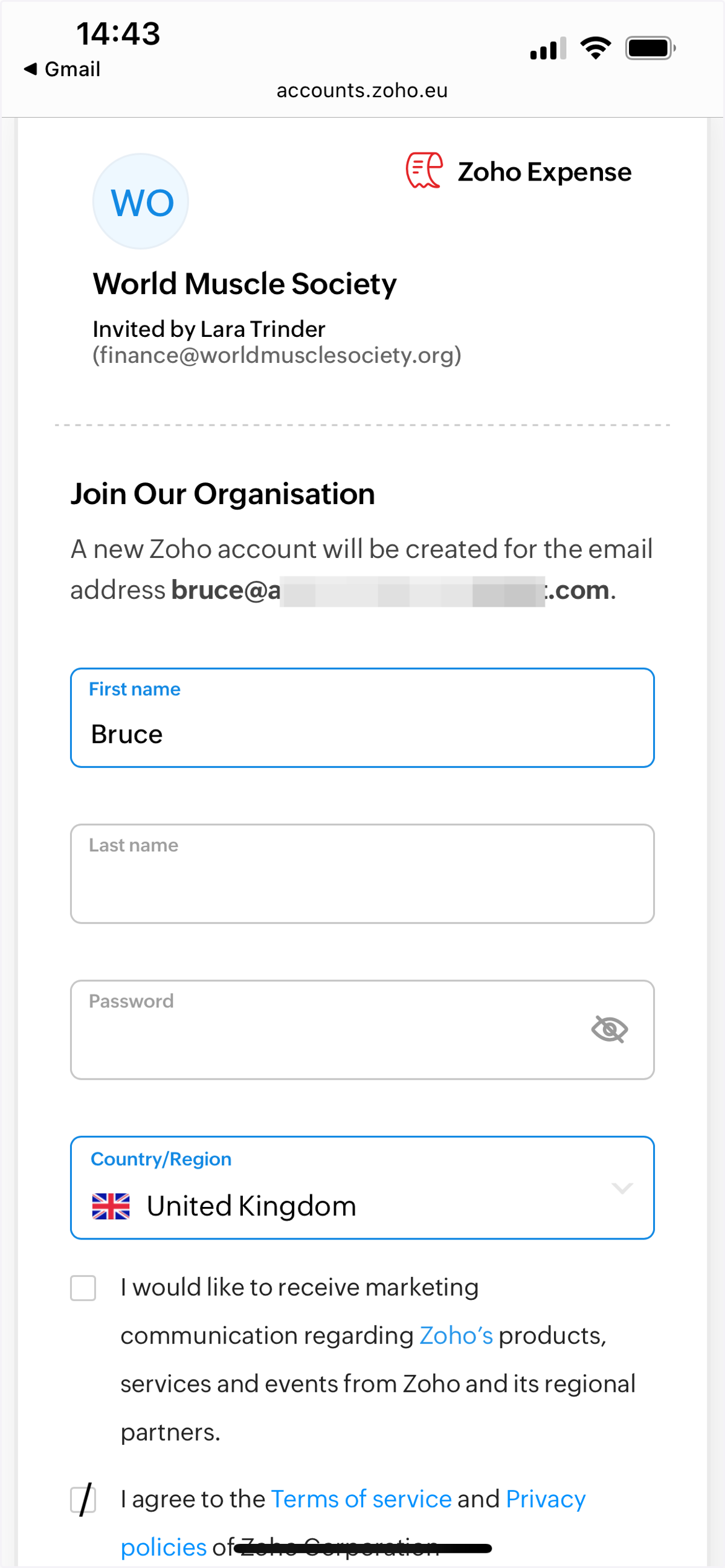
3. Fill in your first (given) name and last (family) name and create a secure password.
Select the country in which you are located.
Agree to the terms of service.
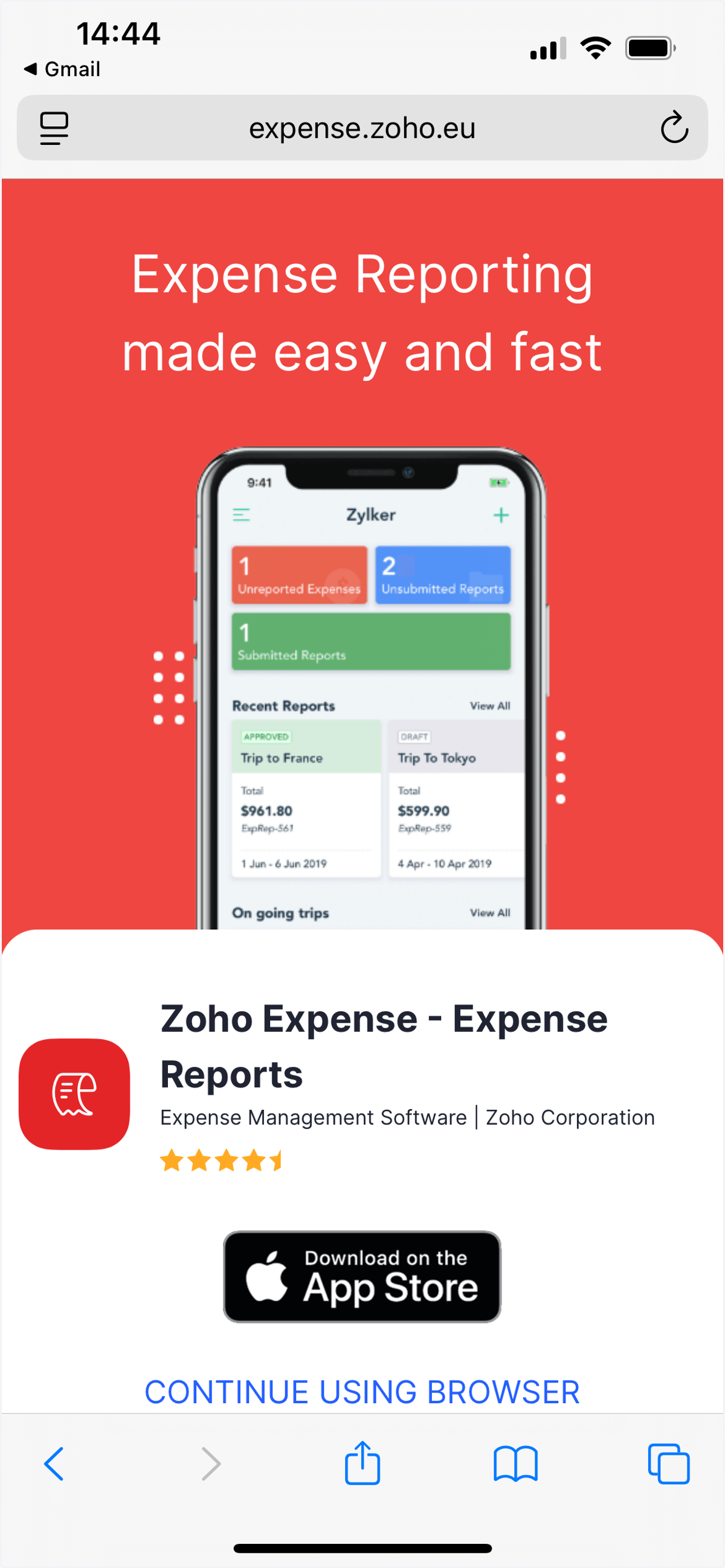
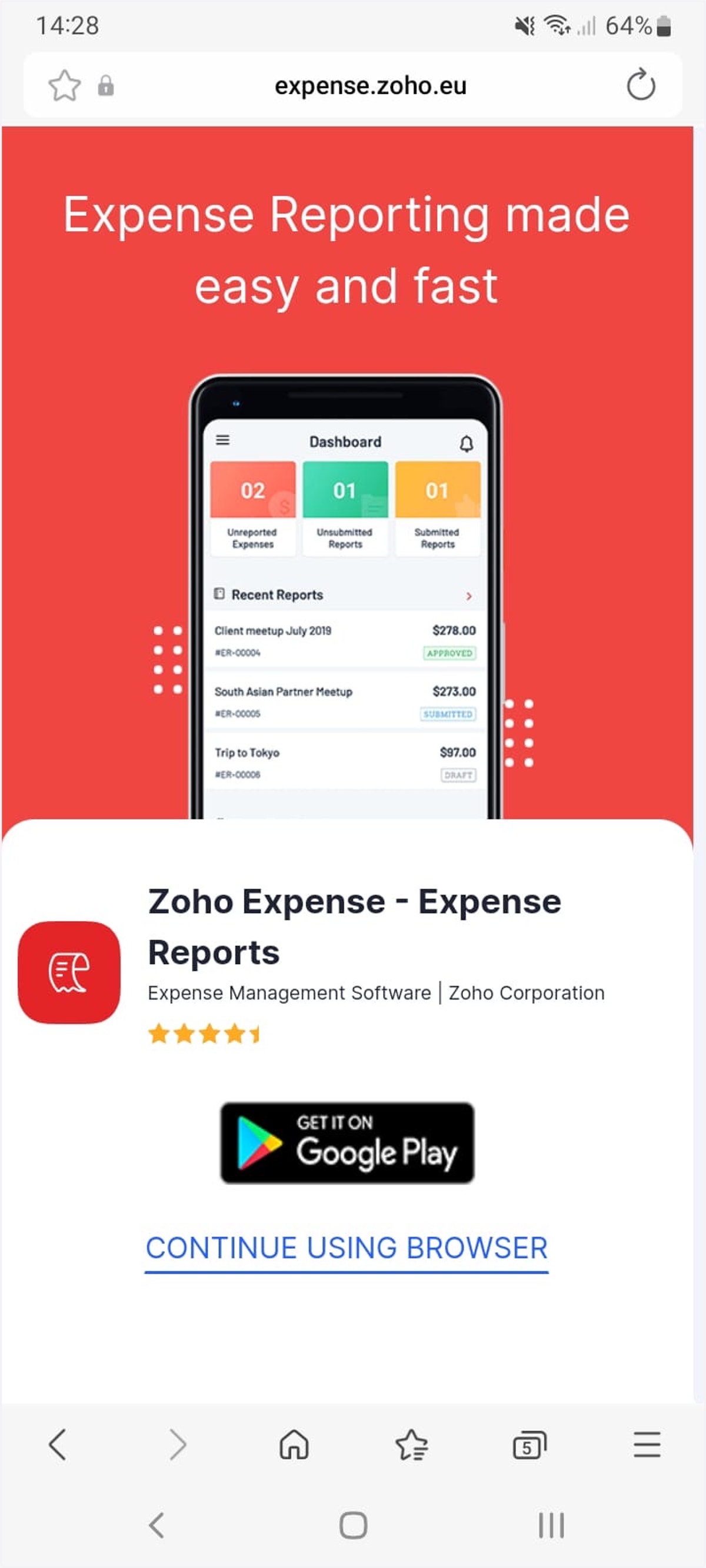
4. We recommend downloading the Zoho Expense app from your device app store. Allow the app to send you notifications so that you can receive updates about your claim.
5. Sign in to your account using your email and the password you created.
6. Zoho Expense is also available in Google Play.
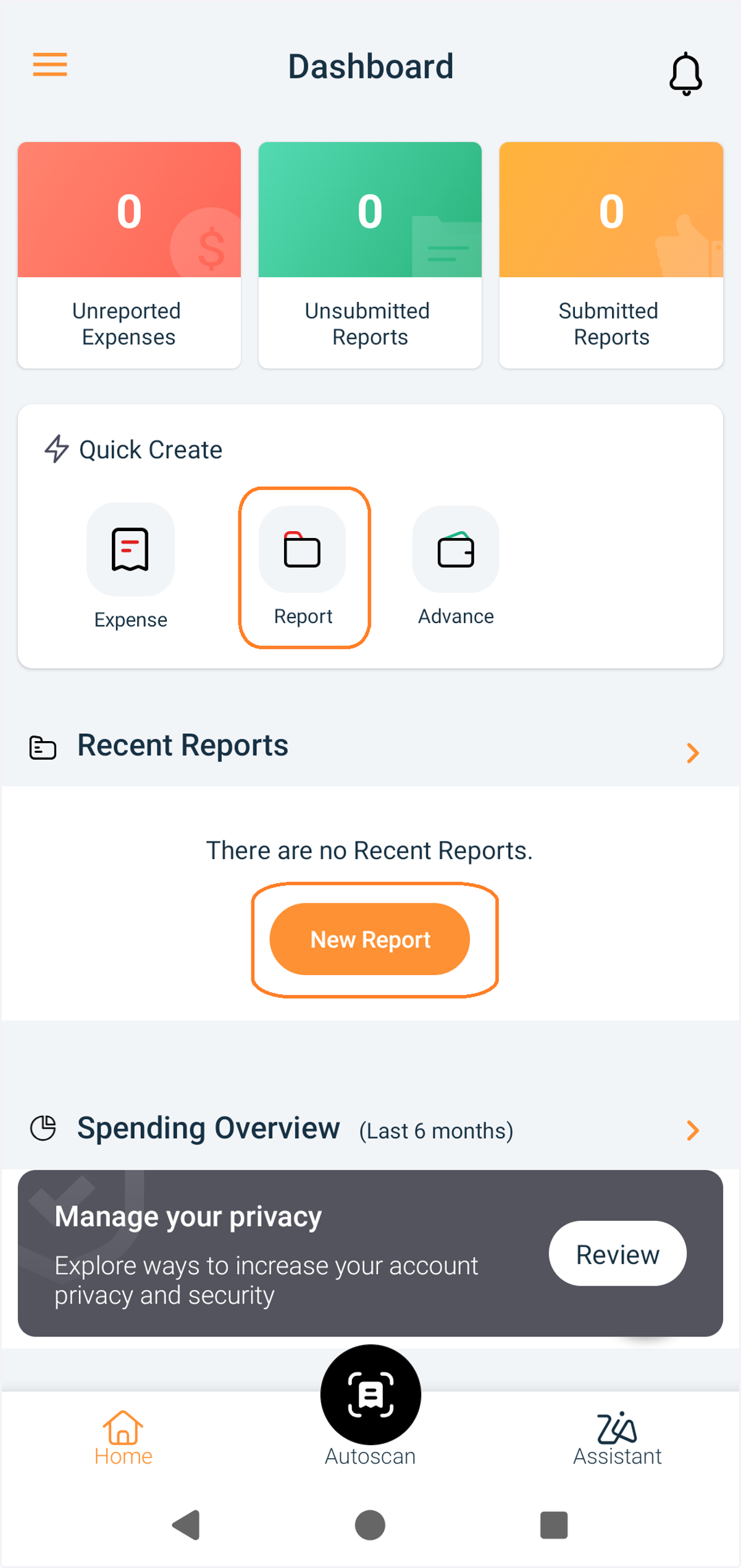
7. At the dashboard screen choose new report or quick create a report
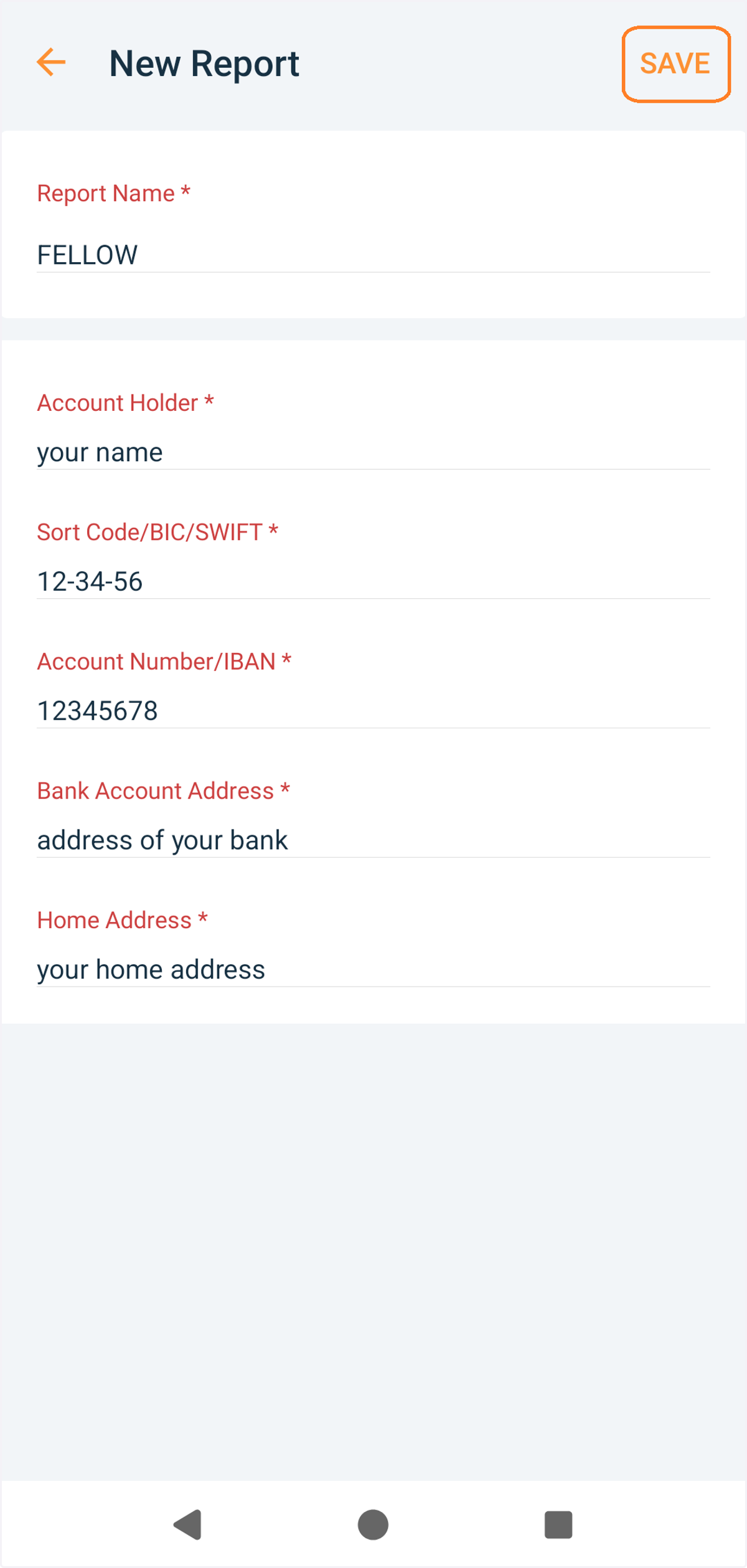
8. Name your report FELLOW. Add your bank details and save the report.
Submitting your expenses.
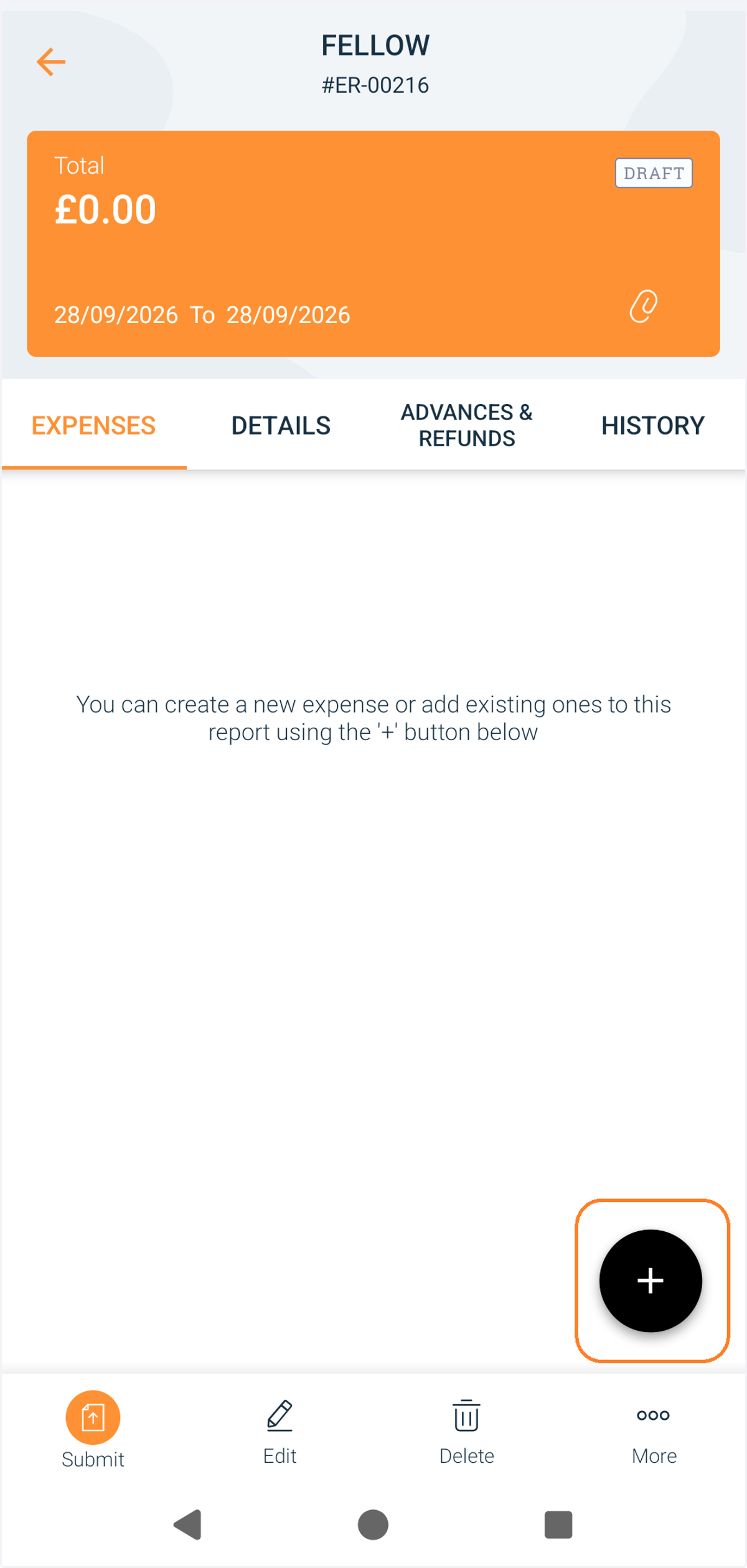
9. Open the report and press the + symbol to add expense. All expenses must be accompanied by a photograph of the receipt.
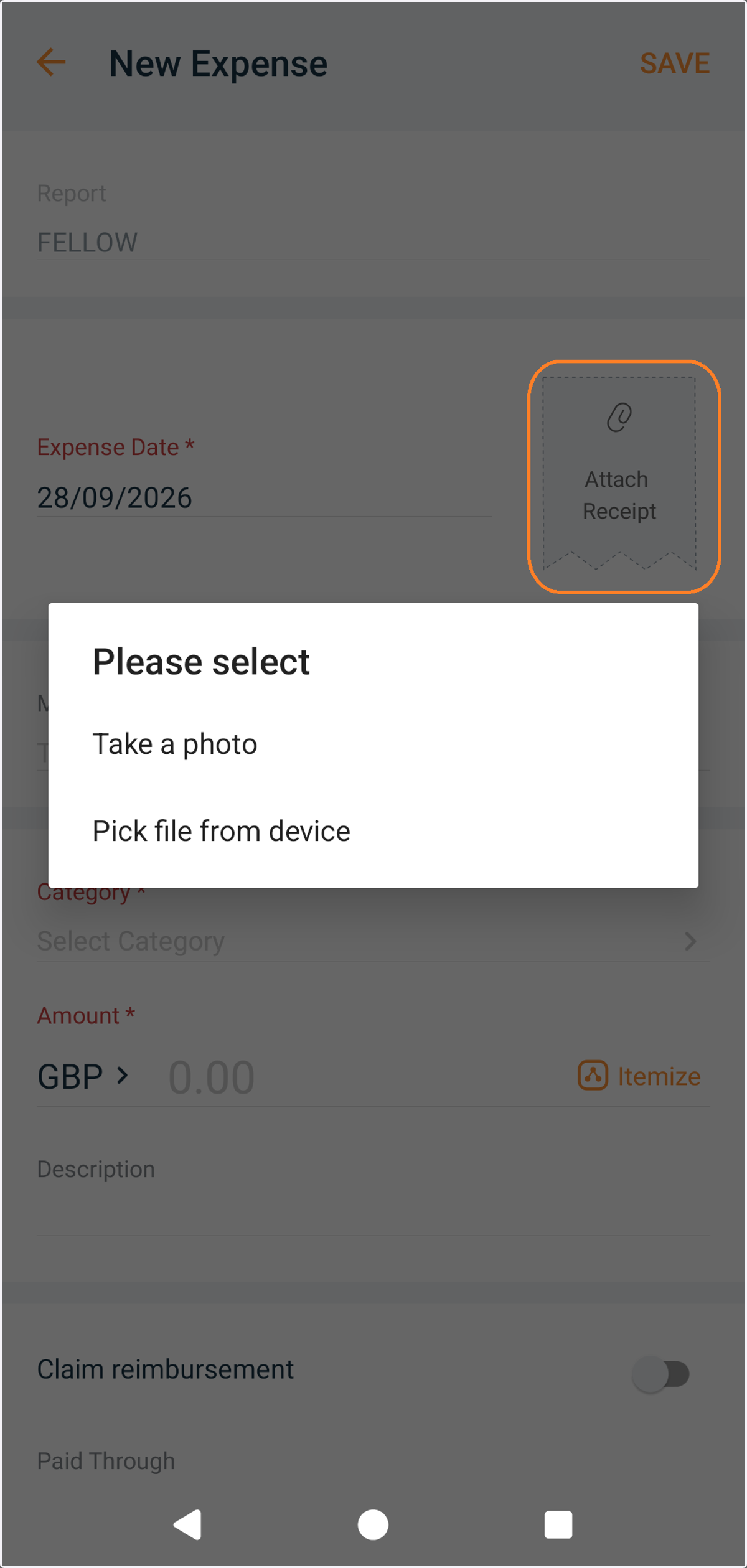
10. Choose attach receipt (give permission to access camera) and take a photo or pick a file from your device.
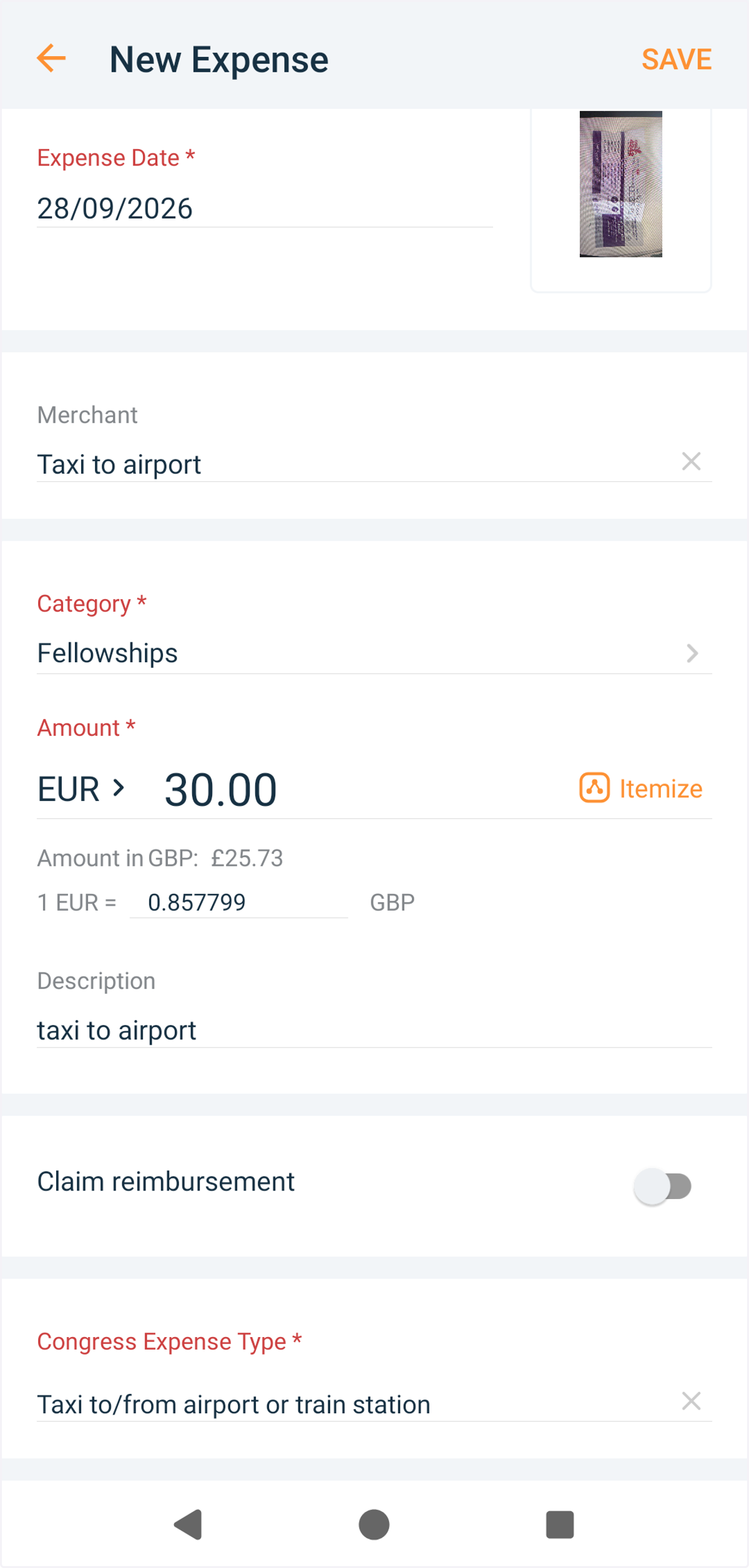
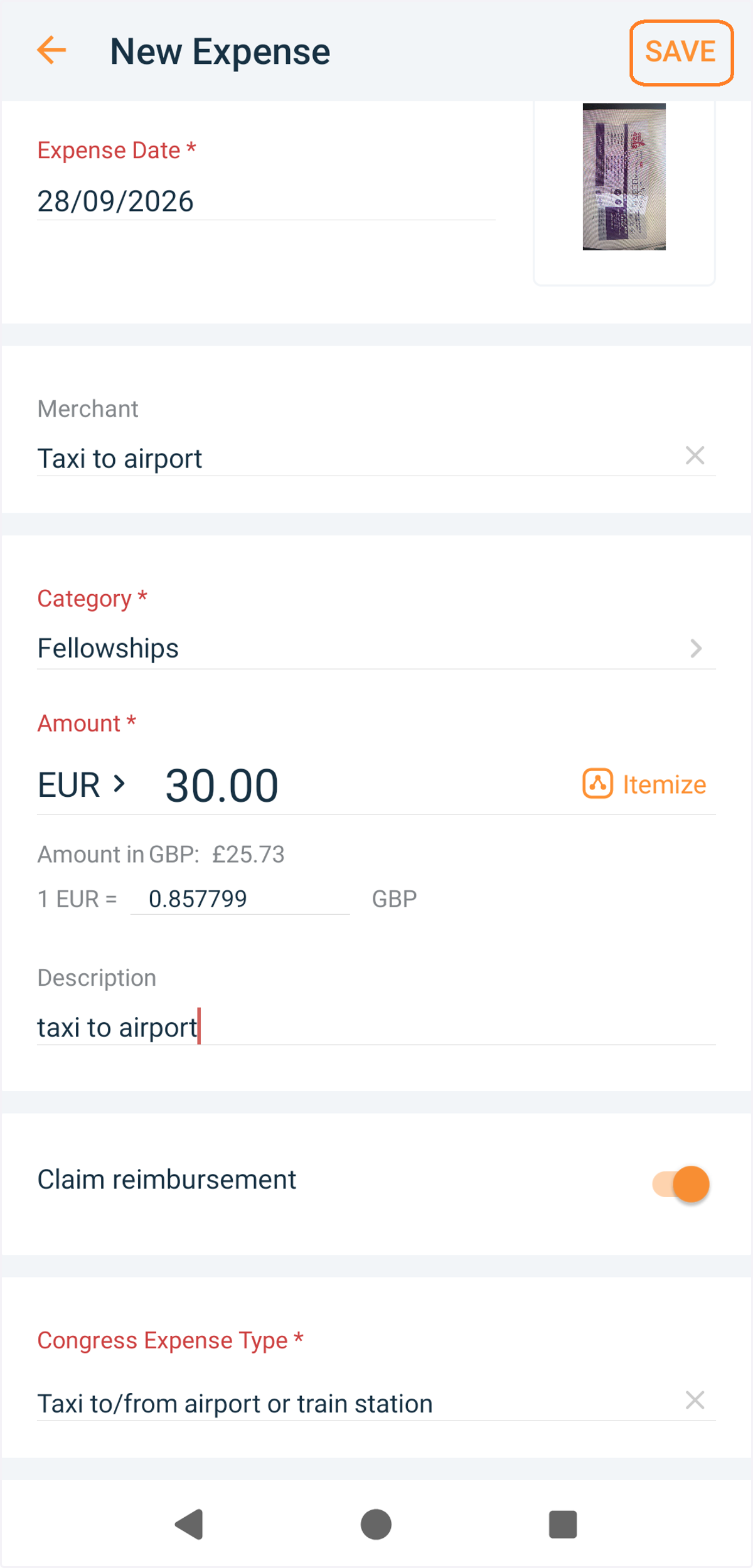
11. Edit your expense details. Add the date of the expense, the merchant, the currency the expense was incurred in, the amount and the type of expense you are claiming for.
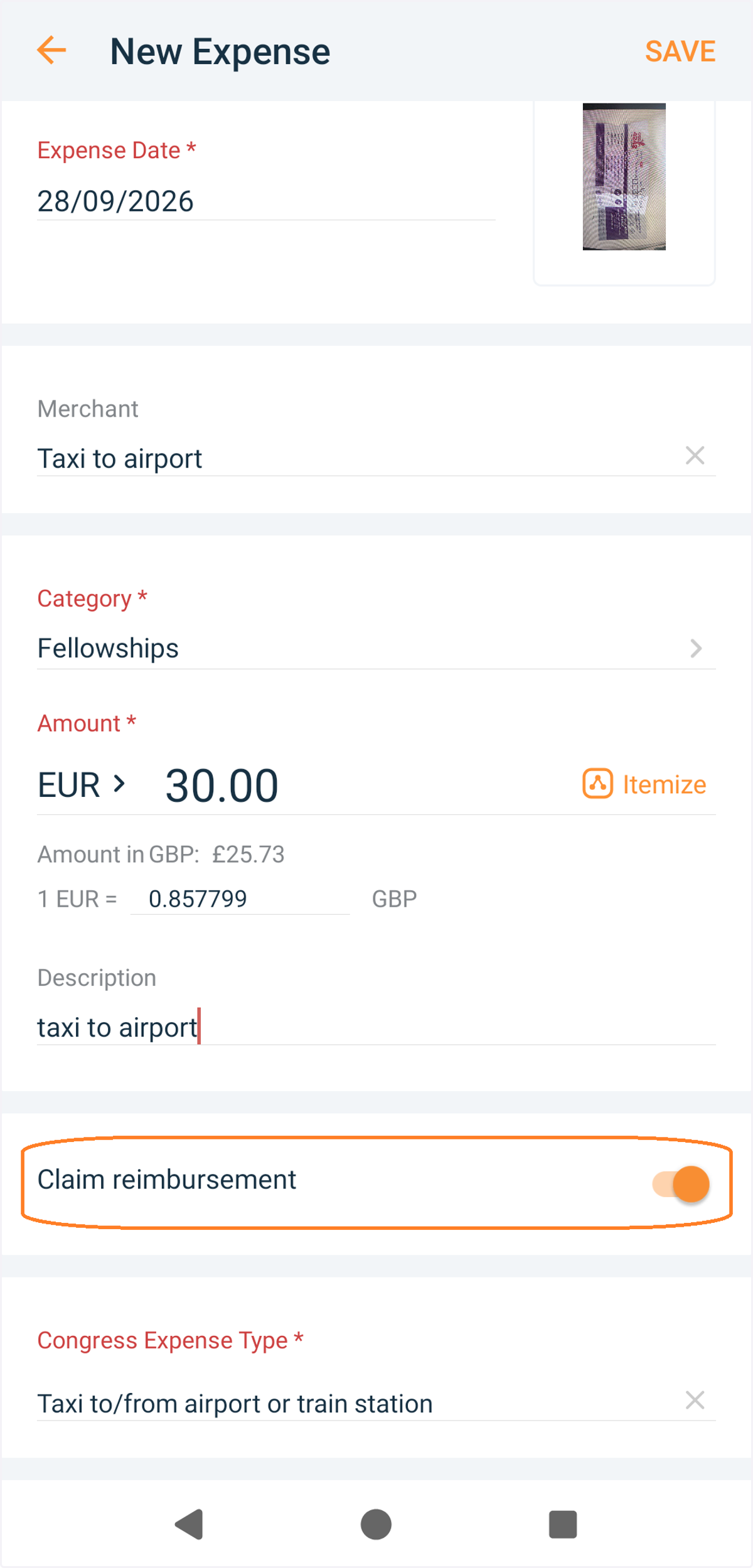
12. Ensure that the 'claim reimbursement' toggle is switched on.
13. Press save expense.
14. Repeat steps 9 to 13 until all receipts are added to the report.
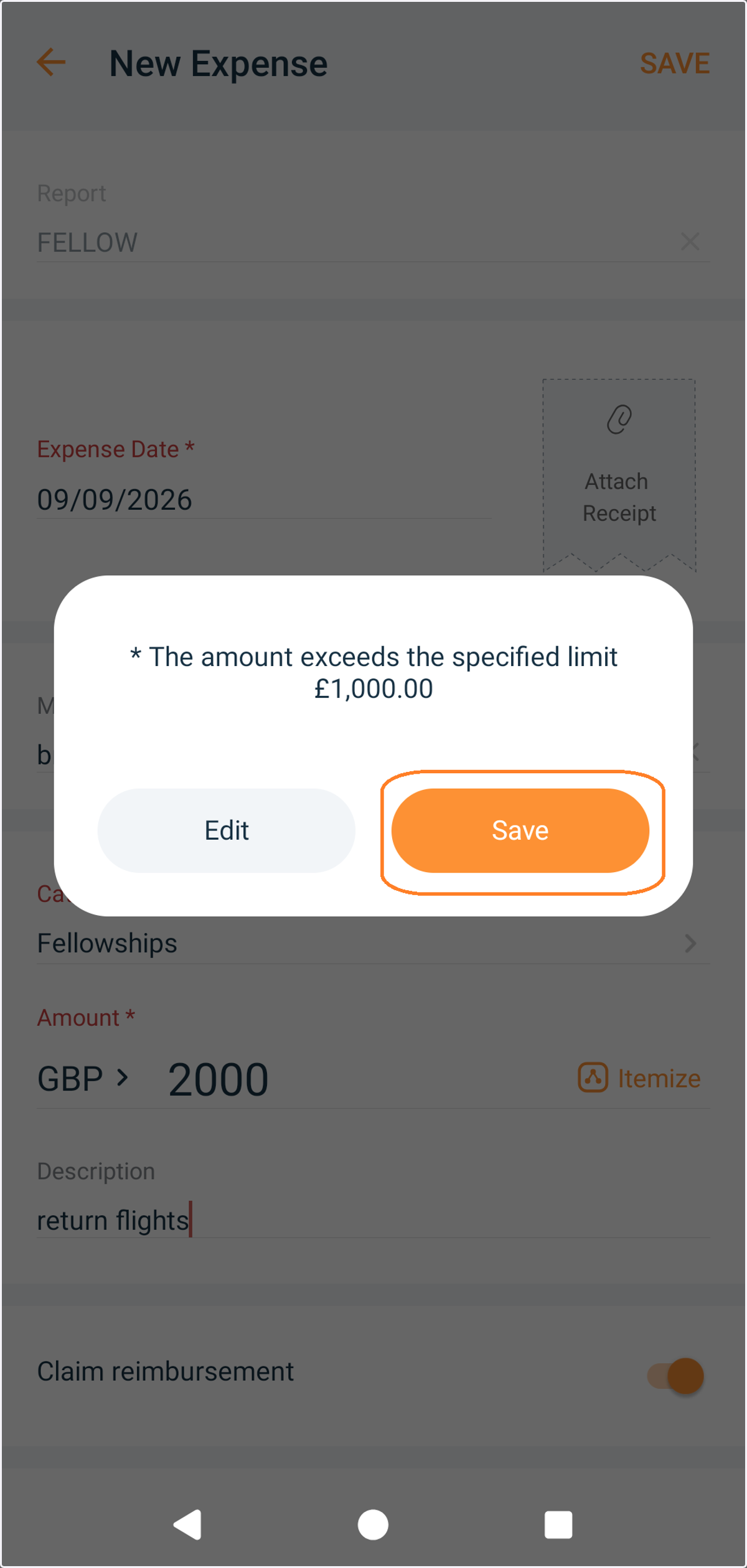
15. If the total value of your expenses exceeds the amount of the fellowship grant you have been awarded you will receive a warning violation (see below). Save the expense. You can continue to add expenses but you will only be reimbursed the agreed amount.
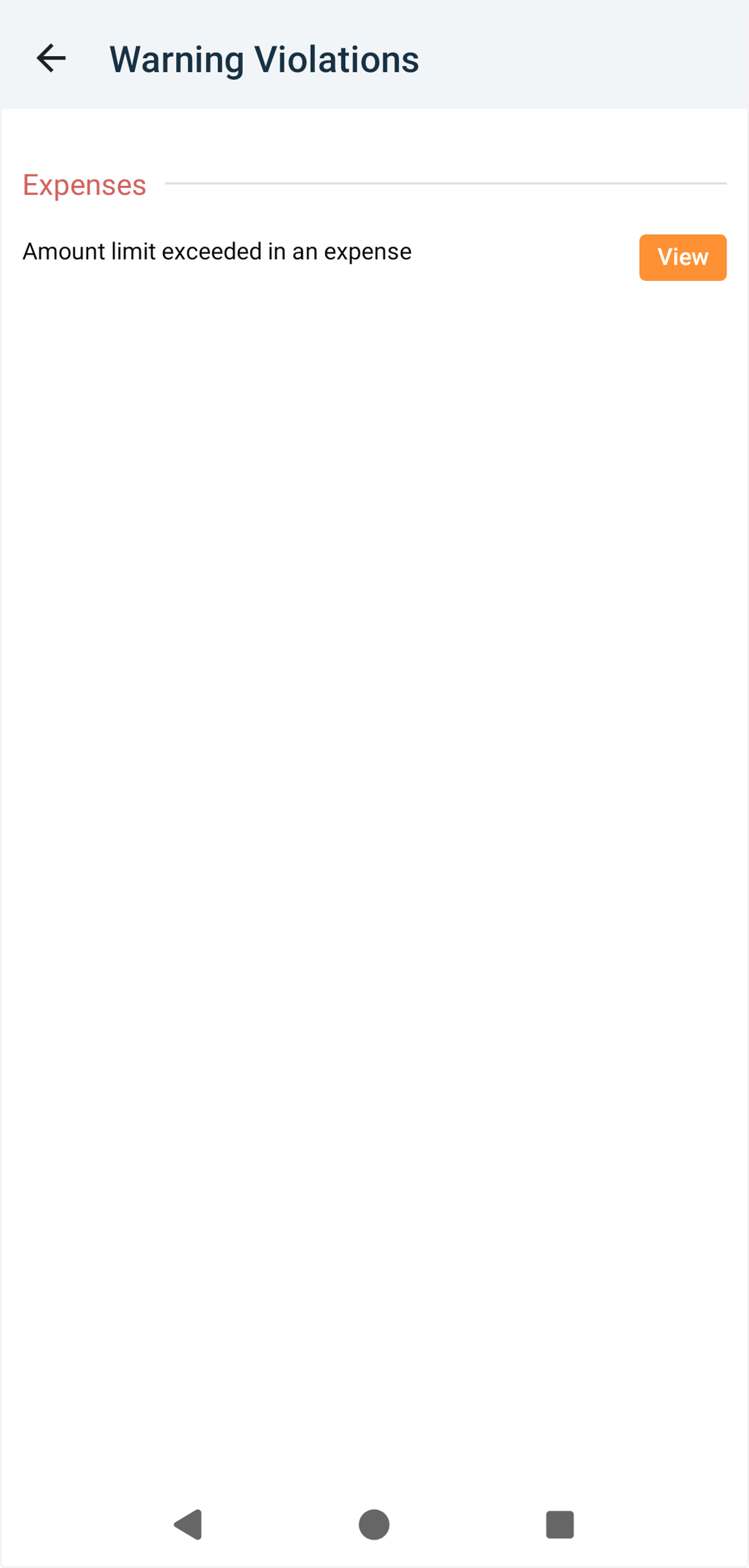
16. If you choose to view the warning violation you will see more details.
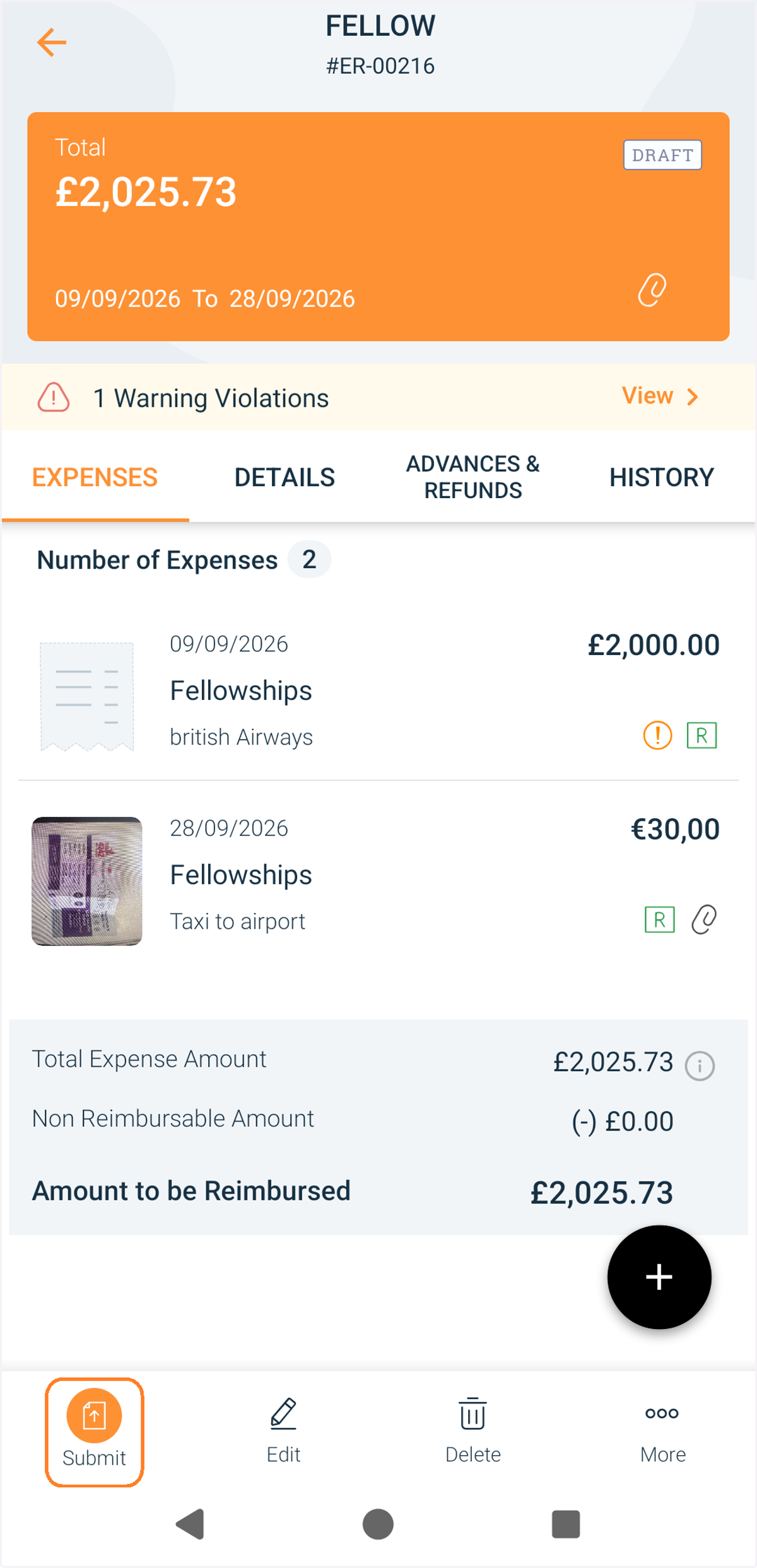
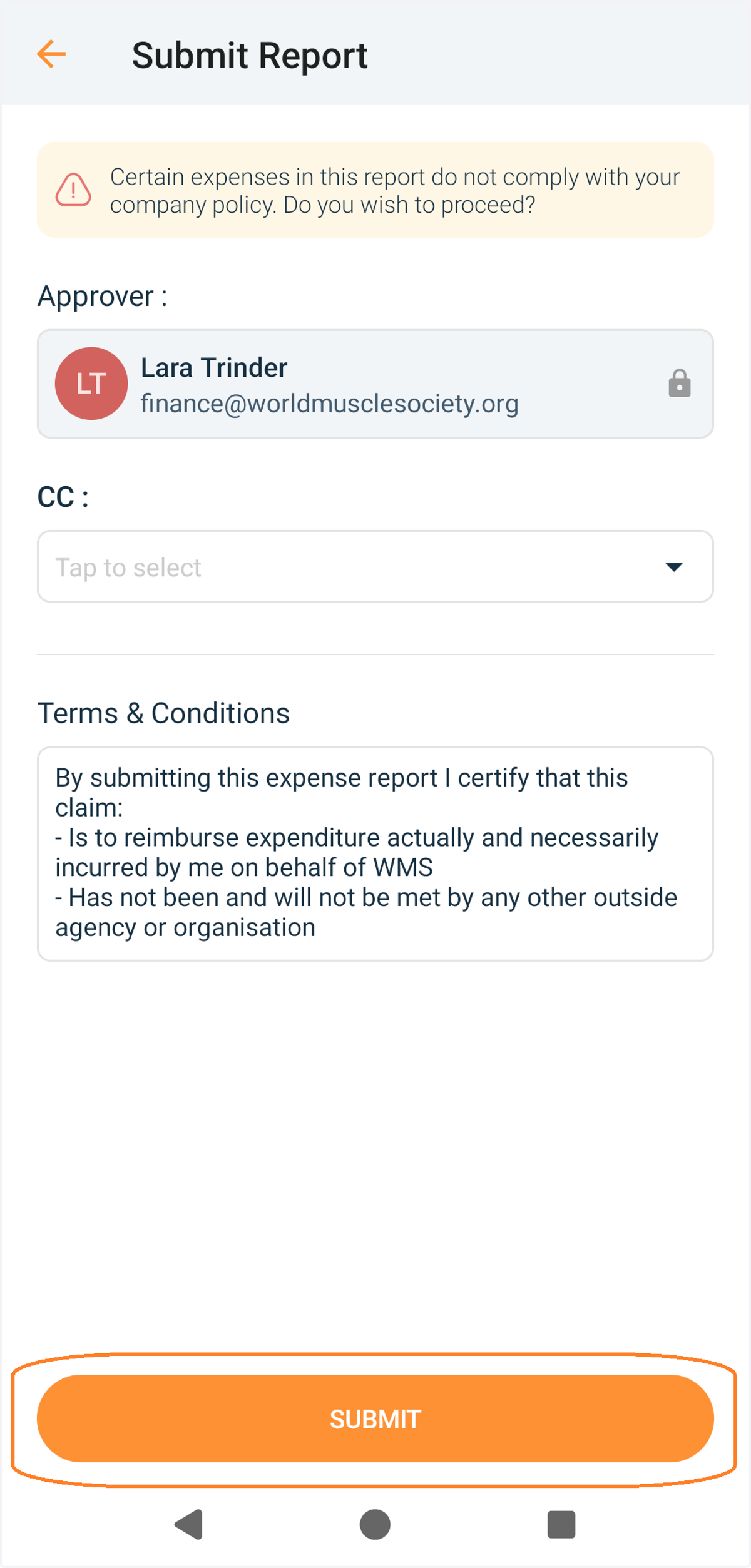
17. When you have added all your expenses. You can submit your report. Note that the amount to be reimbursed may be more than you will receive if you have exceeded your grant limit.
18. By submitting the report you agree to the terms and conditions in the email. If the total value of your expenses exceeds the amount of your grant you will receive the message below. Submit the report but you will only be reimbursed up to the value of the grant.
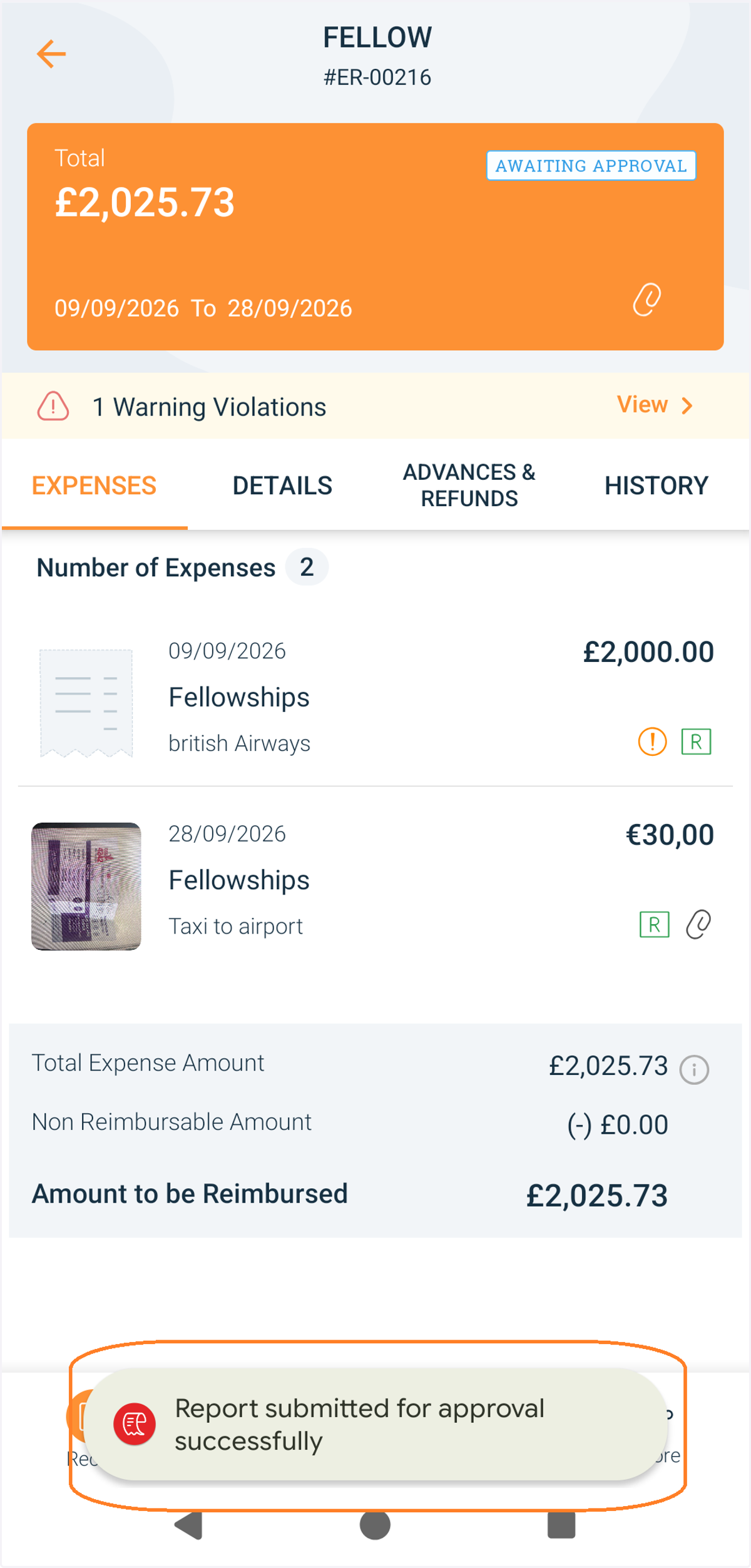
19. You will receive a notification that your report has been successfully submitted.
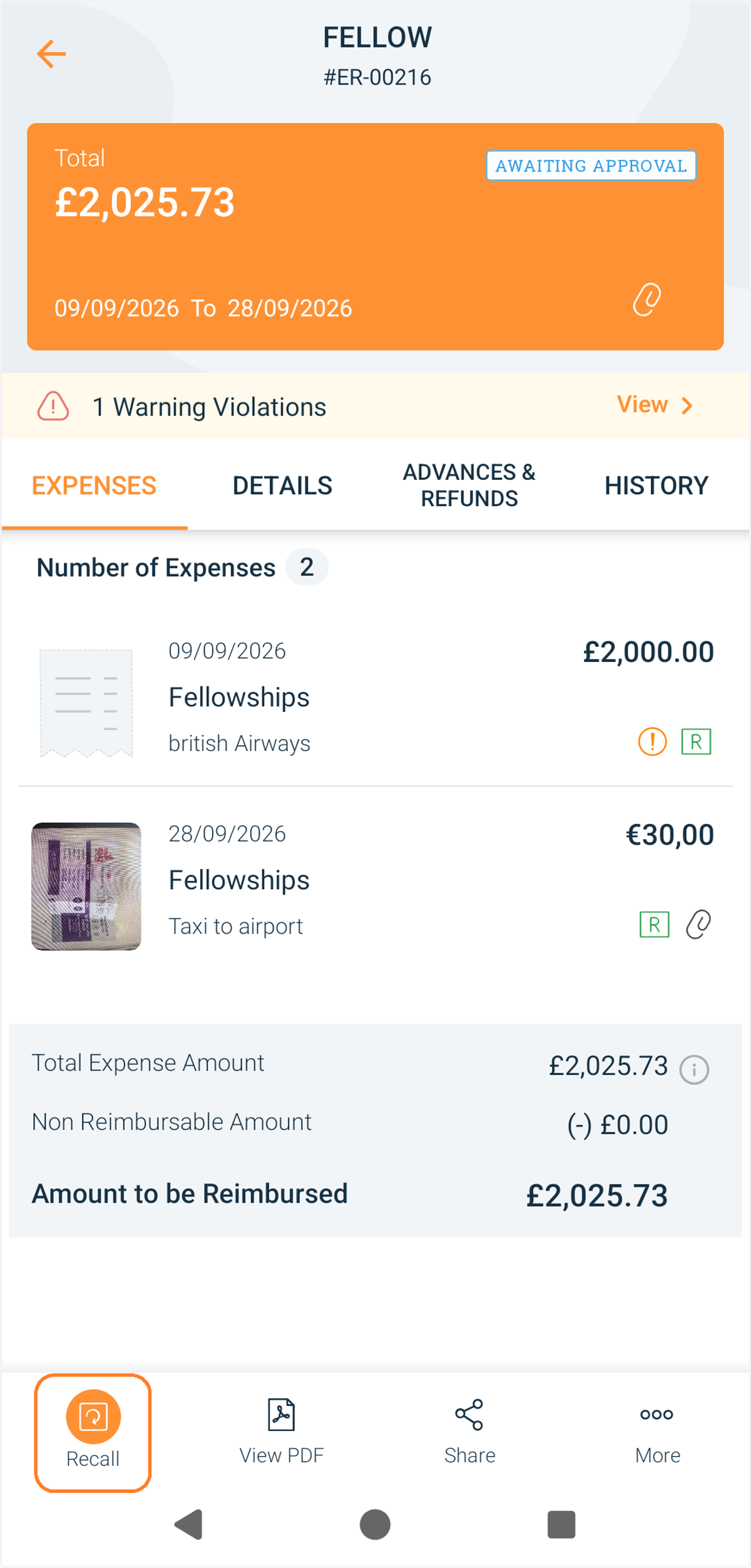
20. You can recall and amend your report at any point before it is approved by pressing the recall button.
Tracking your claim.
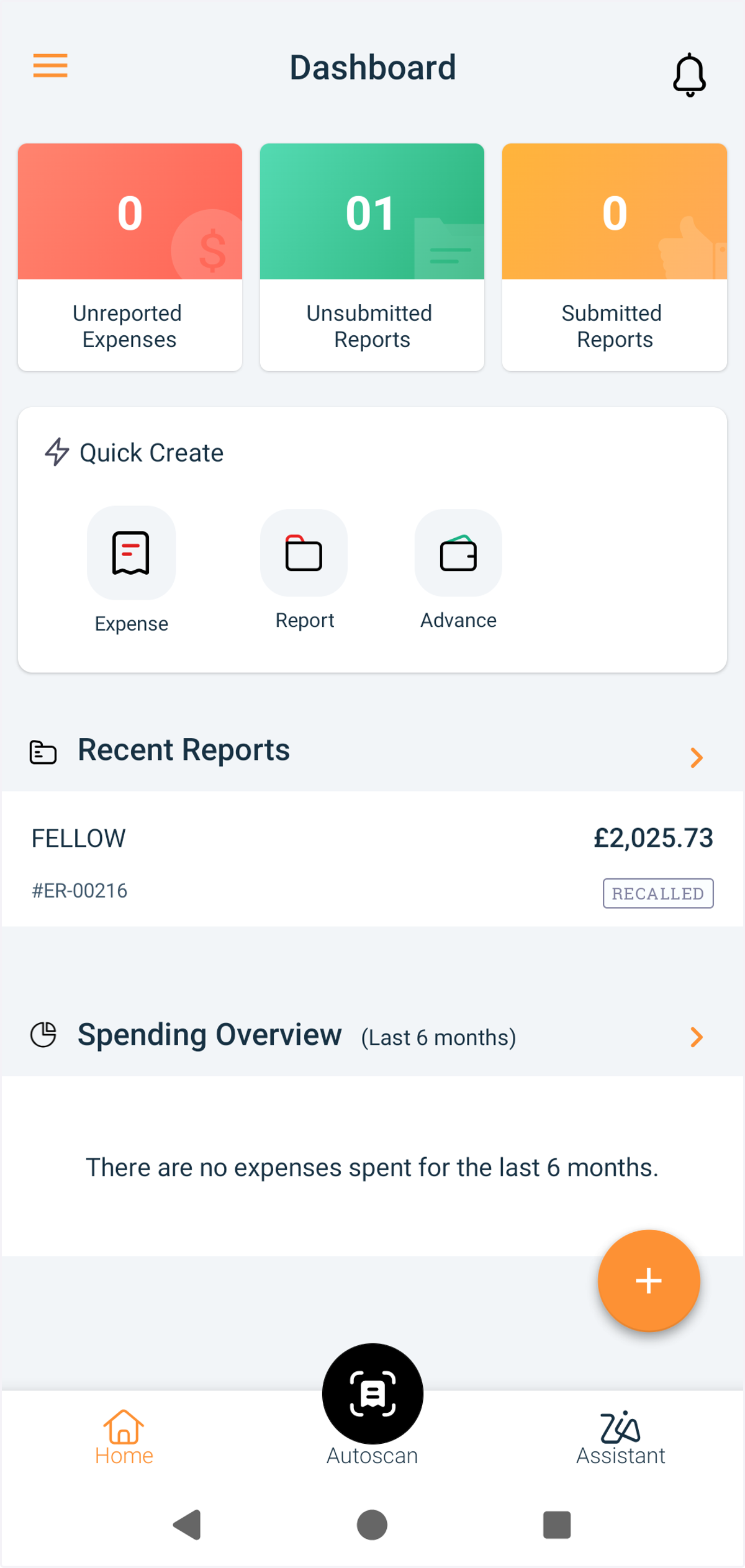
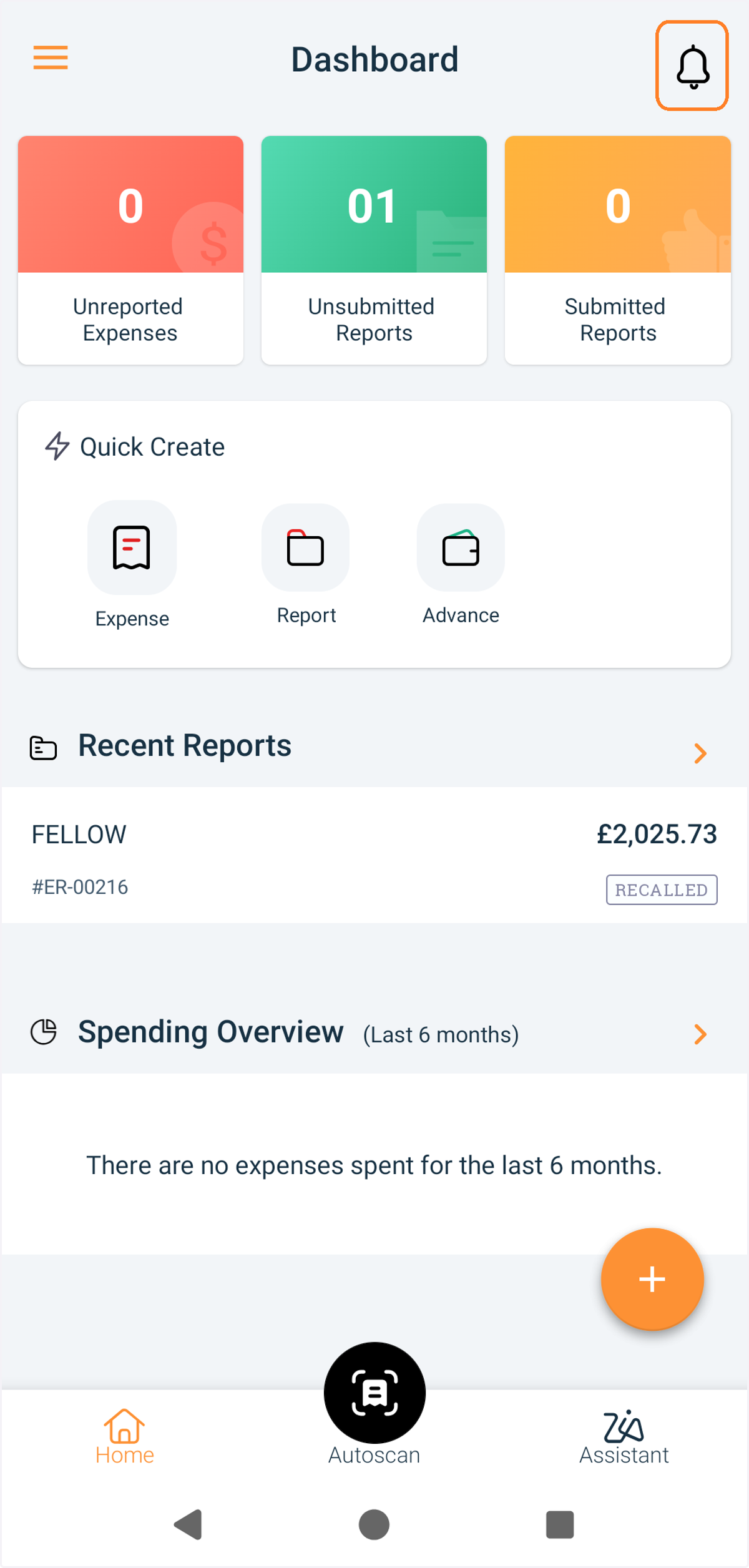
21. Once submitted you will be able to view your report in the home page.
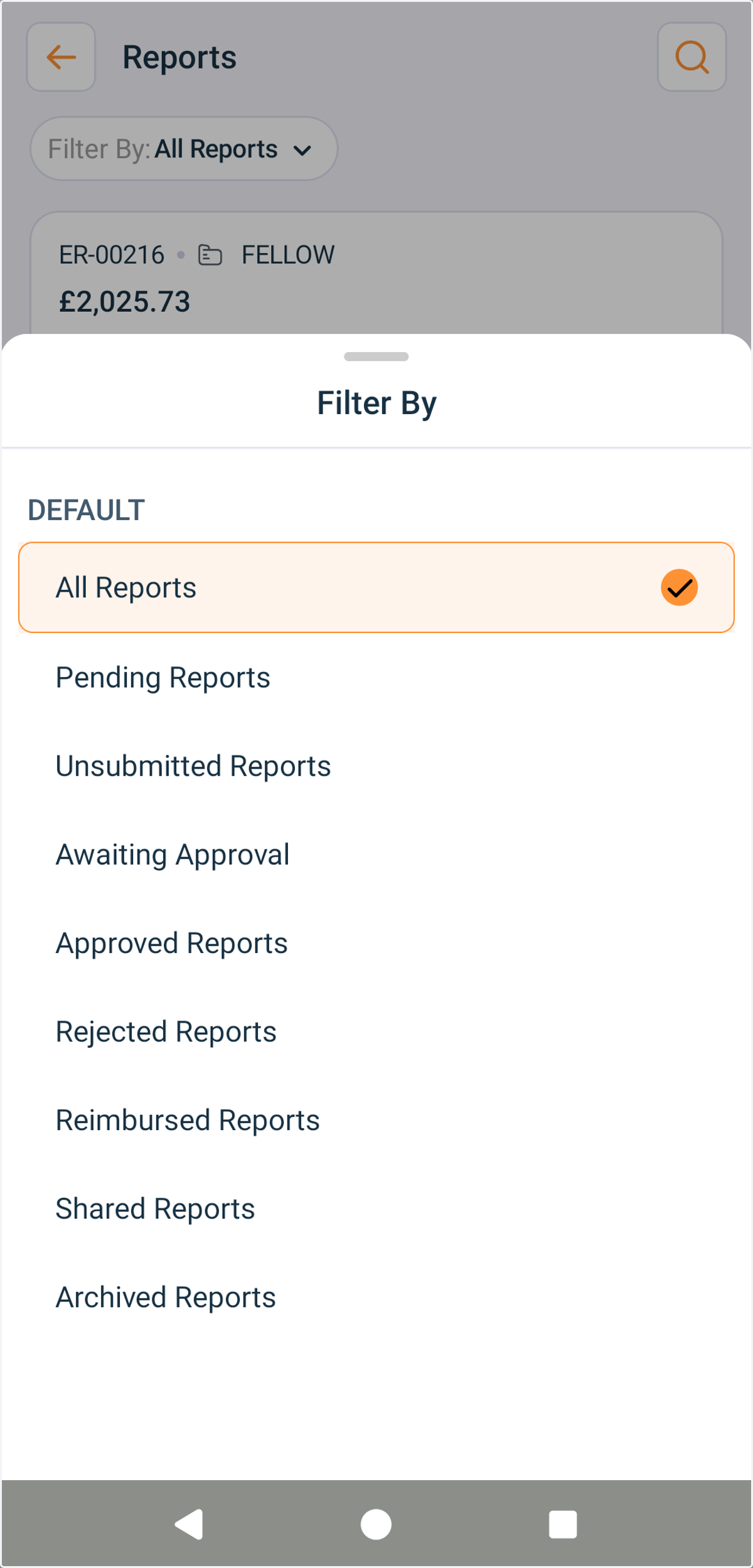
22. If you are not able to see your report make sure that your filter is set to view 'All Reports'.
23. You can press the bell icon to see status of report.
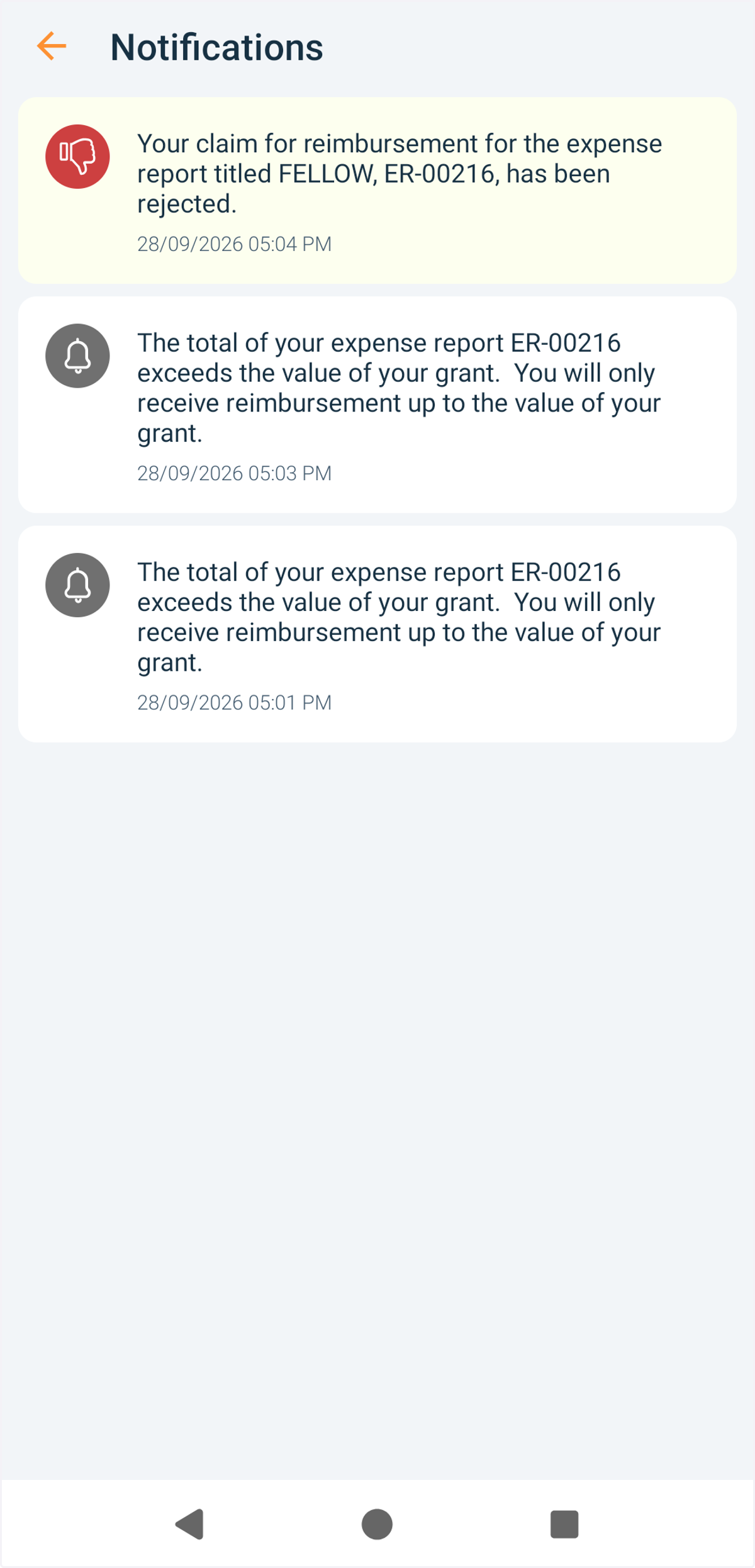
24. The app will notify you about updates on the status of report.
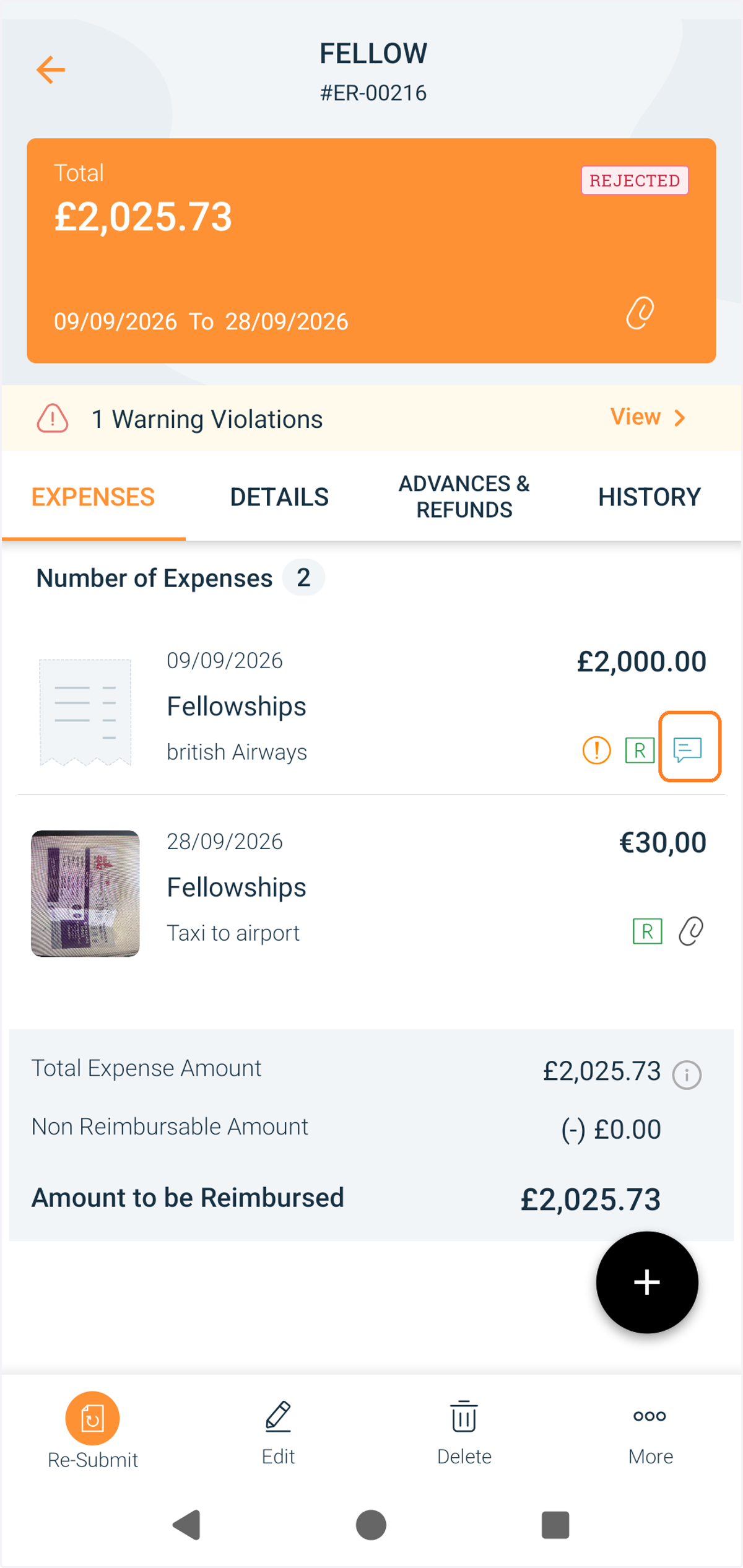
25. Press comment icon to see comments about a specific expense.
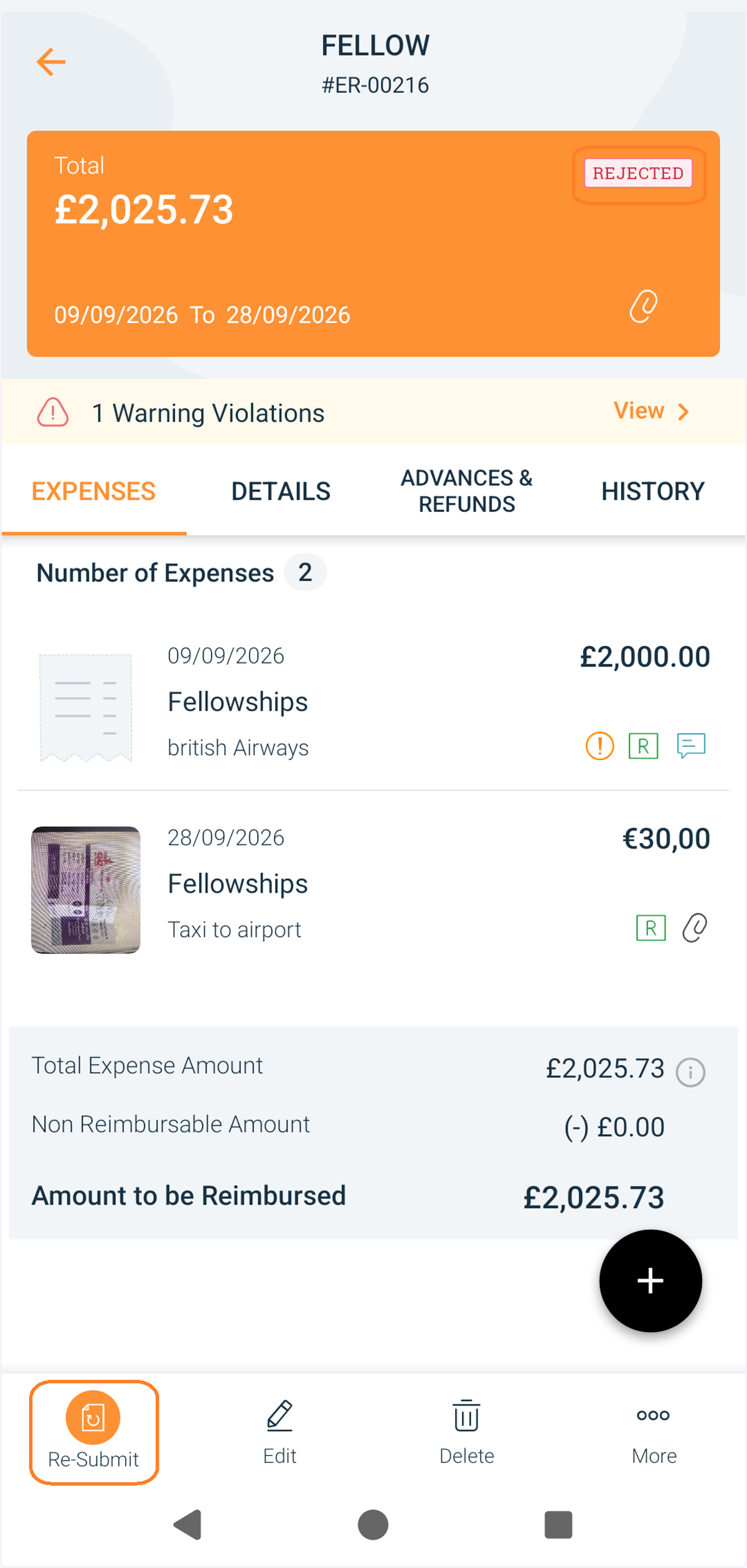
26. If your report is rejected you should review the rejection comment, correct the issue and resubmit report for approval.
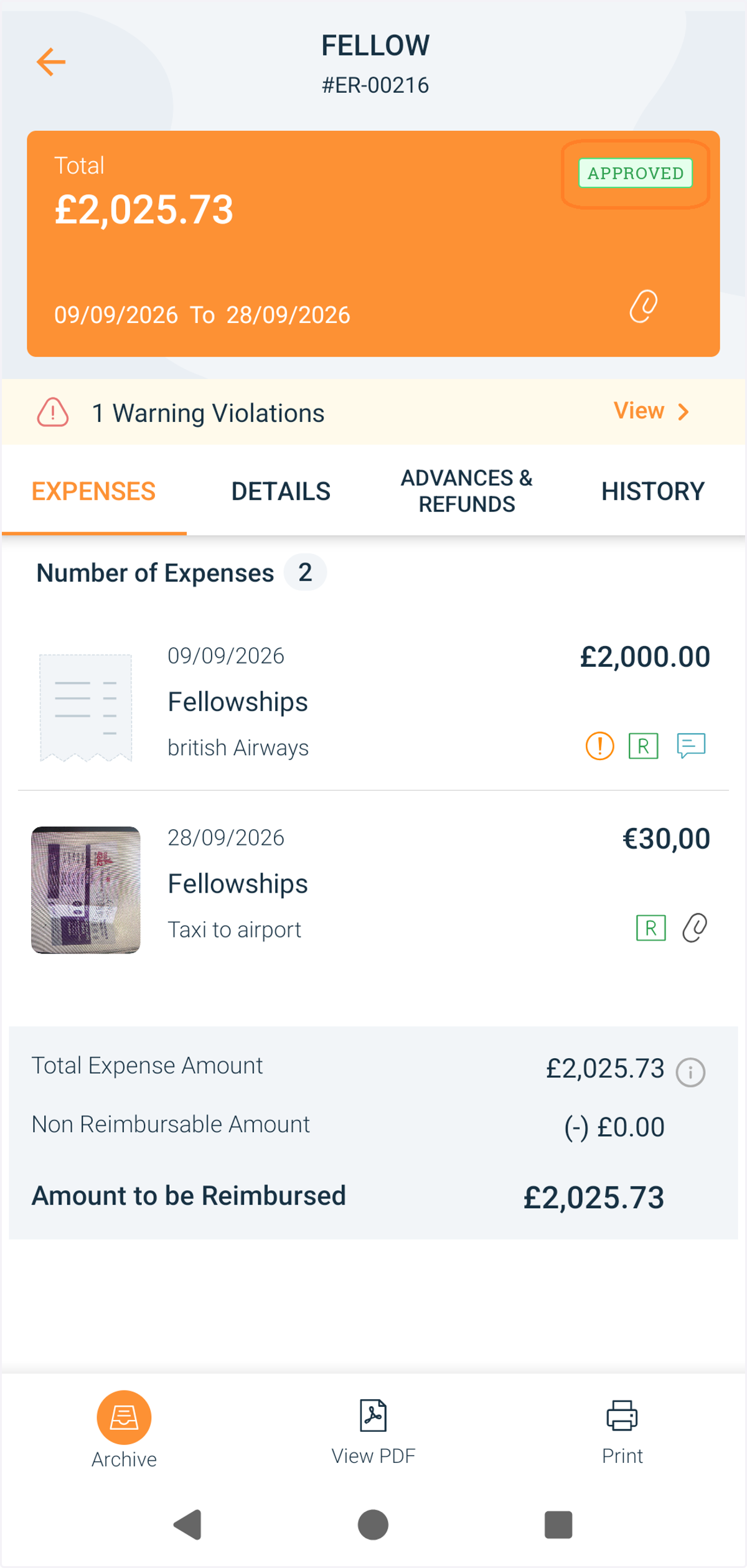
27. If your report is approved you will also be notified.