Creating a MegaEdit product
In this tutorial, we will discover how to create a MegaEdit type product, ready for the input of additional detail.
MegaEdit is our flagship editor for document editing as well as the creation of photo-gifting products such as Photo-books, Calendars, Corporate Gifts etc. It's intuitive user-interface and editing options allow end users to personalise documents with ease.
The process of creating a MegaEdit product involves the initial creation of a standard Stock product and then modifying the product type.
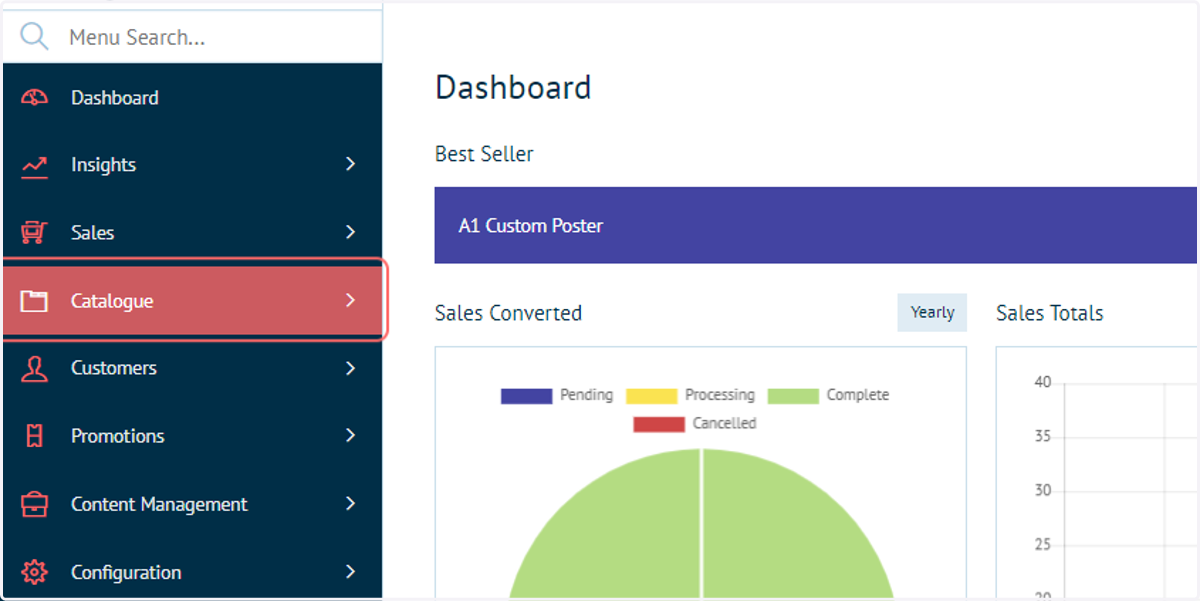
1. Click on Catalogue
To begin, we will create a standard Stock product.
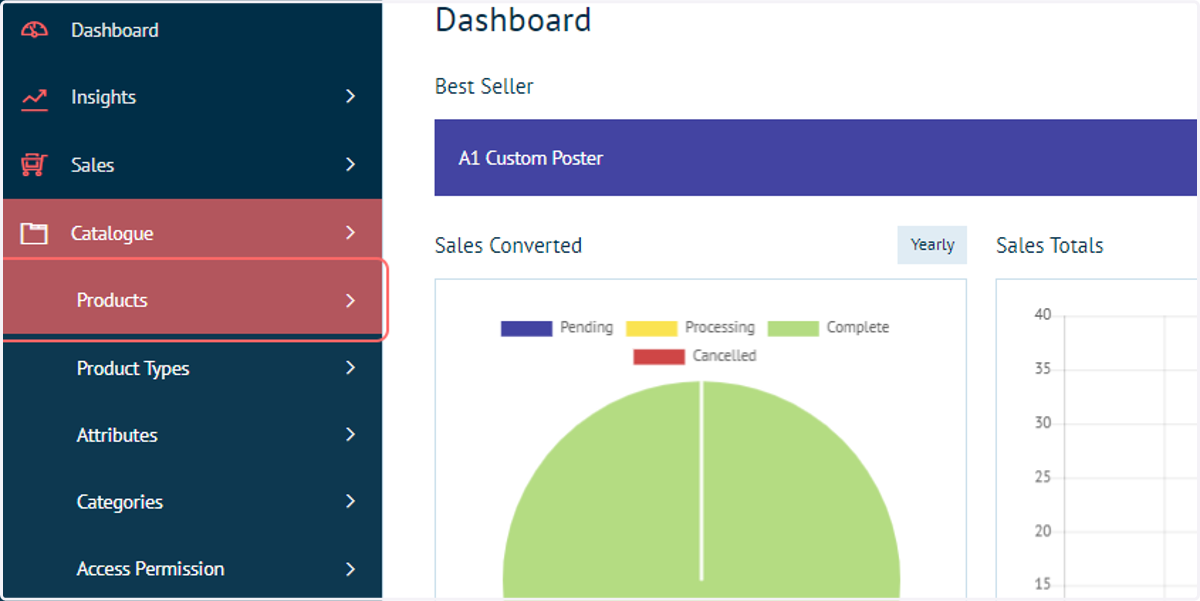
2. Click on Products
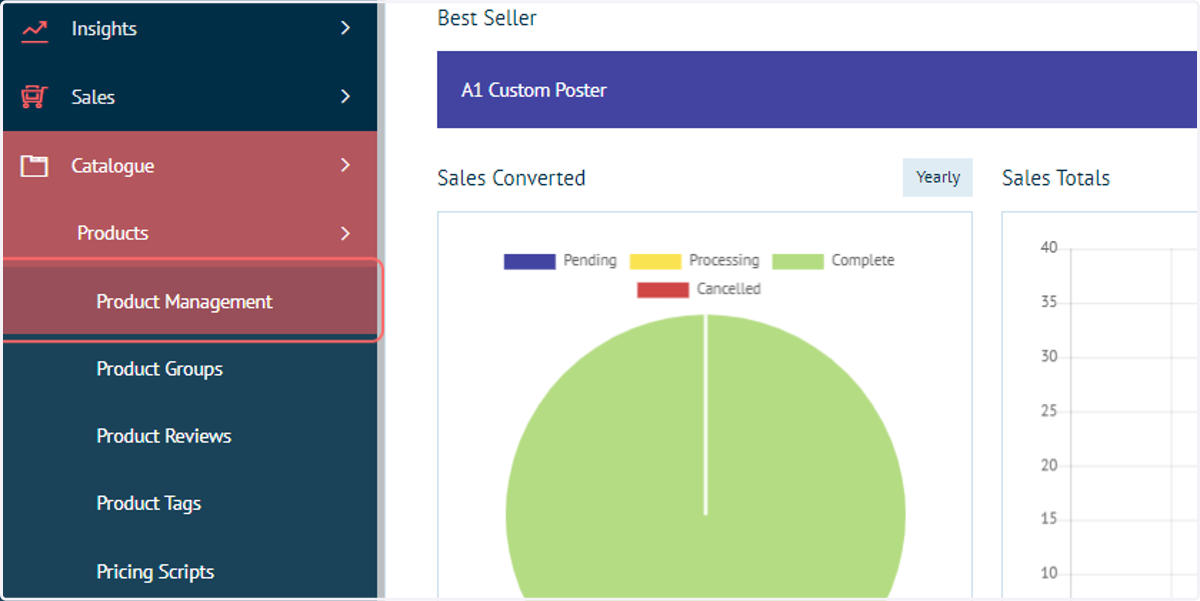
3. Click on Product Management
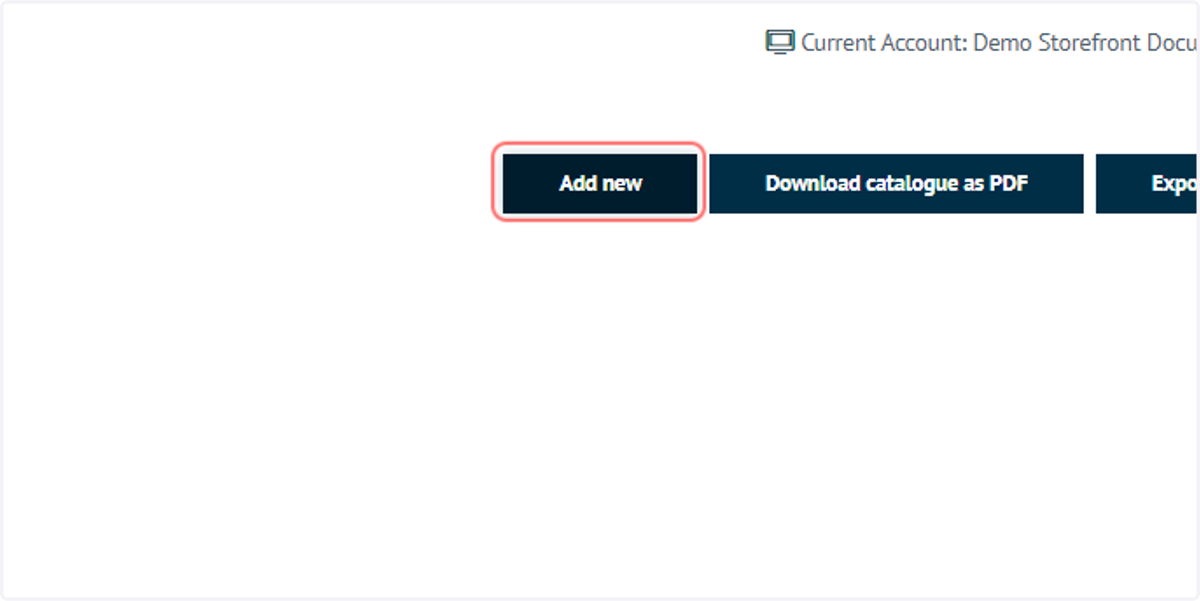
4. Click on Add new
Once on the Product Management screen, where we can see a list of all products on our storefront, we will identify or create a new product we intend to convert to a MegaEdit product.
In this example, we will create a new Stock product.
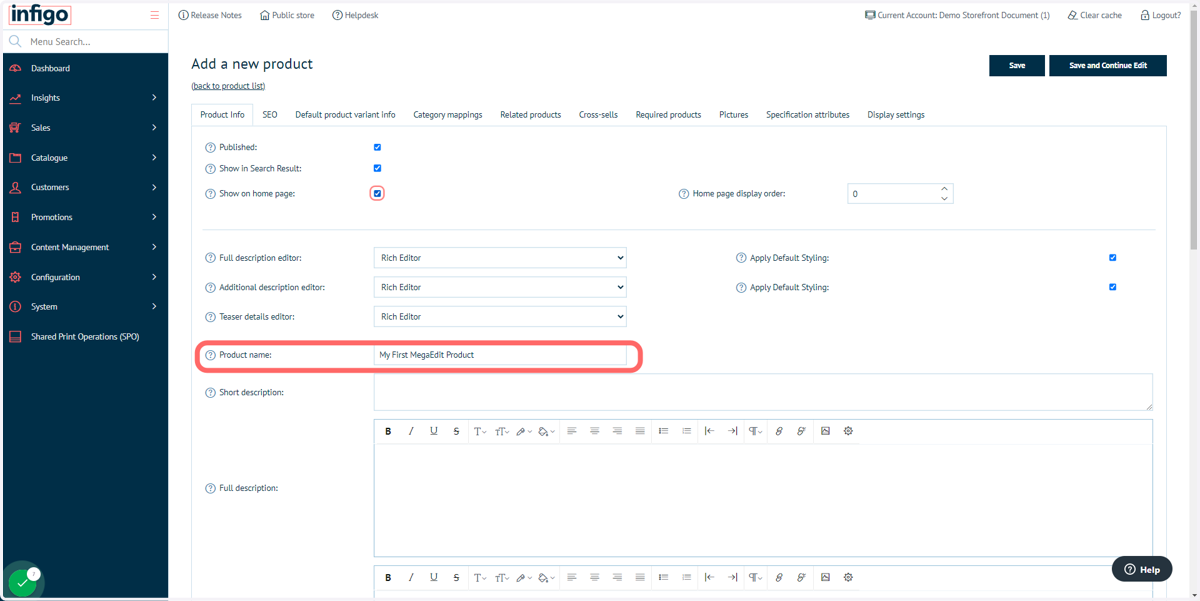
5. Add some product details
Much of the specification options available for a Stock product are also applicable for MegaEdit products.
Descriptions, images, categories, related products and more are all configured on this screen.
In our example, we will keep things simple by simply specifying a product name and the checkbox stating the product is available on the home page (for easy access).
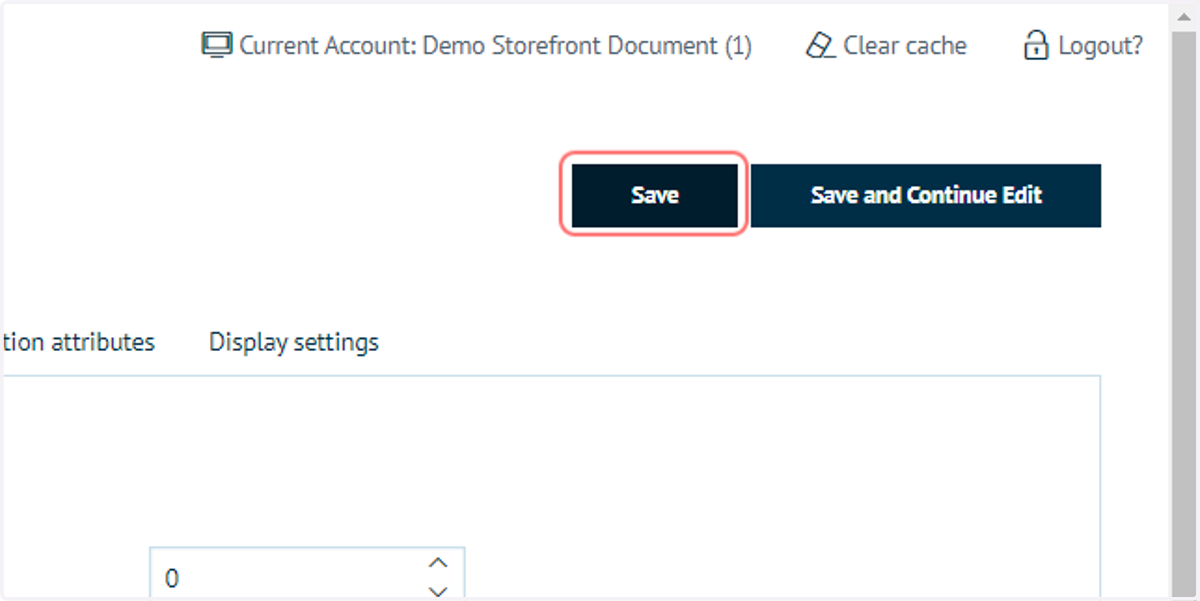
6. Click on Save
Infigosoftware
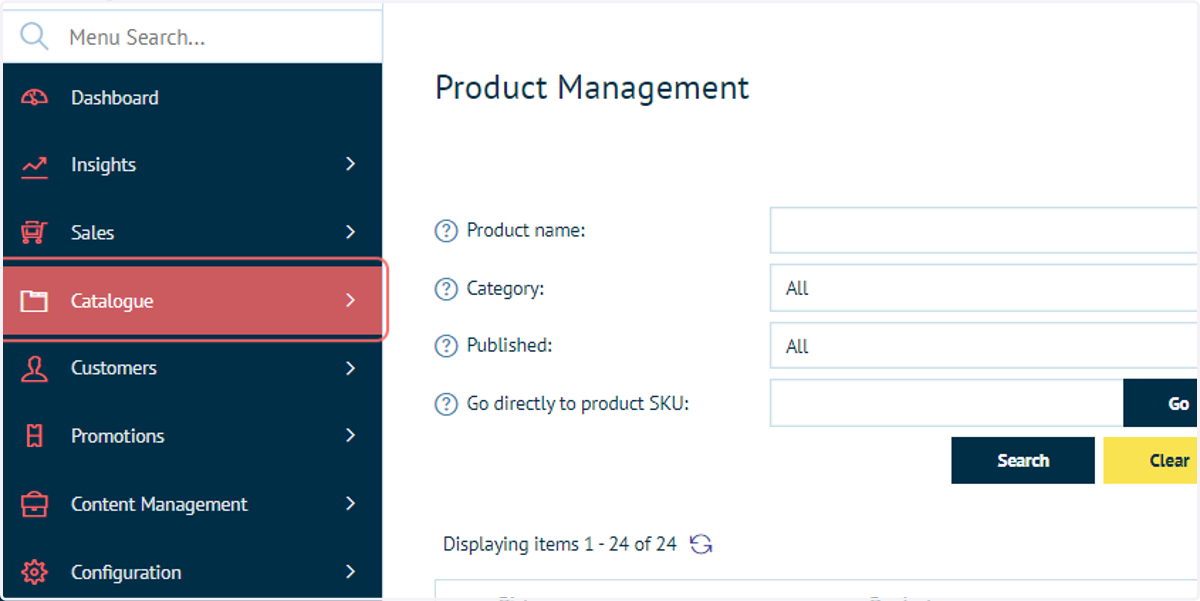
7. Click on Catalogue
Next, we will convert our newly created Stock product into a MegaEdit product type.
8. Click on Product Types
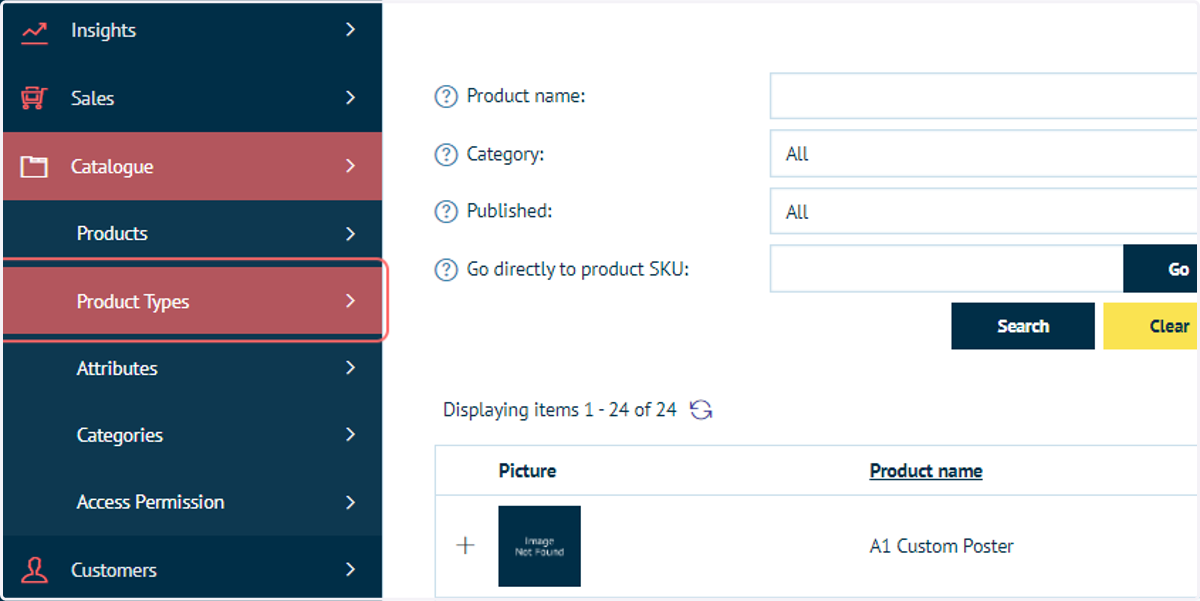
9. Click on MegaEdit
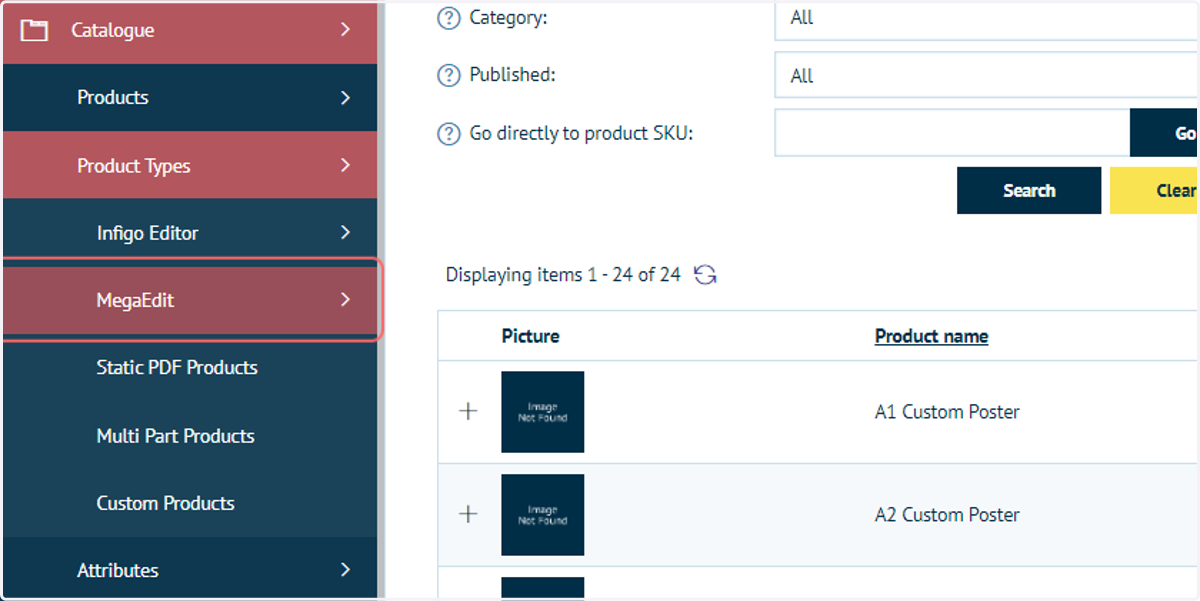
10. Click on MegaEdit Products
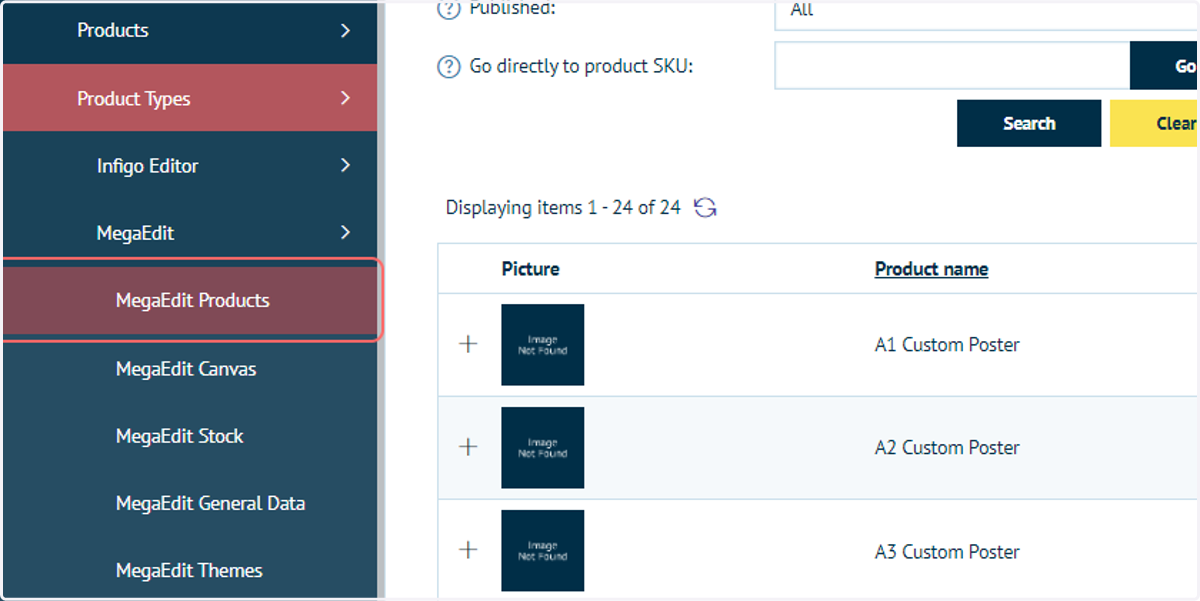
11. Click on Add new
This button allows you to define an existing Stock product as a MegaEdit product.
12. Select the product you wish to convert
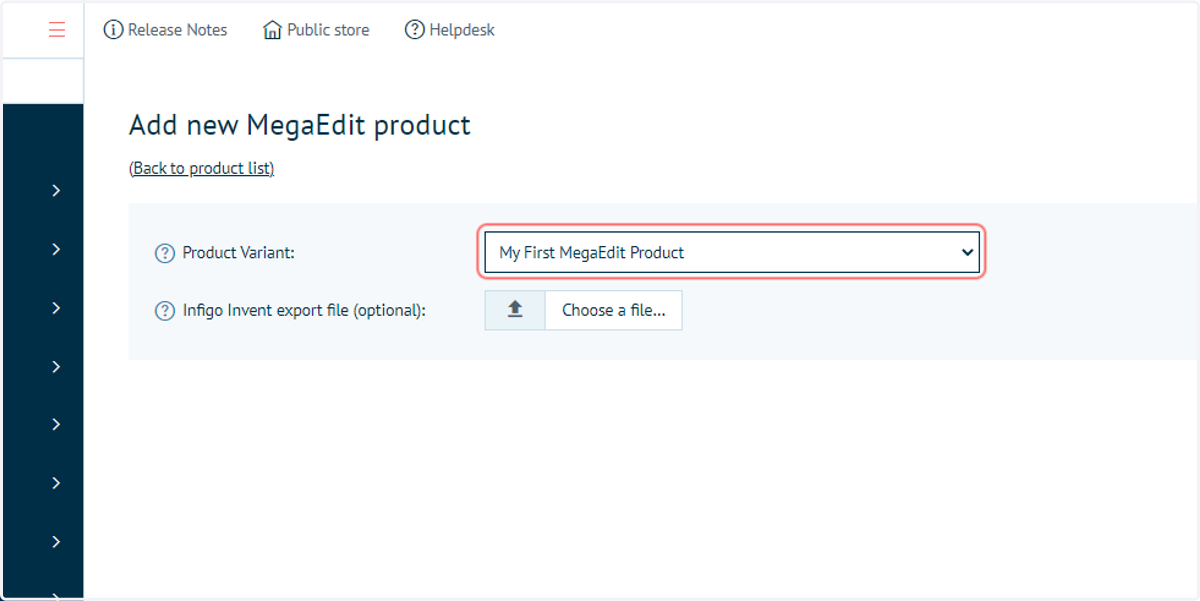
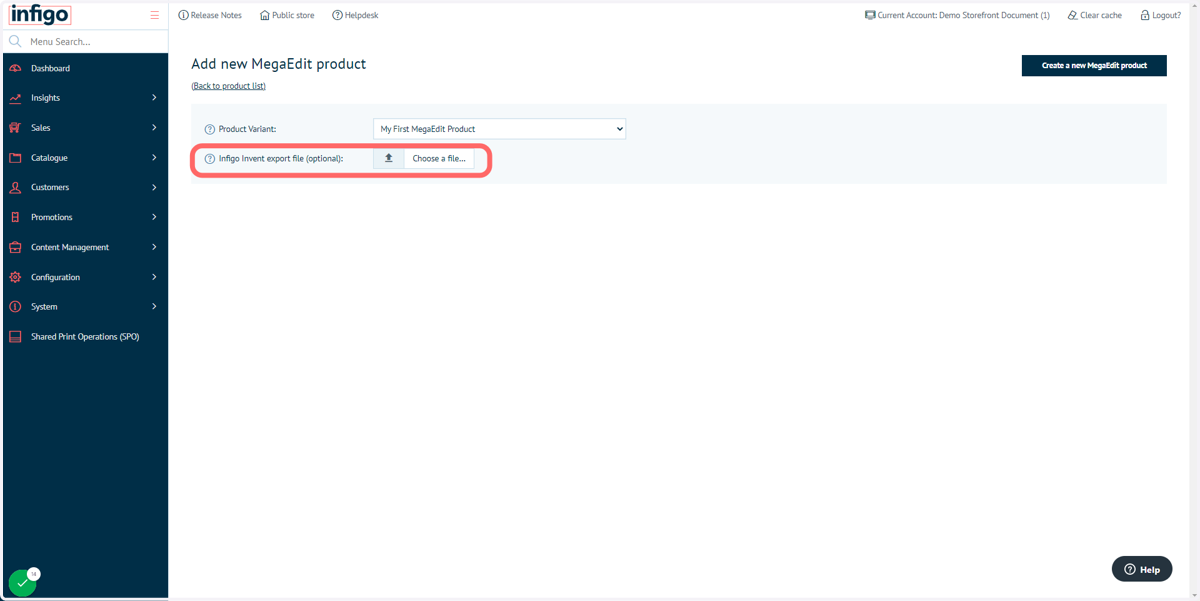
13. If using the Invent plugin to create configurable templates in Adobe InDesign, upload the resulting file here. In our example, we will not complete this field.
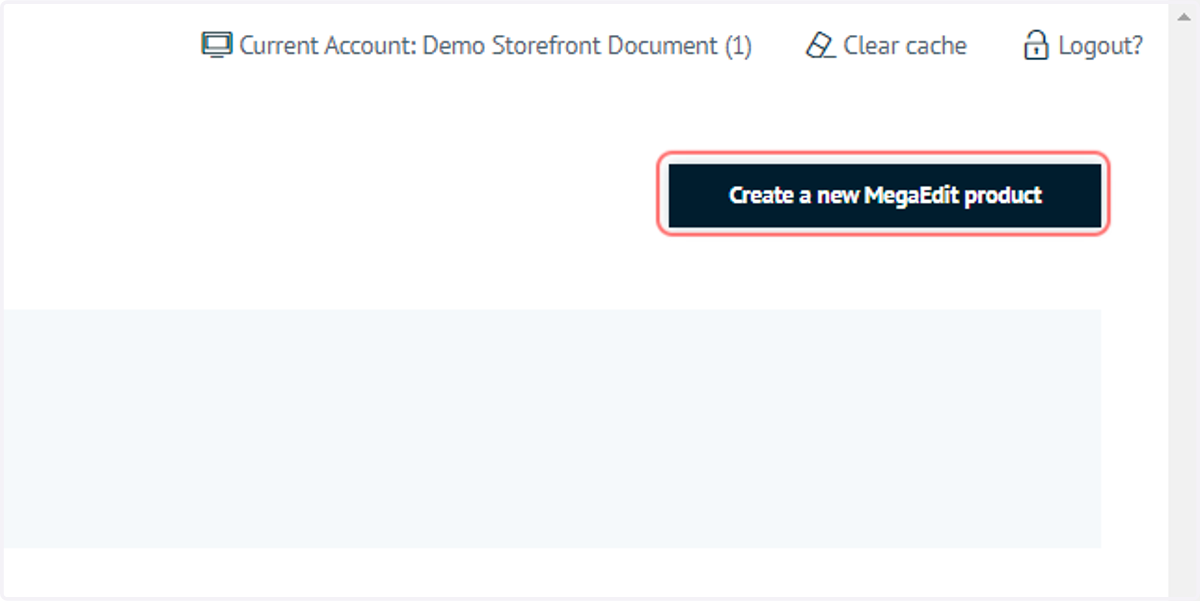
14. Click on Create a new MegaEdit product
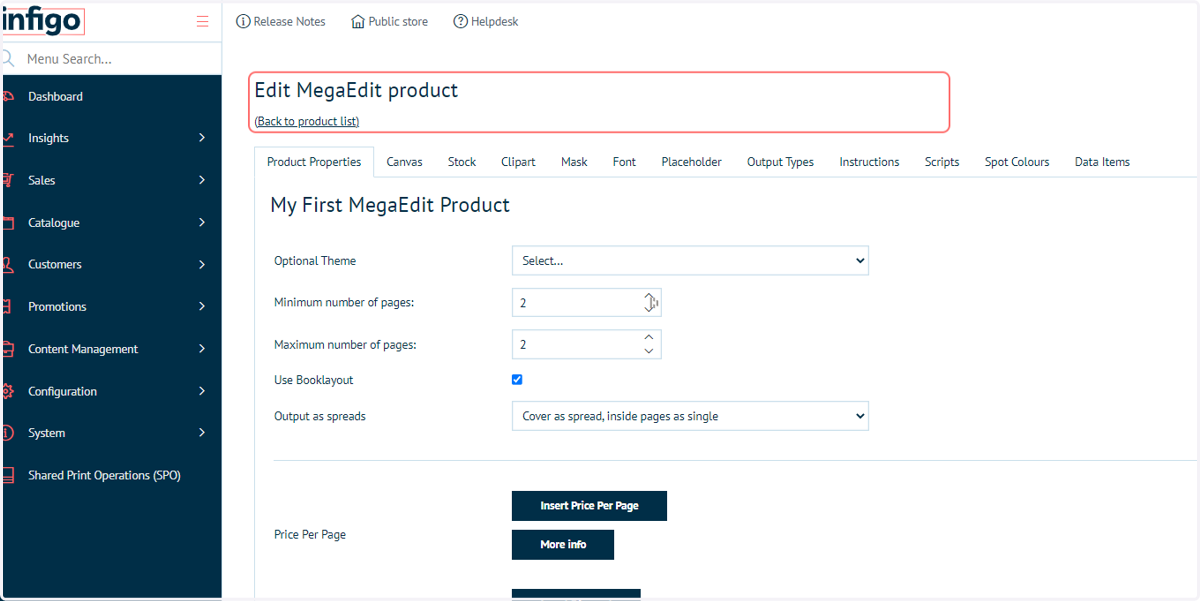
15. MegaEdit product options
Your product has now been converted to a MegaEdit product type.
A new screen will open allowing you to define MegaEdit detail. These will be covered in another tutorial.