MAC - How to Create a Discord Account and find Your Username
This Tango Guide will show you how to download and create a Discord account on Mac
Download for your Mac
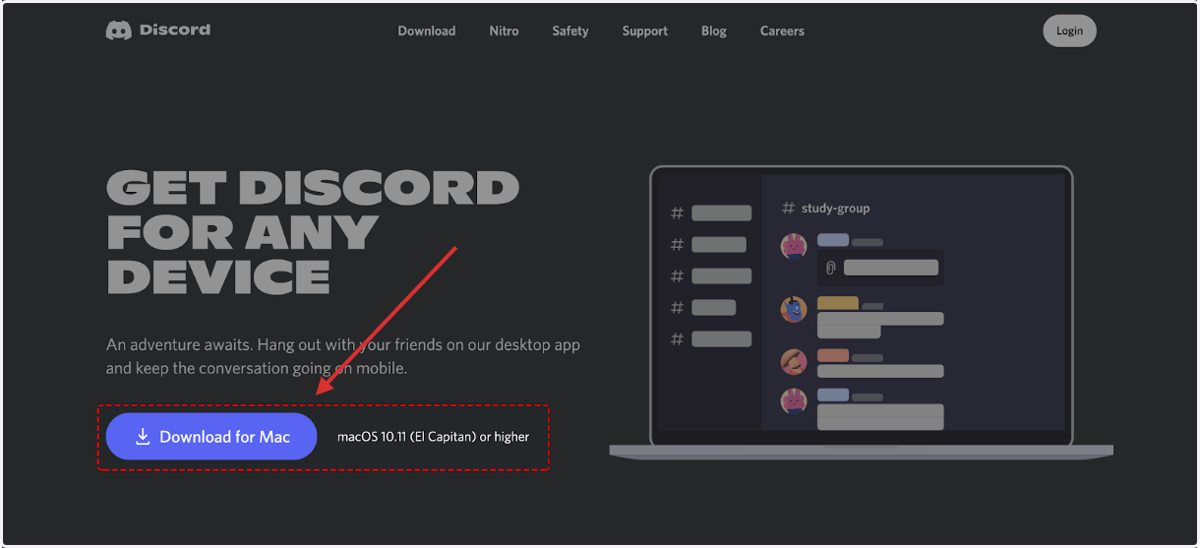
1. Select the Download button at the top.
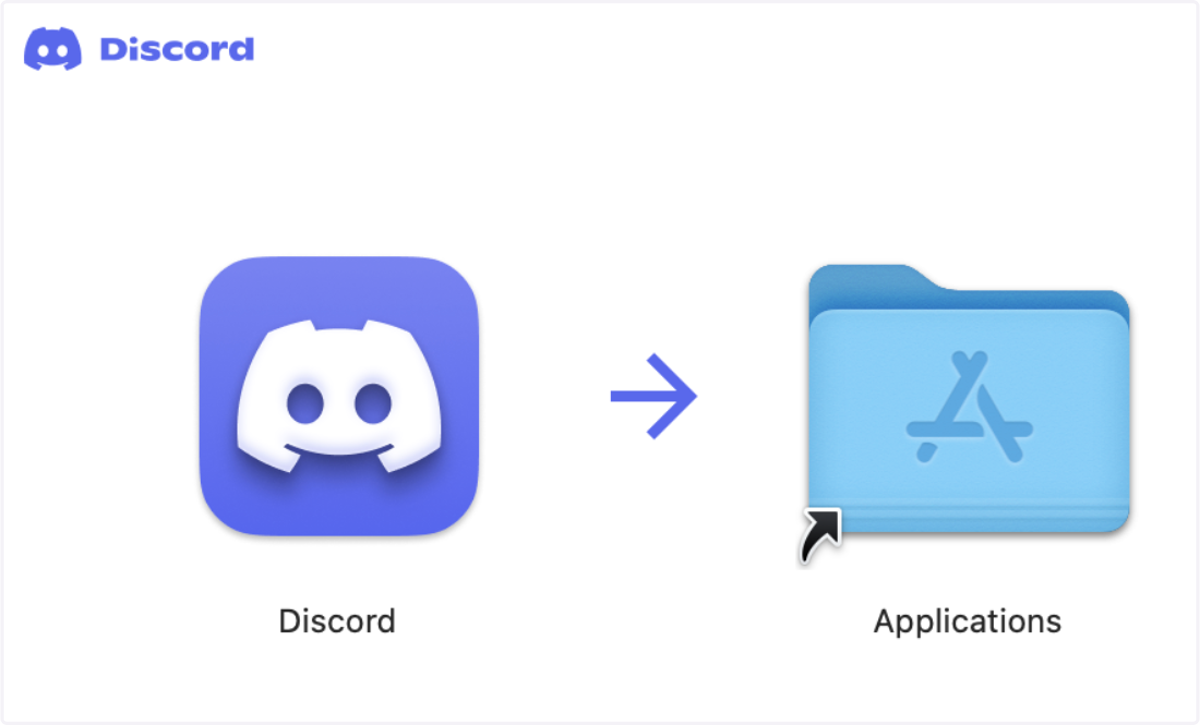
2. Open the Discord.dmg file and drag and drop the logo into the applications folder.
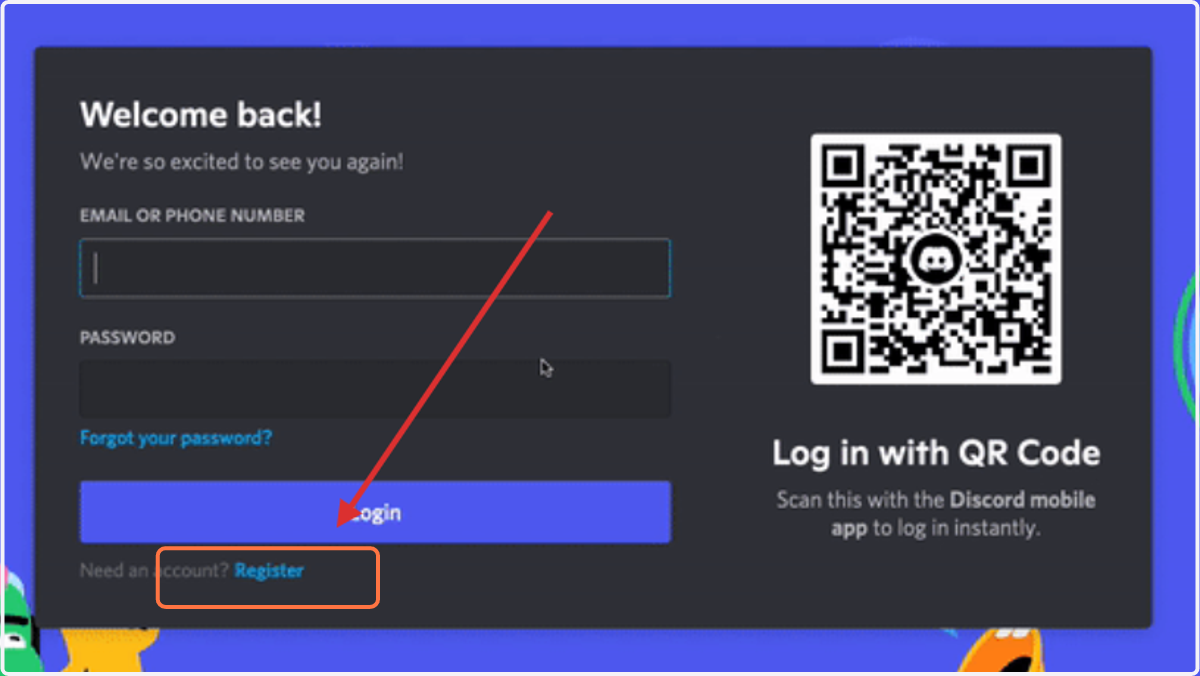
3. Open the app and click on register down underneath the Login button
4. Create your account by providing the information below.
Email:
Display name: (This is a name that everyone will recognize you as. You can make it your name, something important to you, or even a favorite color!)
Username:
Password:
DOB:
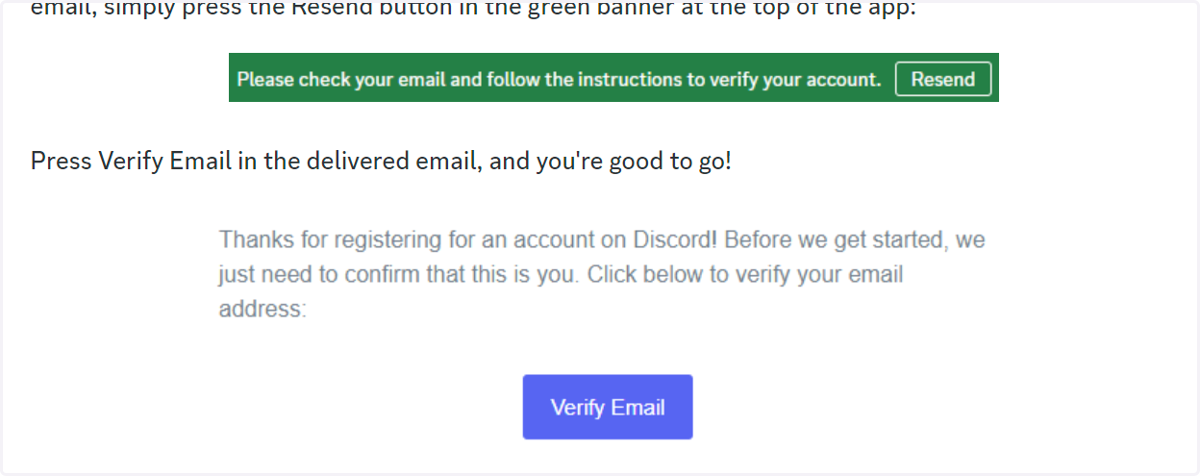
5. After registering, go to your email inbox and verify your email. Make sure to go to the inbox of the same email you used to register with.
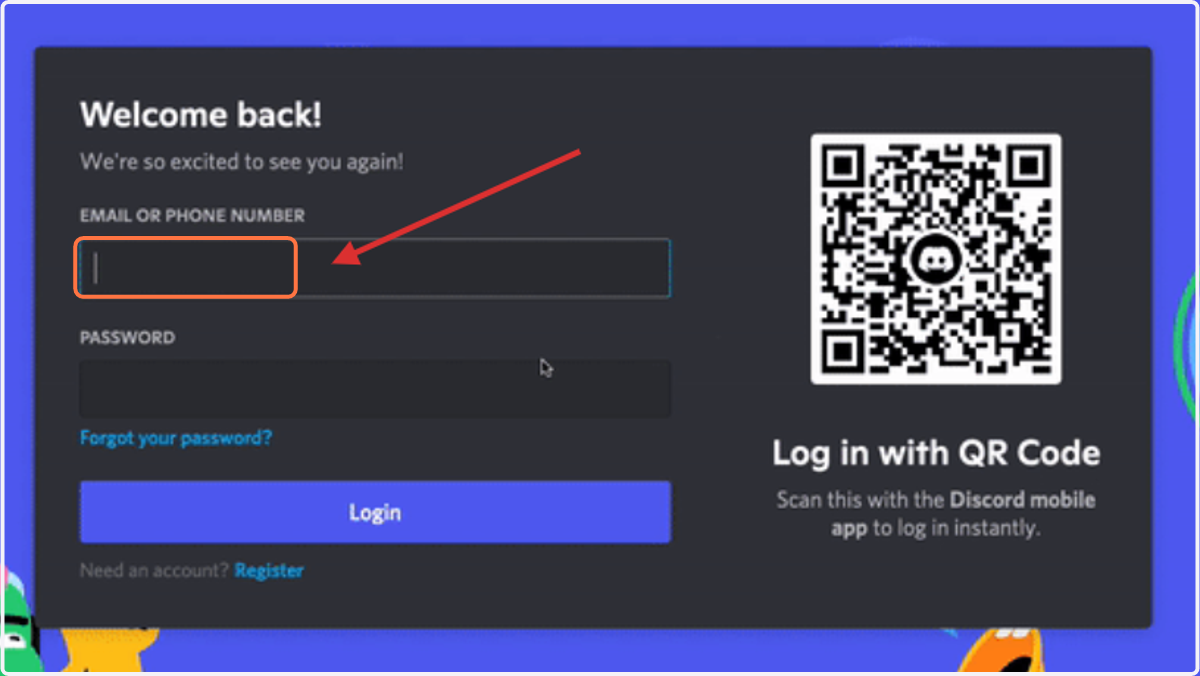
6. Login with your brand new account!
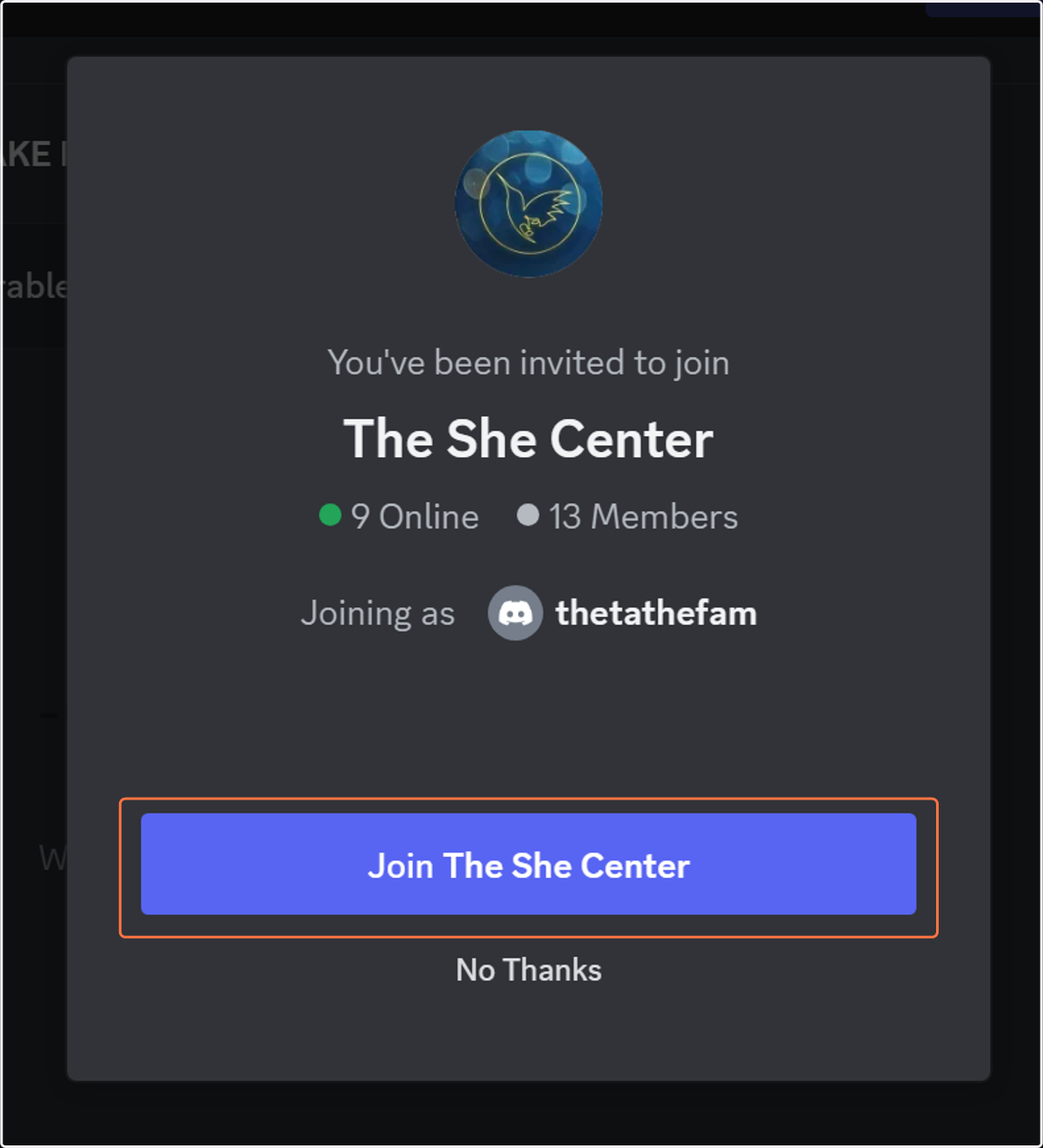
7. Join our Discord server after logging in!
8. If you see this, make sure to click complete and accept the rules of our server!
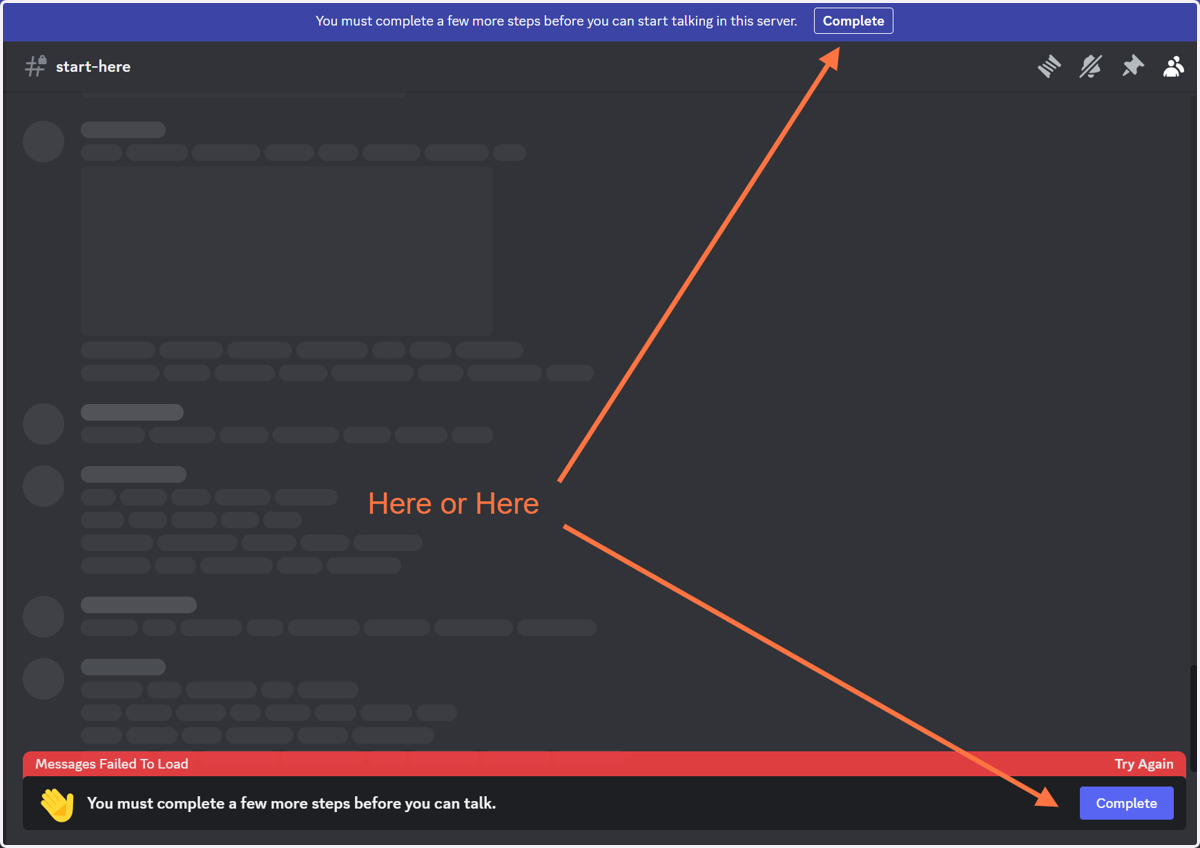
9. Click Try again if the message isn't loading!
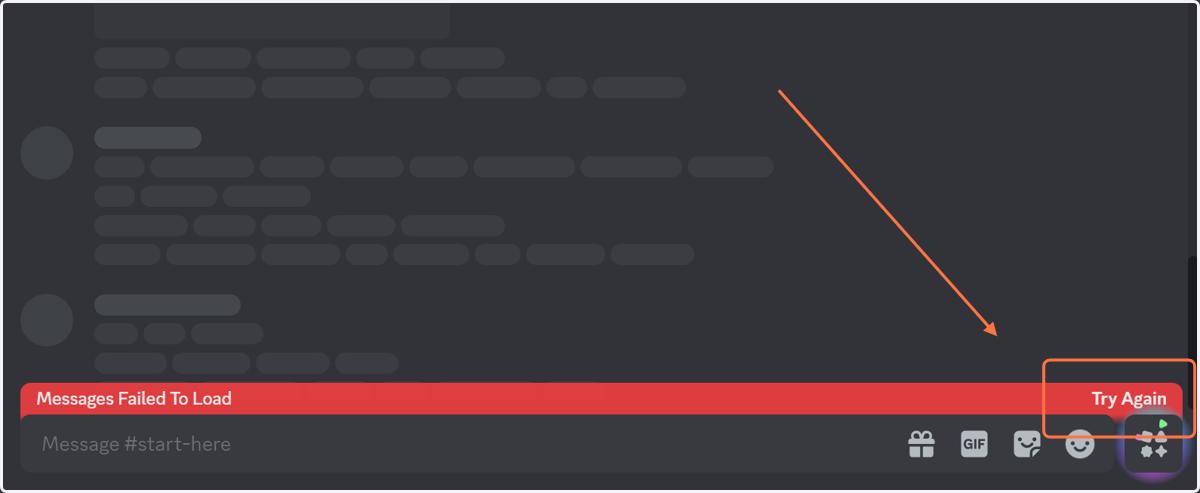
10. Read through our welcome message and fill out our discord form! The message on Discord will guide you on what to do next!
How to fill out our form!
11. If you need help finding your username, click on this button in our discord message!
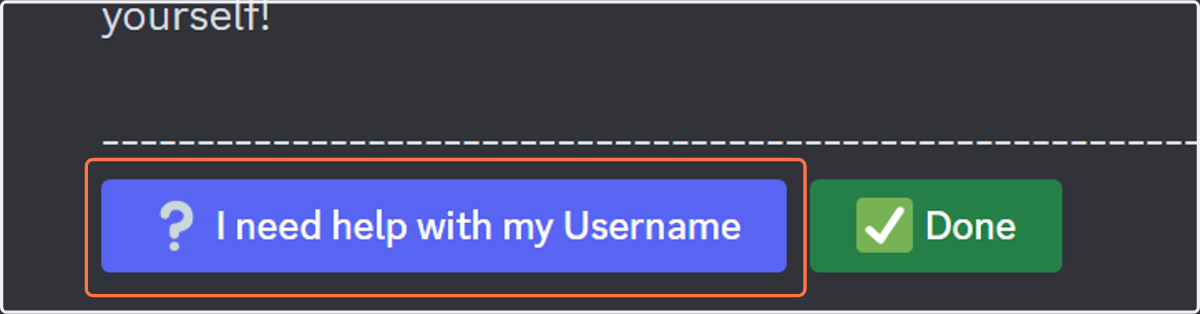
12. Click on the text Discord Form to open it in your browser!
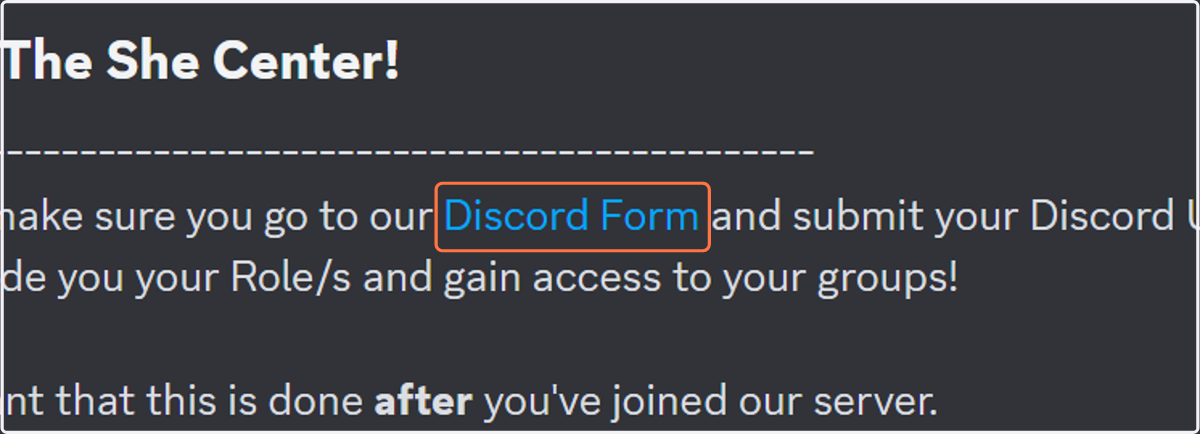
13. The form will look like this. Here's some help on what to fill out.
First Name: Your full First Name
Last Name: Your full Last Name. If you have 2 names, simply put a dash.
Email: The email address at which you receive emails from The She Center, to ensure we can connect your profile accurately.
Username: The Username provided to you via our message.
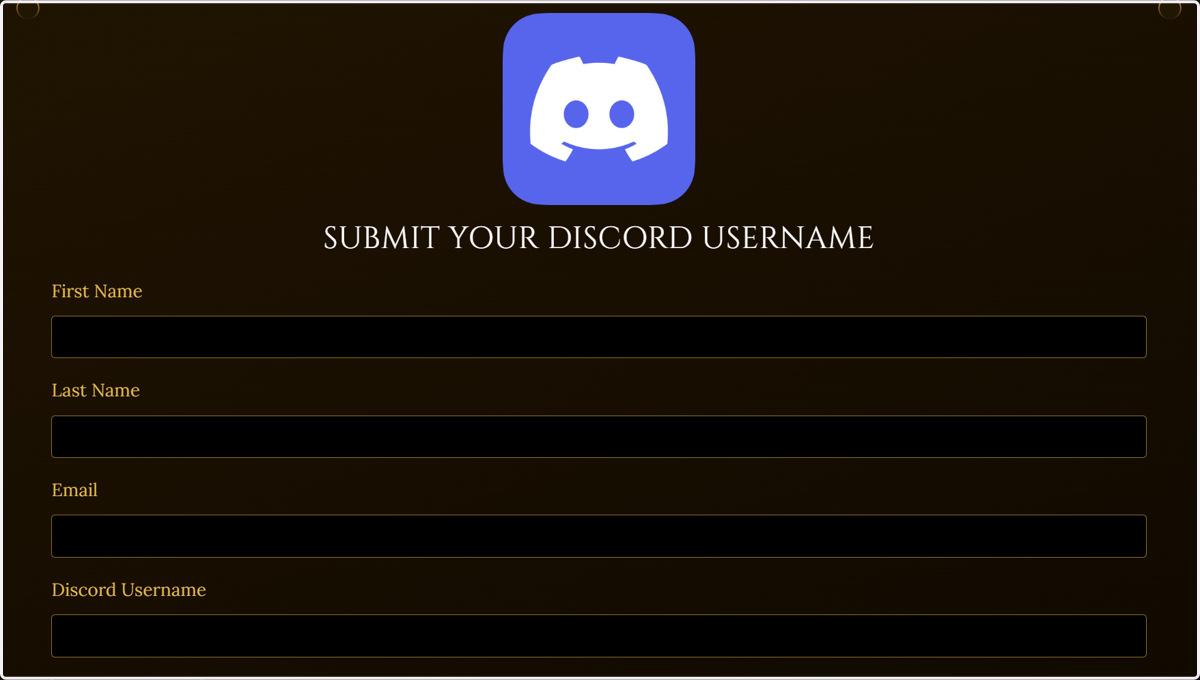
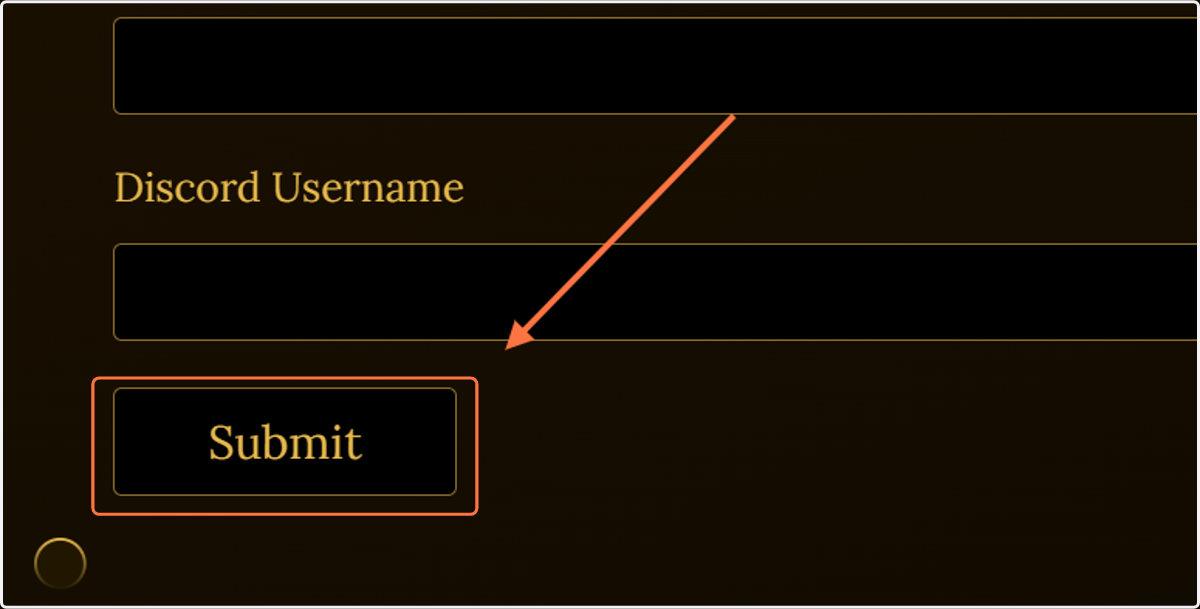
14. Once you're done, click Submit!