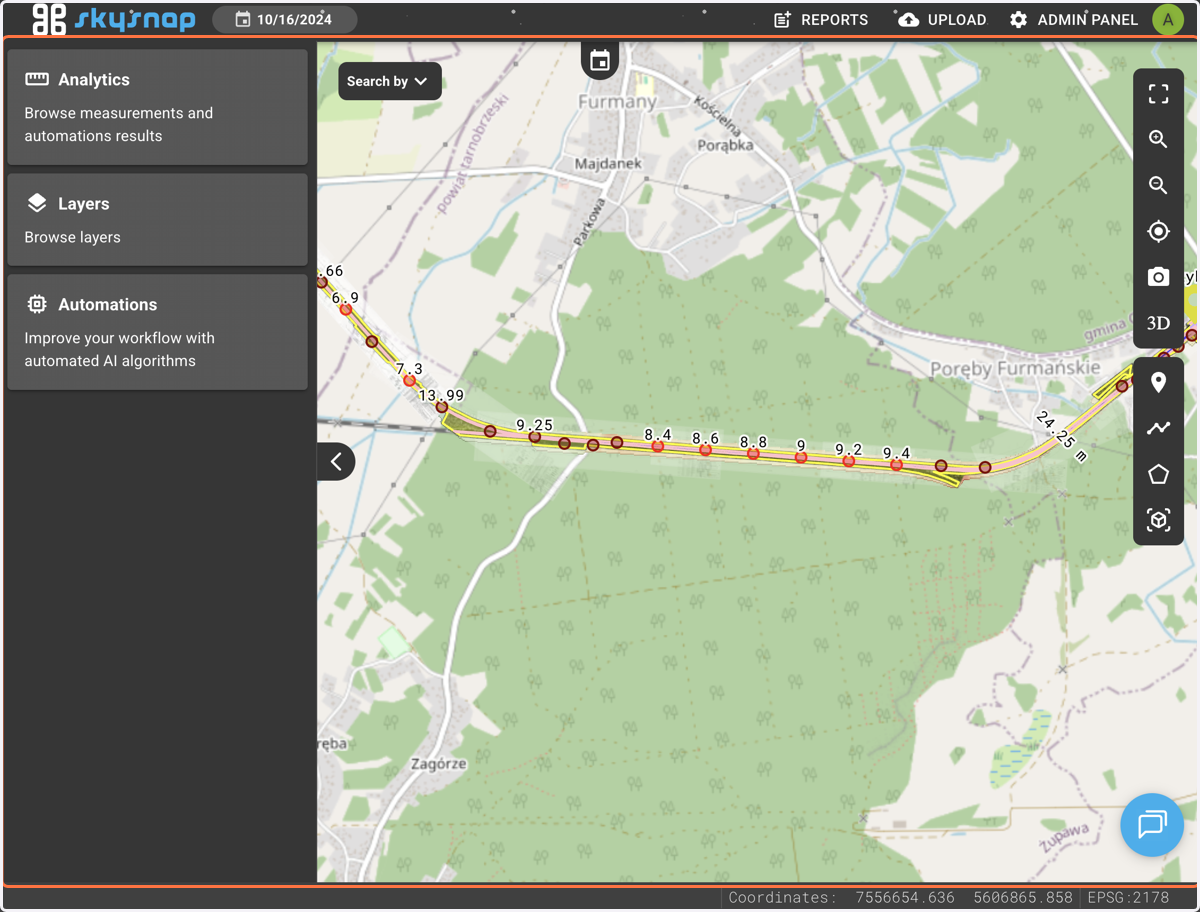
Login and overview of the "Demo" sites in the SkySnap Geoportal
Login and overview of the "Demo" sites in the Skysnap geoportal
1. Log in by selecting the "Sign in" button.
2. Site (Location) View Page
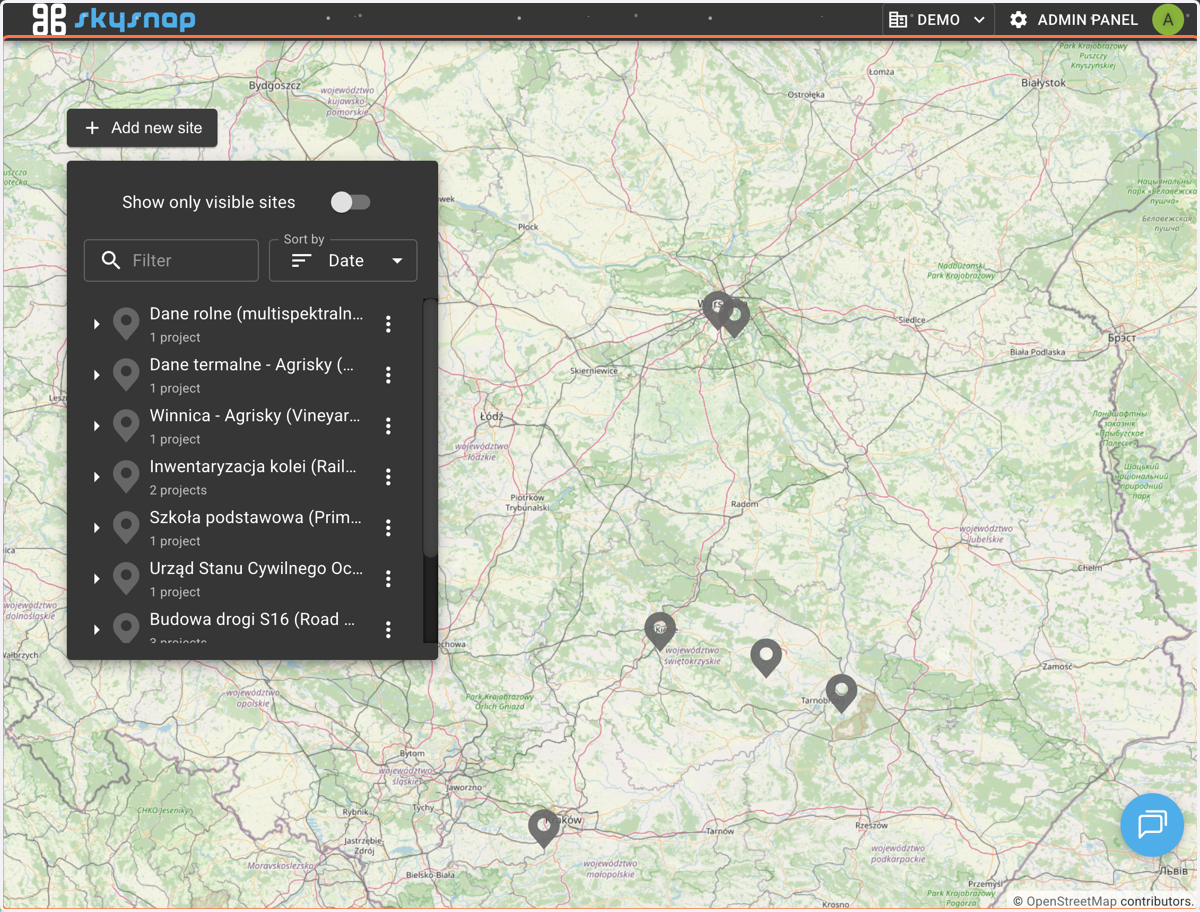
After logging in, you will be redirected to the site (location) view page.
By default, you are granted access to two organizations.
"DEMO" Organization – This organization allows you to review demo projects and check how the geo-portal works without the need to upload your own data.
NOTE: You have limited permissions in the DEMO organization, so some features are unavailable in this organization.
"[TRIAL DD_MM_YYYY] {Your Company Name}" Organization – This is an organization that only you have access to, and you can upload your own data here if you have any.
NOTE: You will lose access to this organization after the time specified during account creation (21 days) expires.
The navigation path for this organization is described in the guide "Creating your own project and data upload".
3. List of Sites (Locations)
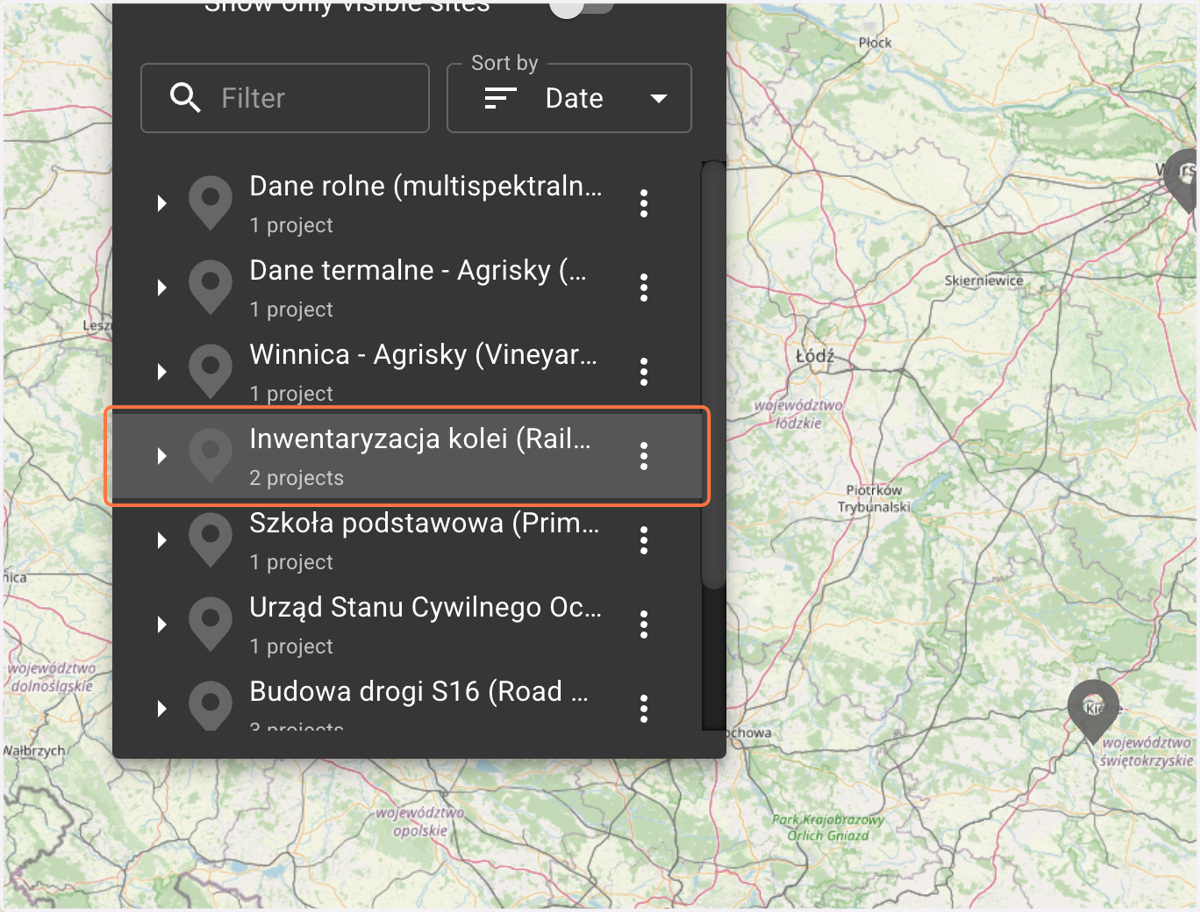
Within the DEMO organization, you receive access to 7 sites, including:
Budowa drogi S16 (Road construction S16) – This site showcases road construction monitoring, containing 3 projects with data including, but not limited to, an orthophoto map, PZT design, elevation rasters, the designed road model (KRZ), and a point cloud.
Kopalnia odkrywkowa (Open pit mine) – This is an open-pit mine, containing two projects (two sets of drone data collected at different times) illustrating completed earthworks.
Skład kruszywa (Aggregates) – This is an asphalt mixing plant. It contains 3 projects presenting photogrammetric data, which serves as the basis for calculating the volume of stored material.
To go to a site, click on its name.
4. Project Selection
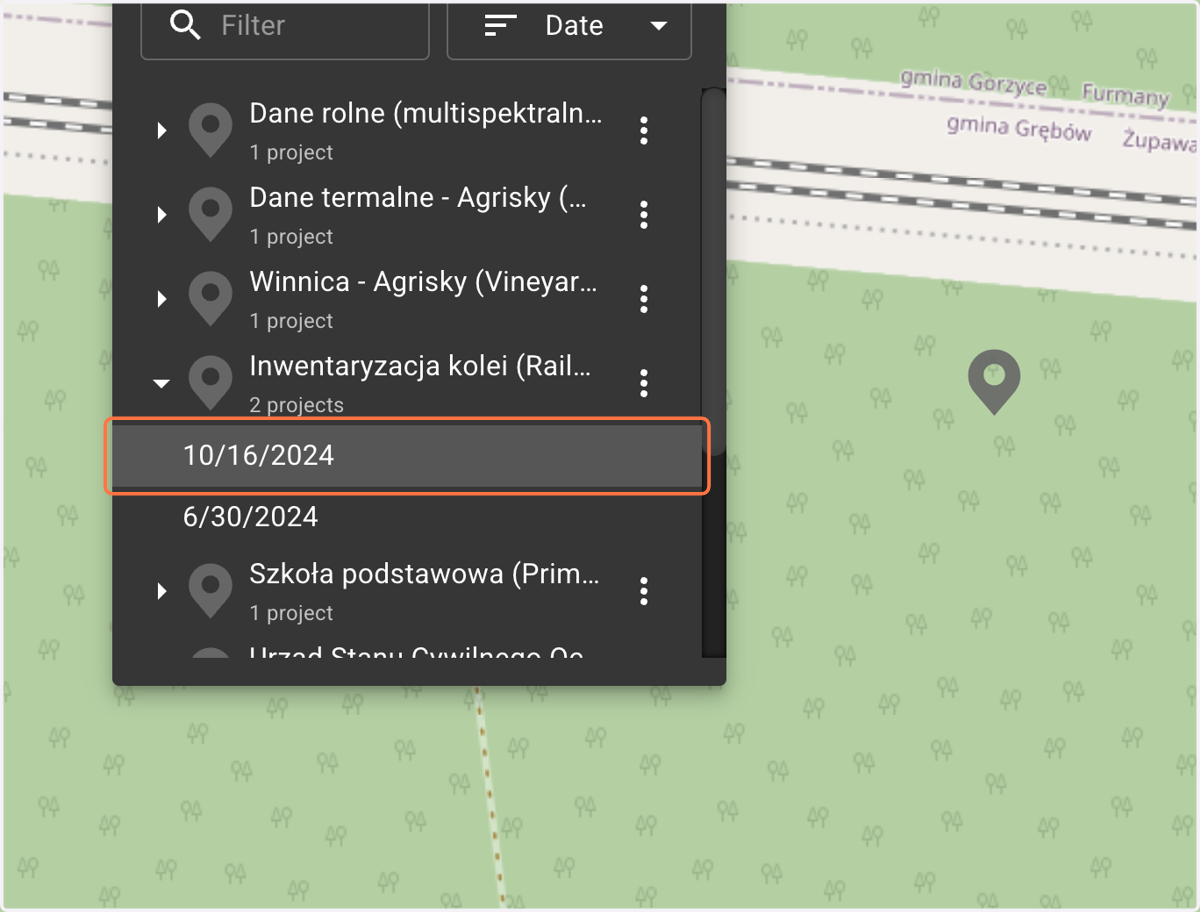
After clicking on the site, a list of projects is displayed. Upon selecting a specific project, the project view will open.
5. Project View
In the project view, you have the ability to directly review and analyze the imported data.