Logging in to an exam
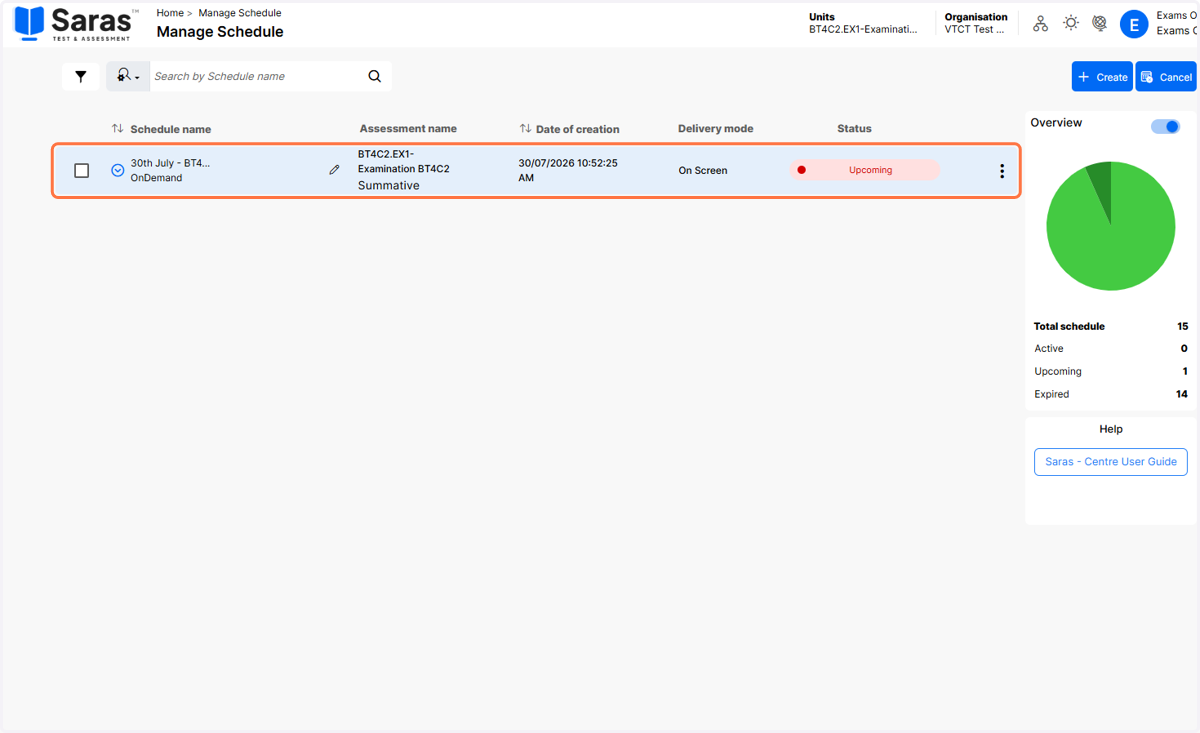
1. After scheduling an exam, you will need to retrieve the Access Code required to start the exam. Firstly, click on the schedule to expand the schedule details.
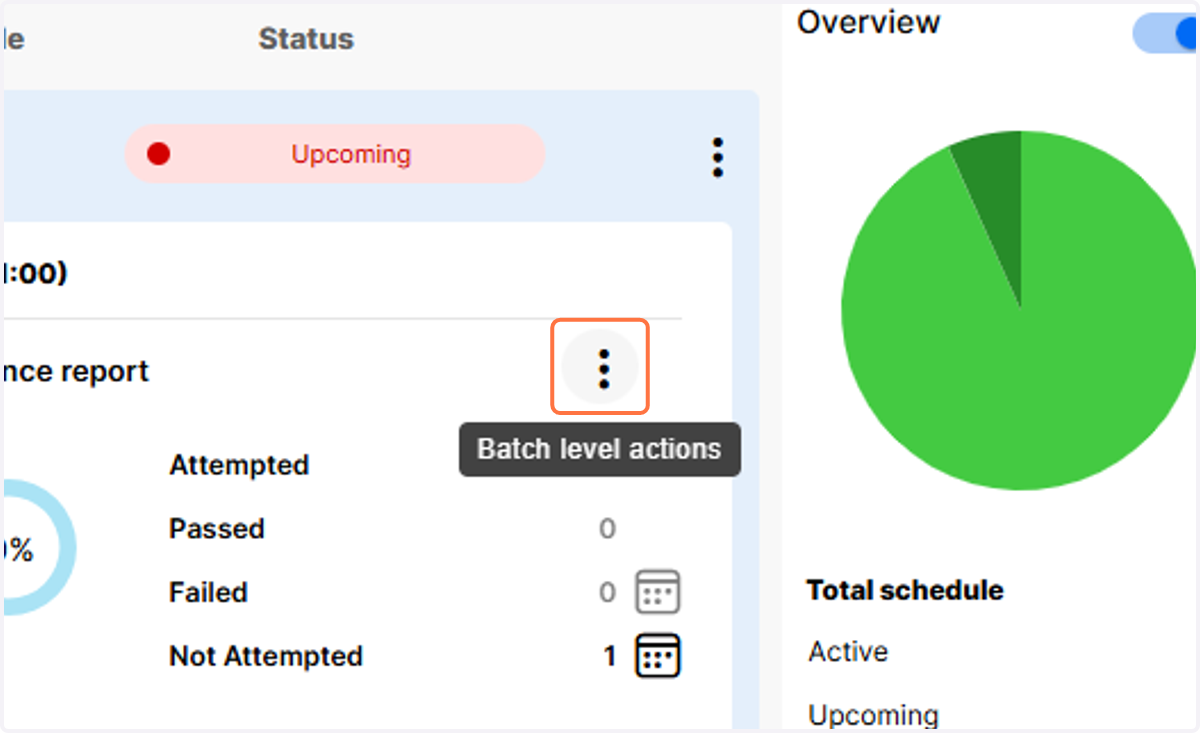
2. Click on the Batch level actions.
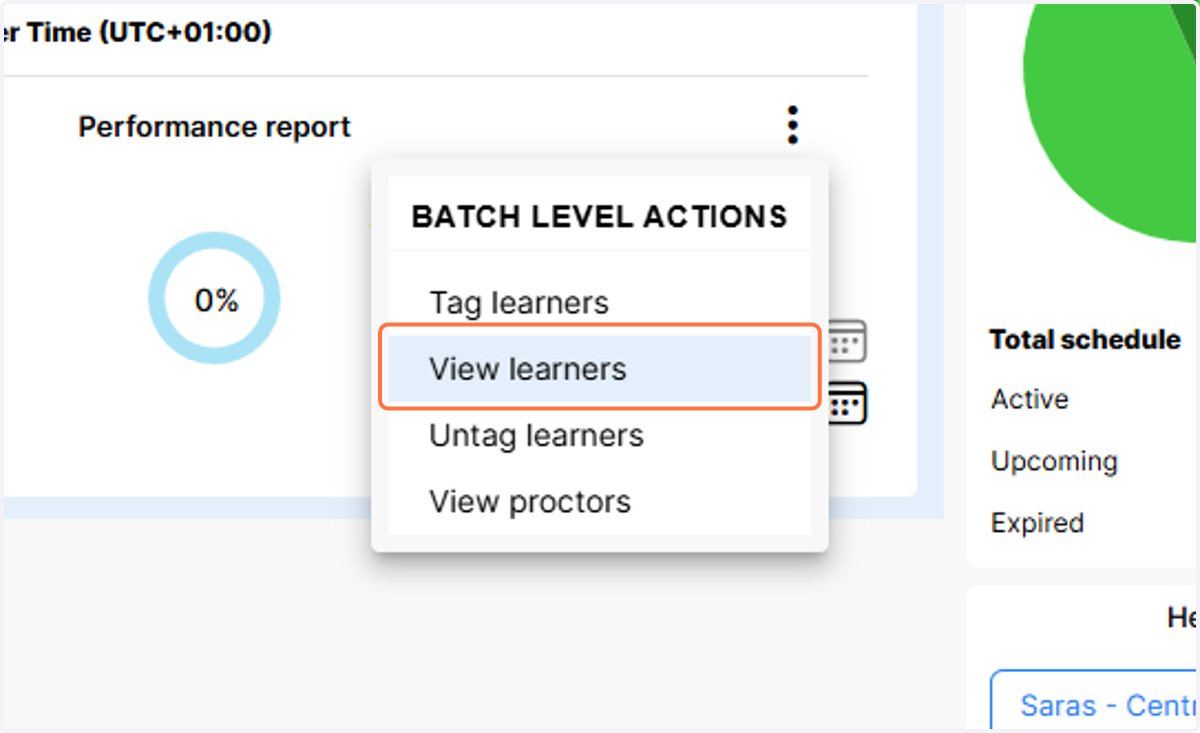
3. Click on View learners
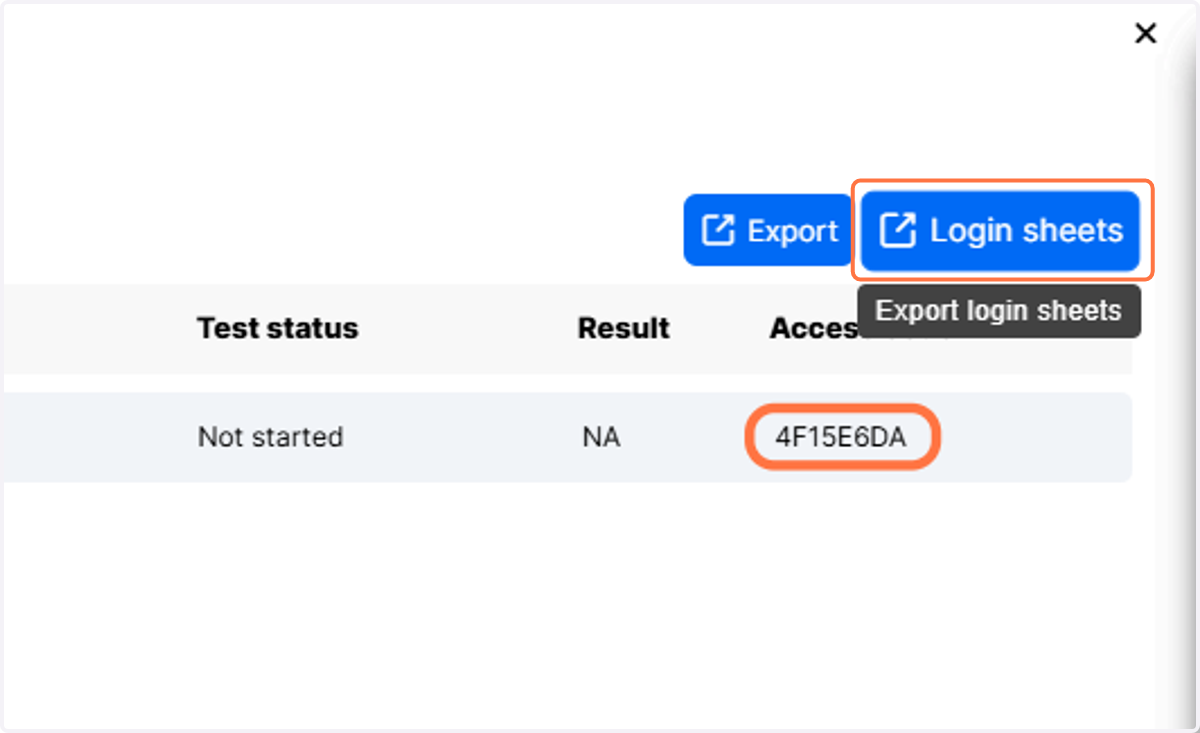
4. The learner will need to enter the Access Code located here in order to start the exam. Clicking on Login sheets will download a copy of the learner login sheet which also contains the learners User Name (learner number) and Access Code.
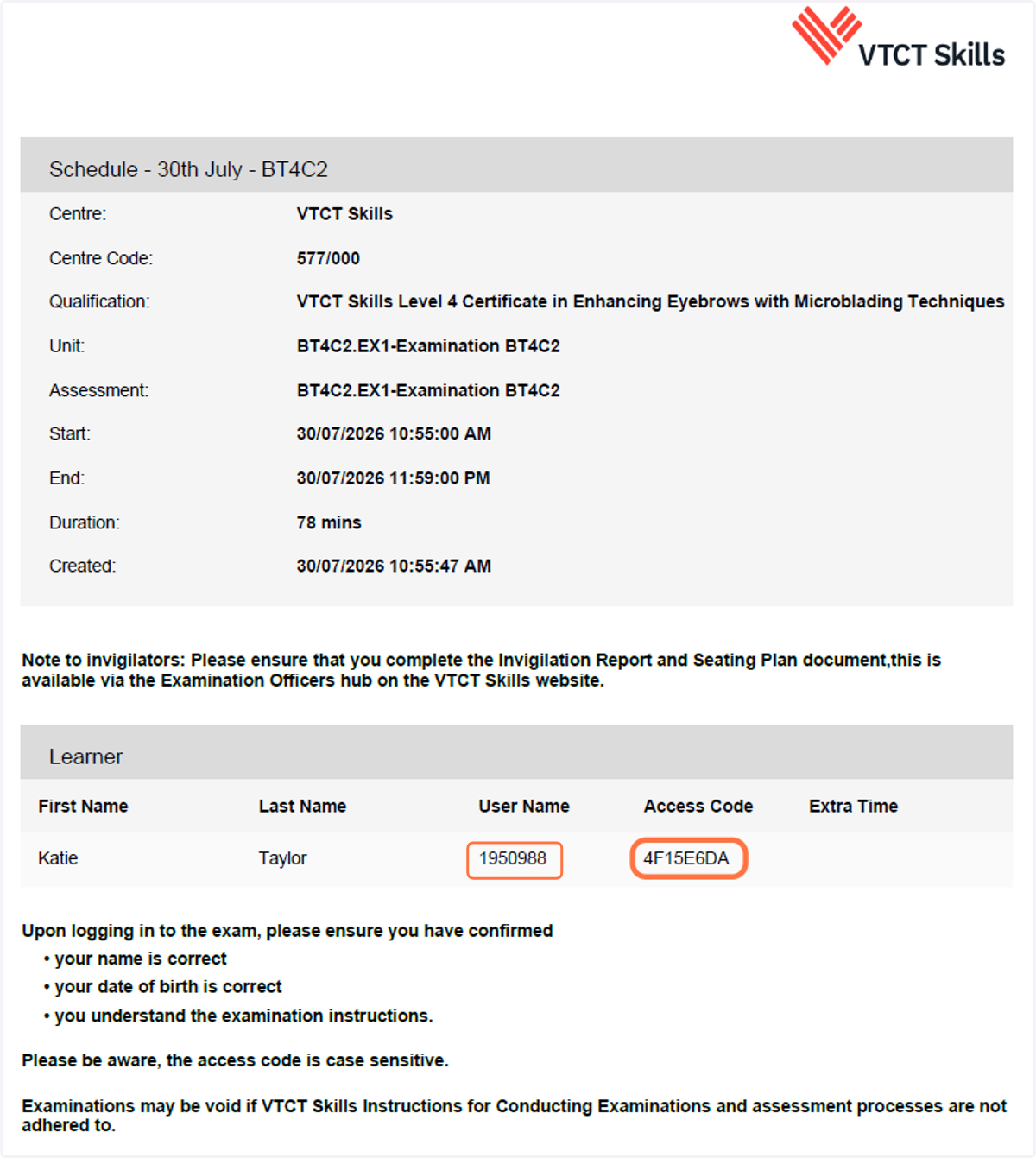
5. The learner log in sheet will look like the below. As you can see, the User Name (learner number) and Access Code are available alongside the learner name. The password to log in to Saras is not included on the login sheet, this is explained in Step 7.
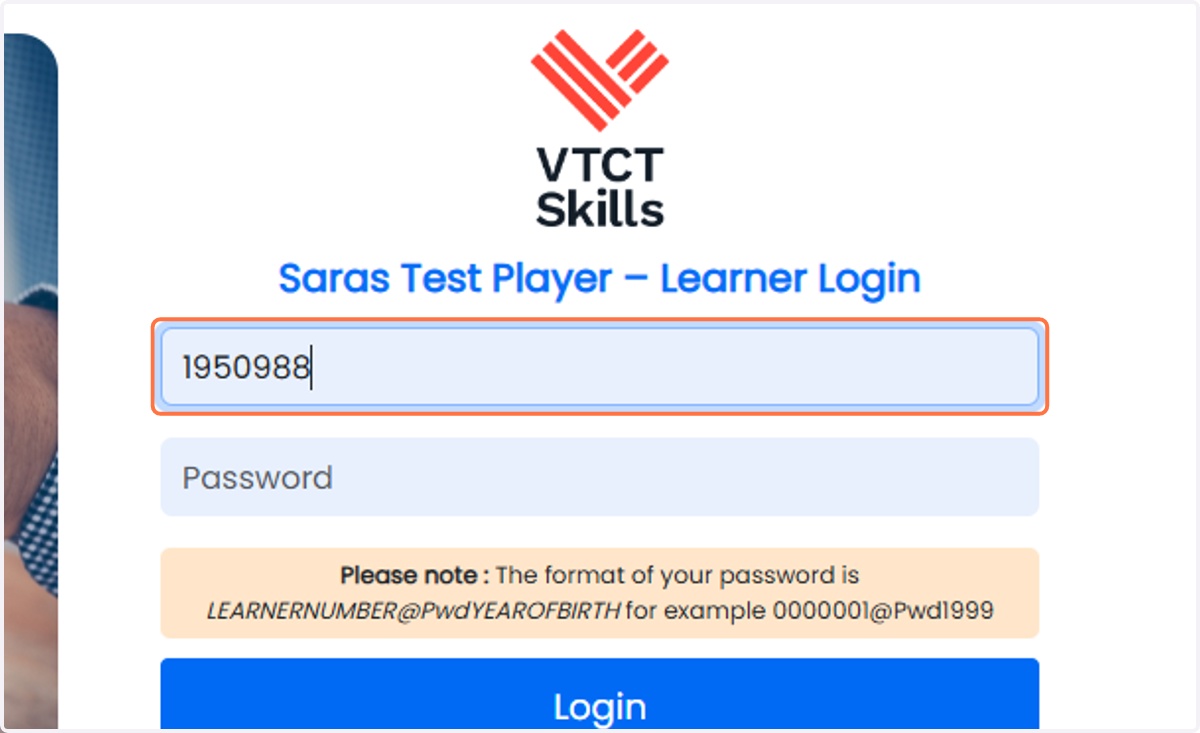
6. Once you have navigated to the Saras Test Player, the learner can enter the User Name included on their login sheet. The User Name is the learners VTCT Skills learner number.
As a reminder, the link to the Test Player is: https://assessments.vtctskills.org.uk/TNA/testplayer
7. The learner should now enter their password.
Please note: For security purposes, learner passwords are not included on the login sheets.
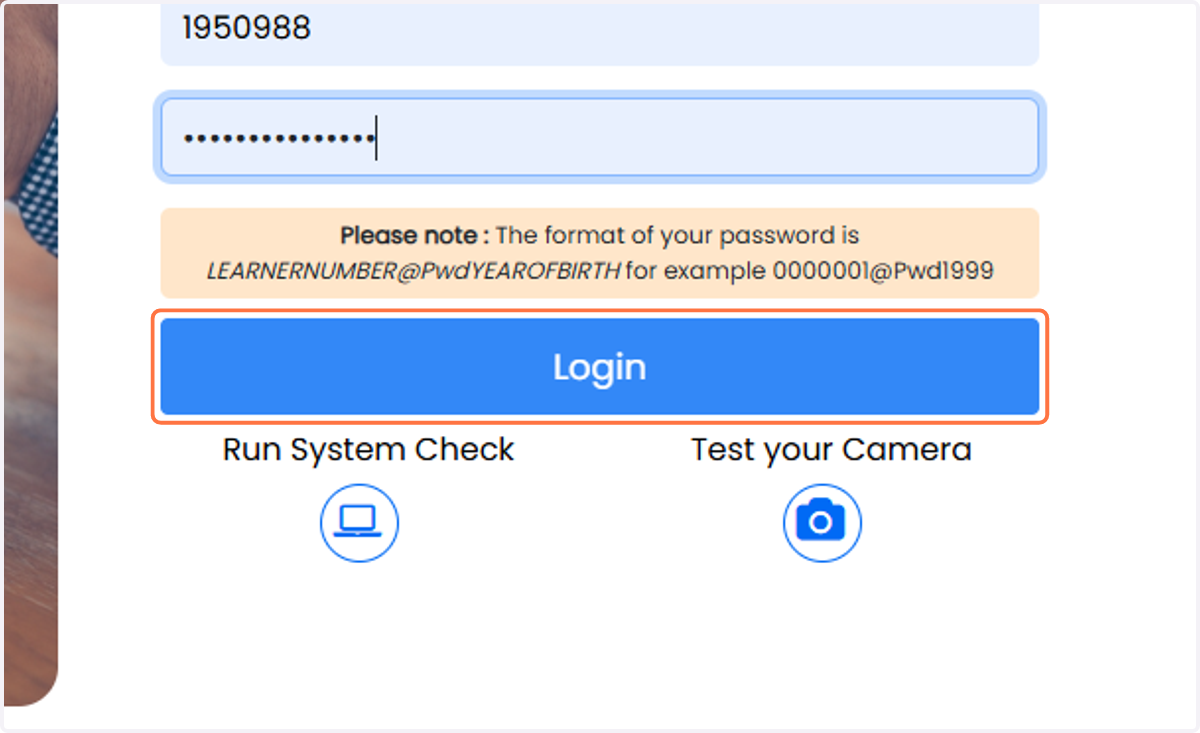
The format of every learners password is LEARNERNUMBER@PwdYEAROFBIRTH
For example, if the learner number (user name) is 0000001 and the learner was born in 1999, their password would be: 0000001@Pwd1999
The password format ensures passwords are not printed on paper and that the correct learner is logging in with the correct login details.
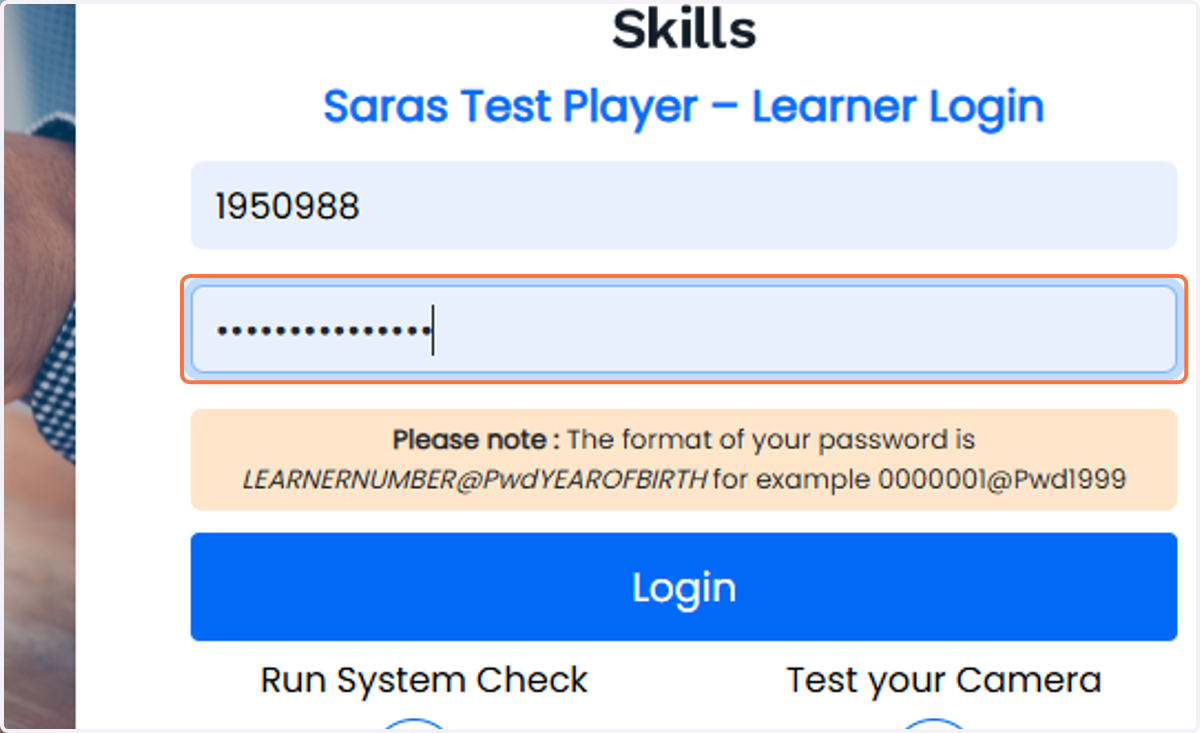
8. Once the User Name and Password have been entered, the learner can click on Login.
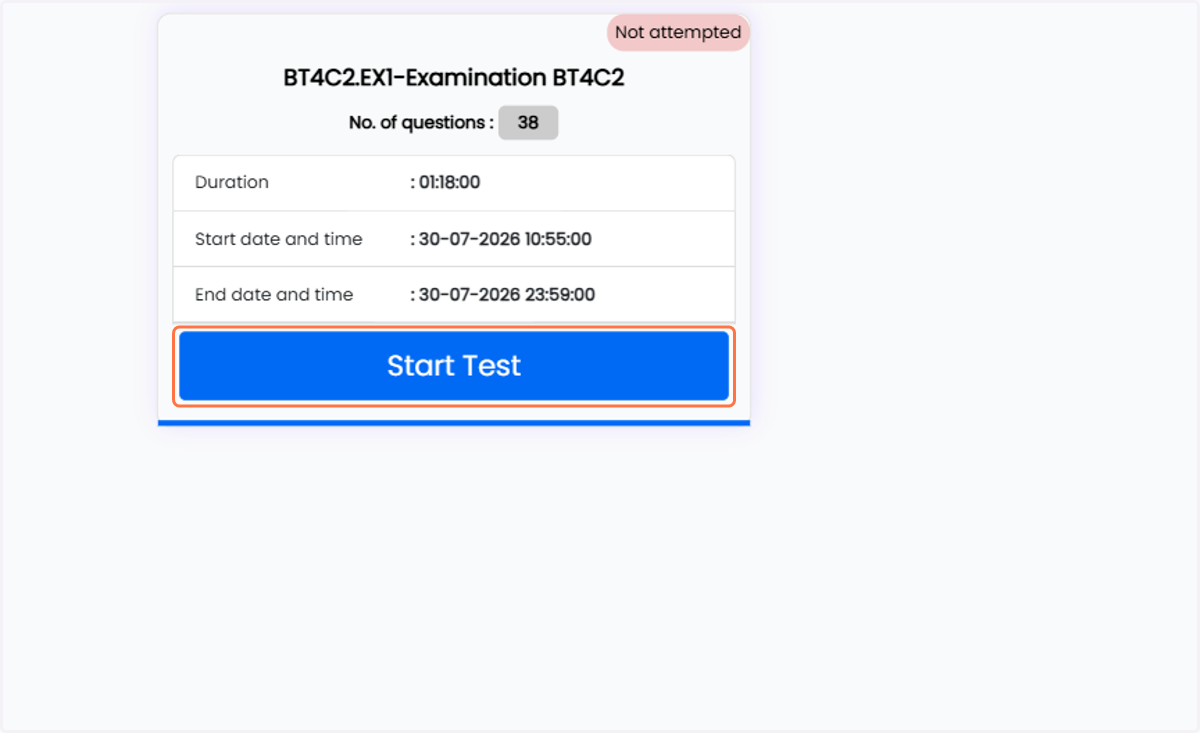
9. Upon logging in to the Test Player, learners will see their active exam schedules. Locate the correct exam and click on Start Test.
Please note: Active exam schedules are those that are scheduled on today's date where the start time has elapsed. If the learner does not see their exam, please check the start date and time.
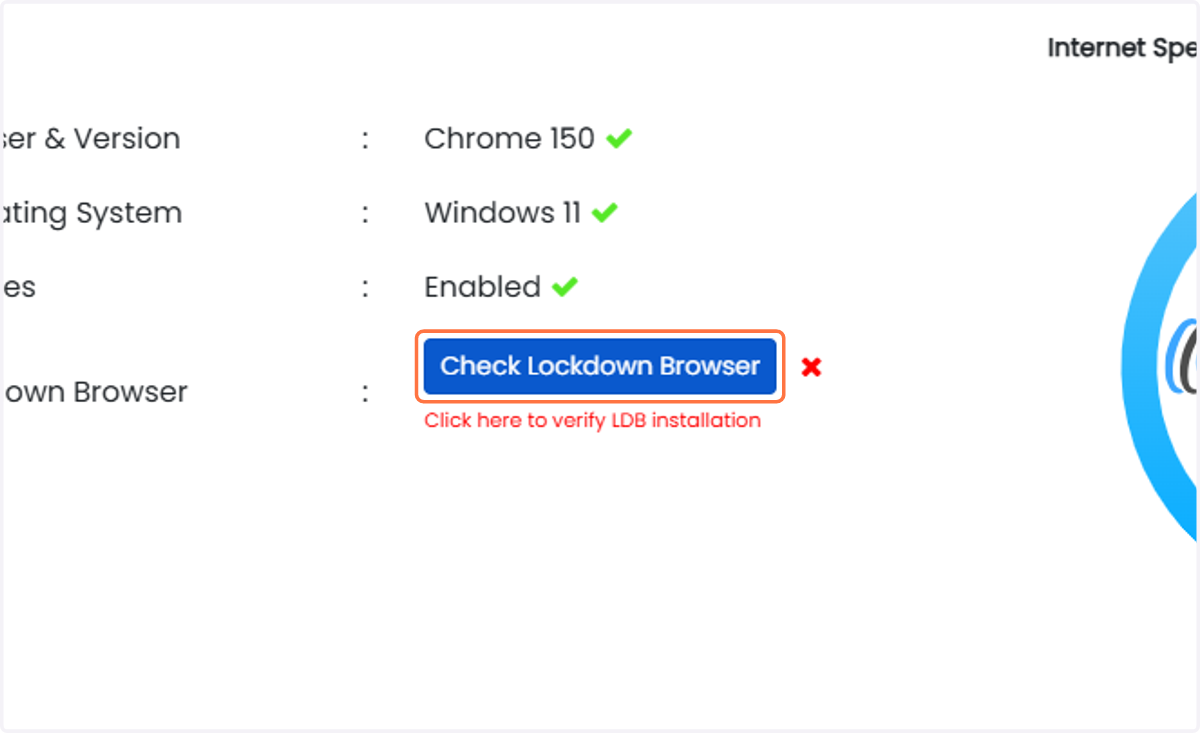
10. A short system compatibility check will begin to ensure the learners device is compatible. The majority of these checks will be conducted automatically, however learners will need to click Check Lockdown Browser to check that Lockdown Browser is installed.
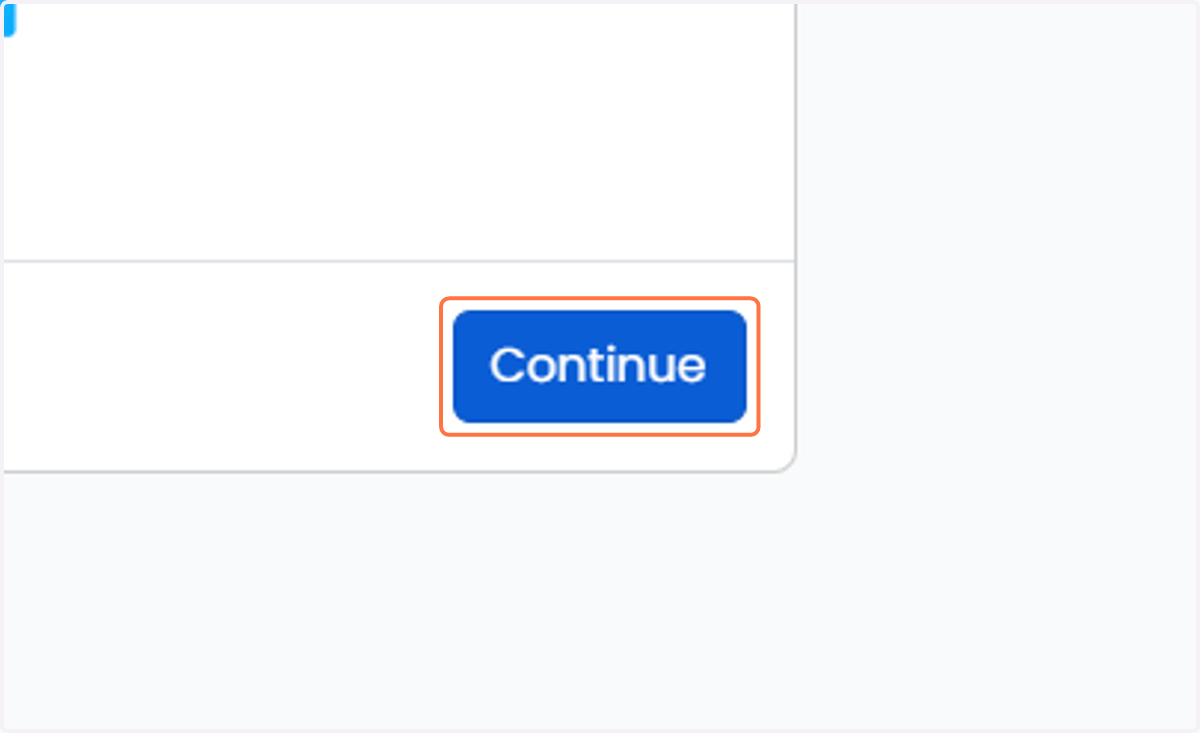
11. The learner can now click on Continue to launch the exam, this will also open the Lockdown Browser.
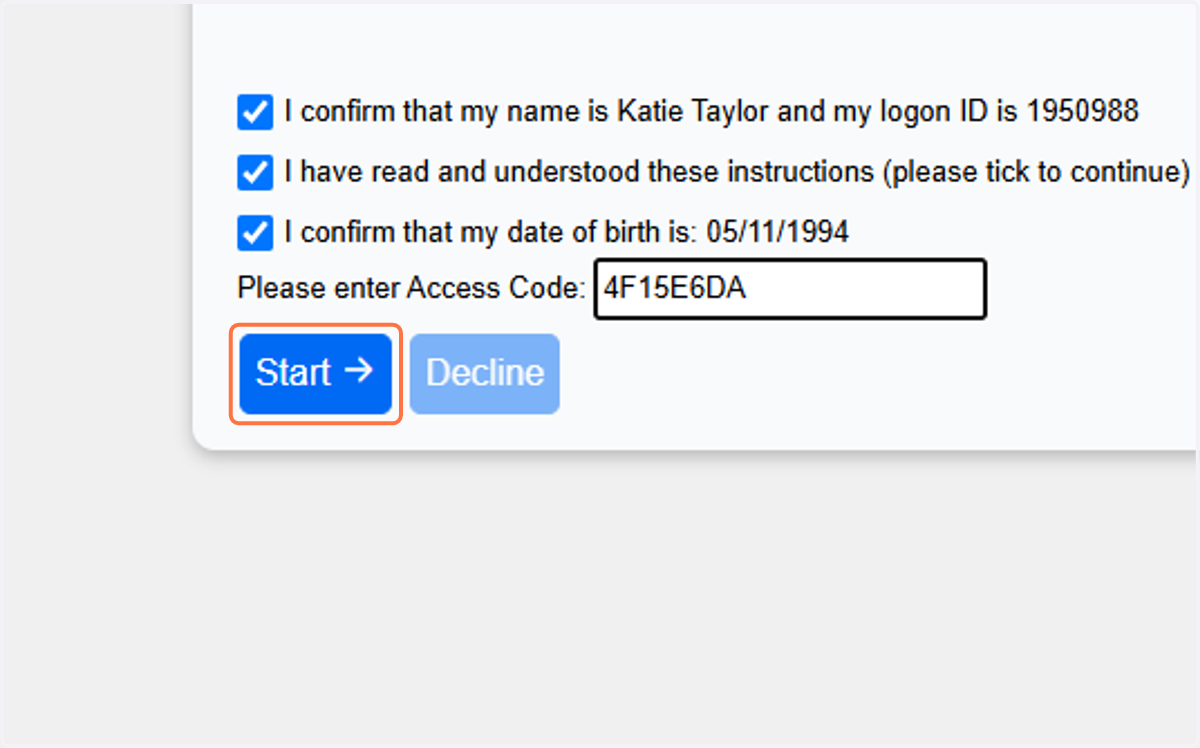
12. Prior to starting the exam, the learner will need to: A) Read the on-screen exam instructions B) Confirm the 3 declarations by clicking the check boxes C) Enter the Access Code contained on the login sheet. The learner can then press Start to begin the exam.